VISSPC3LB - Caméra de documents AVer - Free user manual and instructions
Find the device manual for free VISSPC3LB AVer in PDF.


User questions about VISSPC3LB AVer
0 question about this device. Answer the ones you know or ask your own.
Ask a new question about this device
Download the instructions for your Caméra de documents in PDF format for free! Find your manual VISSPC3LB - AVer and take your electronic device back in hand. On this page are published all the documents necessary for the use of your device. VISSPC3LB by AVer.
USER MANUAL VISSPC3LB AVer
FCC NOTICE (Class A)

This device complies with Part 15 of the FCC Rules. Operation is subject to the following two conditions: (1) this device may not cause harmful interference, and (2) this device must accept any interference received, including interference that may cause undesired operation.
Federal Communications Commission Statement
NOTE- This equipment has been tested and found to comply with the limits for a Class A digital device, pursuant to Part 15 of the FCC Rules. These limits are designed to provide reasonable protection against harmful interference in a residential installation. This equipment generates uses and can radiate radio frequency energy and, if not installed and used in accordance with the instructions, may cause harmful interference to radio communications. However, there is no guarantee that interference will not occur in a particular installation. If this equipment does cause harmful interference to radio or television reception, which can be determined by tuning the equipment off and on, the user is encouraged to try to correct the interference by one or more of the following measures:
- Reorient or relocate the receiving antenna.
- Increase the separation between the equipment and receiver.
- Connect the equipment into an outlet on a circuit different from that to which the receiver is connected.
- Consult the dealer or an experienced radio/television technician for help.
Class A ITE:
Class A ITE is a category of all other ITE which satisfies the class A ITE limits but not the class B ITE limits. Such equipment should not be restricted in its sale but the following warning shall be included in the instructions for use:
Warning - This is a class A product. In a domestic environment this product may cause radio interference in which case the user may be required to take adequate measures.
CE Class A (EMC)

This product is herewith confirmed to comply with the requirements set out in the Council Directives on the Approximation of the laws of the Member States relating to Electromagnetic Compatibility Directive 2004/108/EEC.
Warning - This is a Class A product. In a domestic environment this product may cause radio interference in which
case the user may be required to take adequate measures to correct this interference.
DISCLAIMER
No warranty or representation, either expressed or implied, is made with respect to the contents of this documentation, its quality, performance, merchantability, or fitness for a particular purpose. Information presented in this documentation has been carefully checked for reliability; however, no responsibility is assumed for inaccuracies. The information contained in this documentation is subject to change without notice.
In no event will AVer be liable for direct, indirect, special, incidental, or consequential damages arising out of the use or inability to use this product or documentation, even if advised of the possibility of such damages.
TRADEMARKS
AVerVision is registered trademarks of AVer Information Inc. IBM PC is a registered trademark of International Business Machines Corporation. Macintosh is a registered trademark of Apple Computer, Inc. Microsoft is a registered trademark and Windows is a trademark of Microsoft Corporation. All other products or corporate names mentioned in this documentation are for identification and explanation purposes only, and may be trademarks or registered trademarks of their respective owners.
COPYRIGHT
© 2012 by AVer Information Inc. All rights reserved. No part of this publication may be reproduced, transmitted, transcribed, stored in a retrieval system, or translated into any language in any form by any means without the written permission of AVer Information Inc.

THE MARK OF CROSSED-OUT WHEELED BIN INDICATES THAT THIS PRODUCT MUST NOT BE DISPOSED OF WITH YOUR OTHER HOUSEHOLD WASTE. INSTEAD, YOU NEED TO DISPOSE OF THE WASTE EQUIPMENT BY HANDING IT OVER TO A DESIGNATED COLLECTION POINT FOR THE RECYCLING OF WASTE ELECTRICAL AND ELECTRONIC EQUIPMENT. FOR MORE INFORMATION ABOUT WHERE TO DROP OFF YOUR WASTE EQUIPMENT FOR RECYCLING, PLEASE CONTACT YOUR HOUSEHOLD WASTE DISPOSAL SERVICE OR THE SHOP WHERE YOU PURCHASED THE PRODUCT.
Battery Safety Information
- Store the batteries in a cool dry place.
- Do not dispose of used batteries in domestic waste. Dispose of batteries at special collection points or return to point of sale if applies.
- Remove the batteries during long periods of non-use. Always remove exhausted batteries from the remote control. Battery leakage and corrosion can damage this remote control, dispose of batteries safely.
- Do not mix old and new batteries.
- Do not mix different types of batteries: alkaline, standard (carbon-zinc) or rechargeable (nickel-cadmium).
- Do not dispose of batteries in a fire. The batteries may explode or leak.
- Never short circuit the battery terminals.
Table of Contents
Introduction .... 1
Package Contents....1
Optional Accessories....1
AVerVision SPB350+ Parts 2
Making the Connections.... 3
Connecting a VGA, Mac Monitor or LCD/DLP Projector 4
Connecting a Monitor or LCD/DLP Projector with DVI interface 5
Connecting a TV 5
Connecting the Power Adapter....6
Connecting a Computer 6
Connecting a Computer via USB Connection 6
Inserting and Ejecting a SD Card 7
Setting Up SPB350+ 7
Arm....7
Camera Head....7
Overhead Light 8
Infrared Sensor 8
Light Box 8
Anti-glare....8
Microscope Connection 9
Control Panel Light Color....9
Using the Infrared Remote Control.... 10
Touch Button Control Panel 12
Using AVerVision SPB350+ as a Mass Storage.... 13
OSD Navigation Tree 14
Menu Functions 15
Technical Specifications.... 18
Using the RS-232 Interface 19
RS-232C Diagram Connection 19
RS-232C Cable Spec.... 19
RS-232C Transmission Spec....19
RS-232C Communication Format.... 19
Send Command Format: 19
Set Value Format: 20
Get Value Format: 21
Troubleshooting.... 21
Limited Warranty....22
Introduction
Thank you for purchasing the AVerVision SPB350+. This interactive visualizer displays documents, negatives, transparencies and 3D objects onto a TV, LCD or DLP projector making demonstrations a snap.
The advanced features of the AVerVision SPB350+ make it a versatile and multi-functional product. Integrated with the new powerful zoom feature, AVer Optical Zoom is a combination of optical zoom with AVERZOOM. AVERZOOM is an AVer patented technology which digitally zooms in and pans on an image while maintaining optical zoom image quality. You can save still images in the built-in memory, or SD memory card. When connected to a computer via USB connection and with the bundled software, you can capture and save still images and video clips to your hard drive directly. It also comes with a fully-featured remote control.
Package Contents
Your AVerVision SPB350+ package contains the following:
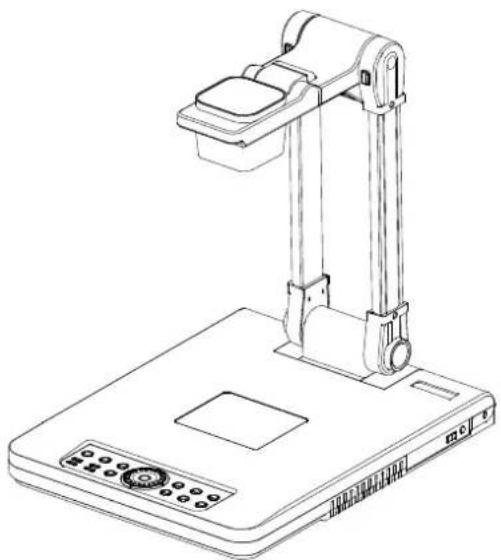
natural_image
Line drawing of a desktop computer with an adjustable arm and control panel (no text or symbols)AVerVision SPB350+

Dust Cover

Anti-glare Sheet
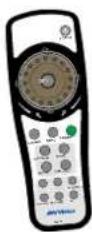
Remote Control (batteries included)
Manual CD

Installation CD

natural_image
Simple line drawing of a tool with a handle and coiled cable (no text or symbols)Power Adapter

RCA Cable

S-Video Cable

natural_image
Line drawing of a black cable connecting two electrical plug terminals (no text or symbols)Power Cord

natural_image
Pure electrical circuit lines without any symbolsRGB Cable

USB Cable
* The power cord varies depending on the standard power outlet of the country where it is sold.
Optional Accessories
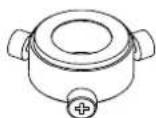
34mm Microscope Adapter

28mm Microscope Adapter
AVerVision SPB350+ Parts
The illustrations below identify the parts of SPB350+.
- Camera head
- Camera lens
- Left panel
- Light box
- Control panel
- Overhead light
- Arm
- IR sensors
- Rear panel
- Label slot
- Right panel

text_image
Left Panel (12) (13) (14) (15) (16)- DC 12V port
- RS-232 port
- RGB IN 2 port
- RGB IN 1 port
- RGB output port
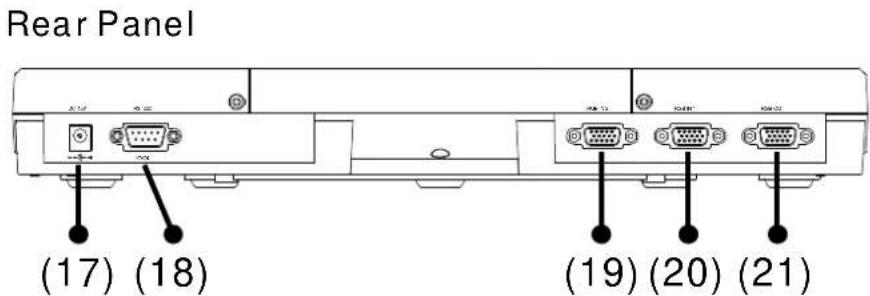
text_image
Rear Panel (17) (18) (19) (20) (21)- Video output switch
- Light box power button
- Antitheft slot

text_image
Right Panel (22) (23) (24)Making the Connections
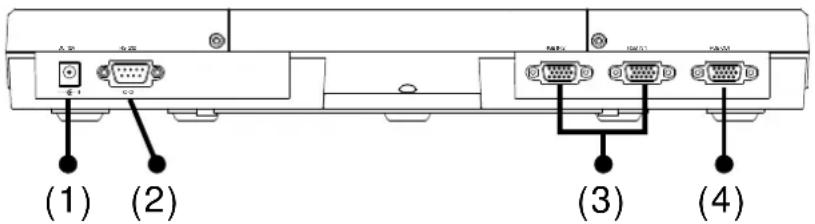
The ports on the rear, left and right panel of SPB350+ enable you to connect the unit to a computer, graphics display monitor or LCD/DLP projector, TV or other device. Illustrated below are the ports that are located at the rear and right panel of SPB350+ with their corresponding labels.
Rear Panel
text_image
(1) (2) (3) (4)Name Function
| (1) DC 12V | : Connect the power adapter into this port. |
| (2) RS-232 | : Receive command from the computer to operate SPB350+. Connect this port to the RS-232 port of the computer. |
| (3) RGB IN 1 & RGB IN 2 | : Takes as input the signal from a computer or other sources and pass it through to the RGB Output and DVI-I port only. Connect this port to the VGA output port of the computer. |
| (4) RGB OUT | : Output the signal from the camera, RGB IN port, or the captured images from the memory source on a VGA/Mac monitor or LCD/DLP projector. |
Left Panel

text_image
(1) (2) (3) (4) (5)Name Function
| 1. | S-VIDEO OUT | : Output the signal from the camera or the captured images from the memory source on TV or Video equipment. |
| 2. | CVBS OUT (RCA/Composite) | : Output the signal from the camera or the captured images from the memory source on TV or Video equipment. |
| 3. | DVI-I OUT | : Output the signal from the camera, RGB IN 1/2 port, or the captured images from the memory source on a VGA/Mac monitor or LCD/DLP projector with DVI-I interface. If the display device does not support DVI-I, it can only display the signal from the camera and the captured images. The1920 X1080 resolution for DVI-I support reduced blanking only. |
| 4. | USB | : Use SPB350+ as a USB Camera or Mass Storage to transfer the captured images from SPB350+ memory source to PC. |
| 5. | SD card slot | : Insert the SD card with the label facing up. It can support 16MB~2GB card capacity and only accepts FAT16 formatted card. |
Right Panel
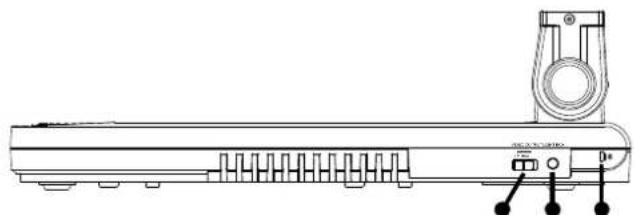
natural_image
Technical line drawing of a mechanical device with ports and mounting bracket (no text or symbols)(1) (2) (3)
Name Function
| (1)VIDEO OUTPUT | : Select to output video signal between RGB (RGB & DVI-I) or TV (Composite Video/S-Video) display output. |
| (2)LIGHT BOX | : Turn on/off the light box. |
| (3)Antitheft slot | : Attach a Kensington compatible security lock or antitheft device. |
Connecting a VGA, Mac Monitor or LCD/DLP Projector
Locate the RGB (VGA) input port of the display device and connect it to RGB OUT port of SPB350+. If you are not sure, please refer to the user manual of the device.

Make sure the Video Output switch is set to RGB.

flowchart
graph TD
    A["LCD/DLP projector"] -->|RGB cable (not supplied)| B["CRT monitor"]
    B --> C["LCD monitor"]
    C --> D["MAC monitor"]
    D --> E["Monitor Adapter (not supplied)"]
    style A fill:#f9f,stroke:#333
    style B fill:#ccf,stroke:#333
    style C fill:#cfc,stroke:#333
    style D fill:#fcc,stroke:#333
    style E fill:#cff,stroke:#333
Connecting a Monitor or LCD/DLP Projector with DVI interface
Locate the DVI input port of the display device and connect it to DVI-I OUT port of SPB350+. If you are not sure, please refer to the user manual of the device.

Make sure the Video Output switch is set to RGB.

text_image
LCD Monitor with DVI interface DVI cable (not supplied) LCD/DLP Projector with DVI interfaceConnecting a TV
Locate the VIDEO (yellow), S-VIDEO or SCART RGB input port of the TV or Video equipment (i.e., VCR) to record your presentation on a videotape and connect it to S-VIDEO or CVBS OUT port of SPB350+. If you are not sure, please refer to the user manual of the TV or Video equipment.

- Make sure the Video Output switch is set to TV.
- For better video quality, we strongly suggest using S-VIDEO connection.
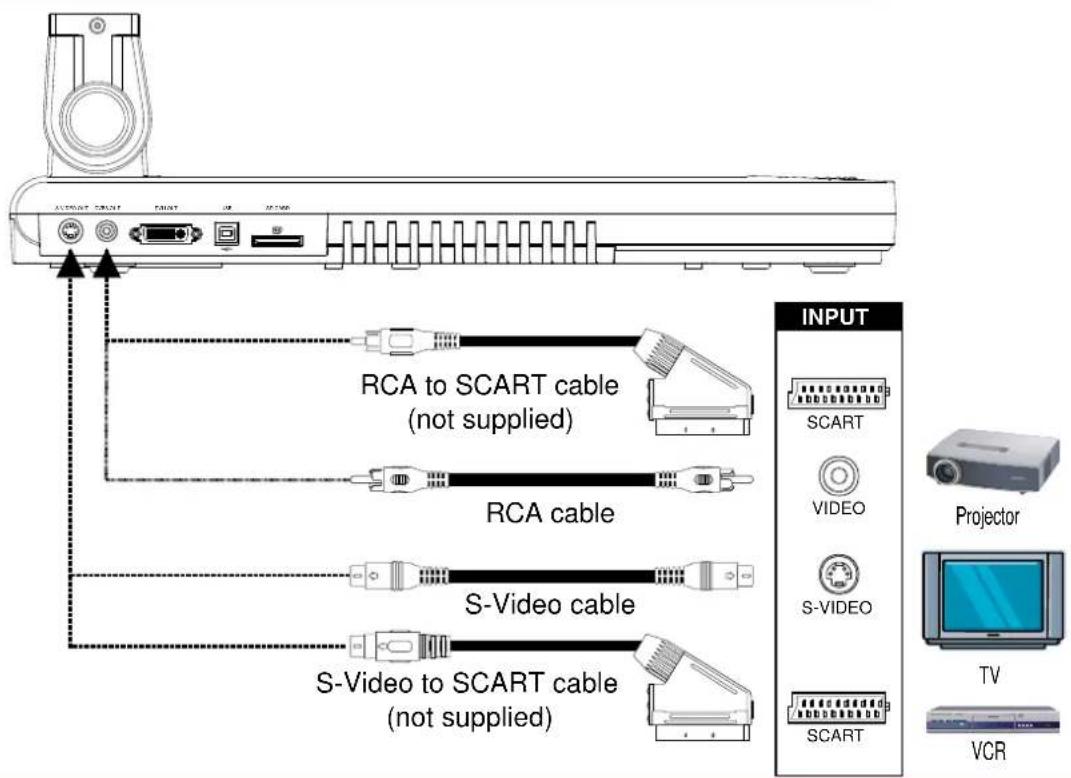
text_image
RCA to SCART cable (not supplied) RCA cable S-Video cable S-Video to SCART cable (not supplied) INPUT SCART VIDEO S-VIDEO SCART Projector TV VCRConnecting the Power Adapter
Connect the power adapter to a standard 100V\~240V AC power source.

text_image
Power adapter Power cord Wall outletConnecting a Computer
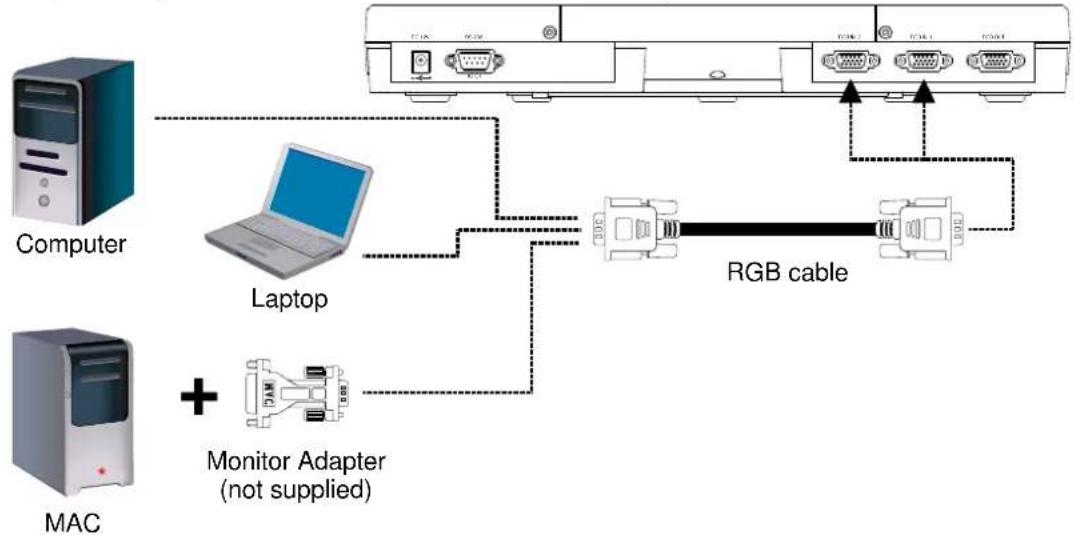
Locate the RGB (VGA) output port of the computer or laptop to display your PC presentation on screen and connect it to RGB IN 1 or RGB IN 2 ports of SPB350+. The video signal from the RGB IN port is streamed to RGB and DVI-I OUT ports only. Press CAMERA/PC button on the control panel or remote to switch to PC-1 or PC-2.
flowchart
graph TD
    A["Computer"] --> B["Laptop"]
    C["MAC"] --> D["Monitor Adapter (not supplied)"]
    B --> E["RGB cable"]
    D --> E
    E --> F["Server with port labels like R240.2, R240.1, R239.7"]
Connecting a Computer via USB Connection
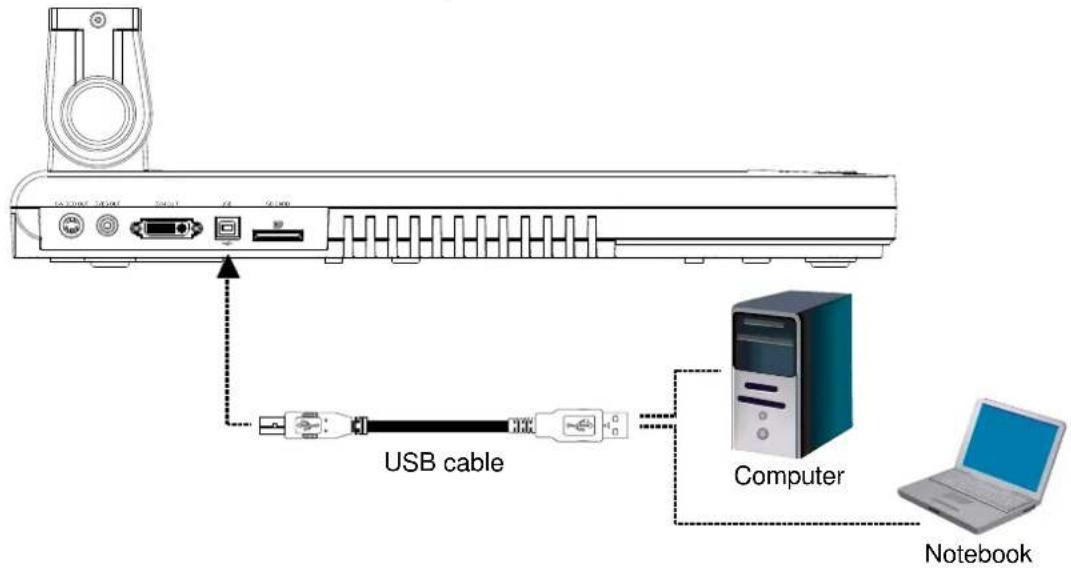
Locate the USB port of the computer or laptop and connect it to USB port of SPB350+. This enables you to use SPB350+ as a USB Camera and to transfer the captured images from the memory source and to computer. Also see "Using AVerVision SPB350+ as a Mass Storage".
text_image
USB cable Computer NotebookInserting and Ejecting a SD Card
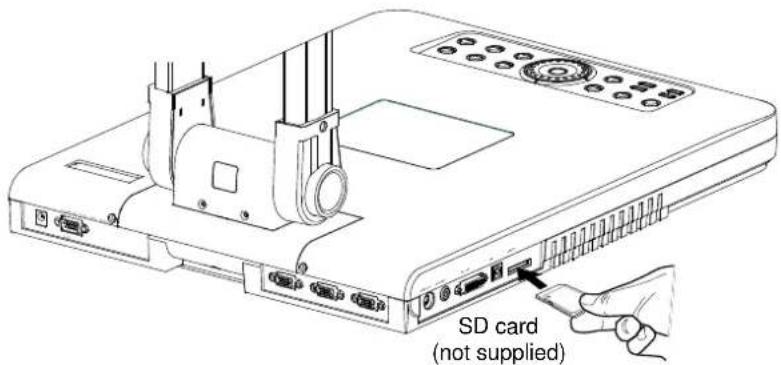
Insert the card with the label facing up until it reaches the end. To remove, pull the card out. The supported SD card capacity is from 16MB to 2GB. Make sure the card is formatted to FAT16. SPB350+ automatically creates and stores the images in AVERJPG folder.
text_image
SD card (not supplied)Setting Up SPB350+
This section provides useful tips on how to adjust the SPB350+ to meet your needs.
Arm
The arm must be unfolded fully in upright position.

text_image
90° 90°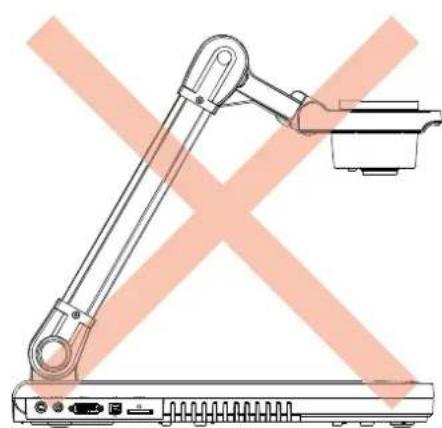
natural_image
Illustration of a robotic arm with a handle and control panel, crossed out by red X-shaped warning symbols (no text or labels)Camera Head
The camera head can be folded up 90° and turned 90° to the left and right. To display an object more than 50cm away from the camera, unscrew the close-up lens. Do not forget to screw back the close-up lens afterwards.

text_image
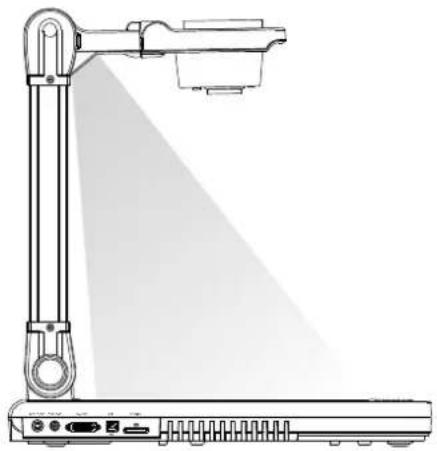
50cm 90° 90°Overhead Light
Press LAMP button on the control panel to turn on and off light.
natural_image
Line drawing of a robotic arm with a beam extending from its tip, emitting a light beam (no text or symbols)Infrared Sensor
Aim the remote control at the infrared sensors to operate the unit.

natural_image
Line drawing of a device with a remote control unit attached, showing ports and a screen (no text or symbols)Light Box
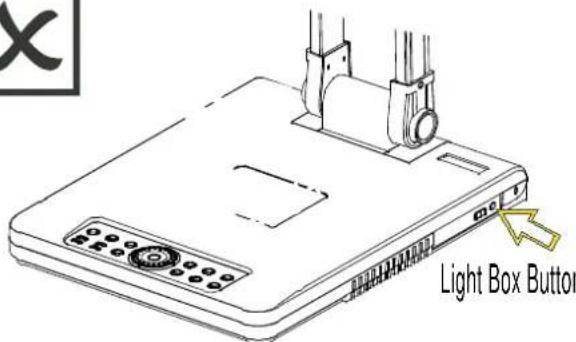
Press LIGHT BOX button on the right panel of SPB350+ to turn on and off light. Use this to view negatives film, and 35mm slides.

: DO NOT place an object weighing more than 8kg on top of the light box.


Light Weight Object

Photos
Negative Film

Document

text_image
Light Box ButtonAnti-glare
The anti-glare sheet is a special coated film that helps eliminate any glare that may be encountered while displaying very shiny objects or glossy surfaces such as magazines and pictures. To use, simply place the anti-glare sheet on top of the shiny document to reduce reflected light.

Microscope Connection
Connecting the SPB350+ to a microscope enables you to examine microscopic objects on a big screen without straining your eyes.
- Change the image display mode to Microscope. Press MENU > select SETTING > MODE > MICROSCOPE and press ENTER.
- Adjust the microscope focus to its best clarity. Then, select the appropriate adapter size that would fit the microscope eyepiece.
- Unscrew the close-up lens from the camera head.
- Remove the microscope eyepiece from the microscope and connect it to the microscope adapter. Then, fasten the 3 bolts until the adapter secures the eyepiece.

We suggest using a microscope with an eye relief of 15.5mm or higher for better view.
- Screw the microscope adapter to the AVerVision camera head. Then, connect it to the microscope.

text_image
Close-up Lens Microscope Adapter (optional) MicroscopeControl Panel Light Color
The LED power button on the control panel of SPB350+ indicates the status of the unit.

POWER
Color Description
Blue : The unit is in operating mode.
Orange : The unit is in standby mode.
Using the Infrared Remote Control
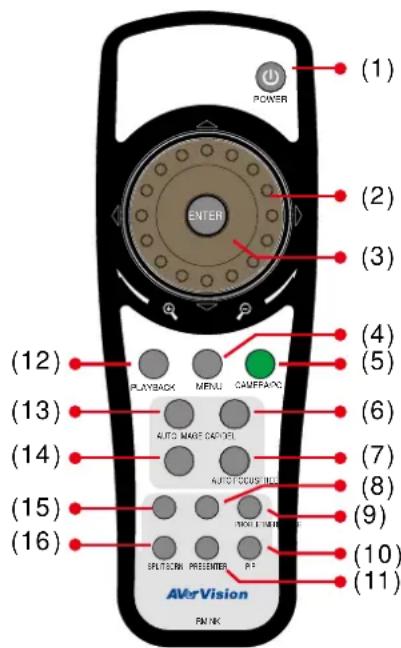
Use the SPB350+ Remote Control to enhance your presentation by having the ability to switch between three (3) presentation modes and access various features. To use the remote control, first insert the batteries (2 "AAA" size batteries are provided) into the battery compartment at the back of the remote. Use the figure and descriptions below as a reference for remote control functions.
text_image
(1) POWER (2) ENTER (3) (4) PLAYBACK MENU CAMPAIAC (5) AUTO MADE CASSOEL (6) AUTO COUSY BIG (7) SPLIT/SPR PRESENTER (8) P F (9) (10) (11) AVrVision FINKName Function
(1) POWER Turn the unit on/off.
(2) Shuttle Wheel
- Turn the shuttle wheel clockwise to zoom in and counter-clockwise to zoom out the image optically and digitally in Camera and Playback mode only. When it exceeds the maximum optical zoom level of about 12X, you may still continue to AVer Optical zoom up to 1.66X AVerZoom and 8X digitally zoom. Press ENTER to return to normal view (100%). The zoom bar indicator will turn from blue to aqua to indicate that you can pan around the image.
- Press the shuttle wheel ▲, ▼, ◀, & ▶ to pan the image while in digital zoom mode, to make a selection on 16-thumbal images or move to the next or previous single full screen preview in Playback mode, or to make a selection or adjustment on the OSD main-menu and sub-menu (See Menu Functions for more details).
| Name | Function |
| (3) ENTER | Make a selection in Playback mode and OSD menu. Use this to quick zoom to 200% or back to 100% in Camera mode only. |
| (4) MENU | Pull up and exit the OSD main-menu and sub-menu. |
| (5) Camera/PC | Switch between Camera and PC mode.- Camera mode displays the video signal from the built-in camera.- PC mode displays the video signal from the RGB IN 1 and RGB IN 2 port of SPB350+. The PC1 and PC2 will display the video signal from RGB IN 1 and RGB IN 2 respectively. |
| (6) CAP/DEL | - Capture a still image in Camera mode. The captured image is saved in the selected memory source at 1600 x 1200 resolution and the built-in memory can store up to 240 images.- Remove the selected picture from the selected memory source permanently in Playback mode. |
| (7) AF (Auto Focus) | Adjust the focus automatically. |
| (8) TIMER | Display the OSD timer menu and use ▲or▼ buttons to select SET TIME to set the time value, START to begin the countdown timer, PAUSE/RESUME to temporarily halt or continue, and STOP to end. Press MENU to hide the timer menu. |
| (9) PROFILE | Recall and switch from the 3 saved user setting profile selections (See MENU Functions – SAVE for more details). |
| (10) PIP | Display/hide a thumbnail of the captured image from the memory source at the corner of the screen while in Camera mode.Use ◀ or ▶ buttons to move to the previous or next image and ENTER to display the image in full screen. To move the mini playback screen to different corners, press MENU, go to PIP and select the position of the mini playback screen. |
Name Function
| (11) PRESENTER | Select to turn on/off SPOTLIGHT or VISOR. Only one feature can be used at a time. | |
| SPOTLIGHT overlays a frame on the presentationSelecting SHADE changes the opacity of the area from 0%, 50% and 100%, COLOR to change the from red, green and blue, and RESIZE to change frame. To resize or move the frame around the presescreen, press the shuttle wheel ▲,▼,◀, & ▶. | screen.outside the boxframe colorthe size of the | |
| VISOR covers part of the presentation screen. The upper part ofthe presentation screen is slightly exposed when called each time. To expose part of the covered shuttle wheel ▲,▼,◀, &▶. Select SHADE to darkness of the shaded area between 50% or 10 | change the | |
 | ||
| (12) PLAYBACK | Playback mode displays the captured image from the memory source in 16-thumbail images. Use ▲,▼,◀, & ▶ buttons or rotate the shuttle wheel to make a selection and ENTER to display the selected image in full screen.Press MENU to display the Playback menu. Select SLIDE SHOW to start or set the time interval between frames in second, MEMORY SOURCE to select the image location between the built-in memory or SD card, and DELETE to permanently remove the selected image from the selected memory source. | |
| (13) AUTO IMAGE | Automatically adjust and set the white balance and exposure setting. | |
| (14) FREEZE | Toggle to pause or resume the camera. | |
| (15) ROTATE | Turn the image by 90°in Camera mode and 180° in full screen Playback mode. | |
| (16) SPLIT SCRN | Turn on/off split screen mode. Split Screen divides the screen into two parts. One side displays the live image from the SPB350+ camera and the other side displays the captured images from the memory source in 8-thumbail preview.Use the ▲,▼,◀, &▶ buttons to make a selection and ENTER to enlarge the selected image in split screen mode. To horizontally or vertically pan the enlarged image, use the ◀ & ▶ or ▲&▼ buttons. To switch to different split screen type, press MENU, go to SPLIT SCREEN and select between vertical or horizontal splitting type. | |
Touch Button Control Panel
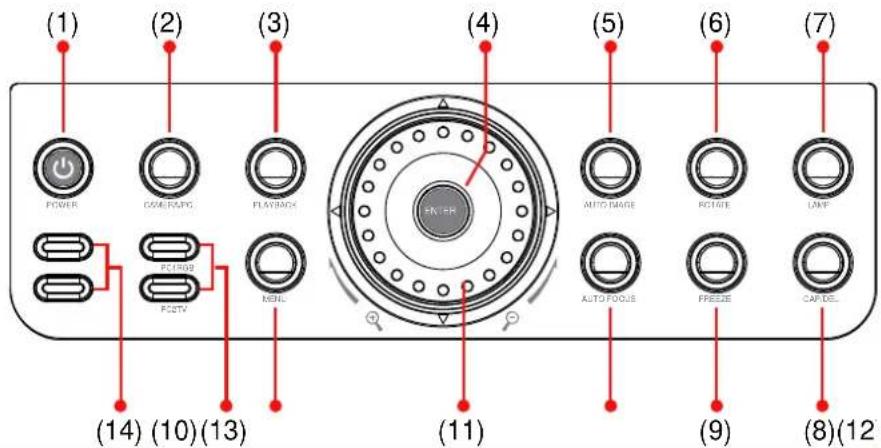
The touch button control panel located on the top side of AVerVision SPB350+ provides quick access to commonly used functions.
text_image
(1) (2) (3) (4) (5) (6) (7) POWER G Kosovo PLAYBACK AUTO IMAGE ROTAGE LAMP PC Kosovo PC ETV MINL AUTO FOCUS FROSE CAP DEL (14) (10) (13) (11) (9) (8) (12)Name Function
| (1) POWER | Turn the unit on/off. |
| (2) Camera/PC | Switch between Camera and PC mode.- Camera mode displays the video signal from the built-in camera.- PC mode displays the video signal from the RGB IN 1 and RGB IN 2 port of SPB350+. The PC1 and PC2 will display the video signal from RGB IN 1 and RGB IN 2 respectively. |
| (3) PLAYBACK | Playback mode displays the captured image from the memory source in 16- thumbnail images. Use ▲,▼,◀, & ▶ buttons or rotate the shuttle wheel to make a selection and ENTER to display the selected image in full screen.Press MENU to display the Playback menu. Select SLIDE SHOW to start or set the time interval between frames in second, MEMORY SOURCE to select the image location between the built-in memory or SD card, and DELETE to permanently remove the selected image from the selected memory source. |
| (4) ENTER | Make a selection in Playback mode and OSD menu. Use this to quick zoom to 200% or back to 100% in Camera mode only. |
| (5) AUTO IMAGE | Automatically adjust and set the white balance and exposure setting. |
| (6) ROTATE | Turn the image by 90°in Camera mode and 180 in full screen Playback mode. |
| (7) LAMP | Turn the overhead light on/off. |
| (8) CAP/DEL | - Capture a still image in Camera mode. The captured image is saved in the selected memory source at 1600 x 1200 resolution and the built-in memory can store up to 240 images.- Remove the selected picture from the selected memory source permanently in Playback mode. |
| (9) FREEZE | Toggle to pause or resume the camera. |
| (10) AUTO FOCUS | Adjust the focus automatically. |
| (11) SHUTTLE WHEEL | - Turn the shuttle wheel clockwise to zoom in and counter-clockwise to zoom out the image optically and digitally in Camera and Playback mode only.When it exceeds the maximum optical zoom level of about 12X, you may still continue to AVer Optical zoom up to 1.66X AVerZoom and 8X digitally zoom. Press ENTER to return to normal view (100%). The zoom bar indicator will turn from blue to aqua to indicate that you can pan around the image.- Press the shuttle wheel ▲,▼,◀, & ▶ to pan the image while in digital zoom mode, to make a selection on 16-thumbail images or move to the next or previous single full screen preview in Playback mode, or to make a selection or adjustment on the OSD main-menu and sub-menu (See Menu Functions for more details). |
| Name Function | |
| (12) MENU | Pull up and exit the OSD main-menu and sub-menu. |
| (13) PC1 and PC2 Indicator | Indicate the selected RGB IN video source either in RGB IN 1 or RGB IN 2. |
| (14) Video Output LED Indicator | Indicate the setting of the Video Output switch to which the video signal is being sent out. |
Using AVerVision SPB350+ as a Mass Storage
This enables you to transfer the captured image to and from the memory source and PC.

You MUST read and follow the instructions below BEFORE connecting the USB cable.
Every time when using the SPB350+ as Mass Storage, the following MUST be done:
- Select the memory source.
To select the memory source, press MENU > select SETTING > MEMORY > SOURCE > EMBEDDED or SD and press ENTER; then press MENU to exit.
- MUST set the USB CONNECTION as MASS STORAGE.
To set the USB connection type, press MENU > select SETTING > USB CONNECTION > MASS STORAGE and press ENTER; then press MENU to exit.
- When "MASS STORAGE" appears at the lower left corner of the presentation screen, you may now connect the USB cable (See "Connecting a Computer via USB Connection" for illustration).
- Upon connecting the USB cable, the system automatically detects the new removable disk.
- In the Removable Disk dialog box, select Open folder to view files and then click OK. You may now transfer the file to and from your PC hard disk.

text_image
Removable Disk (F:) Windows can perform the same action each time you insert a disk or connect a device with this kind of file: Pictures What do you want Windows to do? Copy pictures to a folder on my computer using Microsoft Scanner and Camera Wizard View a slideshow of the images using Windows Picture and Fax Views Print the pictures using Photo Printing Wizard Open folder to view files using Windows Explore Always do the selected action. OK CancelOSD Navigation Tree
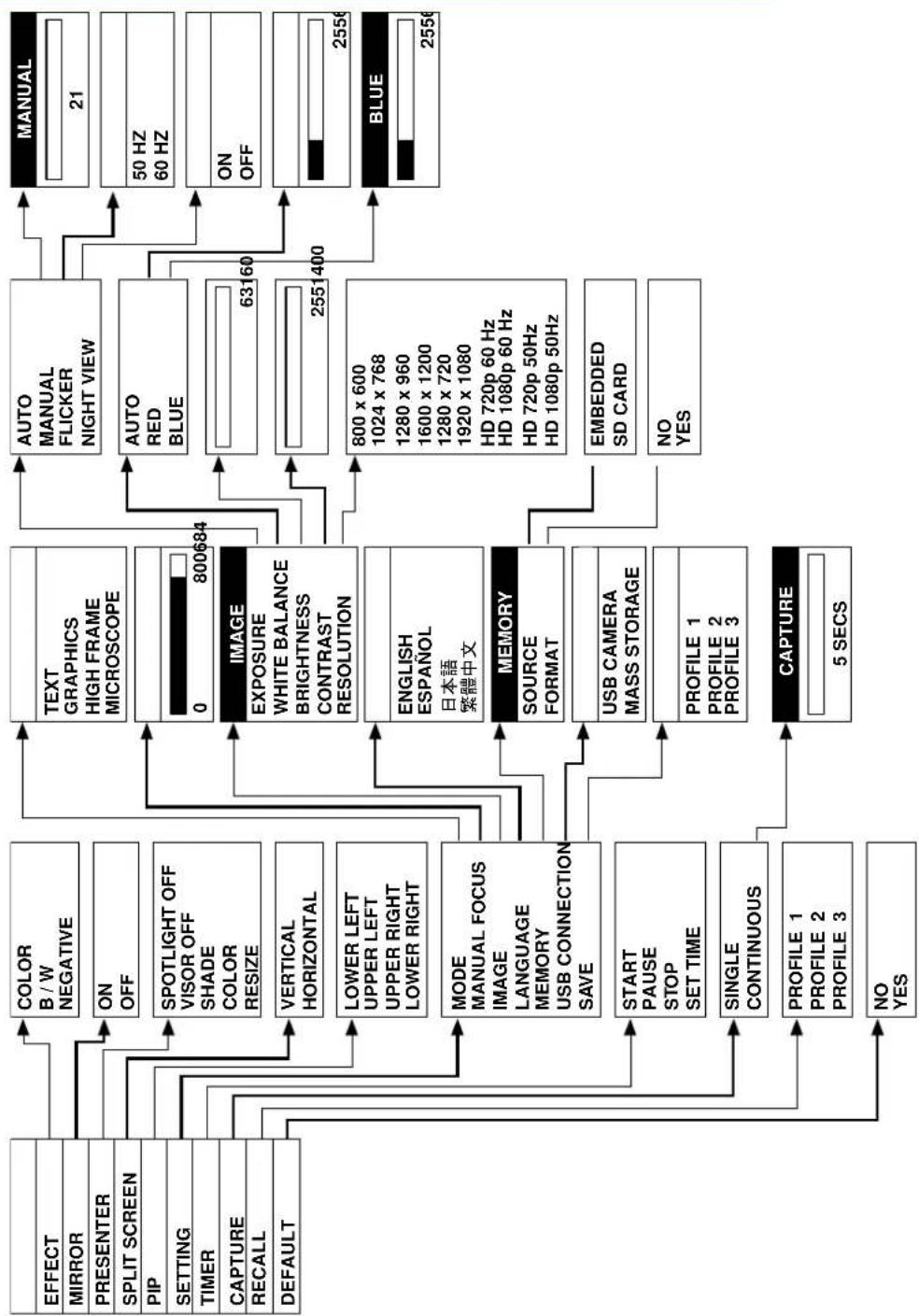
VIDEO OUTPUT OSD

For TV output, RESOLUTION is not included in the menu list.
flowchart
graph TD
    A["MANUAL"] --> B["AUTO MANUAL FLICKER NIGHT VIEW"]
    B --> C["AUTO RED BLUE"]
    C --> D["800684 IMAGE EXPOSURE WHITE BALANCE BRIGHTNESS CONTRAST RESOLUTION"]
    D --> E["ENGLISH ESPAÑOL 日本語 繁體中文"]
    E --> F["MEMORY SOURCE FORMAT"]
    F --> G["USB CAMERA MASS STORAGE"]
    G --> H["PROFILE 1 PROFILE 2 PROFILE 3"]
    H --> I["CAPTURE"]
    I --> J["5 SECS"]
    J --> K["NO YES"]
    K --> L["COLOR B/W NEGATIVE"]
    L --> M["EFFECT"]
    L --> N["MIRROR"]
    L --> O["PRESENTER"]
    L --> P["SPLIT SCREEN"]
    L --> Q["PIP"]
    L --> R["SETTING"]
    L --> S["TIMER"]
    L --> T["CAPTURE"]
    L --> U["RECALL"]
    L --> V["DEFAULT"]
    W["BLUE"] --> X["2556"]
    X --> Y["63160"]
    Y --> Z["800 x 600 1024 x 768 1280 x 960 1600 x 1200 1280 x 720 1920 x 1080 HD 720p 60 Hz HD 1080p 60 Hz HD 720p 50Hz HD 1080p 50Hz"]
    Z --> AA["2556"]
PLAYBACK OSD

flowchart
graph TD
    A["MENU"] --> B["SLIDE SHOW"]
    A --> C["MEMORY SOURCE"]
    A --> D["DELETE"]
    B --> E["SLIDE SHOW START INTERVAL"]
    C --> F["EMBEDDED SD CARD"]
    D --> G["NO YES"]
    E --> H["0 1 10"]
Menu Functions
The MENU functions of SPB350+ enhance fine-tuning your screen display, set the timer, select OSD language and more. Press the MENU button to call up and exit from the main menu or sub-menu display. Then use ▲or▼ buttons to select the items in the menu list. Us►/ ENTER button to enter sub-menu and◄/ ENTER to return to main menu. To adjust the setting, pressor▶ buttons. To make a selection, press ENTER.
| OSD Menu | Description | |
| MENU | EFFECT | |
| EFFECT COLOR MIRROR B / W PRESENTER NEGATIVE SPLIT SCREEN PIP SETTING TIMER CAPTURE RECALL DEFAULT | Press ▶ and use ▲or▼ buttons to select and display the image in Camera mode into positive (true color), monochrome (black and white) or negative. Then press ▶/ENTER to make a selection. | |
| MENU | MIRROR Press ▶ and use ▲or▼ buttons to select turning on/off MIRROR to flip the image in Camera mode. Then press ▶/ENTER to make a selection. | |
| EFFECT MIRROR ON PRESENTER OFF SPLIT SCREEN PIP SETTING TIMER CAPTURE RECALL DEFAULT | ||
| MENU | PRESENTER Press ▶ and use ▲or▼ buttons to select and turn on either SPOTLIGHT or VISOR. Then press ▶/ENTER to make a selection. Only one feature can be used at a time. SPOTLIGHT overlays a frame on the presentation screen. Selecting SHADE changes the opacity of the area outside the box from 0%, 50% and 100%, COLOR to change the frame color from red, green and blue, and RESIZE to change the size of the frame. To resize or move the frame around the presentation screen, with the position leading to 7.4x8.6x10^3. | |
| EFFECT MIRROR PRESENTER SPOTLIGHT OFF SPLIT SCREEN VISOR OFF PIP SHADE SETTING COLOR RESIZE TIMER CAPTURE RECALL DEFAULT | ||

flowchart
graph TD
    A["Prey"] -->|is eaten by| B["Producers"]
    B --> C["Predator"]
    C --> D["Prey"]
    D --> E["Producers"]
    E --> F["Predator"]
    F --> G["Prey"]
    G --> H["Producers"]
    H --> I["Predator"]
    I --> J["Prey"]
    J --> K["Producers"]
    K --> L["Predator"]
    L --> M["Prey"]
    M --> N["Producers"]
    N --> O["Predator"]
    O --> P["Prey"]
    P --> Q["Producers"]
    Q --> R["Predator"]
    R --> S["Prey"]
    S --> T["Producers"]
    T --> U["Predator"]
    U --> V["Prey"]
    V --> W["Producers"]
    W --> X["Predator"]
    X --> Y["Prey"]
    Y --> Z["Producers"]
    Z --> AA["Predator"]
    AA --> AB["Prey"]
    AB --> AC["Producers"]
    AC --> AD["Predator"]
    AD --> AE["Prey"]
    AE --> AF["Producers"]
    AF --> AG["Predator"]
    AG --> AH["Prey"]
    AH --> AI["Producers"]
    AI --> AJ["Predator"]
    AJ --> AK["Prey"]
    AK --> AL["Producers"]
    AL --> AM["Predator"]
    AM --> AN["Prey"]
    AN --> AO["Producers"]
    AO --> AP["Predator"]
    AP --> AQ["Prey"]
    AQ --> AR["Producers"]
    AR --> AS["Predator"]
    AS --> AT["Prey"]
    AT --> AU["Producers"]
    AU --> AV["Predator"]
    AV --> AW["Prey"]
    AW --> AX["Producers"]
    AX --> AY["Predator"]
    AY --> AZ["Prey"]
    AZ --> BA["Producers"]
    BA --> BB["Predator"]
    BB --> BC["Prey"]
    BC --> BD["Producers"]
    BD --> BE["Predator"]
    BE --> BF["Prey"]
    BF --> BG["Producers"]
    BG --> BH["Predator"]
    BH --> BI["Prey"]
    BI --> BJ["Producers"]
    BJ --> BK["Predator"]
    BK --> BL["Prey"]
    BL --> BM["Producers"]
    BM --> BN["Predator"]
    BN --> BO["Predator"]
    BO --> BP["Predator"]
    BP --> BQ["Predator"]
    BQ --> BR["Predator"]
    BR --> BS["Predator"]
    BS --> BT["Predator"]
    BT --> BU["Predator"]
    BU --> BV["Predator"]
    BV --> BW["Predator"]
VISOR covers part of the presentation screen. The upper part of the presentation screen is slightly exposed when it is being called each time. To expose part of the covered area, press the shuttle wheel ▲, ▼, ◀, & ▶. Select SHADE to change the darkness of the shaded area between 50% or 100%.
text_image
The Food Chain Commensit PredBoxer
text_image
MENU EFFECT MIRROR PRESENTER SPLIT SCREEN PIP SETTING TIMER CAPTURE RECALL DEFAULT VERTICAL HORIZONTALSPLIT SCREEN
Press ▶ and use ▲ or ▼ buttons to select dividing the screen either vertically or horizontally. Then press ▶ ENTER to make a selection.
This function divides the screen into two parts. One side displays the live image from the SPB350+ camera and the other side displays the captured images from the memory source in 8-thumbail preview.
Use the ▲,▼,◀, &▶ buttons to make a selection and ENTER to enlarge the selected image in split screen mode. To horizontally or vertically pan the enlarged image, use the ◀ & ▶ or ▲or▼ buttons.
| OSD Menu | Description | |
| MENU | PIPPress ▶ and use ▲or▼ buttons to select the location of the mini playback screen. Then press ▶/ENTER to make a selection. | |
| EFFECTMIRRORPRESENTER SPLIT SCREEN | ||
| FIP | LOWER LEFT | Display a thumbnail of the captured image from the memory source at the corner of the screen while in Camera mode. |
| SETTINGTIMERCAPTURERECALLDEFAULT | UPPER LEFTUPPER RIGHTLOWER RIGHT | Use ▶ or ▶ buttons to move to the previous or next image and ENTER to display the image in full screen. |
| MENU | SETTINGPress ▶, then use ▲or▼ buttons to select the items in SETTING list and press ▶/ENTER. | |
| EFFECTMIRR ORPRESE NTER SPLIT SCREE N PIP | ||
| SETTINGTIMERCAPTUREERE CALLDEFAULT | MO DEMANUAL FOC USIM AGEMEMO RYUSB CONN ECTIONSAVE | |
| MODETEXTGRAPHICSHIGH FRAMEMICROSCOPE | SETTING > MODEUse ▲or▼ buttons to select between Text, Graphics and High Frame enhancement mode and then ENTER to make a selection.Text - corrects the intensity of the adjacent pixel making it more uniform producing sharper and clearer images.Graphics - adjusts the gradient of the adjacent pixel making it appears to have a smooth image.High Frame - increases the frame rate capture and can visually tracks the motion and react quickly. Sufficient lighting is required when using this mode.Microscope - automatically fixes the optical zoom and displays the microscope image more clearly. | |
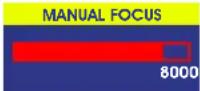 | SETTING > MANUAL FOCUSUse ▶or▶ buttons to manually adjust the focus and then press ENTER to save the setting and exit. | |
| IMAGEEXPOSUREWHITE BALANCEBRIGHTNESSCONTRASTRESOLUTION | AUTOMANUALFLICKERNIGHT VIEW | SETTING > IMAGE > EXPOSUREPress ▶ and use ▲or▼ buttons to select between Auto, Manual, Flicker and Night View. Then press ▶/ENTER to make a selection.Select AUTO to automatically adjust the camera exposure to determine how much light is required. |
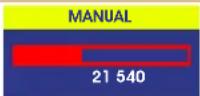 | SETTING > IMAGE > EXPOSURE > MANUALUse ▶or◀ buttons to manually adjust the exposure level then press ENTER to save the setting and exit. | |
| FLICKER50 HZ60 HZ | SETTING > IMAGE > EXPOSURE > FLICKERUse ▲or▼ buttons to select between 50Hz or 60Hz. Some display devices cannot handle high refresh rates. The image will flicker a couple of times as the output is switched to another refresh rate. | |
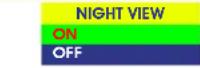 | SETTING > IMAGE > EXPOSURE > NIGHT VIEWUse ▲or▼ buttons to turn Night View ON or OFF.If you are presenting in a low-light condition, Night View enables the image of the object to appear as though under normal lighting conditions.SPB350+ can automatically adjust the exposure to compensate for the adverse condition, but the captured image will appear to be in slow motion. | |
| IMAGEEXPOSUREWHITE BALANCEBRIGHTNESSCONTRASTRESOLUTION | AUTOREDBLUE | SETTING > IMAGE > WHITE BALANCEPress ▶ and use ▲or▼ buttons to select between auto or manually adjust the red and blue color to suit the lighting condition or cobr temperature. Then press ▶/ENTER to make a selection. |
 | SETTING > IMAGE > WHITE BALANCE > REDUse ▶or◀ buttons to manually adjust the red color level then press ENTER to save the setting and exit. | |
 | SETTING > IMAGE > WHITE BALANCE > BLUEUse ▶or◀ buttons to manually adjust the blue color level then press ENTER to save the setting and exit. | |
| OSD Menu | Description |
| IMAGE | SETTING > IMAGE > BRIGHTNESSUse ▶or◀ buttons to increase or decrease the brightness level and improve the visibility of the image. The brightness level can be set up to 63. |
| EXPOSUREWHITE BALANCEBRIGHTNESSCONTRASTRESOLUTION | 631 |
| IMAGE | SETTING > IMAGE > CONTRASTUse ▶or◀ buttons to emphasize or reduce the difference between light and dark conditions. The contrast level can be adjustable up to 255. |
| EXPOSUREWHITE BALANCEBRIGHTNESSCONTRASTRESOLUTION | 255 |
| IMAGE | SETTING > IMAGE > RESOLUTIONPress ▶ and use ▲or▼ buttons to choose from different display resolutions then press ▶/ENTER to make the selection.This selection will not be available in TV output (Composite/S-Video) |
| EXPOSUREWHITE BALANCEBRIGHTNESSCONTRASTRESOLUTION | 800 x 6001024 x 7681280 x 9601600 x 12001280 x 7201920 x 1080HD 720p 60 HzHD 1080p 60 HzHD 720p 50HzHD 1080p 50Hz |
| LANGUAGE | SETTING > LANGUAGEUse ▲or▼ buttons to select from different languages then press ▶/ ENTER to make the selection. |
| ENGLISH | |
| ESPANOL日本語緊體中文 | |
| MEMORY | SETTING > MEMORYUse ▲or▼ buttons to select either SOURCE or FORMAT.SOURCE – select the image storage in Camera mode or the source of the image to display in Playback mode either in the built-in memory or SD card. |
| SOURCE EMBEDDEDFORMAT 8D CARD | |
| MEMORY | FORMAT – select NO to exit or YES to format and delete all the images saved in the memory source then press ▶/ENTER.Please wait till the message "FORMAT" disappear to finish the process. |
| SOURCE NO | |
| FORMAT YES | |
| USB CONNECTION | SETTING > USB CONNECTIONUse ▲or▼ buttons to select the USB function between USB Camera and Mass Storage.USB Camera - can be used as a computer webcam or with our bundled software as video recorder and capture still image.Mass Storage - transfer the captured images from the memory source to computer hard disk. |
| USB CAMERA | |
| MASS STORAGE | |
| SAVE | SETTING > SAVEUse ▲or▼ but tons to select which user setting profile number to save your preferred setting. Only effect, mode, brightness and contrast SETTING can be saved. |
| PROFILE 1 | |
| PROFILE 2 | |
| PROFILE 3 | |
| MENU | TIMERPress ▶ and use ▲or▼ buttons to select SET TIME to set the time value, START to begin the countdown timer, PAUSE/RESUME to temporarily halt or continue, and STOP to end. |
| EFFECTMIRRORPRESENTERSPLIT SCREENPIP | |
| SETTING | STOP |
| TIMER CAPTURE | |
| RECALL | |
| DEFAULT | |
| SET TIME | |
| MENU | CAPTUREPress ▶ and use ▲or▼ buttons to select SINGLE or CONTINUOUS capture mode. Then press ▶/ENTER to make a selection.SINGLE saves one still image only.CONTINUOUS saves succ essive still images until the memory source is full or when the CAP/DEL button is being press again to stop. |
| EFFECTMIRRORPRESENTERSPLIT SCREENPIP | |
| SETTING | |
| TIMER CAPTURE | |
| RECALL | |
| DEFAULT | |
INTERVAL | Use ▶or◀ buttons to increase or decrease the capture time interval between frames and then press ENTER to save the setting and exit. The time interval can be set from 5 to 600 sec.RECALLPress ▶ and use ▲ or▼ buttons to select from the list to change to the preferred saved user setting profile number then press ▶/ENTER to make the selection. |
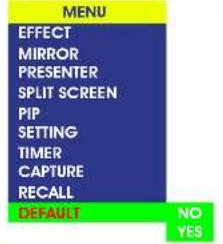 | DEFAULTPress ▶ and use ▲ or▼ buttons to select YES to restore to original factory default setting or NO to exit then press ▶/ENTER to make the selection. |
Technical Specifications
Image
| Sensor | 1/2.5" CMOS color image sensor |
| Total Pixel Count | 5 mega pixels |
| Frame Rate | 30 fps (max) |
| White Balance | Auto / Manual |
| Exposure | Auto / Manual / Flicker / Night View |
| Theme | Text / Graphics / High Frame / Microscope |
| Effect Color / BW / Negative | |
| Analog RGB Output | SVGA, XGA, 1280 x 960, UXGA, HD720, HD1080 (DVI-I supports reduced blanking only) |
| S-Video, Composite Video Output | NTSC or PAL |
| Image Capture Up to 240 Frames (2M) | |
| Built-In Memory | 32MB NAND Flash Memory |
Optics
| Shooting Area 300mm x 225mm | |
| AVer Optical Zoom | 20x |
| Digital Zoom | Digital 8x |
Power
| Power Source | AC/DC100-240V, 50-60 Hz |
| Consumption | 16 watts (lamp on); 13.6 watts (lamp off) ; 14.6 watts (light box on) |
Lighting
| Overhead light LED Lamp | |
| Light box LED Lamp |
Input/Output
| RGB Input (2X) | 15-Pins D-sub (VGA) |
| RGB Output | 15-Pins D-sub (VGA) |
| DVI-I Output | DVI-I Type |
| S-Video Output | Mini-DIN Jack |
| Video Output | RCA Jack |
| USB | USB2.0 |
| RS-232 | 9-Pins D-sub |
Dimension
| Fully Unfolded | 480mm x 380mm x 505mm |
| Folded | 480mm x 380mm x 150mm |
| Weight | 5.6 kg (about 12.32 lb) |
Card Supported
| Secure Digital (SD) | 16MB~2GB |
Using the RS-232 Interface
AVerVision SPB350+ can be controlled using a computer or any centralized control panel through RS-232 connection. The command code for RS-232 is provided for the system integrator to be able to incorporate it with the system program.
RS-232C Diagram Connection
SPB350+ can be controlled using a PC through RS-232 connection.
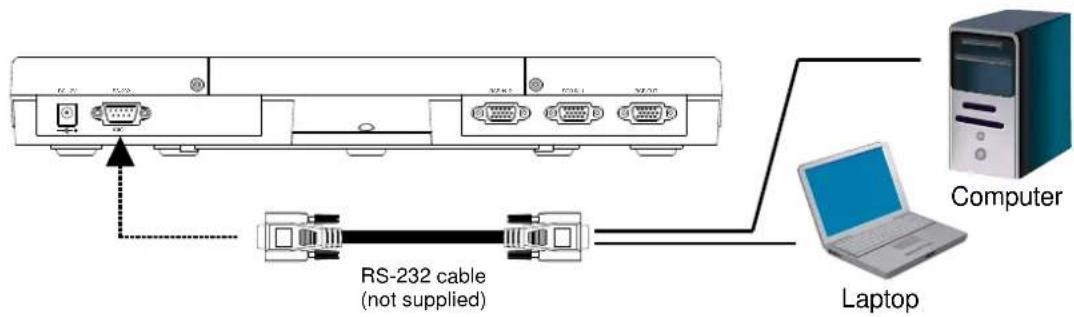
text_image
RS-232 RS-232 RS-232 RS-232 RS-232 Computer Laptop RS-232 cable (not supplied)RS-232C Cable Spec
Make sure the RS-232 cable matches the cable spec design.
| FUNCTION | DATA CODE | CHECKSUM CODE |
| AF 0x0D 0x5A | ||
| NEAR | 0x30 | 0x67 |
| FAR 0x31 0x66 | ||
| ZOOM IN 0x2D 0x7A | ||
| ZOOM OUT | 0x2E | 0x79 |
| ZOOM RESET 0x2F 0x78 | ||
| FREEZE | 0x0C | 0x5B |
| ROTATE | 0x0E | 0x59 |
| MIRROR | 0x2C | 0x7B |
| EFFECT | 0x2B | 0x7C |
| BRT UP 0x29 0x7E | ||
| BRT DOWN 0x2A 0x7D | ||
| AUTO IMAGE | 0x0A | 0x5D |
| TIMER | 0x0F | 0x58 |
| PROFILE | 0x10 | 0x47 |
| CAPTURE / DELETE | 0x0B | 0x5C |
| SPLIT SCRN | 0x11 | 0x46 |
| PIP | 0x13 | 0x44 |
| SPOTLIGHT ON / OFF | 0x23 | 0x74 |
| VISOR ON / OFF | 0x24 | 0x73 |
| SPOTLIGHT COLOR | 0x25 | 0x72 |
| SPOTLIGHT RESIZE | 0x26 | 0x71 |
| SPOTLIGHT / VISORVISOR SHADE | 0x27 | 0x70 |
Set Value Format:
Send Format 0x52 + 0x0B + 0x03 + Data[0] + Data[1] + Data[2] + 0x53 + CheckSum
Receive Format 0x53 + 0x00 + 0x01 + 0x0B + 0x53 + 0x59(ChkSum)
| Function | Data[0] | Data[1] | Data[2] | CheckSum Code |
| Flicker 50Hz | 0x00 | 0x00 | 0x00 | 0x5B |
| Flicker 60Hz | 0x00 | 0x01 | 0x00 | 0x5A |
| Exposure Value | 0x01 | Value[0 ~ 95] | 0x00 | *1 |
| WB Red Value | 0x02 | 0x00 | Value[0~255] | *1 |
| WB Blue Value | 0x02 | 0x01 | Value[0~255] | *1 |
| Brightness Value | 0x03 | Value[0 ~ 63] | 0x00 | *1 |
| Contrast Value | 0x04 | Value[0 ~ 255] | 0x00 | *1 |
| Rotate 0 degree | 0x06 | 0x00 | 0x00 | 0x5D |
| Rotate 90 degree | 0x06 | 0x01 | 0x00 | 0x5C |
| Rotate 180 degree | 0x06 | 0x02 | 0x00 | 0x5F |
| Rotate 270 degree | 0x06 | 0x03 | 0x00 | 0x5E |
| Effect Color | 0x07 | 0x00 | 0x00 | 0x5C |
| Effect B/W | 0x07 | 0x01 | 0x00 | 0x5D |
| Effect Negative | 0x07 | 0x02 | 0x00 | 0x5E |
| Mode Text | 0x08 | 0x00 | 0x00 | 0x53 |
| Mode Graphics | 0x08 | 0x01 | 0x00 | 0x52 |
| Mode High Frame | 0x08 | 0x02 | 0x00 | 0x51 |
| Mode Microscope | 0x08 | 0x03 | 0x00 | 0x50 |
| SPLIT SCRN VERTICAL | 0x0B | 0x00 | 0x00 | 0x50 |
| SPLIT SCRN HORIZONTAL | 0x0B | 0x01 | 0x00 | 0x51 |
| PIP LOWER LEFT | 0x0C | 0x00 | 0x00 | 0x57 |
| PIP UPPER LEFT | 0x0C | 0x01 | 0x00 | 0x56 |
| PIP UPPER RIGHT | 0x0C | 0x02 | 0x00 | 0x55 |
| PIP LOWER RIGHT | 0x0C | 0x03 | 0x00 | 0x54 |
| CAPTURE SINGLE | 0x0D | 0x00 | 0x00 | 0x56 |
| CAPTURE CONTINUOUS | 0x0D | 0x01 | 0x00 | 0x57 |
| *1 CheckSum = 0x0B xor 0x03 xor Data[0] xor Data[1] xor Data[2] xor 0x53 | ||||
Get Value Format:
Send Format 0x52 + 0x0A + 0x01 + Data[0] + 0x53 + CheckSum
Receive Format 0x53 + 0x0C + 0x01 + ReData[0] + 0x53 + ReCheckSum
| Function | Data[0] | CheckSum Code | ReData[0] | ReCheckSum Code |
| Red Value | 0x02 | 0x5A | Value[0~255] | *1 |
| Blue Value | 0x03 | 0x5B | Value[0~255] | *1 |
| Lamp Status | 0x05 | 0x5D | 0 : OFF 1: ON | *1 |
| Display Status | 0x06 | 0x5E | 0: Camera Mode1: Playback Mode2: PC-1 PassThrough3: PC-2 PassThrough | *1 |
| Video Output Status | 0x07 | 0x5F | 0: VGA 1: TV | *1 |
| Freeze Status | 0x08 | 0x50 | 0 : OFF 1: ON | *1 |
| Brightness Value | 0x0A | 0x52 | Value[0~63] | *1 |
| Contrast Value | 0x0B | 0x53 | Value[0~255] | *1 |
| LIGHT BOX Status | 0x0C | 0x54 | 0 : OFF 1: ON | *1 |
| *1 ReCheckSum = 0x0C xor 0x01 xor ReData[0] xor 0x52 | ||||
Troubleshooting
This section provides useful tips describing how to solve common problems while using the AVerVision SPB350+.
There is no picture on the presentation screen.
- Check all the connectors again as illustrated in this manual.
- Check the remote control's on/off switch on your display output device.
- Verify the setting of the display output device.
- If you are using a notebook or computer, you may have to switch the source to VGA.
- Make sure the TV/RGB switch is properly set based on your display output.
There is no computer signal on the presentation screen.
When you turn on the computer, it will auto-detect the type of monitor you have. During auto-detection, there won't be any display on your presentation screen. To avoid this problem, connect your computer and all the necessary cables to the AVerVision SPB350+ first before you power on your computer.
Unable to capture and save still image or is not responding.
- The message “FULL” is displayed. It means the memory source has reached the maximum capacity. Just transfer the images to PC or format the memory source.
- The message "SD PROTECT" is displayed. It means the SD card is write protected. Just remove the SD card from the slot and unlock it.
- The Capture setting could be in Continuous mode and the time interval is very long. Press MENU > select Capture > Single or change the Continuous mode interval setting.
The picture on the presentation screen is distorted or the image is blurry.
- If the image is blurry or out of focus, press the Auto Focus button to automatically adjust the focus.
- If the Auto Focus button does not work and still unable to adjust the focus, the lens motor must be misaligned. Unplug and plug the power to realign the lens motor.
Limited Warranty
For a period of time beginning on the date of purchase of the applicable product and extending as set forth in the "Warranty Period of AVer Product Purchased" section of the warranty card, AVer Information Inc. ("AVer") warrants that the applicable product ("Product") substantially conforms to AVer's documentation for the product and that its manufacture and components are free of defects in material and workmanship under normal use. "You" as used in this agreement means you individually or the business entity on whose behalf you use or install the product, as applicable. This limited warranty extends only to You as the original purchaser. Except for the foregoing, the Product is provided "AS IS." In no event does AVer warrant that You will be able to operate the Product without problems or interruptions, or that the Product is suitable for your purposes. Your exclusive remedy and the entire liability of AVer under this paragraph shall be, at AVer's option, the repair or replacement of the Product with the same or a comparable product. This warranty does not apply to (a) any Product on which the serial number has been defaced, modified, or removed, or (b) cartons, cases, batteries, cabinets, tapes, or accessories used with this product. This warranty does not apply to any Product that has suffered damage, deterioration or malfunction due to (a) accident, abuse, misuse, neglect, fire, water, lightning, or other acts of nature, commercial or industrial use, unauthorized product modification or failure to follow instructions included with the Product, (b) misapplication of service by someone other than the manufacturer's representative, (c) any shipment damages (such claims must be made with the carrier), or (d) any other causes that do not relate to a Product defect. The Warranty Period of any repaired or replaced Product shall be the longer of (a) the original Warranty Period or (b) thirty (30) days from the date of delivery of the repaired or replaced product.
Limitations of Warranty
AVer makes no warranties to any third party. You are responsible for all claims, damages, settlements, expenses, and attorneys' fees with respect to claims made against You as a result of Your use or misuse of the Product. This warranty applies only if the Product is installed, operated, maintained, and used in accordance with AVer specifications. Specifically, the warranties do not extend to any failure caused by (i) accident, unusual physical, electrical, or electromagnetic stress, neglect or misuse, (ii) fluctuations in electrical power beyond AVer specifications, (iii) use of the Product with any accessories or options not furnished by AVer or its authorized agents, or (iv) installation, alteration, or repair of the Product by anyone other than AVer or its authorized agents.
Disclaimer of Warranty
EXCEPT AS EXPRESSLY PROVIDED OTHERWISE HEREIN AND TO THE MAXIMUM EXTENT PERMITTED BY APPLICABLE LAW, AVER DISCLAIMS ALL OTHER WARRANTIES WITH RESPECT TO THE PRODUCT, WHETHER EXPRESS, IMPLIED, STATUTORY OR OTHERWISE, INCLUDING WITHOUT LIMITATION, SATISFACTORY QUALITY, COURSE OF DEALING, TRADE USAGE OR PRACTICE OR THE IMPLIED WARRANTIES OF MERCHANTABILITY, FITNESS FOR A PARTICULAR PURPOSE OR NONINFRINGEMENT OF THIRD PARTY RIGHTS.
Limitation of Liability
IN NO EVENT SHALL AVER BE LIABLE FOR INDIRECT, INCIDENTAL, SPECIAL, EXEMPLARY, PUNITIVE, OR CONSEQUENTIAL DAMAGES OF ANY NATURE INCLUDING, BUT NOT LIMITED TO, LOSS OF PROFITS, DATA, REVENUE, PRODUCTION, OR USE, BUSINESS INTERRUPTION, OR PROCUREMENT OF SUBSTITUTE GOODS OR SERVICES ARISING OUT OF OR IN CONNECTION WITH THIS LIMITED WARRANTY, OR THE USE OR PERFORMANCE OF ANY PRODUCT, WHETHER BASED ON CONTRACT OR TORT, INCLUDING NEGLIGENCE, OR ANY OTHER LEGAL THEORY, EVEN IF AVER HAS ADVISED OF THE POSSIBILITY OF SUCH DAMAGES. AVER'S TOTAL, AGGREGATE LIABILITY FOR DAMAGES OF ANY NATURE, REGARDLESS OF FORM OF ACTION, SHALL IN NO EVENT EXCEED THE AMOUNT PAID BY YOU TO AVER FOR THE SPECIFIC PRODUCT UPON WHICH LIABILITY IS BASED.
Governing Law and Your Rights
This warranty gives You specific legal rights; You may also have other rights granted under state law. These rights vary from state to state.

For warranty period, please refer to the warranty card.