DT390c - Tablet DT Research - Free user manual and instructions
Find the device manual for free DT390c DT Research in PDF.


| Product Type | Rugged Tablet |
| Brand | DT Research |
| Model | DT390c |
| Display Size | 9.7 inches (diagonal) |
| Display Resolution | 1024 x 768 pixels |
| Touchscreen | Capacitive multi-touch |
| Processor | Quad-core processor |
| RAM | 4 GB |
| Storage | 64 GB eMMC |
| Operating System | Android 10 |
| Battery Capacity | 7.4V, 4000 mAh |
| Battery Life | Up to 8 hours |
| Dimensions | 245 x 185 x 18 mm |
| Weight | 800 g (1.76 lbs) |
| Connectivity | WiFi 802.11 a/b/g/n/ac, Bluetooth 4.2, GPS |
| Ports | USB 2.0, Micro-USB, 3.5mm audio, DC jack |
| Camera | Front 2 MP, Rear 5 MP |
| Ruggedness | IP54 rated, drop resistant up to 4 feet |
| Certifications | FCC, CE |
| Accessories | AC adapter, screen protector, stylus (optional) |
| Maintenance | Clean with dry soft cloth; avoid liquids |
| Safety | Do not disassemble; use only approved charger |
| Repairability | Battery accessible by trained technician; screen assembly replaceable |
Frequently Asked Questions - DT390c DT Research
User questions about DT390c DT Research
0 question about this device. Answer the ones you know or ask your own.
Ask a new question about this device
Download the instructions for your Tablet in PDF format for free! Find your manual DT390c - DT Research and take your electronic device back in hand. On this page are published all the documents necessary for the use of your device. DT390c by DT Research.
USER MANUAL DT390c DT Research
| System | |
| Processor | Intel® AtomTM Z530, 1.6GHz |
| Memory (RAM) | 2GB DDR2 533MHZ |
| Storage | 2GB to 32GB Flash (or 32GB/64GB SSD for DT390) |
| Operating Systems | Microsoft® Windows® Embedded Standard 7,Windows® 7 Professional, Windows® XP Embedded,Windows® XP Pro for Embedded Systems, or Linux |
| Display | 8.9" LED-backlight screen with resistive touch;DT390: outdoor viewable (option);DT390c: sunlight-readable (standard) |
| Display Resolution | 1024 x 600 (WSVGA) |
| Network Interface | Wi-Fi 802.11a/b/g/n, Bluetooth 2.1 with EDR, 3G (Optional) |
| Control Switch and Buttons | 1 power button, 7 front buttons and 1 trigger button |
| Indicator | 1 power/ battery status LED and 1 WLAN active LED |
| Speaker/Microphone | Built-in speaker; built-in internal microphone |
| Input/Output Ports | 1 DC-in Jack; 1 USB 2.0 port;1 Headphone-out Jack combined with microphone |
| Power | |
| AC/DC Adapter | Input: 100 - 240V AC; Output: 19V DC, 2.36A |
| Battery Pack | Internal 7.4V, 3760mAh/Optional: External 7.4V,3760mAh/ 7.2V,3900mAh |
| Mechanical | |
| Enclosure | ABS + PC plastics |
| Stylus | Non-electronic tip |
| Protective Bumpers | Rubber bumpers on each corner for handling protection |
| Dimensions (H x W x D) | 7.7 x 10 x 1.25 in/ 196 x 256 x 32 mm |
| Weight | 2.43 lbs/ 1.1 kg |
| Environmental | |
| Water and Dust Resistance | IP64 * IP64 rating may not be applicable for units with module options |
| Vibration and Shock Resistance | MIL-STD-810G |
| Regulatory | FCC Class B, CF, C-Tick, RoHS compliant |
| Temperature | Operation: 0°C - 40°C; Storage: -20°C - 60°C |
| Humidity | 0% - 90% non-condensing |
* Specifications subject to change without notice.

DT Research, Inc.
2000 Concourse Drive, San Jose, CA 95131 http://www.diresearch.com
Copyright © 2012, III Research, Inc. All rights reserved
DT Research is a registered trademark of DT Research, Inc.
B000520190/390CENG
ENGLISH

Mobile POS Tablet
DT390/ DT390c
natural_image
Black hardboard tablet displaying a Windows logo on a blue screen (no visible text or symbols on the device body)ENGLISH
INTRODUCTION
Thank you for acquiring the latest addition to DT Research's line of mobile tablets—the DT390/ DT390c. Featuring an IP64-rated, slim yet robust enclosure, the two-pound DT390/ DT390c with 8.9" TFT display is powered by the Intel Atom™ processor, offering optimal combinations of performance and power savings. An external battery expansion option provides approximately 3-4 hours of additional battery operation for up to eight hours of mobile usage.
The DT390/ DT390c is available with Windows ^® Embedded Standard 7, Windows ^® XP Embedded, Windows ^® XP Pro for Embedded Systems, Windows ^® 7 Pro or Linux operating systems. Each software operating system features web browser, client/server computing software, media player, accessories, and applications support.
PACKAGE CONTENTS
• DT390/ DT390c with Internal Battery Pack, Stylus and Bumpers
AC-DC Power Adapter with Power Cord •
Basic Operation Guide •
Major options, depending on configuration:
- Desktop Charging Cradle with DC-in Power Jack and Ethernet/ USB Ports Handstrap
• External External Battery Pack and Battery Charger Kit
Vehicle/ Wall Mount Cradle•
5-System Gang Charger•
* If your DT390/ DT390c contains MSR, camera or scanner module, please refer to the POS module operation guide for detailed operation.
DT390/ DT390c
The DT390/ DT390c
text_image
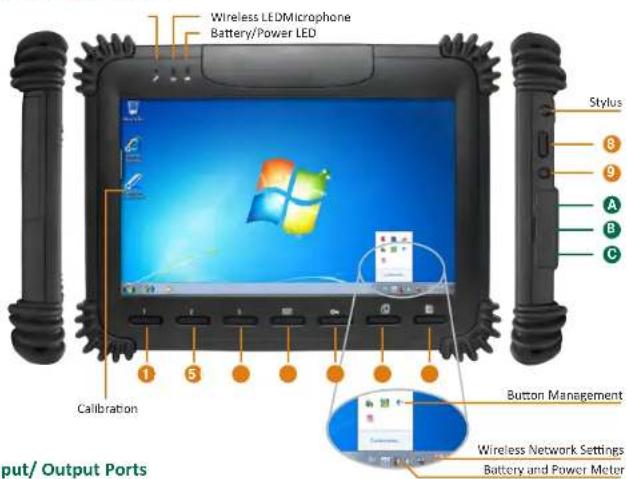
Wireless LED/Microphone Battery/Power LED Stylus 8 9 A B C 1 5 Calibration Button Management Wireless Network Settings Battery and Power Meter Output/ Output PortsInput/ Output Ports
| A | Headphone Jack |
| B | USB Port |
| C | DC Power Input |
Button Functions
| BUTTON ACTION | |
| 1 2 3 | Programmable |
| 4 | Programmable, launch soft (on-screen) keyboard (default) |
| 5 | Launch SAS (Secure Attention Sequence)Generate Ctrl+Alt+Del keys to invoke the security windows defined under Windows XP |
| 6 | Programmable,Change display orientation (portrait/ landscape) (default) |
| 7 | Programmable, system utility menu (default) |
| 8 | Programmable,As scanner trigger when equipped with the scanner module |
| 9 | Power on,Push/release typically enters Standby mode, or Push/release exits Standby mode or restarts device (software dependent)Push and hold (over 4 seconds) invokes hardware shutdown |
Power/Battery LED Status:
- Blue indicates the battery is 25% to 100% charged
Blinking blue indicates the battery is charging
• Orange indicates that the battery is between 11% to 25% - Blinking Orange indicates that the battery is below 10%
Precautions
• Always exercise care when operating and handling the DT390/ DT390c.
- Do NOT apply excessive pressure to the display screen.
• We recommend using the Stylus provided to keep the screen clean.
- Avoid prolonged exposure of the display panel to any strong heat source. Wherever possible, the DT390/ DT390c should face away from direct light to reduce glare.
- If the AC-DC power adapter is used to recharge or power the device, do NOT use any AC-DC adapter other than the one provided with the device or acquired from the manufacturer or its partners.
- In the unlikely event that smoke, abnormal noise, or strange odor is present, immediately power off the DT390/ DT390c and disconnect all power sources. Report the problem to your device provider immediately.
- Never attempt to disassemble the DT390/ DT390c, as this will void the warranty.
THE DT390/ DT390c
Basic Features
The DT390/ DT390c wireless tablet integrates a bright and responsive touch display, 1 USB port, and embedded networking elements such as wireless LAN or optional 3G. The primary device is complemented by a suite of accessories, including battery expansion, docking cradles, and carrying cases, for a comprehensive user experience.
A DT390/ DT390c typically integrates an 802.11a/b/g/n wireless LAN (WLAN) adapter that may connect to other wireless devices or access points. If your DT390/ DT390c does not come with such a network adapter, please consult your device provider to establish the desired network connectivity.
DT390/ DT390c
OPERATION
Internal Battery
Warning!
The Internal battery pack should only be replaced by an authorized DT Research service representative. Please contact your product and/or service provider for internal battery replacement service.
Powering ON and OFF
To activate the DT390/ DT390c, push and quickly release the Power Button. The display will come on in a few seconds. To put the DT390/ DT390c in Standby mode, push and quickly release the Power Button. To turn the DT390/ DT390c off for extended storage, power off the device safely using any software function that "shuts down computer" provided in the software operating system.
NOTE: The battery packs shipped with your device may be low in power—please use the AC-DC adapter with the DT390/DT390c when setting up the device for the first time to fully charge the internal battery pack. You may charge the external battery pack with it attached to the DT390/DT390c, or with the optional external battery charger kit.
NOTE: When the battery pack(s) is (are) charging, the blue-colored Battery LED should blink slowly. If plugging in the AC-DC adapter does not trigger this blinking activity and the LED stays dark, the battery pack(s) may have been drained substantially. Try unplugging/replugging the AC-DC adapter to the DT390/DT390c a few times to activate the charging process.
NOTE: To conserve power, use (push and quick release) the Power Button to put the device in "Standby" mode while not in use. Pushing briefly on the same button will wake up the system within seconds.
NOTE: Avoid using the Power Button ("hold 4+ seconds" feature) to turn off the device—this form of hardware shutdown is intended to be a means of recovery from device lockups, and not as normal operation.
Start Up
If the power up (from Standby or otherwise) is successful, the appropriate interface will be displayed after a launch sequence of several seconds. The wireless LAN connection may take 10-15 seconds to be established.
Configuring the DT390/ DT390c
The device may be configured using the utilities and methods dictated by the software operating system. The DT390/ DT390c should be configurable for various properties such as user profiles, network features, and several system elements.
Calibration
The touch display for the DT390/ DT390c is calibrated before shipping. In the event that the calibration has been modified or is unsatisfactory, the respective calibration routines (e.g., PenMount (PM) for Windows XP) to calibrate the touch interface may be used. Such applications are typically executed through touch input via Stylus or through mouse click via a USB mouse.
Wireless Networking
Wireless LAN
The DT390/ DT390c is often delivered with an embedded (user-inaccessible) 802.11a/b/g/n WLAN adapter equipped with a hidden custom antenna.
- Through the support of typical WLAN adapters, the DT390/ DT390c should be able to detect all 802.11 access points in the vicinity for you to select the access point of your choice for connection.
- The SSID and WEP/WPA/WPA2 (if enabled) parameters on the DT390/ DT390c and the access points have to match. The SSID is case-sensitive and it is recommended that you enable WEP/WPA/WPA2 encryption (or advanced alternatives) for secure access.
- Men WEP/WPA/WPA2 is enabled, you may need to consult your network administrator or your networking equipment literature to properly configure associated settings such as Authentication mode, etc.
• Refer to the access point operating manuals for setting up the 802.11 access points.
DT390/ DT390c
Button Management
Where supported by software, many of the hard buttons on the DT390/ DT390c are programmable to perform a function of the user's choice. The exception is the Power Button and the SAS Button. To activate the button re-assignment application, invoke the Button Manager application, e.g., in Windows XP Embedded
Brightness Control
Where supported by device firmware and software, a hard button may be engaged to manipulate the display brightness. Press the System Menu button (Button 7) on the front of the DT390/ DT390c. The System screen will display a Brightness control section with up and down arrows that can be activated with the stylus.
Battery and Power Management
The DT390/ DT390c is equipped with an internal 3760mAh Li-Ion battery pack that is capable of supporting approximately 3 - 4 hours of continuous operation. With the internal battery and an external battery pack that clips (hot-pluggable) onto the back of the device, the maximum period of continuous operation will be approximately 6 - 8 hours. The period between battery recharges can be significantly lengthened by putting the device into Standby mode through the Power Button (see Buttons Function Table) whenever the device is not in use. Depending on the operating software, the DT390/ DT390c may also be configured to enter various power-saving modes via the Power Button or through timed entry.
Desktop Cradle
The DT390/ DT390c is complemented by an optional Desktop Cradle for support, pass-through charging, and connection to a range of USB peripherals, including keyboard and mouse. The Cradle offers the following interfaces: a DC-in port for the AC-DC adapter, an Ethernet port, and USB ports. Always seat the DT390/ DT390c securely onto the cradle. The cradle must be powered by the AC-DC adapter for the Ethernet and USB ports to function. The battery packs on the DT390/ DT390c may be recharged by connecting the AC-DC adapter directly to the DC-in port on the DT390/ DT390c or through the DC-in port on the Desktop Cradle while the DT390/ DT390c is docked to the Cradle.
USING THE DT390/ DT390c
Memory & Storage configuration
The DT390/ DT390c is available with 2GB memory configuration. Storage options currently range from: 2GB to 32GB flash memory or 32GB to 64GB SSD.
Peripherals Support
Through its USB ports, the DT390/ DT390c supports a wide range of USB-based peripherals. These peripherals are applicable for software installation, applications storage, data storage, and system software recovery and updates. The DT390/ DT390c is also compatible with custom mountable cradle options. These securable and mountable cradles provide an interface to VESA mounts and arms, and to ports that may include USB, Ethernet and pass-through power.