EW-7612HPn - Network adapter Edimax - Free user manual and instructions
Find the device manual for free EW-7612HPn Edimax in PDF.


User questions about EW-7612HPn Edimax
0 question about this device. Answer the ones you know or ask your own.
Ask a new question about this device
Download the instructions for your Network adapter in PDF format for free! Find your manual EW-7612HPn - Edimax and take your electronic device back in hand. On this page are published all the documents necessary for the use of your device. EW-7612HPn by Edimax.
USER MANUAL EW-7612HPn Edimax
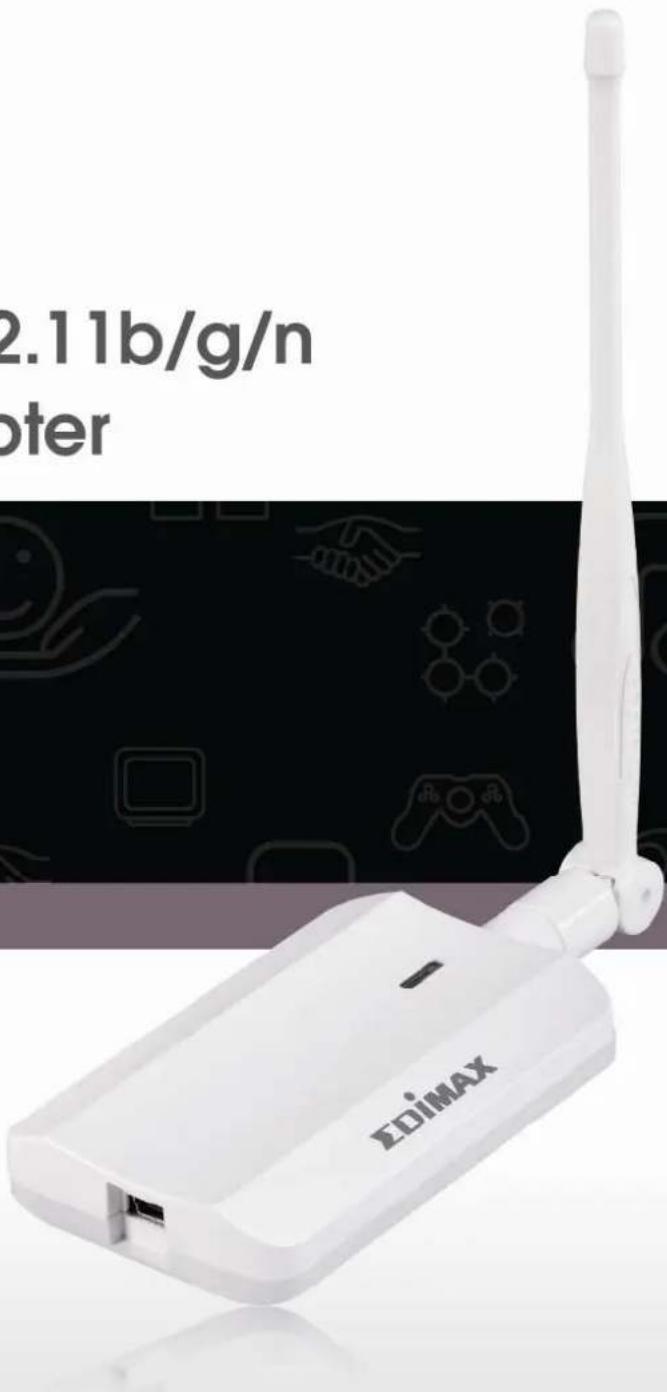
300Mbps Wireless 802.11b/g/n High Power USB Adapter
EW-7612HPn
User Manual
Version 1.0 / December, 2009
text_image
2.11b/g/n oter EDiMAXCOPYRIGHT
Copyright ©2009/2010 by this company. All rights reserved. No part of this publication may be reproduced, transmitted, transcribed, stored in a retrieval system, or translated into any language or computer language, in any form or by any means, electronic, mechanical, magnetic, optical, chemical, manual or otherwise, without the prior written permission of this company.
This company makes no representations or warranties, either expressed or implied, with respect to the contents hereof and specifically disclaims any warranties, merchantability or fitness for any particular purpose. Any software described in this manual is sold or licensed "as is". Should the programs prove defective following their purchase, the buyer (and not this company, its distributor, or its dealer) assumes the entire cost of all necessary servicing, repair, and any incidental or consequential damages resulting from any defect in the software. Further, this company reserves the right to revise this publication and to make changes from time to time in the contents thereof without obligation to notify any person of such revision or changes.
Federal Communication Commission Interference Statement
This equipment has been tested and found to comply with the limits for a Class B digital device, pursuant to Part 15 of FCC Rules. These limits are designed to provide reasonable protection against harmful interference in a residential installation. This equipment generates, uses, and can radiate radio frequency energy and, if not installed and used in accordance with the instructions, may cause harmful interference to radio communications. However, there is no guarantee that interference will not occur in a particular installation. If this equipment does cause harmful interference to radio or television reception, which can be determined by turning the equipment off and on, the user is encouraged to try to correct the interference by one or more of the following measures:
- Reorient or relocate the receiving antenna.
- Increase the separation between the equipment and receiver.
- Connect the equipment into an outlet on a circuit different from that to which the receiver is connected.
- Consult the dealer or an experienced radio technician for help.
FCC Caution
This device and its antenna must not be co-located or operating in conjunction with any other antenna or transmitter.
This device complies with Part 15 of the FCC Rules. Operation is subject to the following two conditions: (1) this device may not cause harmful interference, and (2) this device must accept any interference received, including interference that may cause undesired operation.
Any changes or modifications not expressly approved by the party responsible for compliance could void the authority to operate equipment.
Federal Communication Commission (FCC) Radiation Exposure Statement
This EUT is compliance with SAR for general population/uncontrolled exposure limits in ANSI/IEEE C95.1-1999 and had been tested in accordance with the measurement methods and procedures specified in OET Bulletin 65 Supplement C.
The equipment version marketed in US is restricted to usage of the channels 1-11 only.
R&TTE Compliance Statement
This equipment complies with all the requirements of DIRECTIVE 1999/5/EC OF THE EUROPEAN PARLIAMENT AND THE COUNCIL of March 9, 1999 on radio equipment and telecommunication terminal Equipment and the mutual recognition of their conformity (R&TTE)
The R&TTE Directive repeals and replaces in the directive 98/13/EEC (Telecommunications Terminal Equipment and Satellite Earth Station Equipment) As of April 8, 2000.
Safety
This equipment is designed with the utmost care for the safety of those who install and use it. However, special attention must be paid to the dangers of electric shock and static electricity when working with electrical equipment. All guidelines of this and of the computer manufacture must therefore be allowed at all times to ensure the safe use of the equipment.
EU Countries Intended for Use
The ETSI version of this device is intended for home and office use in Austria, Belgium, Denmark, Finland, France, Germany, Greece, Ireland, Italy, Luxembourg, the Netherlands, Portugal, Spain, Sweden, and the United Kingdom.
The ETSI version of this device is also authorized for use in EFTA member states: Iceland, Liechtenstein, Norway, and Switzerland.
EU Countries Not intended for use
None.
Copyright© by Edimax Technology Co, LTD. all rights reserved. No part of this publication may be reproduced, transmitted, transcribed, stored in a retrieval system, or translated into any language or computer language, in any form or by any means, electronic, mechanical, magnetic, optical, chemical, manual or otherwise, without the prior written permission of this Company.
This company makes no representations or warranties, either expressed or implied, with respect to the contents hereof and specifically disclaims any warranties, merchantability or fitness for any particular purpose. Any software described in this manual is sold or licensed "as is". Should the programs prove defective following their purchase, the buyer (and not this company, its distributor, or its dealer) assumes the entire cost of all necessary servicing, repair, and any incidental or consequential damages resulting from any defect in the software. Further, this company reserves the right to revise this publication and to make changes from time to time in the contents here of without obligation to notify any person of such revision or changes.
The product you have purchased and the setup screen may appear slightly different from those shown in this QIG. For more detailed information about this product, please refer to the User Manual on the CD-ROM. The software and specifications are subject to change without notice. Please visit our web site www.edimax.com for the update. All rights reserved including all brand and product names mentioned in this manual are trademarks and/or registered trademarks of their respective holders.
Notice according to GNU/GPL-Version 2
This product includes software that is subject to the GNU/GPL-Version 2. You find the text of the license on the product cd/dvd. The program is free software and distributed without any warranty of the author. We offer, valid for at least three years, to give you, for a charge no more than the costs of physically performing source distribution, a complete machine-readable copy of the corresponding source code.
Please contact Edimax at: Edimax Technology co., Ltd, NO. 3, Wu-Chuan 3rd RD Wu-Ku-Industrial Park, Taipei Hsien, Taiwan. R.O.C., TEL : +886-2-77396888, FAX : +886-2-77396887, sales@edimax.com.tw
CONTENTS
1 INTRODUCTION....1
1.1 Features....1
1.2 Specifications.... 1
1.3 Package Contents....2
2 INSTALLATION PROCEDURE ....3
3 CONFIGURATION UTILITY ....13
3.1 Utility Overview 14
3.2 Available Network 15
3.3 General....16
3.4 Profile....18
3.4.1 Configure the Profile....19
3.5 Status....23
3.6 Statistics 24
3.7 Wi-Fi Protect Setup (WPS) 25
3.8 Software AP 28
3.8.1 AP Properties Setting ......29
3.8.2 AP Advanced 30
3.8.3 AP Statistics 31
3.8.4 SoftAP 32
4 TROUBLESHOOTING 33
1 Introduction
Thank you for purchasing this high-speed wireless network card! Excepting common wireless standards 802.11b/g, this wireless network card is also able to access 802.11n wireless networks - data transfer rate is 300Mbps, and that's three times faster than 802.11g wireless network!
For WLAN security issues, this adapter supports 64/128-bit WEP data encryption that protects your wireless network from eavesdropping. It also supports WPA (Wi-Fi Protected Access) feature technology. Client users are required to authorize before accessing to APs or AP Routers, and the data transmitted in the network is encrypted/decrypted by a dynamically changed secret key. Furthermore, this adapter supports WPA2 function, WPA2 provides a stronger encryption mechanism through AES (Advanced Encryption Standard), which is a requirement for some corporate and government users.
This adapter is cost-effective, together with the versatile features; it is the best solution for you to build your wireless network.
1.1 Features
• Work with 802.11b/g/n wireless network devices.
- High-speed transfer data rate - up to 300 Mbps.
- High throughput supports multi-media data bandwidth requirement.
● Support 64/128-bit WEP Data Encryption, WPA, WPA2.
● Automatic fallback increases data security and reliability.
● Supports the most popular operating system: Windows 2000/XP/Vista/7.
• Supports USB 2.0 interface.
1.2 Specifications
• Standard: IEEE 802.11b/g/n
- Interface: USB 2.0 Type A
● Frequency Band: 2.4000 \~ 2.4835GHz (Industrial Scientific Medical Band)
- Data Rate:
11b: 1/2/5.5/11Mbps
11g: 6/9/12/24/36/48/54Mbps
11n (20MHz): MCS0-7 (up to 150Mbps)
11n (40MHz): MCS0-7 (up to 300Mbps)
● Security: 64/128-bit WEP Data Encryption, WPA, WPA2
- Antenna: 5dBi High Gain Antenna
- Drivers: Windows 2000/XP/Vista/7
• LEDs: Link/Activity
- Temperature: Operating 32\~104°F (0 \~40°C), Storage -13\~149°F (-25\~65°C)
• Humidity: Max. 95% (Non-Condensing)
1.3 Package Contents
Before you begin the installation, please check the items of your package. The package should include the following items:
- One USB Adapter
• One CD (Driver/Utility/User's Manual) - One Quick Guide
- USB cable
If any of the above items is missing, contact your supplier as soon as possible.
2 Installation Procedure
Before you proceed with the installation, please notice following descriptions.
Note1: The following installation was operated under Windows XP. (Procedures are similar for Windows 2000/Vista/7.)
Note2: If you have installed the Wireless PC Adapter driver & utility before, please uninstall the old version first.
Hardware Installation
Please follow the following instructions to install your new USB wireless network card:

text_image
LEDInsert the USB wireless network card into an empty USB 2.0 port of your computer when computer is switched on .

natural_image
Line drawing of a device with connectors and a USB port, no text or symbols presentNever use force to insert the card, if you feel it's stuck, flip the card over and try again.
Software Installation
This wizard can be run in Windows 2000/XP/Vista/7.
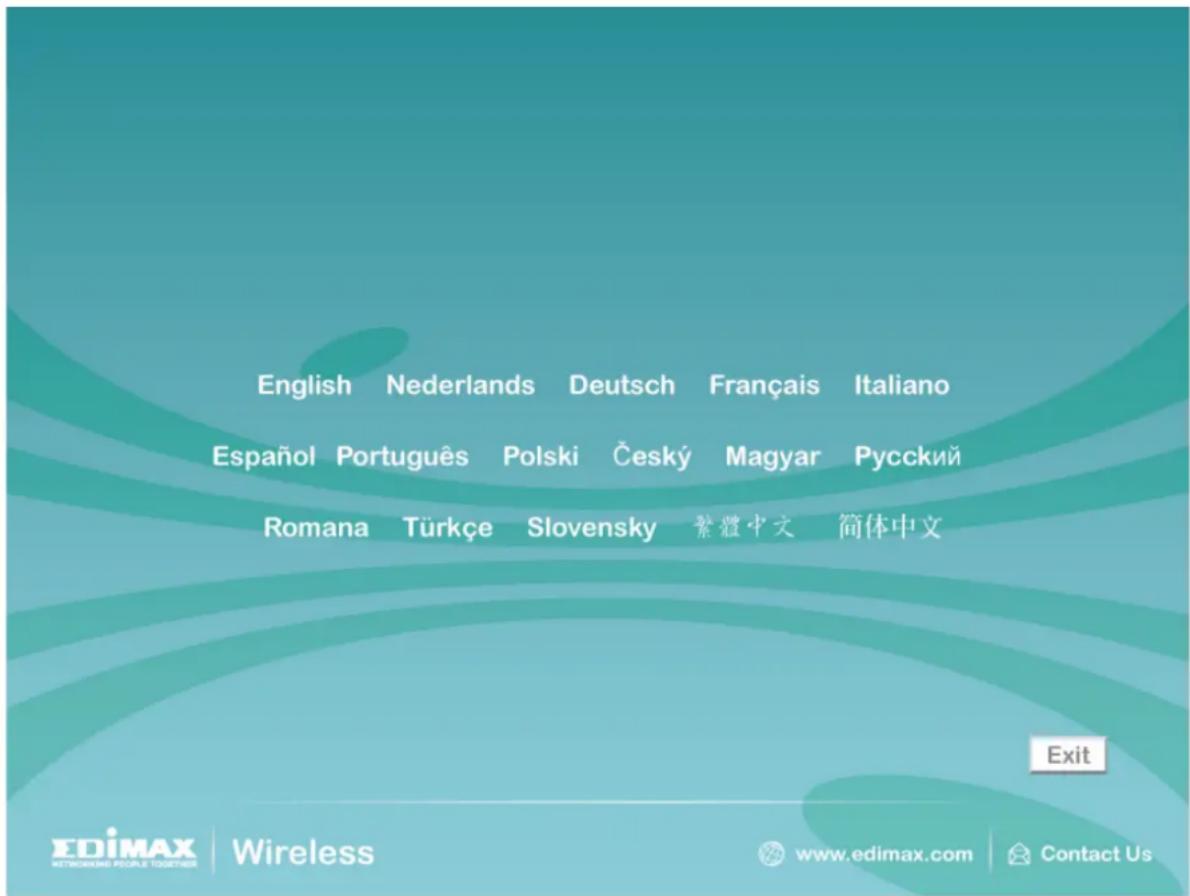
You can install the Wireless Adapter by EZMAX Setup Wizard in the CD-ROM including in the package. The wizard is an easy and quick configuration tool for internet connection with series process. When you start EZMAX Setup Wizard, you will get the following welcome screen. Please choose the language to start the configuration. The wizard will guide you to finish your network connection. We will not provide any instruction for the EZMAX Setup Wizard here.
text_image
English Nederlands Deutsch Français Italiano Español Português Polski Český Magyar Pycckii Romana Türkçe Slovensky 繁體中文 簡体中文 EDIMAX | Wireless www.edimax.com Contact UsIf you lose the CD ROM or you prefer the traditional setup procedure, please follow the instruction as following step in user mnaual.
I. Install the Driver and Utility
A. Insert the Installation CD to your CD-ROM Drive. Execute the "Setup.exe" program.
B. Select Setup Language and click "OK" to proceed.

text_image
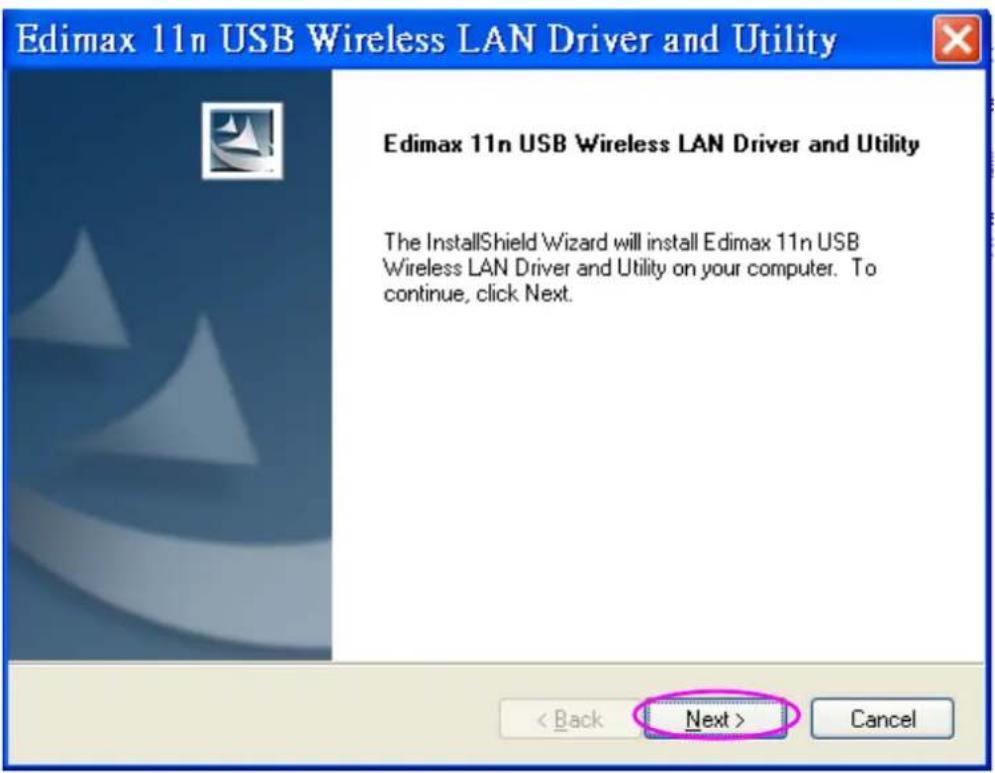
REALTEK 11n USB Wireless LAN - InstallShield Wizard Choose Setup Language Select the language for the installation from the choices below. Basque Bulgarian Catalan Chinese (Simplified) Chinese (Traditional) Croatian Czech Danish Dutch English Finnish French (Canadian) French (Standard) German Greek InstallShield < Back Next > CancelC. Click "Next" to go to the next step.
text_image
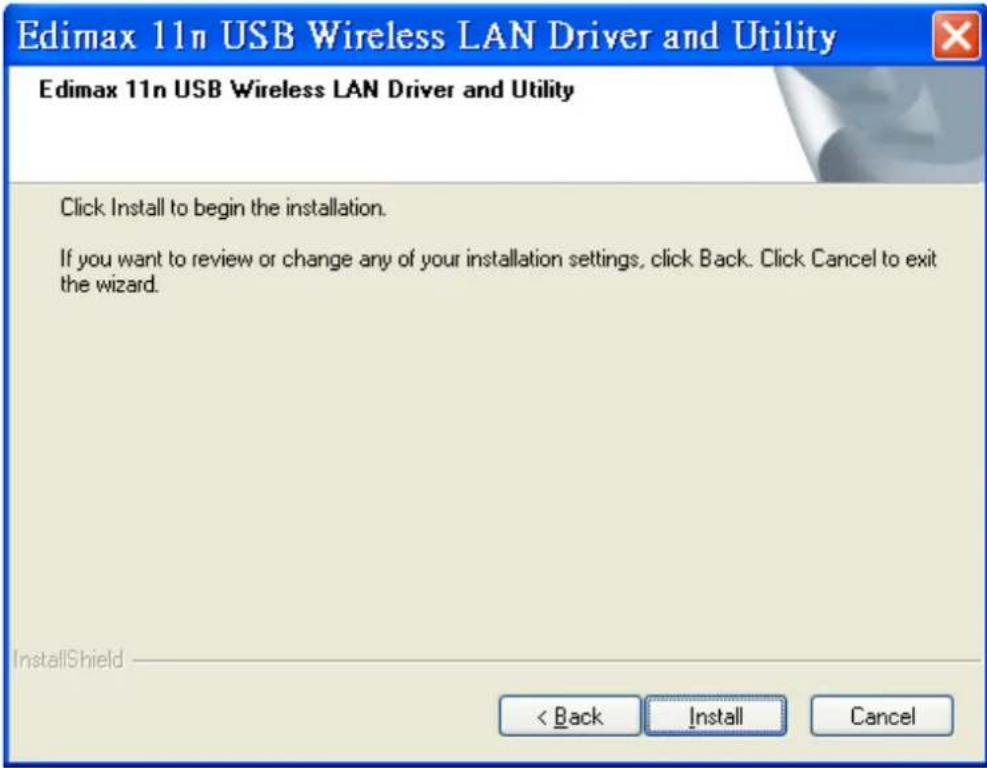
Edimax 11n USB Wireless LAN Driver and Utility Edimax 11n USB Wireless LAN Driver and Utility The InstallShield Wizard will install Edimax 11n USB Wireless LAN Driver and Utility on your computer. To continue, click Next. < Back Next > CancelD. Now you'll see the following message, please click 'Install' to begin the installation.
text_image
Edimax 11n USB Wireless LAN Driver and Utility Edimax 11n USB Wireless LAN Driver and Utility Click Install to begin the installation. If you want to review or change any of your installation settings, click Back. Click Cancel to exit the wizard. InstallShield < Back Install CancelE. The system starts to install the driver and utility.

Now installing Edimax 11n USB Wireless LAN Driver
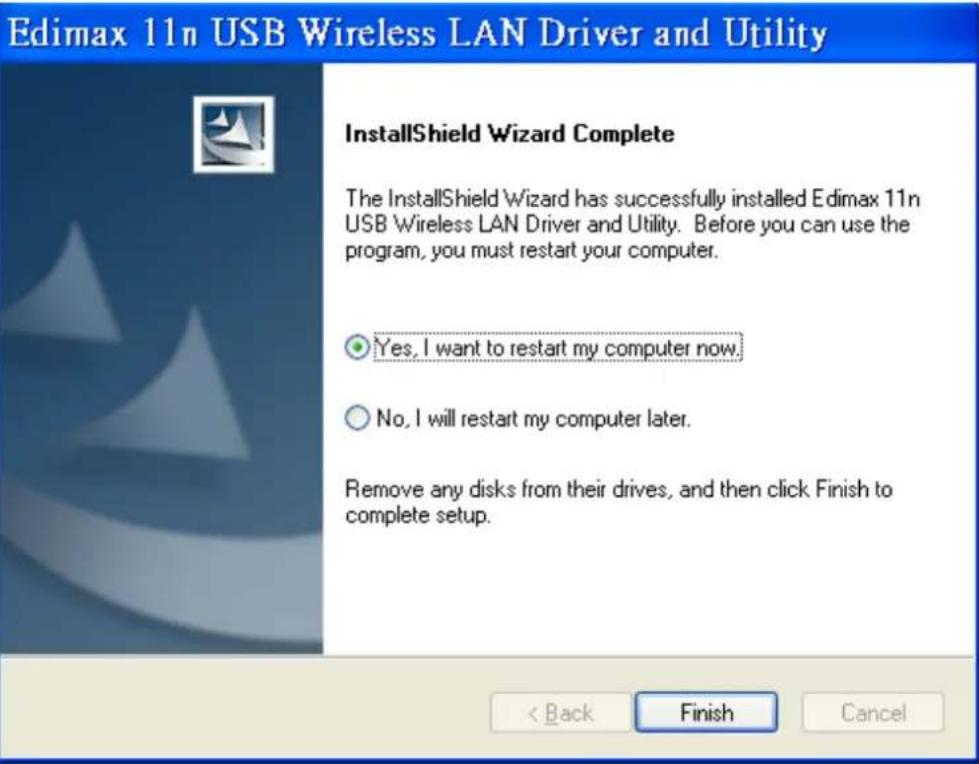
F. Click "Finish" to complete the driver and utility installation.
text_image
Edimax 11n USB Wireless LAN Driver and Utility InstallShield Wizard Complete The InstallShield Wizard has successfully installed Edimax 11n USB Wireless LAN Driver and Utility. Before you can use the program, you must restart your computer. Yes, I want to restart my computer now. No, I will restart my computer later. Remove any disks from their drives, and then click Finish to complete setup. < Back Finish CancelII. Connect to Wireless Access Point
A. To start configuring the adapter, double click the icon in the system tray or right click the icon and select open configuration utility.

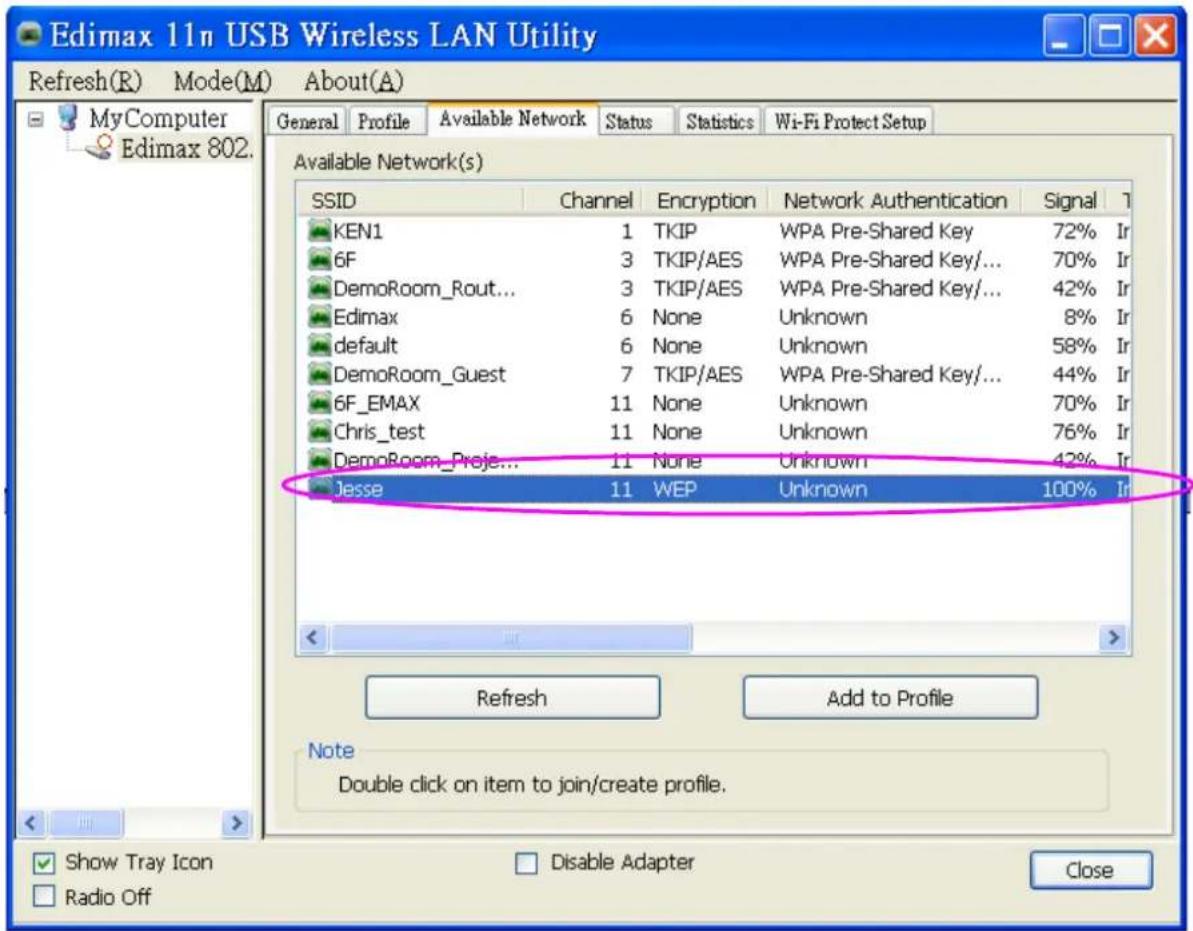
B. The utility of the adapter is displayed. Click "Available Network" and double-click on the wireless access point you want to connect to.
text_image
Edimax 11n USB Wireless LAN Utility Refresh(R) Mode(M) About(A) MyComputer Edimax 802. General Profile Available Network Status Statistics Wi-Fi Protect Setup Available Network(s) SSID Channel Encryption Network Authentication Signal KEN1 1 TKIP WPA Pre-Shared Key 72% Ir 6F 3 TKIP/AES WPA Pre-Shared Key/... 70% Ir DemoRoom_Rout... 3 TKIP/AES WPA Pre-Shared Key/... 42% Ir Edimax 6 None Unknown 8% Ir default 6 None Unknown 58% Ir DemoRoom_Guest 7 TKIP/AES WPA Pre-Shared Key/... 44% Ir 6F_EMAX 11 None Unknown 70% Ir Chris_test 11 None Unknown 76% Ir DemoRoom_Proje... 11 None Unknown 42% Ir Jesse 11 WEP Unknown 100% Ir Refresh Add to Profile Note Double click on item to join/create profile. Show Tray Icon Radio Off Disable Adapter CloseC. Input the security setting and click "OK" to start network connection.

text_image
Wireless Network Properties: Profile Name: Jesse Network Name(SSID): Jesse This is a computer-to-computer(ad hoc) network; wireless access points are not used. Channel: 11 (2462MHz) Wireless network security This network requires a key for the following: Network Authentication: Open System Data encryption: WEP ASCII PASSPHRASE Key index (advanced): 1 Network key. ********** Confirm network key: OK Cancel 802.1x configure EAP TYPE : GTC Tunnel : Provision Mode : Username : Identity : Domain : Password : Certificate : PAC : Auto Select PAC\* Use Windows Zero Configuration on Windows Vista:
A. For Windows Vista user, you can use Windows Zero Configuration to connect to wireless access point.
Click 'Start' button, then click 'Control Panel. Click 'Network and Internet' in Control Panel.

text_image
Control Panel Home Classic View System and Maintenance Get started with Windows Back up your computer Security Check for updates Check this computer's security status Allow a program through Windows Network and Internet View network status and tasks Set up file sharing Hardware and Sound Printer Mouse Programs Uninstall a program Change startup programs User Accounts and Family Safety Set up parental controls for any user Add or remove user accounts Appearance and Personalization Change desktop background Customize colors Adjust screen resolution Clock, Language, and Region Change keyboards or other input methods Change display language Ease of Access Let Windows suggest settings Optimize visual display Additional Options Recent Tasks Connect to a network Uninstall a program View hardware and devicesB. Click 'Connect to a network' under 'Network and Sharing Center'

text_image
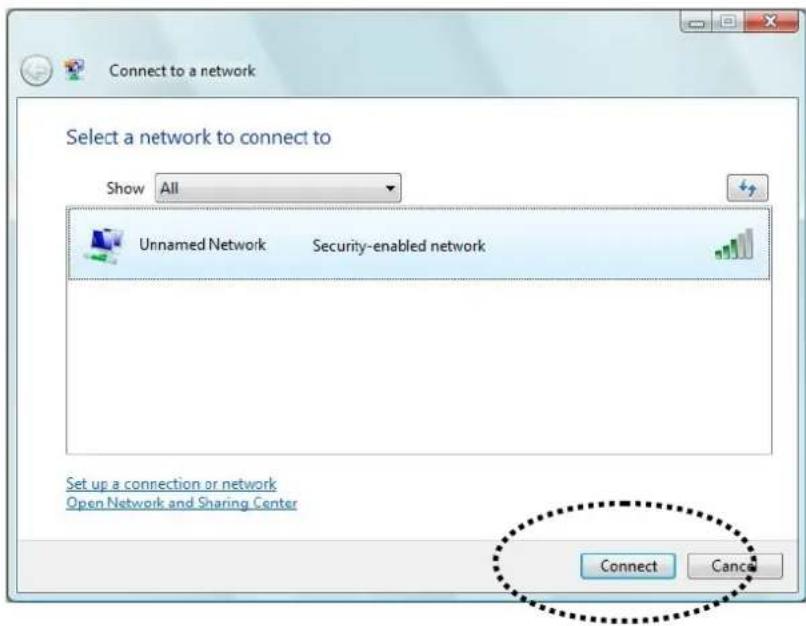
Control Panel Home System and Maintenance Security Network and Internet Hardware and Sound Programs User Accounts and Family Safety Appearance and Personalization Clock, Language, and Region Ease of Access Additional Options Classic View Recent Tasks Connect to a network Uninstall a program View hardware and devices Network and Sharing Center View network status and tasks | Connect to a network | View network computers and devices | Add a device to the network | Set up file sharing Internet Options Change your homepage | Manage browser add-ons | Delete browsing history and cookies Offline Files Encrypt your offline files | Manage disk space used by your offline files Windows Firewall Turn Windows Firewall on or off | Allow a program through Windows Firewall People Near Me Sign in or out of People Near Me | Change People Near Me settings Sync Center Sync with other computers, mobile devices, or network folders | View sync results | Resolve sync conflictsC. Click the access point you want to use if it's shown, then click 'Connect'.
text_image
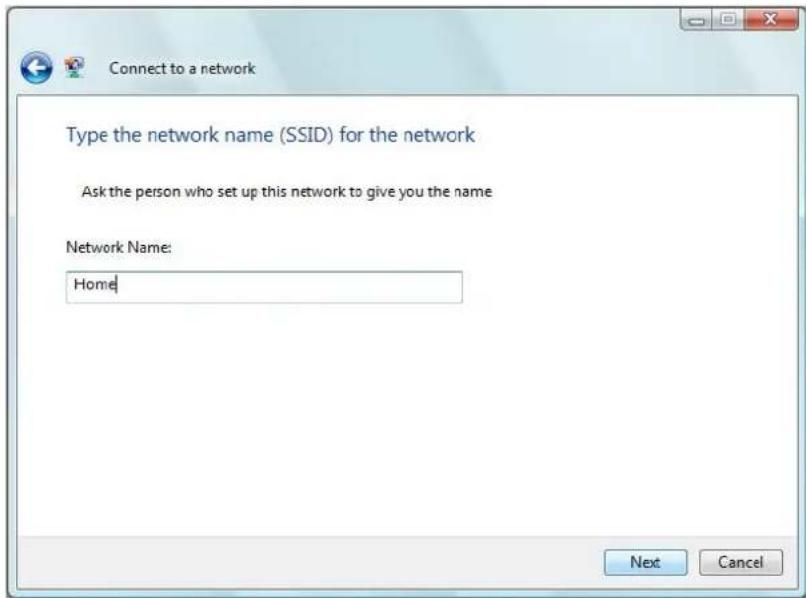
Connect to a network Select a network to connect to Show All Unnamed Network Security-enabled network Set up a connection or network Open Network and Sharing Center Connect CancelD. If it's an unnamed access point (i.e. the SSID of this wireless access point is hidden), you'll be prompted to input it's name, and the name must be identical to the SSID setting of the wireless access point you're connecting to.
text_image
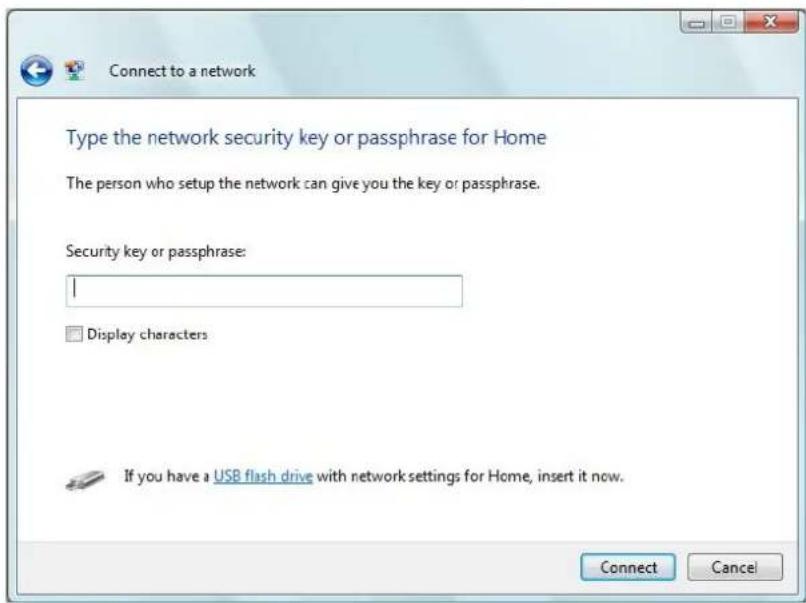
Connect to a network Type the network name (SSID) for the network Ask the person who set up this network to give you the name Network Name: Home Next CancelE. If the access point is protected by encryption method, you have to input its security or passphrase here. It must match the encryption setting on the access point.
text_image
Connect to a network Type the network security key or passphrase for Home The person who setup the network can give you the key or passphrase. Security key or passphrase: 1 Display characters If you have a USB flash drive with network settings for Home, insert it now. Connect CancelF. If you can see this image, the connection between your computer and wireless access point is successfully established. Click 'Close' to start network connection.

text_image
Connect to a network Successfully connected to VarioxNET ✓ Save this network ✓ Start this connection automatically Close3 Configuration Utility
The Configuration Utility is a powerful application that helps you configure the Wireless LAN Mini USB Adapter and monitor the link status and the statistics during the communication process.
The Configuration Utility appears as an icon on the system tray and desktop of Windows. You can open it by double-click on the icon.
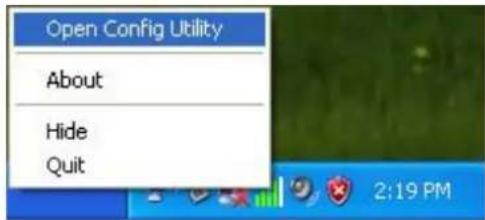
Right click the icon in the system tray there are some items for you to operate the configuration utility.
- Open Config Utility Select "Open Config Utility" to open the configuration utility.
- About Select "About" to show the utility information.
- Hide - Select "Hide" to hide the utility in the system tray. - Quit
Select "Quit" to quit the utility in the system tray.

In the Desktop

In the System Tray
text_image
Open Config Utility About Hide Quit 2:19 PMIn the System Tray(Right click)
3.1 Utility Overview
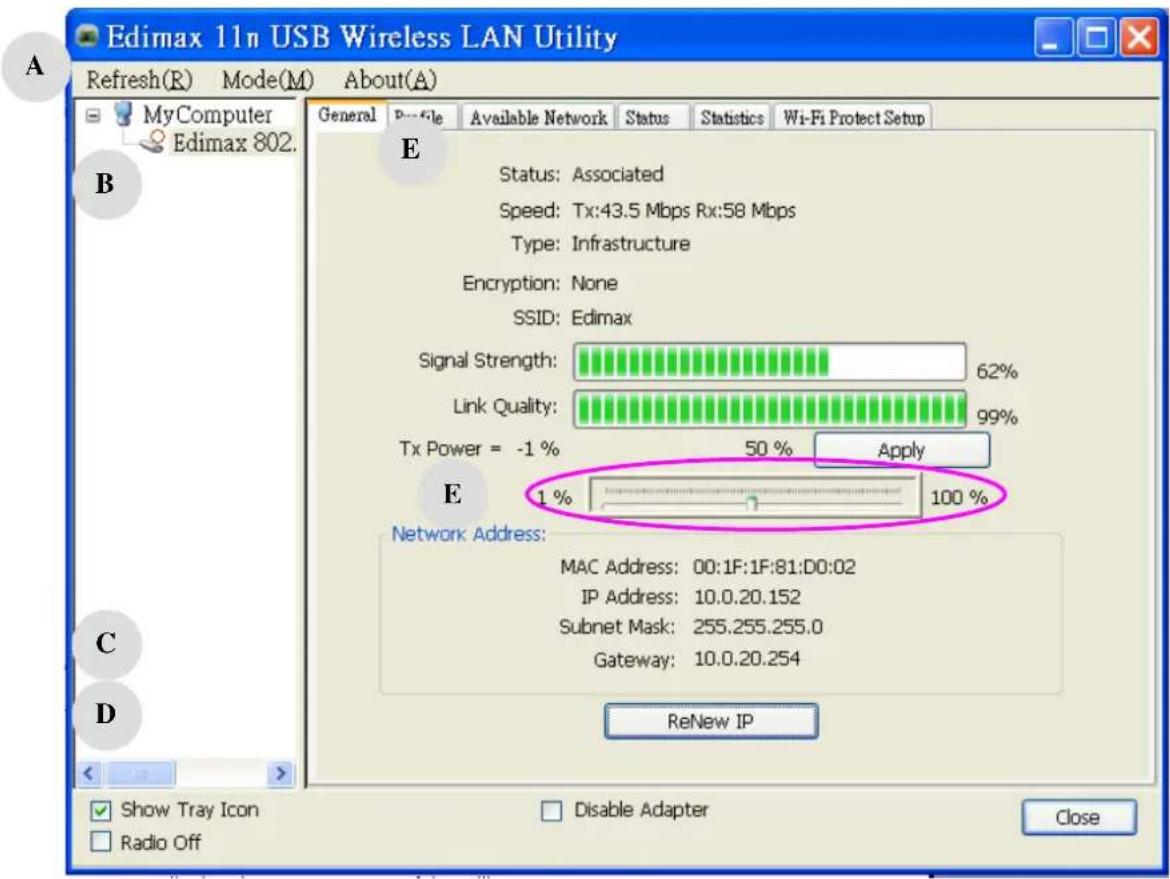
There are several parts in the utility screen. Please refer to the following table for the description.
text_image
Edimax 11n USB Wireless LAN Utility Refresh(R) Mode(M) About(A) General Page Available Network Status Statistics Wi-Fi Protect Setup MyComputer Edimax 802. Status: Associated Speed: Tx:43.5 Mbps Rx:58 Mbps Type: Infrastructure Encryption: None SSID: Edimax Signal Strength: 62% Link Quality: 99% Tx Power = -1 % 50 % Apply E 1% 100 % Network Address: MAC Address: 00:1F:1F:81:D0:02 IP Address: 10.0.20.152 Subnet Mask: 255.255.255.0 Gateway: 10.0.20.254 ReNew IP Show Tray Icon Radio Off Disable Adapter Close| Parameter | Description |
| A | Refresh – Refresh adapter list in the “B” block.Mode – There are two modes: Station and Access Point. If “Station” is selected, the adapter works as a wireless adapter. If “Access Point” is selected, the adapter will works as a wireless AP.View – Enable “Status Bar” and the “D” block in the utility will display the current status of the utility.About – To check the version of the utility, select this item. |
| B | This is a list for you to configure several adapters in your PC from the utility. |
| C | Show Tray Icon – To show the icon in the system tray, select the item.Disable Adapter – This function is for you to disable or enable the adapter.Windows Zero Config – To configure the adapter from Windows XP Zero Configuration, check the item.Radio Off – This function is for you to turn off or turn on the radio of the adapter. If the radio is turned off, the adapter will not work. |
D
It is the status bar that displays the current status of the utility. To close it, please disable the "Status Bar" in the "View" item.
There are several tabs in the block for you to setup the function of
E
the adapter. Please refer to the description in the following sections.
1% \~ 100% Where you can adjust wireless Tx power (wireless signal) of EW-7612HPn.
Adjust to 100% you will get the strongest wireless signal.
3.2 Available Network
When you open the Configuration Utility, the system will scan all the channels to find all the access points/stations within the accessible range of your adapter and automatically connect to the wireless network with the highest signal strength. From the "Available Network" tab, all the networks nearby will be listed. You can change the connection to another network.

text_image
Edimax 11n USB Wireless LAN Utility Refresh(R) Mode(M) About(A) General Profile Available Network Status Statistics Wi-Fi Protect Setup Available Network(s) SSID Channel Encryption Network Authentication Signal 6F 3 TKIP/AES WPA Pre-Shared Key/... 58% DemoRoom_Rout... 3 TKIP/AES WPA Pre-Shared Key/... 8% KEN1 3 TKIP WPA Pre-Shared Key 44% 7415AP2 4 None Unknown 62% 7415AP3 4 None Unknown 56% 7415AP4 4 None Unknown 56% J6400 4 None Unknown 58% J6400 4 TKIP/AES WPA Pre-Shared Key/... 100% Edimax 6 None Unknown 70% J6400NS 6 TKIP/AES WPA Pre-Shared Key/... 100% MEETING_ROOM... 6 None Unknown 56% DemoRoom_Guest 7 TKIP/AES WPA Pre-Shared Key/... 42% 6F_EMAX 11 None Unknown 74% DemoRoom_Proje... 11 None Unknown 8% Refresh Add to Profile Note Double click on item to join/create profile. Show Tray Icon Radio Off Disable Adapter Close| Parameter | Description |
| Available Network(s) This list shows all information of the available wireless networks within the range of your adapter. The information includes SSID, Channel, Encryption, Network Authentication, Signal and etc. If you want to connect to any network on the list, double-click the selected network. | |
| Refresh Click “Refresh” to update the available networks list. It is recommended that refresh the list while you have changed the connection network. | |
| Add to Profile | A profile stores the setting of a network, so that you can connect to the network quickly. To add the selected network to a profile, click this button. |
3.3 General
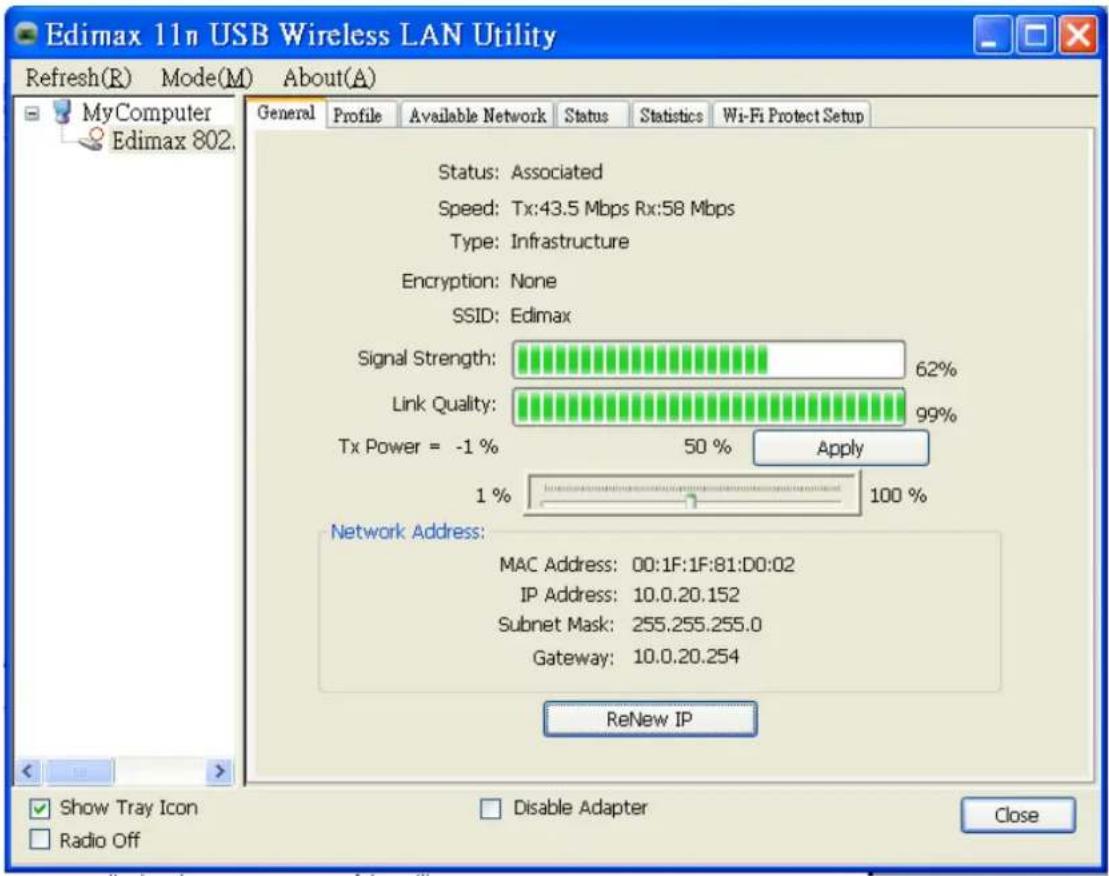
To check the connection status of the adapter, select "General". This screen shows the information of Link Speed, Network Type, Encryption Method, SSID, Signal Strength, Link Quality and Network Address of the adapter.
text_image
Edimax 11n USB Wireless LAN Utility Refresh(R) Mode(M) About(A) General Profile Available Network Status Statistics Wi-Fi Protect Setup MyComputer Edimax 802. Status: Associated Speed: Tx:43.5 Mbps Rx:58 Mbps Type: Infrastructure Encryption: None SSID: Edimax Signal Strength: 62% Link Quality: 99% Tx Power = -1 % 50 % Apply 1 % 100 % Network Address: MAC Address: 00:1F:1F:81:D0:02 IP Address: 10.0.20.152 Subnet Mask: 255.255.255.0 Gateway: 10.0.20.254 ReNew IP Show Tray Icon Radio Off Disable Adapter Close| Parameter | Description |
| Status | It will show the connection status of the adapter. |
| Speed | It shows the current speed |
| Type | Infrastructure – This operation mode requires the presence of an 802.11 Access Point. All communication is done via the Access Point or Router.IBSS – Select this mode if you want to connect to another wireless stations in the Wireless LAN network without through an Access Point or Router.IBSS – Select this mode if you want to connect to another wireless stations in the Wireless LAN network without through an Access Point or Router. |
| Encryption It displays the encryption setting of the current connection including None, WEP, TKIP or AES. | |
| SSID The SSID (up to 32 printable ASCII characters) is the unique name identified in a WLAN. The ID prevents the unintentional merging of two co-located WLANs. | |
| Signal Strength | It indicates the wireless signal strength. |
| Link Quality | It indicates the wireless link quality. |
| Network Address It shows the MAC, IP address and other information of the adapter. | |
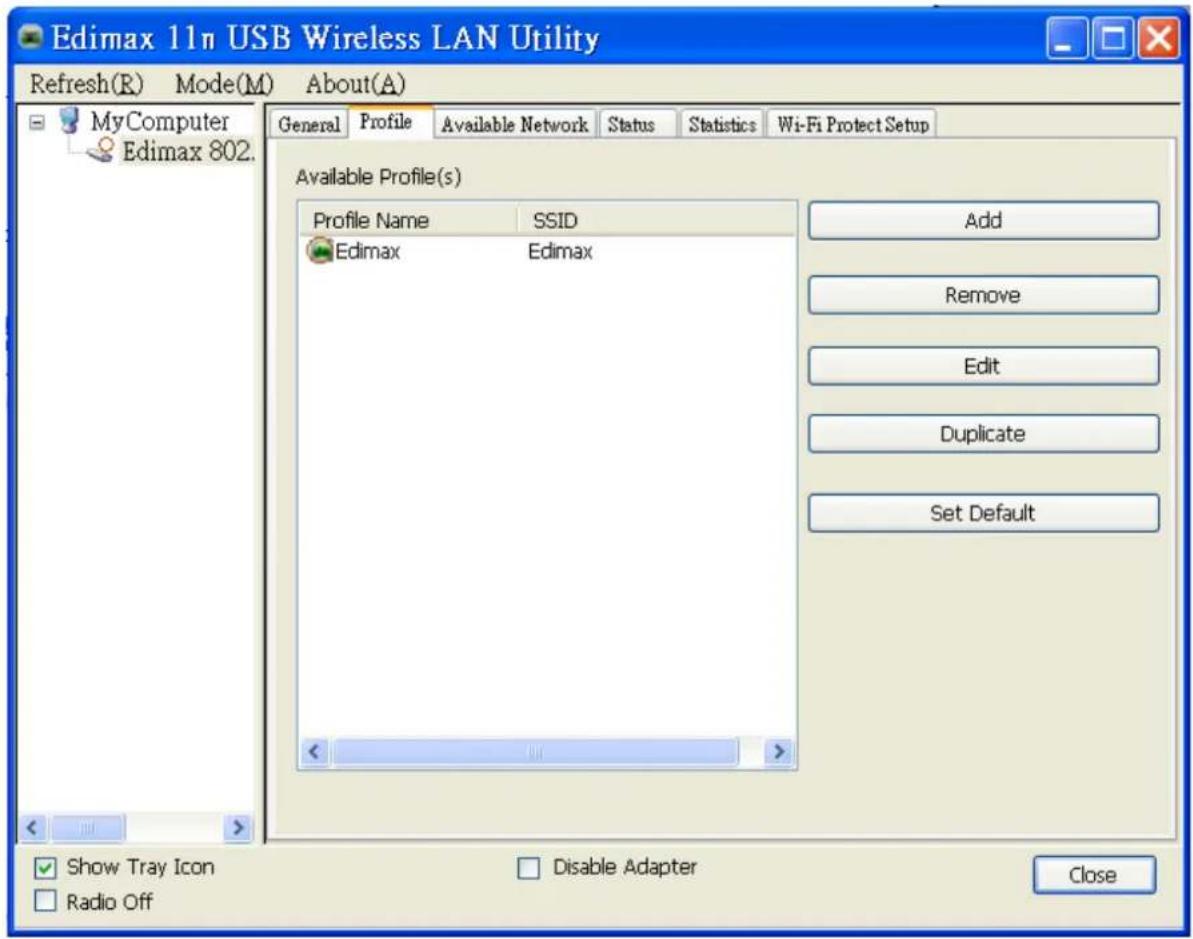
3.4 Profile
The "Profiles List" is for you to manage the networks you connect to frequently. You are able to Add/Remove/Edit/Duplicate/Set Default to manage a profile.
text_image
Edimax 11n USB Wireless LAN Utility Refresh(R) Mode(M) About(A) General Profile Available Network Status Statistics Wi-Fi Protect Setup MyComputer Edimax 802. Available Profile(s) Profile Name SSID Edimax Edimax Add Remove Edit Duplicate Set Default Show Tray Icon Radio Off Disable Adapter CloseParameter
Description
Available Profile(s) This list shows the preferred networks for the wireless connection.
You can add, remove, edit, duplicate the preferred networks or set one of the networks as the default connection.
Add/ Remove/ Edit Button
Click these buttons to add/ delete/ edit the selected profiles.
Duplicate If you like to build up the new profile with the same settings as the
current profile, then you can select this feature.
Set Default To designate a profile as the default network for the connection
from the available profiles list, click the button.
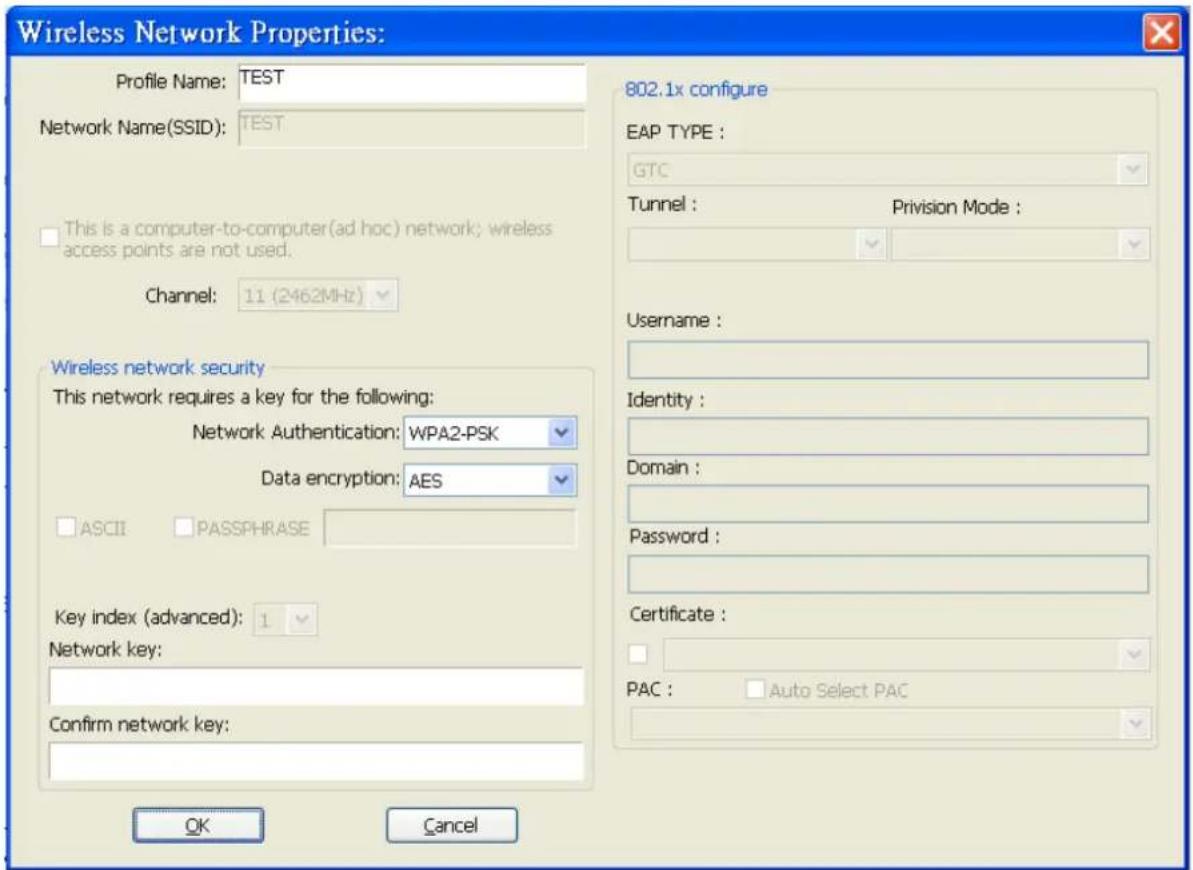
3.4.1 Configure the Profile
text_image
Wireless Network Properties: Profile Name: TEST Network Name(SSID): TEST This is a computer-to-computer(ad hoc) network; wireless access points are not used. Channel: 11 (2462MHz) Wireless network security This network requires a key for the following: Network Authentication: WPA2-PSK Data encryption: AES ASCII PASSPHRASE Key index (advanced): 1 Network key: Confirm network key: OK Cancel 802.1x configure EAP TYPE : GTC Tunnel : Provision Mode : Username : Identity : Domain : Password : Certificate : PAC : Auto Select PAC| Parameter | Description |
| Profile Name Define a recognizable profile name for you to identify the different networks (Access Point). | |
| Network Name (SSID) The SSID (up to 32 printable ASCII characters) is the unique name identified in a WLAN. The ID prevents the unintentional merging of two co-located WLANs.You may specify a SSID for the adapter and then only the device with the same SSID can interconnect to the adapter. | |
| This is a computer-to-computer (ad hoc) network; wireless access points are not used. | There are two kinds of network type described as follows.Infrastructure – This operation mode requires the presence of an 802.11 Access Point. All communication is done via the Access Point or Router.Ad Hoc – Connect to another wireless adapter in the Wireless LAN network without through an Access Point or Router.If this item is selected, the adapter will work in Ad Hoc mode. |
Channel This setting is only available for Ad Hoc mode. Select the number
of the radio channel used for the networking. The channel setting should be the same with the network you are connecting to.
Network Authentication This setting has to be consistent with the wireless networks that the adapter intends to connect.
Open System – No authentication is needed among the wireless network.
Shared Key – Only wireless stations using a shared key (WEP Key identified) are allowed to connecting each other.
WPA-PSK – It is a special mode designed for home and small business users who do not have access to network authentication servers. In this mode, known as Pre-Shared Key, the user manually enters the starting password in their access point or gateway, as well as in each wireless stations in the network. WPA-PSK takes over automatically from that point, keeping unauthorized users that don't have the matching password from joining the network, while encrypting the data traveling between authorized devices.
WPA2-PSK – WPA2-PSK is also for home and small business. The difference between WPA-PSK and WPA2-PSK is that WPA2-PSK provides data encryption via the AES. In contrast, WPA-PSK uses Temporal Key Integrity Protocol (TKIP).
WPA 802.1X – WPA provides a scheme of mutual authentication using either IEEE 802.1x/Extensible Authentication Protocol (EAP) authentication or pre-shared key (PSK) technology. It provides a high level of assurance to enterprises, small businesses and home users that data will remain protected and that only authorized users may access their networks. For enterprises that have already deployed IEEE 802.1x authentication, WPA offers the advantage of leveraging existing authentication databases and infrastructure.
WPA2 802.1X – Like WPA, WPA2 supports IEEE 802.1x/EAP authentication or PSK technology. It also includes a new advanced encryption mechanism using the Advanced Encryption Standard (AES). AES is required to the corporate user or government users. The difference between WPA and WPA2 is that WPA2 provides data encryption via the AES. In contrast, WPA uses Temporal Key Integrity Protocol (TKIP).
WEP 802.1X – It's a special mode for using IEEE 802.1x/EAP technology for authentication and WEP keys for data encryption.
| Parameter | Description |
| Data Encryption | Disabled – Disable the WEP Data Encryption. |
| WEP – Enable the WEP Data Encryption. When the item is selected, you have to continue setting the WEP Encryption keys. | |
| TKIP – TKIP (Temporal Key Integrity Protocol) changes the temporal key every 10,000 packets (a packet is a kind of message transmitted over a network.) This insures much greater security than the standard WEP security. | |
| AES – AES has been developed to ensure the highest degree of security and authenticity for digital information and it is the most advanced solution defined by IEEE 802.11i for the security in the wireless network. | |
| Note: All devices in the network should use the same encryption method to ensure the communication. | |
| ASCII WEP Key can be ASCII format. Alphanumeric values or signs are allowed to be the WEP key. It is more recognizable for user. | |
| PASSPHRASE It is a text string with a maximum of 32 alphanumeric characters, for example: “Test”. The WEP Key is based upon the Passphrase determined by you. This passphrase may not work with other vendors’ products due to possible incompatibility with other vendors’ passphrase generators. You must use the same passphrase or WEP key settings for all wireless computers within the network. | |
| Key Length When you select the “WEP and “PASSPHRASE” and this function will display in the current status of the utility. | |
| Key Index (advanced) Select one of the four keys to be the data encryption key. | |
| Network Key Please enter network security key here to make sure the password is correct. | |
| Confirm Network Key Please enter network security key here again. | |
| EAP Type | GTC – GTC is an authentication protocol which allows the exchange of clear text authentication credentials across the network.TLS – TLS is the most secure of the EAP protocols but not easy to use. It requires that digital certificates be exchanged in the authentication phase. The server presents a certificate to the client. After validating the server's certificate, the client presents a client certificate to the server for validation.LEAP – LEAP is a pre-EAP, Cisco-proprietary protocol, with many of the features of EAP protocols. Cisco controls the ability of other vendors to implement this protocol, so it should be selected for use only when limited vendor choice for client, access-point, and server products is not a concern. When you have set up LEAP authentication, you have to enter the user name and password of your computer.PEAP & TTLS – PEAP and TTLS are similar and easier than TLS in that they specify a stand-alone authentication protocol be used within an encrypted tunnel. TTLS supports any protocol within its tunnel, including CHAP, MSCHAP, MSCHAPv2 and PAP. PEAP specifies that an EAP-compliant authentication protocol must be used; this adaptor supports MD5, TLS, GTC (Generic Token Card) and MSCHAPv2. The client certificate is optional required for the authentication. |
Tunnel Includes MD5, GTC, TLS, MSCHAP-v2.
Username The certificate username in the RADIUS server.
Identity User's identity in the RADIL
Password User's password in the RADIUS server.
Certificate Select the certificate for RADIUS server authentication
3.5 Status
This screen shows the information of manufacturer, driver version, settings of the wireless network the adapter is connecting to, linking time and link status. If you don't ensure the status of the adapter and the network you are connecting, please go to the screen for more details.

text_image
Edimax 11n USB Wireless LAN Utility Refresh(R) Mode(M) About(A) MyComputer Edimax 802. General Profile Available Network Status Statistics Wi-Fi Protect Setup Manufacturer NDIS Driver Version Short Radio Header Encryption Authenticate Channel Set MAC Address Data Rate (AUTO) Channel (Frequency) Status SSID Network Type Power Save Mode Associated AP MAC Up Time (hh:mm:ss) • Edimax • 1085.9.1207.2009 • No • Disabled • Open System • FCC • 00:1F:1F:81:D0:02 • Tx:43.5 Mbps Rx:58 Mbps • 6 (2437 MHz) • Associated • Edimax • Infrastructure • None • 00:1F:1F:57:3C:24 • 0:25:55 Show Tray Icon Radio Off Disable Adapter Close3.6 Statistics
You can get the real time information about the packet transmission and receiving status during wireless communication from the screen. If you want to recount the statistics value, please click "Reset".

text_image
Edimax 11n USB Wireless LAN Utility Refresh(R) Mode(M) About(A) General Profile Available Network Status Statistics Wi-Fi Protect Setup MyComputer Edimax 802. Counter Name Value Tx OK 366 Tx Error 0 Rx OK 4879 Rx Packet Count 4879 Rx Retry 102 Rx ICV Error 0 Reset Show Tray Icon Disable Adapter Close Radio Off3.7 Wi-Fi Protect Setup (WPS)
Wi-Fi Protected Setup (WPS) is the latest wireless network technology which makes wireless network setup become very simple. If you have WPS-enabled wireless access point, and you want to establish a secure connection to it, you don't have to configure the wireless access point and setup data encryption by yourself. All you have to do is to go to the WPS setup page of this wireless card, click the PBC or PIN button, and then press a WPS button or enter a set of 8-digit code on the wireless access point you wish to establish a secure connection.

text_image
Edimax 11n USB Wireless LAN Utility Refresh(R) Mode(M) About(A) General Profile Available Network Status Statistics Wi-Fi Protect Setup MyComputer Edimax 802. Wi-Fi Protected Setup (WPS) An easy and secure setup solution for Wi-Fi network Pin Input Config (PIN) After pushing the PIN button.Please enter the PIN code into your AP. PIN Code : 16173330 Pin Input Config (PIN) Push Button After pushing the PBC button.Please push the physical button on your AP or visual button on the WPS config page. Push Button Config (PBC) Show Tray Icon Radio Off Disable Adapter CloseI. Pin Input Config (PIN)
- The PIN code of your wireless network card is an eight-digit number located at the upper-right position of configuration utility. Remember it, and input the number to your wireless access point as the WPS PIN code (Please refer to the user manual of your wireless access point for instructions about how to do this)
- Click 'Pin Input Config (PIN)' button now, and the following message will appear on your computer, click 'Yes' to select a specific wireless access point or click 'No' to start PIN method of WPS.

text_image
Wi-Fi Protected Setup (WPS) Do you want to select a specific AP ? Yes No- If you click 'Yes', and the following message will appear on your computer, please select the SSID of wireless access point that you wish to connect and click 'Select'.

text_image
Wi-Fi Protected Setup - Select AP WPS AP Name WPS AP MAC AP 00:0E:2E:44:84:A0 WPS6fed737ee2 00:1F:1F:1F:7E:E2 Refresh Select Cancel- Please wait while the install procedure is running and wait for few seconds to two minutes. If a wireless access point with correct PIN code is found, you'll be connected to that access point.

text_image
Wi-Fi Protected Setup - PIN method Wi-Fi Protected Setup - PIN method Please enter the following PIN code into your AP . PIN Code : 98753420 Status : Initial WPS ... CancelII. Push Button Config (PBC)
- Start PBC pairing procedure at access point side (please refer to the instruction given by your access point's manufacturer), then click 'PBC' button in wireless configuration utility to start to establish wireless connection by WPS. Please be patient (This may require several seconds to one minute to complete).

text_image
Wi-Fi Protected Setup - PBC method If there is more then one AP on the PBC mode,there will be [Session Overlap].Please using PIN method or wait for a while push the button again. Status : Initial WPS ... Complete : Push Button Config (PBC) Cancel- When the connection between this wireless network card and access point is successfully established by WPS, and the information about access point you connected to will be displayed.

text_image
General Profile Available Network Status Statistics Wi-Fi Protect Setup Status: Associated Speed: Tx:150 Mbps Rx:300 Mbps Type: Infrastructure Encryption: AES SSID: WPS6fed737ee2 Signal Strength: 82% Link Quality: 100% Network Address: MAC Address: 00:50:FC:61:21:01 IP Address: 192.168.2.100 Subnet Mask: 255.255.255.0 Gateway: 192.168.2.1 ReNew IP Disable Adapter Windows Zero Config Close NUM3.8 Software AP
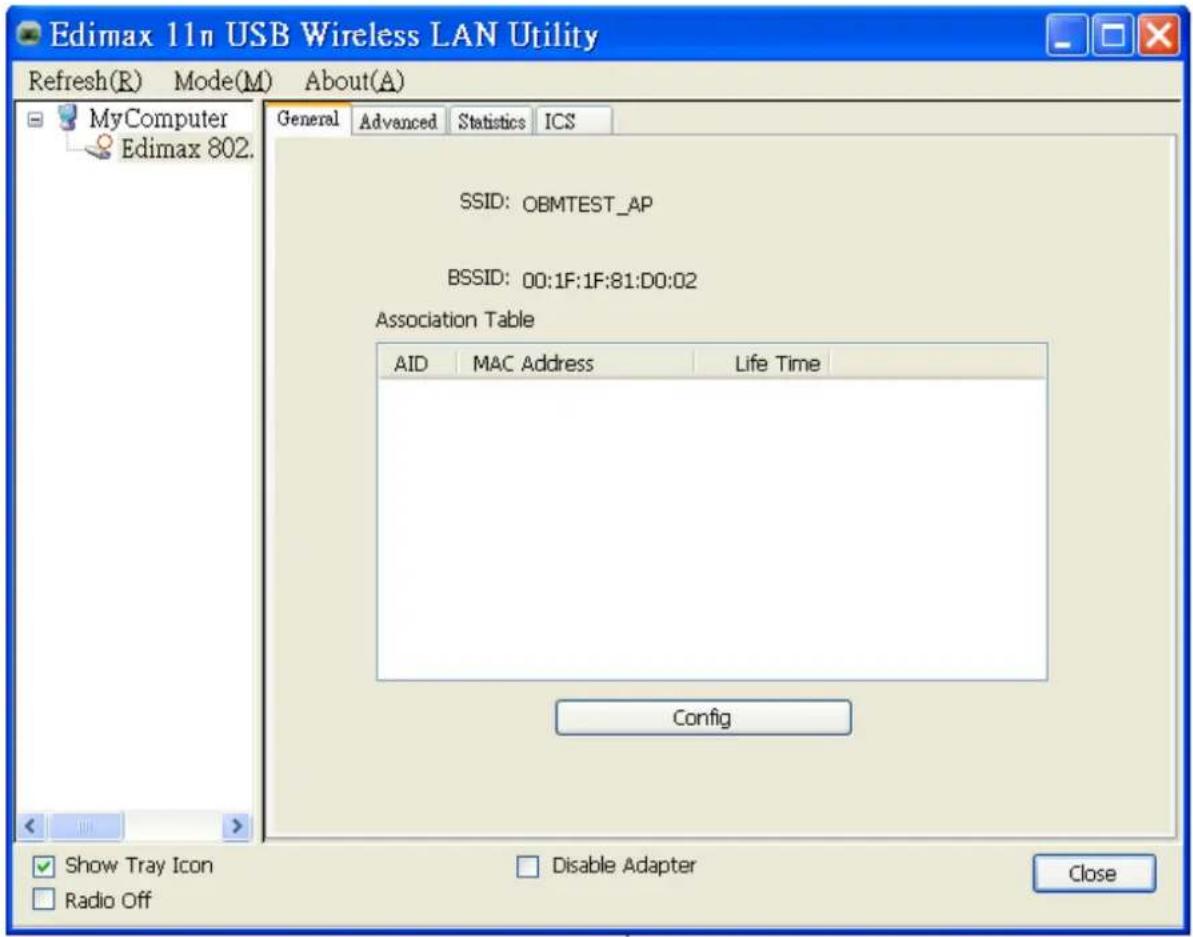
You should click "Mode" and select "Access Point" to enable Software AP mode. This adapter can run as a wireless AP. The relative configurations of the AP including channel, SSID, WEP encryption and so on are described as follows.
text_image
Edimax 11n USB Wireless LAN Utility Refresh(R) Mode(M) About(A) MyComputer Edimax 802. General Advanced Statistics ICS SSID: OBMTEST_AP BSSID: 00:1F:1F:81:D0:02 Association Table AID MAC Address Life Time Config Show Tray Icon Disable Adapter Close Radio OffParameter
Description
SSID The SSID (up to 32 printable ASCII characters) is the unique name identified in a WLAN. The ID prevents the unintentional merging of two co-located WLANs.
The default SSID of the AP is Full Computer Name + “_AP”. Wireless adapters connect to the AP should set up the same SSID as the AP.
BSSID
Display the MAC address of the adapter.
Associate Table All the wireless adapters connected to the software AP will be displayed in the list.
Config
Click "Config" for setting more configuration of the AP.
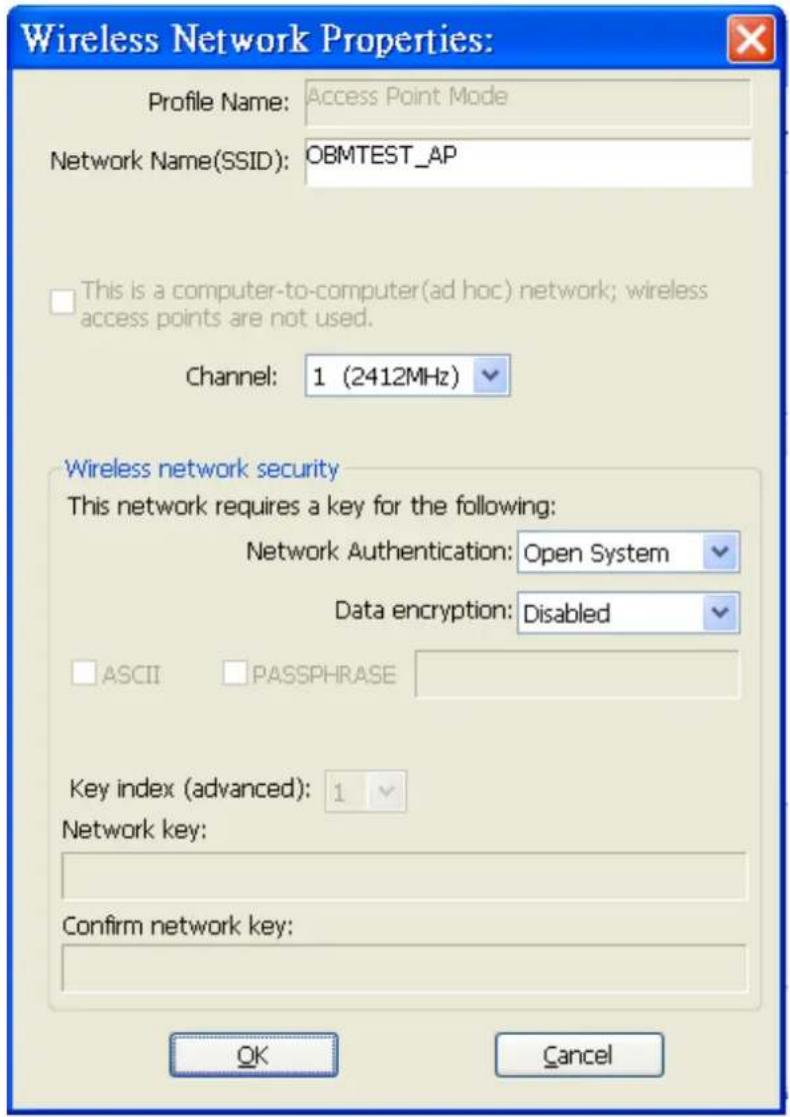
3.8.1 AP Properties Setting
Please refer to Section 3.4.1 for the setting of the parameters for AP. Note that Ad Hoc mode is not enabled for AP.
text_image
Wireless Network Properties: Profile Name: Access Point Mode Network Name(SSID): OBMTEST_AP This is a computer-to-computer(ad hoc) network; wireless access points are not used. Channel: 1 (2412MHz) Wireless network security This network requires a key for the following: Network Authentication: Open System Data encryption: Disabled ASCII PASSPHRASE Key index (advanced): 1 Network key: Confirm network key: OK Cancel3.8.2 AP Advanced

text_image
Edimax 11n USB Wireless LAN Utility Refresh(R) Mode(M) About(A) MyComputer Edimax 802. General Advanced Statistics ICS General Beacon Interval 100 DTIM Period: 3 Preamble Mode Long Set Defaults Apply Show Tray Icon Disable Adapter Close Radio Off| Parameter | Description |
| Beacon Interval | Beacon Interval that specifies the duration between beacon packets (milliseconds). The range for the beacon period is between 20-1000 milliseconds with a typical value of 100. |
| DTIM Period | Determines the interval the Access Point will send its broadcast traffic. Default value is 3 beacons. |
| Preamble | The preamble defines the length of the CRC block for communication among the wireless stations. There are two mode including Long and Short. High network traffic areas should use the shorter preamble type. |
| Set Defaults | Set the setting values return to defaults. |
| Apply | Confirm the settings in the “Advanced”. |
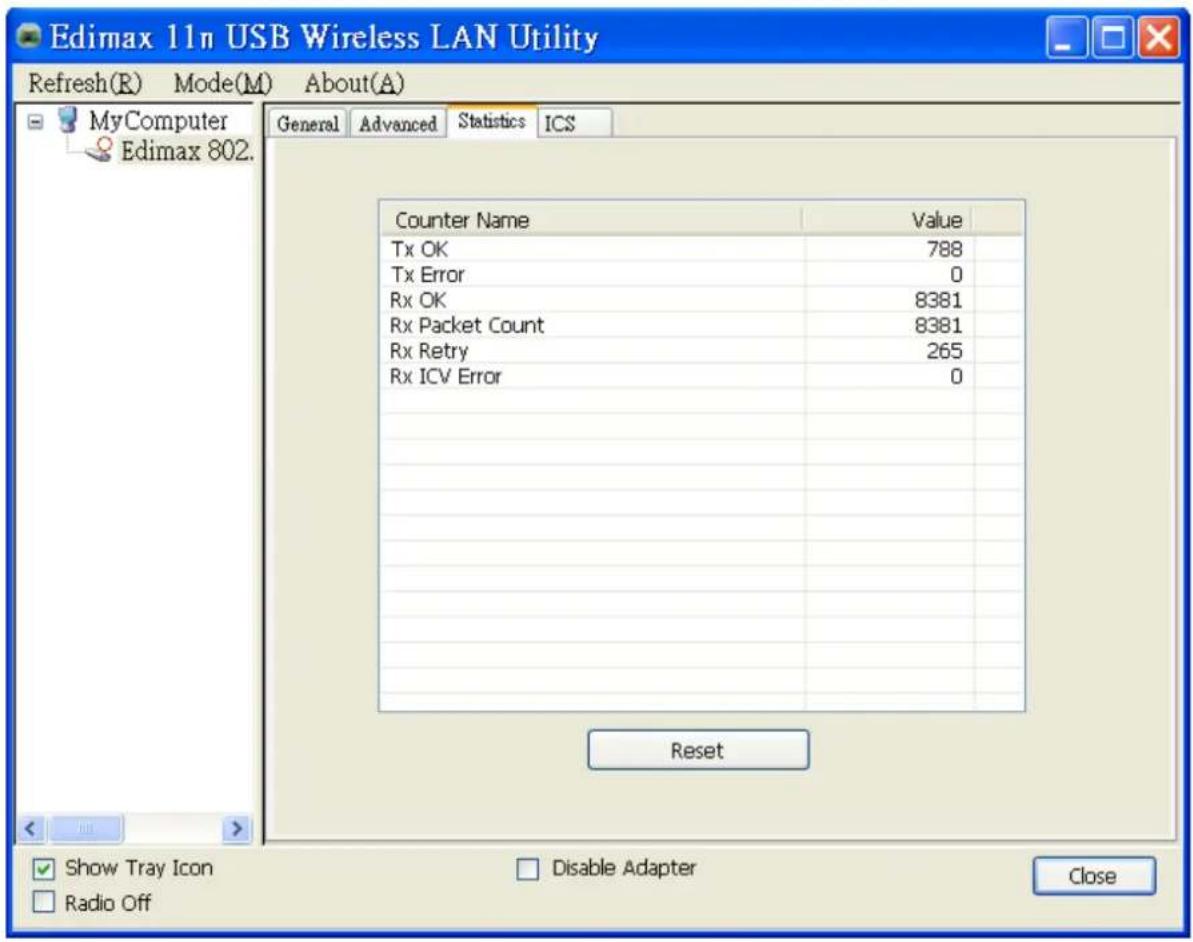
3.8.3 AP Statistics
You can get the real time information about the packet transmission and receiving status during wireless communication from the screen. If you want to recount the statistics value, please click "Reset".
text_image
Edimax 11n USB Wireless LAN Utility Refresh(R) Mode(M) About(A) MyComputer Edimax 802. General Advanced Statistics ICS Counter Name Value Tx OK 788 Tx Error 0 Rx OK 8381 Rx Packet Count 8381 Rx Retry 265 Rx ICV Error 0 Reset Show Tray Icon Disable Adapter Close Radio Off3.8.4 ICS
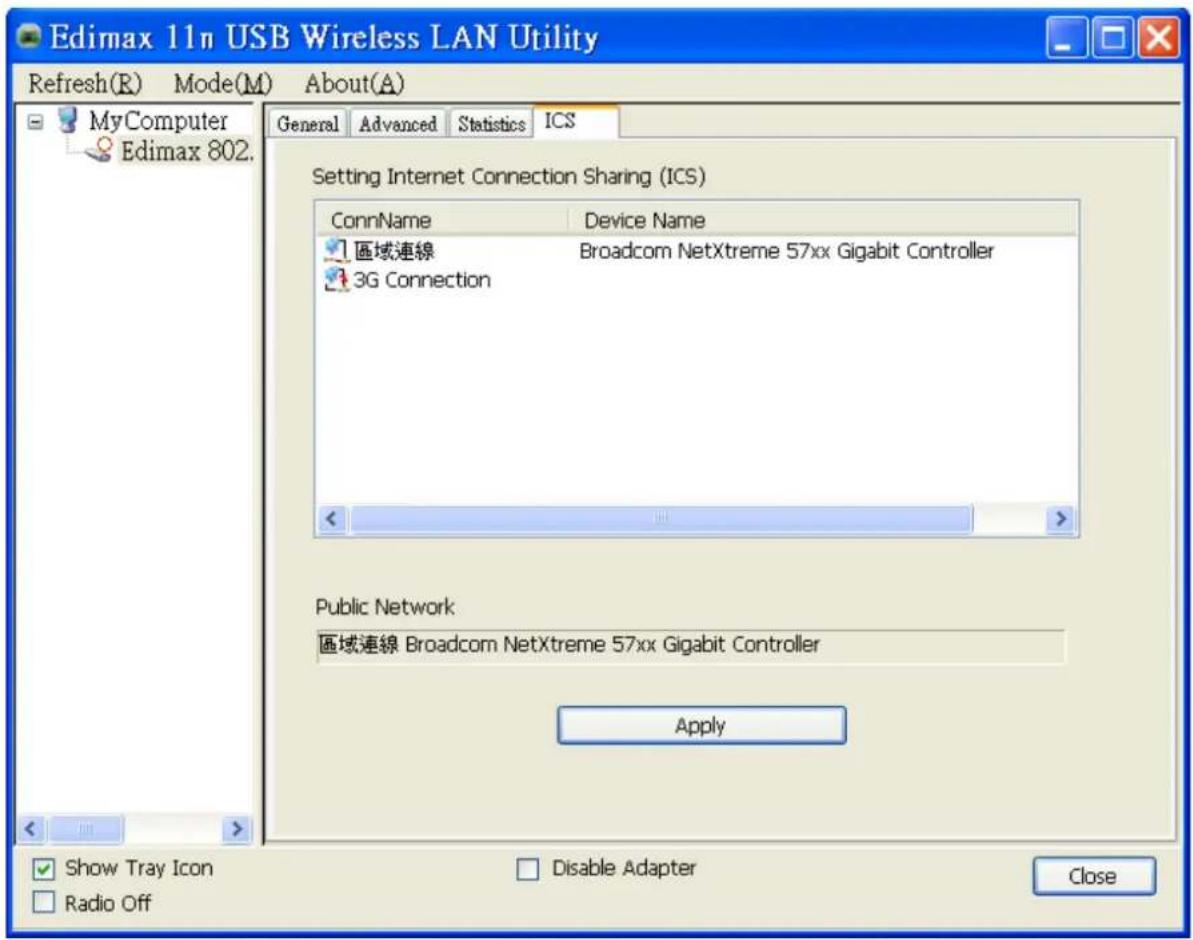
If you want to connect to the internet through this SoftAP, you will need to make a bridge between our SoftAP and your internet connect. Select the internet connection in your SoftAP host machine and press the "Apply" button.
text_image
Edimax 11n USB Wireless LAN Utility Refresh(R) Mode(M) About(A) General Advanced Statistics ICS MyComputer Edimax 802. Setting Internet Connection Sharing (ICS) ConnName Device Name 區域連線 Broadcom NetXtreme 57xx Gigabit Controller 3G Connection Public Network 區域連線 Broadcom NetXtreme 57xx Gigabit Controller Apply Show Tray Icon Disable Adapter Close Radio Off4 Troubleshooting
This chapter provides solutions to problems usually encountered during the installation and operation of the adapter.
1. What is the IEEE 802.11g standard?
802.11g is the new IEEE standard for high-speed wireless LAN communications that provides for up to 54 Mbps data rate in the 2.4 GHz band. 802.11g is quickly becoming the next mainstream wireless LAN technology for the home, office and public networks.
802.11g defines the use of the same OFDM modulation technique specified in IEEE 802.11a for the 5 GHz frequency band and applies it in the same 2.4 GHz frequency band as IEEE 802.11b. The 802.11g standard requires backward compatibility with 802.11b.
The standard specifically calls for:
A. A new physical layer for the 802.11 Medium Access Control (MAC) in the 2.4 GHz frequency band, known as the extended rate PHY (ERP). The ERP adds OFDM as a mandatory new coding scheme for 6, 12 and 24 Mbps (mandatory speeds), and 18, 36, 48 and 54 Mbps (optional speeds). The ERP includes the modulation schemes found in 802.11b including CCK for 11 and 5.5 Mbps and Barker code modulation for 2 and 1 Mbps.
B. A protection mechanism called RTS/CTS that governs how 802.11g devices and 802.11b devices interoperate.
2. What is the IEEE 802.11b standard?
The IEEE 802.11b Wireless LAN standard subcommittee, which formulates the standard for the industry. The objective is to enable wireless LAN hardware from different manufactures to communicate.
3. What does IEEE 802.11 feature support?
The product supports the following IEEE 802.11 functions:
• CSMA/CA plus Acknowledge Protocol
- Multi-Channel Roaming
• Automatic Rate Selection
- RTS/CTS Feature
- Fragmentation
- Power Management
4. What is Ad-hoc?
An Ad-hoc integrated wireless LAN is a group of computers, each has a Wireless LAN adapter, Connected as an independent wireless LAN. Ad hoc wireless LAN is applicable at a departmental scale for a branch or SOHO operation.
5. What is Infrastructure?
An integrated wireless and wireless and wired LAN is called an Infrastructure configuration. Infrastructure is applicable to enterprise scale for wireless access to central database, or wireless application for mobile workers.
6. What is BSS ID?
A specific Ad hoc LAN is called a Basic Service Set (BSS). Computers in a BSS must be configured with the same BSS ID.
7. What is WEP?
WEP is Wired Equivalent Privacy, a data privacy mechanism based on a 40 bit shared key algorithm, as described in the IEEE 802.11 standard.
8. What is TKIP?
TKIP is a quick-fix method to quickly overcome the inherent weaknesses in WEP security, especially the reuse of encryption keys. TKIP is involved in the IEEE 802.11i WLAN security standard, and the specification might be officially released by early 2003.
9. What is AES?
AES (Advanced Encryption Standard), a chip-based security, has been developed to ensure the highest degree of security and authenticity for digital information, wherever and however communicated or stored, while making more efficient use of hardware and/or software than previous encryption standards. It is also included in IEEE 802.11i standard. Compare with AES, TKIP is a temporary protocol for replacing WEP security until manufacturers implement AES at the hardware level.
10. Can Wireless products support printer sharing?
Wireless products perform the same function as LAN products. Therefore, Wireless products can work with Netware, Windows 2000, or other LAN operating systems to support printer or file sharing.
11. Would the information be intercepted while transmitting on air?
WLAN features two-fold protection in security. On the hardware side, as with Direct Sequence Spread Spectrum technology, it has the inherent security feature of scrambling. On the software side, WLAN series offer the encryption function (WEP) to enhance security and Access Control. Users can set it up depending upon their needs.
12. What is DSSS? What is FHSS? And what are their differences?
Frequency-hopping spread-spectrum (FHSS) uses a narrowband carrier that changes frequency in a pattern that is known to both transmitter and receiver. Properly synchronized, the net effect is to maintain a single logical channel. To an unintended receiver, FHSS appears to be short-duration impulse noise. Direct-sequence spread-spectrum (DSSS) generates a redundant bit pattern for each bit to be transmitted. This bit pattern is called a chip (or chipping code). The longer the chip is, the greater the probability that the original data can be recovered. Even if one or more bits in the chip are damaged during transmission, statistical techniques embedded in the radio can recover the original data without-the need for retransmission. To an unintended receiver, DSSS appears as low power wideband noise and is rejected (ignored) by most narrowband receivers.
13. What is Spread Spectrum?
Spread Spectrum technology is a wideband radio frequency technique developed by the military for use in reliable, secure, mission-critical communication systems. It is designed to trade off bandwidth efficiency for reliability, integrity, and security. In other words, more bandwidth is consumed than in the case of narrowband transmission, but the trade off produces a signal that is, in effect, louder and thus easier to detect, provided that the receiver knows the parameters of the spread-spectrum signal being broadcast. If a receiver is not tuned to the right frequency, a spread –spectrum signal looks like background noise. There are two main alternatives, Direct Sequence Spread Spectrum (DSSS) and Frequency Hopping Spread Spectrum (FHSS).
Federal Communication Commission Interference Statement
This equipment has been tested and found to comply with the limits for a Class B digital device, pursuant to Part 15 of FCC Rules. These limits are designed to provide reasonable protection against harmful interference in a residential installation. This equipment generates, uses, and can radiate radio frequency energy and, if not installed and used in accordance with the instructions, may cause harmful interference to radio communications. However, there is no guarantee that interference will not occur in a particular installation. If this equipment does cause harmful interference to radio or television reception, which can be determined by turning the equipment off and on, the user is encouraged to try to correct the interference by one or more of the following measures:
- Reorient or relocate the receiving antenna.
- Increase the separation between the equipment and receiver.
- Connect the equipment into an outlet on a circuit different from that to which the receiver is connected.
- Consult the dealer or an experienced radio technician for help.
FCC Caution
This device and its antenna must not be co-located or operating in conjunction with any other antenna or transmitter. This device complies with Part 15 of the FCC Rules. Operation is subject to the following two conditions: (1) this device may not cause harmful interference, and (2) this device must accept any interference received, including interference that may cause undesired operation. Any changes or modifications not expressly approved by the party responsible for compliance could void the authority to operate equipment.
Federal Communication Commission (FCC) Radiation Exposure Statement
This equipment complies with FCC radiation exposure set forth for an uncontrolled environment. In order to avoid the possibility of exceeding the FCC radio frequency exposure limits, human proximity to the antenna shall not be less than 20cm (8 inches) during normal operation.
The antenna(s) used for this transmitter must not be co-located or operating in conjunction with any other antenna or transmitter.
R&TTE Compliance Statement
This equipment complies with all the requirements of DIRECTIVE 1999/5/EC OF THE EUROPEAN PARLIAMENT AND THE COUNCIL of March 9, 1999 on radio equipment and telecommunication terminal Equipment and the mutual recognition of their conformity (R&TTE)
The R&TTE Directive repeals and replaces in the directive 98/13/EEC (Telecommunications Terminal Equipment and Satellite Earth Station Equipment) As of April 8, 2000.
Safety
This equipment is designed with the utmost care for the safety of those who install and use it. However, special attention must be paid to the dangers of electric shock and static electricity when working with electrical equipment. All guidelines of this and of the computer manufacture must therefore be allowed at all times to ensure the safe use of the equipment.
EU Countries Intended for Use
The ETSI version of this device is intended for home and office use in Austria, Belgium, Denmark, Finland, France, Germany, Greece, Ireland, Italy, Luxembourg, Bulgaria, Cyprus, Czech Republic, Estonia, Hungary, Latvia, Lithuania, Malta, Poland, Romania, Slovakia, Slovenia, the Netherlands, Portugal, Spain, Sweden, and the United Kingdom.
The ETSI version of this device is also authorized for use in EFTA member states: Iceland, Liechtenstein, Norway, and Switzerland.
EU Countries not intended for use
None
Please check the declaration of conformity on www.edimax.com
text_image
CE! FC N20379 PCT АЯ46EDIMAX NETWORKING PEOPLE TOGETHER
EDIMAX Technology Co., Ltd.
www.edimax.com