NVS8-6T - Bluetooth speaker TOSHIBA - Free user manual and instructions
Find the device manual for free NVS8-6T TOSHIBA in PDF.


User questions about NVS8-6T TOSHIBA
0 question about this device. Answer the ones you know or ask your own.
Ask a new question about this device
Download the instructions for your Bluetooth speaker in PDF format for free! Find your manual NVS8-6T - TOSHIBA and take your electronic device back in hand. On this page are published all the documents necessary for the use of your device. NVS8-6T by TOSHIBA.
USER MANUAL NVS8-6T TOSHIBA
natural_image
Line drawing of a TOSHIBA surveyillux server unit with multiple circular ports (no text or symbols on the device body)Surveillix™ NVS
User Manual
Manual Edition 29103AB –MAY 2009
Printed in USA
No part of this documentation may be reproduced in any means, electronic or mechanical, for any purpose, except as expressed in the Software License Agreement. Toshiba shall not be liable for technical or editorial errors or omissions contained herein. The information in this document is subject to change without notice.
THE INFORMATION IN THIS PUBLICATION IS PROVIDED "AS IS" WITHOUT WARRANTY OF ANY KIND. THE ENTIRE RISK ARISING OUT OF THE USE OF THIS INFORMATION REMAINS WITH RECIPIENT. IN NO EVENT SHALL TOSHIBA BE LIABLE FOR ANY DIRECT, CONSEQUENTIAL, INCIDENTAL, SPECIAL, PUNITIVE, OR OTHER DAMAGES WHATSOEVER (INCLUDING WITHOUT LIMITATION, DAMAGES FOR LOSS OF BUSINESS PROFITS, BUSINESS INTERRUPTION OR LOSS OF BUSINESS INFORMATION), EVEN IF TOSHIBA HAS BEEN ADVISED OF THE POSSIBILITY OF SUCH DAMAGES AND WHETHER IN AN ACTION OR CONTRACT OR TORT, INCLUDING NEGLIGENCE.
This software and documentation are copyrighted. All other rights, including ownership of the software, are reserved to DVR Support Center. TOSHIBA, and Surveillix are registered trademarks of TOSHIBA CORPORATION in the United States and elsewhere; Windows, and Windows XP Embedded are registered trademarks of Microsoft Corporation. All other brand and product names are trademarks or registered trademarks of the respective owners.
The following words and symbols mark special messages throughout this guide:
WARNING: Text set off in this manner indicates that failure to follow directions could result in bodily harm or loss of life.
CAUTION: Text set off in this manner indicates that failure to follow directions could result in damage to equipment or loss of information.
LIMITED WARRANTY
The Imaging Systems Division of Toshiba America Information Systems, Inc. ("ISD") makes the following limited warranties. These limited warranties extend to the Original End-User ("You[r]).
Limited Two (2) Year Warranty of Labor and Parts
The Imaging Systems Division of Toshiba America Information Systems warrants this product and parts against defects in material or workmanship for a period of two years from the date of original retail purchase by the end-user. During this period, ISD will repair or replace a defective product or part with a new or refurbished item. The user must deliver the entire product to the Surveillix DVR Repair Facility. The user is responsible for all transportation and insurance charges for the product to the DVR Repair Facility. ISD reserves the right to substitute Factory Refurbished Parts and / or Factory Refurbished Product in place of those in need of repair.
Step-by-step Procedures – How to Obtain Warranty Service
[1] Verify operation of the unit by checking the instruction manual and web site for the latest updates at
www.toshibasecurity.com
[2] If there is a defect in material or workmanship, contact the Surveillix DVR Support Center at (877) 855-1349 [877-855-1-FIX] to speak to a technical support representative and schedule service.
[3] Arrange for delivery of the product to the Surveillix DVR Repair Facility. Products must be insured and securely packed, preferably in the original shipping carton. A letter explaining the defect and a copy of the bill of sale or other proof of purchase must be enclosed with a complete return street address and daytime telephone number. The Tracking Number should also be indicated on your documents. Charges for transportation and insurance must be prepaid by the end-user.
Critical Use Disclaimer
The product is not designed for any “critical applications.” “Critical applications” means life support systems, exhaust or smoke extraction applications, medical applications, commercial aviation, mass transit applications, military applications, homeland security applications, nuclear facilities or systems or any other applications where product failure could lead to injury to persons or loss of life or catastrophic property damage. Accordingly, Toshiba disclaims any and all liability arising out of the use of the product in any critical applications.
Your Responsibilities
The above warranty is subject to the following conditions:
[1] You must retain the bill of sale or provide other proof of purchase.
[2] You must schedule service within thirty days after you discover a defective product or part.
[3] All warranty servicing of this product must be made by the Surveillix DVR Repair Facility.
[4] The warranty extends to defects in material or workmanship as limited above, and not to any products or parts that have been lost or discarded by user. The warranty does not cover damage caused by misuse, accident, improper installation, improper maintenance, or use in violation of instructions furnished by ISD. The warranty does not extend to units which have been altered or modified without authorization of ISD, or to damage to products or parts thereof which have had the serial number removed, altered defaced or rendered illegible.
ALL WARRANTIES IMPLIED BY STATE LAW, INCLUDING THE IMPLIED WARRANTIES OF MERCHANTABILITY AND FITNESS FOR A PARTICULAR PURPOSE, ARE EXPRESSLY LIMITED TO THE DURATION OF THE LIMITED WARRANTIES SET FORTH ABOVE. Some states do not allow limitations on how long an implied warranty lasts, so the above limitation may not apply. WITH THE EXCEPTION OF ANY WARRANTIES IMPLIED BY STATE LAW AS HEREBY LIMITED, THE FOREGOING EXPRESS WARRANTY IS EXCLUSIVE AND IN LIEU OF ALL OTHER WITH RESPECT TO THE REPAIR OR REPLACEMENT OF ANY PRODUCTS OR PARTS. IN NO EVENT SHALL ISD BE LIABLE FOR CONSEQUENTIAL OR INCIDENTAL DAMAGES. Some states do not allow the exclusion or limitation of incidental or consequential damages so the above limitation may not apply.
No person, agent, distributor, dealer, service station or company is authorized to change, modify or extend the terms of these warranties in any manner whatsoever. The time within which an action must be commenced to enforce any obligation of ISD arising under this warranty or under any statute, or law of the United States or any state thereof, is hereby limited to one year from the date you discover or should have discovered, the defect. This limitation does not apply to implied warranties arising under state law. Some states do not permit limitation of the time within which you may bring an action beyond the limits provided by state law so the above provision may not apply to user. This warranty gives the user specific legal rights, and user may also have other rights, which may vary from state to state.
Imaging Systems Division
Copyright © 2007 Toshiba America Information Systems, Inc. All rights reserved.
TOSHIBA
IMPORTANT SAFEGUARDS
- Read Owner's Manual – After unpacking this product, read the owner's manual carefully, and follow all the operating and other instruction
- Power Sources – This product should be operated only from the type of power source indicated on the label. If you are not sure of the type of power supply to your home or business, consult your product dealer or local power company
- Ventilation – Slots and openings in the cabinet are provided for ventilation and to ensure reliable operation of the product and to protect it from overheating, and these openings must not be blocked or covered. The product should not be placed in a built-in installation such as a bookcase or rack unless proper ventilation is provided or the manufacturer's instructions have been adhered to.
- Heat - The product should be situated away from heat sources such as radiators, heat registers, stoves, or other products that produce heat.
- Water and Moisture – Do not use this product near water. Do not exceed the humidity specifications for the product as detailed in this manual.
- Cleaning – Unplug this product from the wall outlet before cleaning. Do not use liquid cleaners or aerosol cleaners. Use a damp cloth for cleaning.
- Power Cord Protection – Power-supply cords should not be routed so that they are not likely to be walked on or pinched by items placed against them, paying particular attention to cords at plugs, convenience receptacles, and the point where they exit from the product.
- Overloading – Do not overload wall outlets; extension cords, or integral convenience receptacles as this can result in a risk of fire or electrical shock.
- Lightning – For added protection for this product during storm, or when it is left unattended and unused for long periods of time, unplug it from the wall outlet. This will prevent damage to the product due to lightning and power line surges.
- Object and Liquid Entry Points – Never insert foreign objects into the NVR, other than the media types approved by Honeywell, as they may touch dangerous voltage points or short-out parts that could result in a fire or electrical shock. Never spill liquid of any kind on the product.
- Accessories – Do not place this product on an unstable cart, stand, tripod, bracket, or table. The product may fall, causing serious personal injury and serious damage to the product.
- Disc Tray – Keep fingers clear of the disc tray as it is closing. Neglecting to do so may cause serious personal injury.
- Burden - Do not place a heavy object on or step on the product. The object may fall, causing serious personal injury and serious damage to the product.
- Disc - Do not use a cracked, deformed, or repaired disc. These discs are easily broken and may cause serious personal injury and product malfunction.
- LAN Port - This equipment is for indoor use and all the communication wirings are limited to inside of the building.
IMPORTANT SAFEGUARDS, continued
- Damage Requiring Service – Unplug the unit from the outlet and refer servicing to qualified service personnel under the following conditions:
a. When the power-supply cord or plug is damaged.
b. If liquid has been spilled, or objects have fallen into the unit.
c. If the unit has been exposed to rain or water.
d. If the unit does not operate normally by following the operating instructions. Adjust only those controls that are covered by the operating instructions as an improper adjustment of other controls may result in damage and will often require extensive work by a qualified technician to restore the unit to its normal operation.
e. If the unit has been dropped or the enclosure has been damaged.
f. When the unit exhibits a distinct change in performance - this indicates a need for service.
-
Servicing – Do not attempt to service this product yourself as opening or removing covers may expose you to dangerous voltage or other hazards. Refer all servicing to qualified personnel.
-
Replacement Parts – When replacement parts are required, be sure the service technician has used replacement parts specified by the manufacturer or have the same characteristics as the original part. Unauthorized substitutions may result in fire, electric shock or other hazards.
-
Safety Check – Upon completion of any service or repairs to this unit, ask the service technician to perform safety checks to determine that the unit is in proper operating condition.
BATTERY EXPLOSION CAUTION STATEMENT
CAUTION: Risk of Explosion if Battery is replaced by an Incorrect Type. Dispose of Used Batteries According to the Instructions
NOTES ON HANDLING
Please retain the original shipping carton and/or packing materials supplied with this product. To ensure the integrity of this product when shipping or moving, repackage the unit as it was originally received from the manufacturer.
Do not use volatile liquids, such as aerosol spray, near this product. Do not leave rubber or plastic objects in contact with this product for extended periods of time. Rubber or plastic objects left in contact with this product for extended periods of time will leave marks on the finish.
The top and rear panels of the unit may become warm after long periods of use. This is not a malfunction.
NOTES ON LOCATING
Place this unit on a level surface. Do not use it on a shaky or unstable surface such as a wobbling table or inclined stand.
If this unit is placed next to a TV, radio, or VCR, the playback picture may become poor and the sound may be distorted. If this happens, place the DVR away from the TV, radio, or VCR.
NOTES ON CLEANING
Use a soft dry cloth for cleaning.
For stubborn dirt, soak the cloth in a weak detergent solution, wring well and wipe. Use a dry cloth to wipe it dry. Do not use any type of solvent, such as thinner and benzene, as they may damage the surface of the DVR.
If using a chemical saturated cloth to clean the unit, follow that product's instructions.
NOTES ON MAINTENANCE
This DVR is designed to last for long periods of time. To keep the DVR always operational we recommend regular inspection maintenance (cleaning parts or replacement). For details, contact the nearest dealer.
NOTES ON MOISTURE CONDENSATION
Moisture condensation damages the DVR. Read the following information carefully.
Moisture condensation occurs during the following cases:
When this product is brought directly from a cool location to a warm location.
When this product is moved to a hot and humid location from a cool location.
When this product is moved to a cool and humid location from a warm location.
When this product is used in a room where the temperature fluctuates.
When this product is used near an air-conditioning unit vent
When this product is used in a humid location.
Do not use the DVR when moisture condensation may occur.
If the DVR is used in such a situation, it may damage discs and internal parts. Remove any CD discs, connect the power cord of the DVR to the wall outlet, turn on the DVR, and leave it for two to three hours. After two to three hours, the DVR will warm up and evaporate any moisture. Keep the DVR connected to the wall and moisture will seldom occur.
WARNING
TO REDUCE THE RISK OF ELECTRICAL SHOCK, DO NOT EXPOSE THIS APPLIANCE TO RAIN OR MOISTURE.
DANGEROUS HIGH VOLTAGES ARE PRESENT INSIDE THE ENCLOSURE.
DO NOT OPEN THE CABINET.
REFER SERVICING TO QUALIFIED PERSONNEL ONLY.
CAUTION

CAUTION
RISK OF ELECTRIC SHOCK DO NOT OPEN

CAUTION: TO REDUCE THE RISK OF ELECTRIC SHOCK, DO NOT REMOVE COVER (OR BACK). NO USER-SERVICEABLE PARTS INSIDE.
REFER SERVICING TO QUALIFIED SERVICE PERSONNEL.
RACK MOUNT INSTRUCTIONS
Elevated Operating Ambient – If installed in a closed or multi-unit rack assembly, the operating ambient temperature of the rack environment may be greater than room ambient. Therefore, consideration should be given to installing the equipment in an environment compatible with the maximum ambient temperature (Tma) specified by the manufacturer.
Reduced Air Flow – Installation of the equipment in a rack should be such that the amount of airflow required for safe operation of the equipment is not compromised.
Mechanical Loading – Mounting of the equipment in the rack should be such that a hazardous condition is not achieved due to uneven mechanical loading.
Circuit Overloading – Consideration should be given to the connection of the equipment to the supply circuit and the effect that overloading of the circuits might have on over current protection and supply wiring. Appropriate consideration of equipment nameplate ratings should be used when addressing this concern.
Grounding – Grounding of rack-mounted equipment should be maintained. Particular attention should be given to supply connections other than direct connections to the branch circuit (e.g. use of power strips).
FCC STATEMENT
INFORMATION TO THE USER: This equipment has been tested and found to comply with the limits for a Class B digital device, pursuant to Part 15 of the FCC Rules. These limits are designed to provide reasonable protection against harmful interference in a residential installation. This equipment generates, uses and can radiate radio frequency energy and, if not installed and used in accordance with the instructions, may cause harmful interference to radio communications. However, there is no guarantee that interference will not occur in a particular installation. If this equipment does cause harmful interference to radio or television reception, which can be determined by turning the equipment off and on, the user is encouraged to try to correct the interference by one or more of the following measures:
- Reorient or relocate the receiving antenna.
- Increase the separation between the equipment and receiver.
- Connect the equipment into an outlet on a circuit different from that to which the receiver is connected.
- Consult the dealer or an experienced radio/TV technician for help.
USERS OF THE PRODUCT ARE RESPONSIBLE FOR CHECKING AND COMPLYING WITH ALL FEDERAL, STATE, AND LOCAL LAWS AND STATUTES CONCERNING THE MONITORING AND RECORDING OF VIDEO AND AUDIO SIGNALS. HONEYWELL VIDEO SYSTEMS SHALL NOT BE HELD RESPONSIBLE FOR THE USE OF THIS PRODUCT IN VIOLATION OF CURRENT LAWS AND STATUTES.
UL NOTICE
Underwriters Laboratories Inc. has not tested the performance or reliability of the security or signaling aspects of this product. UL has only tested for fire, shock and casualty hazards as outlined in UL's Standard for Safety UL 60950-1. UL Certification does not cover the performance or reliability of the security or signaling aspects if this product. UL MAKES NO REPRESENTATIONS, WARRANTIES OR CERTIFICATIONS WHATSOEVER REGARDING THE PERFORMANCE OR RELIABILITY OF ANY SECURITY OR SIGNALING RELATED FUNCTIONS OF THIS PRODUCT.
CE NOTICE
This product is in conformity with the following European Directives:
ELECTROMAGNETIC COMPATIBILITY DIRECTIVE, 89/336/EEC
(as amended by 92/31/EEC and by Article 5 of 93/68/EEC)
per the provisions of:
EN55022:2006 EN61000-4-2:1995+A1+A2:2001 EN61000-4-6:1996+A1:2001
EN55024:1998+A1:2001+A2:2003
EN61000-4-3:1995+A1:2002
EN61000-4-8:1994+A1:2001
EN61000-3-2:2006
EN61000-4-4:1995+A1+A2:2004
EN61000-4-11:2004
EN61000-3-3:1995+A1:2001+A2:2005
EN61000-4-5:1995+A1:2001
LOW VOLTAGE DIRECTIVE, 73/23/EEC
(as amended by Article 13 of 93/68/EEC)
per the provisions of:
EN 60950-1:2001
Table of Contents
PREFACE....15
ABOUT THIS GUIDE ....15
TECHNICIAN NOTES 15
INTRODUCTION....17
PRODUCT DESCRIPTION 17
FEATURES 17
CONTROLS AND CONNECTIONS....19
BASIC FEATURES ....20
FRONT PANEL CONTROLS AND LEDS 21
REAR PANEL CONNECTORS 22
GETTING STARTED 23
IDENTIFYING INCLUDED COMPONENTS....24
KEYBOARD SETUP 25
MOUSE SETUP 25
MONITOR SETUP 26
POWER SETUP 26
CONNECTING A VIDEO SOURCE ....26
HARD DRIVE ARRAY....27
Swapping a Hard Drive....27
OPTIONAL COMPONENTS....28
NVS BASICS 29
SETTING THE TIME AND DATE....30
ACCESSING THE DVR UTILITY 30
Exporting DVR Settings....30
Importing DVR Settings....31
Changing Video Format....31
DISPLAY SCREEN 32
Live Camera Options....32
CAMERA VIEW....33
Recording Status Indicator 33
Special Recording 33
SCREEN DIVISION BUTTONS....34
SETUP OPTIONS....35
SETUP OVERVIEW 36
CAMERA SETUP 37
NETWORK VIDEO....38
Connecting a Network Device 38
Connecting Manually ....38
Connecting with Camera Finder 39
Assigning a Network Device to a Channel....39
Camera Configuration 40
Displaying More Columns....40
Accessing the Configuration Menu 40
Upgrade and Registration....41
Locating the System ID....41
Obtaining the Unlock Code 41
Unlocking the Upgrade 42
Unlocking New Network Device....42
MOTION SETUP 43
Create a Motion Area 43
Activating an Alarm on a Motion Event....44
Regular Interval Recording 44
SCHEDULE SETUP 45
Recording Schedule 45
Sensor Schedule 46
Create a Recording Schedule....47
Create a Sensor Schedule....47
Scheduling Alarm Events....47
Emergency Agent Schedule 47
Special Day Schedule 48
Creating/Editing a 'Special Day' Schedule....48
Deleting a 'Special Day' Schedule 48
System Restart Setup....49
Create System Restart Schedule....49
GENERAL SETUP ....50
Voice Warning 50
Connecting to a Wide Screen Display 51
Hybrid Sensor Setup ....51
Volume 51
Auto Sequence Setting....52
Create Custom Auto Sequence 52
NETWORK SETUP ....53
INFORMATION ....54
ADMINISTRATIVE SETUP ....55
Disk Management....55
Setting Up DDNS....56
Enable DDNS 56
Set the IP Address....56
User Management....57
Add a New User....57
User Rank....58
Changing the Administrator Password ....58
Default Administrator Password....58
Log Management....58
Setup Log Management Options 58
Status Check / Email 59
General 59
Users 59
Storage Check....60
Recording Data Check....60
SMART Information 61
SMART Alert....61
Alarm Event 61
INSTANT RECORDING....62
Activate Instant Recording....62
Searching 'Instant Recorded' Video 62
SEARCH......63
SEARCH OVERVIEW....64
Play Controls....64
Adjust the Brightness of an Image....65
Zooming in on an Image....65
Zooming in on a Portion of an Image....65
Open Video from a Saved Location....65
Time Sync....65
Clean Image 65
PERFORMING A BASIC SEARCH....66
PRINTING AN IMAGE....66
DAYLIGHT SAVING TIME 66
SAVE TO JPG OR AVI....67
Bookmarks....68
Modify Bookmarks 68
Single Clip Backup 69
Single Clip Backup Using Bookmark Data....69
INDEX SEARCH 70
Performing an Index Search....70
Index Search Results Display....70
PREVIEW SEARCH....71
Performing a Preview Search....72
GRAPHIC SEARCH....72
Performing a Graphic Search 72
OBJECT SEARCH....73
Performing an Object Search ....73
MOTION SEARCH....74
Performing a Motion Search....74
Performing a General Backup....79
Clip Screen Overview 80
Performing a Clip Backup 80
Scheduled Screen Overview 81
Performing a Scheduled Backup 81
Specifying Scheduled Backup Drives 81
LAN / ISDN / PSTN CONNECTIONS 83
LAN OVERVIEW 84
CONNECTING TO A LAN USING TCP/IP 84
Configuring TCP/IP Settings....84
WEB VIEWER....85
WEB VIEWER OVERVIEW....86
Configuring the Server for Remote Connection....87
Connecting to a DVR Using Web Viewer 87
Closing the Web Viewer 87
INCLUDED SOFTWARE SETUP 89
EMERGENCY AGENT OVERVIEW....90
Configuring the DVR....90
Configuring the Client PC 90
Setup Window 91
EMERGENCY AGENT WINDOW 91
Filter Event List....91
Add Items to Alarm Confirm List....92
SEARCH ALARM WINDOW 93
View Recorded Video....93
Export Video....93
REMOTE SOFTWARE OVERVIEW 94
Remote Software Setup....95
Installing Remote Software....95
Create a New Remote Connection 95
Configuring the DVR....96
Configuring the Server for Remote Connection 96
DIGITAL VERIFIER OVERVIEW....97
Installing the Digital Verifier....97
Using the Digital Verifier....97
BACKUP VIEWER OVERVIEW 98
Installing Backup Viewer....98
Loading Video from DVD or Hard Drive....98
SCS OVERVIEW....99
Configuring the Server for Remote Connection....99
Connecting to a DVR....99
APPENDIX....101
NVS SPECIFICATIONS....102
PREFACE
ABOUT THIS GUIDE
This manual is a setup and maintenance guide that can be used for reference when setting up the NVS unit and for troubleshooting when a problem occurs. Only authorized personnel should attempt to repair this unit.
Toshiba reserves the right to make changes to the NVS units represented by this manual without notice.
The following text mark special messages throughout this guide:
NOTE: Text set off in this manner indicates topics of interests that can help the user understand the product better.
TIP: Text set off in this manner indicates topics and points of interests that can be helpful when using or settings up the NVS unit.
TECHNICIAN NOTES

WARNING: Only authorized technicians trained by Toshiba should attempt to repair this NVS unit. All troubleshooting and repair procedures that may be shown are for reference and minor repair only. Because of the complexity of the individual components and subassemblies, no one should attempt to make repairs at the component level or to make modifications to any printed wiring board. Improper repairs can create a safety hazard. And any indications of component replacement or printed wiring board modifications may void any warranty.

WARNING: To reduce the risk of electrical shock or damage to the equipment:
- Do not disable the power grounding plug. The grounding plug is an important safety feature.
- Plug the power cord into a grounded (earthed) electrical outlet that is easily accessible at all times.
- Disconnect the power from the computer by unplugging the power cord either from the electrical outlet or the computer.

CAUTION: To properly ventilate your system, you must provide at least 3 inches (7.6 cm) of clearance at the front and back of the NVS unit.
INTRODUCTION
PRODUCT DESCRIPTION
A Surveillix NVS is simply a server that performs as a High Definition Digital Recorder. By utilizing the many features of a computer, including processing power, storage capacity, graphics compression, network cameras and security features, the NVS unit is more powerful than the analog recorders of the past with its ability to utilize digital network cameras.
The Surveillix NVS server software comes pre-configured for fast and seamless integration within your existing IT infrastructure. Designed around Microsoft® Windows® XP Embedded, the server software offers unparalleled stability, security, and ease of use. Accordingly, your security investment has never been easier to maintain. Multiple users may simultaneously connect through any network connection for instantaneous live viewing, digital search, and off site video storage. Users can also connect remotely through DSL, Cable Modems, ISDN, or 56K dial-up. This powerful software enables users to establish recording schedules, create motion detection zones, use PTZ controls, and configure alarm inputs and outputs for each of the system's cameras. With the latest advancements in the NVS Server Software, searching and indexing your video archive has never been easier. Video can now be found, viewed, and exported in a number of file formats with just a few clicks.
The Surveillix NVS is high performance security product ready to meet today's security demands.
FEATURES
Toshiba's Surveillix NVS' include the following features:
• Field Upgradeable, Replaceable HDD Array
• Large Storage Capacities
- Internal RAID 5 (optional)
• Removable HDD bays for quick and easy maintenance
• PAN / TILT / ZOOM Controls on supported IP Cameras
- Simultaneous Search, Playback and Backup
- Up to 32 IP Cameras
• Multiple Levels of Security Access
• Output the video to an NTSC/PAL display
• Advanced POS and ATM support
• Continuous, Motion Detection and Alarm Recording Modes
• Video Signal Loss Detection
• Records at the Encoding Resolution of the IP Camera
• Digital Signature Support for Tamper Proof Exporting
- Up to 16 TB External RAID 5 Available
• Output the Video to a NTSC/PAL Display
CONTROLS AND CONNECTIONS
This chapter includes the following information:
- Input/Output connector locations
• Front Panel Controls and LEDs - Rear Panel Connectors
BASIC FEATURES
Surveillix™ state-of-the-art High Definition Digital Recorders are housed in a high performance and versatile 4U Aluminum Rack-Mount case allowing easy storage of multiple NVS' for enterprise applications. Every Surveillix NVS Unit comes equipped with the latest technology:
- Intel® CPU
• 100/1000 Gigabit Ethernet - 1GB of System Memory
- DVD±RW Recorder
• Full Duplex High-Fi Sound Functionality
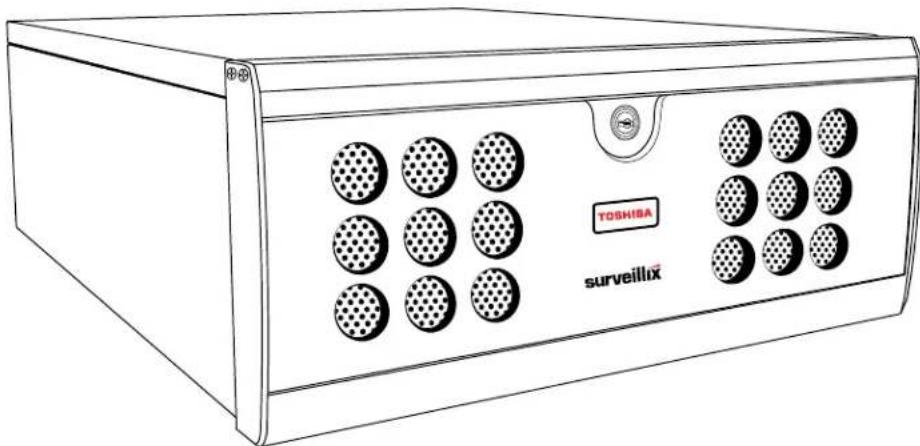
natural_image
Line drawing of a server rack unit with TOSHIBA and surveillx branding (no text or symbols on main body)FRONT PANEL CONTROLS AND LEDS
The front panel of the NVS unit contains the devices that will be commonly used for data removal, retrieval, and backup replacement. The most common components and buttons are shown below.
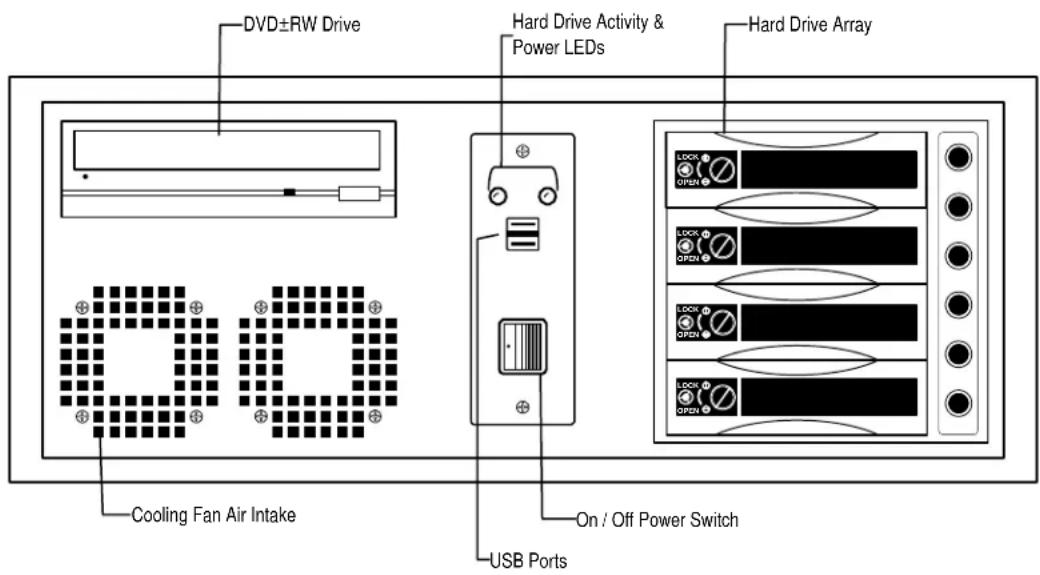
text_image
DVD±RW Drive Hard Drive Activity & Power LEDs Hard Drive Array Cooling Fan Air Intake USB Ports On / Off Power SwitchREAR PANEL CONNECTORS
The rear panel of the NVS unit contains virtually all of the connectors you will be using. Below is a diagram that outlines the location and description of each connector:

text_image
Fire Wire SVGA Monitor Out S-Video Out AC Power Connector Secondary Power Switch PS/2 Mouse Input PS/2 Keyboard Input DVI-D Port SVGA Output USB Ports RJ-45 Network Jack Audio • Line In • Speaker Out • Mic InGETTING STARTED
This chapter includes the following information:
- Included Components
- Setting up your NVS Hardware
- Optional Components
IDENTIFYING INCLUDED COMPONENTS
Surveillix™ NVS systems come with a mouse, keyboard and selected software and cables. Identify the following components to make sure everything has been properly included with your new NVS unit. If any of the following items are missing, contact your dealer to arrange a replacement.
Included Components:
 NVS Unit Mouse NVS Key NVS Unit Mouse NVS Key |  | 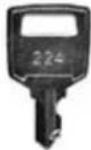 |
 Manual Repair CD Software Installation CD Manual Repair CD Software Installation CD |  | 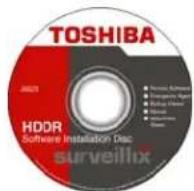 |
 Keyboard Rackmount Attachments with Screws Power Cable Keyboard Rackmount Attachments with Screws Power Cable |  | 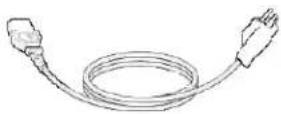 |
KEYBOARD SETUP
To attach the keyboard to the DVR unit, plug the end of the Keyboard into the keyboard PS/2 Port located on the back of the machine. The keyboard PS/2 Port can be identified by the purple color. Refer to the Rear Panel Connectors diagram for more information.

natural_image
Line drawing of a standard computer keyboard layout (no text or symbols)MOUSE SETUP
To attach the mouse to the DVR unit, plug the end of the mouse into the mouse PS/2 Port located on the back of the machine. The mouse PS/2 Port can be identified by the green color. Refer to the Rear Panel Connectors diagram for more information.
The mouse uses a cursor. Cursors come in many different shapes but are most commonly shaped like an arrow.
Your mouse has two buttons: a left button and a right button. Quickly pressing and releasing one of these buttons is called clicking. Sometimes you will need to double-click – or click the same button twice quickly.
In this manual, click means to position your mouse cursor on an icon and to single click the left button. When a right click is required, this is stated clearly. Double-click also refers to the left button.
The scroll wheel in between the two buttons is added to provide easier scrolling capability. By simply moving the wheel with your index finger, you can quickly move through multiple pages, line, or windows. The wheel may also function as a third button allowing you to quickly click or double-click an icon or a selected item.

text_image
Scroll Wheel / Third Button Right Button Left ButtonMONITOR SETUP
There are 2 available connections for monitors which can be used individually or in tandem.
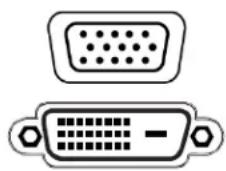
SVGA Output To VGA Monitor.
DVI-D Output To TV / Digital Monitor
Attach the monitor or monitors to the rear of the NVR using the cable supplied by the monitor manufacturer. Refer to the monitor manual for detailed information on how to setup and use it.
NOTE: The monitor must be capable of having a screen resolution of 1024 x 768 and display colors of at least 32 Bit
POWER SETUP
Attach the AC power cable to the rear of the DVR Unit. See Rear Panel Connectors for more information.

WARNING: To reduce the risk of electrical shock or damage to the equipment:
- Do not disable the power grounding plug. The grounding plug is an important safety feature.
- Plug the power cord into a grounded (earthed) electrical outlet that is easily accessible at all times.
- Disconnect the power from the computer by unplugging the power cord either from the electrical outlet or the computer.
CONNECTING A VIDEO SOURCE
The NVS, a Network Video Recorder has no visible video inputs because the NVS unit connects and records only using IP / Network video cameras. To connect video sources to the NVS unit, simply plug in a network cable to the NVS unit.
HARD DRIVE ARRAY

text_image
Handle Release Release Handle Button Lock LOCK OPEN Reset Button Lock OPEN Hard Drive Power Buttons LOCK OPEN Alarm LightNOTE: The Alarm Light will turn on if the Hard Drives reach a temperature above safe operating conditions
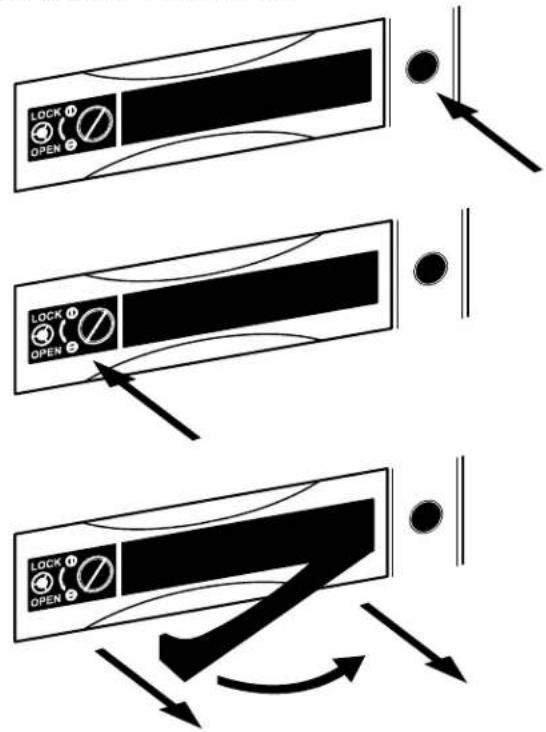
Swapping a Hard Drive
text_image
LOCK ① OPEN ② LOCK ① OPEN ② LOCK ① OPEN ②- Press the hard drive power button to turn off power to the hard drive you wish to remove.
- Turn the button lock to the open position and push the handle release button.
- Pull the lever outward while removing the hard drive. Reverse steps to install.
OPTIONAL COMPONENTS
To fully utilize the NVR's potential; several optional Surveillix components are listed below. Contact the dealer for more information.
Extra Video Storage Hard Drive
Each DVR has a virtually unlimited storage potential. Add additional Video Data Hard Drives to extend the amount of Video Data the DVR system can store before overwriting older data.
UPS UPS Power Backup
UPS Power Backups allow your DVR to remain fully functional even in the event of a power failure. UPS Power Backups also even the fluctuating power current out to provide a consistent, reliable power flow. This creates a stable environment for the DVR and reduces failure.
NP-4PKVM 4 Channel KVM Switch
The 4 Channel KVM switch allows you to have multiple boxes (up to 4) using only one keyboard, mouse and monitor. You can simply switch between the DVRs using the keyboard.
Hot Swappable Redundant Power Supplies
Every DVR has the option of a dual redundant hot swappable power supply. In the event of a component failure the inoperable power supply may be removed leaving the DVR running so no break in recording occurs. Simply replace the power supply with a new one and you are finished.
Raid Controller
A raid controller is available for increased performance or data reliability.
External RAID storage
An external RAID device is used for independent data reliability & provides much greater storage expandability
Gigibit NIC
Provides support for Dual Nic configurations
SCSI Interface adapter
Allows for external storage devices to be connected
NVS BASICS
This chapter includes the following information:
- Registration and Upgrade
- Turning the DVR on and off
- Becoming familiar with the Display screen
- Defining Screen Divisions
SETTING THE TIME AND DATE
- Exit to Windows by clicking the Exit button from the Display screen and selecting Restart in Windows Mode. (See the Display screen section later in this chapter)
- Open Windows Explorer. Do this by right-clicking the My Computer Icon (located on the top left hand corner of the Desktop) and select Explore.
- Click on Control Panel to open it. If you do not see Control Panel listed, Click My Computer to expand the folder tree.
-
Double Click on Date and Time inside Control Panel.
-
Adjust the Date and Time.
-
When finished, close all open windows and restart the DVR. Do this by clicking the Start button (Located on the lower left hand side of the Desktop) and selecting Shut Down
ACCESSING THE DVR UTILITY
Exporting DVR Settings
Exporting DVR settings can help configure multiple DVRs quickly or reconfigure a unit that has failed. Some things must be kept in mind when using this feature.
You cannot use this function on:
• DVRs that are different models.
- When upgrading from certain software versions. (This feature cannot be used when upgrading from v2.x to v3.x)
- Exit to Windows by clicking the Exit button on the Display screen then and select Restart in Windows Mode. (See the Display screen section later in this chapter)
- Click Start > Programs > Surveillix > VFormat.
- Click the Export button in the System Settings tool section.
- Select a location to save the settings file and click Save. The DVR Utility will export the DVR settings and automatically close.
- Click the OK button to close the VFormat Utility.

text_image
DVR Utility Video Setting NTSC Set Comb Filter: ON (Default) SET HSCALE & PAL CPU: P4 /478 Caeron Set Live Scale: SAW Scale Set (only for SAW Overlay) CD R/W/ Format UI Find Format Utility Time zone setting Set Date and Time System Setting tool Import Export TV out Setting TV out ch: 32 CH Set Log View Log View Need For Schedule Backup Confins Windows System password AGC Mode AGC Mode: AUTO Set OK CancelImporting DVR Settings
- Exit to Windows by clicking the Exit button on the Display screen and selecting Restart in Windows Mode. (See the Display screen section later in this chapter)
- Click Start > Programs > Surveillix > VFormat.
- Click the Import button in the System Settings Tool section.
- Select the location of the settings file to import and click Open.
- Click Yes to import the data file.
- Click the OK button to close the VFormat Utility.
Changing Video Format
- Exit to Windows by clicking the Exit button on the Display screen and selecting Restart in Windows Mode. (See the Display screen section later in this chapter).
- Click Start > Programs > Surveillix > VFormat.
-
Select the appropriate video setting from the list in the Video Setting Section – NTSC or PAL..
-
Click Set.
-
Click the OK button to close the VFormat Utility.
DISPLAY SCREEN
Each time the DVR starts, the program defaults to the Display screen. The following diagram outlines the buttons and features used on the Display screen. You should become familiar with these options as this is the screen that will be displayed the majority of the time.

text_image
surveillix Search Display BACKUP PTZ SETUP LOG IN/OUT EXIT Current Date / Time Open Setup Display Open Search Display Backup Center PTZ Controller Open TV Out Options Sensor Status SENSOR 1 2 3 4 5 6 7 8 9 10 11 12 13 14 15 16 TV OUT OPEN RELAY Relay Outputs TOSHIBA PLAYLive Camera Options
Right-click a camera on the Display screen to display these options:
• Full Screen
- Instant Recording
- Search In Live
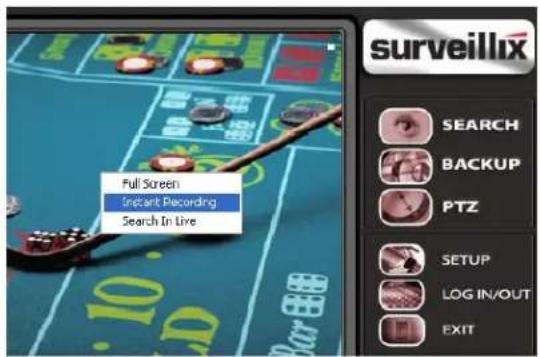
text_image
Full Screen Instant Recording Search In Line surveillix SEARCH BACKUP PTZ SETUP LOG IN/OUT EXITCAMERA VIEW
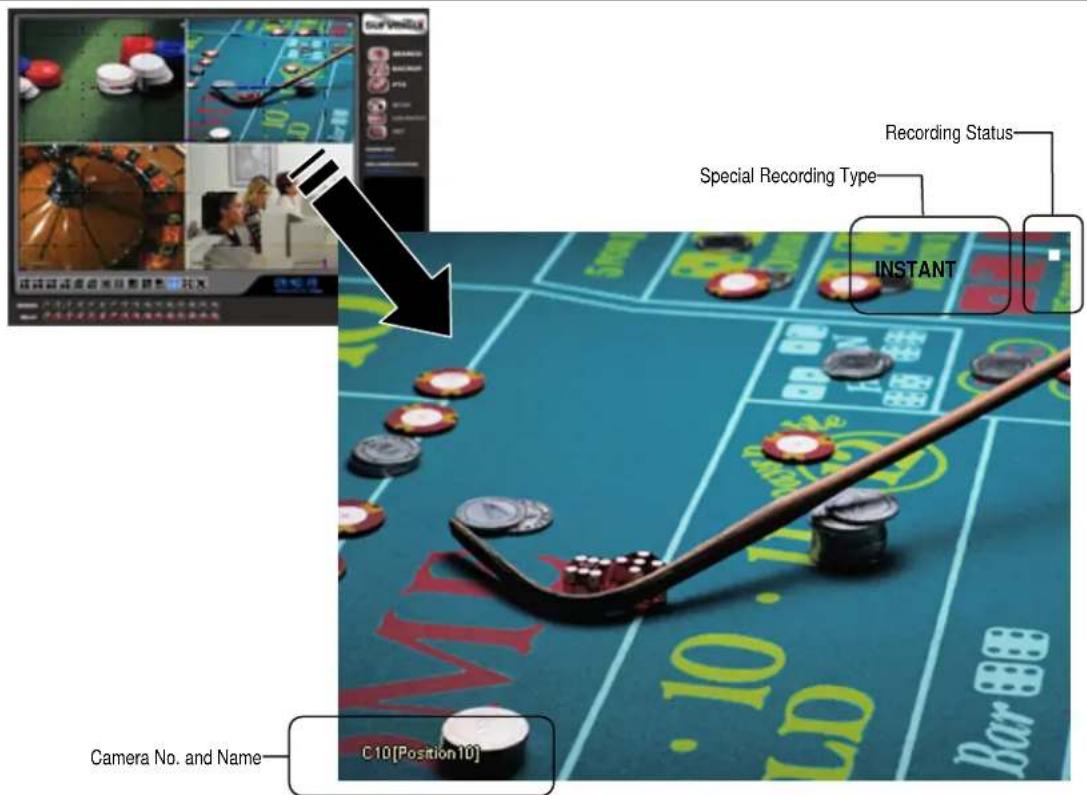
text_image
Recording Status Special Recording Type INSTANT Camera No. and Name C10[Position 10]Recording Status Indicator
The camera status for each camera is displayed in the upper right corner on the Video Display Area. The following are the different states for each camera:
Recording Displayed when the camera is currently being recorded to the DVR.
Motion Detection Displayed when a camera (set up for motion detection) detects motion.
☐ Display Displayed when the camera is currently not being recorded to the DVR.
Special Recording
There are two types of DVR Special Recording. Text is displayed on the camera indicating what type of Special Recording is activated.
SENSOR Sensor is displayed when a sensor, associated with a given camera, is activated.
INSTANT Instant Recording is a manual activation of the recording for the selected camera. Regardless of the recording method. Instant Recording will start the camera recording and also flag the video for future searches using the Index Search feature. INSTANT is displayed when a user activates the instant recording option. Double Right-Click the video display to activate and deactivate the Instant Recording option.
SCREEN DIVISION BUTTONS
The Screen Division menu allows you to view cameras in groups such as two by two, three by three and four by four. The button options are shown below.


1st Four Cameras View – Displays cameras 1-4 in the Video Display Area. To return to a different Multi-Camera View, select a different Screen Division option from the Screen Division menu.
2nd Four Cameras View – Displays cameras 5-8 in the Video Display Area. To return to a different Multi-Camera View, select a different Screen Division option from the Screen Division menu.
3rd Four Cameras View – Displays cameras 9-12 in the Video Display Area. To return to a different Multi-Camera View, select a different Screen Division option from the Screen Division menu.
4th Four Cameras View – Displays cameras 13-16 in the Video Display Area. To return to a different Multi-Camera View, select a different Screen Division option from the Screen Division menu.
1st Nine Cameras View – Displays cameras 1-9 in the Video Display Area. To return to a different Multi-Camera View, select a different Screen Division option from the Screen Division menu.
2nd Nine Camera View – Displays cameras 8-16 in the Video Display Area. To return to a different Multi-Camera View, select a different Screen Division option from the Screen Division menu.
Multi-Camera View – Displays a group of cameras within the Video Display Area.
All Camera View – Displays all 16 cameras within the Video Display Area.
Multi-Camera View – Displays a group of cameras within the Video Display Area.
Multi-Camera View – Displays a group of cameras within the Video Display Area.
Full Screen – The Full Screen Option allows you to view the Video Display Area using the entire viewable area on the monitor. When this is selected, no menu options are visible. You can activate the Full Screen Option by clicking on the Full Screen button within the Screen Division menu. You can deactivate Full Screen mode by right clicking on the screen.
Auto Sequence – Sequences through the Screen Divisions sets. For example, selecting the 1A and then the Loop button will sequence through 1A, 2A, 3A, 4A and then repeat. This option is not available for the 7, 10 and 13 screen divisions.


SETUP OPTIONS
This chapter includes the following information:
- Setup Overview
- Camera Setup
- Motion
- Frame Setup
- Schedule
- Sensor
- Network
• Information - Administrative
SETUP OVERVIEW
The Setup options allow you to optimize your DVR by adjusting things like camera names, reboot schedules, recording schedules and more. It is extremely important that you setup your DVR correctly for several reasons.
- Recording Schedules – By optimizing the recording schedule you can increase the amount of pertinent recorded video that is saved on the DVR and keep it longer. You can optimize the type of recording done by adding motion detection to this as well, again increasing the amount of useful video.
- DVR Access – By setting up the access passwords you can tightly control the types of access an individual may have. This ensures the security and integrity of the DVR.
- Camera Naming – By naming each camera you can easily identify the location and any other pertinent information that may be helpful simply by viewing it on the Video Display Area.

text_image
surveillix SETUP OPTIONS CAMERA SETUP NETWORK VIDEO MOTION SCHEDULE GENERAL NETWORK INFORMATION ADMINISTRATIVE EXIT TOSHIBACAMERA SETUP
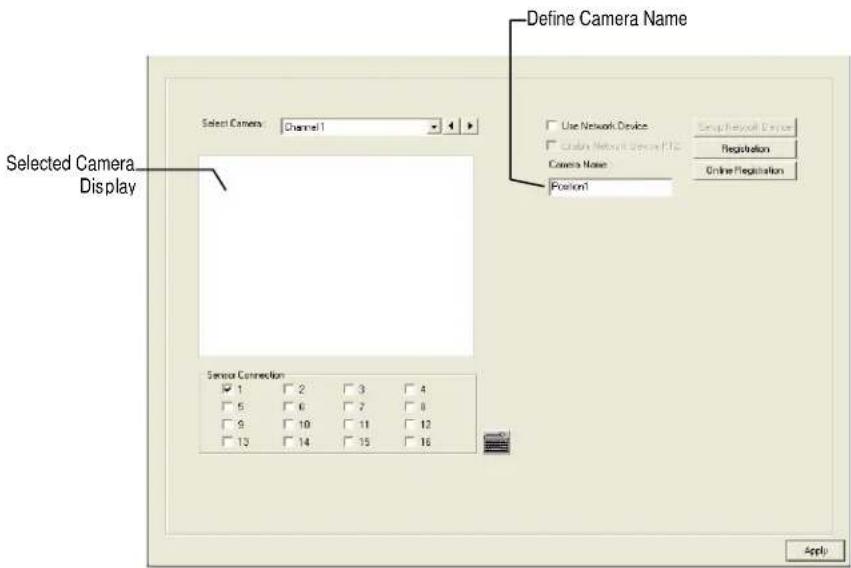
text_image
Define Camera Name Select Camera: Channel1 Use Network Device Create Network Server F12 Camera Name: Position1 Selected Camera Display Sensor Connection □ 1 □ 2 □ 3 □ 4 □ 5 □ 6 □ 7 □ 8 □ 9 □ 10 □ 11 □ 12 □ 13 □ 14 □ 15 □ 16 Apply| Select Camera Selects the camera to be edited. | |
| Selected Camera Display Displays the live camera feed from the camera selected. | |
| Sensor Connection Specify which sensors are currently in use. | |
| Enable Network Device PTZ Enables setup and use of Network Camera and PTZ Functionality. | |
| Setup Network Device Opens the Network Device Setup menu. | |
| Registration Opens the Registration menu for entering Unlock Codes to activate the software. | |
| Online Registration Opens the Online Registration menu for activating pre-registered software. | |
| Camera Name Specify a name for each camera. |
NETWORK VIDEO
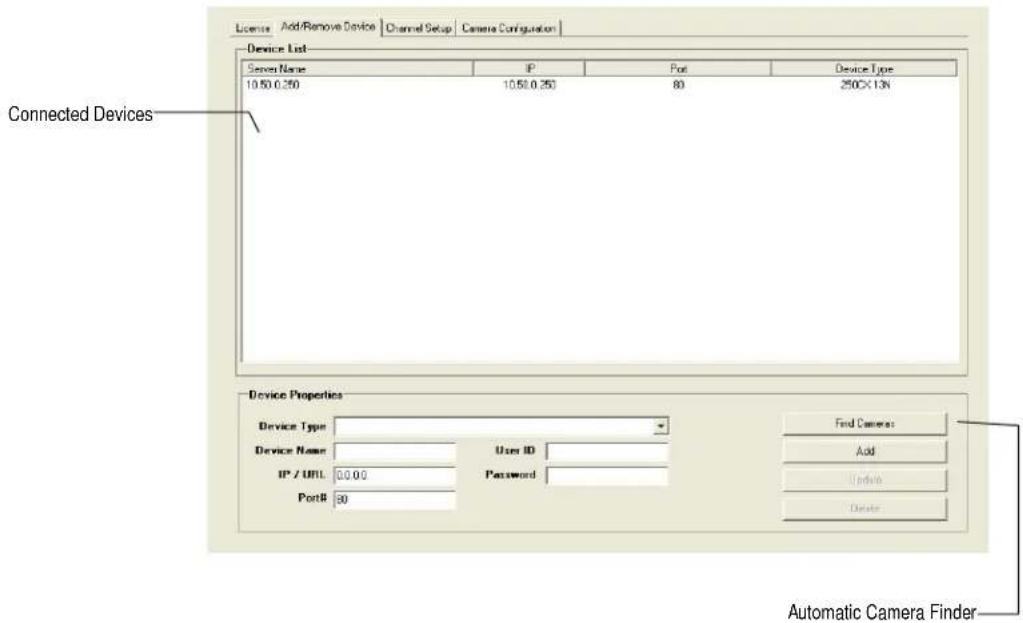
text_image
License Add/Remove Device Channel Setup Camera Configuration Device List Server Name IP Port Device Type 10.50.0.250 10.50.0.250 80 250×13N Connected Devices Device Properties Device Type Device Name User ID IP / URL Password Port# 30 Find Camera Add Delete Automatic Camera FinderSupported IP Camera Manufacturers
| ACTi | Panasonic |
| Arecont Vision | Pixord |
| Axis | Samsung |
| Brans | Securgen |
| D-Link | Sony |
| IQeye | Stardot |
| Lumenera | Toshiba |
| Robotix | VivoTek |
Connecting a Network Device
Connecting Manually
- From the Display screen, click Setup.
- Click Network Video.
- Click the Add/Remove Device tab.
- Select your network device from the Device Type list.
- Type a Device Name.
- Type the IP/URL address, Port, User ID and Password of the device.
- Click Add.
Connecting with Camera Finder
- From the Display screen, click Setup.
- Click the Network Video tab.
- Click the Add/Remove Device tab.
- Click Find Cameras to automatically find all connected Network cameras.
- Select the check box next to the desired camera.
- Click Get Device.
- Type the User ID and Password of the device.
- Click Update.
Assigning a Network Device to a Channel
- From the Display screen, click Setup.
- Click Network Video.
- Click the Channel Setup tab.
- Click an available channel on the Channel List.
- Type the desired Position Name.
- Select the appropriate network device added previously.
- If the device has PTZ capabilities, select the PTZ Camera check box to enable.
- If supported, select the Use Network Camera Motion Detection check box.
- Click Apply, then click Exit Setup.
Camera Configuration
The Camera Configuration tab displays information on all cameras (analog and network) connected to the Surveillix DVR
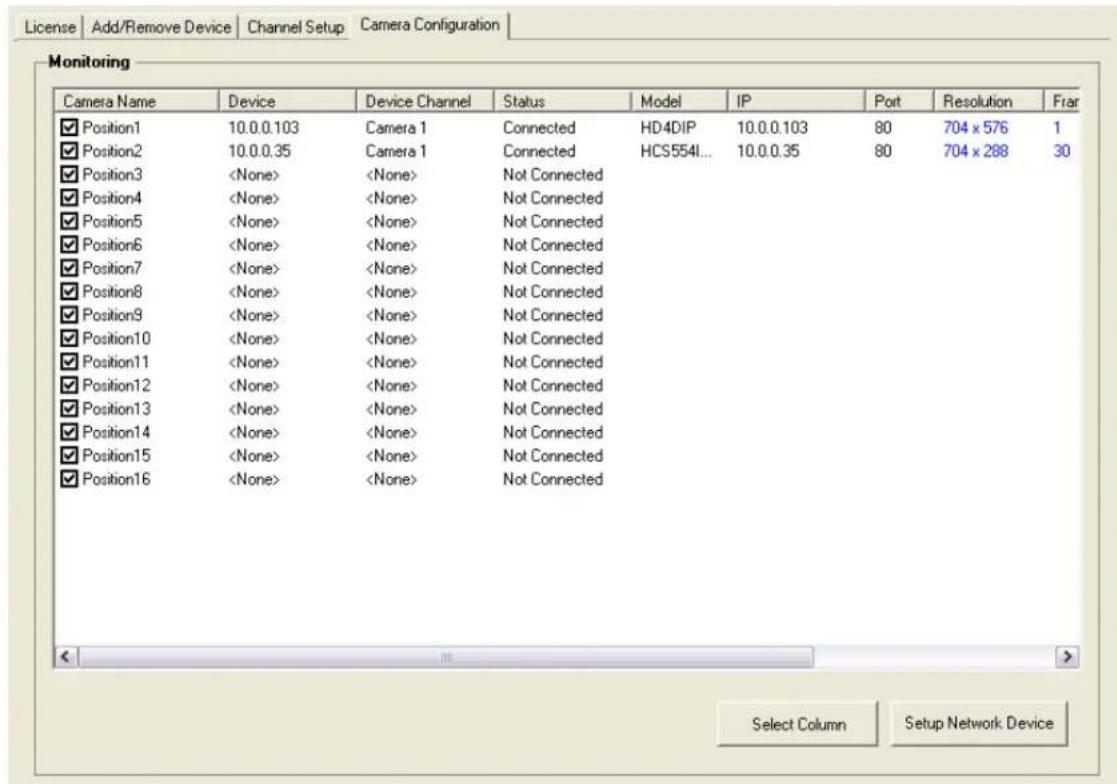
text_image
License | Add/Remove Device | Channel Setup | Camera Configuration | Monitoring Camera Name Device Device Channel Status Model IP Port Resolution Frar ✓ Position1 10.0.0.103 Camera 1 Connected HD4DIP 10.0.0.103 80 704 x 576 1 ✓ Position2 10.0.0.35 Camera 1 Connected HCS554I... 10.0.0.35 80 704 x 288 30 ✓ Position3 None> None> Not Connected ✓ Position4 None> None> Not Connected ✓ Position5 None> None> Not Connected ✓ Position6 None> None> Not Connected ✓ Position7 None> None> Not Connected ✓ Position8 None> None> Not Connected ✓ Position9 None> None> Not Connected ✓ Position10 None> None> Not Connected ✓ Position11 None> None> Not Connected ✓ Position12 None> None> Not Connected ✓ Position13 None> None> Not Connected ✓ Position14 None> None> Not Connected ✓ Position15 None> None> Not Connected ✓ Position16 None> None> Not Connected Select Column Setup Network DeviceDisplaying More Columns
The Camera Configuration tab can be customized to display the information you use most. Click Select Column to add or remove specific columns.
| Capture FPS | IP Address | Codec |
| Record FPS | Port Number | Quality |
| Schedule | Resolution | GOP |
| Manufacturer | Frame Rate | PTZ |
| Model |
Accessing the Configuration Menu
Use the Surveillix interface to access basic network device menu functions.
- From the Display screen, click Setup.
- Click Network Video.
- Click the Channel Setup tab.
- Highlight the desired channel.
- Click Setup Network Device.
Upgrade and Registration
Have the following information available before registering.
Software Serial Number: That product Serial Number is the unique number that Toshiba provided with the purchase software.
System ID: The System ID is a number that is generated by the Surveillix unit. This is a unique code generated using the MAC address of the computer running the software. The following steps illustrate how to obtain a unique System ID.
Locating the System ID
- From the Display screen, click Setup.
- Click Network Cameras.

text_image
License Information Trial Version - 28 days remaining. System ID: 0A00F000AD0000 License Key Copy Register Channel Connection License License Key Total Used Free- Click the License tab.
- Click Copy to copy the System ID.
Obtaining the Unlock Code
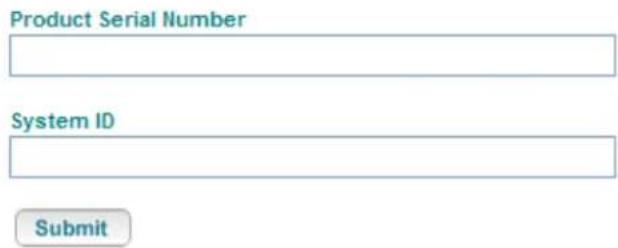
- Open an Internet browser and go to: http://register.surveillixdvrsupport.com/
text_image
Product Serial Number System ID Submit- Type the Product Serial Number that was provided by Toshiba.
- Type the System ID generated by the DVR.
- Click Submit.
Software Registration
Product Name 01 Channel IP Camera Unlock
Product Serial Number
System ID 4-000753-017500
DVR Serial Number:
Please verify the information and press NEXT to proceed.
< Back Next >
-
Verify the information.
-
Click Next if the information provided is correct.
- Once validated, the user will be provided with the Unlock Code.
- Print the page and save for later reference.
Software Registration
The following is your unlock code. Keep this number in a safe place as you will need it if you ever reinstall the software.
Unlock Code
| Product | 01 Channel IP Camera Unlock |
| Product SN | |
| DVR SN |
NOTE: This unlock code cannot be transferred to a different computer.
Print this Page
Unlocking the Upgrade
- Return to Setup > Network Cameras > License.
- Enter the Unlock Code generated by the Surveillix Registration Site into the License Key box.
- Click Register and confirm that the new License Key is listed in the Channel Connection License box.
- Click OK.
Unlocking New Network Device
Follow the instructions above for registering the NVR upgrade to unlock any additional network devices.
MOTION SETUP
The DVR allows the user to adjust several different Motion Settings and create motion detection areas.

text_image
Select Camera: Channel1 Motion Regions Move the older bins left to increase motion sensitivity and to distribute more noise Clear Detect detail motion area Full Motion Area Advanced Motion Area Setup Apply to all Channels Motion Sensitivity High Low Beep on motion event Display full screen video pop up on motion event Beep on motion event Display full screen video pop up on sensor event Alarm Output Alarm Output Control NO 1 Duration 10 (Seconds) Regular interval recording Post Alarm 0 (Seconds) Post Alarm (MOTION) 10 (Seconds) Post Alarm (SENSOR) 10 (Seconds) Schedule recording at a regular specified interval Reduces Analog Signal Noise from Motion DetectionCreate a Motion Area
- Click Motion in Setup.
- Select a camera from the Select Camera list.
- Select the Detect Detail Motion Area check box.
- Click Clear.
- Click Advanced Motion Area Setup.
- Click a Motion Detection Area shape button.
- Drag the mouse over the camera image.
Note To create a polygon shape, click the mouse at each point and double-click to close the shape.
- Click OK.
- Move the sliders to adjust motion sensitivity and the noise filter.
- Define the pre-alarm and post-alarm recording time for a motion event.
Pre Alarm - 0 > 50 Seconds [The number of seconds the DVR records before motion is detected]
Post Alarm (MOTION) - 0 > 50 Seconds [The number of seconds the DVR records after motion is detected]

text_image
Select Existing Motion Shapes Draw Square Motion Detection Area Draw Polygon Motion Detection Area Draw Circle Motion Detection Area Draw Square Non-Motion Detection Area Draw Polygon Non-Motion Detection Area Draw Circle Non-Motion Detection Area Select All Motion Detection areas Delete All Motion Detection areas OK CancelActivating an Alarm on a Motion Event
-
In the Motion Setup window, select a camera to edit from the Camera list.
-
Create a motion area.
-
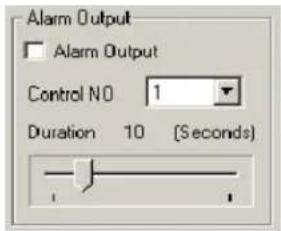
Select the Alarm Output check box.
- Select a Control Output to activate for the selected camera.
- Select an Alarm Duration time when a motion event occurs.
text_image
Alarm Output Alarm Output Control NO 1 Duration 10 [Seconds]Regular Interval Recording
Regular Interval Recording allows users to record a single frame every few minutes or hours when there is no motion. This option is only available when Motion recording or Sensor recording is selected in the recording schedule.
To enable Regular Interval Recording:
- Select the Regular Interval Recording check box.
- Specify how often to take an image when no motion is occurring. Users can go as little as one image per second.
SCHEDULE SETUP
Recording Schedule
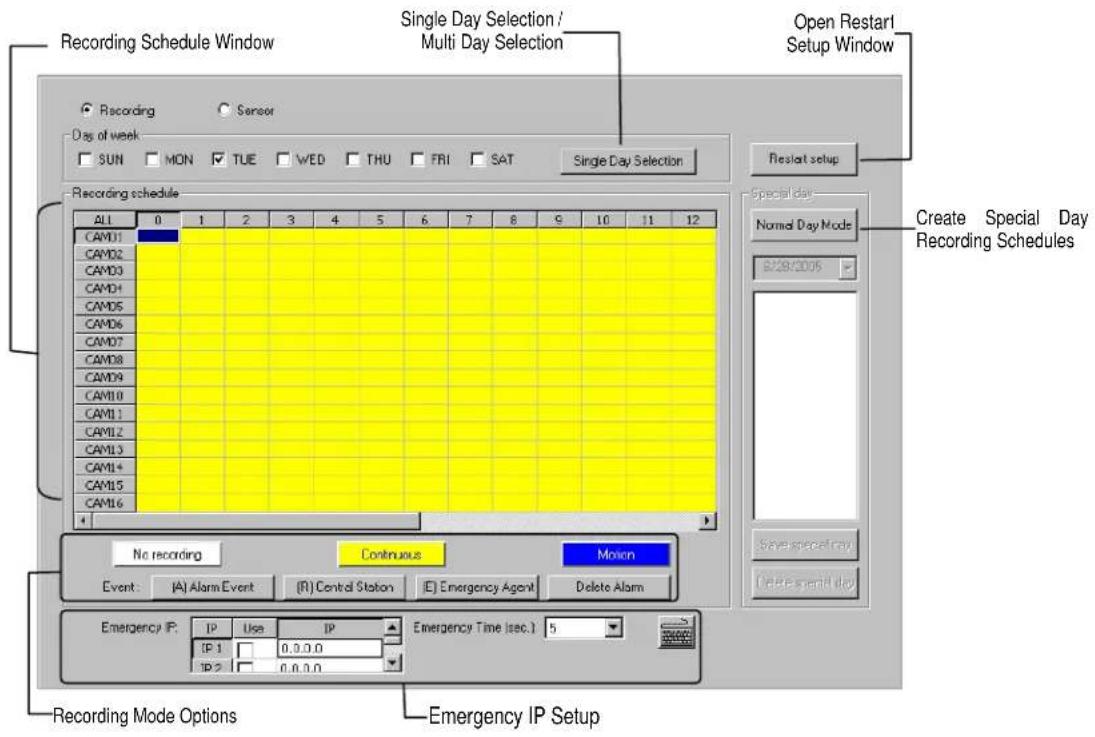
The Recording Schedule window allows the user to create different recording schedules based on the day, time, and type of recording desired. In addition, this window contains the System Restart options that allow the user to perform basic system maintenance by automatically scheduling the DVR to restart periodically.
text_image
Recording Schedule Window Single Day Selection / Multi Day Selection Open Restart Setup Window Recording Sensor Day of week SUN MON TUE WED THU FRI SAT Single Day Selection Restart setup Recording schedule ALL 0 1 2 3 4 5 6 7 8 9 10 11 12 CAM01 CAM02 CAM03 CAM04 CAM05 CAM06 CAM07 CAM08 CAM09 CAM10 CAM11 CAM12 CAM13 CAM14 CAM15 CAM16 No recording Continuous Motion Event (A) Alarm Event (R) Central Station (E) Emergency Agent Delete Alarm Save speed tray Delete speed tray Emergency IP: IP Use IP Emergency Time (sec.) 5 IP 1 0.0.0.0 IP 2 0.0.0.0 Recording Mode Options Emergency IP Setup Special day Normal Day Mode Create Special Day Recording SchedulesSensor Schedule
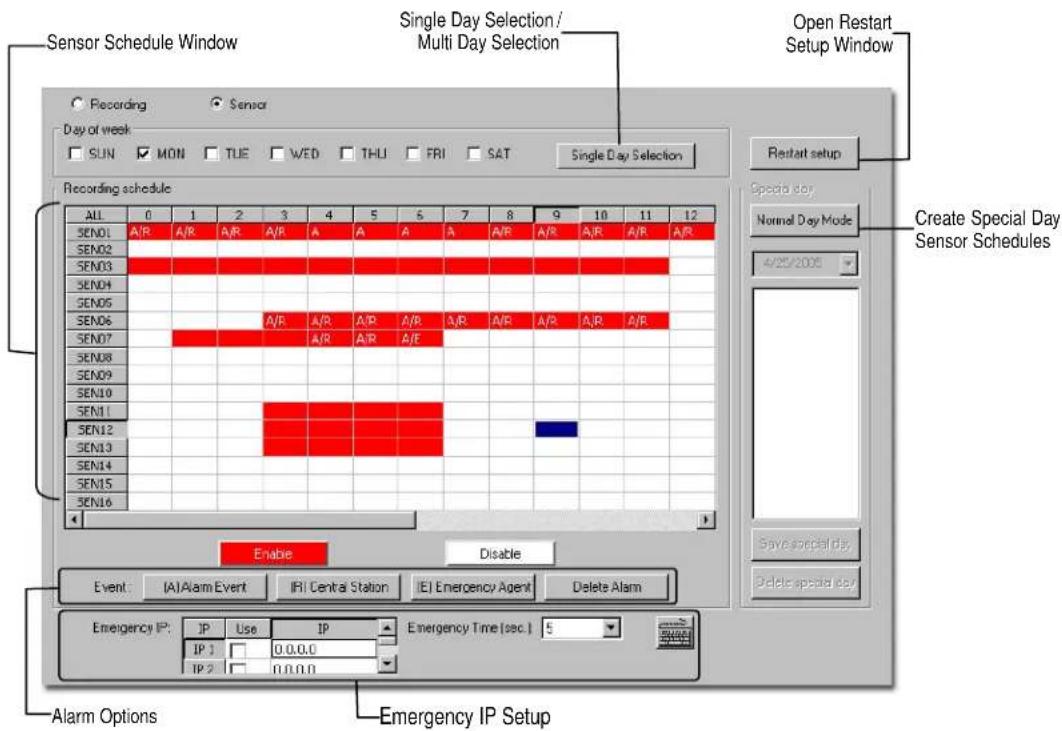
The Sensors will supersede all other types of recording modes (Motion and Continuous). Regardless of the recording schedule of a particular camera, if a sensor event occurs the associated cameras will begin recording as a Sensor Event. Sensor Recordings will be flagged and searchable using the Index Search Mode. Cameras are associated to sensors in the Camera Setup menu.
text_image
Sensor Schedule Window Single Day Selection / Multi Day Selection Open Restart Setup Window Recording Sensor Day of week SUN MON TUE WED THU FRI SAT Single Day Selection Recording schedule ALL 0 1 2 3 4 5 6 7 8 9 10 11 12 SEN01 A/R A/R A/R A/A A A A A/A/A/A/A/A/A/A/A/A/A/A/A/A/A/A/A/A/A/A/A/A/A/A/A/A/A/A/A/A/A/A/A/A/A/A/A/A/A/A/A/A/A/A/A/A/A/A/A/A/A/A/A/A/A/A/A/A/A/A/A/A/A/A/A/A/A/A/A/A/A/A/A/A/A/A/A/A/A/A/A/A/A/A/A/A/A/A/A/A/A/A/A/A/A/A/A/A/A/A/A SEN02 SEN03 SEN04 SEN05 SEN06 SEN07 SEN08 SEN09 SEN10 SEN11 SEN12 SEN13 SEN14 SEN15 SEN16 Enable Disable Event: (A)Alarm Event IRI Central Station IEI Emergency Agent Delete Alarm Emergency IP: JP Use IP Emergency Time [sec.] 5 IP 1 0.0.0.0 IP 2 0.0.0.0 Alarm Options Emergency IP Setup Restart setup Special day Normal Day Mode 4/25/2005 Save special day Delete special dayCreate a Recording Schedule
- Select a day to begin creating the schedule for -or- click Single Day Selection, enabling Multi Day Selection, to create the same schedule for multiple days.
- Highlight the Time-Blocks within the Recording Schedule window for the camera(s) selected to schedule. Once the desired Time-Blocks are highlighted, click a Recording Mode button. The Time-Blocks should now appear Blue for Motion, Yellow for Continuous and White for No Recording.
Note Leave cameras recording with Sensor Detection set to No Recording for the specified time block(s).
Create a Sensor Schedule
- Click Schedule and then and then select the Sensor option. Select a single day or click Single Day Selection to include multiple days in the schedule.
- Highlight the Time-Blocks within the Recording Schedule window for the sensor(s) to enable and schedule. Once the time blocks are highlighted click Enable. The time block will now appear red.
Scheduling Alarm Events
There are three types of Alarm Events:
ALARM EVENT: This option logs the Alarm Events on the local server.
CENTRAL STATION: This option sends a Map Alarm to Central Station software such as SCS Multi-Site Management.
EMERGENCY AGENT: This option sends the Alarm Event to the Emergency Agent software.
Motion can be designated as an alarm event. Often motion does not need to be treated as an Alarm event. Ex: During work hours, motion that occurs is expected and should not be treated as an alarm. However, after business hours, any motion that occurs could be treated as an alarm.
- Click Schedule on the Setup screen.
- Select either Recording or Sensor.
- Highlight time blocks in the schedule that have been set to Motion (or Sensor) and click the desired Event buttons (Alarm Event, Central Station, Emergency Agent). A corresponding letter will display in the selected time blocks.
Emergency Agent Schedule
Video recording triggered by motion or sensor events can be sent to the Emergency Agent software.
- Enable the Emergency Agent Event. (see Scheduling Alarm Events above).
- Enter the IP Address of a PC running the Emergency Agent software under Emergency IP.
- Select the check box next to the IP Address to enable it. Only one IP Address is supported at a time.
- Enter the recording duration (in seconds) in the Emergency Time box.
Tip See the Emergency Agent chapter for detailed information on setting up the Emergency Agent software.
Special Day Schedule
The user can create days that have a unique recording schedule. If necessary create these on days that are 'not typical' such as Holidays, Special Events, etc.

text_image
Special day Special Day Mode 6/29/2005 Date Bar Save special day Delete special day Special Day Mode / Normal Day Mode Configured Special Days ListCreating/Editing a 'Special Day' Schedule
- Click Normal Day Mode to enable the Special Day Mode.
- Select a day by typing the date or clicking the arrow to the right of the Date Bar.
- Highlight the time-blocks within the Recording Schedule window for the camera(s) selected. Once the desired Time-Blocks are highlighted, click a Recording Mode button.
- When finished creating the schedule the Save Special Day.
Note The special day should now appear as a date in the Special Day Schedule.
Deleting a 'Special Day' Schedule
- Select a date from the Special Days list.
- Click Delete Special Day.
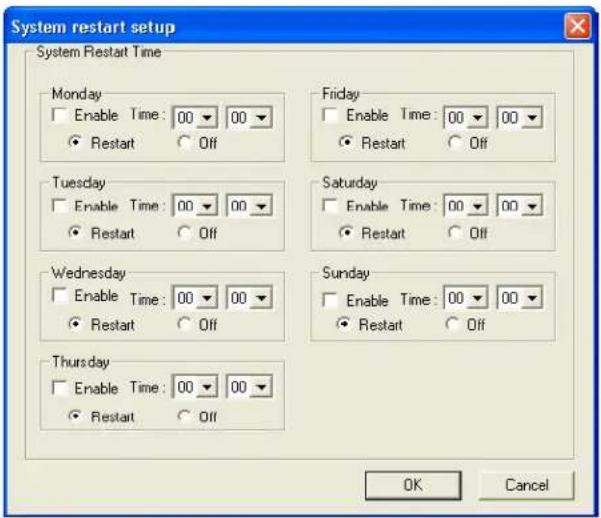
System Restart Setup
System Restart Setup allows the user to define a schedule wherein the DVR automatically restarts according to specified parameters.
text_image
System restart setup System Restart Time Monday Enable Time: 00 00 Restart Off Friday Enable Time: 00 00 Restart Off Tuesday Enable Time: 00 00 Restart Off Saturday Enable Time: 00 00 Restart Off Wednesday Enable Time: 00 00 Restart Off Sunday Enable Time: 00 00 Restart Off Thursday Enable Time: 00 00 Restart Off OK CancelCreate System Restart Schedule
- Click Schedule on the Setup screen.
- Click Restart Setup.
- Select the day(s) of the week to schedule an automatic system restart and select the check box to enable shut down.
Note This step alone does not trigger the DVR to restart, only to shut down.
-
Specify the time of day to schedule the system restart.
-
Select the Restart option.
Note If Off is selected, the DVR will shut down at the specified time but not restart.
GENERAL SETUP
text_image
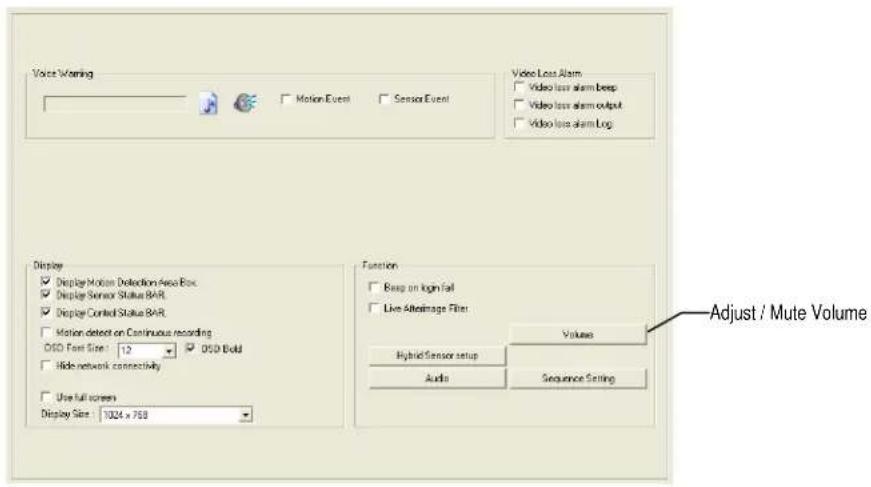
Voice Warning Motion Event Sensor Event Video Loss Alarm Video loss alarm beep Video loss alarm output Video loss alarm Log Display Display Motion Detection Area Box Display Sensor Status BAR Display Control Status BAR Motion detect on Continuous recording O5D Fan Size: 12 O5D Build Hide network connectivity Use full screen Display Size: 1024 x 768 Function Beep on login fall Live Afterimage Filter Values Hybrid Sensor setup Audio Sequence Setting Adjust / Mute Volume| Function | |
| Beep on Login Fail | Enables the DVR to beep continuously in response to a failed login attempt. Only an authorized login will stop the beeping. |
| Sequence Setting | Allows the video out picture to automatically cycle through channels at a set speed. Example: .Cycle through channels 1-6 at four-second intervals. |
| Display Options | |
| Use Full Screen | Stretch the Surveillix interface to use the full monitor screen. |
| Display Size | Select from available monitor display sizes. Use to correctly display video on wide screen monitors. |
Voice Warning
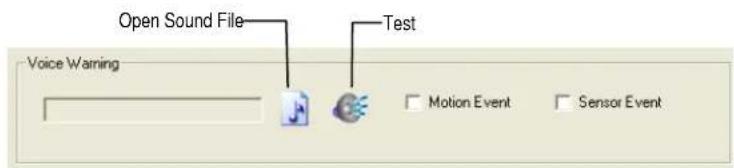
The DVR allows users to play a sound file when either a Motion event or Sensor event occurs. This file can be a custom created sound file that is unique to the application. The selected WAV file is played through speakers attached to the DVR.
text_image
Open Sound File Voice Warning Test Motion Event Sensor Event- Click the Open Sound File icon to browse for a WAV file. The selected file will display in the box on the left.
- Click the Test icon to verify the audio file.
- Select Motion Event and/or Sensor Event to trigger the audio file.
Connecting to a Wide Screen Display
- Click Exit on the Display screen and select Exit in Windows Mode.
- Right-click the Desktop and select Properties.
- Click the Settings tab.
- Drag the Screen Resolution bar to the proper resolution of the connected display.
Tip Refer to the display documentation for the proper resolution settings.
- Click OK and confirm the change.
- Double-click the Surveillix Server icon on the Desktop.
- Click Setup on the Display screen and then click General.
- Under Display Settings, select the Use Full Screen check box and then select the correct resolution from the Display Size list.
- Click Apply.
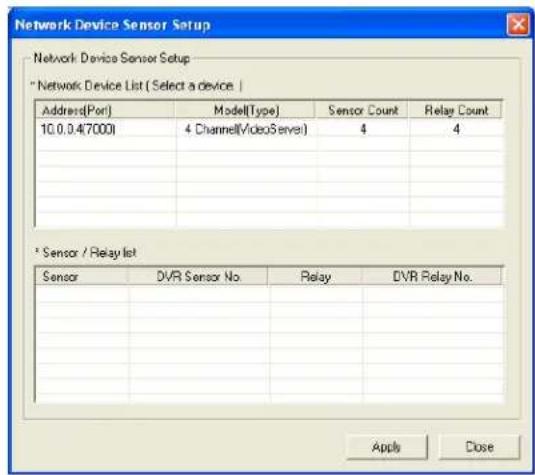
Hybrid Sensor Setup
This interface is used to link Hard Contact Sensor Inputs from supported Network Devices to the DVR Software.
text_image
Network Device Sensor Setup * Network Device List ( Select a device ) Address(Por) Model(Type) Sensor Count Relay Count 10.0.0.470001 4 Channel(VideoServer) 4 4 Sensor / Relay list Sensor DVR Sensor No. Relay DVR Relay No. Apply CloseVolume
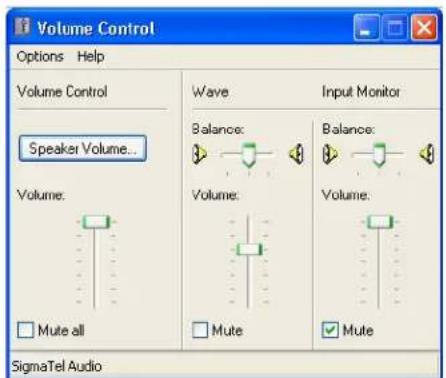
The volume control allows fine tuning of the volume settings on the DVR.
Volume Options:
- Slider Controls – Used to adjust the literal volume for the respective devices listed.
- Mute Check Box – Select the mute check box to mute volume on any of the device columns or select the Mute All check box to mute all audio on the DVR.
text_image
Volume Control Options Help Volume Control Speaker Volume.. Volume: Mute all Wave Input Monitor Balance: Volume: Mute Balance: Volume: Mute SigmaTel AudioAuto Sequence Setting
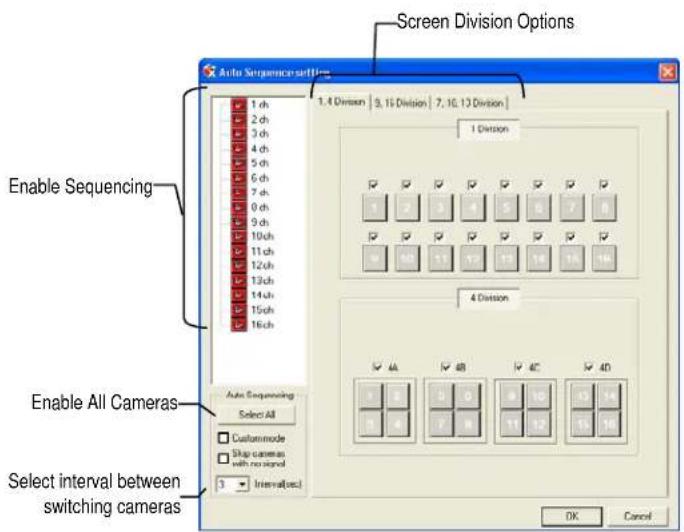
Auto Sequencing is available either in the Display screen when Auto Sequencing has been enabled or when a Spot-Monitor out signal is used to display on a spot monitor. Auto Sequencing conveniently displays video channels at specified intervals and sequences through each selected channel.
text_image
Screen Division Options 1.4 Division | 3, 15 Division | 7, 16, 13 Division | 1 Division Enable Sequencing 12 13 14 15 16 4 Division Enable All Cameras Select interval between switching cameras Auto Sequencing Select All Custommode Snap cameras with no signed 3 Internal(Dec) OK Cancel| Custom Mode Create non-standard screen divisions | |
| Skip 0 FPS Channel | Sequence skips cameras with no video signal |
Create Custom Auto Sequence
- Open General setup and click Sequence Setting.
- Click individual cameras in the left pane or click Select All to include all cameras in the sequence.
- Select an Interval time (in seconds) to display each screen in the sequence.
- Select screen division options for appropriate cameras.
NETWORK SETUP
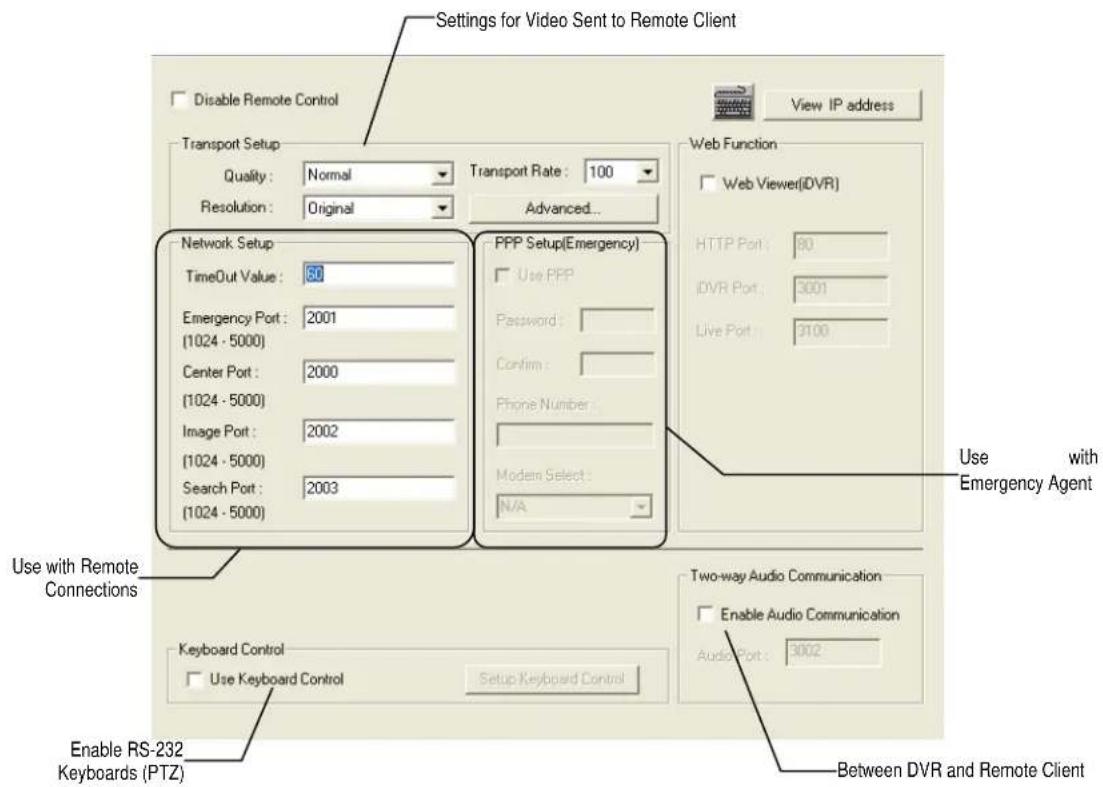
Network Setup allows the user to adjust settings such as Ports, setup emergency PPP information for use with the Emergency Agent and enable Remote Access.
text_image
Settings for Video Sent to Remote Client Disable Remote Control Transport Setup Quality: Normal Transport Rate: 100 Resolution: Original Advanced... Network Setup TimeOut Value: 80 Emergency Port: 2001 (1024 - 5000) Center Port: 2000 (1024 - 5000) Image Port: 2002 (1024 - 5000) Search Port: 2003 (1024 - 5000) PPP Setup(Emergency) Use PPP Password: Confirm: Phone Number: Modem Select: N/A Web Function Web Viewer(iDVR) HTTP Port: 80 iDVR Port: 3001 Live Port: 3100 Use with Emergency Agent Use with Remote Connections Keyboard Control Use Keyboard Control Setup Keyboard Control Two-way Audio Communication Enable Audio Communication AudioPort: 3002 Enable RS-232 Keyboards (PTZ) Between DVR and Remote ClientTransport Rate
Web Viewer (iDVR)
A bandwidth throttle based on percentage of free network.
Enables/Disables access to the DVR using the Web Viewer interface.
INFORMATION
The Information display allows users to define the site code necessary for connecting to remote software, save comments relative to the DVR and store tech support and contact number information.

text_image
Total HDD /Available HDD Space Current Server Software Version DVR Version 3.6.0 Site Information Site Code : 1 Board Serial #: System Serial #: Decoder : TW5905 Video Format : N15C Notes : Enter comments Drive Information C: Drive Total Space : 20259 MB Free Space : 17425 MB D: Drive Total Space : 219097 MB Free Space : 219022 MB E: Drive CD Drive Telephone Number Contact Number : Tech Support : User-Defined Contact NumbersSite Code
A user-specified unique identification name used by other DVR software to identify the DVR. (Remote, Emergency Agent, SCS, Digital Signature Verifier)
ADMINISTRATIVE SETUP
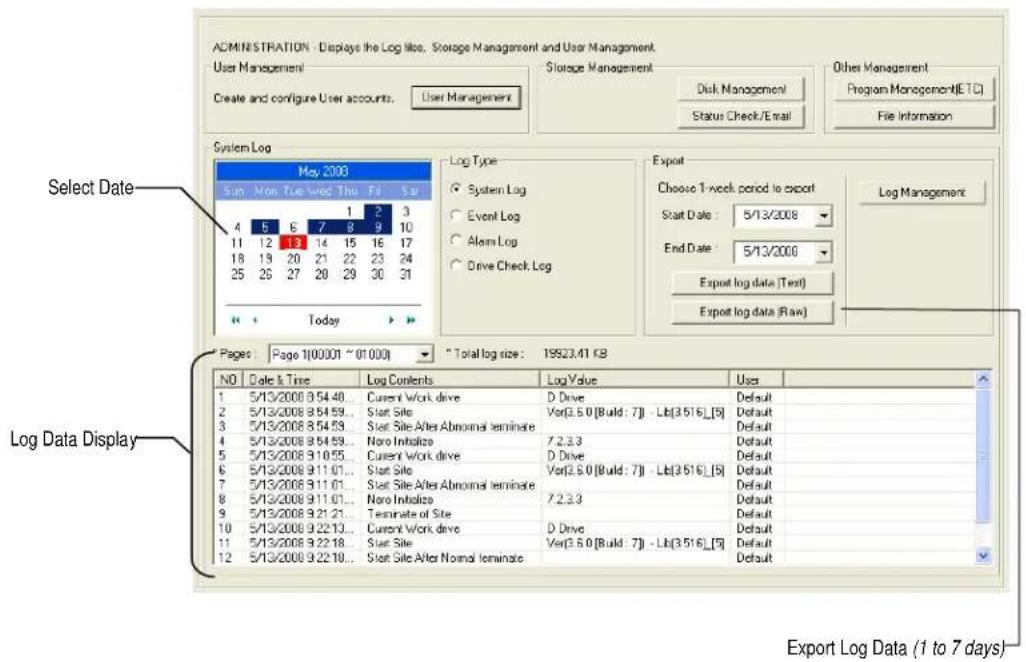
text_image
ADMINISTRATION - Displays the Log file. Storage Management and User Management User Management Create and configure User accounts. User Management Storage Management Disk Management Status Check/Email Other Management Program Management(ETC) File Information System Log May 2008 Sun Mon Tue Wed Thu Fri Sat 4 5 6 7 8 9 10 11 12 13 14 15 16 17 18 19 20 21 22 23 24 25 26 27 28 29 30 31 Today Log Type System Log Event Log Alarm Log Drive Check Log Export Choose 1-week period to export Start Date: 5/13/2008 End Date: 5/13/2008 Export log data (Text) Export log data (Raw) Log Data Display Pages: Page 1/00001 ~ 010001 * Total log size: 19923.41 KB NO Date & Time Log Contents Log Value User 1 5/13/2008 9:54:48... Current Work drive D Drive Default 2 5/13/2008 9:54:59... Start Site Var[3.5.0 [Build : 7] ] Lb[3.516]_5[] 3 5/13/2008 9:54:59... Start Site After Abnormal terminate D Drive Default 4 5/13/2008 9:54:59... Noro Inallsz 7.2.3.3 Default 5 5/13/2008 9:10:55... Current Work drive D Drive Default 6 5/13/2008 9:11:01... Start Site Var[3.5.0 [Build : 7] ] Lb[3.516]_5[] 7 5/13/2008 9:11:01... Start Site After Abnormal terminate D Drive Default 8 5/13/2008 9:11:01... Noro Inallsz 7.2.3.3 Default 9 5/13/2008 9:21:21... Terminate of Site D Drive Default 10 5/13/2008 9:22:13... Current Work drive D Drive Default 11 5/13/2008 9:22:18... Start Site Var[3.5.0 [Build : 7] ] Lb[3.516]_5[] 12 5/13/2008 9:22:18... Start Site After Normal terminate D Drive Default Export Log Data (1 to 7 days)Disk Management
The Disk Management window is a native Windows function. This window displays the partition scheme and health status of the Hard Disk Drives in the DVR. This window is often used to troubleshoot a DVR, or verify the amount of Hard Drive storage installed. For more information about Disk Management, consult a Windows XP manual.

text_image
Disk Management File Action View Help Volume Layout Type File System Status Capacity Free Space % Fr BACKUP (C:) Partition Basic FAT32 Healthy (S... 19.72 GB 17.03 GB 86 % DVR (D:) Partition Basic NIPS Healthy 214.02 GB 205.91 GB 98 % Disk 0 Basic 223.76 GB Online BACKUP (C:) 19.73 GB FAT32 Healthy (System) DVR (D:) 214.02 GB NIPS Healthy CD-ROM 0 CD-ROM (E:) No Media ■ Primary partition Extended partition Logical driveSetting Up DDNS
Dynamic Domain Name System (DDNS) is a service that provides a static address to simplify remote connection to the DVR. This service is most useful for installations where the WAN (public) IP address is dynamic (changes from time to time). Most public IP addresses are dynamic unless a static address has been specifically ordered from the internet service provider.
Enable DDNS
To enable this functionality of the DVR, follow the steps below:
- Click Setup on the Display screen and log in as Administrator if prompted.
- Click Administrative.
- Click Program Management (Etc) and enter the Administrator password when prompted.
- Click Show to the right of The agent program for DDNS.
- Select the Enable DDNS check box.
- Enter the ID, Password, and Hostname specified on the DDNS document shipped with your DVR.
Note Ensure the DVR has an IP address by setting it statically. The Network settings may need to be changed. If you are not sure of the correct values, contact the individual or department responsible for network administration at the site.
Set the IP Address
To set the IP address of the DVR, follow the steps below:
- On the Display screen, click Exit and choose Restart in Windows Mode.
- Right-click My Network Places and click Properties.
- On the General tab, click Internet Protocol (TCP/IP) and then click Properties.
- Select Use the following IP address.
- Enter the following values (or as specified by the department responsible for network administration).
a. IP Address: The first three sets of numbers should match the router's local IP address and the last set should be a unique number between 1-254.
b. Subnet Mask: This should match the router's setting (commonly 255.255.255.0 for 192.X addresses and 255.0.0.0 for 10.X addresses).
c. Default Gateway: This is the router's internal IP address. Once DDNS is configured, the router the DVR connects to will need to be configured to forward ports 80 and 4000 to the IP address of the DVR.
For further instruction on this process, visit http://www.portforward.com/english/routers/port_forwarding/routerindex.htm
Select the correct model of router, and follow the instructions. Once DDNS and port forwarding have been configured, the DVR will be accessible from any remote site by entering the HOSTNAME into the address bar of Internet Explorer or the IP Address field in the Remote Software.
User Management
The User Management Console allows the administrator to create, edit, and delete user accounts. Each user account can be assigned different privileges to limit the usage of the DVR system. Users can be given administrator privileges by enabling all rights, however only the true administrator account can log into the User Management Console.

text_image
User Management Select user Default Managers Security Add User Update User Delete User Exit Enable Auto Log Off User Auto log off Auto log off 5 Minute(s) Log Off User after x Minute(s) of Inactivity**Auto Log Off affects all users
Note The Delete User button immediately deletes the user – use cautiously.
Add a New User
- From the Display screen, click Administrative.
- Click User Management.
- Click Add User to open the User window.
- Enter a User Name and Password.
- Enable appropriate Permissions.
- Select Cameras and Audio channels to hide from the user.
- Assign a User Rank.
- Click OK to save changes and close the window.

text_image
User User Information User Name: Password: Continue Password: Permission Permission Search Setup Pan/Tit Backup Shut down Hidden Camera Audio Hidden Camera 1 Audio 1 Hidden Camera 2 Audio 2 Hidden Camera 3 Audio 3 Hidden Camera 4 Audio 4 Hidden Camera 5 Hidden Camera 6 User Rank: 10 OK CancelUser Rank
The User Ranking structure allows the option to assign a privilege system (1-10 where one has the most rights) to users of the DVR Software. For example. Since only one user is allowed to use the PTZ controls at any one time, an administrator with a higher rank can kick another user out and take control of the PTZ.
The User Rank option affects:
SETUP ACCESS - The DVR Software can only have 1 user accessing Setup at any given time. A user with a higher rank will kick another user out and then open Setup. NOTE: User settings will NOT be saved when a user with a higher ranking logs in. PTZ CONTROL - The DVR SOFTWARE can only have 1 user using the PTZ controls at any given time. A user with a higher rank will kick another user out and then open the PTZ controls.
- From the Display screen, click Setup.
- Click Administrative.
- Click User Management.
- Enter the Administrator password and click OK.
- Select a user from the Select User box and click Update User.
- Set the user's rank using the User Rank list and click OK to save changes.
Changing the Administrator Password
- Inside Administrative setup, click User Management. When the prompt appears, click Change Password.
- Enter the new password and click OK.
Default Administrator Password
The default administrator login is:
User: Administrator
Password:
Log Management
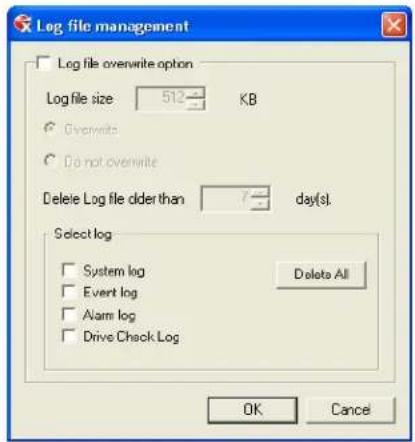
The Log Management window provides the user the options to overwrite log files or schedule log deletion.
Setup Log Management Options
- From the Administrative setup display click Log Management.
- Select the check box to enable the Log File Overwrite Option.
Set Log Overwrite
a. Select Overwrite and define the size of the log file cache.
Set Log Cache Size
a. Select Do Not Overwrite and define the number of days to maintain log files.
Manually Delete Log Files
a. Select the type(s) of log file to delete. System Log, Event Log, Alarm Log.
b. Click Delete All.
3. Click OK to save the settings and close the window.
text_image
Log file management Log file overwrite option Log file size 512 KB Overwrite Do not overwrite Delete Log file older than day(s). Select log System log Delete All Event log Alarm log Drive Check Log OK CancelStatus Check / Email
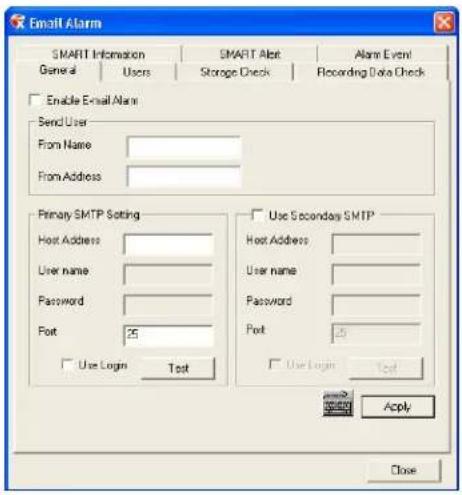
General
- Click Setup on the Display screen.
- Click Administrative.
- Click Status Check/Email.
- Select the Enable Email Alarm check box.
- Enter a From Name and e-mail Address.
Note This name and address will appear in the From line of the email alert message.
- Enter the SMTP information for the "From" email account. Contact the email administrator for this information if necessary.
- If using a secondary email account select the Use Secondary SMTP check box and complete the SMTP information.
- Click Test to check settings.
- Click Apply when finished.
text_image
Email Alarm SMART Information SMART Alert Alarm Event General Users Storage Check Recording Data Check Enable Email Name Send User From Name From Address Primary SMTP Setting Use Secondaries SMTP Host Address User name Password Port 25 Use Login Test Use LoginApple Apply CloseUsers
- Set up the General tab first.
- Click the Users tab.
- Select the type of Event to send email on.
- Enter the User Name and E-mail Address of an email recipient.
- Click Add.
- Repeat for additional recipients and types of events.
Note A separate email notification for each type of event must be set up for a single recipient to receive notifications for each type of event.
- Click Apply when finished.

text_image
Email Alarm SMART Information General Users SMART Alert Storage Check Alarm Event Recording Data Check Name E-Mail address Event HDD Check Alarm Event Recording Data Check Event Alarm SMART Alons Registration User E-mail Address: Add Edit Delete Apply CloseStorage Check
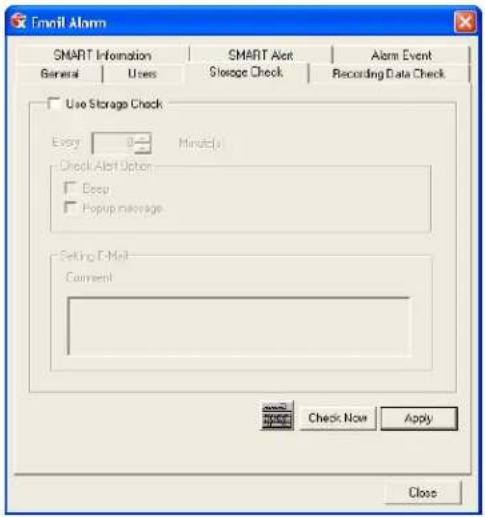
- Set up the General and Users tabs first. (see above)
-
Select the Use Storage Check check box.
-
Define the number of minutes.
-
Select an Alert Option, Beep or Popup Message, if desired.
-
Click Apply.
text_image
Email Alarm SMART Information SMART Alert Alarm Event General Uses Storage Check Recording Data Check Use Storage Check Every 0-Minus(1) Check Alert Option Deep Popup navigation Setting E-Mail Comment Check Now Apply CloseRecording Data Check
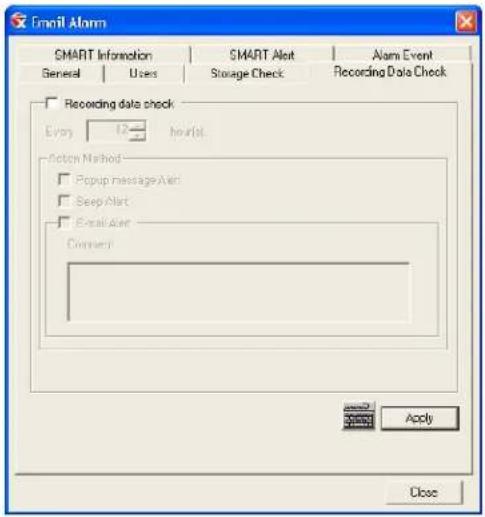
- Setup the General and Users tabs first. (see above)
- Select the Recording Data Check check box.
- Define the number of hours between data checks.
- Select the Action Method.
- Click Apply.
text_image
Email Alarm SMART Information SMART Alert Alarm Event General Users Storage Check Recording Data Check Recording data shock Every 12 hours Action Method Popup message Alert Sleep Alert Email Alert Connect: Apply CloseSMART Information
The SMART Information tab displays Hard Drive information.
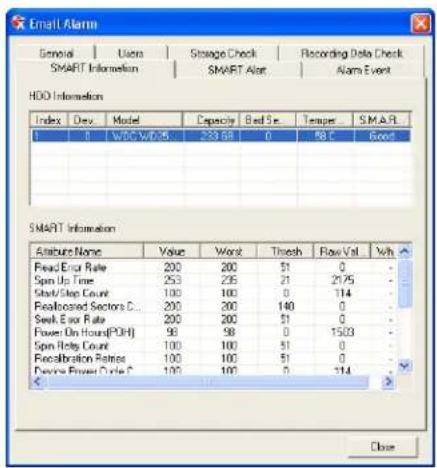
text_image
Email Alarm General | Users | Storage Check | Recording Data Check SMART Information | SMART Alst | Alst Event HDD Information Index | Dev | Model | Capacity | Bed Se | Temper | S.M.A.R. 1 | 0 | WRC V/D:5 | 238.68 | 0 | R8 C | Good | Smart Information Attribute Name | Value | Worst | Thresh | Raw Val. | Wh Read Error Rate | 200 | 200 | 51 | 0 | Spin Up Time | 253 | 235 | 21 | 2175 | Start/Stop Count | 100 | 100 | 0 | 114 | Reiterated Sectors C... | 200 | 200 | 140 | 0 | Seek Error Rate | 200 | 200 | 51 | 0 | Power On Hour(POH) | 90 | 90 | 0 | 1503 | Spin Error Count | 100 | 100 | 51 | 0 | Recelibration Rates | 100 | 100 | 51 | 0 | Device Power Cycle C | 100 | 100 | 0 | 114 | CloseSMART Alert
-
Setup the General and Users tabs first. (see above)
-
Select the Enable SMART Alarm.
-
Define the number hours between SMART checks.
- Select the type of SMART event to trigger an action.
-
Define the maximum HDD temperature.
-
Select an action method.
-
Click Apply.
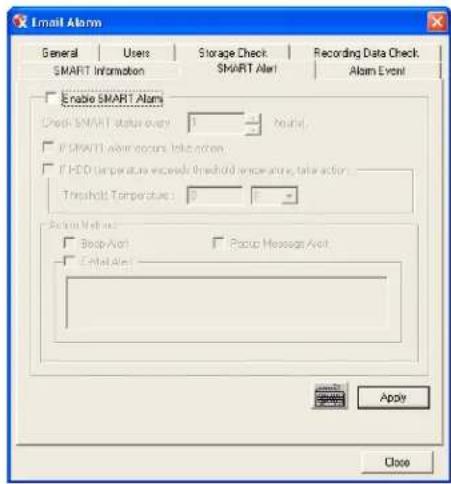
text_image
Email Alarm General Users Storage Check Recording Data Check SMART Information SMART Alert Alarm Event Enable SMART Alarms Check SMART status every 1 Partial IF SMART alarm occurs take action IF HED temperature exceeds threshold temperature, take action Threshold Temperature: 0 F Apply Method: Base-Aout Packup Message Aout Cancel Apply CloseAlarm Event
- Setup the General and Users tabs first. (see above)
- Select the Use Email Alarm check box.
- Define the number of minutes between recording data checks.
-
Select Motion and/or Sensor to send and alert on that type of event.
-
Click Apply.
-
Click Close to return to the Administration tab.
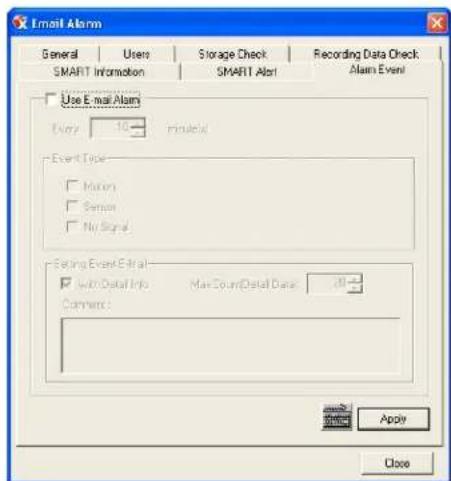
text_image
Email Alarm General Users Storage Check Recording Data Check SMART Information SMART Alert Alarm Event Use Email Alarm Every 10.... Pinsfield Event Type □ Motion □ Sensor □ No Signal Setting Event Email □ Win/Detail Info Main Count/Default Date 30 Comment: Apply CloseINSTANT RECORDING
The Instant Recording feature allows users to manually initiate recording on a specific camera, overriding the current schedule. When Instant Recording is activated the DVR flags the clip as an event so Instant Recording instances can be found using the Index Search Instant Recording can be used, for example, when a suspicious object or person is detected and the user wants to flag that section of video for easy retrieval at a later date.
Activate Instant Recording
- From the Display screen, double right-click the camera on which to enable instant recording. An INSTANT label will be placed on the upper right corner of the video.
- To turn the Instant Recording option off, double right-click the camera a second time.
Searching 'Instant Recorded' Video
- From the Display screen click Search.
- Click Index Search.
- Select the Instant Recording option. See the Search chapter for more information.
SEARCH
This chapter includes the following information:
- Search Overview
- Daylight Saving Time
- Index Search
- Preview Search
- Graphic Search
- Motion Search
SEARCH OVERVIEW
The DVR has several options that allow the user to easily search through, and find, a particular section of video. From Motion/Sensor indexing to calendar views highlighting days with recorded video; the DVR is equipped to help the user quickly find a specific video or event.
The following chapter describes how to use the DVR Search features.

text_image
Screen Division buttons Hour/Minute Control Bar surveillux Calendar button Play Controls Current Date/Time Playback Date/Time Audio Channels CAMERA SELECT. 2:50:00 PM 4/12/2009 Flu Camera Select buttons REVIEW BOOKING NOTION SEARCH SELECT SCREEN START SCREEN GRAPHIC AVG PRIGHT OPEN SELECT SCREEN START SCREEN RETURN TO MAINNote Audio Channel buttons are only viewable when one camera is selected.
Play Controls
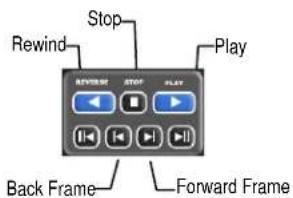
text_image
Stop Rewind Play REVIEW SET STOP PLAY Back Frame Forward FrameBack Frame Moves video back one frame
Rewind Rewinds video
Stop Stops video playback
Play Plays video
Forward Frame Moves video forward one frame
Adjust the Brightness of an Image
- Select an image to adjust by double-clicking on the desired image. Multiple images cannot be adjusted at one time.
- Move the Brightness slide bar to the right or left to adjust the brightness.
- Reset the Brightness by moving the slider back to the center of the bar.
Zooming in on an Image
- Select an image to adjust by double-clicking on the desired image. Multiple images cannot be adjusted at one time.
- Move the Zoom slide bar to the right or left to zoom in or out of an image.
- Reset the Zoom by moving the slider back to its original position on the bar.
Zooming in on a Portion of an Image
- Right-click the area of interest on the image and select Zoom.
-
or - Double-right-click the image.
-
Repeat to zoom in further.
-
Continue clicking the right mouse button and the image zoom will cycle back to the original size.
Open Video from a Saved Location
Previously saved video clips or backup files can be searched for content. Find file by date and time or by name.
- Click Open to search for the saved file.
- Select a file from the list of saved clips and backup files or search by start hour.
- Click OK to open the saved file.
Time Sync
The Time Sync option synchronizes a single channel of video to playback in real time. Ordinarily the video may playback slower or faster depending on several factors, including how many PPS recorded and number of cameras playing at the same time.
- Select a single image to synchronize by double-clicking on an image.
- Click Time Sync. The video will now playback in real time.
Clean Image
The DVR is capable of recording video using one of three different resolutions. When using the 720 x 480 resolution, two fields are mixed. Because of the timing gap between the two fields, according to the standardized image rules, after image might occur to high speed moving images. The Surveillix DVR allows the user to remove this by clicking the Clean Image button.
PERFORMING A BASIC SEARCH
There are several different types of searches that can be performed on the DVR. The most basic involves selecting the date, time, camera, and clicking play.
- Click the Calendar button to select a date.
- Select a time by clicking the up and down arrows to the right of the time display.
-
Click OK.
-
Select one or more cameras.
-
Click Play. Video can be played forwards, backwards, or frame-by-frame.
PRINTING AN IMAGE
- Using the Search screen, locate a frame to print.
Note Only one camera can be selected at a time for this function to work.
- Click Print. A Print Options window appears. Depending on the printer being used, there may be several printing options available. Refer to the printer manual for more information.
- Click Print to print the selected images.
Note The message "NO DEFAULT PRINTERS INSTALLED" will display if no printer is installed.
The DVR automatically adjusts for Daylight Saving Time changes. When the hour "jumps forward" no video is lost because an hour is skipped. However when the hour "falls back" there is a duplicated hour that under normal circumstances would be recorded over. The Surveillix DVR actually records both hours and allows the user to select which hour to play if the need arises.
To access the 'lost hour':
- From the Search screen, click the Calendar button.
- Select the date when Daylight Saving time 'lost' an hour. The Daylight Saving option appears.
- To play back the 'lost hour', select the Daylight Saving check box and enter the repeated hour in the time box.
- Click OK to confirm the date and begin playing the video using standard search features.
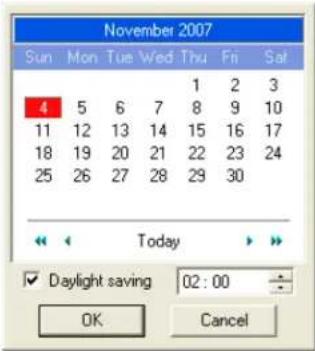
text_image
November 2007 Sun Mon Tue Wed Thu Fri Sat 4 5 6 7 8 9 10 11 12 13 14 15 16 17 18 19 20 21 22 23 24 25 26 27 28 29 30 Today Daylight saving 02:00 OK CancelSAVE TO JPG OR AVI
The DVR can export single images in a JPG Image file format and save video clips in an AVI format. Both JPG and AVI file formats are the most commonly used graphical formats today. Virtually every computer offers some type of support for these file formats which make them the most ideal formats to use.
JPG Optimized for compressing full-color or grayscale photographic images, JPG images are 24-bit (16.7 million color) graphics. Use JPG to export a single image or frame.
AVI AVI image data can be stored uncompressed, but it is typically compressed using a Windows-supplied or third party compression and decompression module called a codec. AVI is used to export a video clip.
- From the Search screen, click Save.
- Select the Export Type: Image File (JPG) or AVI File.
Note Different image format types provide different file-sizes, quality and compatibility.
Image File
a. Select Quality (50>100). When size is not an issue, set the quality to 100.
AVI File
a. Enter the duration (seconds) to record. Although 100 is the longest time displayed, a longer recording may be entered manually.
b. Select a Compression Codec. Each codec provides different levels of quality, compatibility and file-size.
c. Select Quality - 50>100. When size is not an issue, set quality to 100.
3. Click Export to save file. The Cancel button exits the window without exporting file.

text_image
Save / Clip Backup Save Clip Backup Export type Image File AVI File JPG AVI detail setup Avi duration from current frame(Sec) 5 Compression Codec: Microsoft MPEG 4 Video Codec V2 Quality setup Quality (50 - 100): 100 Unplug or Eject Hardware Export CancelBookmarks
Use bookmarks to mark a video clip during a search. Export bookmarked data using the Clip Backup feature.
- Perform a search for the desired video.
- Stop playback at the beginning of the desired clip.
- Right-click the video and select Start Bookmark.
- Click the play button to continue playback.
- Stop playback at the end of the desired clip.
- Right-click the video at the desired end point and select End Bookmark.
- Type a name to identify the bookmark in the Title box.
- Enter a memo or notes in the More Information box.
- You may also select additional channels to include video at different locations recorded at the same time.
- Click Create.

text_image
Create bookmark Select bookmark channel Channel Name Cam 1 Position1 Cam 2 Position2 Cam 3 Position3 Cam 4 Position4 Cam 5 Position5 Cam 6 Position6 Cam 7 Position7 Cam 8 Position8 Cam 9 Position9 Cam 10 Position10 All None Converse Bookmark start time 4/18/2008 9:34:20 AM Title More Information Bookmark end time 4/18/2008 9:35:33 AM Create CancelModify Bookmarks
You can modify a previously created bookmark to change the start or end time of the clip, add additional comments, change the title, or add additional cameras.
- From the Search screen, click Graphic Search and then click Bookmark.
- On the calendar, select the date the desired bookmarks were created.
-
Select the desired bookmark from the list.
-
Make the desired change.
-
Click Modify.
-
When the modification is complete, click Cancel to close the window.

text_image
Bookmark search dialog April 2000 Sun MonTaeWecThu Fri Sa 6 7 8 9 10 11 12 13 14 15 16 17 18 19 20 21 22 23 24 25 26 27 28 29 30 Today Channel Name Cam 1 Position1 Cam 2 Position2 Cam 3 Position3 Cam 4 Position4 Cam 5 Position5 Cam 6 Position6 Cam 7 Position7 Cam 8 Position8 Cam 9 Position9 Cam 10 Position10 Cam 11 Position11 AI None Reverse Move Modify Delete Cancel Index Title 1 #3 Start Time End Time 9:36:41 AM 9:36:41 AMSingle Clip Backup
Along with the Save option, a single camera backup option is also included with the Surveillix software. The single Camera or Clip Backup allows the user to backup a single camera without hAVIng to backup multiple cameras at a given time. The Clip Backup option gives the users the ability to choose a backup time frame, choose a specific camera, add memos, and even make a copy for the Backup Viewer if needed.
- From the Search screen, click Save.
-
Select the drive from the file tree to save data to. (Hard disk drive, removable drive (USB), CD/DVD drive)
-
Select cameras from the list.
-
Define the Start and End time of the backup clip.
- Select the Include Viewer check box to include a copy of the proprietary Backup Viewer Software to view the clip on virtually any Windows machine.
- Click Add Memo to include additional information.
- Click Backup to start the backup.
Note If backing up to a removable USB device click the Unplug or Eject Hardware button after backup is complete to safely remove the device.
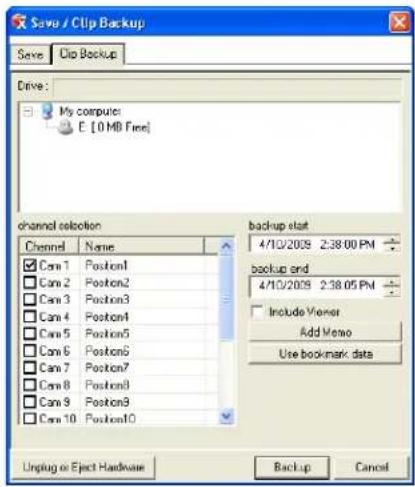
text_image
Save / Clip Backup Save Clip Backup Drive: My computer E [0 MB Free] channel selection Channel Name backup start 4/10/2009 2:38.00 PM □ Can 1 Position1 □ Can 2 Position2 □ Can 3 Position3 □ Can 4 Position4 □ Can 5 Position5 □ Can 6 Position6 □ Can 7 Position7 □ Can 8 Position8 □ Can 9 Position9 □ Can 10 Position10 backup end 4/10/2009 2:38.05 PM Include Viewer Add Memo Use bookmark data Unplug or Eject Hardware Backup CancelSingle Clip Backup Using Bookmark Data
- From the Search screen, click the Save button.
- Click Use Bookmark Data.
- On the calendar, select the date the desired bookmarks were created.
-
Select the desired bookmark from the list and click OK.
-
Select the drive from the file tree to save data to. (Hard disk drive, removable drive, CD/DVD drive).
Note To include multiple bookmarks in a clip backup, select the Multi Backup check box before selecting the desired bookmarks.
-
Select the BV Copy check box to include a copy of the proprietary Backup Viewer software to view the clip on virtually any Windows machine.
-
Click Add Memo to include additional information.
-
Click Backup to start the backup.
Note If backing up to a removable USB device click the Unplug or Eject Hardware button after backup is complete to safely remove the device.
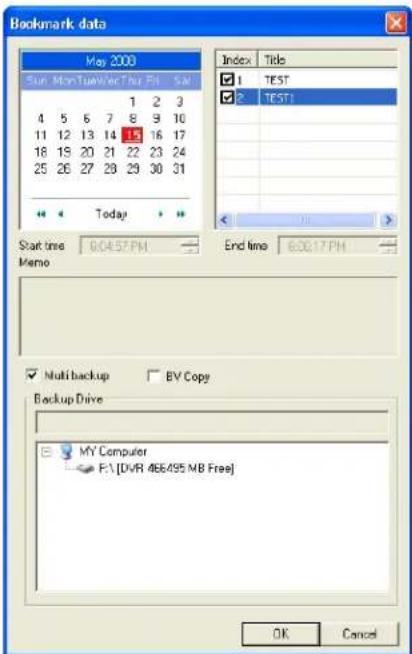
text_image
Bookmark data May 2000 Sun Mon-Turn/Var/Tray Pal Sat 1 2 3 4 5 6 7 8 9 10 11 12 13 14 L 16 17 18 19 20 21 22 23 24 25 26 27 28 29 30 31 Today Index Title 1 TEST 2 TEST1 Start time 6:04:57 PM End time 6:00:17 PM Memo Multi backup BV Copy Backup Drive MY Computer F:\ [DVR 4B6495 MB Free] OK CancelINDEX SEARCH
Using the Index Search can greatly decrease the amount of time spent searching through saved video. The Index Search allows a user to perform a search based on criteria such as Sensor, Motion and Instant Record events
Performing an Index Search
- Click the Calendar button on the Search screen to select the date to search.
- Click Index Search.
- Select the cameras and sensors to include in the search.
- Select the Select Time check box to define a specific period.
- Select an event type to search (Sensor, Motion, Instant Record) or select the All Event option.
- Click OK. There may be a delay while results are returned. Results will be displayed in a column on the left side of the screen – Each line represents a segment of video. If no results are found, "NO IMAGE FOUND" will appear in the column.
- Once the results are displayed, double-click any one to play the associated video.
- Once the desired image is found, apply it to the Main Search by clicking the Close button at the bottom of the results column.

text_image
Index Search Option Camera Name Camera1 Back Room Camera2 East Hailing Camera3 Loading Dock Camera4 South Entrance Camera5 Parking Lot Camera6 Client Entry Camera7 Front Office Camera8 Shift hallway Camera9 Position10 Camera10 Position11 Camera11 Position12 Camera12 Position13 Camera13 Position14 Camera14 Position15 Camera15 Position16 Camera16 Position17 Sensor Sensor name Sensor 1 Sensor 3 Sensor 2 Sensor 2 Sensor 3 Sensor 2 Sensor 4 Sensor 4 Sensor 5 Sensor 5 Sensor 6 Sensor 6 Sensor 7 Sensor 7 Sensor 8 Sensor 8 Sensor 9 Sensor 9 Sensor 10 Sensor 10 Sensor 11 Sensor 11 Sensor 12 Sensor 12 Sensor 13 Sensor 13 Sensor 14 Sensor 14 Sensor 15 Sensor 15 Sensor 16 Sensor 16 Select Time Start time: 0.25.10 AM End time: 0.25.10 AM Select out options: Sensor Motion defecion Instant Record All elements OK CancelIndex Search Results Display

text_image
Image Display Area surveillance Event Recorded on Camera # Time Event Occurred Time Camera Type 08:34:21 C01[Back R M 08:35:34 C01[Back R M 08:36:17 C01[Back R M 08:36:38 C01[Back R M 08:37:17 C01[Back R M 08:38:49 C01[Back R M 08:39:31 C01[Back R M 08:40:31 C01[Back R M 08:42:12 C01[Back R M Event Type: M - Motion S - Sensor I - Instant RecordPREVIEW SEARCH
Preview Search can be used in a number of circumstances to quickly find an exact moment where an event, such as a theft, occurred. The Preview Search gives a 24 Hour visual overview of a single camera by separating a 24 hour period (1 day) into 24 images, one image for each hour of the day. The search can then be further narrowed down into ten minute increments and one minute increments by selecting one of the images displayed.
These example images show how the Preview Search functions.
The first screen that appears has 24 images displayed. Each image represents the first second of each hour. If there is no image recorded during that period then nothing will be displayed.
When an hour is selected (by double-clicking on the image), a new screen appears with 6 images. Each of these images represents a 10 minute segment of video within the selected hour.
Once a 10 minute segment is selected (by double-clicking on the image) the final screen appears which breaks down that 10 minute segment into 1 minute increments (10 images).
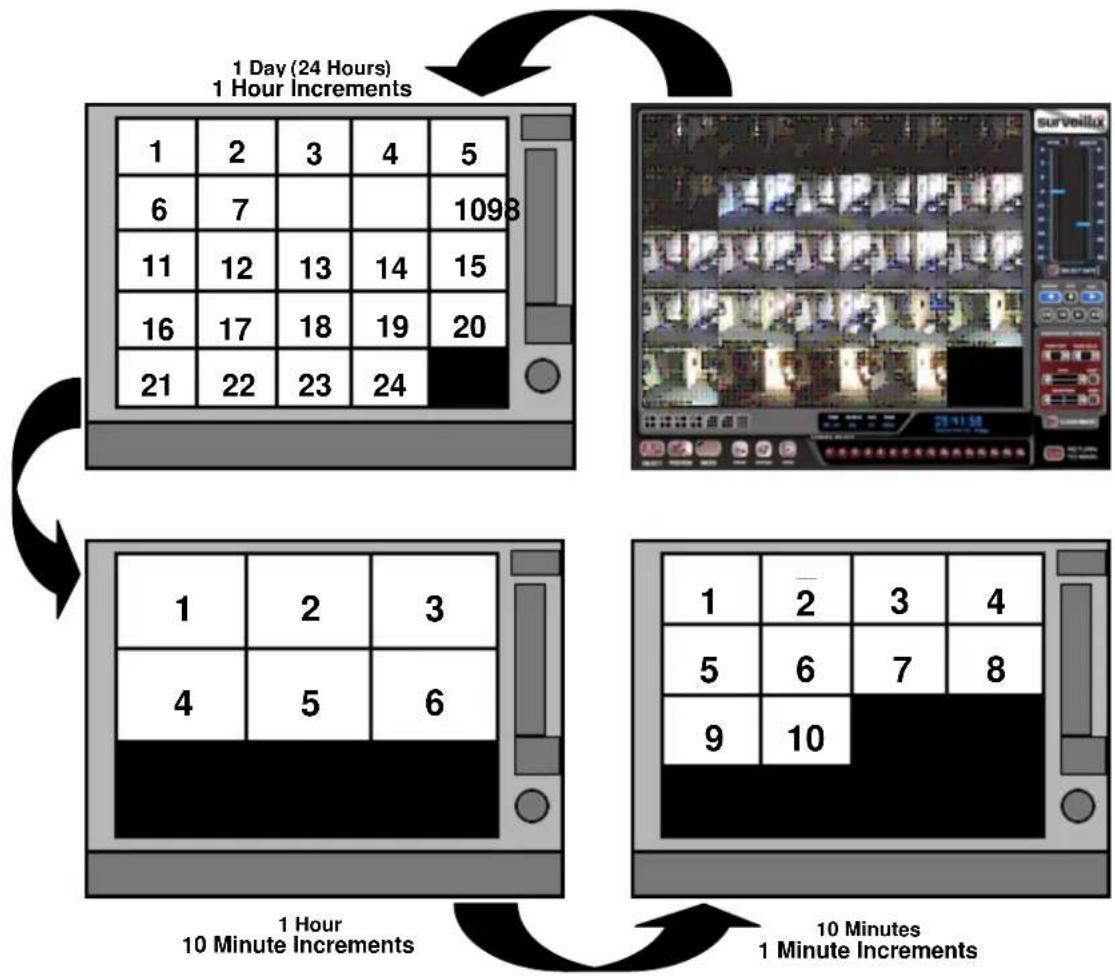
flowchart
graph TD
    A["1 Day (24 Hours) 1 Hour Increments"] --> B["1 Hour: 1"]
    A --> C["1 Day: 2"]
    A --> D["1 Day: 3"]
    A --> E["1 Day: 4"]
    A --> F["1 Day: 5"]
    A --> G["1 Day: 6"]
    A --> H["1 Day: 7"]
    A --> I["1 Day: 8"]
    A --> J["1 Day: 9"]
    A --> K["1 Day: 10"]
    A --> L["1 Day: 11"]
    A --> M["1 Day: 12"]
    A --> N["1 Day: 13"]
    A --> O["1 Day: 14"]
    A --> P["1 Day: 15"]
    A --> Q["1 Day: 16"]
    A --> R["1 Day: 17"]
    A --> S["1 Day: 18"]
    A --> T["1 Day: 19"]
    A --> U["1 Day: 20"]
    A --> V["1 Day: 21"]
    A --> W["1 Day: 22"]
    A --> X["1 Day: 23"]
    A --> Y["1 Day: 24"]
    A --> Z["1 Day: 25"]
    A --> AA["1 Day: 26"]
    A --> AB["1 Day: 27"]
    A --> AC["1 Day: 28"]
    A --> AD["1 Day: 29"]
    A --> AE["1 Day: 30"]
    A --> AF["1 Day: 31"]
    A --> AG["1 Day: 32"]
    A --> AH["1 Day: 33"]
    A --> AI["1 Day: 34"]
    A --> AJ["1 Day: 35"]
    A --> AK["1 Day: 36"]
    A --> AL["1 Day: 37"]
    A --> AM["1 Day: 38"]
    A --> AN["1 Day: 39"]
    A --> AO["1 Day: 40"]
    A --> AP["1 Day: 41"]
    A --> AQ["1 Day: 42"]
    A --> AR["1 Day: 43"]
    A --> AS["1 Day: 44"]
    A --> AT["1 Day: 45"]
    A --> AU["1 Day: 46"]
    A --> AV["1 Day: 47"]
    A --> AW["1 Day: 48"]
    A --> AX["1 Day: 49"]
    A --> AY["1 Day: 50"]
    A --> AZ["1 Day: 51"]
    A --> BA["1 Day: 52"]
    A --> BB["1 Day: 53"]
    A --> BC["1 Day: 54"]
    A --> BD["1 Day: 55"]
    A --> BE["1 Day: 56"]
    A --> BF["1 Day: 57"]
    A --> BG["1 Day: 58"]
    A --> BH["1 Day: 59"]
    A --> BI["1 Day: 60"]
    A --> BJ["1 Day: 61"]
    A --> BK["1 Day: 62"]
    A --> BL["1 Day: 63"]
    A --> BM["1 Day: 64"]
    A --> BN["1 Day: 65"]
    A --> BO["1 Day: 66"]
    A --> BP["1 Day: 67"]
    A --> BQ["1 Day: 68"]
    A --> BR["1 Day: 69"]
    A --> BS["1 Day: 70"]
    A --> BT["1 Day: 71"]
    A --> BU["1 Day: 72"]
    A --> BV["1 Day: 73"]
    A --> BW["1 Day: 74"]
    A --> BX["1 Day: 75"]
    A --> BY["1 Day: 76"]
    A --> BZ["1 Day: 77"]
    A --> CA["1 Day: 78"]
    A --> CB["1 Day: 79"]
    A --> CC["1 Day: 80"]
Performing a Preview Search
- Select a single camera by either turning off all cameras but one or double-clicking a displayed image.
- Click Preview Search. 24 images display. If there is no recorded video during a portion of the day, "No Image" will be displayed where the image should be.
- Refine the search by double-clicking on an image to select it. 6 images display. If needed, return to the previous 24-image view by right-clicking on an image.
- Refine the search by double-clicking on an image to select it. 10 images display. If needed, return to the previous 6-image view by right-clicking on an image.
- Double-click an image to select the 1-minute segment of video to play. A single image displays. If needed, return to the previous 10-image view by right-clicking on an image.
- Use the Play controls to play the video of the selected segment.
- To exit out of the Preview search with the current image still selected, click Preview Search again to clear it.
GRAPHIC SEARCH
The Graphic Search option displays video in graph format.

text_image
Hours 0-23 (24 hours) 1 2 3 4 5 6 7 8 9 10 11 12 13 14 15 16 17 18 19 20 21 22 23 Cameras Recording BlockPerforming a Graphic Search
- Click Graphic Search and then click Recording Status on the Search screen.
- Click the calendar icon to select a day.
- Click on an area of the blue recording block. Only one camera can be displayed at a time.
- Recorded video from the corresponding camera and time block will display above.
- Use the mouse or arrow buttons to move through recording blocks and view video.
OBJECT SEARCH
Object Search is a powerful search utility that is used to search a region on the video for any motion changes. Results are neatly displayed and can be viewed quickly.

text_image
Object Search Close Search Process: Time: 6/19/2007 2:11:07 PM Cases Number: 2 Checked Hanes: 34 Found: 30 Search Area: (105.48) - (273.235), width = (168), height = (108) Operation message: 220 x 240 Area (105.48) - (273.235) End (6/19/2007 204.01 PM) End (6/19/2007 204.01 PM) (00) Motion found Start search Clear selection Stop Reload Best Hanes Apply to Main Search CancelPerforming an Object Search
- Perform a Basic Search. See the instructions on Performing a Basic Search.
- Select a single camera, either by turning off all cameras but one or by double-clicking a displayed image.
- Click Object Search on the Search screen.
- Click and drag the mouse on the video display to define a motion region area. Resize by pulling on the small square boxes located on the outer perimeter of the area.
- Click Start Search, the Object Search Filter Information window will open
- Select an End date/time. One hour is the default setting.
- Adjust the sensitivity if necessary.
- Click OK.
- Select a motion event from the search results list displayed on the right
- Click Apply to Main Search to display the selected image in the main Search screen and to use play controls
- To start a new object search using the original image, click Reload First Frame.
- To exit Object Search without selecting an image, click Cancel.
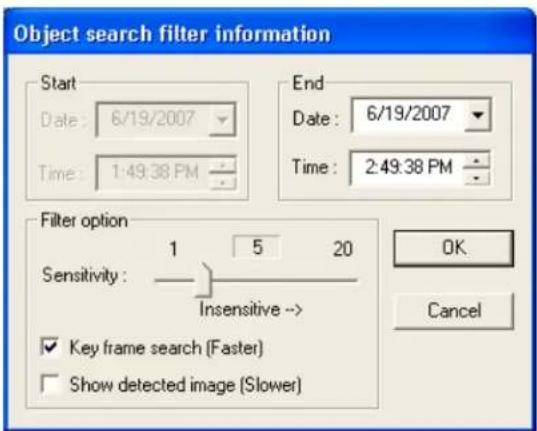
text_image
Object search filter information Start Date: 6/19/2007 Time: 1:49.38 PM End Date: 6/19/2007 Time: 2:49.38 PM Filter option Sensitivity: 1 5 20 Insensitive -> OK Cancel ✓ Key frame search (Faster) ☐ Show detected image (Slower)MOTION SEARCH
The Motion Search provides a dynamic display of the levels of motion in recorded video. Adjust the level of motion to only play clips of video at or above that level.
Tip To enable motion data to be saved for Motion search, ensure that you select the following settings: On the Motion setup page under Motion Regions, select the Detect Detail Motion Area check box. On the General setup page under Display, select the Motion Detect on Continuous Recording check box.
Note Motion Search is only available for newly recorded video; it is not compatible with video recorded prior to version 3.6.
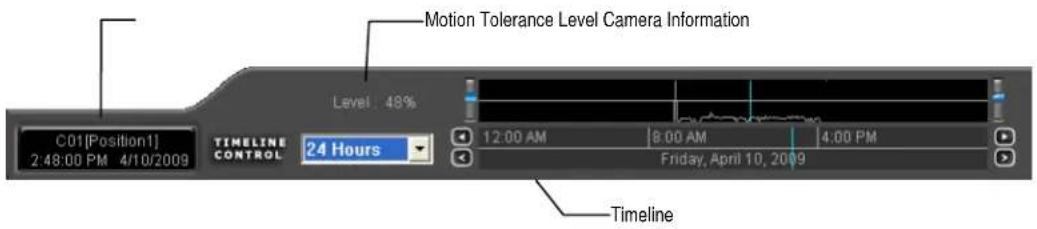
text_image
Motion Tolerance Level Camera Information Level: 48% C01(Position1] TIMELINE CONTROL 24 Hours 12:00 AM 8:00 AM 4:00 PM Friday, April 10, 2009 TimelinePerforming a Motion Search
- From the Search screen select a camera. Motion Search can only be performed on one camera at a time.
- Click Graphic Search and then click Motion Search.
- Click the calendar icon to select a day.
- Adjust the motion level line.
- Adjust the timeline display settings.
- Click the play button to start playback.
Tip You can drag the blue line on the Timeline or motion level box to adjust the time.
AUDIO PLAYBACK
Audio is played back at 48,000Hz.
To play audio with the video:
- Select a single camera by turning off all cameras but one using the Camera Select buttons. The audio buttons will be displayed.
-
Select a single audio channel to play. When an audio channel is selected, the Time Sync button will be automatically selected.
-
Click Play.
SEARCH IN LIVE
The Search in Live feature allows users to review events immediately while monitoring live video. Pause, rewind, and resume live video within seconds of an alarm event or suspicious activity.
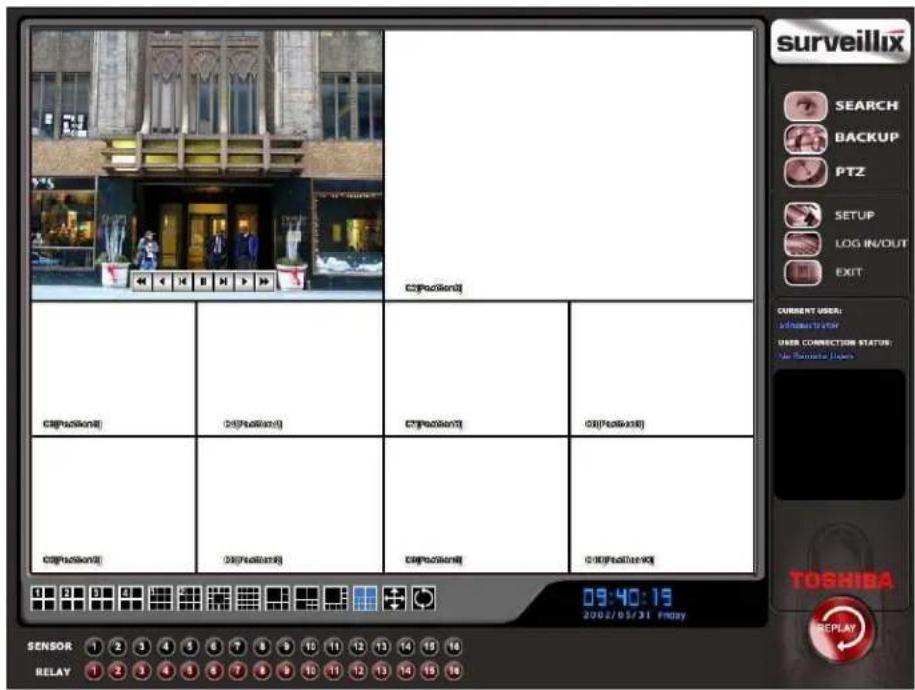
text_image
surveillix SEARCH BACKUP PTZ SETUP LOG IN/OUT EXIT CURRENT USER: administrator USER CONNECTION STATUS: User Security Users 09:40:15 2002/05/31 Friday SENSOR 1 2 3 4 5 6 7 8 9 10 11 12 13 14 15 16 RELAY 1 2 3 4 5 6 7 8 9 10 11 12 13 14 15 16 C:\Position\03\03\Position\03\03\Position\03\03\Position\03\03\Position\03\03\Position\03- Move the mouse cursor over the desired live video display on the Live Display screen.
- Press the scroll button on the mouse.
- The search in live Controls will display at the bottom of the image.
- Use the controls to pause, rewind, move frame-by-frame or resume playing as desired.

NOTES:
This chapter includes the following information:
- Overview
- Saving Video to a DVD
• Saving Video from a Single Camera
• Scheduling Regular Video Backup
BACKUP OVERVIEW
The Backup Center allows you to back up recorded video data from multiple dates and times to one or more locations including the DVD-RW drive, Network Storage Locations, and External Hard Drives.
The DVR can easily backup important video data to an internal or external media location. The most commonly used forms of this are CD-R/RWs, External USB or FireWire Hard Drives, and Network Drives. Every DVR comes equipped with a DVD-RW drive, USB port, and Network Adapter.
The DVR is capable of performing a backup to multiple CD/DVDs when the file sizes exceed the capacity of a single disk. You may also specify multiple locations for backup as well as the order they are recorded to.
The DVR backs up video data using a proprietary compression format that can only be read by the DVR Backup Program. This ensures the integrity of the data.
Throughout the backup process the DVR will continue recording without interruption. This is the result of the tremendous multiplexing power of the DVR, which allows it to perform virtually all functions without disrupting the recording process.
Nero® Express
The DVR uses Windows ^ XP ^ Embedded running Nero ^ Express 7.0 to write data to the DVD-RW Drive. This solution allows the DVR software to read and write data to the DVD-RW Drive without formatting the disk first.

CAUTION: Although many features are available within Nero, it is highly recommended that you do NOT use any features other than those necessary for the standard backup of video data as outlined in this section, loss of information or software instability may result.
General Screen Overview
The General Backup Screen is used for performing bulk backup of video recorded by all cameras for a selected period, or periods, to a specified storage location.
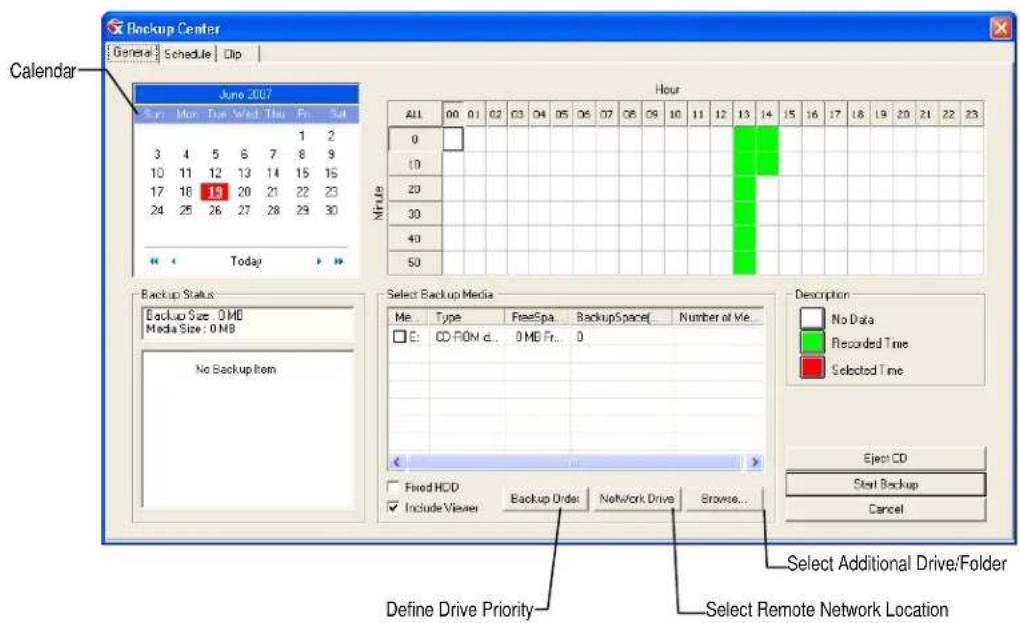
text_image
Backup Center General Schedule Clip Calendar June 30/7 Sun Mon Tue Wed Thu Fri Sat 1 2 3 4 5 6 7 8 9 10 11 12 13 14 15 16 17 18 19 20 21 22 23 24 25 26 27 28 29 30 Today Hour All 00 01 02 03 04 05 06 07 08 09 10 11 12 13 14 15 16 17 18 19 20 21 22 23 0 10 20 30 40 50 Backup Status Backup Size: OMB Media Size: OMB No Backup Item Select Backup Media Me. Type FreeSpa BackupSpace# Number of Me. E: CD-ROM d... OMB Fr... 0 Description No Data Recorded Time Selected Time Eject CD Start Backup Cancel Fixed HCD Backup Order Network Drive Browse... Define Drive Priority Select Additional Drive/Folder Select Remote Network Location| Hour / Minutes | Recording data displays in hourly (24 horizontal columns) and 10-minute (6 vertical cells) segments. Green cells indicate time with recorded video. Red cells indicate time selected for backup. |
| Backup Status | Displays the size of all video currently selected for backup, the available size of the media currently selected for backup to, and the dates and times of video currently selected for backup. |
| Fixed HDD | Display all Hard Drives |
Performing a General Backup
- Click Backup on the Display screen.
- Select the date or dates to back up using the calendar. Dates highlighted in blue contain recorded data.
- Select the blocks of time to back up using the Hour/Minute grid. Blocks of time with recorded video are highlighted in green. Blocks of time selected for backup are highlighted in red.
- Select the backup drive or drives under Select Backup Media, or click Network Drive, or Browse. When selecting the CD-RW Drive you must specify the number of CDs to use for backup.
- Click Backup Order to set the backup order.
- Select the Include Viewer check box to include the Backup Viewer Application.
- Click Start Backup to begin the backup process. A progress bar will be displayed in the lower right corner of the Display screen.
Clip Screen Overview
The Clip Screen is used for backing up video recorded by individual cameras for a selected period of time to a specified storage location
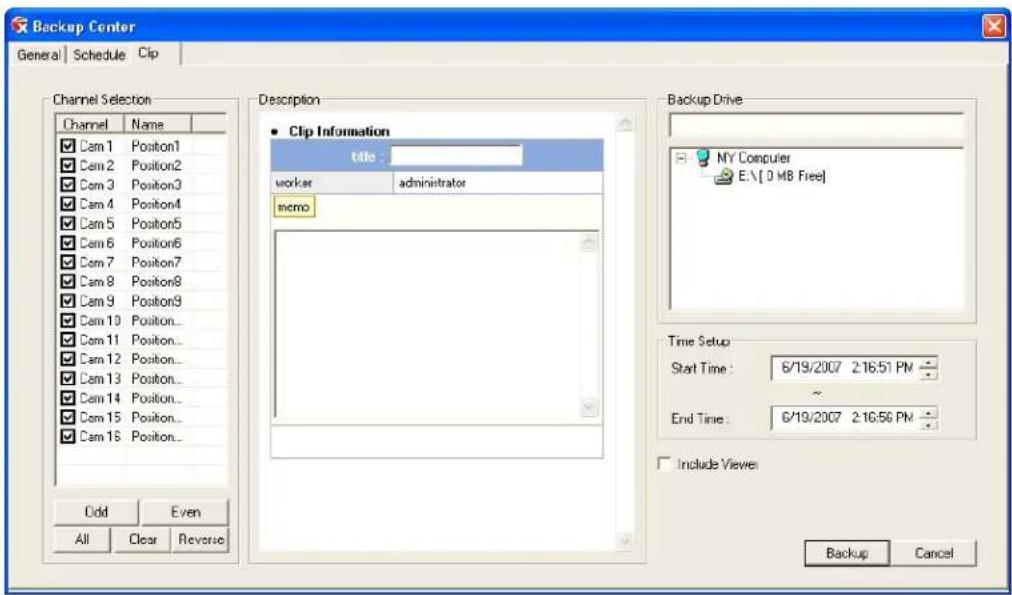
text_image
Backup Center General | Schedule | Clip | Channel Selection Channel | Name | ✓ Cam 1 Position1 ✓ Cam 2 Position2 ✓ Cam 3 Position3 ✓ Cam 4 Position4 ✓ Cam 5 Position5 ✓ Cam 6 Position6 ✓ Cam 7 Position7 ✓ Cam 8 Position8 ✓ Cam 9 Position9 ✓ Cam 10 Position... ✓ Cam 11 Position... ✓ Cam 12 Position... ✓ Cam 13 Position... ✓ Cam 14 Position... ✓ Cam 15 Position... ✓ Cam 16 Position... Description Clip Information title : worker administrator memo Backup Drive MY Computer E:\[0 MB Free] Time Setup Start Time : 6/19/2007 2:16:51 PM ~ End Time : 6/19/2007 2:16:56 PM Include Viewer Add Even All Clear Reverse Backup CancelPerforming a Clip Backup
- Click Backup on the Display screen.
- Click the Clip tab at the top of the Backup Center window.
- Set the Start Time and End Time under Time Setup.
- Select the cameras to back up in the Channel Selection box.
- Select the Backup Drive to save the backup video to.
- Select the Include Viewer check box to include the Backup Viewer Application.
- Enter pertinent clip information into the Clip Information section in the Description box.
- Click Backup to begin the backup process. A progress bar will be displayed in the lower right corner of the Display screen.
Scheduled Screen Overview
The Scheduled Backup Screen is used for performing bulk backup of video recorded by all cameras for a selected period, on a regular scheduled basis (1-24 hours). The Scheduled Backup Screen is similar to the General Backup Screen.
Performing a Scheduled Backup
- Click Backup on the Display screen.
- Click the Schedule tab at the top of the Backup Center window.
- Select the blocks of time to back up using the Hour/Minute Grid. Blocks of time with recorded video are highlighted in green. Blocks of time selected for backup are highlighted in red.
- Set the Backup Time to perform the backup.
- Set the Repeat Backup Time to specify the number of hours between backup procedures (between 1 and 24 hours).
- Select the Backup Drive to save the backup video to using the Select Backup Media menu or the Network Drive button. To save to a local drive or partition you must first rename the location "Backup".
- Check the Overwrite on Disk Full check box to overwrite previous scheduled backups when the disk becomes full.
- Click Save Backup Setting to save the current backup setting and return to the Display screen.
Specifying Scheduled Backup Drives
In order to use the Scheduled Backup feature one or more storage drives or partitions connected to the DVR must be labeled as a backup drive.
- Exit and restart in Windows mode.
- Double click the My Computer icon on the DVR desktop. A file menu will be displayed.
- Right click on the drive to specify as a backup drive for Scheduled Backup and click Rename. Rename the drive to 'Backup'. Repeat this process for all drives to use for Scheduled Backup. To remove a drive from use for Scheduled Backup, change its name to something other than 'Backup'.
- Restart the application and return to the Schedule tab in the Backup Center window.
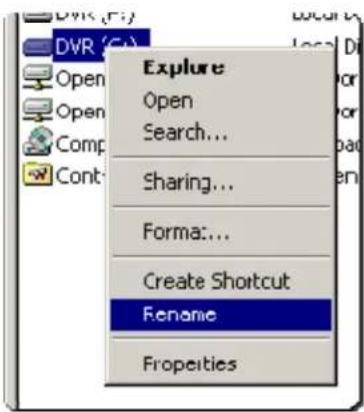
text_image
Explore Open Search... Sharing... Forma:... Create Shortcut Rename PropertiesNOTES:
LAN / ISDN / PSTN CONNECTIONS
This chapter includes the following information:
- Overview
- Configuring TCP/IP Settings
- Connecting to a LAN
• LAN / ISDN / PSTN Connections
LAN OVERVIEW
The DVR can be easily connected to a Local Area Network (LAN) and uses Microsoft's® powerful and secure Windows® XP Embedded operating system. This allows for easy and well-documented instructions on setting up LAN connections no matter what type of LAN you want to use.
A LAN is a group of computers and other devices dispersed over a relatively limited area and connected by a communications link that allows one device to interact with any other on the network.
There are many reasons why using Microsoft® Windows® XP Embedded is superior to other platforms when running on a LAN. The number one reason is security. Windows XP Embedded is based on NT technology, which, historically has boasted the most reliable and secure Operating System in the world. Running the DVR on a secure network is important to prevent unwanted users from gaining access to confidential information. Unwanted users can compromise the integrity of the confidential data being stored and viewed, and in extreme circumstances can cause irreparable damage to the network.
Since connecting the DVR to a network can be extremely complex (depending on the network), this Surveillix DVR manual will cover only the basics. It is suggested that the DVR administrator consult the Vendor or IT Administrator before attempting to create or connect to a LAN.
CONNECTING TO A LAN USING TCP/IP
The networking options of the DVR can create and edit all Network settings available on Windows XP Embedded. The DVR comes equipped with a 10/100 Network Interface Card (NIC). This card uses a standard RJ-45 connector.
Configuring TCP/IP Settings
- On the Display screen, click Exit and select Restart in Windows Mode.
- Right-click the My Network Places icon located on the desktop and select Properties.
- Right-click Local Area Connections and select Properties.
- Select the Internet Protocol (TCP/IP) by clicking on it once. Once it is highlighted, click Properties.
- Select Use the Following IP Address option. Enter the IP Address and Subnet mask appropriate for the network. It is recommended to contact the Network Administrator for appropriate IP settings.
Example: a. Common IP addresses are 10.0.0.25
b. Common Subnet masks are 255.255.255.0
Note In order to connect to the DVR through a remote LAN connection, a static IP address must be assigned. If the network assigns the IP address automatically (DHCP), contact the Network Administrator for help assigning a static IP address.
- If the network requires you to specify the DNS information, enter it now by selecting the appropriate DNS options.
- When finished configuring the TCP/IP settings click OK to close the Internet Protocol (TCP/IP) Properties window.
- Click OK to close the Local Area Connection Properties window.
- It may be required to restart Windows for the changes to take effect. Restart windows by clicking START on the desktop and clicking Restart.
WEB VIEWER
This chapter includes the following information:
- Overview
- Configuring the Web Viewer
WEB VIEWER OVERVIEW
The DVR allows you to access video using Microsoft® Internet Explorer® 7.
Highlights:
View Live Video from most computers
Username and Password protected
Easy to use graphical interface
Basics:
75 users can access the Web DVR simultaneously. The Web Viewer is an easy, secure way to view live video from virtually any computer with an internet connection using Microsoft Internet Explorer.
In order to log in to the DVR server, a user account must be made for the user. This ensures that only authorized personnel are allowed to log in. In addition, each user can be assigned different privileges that allow them or deny them access to different functions. For example, a user can be granted access to only view cameras 4, 8 and 16.
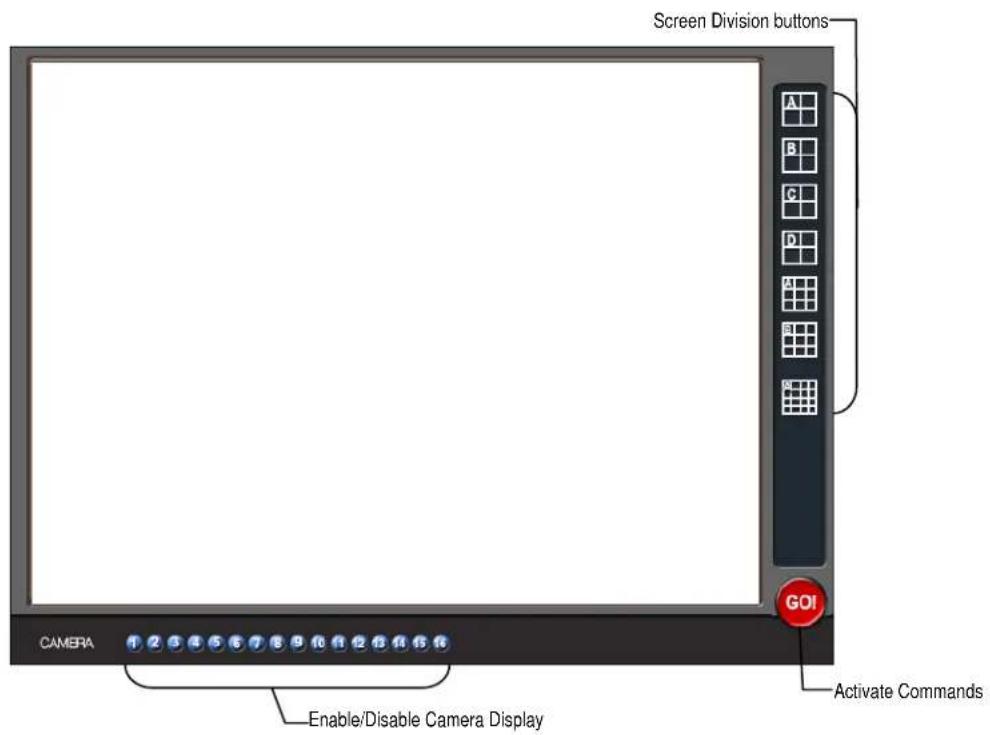
text_image
Screen Division buttons A B C D A B S GOI CAMERA Enable/Disable Camera Display Activate CommandsConfiguring the Server for Remote Connection
- Click Setup on the main display screen.
- Click Network.
- Clear the Disable Remote Control check box. You should now be allowed to adjust port settings if necessary.
NOTE: If you are using a Firewall, it may be necessary to adjust the port settings on both the DVR and the Firewall. Contact the Network Administrator for more information.
- Select the Web Viewer (iDVR) check box.
- Click Apply.
- Make sure a User account is created. Without a user account, the Administrator account must be used.
- The DVR server is now ready to receive incoming connections.
Connecting to a DVR Using Web Viewer
- Open Microsoft Internet Explorer.
- Enter the IP address of the DVR into the Address Bar.
- When attempting this for the first time on a computer a window will open and you will be asked to accept an Active X installation. Select Yes to this.
NOTE: If you receive a message saying Internet Explorer® security settings do not allow you to download Active X components then you will need to adjust the browser security settings. One way to do this is to add the IP address of the DVR to the trusted sites list inside Internet Explorer® settings. Contact the System administrator for additional help with adjusting Internet Explorer® settings.
- When the Web Viewer finishes loading, select one or more cameras (or select a screen division button).
- Click GO!
-
A login window will appear. Enter the Username and Password of an authorized user.
-
The cameras will display.
Closing the Web Viewer
To exit the Web Viewer close Internet Explorer.
INCLUDED SOFTWARE SETUP
This chapter includes the following information:
• Emergency Agent Overview
- Remote Software Overview
- Digital Verifier
- Backup Viewer
EMERGENCY AGENT OVERVIEW
The Emergency Agent software is a utility that streams video across a Local Area Network to a Client PC when an alarm is detected on the DVR. The video that streams across can be stopped, played forwards and backwards, in slow motion or real speed.
The utility is loaded at startup and placed in the taskbar. It constantly monitors for a signal from the DVR. When an alarm signal is detected the Emergency Agent Image Viewer window opens and starts playing the video from the camera associated to the alarm.
Configuring the DVR
To enable the Emergency Agent on the DVR follow these steps:
- Enter Setup and confirm you are in the Camera Setup menu.
- Select a camera and then associate sensor(s) to that camera using the Sensor Connection check boxes.
- Click the Network Setup button and make sure that Disable Remote Control is cleared.
Note The Emergency Agent uses one port to transfer the data through (the Emergency Port). The port can be adjusted inside the Network Setting menu if necessary. It is recommended that the default setting should be used unless the port must be changed.
- Click the Schedule Setup button. Enter the IP Address of the computer running the Emergency agent software.
- Click the box next to the IP Address to enable it.
- Select the Sensor radio button.
- Create a schedule for the appropriate sensor
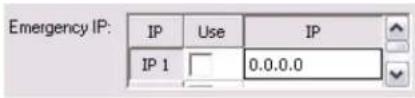
text_image
Emergency IP: IP Use IP IP 1 0.0.0.0- Click Apply.
Configuring the Client PC
All configurations take place in the Emergency Agent window on the Client PC for descriptions and locations of the buttons and features of the Emergency Agent window refer to the Emergency Agent window section later in this chapter.
- Open the Emergency Agent window on the Client PC - Start >All Programs >Surveillix >Emergency Agent >Emergency Agent
- Right Click in the DVR list and select New. Enter the DVR Code, DVR Name, and IP Address of the DVR to connect to in the Site Edit window that opens. Click OK
- Click the Options menu and select Setup.
- Confirm that the Network Port in the Setup window is set to the same number as the Emergency Port in Network Settings on the DVR. If the numbers are different adjust the Network Port on the client PC to match the DVR.

text_image
DVR identification DVR Code DVR Name IP Address OK Cancel- Click the OK button
- Restart the Client PC
Setup Window
Network Port Indicates the port which the Emergency
Agent uses to listen for incoming events. This number should be changed to the same number as is set in the Emergency Port in Network Settings on the DVR.
Save Directory
Sets the location that recorded video footage is saved to.
Notice Options
Configuration settings for activating an audible indicator or popup window when the Emergency Agent receives an event.
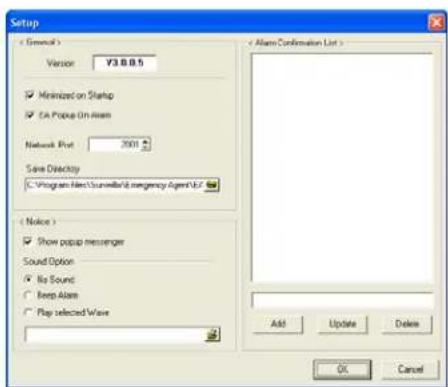
text_image
Setup General Version 73.0.0.5 Minimized on Shap CA Popa On Alarm Network Print 2001 Save Directory C:\Program Files\Sumplifier\B emergency Agent\Lab < Noise > Show popup messenger Sound Option No Sound Keep Alarm Play selected Wave < Alarm Confirmation List > Add Update Delete OK CancelEMERGENCY AGENT WINDOW

text_image
Zoom Thumbnails DVR LIST Video Display DVR List Event Level Event Type Event List Filtering / Setting Filter Options Date 5/2008 3H On Preview Server (4.4 DVR) Event [All Alarm] Certified [All Types] Default Images 20 190x100 Status Setting Level Default Confirmed [Select Type] Edit Memo Save Memo Level Buttons Memo Text BoxFilter Event List
- Select a DVR from the DVR List in the Filter Options section.
- Select the Date to include.
- Select the type of Events to include.
- Select the event levels (Review, Dismiss, Critical, Default).
- Click the On button to display filtered event listings.
Add Items to Alarm Confirm List
- From the Option menu, click Setup.
- Type the desired text in the box below the Alarm Confirmation List.
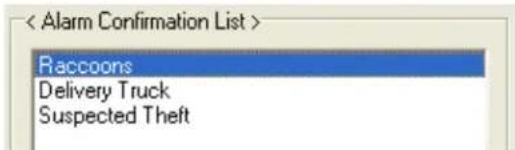
text_image
< Alarm Confirmation List > Raccoons Delivery Truck Suspected TheftNOTE: The items in the Alarm Confirmation List will be available on a list under Status Setting in main Emergency Agent screen.
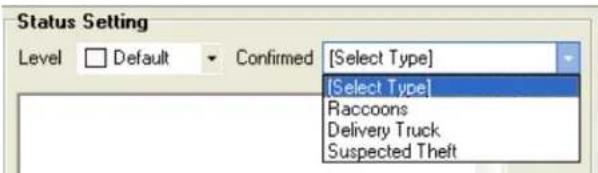
text_image
Status Setting Level Default Confirmed [Select Type] [Select Type] Raccoons Delivery Truck Suspected Theft- Click Add.
- Click OK to save changes and close the window.
SEARCH ALARM WINDOW
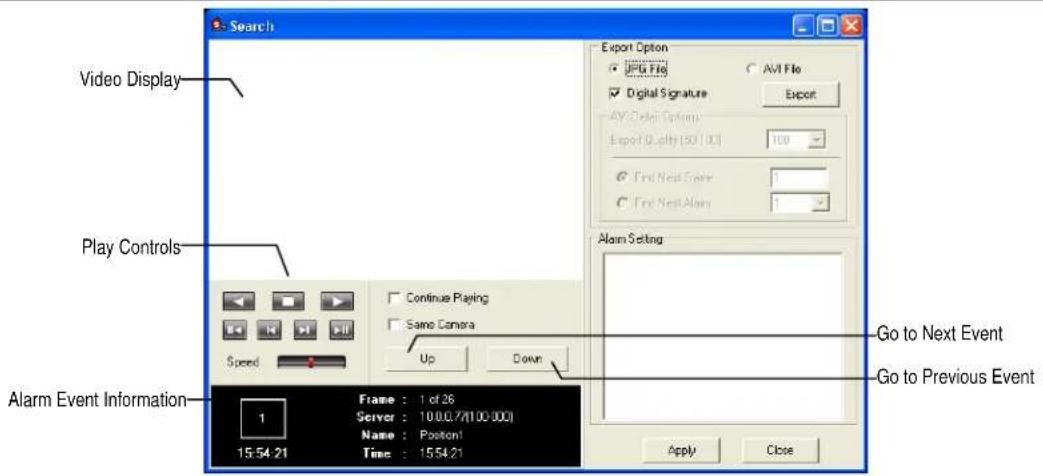
text_image
Search Video Display Play Controls Speed Continue Playing Same Camera Up Down Alarm Event Information 1 Frame : 1 of 26 Server : 10.0.0.7(100.00) Name : Poston! Time : 15:54:21 Export Option AVI File Digital Signature AVI Detail Option Export Quality (50 / 100) 100 Final Next Frame Final Next Alarm Alarm Setting Go to Next Event Go to Previous Event Apply CloseExport Quality
It may be necessary to reduce the overall size of an AVI file; for example, to email to someone. AVI file sizes can be reduced by reducing the image quality. However, reducing the image quality causes the AVI video to appear more pixilated. When size is not an issue, setting quality to 100 is highly recommended.
Digital Signature
Adds a digital signature to the exported JPG image for use with the Digital Signature Verifier to verify integrity of exported images and prevent tampering.
View Recorded Video
- Double-click an event listing to open the Search Alarm window.
- Use the play controls to locate the desired video.
- Select the Continue Playing check box to watch all recorded events. When cleared, playback stops at the end of the alarm event.
- Select the Same Camera check box to watch all events recorded by a single camera.
- Click Apply after making any changes.
Export Video
- Double-click an event listing to open the Search Alarm window.
- Use the play controls to locate the desired video.
-
Click the Rewind button to return to the beginning or desired spot in the video.
-
Click the Stop button.
-
Select the Export Option – JPG or AVI.
Save JPG:
a. Select the Digital Signature check box to embed a digital signature in a JPG file.
b. Click the Export button.
Save AVI
a. Reduce Export Quality only if necessary to reduce the size of the file.
b. Click the Export button.
REMOTE SOFTWARE OVERVIEW
The DVR was specifically designed to be fully operated and maintained remotely. It connects using the standard TCP/IP protocol thorough connection types such as DSL, Cable Mode, T1, ISDN, 56K Modem, LAN, and more. The Surveillix Remote software allows you to view live video, search through archived video, export images and video clips and have virtually full Setup control. Surveillix Remote Software is Microsoft Vista® compatible.
Highlights:
Search archived video
View live video
Export images and video clips
Control relay outputs
Setup administration
Basics:
The DVR can have up to 5 simultaneous remote connections. Each user can perform functions on the DVR and will not affect the other users. The only exceptions to this are accessing Setup and controlling a PTZ camera. Only one user is allowed to access setup or control a PTZ camera at any given time. The pictures per second passed to the Remote Client vary greatly depending on the connection type and speed.
In order to log in to the DVR server, a user account must be made for the user. This ensures that only authorized personnel are allowed to log in. In addition, each user can be assigned different privileges that allow them or deny them access to different functions. For example, a user can be denied Searching and Setup privileges and only granted access to view cameras 4, 8 and 16.

It is highly recommended that users not be granted Setup privileges since this can pose a security risk. Only properly authorized Administrators should have access to Setup.
The Remote software operates virtually the same way as the DVR itself. The appearance of it matches the DVR almost identically; however, there are a few minor differences. Some search features are not available (such as the Index and Object Searches) as well as some Setup options.
Remote Software Setup
Installing Remote Software
- On the client computer, insert the Surveillix Software CD into the CD-ROM. The CD should play automatically.
- When prompted, select the Install Remote Software option. Follow the installation instructions carefully.
- When the software finishes installing, close any open installation windows.
Create a New Remote Connection

text_image
Local Setup Site List Configuration DVR List Find DVR DVR Site List Import/Export saved configurations New Modify Delete Delete All Import Export Information SiteType User Name Administrator IP Address Password Connect Disconnect OK Cancel- Select Start > Programs > Surveillix > Remote > Surveillix Remote Center. The Surveillix Remote Software opens and the Local Connection window opens.
- Click New to open the Site Info window.
- Select the Site Type and enter a Site Name. The Site Name will be the name displayed inside the connection box to help identify the unit.
- Enter the IP Address of the DVR server. By default the DVR is set to connect using DHCP.
- Enter the Center Port. This setting is specified on the server.
- Click OK.
- Click on the newly created connection and enter the login username and password. (case sensitive)
- Click Connect.
Configuring the DVR
In order to access the DVR remotely, the DVR Server must be setup to allow remote connections.
| Time Out Value | Specifies a value (in seconds) to wait for a signal from the Surveillix Remote Client. If a signal is not received by that time, the connection is dropped. |
| Center Port Used to transfer the connection data. | |
| Image Port Used to transfer the image data. | |
| Search Port Used to transfer the search data. | |
| Disable Remote Control | |
| Transport Setup | |
| Quality: | NORMAL |
| Resolution: | 360*240 |
| Network Setup | |
| TimeOut Value: | 60 |
| Emergency Port: | 2001 |
| (1024 - 5000) | |
| Center Port: | 2000 |
| (1024 - 5000) | |
| Image Port: | 2002 |
| (1024 - 5000) | |
| Search Port: | 2003 |
| (1024 - 5000) | |
Configuring the Server for Remote Connection
-
Enter Setup on the DVR.
-
Click Network to open the Network menu.
- Clear the Disable Remote Control check box. You should now be allowed to adjust port settings if necessary.
Note If you are using a Firewall, it may be necessary to adjust the port settings on both the DVR and the Firewall. Contact the Network Administrator for more information.
- Click OK.
- Make sure a user account is created (See Creating a New User in the Setup Section). Without a user account, the Administrator account must be used.
- The DVR server is now ready to receive incoming connections.
DIGITAL VERIFIER OVERVIEW
JPG images and AVI video files that are exported from the Digital Video Recorder are automatically embedded with a digital signature. Digital Signatures are a way to verify the authenticity of the images to ensure that they have not been tampered with or edited in any way. Included on the Software Installation DVD supplied with the DVR is the Digital Signature Verification program. This program can be installed on any computer and loads an image in question.
Installing the Digital Verifier
- Insert the Software Installation CD into the CD-ROM. (Do not install on the DVR.)
- Select the Digital Verifier option to begin installation.
- When the Welcome screen appears, click Next.
- When the Setup Complete window appears click Finish. Installation is complete.
Using the Digital Verifier
- Open the Digital Verification program by selecting Start > Programs > Surveillix > Digital Verifier > Digital Signature Verifier.
- Click the Browse button to load the JPG image.
- Enter the Site Code of the DVR that the image was originally extracted from. (The Site Code is specified in the Information Setup menu)
- Click Verify to continue or Close to close the window without verifying.
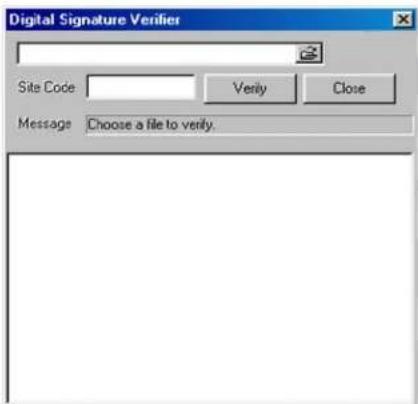
text_image
Digital Signature Verifier Site Code Verify Close Message Choose a file to verify.If the image has not been tampered with, a blue square will appear around the image with the message "Original image file."
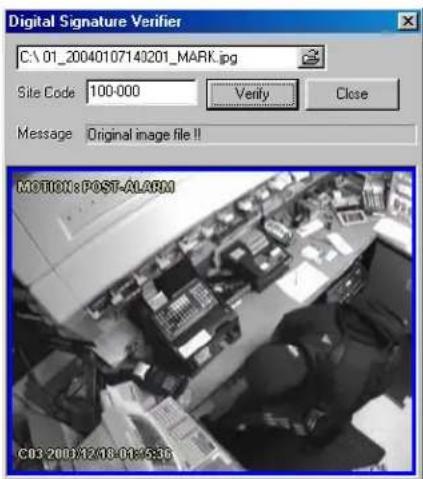
text_image
Digital Signature Verifier C:\01_20040107143201_MARK.jpg Site Code 100-000 Verify Close Message Original image file II MOTION: POST-ALARM C03 200/12/18-01/536If the image has been tampered with, a red square will appear around the image with the message "Entire image changed or wrong SITE CODE."

text_image
Digital Signature Verifier C:\ 01_20040107140201_MARK.jpg Site Code 100-000 Verify Close Message Entire image changed or wrong SITE-CODE ! MOTION:POST-ALARM C03 2001/12/18/01/05/16BACKUP VIEWER OVERVIEW
The Backup Viewer allows you to play back the exported video in its proprietary format. Video saved in this format is extremely difficult to tamper with and therefore is the ideal solution when law enforcement and the legal department are involved.
This video cannot be read by any other viewer.
The Backup Viewer operates essentially like the Search portion of the DVR software.
For detailed explanations of these functions, refer to the chapter on Search Options in this manual.
Installing Backup Viewer
- Insert the Software Installation DVD into the DVD-ROM. (Do not install on the DVR.)
- Select the Backup Viewer option to begin installation. When the Welcome screen opens, click Next.
- Read the License Agreement and select the appropriate radio button to accept the terms of the license agreement. Click Next.
- Select Yes to install the POS component or select No for a basic install. Click Next.
Note The POS component is only necessary when connecting to a server running the POS Upgrade.
- When the Choose Destination Location window opens click Next. This will install Backup Viewer in the default destination folder.
- Select the shortcuts to install, or clear all boxes for no shortcuts. Click Next.
- When the InstallShield Wizard Complete window appears click Finish. Setup is now complete.
Loading Video from DVD or Hard Drive
- Open the Backup Viewer program: Start > Programs > Surveillix > Backup Viewer > Backup Viewer.
- Click Open. The Total Backup Search window will open.
a. For DVD-ROM data, select the appropriate DVD-ROM drive letter from the Backup Media box.
b. For hard drive data, select either an attached hard drive from the Backup Media box or select the Open Folder icon to browse to a specific directory.
Note Once selected, available video data will be displayed in the Choose Start Hour box.
- Click on the desired time to select it.
- Click OK. The video will now load into the Backup Viewer.
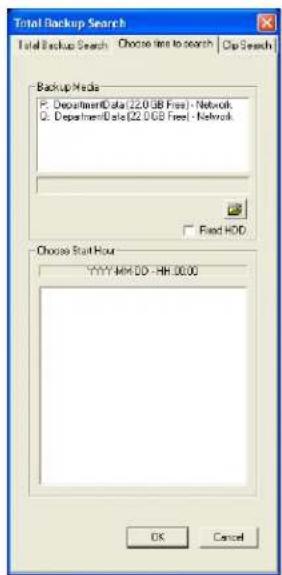
text_image
Total Backup Search Total Backup Search Choose time to search | Copy Search | Backup Media P. DepartmentDate (22.0 GB Free) - Network Q. DepartmentDate (22.0 GB Free) - Network Fixed HDD Choose Start Hour YYYY-MM-DD - HH:00:00 OK CancelSCS OVERVIEW
SCS software is Network DVR Management Software; a powerful utility that allows 100 or more DVRs to be controlled using one computer. This software allows you to view live video, search saved video, edit and configure setup on each DVR, and import maps of buildings and other locations.
The SCS software was specifically designed as an enterprise software solution.
Highlights:
View Live Video from most computers
Username and Password protected
Easy to use graphical interface
Basics:
In order to log in to the DVR server, a user account must be made for each user. This ensures that only authorized personnel are allowed to log in. In addition, each user can be assigned different privileges that allow them or deny them access to different functions.
Configuring the Server for Remote Connection
-
Enter Setup on the DVR.
-
Click the Network Setup Button.
-
Uncheck the Disable Remote Control option. You should now be allowed to adjust port settings if necessary.
NOTE: If you are using a Firewall, it may be necessary to adjust the port settings on both the DVR and the Firewall. Contact the Network Administrator for more information.
-
Click OK.
-
Make sure a user account is created. Without a user account, the Administrator account must be used.
-
The DVR server is now ready to receive incoming connections.
Connecting to a DVR
Refer to the Setup section of the SCS Manual for information on using the SCS Software.
APPENDIX
The Appendix contains technical specifications for many of the NVS internal components
NVS SPECIFICATIONS
| 8 | 16 32 | |||
| CPU | Intel® CPU | |||
| Storage (Hard Drive) | 500 GB Standard / 4TB Max | |||
| Storage MAX | Up to 4 HDD with DVD±RW | |||
| Operating System | Microsoft® Windows® XP Embedded | |||
| RAM | 2GB | 3 | ||
| Viewing Rate | Max 480 PPS | |||
| Recording Rate | Dependant on Network Video Device Encoding Rate | |||
| Resolution | Recording resolutions dependent upon the resolutions the Network Camera supports | |||
| Image Compression | Proprietary MJPEG | |||
| Average File Size | 360x240 - 3~5k | |||
| 720x240 - 4~8k | ||||
| 720x480 - 7~12k | ||||
| Video Outputs | SVGA, DVI-D | |||
| Max PPS Per Channel | 30 PPS (NTSC) / 25 PPS (PAL)* | |||
| Motion Detection | Up to 15 Regions Per Channel / Adjustable Sensitivity | |||
| Remote Operation | Full Remote Control Through PSTN, ISDN, ADSL, LAN, and TCP/IP | |||
| Remote Software | Compatible with Microsoft Windows 2000, XP, Vista | |||
| PAN / TILT / ZOOM | Built in Software Interface | |||
| Recording Mode | Continuous, Motion Detection, Sensor, Scheduled Recording | |||
| Backup | USB, DVD±RW | |||
| Digital Signature | Supports Digital Signature Verification | |||
| Emergency Agent | Transmitted through TCP/IP - Pop-Up Window | |||
* Total recording throughput dependent on multiple factors including: system specs, camera codec, camera settings, camera resolution, and network bandwidth. Refer to the Toshiba IP platform estimator for more information on the specifics of your installation.