Evanesce Tab-Tension - Projection screen Elite ProAV - Free user manual and instructions
Find the device manual for free Evanesce Tab-Tension Elite ProAV in PDF.


| Product Type | Projection Screen |
| Brand | Elite ProAV |
| Model | Evanesce Tab-Tension |
| Screen Technology | Tab-Tensioned Fabric |
| Gain | 1.0 |
| Viewing Angle | 180° (half gain) |
| Aspect Ratio | 16:9 |
| Diagonal Size | 100 inches (typical) |
| Screen Surface | Matte White (CineWhite) |
| Operation | Motorized with remote control |
| Power Supply | AC 110-240V, 50/60Hz |
| Power Consumption | 120W (typical) |
| Mounting Type | Wall or ceiling mount |
| Drop Ceiling Compatible | Yes (with optional kit) |
| Screen Material | High contrast PVC with black backing |
| Black Drop | Yes |
| Remote Control Frequency | 433 MHz |
| Case Color | White |
| Weight | Approx. 25 lbs (11.3 kg) |
| Cleaning | Gentle dusting with microfiber cloth; avoid solvents |
| Operating Temperature | 32°F - 104°F (0°C - 40°C) |
| Spare Parts Availability | Remote control, mounting brackets, screen fabric (by size) |
| Warranty | 2 years limited |
Frequently Asked Questions - Evanesce Tab-Tension Elite ProAV
User questions about Evanesce Tab-Tension Elite ProAV
0 question about this device. Answer the ones you know or ask your own.
Ask a new question about this device
Download the instructions for your Projection screen in PDF format for free! Find your manual Evanesce Tab-Tension - Elite ProAV and take your electronic device back in hand. On this page are published all the documents necessary for the use of your device. Evanesce Tab-Tension by Elite ProAV.
USER MANUAL Evanesce Tab-Tension Elite ProAV
text_image
ELITE PROAV

Evanesce Tab-Tension CineGrey 5D®
Recessed In-ceiling Ambient Light Rejecting Projector Screen Installation Guide
The screen material included is our award winning CineGrey 5D® which is a front projection material, precisely formulated for environments with minimal control over room lighting. It was designed to enhance picture brightness, offer accurate color fidelity, and improve contrast levels. The CineGrey 5D™ is best for family rooms, educational facilities, conference rooms, house of worship or any applications in which incident light is a factor.
In order for the CineGrey 5D® to maintain its projection qualities and optimum performance please refer to the list below for proper maintenance and cleaning.
- Use a dry microfiber cloth to remove dust from the screen's surface.
- When cleaning, use a damp microfiber cloth with warm water to remove any marks.
- Never rub or apply pressure when cleaning the surface.
- Never attempt to use any solutions, chemicals or abrasive cleaners on the screen surface.
- In order to avoid damaging the screen, avoid touching it directly with your fingers, pens/pencils or any other sharp or abrasive objects.
Important Safety & Warning Precautions
Make sure to read this user's guide and follow the procedures below.
Caution: The screen's Black Top Drop is already set to its maximum drop distance. There is NO extra Black Top Drop in the roller. Unapproved changes or modifications (except for cutting the power cord for hardwire installations) to this unit are prohibited and will void your warranty. For more information, please contact our Technical Support Department at (877) 511-1211 Ext. 604.
- Please retain this user's guide for future reference. - To avoid damaging the unit, do not use with any unauthorized accessories not recommended by the manufacturer.
- Handle the unit carefully during transportation to avoid any damages.
- To ensure safe and reliable operation, direct connection to a properly grounded power source is advised.
- The power outlet supplying power to the unit should be close to the unit and easily accessible.
- Do not install the unit on uneven, inclined surfaces;
- Do not install in damp places to avoid an electric shock or short circuit.
- Do not place any heavy objects over the power cord.
- Position the power cord properly to avoid creating a trip obstacle.
- The internal & external parts of this unit are not end user serviceable. Do not attempt to disassemble this unit by yourself. No one except authorized technicians can open and make repairs to this unit.
- Make sure the power source that this unit is connected to has a continuous power flow.
- If there is need to use an extension cord, make sure the cord has an equal rating as the appliance to avoid over heat.
- Do not handle the power plug when your hands are wet or your feet are in contact with water.
- Properly dispose of this equipment according to the environmental regulations in your area when product is no longer of service.
Do not use this unit under the following circumstances.
- Disconnect the power cord under the conditions of heavy rain, wind thunder or lightning.
- Avoid direct sun light, rain shower and moisture.
- Keep away from fire sources and high temperature to prevent this device from overheating.
• Cut off the power supply first before transportation or maintenance. - To avoid possible injury and/or an electric shock, do not attempt to use this screen if there is obvious damage or if there are any evident broken parts.
Installation Warning
The instructions provided in this user's guide are for reference only. Please consult a professional installation company for further installation and safety advice. The installer must insure that proper mounting hardware is used to provide adequate strength suitable for the installation. Elite Screens is not liable for any faulty installations. For limit adjustment instructions, please contact our Technical Support Department at (877) 511-1211 Ext. 604
NOTE: This equipment has been tested and found to comply with the limits for a Class B digital device, pursuant to Part 15 of the FCC Rules.
These limits are designed to provide reasonable protection against harmful interference in a residential installation. This equipment generates and can radiate radio frequency energy and, if not installed and used in accordance with the instructions, may cause harmful interference to radio communications.
However, there is no guarantee that the interference will not occur on a particular installation. If this equipment causes harmful interference to radio or television reception, which can be determined by turning the equipment off and on, the user is encouraged to try to correct the interference by one or more of the following measures.
√ Reorient or relocate the receiving antenna of the device which may be casing the interference.
√ Increase the separation between the screen and the device's receiver.
√ Connect the equipment into a different power outlet other than the device.
Pre-Installation
- Carefully unpack the screen.
- Always handle the screen in a leveled position on a clean surface.
- In order to protect the screen from exposure to stains, keep the screen out of contact with foreign particles such as dust, sawdust, and/or liquids.
ATTENTION: Regardless of the mounting method, the screen should be securely supported so that the vibration or pulling on the viewing surface will not cause the casing to become loose or fall. The installer must insure the fasteners that are used are of adequate strength and suitable for the installation location.
| Evanesce Tab-Tension Series | Controls and Accessories | |||||||
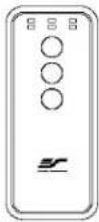
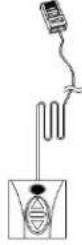
| A. IR Remote | B. RF Remote | C. Wall switch control box | D. 5-12 volt trigger cable | E. IR extended “eye” receiver | F. Wireless 5-12v (3.5 mm) mono trigger cable | G. AAA batteries | H. Bubble leveler |
 |  |  |  |  | [H4Z0] |  | 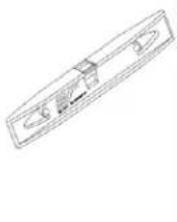 |
Screen operation
Electric Current: The screen operates on AC110V at 60Hz/1.18A
- After ensuring the power outlet & screen are compatible (voltage), plug the power cord into the power outlet.
- Once the screen has power, you'll be able to control it using any of the 6 methods described below.
6 ways to control the Evanesce Tab-Tension
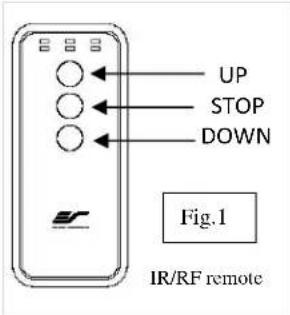
- IR remote control (Item A, Fig 1): The Infrared functions by direct line of sight contact with a beam range of 30 feet. Aim the IR remote at the "eye" receiver once it has been connected to the control box's RJ45 port.
- IR "Eye" Receiver (Item E, Fig 2): The IR "Eye" Receiver plugs directly into the control box's RJ45 port to present a low profile line-of-sight control option for your IR remote control even in a recessed ceiling installation.
- RF Remote Control (Item B): The radio waves eliminate the need for a direct line of sight with a range of 100 feet.
- 3-Way Wall Switch (Item C, Fig 3): The 3-way wall switch is a wall mount switch with an up/stop/down button and plugs directly into the control box's RJ45 port.
text_image
UP STOP DOWN Fig.1 IR/RF remote
text_image
Control box Fig.3 3 Way Wall Switch (does not have IR sensor)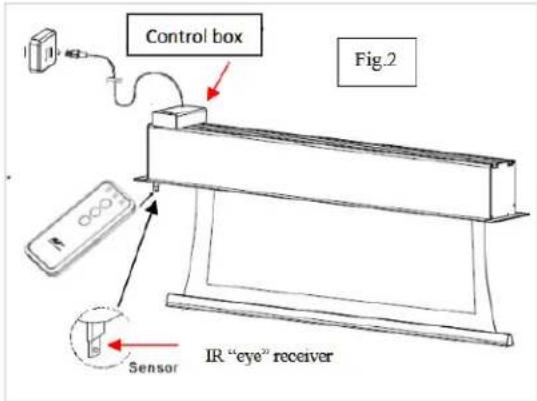
text_image
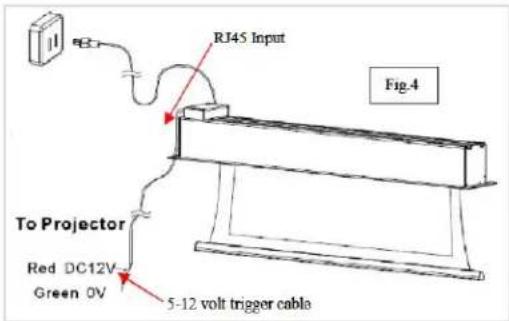
Control box Fig.2 Sensor IR "eye" receiver- 5-12 volt trigger (Item D, Fig 4): The built-in 5-12V trigger input allows your screen to synchronize its drop & rise with the projector's power cycle. The screen deploys when the projector powers up and will retract when the projector powers down. The 5-12 volt RJ45 cable connects to your projector's trigger output via a separate cable that may or may not be provided by the manufacturer of the projector. The trigger feature will not work without an output cable from the projector, but it can be tested by connecting the Red (+) and Green (-) cable to a 9-volt battery.

text_image
The back of the projector DC 5-12V Wireless 5-12V trigger cable Fig 5 UP Stop Down6. Wireless 5-12 volt trigger (Item F, Fig 5): The RF
remote control serves as a dual purpose, independently as a handheld remote control, or in conjunction with the Wireless 5-12 volt trigger cable. The radio frequency technology can be programmed to send a wireless signal to synchronize its drop/rise with the projector's power cycle.
Wireless 5-12 volt trigger | Synchronization Instructions
Step1: Connect one end of the 3.5 mm wireless 5-12 volt trigger cable to the RF remote.
text_image
RJ45 Input Fig.4 To Projector Red DC12V Green OV 5-12 volt trigger cableStep 2: Connect the other 3.5 mm end of the wireless 5-12 volt trigger cable to your projector
Step 3: Make sure to unplug your screen from the power outlet
Step 4: Hold the UP button on your RF remote
Step 5: While holding the UP button, plug the screen back to the power outlet
Step 6: Wait 5 seconds and then release the UP button
Step 7: Your 5-12V wireless trigger should now be activated with your screen and ready to be used and able to control your screen with your projector's power cycle
Repeat the steps again if not successful.
(Please be aware, the projector on/off cycle may take longer to fully activate. It usually takes around 20-30 seconds for full off and on cycle each time)
| Hardware Parts List for Evanesce Tab-Tension | |||
A | B | C | D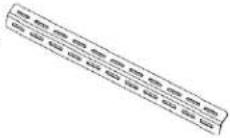 |
E | F |  | |
H | I | J | K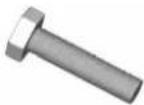 |
L | 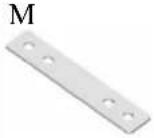 | N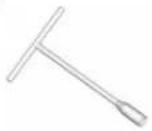 |  |
| Hardware Parts List | QTY |
| A. Case Rail Nut | 4-6 |
| B. Hex Screw | 4-6 |
| C. Hanging Bracket | 2-3 |
| D. Suspension Bar | 4 |
| E. Washer | 8-10 |
| F. Hex Nut | 4-6 |
| G. Suspension Bar J- Hook | 4 |
| H. M8 Top Expanding Bolt | 4 |
| I. M8 Threaded Rod | 4 |
| J. M8 Screw Nut | 20 |
| K. M8 Hexagonal Screw | 4 |
| L. M8 Screw Washer | 28 |
| M. Installation Bracket | 2 |
| N. Socket Wrench | 1 |
| O. White cover flange panel | 2 |
Please make sure all parts listed below are included before proceeding with the installation
Installation Instructions
The Evanesce Tab-Tension allows access for above or below ceiling installation. Please follow the instructions described in the following steps below for your type of installation.
Power
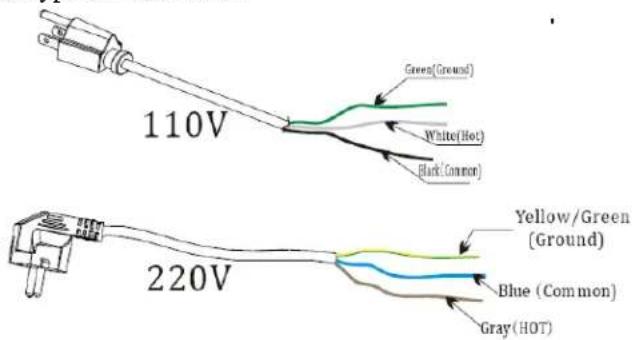
The Evanesce Tab-Tension Series includes a 3-Prong Power Cord (2-Prong Power Cord for some countries) for use in a non-concealed power outlet. If your installation will be entirely concealed (including power outlet), Elite Screens strongly recommends a hardwire connection. Please refer to the image below for both 110v & 220v wiring information.
text_image
110V Green(Ground) White(Hot) Black(Common) 220V Yellow/Green (Ground) Blue (Common) Gray(HOT)Notice to Installer:
Please use the following installation instructions to obtain superior optical performance from the CineGrey 5D® Angular Reflective ALR (Ambient Light Rejecting) Screen.
Make sure to follow these instructions in order for the CineGrey 5D® to perform correctly.
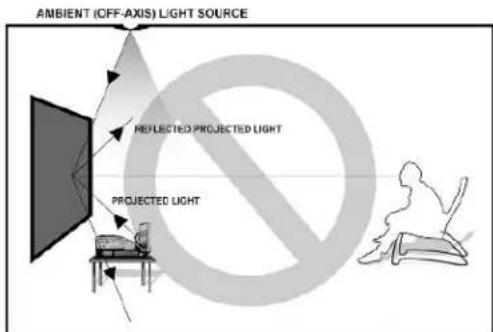
• Angular-Reflective material is not compatible with ultra/short-throw projectors
• Minimum lens throw ratio 1.5x image width
- Ambient light must not come from the same direction as the projector
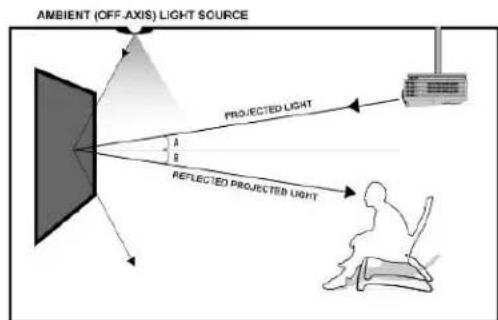
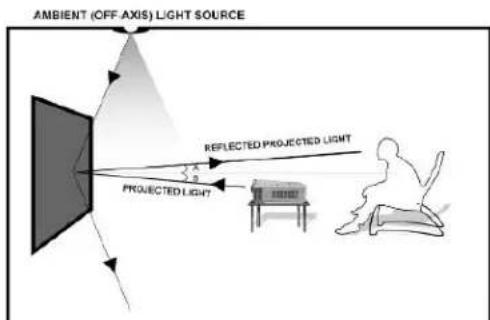
Since angular-reflective means that the projected image will reflect at the mirror-opposite angle, it is important to position the projector so that the viewer will get the best possible image.
- Step 1: Establish the general "eye level" of the viewers
- Step 2: Set the appropriate projection level
- Step 3: Adjust the screen height level and projection angle Input Angle (A) = Output Angle (B) aligns with the viewer's angle
Correct Installation Examples
Projector Ceiling Installation: Make sure the projector (light in) is angled (A) to reflect (B) at the mirror-opposite angle (light out) to align with the viewer's eye level.
text_image
AMBIENT (OFF AXIS) LIGHT SOURCE PROJECTED LIGHT A B REFLECTED PROJECTED LIGHTProjector Table Top: Make sure the projector (light in) is angled (A) to reflect (B) at the mirror-opposite angle (light out) to align with the viewer's eye level.
text_image
AMBIENT (OFF AXIS) LIGHT SOURCE REFLECTED PROJECTED LIGHT PROJECTED LIGHTIncorrect Installation Examples
Ceiling Mounted Short-throw Projector

text_image
AMBIENT (OFF-AXIS) LIGHT SOURCE PROJECTED LIGHT REFLECTED PROJECTED LIGHTTabletop Ultra-Short throw Projector
text_image
AMBIENT (OFF-AXIS) LIGHT SOURCE REFLECTED PROJECTED LIGHT PROJECTED LIGHTNote: Improper installation will result in light loss and produce a dark image. This is due to the projector's light reflecting in the wrong direction. Images are not up to scale and are for illustration purposes only.
A. Above ceiling installation instructions
Assembly
- Insert the Hex Screw (B) through the Hanging Bracket's (C) screw hole and secure with the Case Rail Nut (A). Slide the Hanging Bracket (C) through the railing on top of the case.

text_image
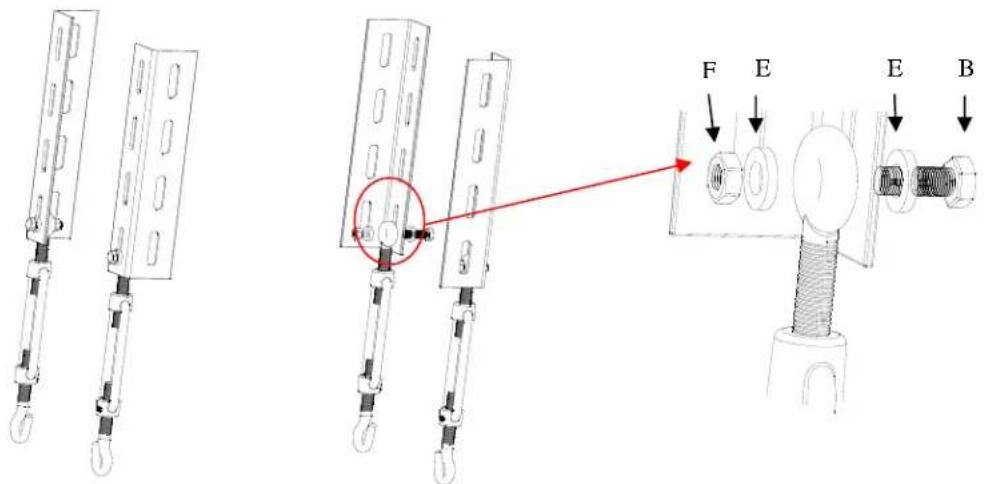
Technical diagram showing a structural component with labeled parts A, B, and C, including red arrows indicating direction and a magnified inset view.- Place the Suspension Bar (D) on the Hanging Bracket (C) and align with the hole as shown below. Secure the Suspension Bar (D) with the Hex Screw (B), Washer (E) and the Hex Nut (F). Install the Suspension Bars (D) to your ceiling according to their distance.

text_image
D B E E FOptional Suspension Bar J-Hook (G)
- Attach the Suspension Bar J- Hook (G) to the bottom of the Suspension Bar (D) and secure with the Hex Screw (B), Washer (E) and Hex Nut (F).
text_image
Technical diagram showing mechanical assembly with labeled components and a red arrow indicating direction of movement or force.- Attach the Suspension Bar J-Hook (G) to the Hanging Bracket (C) as shown in figure below. Install the Suspension Bars (D) to your ceiling according to their distance.

natural_image
Technical line drawing of a mechanical assembly with vertical supports and mounting base (no text or symbols)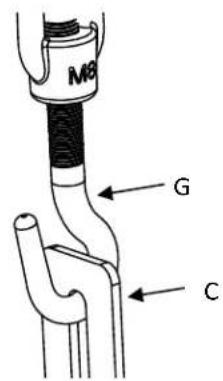
text_image
M8 G COptional Installation (parts & hardware not included)


-
Place the Hanging Bracket (C) in the desired location on the screen's housing and measure the distance as shown below. (L = Distance)
-
Mark the location of where the screen will be installed according to the distance (L) and then secure the bolt to the ceiling.

natural_image
Technical line drawing of a structural frame with labeled dimension L (no text or symbols beyond label)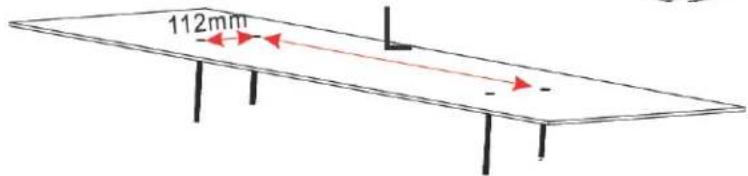
text_image
112mm- Install the screen to the screw bolt as shown in the figure below.

natural_image
Technical line drawing of a structural frame assembly with mounting brackets and a side view showing internal components (no text or symbols)B. Below ceiling installation instructions
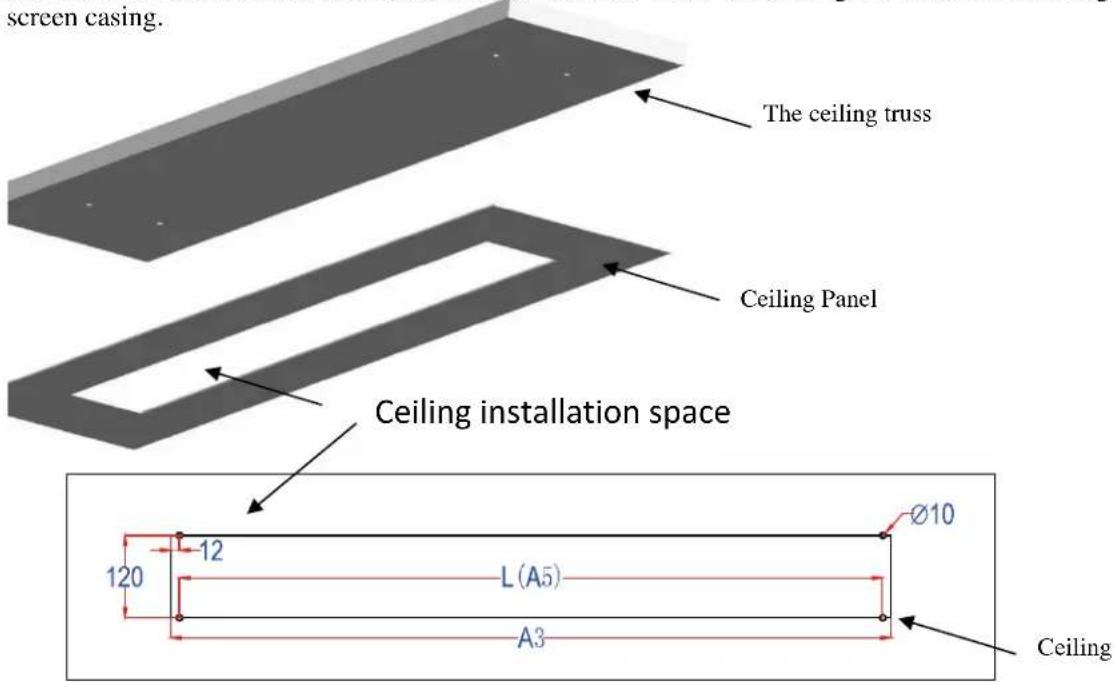
- Measure and cut the ceiling installation space. The width should not exceed 120mm. Measure the length of your screen to determine the length.
Note: The length of the installation space is not greater than the screen size table (A3), and the width is not less than the screen size table (A5). Consult the table below (C1) in regards to accommodating the screen casing.
text_image
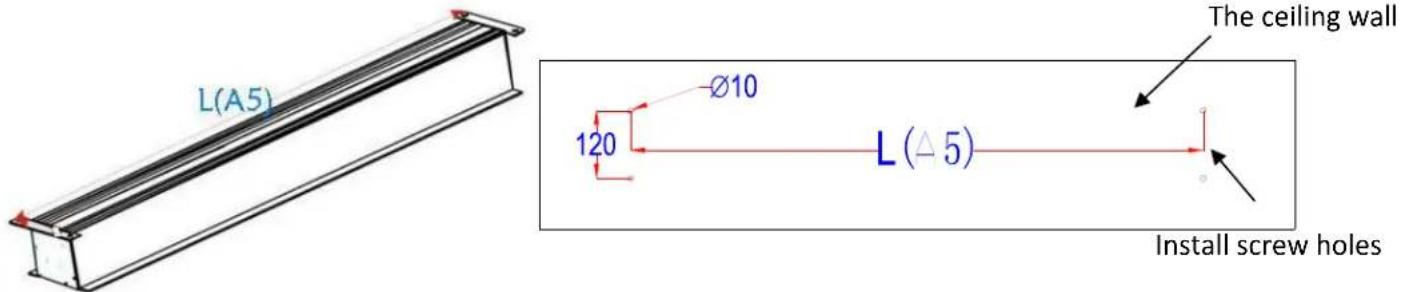
screen casing. The ceiling truss Ceiling Panel Ceiling installation space 120 12 L (A5) A3 Ø10 Ceiling- Drill 4 holes in the ceiling that correspond with the attachments on the various casing sizes.
text_image
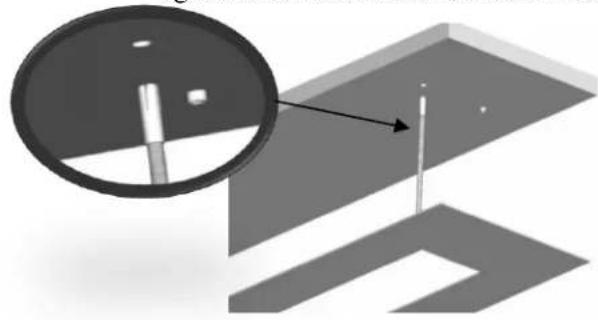
L(A5) Ø10 120 L (△ 5) The ceiling wall Install screw holes- The expanding bolts (H) mount into thick wood beams, stone or concrete and will support the screen. Use the Socket wrench (N) to attach the hexagonal screws (K). The expanding bolts should be firmly tightened and tested to make sure that they will hold the weight of the screen.
natural_image
3D diagram of a mechanical component with a circular inset showing a cylindrical feature (no text or symbols)Rev. 03072019JA

text_image
(J) and (L) (H) (K) (N)8
www.eliteproav.com
text_image
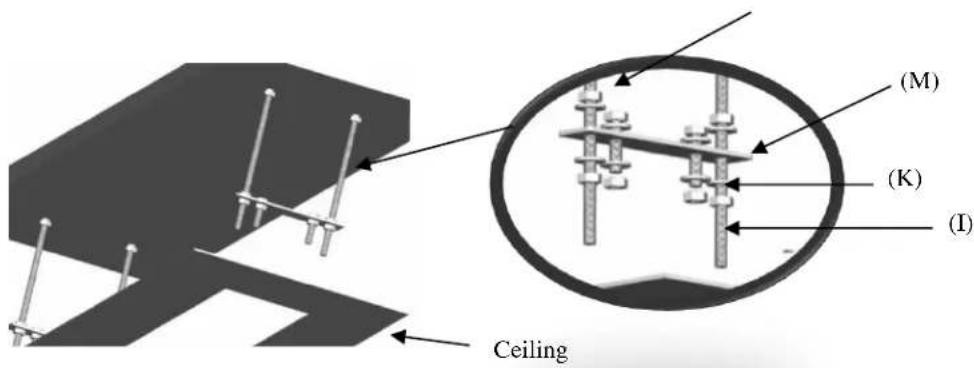
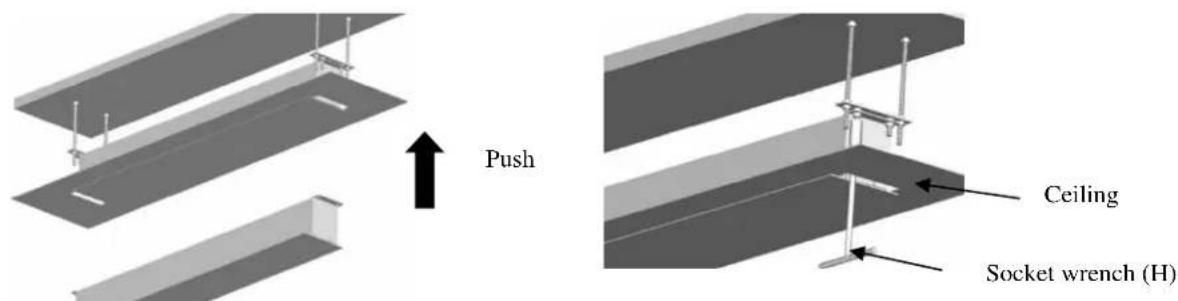
(M) (K) (I) Ceiling- Push the screen up into the space. Use the threaded rods (I) to attach the screen assembly to the ceiling. The hexagonal screws (K) will connect the screen to the rest of the assembly. Once firmly in place, use the nuts (J) to ensure a firm connection. Use the socket wrench (N) to make sure that the bolts are firmly tightened.
text_image
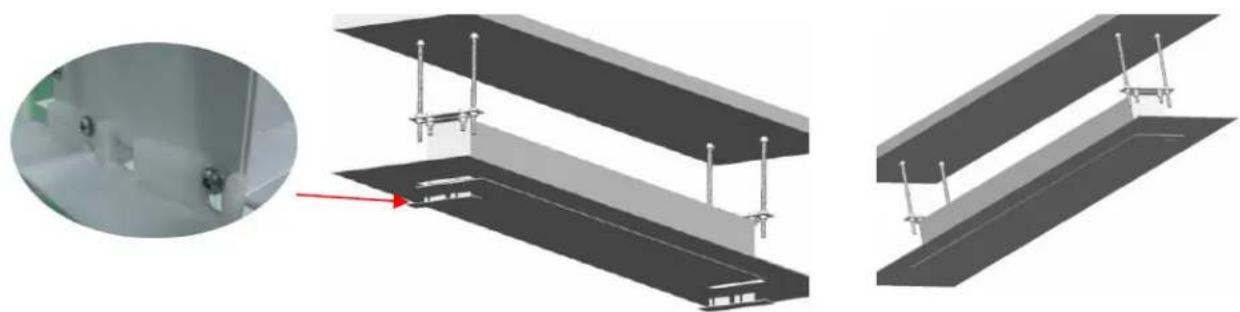
Push Ceiling Socket wrench (H)- Install plastic cover panel (O) to complete the installation.
natural_image
3D architectural rendering of a structural frame with mounting brackets and support poles, shown from three different angles (no text or symbols)For local Elite ProAV contact or Technical Support, please visit www.eliteproav.com