IES-3016ST - Ethernet Switch ZYXEL - Free user manual and instructions
Find the device manual for free IES-3016ST ZYXEL in PDF.


| Brand | ZyXEL |
| Model | IES-3016ST |
| Product Type | 16-Port Ethernet Switch |
| Ports | 16 x 10/100Base-TX RJ-45 |
| Dimensions (W x D x H) | 440 x 200 x 44 mm (19-inch rackmount) |
| Weight | 2.5 kg |
| Power Supply | 100-240V AC, 50/60 Hz |
| Power Consumption | 15W max |
| Switching Capacity | 3.2 Gbps |
| MAC Address Table | 8K entries |
| VLAN Support | Yes, up to 256 VLANs |
| Quality of Service (QoS) | Yes, 802.1p priority queuing |
| Management | Web-based, SNMP, CLI |
| Operating Temperature | 0°C to 50°C |
| Humidity | 10% to 90% non-condensing |
| Safety Certifications | CE, FCC |
| Spare Parts Available | Power supply unit, fan module |
| Repairability | Modular design, field-replaceable fan and PSU |
| Maintenance | Clean with a dry cloth, avoid liquids |
| Warranty | Standard 2 years |
Frequently Asked Questions - IES-3016ST ZYXEL
User questions about IES-3016ST ZYXEL
0 question about this device. Answer the ones you know or ask your own.
Ask a new question about this device
Download the instructions for your Ethernet Switch in PDF format for free! Find your manual IES-3016ST - ZYXEL and take your electronic device back in hand. On this page are published all the documents necessary for the use of your device. IES-3016ST by ZYXEL.
USER MANUAL IES-3016ST ZYXEL
Integrated Ethernet Switch
User's Guide
Version 1.00
08/2007
Edition 2
About This User's Guide
Intended Audience
This manual is intended for people who want to install and maintain the IES-6000 series Integrated Ethernet Switch. This User's Guide gives hardware installation, connection and maintenance instructions. It also gives specifications.
Related Documentation
• Line Card User's Guides
These User's Guides provide hardware connection details and explain how to configure and manage the individual line cards.
- Management Switch Card User's Guide
This User's Guide provides hardware connection details, and configuration and management instructions for the management switch card.
- Supporting Disk
Refer to the included CD for support documents.
• ZyXEL Web Site
Please refer to www.zyxel.com for additional support documentation and product certifications.
User Guide Feedback
Help us help you. Send all User Guide-related comments, questions or suggestions for improvement to the following address, or use e-mail instead. Thank you!
The Technical Writing Team, ZyXEL Communications Corp., 6 Innovation Road II, Science-Based Industrial Park, Hsinchu, 300, Taiwan.
E-mail: techwriters@zyxel.com.tw
Document Conventions
Warnings and Notes
These are how warnings and notes are shown in this User's Guide.

Warnings tell you about things that could harm you or your device.

Notes tell you other important information (for example, other things you may need to configure or helpful tips) or recommendations.
Naming Conventions
- The IES-6000M is the IES-6000 main chassis. It may be referred to as the “IES-6000M” or the “main chassis”.
- The IES-3000ST splitter chassis is compatible with the IES-6000. It may be referred to as the “IES-3000ST” or the “splitter chassis”.
- The IES-3016ST splitter chassis is compatible with the IES-6000. It may be referred to as the “IES-3016ST” or the “splitter chassis”.
- The MSC1024G (Management Switch Card) may be referred to as the “management card” or the “MSC”.
- The ALC1248G-51, ALC1248G-53, ALC1272G (ADSL Line Cards), SLC1248G-22 (SHDSL Line Card), VLC1224G-41 (VDSL Line Card) and VOP1248G-61 (VoIP Line Card) may be collectively referred to as the “line cards”.
- The ALC1248G-51 for ADSL over POTS (Annex A) Line Card may be referred to as the “ALC1248G”, the “ALC” or the “line card” in this User’s Guide.
- The ALC1248G-53 for ADSL over ISDN (Annex B) Line Card may be referred to as the “ALC1248G”, the “ALC” or the “line card” in this User’s Guide.
- The ALC1272G ADSL2/2+ Line Card may be referred to as the “ALC1272G”, the “ALC” or the “line card” in this User’s Guide.
- The SLC1248G SHDSL Line Card may be referred to as the “SLC1248G”, the “SLC” or the “line card” in this User’s Guide.
- The VLC1224G VDSL Line Card may be referred to as the “VLC1224G”, the “VLC” or the “line card” in this User’s Guide.
- The VOP1248G-61 VoIP Line Card may be referred to as the “VOP1248G”, the “VOP”, or the “line card” in this User’s Guide.
- IES-6000 refers to the main chassis and its cards, along with the splitter chassis and its cards. The IES-6000 may be referred to as the “IES-6000”, the “system”, or the “device”.
Icons Used in Figures
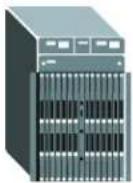
Figures in this User's Guide may use the following generic icons. The IES-6000 icon is not an exact representation of your device.
| IES-6000 Computer Notebook computer | ||
 |  |  |
Server Telephone |  | |
Switch Router |  | |
Safety Warnings

For your safety, be sure to read and follow all warning notices and instructions.
For your safety, be sure to read and follow all warning notices and instructions.
- Do NOT use this product near water, for example, in a wet basement or near a swimming pool.
- Do NOT expose your device to dampness, dust or corrosive liquids.
- Do NOT store things on the device.
- Do NOT install, use, or service this device during a thunderstorm. There is a remote risk of electric shock from lightning.
- Warning! Connect the frame ground before you connect any other cables or wiring. Refer to Appendix A on page 71 for the ground wire gauge.
- Connect ONLY suitable accessories to the device.
- ONLY qualified service personnel should service or disassemble this device.
- Make sure to connect the cables to the correct ports.
- Place connecting cables carefully so that no one will step on them or stumble over them.
- Always disconnect all cables from this device before servicing or disassembling.
- Use ONLY a power wire of the appropriate wire gauge (see Appendix A on page 71 for details) for your device. Connect it to a power supply of the correct voltage (see Appendix A on page 71 for details).
- Do NOT allow anything to rest on the power adaptor or cord and do NOT place the product where anyone can walk on the power adaptor or cord.
- Do NOT use the device if the power adaptor or cord is damaged as it might cause electrocution.
- If the power adaptor or cord is damaged, remove it from the device and the power source.
- Do NOT attempt to repair the power adaptor or cord. Contact your local vendor to order a new one.
- Do not use the device outside, and make sure all the connections are indoors. There is a remote risk of electric shock from lightning.
- CAUTION: RISK OF EXPLOSION IF BATTERY (on the motherboard) IS REPLACED BY AN INCORRECT TYPE. DISPOSE OF USED BATTERIES ACCORDING TO THE INSTRUCTIONS. Dispose them at the applicable collection point for the recycling of electrical and electronic equipment. For detailed information about recycling of this product, please contact your local city office, your household waste disposal service or the store where you purchased the product.
- Do NOT obstruct the device ventilation slots, as insufficient airflow may harm your device.
- Keep the air filters clean, in order to ensure sufficient airflow.
• Always cover empty slots with slot covers, to ensure sufficient airflow and reduce the danger of electric shock.
- Warning! To avoid risk of electric shock, remove only one card at a time and do not place fingers or objects inside the chassis.
- Use only No. 26 AWG (American Wire Gauge) or larger telecommunication line cord.
- Fuse Warning! Replace a fuse only with a fuse of the same type and rating.
- The length of exposed (bare) power wire should not exceed 10 mm.
- Fan Module Warning! Use the fan module handle when pulling out or pushing in the fan module. Be careful not to put fingers or objects inside the fan module.
This product is recyclable. Dispose of it properly.

natural_image
Symbol of a trash bin crossed with diagonal lines, no text or numbers presentContents Overview
Introduction 19
System Introduction 21
Installation and Connections 25
Hardware Installation and Connections 27
Maintenance and Troubleshooting .... 57
Maintenance 59
Hardware Troubleshooting 65
Appendices and Index 69
Table of Contents
About This User's Guide....3
Document Conventions......4
Safety Warnings....6
Contents Overview 9
Table of Contents......11
List of Figures 15
List of Tables......17
Part I: Introduction.... 19
Chapter 1 System Introduction....21
1.1 System Description ...... 21
1.2 Applications ...... 21
1.2.1 MTU Application 21
1.2.2 Central Office Application 22
1.3 Front Panel 22
Part II: Installation and Connections.... 25
Chapter 2 Hardware Installation and Connections ....27
2.1 General Installation Instructions 27
2.2 Main Chassis Installation 27
2.2.1 Rack-mounted Installation Requirements 27
2.2.2 Mounting the IES-6000M on a Rack 28
2.2.3 Connecting the Frame Ground 29
2.3 Card Installation 31
2.3.1 Installing MSC and Line Cards 31
2.3.2 Removing MSC and Line Cards 33
2.3.3 Installing a Splitter Chassis Card 35
2.3.4 Removing a Splitter Chassis Card 36
2.4 Making Card Connections 37
2.4.1 VoIP Line Card Telco-50 Connections 38
2.4.2 Splitter Chassis Rear Panel Connections (DSL) 40
2.4.3 Splitter Chassis Rear Panel Connections (VoIP) 40
2.4.4 MDF Connections 42
2.4.5 MDF Connections Overview 42
2.4.6 MDF (Main Distribution Frame) 42
2.4.7 Telco-50 Cables 42
2.4.8 MDF Connection Scenarios 43
2.4.9 VoIP Connection Scenarios 48
2.5 Alarm Module 51
2.5.1 Installing the Alarm Module 51
2.5.2 Removing the Alarm Module 51
2.5.3 Alarm Connections 52
2.6 Power Connections 53
2.6.1 Power Modules 53
2.7 Dressing the Power Wires and Alarm Cable 55
2.7.1 Procedure to Turn on the IES-6000 Power 55
Part III: Maintenance and Troubleshooting 57
Chapter 3 Maintenance....59
3.1 Fan Maintenance 59
3.1.1 Procedure to Remove and Install the Fan Module 59
3.1.2 Procedure to Remove and Install the Filters 60
3.2 Power Maintenance 62
3.2.1 Procedure to Disconnect the Power 62
3.2.2 Procedure to Change a Power Module 62
3.2.3 Procedure to Reconnect the Power 63
Chapter 4 Hardware Troubleshooting ....65
4.1 The PWR LED Does Not Turn On or Is Blinking 65
4.2 The ALM LED Is On 65
4.3 No Voice on an ADSL Connection 65
4.4 No Voice on a VoIP Connection 66
4.5 Testing Wiring 66
Part IV: Appendices and Index 69
Appendix A Product Specifications....71
Appendix B Legal Information 75
Appendix C Customer Support....79
Index....83
List of Figures
Figure 1 Application: Multi-tenant Unit (MTU) 22
Figure 2 Application: Central Office 22
Figure 3 IES-6000M Front Panel 23
Figure 4 Main Chassis Airflow 28
Figure 5 Attaching Mounting Brackets to the Main Chassis ....29
Figure 6 Main Chassis Frame Ground .... 30
Figure 7 Splitter Chassis Frame Ground .... 30
Figure 8 Installing a Card .... 31
Figure 9 Closing the Ejector Levers ...... 32
Figure 10 Tightening Card Thumbscrews .... 32
Figure 11 Loosening Card Thumbscrews .... 33
Figure 12 Opening the Ejector Levers ...... 34
Figure 13 Removing a Main Chassis Card .... 34
Figure 14 Installing a Splitter Chassis Card .... 35
Figure 15 Tightening Splitter Chassis Card Thumbscrews .... 36
Figure 16 Loosening Splitter Chassis Card Thumbscrews 36
Figure 17 Removing a Splitter Chassis Card .... 37
Figure 18 IES-6000 Front Panel Telco-50 Connections (2 Splitter Chassis) 38
Figure 19 IES-6000 DSL and VoIP Front Panel Telco-50 Connections (2 Splitter Chassis) ...... 39
Figure 20 IES-6000 DSL and VoIP Rear Panel Telco-50 Connections (2 Splitter Chassis) ...... 41
Figure 21 MDF (Main Distribution Frame) Wiring 42
Figure 22 Telco-50 Cable with RJ-11 Connectors ....43
Figure 23 Installation Overview Example ....44
Figure 24 Installation Scenario A .... 45
Figure 25 One MDF for End-user and CO Connections 45
Figure 26 Installation Scenario B .... 46
Figure 27 Two Separate MDFs for End-user and CO Connections 47
Figure 28 Installation Scenario C 48
Figure 29 VoIP Connection Scenario A 49
Figure 30 VoIP Connection Scenario B .... 50
Figure 31 Installing the Alarm Module .... 51
Figure 32 Removing the Alarm Module ....52
Figure 33 ALARM Connector Pin Layout .... 52
Figure 34 Sliding Out the IES-6000 Power Module 54
Figure 35 Connecting the Power Wires to the IES-6000 Power Module .... 54
Figure 36 Dressing the Power Wires and Alarm Cable 55
Figure 37 Loosen the Thumbscrews on the IES-6000 Fan Module 59
Figure 38 Remove the IES-6000 Fan Module 60
Figure 39 IES-6000 Fan Module (Location of Fuse Indicated) 60
Figure 40 Loosen the Thumbscrews on the IES-6000 Air Filter 61
Figure 41 Remove the IES-6000 Air Filters 61
Figure 42 Sliding Out the IES-6000 Power Module 62
Figure 43 Connecting the Power Wires to the IES-6000 Power Module 63
Figure 44 Testing In-house Wiring 67
List of Tables
Table 1 PWR LED Troubleshooting 65
Table 2 Voice Troubleshooting 65
Table 3 Testing In-house Wiring 67
Table 4 Features 71
PART I
Introduction
System Introduction (21)
System Introduction
This chapter describes the system features, specifications and applications of the IES-6000.
1.1 System Description
The IES-6000 is an IP-based DSLAM (Digital Subscriber Line Access Multiplexer) that connects subscribers to the Internet. As a high-performance yet compact platform, it conveniently gives telephone companies and Internet Service Providers (ISPs) the ability to deliver broadband Internet access and voice services to subscribers.
The IES-6000 platform allows for convenient management and support of various technologies. The IES-6000M can hold a maximum of sixteen line cards, so up to 768 subscribers (1152 when using the ALC1272 72-port line card) can simultaneously utilize a wide range of powerful broadband services. Additionally, the line cards are hot-swappable; thus, you do not need to interrupt the service of other cards to change or service an individual card. A single management switch card can provide the convenience of centralized network traffic supervision.
The IES-6000 also has dual, hot-swappable power modules that reduce the chance of system shutdown.
1.2 Applications
These are the main applications for the IES-6000:
- Internet access, Voice over IP and multimedia services for Multiple Tenant Units (MTU).
- Other applications include video services, telemedicine, surveillance systems, remote servers systems, cellular base stations and high-quality videoconferencing.
1.2.1 MTU Application
The following diagram depicts a typical application of the IES-6000 in a large residential building or multiple tenant unit (MTU). This application leverages existing phone line wiring to provide voice service and Internet access (with DSL modems) to all tenants. The MDF is the point of termination for the outside telephone company lines coming into a building and the telephone wiring in the building. Note that ADSL service can co-exist with voice service on the same line.
Figure 1 Application: Multi-tenant Unit (MTU)

flowchart
graph TD
    A["Computer"] --> B["Server"]
    C["Phone"] --> B
    D["Phone"] --> B
    B --> E["MDF"]
    E --> F["Server"]
    F --> G["Router"]
    G --> H["Internet"]
    style G fill:#f9f,stroke:#333
1.2.2 Central Office Application
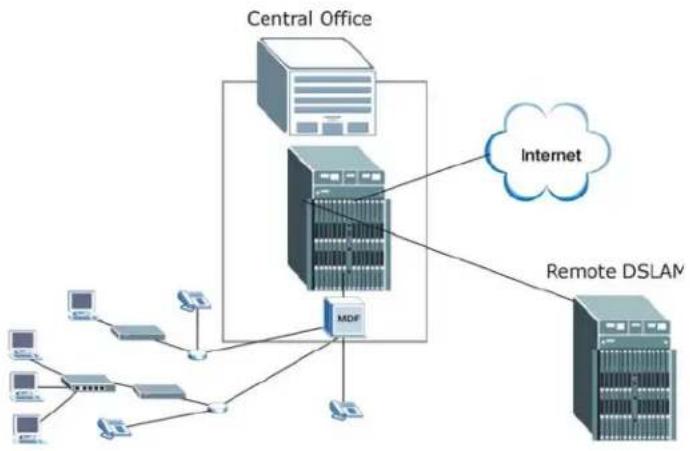
The IES-6000 provides DSL and voice service over telephone wires to subscribers. The following figure shows the IES-6000 setup in a telephone company's central office.
Figure 2 Application: Central Office
flowchart
graph TD
    A["Central Office"] --> B["Internet"]
    A --> C["Remote DSLAM"]
    D["MDIF"] --> E["Client 1"]
    D --> F["Client 2"]
    D --> G["Client 3"]
    D --> H["Client 4"]
    D --> I["Client 5"]
    D --> J["Client 6"]
    D --> K["Client 7"]
    D --> L["Client 8"]
    D --> M["Client 9"]
    D --> N["Client 10"]
1.3 Front Panel
The following figures show the front panel of the IES-6000M with cards installed.
Figure 3 IES-6000M Front Panel

natural_image
Front view of a ZyxEL IES-6000 server rack unit with multiple drive bays and indicator lights (no readable text or symbols)PART II
Installation and Connections
Hardware Installation and Connections (27)
Hardware Installation and Connections
This chapter describes how to install and connect the IES-6000M and line cards.
2.1 General Installation Instructions
Perform the installation as follows:
- Make sure the IES-6000's power switches are in the OFF position.
• Install the main chassis as detailed in this chapter. Make sure you connect the frame grounds before you make any other connections. - If line cards are not already installed, follow the procedure in the next section to install them.
- Refer to Section 2.4.4 on page 42 for instructions on making connections with Telco-50 connectors.
• Refer to Section 2.5 on page 51 for instructions on making alarm connections. - Refer to Section 2.6 on page 53 for instructions on making power connections and turning on the IES-6000.
2.2 Main Chassis Installation
This section explains how to install the main chassis on a rack. If you are installing the main chassis without a splitter chassis, you can install the main chassis on a desktop instead.
2.2.1 Rack-mounted Installation Requirements
Make sure the rack will safely support the combined weight of all the equipment it contains.
- Use a #2 Phillips screwdriver to install the screws.
- Refer to Appendix A on page 71 for the gauge of wire to use for the frame ground connections.
- Refer to Appendix A on page 71 for the IES-600M's dimensions, weights and power consumption.

Failure to use the proper screws may damage the unit.
2.2.2 Mounting the IES-6000M on a Rack
- Make sure that nothing obstructs the airflow of the main chassis.
- If you are facing the IES-6000M front panel, the fan intake vents are located on the bottom of the front and side panels of the unit. The fan exhaust vents are located on the top of the front and side panels, right above the fan module.
Figure 4 Main Chassis Airflow

natural_image
Technical line drawing of a mechanical or electrical enclosure with internal channels and directional arrows indicating flow or movement (no text or symbols present)Use the following procedure to install the main chassis in the rack.

Install the main chassis and splitter chassis in a rack with the splitter chassis directly below the main chassis.

If you are using a single management card in the main chassis, install the IES-3016ST splitter chassis (which provides 16 splitter or extension card slots). If you are using two management cards in the main chassis, install the IES-3000ST splitter chassis (which provides 15 splitter or extension card slots).
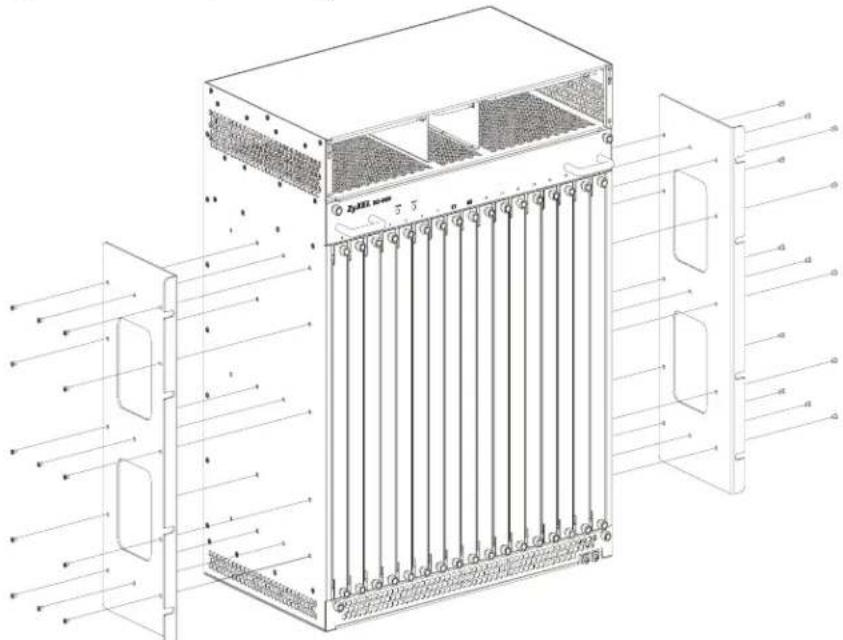
1 Position a mounting bracket on one side of the chassis, making sure the screw holes on the bracket are on the same side as the front panel of the main chassis.
2 Use the screwdriver to install the screws through the mounting bracket holes into the main chassis.
3 Repeat steps 1-2 to attach the second mounting bracket on the other side of the main chassis.
Figure 5 Attaching Mounting Brackets to the Main Chassis
text_image
Technical diagram of a server rack unit with labeled components and directional arrows indicating flow or movement.4 Position a mounting bracket (that is already attached to the main chassis) on one side of the rack, lining up the screw holes on the bracket with the screw holes on the side of the rack.
5 Use the screwdriver to install the screws through the mounting bracket holes into the rack.
6 Repeat steps 4-5 to attach the second mounting bracket on the other side of the rack.
2.2.3 Connecting the Frame Ground
Refer to Appendix A on page 71 for the ground wire gauge.
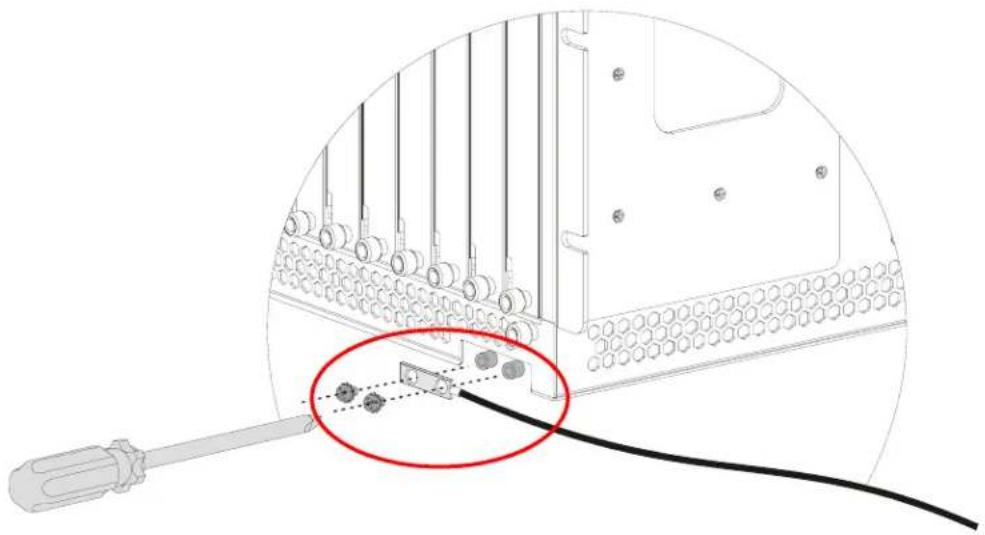
- The IES-6000M frame ground is on the lower right corner of the front panel.
-
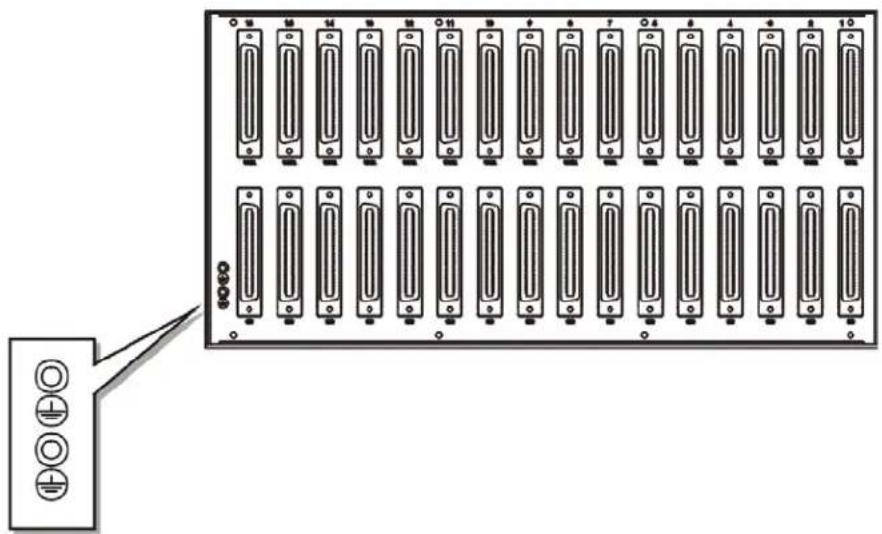
The IES-3000ST frame ground is near the lower left corner of the rear panel.
-
The IES-3016ST frame ground is near the lower left corner of the rear panel.
- Connect the frame grounds to a building's protective earthing terminals using a green-and-yellow frame ground wire.

Warning! Connect the frame ground before you connect any other cables or wiring.
Figure 6 Main Chassis Frame Ground
natural_image
Diagram of a computer monitor with cable and connector, showing internal components and a magnified view (no text or symbols)Figure 7 Splitter Chassis Frame Ground
natural_image
Front view of a rack-mounted server rack with multiple ports and indicator lights, no visible text or labels2.3 Card Installation
This section shows you how to install and remove line cards.
• Install management switch cards in slot 8 and/or 9 on the IES-6000. You can use either slot if there is only one management switch card.
• Install the line cards in the IES-6000 in the other slots.
- Leave the slot covers on unused slots.
2.3.1 Installing MSC and Line Cards
Use the following procedure to install management switch cards and line cards in the main chassis.
1 Grasp the center of the front panel of the card with one hand and place the other hand under the card to support it.
2 Insert the card halfway into the slot and spread the two ejector levers outward. Make sure the ejector levers are perpendicular to the front panel.
3 Slide the card into the slot until it makes contact with the backplane. The ejector levers should be at a small angle to the front panel now.
4 Push the two ejector levers firmly until they are flush with the front panel.
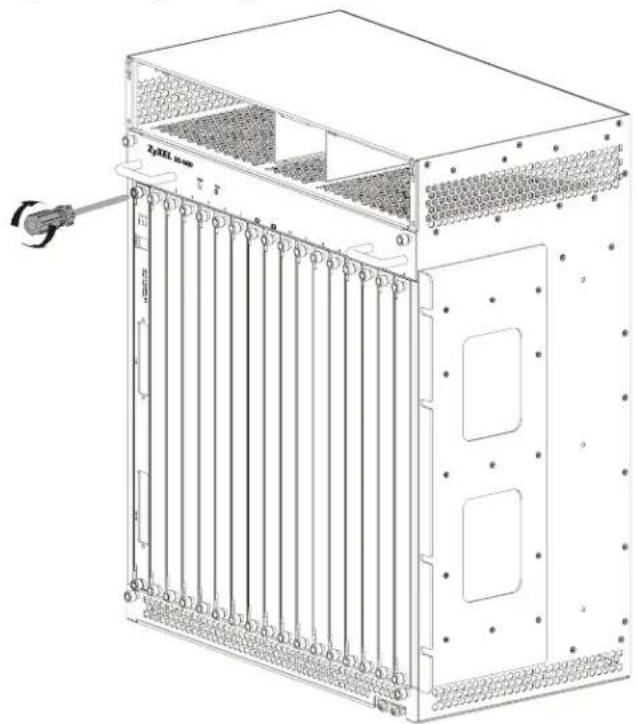
5 Tighten the two thumbscrews.
Figure 8 Installing a Card

natural_image
Technical line drawing of a server rack unit with open door and cooling fins (no text or symbols)Figure 9 Closing the Ejector Levers

natural_image
Technical line drawing of a server rack unit with ventilation grilles and mounting holes (no text or symbols)Figure 10 Tightening Card Thumbscrews
natural_image
Technical line drawing of a server rack unit with cooling fins and ventilation slots (no text or symbols)2.3.2 Removing MSC and Line Cards
Use the following procedure to remove management switch cards and line cards from the main chassis.
1 Disconnect all cables from the card.
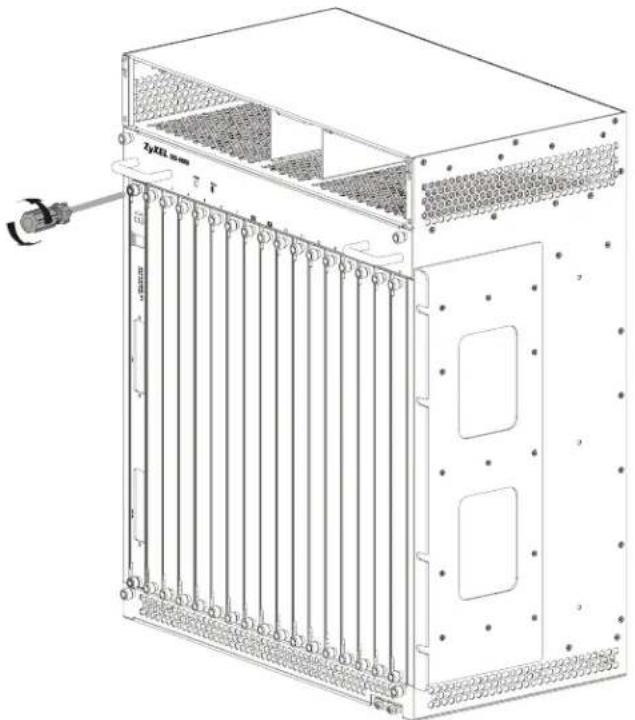
2 Loosen the two thumbscrews.
3 Pull the two ejector levers firmly until the front of the card is clear of the main chassis. Pull the ejector levers until they are perpendicular to the front panel.
4 Grasp the center of the front panel of the card with one hand and place the other hand under the card to support it.
5 Slide the card out of the slot.
Figure 11 Loosening Card Thumbscrews
natural_image
Technical line drawing of a server rack unit with ventilation grilles and mounting holes (no text or symbols)Figure 12 Opening the Ejector Levers

natural_image
Technical line drawing of a server rack unit with cooling fins and ventilation grilles (no text or symbols)Figure 13 Removing a Main Chassis Card

natural_image
Technical line drawing of a server rack unit with visible cooling fins and ventilation grilles (no text or symbols)2.3.3 Installing a Splitter Chassis Card
The splitter card's type and slot must match those of the line card to which it is to connect. For example, install ASC1024 cards in the slots below an ALC line card in the main chassis (see Figure 18 on page 38). Use the SEC1024 extension card with the VOP1248G VoIP line card. Leave the slot covers on unused splitter slots.
Use the following procedure to install a splitter or extension card in the splitter chassis.
1 If there is one splitter chassis below the main IES-6000 main chassis, install a line card's splitter or extension cards below the line card and in adjacent slots (a management switch card does not need a splitter chassis card).
If there are two splitter chassis below the main IES-6000 main chassis, install the splitter or extension cards in the splitter chassis slots that correspond to the slot number of the line card in the main chassis.
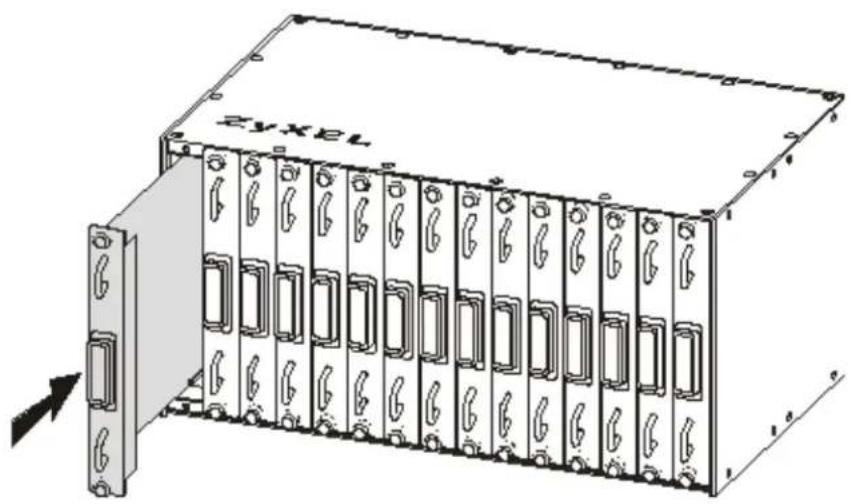
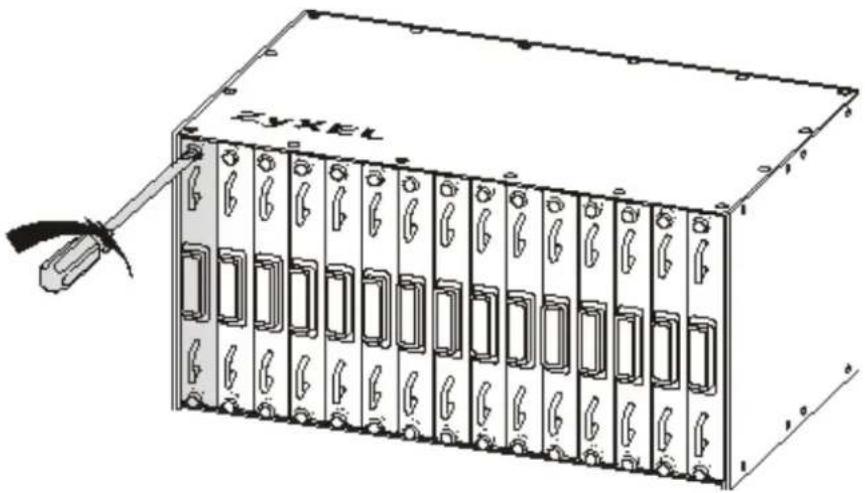
2 Grasp the center of the front panel of the card with one hand and place the other hand under the card to support it.
3 Insert the card into the slot and push it in until the front panel of the card is flush with the front panel of the splitter chassis.
4 Tighten the two thumbscrews.
Figure 14 Installing a Splitter Chassis Card
natural_image
Technical line drawing of a server rack unit with multiple ports and mounting brackets (no text or symbols)Figure 15 Tightening Splitter Chassis Card Thumbscrews
natural_image
Illustration of a server rack unit with multiple ports and a cable inserted, no text or symbols present.2.3.4 Removing a Splitter Chassis Card
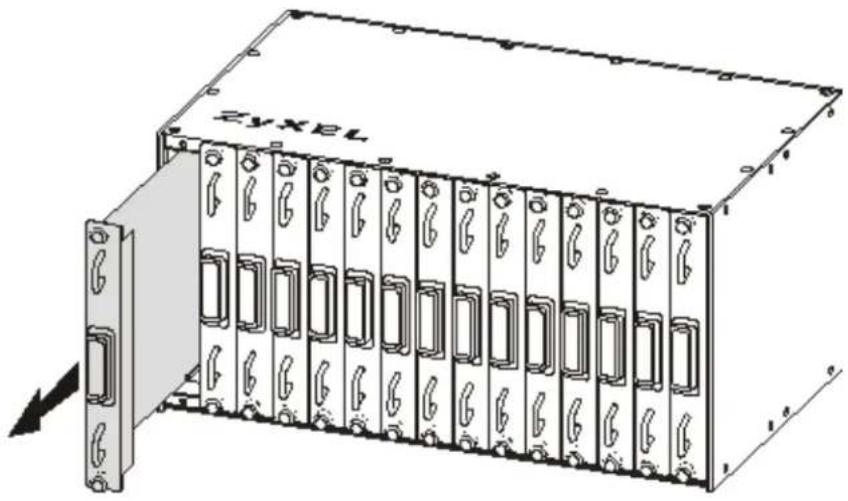
Use the following procedure to remove a splitter or extension card from the splitter chassis.
1 Disconnect the cable from the card.
2 Loosen the two thumbscrews.
3 Grasp the handles on the front panel of the card and start to pull the card out.
4 After you have the card partially out of the splitter chassis, place one hand under the card to support it.
5 Slide the card out of the slot.
Figure 16 Loosening Splitter Chassis Card Thumbscrews

text_image
ZYXELFigure 17 Removing a Splitter Chassis Card
natural_image
Technical line drawing of a server rack unit with labeled 'ZYXEL' on top panel (no other text or symbols)2.4 Making Card Connections
The following describes how to connect the line cards to the splitter chassis cards. For the management switch card, refer to the card's User's Guide for instructions on making the connections.
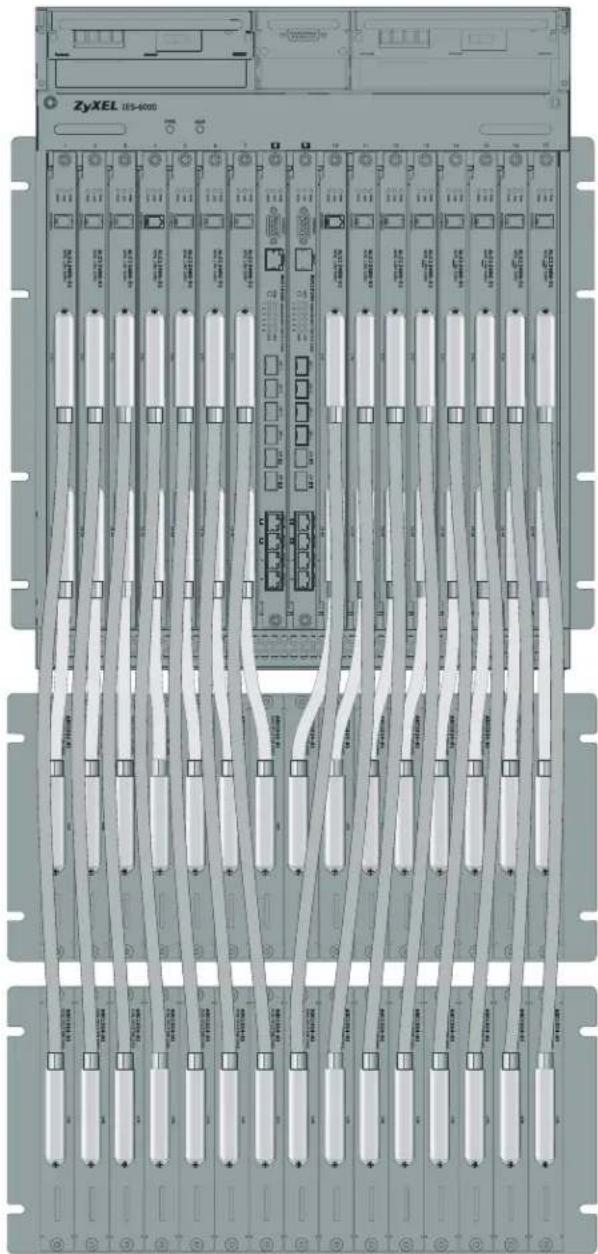
Use a Telco-50 cable to connect the line card's front panel Telco-50 connector to the corresponding splitter or extension card's front panel Telco-50 connector. Make sure that you use the appropriate length Telco-50 cables with the line cards, as using cables of the wrong length blocks access to other cards. See Appendix A on page 71 for the lengths of ZyXEL's optional Telco-50 cables.
Follow these directions if there is one splitter chassis below the IES-6000M main chassis.
- Use a short Telco-50 cable to connect a line card's 25-48 Telco-50 connector to the Telco-50 connector on the corresponding splitter or extension card.
- Use a long Telco-50 cable to connect a line card's 1-24 Telco-50 connector to the Telco-50 connector on the corresponding splitter or extension card.
Follow these directions if there are two splitter chassis below the IES-6000M main chassis.
- Use a short Telco-50 cable to connect a line card's 25-48 Telco-50 connector to the Telco-50 connector on the corresponding splitter card of the upper splitter chassis.
- Use a long Telco-50 cable to connect a line card's 1-24 Telco-50 connector to the Telco-50 connector on the corresponding splitter card of the lower splitter chassis.
Figure 18 IES-6000 Front Panel Telco-50 Connections (2 Splitter Chassis)
natural_image
Front view of a server rack unit with multiple ports and connectors (no visible text or labels)2.4.1 VoIP Line Card Telco-50 Connections
When you use a VoIP line card in conjunction with an ADSL or VDSL card, place the VoIP card and its extension cards in the chassis directly adjacent to the DSL card and its splitter cards, as shown in the following figure (this example uses the ALC line card and ASC1024 splitter).
Figure 19 IES-6000 DSL and VoIP Front Panel Telco-50 Connections (2 Splitter Chassis)

text_image
ALC1248G VOP1248G ASC1024 SEC1024 ASC1024 SEC1024Use a Telco-50 cable to connect the SEC1024's USER Telco-50 connector on the rear of the splitter chassis to the CO Telco-50 connector on the rear of an ADSL or VDSL splitter card.
Alternatively, use a Telco-50 cable to connect the SEC1024s USER Telco-50 connector directly to the Main Distribution Frame when no ADSL/VDSL service is required (see Section 2.4.3 on page 40).
2.4.2 Splitter Chassis Rear Panel Connections (DSL)
A DSL splitter card separates the voice signal from the DSL signal. It feeds the DSL signals to the DSL line card and diverts the voice signal to the CO Telco-50 connector (or wire wrapping pins) on the splitter chassis' rear.
Connect the CO Telco-50 connectors to the PBX or PSTN/ISDN switch when using the ADSL splitter card.
Connect the USER Telco-50 connectors to the subscribers' telephone wiring. In most multi-tenant unit applications, the USER pins connect to the subscribers' telephone wiring via Main Distribution Frame (MDF).
See Section 2.4.8 on page 43 for example splitter chassis rear panel connections.
2.4.3 Splitter Chassis Rear Panel Connections (VoIP)
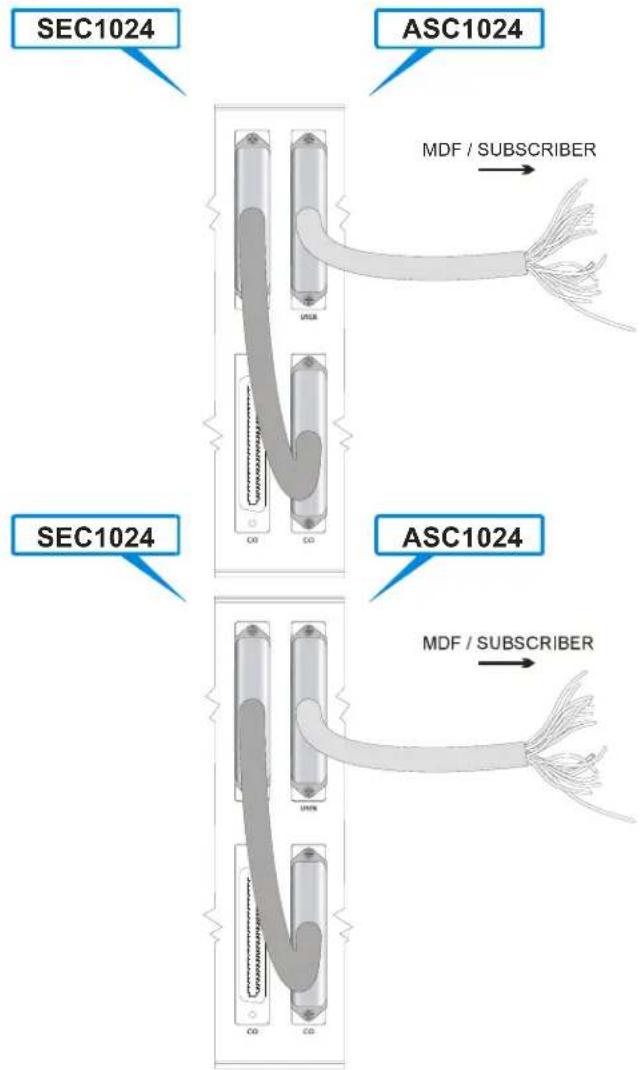
When using the VoIP line card in conjunction with an ADSL or VDSL card and its associated splitter card(s), connect the VoIP line card's extension card(s) and the DSL splitter card(s) as follows.

Use 180-degree Telco-50 cables for VoIP rear panel connections (see Appendix A on page 71 for information on 180-degree Telco-50 cable length).
Figure 20 IES-6000 DSL and VoIP Rear Panel Telco-50 Connections (2 Splitter Chassis)
flowchart
graph TD
    A["SEC1024"] --> B["USB Cable"]
    C["ASC1024"] --> D["USB Cable"]
    B --> E["MDF / SUBSCRIBER"]
    D --> F["MDF / SUBSCRIBER"]
    G["SEC1024"] --> H["USB Cable"]
    I["ASC1024"] --> J["MDF / SUBSCRIBER"]
- Connect the USER Telco-50 connector from the extension card attached to the VoIP line card's 1 \~ 24 ports to the CO Telco-50 connector of the splitter card attached to the DSL line card's 1 \~ 24 ports.
- Connect the USER Telco-50 connector from the extension card attached to the VoIP line card's 25 \~ 48 ports to the CO Telco-50 connector of the splitter card attached to the DSL line card's 25 \~ 48 ports.
When you do not use the VoIP line card in conjunction with a DSL splitter card, connect the USER Telco-50 connectors to the subscribers' telephone wiring. In most multi-tenant unit applications, the USER pins connect to the subscribers' telephone wiring via a Main Distribution Frame (MDF).
2.4.4 MDF Connections
This section shows you how to connect the IES-3000ST or IES-3016ST splitter chassis to a Main Distribution Frame (MDF).
2.4.5 MDF Connections Overview
Observe the following before you start:
• Refer to Appendix A on page 71 for the gauge of telephone wire to use.
- Follow the pin assignments shown in the line card User's Guide to wire Telco-50 cables to Telco-50 connectors.
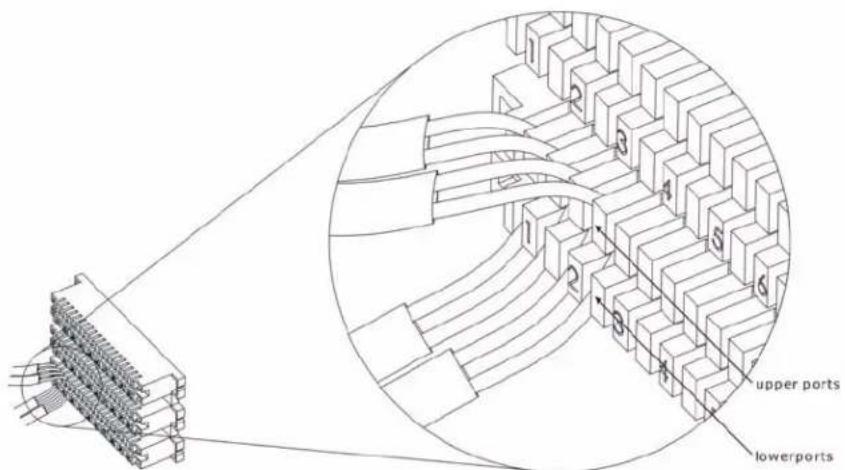
2.4.6 MDF (Main Distribution Frame)
An MDF is usually installed between subscribers' equipment and the telephone company (CO) in a basement or telephone room. The MDF is the point of termination for the outside telephone company lines coming into a building and the telephone wiring in the building.
Figure 21 MDF (Main Distribution Frame) Wiring
text_image
upper ports lowerports- Connect wiring to end-user equipment to the lower ports of an MDF and connect wiring from the telephone company to the upper ports of an MDF (see the previous figure).
- Some MDFs have surge protection circuitry built in between the two banks; thus, do not connect telephone wires from the telephone company directly to your IES-6000.
- Use a punch-down tool to seat telephone lines into MDF blocks.
2.4.7 Telco-50 Cables
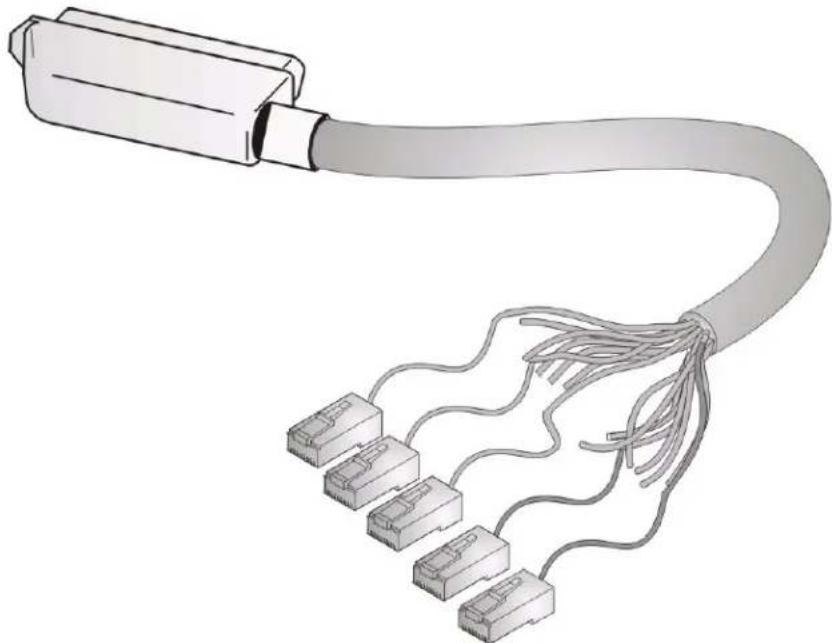
Telco-50 cables are used for data and voice applications with MDFs (Main Distribution Frame), patch panels and distribution boxes. They can also be used as extension cables. Telco-50 cables are made up of 25 twisted-pair copper wires.
Connect a Telco-50 connector to one end of the cable (see the User's Guide for the individual line card for pin assignments) and connect the other end directly to an MDF. Alternatively, attach RJ-11 connectors and connect directly to DSL modems or telephones.

The cable shown below uses a 90-degree Telco-50 connector, where the cable extends from the side of the connector (at ninety degrees to the port). For rear-panel splitter chassis connections using the VOP-1248G VoIP line card, use a 180-degree Telco-50 connector (where the cable extends from the base of the connector directly opposite the port).
Figure 22 Telco-50 Cable with RJ-11 Connectors
natural_image
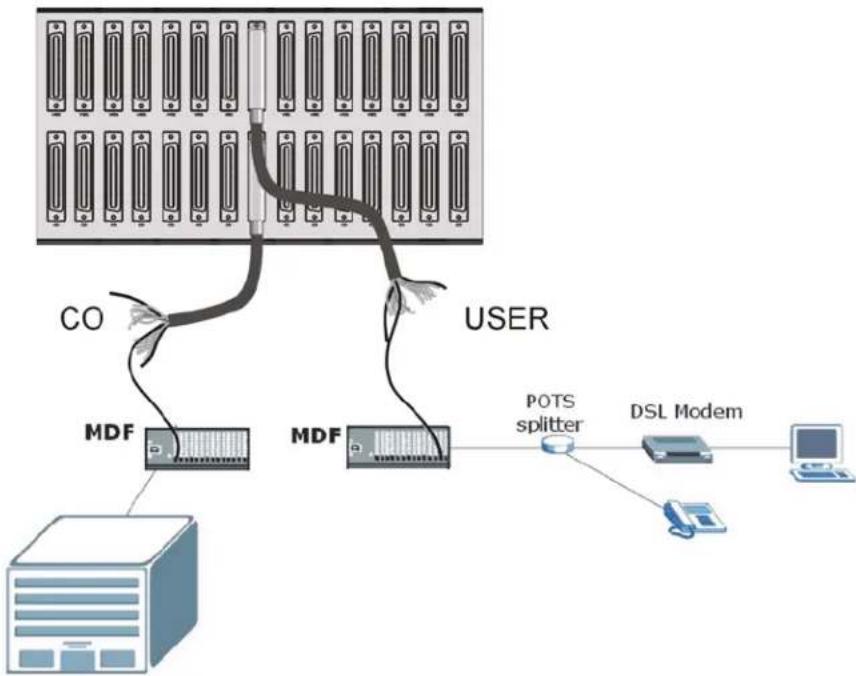
Illustration of a USB cable with multiple connector pins (no text or symbols)2.4.8 MDF Connection Scenarios
The following figure gives an overview of possible scenarios for the IES-6000 using the line cards and splitter cards. Data and voice signals can coexist on the same telephone wiring.
Figure 23 Installation Overview Example
flowchart
graph TD
    A["Server"] -->|CO| B["MDF"]
    B --> C["User"]
    C --> D["MDF"]
    D --> E["POTS splitter"]
    E --> F["DSL Modem"]
    F --> G["Computer"]
    style A fill:#f9f,stroke:#333
    style B fill:#ccf,stroke:#333
    style C fill:#cfc,stroke:#333
    style D fill:#fcc,stroke:#333
    style E fill:#cff,stroke:#333
    style F fill:#ffc,stroke:#333
    style G fill:#cfc,stroke:#333
You can also attach RJ-11 connectors to the Telco-50 cable and connect directly to a DSL modem(s) or patch panel. The following sections describe typical installation scenarios.
2.4.8.1 MDF Installation Scenario A
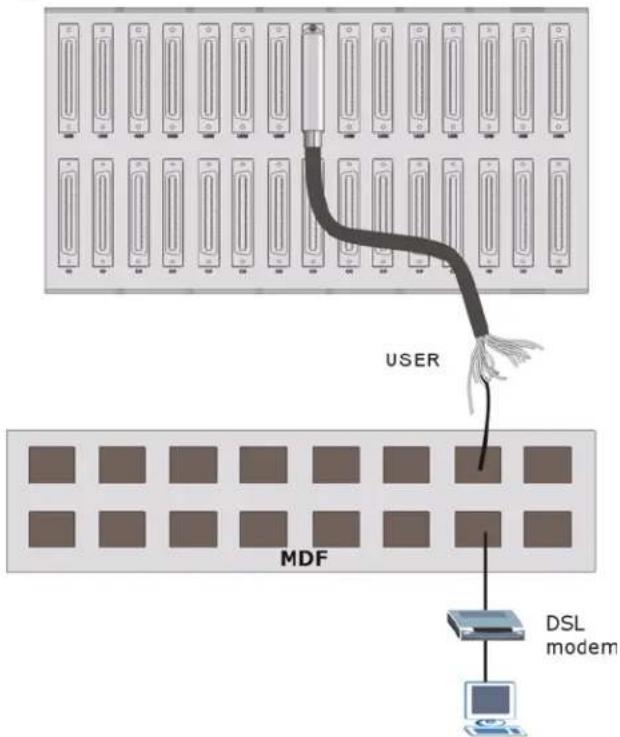
You want to install the IES-6000 in an environment where there are no previously installed MDFs. There is no phone service and you want to install the IES-6000 for data-access only. No connection from the Telco-50 CO connector is necessary. G.SHDSL connections carry data only, thus they are best suited to this installation scenario.
You may connect using an MDF or attach RJ-11 connectors to the non-IES-6000 end of the Telco-50 cable and then connect to DSL modems directly.
Figure 24 Installation Scenario A
text_image
USER MDF DSL modemUse the following procedure for this MDF installation scenario.
1 Connect the Telco-50 connector end of the cable to the Telco-50 connector labeled USER.
2 Connect the wiring on the other end of the Telco-50 cable to the upper ports of the MDF using a punch-down tool.
3 Connect the telephone wiring from each end-user's DSL modem to the lower ports of the MDF.
2.4.8.2 Installation Scenario B
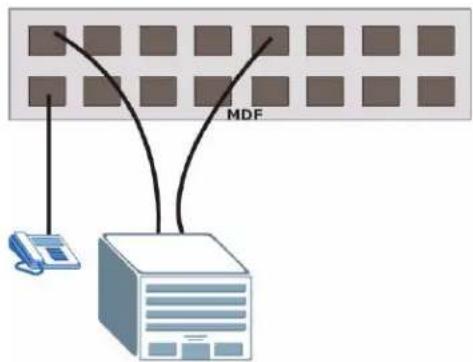
Phone service is available. There is one MDF from which end-users CO connections are made (see next figure). This installation scenario does not apply to G.SHDSL connections.
Figure 25 One MDF for End-user and CO Connections
flowchart
graph TD
    A["Server"] -->|MDF| B["Grid"]
    C["Client"] -->|MDF| B
    B --> D["Database"]
    style A fill:#f9f,stroke:#333
    style C fill:#bbf,stroke:#333
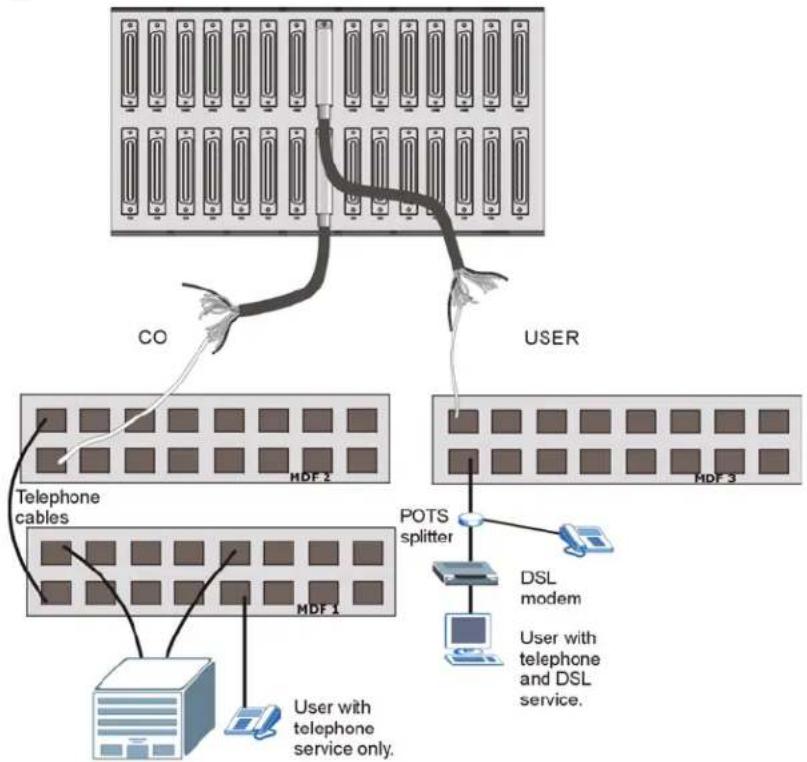
This installation scenario requires three MDFs. Please refer to the following figure for the connection schema.
- MDF 1 is the original MDF used for telephone connections only.
- MDF 2 is used for telephone connections only.
- MDF 3 is for DSL service connections.

Change the wiring from MDF 1 to MDF 3 for telephone subscribers who want DSL service.
Figure 26 Installation Scenario B
flowchart
graph TD
    A["User with telephone service only."] --> B["Telephone cables"]
    B --> C["CO"]
    C --> D["User"]
    D --> E["MDF1"]
    E --> F["POTS splitter"]
    F --> G["DSL modem"]
    G --> H["User with telephone and DSL service."]
    style A fill:#f9f,stroke:#333
    style B fill:#ccf,stroke:#333
    style C fill:#cfc,stroke:#333
    style D fill:#fcc,stroke:#333
    style E fill:#cff,stroke:#333
    style F fill:#ffc,stroke:#333
    style G fill:#cfc,stroke:#333
    style H fill:#fcc,stroke:#333
Use the following procedure for this MDF installation scenario.
1 Connect the Telco-50 connector end of the cable you want for DSL service to the Telco-50 connector labeled USER on the splitter chassis rear panel.
2 Connect the wiring on the other side of the Telco-50 cable to the upper ports of MDF 3 using a punch-down tool.
3 Connect the telephone wiring from the end-user's DSL modem(s) to the lower ports of MDF 3.
4 Connect the Telco-50 connector end of the cable you want for phone service to the Telco-50 connector labeled CO on the splitter chassis rear panel.
5 Connect the wiring on the other side of the Telco-50 cable to the lower ports of MDF 2 using a punch-down tool.
6 Connect the upper ports of MDF 2 to the lower ports of MDF 1 using telephone wires.
7 Connect the upper ports of MDF 1 to the telephone company.
8 Telephone subscribers only (non-DSL subscribers) retain connections to the lower ports of MDF 1.
9 Change the wiring from MDF 1 to MDF 3 for telephone subscribers who want DSL service.
2.4.8.3 Installation Scenario C
Phone service is also available but there are two MDFs; one for end-user telephone line connections and the other one for CO telephone wiring connections (see the following figure). This installation scenario does not apply to G.SHDSL connections.

Users A and B have telephone (only) service.
Figure 27 Two Separate MDFs for End-user and CO Connections

flowchart
graph TD
    subgraph_User_A["User A"]
        A["Server"] -->|A| MDE1["MDE 1"]
        MDE1 -->|B| MDE2["MDE 2"]
        MDE2 -->|B| User_B["User B"]
    end
    style User_A fill:#f9f,stroke:#333
    style User_B fill:#bbf,stroke:#333
    style MDE1 fill:#dfd,stroke:#333
    style MDE2 fill:#dfd,stroke:#333
This installation scenario requires four MDFs. Please refer to the following figure for the DSL connection schema.
- MDFs 1 and 2 are the two original MDFs.
- MDFs 3 and 4 are two additional MDFs you need.

User A still has telephone service only. User B now has telephone and DSL service (see the following figure)
Figure 28 Installation Scenario C

flowchart
graph TD
    A["Server Rack"] -->|CO| B["User"]
    A -->|MDF 4| C["Telephone cables"]
    A -->|MDF 3| D["User with telephone service only."]
    A -->|MDF 2| E["User with telephone and DSL service"]
    F["POTS splitter DSL modem"] --> G["User with telephone and DSL service"]
    style A fill:#f9f,stroke:#333
    style B fill:#ccf,stroke:#333
    style C fill:#cfc,stroke:#333
    style D fill:#cfc,stroke:#333
    style E fill:#cfc,stroke:#333
    style F fill:#fcc,stroke:#333
    style G fill:#cff,stroke:#333
Use the following procedure for this MDF installation scenario.
1 Connect the Telco-50 connector end of the cable you want for DSL service to the Telco-50 connector labeled USER on the splitter chassis rear panel.
2 Connect the wiring on the other side of the Telco-50 cable to the upper ports of MDF 3 using a punch-down tool.
3 Connect the lower ports of MDF 3 to the upper ports of MDF 2 for those users that want DSL service. (Users who want telephone service only, retain the original connection from the top port of MDF 2 to the bottom port of MDF 1.)
4 Connect the telephone wiring from the end-user's DSL equipment to the lower ports of MDF 2.
5 Connect the Telco-50 connector end of the cable you want for phone service to the Telco-50 connector labeled CO on the splitter chassis rear panel.
6 Connect the wiring on the other side of the Telco-50 cable to the lower ports of MDF 4 using a punch-down tool.
7 Connect the top ports of MDF 4 to the bottom ports of MDF 1 using telephone wires.
8 Connect the top ports of MDF 1 to the telephone company.
2.4.9 VoIP Connection Scenarios
These scenarios describe how to use the VOP1248G VoIP line card to provide voice service to your subscribers.
2.4.9.1 VoIP Installation Scenario A
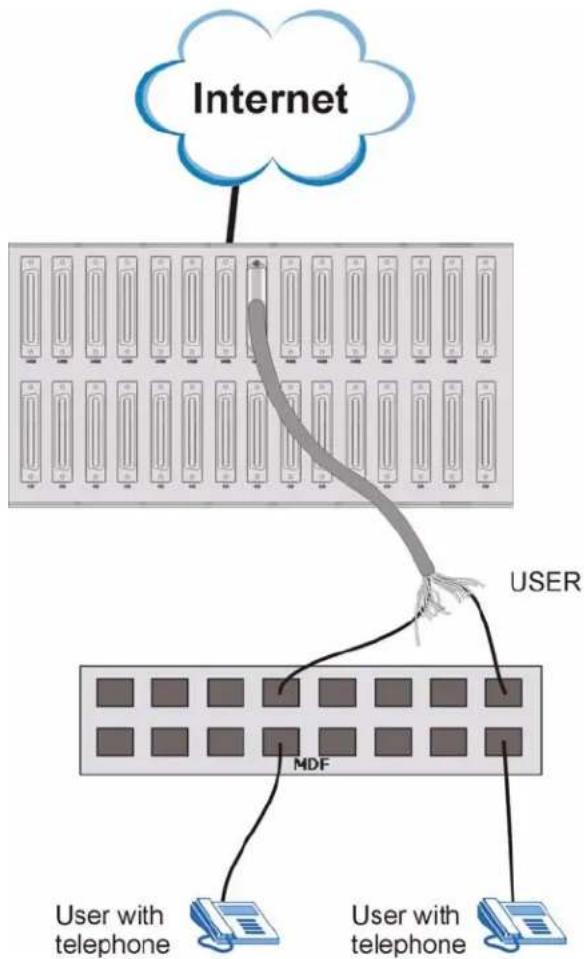
In this installation scenario, you use a VoIP line card, an SEC1024 extension card and an MDF to provide voice service over the Internet to your subscribers.
Figure 29 VoIP Connection Scenario A
flowchart
graph TD
    A["Internet"] --> B["User"]
    B --> C["MDF"]
    C --> D["User with telephone"]
    C --> E["User with telephone"]
    B --> F["User with telephone"]
    style A fill:#f9f,stroke:#333
    style B fill:#ccf,stroke:#333
    style C fill:#cfc,stroke:#333
    style D fill:#fcc,stroke:#333
    style E fill:#fcc,stroke:#333
Use the following procedure for this installation scenario.
1 Connect the Telco-50 connector end of the cable you want to use for voice service to the Telco-50 connector labeled USER on the splitter chassis rear panel.
2 Connect the wiring on the other side of the Telco-50 cable to the upper ports of the MDF using a punch-down tool.
3 Connect the telephone wiring from the end-user's POTS telephone equipment to the lower ports of the MDF.
2.4.9.2 VoIP Installation Scenario B
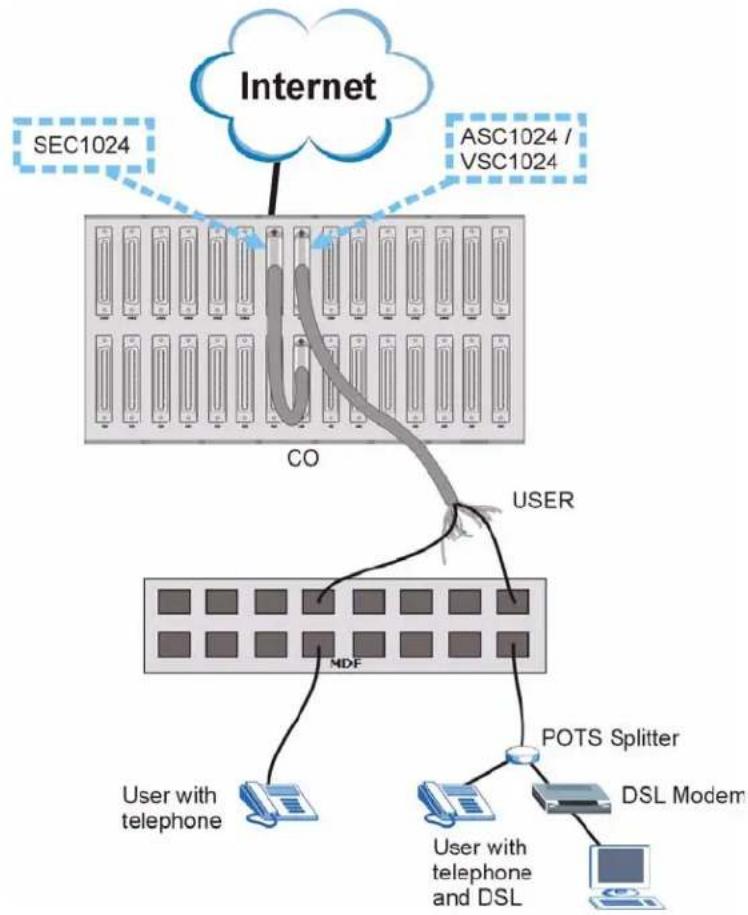
In this installation scenario, you use a VoIP line card and an SEC1024 extension card in conjunction with a DSL line card, its associated splitter card and an MDF to provide voice service over the Internet and DSL Internet access to certain subscribers (a DSL line card port is reserved for each user even if the user does not subscribe to DSL). See Section 2.4.1 on page 38 and Section 2.4.3 on page 40 for more information on using the VOP1248G in conjunction with DSL line cards. This installation scenario does not apply to G.SHDSL connections.
Figure 30 VoIP Connection Scenario B
flowchart
graph TD
    A["Internet"] -->|SEC1024| B["CO"]
    A -->|ASC1024 / VSC1024| C["USER"]
    B --> D["MDF"]
    D --> E["User with telephone"]
    D --> F["POTS Splitter"]
    F --> G["User with telephone and DSL"]
    F --> H["DSL Modem"]
Use the following procedure for this installation scenario.
1 Connect the Telco-50 connector end of the cable you want to use for voice and data service to the Telco-50 connector labeled USER on the DSL splitter card's rear panel.
2 Connect the wiring on the other end of the Telco-50 cable to the upper ports of the MDF using a punch-down tool.
3 Connect the telephone wiring from the end-user's DSL and POTS equipment to the lower ports of the MDF.
4 Using another Telco-50 cable, connect the CO port on the DSL splitter card to the USER port on the SEC1024 extension card.
5 Connect the Telco-50 port on the front of the DSL splitter card to the 1 \~ 24 port on the front of the DSL line card.
6 Connect the Telco-50 port on the front of the SEC extension card to the 1 \~ 24 port on the front of the VoIP line card.
2.5 Alarm Module
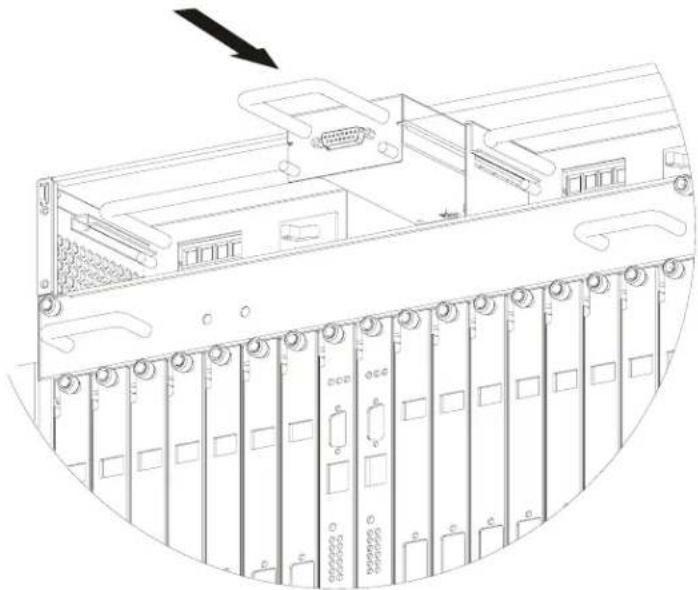
The DB-15 ALARM port is located between the power modules at the top of the front panel. It is used for connecting to alarm input and alarm output terminals on other pieces of equipment.
2.5.1 Installing the Alarm Module
Use the following procedure to install the alarm module in the main chassis.
1 Insert the alarm module into the slot, putting it at the top of the slot, and push it in until the alarm module comes into contact with the backplane. The front of the alarm module should be well inside the front panel.
2 Use a screwdriver to tighten the alarm module screws.
Figure 31 Installing the Alarm Module
natural_image
Technical line drawing of a server rack with multiple drive bays and an attached port (no text or symbols)2.5.2 Removing the Alarm Module
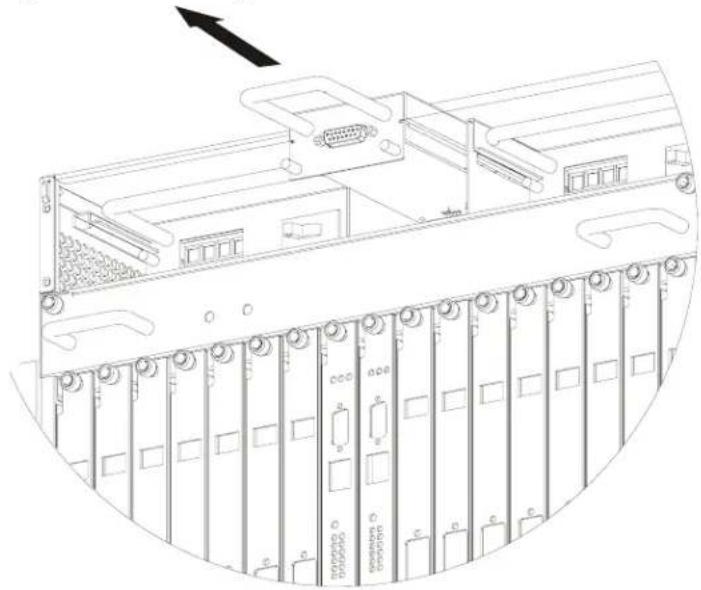
Use the following procedure to remove the alarm module from the main chassis.
1 Use a screwdriver to loosen the alarm module screws.
2 Grasp the handle on the front of the alarm module, and pull the alarm module out.
Figure 32 Removing the Alarm Module
natural_image
Technical line drawing of a server rack with multiple drive bays and an attached port (no text or symbols visible)2.5.3 Alarm Connections
This section explains the connections to the ALARM port.
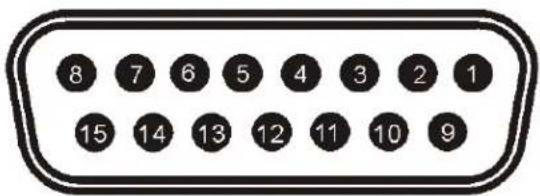
Figure 33 ALARM Connector Pin Layout
text_image
8 7 6 5 4 3 2 1 15 14 13 12 11 10 9A closed circuit on the ALARM input pins indicates an alarm.
- Pins 1 and 9 are alarm input one.
- Pins 2 and 10 are alarm input two.
- Pins 3 and 11 are alarm input three.
The IES-6000 signals an alarm when it detects an alarm on the ALARM input pins, the IES-6000 is overheated, the voltage readings are outside the tolerance levels, a fan fails, or another alarm occurs.
To signal a minor alarm, the MSC opens the circuit for pins 4 and 12 and closes the circuit for pins 5 and 12.
To signal a major alarm, the MSC opens the circuit for pins 13 and 6 and closes the circuit for pins 14 and 6.
To signal a critical alarm, the MSC opens the circuit for pins 7 and 15 and closes the circuit for pins 8 and 15.
2.6 Power Connections
Use the following procedures to connect the IES-6000 to a power source after you have installed the main chassis in a rack.

Refer to Appendix A on page 71 for power requirements and make sure you are using an appropriate power source.
Observe the following before you start:
- Refer to Appendix A on page 71 for the gauge of wire to use for the IES-6000 power connections.
- Keep the IES-6000 power switches in the OFF position until you come to procedure for turning on the power.
- Keep the power supply switch in the OFF position until you come to procedure for turning on the power.

Use only power wires of the required diameter for connecting the IES-6000 to a power supply (refer to Appendix A on page 71 for the required wire gauge).
2.6.1 Power Modules
The main chassis uses two power supply modules. These modules are hot-swappable and supply power to the line cards.
The power connections are on the front of each power module. The power modules are in the upper left and upper right corners of the front panel of the main chassis.
2.6.1.1 Procedure to Connect the Power

When installing the IES-6000 power wires, push the wires firmly into the terminals as deep as possible and make sure that no exposed (bare) wires can be seen or touched.
Use four wires to connect to each power module, two wires for the positive terminals and two wires for the negative terminals.
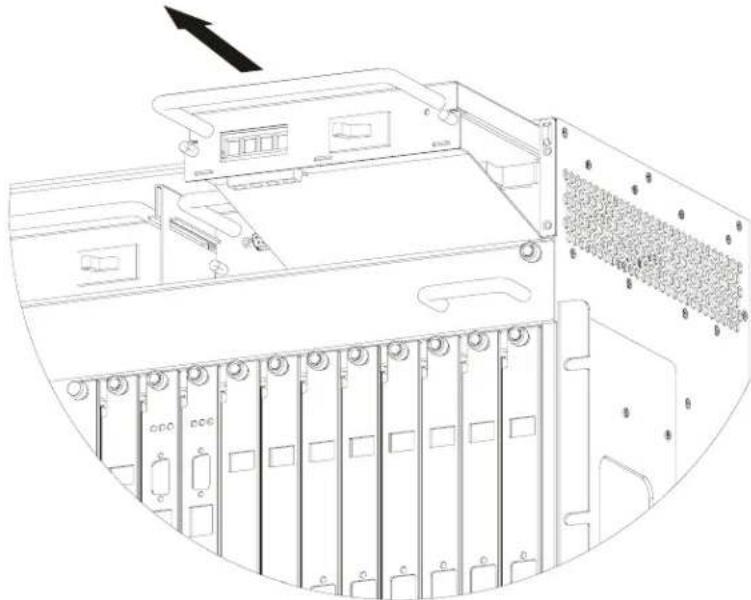
1 Use a screwdriver to loosen the power module screws.
2 Slide the power module out partially to expose the power terminal screws.
3 Connect power wires to the negative power terminals on the front of the power module, and tighten the terminal screw.
4 Connect the other ends of the power wires to the -36 V terminal on the power supply.
5 Connect power wires to the positive power terminals on the front of the IES-6000 power module, and tighten the terminal screw.
6 Connect the other ends of the power wires to the ground terminal on the power supply.
7 Push the power module back in and tighten the screws.
8 Repeat the previous steps for the second power supply module.
Figure 34 Sliding Out the IES-6000 Power Module
natural_image
Technical line drawing of a server rack with multiple drive bays and a highlighted internal partition (no text or symbols)Figure 35 Connecting the Power Wires to the IES-6000 Power Module

natural_image
Technical line drawing of a server rack with cable routing from a central tower (no text or symbols)2.7 Dressing the Power Wires and Alarm Cable
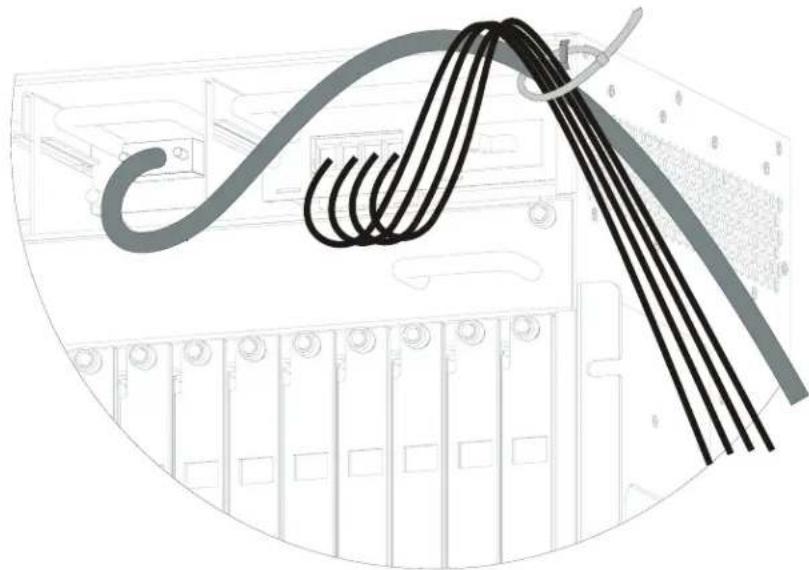
Use a cable tie to dress the power wires and the alarm cable after you connect them.
Figure 36 Dressing the Power Wires and Alarm Cable
natural_image
Illustration of a server rack with multiple black cables bundled into a rack, no text or symbols present.2.7.1 Procedure to Turn on the IES-6000 Power
1 Turn on the power supply.
2 Move the power switches on both power modules to the ON position.
PART III
Maintenance and Troubleshooting
Maintenance (59)
Hardware Troubleshooting (65)
Maintenance
This chapter describes how to perform maintenance on the system hardware.
3.1 Fan Maintenance
This section describes how to change a fan fuse or a fan module on the IES-6000.
3.1.1 Procedure to Remove and Install the Fan Module
The IES-6000M has a hot-swappable fan module. The fan module is located above the slots and below the power modules on the front panel. Replace the entire fan module if the fuse is not the problem. Return any malfunctioning fan modules to the manufacturer.
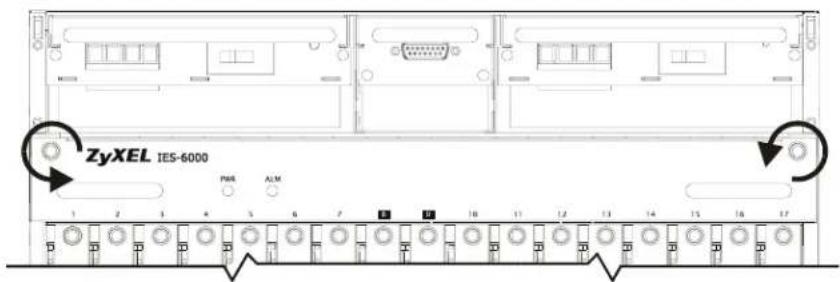
Perform the following procedure to remove the fan module in order to change a fan fuse or the fan module.
1 Loosen the thumbscrews on the front of the fan module.
2 Slide out the fan module.
3 Replace the fuse if it is burnt out (see Appendix A on page 71 for fuse information). If the fuse is not the problem, use a different fan module from the manufacturer.
4 Slide the fan module back into the fan module slot.
5 Tighten the thumbscrews.
Figure 37 Loosen the Thumbscrews on the IES-6000 Fan Module
text_image
ZyXEL IES-6000 PWR ALMFigure 38 Remove the IES-6000 Fan Module
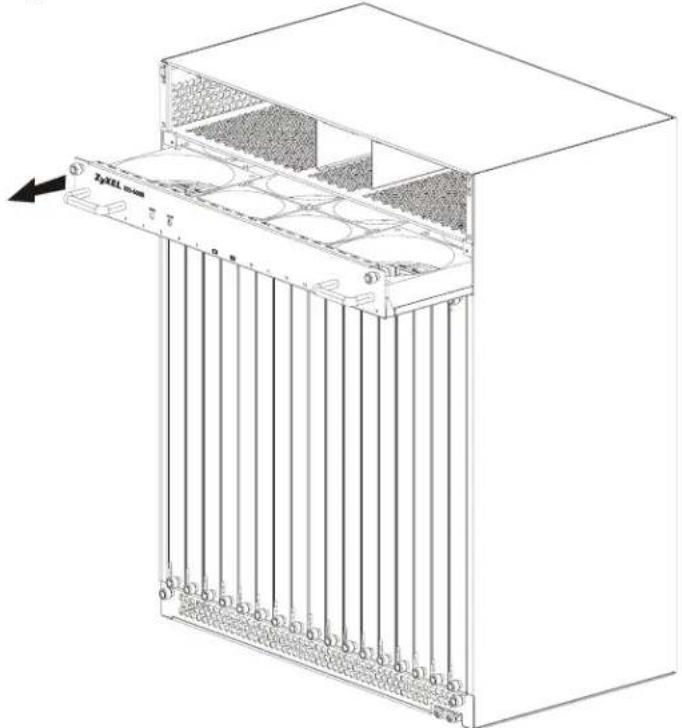
text_image
ZyXEL micro ① ② ③ ④ ⑤ ⑥ ⑦ ⑧ ⑨ ⑩ ⑪ ⑫ ⑬ ⑭ ⑮ ⑯ ⑰ ⑱ ⑲ ⑳ ㉑ ㉒ ㉓ ㉔ ㉕ ㉖ ㉗ ㉘ ㉙ ㉚ ㉛ ㉜ ㉝ ㉞ ㉟ ㉳ ㉟ ㉟a ㉟b ㉟c ㉟d ㉟e ㉟f ㉟g ㉟h ㉟i ㉟j ㉟k ㉟l ㉟m ㉟n ㉟o ㉟p ㉟q ㉟r ㉟s ㉟t ㉟u ㉟v ㉟w ㉟x ㉟y ㉟z ㉟c ㉟d ㉟e ㉟f ㉟g ㉟h ㉟i ㉟j ㉟k ㉟l ㉟m ㉟n ㉟o ㉟p ㉟q ㉟r ㉟s ㉟t ㉟u ㉟v ㉟w ㉟x ㉟y ㉟zFigure 39 IES-6000 Fan Module (Location of Fuse Indicated)
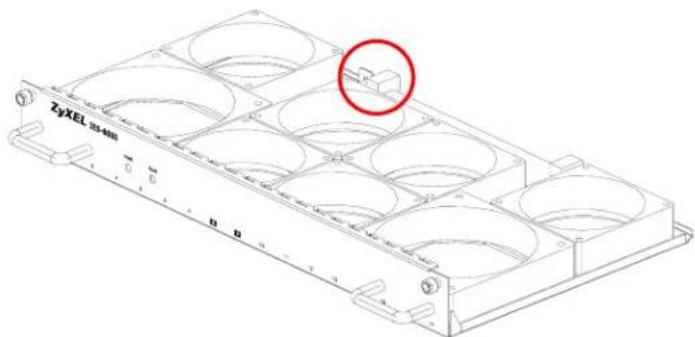
natural_image
Technical line drawing of a mechanical component with circular cavities and mounting holes (no text or symbols)3.1.2 Procedure to Remove and Install the Filters
The IES-6000M has three filters, one located at the bottom of the front panel and two located at the bottom of the two side panels. The filter on the front panel is different than the filters on the side panels, so make sure you order the correct filter(s).
To clean or replace the filter on the front panel, loosen the thumbscrews on the front of the filter, and remove the filter. Clean or replace it as necessary.
To clean or replace a filter on the side panel, you have to remove the one at the bottom of the front panel first. Then, slide out the filter along the side panel, and clean or replace it as necessary.
Figure 40 Loosen the Thumbscrews on the IES-6000 Air Filter

natural_image
Technical line drawing of a server rack unit with ventilation grilles and a sensor input (no text or symbols)Figure 41 Remove the IES-6000 Air Filters

natural_image
Technical line drawing of a server rack unit with multiple drive bays and mounting brackets (no text or symbols)3.2 Power Maintenance
This section describes how to change the power modules. The power modules have a built-in circuit breaker. Before you replace a power module, make sure the circuit breaker is not causing the problem.
3.2.1 Procedure to Disconnect the Power
The power modules are hot-swappable and can be disconnected from the power supply individually.
1 Make sure that the power module you want to disconnect has the power switch in the OFF position.
2 Turn off the power supply.
3 Disconnect the power wires from the power supply's power terminals.
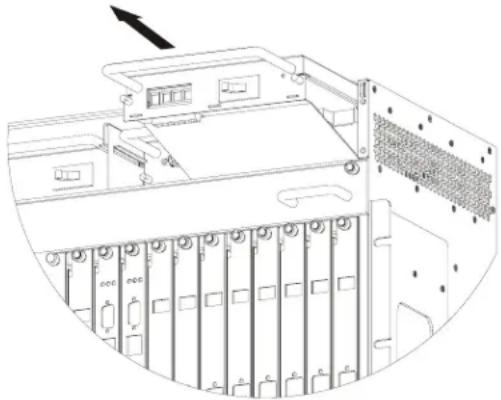
3.2.2 Procedure to Change a Power Module
The power modules are near the top of the front panel of the main chassis. Use the following procedure to change a power module.
1 Refer to Section 3.2.1 on page 62 to disconnect the power before you begin.
2 Use a screw driver to loosen the thumbscrews on the front panel of the IES-6000 power supply module.
3 Grab the handle, and slide out the power supply module.
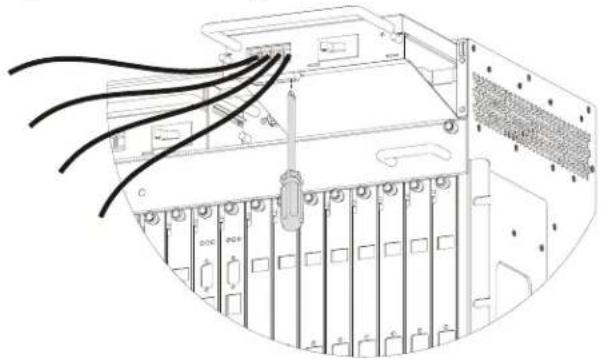
4 Disconnect the power wires from the IES-6000 power module terminals.
5 Replace the IES-6000 power module with a new one from the manufacturer.
6 Connect the power wires to the new IES-6000 power module's power terminals.
7 Slide the IES-6000 power module back into the power module slot.
8 Tighten the thumbscrews.
9 Refer to Section 3.2.3 on page 63 to reconnect the power after you finish.
Figure 42 Sliding Out the IES-6000 Power Module
natural_image
Technical line drawing of a computer tower rear panel with drive bays and ventilation slots (no text or symbols)Figure 43 Connecting the Power Wires to the IES-6000 Power Module
natural_image
Technical line drawing of a server rack with multiple cable connectors and ventilation slots (no text or symbols)3.2.3 Procedure to Reconnect the Power
1 Reconnect the power wires to the power supply terminals.
2 Turn the power supply back on.
3 Turn the IES-6000 power module switch back to the ON position.
Hardware Troubleshooting
This chapter explains how to troubleshoot the system hardware.
4.1 The PWR LED Does Not Turn On or Is Blinking
The PWR light blinks if the input power for the fans is not stable and is off if there is no input power. The PWR light stays on if the input for the fans is normal.
Table 1 PWR LED Troubleshooting
| STEP CORRECTIVE ACTION |
| 1 Make sure the power wires are properly connected to the power supply and the power supply is operating normally. Make sure you are using the correct power source (refer to Appendix A on page 71). Make sure the power supply modules are turned ON. Refer to Section 3.2 on page 62. |
| 3 The LED itself, the fan module, or the unit may be faulty; contact your vendor. |
4.2 The ALM LED Is On
The ALM LED is on when at least one fan has failed in the fan module. Working fans emit a low buzz and blow air. If the fans are not working properly, refer to Section 3.1 on page 59 for instructions on changing a fuse or changing the fan module.
4.3 No Voice on an ADSL Connection
The ADSL line cards allow the telephone wiring used for DSL connections to also simultaneously carry normal voice conversations.
Table 2 Voice Troubleshooting
| STEP CORRECTIVE ACTION | |
| 1 Make sure the subscriber has a POTS splitter properly installed. | |
| 2 Check the telephone wire connections between the subscriber and the MDF(s). | |
| 3 Check the telephone wire and connections between the MDF(s) and USER port(s). Refer to the pin assignments in the line card User's Guide. | |
| 4 Check the telephone wire and connections between the MDF(s) and the CO port(s). Check the telephone wire mapping on the MDF(s). | |
| 5 Check the connection from the MDF(s) to the PBX or the telephone company PSTN or ISDN switch. |
Table 2 Voice Troubleshooting
| STEP CORRECTIVE ACTION | |
| 6 Make sure the in-house wiring works and is connected properly. | |
| 7 Repeat the steps above using a different DSL port. |
4.4 No Voice on a VoIP Connection
Check the POTS and line card connections between the subscriber, the MDF(s) and the VOP line card. See your VOP User's Guide for more information on troubleshooting VoIP problems.
4.5 Testing Wiring
Use the following tests if there is no voice.
Systematically test wiring using a functioning telephone to determine if there is a wiring problem. If the connection is good, the telephone will return a dial tone. Letters in the figure shown next indicate the systematic tests to be done. Suppose you're using installation scenario "B" as shown in the chapter on MDF connections. The logic for other scenarios should be similar.
Use steps A-D if there is no voice but you can transmit data. Use all of the steps if there is no voice and you cannot transmit data.
Figure 44 Testing In-house Wiring

flowchart
graph TD
    A["User with telephone service only."] --> B["Telephone cables"]
    B --> C["CO"]
    C --> D["NDF 1"]
    D --> E["User with telephone service only."]
    E --> F["User with telephone cable"]
    F --> G["NDF 2"]
    G --> H["CO"]
    H --> I["USER"]
    I --> J["NDF 3"]
    J --> K["User with telephone service only."]
    K --> L["DSL modem"]
    L --> M["POTS spl tcc"]
    M --> N["F"]
    style A fill:#f9f,stroke:#333
    style J fill:#f9f,stroke:#333
    style L fill:#bbf,stroke:#333
    style M fill:#bfb,stroke:#333
Table 3 Testing In-house Wiring
| STEP TEST | |
| A Wiring | problem between the CO and MDF 1. Connect a standard telephone to MDF 1. If there is no dial tone, then a problem with the wire or wire connections between MDF 1 and the CO exists. Contact your telephone company for troubleshooting. |
| B Wiring | problem between MDF 1 and MDF 2. Connect a telephone to the upper port of MDF 2. If there is no dial tone, then the problem is between MDF 1 and MDF 2. Check the telephone wire and connections between MDFs 1 and 2. |
| C Wiring | problem between MDF 2 and the USER Telco-50 connector on the splitter chassis. Disconnect the Telco-50 cable from the splitter chassis' Telco-50 CO connector. Connect a telephone to the appropriate pins of the Telco-50 cable's Telco-50 connector. If there is no dial tone, then the problem is between the splitter chassis Telco-50 CO connector and MDF 2. Check the Telco-50 cable's pin assignments (refer to the line card User's Guide for the proper pin assignments). Replace the Telco-50 cable if the pin assignments are okay and there is still no dial tone. |
| D Problem with a splitter card or the splitter chassis. | Reconnect the Telco-50 cable to the splitter chassis' Telco-50 CO connector.Disconnect the Telco-50 cable from the splitter chassis' Telco-50 USER connector. Connect a telephone to the appropriate pins of the splitter chassis' Telco-50 USER connector (refer to the line card User's Guide for the proper pin assignments).If there is no dial tone, make sure that the splitter card is properly installed. Try a different splitter card. If using a different splitter card solves the problem, replace the first splitter card.If using a different splitter card does not solve the problem, the splitter chassis may be faulty, contact your vendor. |
| E Wiring problem between the USER Telco-50 connector on the splitter chassis and MDF 3. | Reconnect the Telco-50 cable to the splitter chassis' Telco-50 USER connector.Connect a telephone to a lower port of MDF 3. If there is no dial tone, then the problem is between the splitter chassis Telco-50 USER connector and MDF 3. Replace the Telco-50 cable connecting the USER port to MDF 3.If the problem remains, check the pin assignments of the USER Telco-50 connector. If the problem remains, then the IES-6000 or MDF 3 is faulty. Repeat the test in step A using MDF 3 to determine if MDF 3 has problems. Contact the telephone company if that is the case.If not, contact your IES-6000 vendor outlining the problem and the steps you took to solve it. |
| F | Building-wiring problem between the subscriber's wall jack and MDF 3.Disconnect the DSL modem from the wall jack and connect the telephone to the wall jack. If there is no dial tone, then there is a problem with the building wiring between the DSL subscriber's home and the MDF. Contact your telephone company for troubleshooting. |
PART IV
Appendices and Index
Product Specifications (71)
Legal Information (75)
Customer Support (79)
Index (83)
Product Specifications
This appendix lists system features and provides detailed system specifications. See the User's Guides for individual line cards for information on card features, settings and hardware.
Features
The following table lists key IES-6000 features.
Table 4 Features
| Slots The IES-6000M has | slots for hot-swappable line cards and management switch cards. |
| Backplane Connect the hot-swappable line cards and MSC cards to the backplane.The backplane is the inside rear panel of the IES-6000M. | |
| Splitter Chassis | The IES-3000ST and IES-3016ST splitter chassis have slots for splitter and extension cards and Telco-50 connectors for connecting to the subscribers and the PBX (Private Branch Exchange) or PSTN/ISDN (Public Switched Telephone Network/Integrated Services Digital Network) switch.The IES-3000ST has 15 splitter or extension card slots, and the IES-3016ST has 16 splitter or extension card slots. |
| Hot-swappable Line Cards | The IES-6000 uses hot-swappable line cards. |
| Hot-swappable Splitter Cards | The IES-3000ST and IES-3016ST use hot-swappable splitter cards. |
| Management Switch Card | The IES-6000 accommodates a management switch card that switches traffic and forwards it between the line cards and other Ethernet switches. |
| Hot-swappable Fan Module | The IES-6000 is equipped with a hot-swappable fan module with a filter to provide easy maintenance, greater reliability and increased system operating lifetimes. |
| Power Modules The IES-6000 has dual, hot-swappable power modules. One power module is redundant. The IES-6000 can be fully powered by just one power module so the system can keep running while you replace a power module. | |
| Alarm Port The IES-6000 | has three alarm input and three alarm output terminals to connect to other pieces of equipment. |
| Scalable Platform for Future Expansion | The flexible design of the IES-6000 allows service providers to start with minimum cost. As the number of users and applications increases, additional line cards can be added to support more subscribers. |
System Specifications
This section provides the specifications for the IES-6000.
| Main chassis dimensions | 440 mm (W) x 280 mm (D) x 484 mm (H)12U |
| Splitter chassis dimensions | IES-3000ST: 442.7 mm (W) x 280 mm (D) x 222.5 mm (H); 5UIES-3016ST: 434.1 mm (W) x 280 mm (D) x 219.4 mm (H); 5U |
| Chassis weight (including fan and power module weight; excluding card weights) | 18 kg |
| Splitter chassis weight (excluding card weights) | IES-3000ST: 10.8 kgIES-3016ST: 11.8 kg |
| Number of slots Total 17 | (15 ~ 16 line card slots plus 1 ~ 2 management card slots). |
| Rack mounting The IES-6 | 000 is 19-inch (482.6 mm) or 23-inch (584.2 mm) rack-mountable. |
| Wire gauge specifications | AWG (American Wire Gauge) is a measurement system for wire that specifies its thickness. As the thickness of the wire increases, the AWG number decreases.Make sure you use wires of the specified wire gauge.Ground wire: 6 AWG or largerTelephone wire: 26 AWG or largerPower wire: 6 AWG or larger (two pairs of wires are required to support full power) |
| Power consumption (Max) | 2160 Watts60 Amps-36 to -72 Volts DC, no tolerance |
| Backplane The backplane | has 16 1-Gigabit Ethernet ports. |
| Telco-50 cable specifications (optional) | Long:53 cmShort:13 cm180-degree cable (for VOP-1248G splitter rear panel):60cm |
| Operating Environment Temperature: 0°C ~ 50°CHumidity: 10% - 90% RH (non-condensing) | |
| Storage Environment Temperature: -40°C ~ 70°CHumidity: 10% - 95% RH (non-condensing) | |
| Fan modules Fan mechanical operation | |
| Safe design: All fans have rotor-locking protection to prevent damage to wiring and electrical components. The fan rotors will lock when fan movement is physically obstructed.Locked rotor protection: No damage will occur when the fan rotors are locked for 72 continuous hours. After this amount of time, damage to the fans may occur. The fans will automatically restart as soon as the physical obstruction is removed.Polarity protection: A reverse-polarity voltage connection will not cause damage. After the polarity is corrected, the fan will restart automatically.Insulation resistance: There should be more than 10M ohms of resistance between the housing and the terminal at 500 VDC.The fan module consists of two different sizes of fans:Size: 12cmNumber: 2Unit dimensions: 120 mm (W) x 120 mm (D) x 25.4 mm (H)Size: 9cmNumber: 6Unit dimensions: 90 mm (W) x 90 mm (D) x 25.4 mm (H) | |
| Fan fuse ratings Number of fuses: 1Type: TAmps: 3Volts AC: 250Dimensions: 5mm (D) x 20mm (L) | |
| Power modules | Two 300V / 65A 10.16 mm terminal blocks with dual inputsBuilt-in surge protectionRated Voltage -48.0 VDCOperating Voltage: -36 ~ -72 VDC, no toleranceMaximum power consumption: 2160 WPower module circuit breaker ratings:Number of circuit breakers: 1Type: CAMps: 60Volts DC: 125Dimensions: 63.5 mm (W) x 47 mm (D) x 19.18 mm (H) |
| Alarm module The alarm | module has a DB15M connector for connections from and to other devices. See Section 2.5 on page 51 for more information about the ALARM module. |
| Certifications RoHS Compliance | CE ConformityFCCITU-T K.20Safety:EN 60950-1CSA 60950-1UL 60950-1IEC 60950-1EMC:FCC Part 15 Class AEN55022 Class AEN55024 Class AETSI 300-386Complies with ETSI 300-019 |
Legal Information
Copyright
Copyright © 2007 by ZyXEL Communications Corporation.
The contents of this publication may not be reproduced in any part or as a whole, transcribed, stored in a retrieval system, translated into any language, or transmitted in any form or by any means, electronic, mechanical, magnetic, optical, chemical, photocopying, manual, or otherwise, without the prior written permission of ZyXEL Communications Corporation.
Published by ZyXEL Communications Corporation. All rights reserved.
Disclaimer
ZyXEL does not assume any liability arising out of the application or use of any products, or software described herein. Neither does it convey any license under its patent rights nor the patent rights of others. ZyXEL further reserves the right to make changes in any products described herein without notice. This publication is subject to change without notice.
Trademarks
ZyNOS (ZyXEL Network Operating System) is a registered trademark of ZyXEL Communications, Inc. Other trademarks mentioned in this publication are used for identification purposes only and may be properties of their respective owners.
Certifications
Federal Communications Commission (FCC) Interference Statement
This device complies with Part 15 of FCC rules. Operation is subject to the following two conditions:
• This device may not cause harmful interference.
- This device must accept any interference received, including interference that may cause undesired operations.
FCC Warning
This device has been tested and found to comply with the limits for a Class A digital switch, pursuant to Part 15 of the FCC Rules. These limits are designed to provide reasonable protection against harmful interference in a commercial environment. This device generates, uses, and can radiate radio frequency energy and, if not installed and used in accordance with the instruction manual, may cause harmful interference to radio communications. Operation of this device in a residential area is likely to cause harmful interference in which case the user will be required to correct the interference at his own expense.
CE Mark Warning:
This is a class A product. In a domestic environment this product may cause radio interference in which case the user may be required to take adequate measures.
Taiwanese BSMI (Bureau of Standards, Metrology and Inspection) A Warning:
警告使用者
Changes or modifications not expressly approved by the party responsible for compliance could void the user's authority to operate the equipment.
This Class A digital apparatus complies with Canadian ICES-003.
CLASS 1 LASER PRODUCT
APPAREIL A LASER DE CLASS 1
PRODUCT COMPLIES WITH 21 CFR 1040.10 AND 1040.11.
PRODUIT CONFORME SELON 21 CFR 1040.10 ET 1040.11.
Viewing Certifications
1 Go to http://www.zyxel.com.
2 Select your product on the ZyXEL home page to go to that product's page.
3 Select the certification you wish to view from this page.
ZyXEL Limited Warranty
ZyXEL warrants to the original end user (purchaser) that this product is free from any defects in materials or workmanship for a period of up to two years from the date of purchase. During the warranty period, and upon proof of purchase, should the product have indications of failure due to faulty workmanship and/or materials, ZyXEL will, at its discretion, repair or replace the defective products or components without charge for either parts or labor, and to whatever extent it shall deem necessary to restore the product or components to proper operating
condition. Any replacement will consist of a new or re-manufactured functionally equivalent product of equal or higher value, and will be solely at the discretion of ZyXEL. This warranty shall not apply if the product has been modified, misused, tampered with, damaged by an act of God, or subjected to abnormal working conditions.
Note
Repair or replacement, as provided under this warranty, is the exclusive remedy of the purchaser. This warranty is in lieu of all other warranties, express or implied, including any implied warranty of merchantability or fitness for a particular use or purpose. ZyXEL shall in no event be held liable for indirect or consequential damages of any kind to the purchaser.
To obtain the services of this warranty, contact ZyXEL's Service Center for your Return Material Authorization number (RMA). Products must be returned Postage Prepaid. It is recommended that the unit be insured when shipped. Any returned products without proof of purchase or those with an out-dated warranty will be repaired or replaced (at the discretion of ZyXEL) and the customer will be billed for parts and labor. All repaired or replaced products will be shipped by ZyXEL to the corresponding return address, Postage Paid. This warranty gives you specific legal rights, and you may also have other rights that vary from country to country.
Registration
Register your product online to receive e-mail notices of firmware upgrades and information at www.zyxel.com for global products, or at www.us.zyxel.com for North American products.
Customer Support
Please have the following information ready when you contact customer support.
Required Information
• Product model and serial number.
• Warranty Information.
- Date that you received your device.
- Brief description of the problem and the steps you took to solve it.
Corporate Headquarters (Worldwide)
• Support E-mail: support@zyxel.com.tw
• Sales E-mail: sales@zyxel.com.tw
• Telephone: +886-3-578-3942
• Fax: +886-3-578-2439
• Web Site: www.zyxel.com, www.europe.zyxel.com
• FTP Site: ftp.zyxel.com, ftp.europe.zyxel.com
- Regular Mail: ZyXEL Communications Corp., 6 Innovation Road II, Science Park, Hsinchu 300, Taiwan
Costa Rica
• Support E-mail: soporte@zyxel.co.cr
• Sales E-mail: sales@zyxel.co.cr
• Telephone: +506-2017878
• Fax: +506-2015098
• Web Site: www.zyxel.co.cr
• FTP Site: ftp.zyxel.co.cr
- Regular Mail: ZyXEL Costa Rica, Plaza Roble Escazú, Etapa El Patio, Tercer Piso, San José, Costa Rica
Czech Republic
• E-mail: info@cz.zyxel.com
• Telephone: +420-241-091-350
• Fax: +420-241-091-359
• Web Site: www.zyxel.cz
- Regular Mail: ZyXEL Communications, Czech s.r.o., Modranská 621, 143 01 Praha 4 - Modrany, Ceská Republika
Denmark
• Support E-mail: support@zyxel.dk
• Sales E-mail: sales@zyxel.dk
• Telephone: +45-39-55-07-00
• Fax: +45-39-55-07-07
• Web Site: www.zyxel.dk
• Regular Mail: ZyXEL Communications A/S, Columbusvej, 2860 Soeborg, Denmark
Finland
• Support E-mail: support@zyxel.fi
• Sales E-mail: sales@zyxel.fi
• Telephone: +358-9-4780-8411
• Fax: +358-9-4780 8448
- Web Site: www.zyxel.fi
• Regular Mail: ZyXEL Communications Oy, Malminkaari 10, 00700 Helsinki, Finland
France
• E-mail: info@zyxel.fr
• Telephone: +33-4-72-52-97-97
• Fax: +33-4-72-52-19-20
- Web Site: www.zyxel.fr
- Regular Mail: ZyXEL France, 1 rue des Vergers, Bat. 1 / C, 69760 Limonest, France
Germany
• Support E-mail: support@zyxel.de
• Sales E-mail: sales@zyxel.de
• Telephone: +49-2405-6909-69
• Fax: +49-2405-6909-99
- Web Site: www.zyxel.de
- Regular Mail: ZyXEL Deutschland GmbH., Adenauerstr. 20/A2 D-52146, Wuerselen, Germany
Hungary
• Support E-mail: support@zyxel.hu
• Sales E-mail: info@zyxel.hu
• Telephone: +36-1-3361649
• Fax: +36-1-3259100
• Web Site: www.zyxel.hu
• Regular Mail: ZyXEL Hungary, 48, Zoldlomb Str., H-1025, Budapest, Hungary
Kazakhstan
• Support: http://zyxel.kz/support
• Sales E-mail: sales@zyxel.kz
• Telephone: +7-3272-590-698
• Fax: +7-3272-590-689
• Web Site: www.zyxel.kz
- Regular Mail: ZyXEL Kazakhstan, 43, Dostyk ave., Office 414, Dostyk Business Centre, 050010, Almaty, Republic of Kazakhstan
North America
• Support E-mail: support@zyxel.com
• Sales E-mail: sales@zyxel.com
• Telephone: +1-800-255-4101, +1-714-632-0882
• Fax: +1-714-632-0858
• Web Site: www.us.zyxel.com
• FTP Site: ftp.us.zyxel.com
- Regular Mail: ZyXEL Communications Inc., 1130 N. Miller St., Anaheim, CA 92806-2001, U.S.A.
Norway
• Support E-mail: support@zyxel.no
• Sales E-mail: sales@zyxel.no
• Telephone: +47-22-80-61-80
• Fax: +47-22-80-61-81
• Web Site: www.zyxel.no
• Regular Mail: ZyXEL Communications A/S, Nils Hansens vei 13, 0667 Oslo, Norway
Poland
• E-mail: info@pl.zyxel.com
• Telephone: +48 (22) 333 8250
• Fax: +48 (22) 333 8251
• Web Site: www.pl.zyxel.com
• Regular Mail: ZyXEL Communications, ul. Okrzei 1A, 03-715 Warszawa, Poland
Russia
• Support: http://zyxel.ru/support
• Sales E-mail: sales@zyxel.ru
• Telephone: +7-095-542-89-29
• Fax: +7-095-542-89-25
• Web Site: www.zyxel.ru
• Regular Mail: ZyXEL Russia, Ostrovityanova 37a Str., Moscow, 117279, Russia
Spain
• Support E-mail: support@zyxel.es
• Sales E-mail: sales@zyxel.es
• Telephone: +34-902-195-420
• Fax: +34-913-005-345
• Web Site: www.zyxel.es
- Regular Mail: ZyXEL Communications, Arte, 21 5^a planta, 28033 Madrid, Spain
Sweden
• Support E-mail: support@zyxel.se
• Sales E-mail: sales@zyxel.se
• Telephone: +46-31-744-7700
• Fax: +46-31-744-7701
- Web Site: www.zyxel.se
- Regular Mail: ZyXEL Communications A/S, Sjöporten 4, 41764 Göteborg, Sweden
Ukraine
• Support E-mail: support@ua.zyxel.com
• Sales E-mail: sales@ua.zyxel.com
• Telephone: +380-44-247-69-78
• Fax: +380-44-494-49-32
• Web Site: www.ua.zyxel.com
• Regular Mail: ZyXEL Ukraine, 13, Pimonenko Str., Kiev, 04050, Ukraine
United Kingdom
• Support E-mail: support@zyxel.co.uk
• Sales E-mail: sales@zyxel.co.uk
• Telephone: +44-1344 303044, 08707 555779 (UK only)
• Fax: +44-1344 303034
• Web Site: www.zyxel.co.uk
- FTP Site: ftp.zyxel.co.uk
- Regular Mail: ZyXEL Communications UK, Ltd.,11 The Courtyard, Eastern Road, Bracknell, Berkshire, RG12 2XB, United Kingdom (UK)
“+” is the (prefix) number you dial to make an international telephone call.
Index
A
alarm
connections 52
input pins 52
output pins 52
alarm module
installing 51
removal 51
specifications 74
ALM LED 65
applications 21
dressing the cables 55
DSL line cards. See line cards.
F
fan module 71
installation 59, 60
removing 59, 60
FCC interference statement 75
frame ground 29
B
backplane 71, 72
C
cable
dressing 55
central office (CO) application 22
certifications 75
notices 76
viewing 76
chassis
main. See main chassis.
splitter. See splitter chassis.
connections
alarm 52
line cards to splitter cards 37
power 53
contact information 79
copyright 75
critical alarm 52
customer support 79
D
disclaimer 75
G
ground
connection 29
wire gauge 72
|
installation
alarm module 51
fan module 59, 60
line cards 31
management switch card 31
rack 27
splitter cards 35
L
LED
ALM 65
PWR 65
line cards 71
connections to splitter cards 37
installation 31
removing 33
M
main chassis 21
installation 27
specifications 71
Main Distribution Frame. See MDF.
maintenance
fan 59
power module 62
major alarm 52
management switch card 71
installation 31
removing 33
MDF 42
connection scenarios 43
connections to splitter chassis 42
minor alarm 52
multiple tenant unit (MTU) (application) 21
P
power
connections 53
power module 71
changing 62
connecting 63
disconnecting 62
power wire
dressing 55
product description 21
product registration 77
PWR LED 65
R
rack
installation 27
specifications 72
registration
product 77
related documentation 3
removing
alarm module 51
fan module 59, 60
line cards 33
management switch card 33
splitter cards 36
s
safety warnings 6
specifications 71
splitter cards 71
connections to line cards 37
installation 35
removal 36
splitter chassis 71
connections to MDF 42
syntax conventions 4
system description 21
T
Telco-50 37
Telco-50 cables 37, 42
telephone wire
connections 42
cable 37
gauge 72
trademarks 75
troubleshooting 65
V
VOP card 38
W
warranty 76
note 77
wire
power 53