TX80 - Phone TOSHIBA - Free user manual and instructions
Find the device manual for free TX80 TOSHIBA in PDF.


User questions about TX80 TOSHIBA
0 question about this device. Answer the ones you know or ask your own.
Ask a new question about this device
Download the instructions for your Phone in PDF format for free! Find your manual TX80 - TOSHIBA and take your electronic device back in hand. On this page are published all the documents necessary for the use of your device. TX80 by TOSHIBA.
USER MANUAL TX80 TOSHIBA
Congratulations on choosing the Toshiba TX80.
Thank you for choosing the Toshiba TX80 mobile phone, which incorporates 3G technology, also known as UMTS.
Toshiba TX80 brings together the mobile phone and a music player in one package. The music player is easy to use, offering simple access to music on the move.
Toshiba TX80 also provides entertainment features like video telephony, video and picture messaging, as well as browser service for quick access to the Internet.
The Toshiba TX80 has a high-quality 260,000 colour display and 3.2 mega pixel camera.
We hope that you will be very happy with your new Toshiba mobile phone.
Network services
To use the phone you must have service from a wireless service provider. Many of the features in this device depend on features in the wireless network to function. These Network Services may not be available on all networks or you may have to make specific arrangements with your service provider before you can utilize Network Services. Your service provider may need to give you additional instructions for their use and explain what charges will apply. Some networks may have limitations that affect how you can use Network Services. For instance, some networks may not support all language dependent characters and services.
This wireless device is a 3GPP GSM Release 99 terminal supporting GPRS service, and is designed to support also Release 97 GPRS networks. However, there may be some compatibility issues when used in some Release 97 GPRS networks. For more information, contact your service provider.
Before Using the Toshiba TX80
THIS PRODUCT CONTAINS SOFTWARE WHICH ALLOWS YOU TO TRANSFER SPECIFIED MUSIC DATA STORED ON YOUR PC TO YOUR TOSHIBA TX80. THIS DOES NOT INCLUDE THE CAPABILITY TO RECORD CDs TO YOUR PC. RECORDING MUSIC FILES CAN BE DONE USING WINDOWS MEDIATM PLAYER BY MICROSOFT CORPORATION OR OTHER SIMILAR SOFTWARE AND APPLICATIONS. WINDOWS MEDIA IS A TRADEMARK OF MICROSOFT CORPORATION IN THE UNITED STATES AND OTHER COUNTRIES.
MUSIC IS PROTECTED BY COPYRIGHT LAWS IN THE IRRESPECTIVE COUNTRIES AND THE TRANSFER AND REPRODUCTION OF COPYRIGHTED MATERIALS IS PERMITTED FOR PRIVATE PERSONAL USE ONLY. ANYONE FOUND DUPLICATING OR DISTRIBUTING MUSIC DATA OVER A NETWORK (OR ASSISTING OTHERS TO DO SO) WITHOUT THE AGREEMENT OF THE RIGHTS HOLDER, WILL BE IN VIOLATION OF COPYRIGHT LAWS. TOSHIBA DISCLAIMS ALL RESPONSIBILITY FOR ANY CONSEQUENCES ARISING FROM ILLEGAL USE OF TOSHIBA OR THIRD PARTY SOFTWARE.
Copyright©2006 TOSHIBA CORPORATION, All rights reserved.
TOSHIBA CORPORATION
IMPORTANT NOTE: PLEASE READ BEFORE USING YOUR MOBILE PHONE
BY ATTEMPTING TO USE ANY SOFTWARE ON THE SUPPLIED PHONE THIS CONSTITUTES YOUR ACCEPTANCE OF THESE EULA TERMS. IF YOU REJECT OR DO NOT AGREE WITH ALL THE TERMS OF THIS EULA, PLEASE DO NOT ATTEMPT TO ACCESS OR USE THE SUPPLIED SOFTWARE.
End User License Agreement
This End User License Agreement (“EULA”) is a legal agreement between you (as the user) and TOSHIBA CORPORATION (“Toshiba”) with regard to the copyrighted software as installed in a Toshiba 3G mobile phone supplied to you (the “Phone”).
Use or disposal of any software installed in the Phone and related documentations (the "Software") will constitute your acceptance of these terms, unless separate terms are provided by the Software supplier on the Phone, in which case certain additional or different terms may apply. If you do not agree with the terms of this EULA, do not use or dispose the Software.
- License Grant. Toshiba grants to you a personal, non-transferable and non-exclusive right to use the Software as set out in this EULA. Modifying, adapting, translating, renting, copying, making available, transferring or assigning all or part of the Software, or any rights granted hereunder, to any other persons and removing any proprietary notices, labels or marks
from the Software is strictly prohibited, except as expressly permitted in this EULA. Furthermore, you hereby agree not to create derivative works based on the Software.
-
Copyright. The Software is licensed, not sold. You acknowledge that no title to the intellectual property in the Software is or will be transferred to you. You further acknowledge that title and full ownership rights to the Software will remain the exclusive property of Toshiba, Toshiba's affiliates, and/or their suppliers, and you will not acquire any rights to the Software, except as expressly set out in this EULA. You may keep a back-up copy of the Software only so far as necessary for its lawful use. All copies of the Software must contain the same proprietary notices as contained in or on the Software and are subject to the terms of this EULA. All rights not expressly granted under this EULA are reserved to Toshiba, Toshiba's affiliates and/or their suppliers.
-
Reverse Engineering. You agree that you will not attempt, and if you are a business organisation, you will use your best efforts to prevent your employees, servants and contractors from attempting to reverse engineer, decompile, modify, translate or disassemble the Software in whole or in part except to the extent that such actions cannot be excluded by mandatory applicable law and only if those actions are taken in accordance with such applicable law. Any failure to comply with the above or any other terms and conditions contained herein will result in the automatic termination of this license and the reversion of the rights granted hereunder to Toshiba.
-
LIMITED WARRANTY. Only during the warranty period for the Phone, Toshiba, Toshiba's affiliate, its suppliers or its authorized service company will repair or replace, at Toshiba's sole discretion, defective Software unless such defect results from acts or phenomenon beyond the reasonable control of Toshiba.
-
LIMITATION OF LIABILITY. TO THE FULLEST EXTENT LEGALLY PERMITTED, IN NO EVENT SHALL TOSHIBA, TOSHIBA'S AFFILIATES OR THEIR SUPPLIERS BE LIABLE TO YOU FOR ANY DAMAGES FOR (A) LOST BUSINESS OR REVENUE, BUSINESS INTERRUPTION, LOSS OF BUSINESS DATA; OR (B) CONSEQUENTIAL, SPECIAL, INCIDENTAL OR INDIRECT DAMAGES OF ANY KIND (WHETHER UNDER CONTRACT, TORT OR OTHERWISE) ARISING OUT OF: (I) THE USE OR INABILITY TO USE THE SOFTWARE, EVEN IF TOSHIBA, TOSHIBA'S AFFILIATES OR THEIR SUPPLIER HAS BEEN ADVISED OF THE POSSIBILITY OF SUCH DAMAGES; OR (II) ANY CLAIM BY A THIRD PARTY. SAVE AS SET OUT IN THIS SECTION, TOSHIBA'S ENTIRE LIABILITY UNDER THIS EULA SHALL NOT EXCEED THE PRICE PAID FOR THE SOFTWARE, IF ANY.
THE ABOVE DISCLAIMER AND LIMITATION DOES NOT EXCLUDE OR LIMIT (A) LIABILITY FOR DEATH OR PERSONAL INJURY CAUSED BY NEGLIGENCE OR (B) ANY MANDATORY LEGAL RIGHT OR LIABILITY TO THE EXTENT THAT IT CANNOT BE LAWFULLY EXCLUDED OR LIMITED UNDER APPLICABLE LAW.
PLEASE MAKE AND RETAIN A COPY OF ALL DATA YOU HAVE INSERTED INTO YOUR PRODUCT, FOR EXAMPLE NAMES, ADDRESSES, PHONE NUMBERS, PICTURES, RINGTONES ETC, BEFORE SUBMITTING YOUR PRODUCT FOR A WARRANTY SERVICE, AS SUCH DATA MAY BE DELETED OR ERASED AS PART OF THE REPAIR OR SERVICE PROCESS.
-
Export Laws. Any use, duplication or disposal of the Software involves products and/or technical data that may be controlled under the export laws of applicable countries or region and may be subject to the approval of the applicable governmental authorities prior to export. Any export, directly or indirectly, in contravention of the export laws of applicable countries or region is prohibited.
-
Third Party Beneficiary. You agree that certain suppliers of the Software to Toshiba have a right as a third party beneficiary to enforce the terms of this EULA against you as a user.
-
Transfers. The Software may be transferred only as installed on the Phone to a lawful third party user, where that party accepts the terms of this EULA which will continue to apply.
Warranty
Your Toshiba mobile telephone contains no user serviceable parts. For further information on service please contact your retailer or service provider.
Licensed by QUALCOMM Incorporated under one or more the following United States Patents and/or their counterparts in other nations :
4,901,307 5,504,773 5,109,390 5,535,239
5,267,262 5,600,754 5,416,797 5,778,338
5,490,165 5,101,501 5,511,073 5,267,261
5,568,483 5,414,796 5,659,569 5,056,109
5,506,865 5,228,054 5,544,196 5,337,338
5,657,420 5,710,784
Java ^™ and all Java-based marks are trademarks or registered trademarks of Sun Microsystems, Inc.

Java
POWERED
MPEG Layer-3 audio coding technology licensed from Fraunhofer IIS and Thomson multimedia.
T9 Text Input is covered by Euro.Pat. Nos. 0842 463 (96927260.8), 1 010 057 (98903671.0), 1 018 069 (98950708.2), DK, DE, FI, FR, IE, IT, NL, PT, ES, SE, GB and other patents pending.

TEXT INPUT
Powered by Mascot Capsule ^® / Micro3D Edition ^™ Mascot Capsule ^® is a registered trademark of HI Corporation
© 2002-2003 HI Corporation. All Rights Reserved.
THIS PRODUCT IS LICENSED UNDER THE MPEG-4 VISUAL PATENT PORTFOLIO LICENSE FOR THE PERSONAL AND NON-COMMERCIAL USE OF A CONSUMER FOR (i) ENCODING VIDEO IN COMPLIANCE WITH THE MPEG-4 VISUAL STANDARD ("MPEG-4 VIDEO") AND/OR (ii) DECODING MPEG-4 VIDEO THAT WAS ENCODED BY A CONSUMER ENGAGED IN A PERSONAL AND NON-COMMERCIAL ACTIVITY AND/OR WAS OBTAINED FROM A VIDEO PROVIDER LICENSED BY MPEG-LA TO PROVIDE MPEG-4 VIDEO. NO LICENSE IS GRANTED OR SHALL BE IMPLIED FOR ANY OTHER USE. ADDITIONAL INFORMATION INCLUDING THAT RELATING TO PROMOTIONAL, INTERNAL AND COMMERCIAL USES AND LICENSING MAY BE OBTAINED FROM MPEG LA, LLC.
SEE HTTP://WWW.MPEGLA.COM.
microSD ^TM is a trademark of the SD Card Association.

Copyright © 1998-2003 The OpenSSL Project. All rights reserved.
Copyright © 1995-1998 Eric Young (eay@cryptsoft.com) All rights reserved.
THIS SOFTWARE IS PROVIDED BY THE OpenSSL PROJECT AND/OR BY ERIC YOUNG "AS IS" AND ANY EXPRESSED OR IMPLIED WARRANTIES, INCLUDING, BUT NOT LIMITED TO, THE IMPLIED WARRANTIES OF MERCHANTABILITY AND FITNESS FOR A PARTICULAR PURPOSE ARE DISCLAIMED. IN NO EVENT SHALL THE OpenSSL PROJECT, ERIC YOUNG OR ITS CONTRIBUTORS BE LIABLE FOR ANY DIRECT, INDIRECT, INCIDENTAL, SPECIAL, EXEMPLARY, OR CONSEQUENTIAL DAMAGES (INCLUDING, BUT NOT LIMITED TO, PROCUREMENT OF SUBSTITUTE GOODS OR SERVICES; LOSS OF USE, DATA, OR PROFITS; OR BUSINESS INTERRUPTION) HOWEVER CAUSED AND ON ANY THEORY OF LIABILITY, WHETHER IN CONTRACT, STRICT LIABILITY, OR TORT (INCLUDING NEGLIGENCE OR OTHERWISE) ARISING IN ANY WAY OUT OF THE USE OF THIS SOFTWARE, EVEN IF ADVISED OF THE POSSIBILITY OF SUCH DAMAGE.
CE 0682
TOSHIBA
TOSHIBA INFORMATION SYSTEMS (U.K.) LTD MOBILE COMMUNICATIONS DIVISION Watchmoor Park, Riverside Way, Camberley, Surrey GU15 3YA Tel: +44 (0)1276 405100 Fax: +44 (0)1276 405111
DECLARATION OF CONFORMITY
We, Toshiba Information Systems UK (Ltd), Mobile Communications Division
of Toshiba Court
Weybridge Business Park Addlestone Road
Weybridge KT15 2UL
declare under our sole responsibility that the product
811T
Type (Model) Name is CC4 - J04
UMTS & GSM/DCS/PCS Terminal (Tri band 900, 1800 & 1900)
to which this declaration relates, is in conformity with the following standards and/or other normative documents.
3GPP TS 51.010-1, 3GPP TS 34.121, EN 301 489-1, EN 301 489-7, EN 301-489-24, EN 60950 and EN 50360
We hereby declare that all essential radio test suites, EMC & safety requirements have been carried out and that the above named product is in conformity to all the essential requirements of Directive 1999/5/EC.
The conformity assessment procedure referred to in Article 10(5) and detailed in Annex IV of Directive 1999/5/EC has been followed with the involvement of the following Notified Body(ies):
Cetecom GmbH, Im Teelbuch 122, 45219 Essen, Germany
Identification mark:
The technical documentation relevant to the above equipment will be held at:
Toshiba Information Systems UK (Ltd), Mobile Communications Division Riverside Way, Camberley, Surrey, GU15 3YA
Name:- Noritaka Tanigawa



Title:- Deputy Managing Director of TIU
General Manager Mobile Communications Division

(No text)
[Non-Text]
[Non-Text]
-
:
[Non-Text]
[Non-Text]
[Non-Text]
[Non-Text]
[Non-Text]
[Non-Text]
[Non-Text]
[Non-Text]
-
[Non-Text]
[Non-Text]
[Non-Text]
[Non-Text]
[Non-Text]
[Non-Text]
[Non-Text]
[Non-Text]
[Non-Text]
[Non-Text]
[Non-Text]
[Non-Text]
[Non-Text]
[Non-Text]
[Non-Text]
[Non-Text]
[Non-Text]
[Non-Text]
[Non-Text]
[Non-Text]
[Non-Text]
[Non-Text]
[Non-Text]
[Non-Text]
[Non-Text]
[Non-Text]
[Non-Text]
[Non-Text]
[Non-Text]
[Non-Text]
[Non-Text]
[Non-Text]
[Non-Text]
[Non-Text]
[Non-Text]
[Non-Text]
[Non-Text]
[Non-Text]
[Non-Text]
[Non-Text]
[Non-Text]
[Non-Text]
[Non-Text]
[Non-Text]
[Non-Text]
[Non-Text]
[Non-Text]
[Non-Text]
[Non-Text]
[Non-Text]
[Non-Text]
[Non-Text]
[Non-Text]
[Non-Text]
[Non-Text]
[Non-Text]
[Non-Text]
[Non-Text]
[Non-Text]
[Non-Text]
[Non-Text]
[Non-Text]
[Non-Text]
[Non-Text]
[Non-Text]
[Non-Text]
[Non-Text]
[Non-Text]
[Non-Text]
[Non-Text]
[Non-Text]
[Non-Text]
[Non-Text]
[Non-Text]
[Non-Text]
[Non-Text]
[Non-Text]
[Non-Text]
[Non-Text]
[Non-Text]
Safety Instructions
Care and Maintenance
If you maintain your phone and all the parts and accessories supplied with the original box, ("Phone"), in good condition, the quality of your Phone usage as well as Phone life span will be greatly enhanced. If you follow the suggestions below, this will also help you fulfil warranty obligations.
- Keep the Phone and all the parts and accessories out of the reach of small children.
- Keep the Phone dry as moisture of any kind can contain minerals that will corrode the electronic circuits.
- Do not use or store the Phone in dusty or dirty locations as the moving parts of the Phone can be damaged.
- Do not use or store the Phone in hot areas. High temperatures will shorten the life span of the Phone, damage the battery or warp/melt the plastic used in the Phone's manufacture.
- Do not store the Phone in cold areas. When there is a difference in temperature between the room and the Phone, condensation can form inside the Phone, causing damage to the electronic circuits.
-
Do not open the Phone unless absolutely necessary, for example, to install the battery or SIM card. We recommend that you go to your dealer when problems arise with either of these items and allow their experts to handle the Phone instead.
-
Do not mishandle or abuse the Phone. Dropping it, knocking or shaking it can damage the internal circuits.
- Do not use harsh chemicals, strong detergents, or cleaning solvents to clean the phone. If you must clean it, then use a soft, clean, dry, lint-free cloth.
- Do not apply paint or other such substances to the Phone. This could clog the Phone's moving parts.
- If the Phone or any of the accessories are not working as they should, please consult your dealer who can provide you with the expert assistance that you require.
- Interference may affect your Phone's performance. This is perfectly normal and once you move away from the source of the interference, the Phone should operate as usual.
- Do not attempt to disassemble your product. Only Toshiba authorised personnel should perform service.
FCC Notice
This device complies with Part 15 of the FCC rules. Operation is subject to the following two conditions: (1) This device may not cause harmful interference, and (2) This device must accept any interference received, including interference that may cause undesired operation.
Changes or modifications not expressly approved by the party responsible for compliance could void the user's authority to operate the equipment.
Information to User
This equipment has been tested and found to comply with the limits of a Class B digital device, pursuant to Part 15 of the FCC Rules.
These limits are designed to provide reasonable protection against harmful interference in a residential installation. This equipment generates, uses and can radiate radio frequency energy and, if not installed and used in accordance with the instructions, may cause harmful interference to radio communications.
However, there is no guarantee that interference will not occur in a particular installation; if this equipment does cause harmful interference to radio or television reception, which can be determined by turning the equipment off and on, the user is encouraged to try to correct the interference by one or more of the following measures:
- Reorient/relocate the receiving aerial.
- Increase the separation between the equipment and receiver.
- Connect the equipment into an outlet on a circuit different from that to which the receiver is connected.
- Consult the dealer or an experienced radio/TV technician for help.
Caution: Changes or modifications not expressly approved by the manufacturer responsible for compliance could void the user's authority to operate the equipment.
Contents
Introduction .... 1
Safety Instructions....7
Contents....9
What's in the Box 12
About This Manual 12
1 Basic Operations.... 13
Parts & Functions.... 14
Indicators.... 17
SIM Card 19
Codes....20
Emergency Calls 21
Battery Pack 22
Memory Card.... 24
Turning On/Off the Power 25
Date & Time Settings.... 25
Main Menu 26
Making a Call.... 27
Answering a Call 28
Operations during Calls 29
Call Log.... 30
Optional Services 31
Character Input 35
Call Manager 39
2 Media Player ....49
Media Player Menu 50
Playback Screen of Media Player ....51
Playing Music & Videos 52
Using Music Player 53
Transferring Music from a PC to a Memory Card....55
Using Playlists ....57
Other Operations & Settings 59
3 Video Telephony....61
Video Calling 62
Making a Video Call 62
Answering a Video Call....63
Convenient Functions for Video Calling 63
Video Calling Settings....65
4 Camera/Video Camera....67
Camera 68
Taking a Picture 70
Recording a Video....71
Picture & Video Settings 73
5 Message 77
Messaging Capabilities.... 78
Creating & Sending an MMS Message.... 79
Creating & Sending an SMS Message.... 81
Reading Received MMS & SMS Messages.... 82
Checking Sent MMS & SMS Messages.... 83
MMS/SMS Settings & Common Operations.... 84
6 Browser 87
Other Operations....90
Game & Application....90
7 Gallery 93
Gallery....94
Using vObjects 95
Using the Memory Card 96
Using the SIM Card 96
8 Settings....99
Display Settings 100
Phone Profiles 101
Language Setting....103
Shortcut Function....103
External Light Settings....104
Flight Mode Setting....105
Call Settings 105
Using the Stereo Handsfree Headset 107
Security Settings....108
Network & Internet....110
9 Convenient Functions....111
Calendar 112
Voice Recorder 113
Multi Task....115
Other Convenient Functions....116
10 File Transfer & Synchronisation....117
File Transfer 118
File Synchronisation 123
11 Appendix ...... 125
Troubleshooting.... 126
Specifications 127
Index 128
Health and Safety Information 131
Menu Structure.... 135
What's in the Box About This Manual
Your box contains the following items:
◆ Phone
◆ Battery Pack
◆ Battery Cover
◆ AC Adapter
◆ USB Cable for PC Connection
◆ CD-ROM
◆ User Guide
Symbols
This manual uses the following symbol.
indicates to use ⏻ to select an item and press ⏻ or ⏻ (Select) to confirm the selection.
For details on the soft keys and navigation key, see "Using Soft Keys" (page 16) and "Using the Navigation Key" (page 16).
Screens
The screens appearing in this manual are simplified for the purpose of explanation and may differ from the actual screens appearing on the phone.
1 Basic Operations
This chapter explains the basic operations and functions of your phone.
In This Chapter
○ Parts & Functions
○ Main Menu
○ Indicators
○ Making a Call
○ SIM Card
○ Answering a Call
○ Codes
○ Operations during Calls
Emergency Calls
○ Call Log
○ Battery Pack
○ Optional Services
○ Memory Card
○ Character Input
○ Turning On/Off the Power
○ Call Manager
○ Date & Time Settings
Parts & Functions

text_image
1 2 3 4 5 6 7 8 9 10 11 12 13 14 15 16 17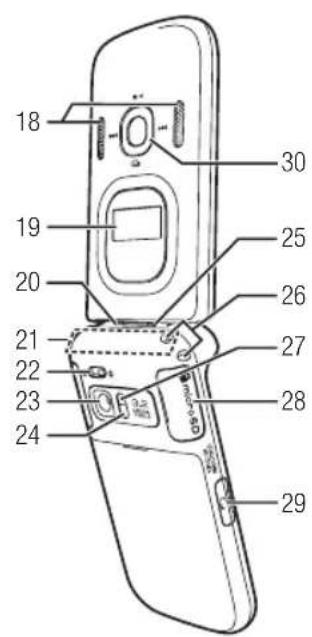
text_image
18 30 19 25 20 26 21 27 22 23 28 24 29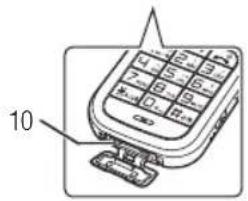
text_image
101: Earpiece
2: Main Display
3: Navigation Key ☐: Moves the cursor up, down, left or right. Press ☐ to access shortcuts (page 103).
Centre Key ☐: Confirms selections and performs selected operations. Displays the main menu.
4: Left Soft Key: Performs the operation indicated at the left bottom of the main display. Displays the Message menu.
5: Video Calling/Media Player Key: Used for making a video call. Displays the Media Player menu.
6: Camera/Video Key: Activates the camera/video camera.
7: Send Key: Makes and answers calls.
8: Keypad: Allows you to enter phone numbers, characters (page 35), etc. Press and hold 📄 to switch the phone profile to Silent (page 101). Press and hold 📄 to listen to your voicemail (page 31).
9: Microphone
10: Cable and Phone Charging Terminal
11: Sub Camera: Used for video calls, etc.
12: Right Soft Key: Performs the operation indicated at the right bottom of the main display. Allows you to access a browser.
13: Infrared Port
14: AP Key: Displays the Multi Task screen (page 115).
15: End/Power Key: Turns on/off the power. Ends calls/operations and takes you back to standby mode.
16: Side Keys (☐ and ☐): Allow you to adjust the volume, zoom, etc. Press and hold ☐ to use the shortcut for either switching the phone profile or turning on the mobile light (page 104).
17: Camera/Hold Key: Activates the camera/video camera and acts as a shutter button. Press and hold ☐ to set/cancel the key guard while your phone is closed (page 109).
18: Stereo Speakers
19: External Display: Notifies of incoming calls, messages, etc. while your phone is closed.
20: External Light: Flashes for incoming calls, messages, etc.
21: Antenna (Built-in)
22: Close-up Switch: Allows you to use macro mode for camera/video camera.
23: Main Camera: Used for taking pictures and recording videos.
24: Camera/Video Indicator
25: Charging Indicator
26: Hand Strap Hole
27: Mobile Light
28: Memory Card Slot
29: Earphone Microphone Jack
30: Music Player Keys: Allow you to play, pause, rewind and forward music while your phone is closed.
Using the Remote Control Keys (Optional Accessory)
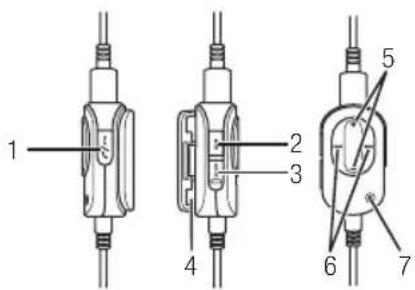
You can use the remote control keys for operations such as making calls and playing music (pages 52, 54, 107).
text_image
1 2 3 4 5 6 71: Send/End Key: Makes and answers calls. Ends calls.
2: Play/Pause Key
3: Hold Switch: Disables the remote control keys.
4: Belt Clip
5: Volume Keys
6: Rewind Key/Forward Key
7: Microphone
Using Soft Keys
You can perform an operation displayed at the bottom of the main display by pressing the corresponding ☐ or ☐.
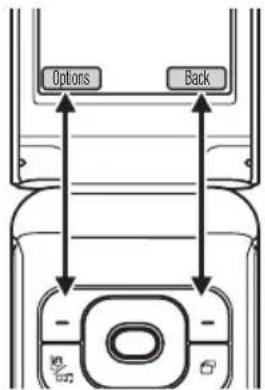
text_image
Options BackUsing the Navigation Key
The navigation key ☐ allows you to perform various operations such as moving the cursor up, down, left or right.
With ☐, you can display the main menu, confirm the selected item, perform the selected operation, etc.
If you press ⏻ in standby mode, you can display the Shortcut menu and use shortcuts (page 103).
Indicators
Main Display
The following indicators appear on the main display.
: Indicates the signal strength is at one of five levels.
: Indicates Flight mode (page 105) is set to On.
: Indicates data is being synchronised with an external device.
/ (Voice/Video Call): Indicates a voice or video call in progress.
☐ : Indicates a dial-up connection.
→: Indicates data is being sent or received.
: Indicates you can establish a connection on the GPRS network.
☐: Indicates you can perform data communication on the GPRS network.
: Indicates you are out of the service area of the service provider with which you have concluded a contract. When this indicator is displayed, only emergency services can be called.
(3G Network Connection/Roaming): Indicates you are in an area with 3G-network coverage or roaming.
(GSM Network Connection/Roaming): Indicates you are in an area with GSM-network coverage or roaming.
(GPRS Network Connection/Roaming): Indicates you are in an area with GPRS-network coverage or roaming.
: Indicates the reception of an MMS message with a high priority level.
: Indicates the reception of a rights object.
New or Unread MMS/SMS): Indicates a new or unread MMS message or SMS message (page 82).
: Indicates a new or unread WAP Push message (page 82).
/ L (Silent/Car/Meeting): Indicates the phone profile setting (page 101).
C: Indicates a connection to a Web page with security protection.
: Indicates a connection to an external device via infrared.
: Indicates a running/paused Java™ application (page 91).
: Indicates a music file is playing.
: Indicates a music file is paused as a result of an incoming call, etc.
: Indicates a video file is playing.
: Indicates streaming playback.
: Indicates the status of the memory card inserted (page 24).
levels.
: Charging
Clock Display: Appears on the top-right side of the display when your phone is not in standby mode.
(Phone Lock): Indicates the phone lock (page 108) is set.
☐: Indicates the alarm (page 116) is set.
☐ / ☐ / ☐ : Indicates both Silent and Vibration are set or either Silent or Vibration is set (pages 101, 102).
: Indicates a missed call.
☐: Indicates the SMS and MMS message inbox (page 82) is full.
: Indicates a recorded message at the Voicemail Centre (page 31).
: Indicates call diverting with ringer off for voice call.
: Indicates call diverting with ringer off for video call.
: Indicates call diverting with ringer off for voice and video calls.
External Display
The external display allows you to confirm information when your phone is closed.
/ / . / . / ... / ... : l n d i c a t e s t
five levels.
: Indicates Flight mode (page 105) is set to On.
/ (New or Unread MMS/SMS): Indicates a new or unread MMS message or SMS message (page 82).
: Indicates a new or unread WAP Push message (page 82).
(Key Guard): Indicates the key guard (page 109) is set.
(Phone Lock): Indicates the phone lock (page 108) is set.
: Indicates a missed call.
/ (Silent/Car/Meeting): Indicates the phone profile setting (page 101).
: Indicates a recorded message at the Voicemail Centre (page 31).
levels.
→: Charging
Information Prompt
This feature notifies you of missed calls, unread messages or other unconfirmed information. If you have unconfirmed information, the information prompt appears in standby mode.
While the information prompt is displayed, select the item you want to confirm and press ☐ (Select).
The information prompt contains the following items.
Missed Calls: Notifies of missed calls (page 30).
New SMS: Notifies of new SMS (page 82).
New MMS: Notifies of new MMS (page 82).
New WAP Push: Notifies of new WAP Push (page 82).
New Notifications: Notifies of new messages (page 82).
New Reports: Notifies of unread report messages (page 85).
Voicemail: Notifies of new messages at the Voicemail Centre (page 31).
Stop Snooze: Notifies of an activated alarm set to repeat (page 116).
SIM Card
Before using your phone, be sure to do the following.
◆ Insert the SIM card in your phone.
◆ Insert the battery pack in your phone (page 22).
About the SIM Card
The SIM card contains customer information such as your phone number. Only insert the SIM card in a SIM card compatible phone. If the SIM card is not inserted, the phone cannot be used.
Inserting & Removing the SIM Card
Before inserting or removing the SIM card, remove the battery pack. For details on removing the battery pack, see page 22. Make sure the power is turned off before removing the SIM card.
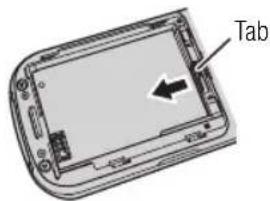
- Draw out the tray by pulling the tab.
text_image
Tab- Place the SIM card on the tray with the IC surface facing up.

text_image
Notch- Push in the tray until it stops completely.
To remove the SIM card, draw out the tray by pulling the tab and lift out the SIM card.
Codes
Personal Identification Number (PIN) Code
The SIM card has two security codes: PIN code and PIN2 code. For details on the PIN/PIN2 code, contact your service provider.
PIN Code
This is a four to eight digit security code to prevent another person from using your SIM card without permission.
If the PIN code request is set to On (page 108), your PIN code needs to be entered to use your phone each time the power is turned on. You can change the initial number set at the time of purchase (page 108).
PIN2 Code
This is a four to eight digit security code that needs to be entered for operations such as modifying data saved to the SIM card. You can change the initial number set at the time of purchase (page 108).
PUK (Personal Unblocking Key) Code
If the PIN code or PIN2 code is incorrectly entered three times in a row, the PIN/PIN2 lock is set. To cancel the PIN/PIN2 lock, enter the PUK code or PUK2 code. For details on the PUK/PUK2 code, contact your service provider.
Codes
Your security code, centre access code and call barring service code are required for using your phone.
Security Code
Your security code is "0000" or the four-digit number you selected when you concluded your contract. It is required to use functions and perform operations on your phone. To change the security code, see page 108.
Centre Access Code
Your centre access code is the four-digit number you selected when you concluded your contract. It is required to perform optional service operations from a fixed-line phone.
Call Barring Service Code
Your call barring service code is the four-digit number you selected when you concluded your contract. It is required to set call barring (page 33).
Emergency Calls
You can still make calls to emergency services when the SIM card is not inserted. However, there is no guarantee that a connection can be established in all countries and areas because operation of your phone differs depending on the wireless network, wireless signal and your phone's setting status. Do not rely on just your mobile phone when you need to make important calls such as calls to emergency services.
Calls may not be able to be made to emergency services depending on the network services of some service providers. For details on services, contact the service provider.
- While in a service area, confirm that your phone is turned on.
- Dial the phone number for an emergency service.
- Press ↗.
Note
- Most GSM networks support the internationally recognised emergency numbers of 112 and 911 (for the USA), consult your service provider in the country you are in for the correct number to dial in an emergency.
- Calls cannot be made to emergency services while data communication is being performed within a GSM area. End data communication before making a call.
- If the system mode is set to 3G Only or GSM Only, calls cannot be made to emergency services if the selected network is unavailable. Change the system mode setting (page 110) before making a call.
Battery Pack
Before using your phone for the first time, charge the battery. Make sure the power is turned off before removing the battery pack.
Inserting & Removing the Battery Pack
text_image
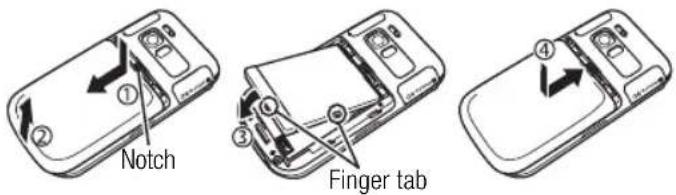
① ② Notch ③ Finger tab ④- Slide the battery cover by pressing the notch with your fingertip.
- Lift off the battery cover.
- Insert the battery pack while making sure the socket on the bottom of the battery pack is aligned with the connector in the battery compartment.
To remove the battery pack, insert a fingernail beneath the tab and lift out the battery pack.
- Place the battery cover on your phone and slide it until it clicks into place.
Charging the Battery Pack

text_image
Charging indicator- Open the cover of the cable and phone charging terminal and insert the connector of the AC adapter.
- Insert the plug of the AC adapter into an AC outlet.
The charging indicator lights up and charging begins. - After the charging indicator goes out, remove the plug of the AC adapter from the AC outlet.
- Remove the connector of the AC adapter from your phone while pressing the release buttons on the sides of the connector.
Using a USB Cable for Charging
While your phone is on, you can charge the battery pack if you connect your phone and a PC using a USB cable.
-
Select USB in Step 3 of "Using a USB Cable for Sending Data" (page 120), select Battery Charge and press ☐ (Select).
-
Select On and press ☐ (Select).
-
Select USB in Step 3 of "Using a USB Cable for Sending Data" (page 120), select Battery Charge and press ☑ (Select).
- Select On and press ☑ (Select).
Memory Card
About the Memory Card
You can save pictures taken and videos recorded with the camera of your phone and various downloaded data to the memory card.
- This manual refers to the microSD™ memory card as the "memory card."
- Your phone supports memory cards with a storage capacity of up to 1 GB. There is no guarantee that all memory cards will work with your phone because an operation check has not been performed for all memory cards.
Inserting & Removing the Memory Card
Make sure the power is turned off before inserting or removing the memory card. Otherwise data may be lost.
text_image
Diagram of a device with labeled parts showing internal components and connection arrows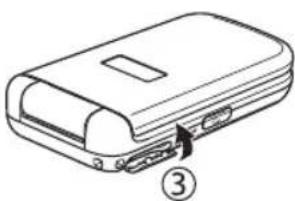
natural_image
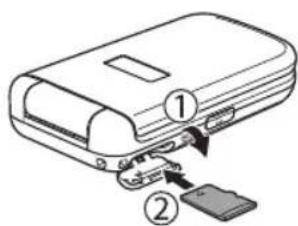
Line drawing of a device casing with ports and a labeled arrow (no text or symbols)- Open the memory card slot cover.
- Gently push the memory card into the slot until it clicks into position.
To remove the memory card, gently press the memory card. When you let go, the memory card will be ejected.
- Close the memory card slot cover.
Note
- Do not use excessive force to open the memory card slot cover. Doing so may damage the cover.
- Take care that the memory card does not fly out of your phone during removal.
Turning On/Off the Power
Turning On the Power
- Press and hold 📞.
The standby screen appears on the main display.
If the PIN code request (page 108) is set to On, enter your PIN code after you press and hold ☐.
Note
- A screen for setting the date and time appears the first time you turn on the power of your phone. Set the date and time and the summer time while referring to "Date & Time Settings" on the right.
- Touching the built-in antenna part of your phone affects signal strength. Avoid touching this part of your phone during use.
Turning Off the Power
- In standby mode, press and hold 📞.
The power off screen appears and the power is turned off.
Date & Time Settings
- In standby mode, press ☐.
The main menu appears.
- Settings Phone Settings Date&Time
◆ Set Date/Time: Allows you to set the date and time and the summer time.
◆ Date Format: Allows you to set the date format.
◆ 12 hour/24 hour: Allows you to set 12-hour/24-hour system for the time display.
◆ World Clock: Displays the city name and one-line digital clock for both the home city and alternate city if the Alternate City setting is set for the world clock.
You can perform the following operations if you select Set Home City or Set Alternate City, press ☐ (Select) and then press ☐ (Options).
- GMT Offset: Allows you to select a city by entering a GMT time difference.
• DST On/Off: Allows you to set the summer time.
Note
- When you set the date and time displayed in standby mode to the summer time, set the DST setting to On. If the DST setting is left set to Off, the correct reception date and time cannot be displayed for SMS and MMS messages received during the summer time period even if the date and time of your phone are set to the summer time.
Tip
- If the DST setting is set to On, the indicator appears on the display when you set or display the world clock. The * indicator or "DST" appears for the time displayed in standby mode.
Main Menu
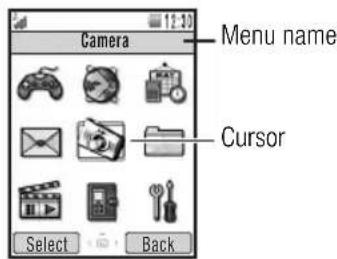
- In standby mode, press ●
The main menu appears.
text_image
Camera Menu name Cursor Select BackMain Menu Screen
- Use 🔊 to select an icon and press 🔒 (Select) to display the menu of the function.
◆ Game&Application: Allows you to download and use games, screensavers and other Java™ applications (page 90).
◆ Browser: Allows you to access the Internet and download pictures, melodies and applications (page 88).
Organiser: Allows you to use preinstalled applications (page 111).
◆ Message: Allows you to create MMS/SMS messages. You can also check received and sent MMS/SMS messages (page 77).
◆ Camera: Allows you to take pictures and record videos (page 67).
◆ Gallery: Allows you to check the pictures you took, videos you recorded and other data stored in data folders (page 93).
◆ Media Player: Allows you to play music and video files, as well as stream playback (page 50).
◆ Call Manager: Allows you to access and update the Contacts list (page 39).
◆ Settings: Allows you to modify and confirm the settings of your phone (page 99).
Making a Call
- Confirm that the power is on.
Confirm that the signal level is sufficient.
- In standby mode, enter a phone number.
If you enter the wrong number, each press of ☐ (Clear) deletes the digit on the far right.
To enter “*”, “P” or “−”, press and hold *_n/a .
You can also make a call from the Contacts list (page 44) or the call log (page 31).
- Press ↗.
- Press ☐ to end the call.
Note
- You cannot make calls (except emergency calls) if the total cost reaches the specified maximum call limit when the cost limit (page 30) is set to On. To make a new call, set the cost limit to Off.
- When the cost limit (page 30) is set to On, a call will be disconnected if the total cost reaches the specified maximum call limit during the call.
Tip
- You can perform the following operations if you press 📄 (Options) after entering a phone number in standby mode.
• Voice Call: Makes a voice call.
• Video Call: Makes a video call (page 62).
- Save to Contacts: Saves the phone number to the Contacts list (page 40).
- Send Message: Allows you to create an SMS/MMS message (pages 79, 81).
Making an International Call
- In standby mode, press and hold □+□.
“+” appears.
- Enter the country code, area code and other party's phone number.
If the other party's phone number begins with 0, omit the first 0.
- Press
Answering a Call
When a call is received, the ringtone plays and the external light flashes. If the phone number is in the Contacts list (page 39), the name and phone number of the caller appear on the display.
-
Press ↗.
-
Press ☐ to end the call.
Note
- When the cost limit (page 30) is set to On, a call will be disconnected if the total cost reaches the specified maximum call limit during the call.
Tip
- To adjust the ringtone volume while a call is being received, use 📋 or the side keys (☐, ☐). To set the ringtone volume to mute, press and hold the side key (☐).
• If you miss a call, the information prompt (page 19) appears.
- You can also use Open to Answer (page 106) or Any Key Answer (page 106) to answer a call.
Rejecting a Call
You can manually reject an incoming call. To automatically reject calls from specific phone numbers, add the phone numbers to the Rejection list (page 108).
- A call is received.
- Press
Operations during Calls
Adjusting the Earpiece Volume during a Call
You can use 📋 or the side keys (☐, ☐) to adjust the earpiece volume to one of five levels.
To adjust the earpiece volume in standby mode, press and hold or and use to adjust the volume.
Tip
- To switch the sound to the speaker to enable a handsfree call, press ☐ ( ) during a call.
Other Operations during a Call
You can perform the following operations if you press ☐ (Options) during a call.
◆ Hold: Places the call on hold.
◆ Mute My Voice: Mutes the outgoing sound.
◆ Mute All: Mutes both the outgoing and incoming sound.
◆ Contacts List: Allows you to refer to the Contacts list.
◆ Call Log: Allows you to access the call log.
◆ Voice Record: Allows you to record the other party's voice during a call.
◆ My Details: Displays the owner information (page 47).
◆ DTMF Off/On: Allows you to disable or enable the sending of DTMF tones.
Note
- The other party's voice cannot be recorded during a handsfree call.
Call Log
You can view dialled numbers, missed calls, received calls, call time, call costs and data transfer volume.
- In standby mode, press ☐.
The main menu appears.
- Call Manager Call Log
◆ Dialled Numbers: Allows you to view the last 20 dialled numbers.
◆ Missed Calls: Allows you to view the last 20 missed calls.
◆ Received Calls: Allows you to view the last 20 received calls.
◆ Call Timers: Allows you to view the time for the last call or total time for all calls.
◆ Call Costs: Allows you to set a limit on costs and view the cost for the last call or total cost for all calls. You can set the currency for call costs and set whether to display the call cost after a call ends. For accurate information on call costs, contact your service provider.
◆ Data Counter: Allows you to view the data transfer volume for the last communication session or the total data transfer volume for all communication sessions.
Note
- Some items may be unavailable depending on the SIM card inserted.
Tip
- You can perform the following operations if you press (Options) while viewing dialled numbers, missed calls or received calls.
• View: Displays the details.
• Voice Call: Makes a voice call.
• Video Call: Makes a video call (page 62). - Send Message: Allows you to create an SMS/MMS message (pages 79, 81).
- Save to Contacts: Saves the phone number to the Contacts list (page 40).
- To Rejection List: Saves the phone number to the Rejection list (page 108).
- Delete: Deletes the entry.
Optional Services
For details on services, contact your service provider.
Voicemail Service
If you are unable to answer a call because, for instance, your phone is out of range or a call is in progress, the caller can leave a message (voicemail) at the Voicemail Centre. The indicator appears on the display when you have a new message.
- In standby mode, press ☐.
The main menu appears.
2. Settings Call Settings Voicemail
◆ Call Voicemail: Allows you to listen to voicemail at the Voicemail Centre. Alternatively, you can press and hold 1 in standby mode to listen to voicemail.
◆ Voicemail Settings: Allows you to set the following settings.
- Registration: Allows you to set the condition for diverting calls to the Voicemail Centre.
- Voicemail Centre: Allows you to change the number for diverting calls to the Voicemail Centre and the number for accessing the Voicemail Centre to listen to voicemail.
• Status: Allows you to view the current settings.
- Deactivate: Allows you to stop the voicemail service.
Call Divert Service
This service allows you to divert calls you are unable to answer to a preset phone number.
Starting the Call Divert Service
- In standby mode, press ☐.
The main menu appears.
-
Settings Call Settings Call Diverting
-
Select the calls you want to divert and press ☐ (Select).
◆ All Services: Allows you to set the call divert services for all incoming calls.
◆ Voice Call: Allows you to set the call divert service for voice calls.
◆ Video Call: Allows you to set the call divert service for video calls.
◆ Fax: Allows you to set the call divert service for fax communication.
◆ Data Call: Allows you to set the call divert service for data communication.
- Select the diverting condition you want to set and press ☐ (Select).
◆ All Calls/All Faxes: Diverts all calls to the preset phone number without your phone ringing.
When Busy: Allows you to divert an incoming call to the preset phone number by pressing ☐ (Busy).
◆ No Answer: Diverts a call if you do not answer it within the set time.
◆ Not Reachable: Diverts a call when your phone is out of range or the power is off.
◆ All Conditional: Diverts a call that meets any of the other conditions except All Calls.
-
Select an input method for the phone number and press ☐ (Select).
-
Set a phone number and press ☐ (Set/Request).
After a network connection is established, the settings complete screen appears.
Tip
- To confirm the status of all call divert services, select Status after Step 2 and press (Request).
- To confirm the status of call divert services individually, select Status after Step 3 and press (Request).
Stopping the Call Divert Service
- After Step 2 of "Starting the Call Divert Service" (page 32), select Deactivate All and press ☑ (Request).
After a network connection is established, the settings complete screen appears and all call divert services are stopped.
To stop call divert services individually, select Deactivate after Step 3 of "Starting the Call Divert Service" (page 32) and press ☐ (Request).
Call Barring Service
This service allows you to restrict outgoing and incoming voice and video calls (including international calls), and any SMS messages sent or received.
- In standby mode, press ☐.
The main menu appears.
- Settings Call Settings Call Barring
◆ Activate: Allows you to set the condition for stopping outgoing and incoming calls.
- All Calls: Stops all outgoing and incoming calls.
- International: Stops all outgoing and incoming international calls.
- Except Local/Home: Stops all outgoing international calls except those to your home network.
◆ Status: Allows you to view the current setting.
◆ Deactivate: Allows you to stop the call barring service.
◆ Change Password: Allows you to change your password for the call barring service.
Tip
- You can still make calls to emergency services (page 21) when the call barring service is enabled.
Call Waiting Service
When you receive a call during a call, you can place the current call on hold and answer the incoming call. If the incoming call is from a caller whose phone number is in the Contacts list (page 39), the caller's name and phone number are displayed.
Starting the Call Waiting Service
- In standby mode, press ☐.
The main menu appears.
-
Settings Call Settings Call Waiting
-
Select Activate and press ☐ (Request).
After a network connection is established, the settings complete screen appears.
Tip
- To confirm the status of the setting, select Status after Step 2.
Using the Call Waiting Service
- The call waiting tone is heard during a call.
- Press ☐ (Options).
- Select Answer and press ☐ (Select).
The original caller is placed on hold and a connection is established with the second caller. Both names appear on the display.
- Press ↗ to switch between callers.
Tip
- You can also place the original caller on hold and answer the call from the second caller if you press 📞 after Step 1.
Stopping the Call Waiting Service
- After Step 2 of "Starting the Call Waiting Service" (page 33), select Deactivate and press ☐ (Request).
After a network connection is established, the settings complete screen appears.
Multiparty Call Service
This service allows you to call other parties during a call and then switch between the parties or talk to multiple parties simultaneously. A call with up to six people including yourself is possible. The names and/or phone numbers of all the parties appear on the display during the call.
- Enter the phone number of another party you want to call during a call and press ↗.
The original party is placed on hold and you can talk to the new party.
- Press ☐ (Options) to perform one of the following operations.
◆ Swap: Allows you to change the party of a private call.
◆ Multiparty: Allows you to select the multiparty call state.
◆ Mute My Voice: Mutes the outgoing sound.
◆ Mute All: Mutes all the outgoing and incoming sound.
◆ Contacts List: Allows you to refer to the Contacts list.
◆ Call Log: Allows you to access the call log (page 30).
◆ Voice Record: Records the other party's voice.
◆ My Details: Displays the owner information (page 47).
◆ DTMF Off/On: Allows you to disable or enable the sending of DTMF tones.
Note
- The options that are available vary depending on the call status.
Caller ID Service
This service allows you to set whether to notify the other party of your phone number when you make a call.
- Before the phone number, dial _n/n_0/n^1_n/n#0/n if you want to notify the other party of your phone number and dial #0/n_0/n^1_n/n#_0/n if you do not want to notify the other party of your phone number.
Tip
- You can set whether to automatically show/hide your phone number (page 105).
Character Input
Your phone has several character input modes. Use these modes when saving new entries to the Contacts list or creating text messages.
Switching Character Input Modes
To switch the character input mode in a character input screen, press ☐ (Options), select Input Method, press ☐ (Select), select a character input mode and press ☐ (Select). The selected character input mode is indicated at the top of the character input screen.
◆ T9 PinYin: Allows you to enter Simplified Chinese in T9 PinYin mode (page 37). This mode is available when the Input Language (page 39) is set to Simplified Chinese.
◆ T9 Stroke: Allows you to enter Traditional/Simplified Chinese in T9 Stroke mode (page 36). This mode is available when the Input Language (page 39) is set to Traditional Chinese or Simplified Chinese.
◆ T9 abc / T9 Abc / T9 ABC (T9 mode): Allows you to enter English characters in T9 mode (page 37). This mode is available when the Input Language (page 39) is set to English.
◆ abc/Abc/ABC (Multi Tap mode): Allows you to directly enter letters of the alphabet. Each press of a digit key switches the letter to the next letter assigned to that key. Select abc for all lowercase characters, Abc for initial caps and ABC for all uppercase characters.
Symbols: Symbol input mode.
◆ Numeric: Numeric input mode.
Tip
- When entering English characters, press * to switch between uppercase, lowercase, initial caps and numeric input modes.
- When entering Chinese characters, press *_A:B to switch between T9 PinYin, T9 Stroke and numeric input modes.
- To switch from Chinese character input mode to Multi Tap mode, press and hold ×_A/B .
• To display the symbols list to enter a symbol, press##. - To enter a space, press + .
- To delete a character you entered, pres☐ (Clear). Furthermore, to delete all the characters to the left of the cursor, press and hold ☐ (Clear).
Entering Traditional/Simplified Chinese in T9 Stroke Mode
This mode allows you to enter individual strokes of traditional/simplified Chinese characters in order and then select characters from the candidates displayed.
| Key Stroke | |
- In a character input screen, switch to T9 Stroke mode (page 35).
- Enter individual strokes of the Chinese character you want to enter in order.
Example: To enter “信”, press ∃ and ∃.
Each press of a key narrows down the number of available candidates.
If the character you want to enter is not displayed, press 🔔 to display the next candidates.
- When the Chinese character you want to enter is displayed as a candidate, press and hold the digit key corresponding to the number displayed above the Chinese character.
The Chinese character is entered.
Chinese characters that are used frequently in combination with the Chinese character you entered appear as the next candidates.
Entering Simplified Chinese in T9 PinYin Mode
You can enter simplified Chinese characters by entering alphabetical Pinyin codes. To enter a Pinyin code, you only need to press, one time each, the digit keys to which the letters of the alphabet you want to enter are assigned. During input, candidates for the Chinese characters corresponding to the Pinyin code you are entering are displayed. Select a candidate to enter it.
- In a character input screen, switch to T9 PinYin mode (page 35).
- Enter the Pinyin code for the Chinese character you want to enter.
Example: To enter the Pinyin code "bie" for Chinese character "别", press 21433.
Available combinations of Pinyin codes (“bie” and “che” in this case) and the corresponding candidates of the Chinese characters are displayed.
If the character you want to enter is not displayed, press 🔔 to display the next candidates.
- When the Chinese character you want to enter is displayed as a candidate, press and hold the digit key corresponding to the number displayed above the Chinese character.
The Chinese character is entered.
Chinese characters that are used frequently in combination with the Chinese character you entered appear as the next candidates.
Entering English Characters in T9 Mode
In T9 mode, you only need to press, one time each, the digit keys to which the letters of the alphabet you want to enter are assigned. During input, predictions of frequently used words are displayed. Simply select a prediction to enter it. Compared to Multi Tap mode, T9 mode is quicker and easier because fewer keystrokes are required to enter characters.
- In a character input screen, switch to T9 mode (page 35).
- Enter characters.
Example: To enter "toshiba", press

If the word you want to enter does not appear, press 🔒 to display the next prediction.
- Press ☐ to confirm your selection.
If you want to reconvert a word after it has been confirmed, press 🔔, highlight the word and press 🔔.
Tip
- To display a list of conversion predictions, press three times in Step 2. Select a word and press (Select) to confirm the word.
- If the word you want to enter does not appear in the list of conversion predictions, the word will appear next time if you add it to the T9 dictionary (page 39).
• To enter a number, press and hold a digit key.
• To enter a symbol, pres 1...5 and then press ⏻.
Entering Characters in Multi Tap Mode
In Multi Tap mode, you can enter a letter of the alphabet by pressing the digit key assigned to the letter as many times as necessary to display the letter.
- In a character input screen, switch to Multi Tap mode (page 36).
- Enter characters.
Example: To enter "toshiba", press ☐ once, ☑ three times, ☑ four times, ☑ twice, ☑ three times, ☑ twice and ☑ once.
Tip
- To switch between T9 mode and Multi Tap mode, press and hold *Aab.
• To enter a number, press and hold a digit key.
• To enter a symbol, pres 1...
Entering Symbols
- In a character input screen, switch to Symbols mode (page 36).
- Select a symbol and press ☐.
Using Numeric Mode
In Numeric mode (page 36), you can enter a number in a character input screen by simply pressing the digit key to which the number is assigned.
Text Editing Functions
You can perform the following operations if you press ☐ (Options) in a character input screen.
◆ Copy/Cut: Allows you to copy or cut a specified range of characters and store it in the clipboard. You can store up to 20 data items (excluding pictures) in the clipboard.
◆ Paste: Allows you to access characters stored in the clipboard and paste them in a character input screen.
◆ Undo/Redo: Allows you to redisplay deleted characters and delete inserted characters, as well as redo operations. Performing the Redo operation after the Undo operation takes you back to the state prior to performing the Undo operation.
◆ Insert: Allows you to select information in the notepad (page 116), Contacts list (page 39) or My Details (page 47) and insert it during character input.
Setting the Input Language
The language displayed in character input screens is the display language set for the language setting (page 103). You can also change the input language temporarily during character input.
- In a character input screen, press ☑ (Options), select Input Language and press ☑ (Select).
- Select the input language you want to use and press ☐ (Select).
Adding a Word to the T9 Dictionary
When Input Method (page 35) is set to T9 mode, you can add a new word to the T9 dictionary. The word will appear as a conversion candidate from the next time.
- In a character input screen in T9 mode, press ☐ (Options), select Add to Dictionary and press ☐ (Select).
- Enter the word you want to add and press ☐ (OK). When you enter a word, the mode switches automatically to Multi Tap.
Tip
- If (Spell) appears for a word during character input in T9 mode, the word is not in the T9 dictionary. To add the word to the T9 dictionary, press (Spell).
Call Manager
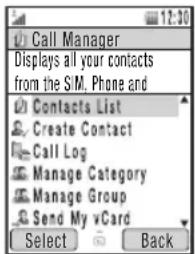
The following items are displayed in the Call Manager menu.
text_image
Call Manager Displays all your contacts from the SIM, Phone and Contacts List Create Contact Call Log Manage Category Manage Group Send My vCard Select BackCall Manager Menu Screen
◆ Contacts List: Displays the Contacts list.
◆ Create Contact: Allows you to add a new entry to the Contacts list.
◆ Call Log: Displays the Call Log screen (page 30).
◆ Manage Category: Displays the Category list for organising entries by category.
◆ Manage Group: Displays the Group list. Groups allow you to send the same message simultaneously to multiple addresses.
◆ Send My vCard: Converts the owner information to vCard format and sends it to an external device.
◆ Synchronise: Synchronises the Contacts list.
◆ My Details: Displays the owner information and allows you to edit the information.
◆ Settings: Allows you to add an entry to the Speed Calling list, set the storage place of the Contacts list and set the scroll speed for the Contacts list screen.
◆ Memory Status: Displays the number of Contacts list entries in each of your phone, SIM card and memory card.
◆ Service Dial No.: Displays the service phone number list preinstalled in your SIM card and allows you to make a call.
Note
- The service phone number function may be unavailable depending on the SIM card.
Adding an Entry to the Contacts List
You can save up to 500 Contacts list entries to your phone. You can also save Contacts list entries to the SIM card and memory card. The ability to store the maximum amount of entries will depend on the size of entries and the available space in the SIM card or memory card.
Add new entries from the Create Contact screen. You can set just the required items and modify items or set additional items later.
- In standby mode, press ☐.
The main menu appears.
-
Call Manager Create Contact
-
Select the item you want to set and press ☐.
◆ First Name: Allows you to enter a first name.
◆ Last Name: Allows you to enter a last name.
◆ Display Name: Displays the first name and last name you entered automatically. You can also edit the display name.
◆ Phone Number: Allows you to enter up to three phone numbers. You can enter up to 40 digits for each phone number.
◆ Email: Allows you to enter up to three email addresses.
◆ Add Info.: Allows you to enter additional address information.
◆ Street Address: Allows you to enter a street address.
◆ City: Allows you to enter a city name.
◆ State: Allows you to enter a state name.
◆ Country: Allows you to enter a country name.
◆ Postcode: Allows you to enter a postcode.
◆ Job Title: Allows you to enter a job title.
◆ Company: Allows you to enter a company name.
◆ Birthday: Allows you to enter a birthday.
◆ URL: Allows you to enter a URL.
◆ Category: Allows you to set the category.
◆ Picture: Allows you to set a picture to appear on the display for an incoming call.
- Take Picture: Activates the camera for you to take a picture. For details on taking pictures, see page 70. After taking a picture, press ☐.
- My Pictures: Allows you to select a picture from Gallery (page 94). To select a file, press ☐.
◆ Sound Settings: Allows you to set the ringtone and other settings for incoming calls.
- External Light: Select the colour you want to set and press ☐ (Select).
- Ringtone Volume: Allows you to set the ringtone volume.
- Assign Ringtone: Allows you to set a preinstalled sound in your phone or a sound or video in Gallery as the ringtone. You can also set the ringtone duration for incoming messages.
• Vibration: Allows you to select a vibration pattern.
◆ Note: Allows you to enter a reminder.
-
Enter/select the item and press ☐.
-
Press ☐ (Options).
-
Select Save and press ☐ (Select).
Note
- Only a name and a phone number can be saved to the Contacts list of the SIM card.
- Picture, Sound Settings and Note cannot be set for the Contacts list of the memory card.
Tip
- You can preset the default storage place for Contacts list entries (page 46).
- To clear an item you entered, select Clear Field after Step 5.
- To confirm the number of Contacts list entries saved to your phone, SIM card or memory card, select Call Manager in Step 2 and select Memory Status.
- To add a phone number from standby mode, enter the phone number, press ☐, select Add New Contact and press ☐ (Select). To add the phone number to an existing Contacts list entry, select Add to Existing.
Editing Categories
Your phone has preset categories. In addition, you can set your own categories. You can edit and set the options of categories. For each category, you can set the incoming external light, ringtone volume, ringtone pattern and vibration.
Renaming a Category
- In standby mode, press ☐.
The main menu appears. - Call Manager Manage Category
- Select a category and press ☐.
- Press ☐ (Options).
- Select Edit and press ☐ (Select).
- Enter the category name and press ☐.
- Select an icon and press ☐ (Select).
- Press ☐ (Options).
- Select Save and press ☐ (Select).
Tip
- Preset categories cannot be renamed.
- You can perform the following operations if you select a category after Step 2 and then press ☐ (Options).
- Reset: Resets the category option of all registered Contacts list entries to No Category.
- Delete: Deletes the category and sets the category option of all Contacts list entries that belonged to that category to No Category. Preinstalled categories cannot be deleted.
Setting Options for a Category
- After Step 3 of "Renaming a Category," select Category Options and press ☐.
- Select the item you want to set and press ☐ (Select).
- Press ☐ (Back) once or twice after setting the items.
- Press ☐ (Options).
- Select Save and press ☐ (Select).
Note
- The option settings for individual entries (page 41) take priority over the option settings for a category.
Setting Groups
You can set the groups (broadcast lists) to use for MMS addresses. There are five groups and you can add up to ten members to each group. For details on using the Group list, see “Creating & Sending an MMS Message” (page 79).
Adding a New Member to a Group
-
In standby mode, press ☐.
The main menu appears. -
Call Manager Manage Group
-
Select a group and press ☐.
-
Select
and press ☐ (Options). -
Select Add and press ☐ (Select).
-
Select Name and press ●.
-
Enter a name and press ☐.
-
Select Send to and press ●.
-
Enter a phone number or email address and press ☐.
-
Press ☐ (Options).
-
Select Save and press ☐ (Select).
Tip
- You can select a member from the Contacts list if you select Get Contacts after Step 4.
Editing Group Members
- After Step 3 of "Adding a New Member to a Group," select the member you want to edit and press ☐ (Options).
- Select Edit and press ☐ (Select).
- Select the item you want to edit and press ☐.
- Enter the item and press ☐.
- Press ☐ (Options).
- Select Save and press ☐ (Select).
Tip
- You can perform the following operations after Step 1.
• View: Displays the details of the member.
- Delete: Deletes the selected member.
Renaming & Resetting a Group
- After Step 2 of "Adding a New Member to a Group" (page 43), select a group, press ☐ (Options) and perform one of the following operations.
◆ Rename: Allows you to rename the group.
◆ Reset: Allows you to reset the group name and delete all members from the group.
Making a Call & Sending a Message from the Contacts List
- In standby mode, press ☐. The main menu appears.
- Call Manager Contacts List
- Select an entry and press ☐.
- To make a call, select a phone number and press 📄. To make a video call, select a phone number and press 📄. To send an SMS or MMS message, select a phone number or email address, press 📄 (Options) and select Send Message. For details on creating messages, see "Message" (page 77).
Tip
- To search the Contacts list, press 📄 (Options) after Step 2 and select Search by. You can search for an entry by entering the initial Chinese character, Pinyin code or alphabetical letter of the first or last name, or by entering part of the phone number.
- In standby mode, you can press and hold any key from 2 to 9 to display an entry with a first name that starts with the alphabetical letter assigned to the key you press.
Using Speed Calling
In standby mode, you can make calls quickly and easily to phone numbers in the Speed Calling list. You can add up to nine phone numbers to the list.
Adding a Phone Number to the Speed Calling List
- In standby mode, press ☐.
The main menu appears.
- Call Manager Settings Speed Calling
- Select
and press ☐ (Add).
The Contacts list appears.
- Select the Contacts list entry to add to the Speed Calling list and press ☐.
Note
- Only Contacts list entries in your phone can be added to the Speed Calling list.
Using Speed Calling to Make Calls
-
In standby mode, enter the speed calling number of the phone number you want to call.
-
Press ↗.
Tip
- The speed calling number is indicated beside the entry in the Speed Calling list.
- If the Contacts list entry in the Speed Calling list contains more than one phone number, a call is made to the default phone number.
Editing Contacts List Entries
You can edit and delete entries in the Contacts list individually.
- In standby mode, press ☐. The main menu appears.
- Call Manager Contacts List
- Select the Contacts list entry you want to edit and press ☐.
- Select the item you want to edit and press ☐.
- Press ☐ (Edit).
- Enter the item and press ☐.
- Press ☐ (Options).
- Select the save method and press ☐ (Select).
◆ Save: Saves the edited Contacts list entry by overwriting the original entry.
◆ Save as New: Saves the edited Contacts list entry as a new entry.
Tip
- To edit the address, category, picture or sound settings, press (Options) after Step 3 and select Edit. Select the item you want to edit and press ☐.
- After Step 7, you can perform operations such as setting the selected phone number to the default phone number and changing the picture.
Options Available from the Contacts List
You can perform the following operations if you press ☐ (Options) from the Contacts list.
◆ View: Displays the details screen for one entry.
◆ Search by: Allows you to search for an entry in the Contacts list.
◆ Create Contact: Allows you to add a new entry to the Contacts list.
◆ Edit: Displays the edit screen for one entry.
◆ Delete: Deletes one or all Contacts list entries.
◆ Select Multi: Allows you to select multiple Contacts list entries and you can perform each of the Delete, Copy, Move and Send vCard operations on multiple Contacts list entries simultaneously.
◆ Send vCard: Converts a Contacts list entry to vCard format and sends it.
◆ Memory Card: Displays a list of Contacts list entries in the memory card.
◆ Phone/SIM: Displays a list of Contacts list entries in the phone and SIM card.
◆ Sort by: Allows you to change the order that entries appear. You can select a sort option from First Name PinYin, First Name, Last Name PinYin, Last Name or Display Name.
◆ Category Filter: Displays the Contacts list entries of the selected category.
Setting the Contacts List
You can set the default storage place and scroll speed.
- In standby mode, press ☐.
The main menu appears.
- Call Manager Settings
◆ Default Storage: Allows you to preset the default storage place for new Contacts list entries. An indicator (/) at the top of the Contacts list screen indicates the storage place for entries.
◆ Scroll Speed: Allows you to set the speed for scrolling up and down in the Contacts list.
Owner Information
You can display and edit owner information such as the phone number and email address of your phone.
-
In standby mode, press ☐.
The main menu appears. -
Call Manager My Details
-
Press ☐ (Options).
-
Select Edit and press ☐ (Select).
Perform Steps 3 and 4 of "Adding an Entry to the Contacts List" (page 40).
Tip
- To send the owner information by infrared (page 118), select Call Manager in Step 2 and select Send My vCard.
Using Synchronise
You can synchronise the Contacts list of your phone with a network server or data on a PC. The supplied data management software My Mobile needs to be installed on the PC. For details on the synchronisation procedure, see “Synchronising the Contacts List” (page 124).
2 Media Player
Media Player allows you to play music and video files.
In This Chapter
○ Media Player Menu
○ Playback Screen of Media Player
○ Playing Music & Videos
○ Using Music Player
○ Transferring Music from a PC to a Memory Card
○ Using Playlists
○ Other Operations & Settings
Media Player Menu
In standby mode, you can display the Media Player menu if you press 📄. The Media Player menu has three tabs (sub menus). To switch between the tabs, press ⬇.
Music Tab
◆ More Music: Starts the browser and connects to a download site.
◆ Playlists: Allows you to create a playlist and play music files.
◆ Music Library: Allows you to select tracks transferred from a PC to a memory card. All music files transferred from a PC (page 55) using the music transfer software are stored here. The list displays tracks by artist or album, or all tracks at once.
◆ My Sounds: Allows you to select files in the Sounds&Ringtones folder of Gallery.
◆ Recent: Displays up to the last 20 tracks played by Media Player and Music Player (page 53).
Video Tab
◆ More Video: Starts the browser and connects to a download site.
◆ My Video: Allows you to select files in the Videos folder of Gallery.
◆ Recent: Displays up to the last 20 video files played by Media Player.
Streaming Tab
◆ Enter URL: Allows you to connect to the network and play a streaming content.
◆ Bookmarks: Allows you to play streaming content from a bookmarked URL.
◆ Recent: Displays up to the last 20 URLs of streaming content played by Media Player.
Tip
- For some items, a number is displayed to the right of the name. The number indicates how many playlists or files the item contains.
- When the indicator is displayed on the playback screen, you can display the operation guide if you press 7.
- To start Media Player so that you can play the last music file played, press and hold 📁 in standby mode.
Playback Screen of Media Player
text_image
1 2001/0023 ① ② ③ Title Artist ④ 5 6 7 8 Options Back ⑨Music File Playback Screen
text_image
② Video1/Artist ③ ⑪ ① ⑧ 00:12:23 1.07 Options Stop ⑩ ⑦ ⑤ ⑥Video File Playback Screen
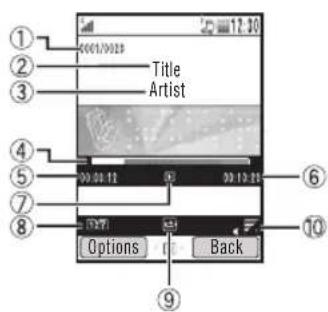
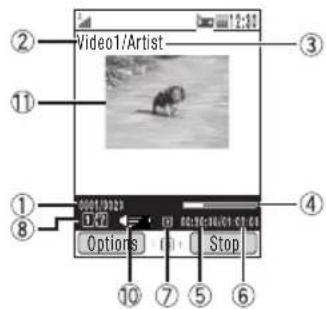
① Track sequence number/total number of tracks in the list
② Title or file name Playback status
③ Artist name Help guidance ⑧
④ Progress bar Play mode ⑨
⑤10 Elapsed playback time Playback volume
⑥1 Total playback time Video
playable Music Files
You can play the following music files. However, some music files may not be able to be played. Also, the Toshiba TX80 cannot play variable bit rate (VBR) encoded music files other than at the supported bit rate (kbps).
| Audio Codec Bit Rate | (kbps) Sampling | Frequency (kHz) |
| AMR-NB 4.75 to 12.2 8 | ||
| AAC-LC (Audio MPEG4) | 16 to 128 16, 22.05, 24, 32, 44.1, 48 | |
| HE-AAC 32 to 64 32, 44.1, 48 | ||
| MP3 (MPEG1 Audio Layer3) | 32 to 192 32, 44.1, 48 | |
| MP3 (MPEG2 Audio Layer3) | 16 to 64 16, 22.05, 24 | |
playable Video Files
MPEG4, H.263(0)
Playing Music & Videos
- In standby mode, press ☐.
The Media Player menu appears.
- Use ☐ to switch to the Music tab or Video tab, select
Playlists, Music Library, My Sounds, My Video or Recent and press 📄 (Select).
- Select a playlist or a file within a folder and press ☐.
Playback begins.
If you close your phone during playback of a music file, Music Player (page 53) starts automatically.
Operations while a Track is Playing
To adjust the playback volume: Press ⏻, side keys (☐, ☐) or remote control key ⏻
To pause/resume playback: Press ● or remote control key ▶/□.
To rewind the track: Press and hold ⚙ or remote control key ⊖.
To forward the track: Press and hold ⏻ or remote control key Ⓗ.
To rewind the current track to the beginning or play the previous track: Press ⬙, ⬆ or remote control key ⊖.
To play the next track: Press ⏻, #or remote control key ⊖.
To rewind the video frame by frame (only when an MP4 video is paused): Press ☐ or remote control key ☑ while the video is paused.
To forward the video frame by frame (only when an MP4 video is paused): Press ☐ or remote control key ⏻ while the video is paused.
Switching Play Modes
You can switch to any of the following play modes if you press 📄 (Options) while a track is playing/paused and select Play Mode.
◆ Repeat ( ) Plays the current track repeatedly.
◆ Repeat All (☐): Plays all files in the current playlist or folder repeatedly.
◆ Random (☐): Plays all files in the current playlist or folder randomly.
◆ Current Only (1): Plays the current track once only.
◆ Normal (1): Plays all files in the current playlists or folders in order.
Note
- This operation is not possible when playing a track from Recent.
Switching to Background Playback
You can switch to background playback in order to use other functions if you press ☐ while a track is playing/paused. The 🎨 indicator appears on the display during background playback. Press ☐ to access playback operations after returning to standby mode or use the remote control keys.
Streaming Playback
You can select a URL from a Web page or message body text to start playback or enter a URL to start playback (page 50).
Using Music Player
Music Player allows you to listen to music while your phone is closed. The Music Player keys and remote control keys enable you to play tracks and adjust the volume.
Playback Screen of Music Player

① Play mode Track information ③
② Playback status Progress bar ④
Tip
- Each time you press 📄, you can switch the track information display in the following order: title, artist name, album name, elapsed playback time, and track sequence number/total number of tracks.
Starting Music Player
- Close your phone while a music file is being played on Media Player.
Note
- When the battery level is low, Music Player won't start.
Tip
- You can press remote control key ▶/□ or press and hold ▶/□ to start Music Player and play the music file that was being played when Music Player or Media Player ended.
Operations while a Track is Playing (Playback Screen is Displayed)
To adjust the playback volume: Press side keys (☐, ☐) or remote control key ⏻
To pause/resume playback: Press ▶ or remote control key ▶. To rewind the track: Press and hold ◀ or remote control key ○. To forward the track: Press and hold ▶ or remote control key ○.
To rewind the current track to the beginning or play the previous track: Press ◀◀◀ or remote control key ⏻
To play the next track: Press 🎨 or remote control key ⏻ To end Music Player: Press and hold 🎨 or remote control key ▶/□.
Note
- Playing the previous or next tracks by pressing or is not possible when playing a track from Recent.
Switching Play Modes
You can switch the play mode in sequence each time you press and hold ☑ while a track is playing or paused. For details on play modes, see page 52.
1: Repeat
: Repeat All
→: Randam
①: Current Only
→: Normal
Note
- This operation is not possible when playing a track from Recent.
Transferring Music from a PC to a Memory Card
You can use a USB connection and the supplied music transfer software to transfer music files and playlists from a PC to the memory card. All music files transferred to your phone using the music transfer software are stored in the music library of the memory card. You can access the music library from the Music tab (page 50) of the Media Player menu. Before you connect the USB cable, the music transfer software included on the CD-ROM supplied with your phone needs to be installed on the PC.
Using Music Transfer Mode to Connect to a PC
To transfer music files from a PC to your phone, you need to use music transfer mode to establish a connection between the PC and your phone.
- End all functions, display the standby screen and use the USB cable to connect your phone to the PC.
A confirmation screen for switching to music transfer mode appears.
- Press ☐ (Yes).
Your phone switches to music transfer mode, then connects to the PC.
Note
- Flight mode (page 105) is set while your phone is in music transfer mode.
- If Do not Display is set for the display setting (page 57) of the confirmation screen for switching to music transfer mode, the screen does not appear even if Step 1 is performed. You can also switch to music transfer mode from the main menu.
Switching to Music Transfer Mode from the Main Menu
- In standby mode, press ☐.
The main menu appears.
-
▶ Settings ▶ Connectivity ▶ USB
-
Select Music Transfer and press ☐ (Select).
Your phone switches to music transfer mode.
Note
- Connect the PC and your phone by USB cable before you switch to music transfer mode.
- Flight mode (page 105) is set while your phone is in music transfer mode.
Transferring Music Files
After you use music transfer mode to establish a connection between the PC and your phone, use the music transfer software to transfer music files. When the transfer is complete, disconnect your phone from the PC. For details on operating the PC or the music transfer software, refer to the corresponding manual.
Updating Music File Information
You can update the file management information of music files transferred from a PC.
- Display the Music tab (page 50) of the Media Player menu, select Music Library and press ☐ (Select).
- Select Update List and press ☐ (Select).
The music file information is updated.
Note
• Flight mode (page 105) is set during updating.
- This function cannot be used if the battery level is low, except during charging.
Setting Display of the Music Transfer Mode Confirmation Screen
You can set whether to display the confirmation screen for switching to music transfer mode (page 56).
-
In standby mode, press ☐.
The main menu appears. -
▶ Settings ▶ Connectivity ▶ USB ▶ Confirmation
- Select Display or Do not Display and press ☐ (Select).
Using Playlists
You can create up to ten playlists in your phone. You can also create up to ten playlists in a memory card. Each playlist can contain up to 50 tracks.
Creating a Playlist
- Display the Music tab (page 50) of the Media Player menu, select Playlists and press ☐ (Select).
- Phone Memory or Memory Card Create Playlist
- Enter a playlist name and press ☐.
- Select the tracks you want to add to the playlist from Music Library, My Sounds or Recent.
To select/unselect tracks, select a track and press ☐.
- Press ☐ (Options).
- Select Add to Playlist and press ☐ (Select). The tracks are added to the playlist.
Editing a Playlist
You can add new tracks to a playlist you have already created, as well as change the playback order and delete tracks.
- In Step 2 of "Creating a Playlist" (page 57), select the playlist you want to edit and press ☐ (Options).
- Select Open and press ☐ (Select). The tracks in the playlist appear.
- Press ☐ (Options).
- Select Manage Playlist and press ☐ (Select).
◆ Add Tracks: After you select the tracks to add, press 📄 (Options) and select Add to Playlist. To select/unselect tracks, select a track and press ⬇.
◆ Remove Tracks: After you select the tracks to remove, press ☐ (Options) and select Delete. To select/unselect tracks, select a track and press ☐.
◆ Change Order: Allows you to change the positions of tracks in the playlist. Select the track you want to move and press ☐. Use ☐ to select the position to which to move the track and press ☐.
Tip
- To rename a playlist, select Rename after Step 1.
- To check the details of a track, select the track after Step 2, press ☐ (Options) and select Details.
Using My Favourites
My Favourites is a preinstalled playlist. To add a track, press and hold during playback. You can also save the contents of My Favourites as a regular playlist if you select My Favourites in Step 2 of "Creating a Playlist" (page 57), press (Options) and select Save as. However, doing so will delete the tracks from My Favourites.
Other Operations & Settings
Other Operations
You can perform various operations if you press ☐ (Options) while a playlist or file list is displayed or a file is playing/paused.
Media Player Settings
- In standby mode, press ☐.
The main menu appears.
- Settings Media Player Set
◆ Priority Setting: If Incoming Call is set, playback pauses when a call is received and you are notified of the call. If
Playback is set, playback is not paused when a call is received and you are notified of the call.
◆ Backlight: Allows you to set whether the backlight is lit during playback.
Preventing Unintentional Operations
You can also use the key guard (page 109) while Music Player is running. Furthermore, sliding the hold switch (page 16) until you can see the orange bar disables the remote control keys.
3 Video Telephony
Video Calling allows both you and the other party to see each other's image during the call.
In This Chapter
○ Video Calling
○ Making a Video Call
○ Answering a Video Call
○ Convenient Functions for Video Calling
○ Video Calling Settings
Video Calling
Video Calling allows two parties with Video Calling compatible phones to see each other's image during the call.
Note
• A video call is only possible in areas with 3G-network coverage.
- The Video Calling function of your phone complies with the 3G-324M international standard for 3G mobile videophones.
Indicators
The following indicators appear during video calls.
/ .3G-network Coverage Area
: Video Calling
: Handsfree On
: Mute My Voice
: Mute All
: Image Transfer Off
: Sending Picture
: Image Quality (Motion Prioritised)
☐: Image Quality (Standard Mode)
: Image Quality (Macro Mode)
: Video Connection Established
: Voice Connection Established
Making a Video Call
- In standby mode, confirm that the 📄 or 📋 indicator for indicating you are in an area with 3G-network coverage is displayed.
- Enter a phone number and press 📄.
When Appearance Check is set to On (page 65), the camera image of yourself can be checked on the display before it is sent out to the other party.
The sound automatically switches from the earpiece to the speaker, thus enabling you to begin a handsfree call.
- Press 📞 to end the call.
Note
- You cannot make video calls if the total cost reaches the specified maximum call limit when the cost limit (page 30) is set to On. To make a new call, set the cost limit to Off.
- If a video call connection could not be established, a message appears and a warning tone plays. To make a voice call instead, press ☐ (Yes).
- When the cost limit (page 30) is set to On, a video call will be disconnected if the total cost reaches the specified maximum call limit during the call.
Answering a Video Call
When a video call is received, the ringtone plays, the external light flashes and the Video Call screen appears on the main display.
- Press ↗ when a video call is received.
The sound automatically switches from the earpiece to the speaker, thus enabling you to begin a handsfree call. However, if the phone profile (page 101) is set to Silent when a video call is received, the caller's voice is heard from the earpiece. To switch the sound from the earpiece to the speaker, press ☐ (☐) during a call.
During the call, the substitute picture set in the Outgoing Video setting on the right is sent to the other party.
- Press ☐ to end the call.
Note
- When the cost limit (page 30) is set to On, a video call will be disconnected if the total cost reaches the specified maximum call limit during the call.
Tip
- Before answering a video call, you can check the camera image of yourself on the display by pressing 🔍 (Options) and selecting Self-view.
Convenient Functions for Video Calling
The following convenient functions are available during calls.
Video Calling Options
You can perform the following operations if you press ☐ (Options) during a video call.
◆ Hold: Allows you to place a call on hold. While on hold, voice guidance notifies the other party that he/she has been placed on hold. The other party is also sent the picture preset for the Hold Guidance setting (page 65).
◆ Mute: Allows you to mute just the outgoing voice or both the incoming voice and outgoing voice.
◆ Screen Settings: Allows you to switch the screen display, send a picture and set picture quality.
- Switch Screens: Allows you to select the screen display method for the call.
- Outgoing Video: Allows you to preset the outgoing image to send during the call.
- Sending Picture: Allows you to send a picture in Gallery during the call.
- Picture Quality: Allows you to set the picture quality and motion speed of the incoming video.
Adjusting the Speaker Volume
You can adjust the speaker volume during a call.
- Press the side key (☐ or ☐) during a call.
- Use 📋 or side keys (☐ and ☐) to adjust the volume.
Turning On/Off the Outgoing Voice
You can turn on/off the outgoing voice during a call. To turn off the outgoing voice, press 📄 during a call. To turn the outgoing voice back on, press 📄 again.
Switching between the Earpiece & Speaker
You can switch between the earpiece and speaker during a call. To switch between the earpiece and speaker, press 📄 ( 🔍 ) or 📄 ( 🚫) during a call.
Turning On/Off the Outgoing Video
You can turn on/off the sending of images recorded with the camera during a call. To turn off the outgoing video, press 📋 during a call. To turn the outgoing video back on, press 📋 again.
Switching between the Main Camera and Sub Camera
- Press ☐ (Options) during a call.
- Select External Camera or Internal Camera and press (Select).
Tip
- The zoom function is available when using the sub camera. Press ☐ to zoom in and press ☐ to zoom out.
Video Calling Settings
You can set the outgoing video, auto answer, backlight, hold guidance and appearance check settings for Video Calling.
- In standby mode, press ☐.
The main menu appears.
2. Settings Call Settings Video Call
◆ Outgoing Video: Allows you to specify whether to send live video or a picture from Gallery during a video call. You can also set not to send a picture.
◆ Auto Answer: Allows you to automatically answer video calls received from phone numbers in the Auto Answer list without having to press a key. This function is only available if your phone is open when you receive a video call. You can add up to ten phone numbers to the Auto Answer list.
◆ Backlight: Allows you to set whether the backlight is lit during a video call.
◆ Hold Guidance: Allows you to set the picture displayed to the other party when you place a video call in progress on hold. You can send a picture up to W240 × H320 size.
◆ Appearance Check: Allows you to check the camera image of yourself on the display before it is sent out to the other party.
Note
- Except for calls answered by Auto Answer, live video is not sent when you answer an incoming call, even if Outgoing Video is set to Camera Monitored. You can switch the outgoing video to live video during the call (page 64).
4 Camera/Video Camera
You can use the camera to take pictures and record videos, and attach them to messages. You can also edit and use pictures as wallpaper, etc.
In This Chapter
○ Camera
○ Taking a Picture
○ Recording a Video
○ Picture & Video Settings
Camera
You can use the camera to take pictures and record videos.
Modes for Taking Pictures
◆ Landscape Mode: Allows you to take high-quality pictures at W640 × H480 or larger size.
◆ Portrait Mode: Allows you to take pictures at W240 × H320 size or smaller for use as wallpaper, etc.
Modes for Recording Videos
◆ Camcorder: Records videos at W320 × H240 size. You can record videos up to approximately 20 minutes long. The recording time depends on the amount of available memory in the storage place.
For MMS: Records videos at W176 × H144 size. You can send the videos attached to MMS messages.
Indicators
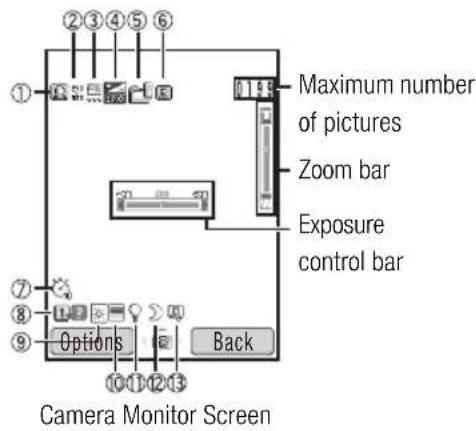
text_image
① ②③④⑤⑥ Maximum number of pictures Zoom bar Exposure control bar ⑦ ⑧ ⑨ Options Back 10 ⑪ ⑫ ⑬ Camera Monitor Screen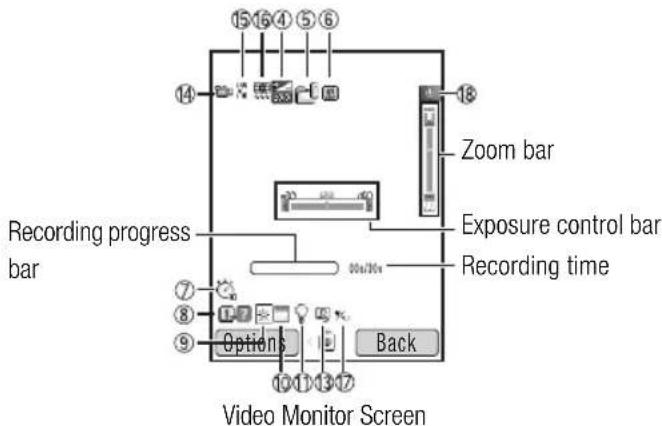
text_image
Recording progress bar Options Video Monitor Screen Zoom bar Exposure control bar Recording time BackCamera Indicators
① Camera Mode
Landscape Mode Portrait Mode
Sub Camera On
Multi Shots
High Speed Normal Speed Low Speed
② Picture Size
W2048 × H1536 W1600 × H1200
W1280×H960 W640×H480
W240 × H320 W144 × H176
W120×H160 W112×H12
W96 × H128
③ Picture Quality
Fine Normal
Economy
⑫ Night Mode
Video Camera Indicators
⑭ Video Mode
Sub Camera On
⑮ Video Size
W320×H240 W176×H144
⑯ Video Quality
Super Fine Fine
Normal
⑰ % Voice Record Off
⑱ Status
Standby Recording
Stopped Playing
Paused Forward
Rewind
Frame Forward/Slow Playback
Frame Rewind


Camera & Video Camera Indicators
④ Exposure Control
... -20... ±0 ... +2.0
⑤ Storage Place
Phone Memory Card
⑥ Macro Mode
⑦ Delay Timer
5 sec. 10 sec.
20 sec.
⑧ Guide Display
⑨ White Balance
Daylight Cloudy
Fluorescent (Day)
Fluorescent (Wht)
Tungsten
⑩ Colour Control
Intense Colour
Soft Colour
⑪ Mobile Light
13 Self-view


Taking a Picture
There are two modes for taking pictures: Landscape mode and Portrait mode (page 68). You can also edit the pictures you take and set them for Contacts list entries.
- In standby mode, press □ or the side key (□).
The monitor screen appears.
You can adjust the exposure and zoom from the monitor screen. To adjust the exposure, press ⏻ to make the picture darker and press ⏻ to make the picture lighter. To adjust the zoom, press ⏻ or the side key (☐) to zoom in and press ⏻ or the side key (☐) to zoom out.
- Display the subject in the main display and press ⬤ or the side key (☐).
The shutter sound is heard and the picture is saved automatically to the preset storage place.
The preview screen appears.
Monitor Screen Options
You can perform the following operations if you press ☐ (Options) from the monitor screen.
◆ Camera Mode: Allows you to switch between Landscape mode and Portrait mode (page 68).
◆ My Pictures: Allows you to see the pictures you took previously.
◆ Self-view: Allows you to take pictures of yourself using the sub camera.
◆ Night Mode: Use this mode when taking a picture of a night scene, etc.
◆ Multi Shots: Allows you to take up to nine pictures in succession at one of three different speeds.
◆ Add Frame: Allows you to add a frame to a picture.
◆ Save Image to: Allows you to set the storage place to which to automatically save pictures.
◆ Advanced: For details on advanced settings, see “Settings for Pictures & Videos” (page 74).
Note
- When taking pictures with the sub camera, the picture size is fixed to W240 × H320.
- You can use Multi shots only when Portrait mode is set. During Multi shots, Night mode and zoom are unavailable.
- Zoom is unavailable when picture size is set at W2048 × H1536 in Landscape mode.
- When you take a picture in Landscape mode and in Portrait mode at W96 × H128 size, a frame cannot be set.
Preview Screen Options
You can perform the following operations if you press ☐ (Options) from the preview screen.
◆ To Monitor Screen: Takes you back to the camera monitor screen.
◆ Send: Allows you to use the MMS and infrared functions to send a picture.
◆ Delete: Allows you to delete the picture you took.
◆ Full Screen: Allows you to display the picture you took over the whole screen.
◆ Assign to Contact: Allows you to register a picture taken in Portrait mode at W112 × H112 size to a Contacts list entry and set it to be displayed as the incoming picture along with the name and phone number.
◆ Edit Picture: Allows you to change the size of a picture you took, as well as add a frame, stamp or text to the picture and rotate the picture. You can edit a picture that is JPEG or PNG of W240 × H320 size or smaller and 100 KB or less.
Recording a Video
There are two modes for recording videos: Camcorder and For MMS (page 68).
-
In standby mode, press and hold □ or the side key (□).
You can adjust the exposure and zoom from the monitor screen.
To adjust the exposure, press ⬤ to make the video darker and press ⬤ to make the video lighter. To adjust the zoom, press ⬤ or the side key (☐) to zoom in and press ⬤ or the side key (☐) to zoom out. -
Display the subject in the main display and press ⬤ or the side key (☐).
The start sound is heard and recording begins.
You can pause recording in Camcorder mode. To pause recording, press ☐.
To resume recording, press □ or the side key (□).
- Press □ or the side key (☐).
The end sound is heard and the video is saved automatically to the preset storage place.
Note
- A video being recorded in For MMS mode cannot be paused.
Monitor Screen Options
You can perform the following operations if you press ☐ (Options) from the monitor screen.
◆ Record Mode: Allows you to change the record mode (size).
◆ My Videos: Allows you to see the videos you recorded previously.
◆ Self-view: Allows you to record videos of yourself using the sub camera.
◆ Hide Controller/Show Controller: Allows you to set whether to show the indicators during recording and playback.
◆ Voice Record: Allows you to set whether to record sound during recording.
◆ Save Video to: Allows you to set the storage place to which to automatically save videos.
◆ Advanced: For details on advanced settings, see “Settings for Pictures & Videos” (page 74).
Note
- When using the sub camera, the record mode (video size) is fixed to For MMS (W176 × H144).
Preview Screen Options
You can perform the following operations if you press ☐ (Options) from the preview screen.
◆ To Monitor Screen: Takes you back to the video monitor screen.
◆ Send: Allows you to use the MMS and infrared functions to send a video.
◆ Delete: Allows you to delete the video you recorded.
◆ Play: Allows you to play the video you recorded.
◆ Normal Screen/Full Screen: Allows you to set whether to display the video you recorded over the whole screen.
◆ Hide Controller/Show Controller: Allows you to set whether to show the indicators during recording and playback.
◆ Assign to Contact: Allows you to register a video recorded in For MMS mode to a Contacts list entry and set it as a ringtone for voice calls and video calls.
Note
- If the video was recorded in Camcorder mode, the send functions are unavailable.
- The file sizes that can be sent with MMS messages depend on your service provider.
Picture & Video Settings
Settings for Taking Pictures
- In standby mode, press ●.
The main menu appears.
2. Camera Settings Camera Settings
◆ Picture Settings: Allows you to set the picture quality, picture size, picture effects, date stamp or whether to show a preview after you take a picture.
◆ Grid: Displays horizontal and vertical gridlines on the monitor screen to use as a vertical and horizontal guide for taking pictures.
◆ File Name: Allows you to preset the file name to use when saving pictures to the date and time the pictures were taken or a name of your choice.
◆ Shutter Sound: Allows you to set the shutter sound to use when taking pictures.
◆ Keypad Shortcut: Allows you to set whether to use the keypad shortcuts for accessing functions when you are taking pictures. For details on keypad shortcuts, see "Shortcut Key Assignment" (page 75).
Note
- When you take a picture in Landscape mode and in Portrait mode at W112 × H112 size, the date stamp cannot be added.
Settings for Recording Videos
- In standby mode, press ☐.
The main menu appears.
2. Camera Settings Video Settings
◆ Movie Settings: Allows you to set the video quality, video effects or whether to show a preview after you record a video.
◆ Screen Settings: Allows you to display the video over the whole screen during or after recording. You can also set whether to show the indicators during recording and playback.
◆ File Name: Allows you to preset the file name to use when saving videos to the date and time the videos were recorded or a name of your choice.
◆ Start/End Sounds: Allows you to set the sounds to use when starting and ending recording.
◆ Keypad Shortcut: Allows you to set whether to use the keypad shortcuts for accessing functions when you are recording videos. For details on keypad shortcuts, see "Shortcut Key Assignment" (page 75).
Note
- If a video was recorded in For MMS mode, forward, rewind, and slow playback are unavailable.
- The maximum recording time varies depending on the video quality setting.
Settings for Pictures & Videos
You can set the following items if you press ☐ (Options) from the monitor screen for pictures/videos and select Advanced.
◆ Delay Timer: Allows you to take a picture or start recording after a specified time elapses.
◆ Mobile Light: Allows you to turn on the mobile light while taking pictures or recording videos.
◆ White Balance: Allows you to set the white balance so that the colours more closely resemble the actual colours.
◆ Colour Control: Allows you to set the colour tones to use when taking pictures and recording videos.
◆ Exposure Control: Allows you to adjust the brightness for pictures and videos.
Using Macro Mode
When the lens is close to the subject, switch the close-up switch as shown below to use macro mode.
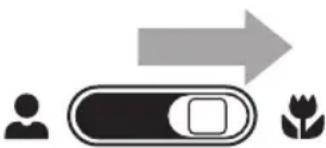
natural_image
Simple diagram showing a person silhouette, a switch, and a plant with an arrow (no text or symbols)Shortcut Key Assignment
The following keypad shortcuts are available while you are taking pictures and recording videos.
| Taking Pictures Recording Videos | |
| 1. . . . . . . . . . . . . . . . . . . . . . . . . . . . . . . . . . . . . . . . . . . . . . . . . . . . . . . . . . . . . . . . . . . . . . . . . . . . . . . . . . . . . . . . . . . . . . . . . . . . . | Key Guide Key Guide |
| 2. . . . . . . . . . . . . . . . . . . . . . . . . . . . . . . . . . . . . . . . . . . . . . . . . . . . . . . . . . . . . . . . . . . . . . . . . . . . . . . . . . . . . . . . . . . . . . . . . . . | Camera Mode Record Mode |
| 3. . . . . . . . . . . . . . . . . . . . . . . . . . . . . . . . . . . . . . . . . . . . . . . . . . . . . . . . . . . . . . . . . . . . . . . . . . . . . . . . . . . . . . . . . . . . . . . . . . . | |
| 4. . . . . . . . . . . . . . . . . . . . . . . . . . . . . . . . . . . . . . . . . . . . . . . . . . . . . . . . . . . . . . . . . . . . . . . . . . . . . . . . . . . . . . . . . . . . . . | Picture Effects Effects |
| 5. . . . . . . . . . . . . . . . . . . . . . . . . . . . . . . . . . . . . . . . . . . . . . . . . . . . . . . . . . . . . . . . . . . . . . . . . . . . . . . . . . . . . . . . . . . . . . . . . . . Picture Quality Video Quality | |
| 6. . . . . . . . . . . . . . . . . . . . . . . . . . . . . . . . . . . . . . . . . . . . . . . . . . . . . . . . . . . . . . . . White Balance White Balance | |
| 7. . . . . . . . . . . . . . - Voice Record | |
| 8. . . . . . . . . . Night Mode Screen Display | |
| 9. . . . . . . . . . Picture Size - | |
| 10. . . . . . . Colour Control Colour Control | |
| 11. . . . . . Mobile Light Mobile Light | |
| 12. . . . . . Self-view Self-view | |
| 13. . . * Video Mode Photo Mode |
* Press and hold ☐ to switch between camera mode and video recording mode.
5 Message
Message allows you to send and receive text messages, pictures, sounds, vObjects and other data.
In This Chapter
○ Messaging Capabilities
○ Creating & Sending an MMS Message
○ Creating & Sending an SMS Message
○ Reading Received MMS & SMS Messages
○ Checking Sent MMS & SMS Messages
○ MMS/SMS Settings & Common Operations
Messaging Capabilities
Via the Service Centre, you can exchange text messages, pictures, sounds, vObjects and other data with other phones or PCs and other devices connected to the Internet. For details on the messaging service, contact your service provider.
Note
- The network service is only available while or displayed on the display.

Message Menu
You can access the Message menu by pressing ⏻ (✉) f r o standby mode.
◆ Create Message: Allows you to create and send an MMS or SMS message (pages 79, 81).
◆ Inbox: Allows you to check received messages (page 82).
◆ Drafts: Allows you to save created messages (page 86).
◆ Sent Messages: Allows you to check sent messages (page 83).
◆ Unsent Messages: Stores messages that could not be sent (page 86).
◆ Templates: Allows you to create messages easily using preset templates (page 86).
◆ Settings: Allows you to set various MMS and SMS settings (page 84).
Creating & Sending an MMS Message
The Multimedia Messaging Service (MMS) allows you to exchange multimedia messages containing data such as text, pictures, sounds, animations and video clips. For details on MMS, contact your service provider.
You can send a message up to 300 KB including body text and attachment files.
- In standby mode, press 📄 (✉).
The Message menu appears.
2. Create Message MMS
The Create MMS Message screen appears.
- Select the item you want to enter and press ☐.
◆ Add Subject: Allows you to enter a subject.
- Add Picture: Allows you to attach a picture in My Pictures. You can also activate the camera and take a picture to attach.
- Add Text: Allows you to enter a message. To set the text colour, select the text you entered, press 📄 (Options) and select Text Options.
◆ Add Sound: Allows you to attach a sound in Sounds&Ringtones.
- Add Video: Allows you to attach a video in My Videos. You can also activate the camera and record a video to attach.
-
Add Other Files: Allows you to attach files such as vCard files in Other Documents.
-
Select Send to and press ●.
- Select how to set the address and press ☐ (Select).
- Specify an address and press ☐.
The Recipients list appears.
- Select Send and press ●.
The message is sent and then saved to Sent Messages.
Note
- Although the MMS functions vary by country, the main functions are basically the same.
- Another file may not be able to be added after attaching some types of file.
Tip
- You can add or edit an address, save the message to Drafts (page 86) or set sending options such as Delivery Report and Expiry Time if you press 📄 (Options) from the Recipients list.
Managing Pages
You can add, delete and replace pages. You can set up to 20 pages for each message.
- From the Create MMS Message screen (page 79), press ☐ (Options).
- Select Add Page and press ☐ (Select).
A page is added.
When there is more than one page, you can perform the following operations if you select Page Control.
◆ Add Page: Adds a page.
◆ Delete Page: Deletes a page.
◆ Previous Page/Next Page: Takes you to the previous or next page.
◆ Move Page: Moves a page to a specified position.
Tip
- To set the page duration or background colour of the page, select Page Options after Step 1.
Setting the File Playback Time
You can set the playback time for the text and attached files.
- From the Create MMS Message screen (page 79), select text or an attached file and press ☐ (Options).
- Item Duration Start Time
- Enter the start time and press ☐ (OK).
- Select Duration and press ☐ (Select).
- Enter the display duration and press ☐ (OK).
Note
- A start time and display duration that exceeds the page duration cannot be set.
Creating & Sending an SMS Message
The Short Message Service (SMS) allows you to exchange text messages with other phones. For details on SMS, contact your service provider.
- In standby mode, press 📄 (✉).
The Message menu appears.
- Create Message SMS
The Create Message screen appears.
- Enter a message and press ☐.
The maximum number of characters for one SMS message is 70 (160 when you enter only letters of the alphabet and digits). If you exceed the maximum number, the message is split into linking SMS messages when it is sent. You can send up to 670 characters (1,530 when you enter only letters of the alphabet and digits) at one time with linking messages.
-
Select how to set the address and press ☐ (Select).
-
Specify an address and press ☐.
The Recipients list appears.
- Select Send SMS and press ●.
The message is sent and then saved to Sent Messages.
Tip
- You can add or edit an address, save the message to Drafts (page 86) or set sending options such as Delivery Report and Expiry Time if you press ☐ (Options) from the Recipients list.
Reading Received MMS & SMS Messages
When a message is received in standby mode, you are notified by the ringtone and vibration. At the top of the display, the indicator appears for an MMS message and the indicator appears for an SMS message. Received messages are saved to Inbox.
- In standby mode, press 📄 (✉).
The Message menu appears.
- Select Inbox and press ☐ (Select).
A list of received messages appears.
appears for unread messages.
The following indicators appear for MMS messages.
MMS message ( high priority level, low priority level)
Notification ( high priority level, low priority level)
Delivery report message
The following indicators appear for SMS messages.
SMS message
SMS message in the SIM card (page 97)
Delivery report message
WAP Push message
- Select the message you want to read and press ☐.
The message appears.
If you receive an MMS message with multiple pages set, pictures, sounds and text are presented in a slideshow-like format.
Whether an attached file displays/plays depends on the Auto-extract File setting of "MMS Settings" (page 84). If there is an attached video or other file, the file icon is displayed.
Note
- Some files cannot be displayed/played unless the corresponding content key (content usage right) is downloaded. When a content key is being downloaded, the Indicator appears at the top of the display.
- If you set the DST setting (page 25) to On and set the date and time to the summer time, your phone automatically adjusts the reception times displayed for received messages to the summer time.
Checking WAP Push Messages
WAP Push is an information delivery service that allows you to receive notifications in real time from the Web server. When you receive a message, the indicator appears at the top of the display. If Auto Launch (page 88) of the browser settings is set to On, your phone accesses the specified URL as soon as the message is received. Some push messages are just saved to the Inbox.
Inbox Operations
You can perform various operations such as replying to, forwarding or deleting a received message or saving a received message to Templates if you press (Options) from the Inbox list or a message. To set your phone so that your phone number is not included in the Recipients list each time you choose to "reply to all" when composing a message, select Call Manager ▶ My Details and then enter your phone number.
Checking Sent MMS & SMS Messages
- In standby mode, press 📄 (✉).
The Message menu appears.
- Select Sent Messages and press ☐ (Select).
A list of sent messages appears.
The following indicators appear for MMS messages.
MMS message ( high priority level, low priority level)
Delivered MMS message (high priority level, low priority level)
MMS message for which delivery failed (high priority level, low priority level)
The following indicators appear for SMS messages.
SMS message
SMS message in the SIM card (page 97)
- Select the message you want to check and press ☐.
The message appears.
Sent Messages Operations
You can perform various operations such as resending to, forwarding or deleting a sent message or saving a sent message to Templates if you press ☐ (Options) from the Sent Messages list or a message.
MMS/SMS Settings & Common Operations
Common Settings
You can set various settings common to MMS and SMS.
- In standby mode, press 📄 (✉). The Message menu appears.
2. Settings Common Settings
◆ Reply Settings: Allows you to set whether to quote received messages when replying to them.
◆ Page Scroll: Allows you to select the scroll unit of the message display screen.
MMS Settings
You can set the MMS receive and send settings.
- In standby mode, press ☐ (✉). The Message menu appears.
2. Settings MMS Settings
◆ Receiving Settings - Retrieve Mode: Allows you to set whether to automatically retrieve messages received by the mail server. There are two settings: Home Network and Roaming Network. For
each of the settings, you can select Immediate, Deferred or Always Ask.
- Auto-extract File: Allows you to set whether to automatically display/play picture and sound files attached to messages.
- Reply for Delivery: Allows you to set whether to reply to requests for delivery confirmation.
- Anonymous Msg.: Allows you to set whether to receive anonymous messages.
◆ Sending Settings
- Sender Visibility: Allows you to set whether to notify recipients of your address.
- Delivery Report: Allows you to receive delivery reports to confirm whether sent messages were delivered to recipients.
- Delivery Time: Allows you to specify a time up to seven days in the future for delivering messages from the service centre to recipients.
- Read Report: Allows you to receive read reports to confirm whether sent messages were read by recipients.
- Expiry Time: Allows you to set the length of time a sent message is stored on the mail server.
- MMS Priority: Allows you to set the message priority level to High, Normal or Low.
- Creation Mode: If Free is set, attachment restrictions for file types are cancelled.
SMS Settings
- In standby mode, press 📄 (✉). The Message menu appears.
2. Settings SMS Settings
◆ Delivery Report: Allows you to receive delivery reports to confirm whether sent messages were delivered to recipients.
◆ Expiry Time: Allows you to set an expiry time for messages.
◆ Message Centre: Allows you to edit the centre number for SMS. The centre number is saved to the SIM card.
◆ SMS Type: Allows you to set the SMS type for outgoing messages to Text, Email, Fax Group 3, Fax Group 4 or Pager.
Note
- Do not change the centre number for the Message Centre unless your service provider informs you that it has been changed. Otherwise, you will no longer be able to use the service.
Using an SMS/MMS Template to Create a Message
Templates allow you to enter messages easily.
- In standby mode, press 📄 (✉).
The Message menu appears.
-
Templates SMS Templates or MMS Templates
-
Select a template and press ●.
To edit or delete an MMS template, press ☐ (Options).
For details on the following procedure, see “Creating & Sending an SMS Message” (page 81) or “Creating & Sending an MMS Message” (page 79).
Note
- If preset templates have been deleted or edited, you can return them to their initial state by clearing the memory (page 109).
Using Drafts & Unsent Messages
- In standby mode, press ☐ (✉).
The Message menu appears.
-
Select Drafts or Unsent Messages and press ☐ (Select).
-
Select a message and press ☐ (Options).
◆ Edit: Allows you to edit the message.
◆ Send: Allows you to send the message.
◆ Delete: Allows you to delete messages.
◆ Select Multi: Allows you to specify multiple messages and then send or delete them.
◆ Call Recipient: Makes a call to the recipient of the message.
◆ Sort by: Changes the order that messages appear.
Note
• Some items do not appear depending on the message type.
6 Browser
You can browse information or download pictures, melodies and applications.
In This Chapter
○ Accessing Browser
○ Bookmarks
○ Other Operations
○ Game & Application
Accessing Browser
- In standby mode, press ●.
The main menu appears.
- Select Browser and press ☐ (Select).
◆ Homepage: Displays the home page.
◆ Enter URL: Allows you to access a Web page by directly entering the address.
◆ Bookmarks: Allows you to bookmark your favourite Web pages and access bookmarked Web pages (page 89).
◆ News: Allows you to obtain the latest news, weather reports and other information.
◆ Music: Allows you to download music.
◆ Games: Allows you to download games and other applications.
◆ Sports: Allows you to obtain sports news, results, latest scores and other information.
◆ PLUS: Allows you to obtain the latest information.
◆ Email: Allows you to access Web-based email service sites.
◆ History: Displays the addresses of accessed Web pages in the order of newest to oldest.
◆ Browser Settings: Allows you to set various browser settings.
- Memory Manager: Clears the access history, Cookies, Web cache and DNS (Domain Name Server) cache. You can also enable or disable the storing of cookies.
- Certification: Allows you to confirm details on a certificate issued from a certificate authority.
- Auto Launch: Allows you to set whether to start the browser automatically when a WAP Push message is received.
Note
- The network service is only available while for displayed on the display.
- The indicator appears at the top of the display during communication.

Key Assignments for Browsing the Web
The following shows the key assignments for browsing the Web.
☐: Selects an item or displays the Options menu.
☐: Takes you back to the previous screen.
: Selects an item.
: Scrolls up or down.
: Scrolls left or right.
Ends communication. If your phone is not connected, takes you back to standby mode.
- to 9: Acts as a shortcut to a link with a number.
^A:N and ^#on : Acts as a shortcut to a link with or # . You can also use these keys to perform supported operations.
Side Key (☐): Increases the volume level.
Side Key (☐): Decreases the volume level. To set the volume to mute, press and hold the key.
Bookmarks
To add a bookmark, press 📄 (Options) while a Web page is displayed, select Bookmarks and select Add Bookmark. You can also use folders to organise bookmarks.
Accessing a Page from a Bookmark
- In standby mode, press ☐.
The main menu appears.
-
Browser Bookmarks
-
Select the title of the page you want to access and press ☐.
The Web page appears.
Tip
- You can create a folder or edit a bookmark if you press 📄 (Options) after Step 2.
Other Operations
You can perform various operations such as moving to another page or clearing the cache if you press ☐ (Options) while a Web page is displayed.
Using Files in Web Pages
You can perform various operations such as saving and displaying/playing picture and animation files in Web pages.
- Display a Web page containing a file and press ☐ (Options).
- Select File Select Mode and press ☐ (Select).
- Select a file and press ☐ (Options).
- Select the item you want to use and press ☐ (Select).
◆ File Details: Allows you to confirm details such as the file name, file size, save permission and transfer permission.
◆ Save: Saves the file to Gallery.
◆ Play/View: Plays or displays the file data.
◆ Paging Mode: Takes you back to paging mode.
◆ Exit Browser: Ends the browser.
Note
- Copy restrictions may prevent some files from being saved.
- Some downloaded files may not be able to be displayed/played properly.
Game & Application
From Web pages, you can download a variety of Java ^™ compatible applications such as games and applications that obtain information in real time.
In addition to ordinary applications that run solely on your phone, some applications need to connect to the network (Web).
- In standby mode, press ☐.
The main menu appears.
- Select Game&Application and press ☐ (Select).
The Game&Application menu appears.
◆ Applications: Stores Java™ applications downloaded from the Web and preinstalled Java™ applications.
◆ Screensavers: Stores standby mode Java™ applications (page 91) downloaded from the Web. To set the Java™ application start time or length of time the application runs before pausing, select Set Time.
◆ Settings: Allows you to set various Java™ application settings (page 92).
◆ Java Information: Displays an explanation on the Java™ licence.
Note
- When you use a network Java™ application, a communication fee is charged each time the application connects to the network. The communication fee is the same as that for using the Web.
Downloading Java™ Applications
-
In standby mode, press ●. The main menu appears.
-
Game&Application Applications More Games
A confirmation screen appears.
-
Press ☐ (Yes). An application download site appears.
-
Select the Java™ application you want to download and press The application details screen appears.
-
Press ☐ (Downld.). Downloading begins.
-
Press ☐ (Yes). The Java™ application list appears.
Starting a Java™ Application
- In standby mode, press ☐. The main menu appears.
- Game&Application Applications
- Select the Java ^TM application you want to start and press ☐. The indicator appears at the top of the display and the Java ^TM application starts. If you close your phone, the Java ^TM application stops.
- Press 📄, select Quit in the confirmation screen that appears and press ⬤ to end the Java™ application.
Setting the Screensaver
- In standby mode, press ☐. The main menu appears.
- Game&Application Screensavers Screensavers To cancel the screensaver, select Off.
- Select the Java™ application you want to set and press ☐. To download a screensaver, select More Screensavers. Follow the on-screen instructions.
- Press ☐ (Yes).
Java™ Application Settings
- In standby mode, press ☐.
The main menu appears.
- Game&Application Settings
◆ Priority Settings: Allows you to set the priority for when there is an incoming call, incoming message or alarm while a Java™ application is running. To give priority to voice calls, video calls, messages or alarm and to pause the Java™ application, select Voice Calls, Video Calls, Messages or Alarms. To display a notification at the top of the display without pausing the Java™ application, select Notification.
◆ Backlight: If you select Backlight, you can set the display lighting setting for when a Java™ application is running. If you select Blinking, you can set whether to enable the preset backlight blinking operation of a Java™ application.
Volume: Allows you to adjust the volume for when a Java™ application is running. You can also set the volume to mute.
◆ Vibration: Allows you to set whether to enable the preset vibration operation of a Java™ application.
◆ Reset Settings: If you select Master Reset, you can reset all Java™ application function settings. If you select Clear Memory, you can reset all Java™ application function settings and delete all downloaded Java™ applications. After the settings are reset, the power is turned off and then on automatically.
Tip
- You can also change the volume level while a Java™ application is running. Press the side key (☐) to increase the volume level and press the side key (☐) to decrease the volume level.
- If the memory is cleared, any preinstalled Java™ applications that were deleted are reinstalled and returned to their initial state.
Managing Java™ Applications
- In standby mode, press ☐.
The main menu appears.
-
Game&Application Applications
-
Select a Java™ application and press 📄 (Options).
◆ Start: Runs the Java™ application.
◆ Delete: Deletes the Java™ application.
- Select Multi: Allows you to select multiple Java™ applications and then delete them.
◆ Details: Allows you to confirm details on the Java™ application.
◆ Security Settings: Allows you to set the display method for the confirmation screen that appears when you attempt to use certain functions while a Java™ application is activated.
7 Gallery
The data you save in your phone is stored in Gallery. You can move the data stored in the folders of Gallery and edit it for use with other functions.
In This Chapter
○ Gallery
○ Using vObjects
○ Using the Memory Card
○ Using the SIM Card
Gallery
Gallery of your phone contains folders for storing files. You can create your own folders (personal folders). Gallery can store a total combination of approximately 500 files and personal folders. You can also use Gallery of the memory card (page 24).
You can connect to the Web from More Pictures, More Videos, More Sounds and More Games.
Structure of Gallery
- In standby mode, press ●, select Gallery and press (-) (Select).
◆ Pictures: Contains pictures and the Digital Camera folder. Pictures you take in Landscape mode are saved to the Digital Camera folder.
◆ Videos: Contains videos.
◆ Sounds&Ringtones: Contains sound files and the Recordings folder.
◆ Game&Application: Contains Java™ applications.
◆ My Saved Pages: Contains URLs and Web pages.
◆ Templates: Contains the SMS Templates and MMS Templates.
◆ Other Documents: Contains vCard, vCalendar, SVG and text files, as well as files of unknown types.
Note
- There are no My Saved Pages and Templates folders in Gallery of the memory card.
- There are no Java™ applications in Game&Application of the memory card.
Tip
- To display the memory usage status, select Memory Status.
Editing Files & Folders
You can perform various file and folder operations if you press ☐ (Options) while viewing files or folders in Gallery.
Using vObjects
vObject is a collective name for file formats that enable your phone and other vObject compatible phones, PCs and other devices to exchange and mutually use data such as Contacts list entries and Calendar data.
◆ vObject compatible software is required to use the data of vObjects on a PC or other device.
◆ Depending on the software used, vObjects may not be able to be displayed properly.
◆ Depending on the contents of vObjects, the exchange of vObjects between a vObject compatible phone and PC or other device may not be possible.
When vObjects include many characters, all vObjects may not be able to be sent or received.
Importing a vObject into a Function
-
In standby mode, press ☐.
The main menu appears. -
Gallery Other Documents
-
Select a vObject and press ☐.
-
Press ☐ (Options).
-
Select Save to Contacts or Save to Calendar and press ☐ (Select).
Note
- When importing a vObject that has a picture to the Contacts list, the picture cannot be saved to the Contacts list if it exceeds W112 × H112.
Using the Memory Card
You can check and edit pictures and other data saved to the memory card. You can also save a backup of Gallery, Contacts list and other data in your phone to the memory card.
Formatting the Memory Card
You can use your phone to format the memory card.
- Insert the memory card in the slot of your phone.
- In standby mode, press ☐.
The main menu appears.
- Settings Memory Settings Memory Card Format Card
- Enter your security code (page 21).
A confirmation screen appears.
- Press ☐ (Yes).
Note
- If the memory card is removed while reading or writing data, the data may be lost or the memory card may be damaged.
- If the memory card is formatted by another device, it may not work properly with your phone. Be sure to use your phone to format the memory card.
- Formatting the memory card deletes all data in the memory card.
Using the SIM Card
You can move or copy Contacts list entries from your phone or memory card to the SIM card, as well as move SMS messages from your phone to the SIM card. Although the number of Contacts list entries you can save to the SIM card depends on the amount of available memory space, the maximum number of entries is 250.
Moving & Copying Contacts List Entries
You can move or copy the name and default phone number (page 45) of an entry.
-
In standby mode, press ☐.
The main menu appears. -
Call Manager Contacts List
-
Press ☐ (Options).
- Select Select Multi and press ☐ (Select).
- Select the Contacts list entry you want to move or copy from your phone and press ☐.
To select another Contacts list entry, repeat Step 5.
- Press ☐ (Options).
-
Select Move or Copy and press ☐ (Select).
-
Select To Phone Memory, To SIM or To Memory Card and press ☐ (Select).
Tip
- To move or copy Contacts list entries in the memory card to the SIM card, select Memory Card after Step 3. After the Contacts list in the memory card appears, proceed from Step 3.
- An indicator at the top of the Contacts list screen indicates the storage place of the Contacts list entry.
Moving SMS Messages
You can move messages in the Inbox (page 82) and Sent Messages (page 83) of your phone and messages in your SIM card. Although the number of messages you can save to the SIM card depends on the amount of available memory space, the maximum number of sent and received messages is 50.
- In the Inbox or Sent Messages, select the message you want to move from your phone and press ☐.
- Press ☐ (Options).
- Select Move to SIM or Move to Phone and press ☐ (Select).
8 Settings
You can make various settings to personalise your phone.
In This Chapter
○ Display Settings
○ Phone Profiles
○ Language Setting
○ Shortcut Function
○ External Light Settings
○ Flight Mode Setting
○ Call Settings
○ Using the Stereo Handsfree Headset
○ Security Settings
○ Network & Internet
Display Settings
Setting the Main Display
- In standby mode, press ●.
The main menu appears.
2. Settings Display Settings
◆ Wallpaper: Allows you to set a picture preinstalled in your phone or taken with the camera as the wallpaper for standby mode.
◆ Theme: Allows you to set the main menu and wallpaper together by selecting a theme preinstalled in your phone.
◆ Clock Type Display: Allows you to select the clock display for the main display from five types or set it off.
◆ Backlight: Allows you to adjust the brightness and lighting time of the main display backlight.
◆ Power Saving: Allows you to save battery power by setting the phone to turn off the display after a specified time of inactivity elapses.
Cell Information: Allows you to set whether the cell information sent from a base station is displayed in standby mode when you use your phone on a mobile phone network based on Micro Cellular Network (MCN) technology.
Setting the Incoming Display
You can set a picture to appear on the main display for incoming calls. You can also set the other party's phone number or name to appear on the external display for incoming calls.
- In standby mode, press ☐.
The main menu appears.
- ▶ Settings ▶ Call Settings ▶ Voice Call or Video Call ▶ Caller Details
◆ Incoming Picture: Allows you to set the incoming picture.
◆ Caller Picture: Allows you to display a picture associated with a caller in the Contacts list when a call is received from that caller.
◆ Caller Info: Allows you to set the display of the phone number or name set for a caller in the Contacts list on the external display when a call is received from that caller.
Note
- You can set a picture of W240 × H320 size or smaller for the incoming picture.
• The display area for the incoming picture is W240 × H112.
Phone Profiles
This feature allows you to change the sound and vibration to match your surrounding conditions. Your phone has four preset profiles. You can change the sound and vibration settings of each profile.
◆ Normal: Profile for ordinary use.
◆ Silent: Profile for when you do not want your phone to emit any sound.
◆ Car: Profile for when you want the incoming ringtone volume and multimedia volume set to the maximum levels so that you can hear your phone while you are driving, etc.
◆ Meeting: Profile for meetings, etc.
Switching Profiles
- In standby mode, press ☐.
The main menu appears. - Settings Phone Profiles
- Select the profile you want to set and press ☐. If a profile other than Normal is set, the indicator for the profile appears at the top of the display.
Tip
- To switch the phone profile to Silent, press and hold # in standby mode. To switch back to previous profile, press and hold # in standby mode.
Personalising Profiles
You can personalise profiles. The items you can personalise vary depending on the profile.
- In standby mode, press ☐.
The main menu appears. - Settings Phone Profiles
- Select the profile you want to set and press ☐ (Options).
- Select Personalise and press ☐ (Select).
◆ Ringtone Volume: Allows you to set the ringtone volume for any profile except Silent.
◆ Assign Ringtone: Allows you to set preinstalled sounds in your phone or sounds and videos in Gallery as ringtones for voice calls, video callings and messages. You can set ringtones for any profile except Silent. You can also set the ringtone duration for incoming messages.
◆ Vibration: Allows you to set the vibration to On or Off. For profiles other than Silent, you can also set the vibration pattern.
◆ Keypad Volume: Allows you to set the keypad volume for any profile except Silent.
◆ Keypad Tones: Allows you to set the keypad tone for any profile except Silent.
◆ Sound Effects Vol.: Allows you to set the volume level of each of the sound effects for turning on/off the power, opening/closing your phone and errors for any profile except Silent.
◆ Sound Effects: Allows you to set each of the sound effects for turning on/off the power and opening/closing your phone for any profile except Silent.
- Multimedia Volume: Allows you to set the volume level for messaging, Browser and playing sound data in Gallery (except for when using Media Player). You can set the volume level for any profile except Silent.
◆ Battery Alarm: Allows you to set whether to play the battery alarm, when the battery level (pages 17, 18) is very low and your phone is about to run out of power, for any profile except Silent.
◆ Alarm: Allows you to set whether to play the alarm for Silent and Meeting.
Note
- A video file cannot be set as the ringtone for incoming messages.
- Only part of the title is displayed for some preinstalled sounds.
Tip
- To switch to a profile, select Activate after Step 3.
- To return a profile to its default settings, select Set to Default after Step 3.
Language Setting
You can change the display language.
- In standby mode, press ●.
The main menu appears.
-
Settings Phone Settings Language
-
Select the language you want to set or Automatic and press (Select).
Tip
- If the language is set to Automatic, the language is set automatically in accordance with the language priority setting of the SIM card. If your phone does not support the language set for the SIM card, the default language of your phone is selected.
Shortcut Function
Changing the Shortcut Menu
The nine functions that have been registered in the Shortcut menu can be changed so that you can access frequently used functions more quickly and easily.
- In standby mode, press 🔓.
The Shortcut menu appears.
-
Select the function you want to change and press ☐ (Options).
-
Select Assign Shortcut and press ☐ (Select).
-
Select the function you want to set and press ☐ (Select). If you selected Contacts List or Gallery, you can set a shortcut for a file, folder or Contacts list entry. Select the item you want to set.
Tip
- To access a function from the Shortcut menu, select the function you want to access after Step 1 and press ☐.
Setting the Shortcut Key Function
- In standby mode, press ☐.
The main menu appears.
2. Settings Phone Settings Shortcuts
◆ Side Up Key: Allows you to change the function accessed when you press and hold the side key (☐) in standby mode.
◆ Navigation Keys: Allows you to change the functions accessed when you press the navigation keys ☐, ☐, ☐ and ☐ in standby mode.
External Light Settings
When you receive a voice call, video calling or message or have unchecked information, the external light flashes if your phone is closed.
- In standby mode, press ☐.
The main menu appears.
2. Settings Phone Settings External Light
◆ Notification: Allows you to select from three colours for the external light that flashes when you have unchecked information (missed calls and unread messages) and your phone is closed. You can also set the external light not to flash.
- Incoming: Allows you to select from five colours for the external light that flashes when you have an incoming voice call, video calling or message. You can also set the external light not to flash.
Flight Mode Setting
You can use Flight mode to block signal reception and transmission without turning off the power. Flight mode disables the use of network services for making and receiving calls, sending and receiving messages, etc.
- In standby mode, press ☐.
The main menu appears.
-
Settings Phone Settings Flight Mode
-
Select On and press ☐ (Select).
The indicator appears at the top of the display.
Note
- You can cancel Flight mode and make an emergency call if you dial the phone number of an emergency service (page 21) while Flight mode is set.
Call Settings
Showing/Hiding Caller ID
You can set whether to automatically notify the other party of your phone number when you make a call.
- In standby mode, press ☐.
The main menu appears.
- Settings Call Settings Send My Number Setting
◆ Show My Number: Sets your phone to notify the other party of your phone number.
◆ Hide My Number: Sets your phone to not notify the other party of your phone number.
◆ Network Default: Uses the default network setting.
Note
- Regardless of this function setting or network setting, you can still show/hide your phone number when you make a call if you directly enter “*31#” or “#31#” (page 35) or if you make a call from the Contacts list to a phone number that has “*31#” or “#31#” added.
Setting the Auto Answer
You can answer a call without having to press a key while the stereo handsfree headset is connected. You can also change the length of time before a call is answered.
When Auto Answer is set, the auto answer tone plays regardless of the setting for the phone profile (page 101).
-
In standby mode, press ☐.
The main menu appears. -
Settings Call Settings Voice Call Auto Answer
-
Select On and press ☐ (Select).
-
Enter the answer time (1 to 29 seconds) and press ☐ (OK).
Setting Mute
You can mute the outgoing voice or both the outgoing voice and incoming voice for calls.
-
In standby mode, press ☐.
The main menu appears. -
▶ Settings ▶ Call Settings ▶ Voice Call or Video Call ▶ Mute
-
Select Mute My Voice, Mute All or Off and press ☐ (Select).
Enabling/Disabling Incoming Voice Calls during Data Communication
You can set whether to receive incoming voice calls during data communication.
-
In standby mode, press ☐.
The main menu appears. -
Settings Call Settings Voice Call Call Priority
-
Select Enable or Disable and press ☐ (Select).
Common Settings
- In standby mode, press ☐.
The main menu appears.
- Settings Call Settings Common Settings
◆ Earpiece Volume: Allows you to set the volume for sound heard from the earpiece.
◆ Speaker Volume: Allows you to set the volume for sound heard from the speaker.
◆ Open to Answer: Allows you to answer an incoming call by simply opening your phone.
◆ Any Key Answer: Allows you to set the keys for answering incoming calls. If Any Key Answer is set to On, you can also answer an incoming call if you press any of □ to ▢, ▶A/2 and □□.
Using the Stereo Handsfree Headset
Simply pressing the send/end key ( ) of the stereo handsfree headset allows you to dial a preset phone number or answer a call without even opening your phone.
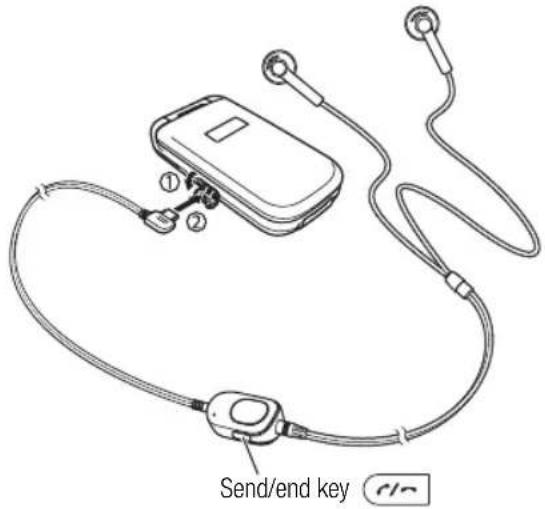
text_image
Send/end key- Open the earphone microphone jack cover.
- Insert the plug of the stereo handsfree headset into the earphone microphone jack.
Setting the Phone Number
- In standby mode, press ☐. The main menu appears.
- Settings Call Settings Voice Call Earphone Call
- Select On and press ☐ (Select).
- Select the input method for the phone number and press ☐ (Select).
One-touch Calling/One-touch Answering
You can press and hold to dial the preset phone number, answer an incoming call or end a call.
Security Settings
You can configure security related settings such as setting call barring or changing the PIN/PIN2 codes and security code for your phone.
- In standby mode, press ☐.
The main menu appears.
2. Settings Security Settings
◆ PIN Code Request: Allows you to set whether to request the entering of your PIN code to perform verification each time a SIM card is inserted into the phone and the power is turned on.
◆ Change PIN/Change PIN2: Allows you to change the PIN code and PIN2 code. Set PIN Code Request to On before you change a PIN code.
◆ Change Password: Allows you to change the security code (page 21) required to use some functions and modify the settings of your phone. The initial security code is "0000" or the four-digit number you selected when you concluded your contract.
◆ Phone Lock: Allows you to prevent another person from using your phone without entering your security code (page 21). There are three options to choose from for when to set the phone lock: Phone Closed, Power Saving and Power On. To cancel the phone lock temporarily, enter your security code and
press ☐ (OK). To cancel the lock, cancel the phone lock temporarily and then set it to Off.
◆ Reject Calls: Allows you to set the conditions for rejecting incoming calls.
◆ Reject Addresses: Allows you to add up to 50 email addresses or phone numbers to the Rejection list to reject the reception of messages from those email addresses or phone numbers.
◆ Fixed Dialling No.: Allows you to restrict the making of calls and sending of messages to up to 40 phone numbers in the Fixed Dialling Number list of the SIM card.
Note
- The fixed dialling number function is unavailable for some SIM cards.
Key Guard
Setting the Key Guard
The key guard can prevent unintentional operations while your phone is in your bag or pocket by disabling the side keys and Music Player keys for operating your phone when it is closed.
- While your phone is closed, press and hold ☐.
The indicator appears on the external display.
Cancelling the Key Guard
- While your phone is closed, press and hold ☐.
Initialising Your Phone
You can delete all saved data such as Contacts list entries, Gallery files and messages, as well as reset all function settings.
-
In standby mode, press ☐.
The main menu appears. -
Settings Memory Settings Phone Memory Clear Memory
- Enter your security code (page 21).
A confirmation screen appears.
- Press ☐ (Yes).
Your phone is initialised and then automatically turned off and on.
Note
- This operation does not reset the data of the security code (page 21), SIM card and memory card.
Tip
- To view an approximate indication of the memory status for messages, Gallery, Contacts list and Calendar, select Phone Memory in Step 2 and select Memory Status.
Network & Internet
You can set the network (telecommunications carrier) and system mode to use. You can also set the network connection information for using the Web.
Note that you may no longer be able to connect to the home network if the settings are set incorrectly.
- In standby mode, press ☐.
The main menu appears.
- Settings Network&Internet
◆ Select Network: Allows you to set the network by selecting an available network in your current area automatically or selecting a network manually from a list.
◆ System Mode: Allows you to set whether one of 3G (UMTS) or GSM is selected as the system mode automatically or whether the system mode is fixed to 3G or GSM.
◆ Settings: Allows you to set and edit the network connection information for the browser, MMS and other applications. You can register all the necessary network connection information (network access point, proxy, etc.) for each application in advance.
◆ Internet: Allows you to set and edit the network access point (NAP) information used when modifying application settings.
◆ External Device: Allows you to set the access point name (APN) of the network information to write to your phone in order to perform data communication from an external device such as a PC.
9 Convenient Functions
Your phone includes various convenient functions.
In This Chapter
○ Calendar
○ Voice Recorder
○ Multi Task
○ Other Convenient Functions
Calendar
Calendar allows you to save your appointments and use your phone as an organiser.
Adding a New Appointment
You can save up to 100 appointments.
- In standby mode, press ☐.
The main menu appears. - Organiser Calendar
- Press ☐ (Options).
- Select New Appointment and press ☐ (Select).
- Select the item you want to set and press ☐.
◆ Title: Allows you to enter the title of the appointment.
◆ Start Date & Time: Allows you to set the start date and time for the appointment. To set both the date and time, select Date & Time. To select only the date, select Date only.
◆ End Date & Time: Allows you to set the end date and time for the appointment.
◆ No Repeat/Daily/Weekly/Monthly/Yearly/End of Month: Allows you to set a repeat interval and period for the appointment.
◆ Memo: Allows you to enter the contents of the appointment.
◆ Alarm: Allows you to set the alarm.
◆ Location: Allows you to enter the location information.
◆ None Category/Meeting/Date/Travel/Holiday/Anniversary/Miscellaneous: Allows you to set the category of the appointment.
-
Press ☐ (Options) after setting the items.
-
Select Save and press ☐ (Select).
Note
- If you change the Home City setting (page 25) in the clock settings, the start and end dates and times of appointments are automatically changed to those in the time zone of the city. Also, when DST (Daylight Saving Time) is set to On, the start and end dates and times are automatically changed for summer time.
- If your phone is turned off at the specified time, it turns on automatically to start the alarm.
- When the phone profile (page 101) is set to Silent or Meeting and the alarm is set to Off, the alarm does not play.
Tip
- At the date and time set for an alarm, the alarm plays and "Appointment" appears in the external display. To stop the alarm, press any key except the Music Player keys. After the alarm stops, press (View) to check the appointment details.
Checking Appointments
- In standby mode, press ☐.
The main menu appears.
- Organiser Calendar
The month view screen appears.
Press ✕ a,b to switch to the previous month and press ⌘ e,b to switch to the next month.
- Use ☐ to select a date and press ●.
A list of appointments for the selected date appears.
- Select the appointment you want to check and press ☐.
The details of the appointment appear.
Tip
- To switch the view between month, week, day and all appointments, press ☐ (Options) after Step 2 and select Calendar View.
Managing Appointments
You can perform various operations such as editing, deleting and sending appointments if you select a date or appointment and press ☐ (Options).
Voice Recorder
The voice recorder allows you to record sound and then send the recording attached to MMS messages. The recording data are saved to the Recordings folder in the Sounds&Ringtones folder of Gallery. Although the possible length of recording time depends on the amount of available memory space in Gallery, the maximum recording time is 90 minutes for each recording. Sound is recorded via the microphone (mouthpiece).
Recording Sound
- In standby mode, press ☐.
The main menu appears.
- Organiser Voice Recorder Record
The Voice Memo screen appears.
-
Press ☐ (Options).
-
Select Record and press ☐ (Select).
Recording begins.
- Press ☐ (Pause) to pause recording.
To resume recording, press ☐.
To save the recording data, press ☐ (Save).
Note
- If a call is received during recording, the call takes priority and recording stops. All recording data is saved automatically. To prohibit the reception of calls, set Flight mode (page 105).
Tip
- You can also display the Voice Memo screen if you press and hold (in) standby mode.
- The default storage place for recording data is your phone. To switch the storage place to the memory card, select Save sound to after Step 3 and then select Memory Card.
Sending a Voice Message
- After Step 4 of "Recording Sound" (page 113), record a voice message.
- Press ☐ to stop recording.
The voice message is saved.
- Press ☐ (Yes) when a confirmation screen appears.
The Create MMS Message screen with the voice message attached appears.
For details on the following procedure, see “Creating & Sending an MMS Message” (page 79).
Note
- A voice message cannot be attached to an MMS message due to file size restriction or if the recording time exceeds three minutes.
Multi Task
This feature allows you to run up to two functions (applications) simultaneously and switch between them.
Starting a New Application
You can start another application without ending the application you are using.
- Press ☐ while an application is in use.
The Multi Task screen appears.
-
Select Organiser and press ☐ (Select).
-
Select the application you want to start and press ☐ (Select).
The selected application starts.
Note
- This operation is not possible while the camera/video camera is activated.
- There may be insufficient memory to start a second application depending on the application running.
- An application may not be able to be switched to in the Multi Task screen depending on how the application was started.
Switching Applications
- Press ☐ while an application is in use.
The Multi Task screen appears.
- Select the application to which you want to switch and press ☐.
The application is switched to the selected application.
Tip
- To make a call, press ☐ (Options) after Step 1 and select Dial Number.
Other Convenient Functions
Accessing Other Functions from the Organiser Menu
The following functions are also available in the Organiser menu.
- In standby mode, press ●.
The main menu appears.
- Select Organiser and press ☐ (Select).
The Organiser menu appears.
You can also access functions such as the following from the Organiser menu.
◆ SIM Tool Kit: Allows you to use the preinstalled services in the SIM card on your phone. For details on the services, contact your service provider.
◆ Alarms: Allows you to set an alarm tone to play and your phone to vibrate to notify you of a specified time.
◆ Calculator: Allows you to use your phone as a calculator. You can calculate the tax rate if you press ☐ from the calculator screen.
◆ Converter: Allows you to set a currency exchange rate and then perform currency conversion calculations.
◆ Countdown Timer: Allows you to set an alarm to notify you when a certain amount of time elapses. The alarm plays for approximately one minute.
◆ Notepad: Allows you to use your phone as a notepad for storing text input. You can access notepad data during character input and editing. You can enter up to 256 characters for each memo and store up to 20 memos in the notepad.
◆ World Clock: Allows you to check the date and local time in major cities around the world, as well as the time difference. A green circle indicates your home city on the map. A red circle indicates the alternate city.
Note
- If your phone is turned off at the specified time, it turns on automatically to start the alarm.
- The alarm times are not automatically changed for summer time even if you set DST (Daylight Saving Time) to On.
Torch
When the Torch function has been assigned to the side key (☐) for the shortcut setting (page 104), you can turn on the mobile light if you press and hold the side key (☐).
10 File Transfer & Synchronisation
You can use infrared, a USB cable or a memory card to transfer data between your phone and other phones, PCs and other devices. These capabilities allow you to back up data and manage the same data on multiple devices.
In This Chapter
○ File Transfer
○ File Synchronisation
File Transfer
Using Infrared for Transferring Data
You can use infrared to exchange the Calendar data of your phone, Contacts list entries of your phone, memory card or SIM card, pictures/videos taken or recorded with the camera and Gallery data that can be forwarded with an infrared compatible phone, PC or other device. You can also restore or backup Gallery data.
The indicator appears at the top of the display during transfer.
To transfer data between your phone and a PC, the supplied PC management software My Mobile needs to be installed on the PC. The infrared function of your phone complies with IrMC 1.1.
As shown in the illustration, bring your phone and an infrared compatible device to within 20 centimetres of each other and point both infrared ports directly towards each other. Do not place an object between them.
For details on the operating procedures of the other device, refer to the instruction manual for that device.

text_image
Within 20 cmNote
- If a USB cable is connected to your phone while you are using infrared, the infrared communication ends.
- When infrared is used to send/receive data, Flight mode is set. The indicator appears at the top of the display while Flight mode is set, except when a dial-up connection is established.
Using Infrared for Sending Data
- Set up the other infrared compatible device to receive data.
- Select Via Infrared from the Options menu of a function and press ☐ (Select).
Note
• The following files cannot be sent.
- Files in Game&Application, My Saved Pages and Templates of Gallery
• Copyright protected files
- Your phone does not support the sending and receiving of all data by infrared simultaneously.
Using Infrared for Receiving Data
- In standby mode, press ●.
The main menu appears.
-
▶ Settings ▶ Connectivity ▶ Infrared ▶ Incoming Data
-
Select Save and press ☐ (Select).
To reject the reception of files, select Reject.
Tip
• The save locations of data are determined by the extensions.
- To synchronise data on a PC with the Contacts list and Calendar of your phone, follow the PC on-screen instructions to send synchronisation commands from the PC after Step 3.
Using Infrared for Backing Up & Restoring Data
You can back up or restore files and folders in Pictures, Videos, Sounds&Ringtones and Other Documents of Gallery to a PC. Copyright protected files cannot be backed up.
- After Step 2 of "Using Infrared for Receiving Data," follow the instructions on the PC to back up or restore data from your phone to the PC.
Note
- All the data may not be able to be restored from some backup files.
Using Infrared for Dial-up Connections
- In standby mode, press ☐.
The main menu appears.
-
▶ Settings ▶ Connectivity ▶ Infrared ▶ Dial-up Connection
-
Select On and press ☐ (Select).
Tip
- You can also use a USB cable to connect your phone to a PC and establish a dial-up connection.
Using a USB Cable for Transferring Data
As shown in the illustration below, you can use a USB cable to connect your phone to a PC, then send and receive the Contacts list, Calendar and Gallery data. For details on transferring music data, see "Transferring Music from a PC to a Memory Card" (page 55). Before you connect the USB cable, the USB host driver and PC management software My Mobile included on the CD-ROM supplied with your phone need to be installed on the PC. This function supports USB 1.1 and USB 2.0. For details on the PC operating environment required to use this function, refer to My Mobile.
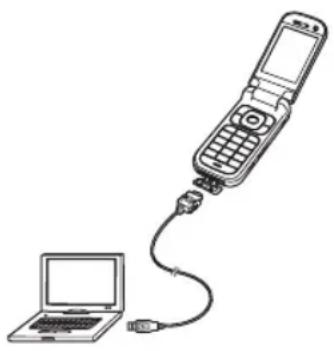
natural_image
Line drawing of a mobile phone connected to a laptop via cable (no text or symbols)Note
- When you send/receive data, Flight mode is set automatically. The indicator appears at the top of the display while Flight mode is set, except when a dial-up connection is established.
Using a USB Cable for Sending Data
You can send the data of the Contacts list, Calendar and Gallery.
-
Follow the procedure below to connect your phone and a PC with a USB cable.
1) Open the cover of the cable and phone charging terminal of your phone.
2) Insert the plug of the USB cable into the terminal.
3) Connect the USB cable to the USB port of the PC. -
In standby mode, press ☐.
The main menu appears.
3. Settings Connectivity USB Data Transfer
- Follow the instructions on the PC to send data from your phone to the PC.
Note
• The following files cannot be sent.
- Files in Game&Application, My Saved Pages and Templates of Gallery
• Copyright protected files
Tip
- To synchronise data on a PC with the Contacts list and Calendar of your phone, follow the PC on-screen instructions to send synchronisation commands from the PC after Step 3.
Using a USB Cable for Receiving Data
You can receive data to the Contacts list, Calendar and Gallery.
- After Step 3 of "Using a USB Cable for Sending Data" (page 120), follow the instructions on the PC to send data from the PC to your phone.
Using a USB Cable for Backing Up & Restoring Data
You can back up or restore files and folders in Pictures, Videos, Sounds&Ringtones and Other Documents of Gallery.
-
After Step 3 of "Using a USB Cable for Sending Data" (page 120), follow the instructions on the PC to back up or restore data from your phone to the PC.
-
Enter your security code (page 21).
Note
- Files that cannot be transferred are not backed up.
Using the Memory Card for Transferring Data
You can transfer Contacts list and Calendar data between your phone and memory card. We recommend using the memory card for backing up personal data.
The memory card needs to be formatted before it is used for the first time. For details on formatting, see "Formatting the Memory Card" (page 96).
Note
- When you back up/restore data, Flight mode is set. The indicator appears at the top of the display while Flight mode is set. When the backing up/restoring of data is complete, Flight mode is cancelled.
Backing Up Data to the Memory Card
- Insert the memory card in the slot of your phone.
- In standby mode, press ●.
The main menu appears.
- Organiser Backup/Restore Backup
- Select the data you want to back up and press ☐.
A check mark is added to the check box.
◆ Contacts List: Backs up the Contacts list.
◆ Calendar: Backs up the Calendar.
File Transfer & Synchronisation
- Press ☐ (Options).
- Select Backup and press ☐ (Select).
- Enter your security code (page 21).
A confirmation screen appears.
- Press ☐ (Yes).
A confirmation screen appears.
- Press ☐ (Yes) or ☐ (No) in accordance with the confirmation screen.
Press ☑ (Yes) to include pictures or press ☐ (No) to not include pictures when backing up the Contacts list and press ☐ (Yes) to include past appointments or press ☐ (No) to not include past appointments when backing up the Calendar.
Note
- It is recommended that you do not use a PC or other device to view or edit a backup file in the memory card because doing so may result in the file being damaged.
Restoring Data from the Memory Card
- Insert the memory card in the slot of your phone.
- In standby mode, press ☐.
The main menu appears.
- Select the data you want to restore and press ☐ (Select).
◆ Contacts List: Displays a list of Contacts list backup files.
◆ Calendar: Displays a list of Calendar backup files.
- Select the backup file you want to restore and press ☐.
- Enter your security code (page 21).
A confirmation screen appears.
- Press ☐ (Yes).
A confirmation screen appears.
- Press ☐ (Yes) or ☐ (No) in accordance with the confirmation screen.
Press ☐ (Yes) to overwrite all the data in the restore destination and press ☐ (No) to add the data.
Tip
- To delete one or all backup files, press ☐ (Options) after Step 4 and select Delete or Delete All.
File Synchronisation
You can use the network of a service provider or infrared/USB cable to synchronise the data on a network server or PC with the Contacts list and Calendar of your phone. The supplied data management software My Mobile needs to be installed.
Using a Network for Synchronisation
You can register a server on your phone to synchronise the Contacts list via the network of a service provider.
Creating a Server Profile
You can create up to five server profiles.
- In standby mode, press ●.
The main menu appears.
2. Settings Connectivity Synchronise Server Profile
-
Press ☐ (Options).
-
Select Add and press ☐ (Select). A server profile is created.
-
Select a server profile and press ☐ (Options).
-
Select Edit and press ☐ (Select).
-
Select the item you want to set and press ☐.
◆ Rename: Allows you to change the name of the selected server.
◆ Username: Allows you to set the user name for the server.
◆ Password: Allows you to set a password.
◆ URL: Allows you to set the server URL.
◆ Sync. Mode: Allows you to select Manual or Automatic for synchronisation. If you set Sync. Mode to Automatic, the data is synchronised at regular intervals automatically.
◆ Sync. Type: Allows you to set the synchronisation method.
◆ Confirmation: Allows you to set whether a confirmation screen is displayed each time synchronisation starts.
◆ Database Settings: Allows you to set the database of the selected server.
◆ Network Settings: Allows you to set the network connection information (network access point, proxy) of the selected network.
-
Press ☐ (Options).
-
Select Save and press ☐ (Select).
-
Press ☐ (Yes).
Synchronising the Contacts List
- In standby mode, press ●.
The main menu appears.
- Call Manager Synchronise
◆ Server Profile: Allows you to select a server and perform synchronisation.
◆ Phone Name: Allows you to change your phone name.
◆ Sync. Log: Allows you to confirm the last five synchronisations.
11 Appendix
In This Chapter
○ Troubleshooting
○ Specifications
○ Index
○ Health and Safety Information
○ Menu Structure
Troubleshooting
| Problem Possible Causes and Remedies | |
| Cannot turn the power on. | Make sure the battery pack is inserted correctly (page 22).Make sure the battery is charged (page 23). |
| Cannot charge the battery. | Make sure the battery pack is inserted correctly (page 22).Make sure the connectors or contacts of the AC adapter and battery pack are not dirty (page 23). |
| Cannot make or receive voice calls and video callings. | If the indicator appears on the display, move to a location where a signal can reach your phone or that is in the service area.If the indicator appears on the display, cancel Flight mode (page 105).A video calling can only be made or received in areas with 3G-network coverage. Make sure the or indicator for indicating you are in an area with 3G-network coverage appears on the display in standby mode.If a PIN code is incorrectly entered three times in a row, the PIN lock is set and a call cannot be made because access to the SIM card is blocked. Enter the PUK code to cancel the PIN lock (page 20).If the indicator appears on the display, enter your security code (page 21) to cancel the phone lock (page 108).Make sure your phone is not set to reject calls (page 108) or divert calls (page 32). |
| Cannot use the Web. | If the indicator appears on the display, cancel Flight mode (page 105).Check your subscription status. Contact your service provider.The network settings may be incorrect. Check the network settings (page 110). For details on the network settings, contact your service provider. |
| Cannot use SMS and MMS. | If the indicator appears on the display, cancel Flight mode (page 105).If the indicator appears on the display, delete messages no longer required (page 83).Check your subscription status. Contact your service provider.Make sure the service centre number (page 85) is correct. For details on the service centre number, contact your service provider. |
Specifications
Toshiba TX80
Frequency Range
Within 3G (UMTS) 2100 1920 - 2170 MHz
Within GSM 900 880 - 960 MHz
Within DCS 1800 1710 - 1880 MHz
Within PCS 1900 1850 - 1990 MHz
Continuous Talk Time
Within 3G (UMTS) area Approx. 190 min.
Video Call Approx. 100 min.
Within GSM area Approx. 320 min.
Continuous Standby Time
Within 3G (UMTS) area Approx. 470 hrs.
Within GSM area Approx. 290 hrs.
Charging Time Approx. 120 min.
Maximum Output
Within 3G (UMTS) 2100 Class 3 0.25 W
Within GSM 900 Class 4 2 W
Within DCS 1800 Class 1 1 W
Within PCS 1900 Class 1 1 W
Dimensions (W × H × D) Approx. 49 × 97 × 20 mm
Weight Approx. 111 g (with the battery pack attached)
AC Adapter
Input Voltage 100 to 240 VAC 50/60 Hz
Charging Temperature Range 5 to 35°C
Index
A
Alarm 116
Attachment 79
Audio remote control keys 16, 52, 54
Auto answer 106
Auto launch 88
B
Background playback 53
Backing up data 119, 121
Bookmarks 89
Browser 88
C
Calculator 116
Calendar 112
Adding a new appointment 112
Managing appointments 113
Call
Answering a call 28
Answering a video call 63
Auto answer 106
Making a call 27
Making a video call 62
Making an international call 28
Call barring service 33
Call divert service 32
Call log 30
Call waiting service 33
Caller ID service 35, 105
Car, phone profiles 101
Certification 88
Character input modes
Multi Tap mode 38
Numeric input mode 38
Switching 35
Symbol input mode 38
T9 mode 37, 39
T9 PinYin mode 37
T9 Stroke mode 36
Charging battery 23
Codes 21
PIN/PIN2 20
PUK/PUK2 20
Connecting
Using a USB cable 120
Via infrared 118
Contacts list 39
Countdown timer 116
D
Date & time 25
Dial-up connection 119
Display language 103
Display the memory status 40, 94, 109
Downloading 91
Drafts 78, 86
DTMF tones 30
E
Earpiece volume 29
Emergency calls 21, 133
External light settings 104
F
Formatting memory card 96
G
Gallery 94
H
Handsfree 62, 107
|
Inbox 82
Incoming display 100
Incoming external light 41
Incoming voice calls during data
communication 106
Indicators
Camera 69
External display 18
Main display 17
Video Calling 62
Video camera 69
Information prompt 19
Infrared 118
Transferring data 118
Input language 39
International call 28
J
Java™ application 90
Downloading 91
Reset settings 92
Settings 92
L
Language 39, 103
Locks
PIN/PIN2 lock 20
M
Meeting, phone profiles 101
Memory card 24, 96, 121
Formatting 96
Memory manager 88
MP3 51
MPEG4 51
Multi task 115
Multiparty call service 34
Music Library 50, 55
Music transfer mode 56
Muting 30, 63, 106
My Favourites 58
N
Navigation key 16
Network 110
Notepad 116
0
Owner information 47
P
Password
Call barring service code 21
Centre access code 21
Security code 21
Phone profiles 101
Personalising 102
PIN/PIN2 20
Play modes 52, 55
Power saving 100
PUK/PUK2 20
R
Recording videos 71
Restoring data 119, 121, 122
Ringtone 41, 102
Ringtone volume 41, 102
S
Screensaver 91
Security settings
Fixed dialling No. 108
Key guard 109
Phone lock 108
Sending my number 35, 105
Sent messages 83
Shortcut keys 104
Shortcut menu 103
Silent, phone profiles 101
SIM card 19, 96
Inserting & removing 20
SIM Tool Kit 116
Soft keys 16
Speaker volume 64, 106
Speed calling 44
Stereo handsfree headset with audio
remote control 106, 107
Synchronising 123
T
Taking pictures 70
Templates 78, 86, 94
Text editing functions 38
Appendix
Theme 100
Troubleshooting 126
U
Unsent messages 78, 86
USB 120
Cable 12, 23, 120, 123
Transferring data 120
V
Vibration 41, 102
Video Calling 62
vObject 95
Voice recorder 113
Recording 113
Sending a voice message 114
Voicemail 31
W
WAP Push 82
Warranty 3
World Clock 116
Health and Safety Information
Safety Guidelines
Follow the guidelines below to use your phone in a safe and legal manner.
General
- Use your phone in the intended manner (holding it to your ear). Incorrect usage may affect its performance. Only qualified service personnel should install or repair the phone and its accessories.
- Use only compatible batteries and accessories. Using incompatible items may permanently damage the phone.
- Do not connect the phone to any other device without reading the provided documentation. The other device may be incompatible.
- When making emergency calls from your phone, ensure that the phone is switched on and in service.
- Interference may affect your phone's performance. Once you move away from the source of the interference, the phone should operate as usual.
- When the phone is used for extended periods of time, especially in high temperature conditions, the phone surface could become hot. Please use caution when touching the phone under such conditions.
- When using ear buds or other headphones, be careful not to listen at excessive volume. Listening to very loud sound levels may lead to hearing loss. Also, listening through the ear buds or headphones for prolonged periods of time, even at normal sound levels, may lead to hearing loss. You should consult your doctor for more information on proper use of ear buds or headphones.
Operating Environment
- Do not use a hand-held phone while driving or otherwise operating machinery. If using a hand-held phone, park the vehicle before conversing. If using an integrated handsfree device, make sure the phone is securely in its holder.
- Switch your phone off if you are entering a hospital or other such institution. Medical equipment may be affected by the phone so you should observe any building regulation governing phone usage.
- Switch your phone off when on an aircraft. The aircraft's systems may be affected by the phone signal. You are legally obliged to comply with this recommendation.
- Switch your phone off in any facility where posted notices so require.
- Do not use your phone when refuelling. You should keep your phone away from fuel and chemicals.
-
Switch your phone off when blasting is in progress. Observe any provided guidelines or regulations.
-
Switch your phone off when in an area with a potentially explosive atmosphere (for example fuel storage areas, spray paint facilities etc.).
- Only qualified personnel should install the device in a vehicle. Faulty installation or service may be dangerous and may invalidate any warranty. For more information, check with the manufacturer or its representative of your vehicle.
Electronic Devices
- If you wear a pacemaker, or are in the company of someone who does, you should be aware that there is small risk of your phone interfering with the operation of the pacemaker. Only certain types of pacemaker are affected and only if the mobile phone is placed next to it. You should contact your doctor or the manufacturer of the pacemaker for more information.
- Your phone may interfere with some hearing aids. If this happens you should contact your service provider or doctor.
- Your phone may interfere with the functionality of inadequately shielded medical devices. Consult a physician or the manufacturer of the device to ensure safe procedure.
- Your phone may interfere with the functionality of any inadequately shielded electronic system in a motor vehicle. Examples of this type of system include air-bags and fuel injection. You should contact the manufacturer of the vehicle to ensure that it is properly shielded.
Battery Safety
Your device is powered by a rechargeable battery. The full performance of a new battery is achieved only after two or three complete charge and discharge cycles. The battery can be charged and discharged hundreds of times but it will eventually wear out. When the talk and standby times are noticeably shorter than normal, buy a new battery.
- A new battery or one that has not been used for a long time could have reduced capacity the first few times it is used. The battery can only be charged in temperatures between +5°C (+41°F) and +35°C (+95°F).
- Only use batteries approved by Toshiba and only recharge the battery with the recommended charger supplied by Toshiba.
- When the charger is not in use disconnect it from the power source.
- Do not leave the battery connected to the charger and power source for longer than necessary as overcharging it will shorten its life.
- Do not short-circuit the battery. Accidental short-circulating can occur when a metallic object causes a direct connection between the + and - terminals of the battery.
- Do not leave the battery in a cold (for example, a fridge) or hot place (for example, in a car exposed to direct sunlight) as this will effect its performance.
- Do not dispose of the battery in a fire.
- Do not dispose of the battery in an ordinary bin. The battery contains toxic chemicals and must be disposed of in the correct manner. Contact your local authority for more information.
Emergency Calls
Calls cannot be made to emergency services (page 21) while data communication is being performed within a GSM area. If the system mode (page 110) is set to 3G Only or GSM Only, calls cannot be made to emergency services if the selected network is unavailable. Also, calls may not be able to be made to emergency services depending on the network services of some service providers.
You can still make calls to emergency services when the SIM card is not inserted, the SIM card is locked, the phone lock is set, Fixed Dialling Numbers is set, Flight mode is set or call barring service is set.
However, there is no guarantee that a connection can be established in all countries and areas because operation of your phone differs depending on the wireless network, wireless signal and your phone's setting status. Do not rely on just your mobile phone when you need to make important calls such as calls to emergency services.
FCC RF Exposure Information
Your handset is a radio transmitter and receiver. It is designed and manufactured not to exceed the emission limits for exposure to radio frequency (RF) energy set by the Federal Communications Commission of the U.S. Government.
The guidelines are based on standards that were developed by independent scientific organisations through periodic and thorough evaluation of scientific studies. The standards include a substantial safety margin designed to assure the safety of all persons, regardless of age and health.
The exposure standard for wireless handsets employs a unit of measurement known as the Specific Absorption Rate, or SAR. The SAR limit set by the FCC is 1.6 W/kg. The tests are performed in positions and locations (e.g., at the ear and worn on the body) as required by the FCC for each model. The highest SAR value for this model handset when tested for use at the ear is 1.030 W/kg and when worn on the body, as described in this user guide, is 0.545 W/kg. Body-worn Operation; This device was tested for typical body-worn operations with the back of the handset kept 1.5 cm from the body. To maintain compliance with FCC RF exposure requirements, use accessories that maintain a 1.5 cm separation distance between the user's body and the back of the handset. The use of beltclips, holsters and similar accessories should not contain metallic components in its assembly. The use of accessories that do not satisfy these requirements may not comply with FCC RF exposure requirements, and should be avoided.
The FCC has granted an Equipment Authorization for this model handset with all reported SAR levels evaluated as in compliance with the FCC RF emission guidelines. SAR information on this model handset is on file with the FCC and can be found under the Display Grant section of http://www.fcc.gov/oet/fccid after searching on FCC ID SP2-CC4-J04.
Additional information on Specific Absorption Rates (SAR) can be found on the Cellular Telecommunications & Internet Association (CTIA) website at http://www.phonefacts.net.
European RF Exposure Information
Your mobile device is a radio transmitter and receiver. It is designed not to exceed the limits for exposure to radio waves recommended by international guidelines. These guidelines were developed by the independent scientific organisation ICNIRP and include safety margins designed to assure the protection of all persons, regardless of age and health.
The guidelines use a unit of measurement known as the Specific Absorption Rate, or SAR. The SAR limit for mobile devices is 2 W/kg and the highest SAR value for this device when tested at the ear was 1.180 W/kg*. As mobile devices offer a range of functions, they can be used in other positions, such as on the body as described in this user guide**. In this case, the highest tested SAR value is 0.360 W/kg.
As SAR is measured utilising the device's highest transmitting power the actual SAR of this device while operating is typically below that indicated above. This is due to automatic changes to the power level of the device to ensure it only uses the minimum level required to reach the network.
The World Health Organization has stated that present scientific information does not indicate the need for any special precautions for the use of mobile devices. They note that if you want to reduce your exposure then you can do so by limiting the length of calls or using a 'hands-free' device to keep the mobile phone away from the head and body. Additional Information can be found on the websites of the World Health Organization (http://www.who.int/emf).
* The tests are carried out in accordance with international guidelines for testing.
** Please see the
Menu Structure
1. Game & Application
Applications
Screensavers
Settings
Java Information
2. Browser
Homepage
Enter URL
Bookmarks
News
Music
Games
Sports
PLUS
History
Browser Settings
3. Organiser
SIM Tool Kit
Calendar
Alarms
Calculator
Converter
Voice Recorder
Countdown Timer
Notepad
World Clock
Backup/Restore
4. Message
Create Message
Inbox
Drafts
Sent Messages
Unsent Messages
Templates
Settings
5. Camera
Take Picture
Record Video
Settings
Memory Status
6. Gallery
Pictures
Videos
Sounds & Ringtones
Game & Application
My Saved Pages
Templates
Other Documents
Memory Status
7. Media Player
Music Tab
Video Tab
Streaming Tab
8. Call Manager
Contacts List
Create Contact
Call Log
Manage Category
Manage Group
Send My vCard
Synchronise
My Details
Settings
Memory Status
Service Dial No.
9. Settings
Phone Profiles
Display Settings
Phone Settings
Call Settings
Media Player Set
Security Settings
Memory Settings
Network & Internet
Connectivity
MEMO
MEMO
MEMO
MEMO
MEMO
MEMO
MEMO
MEMO
MEMO
Purchase Record
For your future reference, we recommend that you fill in your purchase details in the form below.
| Serial Number* | |
| Dealer Name | |
| Purchase Date |
* The serial number is printed on the bottom of the battery compartment.