KTAB 9704DD - Tablet Kraun - Free user manual and instructions
Find the device manual for free KTAB 9704DD Kraun in PDF.


User questions about KTAB 9704DD Kraun
0 question about this device. Answer the ones you know or ask your own.
Ask a new question about this device
Download the instructions for your Tablet in PDF format for free! Find your manual KTAB 9704DD - Kraun and take your electronic device back in hand. On this page are published all the documents necessary for the use of your device. KTAB 9704DD by Kraun.
USER MANUAL KTAB 9704DD Kraun
natural_image
Black-and-white photo of a KRAUN tablet with visible logo on screen (no text or symbols beyond branding)Guida all'uso
GB User guide
Cod. KT.A1
R&TTE + Alert

Short Declaration of conformity:
We hereby declare that this product is compliant with the current regulations and meets the essential requirements of Directive 1999/5/CE (Radio & Telecommunication Terminal Equipments – R&TTE).
This device must be used in strict accordance with the regulation. Use in France is allowed with the following restriction: Outdoor use limited to 10 mW (EIRP) with the band 2454-2483,5 MHz.
The original declaration of conformity can be requested to the Technical Support on www.kraun.it
KRAUN® COMPUTER ACCESSORIES
ITALIANO 5
ENGLISH....23

text_image
KON KON KON KONLa ScHErmaTa PrINcIPaLE HomE INCLUDE:

text_image
KRAUN® 1 2 3natural_image
Vertical toolbar with five function icons: Wi-Fi, Bluetooth, Security, and Hour (no text or labels)text_image
Black-and-white photo of two smiling women taking a selfie with a camera control panel showing adjustment options and iconsThe text herein indicates that complete or partial failure to comply with these requirements can result in serious damage to the integrity of the equipment supplied.

This text indicates that failure to comply with or only partial respect of these prescriptions can lead to a serious risk for the safety of persons.
caUTIoN: BEFORE PERFORMING ANY OF THE FOLLOWING OPERATIONS, STRICTLY FOLLOW THE PRECAUTIONS FOR USE CONTAINED WITHIN THE GUIDE
WarNING: The manufacturer is under no circumstances liable for any unauthorised modifications made to the product by the user or any other parties which may compromise its conformity and safety.
INTRODUCTION
The Kraun Ktab is a device with capacitive touchscreen interface, based on operating system Android ^™ ICS. *
Supports WiFi network connections, Bluetooth and USB.
Reading this quick guide is strongly recommended before using the device.
Notes: The images and content in this guide are used to illustrate the basic operations. The functional design and specifications are subject to change without notice.
*For more information about the operating system, visit http://www.android.com/ For more information about the device, please visit www.kraun.it
PACKAGE CONTENTS
- Tablet PC 9.7" with WiFi and Bluetooth
- Power Adaptor
- USB host cable
- User guide
TECHNICAL SPECIFICATIONS
• Display: 9,7" IPS capacitive multitouch
- CPU: 1.2 Ghz
• Screen Resolution: 1024x768 px.
• Wireless 802.11b/g/n
- Bluetooth 2.1
• USB: Micro USB 2.0 x 2
- HDMI: mini HDMI
• Audio Output: 3.5mm Jack
- Front camera: 0.3 megapixel.
- Rear Camera: 2.0 megapixel.
- Stereo speakers and microphone.
- Internal memory: 4GB
- RAM: 1GB
- MicroSD: up to 32GB (not included)
- Battery: 6000mAh 3.75V Li-Polymer, 6 hours autonomy in stand-by
• Video format: MKV (h. 264 HP). AVI. RM / BMVB. FLV. MPEG-1/2 - Ebooks: ansi / unicode txt, html, fb2, pdb, epub
• Audio formats: MP3, WMA. APE, FLAC. AAC. AC3. WAV
• Picture: JPEG, BMP, GIF, PNG, TIF
• Dimensions: 240 x 190 x 10 mm
DIAGRAM

text_image
1 23 4567 8 10 11 12 KRAUN® 14 9 11 12 KRAUN- Power Button
- Power supply: DC 5V
- HDMI mini output Video
- MicroUSB Host
allows to connect external memory, input devices such as keyboards or mouse, or USB 3G modem to the tablet.
- MicroSD slot
- Micro USB Slave
- Headphone output jack 3.5 mm
- Front camera: 0.3 megapixel
- Rear Camera: 2.0 Megapixels
- Back button
Press shortly to go back one step or hold to return to the initial
- Button "-"
Press to decrease volume
- Button "+"
Press to increase volume
- Reset
If the system does not respond, press the reset button with a thin object -like a paper clip - to force a restart of the device
Note: Forcing the restart of the device may cause a loss of unsaved data. We recommend that you periodically save a copy of the data or the device.
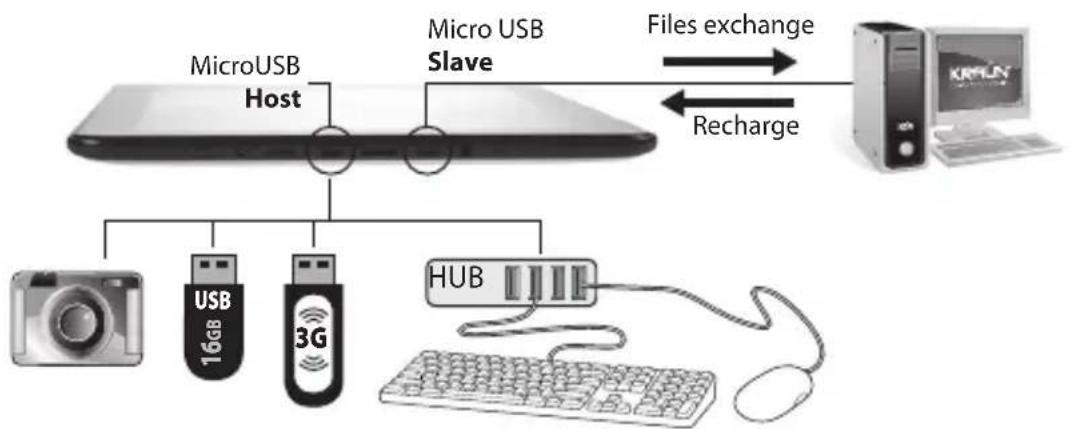
USB HOST and USB SLAVE
The device has two USB connections: one host and one Slave.
The slave port allows the device to recharge or - activating the USB storage mode - to manage the content from a PC connected to the tablet, or to upload files to the device.
The Host port lets you connect external memory devices (cameras included as well) or input interfaces (keyboard, mouse) and display its contents or use the tablet with them. You can also connect a 3G USB modem.*
*A list of compatible devices will be available on site www.kraun.it
flowchart
graph TD
    A["MicroUSB Host"] --> B["Micro USB Slave"]
    B --> C["Files exchange"]
    B --> D["Recharge"]
    E["Camera"] --> F["USB 16GB"]
    E --> G["3G"]
    H["HUB"] --> I["Computer"]
    J["User"] --> K["Computer"]
Using the tablet with connected devices, like a 3G modem, could significantly reduce the autonomy.
BASIC OPERATIONS
• Power On: Press the power button for several seconds to turn on the device.
- Off: Press the power button for several seconds to bring up the shutdown dialog window. Select OK to turn off the device.
- Lock the screen: Press the power button to lock or unlock the device. Drag the pointer to the unlock icon or, alternatively, drag it to the camera icon to quickly access it.*
Note:
-
If the battery is low, the device will switch itself off.
-
In the event of sudden shut down or crash, during the subsequent restart the disk-repair operation will take place and a progress bar shown on the screen.
* For camera application instructions please see the appropriate chapter.
FIRST USE
- When using the device the first time, make sure that the battery is fully charged.
- To charge, insert the power cord to the 5V port and to the power supply. Alternatively, use a microUSB cable with the USB-slave port and connect it to a USB power adapter.
- While charging, the battery icon shows that the device is powered externally.
- When charging is completed, the battery icon shows again the charge level.
- To preserve battery life, it is suggested to leave periodically discharge the battery completely and recharge it fully.
- If the device runs completely out of battery, you will need a short time after plugging power in before it can re-start.
SHORT PRESS: use your fingertip to touch briefly on the button, making sure not to touch other parts of the screen.
PRESS AND HOLD: Tap to more than 1.5 seconds to access the submenu of the selected function or to change or move an icon.
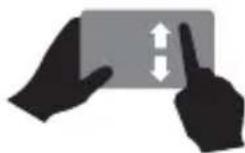
DRAG: Touch and hold and drag up or down to scroll the screen. In some screens as web pages or photos and can also slide sideways.

ZOOM: make a quick double-press to zoom in or out. Within some sections, such as viewing photos or web browser it's possible to zoom in or out by touching the screen with two fingers simultaneously and pinching them together or apart.
HomE ScrEEN
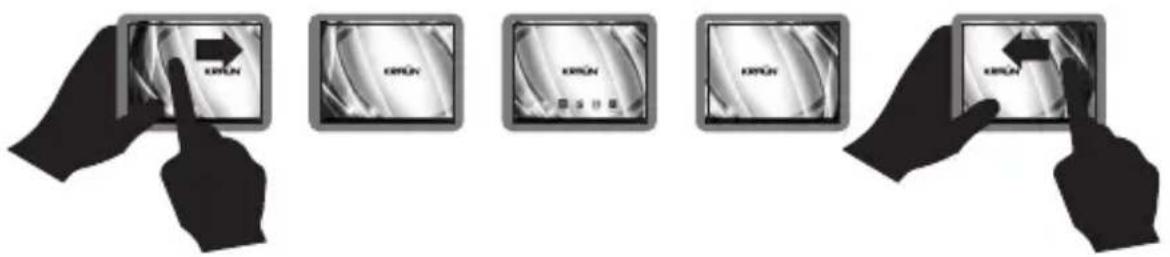
The home screen consists of 5 sections, which display Apps (applications) and Widgets (real-time applications running on the display as clock, calendar, etc.) navigable by scrolling horizontally across the screen.
text_image
EXPUN EXPUN EXPUN EXPUNTHE HomE ScrEEN INcLUDES:
text_image
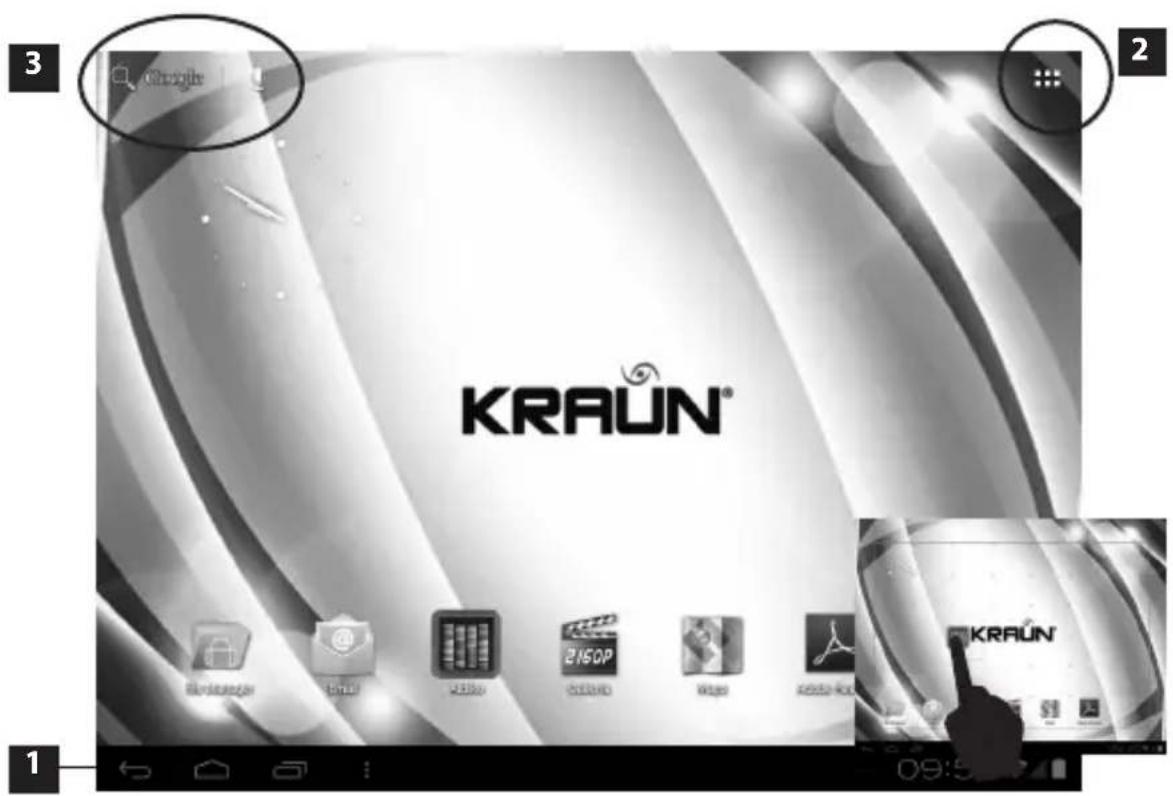
KRAUN® 1 2 3 09:51) Status bar (see paragraph)
2) Application Tab button (top right)
3) Search Google and voice search button (top left)
It is possible to organize Apps and Widgets within the 5 screens.
To move or delete an App or Widget, hold on it for a few seconds. Then you can move it within the screen or to other screens, or delete it by dragging it on the "X" that appears in the top center of the screen. To place new App or Widget on screen, open the Application Tab and select the desired Widget or App and hold on it, then place it where desired on the screens.
When downloading a new App or Widget or installing them from an external memory, they will be placed – if there is space left - in the main Home screen by default.
THE STaTUS Bar
The status bar is located at the bottom of the screen, with the tablet positioned both horizontally and vertically.

text_image
12 4 09:50On the left are the buttons Back, Home, Recent Apps and Quick Options.
- Back: returns to the previous screen.
- Home: back to home screen.
- Recent Apps: allows you to manage multitasking, showing a list of recently used applications, allowing you to quickly switch between them.
- Quick Options: brings up a quick menu at the bottom right of the home screen, to manage the wallpapers, application settings and system settings.
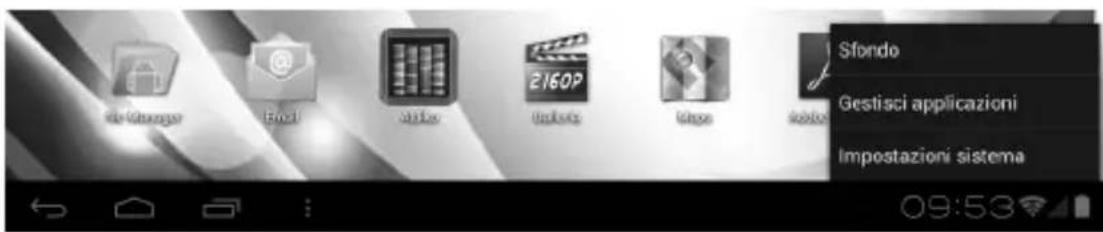
On the right are the notifications, the charging / battery status, the connection indicator, time, the microSD and USB status notifications.
By touching on the right side of the status bar a detailed view of the notifications pops up, with the ability to manage the individual parts.
aPPLIcaTloN TaB

text_image
searchIt's the easiest access to all Apps and Widgets on your Tablet. Touch-screen display for all applications.

text_image
APPLICAZIONI WIDGET ACQUISTA Adobe Reader Addio Browser Calcolatrice Calendario Documents To Download Email file Manager Flash Player S+ Fotocamera Golletta Gmail Google Talk 14-0MP2 Report Impostazioni Latitude Luoghi Maps Musica Navigatore Crologio Play Store Ricerca screenshot YouTubeScroll with your finger to scroll the page or select an app or Widget by pressing on it.
GooGLE volcE SEarch BUTToN aND SEarch:

text_image
GoogleThrough the Google search button you can quickly make a search by typing search text, or you can search by voice command.
CUSTOM SCREEN
- To customize the home screen you can add apps, reposition or remove them, and change the background.
- To remove an App or Widget touch so long on it and then drag the "x" that appears at top center of the screen.
POWER CONTROL

natural_image
Four black rectangular icons representing Wi-Fi, Bluetooth, power button, and sunburst (no text or symbols)One of the most useful Widgets is the Power Control
This Widget will consist of multiple buttons which allow you to quickly enable or disable certain features of connectivity (wireless, bluetooth,) to enable or disable synchronization of user's accounts or to adjust the brightness.
WALLPAPERS
- Tap and hold on the home screen, until the dialog box pops up.
- Select whether to choose the background from the gallery, wallpapers, or choose an animated background.
- Choose the background you want and select "Set Background" to use it or "Settings" to modify it.
ALTERNATIVE:
- Open the Application Tab, select "Gallery";
- Select a picture, choose "Menu", choose "Other", select "Set As" and then "Background"
- Drag the crop tool to select the portion of the background and tap "Save".
SETTINGS:
To access the settings' panel, go to the Application Tab and select the Alternatively you can use the Quick Options button and select "System Settings". You can also place the App "Settings" on any of the home screens.
WIRLESS aND NETWorKING

text_image
图像处理 名称: 图像 类型: 图像 大小: 100% 大小: 100% 大小: 100% 大小: 100% 大小: 100% 大小: 100% 大小: 100% 大小: 100% 大小: 100% 大小: 100% 大小: 100% 大小: 100% 大小: 100% 大小: 100% 大小: 100% 大小 Histogram Histogram Histogram Histogram Histogram Histogram Histogram Histogram Histogram Histogram Histogram Histogram Histogram Histogram Histogram Histogram Histogram Histogram Histogram Histogram Histogram Histogram Histogram Histogram Histogram Histogram Histogram Histogram Histogram Histogram Histogram Histogram Histogram Histogram Histogram Histogram Histogram Histogram Histogram Histogram Histogram Histogram Histogram Histogram Histogram Histogram Histogram Histogram Histogram Histogram HistogramIn this section you can enable / disable, and manage the connection to Wi-Fi networks, monitor data traffic, activate the flight mode, and manage network connections.
DEvlcE

In this section you can adjust the audio options (volume, sound notification, audiosystem settings), the display settings (brightness, background, memory, auto rotation, withdrawal time, font size, accelerometer, etc.), Monitor the 'memory usage, monitor battery use, manage device applications.
STaff
text_image
Eventa Generator 2 Eventa Generator 1 Service: Eventa Generator 2 Service: Eventa Generator 1 Service: Eventa Generator 2 Service: Eventa Generator 1 Service: Eventa Generator 2 Service: Eventa Generator 1 Service: Eventa Generator 2 Service: Eventa Generator 1 Service: Eventa Generator 2 Service: Eventa Generator 1 Service: Eventa Generator 2 Service: Eventa Generator 1 Service: Eventa Generator 2 Service: Eventa Generator 3 Service: Eventa Generator 1 Service: Eventa Generator 2 Service: Eventa Generator 1 Service: Eventa Generator 2 Service: Eventa Generator 3 Service: Eventa Generator 1 Service: Eventa Generator 2 Service: Eventa Generator 3 Service: Eventa Generator 1 Service: Eventa Generator 2 Service: Eventa Generator 3 Service: Eventa Generator 1 Service: Eventa Generator 2 Service: Eventa Generator 3 Service: Eventa Generator 1 Service: Eventa Generator 2 Service: Eventa Generator 3 Service: Effector Effector: Effector: Effector: Effector: Effector: Effector: Effector: Effector: Effector: Effector: Effector: Effector: Effector: Effector: Effector: Effector: Effector: Effector: Effector: Effector: Effector: Effector: Effector: Effector: Effector: Effector: Effector: Effector: Effector: Effector: Effector: Effector: Effector: Effector: Effector: Effector: Effector: Effector: Effector: Effector: Effector: Effector: Effector: Effector: Effector: Effector: Effector: Effector: Effector: Effector: Effector: Effector: Effector: Effector: Effector: Effector: Effector: Effector: Effector: Effector: Effector: Effector: Effector: Effector: Effector: Effector: Effector: Effectior: Effectior: Effectior: Effectior: Effectior: Effectior: Effectior: Effectior: Effectior: Effectior: Effectior: Effectior: Effectior: Effectior: Effectior: Effectior: Effectior: Effectior: Effectior: Effectior: Effectior: Effectior: Effectior: Effectior: Effectior: Effectior: Effectior: Effectior: Effectior: Effectior: Effectior: Effectior: Effectior: Effectior:In this section you can manage your Google account and the time settings, location services, security settings (screen lock, owner information, passwords, etc..), options for language and keyboard settings, backup, etc.
SySTEm

text_image
Importation Status Balance Repliquement Preparation Amounts singularizzazioni Service di installazione Severenza Longue intermedia Backup e printati Access Data Import Accessibilità Optioni utilizzatori Informazioni sul base Data 4 ore automatiche Data 100% non-100% info Data change automatico Data 100% non-100% info Data transfer rate Data transfer rate 24 ore Data transfer rate data Data transfer rate 100% Data transfer rate 100% Data transfer rate 100% Data transfer rate 100% Data transfer rate 100% Data transfer rate 100% Data transfer rate 100% Data transfer rate 100% Data transfer rate 100% Data transfer rate 100% Data transfer rate 100% Data transfer rate 100% Data transfer rate 100% Data transfer rate Data transfer rate Data transfer rate Data transfer rate Data transfer rate Data transfer rate Data transfer rate Data transfer rate Data transfer rate Data transfer rate Data transfer rate Data transfer rate Data transfer rate Data transfer rate Data transfer rate Data transfer rate Data transfer rate Data transfer rate Data transfer rate Data transfer rate Data transfer rate Data transfer rate Data transfer rate Data transfer rate Data transfer rate Data transfer rateIn this section you can manage system settings such as date and time, time zone, accessibility settings (large text, touch and pressure delay, password pronunciation). Automatic rotation of the display, developer options and monitor tablet information, version of the operating system and system updates.
SETTING accoUNT
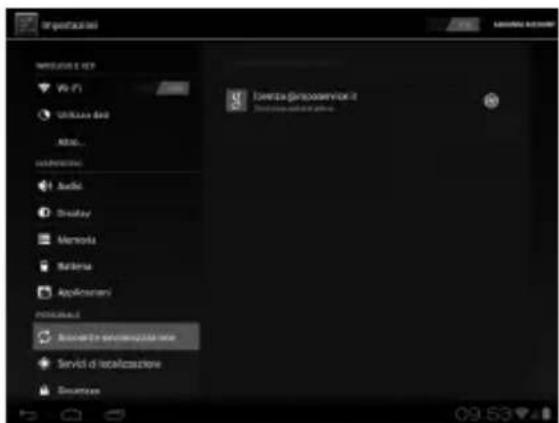
From the Account and Sync you can manage your accounts set up on the device for various applications (email, skype, messenger) and add a Google account to sync with Google plus, Gmail, and various Google features.
MULTIMEDIA FUNCTIONS
mUSlc
- Open the Application Tab and choose "Music";
- Choose the preferred viewing criterion (Tracks, Author, Album, Playlist, etc..);
- Choose a song to play.
vIDEo
- Open the Application Tab and select "Gallery";
- Choose the video folder;
- Select and play the video.
PlcTUrES
- Open the Application Tab and select "Gallery";
- Choose the images folder;
- Select and open the image.
camEra
For the camera application there is a short-cut when unlocking the device, dragging the cursor on the camera icon instead of the unlock one.
text_image
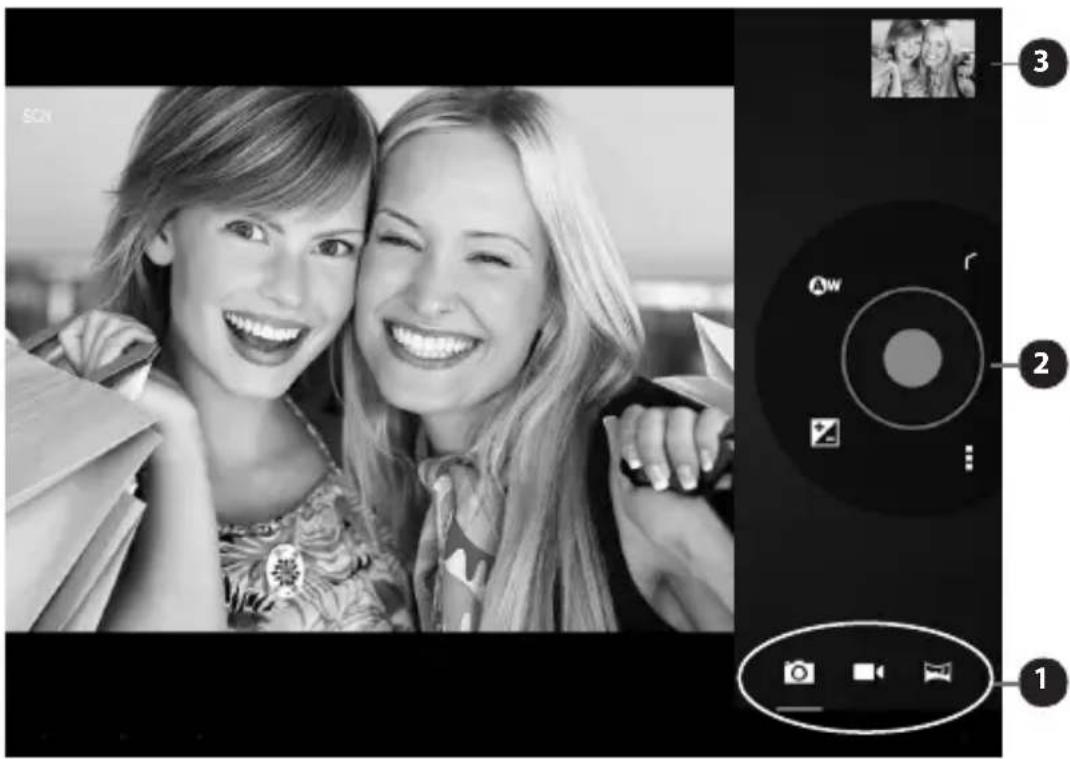
Black-and-white photo of two smiling women taking a selfie with a camera control panel showing adjustment options and iconsIn the Application Tab, click the icon "Camera" to access its interface, you can take pictures, shoot panoramic photos or record video. You can choose to use the rear camera or the front one; images and videos are saved in Gallery.
- Bottom right, you can choose whether to use the photo mode, video or panning.
- At center right is the ring of the options presented, which contains at its center the button to shoot.
- In the option ring, you can make a zoom, change camera settings, or access to white balance, exposure and camera settings.
- The last picture taken is displayed top right in miniature, touching it you can access to the sharing options or open it in the Gallery.
APPLICATIONS
Some applications are available on the Web, like SlideMe, AppBrain or Google Play, wich allow you to download more Apps or Widgets produced by third parties. The downloaded app or Widget that can be both free and fee. Kraun is neither the manufacturer nor the supplier of these applications and can not be held responsible for their operation and content, and related terms.
INSTaLLING aPPLIcaTIoNS
With Android ICS applications' installation has been made much simpler. Just select an application file (.Apk) - previously loaded on the tablet or present on memory or on microSD external drive - using the File Manager, click it and choose "Install". The application will be installed and its icon located on the main Home screen.
- Open the Application Tab, and select "File Manager";
- Choose the software file to install (.Apk);
- Tap "Install" to install the software.
If you download a third party application, the process is automatic and the App's icon will be available on the main Home screen once it's installation is completed.
FILE MANAGEMENT

text_image
My Documents My Web My Info My Internet Explorer My Documents My Web My Info My Web My Info My Web My Info My Web My Info My Web My Info My Web My Info My Web My Info My Web My Info My Web My Info My Web My Info My Web My Info My Web My Info My Web My Info My Web My Info My Web My Info My Web My Info My Web My Info My WebFile Manager is an App for the research, organization and management of files contained in the device.
To access it, open the Application Tab and select it from the list.
Within File Manager, you can view files in the device's internal memory or contained in the microSD memory or hard disk / external storage connected via USB HOST.
Once you set up your account through the Google Account Settings and Synchronization, and by activating the notifications, the device will automatically notify your Gmail activities.
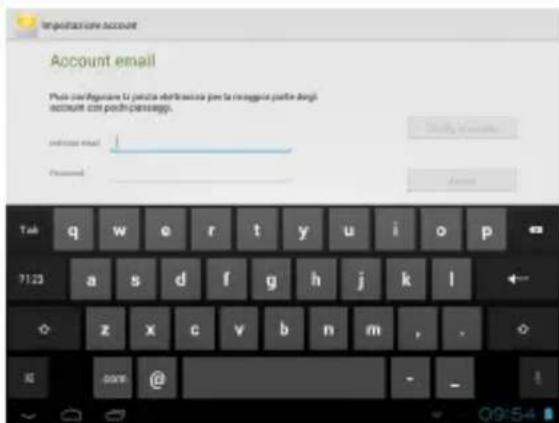
It is also possible to manage several email addresses, through the application "Mail".
Through the Application Tab, choose "Email"
Set up your email account by filling in the parameters.
It is possible to configure more than one email address.
READING
The tablet can also be used as an ebook-reader, through the application Aldiko. To access it, open the Application Tab and select it from the list.
The application allows access to ebooks located into the internal memory or microSD card or to download new ones from the dedicated store.
It is possible to install additional applications for reading ebooks.
WARNINGS REGARDING USE
- Respect all warnings and safety regulations during use of the device in areas subject to limitations of use for cellular or electronic devices.
- Comply with all warnings and safety standards relative to the use of mobile devices when driving a vehicle.
- Do not disturb others when using the device in public.
- Ensure you make a copy of important data.
It is recommended always to make a "back-up" copy of the data introduced into the memory device by the user, in a way to prevent definitive loss of data if the device should malfunction.
The manufacturer and dealer decline all liability if the data introduced into the memory devices by the users is lost as well as all liability regarding the content of said data.
- Do not distribute material protected by copyright laws.
The manufacturer is not liable for any legal disputes due to illegal use of material protected by copyright, licences and other exclusive industrial rights, by the user.
• Hearing protection.
Excessive exposure to high volumes can damage hearing.
Exposure to high volumes when driving can distract attention and cause accidents.
Always lower the volume before introducing the earphones and only use the minimum volume necessary to listen to a conversation or music.
PRECAUTIONS REGARDING USE

• Children must be supervised by an adult.
- Keep away from water or heat sources.
- Do not open or tamper with the appliance.
- The product contains a Li-poly battery. Handling the battery incorrectly can lead to a fire or explosion hazard. Do not try to open or repair the battery. Do not disassemble or perform interventions on the battery assembly; do not pierce or short-circuit the external contacts; do not throw the product into fire or water; do not expose the product to temperatures over 60°C (140°F).
- If the power supply unit or its connection cable should result even slightly damaged, this must not be used and must be replaced.
- Do not touch the power supply cable with wet hands and do not disconnect the battery charger by pulling the cable.

- Do not drop the device.
- In the event of device malfunctioning, contact your dealer or the nearest qualified technical after-sales centre.
- The current socket must be installed near to the appliance and be easily accessible.
- To power/charge the product, only use the external power supply unit supplied. If replacement is necessary and you are not certain of the type of power supply requested, contact the authorised after-sales service or your dealer. Never pull the power supply cable to disconnect it from the socket, but disconnect the plug.
- Before disconnecting the appliance from the charging source, make sure the battery charger is disconnected from the mains voltage.
- Do not short-circuit the charger or the battery.
- Do not forcedly bend or damage the power supply cable.
- Never place the device above or inside heating appliances such as microwaves, ovens or radiators.
- Do not expose the device and batteries to temperatures that are too hot or too cold.
- Never use a damaged battery charger.
- Keep the device dry.
- Do not use or keep the device in dusty or dirty areas.
- Do not keep the device in areas that are too hot or too cold. Use the device from 0 °C to 45 °C
- Do not keep the device near to magnetic fields.
- If the device is not used for a long tim, recharge the battery monthly to avoid a complete discharge of the battery.
Part of the content and some services accessible via this device are the property of third parties and protected by copyright, patents, brand names, licences and/or laws regarding intellectual property (e.g. the Android Operating System and the various applications it contains).
Unless expressly authorised by the owner of the contents or service carrier, you cannot modify, copy, re-publish, load, transcribe, transmit, translate, sell, create derivative works, exploit or distribute any content or service displayed by this device in any way or by any means.
THE CONTENTS AND SERVICES SUPPLIED BY THIRD PARTIES ARE OFFERED "AS THEY ARE". KRAUN EXPLICITLY REFUSES ANY WARRANTY, INCLUDING, AND NOT ONLY, MARKETABILITY GUARANTEES OR SUITABILITY FOR A SPECIFIC PURPOSE. KRAUN DOES NOT GUARANTEE ACCURACY, VALIDITY, DISCLOSURE, LEGALITY OR COMPLETENESS OF THE CONTENT OR SERVICE AVAILABLE VIA THIS DEVICE AND FOR NO REASON, INCLUDING NEGLIGENCE, IS KRAUN LIABLE, RIGHTLY OR WRONGLY, FOR DIRECT, INDIRECT, FORTUITOUS, SPECIAL OR CONSEQUENTIAL DAMAGE, LEGAL FEES, EXPENSES OR ANY OTHER DAMAGE DERIVING, IN CONNECTION WITH, FROM ANY INFORMATION CONTAINED, OR RESULTING FROM THE USE OF THE CONTENTS OR SERVICES BY THE USER OR THIRD PARTIES, ALSO IF WARNED OF THE POSSIBILITY THAT THIS DAMAGE COULD OCCUR.
The services supplied by third parties can be annulled or interrupted at any time and Kraun makes no request or gives no guarantee that any content or service remains available for a period of time. The content and services are transmitted by third parties via networks and transmission systems over which Kraun has no control. Without limiting the generalities of this repudiation, Kraun expressly declines any liability or obligation relative to the interruption or suspension of contents and services made available via this device.
WARNINGS REGARDING RECORDING OF IMAGES AND SOUNDS
- The Kraun tablet contains technological devices that allow to record photographs and/or films, as well as download, communicate and/or disclose images, sounds and voices, also in real time, and to record telephone conversations.
- The images, films, sounds, voice and names are personal data – sometimes sensitive and as such protected by current regulations – and can also be subject to copyright or other intellectual property rights of third parties. Moreover, recording a telephone conversation without the consent of the communicator could constitute a violation of the law according to the current regulations in the country of interest.
- Consequently, the person using the appliance must:
- respect the personal data protection code;
- respect the obligations envisioned regarding the protection of data;
- must respect the right to privacy (prohibiting unauthorised publication of photographs of a person), as well as regulations regarding copyright and intellectual and industrial property;
- to ensure, when intending to record a telephone conversation, that the communicator agrees and that the recording does not violate any applicable laws.
- Kraun is not liable for the illegitimate use of its equipment by customers.
INFORMATION FOR WARRANTY SERVICE
In the European Union (EU) member countries the legal guarantee concerning product conformity to consumers is valid for 2 years from the date of purchase. In case of non-compliance the user has the right to demand the correction of the defects or, in cases provided, the total replacement of the device, without any additional costs, contacting the store where the product itself was purchased and exhibiting a copy of the receipt. Any manufacturer's warranties shall not affect the consumer's rights with regard to legal guarantees.
For countries outside the EU reference is made to the regulations in force in each country with regard to legal guarantee.
Exclusions: The following are not covered by the warranty: products presenting clear signs of tampering occurred after sale, components subjected to normal wear and tear, consumable components (e.g.: batteries, toners, cartridges, etc. ), routine maintenance interventions (e.g.: cleaning operations, replacement of consumable material, etc..) faults or non-compliances due to: misuse of the product or use not in compliance with the instructions provided in this manual, natural disasters or uncontrollable events (e.g.: lightning, fires, flooding), voltage variations, attempted repair by unauthorized technicians.
LIMITATIONS OF USE FOR WIRELESS DEVICES
As specified below, there are restrictive conditions valid in France, Italy and Norway for using the equipment outdoors when using the standard IEEE 802.11b/g/n wireless LAN.
In FRANCE, when the product is used outdoors, only channels 1 through 6 are allowed. Thus, in "Infrastructure Mode", using the equipment outside, only the authorised channels, between 1 and 6, are allowed to be configured and the access point must be configured to these channels before establishing the connection.
In ITALY: the use of the RLAN network is governed by Legislative Decree No. 259 dated 01 Aug 2003, Articles 104 (activities subject to general authorisation) and 105 (free use) for private use; Legislative Decree dated 28 May 2003 and subsequent modifications for the provision of public and private access to networks and telecommunication service; and the updates contained in Legislative Decree dated 12 July 2007.
The channels in the frequency interval between 5.15 GHz-5.35 GHz and between 5.47 GHz-5.725 GHz are only available for interior use.
In NORWAY: Use of the apparatus is not permitted within a 20 km range of the centre of Ny-Ålesund, Svalbard.
In some situations and areas, the use of wireless technology can be limited those responsible for the organisation, for example on board aircraft, inside hospitals or where there is a risk of interference with other devices. Consult your doctor or the manufacturer of any personal medical devices (pacemaker, hearing aids and so forth) regarding any limitations in using wireless technology.

PILE O ACCUMULATORI PORTATILI
GB - Kraun is a registered trademark of CDC Point S.p.A. All other brand names, trademarks and logos belong to their respective owners. The product images are indicative and not binding.
KRAUN® COMPUTER ACCESSORIES
www.kraun.it