VigorAP 920R - Access Point Draytek - Free user manual and instructions
Find the device manual for free VigorAP 920R Draytek in PDF.


User questions about VigorAP 920R Draytek
0 question about this device. Answer the ones you know or ask your own.
Ask a new question about this device
Download the instructions for your Access Point in PDF format for free! Find your manual VigorAP 920R - Draytek and take your electronic device back in hand. On this page are published all the documents necessary for the use of your device. VigorAP 920R by Draytek.
USER MANUAL VigorAP 920R Draytek
Ruggedized Outdoor AP with Extreme 802.11ac Power

natural_image
White DrayTek 920R wireless router with two white antennas, shown against a red and white background (no text or symbols on the device body beyond branding)USER'S GUIDE
V2.0
VigorAP 920R Series
Ruggedized Outdoor AP with Extreme 802.11ac Power
User's Guide
Version: 2.0
Firmware Version: V1.4.5
Date: February 20, 2023
Intellectual Property Rights (IPR) Information
Copyrights
© All rights reserved. This publication contains information that is protected by copyright. No part may be reproduced, transmitted, transcribed, stored in a retrieval system, or translated into any language without written permission from the copyright holders.
Trademarks
The following trademarks are used in this document:
• Microsoft is a registered trademark of Microsoft Corp.
Windows, Windows 7,8, 10 and Explorer are trademarks of Microsoft Corp.
Apple and Mac OS are registered trademarks of Apple Inc.
Other products may be trademarks or registered trademarks of their respective manufacturers.
Safety Instructions and Approval
Safety Instructions
Read the installation guide thoroughly before you set up the modem.
The modem is a complicated electronic unit that may be repaired only be authorized and qualified personnel. Do not try to open or repair the modem yourself.
Do not place the modem in a damp or humid place, e.g. a bathroom.
The modem should be used in a sheltered area, within a temperature range of +5 to +40 Celsius.
Do not expose the modem to direct sunlight or other heat sources. The housing and electronic components may be damaged by direct sunlight or heat sources.
- Do not deploy the cable for LAN connection outdoor to prevent electronic shock hazards.
- Keep the package out of reach of children.
- When you want to dispose of the modem, please follow local regulations on conservation of the environment.
Warranty
We warrant to the original end user (purchaser) that the modem will be free from any defects in workmanship or materials for a period of two (2) years from the date of purchase from the dealer. Please keep your purchase receipt in a safe place as it serves as proof of date of purchase. During the warranty period, and upon proof of purchase, should the product have indications of failure due to faulty workmanship and/or materials, we will, at our discretion, repair or replace the defective products or components, without charge for either parts or labor, to whatever extent we deem necessary tore-store the product to proper operating condition. Any replacement will consist of a new or re-manufactured functionally equivalent product of equal value, and will be offered solely at our discretion. This warranty will not apply if the product is modified, misused, tampered with, damaged by an act of God, or subjected to abnormal working conditions. The warranty does not cover the bundled or licensed software of other vendors. Defects which do not significantly affect the usability of the product will not be covered by the warranty. We reserve the right to revise the manual and online documentation and to make changes from time to time in the contents hereof without obligation to notify any person of such revision or changes.
Be a Registered Owner
Web registration is preferred. You can register your Vigor router via https://myvigor.draytek.com.
Firmware & Tools Updates
Due to the continuous evolution of DrayTek technology, all modems will be regularly upgraded. Please consult the DrayTek web site for more information on newest firmware, tools and documents.
https://www.draytek.com
Table of Contents
Chapter I Installation ......VII
I-1 Introduction....1
I-1-1 LED Indicators and Connectors....2
I-2 Mounting the Access Point....3
I-2-1 Antennas Installation....3
I-2-2 Connecting Ethernet Cable(s)....4
I-2-3 Access Point Installation – Pole Mount 6
I-2-4 Grounding Access Point 8
I-2-5 Powering Access Point....9
I-3 Network IP Configuration....10
I-3-1 Windows 7 IP Address Setup....10
I-3-2 Windows 2000 IP Address Setup .... 12
I-3-3 Windows XP IP Address Setup....13
I-3-4 Windows Vista IP Address Setup....14
I-4 Accessing to Web User Interface 15
I-5 Changing Password 18
I-6 Dashboard 19
I-7 Quick Start Wizard 20
I-7-1 Settings for Access Point 21
I-7-2 Settings for Mesh Root 24
I-7-3 Settings for Mesh Node 28
I-7-4 Settings for Range Extender 29
Chapter II Connectivity ...... 33
II-1 Operation Mode....34
II-2 General Concepts for Wireless LAN (2.4GHz/5GHz) 35
II-3 Wireless LAN (2.4GHz/5GHz) Settings for AP Mode 38
II-3-1 General Setup 39
II-3-2 Security 42
II-3-3 Access Control 45
II-3-4 WPS 46
II-3-5 Advanced Setting....47
II-3-10 Station Control 55
II-3-11 Roaming 56
II-3-12 Band Steering 58
II-3-13 Station List....63
II-4 Mesh Settings for Mesh Mode 69
II-4-1 Mesh Setup 71
II-4-2 Mesh Status....76
II-4-3 Mesh Discovery 78
II-4-4 Basic Configuration Sync....79
II-4-5 Advanced Config Sync 82
II-4-6 Support List....82
II-4-7 Mesh Syslog 83
II-5 Universal Repeater Settings for Range Extender Mode....84
II-6 LAN 87
II-6-1 General Setup 87
II-6-2 Hotspot Web Portal....90
II-6-3 Port Control....93
Chapter III Management....95
III-1 System Maintenance....96
III-1-1 System Status 97
III-1-2 TR-069 98
III-1-3 Administrator Password 100
III-1-4 User Password....101
III-1-5 Configuration Backup.... 102
III-1-6 Syslog/Mail Alert.... 104
III-1-7 Time and Date 105
III-1-8 SNMP....106
III-1-9 Management....108
III-1-10 Reboot System 110
III-1-11 Firmware Upgrade....111
III-2 Central AP Management....112
III-2-1 General Setup....112
III-2-2 APM Log....113
III-2-3 Overload Management 114
III-2-4 Status of Settings.... 115
III-3 Mobile Device Management 116
III-3-1 Station List.... 116
III-3-2 Station Statistics 122
III-3-3 Station Nearby 123
III-3-4 Policies 124
III-3-5 Station Control List 125
Chapter IV Others 127
IV-1 RADIUS Setting.... 128
IV-1-1 RADIUS Server 128
IV-1-2 Certificate Management 130
IV-2 Applications....132
IV-2-1 Schedule 132
IV-2-2 Apple iOS Keep Alive....135
IV-2-3 Wi-Fi Auto On/Off 136
IV-2-4 Sensor 137
Chapter V Mobile APP, DrayTek Wireless....139
V-1 Introduction of DrayTek Wireless.... 140
V-2 Create a New Network....141
V-3 Wizard - Mesh Root and Mesh Node 143
V-4 Login....147
V-4-1 Network 148
V-4-2 Connect 149
V-4-2-1 Dashboard of the Device 150
V-4-2-2 Devices....151
V-4-2-3 Clients / Groups 153
V-4-2-4 Setup 154
Chapter VI Troubleshooting....155
VI-1 Diagnostics 156
VI-1-1 System Log.... 157
VI-1-2 Speed Test.... 157
VI-1-3 Traffic Graph 158
VI-1-4 Alert Event 159
VI-1-5 WLAN (2.4GHz) Statistics.... 160
VI-1-6 WLAN (5GHz) Statistics 161
VI-1-7 Interference Monitor 162
VI-1-7 Support Area.... 163
VI-2 Checking the Hardware Status 164
VI-3 Checking the Network Connection Settings....165
VI-3-1 For Windows.... 165
IV-4 Pinging the Device 168
VI-4-1 For Windows....168
VI-5 Backing to Factory Default Setting.... 170
VI-5-1 Software Reset....170
VI-5-2 Hardware Reset....171
VI-6 Contacting DrayTek 171
Index 172
Chapter I Installation
natural_image
Simple icon showing a red bottle and a gray document with dots, no text or symbols present.I-1 Introduction
This is a generic International version of the user guide. Specification, compatibility and features vary by region. For specific user guides suitable for your region or product, please contact local distributor.
Thank you for purchasing VigorAP 920R series.
Easy install procedures allows any computer users to setup a network environment in very short time - within minutes, even inexperienced users. Just follow the instructions given in this user manual, you can complete the setup procedure and release the power of this access point all by yourself!
VigorAP 920RP also is a Power over Ethernet Powered Device which adopts the technology of PoE for offering power supply and transmitting data through the Ethernet cable.

natural_image
Illustration of a coffee shop with wireless network and outdoor seating (no text or symbols)I-1-1 LED Indicators and Connectors
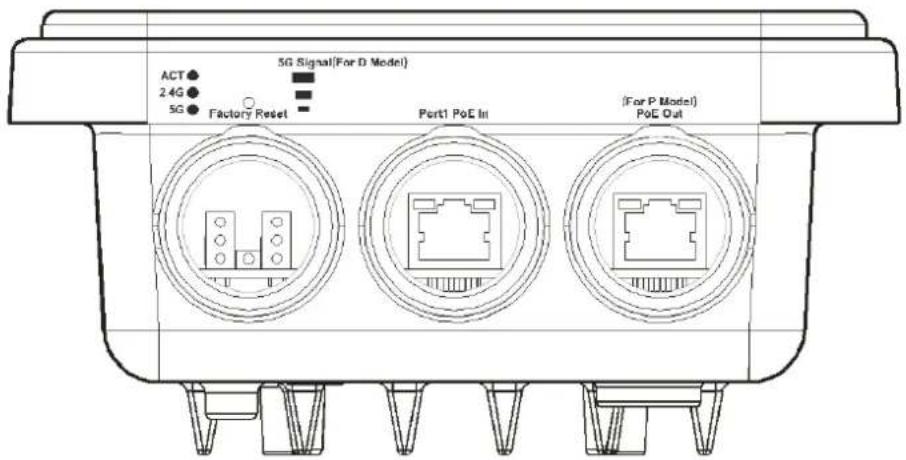
Before you use the Vigor modem, please get acquainted with the LED indicators and connectors first.
text_image
5G Signal(For D Model) ACT 2.4G 5G Factory Reset Port1 PoE In (For P Model) PoE Out| LED Status Explanation | ||
| Off The system is not ready or has failed. ACT | ||
| Blinking The system is ready. | ||
| 2.4G / 5G | On Wireless function is ready. | |
| Off Wireless function is not ready. | ||
| Blinking Data is being transmitted (sending/receiving). | ||
| 5G Signal (For D Model) |  | The signal strength (excellent) > -50dBm. |
| 5G Signal (For D Model) |  | The signal strength (good) is between -66dBm ~ -51dBm. |
| 5G Signal (For D Model) |  | The signal strength (fair) is between -73dBm~ -67dBm. |
| 5G Signal (For D Model) |  | No signal or the signal strength is <-73dBm. |
| Interface Description | |
| Factory Reset Restore the default settings. Usage: Switch on the access point. Press and hold reset button for at least 10 seconds. The router will restart with the factory default configuration.Before pressing the button, the cover should first be removed by rotating it with a torque of 13 kgf-cm. After the access point has been reset, replace the cover and lock it with the same amount of torque. | |
Port 1 PoE In Connector for receiving power from another device.
PoE Out (for P Model) Connector for supplying power to another device.
Note:
For the sake of security, make the accessory kit away from children.
I-2 Mounting the Access Point
The VigorAP can be pole mounted depending on the installation environment. This section will guide you through installing the VigorAP.
Note:
For the sake of personal safety, only trained and qualified personnel should install this device.
I-2-1 Antennas Installation
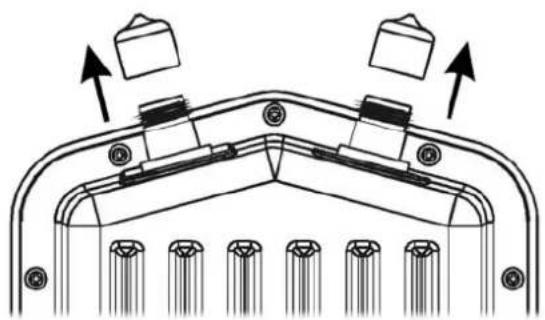
- Remove the protective cap.
natural_image
Technical diagram of a mechanical component with multiple pins and mounting holes (no text or symbols)- Insert the antennas and fasten them by rotating clockwise.

natural_image
Technical line drawing of two mechanical components with rotating arrows indicating motion (no text or symbols)Warning:
Do not open the top cover of the device.
Installation during thunderstorms could be dangerous.
I-2-2 Connecting Ethernet Cable(s)
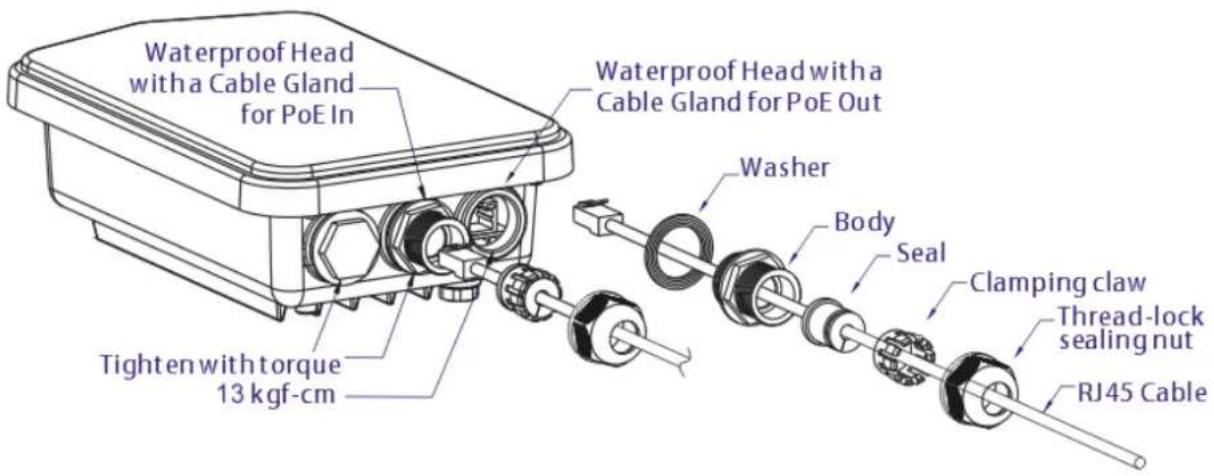
Refer to the following steps to attach the Ethernet cable and waterproof head. (Take VigorAP 920RP as an example.)
- Remove the cable cover for Ethernet Port (e.g., Port 1 PoE In).
-
Before connecting, verify that the cable has a rubber seal and that it is not damaged.
To prevent the enclosure from water leakage, make sure the Ethernet cable gland and the rubber gasket are present and installed properly. -
Inserting RJ-45 connector into the port.
text_image
Waterproof Head with a Cable Gland for PoE In Tighten with torque 13 kgf-cm Waterproof Head with a Cable Gland for PoE Out Washer Body Seal Clamping claw Thread-lock sealing nut RJ45 Cable- Use an adjustable wrench and tighten the thread-lock sealing nut with torque 10 kgf-cm.
i Warning:
Do not open the top cover of the device.
Installation during thunderstorms could be dangerous.
Reconnecting Ethernet Cable
- Loosen the thread-lock sealing nut.
- Loosen the clamping claw and seal.
- Loosen the body and washer.
- Remove the cable.

text_image
Technical diagram of a device with labeled components including ports, connectors, and a plug outlet- To reattach the cable, follow the above steps in reverse.
Note:
The diameter for the Ethernet cable shall be limited between 4.3mm to 5.9mm.
I-2-3 Access Point Installation – Pole Mount
-
Find a suitable location for installing the access point.
-
Select a mounting point on a pole.
-
Remove the mounting plate from the mount kit by removing the four mounting screws.
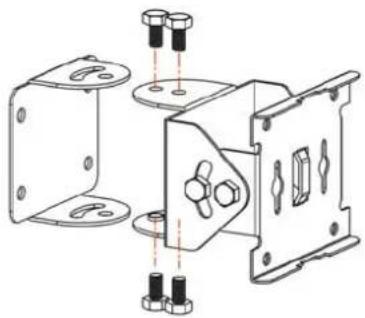
natural_image
Technical line drawing of a mechanical assembly with mounting flanges and bolted components (no text or symbols)- Attach the VigorAP920R series to the mounting plate. Lock the screws with torque of 20 kgf-cm.
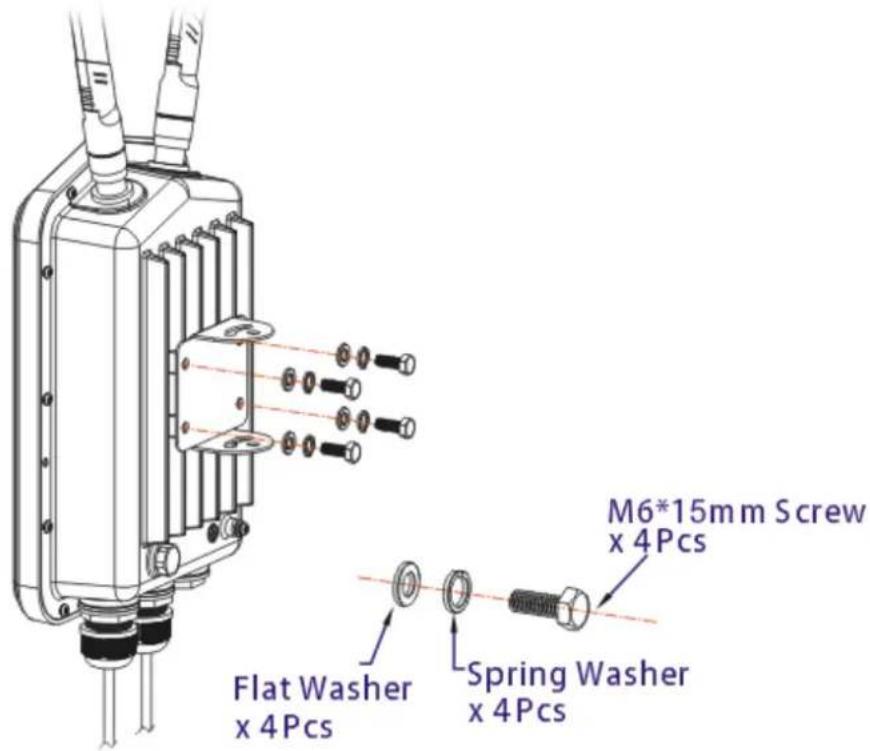
text_image
M6*15mm Screw x 4Pcs Flat Washer x 4Pcs Spring Washer x 4Pcs- Fasten the mount kit on the pole with nut screws and with torque of 20 kgf-cm.
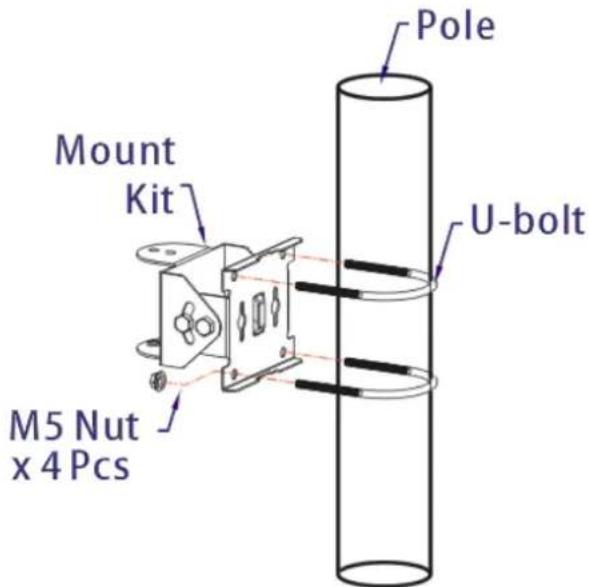
text_image
Pole Mount Kit U-bolt M5 Nut x 4 Pcs- Fasten the access point to the mount kit with screws (torque of 20 kgf-cm) as shown in the following figure.

natural_image
Technical line drawing of a mechanical assembly with no visible text or symbols(i) Note:
Before connecting the access point to the mount kit, make sure it is oriented with the LED indicators pointing downwards.
I-2-4 Grounding Access Point
In outdoor Installations and before powering the access point with AC power, VigorAP must be grounded prior to wire installation.
- Take out the ground cable from the mount kit.

text_image
Ground Lug-
Insert a ground rod on the ground.
-
Strip the insulation for the ground lug.
-
Use the appropriate crimping tool to crimp the ground cable to the grounding lug.
-
Connect the ground rod and the VigorAP using the ground cable.

text_image
Ground Cable Ground Rod GroundNote:
Please consult an electrician if you are uncertain about the type of grounding that is required.
I-2-5 Powering Access Point
VigorAP 920R/PR can be powered via the PoE input from an in-line power injector or a suitably powered switch port.
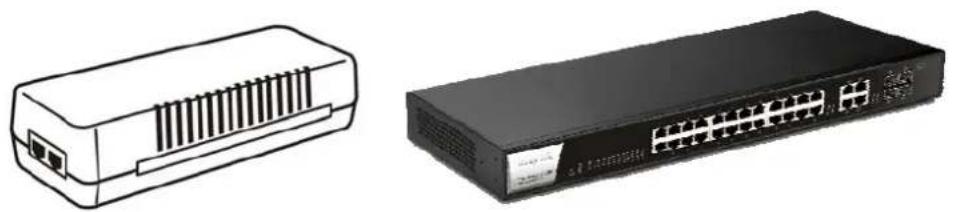
natural_image
Two electronic devices: a beige rack-mounted device and a black network switch with multiple ports (no visible text or labels)Before powering VigorAP, you should:
- Pay attention to local and national electrical codes.
Not place the power injector / VigorSwitch in outdoor environment without any protection. Moisture might get into the power injector and cause a short circuit or possible fire. - Not work on the system during periods of lighting activity to avoid the risk of electric shock, and do not connect or disconnect the Ethernet cables under bad weather.
Below shows two examples of connecting power for VigorAP 920R and VigorAP 920RP.
Example 1: AP920R
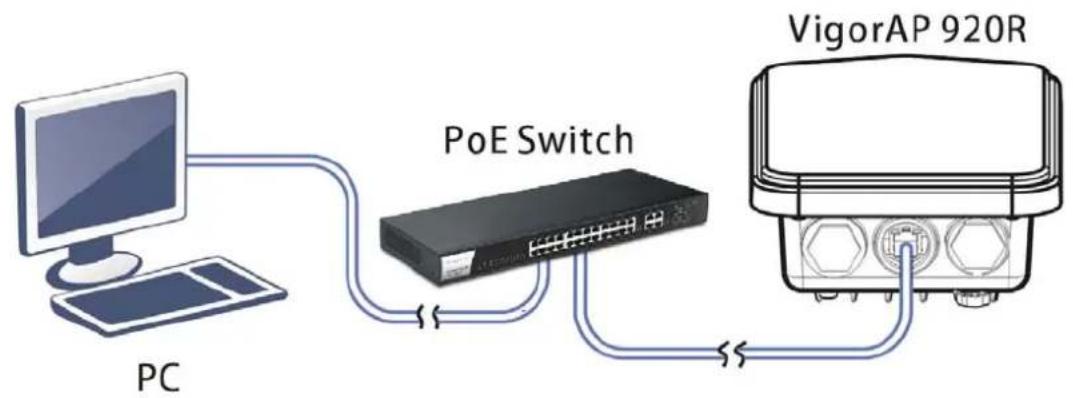
flowchart
graph LR
    PC["PC"] -->|Data Flow| PoESwitch["PoE Switch"]
    PoESwitch -->|Data Flow| VigorAP920R["VigorAP 920R"]
Example 2: AP920RP
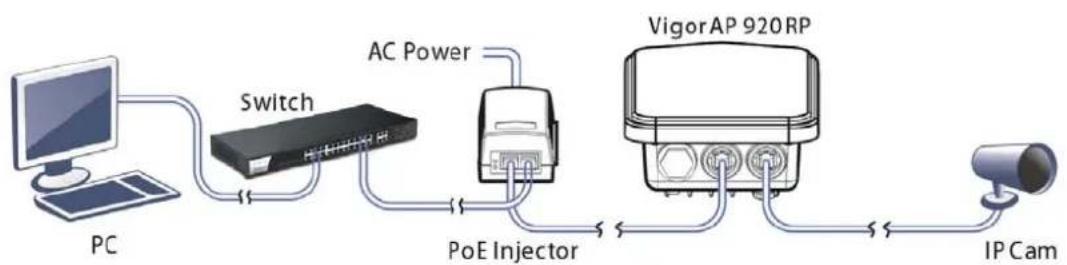
flowchart
graph LR
    PC["PC"] --> Switch["Switch"]
    Switch --> PoEInjector["PoE Injector"]
    PoEInjector --> VigorAP[" VigorAP 920 RP "]
    VigorAP --> IPCam["IP Cam "]
    Switch --> ACPower[" AC Power "]
    PoEInjector --> ACPower
    ACPower --> PolerCap[" Poler Cap "]
    PolerCap --> IPCam
I-3 Network IP Configuration
After the network connection is built, the next step you should do is setup VigorAP 920R with proper network parameters, so it can work properly in your network environment.
Before you can connect to the access point and start configuration procedures, your computer must be able to get an IP address automatically (use dynamic IP address). If it's set to use static IP address, or you're unsure, please follow the following instructions to configure your computer to use dynamic IP address:
For the default IP address of this AP is set "192.168.1.2", we recommend you to use "192.168.1.X (except 2)" in the field of IP address on this section for your computer.
If the operating system of your computer is...
Windows 7 - please go to section I-3-1
Windows 2000 - please go to section I-3-2
Windows XP - please go to section I-3-3
Windows Vista - please go to section 1-3-4
I-3-1 Windows 7 IP Address Setup
Click Start button (it should be located at lower-left corner of your computer), then click Control Panel. Double-click Network and Internet, and the following window will appear. Click Network and Sharing Center.

text_image
Control Panel Network and Internet Control Panel Home System and Security • Network and Internet Hardware and Sound Programs User Accounts and Family Safety Appearance and Personalization Clock, Language, and Region Ease of Access Network and Sharing Center View network status and tasks | Connect to a network View network computers and devices | Add a wireless device to the network HomeGroup Choose homegroup and sharing options Internet Options Change your homepage | Manage browser add-ons | Delete browsing history and cookiesNext, click Change adapter settings and click Local Area Connection.

text_image
Control Panel Home Change adapter settings Change advanced sharing settings View your basic network information and set up connections CARRIE-PC (This computer) Unidentified network Internet View your active networks Connect or disconnect Unidentified network Public network Access type: No Internet access Connections: Local Area ConnectionThen, select Internet Protocol Version 4 (TCP/IPv4) and click Properties.

text_image
Local Area Connection Properties Networking Sharing Connect using: Realtek RTL8139/810x Family Fast Ethernet NIC Configure... This connection uses the following items: Client for Microsoft Networks QoS Packet Scheduler File and Printer Sharing for Microsoft Networks Internet Protocol Version 6 (TCP/IPv6) Internet Protocol Version 4 (TCP/IPv4) Link-Layer Topology Discovery Mapper I/O Driver Link-Layer Topology Discovery Responder Install... Uninstall Properties Description Transmission Control Protocol/Internet Protocol. The default wide area network protocol that provides communication across diverse interconnected networks. OK CancelUnder the General tab, click Use the following IP address. Then input the following settings in respective field and click OK when finish.
IP address: 192.168.1.9
Subnet Mask: 255.255.255.0

text_image
Internet Protocol Version 4 (TCP/IPv4) Properties General You can get IP settings assigned automatically if your network supports this capability. Otherwise, you need to ask your network administrator for the appropriate IP settings. Obtain an IP address automatically Use the following IP address: IP address: 192 . 168 . 1 . 9 Subnet mask: 255 . 255 . 255 . 0 Default gateway: 192 . 168 . 1 . 1 Obtain DNS server address automatically Use the following DNS server addresses: Preferred DNS server: 168 . 95 . 1 . 1 Alternate DNS server: . Validate settings upon exit Advanced... OK CancelI-3-2 Windows 2000 IP Address Setup
Click Start button (it should be located at lower-left corner of your computer), then click control panel. Double-click Network and Dial-up Connections icon, double click Local Area Connection, and Local Area Connection Properties window will appear. Select Internet Protocol (TCP/IP), then click Properties.
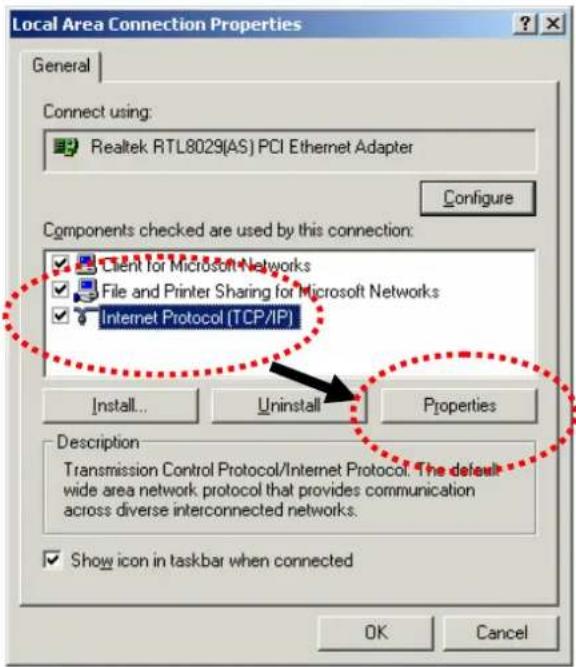
text_image
Local Area Connection Properties General Connect using: Realtek RTL8029(AS) PCI Ethernet Adapter Configure Components checked are used by this connection: ✓ Client for Microsoft Networks ✓ File and Printer Sharing for Microsoft Networks ✓ Internet Protocol (TCP/IP) Install... Uninstall Properties Description Transmission Control Protocol/Internet Protocol. The default wide area network protocol that provides communication across diverse interconnected networks. ✓ Show icon in taskbar when connected OK CancelSelect Use the following IP address, then input the following settings in respective field and click OK when finish.
IP address: 192.168.1.9
Subnet Mask: 255.255.255.0

text_image
Internet Protocol (TCP/IP) Properties General You can get IP settings assigned automatically if your network supports this capability. Otherwise, you need to ask your network administrator for the appropriate IP settings. Obtain an IP address automatically Use the following IP address: IP address: Subnet mask: Default gateway: Obtain DNS server address automatically Use the following DNS server addresses: Preferred DNS server: Alternate DNS server: Advanced... OK CancelI-3-3 Windows XP IP Address Setup
Click Start button (it should be located at lower-left corner of your computer), then click control panel. Double-click Network and Internet Connections icon, click Network Connections, and then double-click Local Area Connection, Local Area Connection Status window will appear, and then click Properties.

text_image
Local Area Connection Properties General Authentication Advanced Connect using: AMD PCNET Family PCI Ethernet Ad Configure... This connection uses the following items: Client for Microsoft Networks File and Printer Sharing for Microsoft Networks QoS Packet Scheduler Internet Protocol (TCP/IP) Install... Uninstall Properties Description Transmission Control Protocol/Internet Protocol. The default wide area network protocol that provides communication across diverse interconnected networks. Show icon in notification area when connected Notify me when this connection has limited or no connectivity OK CancelSelect Use the following IP address, then input the following settings in respective field and click OK when finish:
IP address: 192.168.1.9
Subnet Mask: 255.255.255.0.
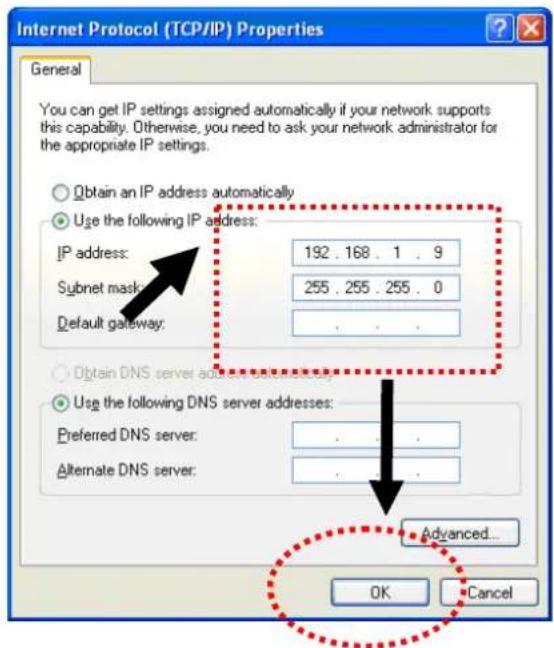
text_image
Internet Protocol (TCP/IP) Properties General You can get IP settings assigned automatically if your network supports this capability. Otherwise, you need to ask your network administrator for the appropriate IP settings. Obtain an IP address automatically Use the following IP address: IP address: 192 . 168 . 1 . 9 Subnet mask: 255 . 255 . 255 . 0 Default gateway: . Obtain DNS server addresses: Use the following DNS server addresses: Preferred DNS server: . Alternate DNS server: . Advanced... OK CancelI-3-4 Windows Vista IP Address Setup
Click Start button (it should be located at lower-left corner of your computer), then click control panel. Click View Network Status and Tasks, then click Manage Network Connections.
Right-click Local Area Network, then select 'Properties'. Local Area Connection Properties window will appear, select Internet Protocol Version 4 (TCP / IPv4), and then click Properties.

text_image
Local Area Connection Properties Networking Connect using: Intel(R) PRO/1000 MT Network Connection Configure... This connection uses the following items: Client for Microsoft Networks QoS Packet Scheduler File and Printer Sharing for Microsoft Networks Internet Protocol Version 6 (TCP/IPv6) Internet Protocol Version 4 (TCP/IPv4) Link-Layer Topology Discovery Mapper I/O Driver Link-Layer Topology Discovery Responder Install... Uninstall Properties Description Transmission Control Protocol/Internet Protocol. The default wide area network protocol that provides communication across diverse interconnected networks. OK CancelSelect Use the following IP address, then input the following settings in respective field and click OK when finish:
IP address: 192.168.1.9
Subnet Mask: 255.255.255.0.

text_image
Internet Protocol Version 4 (TCP/IPv4) Properties General You can get IP settings assigned automatically if your network supports this capability. Otherwise, you need to ask your network administrator for the appropriate IP settings. Obtain an IP address automatically Use the following IP address: IP address: 192 , 168 , 1 , 9 Internet mask: 255 , 255 , 255 , 0 Default gateway: | Obtain DNS server address automatically Use the following DNS server addresses: Preferred DNS server: . Alternate DNS server: . Advanced... OK CancelI-4 Accessing to Web User Interface
All functions and settings of this access point must be configured via web user interface. Please start your web browser (e.g., Firefox).
- Make sure your PC connects to the VigorAP 920R series correctly.
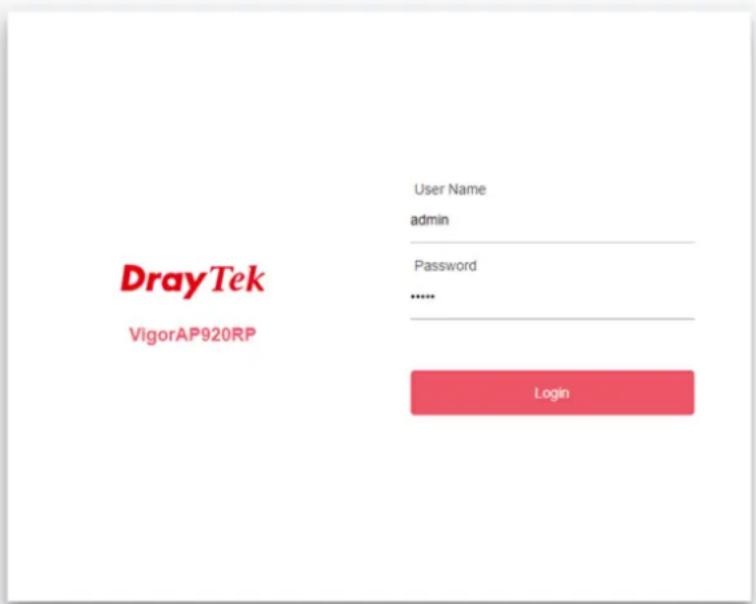
- Open a web browser on your PC and type http://192.168.1.2. A pop-up window will open to ask for username and password. Pease type "admin/admin" on Username/Password and click OK.
text_image
DrayTek VigorAP920RP User Name admin Password ...... LoginCopyright © 2018 DrayTek Corp
Note:
You may either simply set up your computer to get IP dynamically from the router or set up the IP address of the computer to be in the same subnet as the IP address of VigorAP 920R.
- If there is no DHCP server on the network, then VigorAP 920R series will have an IP address of 192.168.1.2.
- If there is DHCP available on the network, then VigorAP 920R series will receive it's IP address via the DHCP server.
-
If you connect to VigorAP by wireless LAN, you could try to access the web user interface through http://vigorap.com.
-
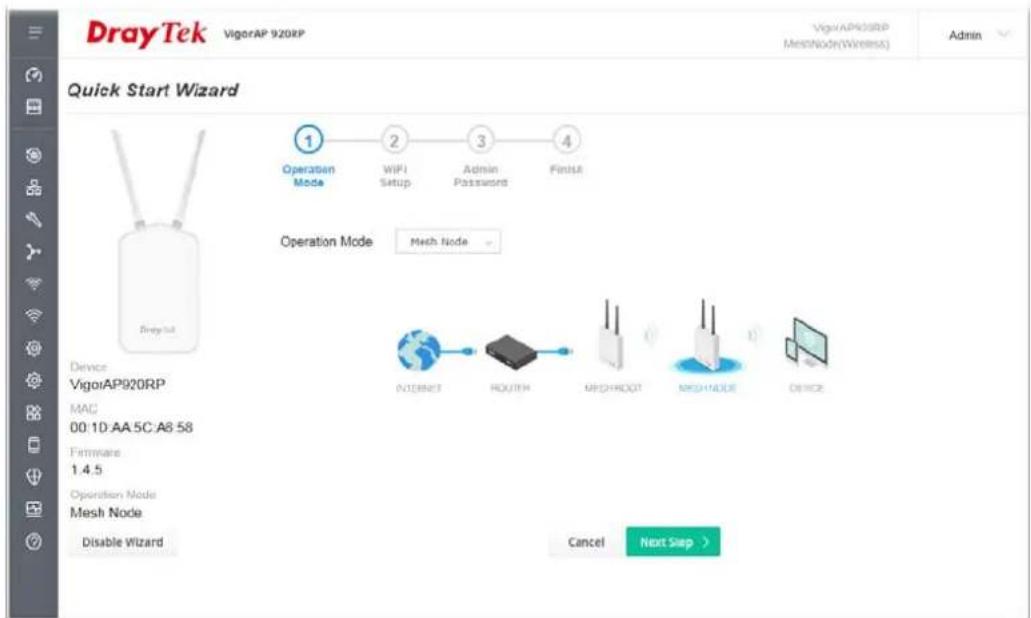
For the first time accessing VigorAP, the Quick Start Wizard for configuring wireless settings will appear as follows. Refer to Section I-7 Quick Start Wizard for detailed information.
text_image
DrayTek VigorAP 920RP VigorAP/35RP MeshNode(Wireless) Admin Quick Start Wizard Operation Mode 1 2 3 4 WIFI Setup Admin Password Finish Operation Mode Mesh Node Device VigorAP920RP MAC 00:1D:AA 5C:A8 58 Firmware 1.4.5 Operation Mode Mesh Node Disable Wizard Cancel Next Step >- If VigorAP has been configured previously, the Dashboard of VigorAP will appear as follows:
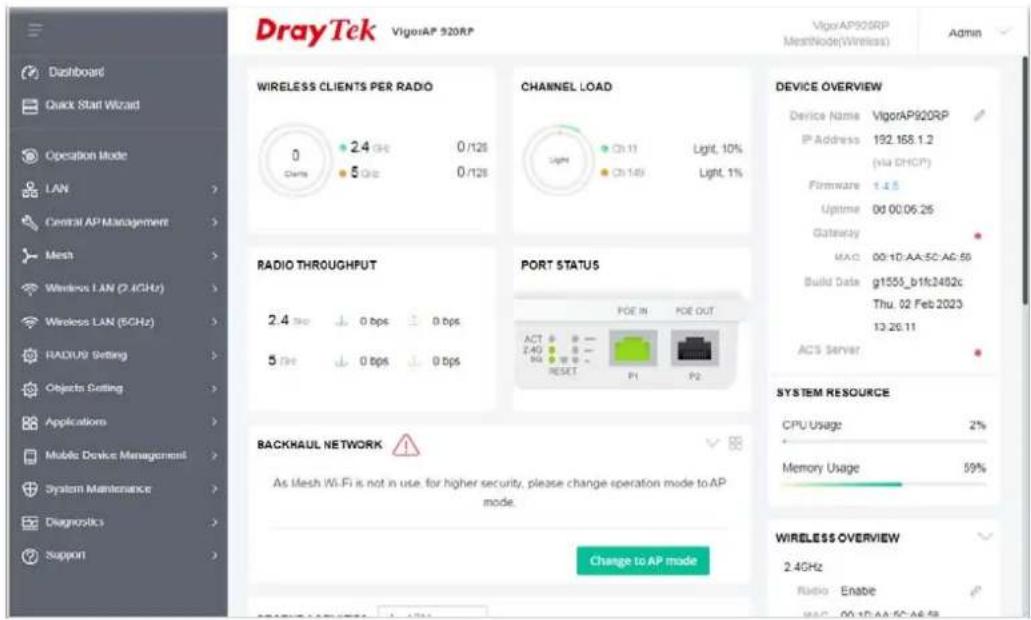
text_image
DrayTek VigorAP 920RP VigorAP920RP MeshNode(Wireless) Admin Dashboard Quick Start Wizard Operation Mode LAN Central AP Management Mesh Wireless LAN (2.4GHz) Wireless LAN (5GHz) RADIUS Setting Objects Setting Applications Mobile Device Management System Maintenance Diagnostics Support WIRELESS CLIENTS PER RADIO 0 Charge 2.4 bps 0/126 5 bps 0/126 CHANNEL LOAD Light Ch 11 Light, 10% Ch 149 Light, 1% RADIO THROUGHPUT 2.4 bps 0 bps 0 bps 5 Tps 0 bps 0 bps PORT STATUS POE IN POE OUT ACT 2.40 0 0 RESET P1 P2 BACKHAUL NETWORK As Mesh Wi-Fi is not in use, for higher security, please change operation mode to AP mode. Change to AP mode DEVICE OVERVIEW Device Name VigorAP920RP IP Address 192.168.1.2 (via DHCP) Firmware 1.4.5 Uptime 0d 00:06:26 Gateway MAC 00:1D:AA:5C:AG:56 Build Data g1555_b1f2482c Thu: 02 Feb 2023 13:26:11 ACS Server SYSTEM RESOURCE CPU Usage 2% Memory Usage 59% WIRELESS OVERVIEW 2.4GHz Radio Enable MAC 00:1D:AA:5C:AG:56- The web page can be logged out by clicking Log Out on the top right of the web page. Or, logout the web user interface according to the chosen condition. The default setting is Auto Logout, which means the web configuration system will logout after 5 minutes without any operation. Change the setting of auto logout if you want.

text_image
VigorAP920RP Range_Extender Admin Auto logout Set Password Log Out Auto logout off 1 min 3 min 0d 0 5 min 192 00: 10 minNote:
If you fail to access the web configuration, please go to the section "Trouble Shooting" for detecting and solving your problem.
For using the device properly, it is necessary for you to change the password of web configuration for security and adjust primary basic settings.
I-5 Changing Password
- Please change the password for the original security of the modem.
- Go to System Maintenance page and choose Administration Password.
System Maintenance >> Administration Password
Administrator Settings
Account
admin
Old Password
• • • • •
New Password
●●●●●●●
Confirm Password
●●●●●●●
Password Strength:
W2813
Medium
Stoong
Strong password requirements:
- Have at least one upper-case letter and one lower-case letter.
- Including non-alphanumeric characters is a plus.
Note: Authorization Account can contain only a-z A-Z 0-9, \~ ! @ \$ % ^ * () _ - + = {} [] | ; < > .?
Authorization Password can contain only a-z A-Z 0-9, \~ ! @ # \$ % ^ & ∞ () _ - + = {} [] | \; < > . ? /
OK
Cancel
- Enter the new login password on the field of Password. Then click OK to continue.
- Now, the password has been changed. Next time, use the new password to access the Web User Interface for this modem.
text_image
DrayTek VigorAP920RP User Name admin Password ...... LoginCopyright © 2018 DreyTek Corp
I-6 Dashboard
Dashboard shows system status including the number of client connected, throughput, gateway, physical connection status, radio (2.4GHz / 5GHz) status, backhaul network, recent activities, wireless network usage, and so on.
Click Dashboard from the main menu on the left side of the main page. Take VigorAP 920RP as an example.

text_image
DrayTek VigorAP 920RP VigorAP920RP MeshNode(Wireless) Admin Dashboard Quick Start Wizard Operation Mode LAN Central AP Management Mesh Wireless LAN (2.4GHz) Wireless LAN (5GHz) RADIO/JS Setting Objects Setting Applications Mobile Device Management System Maintenance Diagnostics Support WIRELESS CLIENTS PER RADIO 0 2.4 GHz 0/128 5 GHz 0/128 CHANNEL LOAD Light Ch1 11 Light, 10% Ch1 1MHz Light, 1% RADIO THROUGHPUT 2.4 GHz 0 bps 0 bps 5 GHz 0 bps 0 bps PORT STATUS POE IN POE OUT ACT 2.4Hz - NO - RESET FI P2 BACKHAUL NETWORK As Mesh Wi-Fi is not in use, for higher security, please change operation mode to AP mode. Change to AP mode DEVICE OVERVIEW Device Name VigorAP920RP IP Address 182.168.1.2 (Mit DHCP) Firmware 1.4.5 Uptime 0d 00:06:26 Gateway MAC 00:1D:AA:SC:A6:36 Build Date g1555_b1fc:2482c Thu, 02 Feb 2023 13:26:11 ACS Server SYSTEM RESOURCE CPU Usage 2% Memory Usage 59% WIRELESS OVERVIEW 2.4GHz Radio Enable MAC 00:1D:AA:SC:A6:36I-7 Quick Start Wizard
Quick Start Wizard will guide you to configure 2.4G wireless setting, 5G wireless setting and other corresponding settings for Vigor Access Point step by step.

text_image
DrayTek VigorAP 920RP VigorAP920RP MeshNode(Wireless) Admin Quick Start Wizard Operation Mode 1 2 3 4 WiFi Setup Admin Password Finish Operation Mode Access Point Device VigorAP920RP MAC 00:1D:AA:5C:A6:58 Firmware 1.4.5 Operation Mode Mesh Node Disable Wizard INTERNET ROUTER AP DEVICE Cancel Next Step >Available operation mode includes:
- Access Point
- Mesh Root
- Mesh Node
- Range Extender
In this page, the advanced settings pages will vary according to the operation mode specified.
I-7-1 Settings for Access Point
- Choose Access Point as the operation mode and click Next Step.
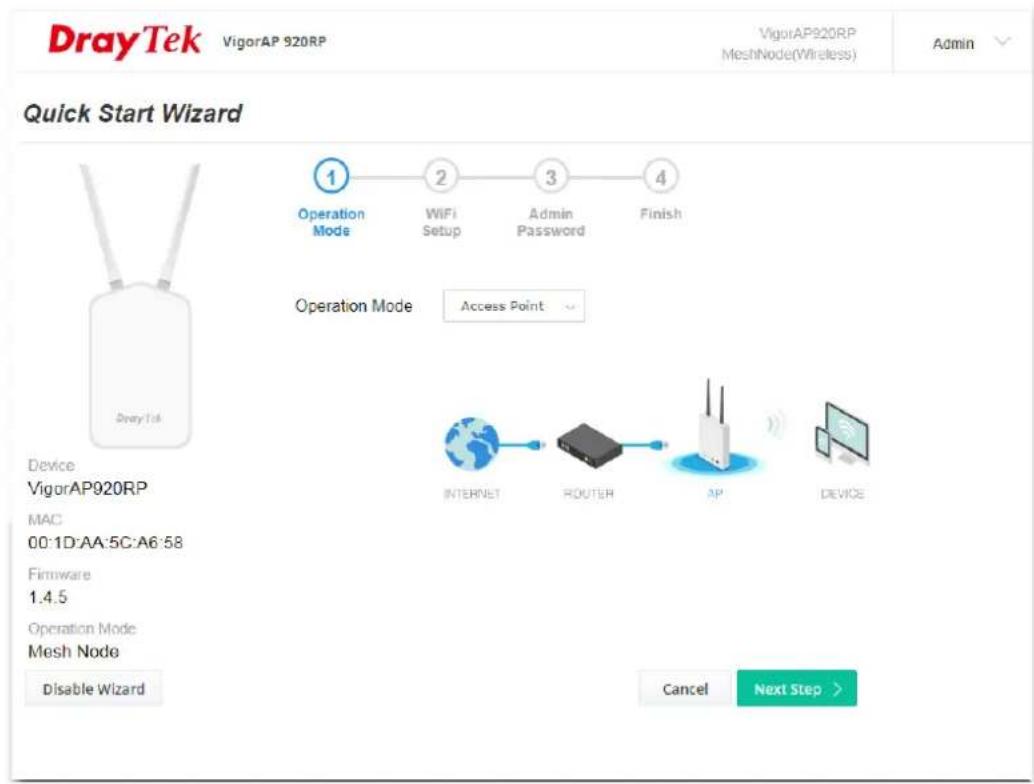
text_image
DrayTek VigorAP 920RP VigorAP920RP MeshNode(Wireless) Admin Quick Start Wizard Operation Mode 1 2 3 4 WiFi Setup Admin Password Finish Operation Mode Access Point Device VigorAP920RP MAC 00:1D:AA:5C:A6:58 Firmware 1.4.5 Operation Mode Mesh Node Disable Wizard INTERNET ROUTER AP DEVICE Cancel Next Step >- In the following page, configure the settings for wireless LAN (for both 2.4GHz and 5GHz) and click Next Step.
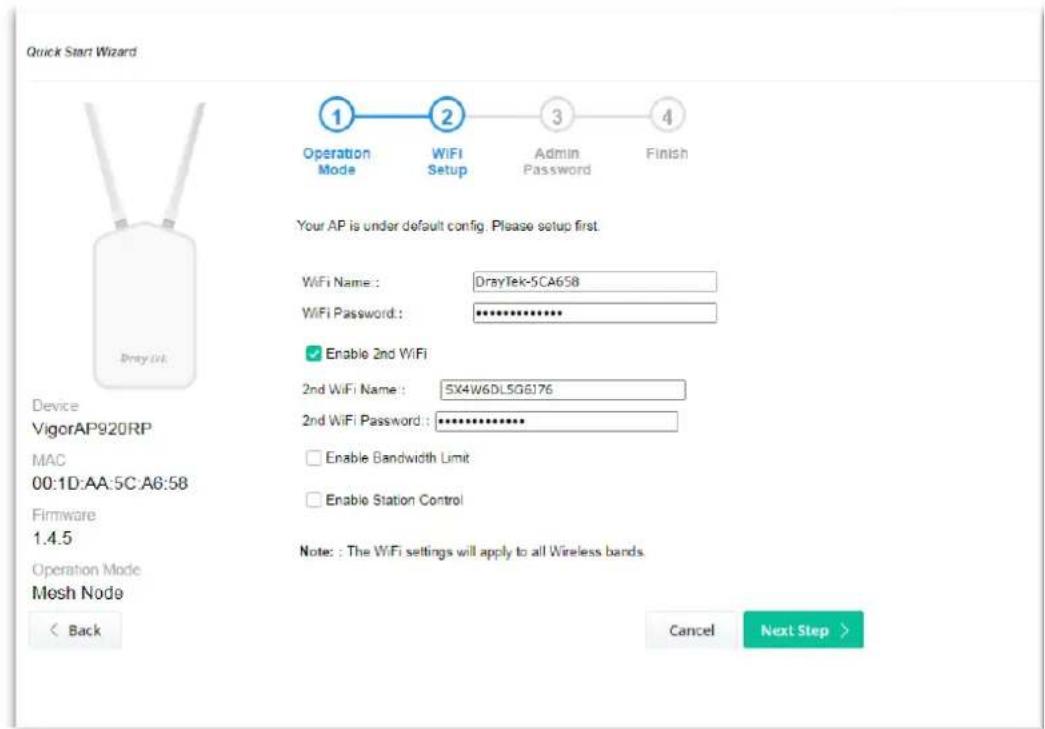
text_image
Quick Start Wizard Operation Mode WiFi Setup Admin Password Finish Your AP is under default config. Please setup first. WiFi Name: DrayTek-5CA658 WiFi Password: ********** Enable 2nd WiFi 2nd WiFi Name: 5X4W6DL5G6176 2nd WiFi Password: ********** Enable Bandwidth Limit Enable Station Control Note: The WiFi settings will apply to all Wireless bands. Back Cancel Next Step >Available settings are explained as follows:
| Item | Description |
| WiFi Name Set a name for VigorAP 920R to be identified. | |
| WiFi Password | Type 8~63 ASCII characters, such as 012345678..(or 64 Hexadecimal digits leading by 0x, such as "0x321253abcde..."). |
| Enable 2nd Wireless | Check the box to enable the guest wireless setting.Such feature is especially useful for free Wi-Fi service. For example, a coffee shop offers free Wi-Fi service for its guests for one hour every day.2nd WiFi Name - Set a name for VigorAP device which can be identified and connected by wireless guest.2nd WiFi Password - Set 8~63 ASCII characters or 8~63 ASCII characters which can be used for logging into VigorAP device by wireless guest. |
| Enable Bandwidth Limit | Check the box to define the maximum speed of the data uploading/downloading which will be used for the guest connecting to Vigor device with the same SSID.Upload Limit – Scroll the radio button to choose the value you want.Download Limit –Scroll the radio button to choose the value you want. |
| Enable Station Control | Check the box to set the duration for the guest connecting /reconnecting to Vigor device.Connection Time –Scroll the radio button to choose the value you want.Reconnection Time –Scroll the radio button to choose the value you want. |
- Change the default password for such device with new value. Then click Next Step.

text_image
Quick Start Wizard 1 Operation Mode 2 WiFi Setup 3 Admin Password 4 Finish Your AP is under default config. Please setup first. Admin Password: ****** Confirm Password: ****** Device VigorAP920RP MAC 00.1D.AA.5G.A6.58 Firmware 1 4 5 Operation Mode Mesh Node < Back Cancel Next Step >Available settings are explained as follows:
| Item | Description |
| Admin Password | Enter a new password. |
| ConfirmPassword | Enter the new password again for confirmation. |
- A summary of settings configuration will be shown on screen. Click Finish.
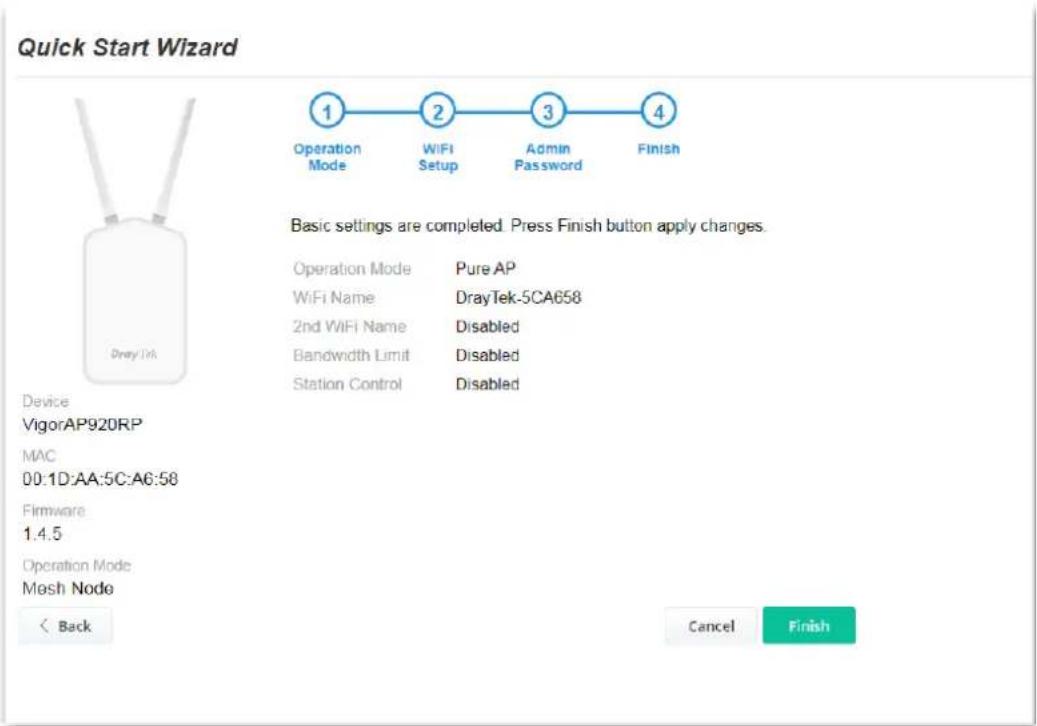
text_image
Quick Start Wizard Operation Mode WiFi Setup Admin Password Finish Basic settings are completed. Press Finish button apply changes. Operation Mode Pure AP WiFi Name DrayTek-5CA658 2nd WiFi Name Disabled Bandwidth Limit Disabled Station Control Disabled Device VigorAP920RP MAC 00:1D:AA:5C:A6:58 Firmware 1.4.5 Operation Mode Mesh Node Back Cancel FinishI-7-2 Settings for Mesh Root
- Choose Mesh Root as the operation mode and click Next Step.

text_image
Quick Start Wizard Operation Mode WiFi Setup Admin Password Finish Operation Mode: Mesh Root Group Name: VigorMesh Device VigorAP920RP MAC 00:1D:AA:5C:A6:58 Firmware 1.4.5 Operation Mode Pure AP Disable Wizard Cancel Next Step >- Configure the settings for wireless LAN (for both 2.4GHz and 5GHz) and click Next Step.
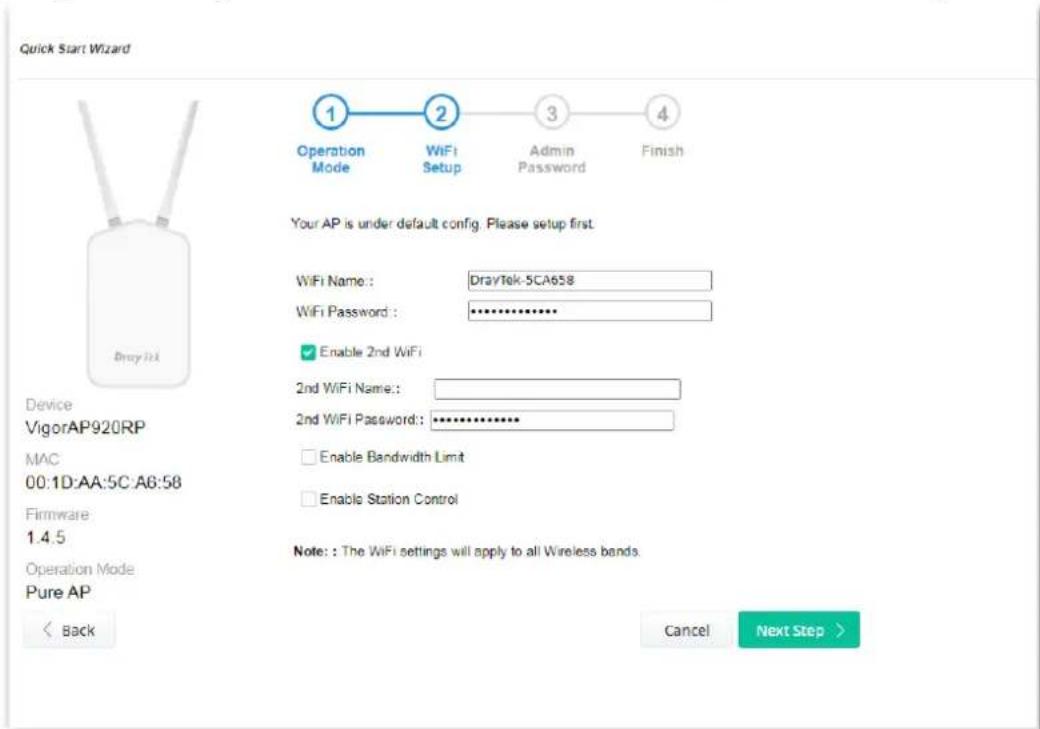
text_image
Quick Start Wizard Device VigorAP920RP MAC 00:1D:AA:5C:A6:58 Firmware 1.4.5 Operation Mode Pure AP Back Operation Mode WiFi Setup Admin Password Finish ① ② ③ ④ Your AP is under default config. Please setup first. WiFi Name: DrayTek-5CA658 WiFi Password: ********** Enable 2nd WiFi 2nd WiFi Name: 2nd WiFi Password: ********** Enable Bandwidth Limit Enable Station Control Note: : The WiFi settings will apply to all Wireless bands. Cancel Next Step >Available settings are explained as follows:
| Item | Description |
| WiFi Name Set a name for VigorAP to be identified. | |
| WiFi Password | Type 8~63 ASCII characters, such as 012345678..(or 64 Hexadecimal digits leading by 0x, such as "0x321253abcde..."). |
| Enable 2nd Wireless | Check the box to enable theguestwireless setting.Such feature is especially useful for free Wi-Fi service. For example, a coffee shop offers free Wi-Fi service for its guests for one hour every day.2nd WiFi Name- Set a name for VigorAP which can be identified and connected by wireless guest.2nd WiFi Password- Set 8~63 ASCII characters or 8~63 ASCII characters which can be used for logging into VigorAP by wireless guest. |
| Enable Bandwidth Limit | Check the box to define the maximum speed of the data uploading/downloading which will be used for the guest connecting to Vigor device with the same SSID.Upload Limit- Scroll the radio button to choose the value you want.Download Limit-Scroll the radio button to choose the value you want. |
| Enable Station Control | Check the box to set the duration for the guest connecting /reconnecting to Vigor device.Connection Time-Scroll the radio button to choose the value you want.Reconnection Time-Scroll the radio button to choose the value you want. |
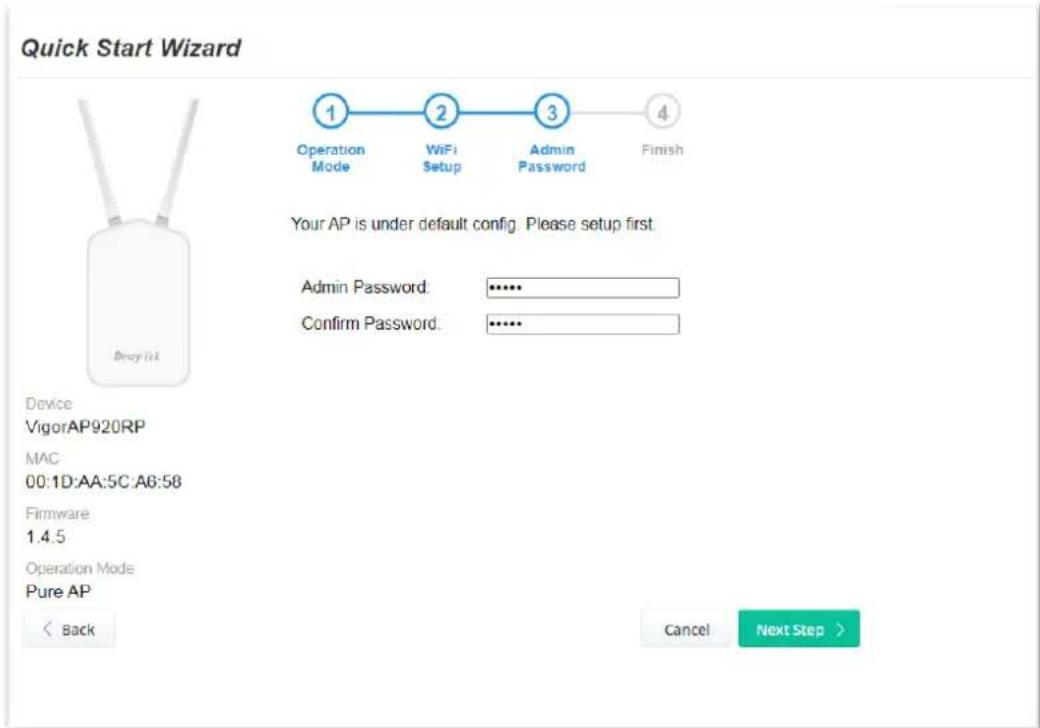
- Change the default password for such device with new value. Then click Next Step.
text_image
Quick Start Wizard Operation Mode WiFi Setup Admin Password Finish Your AP is under default config. Please setup first. Admin Password: **** Confirm Password: **** Device VigorAP920RP MAC 00:1D:AA:5C:A6:58 Firmware 1.4.5 Operation Mode Pure AP < Back Cancel Next Step >Available settings are explained as follows:
| Item | Description |
Admin Password Enter a new password.
Confirm Password Enter the new password again for confirmation.
- A summary of settings configuration will be shown on screen. Click Finish.

text_image
Quick Start Wizard 1 Operation Mode 2 WiFi Setup 3 Admin Password 4 Finish Basic settings are completed. Press Finish button apply changes. Operation Mode Mesh Root WiFi Name DrayTek-5CA658 2nd WiFi Name Disabled Bandwidth Limit Disabled Station Control Disabled Device VigorAP920RP MAC 00:1D:AA:5C:A6:58 Firmware 1.4.5 Operation Mode Pure AP < Back Cancel Finish- After clicking Finish, the following web page appears. VigorAP will search for mesh node around the network.
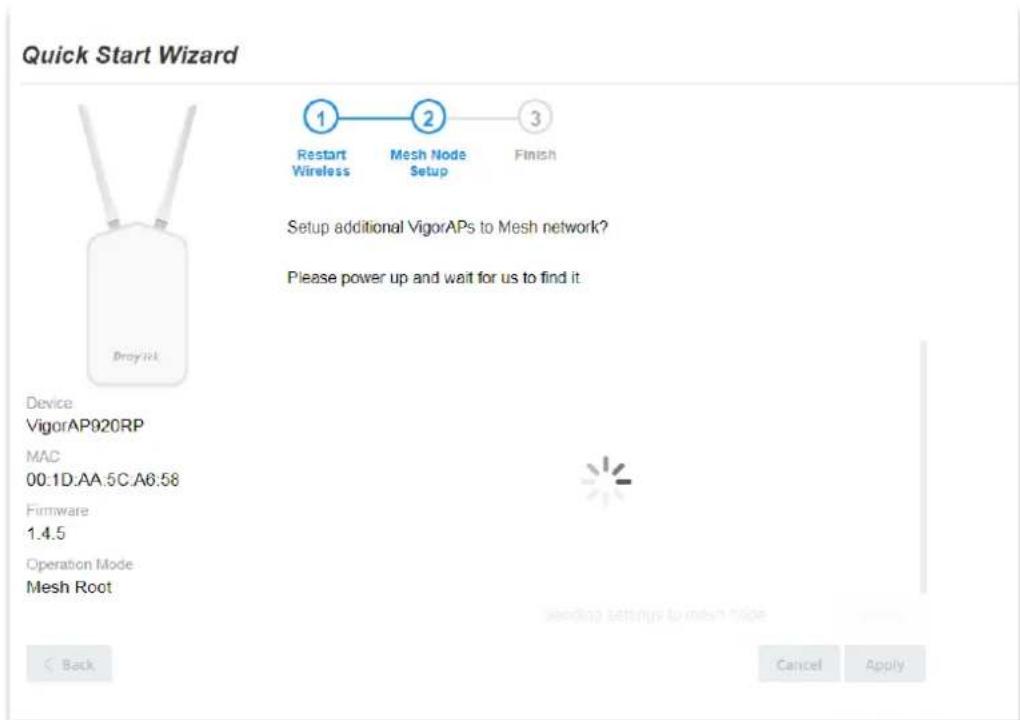
text_image
Quick Start Wizard 1 Restart Wireless 2 Mesh Node Setup 3 Finish Setup additional VigorAPs to Mesh network? Please power up and wait for us to find it. Device VigorAP020RP MAC 00:1D:AA:5C:A6:58 Firmware 1.4.5 Operation Mode Mesh Root Back Cancel Apply- Available VigorAP devices will be shown on the screen. Select the device (as a mesh node) for grouping under such mesh group and enter a device name for identification.

text_image
Quick Start Wizard 1 Restart Wireless 2 Mesh Node Setup 3 Finish Setup additional VigorAPs to Mesh network? Please power up and wait for us to find it. Device VigorAP920RP MAC 00:1D:AA:5C:A6.58 Firmware 1.4.5 Operation Mode Mesh Root Back Select Model MAC Device Name VigorAP1060C 00:1D:AA:95:43:78 VigorAP920R 00:1D:AA:22:33:44 Sending settings to mesh node Search Cancel Apply- Click Apply and wait for a while. Later, a summary page of mesh root with mesh node will be shown on the screen.
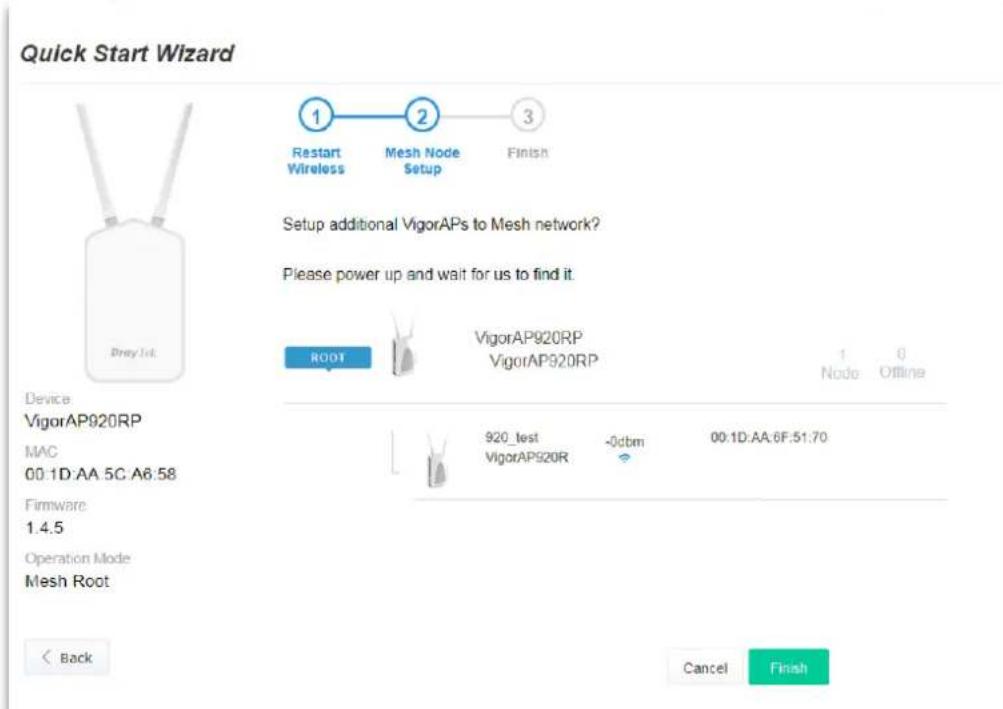
text_image
Quick Start Wizard 1 Restart Wireless 2 Mesh Node Setup 3 Finish Setup additional VigorAPs to Mesh network? Please power up and wait for us to find it ROOT VigorAP920RP VigorAP920RP 1 Node 0 Offline Device VigorAP920RP MAC 00:1D:AA 5C A6:58 Firmware 1.4.5 Operation Mode Mesh Root 920_test -0dbm 00:1D:AA:6F:51:70 VigorAP920R Cancel FinishI-7-3 Settings for Mesh Node
- Choose Mesh Node as the operation mode and click Next Step.
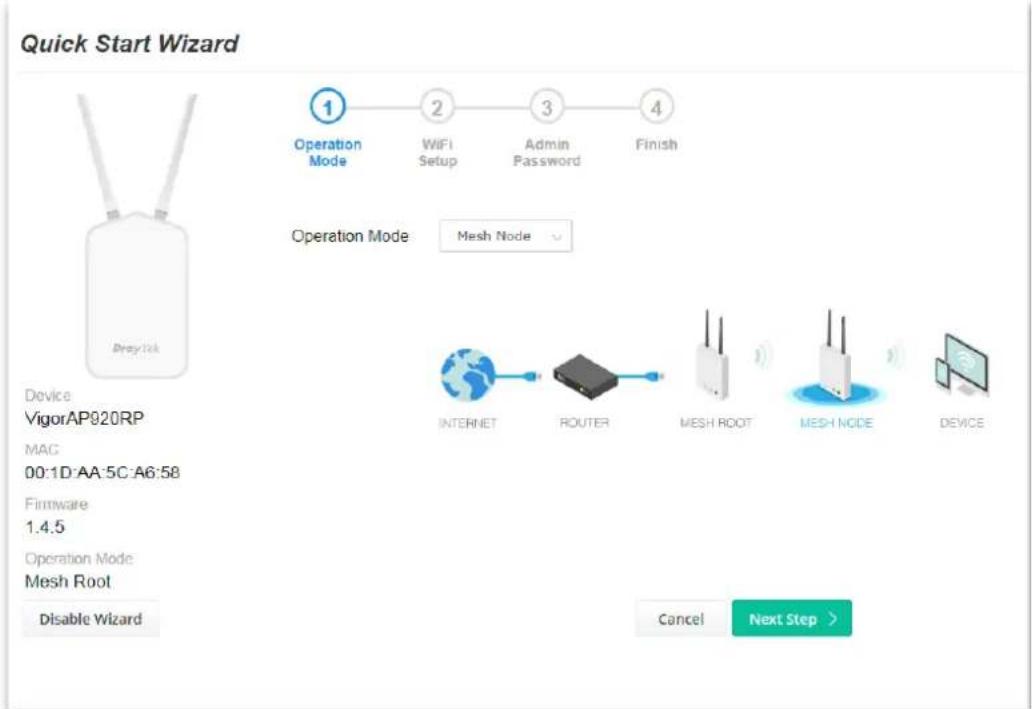
text_image
Quick Start Wizard Operation Mode 1 2 3 4 WiFi Setup Admin Password Finish Operation Mode Mesh Node Device VigorAP920RP MAC 00:1D-AA:5C:A6:58 Firmware 1.4.5 Operation Mode Mesh Root Disable Wizard INTERNET ROUTER MESH ROOT MESH NODE DEVICE Cancel Next Step >- A summary of settings configuration will be shown on screen. Click Finish.

text_image
Quick Start Wizard Device: VigorAP920RP MAC 00:1D:AA:5C:A6:58 Firmware 1.4.5 Operation Mode Mesh Root Back Operation Mode Finish Finish Setup this AP as Mesh Node. Please use Mesh Root or Mobile APP to search this device and let it join one Mesh Group. Cancel FinishI-7-4 Settings for Range Extender
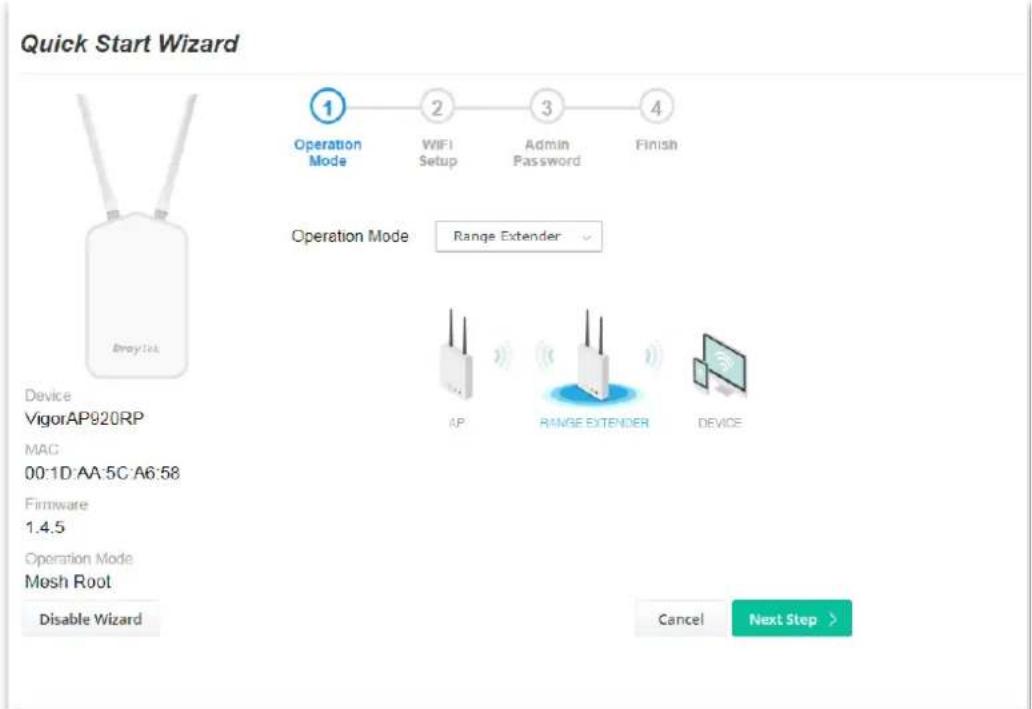
- Choose Range Extender as the operation mode and click Next Step.
text_image
Quick Start Wizard Operation Mode 1 2 3 4 WIFI Setup Admin Password Finish Operation Mode Range Extender Device VigorAP920RP MAC 00:1D-AA:5C-A6:58 Firmware 1.4.5 Operation Mode Mesh Root Disable Wizard Cancel Next Step >- Configure the settings for wireless LAN (for both 2.4GHz and 5GHz) and click Next Step.

text_image
Quick Start Wizard Operation Mode WiFi Setup Admin Password Range Extender Finish Your AP is under default config. Please setup first. WiFi Name: DrayTek-5CA658 WiFi Password: ********** Enable 2nd WiFi 2nd WiFi Name: 2nd WiFi Password: ********** Enable Bandwidth Limit Enable Station Control Note: The WiFi settings will apply to all Wireless bands. Back Cancel Next Step >Available settings are explained as follows:
| Item | Description |
| WiFi Name Set a name for VlgorAP to be identified. | |
| WiFi Password | Type 8~63 ASCII characters, such as 012345678..(or 64 Hexadecimal digits leading by 0x, such as "0x321253abcde..."). |
| Enable 2nd Wireless | Check the box to enable theguestwireless setting.Such feature is especially useful for free Wi-Fi service. For example, a coffee shop offers free Wi-Fi service for its guests for one hour every day.2nd WiFi Name- Set a name for VigorAP which can be identified and connected by wireless guest.2nd WiFi Password- Set 8~63 ASCII characters or 8~63 ASCII characters which can be used for logging into VigorAP by wireless guest. |
| Enable Bandwidth Limit | Check the box to define the maximum speed of the data uploading/downloading which will be used for the guest connecting to Vigor device with the same SSID.Upload Limit- Scroll the radio button to choose the value you want.Download Limit-Scroll the radio button to choose the value you want. |
| Enable Station Control | Check the box to set the duration for the guest connecting /reconnecting to Vigor device.Connection Time- Scroll the radio button to choose the value you want.Reconnection Time- Scroll the radio button to choose the value you want. |
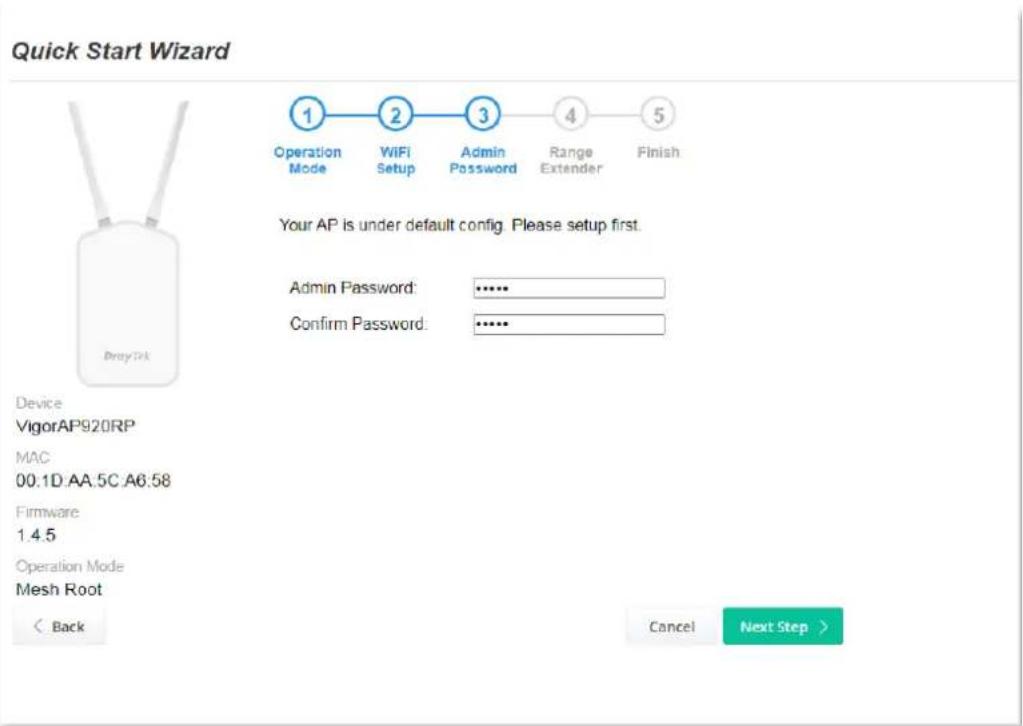
- Change the default password for such device with new value. Then click Next Step.
text_image
Quick Start Wizard 1 Operation Mode 2 WiFi Setup 3 Admin Password 4 Range Extender 5 Finish Your AP is under default config. Please setup first. Admin Password: ...... Confirm Password: ...... Device VigorAP920RP MAC 00.1D AA.5C A6.58 Firmware 1.4.5 Operation Mode Mesh Root < Back Cancel Next Step >Available settings are explained as follows:
| Item | Description |
| Admin Password | Enter a new password. |
| ConfirmPassword | Enter the new password again for confirmation. |
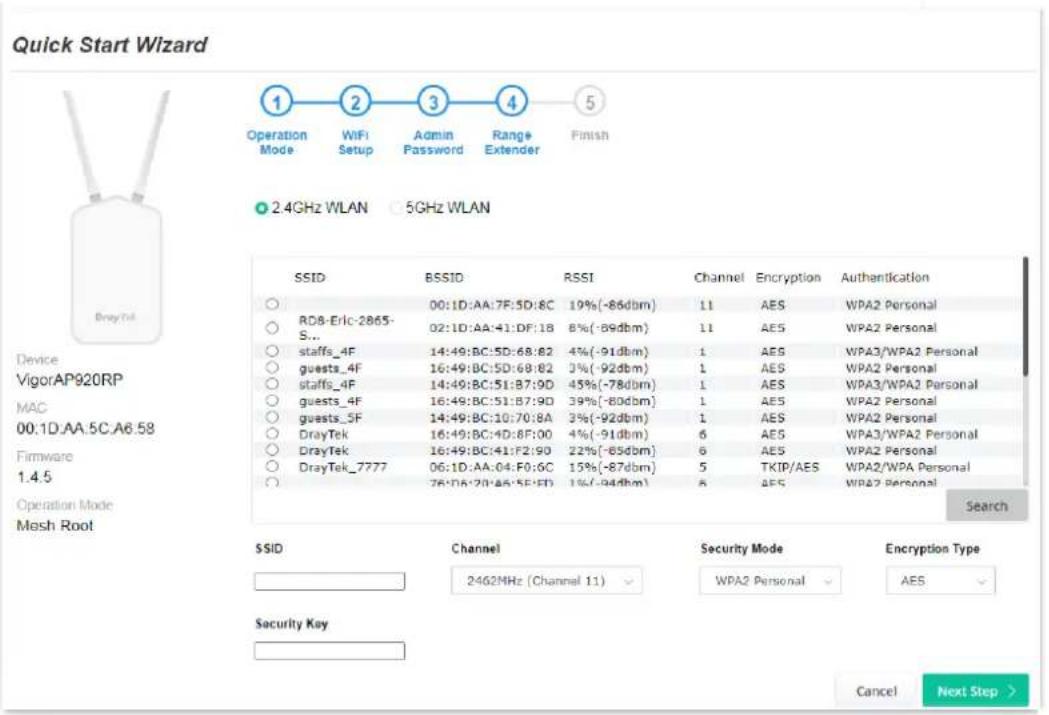
- In the following page, click Search to find out neighboring access point. When all the available access points appear on the page, click the one you want to connect. Corresponding settings (e.g., SSID, Security Mode) of the selected device will be shown below. Enter the Security Key. Then click Next Step.
text_image
Quick Start Wizard Operation Mode WiFi Setup Admin Password Range Extender Finish 2.4GHz WLAN 5GHz WLAN Device VigorAP920RP MAC 00:1D:AA:5C:A6:58 Firmware 1.4.5 Operation Mode Mesh Root SSID BSSID RSSI Channel Encryption Authentication RD8-Erlc-2865- S... 00:1D:AA:7F:5D:8C 19%(-86dbm) 11 AES WPA2 Personal 02:1D:AA:41:DF:18 8%(-89dbm) 11 AES WPA2 Personal staffs_4F 14:49:BC:5D:68:82 4%(-91dbm) 1 AES WPA3/WPA2 Personal guests_4F 16:49:BC:5D:68:82 3%(-92dbm) 1 AES WPA2 Personal staffs_4F 14:49:BC:51:B7:9D 45%(-78dbm) 1 AES WPA3/WPA2 Personal guests_4F 16:49:BC:51:B7:9D 39%(-80dbm) 1 AES WPA2 Personal guests_5F 14:49:BC:10:70:8A 3%(-92dbm) 1 AES WPA2 Personal DrayTek 16:49:BC:4D:8F:00 4%(-91dbm) 6 AES WPA3/WPA2 Personal DrayTek 16:49:BC:4F:2:90 22%(-65dbm) 6 AES WPA2 Personal DrayTek_7777 06:1D:AA:04:F0:6C 15%(-87dbm) 5 TKIP/AES WPA2/WPA Personal 76:18'20'45'SE'ED 1%(-94dbm) 6 AES WPA2 Personal Search SSID Channel Security Mode Encryption Type 2462MHz (Channel 11) WPA2 Personal AES Security Key Cancel Next Step >Available settings are explained as follows:
| Item | Description |
| SSID Set a name for | VigorAP to be identified. |
| Channel | Means the channel frequency of the wireless LAN. You may switch channel if the selected channel is under serious interference. |
| Security Mode There are several modes provided for you to choose. Each mode will bring up different parameters (e.g., WEP keys, Pass Phrase) for you to configure. | |
| Encryption Type | Available options will vary according to the selected Security Mode.When Open is selected:Choose None to disable the WEP Encryption. Data sent to the AP will not be encrypted.WEP Keys-To enable WEP encryption for data transmission, please choose WEP. Four keys can be entered here, but only one |
key can be selected at a time. The format of WEP Key is restricted to 5 ASCII characters or 10 hexadecimal values in 64-bit encryption level, or restricted to 13 ASCII characters or 26 hexadecimal values in 128-bit encryption level. The allowed content is the ASCII characters from 33(!) to 126(\~) except '#' and
When Shared is selected:
- WEP Keys - To enable WEP encryption for data transmission, please choose WEP. Four keys can be entered here, but only one key can be selected at a time. The format of WEP Key is restricted to 5 ASCII characters or 10 hexadecimal values in 64-bit encryption level, or restricted to 13 ASCII characters or 26 hexadecimal values in 128-bit encryption level. The allowed content is the ASCII characters from 33(!) to 126(\~) except '#' and
When WPA Personal or WPA2 Personal is selected:
- Select TKIP or AES as the algorithm for WPA.
- Security Key - Select WEP, TKIP or AES as the encryption algorithm.
Type 8\~63 ASCII characters, such as 012345678..(or 64 Hexadecimal digits leading by 0x, such as "0x321253abcde...").
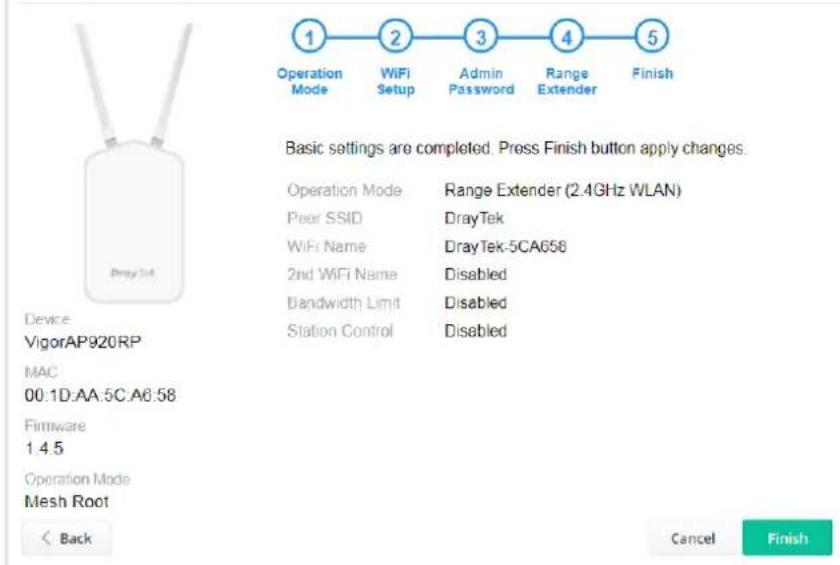
- A summary of settings configuration will be shown on screen. Click Finish.
Quick Start Wizard
text_image
1 Operation Mode 2 WiFi Setup 3 Admin Password 4 Range Extender 5 Finish Basic settings are completed. Press Finish button apply changes. Operation Mode Range Extender (2.4GHz WLAN) Peer SSID DrayTek WiFi Name DrayTek-5CA658 2nd WiFi Name Disabled Bandwidth Limit Disabled Station Control Disabled Device VigorAP920RP MAC 00:1D:AA:5C:A6:58 Firmware 1 4 5 Operation Mode Mesh Root < Back Cancel FinishChapter II Connectivity

natural_image
Abstract geometric composition with four gray squares and one red diamond (no text or symbols)II-1 Operation Mode
This page provides several available modes for you to choose for different conditions. Click any one of them and click OK. The system will configure the required settings automatically.
Operation Mode Configuration

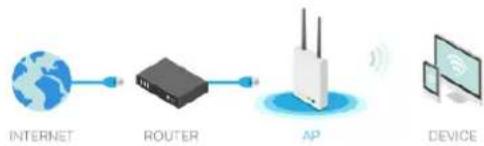
VigorAP acts as a bridge between wireless devices and wired Ethernet network, and exchanges data between them.
flowchart
graph LR
    A["INTERNET"] --> B["ROUTER"]
    B --> C["AP"]
    C --> D["DEVICE"]
Mesh :
Mesh Root:
AP connects to gateway with Ethernet cable. It would be other AP's uplink connection.
Mesh Node:
Use wireless to connect to other Mesh Root when Ethernet cable doesn't exist. A mesh network creates a set of links automatically and calculate the most optimal wireless path through the wireless network back to a wired Mesh Root.
Range Extender :
VigorAP can act as a wireless repeater; it can be Station and AP at the same time.
OK
Available settings are explained as follows:
| Item | Description |
| AP | This mode allows wireless clients to connect to access point and exchange data with the devices connected to the wired network. |
| Mesh Mesh Root - VigorAP must connect to a gateway with an Ethernet cable. Mesh Node - VigorAP can connect to other mesh root via wireless connection. A mesh network creates one set of links automatically and calculates the most optimal wireless path through the wireless network back to a wired mesh root. | |
| Range Extender VigorAP can act as a wireless repeater which will help you to extend the networking wirelessly. The access point can act as Station and AP at the same time. It can use Station function to connect to a Root AP and use AP function to service all wireless clients within its coverage. | |
Note:
The Wireless LAN settings will be changed according to the Operation Mode selected here. For the detailed information, please refer to the section of Wireless LAN.
II-2 General Concepts for Wireless LAN (2.4GHz/5GHz)
VigorAP 920R is a highly integrated wireless local area network (WLAN) for 5 GHz 802.11ac or 2.4/5 GHz 802.11n WLAN applications. It supports channel operations of 20/40 MHz at 2.4 GHz and 20/40/80 MHz at 5 GHz. VigorAP 920R can support data rates up to 867 Mbps in 802.11ac 80 MHz channels.
Note:
* The actual data throughput will vary according to the network conditions and environmental factors, including volume of network traffic, network overhead and building materials.
VigorAP 920R plays a role as an Access Point (AP) connecting to lots of wireless clients or Stations (STA). All the STAs will share the same Internet connection via VigorAP 920R. The General Setup will set up the information of this wireless network, including its SSID as identification, located channel etc.
Security Overview
WEP (Wired Equivalent Privacy) is a legacy method to encrypt each frame transmitted via radio using either a 64-bit or 128-bit key. Usually access point will preset a set of four keys and it will communicate with each station using only one out of the four keys.
WPA (Wi-Fi Protected Access), the most dominating security mechanism in industry, is separated into two categories: WPA-personal or called WPA Pre-Share Key (WPA/PSK), and WPA-Enterprise or called WPA/802.1x.
In WPA-Personal, a pre-defined key is used for encryption during data transmission. WPA applies Temporal Key Integrity Protocol (TKIP) for data encryption while WPA2 applies AES. The WPA-Enterprise combines not only encryption but also authentication.
Since WEP has been proved vulnerable, you may consider using WPA for the most secure connection. You should select the appropriate security mechanism according to your needs. No matter which security suite you select, they all will enhance the over-the-air data protection and/or privacy on your wireless network. The VigorAP 920R is very flexible and can support multiple secure connections with both WEP and WPA at the same time.
WPS Introduction
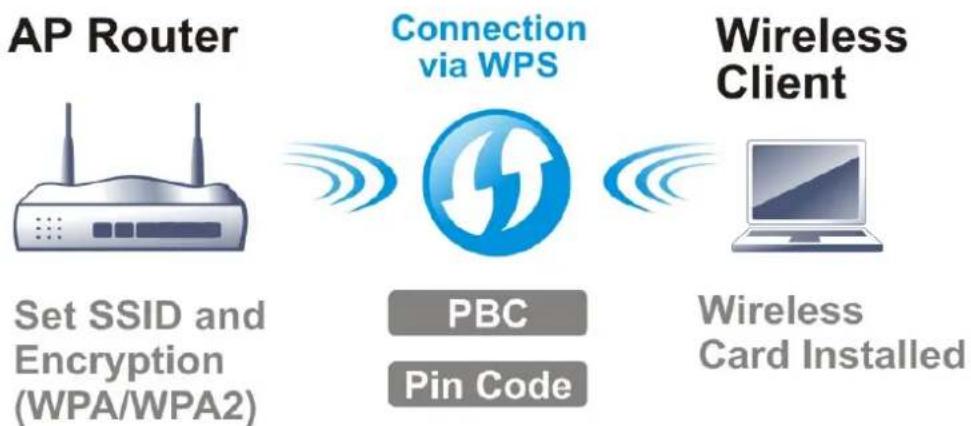
WPS (Wi-Fi Protected Setup) provides easy procedure to make network connection between wireless station and wireless access point (VigorAP 920R) with the encryption of WPA and WPA2.
flowchart
graph LR
    A["AP Router"] -->|Set SSID and Encryption (WPA/WPA2)| B["Connection via WPS"]
    B -->|PBC Pin Code| C["Wireless Client"]
    C -->|Wireless Card Installed| D["Computer"]
It is the simplest way to build connection between wireless network clients and VigorAP 920R. Users do not need to select any encryption mode and type any long encryption passphrase to setup a wireless client every time. He/she only needs to press a button on wireless client, and WPS will connect for client and VigorAP 920R automatically.
Note:
Such function is available for the wireless station with WPS supported.
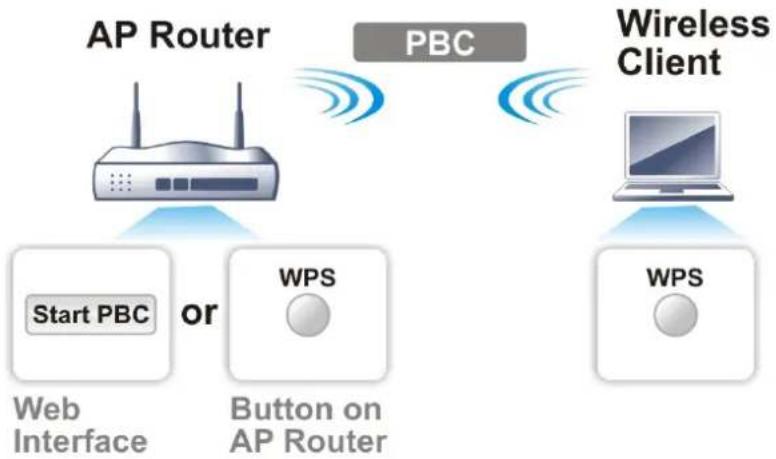
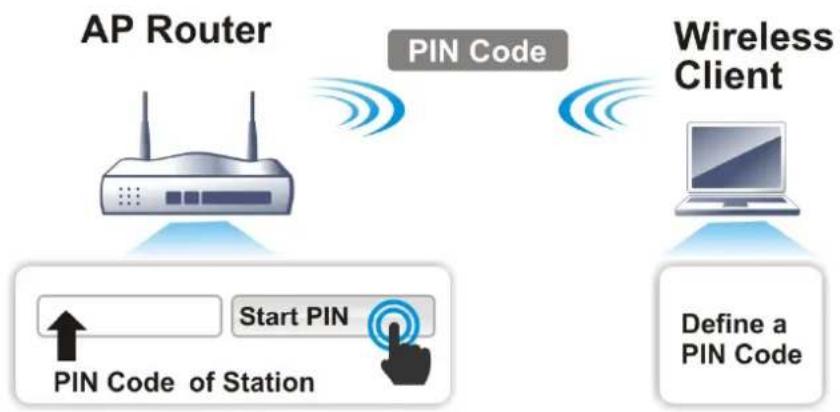
There are two methods to do network connection through WPS between AP and Stations: pressing the Start PBC button or using PIN Code.
On the side of VigorAP 920R series which served as an AP, press WPS button once on the front panel of VigorAP 920R or click Start PBC on web configuration interface. On the side of a station with network card installed, press Start PBC button of network card.
flowchart
graph TD
    A["AP Router"] -->|Start PBC or| B["Web Interface"]
    A -->|Start PBC or| C["Button on AP Router"]
    D["Wireless Client"] -->|WPS| E["WPS"]
    D -->|WPS| F["Computer"]
    style A fill:#f9f,stroke:#333
    style D fill:#ccf,stroke:#333
    style B fill:#cfc,stroke:#333
    style C fill:#fcc,stroke:#333
    style E fill:#cff,stroke:#333
    style F fill:#ffc,stroke:#333
If you want to use PIN code, you have to know the PIN code specified in wireless client. Then provide the PIN code of the wireless client you wish to connect to the VigorAP 920R.
flowchart
graph TD
    A["AP Router"] -->|PIN Code| B["Wireless Client"]
    B -->|Define a PIN Code| C["Application Pin Code of Station"]
    A -->|Start PIN| D["User Input"]
Web Interface
II-3 Wireless LAN (2.4GHz/5GHz) Settings for AP Mode
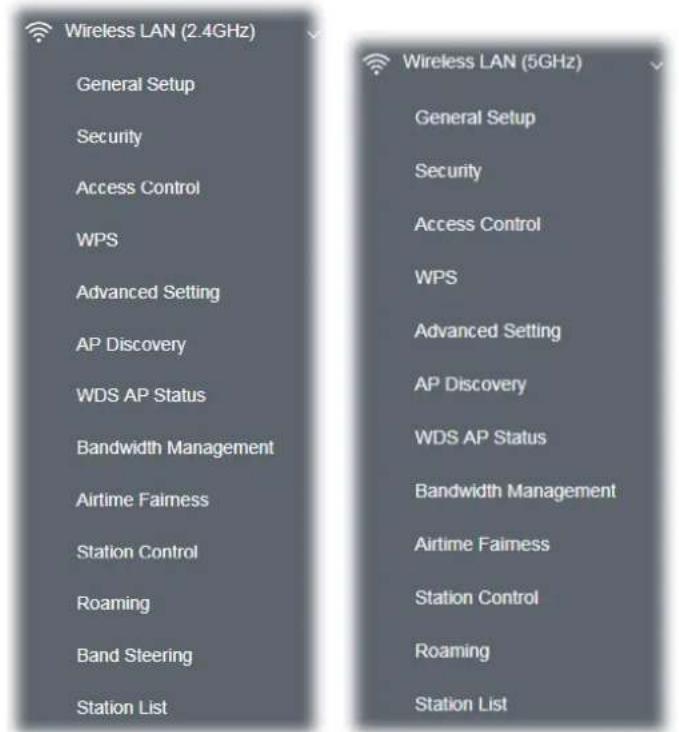
When you choose AP as the operation mode, the Wireless LAN menu items will include General Setup, Security, Access Control, WPS, Advanced Setting, AP Discovery, WDS AP Status, WMM Configuration, Bandwidth Management, Airtime Fairness, Station Control, Roaming, Band Steering and Station List.
text_image
Wireless LAN (2.4GHz) General Setup Security Access Control WPS Advanced Setting AP Discovery WDS AP Status Bandwidth Management Airtime Fairness Station Control Roaming Band Steering Station List Wireless LAN (5GHz) General Setup Security Access Control WPS Advanced Setting AP Discovery WDS AP Status Bandwidth Management Airtime Fairness Station Control Roaming Station ListNote:
Available settings for Wireless LAN (2.4GHz) and Wireless LAN (5Ghz) are almost the same, except for Band Steering.
The following figure shows how VigorAP runs as AP (Access Point)
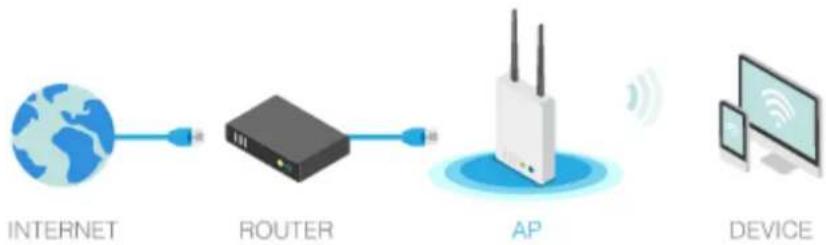
flowchart
graph LR
    A["INTERNET"] --> B["ROUTER"]
    B --> C["AP"]
    C --> D["DEVICE"]
II-3-1 General Setup
By clicking the General Setup, a new web page will appear so that you could configure the SSID and the wireless channel. Please refer to the following figure for more information.
Wireless LAN (2.4GHz) >> General Setup
General Setting ( IEEE 802.11 )

text_image
Enable Wireless LAN Enable Client Limit 128 (3 ~ 128, default: 128) Enable Client Limit per SSID (3 ~ 128, default: 128) Mode : Mixed(11b+11g+11n) Channel : 2462MHz (Channel 11) Extension Channel : 2442MHz (Channel 7) Enable Hide SSID SSID Isolate Isolate VLAN ID LAN Member(0:Untagged) 1 DrayTek-5CA658 0 2 3 4 Hide SSID: Prevent SSID from being scanned. Isolate LAN: Wireless clients (stations) with the same SSID cannot access wired PCs on LAN. Isolate Member: Wireless clients (stations) with the same SSID cannot access for each other. Isolate Exception: Isolate Exception can be created by adding the MAC from Device Object. Note: To allow communication between clients with different SSIDs on different bands, disable the Isolate 2.4GHz and 5GHz bands option on Advanced Setting. WDS Settings (PHY Mode : HTMIX) Security : Disabled TKIP AES Key : Peer MAC Address : 1. □ : □ : □ : □ : □ : □ 2. □ : □ : □ : □ : □ : □ 3. □ : □ : □ : □ : □ : □ 4. □ : □ : □ : □ : □ : □ Note: Enter the configuration of APs which AP920RP want to connect. Remote AP should always use LAN or SSID1 MAC address to connect AP920RP WDS.Available settings are explained as follows:
| Item | Description | |
| Enable Wireless LAN | Check the box to enable wireless function. | |
| Enable Client Limit | Check the box to set the maximum number of wireless stations which try to connect Internet through Vigor device. The number you can set Is from 3 to 64. | |
| Enable Client Limit per SSID | Define the maximum number of wireless stations per SSID which try to connect to Internet through Vigor device. The number you can set is from 3 to 64. | |
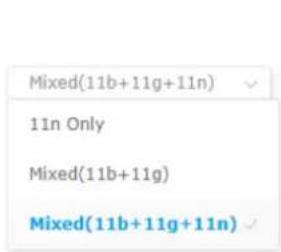
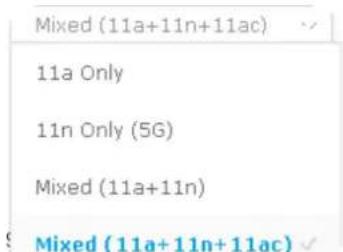
| Mode At present, VigorAP | 920R can connect to 11a Only, 11n Only, 11n Only(5G), Mixed (11b+11g), Mixed (11a+11n), Mixed (11b+11g+11n) and Mixed (11a+11n+11ac) stations simultaneously. Simply use the default one. | |
 |  | |
| Channel Means the channel of frequency of the wireless LAN. You may switch channel if the selected channel is under serious interference. If you have no idea of choosing the frequency, please selectAutoSelectto let system determine for you.Filtered Out List- Such link will be shown ifAutoSelectis selected as Channel. Click such link to access intoWireless LAN >> Advanced Settingspage. | ||
| Extension Channel It is available for wireless LAN (2.4GHz)With 802.11n, there is one option to double the bandwidth per channel. The available extension channel options will be varied according to theChannelselected above. Configure the extension channel you want. | ||
| Hide SSID | Check it to prevent from wireless sniffing and make it harder for unauthorized clients or STAs to join your wireless LAN. Depending on the wireless utility, the user may only see the information except SSID or just cannot see any thing about VigorAP 920R while site surveying. The system allows you to set four sets of SSID for different usage. | |
| SSID Set a name for VigorAP 920R to be identified. Default settings areDrayTek-LAN-A and DrayTek-LAN-B. WhenEnable 2 Subnetis enabled, you can specify subnet interface (LAN-A or LAN-B) for each SSID by using the drop down menu. | ||
| Isolate LAN Check this box to isolate the wireless connection from LAN. It canmake the wireless clients (stations) with remote-dial and LAN to LAN users not accessing for each other. | ||
| Isolate Member | Check this box to make the wireless clients (stations) with the same SSID not access for each other. | |
| VLAN ID Type the value for such SSID. Packets transferred from such SSID to LAN will be tagged with the number.If your network uses VLANs, you can assign the SSID to a VLAN on your network. Client devices that associate using the SSID are grouped into this VLAN. The VLAN ID range is from 3 to 4095. The VLAN ID is 0 by default, it means disabling the VLAN function for the SSID. | ||
| PHY Mode Data will be transmitted via HTMIX mode.Each access point should be setup to the samePHY Modefor | ||
| connecting with each other. | |
| Security Select TKIP or AES as the encryption algorithm. Type the key number if required. | |
| Peer MAC Address Type the peer MAC address for the access point that VigorAP 920RP connects to. | |
After finishing this web page configuration, please click OK to save the settings.
II-3-2 Security
This page allows you to set security with different modes for SSID 1, 2, 3 and 4 respectively. After configuring the correct settings, please click OK to save and invoke it.
By clicking the Security Settings, a new web page will appear so that you could configure the settings.
Wireless LAN (2.4GHz) >> Security Settings

text_image
SSID 1 SSID 2 SSID 3 SSID 4 SSID DrayTek-5CA658 Mode WPA3/WPA2 Personal Set up RADIUS Server if 802.1x is enabled. WPA WPA Algorithms TKIP AES TKIP/AES Pass Phrase ********** Key Renewal Interval 3600 seconds EAPOL Key Retry Enable Disable WEP Key 1 : Hex Key 2 : Hex Key 3 : Hex Key 4 : Hex
Available settings are explained as follows:
| Item | Description |
| Mode | There are several modes provided for you to choose.Below shows the modes with higher security:WPA3 Personal, WPA3/WPA2 Personal, WPA2 Personal, WPA2/WPA Personal - Accepts only WPA clients and the encryption key should be entered in PSK. The WPA encrypts each frame transmitted from the radio using the key, which either PSK (Pre-Shared Key) entered manually in this field below or automatically negotiated via 802.1x authentication.The WPA encrypts each frame transmitted from the radio using the key, which either PSK (Pre-Shared Key) entered manually in this field below or automatically negotiated via 802.1x authentication. Select WPA, WPA2 or Auto as WPA mode.WPA3 Enterprise, WPA3/WPA2 Enterprise, WPA2 Enterprise, WPA2/WPA Enterprise - The WPA encrypts each frame transmitted from the radio using the key, which either PSK (Pre-Shared Key) entered manually in this field below orautomatically negotiated via 802.1x authentication.WPA2 Enterprise- The WPA encrypts each frame transmitted from the radio using the key, which either PSK (Pre-Shared Key) entered manually in this field below or automatically negotiated via 802.1x authentication.OWE- WPA3 also introduces a new open and secure connection mode; "Opportunistic Wireless Encryption" (OWE). It allows the clients to connect without a password, ideal for hotspot networks, but the connection between each individual client is uniquely encrypted behind the scenes.Below shows the modes with basic security;WPA Personal- Accepts only WPA clients and the encryption key should be entered in PSK. The WPA encrypts each frame transmitted from the radio using the key, which either PSK (Pre-Shared Key) entered manually in this field below or automatically negotiated via 802.1x authentication.WPA Enterprise- The WPA encrypts each frame transmitted from the radio using the key, which either PSK (Pre-Shared Key) entered manually in this field below or automatically negotiated via 802.1x authentication.WEP Personal- Accepts only WEP clients and the encryption key should be entered in WEP Key.None- The encryption mechanism is turned off. |
| WPA Algorithms Select TKIP, AES or TKIP/AES as the algorithm for WPA. Such feature is available for WPA2 Enterprise, WPA Enterprise, WPA Personal or WPA2 Personal or WPA2/WPA Personal mode. | |
| Pass Phrase | Type 8~63 ASCII characters, such as 012345678..(or 64 Hexadecimal digits leading by 0x, such as "0x321253abcde..."). Such feature is available for WPA Personal or WPA2 Personal or WPA2/WPA Personal mode. |
| Key Renewal Interval WPA uses shared key for authentication to the network. However, normal network operations use a different encryption key that is randomly generated. This randomly generated key that is periodically replaced. Enter the renewal security time (seconds) in the column. Smaller interval leads to greater security but lower performance. Default is 3600 seconds. Set 0 to disable re-key. Such feature is available for WPA2 Enterprise, WPA Enterprise, WPA Personal or WPA2 Personal or WPA2/WPA Personal mode. | |
| EAPOL Key Retry | EAPOL means Extensible Authentication Protocol over LAN.Click Enable to make sure that the key will be installed and used once in order to prevent key reinstallation attack. |
| WEP | Disable- Disable the WEP Encryption. Data sent to the AP will not be encrypted.Enable- Enable the WEP Encryption.Such feature is available for WEP Enterprise mode. |
| Key 1 - Key 4 | Four keys can be entered here, but only one key can be selected at a time. The format of WEP Key is restricted to 5 ASCII characters or 10 hexadecimal values in 64-bit encryption level, or restricted to 13 ASCII characters or 26 hexadecimal values in 128-bit encryption level. The allowed content is the ASCII characters from 33(!) to 126(~) except '#' and ';'. Such feature is available for WEP mode. |

Click the link of RADIUS Server to access into the following page for more settings.

text_image
RADIUS Server Setup - Google Chrome ① 不安全 | 192.168.1.10/wireless/radius.asp Radius Server Use internal RADIUS Server IP Address 0 Port 1812 Shared Secret DrayTek Session Timeout 0 second(s) OKAvailable settings are explained as follows:
| Item | Description |
| Use internal RADIUS Server | There is a RADIUS server built in VigorAP 920R which is used to authenticate the wireless client connecting to the access point. Check this box to use the internal RADIUS server for wireless security.Besides, if you want to use the external RADIUS server for authentication, do not check this box.Please refer to the section, IV-1-1 RADIUS Server to configure settings for internal server of VigorAP 920R. |
| IP Address Enter the IP address of external RADIUS server. | |
| Port | The UDP port number that the external RADIUS server is using. The default value is 1812, based on RFC 2138. |
| Shared Secret The external RADIUS server and client share a secret that is used to authenticate the messages sent between them. Both sides must be configured to use the same shared secret. | |
| Session Timeout Set the maximum time of service provided before re-authentication.Set to zero to perform another authentication immediately after the first authentication has successfully completed. (The unit is second.) | |
After finishing this web page configuration, please click OK to save the settings.
II-3-3 Access Control
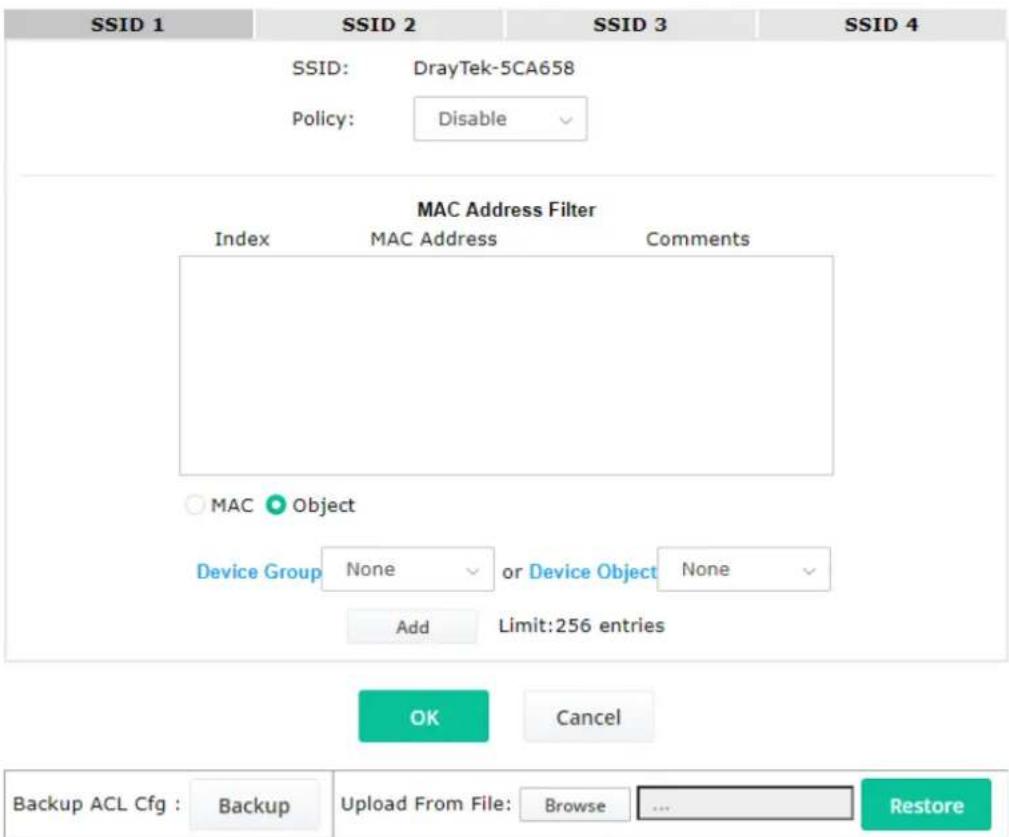
For additional security of wireless access, the Access Control facility allows you to restrict the network access right by controlling the wireless LAN MAC address of client. Only the valid MAC address that has been configured can access the wireless LAN interface. By clicking the Access Control, a new web page will appear, as depicted below, so that you could edit the clients' MAC addresses to control their access rights (deny or allow).
Wireless LAN (2.4GHz) >> Access Control
text_image
SSID 1 SSID 2 SSID 3 SSID 4 SSID: DrayTek-5CA658 Policy: Disable MAC Address Filter Index MAC Address Comments MAC Object Device Group None or Device Object None Add Limit:256 entries OK Cancel Backup ACL Cfg : Backup Upload From File: Browse ... RestoreAvailable settings are explained as follows:
| Item | Description |
| Policy Select to enable any one of the following policy or disable the policy.ChooseActivate MAC address filterto type in the MAC addresses for other clients in the network manually. ChooseBlocked MAC address filter, so that all of the devices with the MAC addresses listed on the MAC Address Filter table will be blocked and cannot access into VigorAP 920R.Policy:DisableDisableActivate MAC address filterBlocked MAC address filter | |
| MAC Address Filter Display all MAC addresses that are edited before. | |
| MAC Client's MAC Address - Manually enter the MAC address of wireless client.Add - Add a new MAC address into the list.Delete - Delete the selected MAC address in the list.Edit - Edit the selected MAC address in the list. | |
| Object | In addition to enter the MAC address of the device manually, you canDevice Group - Select one of the existed device groups and click Add.All the devices belonging to the selected group will be shown on the MAC Address Filter table.Device Object - Select one of the existed device object and click Add.The MAC address of the device will be shown on the MAC Address Filter table. |
| Cancel Give up the access control set up. | |
| Backup | Click it to store the settings (MAC addresses on MAC Address Filter table) on this page as a file. |
| Restore | Click it to restore the settings (MAC addresses on MAC Address Filter table) from an existed file. |
After finishing this web page configuration, please click OK to save the settings.
II-3-4 WPS
Open Wireless LAN>>WPS to configure the corresponding settings.
Wireless LAN (2.4GHz) >> WPS (Wi-Fi Protected Setup)

Enable WPS

Wi-Fi Protected Setup Information
| WPS Configured | Yes |
| WPS SSID | DrayTek-5CA658 |
| WPS Auth Mode | WPA2/PSK |
| WPS Encrypt Type | AES |
Device Configure
Configure via Push Button
Start PBC
Configure via Client PinCode
Start PIN
Status: Idle
Note: WPS can help your wireless client automatically connect to the Access point.
: WPS is Disabled.
2: WPS is Enabled.
: Waiting for WPS requests from wireless clients.
Available settings are explained as follows:
| Item | Description |
| Enable WPS Check this box to enable WPS setting. | |
| WPS Configured Display related system information for WPS. If the wireless security (encryption) function of VigorAP 920R is properly configured, you can | |
| see 'Yes' message here. | |
| WPS SSID Display current selected SSID. | |
| WPS Auth Mode Display current authentication mode of the VigorAP 920R. Only WPA2/PSK and WPA/PSK support WPS. | |
| WPS Encrypt Type | Display encryption mode (None, WEP, TKIP, AES, etc.) of VigorAP 920R. |
| Configure via Push Button | Click Start PBC to invoke Push-Button style WPS setup procedure. VigorAP 920R will wait for WPS requests from wireless clients about two minutes. Both ACT and 2.4G WLAN LEDs on VigorAP 920R will blink quickly when WPS is in progress. It will return to normal condition after two minutes. (You need to setup WPS within two minutes) |
| Configure via Client PinCode | Type the PIN code specified in wireless client you wish to connect, and click Start PIN button. Both ACT and 2.4G WLAN LEDs on VigorAP 920R will blink quickly when WPS is in progress. It will return to normal condition after two minutes. (You need to setup WPS within two minutes). |
II-3-5 Advanced Setting
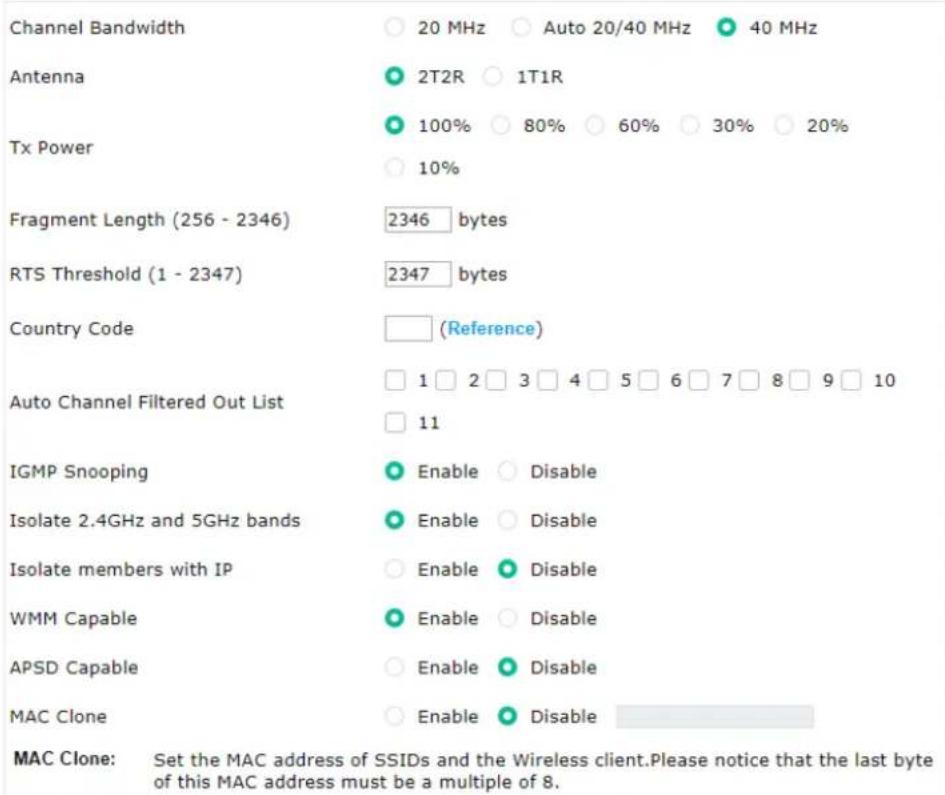
This page is to determine which algorithm will be selected for wireless transmission rate.
Wireless LAN (2.4GHz) >> Advanced Setting
text_image
Channel Bandwidth 20 MHz Auto 20/40 MHz 40 MHz Antenna 2T2R 1T1R 100% 80% 60% 30% 20% Tx Power 10% Fragment Length (256 - 2346) 2346 bytes RTS Threshold (1 - 2347) 2347 bytes Country Code (Reference) Auto Channel Filtered Out List 1 2 3 4 5 6 7 8 9 10 11 IGMP Snooping Enable Disable Isolate 2.4GHz and 5GHz bands Enable Disable Isolate members with IP Enable Disable WMM Capable Enable Disable APSD Capable Enable Disable MAC Clone Enable Disable MAC Clone: Set the MAC address of SSIDs and the Wireless client.Please notice that the last byte of this MAC address must be a multiple of 8.Note: Fragment Length takes effect when mode is "11b Only" or "Mixed(11b+11g)".

Available settings are explained as follows:
| Item | Description |
| Channel Width 20 MHz- | the device will use 20MHz for data transmission and receiving between the AP and the stations. |
| Auto 20/40 MHz- the AP will scan for nearby wireless AP, and then use 20MHz if the number of AP is more than 10, or use 40MHz if it's not. | |
| 40 MHz- the device will use 40MHz for data transmission and receiving between the AP and the stations. | |
| Antenna | VigorAP can be attached with two antennas to have good data transmission via wireless connection. However, if you have only one antenna attached, please choose 1T1R. |
| Such feature is available for wireless LAN (2.4GHz). | |
| Tx Power | The default setting is the maximum (100%). Lowering down the value may degrade range and throughput of wireless. |
| Fragment Length | Set the Fragment threshold of wireless radio. Do not modify default value if you don't know what it is, default value is 2346. |
| RTS Threshold Minimize | the collision (unit is bytes) between hidden stations to improve wireless performance. |
| Set the RTS threshold of wireless radio. Do not modify default value if you don't know what it is, default value is 2347. | |
| Country Code | VigorAP broadcasts country codes by following the 802.11d standard. However, some wireless stations will detect / scan the country code to prevent conflict occurred. If conflict is detected, wireless station will be warned and is unable to make network connection. Therefore, changing the country code to ensure successful network connection will be necessary for some clients. |
| Auto Channel Filtered Out List | The selected wireless channels will be discarded if AutoSelect is selected as Channel selection mode in Wireless LAN>>General Setup. |
| IGMP Snooping | Check Enable to enable IGMP Snooping. Multicast traffic will be forwarded to ports that have members of that group. Disabling IGMP snooping will make multicast traffic treated in the same manner as broadcast traffic. |
| Isolate 2.4GHz and 5GHz bands | The default setting is "Enable". It means that the wireless client using 2.4GHz band is unable to connect to the wireless client with 5GHz band, and vice versa. |
| For WLAN 2.4GHz and 5GHz set with the same SSID name: | |
| No matter such function is enabled or disabled, clients using WLAN 2.4GHz and 5GHz can communicate for each other if Isolate Member (in Wireless LAN>>General Setup) is NOT enabled for such SSID. | |
| Yet, if the function of Isolate Member (in Wireless LAN>>General Setup) is enabled for such SSID, clients using WLAN 2.4GHz and 5GHz will be unable to communicate with each other. | |
| Isolate members with IP | The default setting is "Disable".If it is enabled, VigorAP will isolate different wireless clients according to their IP address(es). |
| WMM Capable | To apply WMM parameters for wireless data transmission, please click the Enable radio button. |
| APSD Capable | APSD (automatic power-save delivery) is an enhancement over the power-save mechanisms supported by Wi-Fi networks. It allows devices to take more time in sleeping state and consume less power to improve the performance by minimizing transmission latency.The default setting is Disable. |
| MAC Clone | Click Enable and manually enter the MAC address of the device with SSID 1. The MAC address of other SSIDs will change based on this MAC address.Such feature is available for wireless LAN (2.4GHz). |
After finishing this web page configuration, please click OK to save the settings.
II-3-6 AP Discovery
VigorAP 920R can scan all regulatory channels and find working APs in the neighborhood. Based on the scanning result, users will know which channel is clean for usage. Also, it can be used to facilitate finding an AP for a WDS link. Notice that during the scanning process (about 5 seconds), no client is allowed to connect to Vigor.
This page is used to scan the existence of the APs on the wireless LAN. Please click Scan to discover all the connected APs.
Wireless LAN (2.4GHz) >> Access Point Discovery
Access Point List
| Select | Index | SSID | BSSID | RSSI | Channel | Encryption | Authentication |
| ○ | 1 | DrayTek | 16:49:BC:41:F2:90 | 2%(-93dbm) | 6 | AES | WPA2 Personal |
| ○ | 2 | DrayTek | 16:49:BC:4D:8F:00 | 5%(-90dbm) | 6 | AES | WPA3/WPA2 Personal |
| ○ | 3 | staffs_5F | 14:49:BC:10:70:88 | 4%(-91dbm) | 1 | AES | WPA3/WPA2 Personal |
| ○ | 4 | guests_5F | 14:49:BC:10:70:8A | 5%(-90dbm) | 1 | AES | WPA2 Personal |
| ○ | 5 | staffs_4F | 14:49:BC:51:B7:9D | 59%(-74dbm) | 1 | AES | WPA3/WPA2 Personal |
| ○ | 6 | guests_4F | 16:49:BC:51:B7:9D | 62%(-73dbm) | 1 | AES | WPA2 Personal |
| ○ | 7 | staffs_4F | 14:49:BC:5D:68:82 | 3%(-92dbm) | 1 | AES | WPA3/WPA2 Personal |
| ○ | 8 | guests_4F | 16:49:BC:5D:68:82 | 3%(-92dbm) | 1 | AES | WPA2 Personal |
| ○ | 9 | 00:1D:AA:7F:5D:8C | 11%(-88dbm) | 11 | AES | WPA2 Personal | |
| ○ | 10 | RD8-Eric-2... | 02:1D:AA:41:DF:18 | 11%(-88dbm) | 11 | AES | WPA2 Personal |
| ○ | 11 | DrayTek04F... | 00:1D:AA:04:F0:6C | 3%(-92dbm) | 5 | TKIP/AES | WPA2/WPA Personal |
| ○ | 12 | DrayTek_77... | 06:1D:AA:04:F0:6C | 3%(-92dbm) | 5 | TKIP/AES | WPA2/WPA Personal |
| ○ | 13 | 12:1D:AA:04:F0:6C | 5%(-90dbm) | 5 | AES | WPA2 Personal | |
| ○ | 14 | AP1062c_PQ... | 14:49:BC:5D:68:81 | 2%(-93dbm) | 9 | AES | WPA3/WPA2 Personal |
| ○ | 15 | AP1062c_PQ... | 14:49:BC:51:B7:9C | 8%(-89dbm) | 9 | AES | WPA3/WPA2 Personal |
| ○ | 16 | AP1062c_PQ... | 16:49:BC:51:B7:9C | 3%(-92dbm) | 9 | AES | WPA2 Personal |
| ○ | 17 | AP1062c_PQ... | 16:49:BC:5D:68:81 | 1%(-94dbm) | 9 | AES | WPA2 Personal |
| ○ | 18 | DrayTek-04... | 02:50:7F:C1:92:16 | 5%(-90dbm) | 4 | NONE |
Scan
See Channel Interference
Note: During the scanning process (about 5 seconds), no station is allowed to connect with the AP.
Add to WDS Settings:
Add
Each item is explained as follows:
| Item | Description |
| SSID Display the SSID of the AP scanned by VigorAP 920R. | |
| BSSID Display the MAC address of the AP scanned by VigorAP 920R. | |
| RSSI Display the signal strength of the access point. RSSI is the abbreviation of Received Signal Strength Indication. | |
| Channel Display the wireless channel used for the AP that is scanned by VigorAP 920R. | |
| Encryption Display the encryption mode for the scanned AP. | |
| Authentication Display the authentication type that the scanned AP applied. | |
| Scan It is used to discover all the connected AP. The results will be shown on the box above this button | |
| AP's MAC Address / AP's SSID | Display the MAC address and SSID of the AP selected from the Access Point. |
| Add If you want the found AP applying the WDS settings, please type in the AP's MAC address on the bottom of the page. Next, click Add. Later, | |
II-3-7 WDS AP Status
VigorAP 920RP can display the status such as MAC address, physical mode, power save and bandwidth for the working AP connected with WDS. Click Refresh to get the newest information.
Wireless LAN (2.4GHz) >> WDS AP Status
WDS AP List
| AID | MAC Address | 802.11 Physical Mode | Power Save | Bandwidth |
Refresh
II-3-8 Bandwidth Management
The downstream or upstream from FTP, HTTP or some P2P applications will occupy large of bandwidth and affect the applications for other programs. Please use Bandwidth Management to make the bandwidth usage more efficient.
Wireless LAN (2.4GHz) >> Bandwidth Management

text_image
SSID 1 SSID 2 SSID 3 SSID 4 SSID DrayTek-5CA658 Per Station Bandwidth Limit Enable ✓ Upload Limit User defined K bps (Default unit : K) Download Limit User defined K bps (Default unit : K) Auto Adjustment ✓ Total Upload Limit User defined K bps (Default unit : K) Total Download Limit 64K bpsNote: 1. Download : Traffic going to any station. Upload : Traffic being sent from a wireless station. 2. Allow auto adjustment could make the best utilization of available bandwidth.

Cancel
Available settings are explained as follows:
| Item | Description |
| SSID Display the specific SSID name. | |
| Enable Check this box to enable the bandwidth management for clients. | |
| Upload Limit Define the maximum speed of the data uploading which will be used for the wireless stations connecting to Vigor device with the same SSID.Use the drop down list to choose the rate. If you choose User | |
| defined, you have to specify the rate manually. | |
| Download Limit Define the maximum speed of the data downloading which will be used for the wireless station connecting to Vigor device with the same SSID.Use the drop down list to choose the rate. If you choose User defined, you have to specify the rate manually. | |
| Auto Adjustment | Check this box to have the bandwidth limit determined by the system automatically. |
| Total Upload Limit When Auto Adjustment is checked, the value defined here will be treated as the total bandwidth shared by all of the wireless stations with the same SSID for data uploading. | |
| Total Download Limit When Auto Adjustment is checked, the value defined here will be treated as the total bandwidth shared by all of the wireless stations with the same SSID for data downloading. | |
After finishing this web page configuration, please click OK to save the settings.
II-3-9 Airtime Fairness
Airtime fairness is essential in wireless networks that must support critical enterprise applications.
Most of the applications are either symmetric or require more downlink than uplink capacity; telephony and email send the same amount of data in each direction, while video streaming and web surfing involve more traffic sent from access points to clients than the other way around. This is essential for ensuring predictable performance and quality-of-service, as well as allowing 802.11n and legacy clients to coexist on the same network. Without airtime fairness, offices using mixed mode networks risk having legacy clients slow down the entire network or letting the fastest client(s) crowd out other users.
With airtime fairness, every client at a given quality-of-service level has equal access to the network's airtime.
The wireless channel can be accessed by only one wireless station at the same time.
The principle behind the IEEE802.11 channel access mechanisms is that each station has equal probability to access the channel. When wireless stations have similar data rate, this principle leads to a fair result. In this case, stations get similar channel access time which is called airtime.
However, when stations have various data rate (e.g., 11g, 11n), the result is not fair. The slow stations (11g) work in their slow data rate and occupy too much airtime, whereas the fast stations (11n) become much slower.
Take the following figure as an example, both Station A(11g) and Station B(11n) transmit data packets through VigorAP 920R. Although they have equal probability to access the wireless channel, Station B(11n) gets only a little airtime and waits too much because Station A(11g) spends longer time to send one packet. In other words, Station B(fast rate) is obstructed by Station A(slow rate).
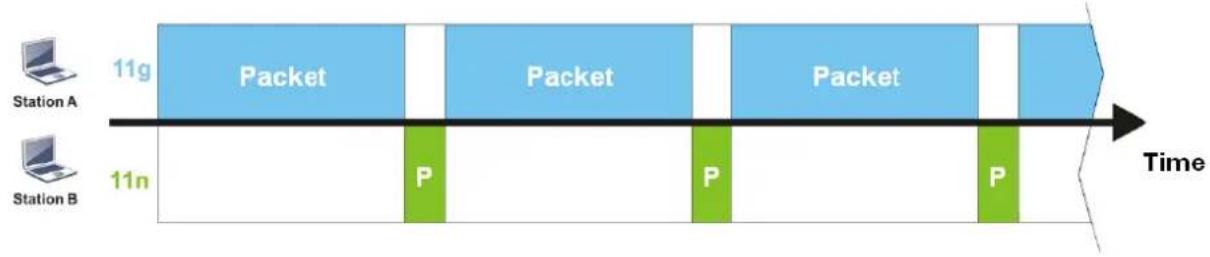
flowchart
graph LR
    A["Station A"] --> B["11g Packet"]
    B --> C["11n P"]
    C --> D["Time"]
    E["Station B"] --> F["11g Packet"]
    F --> G["11n P"]
    G --> H["Time"]
To improve this problem, Airtime Fairness is added for VigorAP 920R. Airtime Fairness function tries to assign similar airtime to each station (A/B) by controlling TX traffic. In the following figure, Station B(11n) has higher probability to send data packets than Station A(11g). By this way, Station B(fast rate) gets fair airtime and it's speed is not limited by Station A(slow rate).

flowchart
graph LR
    A["Station A"] --> B["11g Packet"]
    C["Station B"] --> D["11n P P P P P"]
    B --> E["Time"]
    D --> F["Time"]
    E --> G["Packet"]
    F --> H["Packet"]
It is similar to automatic Bandwidth Limit. The dynamic bandwidth limit of each station depends on instant active station number and airtime assignment. Please note that Airtime Fairness of 2.4GHz and 5GHz are independent. But stations of different SSIDs function together, because they all use the same wireless channel. IN SPECIFIC ENVIRONMENTS, this function can reduce the bad influence of slow wireless devices and improve the overall wireless performance.
Suitable environment:
(1) Many wireless stations.
(2) All stations mainly use download traffic.
(3) The performance bottleneck is wireless connection.
Wireless LAN (2.4GHz) >> Airtime Fairness

Enable Airtime Fairness
Triggering Client Number 2 (2 \~ 128, Default: 2)
Note: Please enable or disable this function according to the real situation and user experience. It is NOT suitable for all environments. You could check Diagnostics >> Station Airtime Graph first.

Cancel
Available settings are explained as follows:
| Item | Description |
| Enable Airtime Fairness | Try to assign similar airtime to each wireless station by controlling TX traffic.Airtime Fairness – Click the link to display the following screen of |
airtime fairness note.

text_image
Airtime Fairness Note: * Airtime is the time where a wireless station occupies the wireless channel. Airtime Fairness function tries to assign similar airtime to each station by controlling TX traffic. IN SPECIFIC ENVIRONMENTS, this function can reduce the bad influence of slow wireless devices and improve the overall wireless performance. * Suitable environment : (1) Many wireless stations. (2) All stations mainly use download traffic. (3) The performance bottleneck is wireless connection. * Triggering Client Number: Airtime Fairness function is applied only when active station number achieves this number.Triggering Client Number -Airtime Fairness function is applied only when active station number achieves this number.
After finishing this web page configuration, please click OK to save the settings.
Note:
Airtime Fairness function and Bandwidth Limit function should be mutually exclusive. So their webs have extra actions to ensure these two functions are not enabled simultaneously.
II-3-10 Station Control
Station Control is used to specify the duration for the wireless client to connect and reconnect VigorAP. If such function is not enabled, the wireless client can connect VigorAP until it shuts down.
Such feature is especially useful for free Wi-Fi service. For example, a coffee shop offers free Wi-Fi service for its guests for one hour every day. Then, the connection time can be set as "1 hour" and reconnection time can be set as "1 day". Thus, the guest can finish his job within one hour and will not occupy the wireless network for a long time.
Note:
Up to 300 Wireless Station records are supported by VigorAP.
Wireless LAN (2.4GHz) >> Station Control
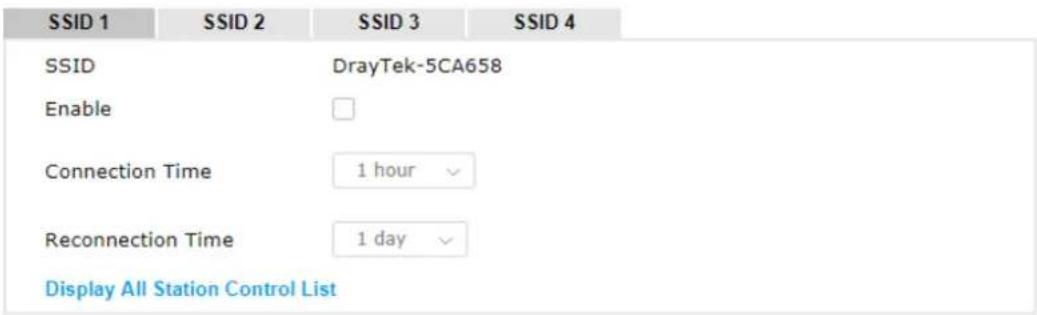
text_image
SSID 1 SSID 2 SSID 3 SSID 4 SSID DrayTek-5CA658 Enable Connection Time 1 hour Reconnection Time 1 day Display All Station Control ListNote: Once the feature is enabled, the connection time quota will apply to each wireless client (identified by MAC address).

Available settings are explained as follows:
| Item | Description |
| SSID Display the SSID that the wireless station will use it to connect with Vigor router. | |
| Enable Check the box to enable the station control function. | |
| Connection Time / Reconnection Time | Use the drop down list to choose the duration for the wireless client connecting /reconnecting to Vigor device. Or, type the duration manually when you chooseUser defined. |
| Connection Time | 1 hour | |
| Reconnection Time | User defined | |
| Display All Station Control List | 30 mins | |
| 1 hour | ||
| Note: Once the feature is enable (identified by MAC address) | 2 hours | |
| Display All Station Control List | All the wireless stations connecting to Vigor router by using such SSID will be listed on Station Control List. | |
After finishing all the settings here, please click OK to save the configuration.
II-3-11 Roaming
The network signal for a single wireless access point might be limited by its coverage range. Therefore, if you want to expand the wireless network in a large exhibition with a quick method, you can install multiple access points with enabling the Roaming feature for each AP to reach the purpose of expanding wireless signals seamlessly.
These access points connecting for each other shall be verified by pre-authentication. This page allows you to enable the roaming feature and the pre-authentication.
Wireless LAN (2.4GHz) >> Roaming
Fast Transition Roaming
Enable 802.11r
AP-assisted Client Roaming Parameters
□ Minimum Basic Rate
1
Mbps
Disable RSSI Requirement
○ Strictly Minimum RSSI
-73
dBm (42 %) (Default: -73)
Minimum RSSI
-66
dBm (60 %) (Default: -66)
with Adjacent AP RSSI over
5
dB (Default: 5)
Fast Roaming(WPA2 Enterprise)
Enable
PMK Caching : Cache Period Pre-Authentication
10
minutes (10 \~ 600, Default: 10)
OK
Cancel
Available settings are explained as follows:
| Item | Description |
| Fast Transition Roaming | Enable 802.11r - Check to enable the function of fast roaming to switch between the hotspots fastly and securely. |
| AP-assisted Client Roaming Parameters | When the link rate of wireless station is too low or the signal received by the wireless station is too worse, VigorAP 920R will automatically detect (based on the link rate and RSSI requirement) and cut off the network connection for that wireless station to assist it to connect another Wireless AP to get better signal.Minimum Basic Rate - Check the box to use the drop down list to specify a basic rate (Mbps). When the link rate of the wireless station is below such value, VigorAP 920R will terminate the network connection for that wireless station.Disable RSSI Requirement - If it is selected, VigorAP will not terminate the network connection based on RSSI.Strictly Minimum RSSI - VigorAP uses RSSI (received signal strength indicator) to decide to terminate the network connection of wireless station. When the signal strength is below the value (dBm) set here, VigorAP 920R will terminate the network connection for that wireless station.Minimum RSSI - When the signal strength of the wireless station is below the value (dBm) set here and adjacent AP (must be DrayTek AP and support such feature too) with higher signal strength value (defined in the field of With Adjacent AP RSSI over) is detected by VigorAP 920R, VigorAP 920R will terminate the network connection for that wireless station. Later, the wireless station can connect to the adjacent AP (with better RSSI).With Adjacent AP RSSI over - Specify a value as a threshold. |
| Fast Roaming (WPA2 Enterprise) | Enable - Check the box to enable fast roaming configuration.PMK Caching - Set the expire time of WPA2 PMK (Pairwise master key) cache. PMK Cache manages the list from the BSSIDs in the associated SSID with which it has pre-authenticated. Such feature is available for WPA2 Enterprise mode.Pre-Authentication - Enables a station to authenticate to multiple APs for roaming securer and faster. With the pre-authentication procedure defined in IEEE 802.11i specification, the pre-four-way-handshake can reduce handoff delay perceivable by a mobile node. It makes roaming faster and more secure. (Only valid in WPA2)Enable - Enable IEEE 802.1X Pre-Authentication.Disable - Disable IEEE 802.1X Pre-Authentication. |
After finishing this web page configuration, please click OK to save the settings.
II-3-12 Band Steering
Band Steering detects if the wireless clients are capable of 5GHz operation, and steers them to that frequency. It helps to leave 2.4GHz band available for legacy clients, and improves users experience by reducing channel utilization.
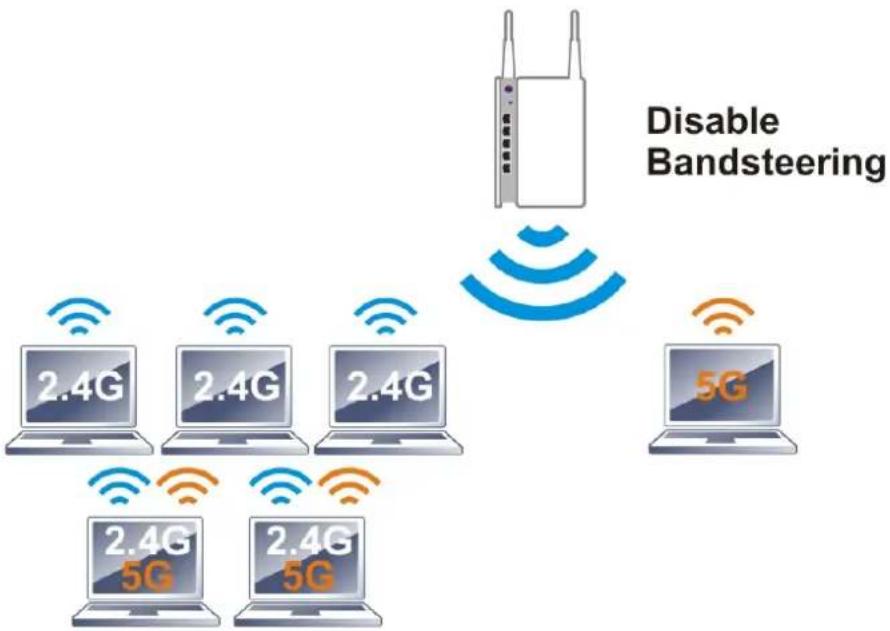
flowchart
graph TD
    A["Disabling Bandsteering"] --> B["2.4G"]
    A --> C["2.4G"]
    A --> D["2.4G"]
    A --> E["5G"]
    B --> F["5G"]
    C --> G["5G"]
    D --> H["5G"]
    E --> I["5G"]
If dual-band is detected, the AP will let the wireless client connect to less congested wireless LAN, such as 5GHz to prevent from network congestion.
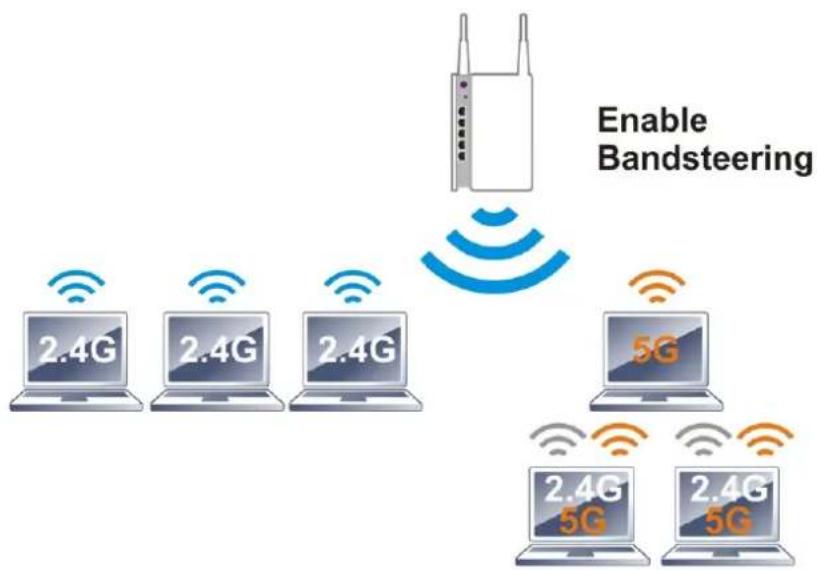
text_image
Enable Bandsteering 2.4G 2.4G 2.4G 5G 2.4G 5G 2.4G 5GNote:
To make Band Steering work successfully, SSID and security on 2.4GHz also MUST be broadcasted on 5GHz.
Open Wireless LAN (2.4GHz)>>Band Steering to get the following web page:
Wireless LAN (2.4GHz) >> Band Steering

Enable Band Steering
Check Time for WLAN Client 5G Capability 15 seconds (1 \~ 60, Default: 15)

Wait Full Time to Check 5G Capability

5GHz Minimum RSSI
15 seconds (1 \~ 60, Default: 15)
-78 dBm (29 %) (Default: -78)
(Only do band steering when 5GHz signal is better than Minimum RSSI)

Overloaded
2.4GHz Utilization Overload Threshold
70 % (Default: 70)
5GHz Utilization Overload Threshold
70 % (Default: 70)
(Only do band steering when 2.4GHz utilization is overloaded and 5GHz utilization is not)
Note: Please setup at least one pair of 2.4GHz and 5GHz Wireless LAN with the same SSID and security.
OK
Cancel
Available settings are explained as follows:
| Item | Description |
| Enable Band Steering | If it is enabled, VigorAP will detect if the wireless client is capable of dual-band or not within the time limit.Check Time.... – If the wireless station does not have the capability of 5GHz network connection, the system shall wait and check for several seconds (15 seconds, in default) to make the 2.4GHz network connection. Specify the time limit for VigorAP to detect the wireless client.Wait Full Time to Check 5G Capability – If enabled, the client trying to connect to wireless network 2.4G has to wait for a few seconds (defined in Check Time... above) to check if the connecting device has the 5G capability. If no 5G capability, the client will be directed to the wireless 2.4G network.5GHz Minimum RSSI – The wireless station has the capability of 5GHz network connection, yet the signal performance might not be satisfied. Therefore, when the signal strength is below the value set here while the wireless station connecting to VigorAP 920RP, VigorAP will allow the client to connect to 2.4GHz network.Overloaded – If it is enabled, VigorAP will activate the band steering according to the conditions set below.2.4GHz Utilization Overload Threshold – The default setting is 70%. It can define the network congestion for 2.4GHz.5GHz Utilization Overload Threshold – The default setting is 70%. It can define the network congestion for 5GHz.When the utilization of 2.4GHz is higher than the specified threshold and the utilization of 5GHz is lower than the specified threshold, VigorAP will steer the client to connect to 5GHz network. |
After finishing this web page configuration, please click OK to save the settings.
Below shows how Band Steering works.

flowchart
graph TD
    A["AP receives probe request from client"] --> B["2.4G"]
    B --> C["Check whether SSID and Security of 5G is the same as 2.4G"]
    C -->|Yes| D["Check RSSI value if 5G > 2.4G up to 30dBm"]
    C -->|No| E["Wait client 5G connection request for check time(0-60 sec decides by customer)"]
    D -->|Yes| F["Check 5G RSSI if it's larger than 5G minimum RSSI (configured by customer)"]
    D -->|No| G["AP replies probe request on 2.4G"]
    F -->|Yes| H["Check if the client was connected to 5G before(+)"]
    F -->|No| I["Wait client 5G connection request for hold time(15 sec)"]
    H -->|Yes| J["Wait client 5G connection request for hold time(15 sec)"]
    H -->|No| K["Client send request"]
    J --> L["AP replies probe request on 5G"]
    K --> M["Client send request"]
    I --> N["overtime"]
    L --> O["AP replies probe request on 2.4G"]
* AP will clear the 5G history station list every 2.5 mins.
How to Use Band Steering?
-
Open Wireless LAN(2.4GHz)>>Band Steering.
-
Check the box of Enable Band Steering and use the default value (15) for check time setting.
Wireless LAN (2.4GHz) >> Band Steering
Enable Band Steering
Check Time for WLAN Client 5G Capability
15 seconds (1 \~ 60, Default: 15)
□ Wait Full Time to Check 5G Capability
5GHz Minimum RSSI
-78 dBm (29 %) (Default: -78)
(Only do band steering when 5GHz signal is better than Minimum RSSI)
Overloaded
2.4GHz Utilization Overload Threshold
70 % (Default: 70)
5GHz Utilization Overload Threshold
70 % (Default: 70)
(Only do band steering when 2.4GHz utilization is overloaded and 5GHz utilization is not)
Note: Please setup at least one pair of 2.4GHz and 5GHz Wireless LAN with the same SSID and security.
OK
Cancel
-
Click OK to save the settings.
-
Open Wireless LAN (2.4GHz)>>General Setup and Wireless LAN (5GHz)>> General Setup. Configure SSID as ap920-BandSteering for both pages. Click OK to save the settings.
Wireless LAN (2.4GHz) >> General Setup
General Setting ( IEEE 802.11 )
Enable Wireless LAN
Enable Client Limit 128 (3 \~ 128, default: 128)
☐ (3 \~ 128, default: 128) Enable Client Limit per SSID
Mode : Mixed(11b+11a+11n)
channel : 2462MHz (Channel 11)
Extension Channel : 2442MHz (Channel 7)

Wireless LAN (5GHz) >> General Setup
General Setting (IEEE 802.11)
Enable Wireless LAN
□ Enable Client Limit 128 (3 \~ 128, default: 128)
☐ (3 \~ 128, default: 128) Enable Client Limit per SSID
Mode : Mixed(11a+11n+11ac)
Channel : AutoSelect (Active Channel: 36) Filtered Out List
20/40MHz Ext Ch: 40, 80MHz Center Ch: 42

VLAN ID Untagged)
0
Same value for 2.4GHz and 5GHz
- Open Wireless LAN (2.4GHz)>>Security and Wireless LAN (5GHz)>>Security. Configure Security as 12345678 for both pages. Click OK to save the settings.
Wireless LAN (2.4GHz) >> Security Settings
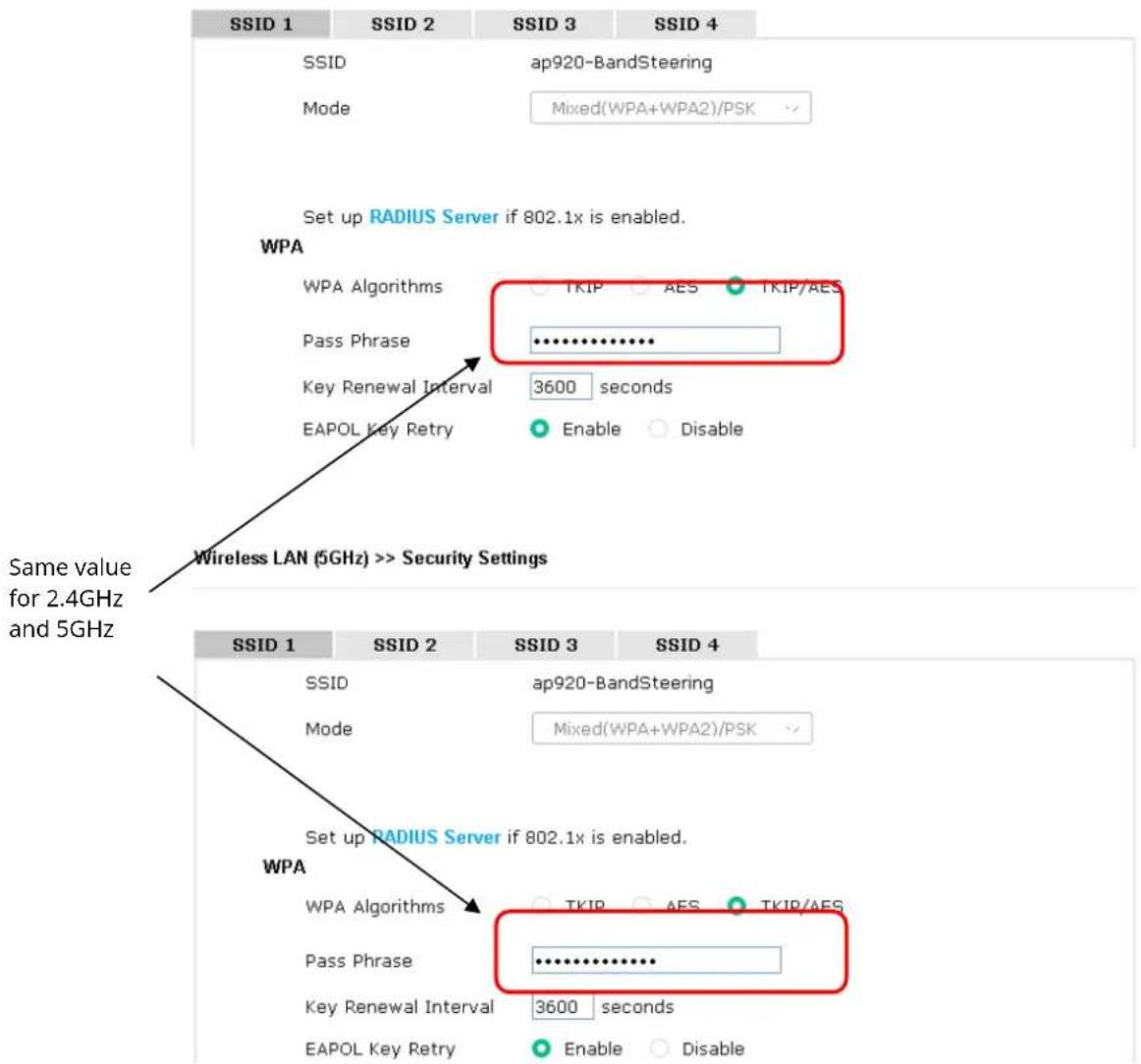
text_image
SSID 1 SSID 2 SSID 3 SSID 4 SSID ap920-BandSteering Mode Mixed(WPA+WPA2)/PSK Set up RADIUS Server if 802.1x is enabled. WPA WPA Algorithms TKIP AES TKIP/AES Pass Phrase ********** Key Renewal Interval 3600 seconds EAPOL Key Retry Enable Disable Same value for 2.4GHz and 5GHz Wireless LAN (5GHz) >> Security Settings SSID 1 SSID 2 SSID 3 SSID 4 SSID ap920-BandSteering Mode Mixed(WPA+WPA2)/PSK Set up RADIUS Server if 802.1x is enabled. WPA WPA Algorithms TKIP AES TKIP/AES Pass Phrase ********** Key Renewal Interval 3600 seconds EAPOL Key Retry Enable Disable- Now, VigorAP 920R will let the wireless clients connect to less congested wireless LAN, such as 5GHz to prevent from network congestion.
II-3-13 Station List
Station List provides the information related to the number of clients connecting to VigorAP, used bandwidth and the statistics of the AP device OS. Besides, users can create access control policies, device objects and set black & white list for
II-3-13-1 Connected Number
This page lists the graph for the number of wireless stations connected to this Access Point with different time phases.
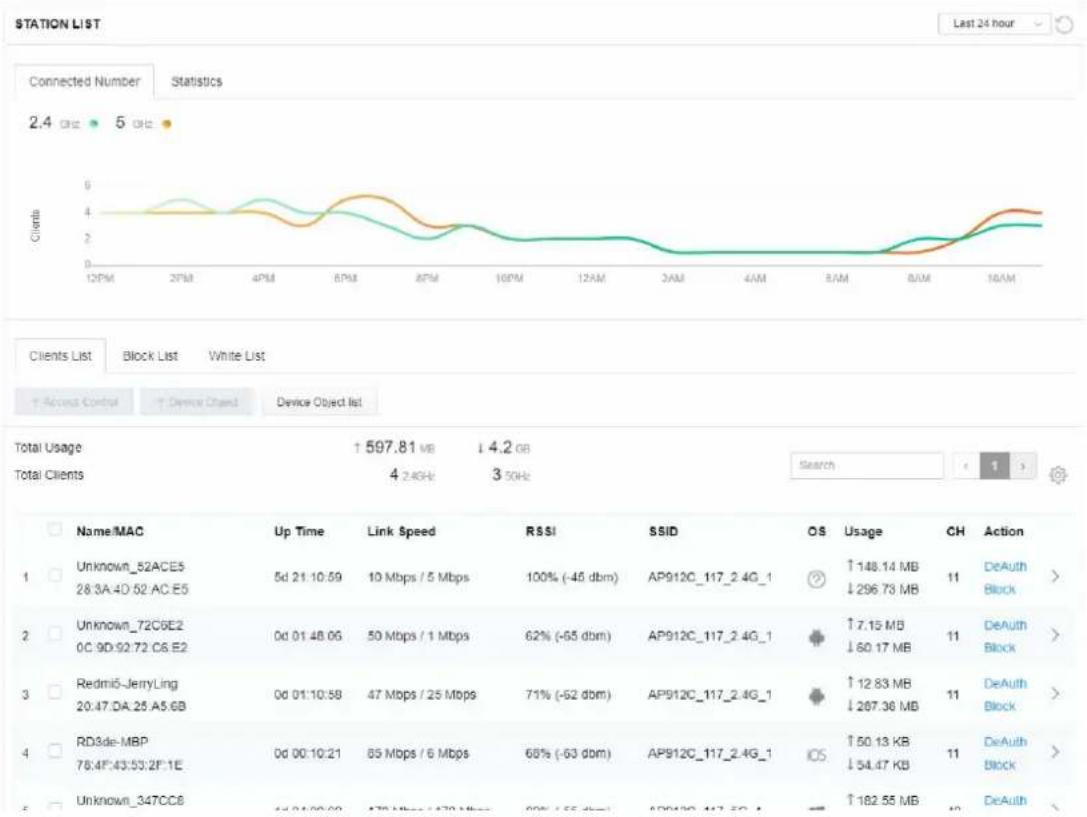
line
| Client | Up Time | Link Speed | RSSI | SSID | OS | Usage | CH | Action | | --- | --- | --- | --- | --- | --- | --- | --- | --- | | Unknown_52ACE5 28:3A:4D:52:AC:E5 | 5d 21:10:59 | 10 Mbps / 5 Mbps | 100% (-45 dbm) | AP912C_117_2.4G_1 | ? | ↑148.14 MB ↓296.73 MB | 11 | DeAuth Block > | | Unknown_72C6E2 0C:9D:92:72:C6:E2 | 0d 01:48:06 | 50 Mbps / 1 Mbps | 62% (-65 dbm) | AP912C_117_2.4G_1 | + | ↑7.15 MB ↓60.17 MB | 11 | DeAuth Block > | | Redmi6-JerryLing 20:47:DA:25:A5:GB | 0d 01:10:58 | 47 Mbps / 25 Mbps | 71% (-62 dbm) | AP912C_117_2.4G_1 | + | ↑12.83 MB ↓287.36 MB | 11 | DeAuth Block > | | RD3de-MBP 78:4F:43:53:2P:1E | 0d 00:10:21 | 85 Mbps / 6 Mbps | 68% (-63 dbm) | AP912C_117_2.4G_1 | iOS | ↑50.13 KB ↓54.47 KB | 11 | DeAuth Block > | | Unknown_347CC8 | 4d 04:00:00 | 476 Mbps / 470 Mbps | 60% (-55 dbm) | AP912C_117_2.4G_1 | - | ↑182.55 MB | 10 | DeAuthII-3-13-2 Statistics
The number of detected devices and the number of device(s) passed/blocked according to the policy specified in Mobile Device Management>>Policy can be illustrated as doughnut chart.

II-3-13-3 Clients List
The client list displays all the stations connecting to VigorAP.

text_image
STATION LIST Last 24 hour Connected Number Statistics Device OS 0% Android 0 0% iOS 0 0% Windows 0 0% Linux 0 100% Others 51 Policy 100% Pass 58 0% Block 0 Clients List Block List White List + Access Control + Device Object Device Object list Total Usage ↑ 58.13 KB ↓ 45.89 KB Total Clients 0 2.4GHz 64 5GHz 5G 1 2 3 4 5 6 7 ? Name/MAC Up Time Link Speed RSSI SSID OS Usage CH Action 1 Unknown_C84A46 00:BC:DA:C8.4A.46 0d 03:42:47 270 Mbps / 6 Mbps 57% (-67 dbm) AA-903 ? ↑867 B 36 DeAuth ↓717 B Block > 2 Unknown_07B0C1 00:BC:DA:07:B0:C1 0d 03:42:47 270 Mbps / 6 Mbps 55% (-68 dbm) AA-903 ? ↑867 B 36 DeAuth ↓717 B Block > 3 Unknown_C34F0A 00:BC:DA:C3.4F.0A 0d 03:42:47 270 Mbps / 6 Mbps 57% (-67 dbm) AA-903 ? ↑867 B 36 DeAuth ↓717 B Block > 4 Unknown_OCEEE9 00:BC:DA:OCEE'E9 0d 03:42:46 270 Mbps / 6 Mbps 62% (-65 dbm) AA-903 ? ↑867 B 36 DeAuth ↓717 B Block >Available settings are explained as follows:
| Item | Description |
| +Access Control | It is available after choosing one of the entries (clients) on Clients List. |
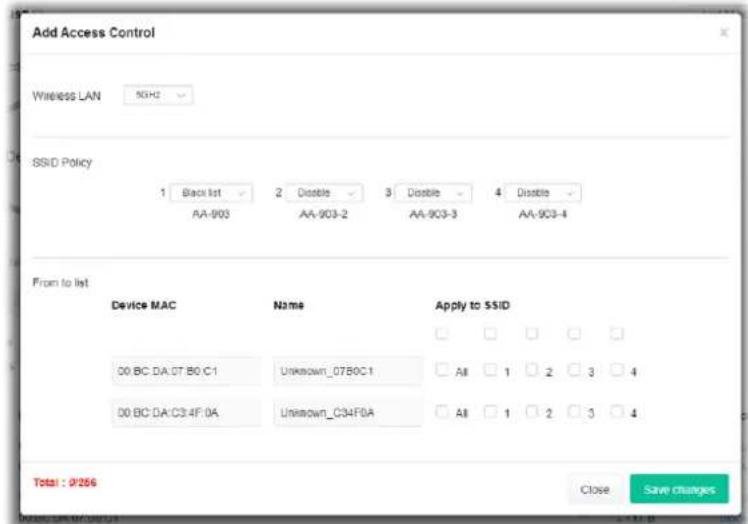 | |
| Wireless LAN - Specify the bandwidth for the access control list. SSID Policy - Set the policy for each SSID as black list or white list or disable. From to list - Display the clients available for applying this accesscontrol.Apply to SSID - Check All to make the device apply the policies to all SSIDs. Or select the one(s) to make the device apply the policies to the selected SSIDs.Close - Exit this page without saving any changes.Save changes - Save the changes and exit this page. | |
+Device Object To add a device to device object list, choose one of the entries (clients) on Clients List to enable the Device Object button. Click the button to open the following page. Check the information listed on the page. Change the MAC address or name of the selected entry if required. Then click OK and exit the page. Check the information listed on the page. Change the MAC address or name of the selected entry if required. Then click OK and exit the page. | |
Device Object list The existed device object profiles will be shown on the following page. | |
| Clients List Display the stations connecting to this Vigor device.Total Usage - DisplayTotal Clients - Display the number of the clients using 2.4GHzName / MAC - Display the host name / MAC address of the connecting client.Up Time - Display the connection time.Link Speed- Display the link speed.RSSI - Display the RSSI value.SSID - Display the SSID the client used for connecting VigorAP.OS - Display the OS of the client.Usage - Display the bandwidth usage (up and down) of the client.CH - Display the channel used by the client.Action - Display the authentication method used by the client, and if it is on block list or white list. | |
II-3-13-4 Block List
This page displays information of the stations under block list.
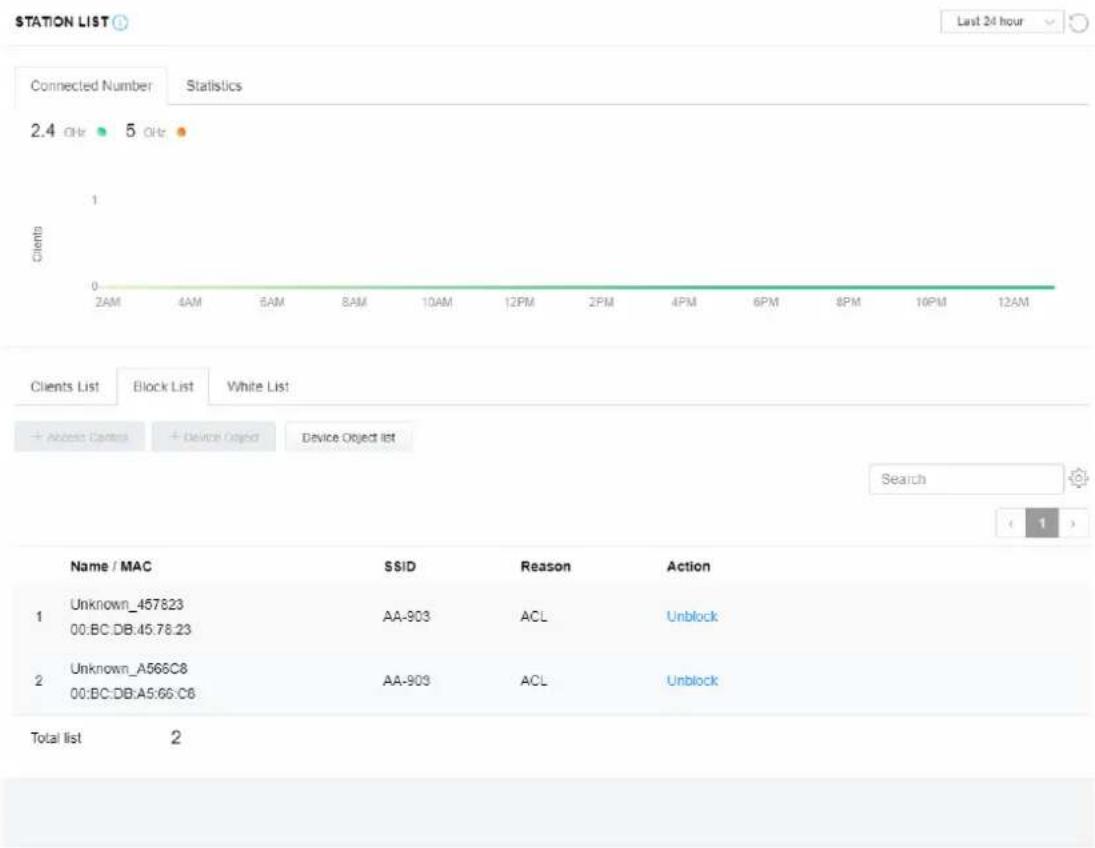
text_image
STATION LIST Last 24 hour Connected Number Statistics 2.4 GHz 5 GHz Clients 1 0 2AM 4AM 6AM 8AM 10AM 12PM 2PM 4PM 6PM 8PM 10PM 12AM Clients List Block List White List + Access Centers + Device Object Device Object list Search ( 1 ) Name / MAC SSID Reason Action 1 Unknown_457823 AA-903 ACL Unblock 00:BC:DB:45:78:23 2 Unknown_A566C8 AA-903 ACL Unblock 00:BC:DB:A5:66:C8 Total list 2Available settings are explained as follows:
| Item | Description |
| Device Object list Click it to open the Device Object List dialog for reference. | 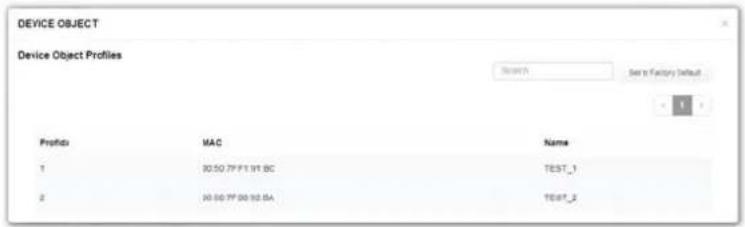 |
| Name / MAC | Display the host name / MAC Address for the connecting client. |
| SSID Display the SSID that the wireless client connects to. | |
| Reason Display the reference information. | |
| Action | Display the action that you can execute for the station.Unblock - Click to unblock the entry. |
II-3-13-5 White List
This page displays general information of the stations under white list.
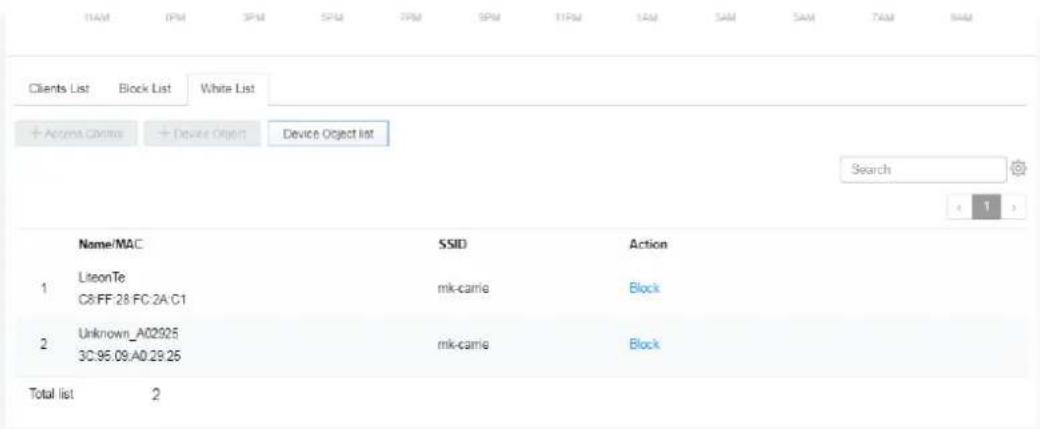
text_image
1AM 0PM 3PM 5PM 7PM 9PM 11PM 1AM SAM SAM TAM NAM Clients List Block List White List + Accra Camera + Device Object Device Object list Search 1 Name/MAC SSID Action 1 LiteonTe C8:FF:28:FC:2A:C1 mk-carrie Block 2 Unknown_A02925 3C:95:09:A0:29:25 mk-carrie Block Total list 2Available settings are explained as follows:
| Item | Description |
| Device Object list Click it to open the Device Object List dialog for reference. | 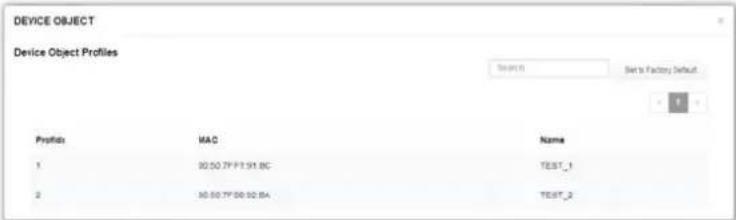 |
| Name / MAC | Display the host name / MAC Address for the connecting client. |
| SSID Display the SSID that the wireless client connects to. | |
| Action | Display the action that you can execute for the station.Block - Click to block the entry. |
II-4 Mesh Settings for Mesh Mode
When you choose Mesh as the operation mode, the Mesh menu with the settings of Mesh Setup, Mesh Status, Mesh Discovery, Configuration Sync, Support List and Mesh Syslog will be shown on the screen.
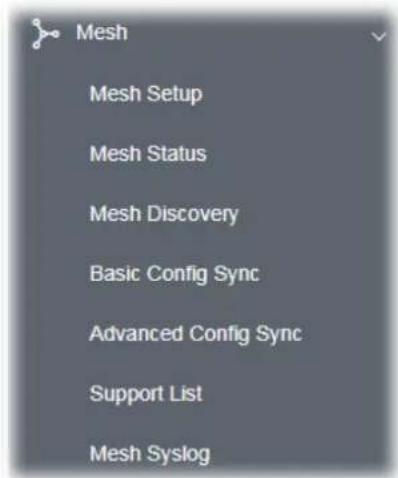
text_image
Mesh Mesh Setup Mesh Status Mesh Discovery Basic Config Sync Advanced Config Sync Support List Mesh SyslogPlease note that, within VigorMesh network,
the total number allowed for mesh nodes is 8 (including the mesh root)
• the maximum number of hop is 3
Refer to the following figure:

flowchart
graph TD
    A["Mesh Node hop 0"] -->|5GHz| B["Mesh Node hop 1"]
    A -->|5GHz| C["Mesh Node hop 2"]
    A -->|5GHz| D["Mesh Node hop 1"]
    A -->|5GHz| E["Mesh Node hop 2"]
    F["Internet"] --> A
    A -->|5GHz| G["Mesh Node hop 1"]
    A -->|5GHz| H["Mesh Node hop 2"]
    A -->|5GHz| I["Mesh Node hop 1"]
    A -->|5GHz| J["Mesh Node hop 2"]
For the mesh group set within VigorMesh network,
It must be composed by "1" Mesh Root and "0\~7" mesh nodes
(Roaming) Normally members in a mesh group use the same Wireless SSID/security
(Add) Only the mesh root can add a new mesh node into the mesh group
(Recover) A disconnected mesh node will automatically try to connect to another connected mesh node of the same group
Mesh Root and Mesh Node
Mesh Root indicates that VigorAP would be other AP's uplink connection. As a Mesh Root, VigorAP must connect to a gateway with Ethernet cable first to have an internet connection.
As a Mesh Node, VigorAP can connect to the mesh root or mesh node within the same mesh group via wireless network or physical connection with an Ethernet cable.
The following figure shows how VigorAP runs as MESH ROOT:

flowchart
graph LR
    A["INTERNET"] --> B["ROUTER"]
    B --> C["MESH ROOT"]
    C --> D["MESH NODE"]
The following figure shows how VigorAP runs as MESH NODE:

flowchart
graph LR
    A["INTERNET"] --> B["ROUTER"]
    B --> C["MESH ROOT"]
    C --> D["MESH NODE"]
    D --> E["DEVICE"]
II-4-1 Mesh Setup
Such page can determine the role of the VigorAP connecting to the computer physically. For a mesh root, you can search and specify mesh nodes as members under current mesh group.
Mesh >> Mesh Setup
General Setup
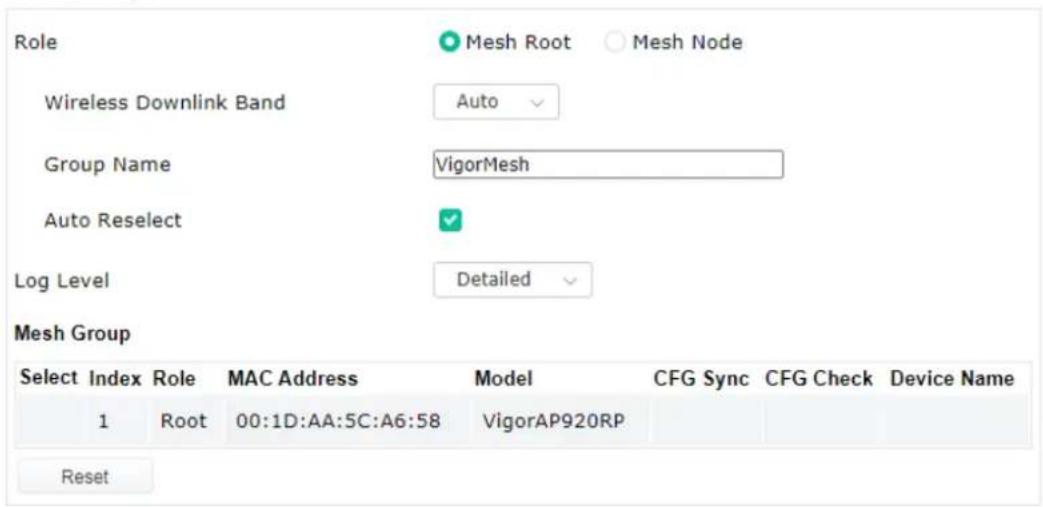
text_image
Role Mesh Root Mesh Node Wireless Downlink Band Auto Group Name VigorMesh Auto Reselect Log Level Detailed Mesh Group Select Index Role MAC Address Model CFG Sync CFG Check Device Name 1 Root 00:1D:AA:5C:A6:58 VigorAP920RP ResetOK
Cancel
Add Mesh Node

text_image
Press Search button below to find and adopt the new node into Mesh group. SearchBackup Mesh Config

text_image
Backup Upload ... RestoreAvailable settings are explained as follows:
| Item | Description |
| General Setup | |
| Role | Mesh Root - When VigorAP is connected to a Vigor router with a physical Ethernet cable, it can be set as mesh root to deliver the wireless signals to a mesh node AP.Mesh Node - As a mesh node, such VigorAP can pass the wireless connection signal to other mesh node or a remote device (PC, CPE, mobile phone).In addition, VigorAP can be searched by mesh root AP and join the mesh group of the root AP. The configuration set for mesh root can be applied to mesh node.Log Level - Choose Basic or Detailed. Related information will be shown on the Diagnostics>>System Log. |
| When Mesh Root is selected | Wireless Downlink Band - Choose a wireless band for connecting with a downlink mesh root or a downlink mesh node.Group Name - Display the name of the current mesh group.Auto Reselect - It is selected in default. To perform the auto reselect, make sure the process for CFG Sync and CFG Check for mesh nodes are successful. If enabled, after changing the environment of mesh network (e.g., offline, disconnection), the root device will perform auto reselect to reconstruct the mesh network. |
| When Mesh Node is selected | Wired Uplink - Check the box if such VigorAP connects to an uplinked mesh root or an uplinked mesh node with an ethernet cable.Wireless Uplink/Downlink Band - Choose a wireless band for connecting with an uplink/downlink mesh root or an uplink/downlink mesh node. |
| Mesh Group When the VigorAP is set as mesh root or is added to a mesh group,the basic information including role, MAC address, and model name of the AP will be shown in this area.Up to 8 entries (one mesh root and seven mesh nodes) will be shown on this field.Reset - Click it to clear the Mesh Group information.Delete - Click it to remove the selected entry. | |
| Add Mesh Node | Click Search to find out available mesh node on the network.Add Mesh Node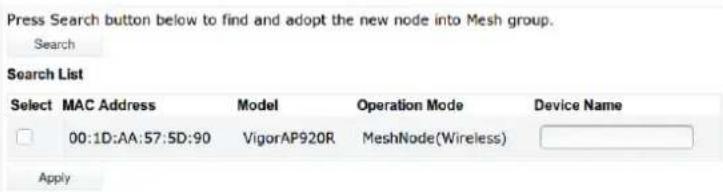 Check the one you want and clickApply. The selected AP will be added onto current mesh root. Check the one you want and clickApply. The selected AP will be added onto current mesh root. |
| Backup Mesh Config Backup - Click the button to save the configuration as a file. | |
How to set up a mesh group?
The following steps will guide you how to setup a Mesh Group (with mesh root and mesh node) from Mesh >> Mesh Setup.
- Open Mesh>>Mesh Setup. Click Mesh Root and click OK for the VigorAP connected to PC with Ethernet cable. At first, a Mesh Group is with only Mesh Root.
Mesh >> Mesh Setup
General Setup
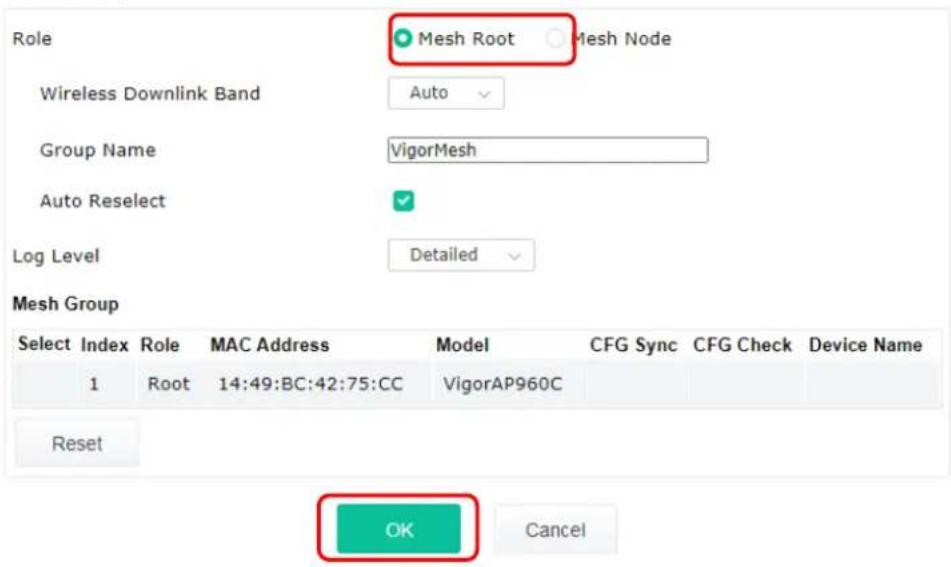
text_image
Role Mesh Root Mesh Node Wireless Downlink Band Auto Group Name VigorMesh Auto Reselect Log Level Detailed Mesh Group Select Index Role MAC Address Model CFG Sync CFG Check Device Name 1 Root 14:49:BC:42:75:CC VigorAP960C Reset OK Cancel- Click the Search button in the field of Add Mesh Node.
Mesh Group

text_image
Select Index Role MAC Address Model CFG Sync CFG Check Device Name 1 Root 14:49:BC:42:75:CC VigorAP960C Reset OK CancelAdd Mesh Node

text_image
Press Search button below to find and adopt the new node into Mesh group. SearchBackup Mesh Config

text_image
Backup Upload ... Restore- Wait until the searching result appears.
Add Mesh Node
Press Search button below to find and adopt the new node into Mesh group.
Search
Search List
| Select | MAC Address | Model | Operation Mode | Device Name |
| 00:50:7F:F1:7E:EA | VigorAP903 | MeshNode(Wireless) | ||
| 00:1D:AA:04:F0:10 | VigorAP1000C | MeshNode(Wireless) | ||
| 00:1D:AA:32:BC:24 | VigorAP920RPD | MeshNode(Wired) | ||
| 00:1D:AA:78:C9:20 | VigorAP920R | MeshNode(Wireless) | ||
| 00:1D:AA:78:CF:B0 | VigorAP920R | MeshNode(Wireless) | ||
| 00:1D:AA:68:D6:18 | VigorAP920RPD | MeshNode(Wired) | ||
| Apply | ||||
Backup Mesh Config
| Backup | Upload | ... | Restore |
- Choose the device(s) you want to add to the Mesh Group as mesh node(s) and define the Device Name for each node. In this example, five devices are specified as mesh nodes.
Add Mesh Node
| Select | MAC Address | Model | Operation Mode | Device Name |
 | 00:50:7F:F1:7E:EA | VigorAP903 | MeshNode(Wireless) | room1 |
| 00:1D:AA:04:F0:10 | VigorAP1000C | MeshNode(Wireless) | room2 | |
| 00:1D:AA:32:BC:24 | VigorAP920RPD | MeshNode(Wired) | ||
| 00:1D:AA:78:C9:20 | VigorAP920R | MeshNode(Wireless) | room3 | |
| 00:1D:AA:78:CF:B0 | VigorAP920R | MeshNode(Wireless) | room4 | |
| 00:1D:AA:68:D6:18 | VigorAP920RPD | MeshNode(Wired) | room5 |
Backup Mesh Config
| Backup | Upload | ... | Restore |
- Click the Apply button and wait for it to finish the procedure.
Add Mesh Node
| Select | MAC Address | Model | Operation Mode | Device Name |
| ✓ | 00:50:7F:F1:7E:EA | VigorAP903 | MeshNode(Wireless) | room1 |
| ✓ | 00:1D:AA:04:F0:10 | VigorAP1000C | MeshNode(Wireless) | room2 |
| □ | 00:1D:AA:32:BC:24 | VigorAP920RPD | MeshNode(Wired) | |
| ✓ | 00:1D:AA:78:C9:20 | VigorAP920R | MeshNode(Wireless) | room3 |
| ✓ | 00:1D:AA:78:CF:B0 | VigorAP920R | MeshNode(Wireless) | room4 |
| ✓ | 00:1D:AA:68:D6:18 | VigorAP920RPD | MeshNode(Wired) | room5 |
Backup Mesh Config
| Backup | Upload | ... | Restore |
- After finishing the mesh network configuration, refer to Mesh>>Mesh Status for viewing the result. A mesh root with 5 mesh nodes is online.
| Mesh >> Mesh Status | ||
| Local Status | | Refresh | | |
| Device Name | VigorAP960C | |
| MAC Address | 14:49:BC:42:75:CC | |
| Model | VigorAP960C | |
| Operation Mode | MeshRoot | |
| Wireless Downlink Band | Auto | |
| Group Name | VigorMesh | |
| Link Status | Registering | |
| Hop | 0 | |
| Downlink Number | 5 | |
| Downlink | 00:1D:AA:04:F0:10 (VigorAP1000C) | Wireless 5GHz (Ch36) (-38dBm) |
| 00:1D:AA:78:CF:BO (VigorAP920R) | Wireless 5GHz (Ch36) (-74dBm) | |
| 00:1D:AA:68:D6:18 (VigorAP920RPD) | Ethernet | |
| 00:1D:AA:78:C9:20 (VigorAP920R) | Wireless 5GHz (Ch36) (-54dBm) | |
| 00:50:7F:F1:7E:EA (VigorAP903) | Wireless 5GHz (Ch36) (-33dBm) | |
Devices
Total number of Clients: 0
| Index Status | Device Name | IP Address | MAC Address(Model) | Hop | Uplink | Uptime | Clients | |
| 1 | Root | VigorAP903 | 172.17.3.97 | 00:50:7F:F1:7E:ED(VigorAP903) | 0 | 0d01:16:17 | 0 | |
| 2 | Online | room1 | 172.17.3.12 | 00:50:7F:F1:7E:EA(VigorAP903) | 1 | 00:50:7F:F1:7E:ED Wireless5GHz (Ch35) (-30dBm) | 0d00:21:43 | 0 |
| 3 | Online | room2 | 172.17.3.8 | 00:1D:AA:04:F0:10(VigorAP1000C) | 1 | 00:50:7F:F1:7E:ED Wireless5GHz (Ch35) (-40dBm) | 0d00:44:50 | 0 |
| 4 | Online | room3 | 172.17.3.6 | 00:1D:AA:78:C9:20(VigorAP920R) | 1 | 00:50:7F:F1:7E:ED Wireless5GHz (Ch35) (-47dBm) | 0d01:01:48 | 0 |
| 5 | Online | room4 | 172.17.3.98 | 00:1D:AA:78:CF:B0(VigorAP920R) | 1 | 00:50:7F:F1:7E:ED Wireless5GHz (Ch35) (-64dBm) | 0d01:02:01 | 0 |
| 6 | Online | room5 | 172.17.3.10 | 00:1D:AA:68:D6:18(VigorAP920RFD) | 0 | 00:50:7F:F1:7E:ED Ethernet | 0d01:03:05 | 0 |
II-4-2 Mesh Status
This page shows that one Mesh Group can contain up to 8 devices. A device with hop 0 indicates that it is one special Ethernet Backhaul. It means this node will use Ethernet cable to join the mesh group while others use the wireless link.
When VigorAP is set as mesh node, the status page will be shown as follow:
Mesh >> Mesh Status
| Local Status | | Refresh | | |
| Device Name | AP903Node | |
| MAC Address | 00:1D:AA:57:5D:90 | |
| Model | VigorAP920R | |
| Operation Mode | MeshNode(Wireless) | |
| Wireless Uplink Band | Auto | |
| Root MAC Address | 00:1D:AA:6F:51:70 | |
| Link Status | Connected | |
| Hop | 1 | |
| Uplink | 00:1D:AA:6F:51:70 (VigorAP920R) | |
| Wireless 5GHz (Ch161) (-43dBm) | ||
| Downlink Number | 0 | |
When VigorAP is set as mesh root, the status page will be shown as follow:
Mesh >> Mesh Status
| Local Status | | Refresh | | |
| Device Name | VigorAP920RP | |
| MAC Address | 00:1D:AA:5C:A6:58 | |
| Model | VigorAP920RP | |
| Operation Mode | MeshRoot | |
| Group Name | VigorMesh | |
| Link Status | Connected | |
| Hop | 0 | |
| Downlink Number | 0 | |
| Devices | Total number of Clients: 0 | |||||||
| Index | Status | Device Name | IP Address | MAC Address(Model) | Hop | Uplink Uptime | Clients | Speed Test |
| 1 | Root | VigorAP920... | 192.168.1.11 | 00:1D:AA:5C:A6:58(VigorAP920RP) | 0 | 0d00:05:03 | 0 | |
| Online(sync ready) | Online | Offline | Last updated: Tue May 12 10:11:39 2020 | |||||
| Item | Description |
| Local Status | Displays general information for this VigorAP. |
| Devices Display detailed | information for this VigorAP (as mesh root) and mesh node(s) in the group. Index – Display the number of the device within a mesh group. Status – Display the role of the device within a mesh group. Device Name – Display the name of the device (for identification). IP Address – Display the IP address of the device. MAC Address – Display the MAC address of the device. Hop – Display the level of the devices within a mesh group. “0” means the access point is connected to a device by using Ethernet cable (wired). “1” to “3” means the level of the access point within a mesh group and it connects to other access point via wireless link. Uplink – Display the MAC address of the device that the AP connects to. |
Total number of Clients
Display the station list of all mesh devices.
| Index MAC Address | Hostname | Vendor | SSID | Channel | RSSI | TxRate(Kbps) | RxRate(Kbps) | |
| 1 | 00:50:7F:F0:C9:72 | TA001029 | DrayTek | staffs_4F | 6 | 68%(-63dBm) | 0 | 0 |
| 2 | 00:50:7F:F0:D1:1D | ta002171 | DrayTek | staffs_4F | 6 | 41%(-73dBm) | 0 | 0 |
| 3 | 5C:97:F3:D5:F7 | Tze-Pingde... | Apple | staffs_4F | 6 | 100%(-49dBm) | 0 | 0 |
| 4 | 40:98:AD:58:F2:52 | Tyronetki... | Apple | staffs | 6 | 55%(-68dBm) | 0 | 0 |
| 5 | 00:50:7F:37:6D:E5 | N/A | DrayTek | staffs_4F | 6 | 52%(-69dBm) | 0 | 0 |
| 6 | 00:50:7F:37:67:BE | N/A | DrayTek | staffs_4F | 6 | 55%(-68dBm) | 0 | 0 |
| 7 | 30:F7:C5:1D:3D:11 | N/A | Apple | guests | 6 | 83%(-57dBm) | 30 | 12 |
| 8 | 40:F0:2F:22:EB:A0 | N/A | LiteonTe | staffs | 6 | 34%(-76dBm) | 22 | 4 |
| 9 | 18:05:90:DE:D4:E5 | N/A | Apple | staffs_4F | 0 | 100%(-44dBm) | 0 | 0 |
| 10 | 60:45:CB:57:1F:36 | N/A | N/A | staffs_4F | 6 | 15%(-84dBm) | 0 | 0 |
| 11 | AC:5F:3E:62:E6:0D | N/A | Samsung | staffs_4F | 6 | 81%(-58dBm) | 0 | 0 |
| 12 | 50:BC:96:E0:00:11 | N/A | Apple | staffs | 6 | 71%(-62dBm) | 0 | 0 |
| 13 | 04:B1:67:52:48:90 | Redmi5-mys... | N/A | staffs_4F | 6 | 45%(-72dBm) | 0 | 0 |
| 14 | 04:C2:3E:3F:CB:F8 | android-ac... | HTC | staffs_4F | 6 | 55%(-68dBm) | 0 | 0 |
| 15 | 0C:8B:FD:31:08:78 | N/A | Intel | staffs_4F | 6 | 89%(-55dBm) | 2 | 2 |
| 16 | 58:48:22:EB:F8:62 | android-Sf... | Sony | staffs | 6 | 55%(-68dBm) | 0 | 0 |
| 17 | CC:9F:7A:63:11:27 | N/A | N/A | staffs_4F5... | 36 | 52%(-69dBm) | 0 | 0 |
| 18 | 20:47:DA:58:17:79 | RedmiNote5... | N/A | staffs_4F5... | 36 | 50%(-70dBm) | 0 | 0 |
| 19 | 70:81:EB:65:80:E3 | cheng | Apple | staffs_4F5... | 36 | 87%(-56dBm) | 0 | 0 |
| 20 | 8C:85:90:64:FE:A4 | N/A | Apple | staffs_4F5... | 36 | 36%(-75dBm) | 0 | 0 |
II-4-3 Mesh Discovery
For obtaining the list of devices around this VigorAP, click Scan and wait for a minute. Later, surrounding VigorAP device(s) will be displayed on this page.
Information under Device List will include MAC address, model name, operation mode and link status.
Mesh >> Mesh Discovery
Device List
| Index | MAC Address | Model | Operation Mode | Link Status |
| 1 | 00:50:7F:F1:7F:1D | VigorAP903 | MeshNode(Wireless) | Connected |
| 2 | 14:49:BC:17:70:08 | Vigor2927 | MeshRoot | Connected |
| 3 | 00:1D:AA:7C:F5:A4 | VigorAP1060C | AP | |
| 4 | 00:1D:AA:80:FE:D4 | VigorAP1060C | MeshRoot | Connected |
| 5 | 00:1D:AA:04:F0:6C | VigorAP1000C | AP | |
| 6 | 00:1D:AA:63:2C:00 | VigorAP920R | AP |
Scan
Note: During the scanning process (about 10 seconds), no station is allowed to connect with the AP and Mesh Network may disconnect.
II-4-4 Basic Configuration Sync
If you add one Mesh Node in a mesh group, the Mesh Root will send the basic configuration to the device. This page could help you to change the Mesh Root settings and deliver the new configuration of the Mesh Root to all "connected" Mesh Nodes.
Mesh >> Basic Configuration Sync
System Maintenance
| Index | Name | Value |
| 1 | ManagementServer.URL | |
| 2 | ManagementServer.Usage | |
| 3 | ManagementServer.Password | ****** |
| 4 | ManagementServer.ConnectionRequestUsername | vigor |
| 5 | ManagementServer.ConnectionRequestPassword | ****** |
| 6 | ManagementServer.PeriodicInformEnable | 1 |
| 7 | ManagementServer.PeriodicInformInterval | 900 |
| 8 | X_00507F_System.Management.SkipQuickStartWizard | Enable |
| 9 | X_00507F_System.TR069Setting.CPEEnable | 0 |
| 10 | X_00507F_System.SyslogMail.SysLogAccess.SysLogEnable | 0 |
| 11 | X_00507F_System.SyslogMail.SysLogAccess.LogServerIP | |
| 12 | X_00507F_System.SyslogMail.SysLogAccess.LogServerPort | 514 |
| 13 | X_00507F_System.SyslogMail.SysLogAccess.LogLevel | All |
| 14 | X_00507F_System.SyslogMail.MailAlert.MailAlertEnable | 0 |
| 15 | X_00507F_System.SyslogMail.MailAlert.SMTPServer | |
| 16 | X_00507F_System.SyslogMail.MailAlert.MailTo | |
| 17 | X_00507F_System.SyslogMail.MailAlert.MailFrom | |
| 18 | X_00507F_System.SyslogMail.MailAlert.Usage | |
| 19 | X_00507F_System.SyslogMail.MailAlert.Password | ****** |
| 20 | X_00507F_System.SyslogMail.MailAlert.UseTLS | 1 |
| 21 | X_00507F_System.SyslogMail.MailAlert.AdminLoginAlertEn | 1 |
| 22 | X_00507F_System.SyslogMail.MailAlert.SMTPServerPort |
Wireless LAN (2.4GHz)
| Index | Name | Value |
| 1 | X_00507F_WirelessLAN_AP.General.EnableWLAN | 1 |
| 2 | X_00507F_WirelessLAN_AP.General.SSID.1.ESSID | DrayTek-5CA658 |
| 3 | X_00507F_WirelessLAN_AP.General.SSID.1.Enable | 1 |
| 4 | X_00507F_WirelessLAN_AP.General.SSID.1.Hide | 0 |
| 5 | X_00507F_WirelessLAN_AP.General.SSID.1.IsolateLAN | 0 |
| 6 | X_00507F_WirelessLAN_AP.General.SSID.1.IsolateMember | 0 |
Available settings are explained as follows:
| Item | Description |
| System Maintenance / Wireless LAN (2.4Hz) / Wireless LAN (5GHz) | Check the item(s) you want to make configuration sync.Apply – Click it to apply the settings configured by such AP to all connected mesh node. Note that this button is available only when such AP is in mesh root mode. |
Tips for Mesh Network Setup
- Set up TWO mesh devices with uplink RSSI larger than -65dBm.
- Upgrade the firmware version of Mesh devices through Mesh link, starting from the mesh device with less hop number. For example, upgrade the firmware from the root, hop1 Mesh Node then hop2 Mesh Node, and so on.
- VigorMesh network supports up to 3 hops of mesh devices. However, it is suggested to connect the mesh group with less than or equals to 2 hops.
For your reference, we make a real mesh environment test and get the following record. (Use VigorAP APP to do internet speed test with different hops mesh node.)
Internet Download Speed (for root and hop1 \~ hop3):
iPad connects to Root : 80Mbps
iPad connects to hop1 Node : 49Mbps (Uplink RSSI : -55dBm)
iPad connects to hop2 Node : 41Mbps (Uplink RSSI : hop2 -64dBm / hop1 -55dBm)
iPad connects to hop3 Node : 26Mbps (Uplink RSSI : hop3 -62dBm / hop2 -68dBm / hop1 -55dBm)
It is not suggested to use a wireless Mesh Node with Ethernet cable connected to a Mesh Root.
- If resetting a Mesh Root,
All "connected" Mesh Nodes will be informed to reset.
- Group List and Group Key will be reset, too.
- For those Mesh Nodes unable to reset, reset them manually. Reset the Group List by web or factory default.
- If resetting a Mesh Node,
- Group List and Group Key will be cleared.
- Link Status will become "New".
- Mesh network status also can be viewed and checked through the dashboard by clicking MESH NETWORK.
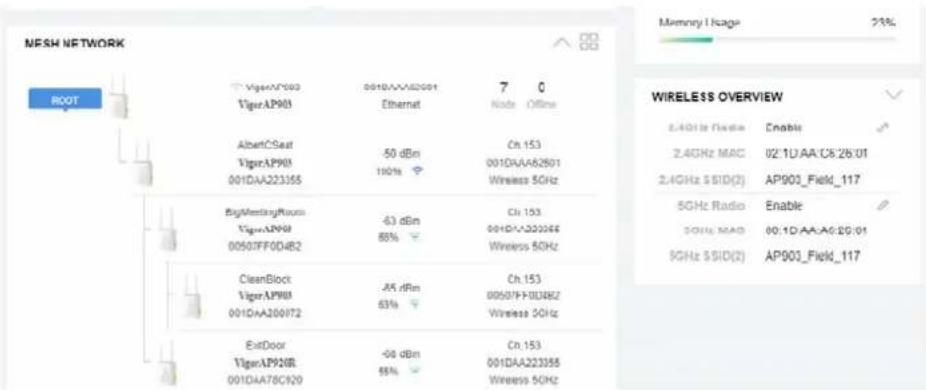
text_image
NESH NETWORK ROOT VigasAP900 TigerAP901 AlbertCSeat VigasAP901 001DAA22355 63 dBm 88% 63 dBm -98 dBm 88% 7 0 Ethernet Node Offline Ch 153 001DAA62801 Wireless 5GHz Ch 153 001DAA220066 Wireless 5GHz Ch 153 00507FF0DB2 Wireless 5GHz CleanBlock VigasAP901 001DAA20072 Ch 153 00507FF0DB2 Wireless 5GHz Ch 153 001DAA22355 Wireless 5GHz ExitDoor VigasAP920R 001DAA78C920- If Mesh Search / Apply / Discover is worked too fast or is done with empty result, your request may be rejected. Please try again.
- Troubleshooting:
- Check the firmware version. Please make sure all APs within the mesh group are in the newest firmware version.
- Check the OP (operation) Mode. Make sure new Mesh Node doesn't accidentally get DHCP IP and becomes AP mode.
- Check the country code and channels. For example, it is impossible for connecting a VigorAP 1000C Mesh Root with 5G channel 36 to VigorAP920R Wireless Mesh Node in EU country code.
- Check the channel load. Make sure it is not over 70%.
CHANNEL LOAD

pie
| Category | Value (%) | |---|---| | Heavy | 75 | | Light | 15 |- Collect some Mesh logs and send the result to DrayTek for analyzing.
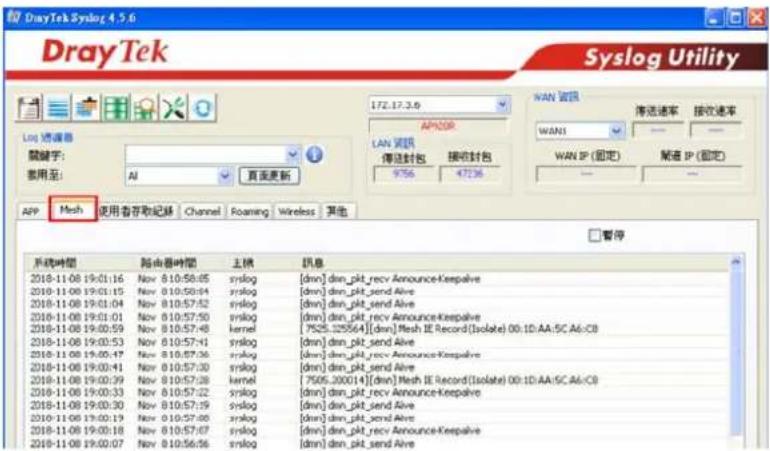
text_image
DrayTek Syslog 4.5.6 Syslog Utility Log 通道器 关键字: 使用至: AI 页面更新 172.17.3.6 APNOR LAN 警讯 传送封包 接收封包 9:56 47:36 WAN 警讯 传送速率 接收速率 WANI WAN IP (固定) 发送 IP (固定) ... 暂停 APP Mesh 使用者存取紀錄 Channel Foaming Wireless 其他 □ 暗停 系统時間 路由器時間 主機 訊息 2018-11-08 19:01:16 Nov 8:10:58:05 syslog [dwn] dsn_pkt_recv Announce-Keepalive 2018-11-08 19:01:15 Nov 8:10:58:04 syslog [dwn] dsn_pkt_send Alive 2018-11-08 19:01:04 Nov 8:10:57:52 syslog [dwn] dsn_pkt_send Alive 2018-11-08 19:01:01 Nov 8:10:57:50 syslog [dwn] dsn_pkt_recv Announce-Keepalive 2018-11-08 19:00:59 Nov 8:10:57:48 kernel [7525.325564][dwn] Mesh IE Record[Isolate] 00:1D:AA:SC A6:C8 2018-11-08 19:00:53 Nov 8:10:57:41 syslog [dwn] dsn_pkt_send Alive 2018-11-08 19:00:47 Nov 8:10:57:36 syslog [dwn] dsn_pkt_recv Announce-Keepalive 2018-11-08 19:00:41 Nov 8:10:57:30 syslog [dwn] dsn_pkt_send Alive 2018-11-08 19:00:39 Nov 8:10:57:28 kernel [7505.200014][dwn] Mesh IE Record[Isolate] 00:1D:AA:SC A6:C8 2018-11-08 19:00:33 Nov 8:10:57:22 syslog [dwn] dsn_pkt_recv Announce-Keepalive 2018-11-08 19:00:30 Nov 8:10:57:19 syslog [dwn] dsn_pkt_send Alive 2018-11-08 19:00:29 Nov 8:10:57:08 syslog [dwn] dsn_pkt_send Alive 2018-11-08 19:00:18 Nov 8:10:57:07 syslog [dwn] dsn_pkt_recv Announce-Keepalive 2018-11-08 19:00:07 Nov 8:10:56:56 syslog [dwn] dsn_pkt_send AliveII-4-5 Advanced Config Sync
If you add one Mesh Node in a mesh group, the Mesh Root will synchronize the advanced configuration to the device based on the setting results on this page.
Mesh >> Advanced Configuration Sync
Bridge VLAN to Mesh
| Index | Name | Value |
| 1 | X_00507F_LAN.GeneralSetup.BridgeVLANtoWDS | Enable |
| Roaming | ||
| Index | Name | Value |
| 1 | X_00507F_WirelessLAN_AP.Roaming.APAClientRoaming.EnMinBasicRate | 0 |
| 2 | X_00507F_WirelessLAN_AP.Roaming.APAClientRoaming.MinBasicRate | 1Mbps |
| 3 | X_00507F_WirelessLAN_AP.Roaming.APAClientRoaming.RSSI | Disable_RSSI_Requirement |
| 4 | X_00507F_WirelessLAN_AP.Roaming.APAClientRoaming.StrictlyRSSISignal | 73 |
| 5 | X_00507F_WirelessLAN_AP.Roaming.APAClientRoaming.MinRSSISignal | 66 |
| 6 | X_00507F_WirelessLAN_AP.Roaming.APAClientRoaming.AdjacentRSSISignal | 5 |
| 7 | X_00507F_WirelessLAN_AP.Roaming.FastRoaming.Enable | 0 |
| 8 | X_00507F_WirelessLAN_AP.Roaming.FastRoaming.CachePeriod | 10 |
| 9 | X_00507F_WirelessLAN_AP.Roaming.FastTransitionRoaming.Enable | 0 |
| 10 | X_00507F_WirelessLAN_AP.Roaming.FastTransitionRoaming.DsOrAir | |
| 11 | X_00507F_WirelessLAN_5G_AP.Roaming.APAClientRoaming.EnMinBasicRate | 0 |
| 12 | X_00507F_WirelessLAN_5G_AP.Roaming.APAClientRoaming.MinBasicRate | 6Mbps |
| 13 | X_00507F_WirelessLAN_5G_AP.Roaming.APAClientRoaming.RSSI | Disable_RSSI_Requirement |
| 14 | X_00507F_WirelessLAN_5G_AP.Roaming.APAClientRoaming.StrictlyRSSISignal | 73 |
| 15 | X_00507F_WirelessLAN_5G_AP.Roaming.APAClientRoaming.MinRSSISignal | 66 |
| 16 | X_00507F_WirelessLAN_5G_AP.Roaming.APAClientRoaming.AdjacentRSSISignal | 5 |
| 17 | X_00507F_WirelessLAN_5G_AP.Roaming.FastRoaming.Enable | 0 |
| 18 | X_00507F_WirelessLAN_5G_AP.Roaming.FastRoaming.CachePeriod | 10 |
| 19 | X_00507F_WirelessLAN_5G_AP.Roaming.FastTransitionRoaming.Enable | 0 |
| 20 | X_00507F_WirelessLAN_5G_AP.Roaming.FastTransitionRoaming.DsOrAir | |
Advanced Setting
| Index | Name | Value |
| 1 | X_00507F_WirelessLAN_AP,AdvancedSetting.ChannelList |
Available settings are explained as follows:
| Item | Description |
| Select All | All item(s) will be selected for making configuration sync. |
| Bridge VLAN to Mesh | Check to transmit the packets with VLAN tag to mesh nodes. |
II-4-6 Support List
Mesh >> Support List
The following compatibility test lists Draytek AP models supported by this AP Mesh.
| Model | Status | Firmware Version |
| VigorAP 903 | Y | 1.3.7 |
| VigorAP 912C | Y | 1.3.5 |
| VigorAP 918R | Y | 1.3.4 |
| VigorAP 920R | Y | 1.3.4 |
| VigorAP 960C | Y | 1.4.0 |
| VigorAP 1060C | Y | 1.3.8 |
Y: Tested and is supported.
N: Not supported.
II-4-7 Mesh Syslog
Mesh >> Mesh Syslog
Mesh Log Information
| Clear | Refresh | Line wrap |
| May | 3 15:53:30 | syslog: [dmn] dmnpkt_send Announce-Keepalive |
| May | 3 15:53:41 | syslog: [dmn] dmnpkt_send Announce-Keepalive |
| May | 3 15:53:53 | syslog: [dmn] dmnpkt_send Announce-Keepalive |
| May | 3 15:54:00 | syslog: [dmn] User discover. |
| May | 3 15:54:00 | kernel: [18871.362517] [dmn] set listen mode to ALL |
| May | 3 15:54:00 | syslog: [dmn] Discover start. |
| May | 3 15:54:00 | syslog: [dmn] Change state MeshRoot -> Discover. |
| May | 3 15:54:00 | kernel: [18871.300327] [dmn] Mesh ACL mode None |
| May | 3 15:54:00 | kernel: [18871.300435] [dmn] set listen mode to ALL |
| May | 3 15:54:02 | kernel: [18872.477775] [dmn] Mesh IE Record (Backhaul) 00:50:7F:F1:7F:1D |
| May | 3 15:54:02 | kernel: [18872.477854] [dmn] Mesh IE Record (Backhaul) 14:49:BC:17:70:08 |
| May | 3 15:54:02 | kernel: [18872.699822] [dmn] Mesh IE Record (Advertise) 00:1D:AA:7C:F5:A5 |
| May | 3 15:54:02 | kernel: [18872.699899] [dmn] Mesh IE Record (Backhaul) 00:50:7F:F1:7F:1D |
| May | 3 15:54:02 | kernel: [18872.699961] [dmn] Mesh IE Record (Backhaul) 14:49:BC:17:7D:08 |
| May | 3 15:54:03 | kernel: [18873.804560] [dmn] Mesh IE Record (Backhaul) 00:1D:AA:80:FE:D4 |
| May | 3 15:54:03 | kernel: [18874.025473] [dmn] Mesh IE Record (Backhaul) 00:1D:AA:80:FE:D4 |
| May | 3 15:54:03 | kernel: [18874.245982] [dmn] Mesh IE Record (Advertise) 00:1D:AA:04:F0:6E |
II-5 Universal Repeater Settings for Range Extender Mode
When you choose Range Extender as the operation mode, the Wireless LAN menu items (for 2.4GHz and 5GHz) will include General Setup, Security, Access Control, WPS, Advanced Setting, AP Discovery, WDS AP Status, Universal Repeater, WMM Configuration, Bandwidth Management, Airtime Fairness, Station Control, Roaming, Band Steering and Station List.
This section will introduce settings for Universal Repeater only.
For other wireless setting items (e.g., General Setup, Security, WPS, and etc.), please refer to II-3.

text_image
Wireless LAN (2.4GHz) General Setup Security Access Control WPS Advanced Setting AP Discovery WDS AP Status Universal Repeater Bandwidth Management Airtime Fairness Station Control Roaming Band Steering Station List Wireless LAN (5GHz) General Setup Security Access Control WPS Advanced Setting AP Discovery WDS AP Status Universal Repeater Bandwidth Management Airtime Fairness Station Control Roaming Station ListThe following figure shows how VigorAP runs as Range Extender:
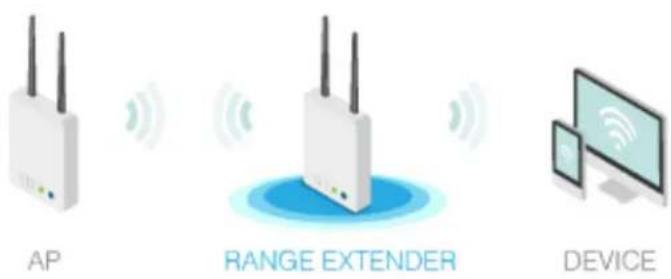
text_image
AP RANGE EXTENDER DEVICEThe access point can act as a wireless repeater; it can be Station and AP at the same time. It can use Station function to connect to a root AP and use AP function to serve all wireless stations within its coverage.
Note:
While using Universal Repeater mode, the access point will demodulate the received signal. Please check if this signal is noise for the operating network, then have the signal modulated and amplified again. The output power of this mode is the same as that of AP mode.
Wireless LAN (2.4GHz) >> Universal Repeater
Universal Repeater Parameters
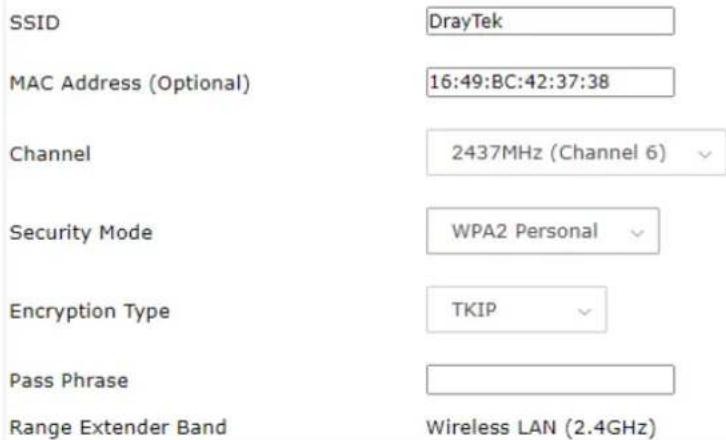
text_image
SSID DrayTek MAC Address (Optional) 16:49:BC:42:37:38 Channel 2437MHz (Channel 6) Security Mode WPA2 Personal Encryption Type TKIP Pass Phrase Range Extender Band Wireless LAN (2.4GHz)Note: If Channel is modified, the Channel setting of AP would also be changed.
Universal Repeater IP Configuration
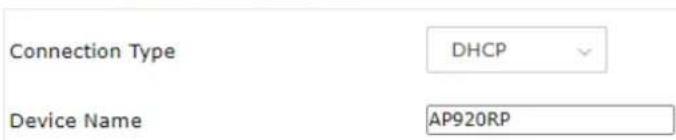
text_image
Connection Type DHCP Device Name AP920RP
Available settings are explained as follows:
| Item | Description |
| SSID Set the name of access point that VigorAP 920R wants to connect to. | |
| MAC Address(Optional) | Type the MAC address of access point that VigorAP 920R wants to connect to. |
| Channel Means the channel of frequency of the wireless LAN. You may switch channel if the selected channel is under serious interference. | |
| Security Mode There are several modes provided for you to choose. Each mode will bring up different parameters (e.g., WEP keys, Pass Phrase) for you to configure. | |
| WPA2 PersonalWPA2 PersonalWPA PersonalSharedOpen | |
| Encryption Type for Open/Shared | This option is available when Open/Shared is selected as Security Mode.Choose None to disable the WEP Encryption. Data sent to the AP will not be encrypted. To enable WEP encryption for data transmission, please choose WEP.WEP Keys - Four keys can be entered here, but only one key can be selected at a time. The format of WEP Key is restricted to 5 ASCII characters or 10 hexadecimal values in 64-bit encryption level, or restricted to 13 ASCII characters or 26 hexadecimal values in 128-bit encryption level. The allowed content is the ASCII characters from 33(!) to 126(~) except '#' and ';' |
| Encryption Type for WPA Personal and WPA2 Personal | This option is available when WPA Personal or WPA2 Personal is selected as Security Mode.Select TKIP or AES as the algorithm for WPA. |
| Pass Phrase | Type 8~63 ASCII characters, such as 012345678 (or 64 Hexadecimal digits leading by 0x, such as "0x321253abcde..."). |
| Connection Type Choose | DHCP or Static IP as the connection mode.DHCP - The wireless station will be assigned with an IP from VigorAP.Static IP - The wireless station shall specify a static IP for connecting to Internet via VigorAP. |
| Device Name | This setting is available when DHCP is selected as Connection Type.Type a name for the VigorAP as identification. Simply use the default name. |
| IP Address | This setting is available when Static IP is selected as Connection Type.Type an IP address with the same network segment of the LAN IP setting of VigorAP. Such IP shall be different with any IP address in LAN. |
| Subnet Mask | This setting is available when Static IP is selected as Connection Type.Type the subnet mask setting which shall be the same as the one configured in LAN for VigorAP. |
| Default Gateway | This setting is available when Static IP is selected as Connection Type.Type the gateway setting which shall be the same as the default gateway configured in LAN for VigorAP. |
After finishing this web page configuration, please click OK to save the settings.
Local Area Network (LAN) is a group of subnets regulated and ruled by modem.

text_image
LAN General Setup Hotspot Web Portal Port ControlII-6-1 General Setup
Click LAN to open the LAN settings page and choose General Setup.
Note:
Such page will be changed according to the Operation Mode selected. The following screen is obtained by choosing AP as the operation mode.
LAN >> General Setup
Ethernet TCP / IP and DHCP Setup
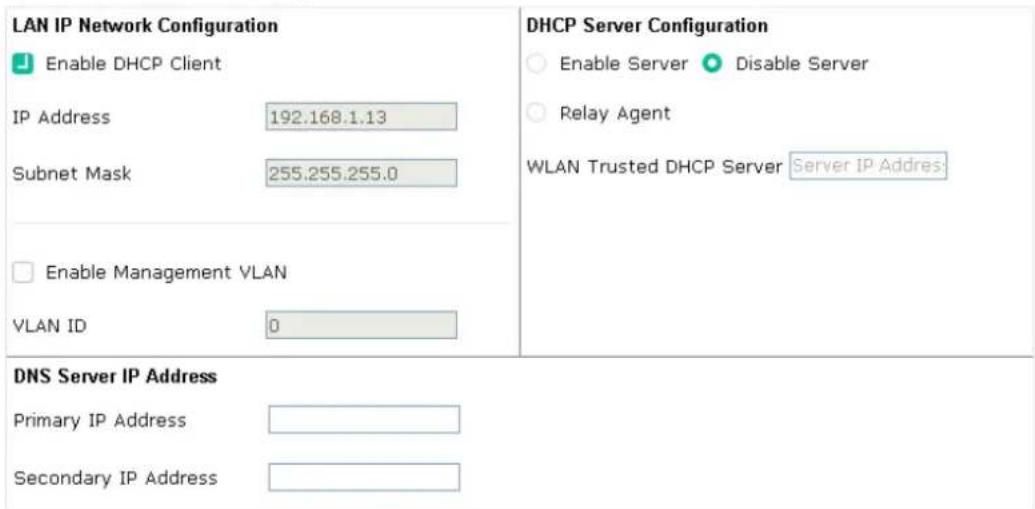
text_image
LAN IP Network Configuration Enable DHCP Client IP Address 192.168.1.13 Subnet Mask 255.255.255.0 Enable Management VLAN VLAN ID 0 DHCP Server Configuration Enable Server Disable Server Relay Agent WLAN Trusted DHCP Server Server IP Address: DNS Server IP Address Primary IP Address Secondary IP Address
Available settings are explained as follows:
| Item | Description |
| LAN IP Network Configuration | Enable DHCP Client- When it is enabled, VigorAP will be treated as a client and can be managed / controlled by AP Management server offered by Vigor router (e.g., Vigor2860).IP Address-Type in private IP address for connecting to a local private network (Default: 192.168.1.2).Subnet Mask-Type in an address code that determines the size of the network. (Default: 255.255.255.0/ 24)Enable Management VLAN-VigorAP supports tag-based VLAN for wireless clients accessing Vigor device. Only the clients with the specified VLAN ID can access into VigorAP.VLAN ID-Type the number as VLAN ID tagged on the transmitted packet. "0" means no VALN tag. |
| DHCP Server Configuration | DHCP stands for Dynamic Host Configuration Protocol. DHCP server can automatically dispatch related IP settings to any local user configured as a DHCP client.Enable Server - Enable Server lets the modem assign IP address to every host in the LAN.Start IP Address- Enter a value of the IP address pool for the DHCP server to start with when issuing IP addresses. If the 1st IP address of your modem is 192.168.1.2, the starting IP address must be 192.168.1.3 or greater, but smaller than 192.168.1.254.End IP Address- Enter a value of the IP address pool for the DHCP server to end with when issuing IP addresses.Subnet Mask-Type in an address code that determines the size of the network. (Default: 255.255.255.0/ 24)Default Gateway- Enter a value of the gateway IP address for the DHCP server.Lease Time- It allows you to set the leased time for the specified PC.Primary DNS Server- You must specify a DNS server IP address here because your ISP should provide you with usually more than one DNS Server. If your ISP does not provide it, the modem will automatically apply default DNS Server IP address: 194.109.6.66 to this field.Secondary DNS Server- You can specify secondary DNS server IP address here because your ISP often provides you more than one DNS Server. If your ISP does not provide it, the modem will automatically apply default secondary DNS Server IP address: 194.98.0.1 to this field.Relay Agent-Specify which subnet that DHCP server is located the relay agent should redirect the DHCP request to.DHCP Relay Agent- It is available when Enable Relay Agent is selected. Set the IP address of the DHCP server you are going to use so the Relay Agent can help to forward the DHCP request to the DHCP server.Disable Server- Disable Server lets you manually or use other DHCPserver to assign IP address to every host in the LAN.●WLAN Trusted DHCP Server —There is no right for such VigorAP to assign IP address for wireless LAN user. However, you can specify another valid DHCP server on other VigorAP to make the wireless LAN client obtaining the IP address from the designated DHCP server.Specify a DHCP server in such field. All the IP addresses of the devices on LAN of VigorAP will be assigned via such specified server. It is used to avoid IP assignment interference due to multiple DHCP servers in one LAN. |
| DNS Server IP Address | Primary DNS Server - You must specify a DNS server IP address here because your ISP should provide you with usually more than one DNS Server. If your ISP does not provide it, the modem will automatically apply default DNS Server IP address: 194.109.6.66 to this field.Secondary DNS Server - You can specify secondary DNS server IP address here because your ISP often provides you more than one DNS Server. If your ISP does not provide it, the modem will automatically apply default secondary DNS Server IP address: 194.98.0.1 to this field. |
After finishing this web page configuration, please click OK to save the settings.
II-6-2 Hotspot Web Portal
The Hotspot Web Portal feature allows you to set up profiles so that LAN users could either be redirected to specific URLs or be shown messages when they first connect to the Internet through the router. Users could be required to read and agree to terms and conditions or authenticate themselves, before gaining access to the Internet. Other potential uses include the serving of advertisements and promotional materials and the broadcast of public service announcements.
Click LAN to open the LAN settings page and choose Hotspot Web Portal. Follow the on-screen steps to configure settings.
LAN >> Hotspot Web Portal
Hotspot Web Portal Profile:
| Index | Enable | Comments | Login Mode | Applied Interface |
| 1 | None |
Note: AP must connect to the Internet otherwise Web Page redirection won't work.
OK
Cancel
Click the index number (e.g., #1 in this case) to open the setting pages.
(1) Hotspot Web Portal Settings
LAN >> Hotspot Web Portal

Hotspot Web Portal Settings

RADIUS Settings

Whitelist Settings
Hotspot Web Portal

Enable
Comments
Portal Server
Carrie_Floor
Captive Portal URL
www.draytek.com
http://portal.draytek.com
Landing Page
Fixed URL
Applied Interfaces
LAN
□ LAN (Works on Universal Repeater mode)
WLAN 2.4GHz
□ SSID1 (DrayTek-5CA658)
□SSID2
□SSID3
□SSID4
WLAN 5GHz
□ SSID1 (DrayTek-5CA658)
□ SSID2
□SSID3
□SSID4
Note: AP must connect to the Internet otherwise Web Page redirection won't work.
Save and Next
Cancel
Available settings are explained as follows:
| Item | Description |
| Enable Check it to enable the hotspot web portal settings. | |
| Comments Enter a brief description for this profile. | |
| Portal Server | Captive Portal URL - Enter the captive portal URL.Redirection URL - Enter the URL to which the client will be redirected. |
| Landing page | Fixed URL - Enter the URL as the landing page for wireless clients. |
| Applied Interfaces | LAN - The current Hotspot Web Portal profile will be in effect for the selected LAN.SSID1 to SSID4 - The current Hotspot Web Portal profile will be in effect for the selected WLAN SSIDs. |
| Save and Next Click to access into next page. | |
After finishing this web page configuration, please click Save and Next for the next setting page.
(2) RADIUS Settings
Configure the external RADIUS server for mutual authentication.
LAN >> Hotspot Web Portal
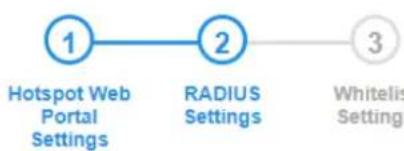
flowchart
graph LR
    A["1 Hotspot Web Portal Settings"] --> B["2 RADIUS Settings"]
    B --> C["3 Whitelis Settings"]
RADIUS Setup
Enable
Comments
authentication
Primary Server
Primary Server
172.16.3.8
Secret
●●●●●●●●●
Authentication Port
1812
Retry
2
times(1 \~ 3)
Advanced
NAS-Identifier
[Non-Text]
Note: Secret can contain only a-z A-Z 0-9 . < > + = \ | ? @ # \~ ^ \$ % & / _ - * [ ] {} ' ^ ! ()
Back
Save and Next
Cancel
| Item | Description |
| Enable Check it to enable the RADIUS server settings. | |
| Comments Enter a brief description for this profile. | |
| Primary Server Enter the IP address of the RADIUS server. | |
| Secret The RADIUS server and client share a secret that is used to | |
| authenticate the messages sent between them. Both sides must be configured to use the same shared secret. The maximum length of the shared secret you can set is 36 characters. | |
| Authentication Port The UDP port number that the RADIUS server is using. The default value is 1812, based on RFC 2138. | |
| Retry Set the number of attempts to perform reconnection with the RADIUS server. | |
| Save and Next Click to access into next page. | |
After finishing this web page configuration, please click OK to save the settings.
(3) Whitelist Settings
Users are allowed to send and receive the traffic that satisfies whitelist settings. IPs under the whitelist will not be redirected to other website (URL).
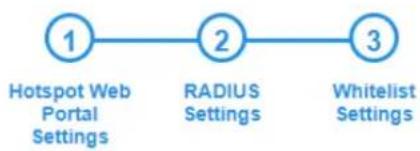
flowchart
graph LR
    A["1 Hotspot Web Portal Settings"] --> B["2 RADIUS Settings"]
    B --> C["3 Whitelist Settings"]

text_image
Destination Domain Index Enable Domain Whitelist Index Enable Domain Whitelist 1 ✓ 192.168.1.11 2 □ 3 ✓ 192.168.1.12 4 □ 5 □ 6 □ 7 □ 8 □ Back Finish Cancel| Destination Domain | |
| Enable Check to enable the setting. | |
| Domain Whitelist Enter a domain (URL) / an IP address. | |
| Destination IP | |
| Enable Check to enable the setting. | |
| IP Whitelist LAN users with the IPs set on this page can access the Internet without entering other portals. | |
| Finish Click to save the settings. |
After finishing this web page configuration, please click Finish to complete the configuration.
II-6-3 Port Control
To avoid wrong connection due to the insertion of unsuitable Ethernet cable, the function of physical LAN ports can be disabled via web configuration.
LAN >> Port Control
Port Control

Enable Port Control
Port 1
Port 2
Disable Port


OK
Clear
Cancel
Available settings are explained as follows:
| Item | Description |
| Enable Port Control | Check it to enable the port control. If it is enabled, you are allowed to disable the function of physical LAN port by checking the corresponding check box. |
| Disable Port Choose and | check the LAN port. |
After finishing this web page configuration, please click OK to save the settings.
This page is left blank.
Chapter III Management

natural_image
Red gear icon enclosed in a partial square frame (no text or symbols)III-1 System Maintenance
For the system setup, there are several items that you have to know the way of configuration: System Status, TR-069, Administrator Password, User Password, Configuration Backup, Syslog/Mail Alert, Time and Date, SNMP, Management, Reboot System, and Firmware Upgrade.
Below shows the menu items for System Maintenance.

text_image
System Maintenance System Status TR-069 Administration Password User Password Configuration Backup Syslog/Mail Alert Time and Date SNMP Management Reboot System Firmware UpgradeIII-1-1 System Status
The System Status provides basic network settings of Vigor modem. It includes LAN and WAN interface information. Also, you could get the current running firmware version or firmware related information from this presentation.
System Status
| Model | :VigorAP920RP |
| Device Name | :VigorAP920RP |
| Firmware Version | :1.4.5 |
| Build Date/Time | :g1555_b1fc2482c0 Thu, 02 Feb 2023 13:26:11 |
| System Uptime | :0d 01:35:21 |
| Operation Mode | :Range Extender |
| System | |
| Memory Total : 236776 kB | |
| Memory Left : 85064 kB | |
| Cached Memory : 27228 kB / 236776 kB | |
| Wireless LAN (2.4GHz) | |
| MAC Address : 00:1D:AA:5C:A6:58 | |
| SSID : DrayTek-5CA658 | |
| Channel : 6 | |
| Driver Version : 10.4 | |
| Wireless LAN (5GHz) | |
| MAC Address : 00:1D:AA:5C:A6:59 | |
| SSID : DrayTek-5CA658 | |
| Channel : Auto(157) | |
| Driver Version : 10.4 |
| LAN | |
| MAC Address | : 00:1D:AA:5C:A6:58 |
| IP Address | : 192.168.1.2 |
| IP Mask | : 255.255.255.0 |
| Universal Repeater(2.4G) | |
| MAC Address | : 16:1D:AA:5C:A6:58 |
| SSID | : DrayTek |
| Channel | : 6 |
WARNING: Your AP is still set to default password. You should change it via System Maintenance menu.
Each item is explained as follows:
| Item | Description |
| Model /Device Name Display the model name of the modem. | |
| Firmware Version Display the firmware version of the modem. | |
| Build Date/Time Display the date and time of the current firmware build. | |
| System Uptime Display the period that such device connects to Internet. | |
| Operation Mode Display the operation mode that the device used. | |
| System | |
| Memory total Display the total memory of your system. | |
| Memory left Display the remaining memory of your system. | |
| LAN | |
| MAC Address Display the MAC address of the LAN Interface. | |
| IP Address Display the IP address of the LAN interface. | |
| IP Mask Display the subnet mask address of the LAN interface. | |
| Wireless LAN (2.4GHz/5GHz) | |
| MAC Address Display the MAC address of the WAN Interface. | |
| SSID Display the SSID of the device. | |
| Channel Display the channel that the station used for connecting with such device. | |
This device supports TR-069 standard. It is very convenient for an administrator to manage a TR-069 device (Vigor router, AP and etc.) through VigorACS (Auto Configuration Server).
System Maintenance >> TR-069 Settings
ACS Settings
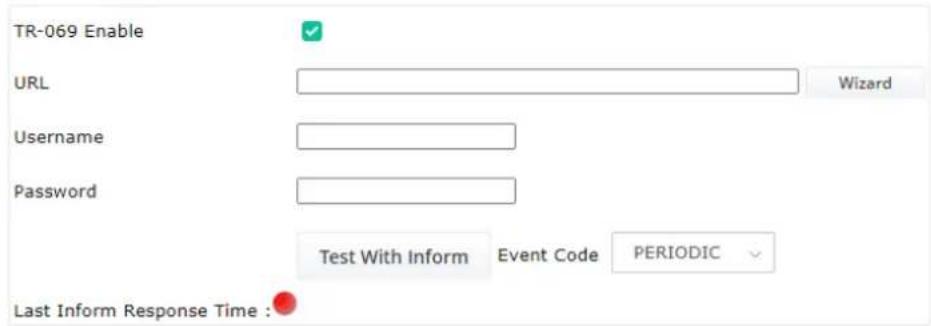
text_image
TR-069 Enable URL Username Password Test With Inform Event Code PERIODIC Last Inform Response Time : ●CPE Settings
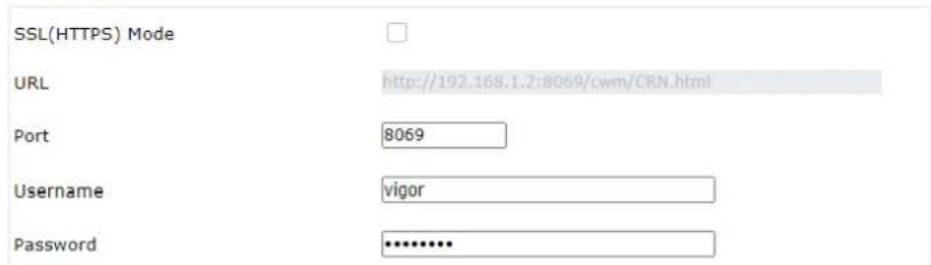
text_image
SSL(HTTPS) Mode URL http://192.168.1.2:8069/cwm/CRN.html Port 8069 Username vigor Password ********Note: SSL(HTTPS) Mode only works when Vigor ACS SI is 1.1.6 and above version.
Periodic Inform Settings

text_image
Enable Interval Time 900 second(s)STUN Settings
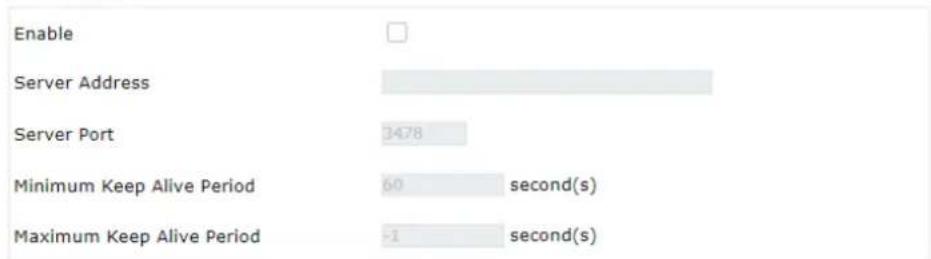
text_image
Enable Server Address Server Port 3478 Minimum Keep Alive Period 60 second(s) Maximum Keep Alive Period -1 second(s)XMPP Settings

text_image
Enable Status Disabled
Available settings are explained as follows:
| Item | Description |
| ACS Settings | TR-069 Enable - Select to enable TR-069 settings.Wizard - Click it to enter the IP address of VigorACS server host, port number and the handler.URL/Username/Password - Such data must be typed according to the ACS (Auto Configuration Server) you want to link. Please refer to Auto Configuration Server user's manual for detailed information.Test With Inform - Click it to send a message based on the event code selection to test if such CPE is able to communicate with VigorACS SI server.Event Code - Use the drop down menu to specify an event to perform the test.Last Inform Response Time - Display the time that VigorACS server made a response while receiving Inform message from CPE last time. |
| CPE Settings | Such Information is useful for Auto Configuration Server (ACS).SSL(HTTPS) Mode - Check the box to allow the CPE client to connect with ACS through SSL.Port - Sometimes, port conflict might be occurred. To solve such problem, you might change port number for CPE.Usage/Password - Type the username and password that VigorACS can use to access into such CPE. |
| Periodic Inform Settings | The default setting is Enable. Please set interval time or schedule time for the AP to send notification to VigorACS server.Interval Time - Type the value for the interval time setting. The unit is "second". |
| STUN Settings | The default is Disable.If you click Enable, please type the relational settings listed below:Server Address - Type the IP address of the STUN server.Server Port - Type the port number of the STUN server.Minimum Keep Alive Period - If STUN is enabled, the CPE must send binding request to the server for the purpose of maintaining the binding in the Gateway. Please type a number as the minimum period. The default setting is "60 seconds".Maximum Keep Alive Period - If STUN is enabled, the CPE must send binding request to the server for the purpose of maintaining the binding in the Gateway. Please type a number as the maximum period. A value of "-1" indicates that no maximum period is specified. |
| XMPP Settings XMPP Is an abbreviation of Extensible Messaging and PresenceProtocol. If your AP register to XMPP server, it could help VigorACS to manage the AP under the NAT at any time, without obstruction. | |
After finishing this web page configuration, please click OK to save the settings.
III-1-3 Administrator Password
This page allows you to set new password for accessing into web user interface of VigorAP.
System Maintenance >> Administration Password
Administrator Settings
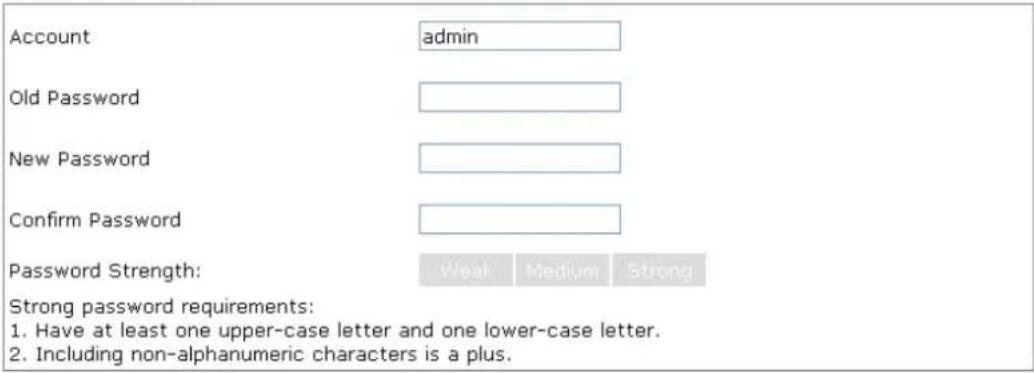
text_image
Account admin Old Password New Password Confirm Password Password Strength: Weak Medium Strong Strong password requirements: 1. Have at least one upper-case letter and one lower-case letter. 2. Including non-alphanumeric characters is a plus.Note : Authorization Account can contain only a-z A-Z 0-9, \~ ` ! @ \% ^ * () _ + = [] | ; < > . ? Authorization Password can contain only a-z A-Z 0-9, \~ ` ! @ # \ % ^ & * () _ + = {} [] | \; < > . ? /

Available settings are explained as follows:
| Item | Description |
| Account Enter the name for accessing into web user Interface. | |
| Old Password Enter the old password for accessing into the web user interface. | |
| New Password Enter in new password in this filed. | |
| Confirm Password Enter the new password again for confirmation. | |
| Password Strength The system will display the password strength (represented with the word of weak, medium or strong) of the password specified above. | |
When you click OK, the login window will appear. Please use the new password to access into the web user interface again.
III-1-4 User Password
This page allows you to set new account and password for accessing the web pages under User Mode.
System Maintenance >> User Password
User Password

Enable User Mode
Account
Password
Confirm Password

Note: Authorization Account can contain only a-z A-Z 0-9, \~ ! @ \% ^ * () _ + = [] | ; < > . ? Authorization Password can contain only a-z A-Z 0-9, \~ ! @ # \ % ^ & * () _ + = {} [] | \ ; < > . ? /
OK
Cancel
Available settings are explained as follows:
| Item | Description |
| Enable User Mode | After checking this box, you can access into the web user interface with the password typed here for simple web configuration.The settings on simple web user interface will be different with full web user interface accessed by using the administrator password. |
| Account Enter a user name. | |
| Password Enter in new password in this field. The length of the password is limited to 31 characters. | |
| Confirm Password Enter the new password again. | |
| Password Strength Display the security strength of the password specified above. | |
Click OK to save the settings.
Settings to be configured in User Mode will be less than settings in Admin Mode. Only basic configuration settings will be available in User Mode.
III-1-5 Configuration Backup
Such function can be used to backup/restore the VigorAP settings.
System Maintenance >> Configuration Backup
Configuration Backup / Restoration
Restoration
Select a configuration file.
Upload
...
Please enter the password and click Restore to upload the configuration file.
Password (optional):
Restore
Note: 1. You will need the same password to do configuration restoration.
- The configuration file from the supported model list would be adopted.
Backup
Please specify a password and click Backup to download current configuration as an encrypted file.

Protect with password
Password

(Max. 23 characters allowed)
Confirm Password
Backup
Note: Password can contain only a-z A-Z 0-9, ! @ \$ % ^ _ - + = {} [] . ? /
Available settings are explained as follows:
| Item | Description |
| Restoration | Upload - Click it to specify a file to be restored.Password (optional) – Enter a password for configuration restoration. |
| Backup Perform the configuration backup of this device.Protect with password- For the sake of security, the configuration file for the access point can be encrypted.Password - Type several characters as the password for encrypting the configuration file.Confirm Password - Type the password again for confirmation. | |
Follow the steps below to backup your configuration.
- Go to System Maintenance >> Configuration Backup.
- If required, check the box of Protect with password and enter the password.
- Click Backup to get into the following dialog.
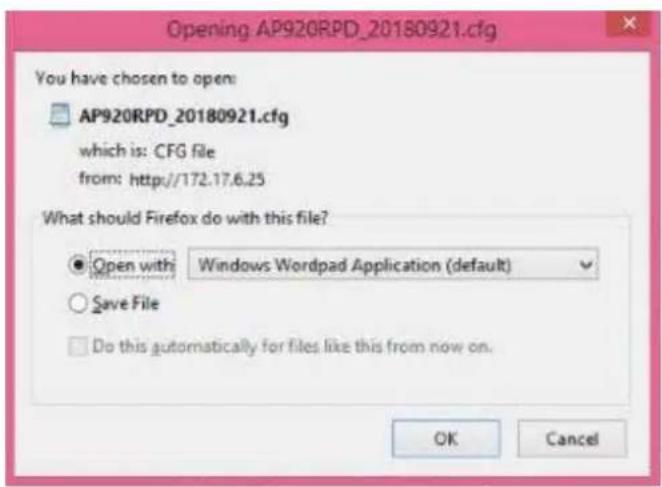
text_image
Opening AP920RPD_20180921.cfg You have chosen to open: AP920RPD_20180921.cfg which is: CFG file from: http://172.17.6.25 What should Firefox do with this file? ● Open with Windows Wordpad Application (default) ○ Save File □ Do this automatically for files like this from now on. OK Cancel
text_image
Or This type of file can harm your computer. Do you want to keep AP920RPD_2018...cfg anyway? Keep Discard- Click Save, the configuration will download automatically to your computer as a file named config.cfg.
The above example is using Windows platform for demonstrating examples. The Mac or Linux platform will appear different windows, but the backup function is still available.
Note:
Backup for Certification must be done independently. The Configuration Backup does not include information of Certificate.
Follow the steps below to restore your configuration.
- Go to System Maintenance >> Configuration Backup.
- Click Upload to choose the correct configuration file for uploading to the AP.
- Click Restore and wait for few seconds, the following picture will tell you that the restoration procedure is successful.
III-1-6 Syslog/Mail Alert
SysLog function is provided for users to monitor AP. There is no bother to directly get into the Web user interface of the AP or borrow debug equipments.
System Maintenance >> Syslog / Mail Alert Setup
Syslog Access Setup
Enable

Server IP Address

Destination Port
514
Log Level
All

Mail Alert Setup
Enable

SMTP Server

SMTP Server Port

Mail To

Mail From

User Name

Password

SSL

StartTLS

Enable E-Mail Alert:

When Admin Login AP


Available settings are explained as follows:
| Item | Description |
| Syslog Access Setup | Enable - Check Enable to activate function of Syslog.Server IP Address -The IP address of the Syslog server.Destination Port -Assign a port for the Syslog protocol. The default setting is 514.Log Level - Specify which level of the severity of the event will be recorded by Syslog. |
| Mail Alert Setup | Enable - Check Enable to activate function of mail alert.SMTP Server - The IP address of the SMTP server.SMTP Server Port - The port number of the SMTP server.Mail To - Assign a mail address for sending mails out.Mail From - Assign a path for receiving the mail from outside.User Name - Type the user name for authentication.Password - Type the password for authentication.SSL - Check this box to encrypt alert mail. However, if the SMTP server specified here does not support SSL protocol, the alert mail with encrypted data will not be received by the receiver.StartTLS - Check this box to encrypt alert mail. However, if the SMTP server specified here does not support TLS protocol, the alert mail with encrypted data will not be received by the receiver.Enable E-Mail Alert - VigorAP will send an e-mail out when a user accesses into the user interface by using web or telnet.When Admin Login AP - Enable/disable the function. When it is enabled, VigorAP will send out an e-mail to the recipient defined above when a user tries to access into VigorAP by entering login username and password. |
Click OK to save the settings.
III-1-7 Time and Date
It allows you to specify where the time of VigorAP should be inquired from.
System Maintenance >> Time and Date
Time Information
Current System Time
2020 May 12 Tue 10:29:17
Inquire Time
status
NTP time synchronized
Time Setting

Enable NTP Client
Time Zone
(GMT+08:00) China Beijing, Chongqing
NTP Server
pool.ntp.org
Daylight Saving

NTP synchronization
1 day

OK
Cancel
Available parameters are explained as follows:
| Item | Description |
| Current System Time | Click Inquire Time to get the current time. |
| Use NTP Client Enabled | - Select to inquire time information from Time Server on the Internet using assigned protocol.Disabled - Use the browser time from the remote administrator PC host as router's system time. |
| Time Zone Select a time protocol. | |
| NTP Server Type the IP address of the time server.Use Default – Click it to choose the default NTP server. | |
| Daylight Saving | Check the box to enable the daylight saving. Such feature is available for certain area. |
| NTP synchronization Select a time interval for updating from the NTP server. | |
Click OK to save these settings.
III-1-8 SNMP
This page allows you to configure settings for SNMP and SNMPV3 services.
The SNMPv3 is more secure than SNMP through the authentication method (support e.g., MD5) for the management needs.
System Maintenance >> SNMP
SNMP Agent
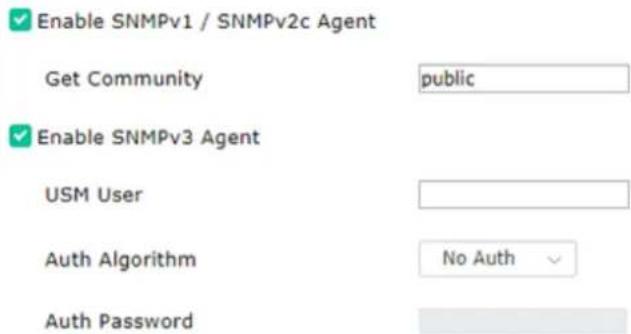
text_image
Enable SNMPv1 / SNMPv2c Agent Get Community public Enable SNMPv3 Agent USM User Auth Algorithm No Auth Auth PasswordNote: SNMP V1/V2c is read-only and SNMP V3 is read-write.

Available settings are explained as follows:
| Item | Description |
| Enable SNMPv1/SNMPv2c Agent | Check it to enable this function. |
| Enable SNMPV3 Agent | Check it to enable this function. |
| USM User USM means user-based security mode. | Type a username which will be used for authentication. The maximum length of the text is limited to 23 characters. |
| Auth Algorithm Choose one of the encryption methods listed below as the authentication algorithm. | |
| Auth Password Type a password for authentication. The maximum length of the text is limited to 23 characters. |
Click OK to save these settings.
III-1-9 Management
This page allows you to specify the port number for HTTP and HTTPS server.
System Maintenance >> Management
Device Name VigorAP920RP
Access Control
√ HTTP Server □ Enforce HTTPS Access
HTTPS Server
√ Allow management from WLAN
Enable Telnet Server
√ Enable SSH Server
□ Disable Reset Button
Access List
□ Enable access list
List IP Mask
- 255.255.255.255 / 32
- 255.255.255.255 / 32
- 255.255.255.255 / 32
- 255.255.255.255 / 32
- 255.255.255.255 / 32

Available parameters are explained as follows:
| Item | Description |
| Device Name The default setting is VigorAP 920R. Change the name if required. | |
| Access Control | HTTP Server / HTTPS Server - Enable the checkbox to allow system administrators to log in from HTTP or HTTPS server.Enforce HTTPS Access - Enable the checkbox to allow system administrators to log in from HTTPS server only.Allow management from WLAN - Enable the checkbox to allow system administrators to login from wireless LAN.Enable Telnet Server- The administrator / user can access into the command line interface of VigorAP remotely for configuring settings.Manage Disable Reset Button - If enabled, the function of the Reset button will be invalid. |
| Access List | Enable access list - Check the box to specify that the system |
| administrator can only login from a specific host or network defined in the list. A maximum of five IPs/subnet masks is allowed. | |
| Port Setup | HTTP port/HTTPS port -Specify user-defined port numbers for the HTTP and HTTPS servers. |
| Panel Control Disable LED | - The LEDs blink always since VigorAP is powered on.Some people might not like that. Therefore the function of LED is allowed to be disabled to make people feeling comfortable and undisturbed. After checking it, all the LEDs on VigorAP will light off immediately after clicking OK.Enable Default Configuration Wizard – Default setting is enabled.When it is enabled, you will be guided into Quick Start Wizard whenever clicking the DrayTek logo on the top of the web user interface.Such function will be disabled temporary if you have configured Operation Mode, WLAN>>General Setup, WLAN>>Bandwidth Management, WLAN>>Station Control or System Maintenance>>Administration Password. |
Click OK to save these settings.
III-1-10 Reboot System
The web user interface may be used to restart your modem. Click Reboot System from System Maintenance to open the following page.
System Maintenance >> Reboot System
Reboot System
Do You want to reboot your AP?
○ Using current configuration
• Using factory default configuration
OK
If you want to reboot the modem using the current configuration, check Using current configuration and click OK. To reset the modem settings to default values, check Using factory default configuration and click OK. The modem will take 5 seconds to reboot the system.
Note:
When the system pops up Reboot System web page after configuring the web settings, please click OK to reboot your device for ensuring normal operation and preventing unexpected errors of the modem in the future.
III-1-11 Firmware Upgrade
Before upgrading your modem firmware, you need to install the Modem Tools. The Firmware Upgrade Utility is included in the tools. The following web page will guide you to upgrade firmware by using an example. Note that this example is running over Windows OS (Operating System).
Download the newest firmware from DrayTek's web site or FTP site. The DrayTek web site is www.draytek.com (or local DrayTek's web site) and FTP site is ftp.draytek.com.
Click System Maintenance>> Firmware Upgrade to launch the Firmware Upgrade Utility.
System Maintenance >> Firmware Upgrade
Firmware Upgrade
Select a firmware file.
Browse
Click Upgrade to upload the file.
Upgrade
Firmware Version Status
Refresh Latest Firmware
Current Firmware Version : 1.4.5
The Latest Firmware Version :
Download
Click Upload to locate the newest firmware from your hard disk and click Upgrade.
III-2 Central AP Management
Such menu allows you to configure VigorAP device to be managed by Vigor router.
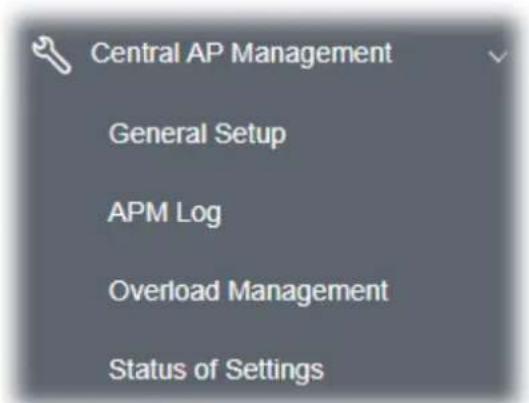
text_image
Central AP Management General Setup APM Log Overload Management Status of SettingsIII-2-1 General Setup
Central AP Management >> General Setup
Management by VigorRouter / RootAP

Enable NodeAP

Enable Auto Provision

Enable Check Account Password For Set Group Key
Reset
Root AP MAC:
Manage other VigorAPs

Enable RootAP
Note: RootAP cannot support AP700/AP800/AP900 as Node. Maximum support 30 APs.

Cancel
Available settings are explained as follows:
| Item | Description |
| Management by VigorRouter/RootAP | |
| Enable NodeAP Check the box to enable the function of AP Management (APM). | Enable Auto Provision - VigorAP can be controlled under Central AP Management in the Vigor router. When both the Vigor router series and VigorAP have such feature enabled, once VigorAP is registered to the Vigor router series, theWLAN profilepre-configured on the Vigor router series will be applied to VigorAP immediately. Thus, it is notnecessary to configure VigorAP separately. Enable Check Account Password For Set Group Key - If it is disabled, the RootAP can manage this AP (node AP) without entering the username/password of the node AP. If it is enabled, any RootAP must enter the username/password of this node AP to manage this device. The username/password can be seen on the router'sCentral Management >> AP >> Statuspage or AP's Central AP Management >> Node Status. An exception is that the RootAP can manage the device directly without entering the username/password of the node AP if the target node AP uses the default username/password (admin/admin). |
| Manage other VigorAPs | |
| Enable RootAP Check this box to enable AP management. The role of this AP is "Root". | |
Click OK to save these settings.
III-2-2 APM Log
This page will display log information related to wireless stations connected to VigorAP 920R and central AP management.
Such information also will be delivered to Vigor router (e.g., Vigor2865 or Vigor2927 series) and be shown on Central AP Management>>Event Log of Vigor router.
Central AP Management >> APM Log
| APM Log Information | ||||||
| Clear | Refresh | ☐ | Line wrap | |||
| Aug 24-13:02:54 | syslog: [APM] | Request done. | ||||
| Aug 24-10:47:27 | syslog: [APM] | Get Traffic data. | ||||
| Aug 24-10:47:27 | syslog: [APM] | Request done. | ||||
| Aug 24-10:52:28 | syslog: [APM] | Get Traffic data. | ||||
| Aug 24-10:52:28 | syslog: [APM] | Request done. | ||||
| Aug 24-10:42:26 | syslog: [APM] | Get Traffic data. | ||||
| Aug 24-10:42:26 | syslog: [APM] | Request done. | ||||
| Aug 24-10:47:27 | syslog: [APM] | Get Traffic data. | ||||
| Aug 24-10:47:27 | syslog: [APM] | Request done. | ||||
| Aug 24-10:52:28 | sys log: [APM] | Get Traffic data. | ||||
| Aug 24-10:52:28 | syslog: [APM] | Request done. | ||||
| Aug 24-10:57:29 | syslog: [APM] | Get Traffic data. | ||||
| Aug 24-10:57:29 | syslog: [APM] | Request done. | ||||
| Aug 24-11:02:30 | syslog: [APM] | Get Traffic data. | ||||
| Aug 24-11:02:30 | syslog: [APM] | Request done. | ||||
| Aug 24-11:07:31 | syslog: [APM] | Get Traffic data. | ||||
III-2-3 Overload Management
Load Balance can help to distribute the traffic for all of the access points (e.g., VigorAP 920R) registered to Vigor router. Thus, the bandwidth will not be occupied by certain access points.
However, traffic overload might be occurred if too many wireless stations connected to VigorAP 920R for data incoming and outgoing. Therefore, "Force Overload Disassociation" is required to terminate the network connection of the client's station to release network traffic. When the function of "Force Overload Disassociation" in web user interface of Vigor router (e.g., Vigor2862 or Vigor2926 series) is enabled, wireless clients specified in black list of such web page will be disassociated to solve the problem of traffic overload.
The following web page is used to configure white list and black list for wireless stations.
Central AP Management >> Overload Management
Overload Management
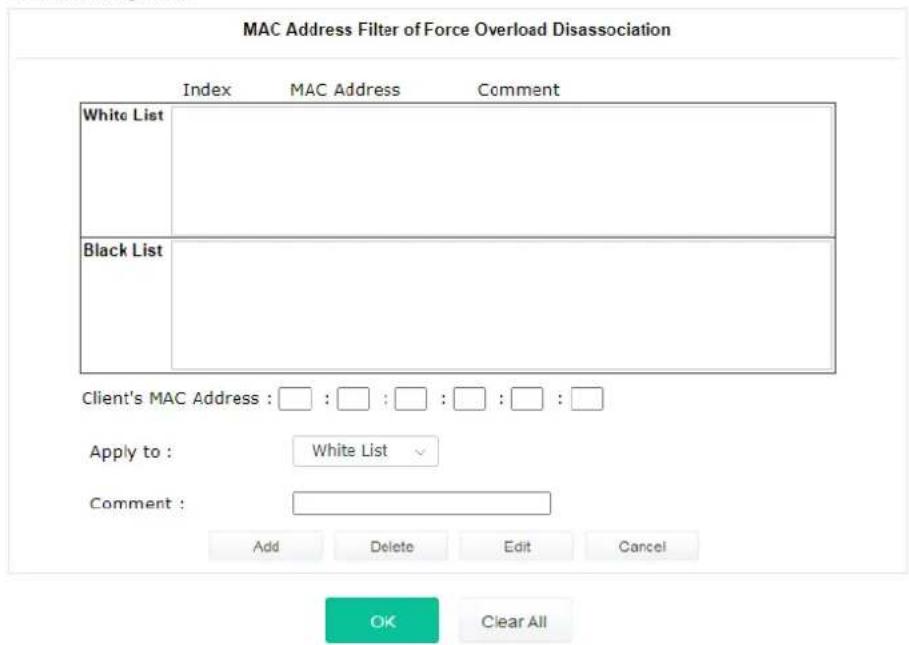
text_image
MAC Address Filter of Force Overload Disassociation Index MAC Address Comment White List Black List Client's MAC Address : □ : □ : □ : □ : □ : □ Apply to : White List Comment : Add Delete Edit Cancel OK Clear AllNote: When force overload disassociation is enabled, clients in black list will be disassociated first. Clients in white list will not be disassociated.
Available settings are explained as follows:
| Item | Description |
| White List/Black List | Display the information (such as index number, MAC address and comment) for all of the members in White List/Black List.Wireless stations listed in Black List will be forcefully disconnected first when traffic overload occurs and “Force Overload Disassociation” is enabled. |
| Client’s MAC Address | Specify the MAC Address of the remote/local client. |
| Apply to White List – MAC address listed inside Client’s MAC Address will be categorized as one of members in White List.Black List - MAC address listed inside Client’s MAC Address will be categorized as one of members in Black List. | |
| Comment | Type a brief description for the specified client's MAC address. |
| Add Add a new MAC address into the White List/Black List. | |
| Delete Delete the selected MAC address in the White List/Black List. | |
| Edit Edit the selected MAC address in the White List/Black List. | |
| Cancel Give up the configuration. | |
Click OK to save these settings.
III-2-4 Status of Settings
Load Balance can help to distribute the traffic for all of the access points (e.g., VigorAP 920Rs) registered to Vigor 2862 or Vigor2926 series. This web page displays the settings related to Load Balance for VigorAP 920R. In which, By Station Number, By Traffic and Force Overload Disassociation indicate settings configured in Vigor 2862 or Vigor2926 series.
Central AP Management >> Status of Settings
| Function Name | Status | Value |
| Load Balance | ||
| Station Number Threshold | √ | |
| Max WLAN(2.4GHz) Station Number | 3 | |
| Max WLAN(5GHz) Station Number | 64 | |
| Traffic Threshold | √ | |
| Upload Limit | 1K bps | |
| Download Limit | 1K bps | |
| Force Overload Disassociation | √ | |
| Disassociate By | Signal Strength | |
| RSSI Threshold | -50 dBm | |
"X" means the function is not enabled or VigorAP 920R has not registered to any Vigor router yet. Below shows a setting example for Load Balance settings configured in Vigor2865 or Vigor2927 series.
Central Management >> AP >> Load Balance
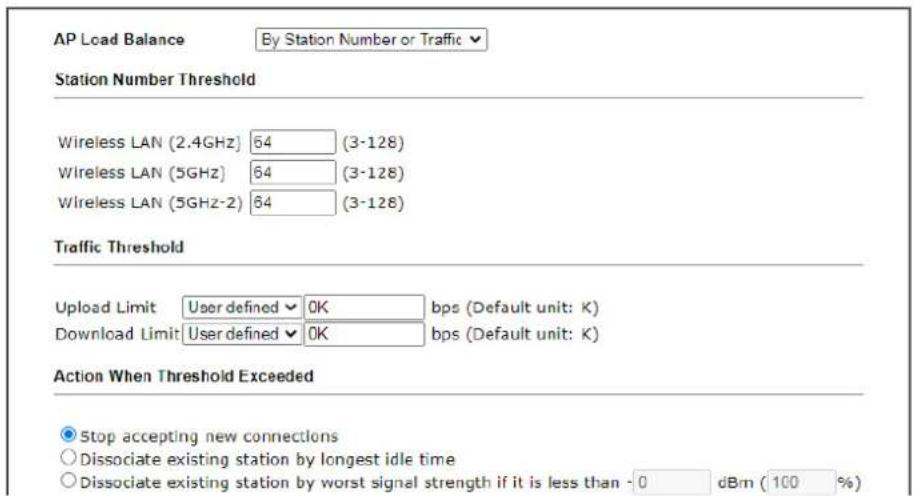
text_image
AP Load Balance By Station Number or Traffic Station Number Threshold Wireless LAN (2.4GHz) 64 (3-128) Wireless LAN (5GHz) 64 (3-128) Wireless LAN (5GHz-2) 64 (3-128) Traffic Threshold Upload Limit User defined OK bps (Default unit: K) Download Limit User defined OK bps (Default unit: K) Action When Threshold Exceeded Stop accepting new connections Dissociate existing station by longest idle time Dissociate existing station by worst signal strength if it is less than -0 dBm (100 %)III-3 Mobile Device Management
Such feature can control / manage the mobile devices accessing the wireless network of VigorAP. VigorAP offers wireless LAN service for mobile device(s), PC users, MAC users or other users according to the policy selected.
Below shows the menu items for Mobile Device Management (MDM).
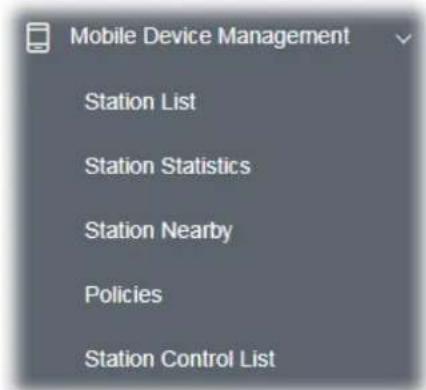
text_image
Mobile Device Management Station List Station Statistics Station Nearby Policies Station Control ListIII-3-1 Station List
Station List provides the information related to the number of clients connecting to VigorAP, used bandwidth and the statistics of the AP device OS. Besides, users can create access control policies, device objects and set black & white list for
III-3-1-1 Connected Number
This page lists the graph for the number of wireless stations connected to this Access Point with different time phases.
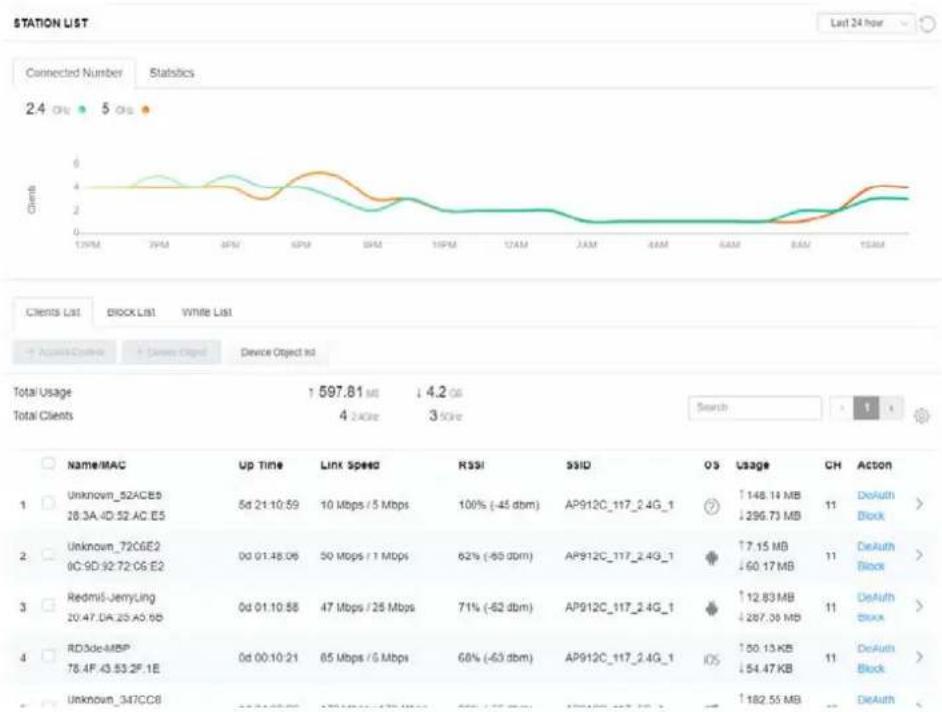
III-3-1-2 Statistics
The number of detected devices and the number of device(s) passed/blocked according to the policy specified in Mobile Device Management>>Policies can be illustrated as doughnut chart.

III-3-1-3 Clients List
The client list displays all the stations connecting to VigorAP.

text_image
STATION LIST Last 24 hour Connected Number Statistics Device OS 0% Android 0 0% iOS 0 0% Windows 0 0% Linux 0 100% Others 51 Policy 100% Pass 58 0% Block 0 Clients List Block List White List + Access Control + Device Object Device Object list Total Usage 1 58.13 KB ↓ 45.89 KB Total Clients 0 2.6GHz 64.5GHz 50 × 1 2 3 4 5 6 7 y Name/MAC Up Time Link Speed RSSI SSID OS Usage CH Action 1 Unknown_C84A46 00:BC:DA:C8.4A.46 0d 03:42:47 270 Mbps / 6 Mbps 57% (-67 dbm) AA-903 ? ↑867 B 36 DeAuth Block > 00:BC:DA:07:B0:C1 0d 03:42:47 270 Mbps / 6 Mbps 55% (-68 dbm) AA-903 ? ↑867 B 36 DeAuth Block > 00:BC:DA:C3.4F.0A 0d 03:42:47 270 Mbps / 6 Mbps 57% (-67 dbm) AA-903 ? ↑867 B 36 DeAuth Block > 00:BC:DA:0C:EE'E9 0d 03:42:46 270 Mbps / 6 Mbps 62% (-65 dbm) AA-903 ? ↑867 B 36 DeAuth Block > 00:BC:DA:0C:EE'E9Available settings are explained as follows:
| Item | Description |
| +Access Control | It is available after choosing one of the entries (clients) on Clients List. |
| |
| Wireless LAN - Specify the bandwidth for the access control list. SSID Policy - Set the policy for each SSID as black list or white list or disable. From to list - Display the clients available for applying this accesscontrol.Apply to SSID - Check All to make the device apply the policies to all SSIDs. Or select the one(s) to make the device apply the policies to the selected SSIDs.Close - Exit this page without saving any changes.Save changes - Save the changes and exit this page. | |
| +Device Object To add a device to device object list, choose one of the entries (clients) on Clients List to enable the Device Object button. Click the button to open the following page.Check the information listed on the page. Change the MAC address or name of the selected entry if required. Then click OK and exit the page. | |
| Device Object list The existed device object profiles will be shown on the following page. | |
| Clients List Display the stations connecting to this Vigor device.Total Usage - DisplayTotal Clients - Display the number of the clients using 2.4GHzName / MAC - Display the host name / MAC address of the connecting client.Up Time - Display the connection time.Link Speed- Display the link speed.RSSI - Display the RSSI value.SSID - Display the SSID the client used for connecting VigorAP.OS - Display the OS of the client.Usage - Display the bandwidth usage (up and down) of the client.CH - Display the channel used by the client.Action - Display the authentication method used by the client, and if it is on block list or white list. | |
II-3-13-4 Block List
This page displays information of the stations under block list.
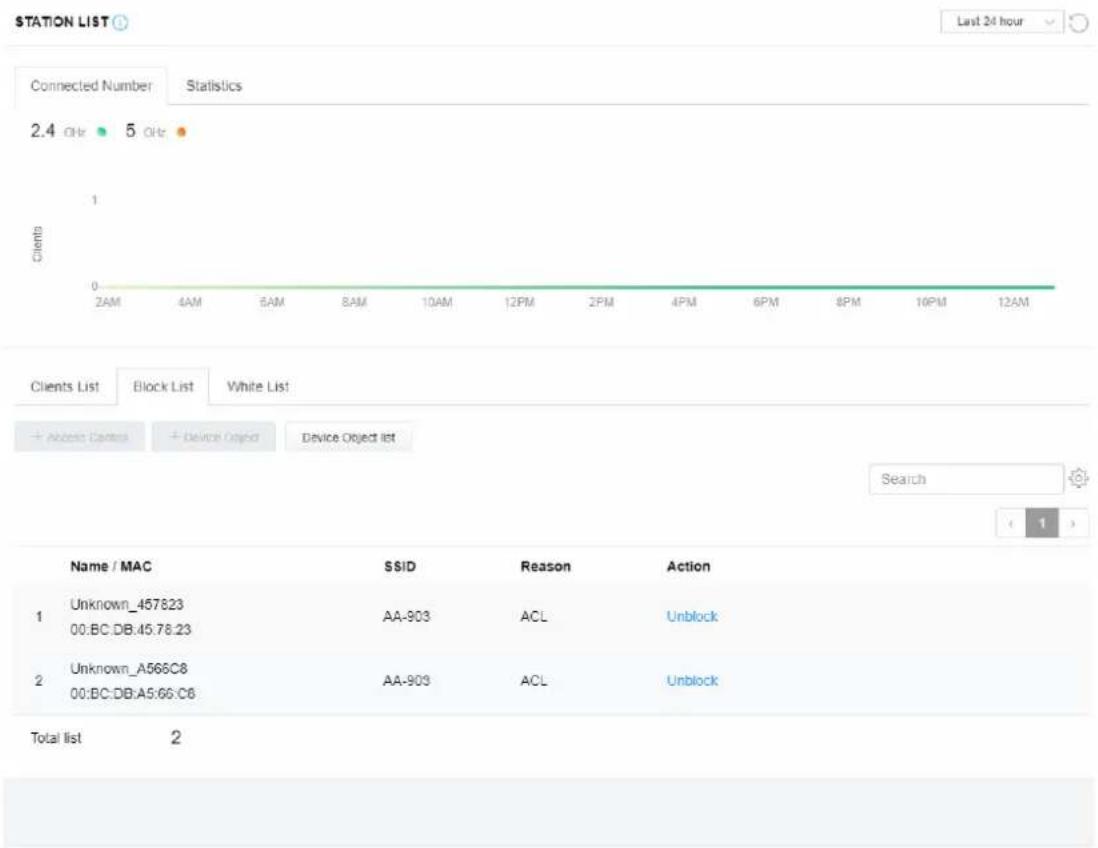
text_image
STATION LIST Last 24 hour Connected Number Statistics 2.4 GHz 5 GHz Clients 1 0 2AM 4AM 6AM 8AM 10AM 12PM 2PM 4PM 6PM 8PM 10PM 12AM Clients List Block List White List + Abbot Centers + Device Object Device Object list Search ( 1 ) Name / MAC SSID Reason Action 1 Unknown_457823 AA-903 ACL Unblock 00:BC:DB:45.78.23 2 Unknown_A566C8 AA-903 ACL Unblock 00:BC:DB:A5.66:C8 Total list 2Available settings are explained as follows:
| Item | Description |
| Device Object list Click it to open the Device Object List dialog for reference. |  |
| Name / MAC | Display the host name / MAC Address for the connecting client. |
| SSID Display the SSID that the wireless client connects to. | |
| Reason Display the reference information. | |
| Action | Display the action that you can execute for the station.Unblock - Click to unblock the entry. |
III-3-1-5 White List
This page displays general information of the stations under white list.
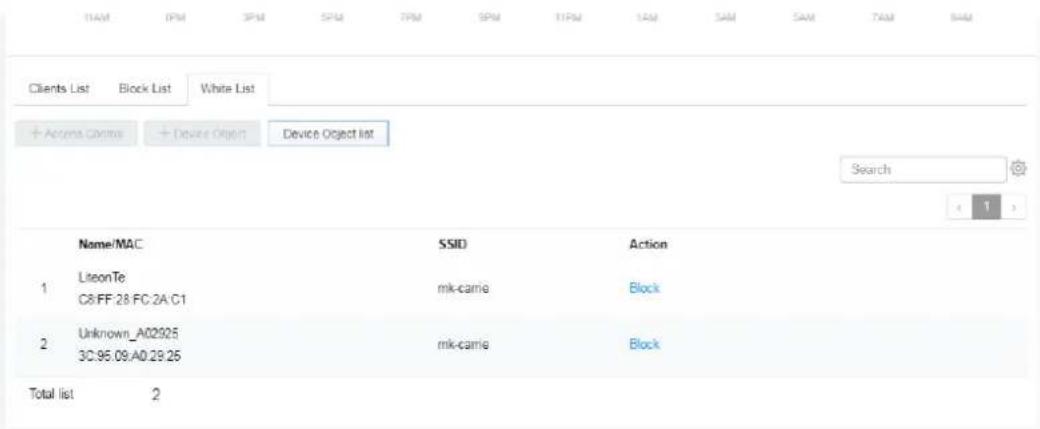
text_image
1AM 0PM 3PM 5PM 7PM 9PM 11PM 1AM SAM SAM TAM NAM Clients List Block List White List + Access Claims + Device Object Device Object list Search 1 Name/MAC SSID Action 1 LiteonTe C8:FF:28:FC:2A:C1 mk-camie Block 2 Unknown_A02925 3C:95:09:A0:29:25 mk-camie Block Total list 2Available settings are explained as follows:
| Item | Description |
| Device Object list Click it to open the Device Object List dialog for reference. | 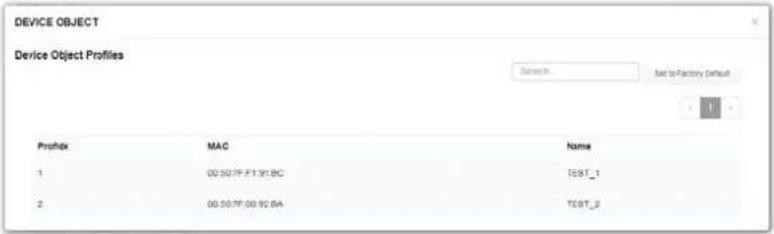 |
| Name / MAC | Display the host name / MAC Address for the connecting client. |
| SSID Display the SSID that the wireless client connects to. | |
| Action | Display the action that you can execute for the station.Block - Click to block the entry. |
III-3-2 Station Statistics
This page is used for debug or for the user to observe network traffic and network quality.
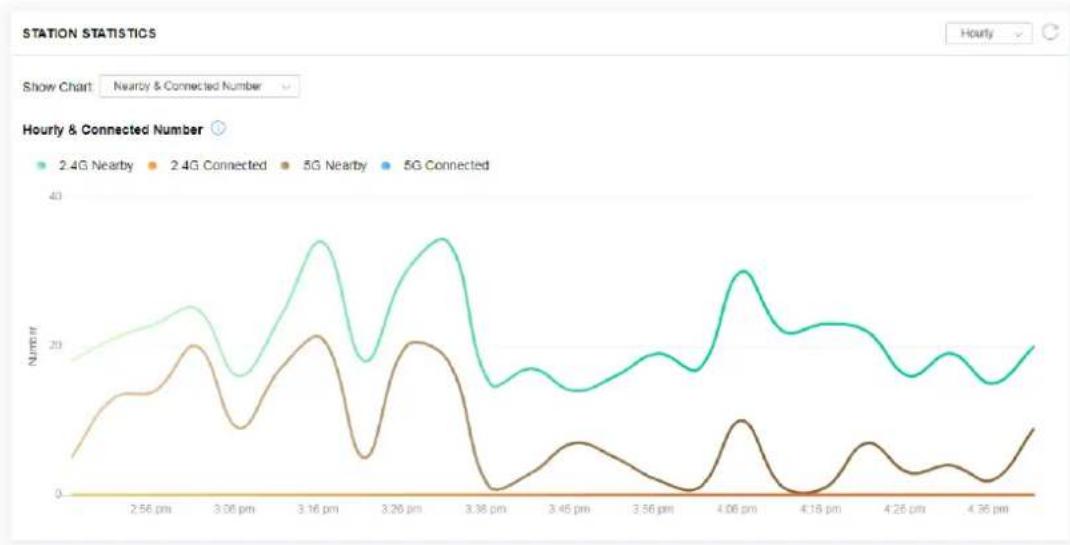
line
| Hourly & Connected Number | 2.4G Nearby | 2.4G Connected | 5G Nearby | 5G Connected | | ------------------------- | ----------- | -------------- | --------- | ------------ | | 2.56 pm | ~20 | ~0 | ~5 | ~0 | | 3.06 pm | ~25 | ~0 | ~10 | ~0 | | 3.16 pm | ~35 | ~0 | ~20 | ~0 | | 3.26 pm | ~30 | ~0 | ~15 | ~0 | | 3.36 pm | ~15 | ~0 | ~0 | ~0 | | 3.45 pm | ~18 | ~0 | ~5 | ~0 | | 3.56 pm | ~20 | ~0 | ~0 | ~0 | | 4.06 pm | ~30 | ~0 | ~10 | ~0 | | 4.16 pm | ~25 | ~0 | ~0 | ~0 | | 4.26 pm | ~20 | ~0 | ~5 | ~0 | | 4.36 pm | ~25 | ~0 | ~10 | ~0 |Available parameters are explained as follows:
| Item | Description |
| Show Chart Choose one of the items to display the statistics chart for wireless stations. | |
| Nearby & Connected NumberNearby & Connected NumberVisiting & Passing NumberVisiting Time | |
| Nearby & Connected Number – Choose it to have the statistics of the wireless stations which is nearby and connected to VigorAP 920R.Visiting & Passing Number – Choose it to have the statistics of the wireless stations which is visiting and passing to VigorAP 920R.Visiting Time - Choose it to have the statistics of the wireless stations which is visiting VigorAP 920R. | |
III-3-3 Station Nearby
This page displays the general information for the nearby stations.

line
| MAC | Vendor | Distance | RSSI | SSID | Up Time | | --- | --- | --- | --- | --- | --- | | 72:BD:72:C6:53:2B | LilleonTe | >100m | 11%(-88dbm) | N/A | 0d: Oh Om: Os | | C8:FF:28:FC:2A:C1 | LilleonTe | >100m | 2%(-93dbm) | N/A | 0d: Oh Om: Os | | AE:DC:F5:B0:FB:12 | LilleonTe | >100m | 3%(-92dbm) | N/A | 0d: Oh Om: Os | | 8E:85:BF:8E:3F:10 | Intel | 50m | 40%(-79dbm) | N/A | 0d: Oh Om: Os | | 80:00:OB:04:CE:6A | LilleonTe | >100m | 2%(-93dbm) | N/A | 0d: Oh 4m: 41s | | BA:B9:C2:OF:6C:BF | LilleonTe | 63m | 34%(-81dbm) | N/A | 0d: Oh Om: Os | | 06:10:AA:41:DF:18 | LilleonTe | >100m | 11%(-86dbm) | N/A | 0d: Oh 36m: 17s |You can select the station(s) and click +Access Control to configure the nearby stations as the one(s) to pass through VigorAP or to be blocked by VigorAP.
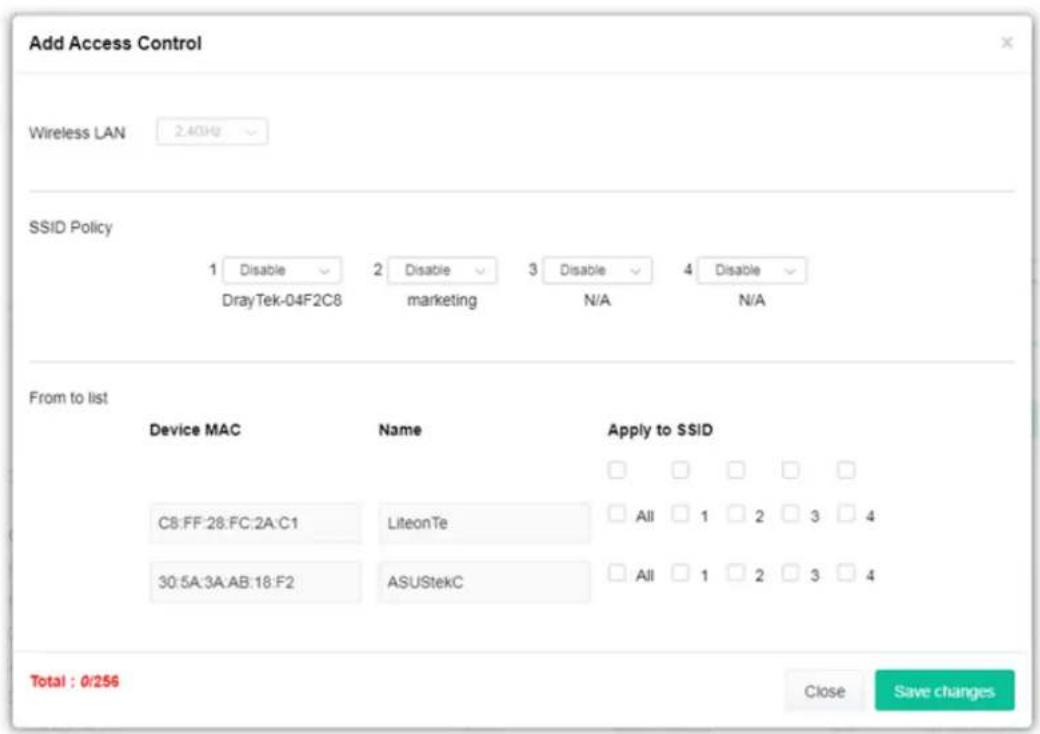
text_image
Add Access Control Wireless LAN 2.4GHz SSID Policy 1 Disable 2 Disable 3 Disable 4 Disable DrayTek-04F2C8 marketing N/A N/A From to list Device MAC Name Apply to SSID C8:FF:28:FC:2A:C1 LiteonTe All 1 2 3 4 30:5A:3A:AB:18:F2 ASUSTekC All 1 2 3 4 Total : 0/256 Close Save changesAvailable parameters are explained as follows:
| Item | Description |
| SSID Policy Determine the policy (disable, white list or black list) applied for the SSID (1 to 4). | |
| From to list Device MAC | - Display the MAC address of the selected station. |
| Name - Display the name of the selected station. | |
| Apply to SSID - Check the box(es) to apply the SSID to the selected station. | |
| Close - Exit the dialog without saving the changes. | |
| Save changes - Save the changes and exit the dialog. | |
III-3-4 Policies
Such page determines which devices (mobile, PC, MAC or others) allowed to make network connections via VigorAP or blocked by VigorAP.

text_image
POLICIES Block Mobile Connections (OS Android,iOS...) Block PC Connections (OS Windows,Linux,iMac...) Block Unknown Connections (OS Others) WiFi(2.4GHz) ✓ SSID1 ✓ SSID2 ✓ SSID3 ✓ SSID4 WiFi(5GHz) ✓ SSID1 ✓ SSID2 ✓ SSID3 ✓ SSID4 OK CancelEach item is explained as follows:
| Item | Description |
| Block Mobile Connections | All of mobile devices will be blocked and not allowed to access into Internet via VigorAP. |
| Block PC Connections | All of network connections based on PC, MAC or Linux platform will be blocked and terminated. |
| Block Unknown Connections | Only the unknown network connections (unable to be recognized by Vigor router) will be blocked and terminated. |
| WiFi(2.4GHz) Specify the SSID(s) to apply such policy. | |
| WiFi(5GHz) Specify the SSID(s) to apply such policy. | |
After finished the policy selection, click OK. VigorAP will reboot to activate the new policy automatically.
III-3-5 Station Control List
This page displays information related to the wireless stations connecting to the Vigor AP.
STATION CONTROL LIST
| SSID | MAC | Connection Time | Reconnection Time | |
| 1 | AP912C_117_2.4G_1 | 28:3A:4D:52:AC:E5 | 0d 00:58:50 | 0d 00:00:00 |
| 2 | AP912C_117_2.4G_1 | 20:47:DA:25:A5:6B | 0d 00:48:22 | 0d 00:00:00 |
| 3 | AP912C_117_5G_1 | 40:4E:36:5E:3F:A7 | 0d 00:58:55 | 0d 00:00:00 |
| 4 | AP912C_117_5G_1 | D0:37:45:34:7C:C8 | 0d 00:56:02 | 0d 00:00:00 |
① This page is available when Station Control is enabled.
This page is left blank.
Chapter IV Others

natural_image
Pure electrical circuit lines without any symbolsIV-1 RADIUS Setting

text_image
RADIUS Setting RADIUS Server Certificate ManagementIV-1-1 RADIUS Server
VigorAP 920R offers a built-in RADIUS server to authenticate the wireless client that tries to connect to VigorAP 920R. The AP can accept the wireless connection authentication requested by wireless clients.
RADIUS Setting >> RADIUS Server Configuration
Enable RADIUS Server
Authentication Type
Radius EAP Type
PEAP
Users Profile (up to 256 users)
Username
Password
Confirm Password
Configure



Add
Cancel
NO.
Delete Selected
Delete All
Username
Select
Authentication Client (up to 16 clients)
Client IP
Secret Key
Confirm Secret Key
Configure



Add
Cancel
NO.
Delete Selected
Delete All
Client IP
Select
OK
Cancel

text_image
Backup Radius Cfg : Backup Upload From File: Upload ... RestoreAvailable settings are explained as follows:
| Item | Description |
| Enable RADIUS Server | Check it to enable the internal RADIUS server. |
| Authentication Type | Let the user to choose the authentication method for RADIUS server.Radius EAP Type- There are two types, PEAP and EAP TLS, offered for selection. If EAP TLS is selected, a certificate must be installed or must be ensured to be trusted. |
| Users Profile | Username- Type a new name for the user profile.Password- Type a new password for such new user profile.Confirm Password- Retype the password to confirm it.ConfigureAdd- Make a new user profile with the name and password specified on the left boxes.Cancel- Clear current settings for user profile.Delete Selected- Delete the selected user profile (s).Delete All- Delete all of the user profiles. |
| Authentication Client | This internal RADIUS server of VigorAP 920R can be treated as the external RADIUS server for other users. Specify the client IP and secret key to make the wireless client choosing VigorAP 920R as its external RADUIS server.Client IP- Type the IP address for the user to be authenticated by VigorAP 920R when the user tries to use VigorAP 920R as the external RADIUS server.Secret Key- Type the password for the user to be authenticated by VigorAP 920R while the user tries to use VigorAP 920R as the external RADIUS server.Confirm Secret Key- Type the password again for confirmation.ConfigureAdd- Make a new client with IP and secret key specified on the left boxes.Cancel- Clear current settings for the client.Delete Selected- Delete the selected client(s).Delete All- Delete all of the clients. |
| Backup | Click it to store the settings (RADIUS configuration) on this page as a file. |
| Restore | Click it to restore the settings (RADIUS configuration) from an existed file. |
After finishing this web page configuration, please click OK to save the settings.
IV-1-2 Certificate Management
When the local client and remote server are required to make certificate authentication (e.g., Radius EAP-TLS authentication) for wireless connection and avoiding the attack of MITM, a trusted root certificate authority (Root CA) will be used to authenticate the digital certificates offered by both ends.
However, the procedure of applying digital certificate from a trusted root certificate authority is complicated and time-consuming. Therefore, Vigor AP offers a mechanism which allows you to generate root CA to save time and provide convenience for general user. Later, such root CA generated by DrayTek server can perform the issuing of local certificate.
Root CA can be deleted but not edited. If you want to modify the settings for a Root CA, please delete the one and create another one by clicking Create Root CA.
RADIUS Setting >> X509 Trusted CA Certificate Configuration
| Name | Subject | Status | Modify |
| Root CA | --- | --- | Create Root CA |
Note: 1. Please setup the "System Maintenance >> Time and Date" correctly before you try to generate a RootCA.
2. The Time Zone MUST be setup correctly.
Click Create Root CA to open the following page. Type or choose all the information that the window request such as subject name, key type, key size and so on.
RADIUS Setting >> Create Root CA
| Certificate Name | Root CA |
| Subject Name | |
| Country (C) | |
| State (S) | |
| Location (L) | |
| Organization (O) | |
| Organization Unit (OU) | |
| Common Name (CN) | |
| Email (E) | |
| Key Type | RSA |
| Key Size | 1024 Bit |
| Apply to Web HTTPS |

Available settings are explained as follows:
| Item | Description |
| Subject Name | Type the required information for creating a root CA.Country (C) – Type the country code (two characters) in this box.State (S)/ Location (L)/ Organization (O)/ Organization Unit (OU)/Common Name (CN) - Type the name or information for the root CA with length less than 32 characters.Email (E) – Type the email address for the root CA with length less than 32 characters. |
| Key Type At present, only RSA (an encryption algorithm) is supported by such device. | |
| Key Size To determine the size of a key to be authenticated, use the drop down list to specify the one you need. | |
| Apply to Web HTTPS | VigorAP needs a certificate to access into Internet via Web HTTPS.Check this box to use the user-defined root CA certificate which will substitute for the original certificate applied by web HTTPS. |
Note:
"Common Name" must be configured with rotuer's WAN IP or domain name.
After finishing this web page configuration, please click OK to save the settings. A new root CA will be generated.
IV-2 Applications
Below shows the menu items for Applications.
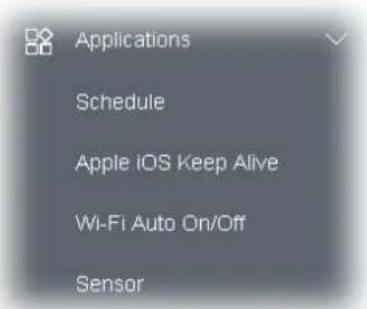
text_image
Applications Schedule Apple iOS Keep Alive Wi-Fi Auto On/Off SensorIV-2-1 Schedule
The VigorAP has a built-in clock which can update itself manually or automatically by means of Network Time Protocols (NTP). As a result, you can not only schedule the AP to dialup to the Internet at a specified time, but also restrict Internet access to certain hours so that users can connect to the Internet only during certain hours, say, business hours. The schedule is also applicable to other functions.
You have to set your time before set schedule. In System Maintenance>> Time and Date menu, press Inquire Time button to set the VigorAP's clock to current time of your PC. The clock will reset once if you power down or reset the AP. There is another way to set up time. You can inquiry an NTP server (a time server) on the Internet to synchronize the AP's clock. This method can only be applied when the WAN connection has been built up.
Applications >> Schedule

text_image
Schedule : Current System Time 2023 Feb 20 Mon 13:48:17 Index Enable Name Action Time Frequency OK Add Active Finished Not reachedAvailable settings are explained as follows:
| Item | Description | |
| Schedule | Enable Schedule - Check it to enable the function of configuration. | |
| Schedule Configuration | Index – Display the sort number of the schedule profile.Setting – Display the summary of the schedule profile.Action – Display the action adopted by the schedule profile.Status – Display if the profile is enabled (V) or not (X).Add – Such button is available when Enable Schedule is checked. It | |
| allows to add a new schedule profile.Delete – Check the index box of the schedule profile and click such button to remove the profile. |
You can set up to 15 schedules. To add a schedule:
-
Check the box of Enable Schedule.
-
Click the Add button to open the following web page.
Applications >> Schedule
Add Schedule
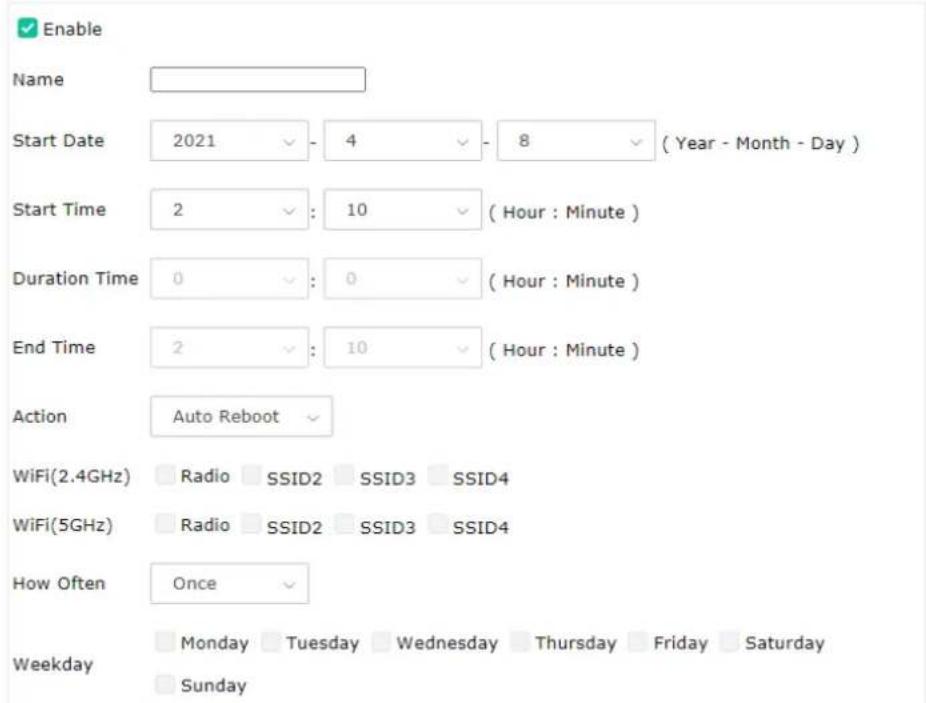
text_image
Enable Name Start Date 2021 - 4 - 8 (Year - Month - Day ) Start Time 2 : 10 (Hour : Minute ) Duration Time 0 : 0 (Hour : Minute ) End Time 2 : 10 (Hour : Minute ) Action Auto Reboot WiFi(2.4GHz) Radio SSID2 SSID3 SSID4 WiFi(5GHz) Radio SSID2 SSID3 SSID4 How Often Once Weekday Monday Tuesday Wednesday Thursday Friday Saturday SundayNote: 1. If we set WiFi schedule "Start Time" and "End Time" at exact same time, AP will execute the schedule without an end time.
2. "Internet Pause" will add Mac into ACL, so please make sure ACL isn't full before applying schedule. If ACL policy is "Disable", AP will change it to "Blocked".

Available settings are explained as follows:
| Item | Description |
| Enable Check to enable such schedule profile. | |
| Start Date Specify the starting date of the schedule. | |
| Start Time Specify the starting time of the schedule. | |
| Duration Time Specify the duration (or period) for the schedule. | |
| End Time Specify the ending time of the schedule. | |
| Action Specify which action should apply the schedule. | |
| Auto RebootAuto RebootWi-Fi UPWi-Fi DOWNLED DISABLELED ENABLEInternet Pauseta. | |
| In which, you have to specify the device object/device group profile for blocking certain wireless clients when Internet Pause is selected as the Action. | |
| WiFi(2.4GHz)/ WiFi(5GHz) | When Wi-Fi UP or Wi-Fi DOWN is selected as Action, you can check the Radio or SSID 2~4 boxes (2.4GHz and 5GHz respectively) to setup the network based on the schedule profile.Note: When Radio is selected, SSID2, SSID3 and SSID4 are not available for choosing, vice versa. Moreover, SSID2, SSID3, and SSID4 are not available for choosing if they are not enabled. |
| How Often Specify how often the schedule will be applied.Once - The schedule will be applied just onceWeekdays - Specify which days in one week should perform the schedule. | |
| Weekday | Choose and check the day to perform the schedule. It is available when Weekdays is selected as How Often. |
- After finishing this web page configuration, please click OK to save the settings. A new schedule profile has been created and displayed on the screen.
Applications >> Schedule
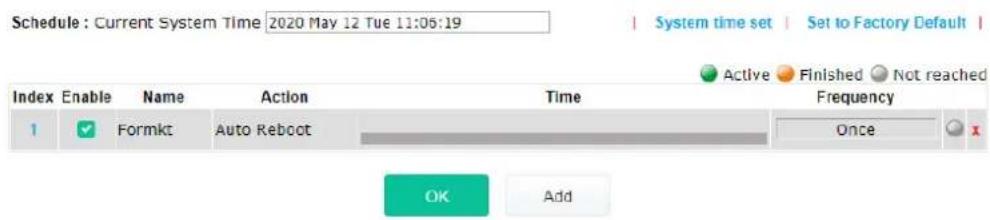
text_image
Schedule : Current System Time 2020 May 12 Tue 11:06:19 Index Enable Name Action Time Frequency 1 Formkt Auto Reboot Once OK AddIV-2-2 Apple iOS Keep Alive
To keep the wireless connection (via Wi-Fi) on iOS device in alive, VigorAP 920R will send the UDP packets with 5353 port to the specific IP every five seconds.
Applications >> Apple iOS Keep Alive
Enable Apple iOS Keep Alive
Apple iOS Keep Alive:
Apple iOS Keep Alive can keep Wifi connection of iOS device by sending UDP port 5353 packets every 5 seconds.
| Index | Apple iOS Keep Alive IP Address | Index | Apple iOS Keep Alive IP Address |
| 1 | 2 | ||
| 3 | 4 | ||
| 5 | 6 |

Available settings are explained as follows:
| Item | Description |
| Enable Apple iOS Keep Alive | Check to enable the function. |
| Index Display the setting | link. Click the index link to open the configuration page for setting the IP address. |
| Apple iOS Keep Alive IP Address | Display the IP address. |
Click OK to save the settings.
IV-2-3 Wi-Fi Auto On/Off
When VigorAP is able or unable to ping the specified host, the Wi-Fi function will be turned on or off automatically. The purpose of such function is to avoid wireless station roaming to an AP which is unable to access Internet.
Applications >> Wi-Fi Auto On/Off
Wi-Fi Auto On/Off

Enable Connection Detection
Ping Host
When the AP is unable to ping the host:
Turn on/off the Wi-Fi automatically when the AP is able/unable to ping the host. When the AP is unable to ping the host:
Wi-Fi:

LED:
No Change
OK
Available settings are explained as follows:
| Item | Description |
| Enable Auto Switch On/Off Wi-Fi | Check the box to enable such function. |
| Ping Host | Type an IP address (e.g., 8.8.8.8) or a domain name (e.g., google.com) for testing if the access point is stable or not. |
When the AP is unable to ping the host
| Wi-Fi | Off - When the AP is unable to ping the host, the Wi-Fi connectic be turned off.No Change - When the AP is unable to ping the host, the Wi-Fi connection will be on still. |
| LED | Off - When the AP is unable to ping the host, the LED indicator will be turned off.No Change - When the AP is unable to ping the host, the LED indicator will not be turned off. |
Click OK to save the settings.
IV-2-4 Sensor
The built-in thermometer will help you monitor the server or data communications room environment and notify you if the server room or data communications room is overheating.
During summer in particular, it is important to ensure that your server or data communications equipment are not overheating due to cooling system failures.
The built-in thermometer will continuously monitor the temperature of its environment. When a pre-determined threshold is reached you will be alerted via Syslog.
Sensor Settings
Applications >> Sensor Setting
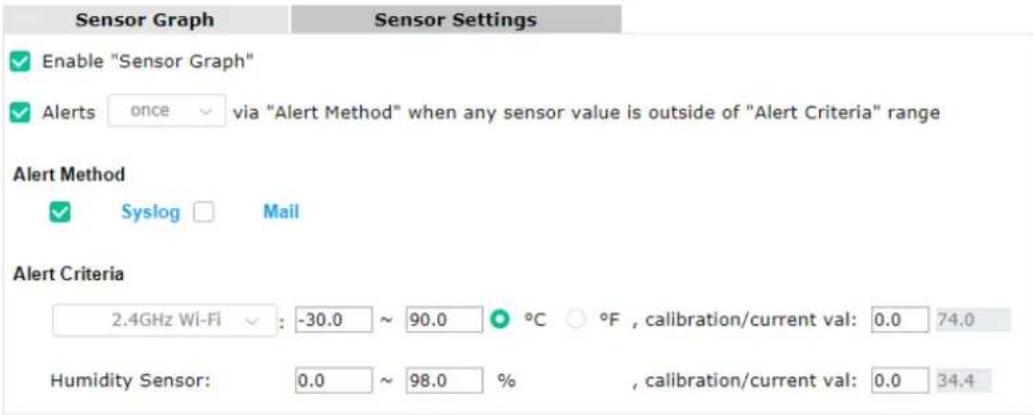
text_image
Sensor Graph Sensor Settings Enable "Sensor Graph" Alerts once via "Alert Method" when any sensor value is outside of "Alert Criteria" range Alert Method Syslog Mail Alert Criteria 2.4GHz Wi-Fi : -30.0 ~ 90.0 °C °F , calibration/current val: 0.0 74.0 Humidity Sensor: 0.0 ~ 98.0 % , calibration/current val: 0.0 34.4OK
Note:
- Wi-Fi temperature is only available when the selected Wi-Fi is enabled
Available settings are explained as follows:
| Item | Description |
| Enable Sensor Graph To display a graph for the connected sensor, check the box. | |
| Alerts once/per min via ..... | It can determine the time/interval to send an alert message.Once - An alert will be sent out once when the sensor value is outside the range defined in Alert Criteria.Per min. - Alert message will be sent out per minute when the sensor value is outside the range defined in Alert Criteria. |
| Alert Method Syslog - The log containing the alarm message will be recorded on Syslog if it is enabled.Mail - The log containing the alarm message will be sent by mail. | |
| Alert Criteria | Alert message will be sent out according to the rules specified in this field.Inside case - The temperature reading is obtained just from the data recorded inside the chip of VigorAP.2.4GHz Wi-Fi - The temperature reading for 2.4G Wi-Fi network operation is estimated by using 2.4GHz CPU Wi-Fi module.The built-in sensor of VigorAP contains temperature sensor and humidity sensor. Please type the upper limit and lower limit forVigorAP system to send out temperature alert / humidity alert.Calibration / current val- Type values used for correcting the temperature error and humidity error. C^/F^ - Choose the display unit of the temperature. There are two types for you to choose. |
Sensor Graph
Below shows an example of temperature graph.
Click the circles (blue, orange, and green) on the screen to display / close the wave charts related to "inside case", "2.4GHz Wi-Fi", and "Relative Humidity".
Applications >> Sensor Graph
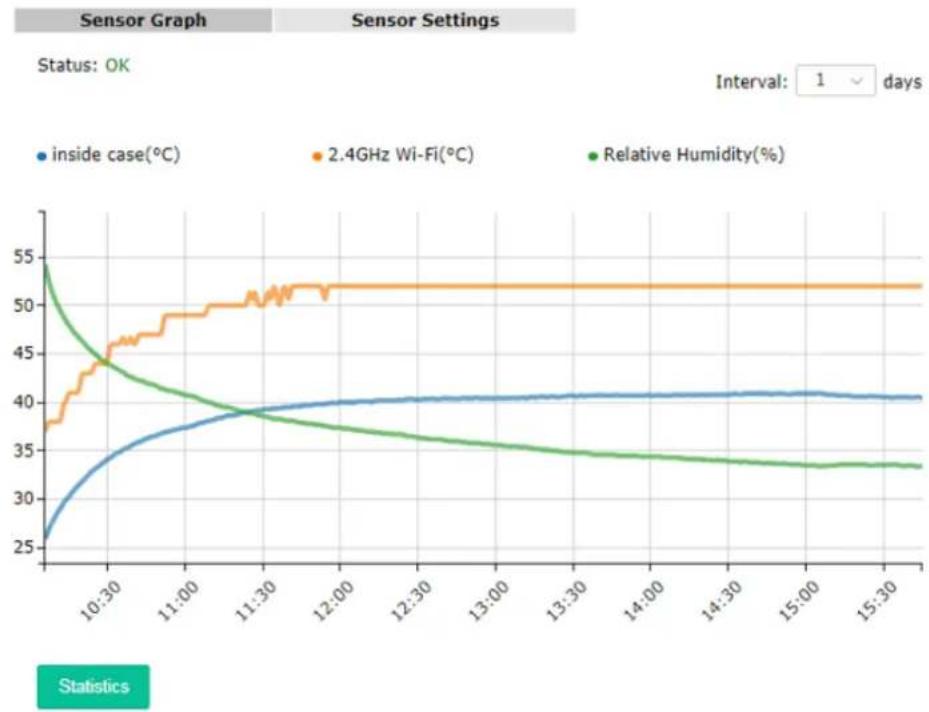
line
| Time | inside case(°C) | 2.4GHz Wi-Fi(°C) | Relative Humidity(%) | |--------|-----------------|------------------|----------------------| | 10:30 | 25 | 38 | 55 | | 11:00 | 35 | 48 | 45 | | 11:30 | 39 | 50 | 40 | | 12:00 | 40 | 52 | 38 | | 12:30 | 40 | 52 | 37 | | 13:00 | 40 | 52 | 36 | | 13:30 | 40 | 52 | 35 | | 14:00 | 40 | 52 | 34 | | 14:30 | 40 | 52 | 34 | | 15:00 | 40 | 52 | 34 | | 15:30 | 40 | 52 | 34 |Chapter V Mobile APP, DrayTek Wireless

natural_image
Abstract icon of a stylized hand holding a document, rendered in red and gray (no text or symbols)V-1 Introduction of DrayTek Wireless
VigorAP AP20R supports Android/iOS APP : DrayTek Wireless. The mobile user can find the APP through Apple Store / Android APP.
After downloading the APP, a mobile user is able to access and login the configuration page of VigorAP. It can be used to set up or check status of VigorAP device in different Operation Mode.
Note:
Before using the DrayTek Wireless APP, please ENABLE your Wi-Fi feature first. Then, select the Wi-Fi network with Vigor access point(s) connected physically.
It is not necessary to connect to VigorAP physically. The mobile user must connect to one network with the same subnet as the VigorAP.
V-2 Create a New Network
- Run DrayTek Wireless APP.

text_image
DrayTek Wireless Dray Tek Version 1.1.1 Copyright© DrayTek Corp.- The system will open the NETWORK page to ask you create a new network first.
- There are two methods for creating a new network. Click "+" or press the search button
A: Click "+" to enter the next page. Enter the required information for the device that you want to create a network.
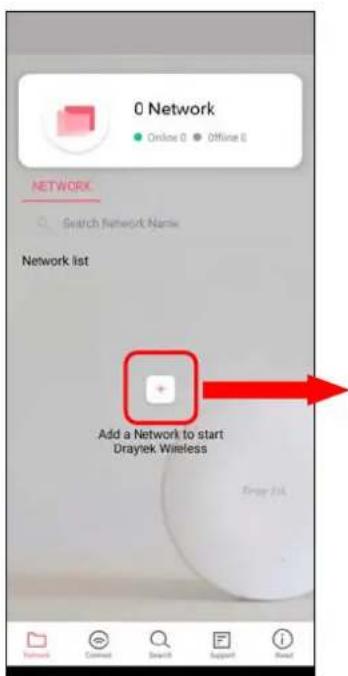
text_image
0 Network Online 0 Offline 0 NETWORK Search Network Name Network list Add a Network to start Drayek Wireless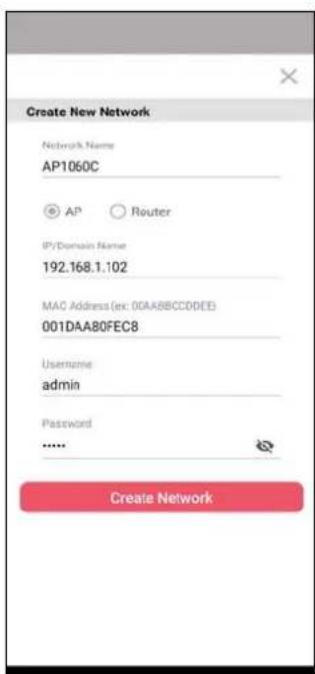
text_image
Create New Network Network Name AP1060C AP Router IP/Domain Name 192.168.1.102 MAC Address (ex: 0GAABBCCDDEE) 001DAA80FEC8 Username admin Password ...... Create NetworkB: Press the search button. Later, the system will show the device searched. Select the one you want and click the name to get the detailed information.
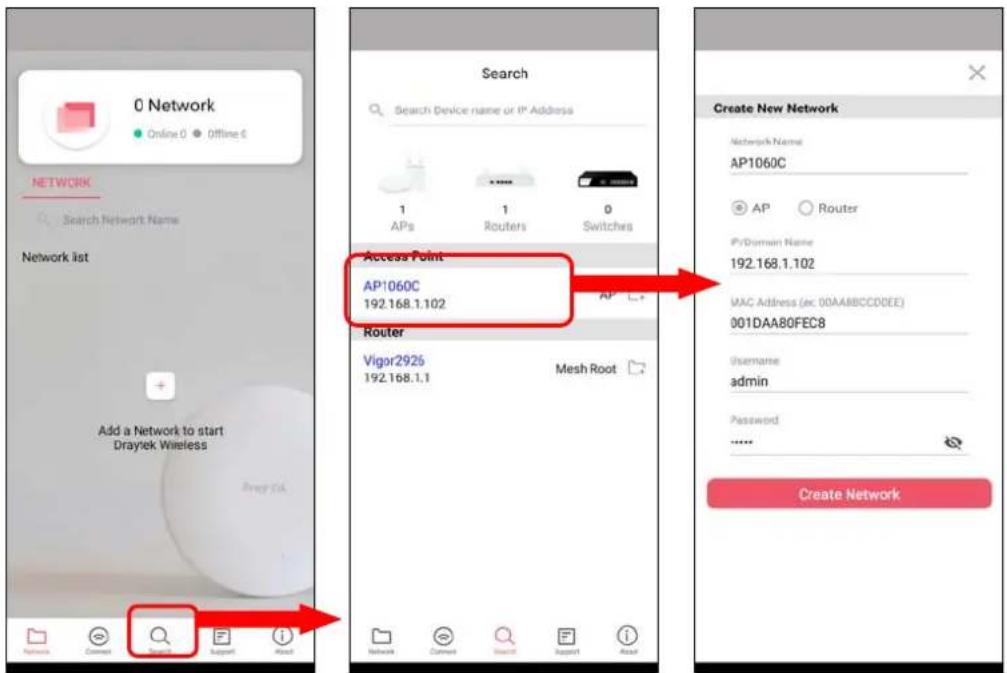
text_image
0 Network Online 0 Offline € NETWORK Search Network Name Network list Add a Network to start Draytek Wireless Network Comment Search Support About Search Search Device name or IP Address 1 APs 1 Routers 0 Switches Access Point AP1060C 192.168.1.102 Router Vigor2925 192.168.1.1 Mesh Root Create New Network Network Name AP1060C AP Router P/Domain Name 192.168.1.102 MAC Address (ex. 00AA8BCCDDEE) 001DAA80FEC8 Username admin Password ...... Create Network- After clicking Create Network, a new network will be shown on the screen.

text_image
1 Network ● Online 1 ● Offline 5 NETWORK Search Network Name Network list AP1060C VigaoAPT060C 192.708.3.102 Proxy 14.5V-3 Wizard - Mesh Root and Mesh Node
The wizard can assist to configure mesh root and mesh node(s).
- Click and hold the network item till available actions (Wizard, Edit and Delete) shown on the screen. Select and click Wizard.

text_image
1 Network Online 1 Offline 6 NETWORK Search Network Name Network list AP1060C VigasAP1060C F92.588.1.102 Network list AP1060C Wizard Edit Delete- After clicking Wizard, select Mesh Root as the Operation Mode. The default Group Name is VigorMesh. Change the name if required. Click Next to enter the next page.

text_image
Operation Mode WiFi Setup Admin Password Finish Operation Mode Operation Mode Mesh Root Group Name VigcrMesh Internet HOUTISH MEGANOOT HIGH MODE Next Cancel WiFi Name & Password WiFi Name AP1060C 7 / 32 WiFi Password .......... Your password seems unsafe 8 / 64 Enable 2nd WiFi Next CancelOn the WiFi Name & Password page, enter the WiFi Name and the password (should be the same as the security settings set on the device's WUI). You can also enable 2nd SSID by enabling the function of 2nd WiFi. Then click the Next button.
- On the Password Setting page, enter the admin password and confirm the password. Then click Next for the APP to verify the password. If successful, the Finish button will appear.

text_image
Operation Mode WiFi Setup Admin Password Finish Password Setting Admin Password ****** Your password seems unsafe 5 / 20 Confirm password ****** 5 / 20 Next Cancel Check & Apply WiFi Name : AP1060C WiFi Password : 00000000 Admin Password: admin DP Mode : Mesh Root Finish Cancel- After sending configuration to VigorAP, it will take some time to take effect. Now, the VigorAP has been set as Mesh Root. You can search several Mesh Nodes which do not belong to any other mesh group by clicking Next.
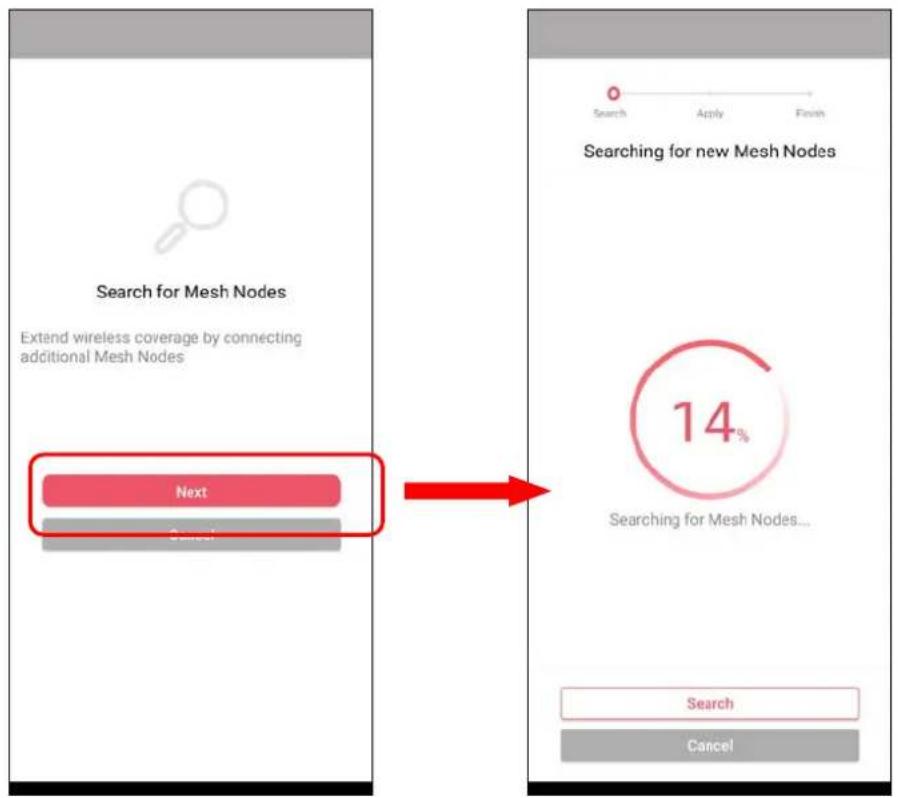
text_image
Search for Mesh Nodes Extend wireless coverage by connecting additional Mesh Nodes Next Cancel Searching for new Mesh Nodes 14% Searching for Mesh Nodes... Search Cancel- Later, available VigorAP devices will be shown as the left figure below. Choose the Mesh Node you want to add and give a device name (e.g., VigorAP903) for it. The selected mesh node(s) will be grouped under such mesh root. Click Next. After checking the quantity of mesh node and mesh information and click Apply.

text_image
Choose Mesh Nodes to Add VigorAP903 00:50:7F:F1:92:64 VigorAP903 Next Search Cancel Mesh Nodes Setup Applying configuration to Mesh Nodes 1 MESH NODES SELECTED WiFi Name : AP1060C WiFi Password : 00000000 Group Name : VigarMesh Apply Cancel- Wait until the mesh root applies general configuration to the mesh nodes. Later, current status of the mesh node(s) will be shown on the following page. Click Finish.
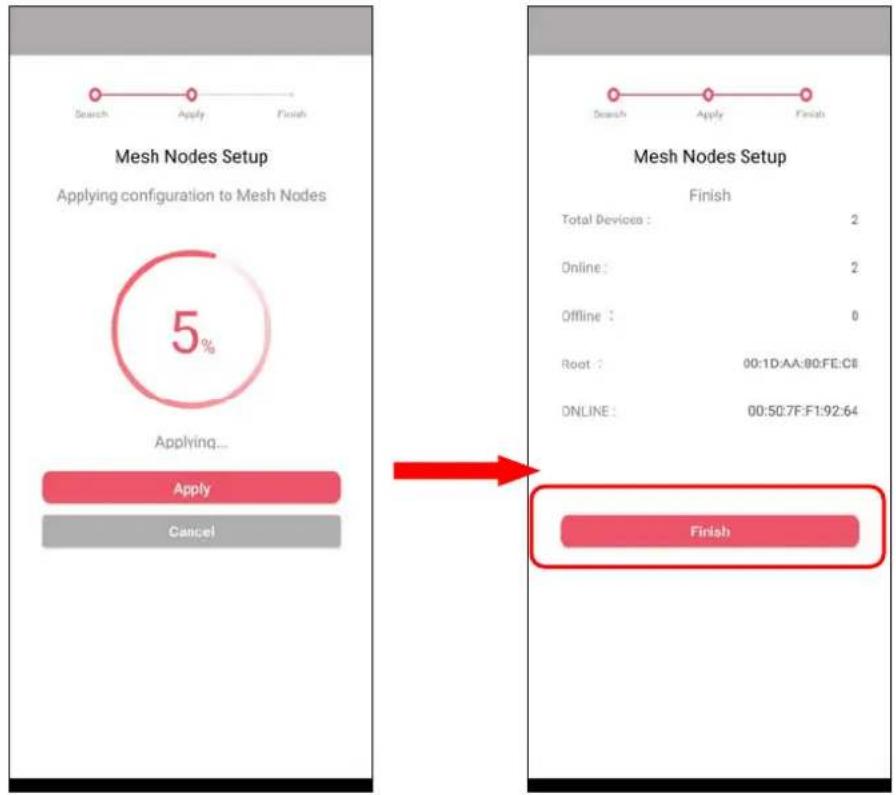
text_image
Mesh Nodes Setup Applying configuration to Mesh Nodes 5% Applying... Apply Cancel Mesh Nodes Setup Finish Total Devices : 2 Online : 2 Offline : 0 Root : 00:1D:AA:80:FE:C8 ONLINE : 00:50:7F:F1:92:64 Finish- A network with mesh root and mesh node has been set up successfully.
Run DrayTek Wireless APP.
text_image
DrayTek Wireless Dray Tek Version 1.1.1 Copyright © DrayTek Corp.
text_image
1 Network Online 1 Offline 0 NETWORK Search Network Name Network list AP1060C Vigor AP1060C 192.168.1.162 PlayTet Network Connect Search Support AboutAvailable settings are explained as follows:
| Item | Description |
| Network Create a new network. | |
| Connect Connect to a device (AP/CPE). | |
| Search Search available devices for connection. | |
| Support Display a list of models supported by this APP. | |
| About Display the version information of this APP. | |
V-4-1 Network
The Network page allows you to search devices (CPE/AP) for creating a network or editing an existing network (refer to V-2 for detailed Information).
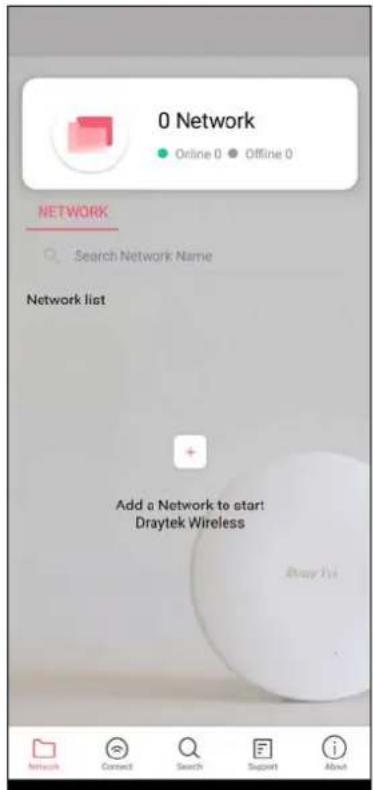
text_image
0 Network ● Online 0 ● Offline 0 NETWORK Search Network Name Network list + Add a Network to start! Draytek Wireless DraytekFor checking the general information of certain device, click the existing item under the Network list to open the Dashboard of the selected device.
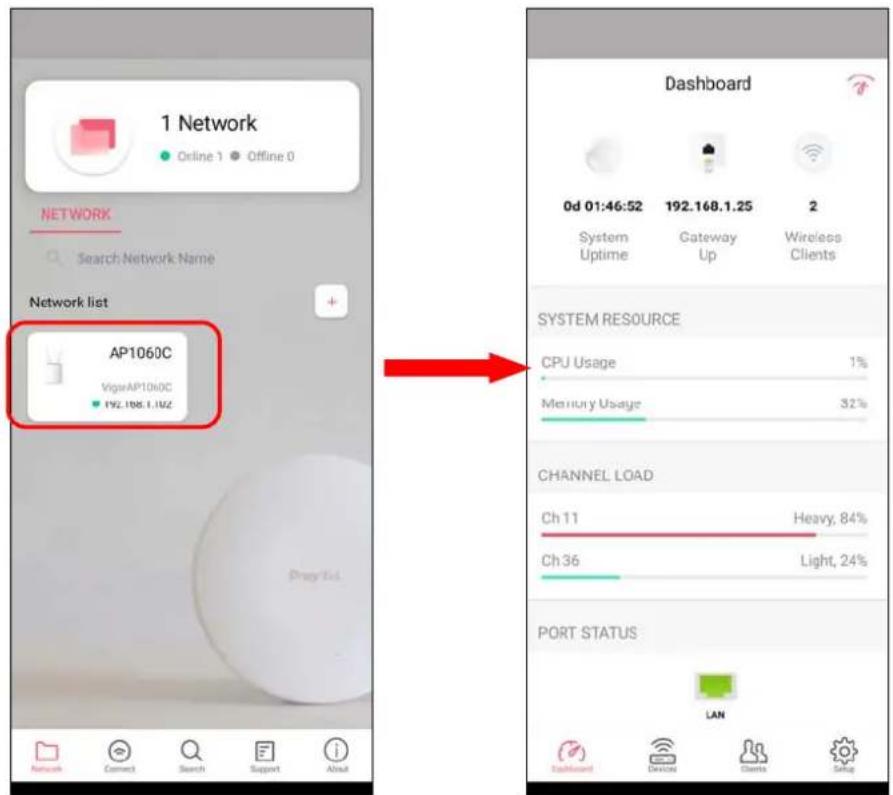
text_image
1 Network Online 1 Offline 0 NETWORK Search Network Name Network list AP1060C VigiaAP1060C 192.168.1.10Z Prey List Dashboard 0d 01:46:52 192.168.1.25 2 System Uptime Gateway Up Wireless Clients SYSTEM RESOURCE CPU Usage 1% Memory Usage 32% CHANNEL LOAD Ch 11 Heavy, 84% Ch 36 Light, 24% PORT STATUS LAN Dashboard Devices Clients SetupV-4-2 Connect
For viewing the detailed information of a selected CPE/AP, click the Connect icon (Connect) to open the following left figure. Enter the SSID, password and select an encryption mode of the device.
Then click the Connect button (Connect) for accessing into the dashboard of the device.

text_image
Connect Enter your SSID & Password Scan QR Code SSID 0 / 32 Password 0 / 64 WPA3/WPA2 Personal > Connect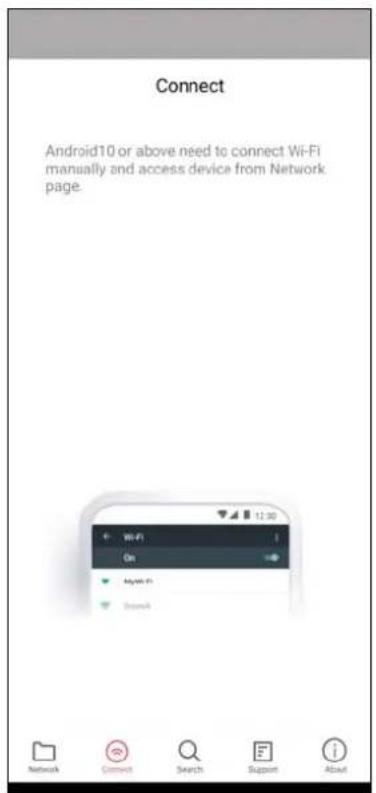
text_image
Connect Android10 or above need to connect Wi-Fi manually and access device from Network page. Wi-Fi On My WiFi DramarkOr, click Scan (28) to scan the QR code printed on VigorAP packaging box to connect the designated VigorAP.
V-4-2-1 Dashboard of the Device
Below shows the dashboard of the device. Use the scroll bar up and down for viewing other information.
Information for Mesh Root Mode
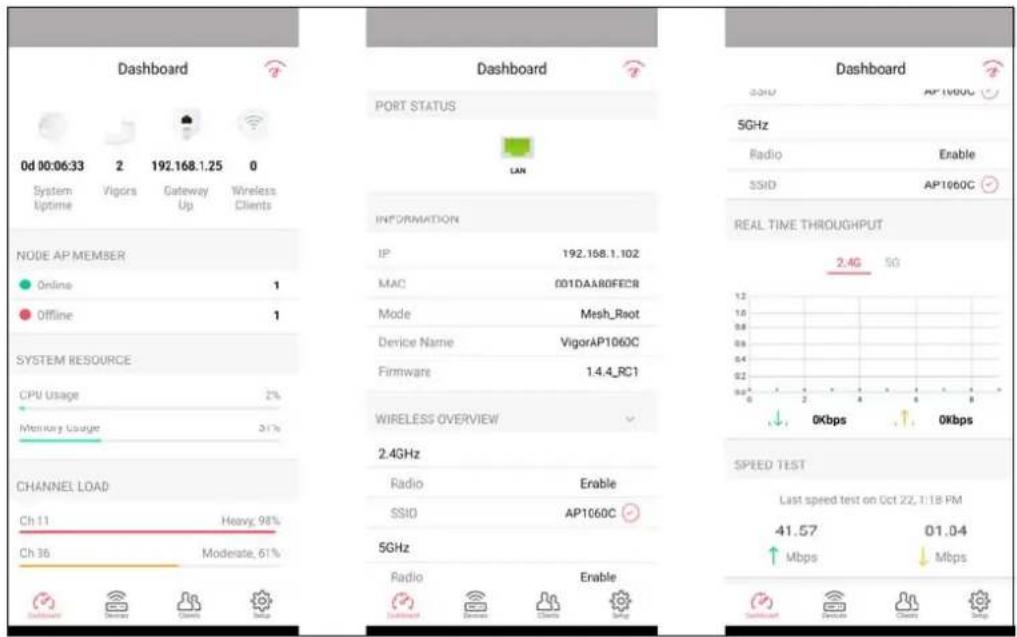
text_image
Dashboard 0d 10:06:33 2 192.168.1.25 0 System Uptime Vigors Gateway Wireless Clients NODE AP MEMBER Online 1 Offline 1 SYSTEM RESOURCE CPU Usage 2% Memory Usage 3.1% CHANNEL LOAD Ch 11 Heavy, 98% Ch 36 Moderate, 61% Dashboard PORT STATUS LAN INFORMATION IP 192.168.1.102 MAC 001DAA80FECB Mode Mesh_Root Device Name VigorAP1060C Firmware 1.4.4_RC1 WIRELESS OVERVIEW 2.4GHz Radio Enable SSID AP1060C 5GHz Radio Enable Dashboard 5GHz Radio Enable SSID AP1060C REAL TIME THROUGHPUT 2.4G 5G 0Kbps 0Kbps SPEED TEST Last speed test on Oct 22, 1:18 PM 41.57 01.04 Mbps MbpsInformation for AP Mode

text_image
Dashboard 0d 01:46:52 192.168.1.25 2 System Uptime Gateway Up Wireless Clients SYSTEM RESOURCE CPU Usage 1% Memory Usage 32% CHANNEL LOAD Ch 11 Heavy, 84% Ch 36 Light, 24% PORT STATUS LAN INFORMATION IP 192.168.1.102 MAC 0010AA80FEC8 Mode AP Device Name VigorAP1060C Firmware 1.4.4_RC1 WIRELESS OVERVIEW 2.4GHz Radio Enable SSID AP1060C ✓ 5GHz Radio Enable SSID AP1060C ✓ REAL TIME THROUGHPUT SPEED TEST Last speed test on Oct 22.1:18 PM 41.57 01.04 ↑ Mbps ↓ MbpsAvailable settings are explained as follows:
| Item | Description |
| Dashboard The dashboard is designed with Responsive Web Design. You can click Dashboard to connect to the selected VigorAP WUI. | |
| Devices All of the devices (mesh root and mesh nodes) controlled by the mesh group will be shown on this page. One mesh group contains up to eight devices. | |
| Clients | Displays general information for all clients / groups in Mesh Group. |
| Setup Configures TR-069, Manage and WLAN settings for the connected VigorAP. | |
V-4-2-2 Devices
Below shows the icon view and list view of the device. One mesh group contains up to eight devices. Icon view and List view for Mesh Root Mode
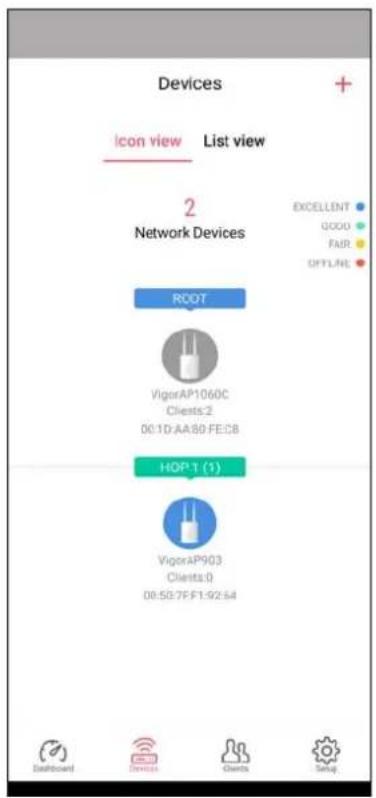
text_image
Devices Icon view List view Network Devices ROOT VigorAP1060C Clients:2 00:1D AA:89 FE:C8 HOP 1 (1) VigorAP903 Clients:0 00:50:7F:F1:92:54 EXCELLENT GOOD FAIR OFFLINE Dashboard Devices Clients Setup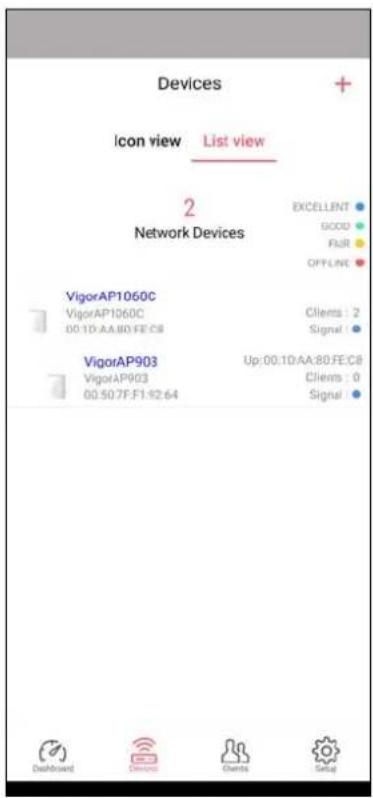
text_image
Devices Icon view List view 2 Network Devices EXCELLENT GOOD FLIR OFFLINE VigorAP1060C VigorAP1060C 00:1D:AA:80:FE:C8 Clients : 2 Signal VigorAP903 VigorAP903 00:507F:F1:42:64 Up:00:1D:AA:80:FE:C8 Clients : 0 Signal Dashboard Devices Clients SocialAvailable settings are explained as follows:
| Item | Description |
| Icon view / List view | Switch to display the network devices in icons or a list. |
| "+" To add more mesh node, click the "+" link. | |

text_image
Device VigorAP1060C INFORMATION IP 192.168.1.102 Gateway 192.168.1.25 MAC 001DAA80FEC8 Model VigorAP 1060C Firmware 1.4.3_RC2 DHCP Client Enabled DHCP Server Disabled Build Date g1001_47fbc8b Thu Oct 7 15:06:59 CST 2021 ACS Server SYSTEM SETTING Reboot Device Dashboard Division Clients SettingsAvailable settings are explained as follows:
| Item | Description |
| INFORMATION | Display general information of the device (e.g., IP address, Gateway, MAC and etc.) |
| SYSTEM SETTINGS Reboot Device - Click to reboot the device immediately. | |
V-4-2-3 Clients / Groups
This page shows relationship between devices and groups.
All client members can be classified (into groups). Additionally, the network connection time of the device group can be adjusted.
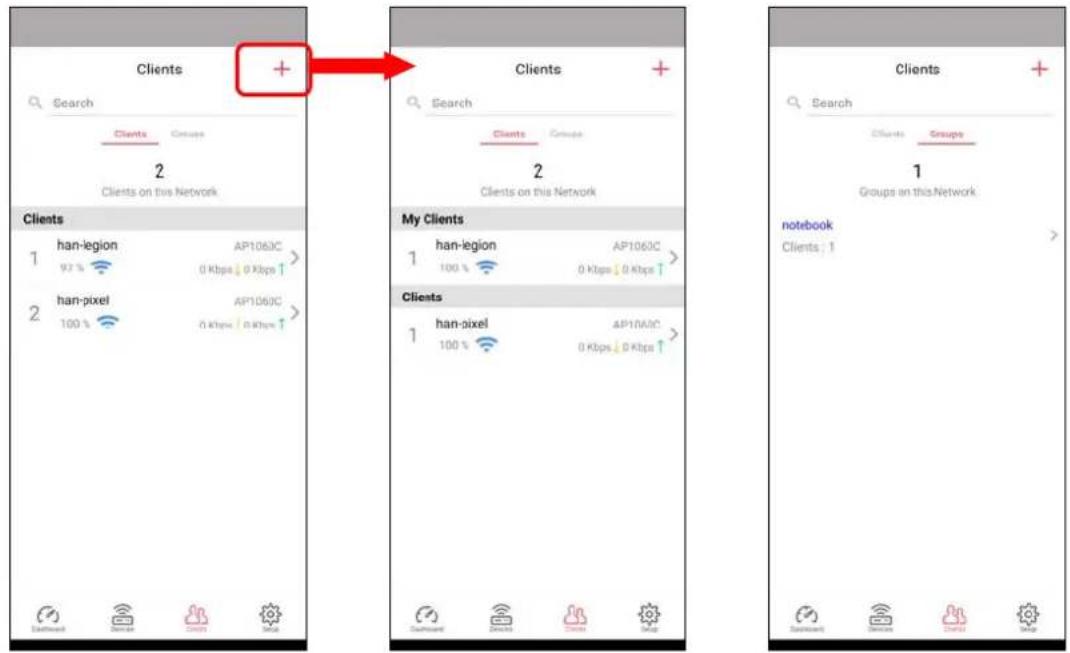
text_image
Clients Search Clients Groups 2 Clients on this Network Clients 1 han-legion AP1060C 92% 0 Kbps ↓ 0 Kbps ↑ 2 han-pixel AP1060C 100% 0 Kbps ↓ 0 Kbps ↑ My Clients 1 han-legion AP1060C 100% 0 Kbps ↓ 0 Kbps ↑ Clients 1 han-pixel AP1060C 100% 0 Kbps ↓ 0 Kbps ↑ Notebook Clients : 1 Search Clients Groups 1 Groups on this NetworkAvailable settings are explained as follows:
| Item | Description |
| Search Search available CPE/AP around. | |
| Clients | + - Click it to open the page containing My Clients for adding new clients under My Clients.My Clients- Devices under this area can be classified under a group.Clients- Displays devices which have not been classified under any network group. |
| Groups Displays the group member and action. | + - Click it to display the items listed under My Clients. Select the one you want to add it under current group. |
Click the group to access the group setup page. If required, click Edit to add or remove the group member. Or click Pause Schedule to modify the schedule of the group.

text_image
Clients Search Clients Groups 1 Groups on this Network notebook Clients : 1 Group Setup Edit notebook 1 Client Action Pause Schedule > Group Member has-legion 34:2E:B7:98:64DF Pause Schedule Custom Pause List weekend Fri. Sat. 06:00 - 22:00V-4-2-4 Setup
Setup page is used for configuring TR-069, Admin Password, Wireless LAN and Wi-Fi Blocklist settings of the Vigor device.

text_image
Setup TR069 > Management > WLAN > Wi-Fi Blocklist >Chapter VI Troubleshooting

natural_image
Red and black wrench icon with hexagonal and curved shapes (no text or symbols)VI-1 Diagnostics
This section will guide you to solve abnormal situations if you cannot access into the Internet after installing the router and finishing the web configuration. Please follow sections below to check your basic installation status stage by stage.
- Checking if the hardware status is OK or not.
- Checking if the network connection settings on your computer are OK or not.
- Pinging the router from your computer.
- Checking if the ISP settings are OK or not.
- Backing to factory default setting if necessary.
If all above stages are done and the router still cannot run normally, it is the time for you to contact your dealer or DrayTek technical support for advanced help.
Diagnostic tools provide a useful way to view or diagnose the status of your VigorAP 920R series.

text_image
Diagnostics System Log Speed Test Traffic Graph Alert Event WLAN (2.4GHz) Statistics WLAN (5GHz) Statistics Interference MonitorVI-1-1 System Log
At present, only System Log is offered.
Diagnostics >> System Log
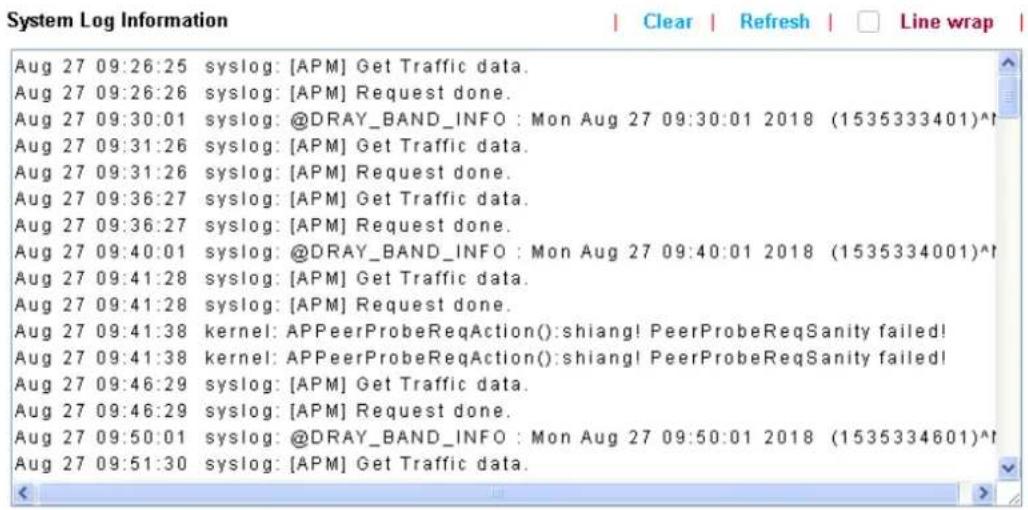
text_image
System Log Information Aug 27 09:26:25 syslog: [APM] Get Traffic data. Aug 27 09:26:26 syslog: [APM] Request done. Aug 27 09:30:01 syslog: @DRAY_BAND_INFO : Mon Aug 27 09:30:01 2018 (1535333401)^() Aug 27 09:31:26 syslog: [APM] Get Traffic data. Aug 27 09:31:26 syslog: [APM] Request done. Aug 27 09:36:27 syslog: [APM] Get Traffic data. Aug 27 09:36:27 syslog: [APM] Request done. Aug 27 09:40:01 syslog: @DRAY_BAND_INFO : Mon Aug 27 09:40:01 2018 (1535334001)^() Aug 27 09:41:28 syslog: [APM] Get Traffic data. Aug 27 09:41:28 syslog: [APM] Request done. Aug 27 09:41:38 kernel: APPeerProbeReqAction():shiang! PeerProbeReqSanity failed! Aug 27 09:41:38 kernel: APPeerProbeReqAction():shiang! PeerProbeReqSanity failed! Aug 27 09:46:29 syslog: [APM] Get Traffic data. Aug 27 09:46:29 syslog: [APM] Request done. Aug 27 09:50:01 syslog: @DRAY_BAND_INFO : Mon Aug 27 09:50:01 2018 (1535334601)^() Aug 27 09:51:30 syslog: [APM] Get Traffic data.VI-1-2 Speed Test
Click the Start button on the page to test the speed. Such feature can help you to find the best installation place for Vigor AP.
Diagnostics >> Speed Test
Speed Test
Welcome to VigorAP920RP Speed Test.
This test allows you to find out the best place for VigorAP920RP. You can execute the speed test at different places of the building and select the best location for it. The performance test result is only for your reference.
Start
VI-1-3 Traffic Graph
Click Traffic Graph to open the web page. Choose one of the managed Access Points, LAN-A, daily or weekly for viewing data transmission chart. Click Refresh to renew the graph at any time.
Diagnostics >> Traffic Graph

line
| Time | TX (Kbps) | RX (Kbps) | |--------|-----------|-----------| | 8:13 | 0 | 0 | | 10:13 | 0 | 0 | | 12:13 | 0 | 0 | | 14:13 | 0 | 0 | | 16:13 | 28 | 2 | | 18:13 | 58 | 2 | | 20:13 | 0 | 0 | | 22:13 | 0 | 0 | | 0:13 | 0 | 0 | | 2:13 | 0 | 0 | | 4:13 | 0 | 0 | | 6:13 | 0 | 0 | | 8:13 | 23 | 8 | | 10:13 | 0 | 0 | | 12:13 | 24 | 2 | | 14:13 | 0 | 0 |The horizontal axis represents time; the vertical axis represents the transmission rate (in Kbps).
VI-1-4 Alert Event
Diagnostics >> Alert Event
Refresh
| Time | Class | Event | Comment |
| 2023/02/20 11:45:19 | system | Config Changed | |
| 2023/02/20 11:43:06 | system | Config Changed | |
| 2023/02/20 11:26:53 | WiFi | WiFi channel changed | Wireless 5G Channel 157 (Auto Channel Selection) |
| 2023/02/20 11:26:47 | system | Config Changed |

line
| Time | system total count | UI total count | WIFI total count | Wlan total count | Mesh total count | |--------|--------------------|----------------|------------------|------------------|------------------| | 4PM | 0 | 0 | 0 | 0 | 0 | | 10PM | 0 | 0 | 0 | 0 | 0 | | 4AM | 0 | 0 | 0 | 0 | 0 | | 10AM | 0 | 0 | 0 | 0 | 0 | | 4PM | 0 | 0 | 0 | 0 | 0 | | 10PM | 0 | 0 | 0 | 0 | 0 | | 4AM | 0 | 0 | 0 | 0 | 0 | | 10AM | 4 | 1 | 2 | 1 | 2 | | Peak | 4 | 1 | 1 | 1 | 2 |VI-1-5 WLAN (2.4GHz) Statistics
Such page is used for debug by RD only.
Diagnostics >> WLAN (2.4GHz) Statistics
Auto-Refresh
Refresh
| Tx Data Packets | 0 | Rx Data Packets | 0 |
| Tx Data Bytes | 0 | Rx Data Bytes | 0 |
| Average Tx Rate (kbps) | No Station | Average Rx Rate (kbps) | No Station |
| Tx Unicast Data Packets | 0 | Rx PHY errors | 0 |
| Tx Multi/Broadcast Data Packets | 0 | Rx CRC errors | 1799 |
| Tx failures | 0 | Rx MIC errors | 0 |
| Rx Decryption errors | 0 | ||
| Rx errors | 0 |
| SSID1(DrayTek-5CA658) | SSID2(N/A) | SSID3(N/A) | SSID4(N/A) | |
| Tx Data Packets | 0 | N/A | N/A | N/A |
| Tx Data Bytes | 0 | N/A | N/A | N/A |
| Tx Data BytesTx Data Payload Bytes | 0 | N/A | N/A | N/A |
| Rx Data Packets | 0 | N/A | N/A | N/A |
| Rx Data Bytes | 0 | N/A | N/A | N/A |
| Rx Data Payload Bytes | 0 | N/A | N/A | N/A |
| Tx Unicast Data Packets | 0 | N/A | N/A | N/A |
| Tx Multi/Broadcast Data Packets | 0 | N/A | N/A | N/A |
| Average Tx Rate (kbps) | No Station | N/A | N/A | N/A |
| Average Rx Rate (kbps) | No Station | N/A | N/A | N/A |
| Rx errors | 0 | N/A | N/A | N/A |
| Tx failures | 0 | N/A | N/A | N/A |
VI-1-6 WLAN (5GHz) Statistics
Such page is used for debug by RD only.
Diagnostics >> WLAN (5GHz) Statistics
Auto-Refresh
Refresh
| Tx Data Packets | 0 | Rx Data Packets | 0 |
| Tx Data Bytes | 0 | Rx Data Bytes | 0 |
| Average Tx Rate (kbps) | No Station | Average Rx Rate (kbps) | No Station |
| Tx Unicast Data Packets | 0 | Rx PHY errors | 0 |
| Tx Multi/Broadcast Data Packets | 0 | Rx CRC errors | 21860 |
| Tx failures | 0 | Rx MIC errors | 0 |
| Rx Decryption errors | 0 | ||
| Rx errors | 0 |
| SSID1(DrayTek-5CA658) | SSID2(N/A) | SSID3(N/A) | SSID4(N/A) | |
| Tx Data Packets | 0 | N/A | N/A | N/A |
| Tx Data Bytes | 0 | N/A | N/A | N/A |
| Tx Data BytesTx Data Payload Bytes | 0 | N/A | N/A | N/A |
| Rx Data Packets | 0 | N/A | N/A | N/A |
| Rx Data Bytes | 0 | N/A | N/A | N/A |
| Rx Data Payload Bytes | 0 | N/A | N/A | N/A |
| Tx Unicast Data Packets | 0 | N/A | N/A | N/A |
| Tx Multi/Broadcast Data Packets | 0 | N/A | N/A | N/A |
| Average Tx Rate (kbps) | No Station | N/A | N/A | N/A |
| Average Rx Rate (kbps) | No Station | N/A | N/A | N/A |
| Rx errors | 0 | N/A | N/A | N/A |
| Tx failures | 0 | N/A | N/A | N/A |
VI-1-7 Interference Monitor
As an interference detector, VigorAP can detect all of the environmental interference factors for certain channel used or for all of the wireless channels.
Current Channel
The analysis page with information about wireless band, channel, transmission power, bandwidth, wireless mode, and country code chosen will be displayed on this page completely based on the wireless band (2.4G or 5G) selected. Also, channel status can be seen easily from this page.

line
| Metric | Value | | ---------------- | ----- | | Load | 9% | | Noise Floor | 1% | | APs | 2 | | Max RSSI | 8 | | Min RSSI | 19 |All Channels
This page displays the utilization and energy result for all channels based on 2.4G/5G. Click Refresh to get the newly update interference situation.
Diagnostics >> Interference Monitor
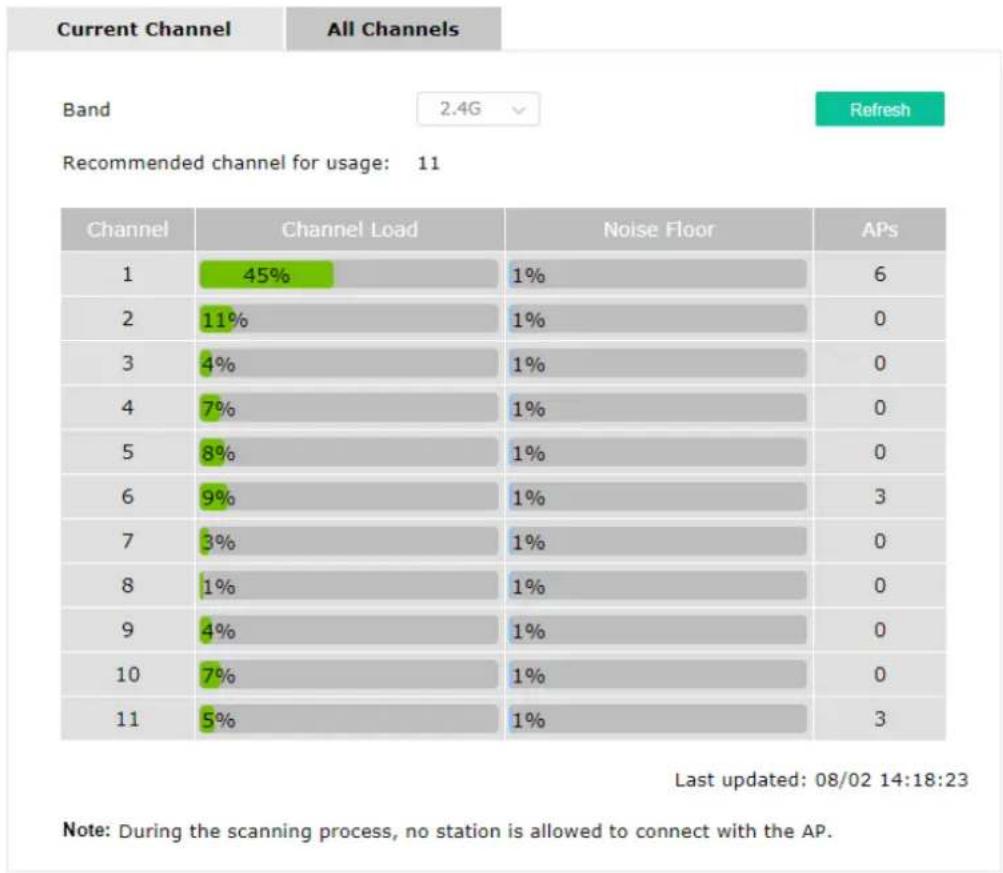
bar
| Channel | Channel Load (%) | Noise Floor (%) | | :--- | :--- | :--- | | 1 | 45 | 1 | | 2 | 11 | 1 | | 3 | 4 | 1 | | 4 | 7 | 1 | | 5 | 8 | 1 | | 6 | 9 | 1 | | 7 | 3 | 1 | | 8 | 1 | 1 | | 9 | 4 | 1 | | 10 | 7 | 1 | | 11 | 5 | 1 | Last updated: 08/02 14:18:23 Note: During the scanning process, no station is allowed to connect with the AP.VI-1-7 Support Area
When you click Support Area, you will be guided to visit www.draytek.com and open the corresponding pages directly.
text_image
Support Knowledge Base Product RegistrationVI-2 Checking the Hardware Status
Follow the steps below to verify the hardware status.
- Check the power line and cable connections.
Refer to "I-2 Mounting the Access Point" for details.
-
Power on the modem. Make sure the ACT LED and LAN LED are bright.
-
If not, it means that there is something wrong with the hardware status. Simply back to "I-2 Mounting the Access Point" to execute the hardware installation again. And then, try again.
VI-3 Checking the Network Connection Settings
Sometimes the link failure occurs due to the wrong network connection settings. After trying the above section, if the link is stilled failed, please do the steps listed below to make sure the network connection settings is OK.
VI-3-1 For Windows
Note:
The example is based on Windows 7 (Professional Edition). As to the examples for other operation systems, please refer to the similar steps or find support notes in www.draytek.com.
- Open All Programs>>Getting Started>>Control Panel. Click Network and Sharing Center.
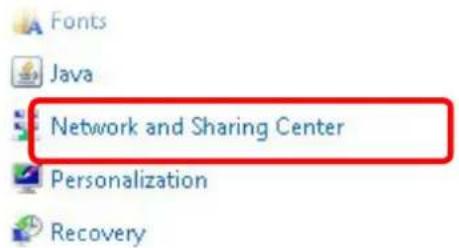
text_image
Fonts Java Network and Sharing Center Personalization Recovery- In the following window, click Change adapter settings.
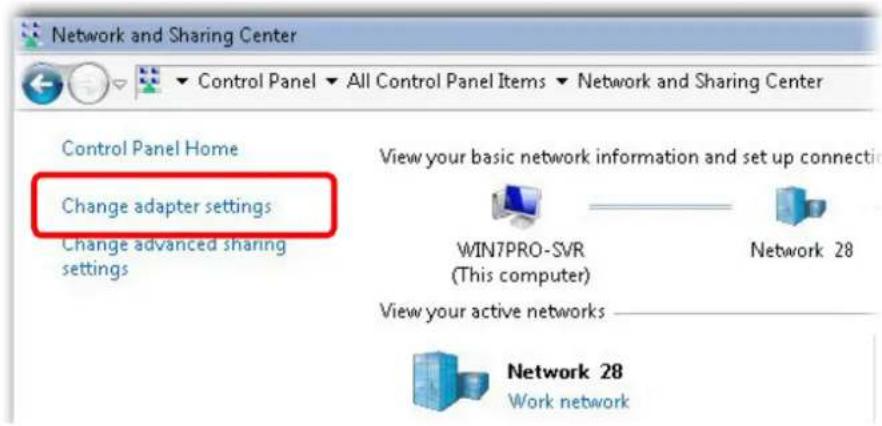
text_image
Network and Sharing Center Control Panel Home Change adapter settings Change advanced sharing settings View your basic network information and set up connecti WIN7PRO-SVR (This computer) Network 28 View your active networks Network 28 Work network- Icons of network connection will be shown on the window. Right-click on Local Area Connection and click on Properties.
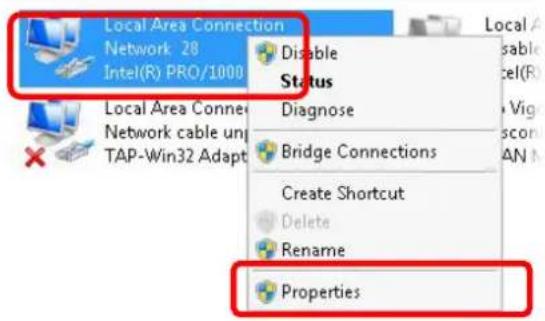
text_image
Local Area Connection Network 28 Intel(R) PRO/1000 Disable Status Diagnose Bridge Connections Create Shortcut Delete Rename Properties- Select Internet Protocol Version 4 (TCP/IP) and then click Properties.
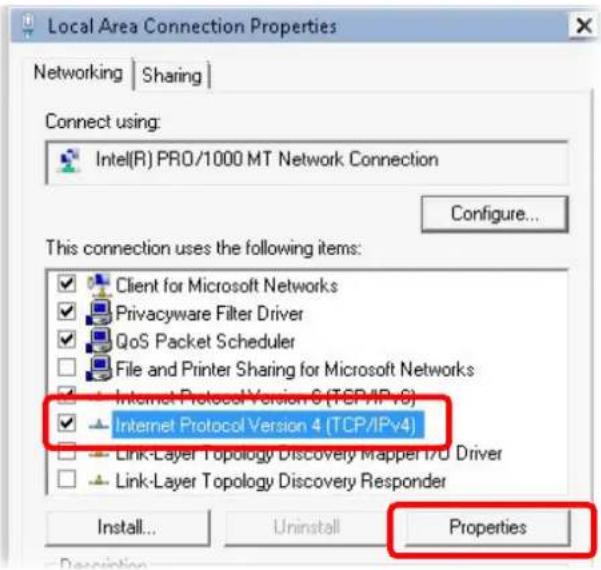
text_image
Local Area Connection Properties Networking | Sharing | Connect using: Intel(R) PRO/1000 MT Network Connection Configure... This connection uses the following items: Client for Microsoft Networks Privacyware Filter Driver QoS Packet Scheduler File and Printer Sharing for Microsoft Networks Internet Protocol Version 6 (TCP/IPV6) Internet Protocol Version 4 (TCP/IPv4) Link-Layer Topology Discovery Mapper I/O Driver Link-Layer Topology Discovery Responder Install... Uninstall Properties- Select Obtain an IP address automatically and Obtain DNS server address automatically. Finally, click OK.
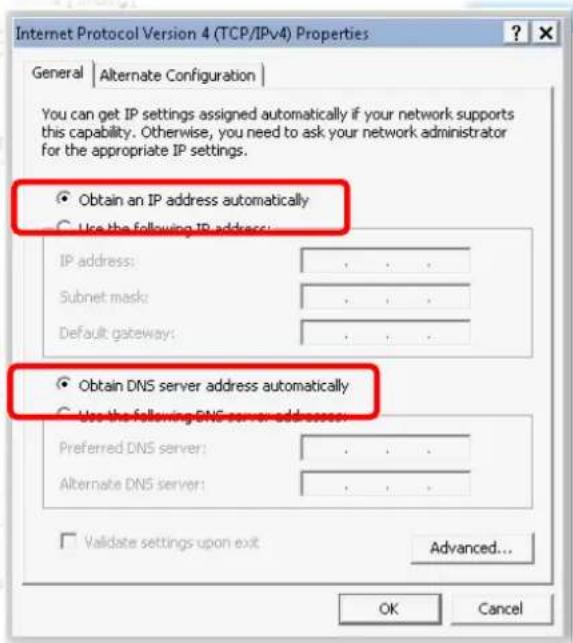
text_image
Internet Protocol Version 4 (TCP/IPv4) Properties General | Alternate Configuration | You can get IP settings assigned automatically if your network supports this capability. Otherwise, you need to ask your network administrator for the appropriate IP settings. Obtain an IP address automatically Use the following IP address: IP address: .... Subnet mask: .... Default gateway: .... Obtain DNS server address automatically Use the following DNS server address: Preferred DNS server: .... Alternate DNS server: .... Validate settings upon exit Advanced... OK CancelVI-3-2 For Mac Os
- Double click on the current used Mac Os on the desktop.
- Open the Application folder and get into Network.
- On the Network screen, select Using DHCP from the drop down list of Configure IPv4.
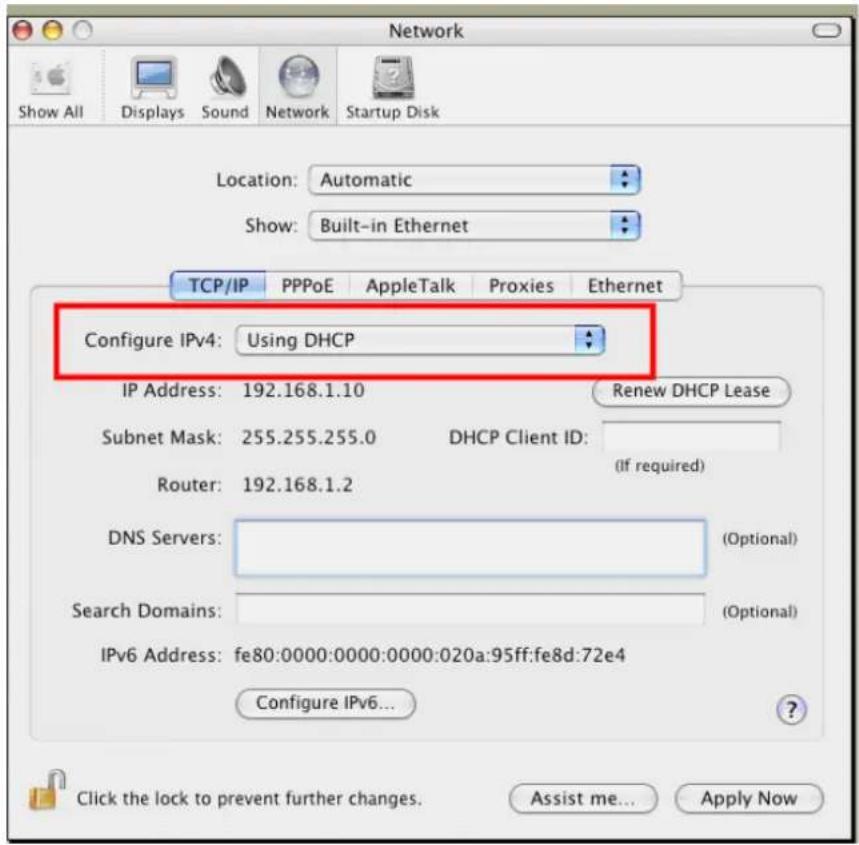
text_image
Network Show All Displays Sound Network Startup Disk Location:Automatic Show:Built-in Ethernet TCP/IP PPPoE AppleTalk Proxies Ethernet Configure IPv4:Using DHCP IP Address:192.168.1.10 Renew DHCP Lease Subnet Mask:255.255.255.0 DHCP Client ID: Router:192.168.1.2 (If required) DNS Servers: (Optional) Search Domains: (Optional) IPv6 Address:fe80:0000:0000:0000:020a:95ff:fe8d:72e4 Configure IPv6... Click the lock to prevent further changes. Assist me... Apply NowIV-4 Pinging the Device
The default gateway IP address of the modem is 192.168.1.2. For some reason, you might need to use "ping" command to check the link status of the modem. The most important thing is that the computer will receive a reply from 192.168.1.2. If not, please check the IP address of your computer. We suggest you setting the network connection as get IP automatically. (Please refer to the section V-2)
Please follow the steps below to ping the modem correctly.
VI-4-1 For Windows
-
Open the Command Prompt window (from Start menu> Run).
-
Type command (for Windows 95/98/ME) or cmd (for Windows NT/2000/XP/Vista/7). The DOS command dialog will appear.
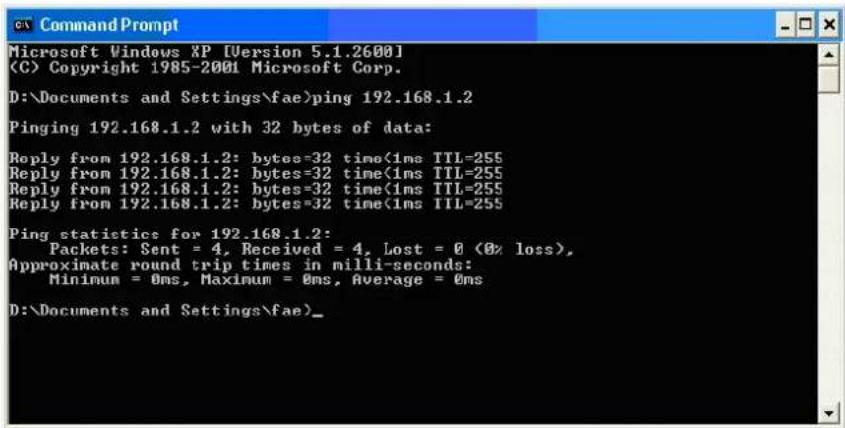
text_image
Microsoft Windows XP [Version 5.1.2600] (C) Copyright 1985-2001 Microsoft Corp. D:\Documents and Settings\fae>ping 192.168.1.2 Pinging 192.168.1.2 with 32 bytes of data: Reply from 192.168.1.2: bytes=32 time<1ms TTL-255 Reply from 192.168.1.2: bytes=32 time(1ms TTL-255 Reply from 192.168.1.2: bytes=32 time(1ms TTL-255 Reply from 192.168.1.2: bytes=32 time(1ms TTL-255 Ping statistics for 192.168.1.2: Packets: Sent = 4, Received = 4, Lost = 0 (0% loss), Approximate round trip times in milli-seconds: Minimum = 0ms, Maximum = 0ms, Average = 0ms D:\Documents and Settings\fae)_-
Type ping 192.168.1.2 and press [Enter]. If the link is OK, the line of "Reply from 192.168.1.2:bytes=32 time<1ms TTL=255" will appear.
-
If the line does not appear, please check the IP address setting of your computer
-
Double click on the current used Mac Os on the desktop.
-
Open the Application folder and get into Utilities.
-
Double click Terminal. The Terminal window will appear.
-
Type ping 192.168.1.2 and press [Enter]. If the link is OK, the line of "64 bytes from 192.168.1.2: icmp seq=0 ttl=255 time=xxxx ms" will appear.
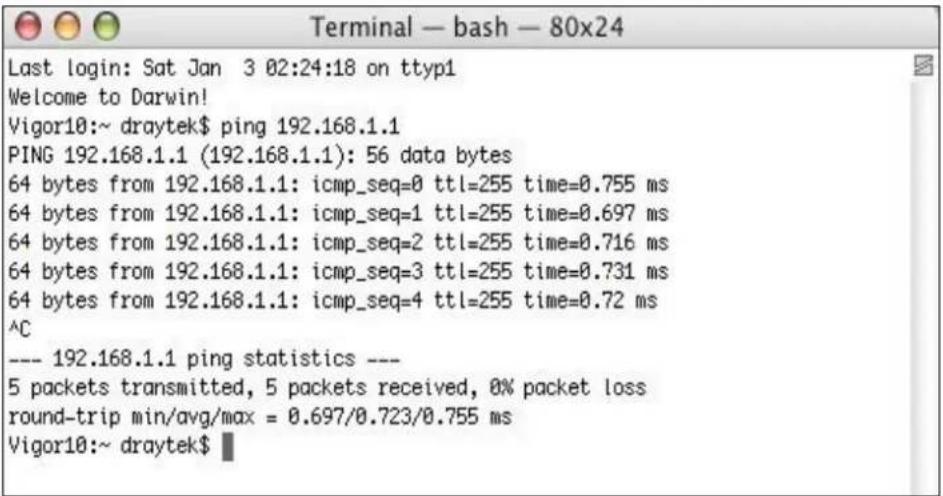
text_image
Terminal — bash — 80x24 Last login: Sat Jan 3 02:24:18 on ttyp1 Welcome to Darwin! Vigor10:~ draytek$ ping 192.168.1.1 PING 192.168.1.1 (192.168.1.1): 56 data bytes 64 bytes from 192.168.1.1: icmp_seq=0 ttl=255 time=0.755 ms 64 bytes from 192.168.1.1: icmp_seq=1 ttl=255 time=0.697 ms 64 bytes from 192.168.1.1: icmp_seq=2 ttl=255 time=0.716 ms 64 bytes from 192.168.1.1: icmp_seq=3 ttl=255 time=0.731 ms 64 bytes from 192.168.1.1: icmp_seq=4 ttl=255 time=0.72 ms ^C --- 192.168.1.1 ping statistics --- 5 packets transmitted, 5 packets received, 0% packet loss round-trip min/avg/max = 0.697/0.723/0.755 ms Vigor10:~ draytek$VI-5 Backing to Factory Default Setting
Sometimes, a wrong connection can be improved by returning to the default settings. Try to reset the modem by software or hardware.
Warning:
After pressing factory default setting, you will loose all settings you did before. Make sure you have recorded all useful settings before you pressing. The password of factory default is null.
VI-5-1 Software Reset
You can reset the modem to factory default via Web page.
Go to System Maintenance and choose Reboot System on the web page. The following screen will appear. Choose Using factory default configuration and click OK. After few seconds, the modem will return all the settings to the factory settings.
System Maintenance >> Reboot System
Reboot System
Do You want to reboot your AP?
Using current configuration
○ Using factory default configuration
OK
VI-5-2 Hardware Reset
While the modem is running, press the Factory Reset button and hold for more than 5 seconds. When you see the ACT LED blinks rapidly, please release the button. Then, the modem will restart with the default configuration.
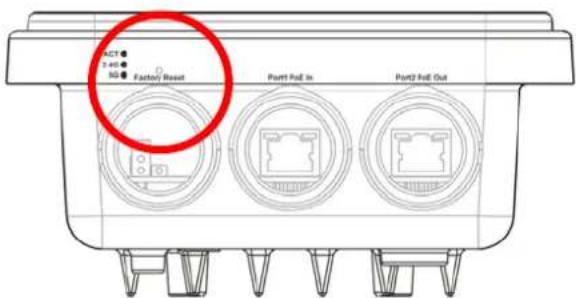
text_image
ACT 3.45 50 Factory Reset Port Pull In Port Pull OutAfter restore the factory default setting, you can configure the settings for the modem again to fit your personal request.
VI-6 Contacting DrayTek
If the modem still cannot work correctly after trying many efforts, please contact your dealer for further help right away. For any questions, please feel free to send e-mail to support@draytek.com.
Index
8
802.11n, 40
802.1x, 43
A
Access Control, 45
Action, 133
Advanced Setting, 47
AES, 31
Airtime Fairness, 52
Antenna, 48
AP Discovery, 50
AP Management, 112
AP Mode, 38, 69, 84
AP Operation Mode, 21
APM Log, 113
Apple iOS Keep Alive, 135
Applications, 132
Auth Mode, 47
Authentication Client, 129
Authentication Type, 129
Auto Adjustment, 52
Auto Channel Filtered Out List, 48
Auto Logout, 17
AutoSelect, 85
B
Backup, 129
Band Steering, 58
Bandwidth Limit, 22, 25, 30
Bandwidth Management, 51
Black List, 114
C
Central AP Management, 112
Certificate Management, 130
Changing Password, 18
Channel, 40, 85
Channel Width, 48
Client IP, 129
Client PinCode, 47
Client's MAC Address, 114
Configuration Backup, 101, 102
Connection Time, 55
Connection Type, 86
Country Code, 48
D
Daylight Saving, 106
Default Gateway, 86
Detection, 116, 122, 123
DHCP Client, 88
DHCP server, 15
Download Limit, 52
E
EAP Type, 129
Encryp Type, 47
End Time, 133
Extension Channel, 40
F
Factory Default Setting, 170
Fast Roaming, 57
Firmware Upgrade, 111
Force Overload Disassociation, 114
Fragment Length, 48
G
General Setup, LAN, 87
H
Hardware Installation, 3
Hardware Reset, 171
Hide SSID, 40
HTMIX, 40
HTTP port, 109
HTTPS, 131
HTTPS port, 109
|
Interference Monitor, 162
IP Address, 86, 88
Isolate Member, 40
K
Keep Alive Period, 99
Key Renewal Interval, 43
Key Size, 131
Key Type, 131
L
LAN, 87
LAN port, 93
Lease Time, 88
LED Indicators and Connectors, 2
Limit Client, 39
Limit Client per SSID, 40
Load Balance, 114
M
MAC Address, 85
MAC Address Filter, 46
MAC Clone, 49
Main SSID, 22, 24, 29
Management, 108
Management VLAN, 88
Mobile Device Management, 116
Mode, 40, 42
N
NTP, 132
NTP Client, 105
NTP Server, 106
NTP synchronization, 106
O
Once, 134
Open/Shared, 31, 86
Operation Mode, 34
Overload Management, 114
P
Pass Phrase, 43, 86
Password, 18
Password Strength, 100, 101
Periodic Inform Settings, 99
PIN Code, 36
PMK Cache Period, 57
PoE Connection, 9
Policy, 45, 124, 125
Port, 44
Port Control, 90, 93
Pre-Authentication, 57
Primary DNS Server, 88
PSK, 35
Push Button, 47
Q
Quick Start Wizard, 20
R
RADIUS Server, 44, 128
RADIUS Setting, 128
Reboot System, 110
Reconnection Time, 55
Relay Agent, 88
Restore, 46, 129
Roaming, 56
Router Name, 86
Routine, 134
RSSI, 57
RTS Threshold, 48
S
Schedule, 132
Secondary DNS Server, 88
Secret Key, 129
Security, 41, 42
Security Mode, 85
Security Overview, 35
Security Settings, 42
Session Timeout, 44
Shared Secret, 44
Show Chart, 122
Software Reset, 170
Speed Test, 157
SSL(HTTPS), 99
Start Date, 133
Start PBC, 36
Start Time, 133
Station Control, 22, 25, 30, 55
Station List, 63
Status of Settings, 115
STUN, 99
Subject Name, 131
Subnet, 40
Subnet Mask, 86, 88
Support Area, 163
Syslog/Mail Alert, 104
System Log, 157
System Maintenance, 96
System Status, 97
T
Temperature Sensor, 136, 137
Temperature Sensor Graph, 138
Time and Date, 105
Time Zone, 106
TKIP, 31, 35
Total Download Limit, 52
Total Upload Limit, 52
TR-069, 98
Traffic Graph, 158, 159
traffic overload, 114
Triggering Client Number, 53
Trust DHCP Server, 88
Tx Power, 48
U
Upload Limit, 51
Users Profile, 129
V
VLAN ID, 40, 88
W
WEP, 31
WEP (Wired Equivalent Privacy), 35
White List, 114
Wi-Fi DOWN, 134
Wi-Fi UP, 134
Wired Connection, 3, 4, 6
Wireless Connection, 8
Wireless LAN (2.4GHz/5GHz), 35
WLAN (2.4GHz) Statistics, 160
WLAN (5GHz) Statistics, 161
WPA (Wi-Fi Protected Access), 35
WPA Algorithms, 43
WPS, 46
WPS (Wi-Fi Protected Setup), 35