ND-859 - Home Theater Naxa - Free user manual and instructions
Find the device manual for free ND-859 Naxa in PDF.


User questions about ND-859 Naxa
0 question about this device. Answer the ones you know or ask your own.
Ask a new question about this device
Download the instructions for your Home Theater in PDF format for free! Find your manual ND-859 - Naxa and take your electronic device back in hand. On this page are published all the documents necessary for the use of your device. ND-859 by Naxa.
USER MANUAL ND-859 Naxa
natural_image
Product photo of a Naxa ND-859 audio amplifier with multiple speakers and a remote control unit (no visible text or symbols on main components)HOME THEATER SYSTEM
INSTRUCTION MANUAL
SAFETY INFORMATION
TO REDUCE THERISK OF FIRE AND ELECTRIC SHOCK, DO NOT EXPOSE THIS UNIT TO RAIN OR MOISTURE.

CAUTION: To reduce the risk of fire and electric shock, do not remove the cover (or
back) of the unit. Refer servicing only to qualified service personnel.

The lightning flash with arrowhead symbol, within an equilateral triangle, is intended to alert the user to the presence of uninsulated "dangerous voltage" within product's enclosure that may be of sufficient magnitude to constitute a risk of electric shock.
The exclamation point within an equilateral triangle is intended to alert the user to the presence of important operation and servicing instructions in the literature accompanying the appliance.
WARNING: TO REDUCE THE RISK OF FIRE OR ELECTRIC SHOCK, DO NOT EXPOSE THIS APPLIANCE TO RAIN OR MOISTURE.
CAUTION: TO PREVENT ELECTRIC SHOCK, MATCH WIDE BLADE OF PLUG TO WIDE SLOT, FULLY INSERT.
IMPORTANT SAFEGUARDS
In addition to the careful attention devoted to quality standards in the manufacture of your video product, safety is a major factor in the design of every instrument. However, safety is your responsibility, too. This sheet lists important information that will help to assure your enjoyment and proper use of the video product and accessory equipment. Please read them carefully before operation and using your video product.
Installation
Read all instructions carefully, even if you are familiar with the appliance.
- This appliance is not intended for use by children or infirm persons without supervision.
- Children should be prevented from playing with the appliance.
- This appliance should be placed on a dry, level surface before it is operated.
- INDOOR USE ONLY this appliance is not intended for outdoor use.
- Do not expose this appliance to rain or moisture. Do not immerse the appliance in water or any other liquid.
- Do not place items filled with liquids, such as vases, on the appliance. Do not expose the appliance to dripping or splashing liquids.
-
This appliance is not intended for use in bathrooms, laundry areas or similar moist locations. Never locate this appliance in the immediate surroundings of, or where it may fall into, a bath, basin, washtub, shower or swimming pool.
-
Do not place naked flame sources, such as candles, on the appliance.
- Do not locate the appliance or cord near heat sources such as radiators, heaters, air ducts or direct sunlight.
- Do not block any of the ventilation openings. Ensure that vents are not covered by newspapers, tablecloths, curtains, etc. Do not install in a tight-fitting cabinet.
- Do not insert or allow foreign objects to enter any grille openings.
- Do not run the cord under carpeting. Instead, arrange the cord away from traffic areas where it will not become a trip hazard.
- To disconnect the appliance, turn the appliance off, switch off the power outlet and remove the plug from the power outlet.
- Do not misuse the cord. Never carry the appliance by the cord or pull to disconnect it from the outlet. Instead, grasp the plug and pull to disconnect.
- Do not operate the appliance if it has a damaged cord or plug; after the appliance malfunctions; or has been dropped or damaged in any way. Consult Service Technician for examination.
- Use of controls or adjustments, or performance of procedures other than those specified herein, may result in hazardous radiation exposure.
Do not open do not attempt to repair, disassemble or modify this appliance.
Dangerous high voltages exist inside this appliance.
This appliance is only to be serviced by Service
Technician. There are no user-serviceable parts inside.
Do not look at laser pick-up directly. Do not touch the lens.
Caution
SAFETY INFORMATION
Installation Warnings
Ventilation Slots and openings in the case are provided for ventilation to ensure reliable operation of the video product and to protect it from overheating. These openings must not be blocked or covered. The openings should never be blocked by placing the product on a bed, sofa, rug, or heat register. This product should not be placed in a built-in installation such as a bookcase or rack, unless proper ventilation is provided or the video product manufacturer instructions have been followed.
Outdoor Antenna Grounding If an outside antenna or cable system is connected to the video product, be sure the antenna or cable system is grounded so as to provide some protection against voltage surges and builtup static charges. ANSI/NFPA No. 70-1984 provides information with respect to proper grounding of the mast and supporting structure, grounding of the lead-in wire to an antenna-discharge unit, connection to grounding electrodes, and requirements for the grounding electrode.
Power Lines An outside antenna system should not be located in the vicinity of overhead power lines, other electric light or power circuits, or where it can fall into such power lines or circuits. When installing an outside antenna system, extreme care should be taken to keep from touching or approaching such power lines or circuits, as contact with them might be fatal. Installing an outdoor antenna can be hazardous and should be left to a professional antenna installer.
Lightning For added protection for this product during a lightning storm, or when it is left unattended and unused for long periods of time, unplug it from the wall outlet and disconnect the antenna or cable system. This will prevent damage to the video product due to lightning and power line surges.
Compulsory Warnings
If the supply cord is damaged, it must be replaced by service Technicion, in order to avoid a hazard. This product has not been designed for any uses other than those specified in this booklet.
Laser Safety
This compact disc player is classified as a CLASS 1 LASER PRODUCT.
Only qualified service personnel should remove the cover or attempt to service this device due to possible eye injury.
Invisible laser radiation when open and interlock failed or defeated.
Avoid direct exposure to beam.
FEATURES
DVD, CD, MP3, Picture CD compatible CD-R, CD-RW capable
TV format:
4:3 / 16:9 screen format select
Video output:
Composite Video output
S -Video output
YPbPr output
Audio output:
Down-mix stereo output
5.1 Channel output
Coaxial output
DVD features:
Multi Subtitle select
Multi Language select
Multi Angle select
Other features:
On screen controlmenu
Digital zooming
Slow motion forward
Auto screen saver
Packing List
- Remote control .... 1 piece
- AV connection line ..... 1 piece
- Battery 1 pair
- User's Manual 1 book
- 5.1CH Audio Cable ...... 1 set
CONTENT
1.Brief instruction of controls.... 1
2.Preparations....3
2.1 Accessories....3
2.2Battery installation of remote control 3
2.3 System connection....3
2.4 Play mode setting.... 4
3.Basic operation 5
3.1 Play disc 5
4.Description of function....7
4.1 Screen OSD 7
4.2 Return 8
4.3 Subtitle 8
4.4 Angle 8
4.5 Language....8
4.6 Title 9
4.7 Menu 9
4.8 Direction key 9
4.9 Number key 9
4.10 Time 9
4.11 PBC play.... 10
4.12DVD and convert between USB 10
4.13 Repeat.... 10
4.14 Zoom....11
4.15 Program.... 11
4.16 Slow.... 11
5. Setting of the system....12
6. Operation of mp3 function....17
7.JPEG 18
8.A USB interface operating instructions....18
9.Trouble shooting....19
10.Disc protection....19
11. Specifications ...... 20
1. BRIEF INSTRUCTION OF CONTROLS
1.1 Front panel and rear panel illustration
FRONT PANEL
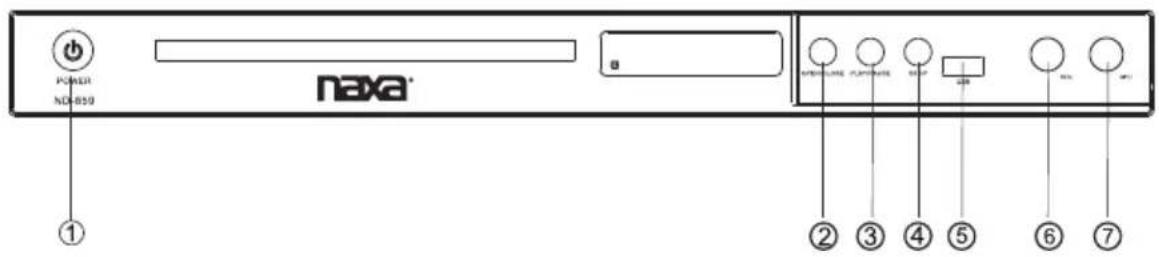
text_image
POWER ND 659 naxa ① ② ③ ④ ⑤ ⑥ ⑦① POWER ON/OFF
⑤ USB
② OPEN/CLOSE
⑥ MIC VOLUME
③ PLAY/PAUSE
⑦ MIC
④ STOP
REAR PANEL

text_image
⑤ ④ ③ ② ① CLASS 1 LASER PRODUCT NAVA Model No: NC-2003 POWER SUPPLY ACOS-SHOW-- S/SPRIL POWER CONSUMPTION: 10kV WATER & LINES① Y/Pb/Pr output jack
⑥ FR output jack
⑪ VIDEO output jack
② Left channel output jack
⑦ CEN output jack
⑫ S-Video output jack
③ SL output jack
⑧ SR output jack
④ SW output jack
⑨ Right channel output jack
⑤ FL output jack
⑩ Digital signal COAXIAL output jack
1.2 Remote Control
Introduction
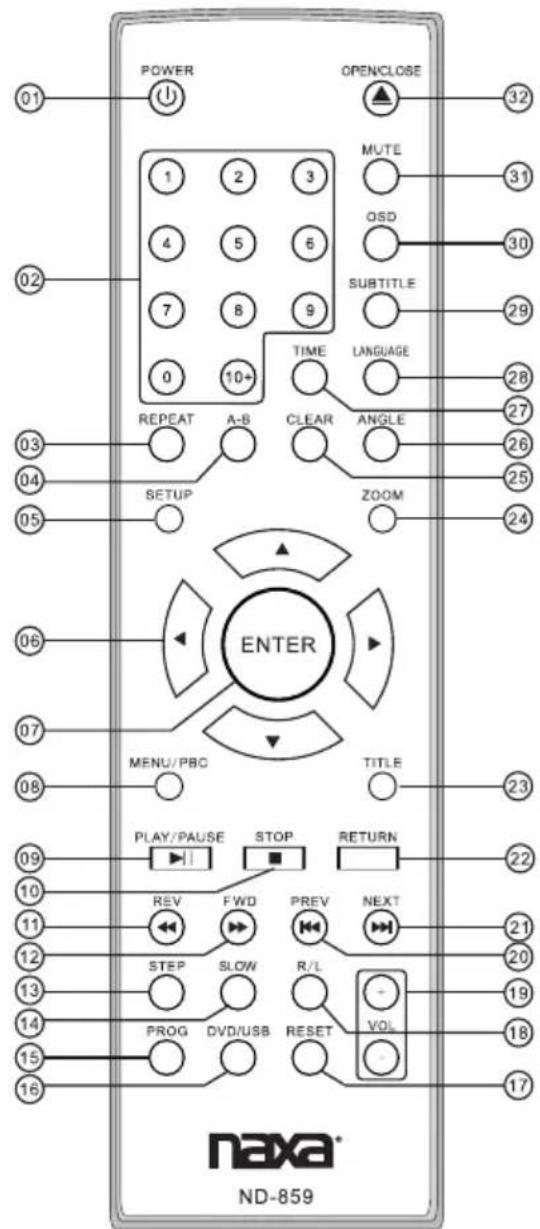
text_image
POWER OPENCLOSE 1 2 3 MUTE 31 4 5 6 OSD 30 7 8 9 SUBTITLE 29 0 10+ TIME LANGUAGE 28 REPEAT A-B CLEAR ANGLE 27 SETUP ZOOM 26 ENTER 25 MENU/PBC TITLE 24 PLAY/PAUSE STOP RETURN 23 REV FWD PREV NEXT 22 STEP SLOW R/L VOL 21 PROG DVD/USB RESET 19 18 17 naxa® ND-859-
POWER
-
Numerics bottom (1-9, 10+)
-
REPEAT
-
A-B
-
SETUP
-
UP/DOWN ARROW KEY LEFT/RIGHT ARROW KEY
-
ENTER
-
MENU/PBC
-
PLAY/PAUSE
-
STOP
-
REV
-
FWD
-
STEP
-
SLOW
-
PROG
-
DVD/USB
-
RESET
-
R/L
-
VOL+/VOL-
-
PREV
-
NEXT
-
RETURN
-
TITLE
-
ZOOM
-
CLEAR
-
ANGLE
-
TIME
-
LANGUAGE
-
SUBTITLE
-
OSD
-
MUTE
-
OPEN/CLOSE
2. PREPARATIONS
2.1 Accessories
-
Remote control
-
Audio/Video cable
-
User's manual
-
2XAAA Size Battery
-
5.1CH Audio Cable
(check whether be fully equipped after open the box)
2.2 Battery installation of remote control
Place two batteries 7" in the battery compartment. Be sure the polarities are correct. there should be no large obstacles between the remote control and the main unit.
2. 3 System connection(Optional according to your back panel)
- When making connection between this unit and other components, be sure all connection with power-off.
- Audio/Video cables are connected according to the different colour identification and they should be fitted firmly.
Yellow to video terminal
White to audio terminal L,
Red to audio terminal R, - Scheme of connection
• 5.1 CHANNEL CONNECTION
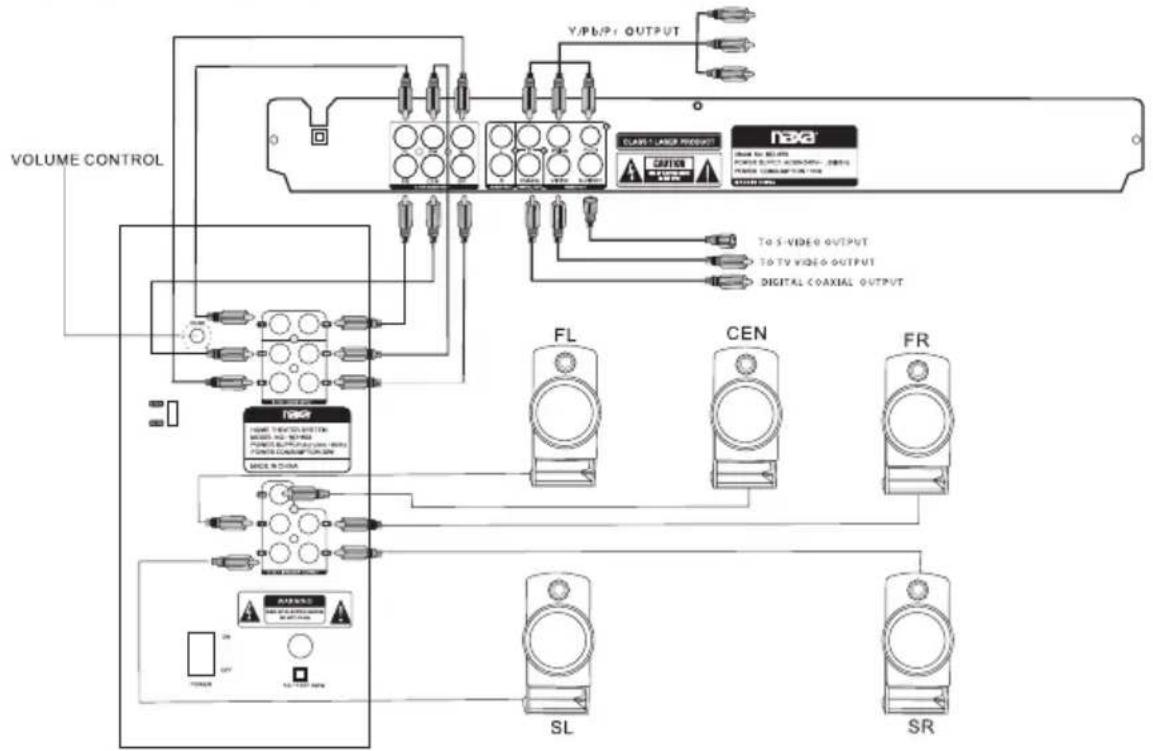
flowchart
graph TD
    A["VOLUME CONTROL"] --> B["FL"]
    A --> C["CEN"]
    A --> D["FR"]
    A --> E["SL"]
    A --> F["SR"]
    B --> G["TO S VIDEO OUTPUT"]
    C --> H["TO TV VIDEO OUTPUT"]
    D --> I["DIGITAL COAXIAL OUTPUT"]
    E --> J["SL"]
    F --> K["SR"]
    L["CLASS LARGE PRODUCT"] --> M["TO S VIDEO OUTPUT"]
    L --> N["TO TV VIDEO OUTPUT"]
    L --> O["DIGITAL COAXIAL OUTPUT"]
Speaker rear panel output
-
Connect the DVD 5.1CH connections with Subwoofer 5.1CH Input.
-
Connect the Subwoofer 5.1CH Output with 5 speakers.
- Make sure the connections match the connecting jacks.
- after correct and safe connection, to make sure the Setup is well done.
Press "Setup" in the remote control, Highlight "Audio", and make sure Bass management is "ON".

text_image
SPEAKER SETUP PAGE DOWNMIX LT/RT STEREO 5.1CH Front Speaker Center Speaker Rear Speaker SubwooferIf no sound is heard from the Rear speakers and Center, make sure to switch to 5.1CH in the back side of the Subwoofer.
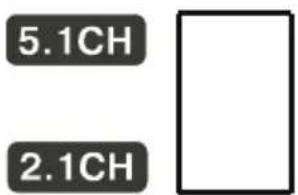
text_image
5.1CH 2.1CHWhen switch to 2.1CH in Subwoofer, there's only Front Right & Front left speakers work. Don't Mix up the Subwoofer Input and Output, else, will be no sound.
NOTE:
Keep the subwoofer speaker out of reach of children so as to prevent them from inserting their hands or alien substances into the duct (hole) of the subwoofer speaker.
If you place a speaker near your TV set, screen colour may be distorted because of the magnetic field generated by the speaker. If this occurs, place the speaker away from your TV set.
2.4 Play mode setting
If you find the picture could not spread all screen or no colour, please select PAL, NTSC or auto By pressing play mode key DVD disc could support the picture with different Proportion in the condition of TV mode. Also can satisfy the proportion of screen of your discs. Select Nomal /Full, Normal/mailbox, wide screen under the System setup. Operate as below: Press(SETUP)key to get General setup, press (PLAY)key, use direction key up/down, to select TV mode, then press left/right key to select Nomal /Full, Normal/ Mailbox, wide screen according to your need. At last press (PLAY)
3. BASIC OPERATION
Once all the connection of the system have been done, this machine will be ready for service. Prior to play, make sure to complete the following Preparatory operations.
- Switch on TV and select AV mode. If it's S-Video connect select S-Video mode.
- Switch on amplifier if it connected, select AC-3 or DVD mode.
- Plug-in of DVD player.
Step 1: Press POWER key, DISC LOADING shown on screen:


text_image
DISC LOADINGIf there is no disc, NO DISC shown on screen:
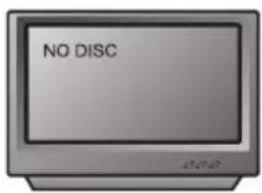
text_image
NO DISCStep2: Press OPEN/CLOSE key, the tray comes out automatically.
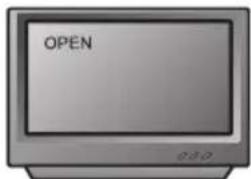
text_image
OPEN 0:10Step 3: Place disc on the tray, press OPEN/CLOSEkey to close the tray, the disc type will be shown on the up-left corner of the screen
Note: Press POWER key on the remote control to bring the unit into standby status. The power consumption is about 7W.
3.1 Play disc
When Disc read-in, this machine will start playing automatically.
- If it is a DVD, the machine will show the DVD menu or title menu.
- If it is a VCD2.0 disc, the machine will activate PBC playback control status.
- If it is a CD, this machine will start playing in the sequence.

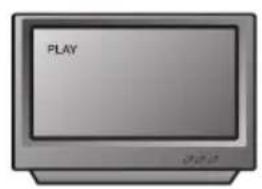
text_image
PLAYPress FWD .key to get 2X,4X,8X,16X,32X, normal playcircular fast Forward function of DVD disc playing.
Press FWD key to get 2X, 4X, 8X, 16X, 32X, normal play circular fast Forwardfunction of other type of disc playing.

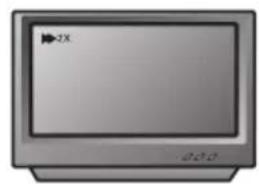
text_image
ZX 202Press PAUSE key:
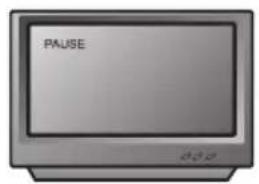
text_image
PAUSEPress REV key to get 2X, 4X, 8X, 16X, 32X, normal play circular fast reverse function of DVD disc playing.
Press REV key to get 2X, 4X, 8X, 16X, 32X, normal play circular fast reverse function of other disc playing.
Press PREV key:
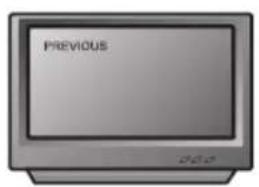
text_image
PREVIOUS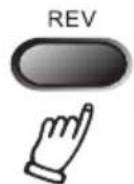
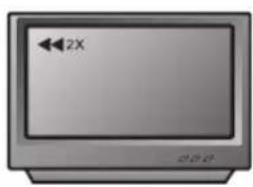
text_image
←2X 20:25Press STOP key to get memory stop of disc playing and press PLAY key to get memory playing. Press STOP key again to stop playing.
Press NEXT key:

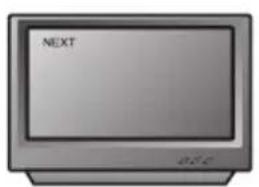
text_image
NEXT D.S.C.

text_image
STOP 0.04. DESCRIPTION OF FUNCTION
4.1 Screen OSD
In the condition of DVD disc playing, press OSD key on the remote control to get following displays. For first time pressing OSD key:

text_image
TOTAL REMAIN 95. 57. 38For fifth time pressing OSD key, display off. In PBC ON condition of VCD, SVCD disc playing to get following display.
For first time pressing OSD key:

text_image
OSD Title on Display Title Title02 / 12 Chapen04 / 06 03 : 04 : 18 Chapter on Display Chapters
text_image
OSD SINGLE ELAPSED 00: 00: 21For second time pressing OSD key:
For second time pressing OSD key:

text_image
SINGLE REMAIN 01:44:34
text_image
SINGLE REMAIN 00:02:23For third time pressing OSD key:
For third time pressing OSD key, display off. In PBC OFF condition to get following displays.
For first time pressing OSD key:

text_image
TOTAL ELAPESSED 06.05.22
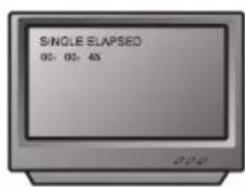
text_image
SINGLE ELAPSED 00: 05: 43 2019For fourth time pressing OSD key:
For second time pressing OSD key:
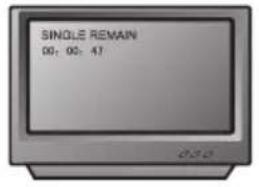
text_image
SINGLE REMAIN 00: 05: 47For third time pressing OSD key:
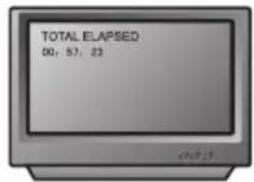
text_image
TOTAL ELAPSED 00: 57: 23For fourth time pressing OSD key:
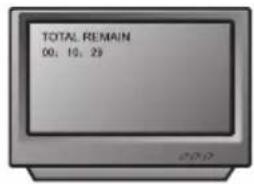
text_image
TOTAL REMAIN 00: 10: 29For fifth time pressing OSD key, display off.
4.2 Return
While playing a VCD2.0 disc which attaching title menu, press this key can return to the previous title.
4.3 Subtitle
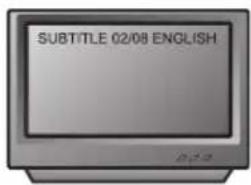
This function may enable you to select multi subtitle languages (as many as 32 kinds and only for the disc with multi subtitle encoded). Press SUBTITLE key to get desired display.
For example, to select language 2 Chinese from 8 options.
text_image
SUBTITLE 02/08 ENGLISH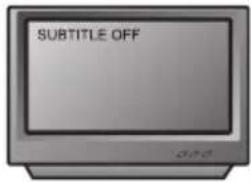
text_image
SUBTITLE OFF4.4 Angle
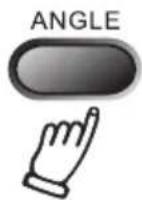
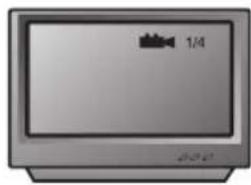
During athletic match, concert or theatrical program, press ANGLE key continually on remote control to select various angle to view the same image (This operation works only for the disc with multi angle encoded).
natural_image
Illustration of a vintage computer monitor with a video player icon on the screen (no text or symbols)4.5 Language
There are 8 kinds of language for selection (4 kinds of language for SV CD/CVD).
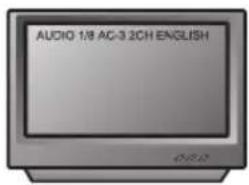
Press LANGUAGE key to select language (This operation works only for the disc with multi subtitle encoded).
For example, to select language 1 from language 2 options, sound Volume effected by AC-3, 2 CH, and English.

text_image
AUDIO 1/8 AC-3.2CH ENGLISHWhen playing a VCD disc, the display shows Left channel, Right Channel, Mix, Stereo; when playing bilinguae VCD story disc, press (language) to Key select right language pls.
4.6 Title
Press TITLE key to get title menu. (This operation works only for the disc with multi subtitle encoded).
4.7 Menu
Press MENU key to return to main menu for DVD disc playing (This operation works only for the disc with multi subtitle encoded).
4.8. Direction key
During playing discs, the four direction keys enable you to select at your option in title, menu or setup.
4.9 Number key
Press relevant number key to play the favorite pictures according to the series Number of the menu.
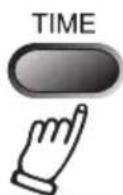
4.10 Time
For DVD disc playing, press TIME key to get following displays.
First time pressing TIME key:


text_image
TITLE 01/02 CHAPTER 06/28Press left or right direction key to select title and chapter. Select desired episode by pressing number in subtitle or totle chapter, then press play key. Second time pressing TIME key:

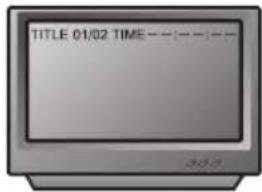
text_image
TITLE 01/02 TIME 20.0You can select any time under the title to display, e.g 01:02:50 means this disc has two titles, new the selected playing time of title 1 is 1 hour 2 minutes and 50 seconds.
In the condition of SVCD, VCD disc in PBC OFF:

text_image
GOTO—— GOOYou may press the numbered buttons to enter the playing time desired.
For example 55:50, it stands for 55 minutes and 50 seconds.
4.11 PBC play
In the condition of PBC ON, song selection can only be done when the playing returned to the main menu.
4.12 DVD and convert between USB
Press the button on the remote control can be realized DVD/USB, DVD and USB switching between.
DVD/USB
4.13 Repeat
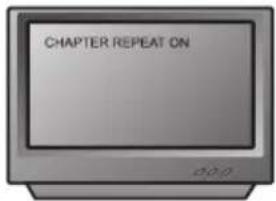
In the condition of DVD, press REPEAT key to get following displays:

text_image
CHAPTER REPEAT ONChapter repeat on

text_image
A TO B SET BTitle repeat on

text_image
REPEAT OFF PBORepeat off
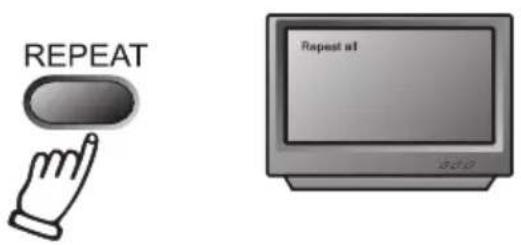
In the condition of SVCDNCD, press PBC key to get PBC off, then press REPEAT key to get following display:
text_image
REPEAT Repeat atRepeat one
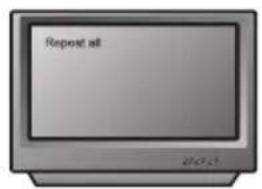
text_image
Repeat all BOSRepeat all
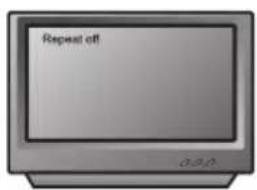
text_image
Repeat offRepeat off
4.14 ZOOM
The picture may be enlarged by up to 4 times to facilitate you to enjoy a particular action or still piction. Press this button 6 times, the zoom scales will be2x, 4x, 8x respectively. Pressing the button once again will return to normal play status.
4.15 PROGRAM
In the condition of disc playing, press PROG key on remote control to come into program status; Enter the track numbers desired, 2, 4, 6 and 8, for example, then press the PLAY button to start.
To exit the programmed play mode, simply pressthe
4.16 SLOW
Press SLOW button repeatedly, for a DVD, you will enjoy the slow motion at a 2x, 4x and 8x slower forward speed, or a 2x, 4x and 8x slower backward speed and normal backward speed.
For a SVCD or VCD disc, the track will be played at 1x, 2x and 3x slower forward speed and normal playing speed.
5. SETTING OF THE SYSTEM
1. DVD MENU SETTING
Press the SETUP button on the remote controller, the SETUP MENU (main) will be displayed. The disc will ask you to enter the PIN.
-
After accessing the SETUP Menu, press the direction buttons for up and down movement to select an item desired, then press the ENTER button to confirm your entry and move to the sub-menu. Use the left and right direction buttons to move the pointer, and the up and down direction buttons to select the option desired. Also, press the ENTER button to confirm your selection. Now, setup of this current Function is completed.
-
To end the setup, press the SETUP button again. In the SETUP MENU, you may choose any of the following options as you like.

text_image
GENERAL AUDIO DOLIY VIDEO PREFERENCES -- GENERAL SETUP PAGE -- TV DISPLAY ANGLE MARK OSD LANG CAPTIONS SCREEN SAVER HDCD LAST MEMORY1.1 GENERAL SETUP
This option is used to set up TV screen format, video functions and DVD functions, with options of "TV DISPLAY" "ANGLE MARK" "OSD LANGUAGE""CAPTIONS" "SCREEN SAVER" "MENU STYLE" "LAST MEMORY"
1.1.1 TV DISPLAY
Follow the operating instructions stated in "DVDMENU SETUP" in combination with the desired option in the following figure.
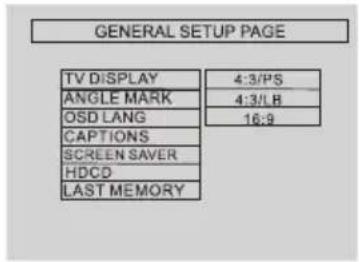
text_image
GENERAL SETUP PAGE TV DISPLAY 4:3/PS ANGLE MARK 4:3/1B OSD LANG 16:9 CAPTIONS SCREEN SAVER HDCD LAST MEMORYNote:
1). Irrespective of what screen format you have selected, if your screen displays in 4:3 format, the picture will be shown in that format anyway.
2). For DVDs, the screen format is convertible.
3). If your screen displays in 4:3 format, when aDVD with 16:9 display format is used, the picture will be flattened.

text_image
TV screen Film format 4:3 16:9 Normal Full view Malbox Wide screen 4:31.1.2 ANGLE MARK
When a DVD providing multiple angles is used, the user may select a particular shooting angle.
Follow the operating instructions stated in "DVDMENU SETUP" in combination with the desiredoption in the following figure.
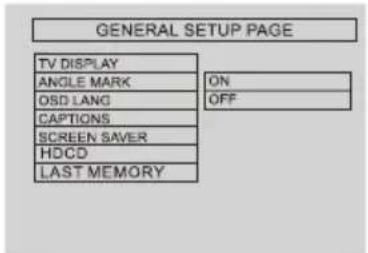
text_image
GENERAL SETUP PAGE TV DISPLAY ANGLE MARK OSD LANG CAPTIONS SCREEN SAVER HDCD LAST MEMORY ON OFF1.1.3. SCREEN LANGUAGE
The user may use this item to set the language of the setup menu and screen display to English or Chinese.
Follow the operating instructions stated in "DVDMENU SETUP" in combination with the desired option in the following figure.

text_image
GENERAL SETUP PAGE TV DISPLAY ANGLE MARK OSD LANG CAPTIONS SCREEN SAVER HDCD LAST MEMORY ENGLISH FRENCH GERMAN ITALIAN SPANISH PORTUGUESE1.1.4. HIDE SUBTITLE
Follow the operating instructions stated is "DVDMENU SETUP" in combination with the desired option in the following figure.
Note: This function doesn't work if the DVD doesn't show it.
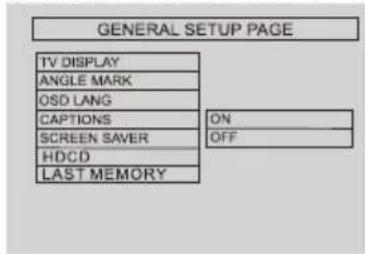
text_image
GENERAL SETUP PAGE TV DISPLAY ANGLE MARK OSD LANG CAPTIONS ON SCREEN SAVER OFF HDCD LAST MEMORY1.1.5. SCREEN PROTECTION
Select in "General setup" menu toget screen protection setting according to the following figure.
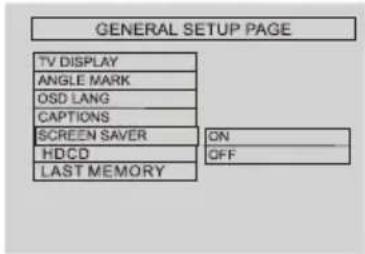
text_image
GENERAL SETUP PAGE TV DISPLAY ANGLE MARK OSD LANG CAPTIONS SCREEN SAVER HDCD LAST MEMORY ON OFF1.1.6. MENU TYPE
According to following figure to get Selected Setting.

text_image
GENERAL SETUP PAGE TV DISPLAY ANGLE MARK OSD LANG CAPTIONS SCREEN SAVER HDCD LAST MEMORY OFF 1X 2X1.1.7. MENU TYPE
According to following figure to get Selected Setting.

text_image
GENERAL SETUP PAGE TV DISPLAY ANGLE MARK OSD LANG CAPTIONS SCREEN SAVER HDCD LAST MEMORY ON OFF1.2 AUDIO SETUP
Audio setup includes: Speaker Setup, Spdif Setup and Karaoke Setup.

text_image
GENERAL AUDIO DOLBY VIDEO PREFERENCES -- AUDIO SETUP PAGE -- SPEAKER SETUP SPDIF SETUP KARAOKE SETUP1.2.1 Speaker Setup
Follow the operation instructions stated in "DVD menu setup" in
combination with desired option in the following figure.
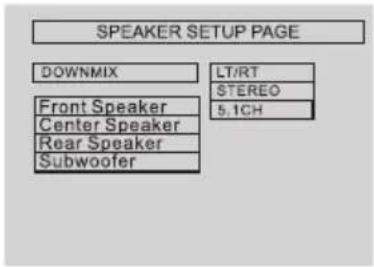
text_image
SPEAKER SETUP PAGE DOWNMIX LT/RT STEREO Front Speaker 5.1CH Center Speaker Rear Speaker SubwooferDOWNMIX:
1). LT/RT: You can choose this item when the playing disc have the function of PRO LOGIC DOLBY Stereo effect. After press the item, You can have a vivid decoding system.
2). STEREO: Audio output left and right channel when 5.1 channel output; audio output ordinary stereo signal when 2 channel output.
3).5.1CH:When the selected, 5.1 channel output sides effective.
1.2.2 SPDIF OUTPUT
Follow the operation instructions stated in "DVD menu setup" in combination with desiredoption in the following figure.
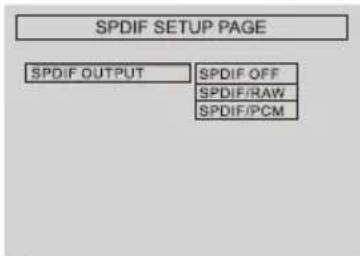
text_image
SPDIF SETUP PAGE SPDIF OUTPUT SPDIF OFF SPDIF/RAW SPDIF/PCMSPDIF OUTPUT:
1). SPDIF OFF: Coaxial or optical output port has no signal output.
2). SPDIF RAW: Please choose this section when the player connects power amplifier through coaxial or optical; the player outputs the digital signal compliant with which output f-
rom coaxial or optical when playing the discs with dolby digital、DTS、MPEG record system; at the same time, the connected power amplifier must have the decode function of Dolby digital、DTS and MPEG.
3). SPDIF/PCM: Please choose this section when the player connects p-ower amplifier through coaxial or o-ptical;coaxial or optical output port will output as the form of 2 channel modulated by pcm when playing the discs recorded with dolby digital, dts, mpeg record system.
1.2.3 KARAOKE SETUP
Follow the operation instructions stated in "DVD menu setup" in combination with desiredoption in the following figure.

text_image
KARAOKE PAGE MIC ON MIC VOL OFF ECHO LEVELKARAOKE SETUP:
1). MIC : This section includes two options: on and off. in the condition of on, the player will check if there is sound input ante matically, if yes, the sound input sorts it; in the condition of off, there is no sound input will be sorted. For example, when playing VCD2.0 karaoke disc, you want to activate ON function, please just choose this section.
2). MIC VOL: Press the direction Key ↓↑ on the MIC VOL can set the intensity of the volume.
3). ECHO: Press the direction key ↓↑ on the ECHO section can set t- he intensity of the echo.
1.3 VIDEO SETUP
Video setup includes: Component, TV mode and quality.
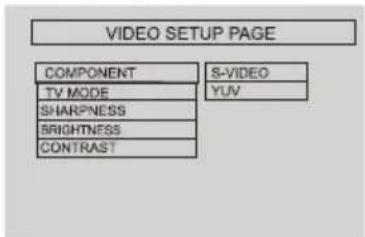
1.3.1 COMPONENT
Follow the operation instructions stated in "DVD menu setup" in combination with desired option in the following figure.
text_image
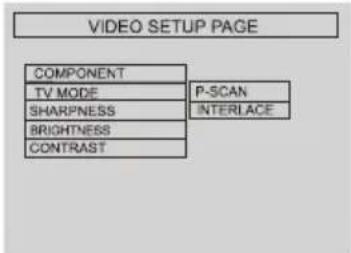
VIDEO SETUP PAGE COMPONENT S-VIDEO TV MODE YUV SHARPNESS BRIGHTNESS CONTRAST1.3.2 TV MODE
Follow the operation instructions stated in "DVD menu setup" in combination with desiredoption in the following figure.
text_image
VIDEO SETUP PAGE COMPONENT TV MODE SHARPNESS BRIGHTNESS CONTRAST P-SCAN INTERFACE1.3.3 SHARPNESS
Follow the operation instructions stated in "DVD menu setup" in combination with desiredoption in the following figure.

text_image
VIDEO SETUP PAGE COMPONENT TV MODE SHARPNESS HIGH BRIGHTNESS MEDIUM CONTRAST LOW1.3.4 BRIGHTNESS
Follow the operation instructions stated in "DVD menu setup" in combination with desiredoption in the following figure.

text_image
VIDEO SETUP PAGE COMPONENT TV MODE SHARPNESS BRIGHTNESS CONTRAST 00Press right arrow button to enter adjustment mode; press up and down buttons to make adjustment.
Press left arrow button to return to setup menu.
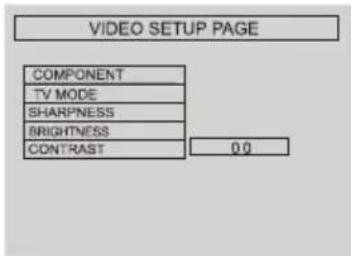
1.3.5 CONTRAST
Follow the operation instructions stated in "DVD menu setup" in combination with desiredoption in the following figure.
text_image
VIDEO SETUP PAGE COMPONENT TV MODE SHARPNESS BRIGHTNESS CONTRAST 0.0Press right arrow button to enter adjustment mode; press up and down buttons to make adjustment.
Press left arrow button to return to setup menu.
1.4PREFERENCE SETUP
During stop mode, press the SETUP button to access the INITIAL SETUP menu, which includes items of TV TYPE, AUDIO, SUBTITLE, DISC MENU, DEFA ULTS and MAIN PAGE.
Preset values are essential to a DVD player. The user may change these items as desired.
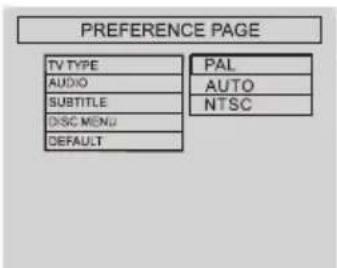
1.4.1 TV TYPE
Follow the operation instructions stated in "DVDmenu setup" in Combination with the desired option in the following figure.
text_image
PREFERENCE PAGE TV TYPE AUDIO SUBTITLE DISC MENU DEFAULT PAL AUTO NTSCThis product supports output of Various system, including AUTO, NTSC, PAL.
1) If your TV set has only NTSC or PAL system, the screen will blink flash And become colorless when a wrong System is selected. In this case, always remember to select the correct system.
2) For more informations of output format, refer to the instructions or your TV set.
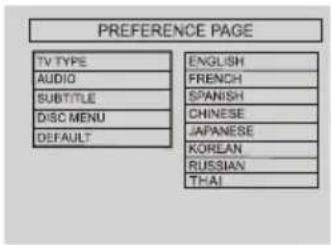
1.4.2 AUDIO
Follow the operating instructions stated in "DVD MENU SETUP" in combination with the desired option in the following figure.
text_image
PREFERENCE PAGE TV TYPE ENGLISH AUDIO FRENCH SUBTITLE SPANISH DISC MENU CHINESE DEFAULT JAPANESE KORLAN RUSSIAN THAIThis machine provides English, French, Spanish, Chinese and Japanese Korean, Russian, German as the built-in disc dubbing language options.
1.4.3 SUBTITLE
This machine provides English, French, Spanish, Chinese and Japanese, Korean, Russian, German as the built-in subtitle languages. When a DVD is played, the user mayhide the Subtitle
or choose any of them as the Preset subtitle language.
Follow the operating instructions stated in "DVDMENU SETUP" in combination with the desiredoption in the following figure.

text_image
PREFERENCE PAGE TV TYPE ENGLISH AUDIO FRENCH SUBTITLE SPANISH DISC MENU CHINESE DEFAULT JAPANESE KOREAN RUSSIAN THAI1.4.4 DISC MENU LANGUAGE
This machine provides English, French, Spanish, Chinese, Japanese Koren, Russian, German and OFF as the film's menu language options.
Follow the operating instructions stated in "DVDMENU SETUP" in combination with the desired option in the following figure.

text_image
PREFERENCE PAGE TV TYPE ENGLISH AUDIO FRENCH SUBTITLE SPANISH DISC MENU CHINESE DEFAULT JAPANESE KOREAN RUSSIAN THAI1.4.5 DEFAULTS
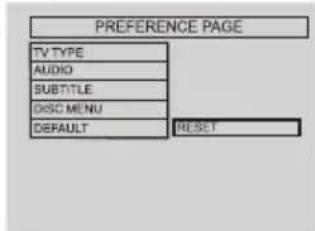
This option will resume the original settings of this machine.
Follow the operating instructions stated in "DVDMENU SETUP" in combination with the desired option in the following figure.
text_image
PREFERENCE PAGE TV TYPE AUDIO SUBTITLE DISC MENU DEFAULT RESETMP3 is an audio compression mode 3 level of the international standard MPGE, through sound signal Which is compressed in a rate of 12:1. A Mp3 Disc can last with 170 songs and receive CD in good sound quality.
To play a Mp3 disc
Select the track using numbered buttons
- Follow the basic operating instructions to insert a Mp3 disc, this machine will start to search the information on the disc and show it on the display.
- Press the number buttons to select the track number desired.
- Press stop key then direction key to select to other menu.
Repeat play
Using this function, the user will be able to enjoy aparticular song or all the songs on the disc over and over again.
- Choose a particular song to Repeat.
- Press the REPEAT button to show "REPEAT ONE" on the TV screen.
The screen will display as illustrated:

text_image
REPEAT ONE 0/23- Exit repeat play, the screen will display as illustrated:

text_image
EXIT REPEAT- The programs of the cancel repeat function will be showing on the TV screen.
other functions:
When you playa MP3 disc, the Features of mute, volume control, Pause, forward and backward search will also be available. The operations are the same with CD.
7. JPEG
JPEG adopted the most efficient compression is widely used as picture storage type flattened and stored format.
Even if pictures are compressed 15-20 times. they still have good effect. Supported by most pictures processing Software, fittable for picture storage, it Has small data and is easy to use. This Machine can read CD disc made of JPEG pictures.
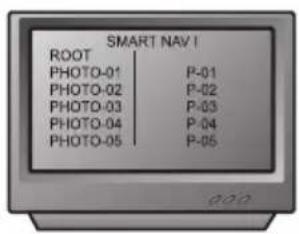
Pls press revelant number key to select picture display.
- When putting in disc correctly, the Machine begins to search disc info.
- Press numer key to select picture.
A

text_image
SMART NAV I ROOT | Root | 0 | PHOTO-01 | 1 | PHOTO-02 | 2 | PHOTO-03 | 3 | PHOTO-04 | 4 | PHOTO-05 | 5B
text_image
SMART NAV I ROOT P-01 PHOTO-01 P-02 PHOTO-02 P-03 PHOTO-03 P-04 PHOTO-04 P-05- It's efficient only in the present Picture when you press number key.
Select and play by menu
- Put in disc, then machine searches disc
- Press direction key to select picture
- In condition of stop.press direction
- In condition of stop.select the firstline file item on the right. Then Other functions:
When play JPEG.
- Press UP and DOWN key to select pictures.
- Press zoom key to zoom picture.
- When it zooms on, press fast forward or fast return key to get picture zoomed in or out function.
- When it zooms off, press direction key to get picture turned over.
8.
A USB / INTERFACE OPERATING INSTRUCTIONS
Playback modes:
- Connect the MP3 or USB/without CD disc in the CD-ROM. The DVD player will check the Video or Audio files automatically.
USB Compatible with:
MP3/WMA/CDA/JPEG/DAT/VOB/AVI form
9. TROUBLE SHOOTING
For your convenience, we have Enlisted some points to help solve problems you might meet while using DVD player.
No sound
● Make sure the good connection between player and other appliances such as power amplifier or TV.
● Make sure the right operation on TV and power amplifier.
No picture
●Make sure the good connection between player and other appliances such as TV.
● Make sure TV works on well.
Disc does not play
● Make sure the disc is loaded correctly (label side is facing up on the disc tray).
● Make sure the disc is clear.
Remote control does not work
- Move the obstacle between player and remote control away.
- Point the remote control at the remote control sensor.
- Check the battery.
Picture dividing
● Make sure the disc is clear and no any scratch on it.
● For the player is controlled by micro
computer, if encountering problem, switch off the power first, and switch on again in a few second, by then if no mistake notice is displayed, the player could work well.
10. DISC PROTECTION
Protection
a. When loading or removing the discs, always hold them by the center and edge.
b. Do not stick or write anything on the surface. Protect discs against any fingerprint.
Cleaning
Wipe the discs from time to time using a soft cloth. Always wipe from the center toward the edge.
Storage
a. Never warp the discs. During non-sue periods, store them in their cases, which should be kept vertically. Do not expose discs to high Temperature, dampness or extremely low temperature, or else it may cause damage to the discs
b. Do not expose discs to direct sunlight.
- SPECIFICATIONS
| Type of Disc | DVDCD-DA CD-MP3 Kodak Picture CD CD-R /CD-RW |
| Video Format | MPEG 2 |
| Audio Format | MPEG 1, LAYER 1, LAYER 2, LAYER 3 |
| Signal Output | Color System: NTSC Audio System: DIGITAL down mix stereo DIGITAL digital output Audio DAC 16bit/48KHzVideo Output: 1 Vpp (at 75 ohm)Audio Output (S stereo): 2 Vpp |
| Frequency Response | CD: 4Hz 20KHz (EIAT) DVD: 4Hz 22KHz (48K) 4Hz 44KHz (96K) |
| S/N radio | >92 dB |
| THD | <0.04% |
| Output Terminals | Video (composite) output X1S -Video output X1YP bPr output X1Coaxial output X1 |
| Power Supply | AC 90-240V~ 50/60Hz |
| Dimensions | DVD size: W360xD215xH38mm |