MultiPoint Server 2011 - Thin client Lindy - Free user manual and instructions
Find the device manual for free MultiPoint Server 2011 Lindy in PDF.


User questions about MultiPoint Server 2011 Lindy
0 question about this device. Answer the ones you know or ask your own.
Ask a new question about this device
Download the instructions for your Thin client in PDF format for free! Find your manual MultiPoint Server 2011 - Lindy and take your electronic device back in hand. On this page are published all the documents necessary for the use of your device. MultiPoint Server 2011 by Lindy.
USER MANUAL MultiPoint Server 2011 Lindy
For Home and Office Use Tested to Comply with FCC Standards
www.LINDY.com
Introduction
Thank you for purchasing the USB User Client MultiPoint Workstation 8840. The MultiPoint Workstation 8840 (MWS8840) is designed specifically for Windows MultiPoint Server 2010. Simply connect it to an available USB port on the server and attach a monitor, keyboard and mouse to add a new workstation. The MWS8840 features four powered high-speed USB 2.0 ports, audio and microphone ports and a VGA port that supports resolutions up to 1600 x 1200. Add up to ten MWS8840s per server. The MWS8840 provides an inexpensive and reliable way to expand your Windows MultiPoint Server 2010.
Features
• Resolutions up to 1600 x 1200 (16 / 32 Bit)
• 4 self powered USB ports
- Stereo Audio Output (Speaker / Headphone) and Mono audio input (Mic)
- USB 2.0 compliant
- Plug and Play
Minimum System Requirements
- PC USB 2.0 Port
-
CPU – one of the following:
-
x64-based computers that use Intel Pentium or Xeon family with Intel Extended Memory 64 Technology (EM64T)
○ Compatible processor (MultiPoint Server supports up to four CPUs on one server)
Note: MultiPoint Server has not been tested on an Intel Itanium processor.
- RAM: The required RAM depends on the number of MultiPoint Workstation 8840s that are connected to the computer: 2 GB for 4 stations - 3 GB for 6 stations - 6 GB for 10 stations.
- Multi-core processor support: up to 4 multi-core processors in a CPU, such as dual-core or quad-core processors.
• Minimum disk space for setup: 32 GB
Operating Systems Supported
For optimal multimedia performance, we recommend the following CPUs:
- Dual-core processor: This type of processor can support up to four stations that are being used with high processing demand programs, such as multimedia programs.
- Quad-core processor: This type of processor can support up to six stations that are being used with high processing demand programs, such as multimedia programs.
- Core-i7 processor: This type of processor can support up to ten stations.
• Windows MultiPoint Server 2010
Package Contents
- MWS8840
- USB Cable
- AC Adapter
- Driver CD
- User Manual
Device Installation Software
Installing the device driver enables Windows MutliPoint Server 2010 to recognize the MWS8840. Please make sure the MWS8840 is unplugged from your server before executing the setup program.
Step 1
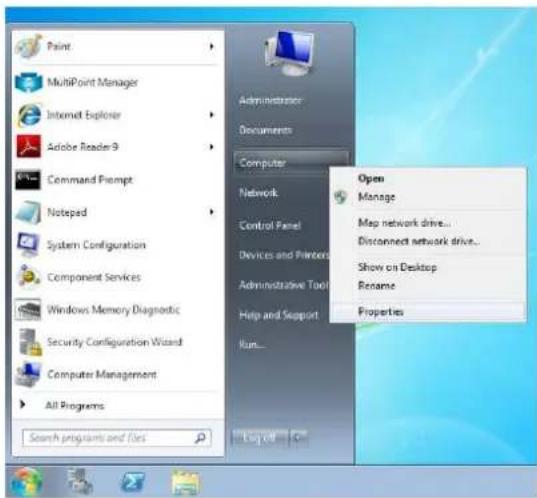
Boot the Windows MultiPoint Server 2010 into Maintenance Mode by pressing the M key when prompted at the startup screen.
text_image
Print MultiPoint Manager Internet Explorer Adobe Reader9 Command Prompt Notepad System Configuration Component Services Windows Memory Diagnostic Security Configuration Wizard Computer Management All Programs Search programs and files Administrator Documents Computer Network Control Panel Devices and Printers Administrative Tool Help and Support Run... Open Manage Map network drive... Disconnect network drive... Show on Desktop Rename PropertiesStep 2
Insert the Driver installation CD into the CD-ROM drive. The installer should start automatically. If it does not, double click Setup.exe to start the Installation Wizard.
Step 3
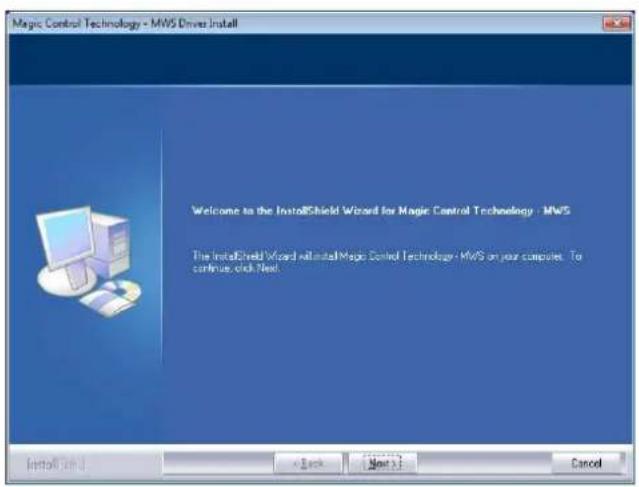
Driver Installation Wizard, click Next to continue
text_image
Magic Control Technology - MWS Driver Install Welcome to the InstallShield Wizard for Magic Control Technology - MWS The InstallShield Wizard will install Magic Control Technology - MWS on your computer. To continue click Next. InstallShield Next > CancelStep 4
License Agreement; review it and check I accept the terms of the license agreement. Click Next to accept the License Agreement.

text_image
Magic Control Technology - MWS Driver Install License Agreement Please read the following license agreement carefully SOFTWARE END USER LICENCE (EUL) AGREEMENT FOR USB GRAPHICS ADAPTER ENABLED DEVICES Magic Control Technology Corporation ("MCT"), a Taiwanese registered corporation, licenses Licensee to use the computer program(s) to which this license agreement ("Agreement") is attached (the "Program"), and related user documentation, subject to the following terms and conditions: 1. YOU SHOULD CAREFULLY READ THE FOLLOWING TERMS AND CONDITIONS BEFORE OPENING THIS PACKAGE OR INSTALLING THE PROGRAM INTO THE COMPUTER. OPENING THIS PACKAGE OR INSTALLING THE PROGRAM INTO THE COMPUTER MEANS YOU ACCEPT THESE TERMS AND CONDITIONS AND UNDERSTAND THAT I accept the terms of the license agreement Do not accept the terms of the license agreement Install/Stand < Back Next > CancelStep 5
Setup is searching for installed features...
*You may notice the screen flashes during hardware installation. It is part of the normal process.

Setup is searching for installed features...
Step 6
Driver Installation Wizard, click Finish to continue and restart the computer.

text_image
Magic Control Technology - MWS Driver Install InstallShield Wizard Complete The InstallShield Wizard has successfully installed Magic Control Technology - MWS - Before you can use the program, you must install your computers. Yes, I want to start my computer now No, I will start my computer later Remove any data from their drivers, and then click. Finish to complete setup Install Help Back Finish CancelInstallation of MWS8840
Step 1
Connect the monitor to the VGA connector of the MWS8840 and ensure the display device is on. Connect the power adapter, keyboard, and mouse to the MWS8840.
Step 2
Connect one end of the USB cable to the MWS8840 and the other to an available USB 2.0 port of your server.
text_image
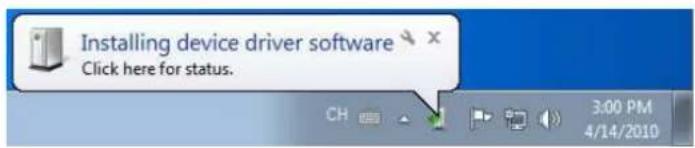
Installing device driver software Click here for status.The driver installation will proceed automatically. When the installation is complete you will see the login prompt appear on the workstation screen.
text_image
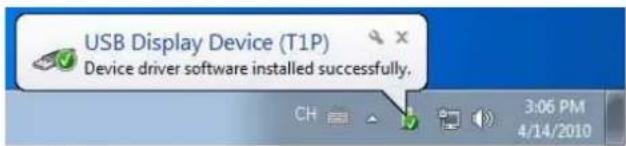
USB Display Device (T1P) Device driver software installed successfully. CH 3:06 PM 4/14/2010Step 3
Repeat steps 1 & 2 for the remaining MWS8840s.
Verifying the MWS 8840 connection
Step 1
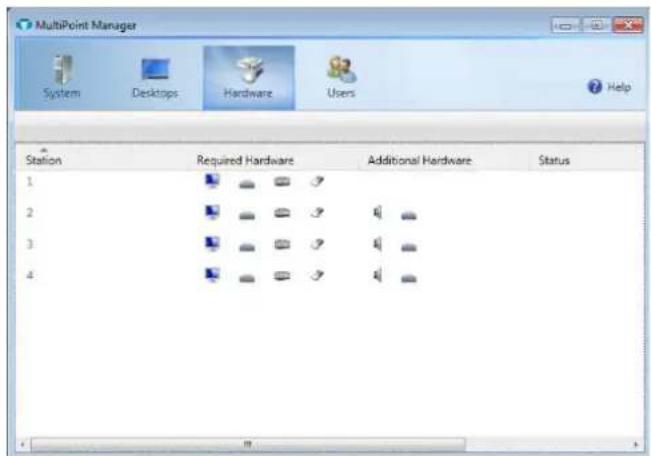
Open the MultiPoint Manager application and click on the Hardware button. Each connected MWS8840 will appear in the list of stations.
text_image
MultiPoint Manager System Desktops Hardware Users Help Station Required Hardware Additional Hardware Status 1 2 3 4Adjusting the screen resolution
By default, Windows MultiPoint Server 2010 will select the recommended resolution for each connected display. However, if you would like to choose a different resolution, follow these steps:
Step 1
Boot the computer into Maintenance Mode by pressing the M key at the startup screen.
Step 2
Right click on the desktop and choose Screen
Resolution from the contextual menu.
Step 3
Click Identify to identify each display. Then click on the display to be adjusted and choose the desired resolution from the Resolution dropdown menu.
Device Driver Un-Installation
The following procedure allows you to uninstall the MWS8840's device driver. Please make sure all MWS8840s are unplugged from your server before executing the device driver uninstallation program.
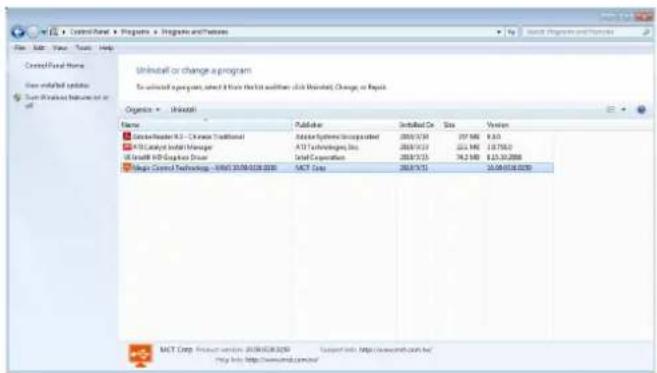
Step 1
Select the "Magic Control Technology – MWS xx.xx.xxxx.xxxx" item. Click Uninstall button.
text_image
ControlPanel - Project + Graphics and Features File Edit View Tools Help Control Panel Home Show installed updates Turn Products features or Uninstall or change a program To install a program, select if this is the first author click Monday; Change, or Report Organize - Microsoft Name Publisher Installed Or Size Version CotenHeader 9.0 - Chinese Traditional Article Systems Incorporated 2005/1/24 207 MB 9.30 ATI Catalyst Install Manager A3T Technologies, Inc. 2008/1/23 204 MB 10.7562 Install iOS-Gamebox Drive Intel Corporation 2008/1/23 204 MB 8.5512888 Design Control Technology - MSCT 2008-028-2008 MCT Corp 2008/1/21 20.06/01/2028 MCT Corp Product version: 2008/028/2008 Support only http://www.mctc.com/ http://www.mctc.com/Step 2
Click OK to continue

text_image
Magic Control Technology - USB Display Device (Trigger 1+) Confirm Uninstall Do you want to completely remove the selected application and all of its features? Please unplug the USB adapter from notebook's USB slot.Then press OK. OK CancelStep 3
Select Yes, I want to restart my computer now and click Finish to reboot. The driver is now uninstalled.

text_image
Magic Control Technology - USB Display Device (Trigger 1+) Driver Uninstall Uninstall Complete InstallShield Wizard has finished uninstalling Magic Control Technology - USB Display Device (Trigger 1+). To complete the uninstallation, you must restart your computer Yes, I want to start my computer now No, I will restart my computer later Remove any data how their devices, and even click. Finish to complete setup Install Tools... < Back Finish CancelSETUP 1
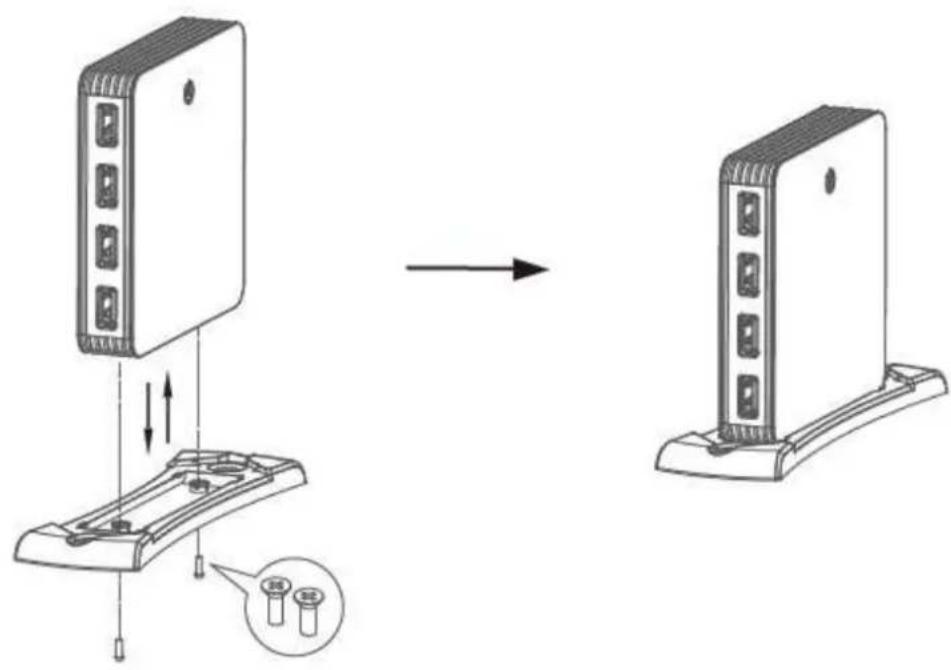
text_image
Diagram showing device mounting process with labeled components and directional arrowSETUP 2
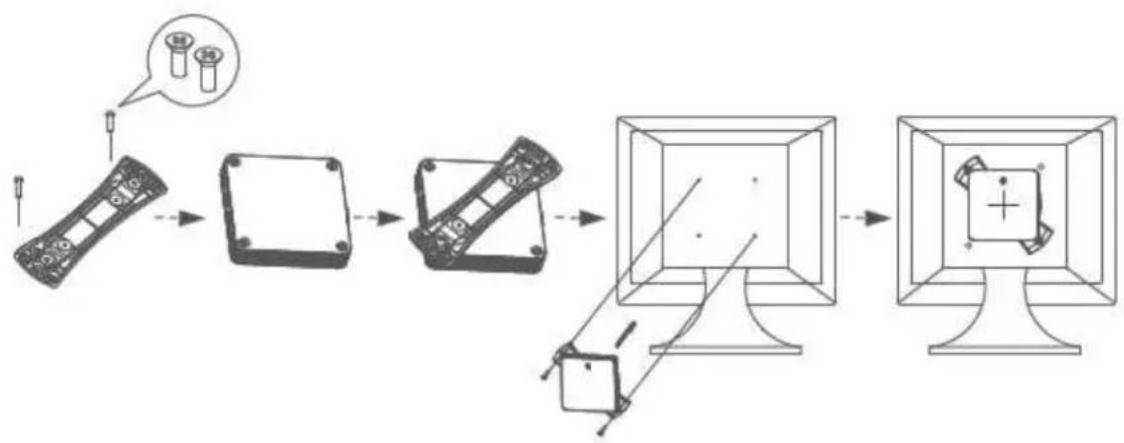
flowchart
graph LR
    A["2020: 2020"] --> B["Box"]
    B --> C["Computer monitor with display"]
    C --> D["Computer monitor with display"]
Troubleshooting Tips
The following troubleshooting tips may help if you are experiencing any difficulties using our device.
- Check to make sure that all connectors are plugged in correctly.
- Make sure that the USB port that you are using is USB 2.0.
- Try a different USB 2.0 port
- Check to see that the monitor is connected correctly and the power is ON.
- Make sure to restart the server after the driver installation.
- Unplug the adapter, wait a few seconds, then re-insert it.
- Check the website to make sure you have the latest drivers.
- Reset/refresh/resynchronize your monitor.
SYSTEM REQUIREMENTS:
For optimal multimedia performance, we recommend:
CPU:
*for 4 Station: Dual-core processor.
*for 6 Station: Quad-core processor.
*for 10 Station: Core-i7 processor.
Minimum required RAM:
*for 4 Station: 2 GB
*for 6 Station: 4 GB
*for 10 Station: 6 GB
Current Supported Video card and driver:
INTEL :
*Intel® G 45 Express Chipset Intel® Graphics Media Accelerator X 4500H D
*Intel® G 43/G 41/Q 45/Q 43 Express Chipset / Intel® Graphics Media Accelerator X 4500
*Intel Driver: 15.16.5.64.2021 (8.15.10.2021)
ATI:
*ATI Radeon™ HD 4770
*ATI Radeon™ HD 4600
*ATI Driver: 10.1(8.69.0.0)
Known Issues when Install " A TI Graphics"
The ATI Catalyst Control Center is a tool provided by ATI to control ATI graphics cards. In the presence of MCT attached screens, some parts of the tool, such as its adjustments submenu, do not work. This is on all OS.
Some versions of the ATI Catalyst Control Center crash or show errors in the presence of MCT software. This has been observed with all ATI driver versions. This can cause problems when a screen is attached to the PC. To work around the problem, uninstall the ATI Catalyst Control Center.
The ATI External Event Utility can interfere with remembered settings for MCT screens. To avoid this, disable the ATI External Event Utility as follows: Navigate to Control Panel -> System and Maintenance -> Administrative Tools -> Services: ATI External Event Utility and change the startup type to Disabled.
Device not supported:
- MCT devices are not supporting AMD processor at this time.
- nVidia graphics card & processor are not recommended at this time.
- Do not use Multi-USB-Port Keyboard that will affect power operation
Known Factor & Notes:
1) Disconnecting a USB Workstation while videos are playing may cause stability issues.
Do not disconnect USB Workstations during video playback.
2) Using different display resolutions on workstations may cause display issues if a station is disconnected. Set all workstations to the same resolution for the best performance.
3) When setting resolutions in Maintenance mode, a workstation display may not display correctly. Either choose to revert the changes in the dialog window that appears or, if the changes have been accepted, temporarily change the resolution to a different resolution and then change it to the desired resolution.
4) At this time, only one non-MCT video card per system is supported. Using more than one video card in the system will lead to system instability.
5) Video play back performance is rely on USB2.0 bandwidth and limited to maximum bandwidth of 480 Mbit/s [60 MB/s], therefore smaller scale display window at lower resolution is recommend.
6) When all station needs for video playback, smallest scale window is recommended. eg. when all 10 station playing "YouTube", keep every video frame at original or smallest size. For better performance, upgrade to a higher CPU version and increase memory is recommended.
7) Multi-Video Playback at each workstation is not recommended, it occupied CPU's loading and lower each task performance, it could cause operation freeze when CPU consumption is over its limited.
8) Prior to installing the MCT driver, the computer should be running the most current build of Windows MultiPoint Server 2010 and have the appropriate graphics card driver from the list showed at "System Requirement" page.
9) Due to USB bandwidth limitation, for smooth playing preference, minimize video playback landscape is recommended when multiple videos playing across many monitors simultaneously, scale are recommend as below:
*2 users: full screen
*4 users: 1/3 landscape
*6 users: 1/4 landscape
*8\~10 users: 1/8 landscape
10) Occasionally, when multiple video playing across many monitors and the CPU load is above 90 percent, there might be pauses in the video playback.
11) Warning: Incompatibilities exist when using other manufacture's video over USB devices on a single system. Please ensure that all other manufacture's video over USB drivers are uninstalled before continuing install MCT's driver.

text_image
Magic Control Technology - MWS (WARNING) Incompatibilities exist when using other manufacturer's Video over USB devices on a single system. Please ensure that all other manufacturer's Video over USB drivers are uninstalled before continuing with this installation. You can pressSchool Environmental and Behavior matrix
WMS means to simplify operation and provide safety environment in the class room! Teacher turn on computer first thing when the day begin, one button that turns on all station power simultaneously and continue all day with auto-mapping enables each individuals operation; turn off computer at end of date that shoot down all station power as well.
When student walk in the classroom, he/she only needs simply turn on the monitor and log in, then log out the workstation and turn off monitor after class; that leaves power idle thus convenient next class enable fast log on. For safety reason, nobody has to touch any device's power or USB connector to avoid strange behavior that may cause electronic power shock.
Radio Frequency Energy, Certifications
FCC Warning
This equipment has been tested and found to comply with the limits for a Class B Digital device, pursuant to part 15 of the FCC Rules. These limits are designed to provide reasonable protection against harmful interference in a residential installation. This equipment generates, uses, and can radiate radio frequency energy and, if not installed and used in accordance with the instructions, may cause harmful interference to radio communications. However, there is no guarantee that interference will not occur in a particular installation. If this equipment does cause harmful interference to radio or television reception, which can be determined by turning the equipment off and on, the user is encouraged to try to correct the interference by one or more of the following measures:
- Reorient or relocate the receiving antenna
- Increase the separation between the equipment and receiver
- Connect the equipment into an outlet on a circuit different from that to which the receiver is connected
- Consult the dealer or an experienced technician for help
You are cautioned that changes or modifications not expressly approved by the party responsible for compliance could void your authority to operate the equipment.
This device complies with part 15 of the FCC Rules. Operation is subject to the following two conditions:
- This device may not cause harmful interference, and
- This device must accept any interference received, including interference that may cause undesired operation
CE Statement, EMC Compatibility
This device complies with EN Standards EN55022 and EN55024 according to the relevant EC EMC Directive. It must be used with shielded cables only to maintain EMC compatibility.
WEEE (Waste of Electrical and Electronic Equipment), Recycling of Electronic Products
In 2006 the European Union introduced regulations (WEEE) for the collection and recycling of all waste electrical and electronic equipment. The wheelie bin symbol shown indicates that this product must not be disposed of with household waste. Instead the product must be recycled in a manner that is environmentally friendly. For more information on how to dispose of this product, please contact your local recycling centre or your household waste disposal service. Each individual EU member state has implemented the WEEE regulations into national law in slightly different ways. Please follow your national law when you want to dispose of any electrical or electronic products.
More details can be obtained from your national WEEE recycling agency.
1 ^st Edition, November 2010
www.lindy.com