Vp6310 - Projector HP - Free user manual and instructions
Find the device manual for free Vp6310 HP in PDF.


| Product Type | DLP Projector |
| Model | HP VP6310 |
| Resolution | XGA (1024 x 768) |
| Brightness | 2000 ANSI Lumens |
| Contrast Ratio | 2000:1 |
| Aspect Ratio | 4:3 (native), 16:9 compatible |
| Lamp Life | 2000 hours (standard), 3000 hours (eco) |
| Lamp Type | P-VIP 200W |
| Projection Distance | 1.2 - 10 meters |
| Image Size | 30 - 300 inches |
| Keystone Correction | Vertical +/- 20° |
| Zoom Ratio | 1.2x manual |
| Inputs | VGA, S-Video, Composite, USB (for mouse) |
| Audio | Built-in 2W mono speaker |
| Noise Level | 32 dB (eco mode) |
| Power Consumption | 250W (max), <5W standby |
| Dimensions (W x D x H) | 270 x 220 x 80 mm |
| Weight | 2.5 kg |
| Maintenance | Clean air filter every 500 hours; lamp replacement required after end of life |
| Safety | Automatic shut-off after no input signal; overheat protection |
| Spare Parts / Repairability | Lamp module (part number: LVP-HP200); power supply board; fan assembly |
| General Information | Compatible with Windows and Mac; remote control included; manual zoom and focus |
Frequently Asked Questions - Vp6310 HP
User questions about Vp6310 HP
0 question about this device. Answer the ones you know or ask your own.
Ask a new question about this device
Download the instructions for your Projector in PDF format for free! Find your manual Vp6310 - HP and take your electronic device back in hand. On this page are published all the documents necessary for the use of your device. Vp6310 by HP.
USER MANUAL Vp6310 HP
text_image
hp hp invent© Copyright 2005 Hewlett-Packard Development Company, L.P.
The only warranties for HP products and services are set forth in the express warranty statements accompanying such products and services. Nothing herein should be construed as constituting an additional warranty. HP shall not be liable for technical or editorial errors or omissions contained herein.
Hewlett-Packard Company
Digital Projection and Imaging
1000 NE Circle Blvd.
Corvallis, OR 97330
First Edition, January 2005
Contents
1 Setting Up
Safety precautions 7
What's in the box? 8
Identifying common features....9
Projector at a glance 9
Projector buttons and lights 11
Back panel 12
Remote control 14
Accessories.... 15
Setting up the projector 16
Positioning the projector 16
Connecting power 19
Connecting a computer 20
Connecting a handheld organizer 21
Connecting a video source 22
Turning the projector on and off 26
Turning the projector on 26
Turning the projector off 27
Moving the projector 27
Making basic adjustments 28
Aiming the projector 28
Adjusting the focus and zoom 28
Using the remote control 29
2 Showing Presentations
Showing a computer screen.... 31
Selecting a different source 31
Hiding or showing the picture 31
3 Adjusting the Projector
Adjusting the picture and sound 33
Choosing the best picture mode.... 33
Adjusting the shape of the picture 34
Adjusting a slanted picture 35
Adjusting the picture for best color. 36
Adjusting other picture settings 36
Adjusting the volume 37
Adjusting other sound settings 37
Adjusting the projector setup....37
Preventing unauthorized use 37
Using the on-screen menu 38
Changing settings using the on-screen menu 38
Input menu 39
Picture menu 40
Sound menu 41
Setup menu....41
Help menu 42
4 Maintaining the Projector
Performing routine maintenance 43
Getting the projector status 43
Cleaning the projector lens 43
Replacing the lamp module....44
Replacing the battery in the remote control 46
Upgrading the projector 47
Updating the firmware 47
5 Installing Permanently
Installing the projector....49
Choosing cables 49
Installing on a table 49
Installing on the ceiling. 49
Installing for rear projection 50
Locking the projector 50
Controlling an external accessory 51
Connecting to a room controller 52
Serial connections 52
Examples of room controller commands 52
Room controller commands....54
6 Fixing Problems
Troubleshooting suggestions 59
Warning light problems 59
Start-up problems. 60
Picture problems 60
Sound problems 63
Interruption problems 63
Remote control problems 63
Testing the projector 64
Running the projector diagnostics 64
7 Reference
Specifications. 65
Safety information.... 68
LED safety....68
Mercury safety 68
Regulatory information 69
U.S.A. 69
Canada 69
Japan....70
Korea. 70
International 70
1 Setting Up
Safety precautions

WARNING! Read and observe these precautions and all others in this manual to reduce the risk of injury and equipment damage.
- Do not look directly into the lens when the lamp is on.
- Do not expose the projector to rain or moisture, and do not use it near water.
- Keep paper, plastic, and combustible material at least 0.5 m (2 ft) away from the projector lens and exhaust vents.
- Do not allow liquid, food, or small objects to get inside the projector. If material gets inside the projector, contact HP for assistance.
- Do not put anything on top of the projector. Do not place any liquids where they might spill on the projector.
- Do not block any vents on the projector. Do not place the projector near any source of heat, such as a radiator or amplifier.
- Use only an approved power cord rated for the voltage and current marked on the product label. Do not overload any outlet or extension cord. Do not circumvent the grounding prong on the power cord.
- Route all cables so they are not located where people can step on them or trip on them.
- Place the projector flat on its base on a sturdy surface or on an HP ceiling mount. Do not stand the projector on its front surface.
- Do not touch the lens with your fingers. See "Cleaning the projector lens" on page 43. Use a soft, dry cloth to clean the projector case.
- Do not open the projector except as instructed by this manual, and only after allowing the projector to cool down.
- If the projector is damaged in any way, contact HP for assistance.
What's in the box?
Before setting up your projector, be sure your shipping box includes the following items. If the shipping box does not contain any of the following items, contact HP.

TIP: After you open the box and remove the contents, save the box in case you must ship the projector.
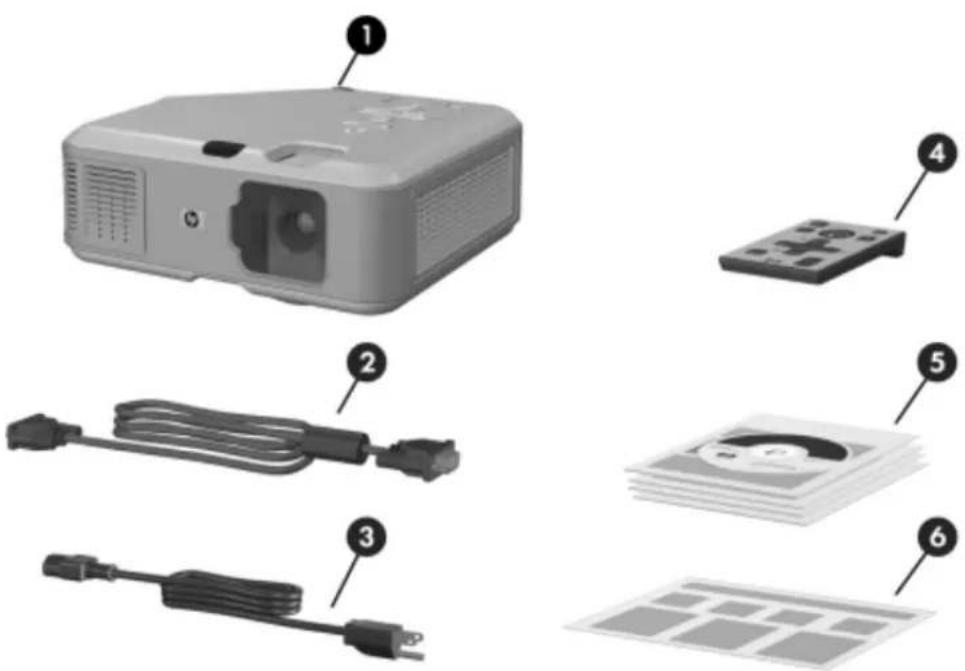
text_image
Exploded view diagram of a projector with labeled parts including front panel, cable, and power cordIdentifying the contents of the box
Item Function
① Projector Displays images.
② VGA cable Connects computer video output to the projector.
③ Power cord Connects projector to power source.
4 Remote control Controls projector.
Identifying the contents of the box (continued)
Item Function
⑤ Literature package Contains documentation for the setup and use of the projector, plus support and warranty information.
⑥ Quick Setup Guide Provides instructions to help get started.
Identifying common features
Projector at a glance

text_image
Diagram of a HP projector with numbered parts labeled for identificationIdentifying major components
Item Function
① Infrared port Receives signals from the remote control. Also works as a button to adjust the height.
② Height adjustment button Adjusts the height of the picture.
Identifying major components (continued)
| Item Function | |
| 3 | Foucus and zoom rings Focus ring: focuses at distance of 1 to 10 m (3 to 33 ft).Zoom ring: enlarges picture size from 100% to 116%. |
| 4 | Button panel Contains control buttons and indicator lights. |
| 5 | Lens cover Protects the lens. |
| 6 | Lens Projects the image. |
Projector buttons and lights

text_image
Diagram of a computer mouse with numbered UI elements and control buttons, highlighting key functions like 'main' and function keys.Identifying the projector buttons and lights
| Item Function | |
| 1 | Power button Turns the projector on or off. |
| 2 | Keystone adjustment Adjusts picture to eliminate slanted sides. |
| 3 | Page-up and Page-down buttons Scroll up and down through pages on a connected computer. |
| 4 | Source button Displays picture from the next input port. |
| 5 | Picture mode button Selects the next picture and color combination—can be customized. |
| 6 | Temperature warning light Warns if the projector is too hot. |
| 7 | Lamp warning light Warns if the lamp is bad. |
| 8 | Menu buttons Change settings using the on-screen menu. |
| 9 | Auto sync button Resynchronizes the projector to the input signal from a computer. |
Back panel
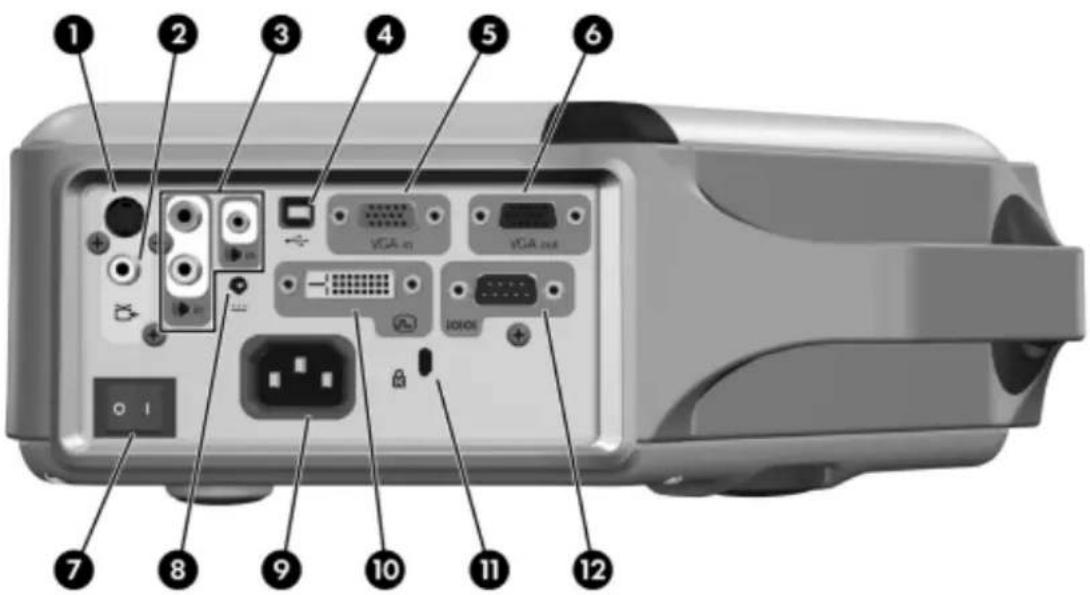
text_image
Labeled diagram of a computer monitor rear panel showing ports, connectors, and power connectionsIdentifying back panel components
Item Function
① S-video input port Connects S-video source.
② Composite-video input port Connects composite-video source.
③ Audio-in ports Connect stereo audio source using either RCA plugs or stereo mini-phone plug.
④ USB port Connects to computer and controls the mouse.
⑤ VGA-in port Connects video input from computer or component-video source.
⑥ VGA-out port Sends the VGA-in signal to a monitor.
⑦ Main disconnect switch Disconnects power. Turn off when unplugging power cord.
CAUTION: Do not use this switch to turn off the projector. Use the power button on top of the projector.
Identifying back panel components (continued)
| Item Function | |
| 8 | 12-Vdc trigger output Controls a motorized screen or similar accessory device.NOTE: Available only on certain models. |
| 9 | Power cord socket Connects power cord to projector. |
| 10 | DVI input port Connects DVI-D digital video source.NOTE: Available only on certain models. |
| 11 | Lock slot Locks the projector to a stationary object with the use of a cable and lock. |
| 12 | Serial port Connects a room controller.NOTE: Available only on certain models. |
Remote control

TIP: Before using the remote control, remove the battery protector by pulling the plastic tab until it comes out of the remote control.
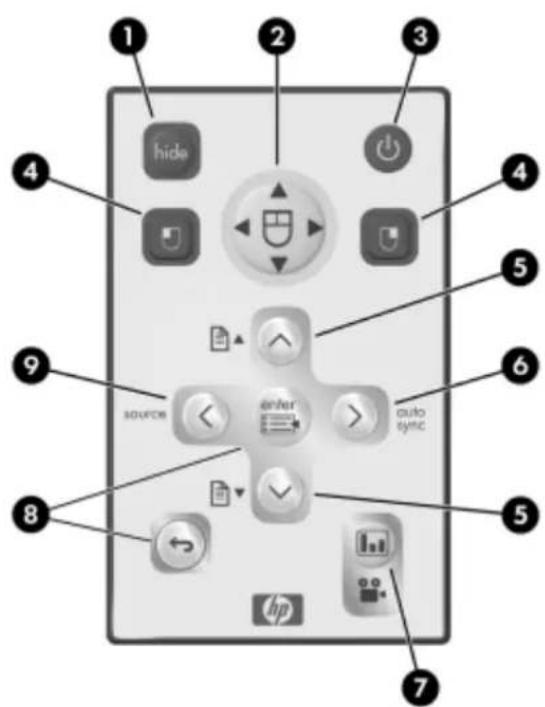
text_image
1 2 3 4 hide power source enter auto sync 5 6 5 7 8 hpIdentifying components of the remote control
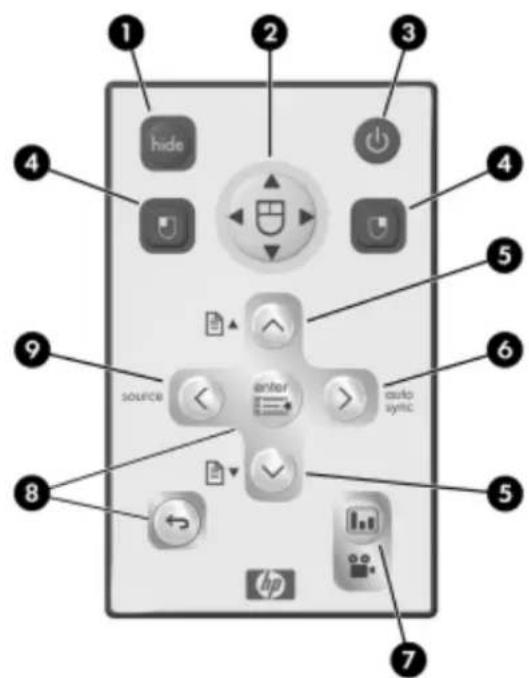
Item Function
① Hide button Blanks picture, mutes speaker.
② Mouse pad Moves the mouse pointer on a connected computer.
③ Power button Turns the projector on or off.
4 Left-click and right-click mouse buttons Perform left-click and right-click mouse functions on a connected computer.
⑤ Page-up and Page-down buttons Scroll up and down through pages on a connected computer.
Identifying components of the remote control (continued)
| Item Function | |
| 6 | Auto sync button Resynchronizes the projector to the input signal from a computer. |
| 7 | Picture mode button Selects the next picture and color combination—can be customized. |
| 8 | Menu buttons Change settings using the on-screen menu. |
| 9 | Source button Displays picture from the next input port. |
Accessories
Get more from your presentations with HP projector accessories. You can purchase accessories at http://www.hp.com or through your projector dealer.
- HP ceiling mount kit—enables you to simply and discreetly install your projector on the ceiling.
- HP projection screens—mobile screens that are easy to carry and set up anywhere, and fixed screens for even greater convenience.
- HP premium remote control—allows you to control every aspect of your presentations.
- HP power cables—allow you to connect in any region.
• HP cables—allow you to connect all audio-video equipment. - HP replacement lamp—brings your projector up to factory-fresh brightness.
Setting up the projector
Positioning the projector
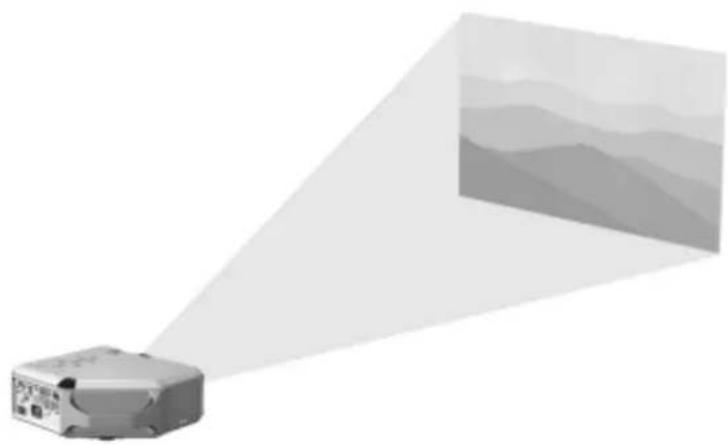
natural_image
Illustration of a projector with a light beam projecting onto a mountain range (no text or symbols)The following tables show you where to position the projector in relation to the screen.

TIP: For best picture quality, place the projector 1.5 to 5 m (5 to 16 ft) from the screen
Image size relative to distance from the screen—vp6310 series
| Image size (diagonal) Image size (width) Distance (lens to screen) | |||||
| (inches) (meters) (inches) (meters) (inches) (meters) | |||||
| 30 0.8 24 0.6 41 to 48 1.1 to 1.2 | |||||
| 40 1.0 32 0.8 55 to 64 1.4 to 1.6 | |||||
| 60 1.5 48 1.2 83 to 96 2.1 to 2.4 | |||||
| 80 2.0 64 1.6 110 to 128 2.8 to 3.3 | |||||
| 100 2.5 80 2.0 138 to 160 3.5 to 4.1 | |||||
| 120 3.0 96 2.4 166 to 192 4.2 to 4.9 | |||||
| 150 3.8 120 3.0 207 to 240 5.3 to 6.1 | |||||
| 180 4.6 144 3.7 248 to 288 | 6.3 to 7.3 | ||||
| 200 5.1 160 4.1 276 to 320 | 7.0 to 8.1 | ||||
| 240 | 6.1 192 4.9 331 to 384 8.4 to 9.8 | ||||
| 270 | 6.9 | 216 | 5.5 | 372 to 396 | 9.5 to 10.0 |
Image size relative to distance from the screen—vp6320 series
| Image size (diagonal) Image size (width) Distance (lens to screen) | |||||
| (inches) (meters) (inches) (meters) (inches) (meters) | |||||
| 30 0.8 24 0.6 43 to 50 1.1 to 1.3 | |||||
| 40 1.0 32 0.8 58 to 67 1.5 to 1.7 | |||||
| 60 1.5 48 1.2 87 to 101 2.2 to 2.6 | |||||
| 80 2.0 | 64 1.6 116 to 134 | 2.9 to 3.4 | |||
| 100 | 2.5 | 80 | 2.0 | 145 to 168 | 3.7 to 4.3 |
| 120 | 3.0 | 96 | 2.4 | 174 to 202 | 4.4 to 5.1 |
| 150 | 3.8 | 120 | 3.0 | 217 to 252 | 5.5 to 6.4 |
| 180 | 4.6 | 144 | 3.7 | 261 to 302 | 6.6 to 7.7 |
| 200 | 5.1 | 160 | 4.1 | 290 to 336 | 7.4 to 8.5 |
| 240 | 6.1 192 4.9 348 to 400 | 8.8 to 10.0 | |||
| 270 | 6.9 216 | 5.5 391 to 400 | 9.9 to 10.0 | ||
If you do not want to use the distance table, you can use the following equations to help determine where to install the projector relative to the screen.
Calculating projection distances
distance from lens to screen = A × width of screen
minimum and maximum distance from screen = B
width of screen = 0.8 × diagonal of screen (for 3:4 screen)
projector lens below bottom of screen = C × width of screen (for 4:3 screen)
| vp6310 series | vp6320 series |
| A = 1.7 to 2.0 | A = 1.8 to 2.1 |
| B = 1 to 10 m (3 to 33 ft) | B = 1 to 10 m (3 to 33 ft) |
| C = 0.11 to 0.41 | C = 0.11 to 0.43 |
Connecting power
-
Place the projector on a stable platform located 1 to 10 m (3 to 33 ft) in front of the screen. Ideally, the platform should be lower than the bottom of the screen.
-
Connect one end of the power cord to the back of the projector ① and the other end to a grounded electrical outlet ②.
-
Turn on the main disconnect switch ③ on the back of the projector.

text_image
Diagram of an electronic device showing cable connection with labeled parts and a magnified inset highlighting a component.If you want to permanently install the projector on the ceiling or behind the screen, see "Installing the projector" on page 49.
Connecting a computer
Requires:
- VGA cable ①
• USB cable ② (optional)
• Audio cable, mini-phone ③ (optional)

text_image
Diagram showing three views of an electronic device with labeled components and connections, including a laptop and cable.The optional USB connection allows you to use the mouse and page up/down features on the remote control.
See "Showing a computer screen" on page 31.

TIP: If the computer display does not appear on the projector, you might have to press a combination of keys on the computer to turn on the computer's VGA output. For example, on some computers you must press FN+F4 or FN+F5. For instructions, refer to the user documentation provided with your computer.
TIP: You can connect an external computer monitor to the VGA-out port on the projector. The monitor displays the signal connected to the VGA-in port—even if the projector is turned off or showing a different input.
Connecting a handheld organizer
Not all handhelds come with VGA-out ports. For example, an iPAQ Pocket PC may require a VGA-out PC Card with 15-pin connector. If necessary, install a VGA-out accessory card into the organizer.
Requires:
- VGA cable ①
• VGA-out accessory card ② (in some cases)

text_image
Diagram showing a computer setup with labeled components and an inset magnified view of the device's internal ports.Connecting a video source
Many video devices have more than one type of output port. When you connect the device to the projector, choose the connection that provides the best picture quality. This list shows video connections in order with highest picture quality at the top:
• DVI connection (highest quality)
• Component-video connection
• S-video connection
• Composite-video connection
The video and audio cables shown in the following sections are available from HP.
If you want to connect a SCART video device to the projector, you will need a SCART adapter (available from HP).
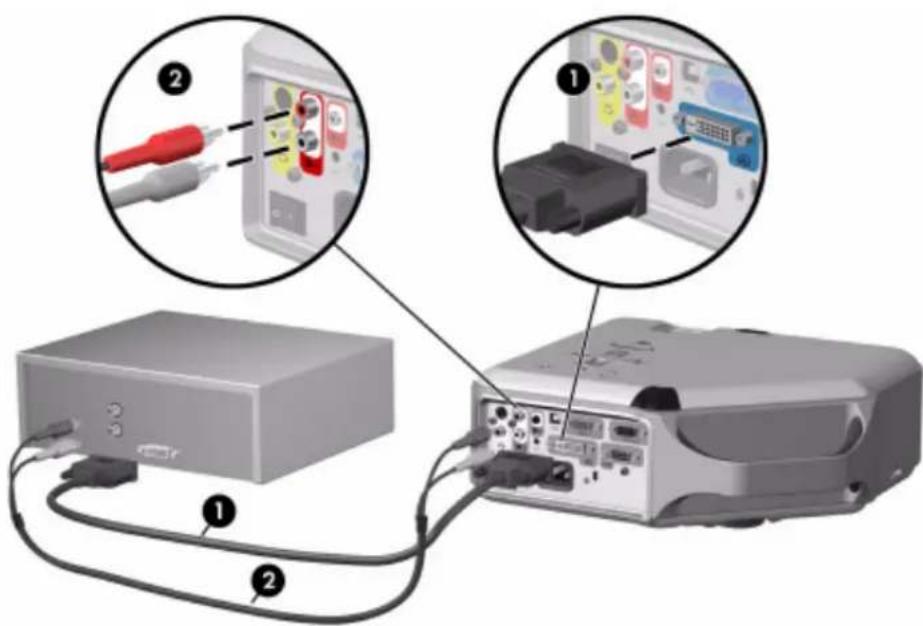
Connecting a DVI source
The DVI port is available only on certain models. It supports only DVI digital sources.
Examples: Cable boxes, satellite receivers, and some computers
Requires:
• DVI-D cable ①
• Audio cable, RCA ② (optional)
text_image
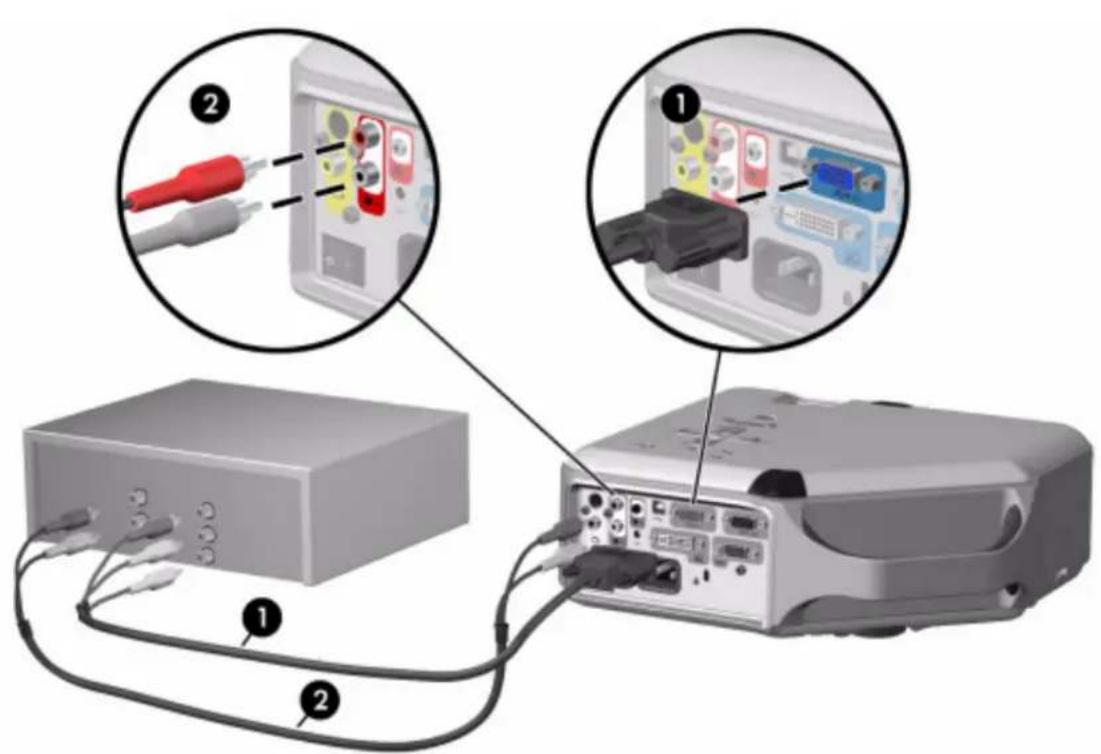
Diagram showing connection between a computer and an electronic device with labeled components and wiring detailsConnecting a component-video source
Examples: Cable boxes, DVD players, satellite receivers, and audio-video receivers
Requires:
• Component-to-VGA cable ①
• Audio cable, RCA ② (optional)

TIP: Many DVD players and other high-quality video devices provide component video output. The three RCA connectors might be labeled YPbPr or YCbCr.
If possible, configure the video source to use progressive scan output, such as 480p, 575p, or 720p. For additional information, refer to the user documentation provided with the video source.
text_image
Diagram showing cable connection to a projector with labeled components and wiring detailsConnecting an S-video source
Examples: DVD players, VCRs, cable boxes, camcorders, and video gaming devices Requires:
S-video cable ①
• Audio cable, RCA ② (optional)

text_image
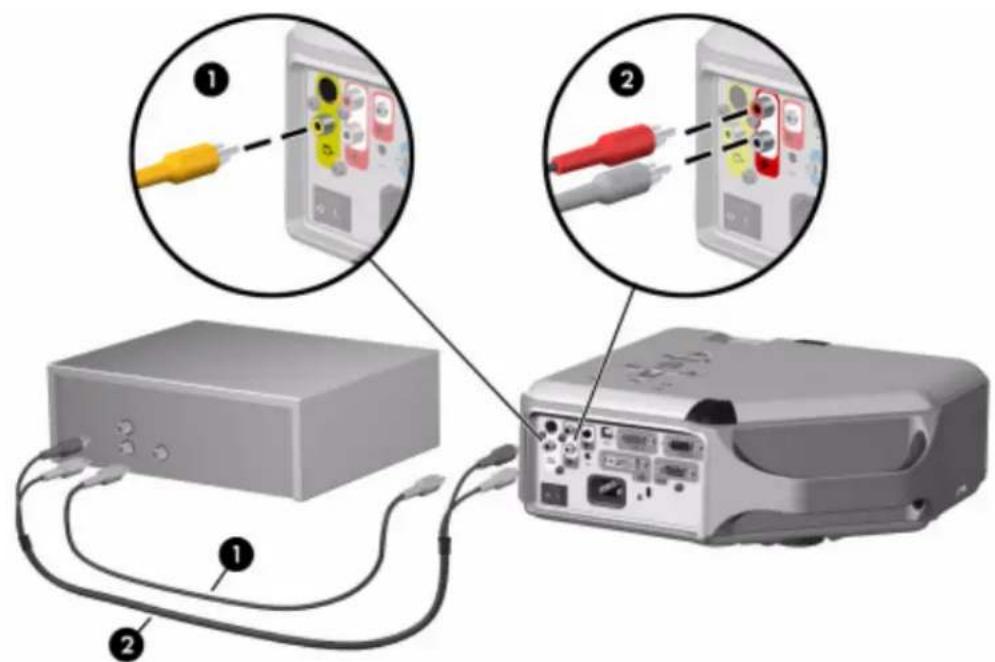
Diagram showing cable connection to a device with labeled components and wiring, including audio jack and multimeter parts.Connecting a composite-video source
Examples: VCRs, DVD players, audio-video receivers, and video gaming devices
Requires:
• Composite-video cable ①
• Audio cable, RCA ②, or combined video-audio cable (optional)
text_image
Diagram showing two connected devices with labeled components and wiring, illustrating audio or audio device connections.Turning the projector on and off
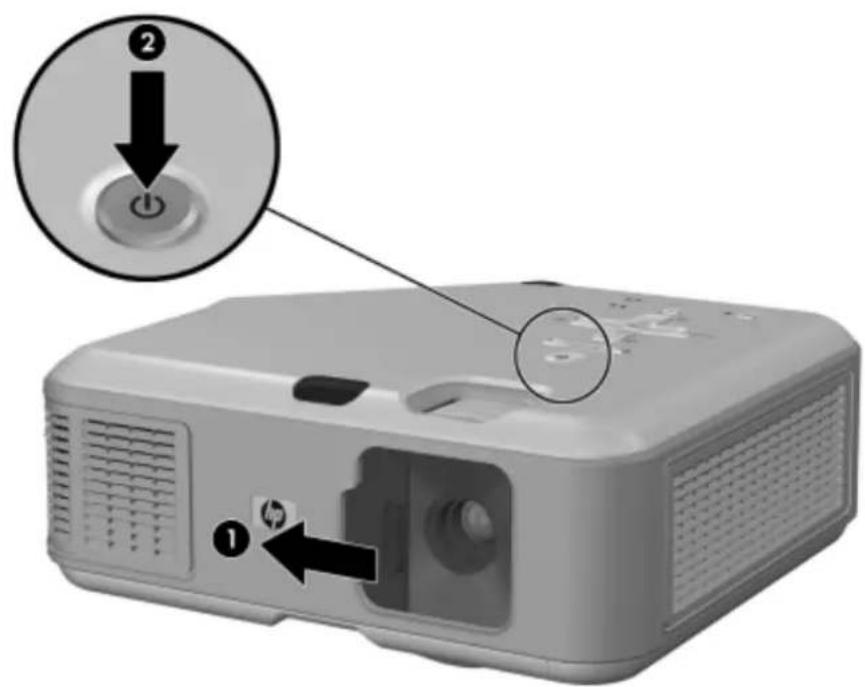
Turning the projector on
- Be sure the power cord is connected and the main disconnect switch is on.
- Open the lens by sliding the lens cover ① to the left.
- Press the power button ② on the projector or on the remote control.
The projector takes a minute or so to warm up. The power button blinks during warm-up.

TIP: If the picture does not appear on the screen, try the following:
- If you are using a computer, press the key combination that turns on its video output. For example, press FN+F4 or FN+F5 on some computers.
- On the projector, press the source button one or more times to select the correct input port.
text_image
Diagram of a projector with labeled buttons and ports, showing directional arrows for action and reset functions.
NOTE: It is normal for parts of the projector and the air coming out of the projector to be very warm. If the projector starts to overheat, the temperature warning light will turn on and the projector will shut down.
Turning the projector off
- Press the power button on the projector or remote control to turn off the projector. Do not hold the button down.
The power button blinks during the cool-down period, then the projector turns off. Even though the projector is off, it uses a small amount of power internally.
- If you want, disconnect video and audio equipment from the projector during the cooldown period or after the power button stops blinking.

CAUTION: Do not disconnect power or turn off the main disconnect switch until the projector has cooled down (the fan stops) and the power button stops blinking. Otherwise, you might shorten the life of the lamp.
- If you must unplug or remove the projector, wait until the power light stops blinking, then unplug the power cord.
If you try to turn on the projector again during the cool-down period, it will not turn on. Wait until the cool-down period ends and the power button stops blinking.
Moving the projector
When moving the projector:
- Allow the projector to cool down before moving it. Then disconnect all cables.
- Avoid bumps and jolts. Use a carrying case or padded container when possible.
- Observe temperature and humidity limits (see "Specifications" on page 65). If the projector is cold, allow it to warm gradually to avoid condensation.
Making basic adjustments
This section provides instructions for making basic adjustments to the projector.
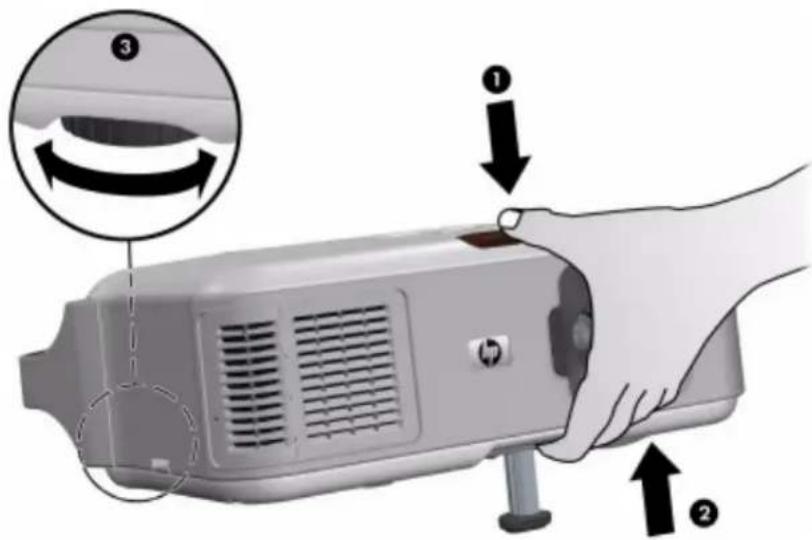
Aiming the projector
• To raise or lower the projected picture on the screen, press the height adjustment button ① and raise or lower the front of the projector ②. Release the button to lock the adjustment.
• To level the picture on the screen, turn the adjustable foot ③ to lengthen or shorten the foot.
text_image
Diagram showing a hand operating a device with labeled parts and directional arrows indicating rotation or adjustment.Adjusting the focus and zoom
-
Rotate the focus ring until the image becomes clear. The projector can be focused at distances of 1 to 10m (3 to 33 ft).
-
Rotate the zoom ring to adjust the picture size from 100 to 116%.

natural_image
Close-up of a camera lens with bidirectional arrows indicating measurement or alignment (no text or symbols)If the picture does not fit the screen, you might have to move the projector closer to or farther away from the screen.
Setting Up28
Using the remote control
text_image
1 2 3 4 hide power 5 9 source enter auto sync 6 8 5 hp 7To do this... Press this...
Hide or unhide the picture hide button
1
Move mouse pointer on computer Edge of the mouse pad
② in the direction you
want the pointer to move. This feature requires a USB connection between the projector and computer.
Turn the projector on or off Power button
③.
Click mouse button on computer Left-click or right-click button
④. This feature
requires a USB connection between the projector and computer.
Page up or page down on computer
Page-up or page-down button ⑤. This feature requires a USB connection between the projector and computer.
Readjust picture of computer screen
auto sync button ⑥.
To do this... Press this...
Change picture settings for different type of input signal
Picture mode button ⑦ one or more times.
Change settings using on-screen menu
enter and navigation buttons ⑧. See "Using the on-screen menu" on page 38.
Exit from any on-screen menu or adjustment Exit


Switch to next input source source button
⑨ one or more times.

TIP: From within the distance of 9 m (30 ft), aim the remote control at the screen or at the front or back of the projector.
2 Showing Presentations
Showing a computer screen
- Be sure the computer is connected to the projector and turned on. See "Connecting a computer" on page 20.
- Be sure the projector is set up, turned on, and adjusted. See "Making basic adjustments" on page 28.
- If a different input source is shown on the projector, press the source button on the projector or remote control one or more times to select the VGA-in port.
- If the computer display is not shown on the projector, you might have to turn on the computer's video output port. For example, some computers require you to press a key combination, such as FN+F4 or FN+F5. Refer to the user documentation provided with your computer.
If you want to adjust the picture, see "Adjusting the picture and sound" on page 33.
Selecting a different source
If the picture from your video source does not appear on the screen, you can quickly select the correct source.
▲ Press the source button one or more times—until you see the picture or you see the name of the video port where the source is connected.
You should also be sure the video source is turned on and playing video.
Hiding or showing the picture
- Press the hide button on the projector or remote control to blank the picture and turn off the projector speakers. This does not affect the video source, which continues playing.
- Press any button to show the picture again and turn on the projector speakers.
3 Adjusting the Projector
Adjusting the picture and sound
Choosing the best picture mode
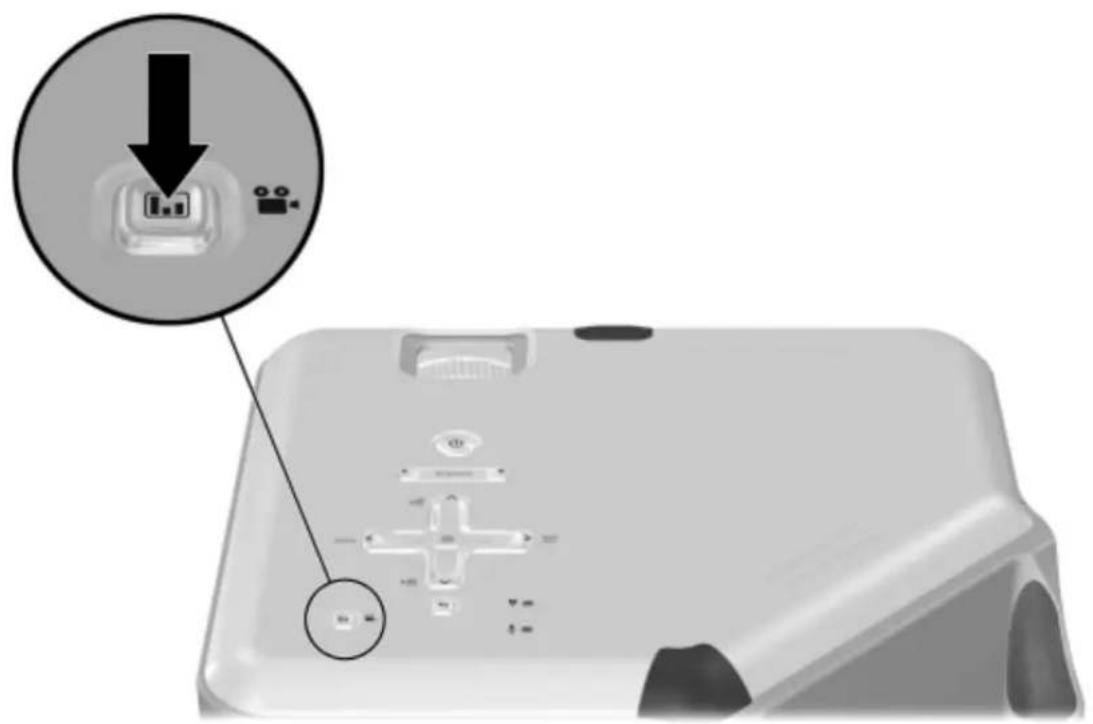
You can quickly choose a different picture mode to make adjustments to the picture. Picture modes can control properties such as color and size. They let you easily choose the best settings for ambient lighting and the type of video content (see "Adjusting the picture and sound" on page 33).
▲ Press the picture mode 📊 button one or more times to select the picture mode that gives the best picture.
text_image
Diagram showing a device with a labeled button and directional arrow, indicating a process or operation.You can also customize the picture modes so they are best for your video sources:
- Press the picture mode 📊 button to select the picture mode you want to adjust.
- Press enter and go to Picture > Customize picture mode.
- Adjust the settings until you are satisfied with the picture.

TIP: To exit from any on-screen menu or adjustment, press the exit button.
Adjusting the shape of the picture
Depending on the type of video source you are viewing, the picture might or might not always look correct or fit on the screen:
- If the active video device sends widescreen output to the projector, press enter, go to Input, and set Widescreen input to Yes. See ① in the following diagram.
• If the video device sends standard output, set Widescreen input to No.

TIP: If you show widescreen pictures on a wide projection screen, a standard picture might not fit on the screen. One solution is to change the current picture mode so it makes a smaller picture. Press enter, go to Picture > Customize picture mode, and set Stretch to Reduced. See ② in the following diagram.

flowchart
graph TD
    A["Top-Down: Oval"] -->|①| B["Top-Down: Square"]
    C["Bottom-Down: Circle"] -->|②| D["Bottom-Down: Square"]
Adjusting a slanted picture
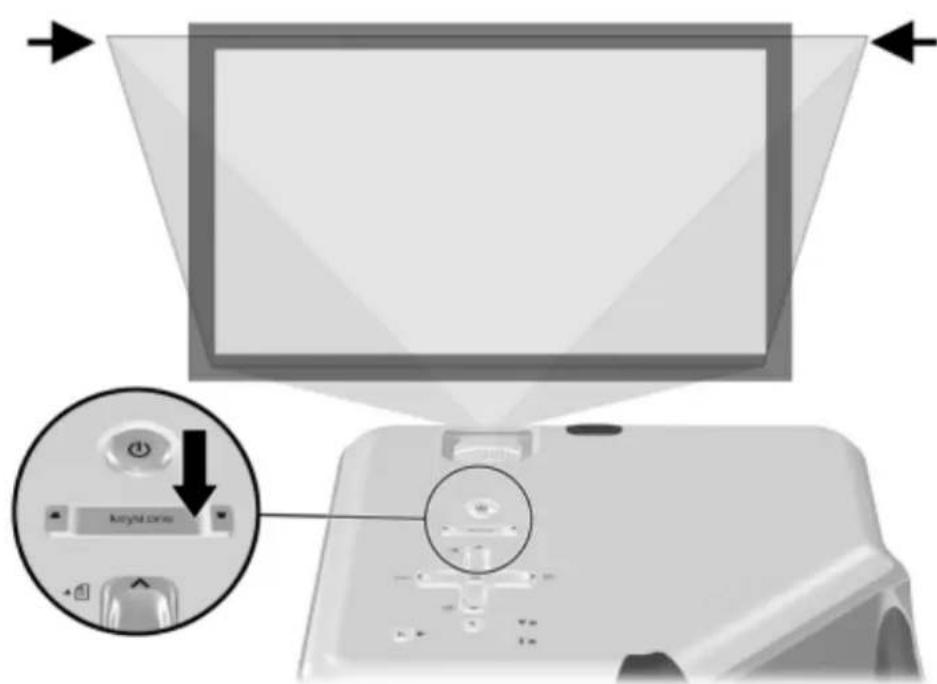
If the projector is tilted up or down, the sides of the picture on the screen might slant in or out, even though the top and bottom are level. The keystone adjustment corrects this problem.
▲ Press the keystone adjustment on the projector until the picture looks correct.
text_image
Keychain modeYou can also make the keystone adjustment in the on-screen menu. Press enter, and go to Setup > Keystone to adjust the picture.

TIP: If the top and bottom of the picture slant in different directions, move the projector until it is straight in front of the screen, not off to one side.
Adjusting the picture for best color
You can fine tune the picture settings on your projector to get the best color and image quality. You should perform these steps for each input source device and each input port that you use. Do them in the order shown. For some input ports, some of these settings may not be available.
- Press the picture mode 📁 button and select the picture mode you want to use for the current source.
- Press enter and go to the Picture menu.
- Go to Color settings > Brightness. Adjust to the highest setting that still gives the darkest black for black areas. If you temporarily set a large keystone adjustment, you can view the black areas at the sides of the picture.
- Go to Color settings > Contrast. Adjust to the highest setting that does not wash out fine detail in bright areas. You can view bright clouds or textured white areas.
- Go to Customize picture mode > Picture enhancement. Adjust to the setting that gives the best overall mid-range brightness. This should have minimal effect on blacks and whites.
- Go to Customize picture mode > Color temperature. Adjust to the setting where whites and colors look best.
- Go to Color settings > Color saturation. Adjust to the setting where colors look most natural.
- Go to Color settings > Tint. Adjust to the setting where colors look most natural.
- Go to Customize picture mode > White intensity. Adjust this setting above 0 as needed to brighten the picture but not affect colors.
- Repeat all steps if necessary.
Adjusting other picture settings
The on-screen menu provides many settings that allow you to fine-tune the picture.
- Press enter, and go to Picture.
- Change the picture adjustments as needed.
From the Picture menu, you can change many picture options, such as brightness, contrast, and picture shape, as well as customize the picture modes.
To get descriptions for all available picture adjustments, see "Picture menu" on page 40.
Adjusting the volume
You can control the volume of the projector's speakers:
- To change the volume of the projector's speakers, press enter, go to Sound > Volume, and change the setting.
- To turn the sound on or off temporarily, press enter, go to Sound > Mute, and mute the sound.
Adjusting other sound settings
- Press enter, and go to Sound.
- Set the sound adjustments.
From the Sound menu, you can adjust sound settings, such as mute, volume, and speaker operation.
To get descriptions for all available audio adjustments, see "Sound menu" on page 41.
Adjusting the projector setup
- Press enter, and go to Setup.
- Set the setup adjustments as needed.
From the Setup menu, you can select settings, such as menu language, projector position, and menu timeout.
To get descriptions for all available setup adjustments, see "Setup menu" on page 41.
Preventing unauthorized use
You can prevent unauthorized people from using the projector by creating a secret button sequence that is required for the projector to turn on. The unlock sequence is a series of 4 to 8 arrow buttons. If the buttons are not pressed in the order you specify, the projector does not turn on. Use the following steps to set or clear an unlock sequence.
- Press enter, go to Setup > Advanced setup > Projector lock, and press enter.
- If an old unlock sequence is set, press the buttons according to the old sequence when prompted, and then press enter.
- To set a new unlock sequence, press the arrow buttons for the new sequence, and then press enter.
To clear the unlock sequence and remove this protection, press only enter.
- When prompted, confirm the new sequence and press enter.

NOTE: If you set an unlock sequence, you must press the sequence every time you turn on the projector. The sequence protects the projector only when the projector is turning on, not at any other time.
If you forget the unlock sequence, you must call HP support to unlock the projector. You must have the projector and your proof of purchase.
Using the on-screen menu
Changing settings using the on-screen menu
You can change the on-screen menu settings with the buttons on either the projector or the remote control.
- Press enter on the projector or remote control. This displays the on-screen menu.
- Press up ▲ or down ▼ to highlight the desired menu icon, then press right ▶ to move into that menu.
- Press up ▲ or down ▼ to highlight a setting, then press enter to begin adjusting the setting.
- Press left ◀ or right ▶, or press up ▲ or down ▼, to adjust the setting, as prompted.
- Press enter to return to the menu.
- To go to a different menu, press left and select a menu.
- To close the on-screen menu, press the exit button.
If you do nothing for a period of time, the on-screen menu closes. To change the amount of time until the on-screen menu closes, press enter and select Setup > Timeout for menu.

TIP: To exit from any on-screen menu or adjustment, press the exit button.
Input menu
For a visual aid, see "Back panel" on page 12.
Input menu
VGA Shows the source connected to the VGA-in port.
S-video Show the source connected to the S-video port.
Composite Shows the source connected to the composite-video port.
DVI Shows the source connected to the DVI port (available only on certain models).
Scan inputs Sets whether the projector automatically searches for input signals and displays the next one found.
Widescreen input Sets whether a widescreen (16:9) input device is in use. Adjusts the height of the picture accordingly.
Picture menu
Some picture adjustments are available only when certain input ports are in use. Unavailable adjustments are shown in gray in the on-screen menu.
Picture menu
| Color settings... Adjusts the picture and colors. | |
| Brightness Brightens or darkens the picture. | |
| Contrast Sets the difference between light and dark areas. | |
| Sharpness Sharpens or softens the picture. | |
| Color saturation Adjusts the intensity of colors. | |
| Tint Shifts colors toward red or green. | |
| Color space For certain component inputs, selects the type of color standard used by the source. | |
| Reset color settings Restores these color settings to the default settings. | |
| VGA settings... Adjusts settings for a computer input. | |
| Auto-sync Resynchronizes the projector to the input signal. This can compensate for any change in the signal. | |
| Frequency Adjusts the timing of the projector relative to the computer. | |
| Tracking Adjusts the phase of the projector relative to the computer. | |
| Vertical offset | Adjusts the picture up or down within the projection area. |
| Horizontal offset | Adjusts the picture left or right within the projection area. |
| Picture mode | Adjusts color and picture settings to one of several combinations designed for different types of viewing situations. You can use a different picture mode for each source or each viewing environment. You can also customize each picture mode. |
| Customize picture mode... | Changes settings associated with the current picture mode. |
| Picture enhancement | Refines the color, lightness, and other characteristics of the picture. |
| White intensity | Increases the brightness of white areas. |
Picture menu (continued)
| Color temperature Shifts color toward red or blue. |
| Stretch Selects how the picture fits on the screen:Best fit automatically fits the picture without stretching it.1-to-1 shows each picture dot as one projected dot.Reduced fits a standard-shape picture onto a widescreen projection screen. |
| Picture shift Moves the picture within the projection area. This is useful if you are viewing a picture that is smaller than the full projection area, such as a widescreen movie. |
| Reset picture shift Resets the picture shift to zero (centered). |
| Reset this picture mode Restores the current picture mode to its default settings. |
Sound menu
Sound menu
| Mute Temporarily turns off the projector's speakers. |
| Volume Adjusts the loudness of the speakers. |
| Internal speakers Sets whether the internal speakers are turned on. |
| Reset sound settings Restores sound settings to their default settings. |
Setup menu
Setup menu
| Language Selects the language used by the on-screen menu. | |
| Keystone | Corrects the slanted sides of the picture. This compensates for a projector that is too high or low relative to the screen. |
| Reset keystone | Resets the keystone correction to zero (no correction). |
| Lamp saver | Sets a lower power level for the lamp. |
| Timeout for menu | Sets how many seconds the on-screen menu waits for input before it closes. |
Setup menu (continued)
| Advanced setup... Adjusts additional setup settings. |
| Power timeout Sets the length of time the projector waits for an input signal before automatically shutting down. |
| Projector position Adjusts the picture to match the orientation of the projector: upright or upside-down, in front of or behind the screen. Inverts or reverses the image accordingly. |
| Projector lock Sets or cancels a secret button sequence that must be entered for the projector to operate. |
| Reset lamp hours For a new lamp, resets the hours of use. |
| Reset all settings Restores all menu settings to factory default settings. |
Help menu
Help
| Displays information and status of the projector. |
| Diagnostics... Show tests for checking the operation of the projector and the remote control. |
4 Maintaining the Projector
Performing routine maintenance
Getting the projector status
To get the projector status:
▲ Press the enter button on the projector or remote control and go to Help.
This screen shows information and status for the projector.
Cleaning the projector lens
You can clean the front lens of the projector using the following recommendations. You cannot clean any of the internal surfaces.
- To minimize the risk of damaging or scratching the lens surface, blow dust particles off the lens with clean, dry, deionized air.
- If this method does not work, use the following method:
a. Wipe the lens in a single direction with a clean, dry cloth. Do not wipe back and forth across the lens.
b. If the cloth is dirty or smears the lens, wash the cloth. If the cloth is still dirty after washing it or the fabric is damaged, replace it.

CAUTION: Cleaning requires special consideration:
- Do not spray any type of fluid or cleaner directly on the lens surface. Cleaners might damage the lens.
- Do not use fabric softener when washing a cleaning cloth or softener sheets when drying the cloth. Chemicals on the cloth might damage the surface of the lens.
- Do not store a cleaning cloth in contact with the lens for a long time because doing so contaminates the lens with dye from the cloth. The cloth can be contaminated if left in the open air.
Replacing the lamp module
As the projector operates over time, the brightness of the projector lamp gradually decreases and the lamp becomes more susceptible to breakage. You can install a new lamp at any time to bring the projector up to factory-fresh brightness. We recommend replacing the lamp if a warning message is displayed.

WARNING! Replacing the lamp module requires special consideration:
• To reduce the risk of injury, be careful when removing the lamp module as broken glass might be present. For a ceiling installation, wear goggles and gloves when removing the lamp module. If the lamp is broken, contact HP about repairs that might be required due to glass fragments.
- The lamp contains a small amount of mercury. If the lamp breaks, adequately ventilate the area where the breakage occurred. Disposal of this lamp might be regulated due to environmental considerations. For disposal or recycling information, contact your local authorities or the Electronic Industries Alliance at http://www.eiae.org.
- Because the lamp assembly operates at a very high temperature, wait 30 minutes before removing the lamp module.
- Turn off the projector and allow it to cool for 30 minutes.
- Unplug the power cord.
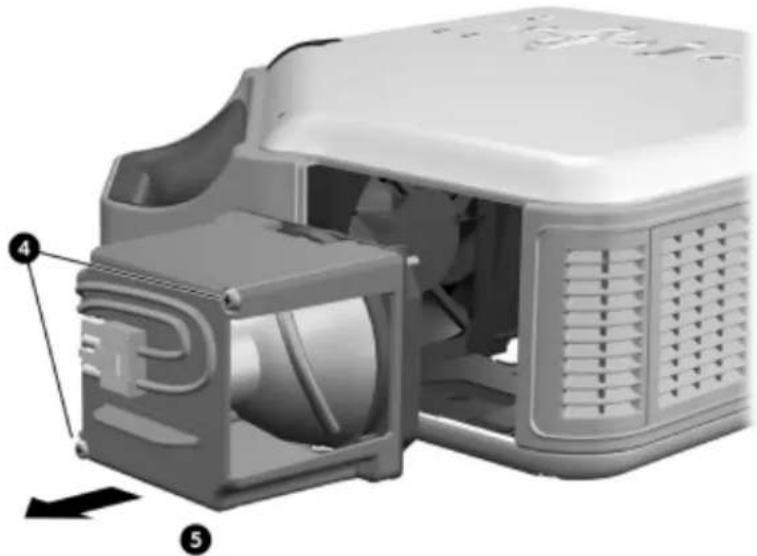
- Press the release latch ① on the lamp cover and remove the cover ②.
- Press the release latch on the lamp connector and unplug the connector ③.

text_image
Diagram of a microwave oven with labeled parts and directional arrows indicating internal components- Loosen the two screws ④ on the lamp module, and pull out the module ⑤.
natural_image
3D rendering of a white industrial device with internal components and labeled parts (no text or symbols visible)-
Insert the new lamp module into the projector and tighten the two screws.
-
Plug in the lamp connector.
-
Snap the lamp cover into place.
-
Turn on the projector. If the lamp does not turn on after the warm-up period, try reinstalling the lamp.
-
Press enter, go to Setup > Advanced setup > Reset lamp hours, and press enter.
Replacing the battery in the remote control
- Use a ballpoint pen to hold the battery latch toward the center, then pull out the battery holder ①.
- Insert the new battery ② in the holder.
- Push the holder ③ into the remote control.

text_image
Diagram illustrating the process of inserting a component into a memory card, with labeled steps 1, 2, and 3.When discarding old batteries, contact your local waste-disposal provider regarding local restrictions on the disposal or recycling of batteries.

Upgrading the projector
Updating the firmware
HP might periodically release updated versions of the projector firmware to enhance the projector performance. The projector firmware version is shown in the on-screen menu at Help. Check for updated versions at http://www.hp.com/go/proj_firmware.
USB method
- On a computer with a USB port, go to the HP projector upgrade website (see introduction for this section) and download the latest file intended for a USB upgrade.
- Connect a USB cable (available from HP) between the USB port on the projector and the USB port on the computer.
- On the computer, run the file you downloaded by double-clicking the file. Follow the on-screen instructions.
5 Installing Per
Installing the projector
Choosing cables
If you are permanently installing the projector or using it with long cables, consider the following suggestions when planning the installation:
- Use high-quality cables. Use only video cables that are made with 75-ohm coaxial cable and connectors. For high-resolution video, use low-loss video cables. For standard audio, use audio cables that are shielded. For digital audio, use 75-ohm coaxial cables.
- Minimize cable length as much as possible. For video cables longer than 6 m (20 ft), use low-loss coaxial cables. For standard audio cables longer than 6 m (20 ft), use 12-gauge wire.
- Do not run audio or video cables next to power or network cables. If they must cross, cross them at 90 degrees.
- If you are installing cables in walls, use cables with necessary approvals, such as Underwriters Laboratories (UL) approval.
- If you are running cables above a dropped ceiling, you must use plenum-rated cables if the space above the ceiling is open to the space above other rooms. You must use plenum-rated cables if you are running cables in a duct.
• Before installing cables permanently, check the setup with the final cables in the open.
Installing on a table
This installation is covered in detail in Chapter 1. See "Setting up the projector" on page 16 for more information.
Installing on the ceiling

WARNING! To minimize the risk of injury from improperly installed equipment, it is recommended that a professional installer performs the ceiling installation.
-
Attach the projector to the ceiling using an HP ceiling mount kit. Refer to the installation instructions provided with the ceiling mount kit.
-
After the projector is mounted on the ceiling, adjust the projector settings to match this setup. Press enter, go to Setup > Advanced setup > Projector position, and select Front Ceiling.
Installing for rear projection
- Place the projector 1 to 10 m (3 to 33 ft) behind a translucent screen that is designed for rear projection.
See "Setting up the projector" on page 16 or "Installing on the ceiling" on page 49 for more instructions.
- Press enter, go to Setup > Advanced setup > Projector position. Then select Rear Table or Rear Ceiling.
Locking the projector
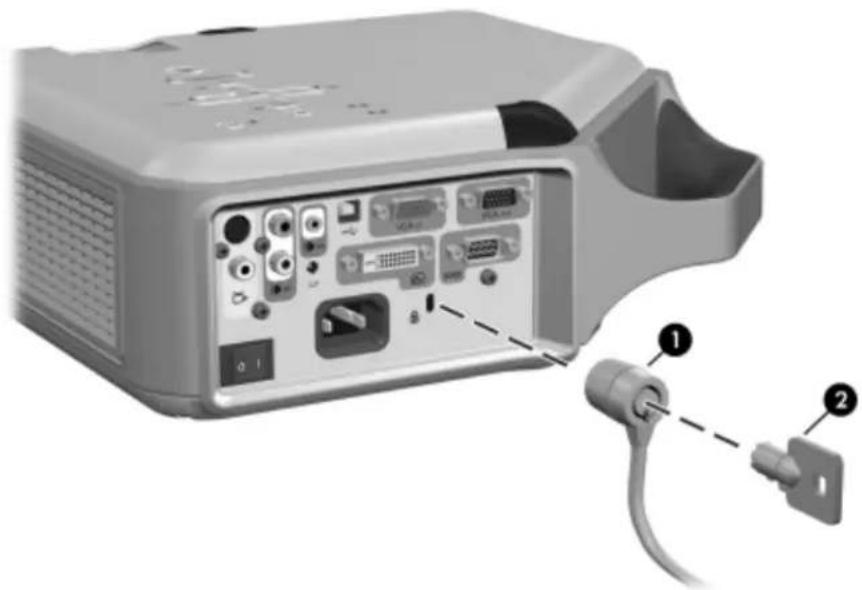
The projector includes a built in slot to secure the projector with a cable and lock (such as the Kensington MicroSaver lock system, available at many computer stores).
-
Wrap the cable around a secure object, such as a table leg. Loop the cable to create a slip knot around the stationary object, and be sure it cannot slip off.
-
Insert the lock ① into the hole and twist the key ②.
natural_image
Back view of a computer monitor with labeled ports and connectors (no text or symbols visible)TIP: As an alternative, you can loop a cable or bracket around the projector handle to secure the projector in place.
Controlling an external accessory
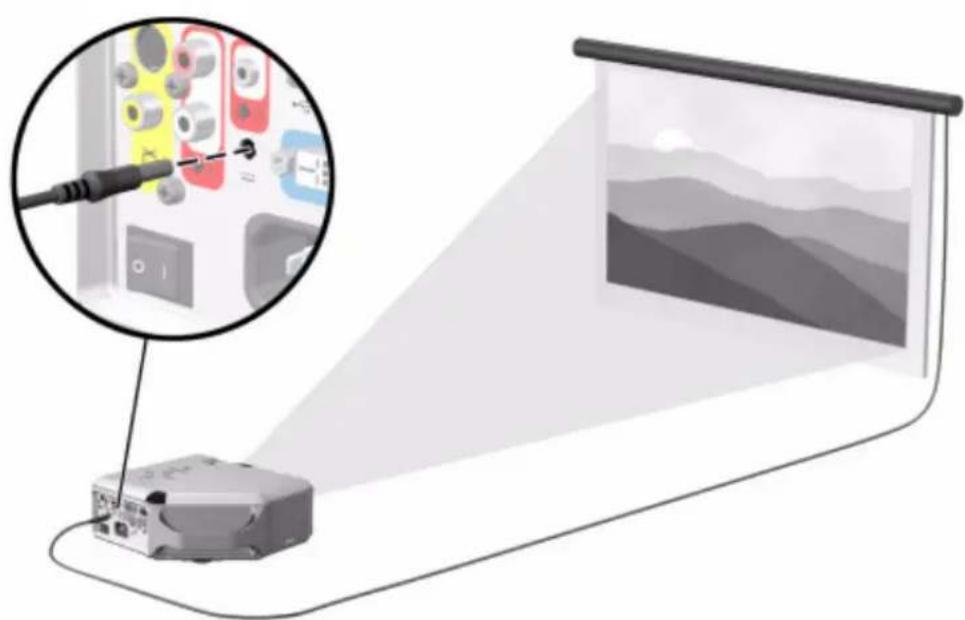
If your projector has a 12-volt trigger output port, the projector can automatically control one or more accessories. Certain types of accessories can use a 12-volt signal to trigger their actions, such as a motorized screen lowering and raising the screen. The output provides a 12-volt dc signal whenever the projector is on (200 mA maximum current output).
Requires:
- Two-wire cable with 3.5-mm × 1.3-mm barrel connector (12 V on inner contact)
natural_image
Illustration of a projector projection onto a screen with an inset showing cable and camera components (no text or symbols)Connecting to a room controller
If your projector has a serial port, you can connect the projector to a room controller using a serial (RS-232) cable. After you program the room controller using the following commands, you can use the room controller to operate the projector and other components of your installation.
Serial connections
The serial port on the projector uses a standard serial (RS-232) cable:
• Pin 2: data sent to the projector (RxD)
• Pin 3: data sent from the projector (TxD)
- Pin 5: ground
The room controller must use the following serial (RS-232) settings:
• 9600 baud
- 1 start bit + 8 data bits (D0=LSB, D7=MSB) + 1 stop bit
- No parity
• Full duplex communication channels (no flow control)
- No handshaking
Examples of room controller commands
In the following examples, "
Commands are sent to the projector as "requests" which consist of an asterisk (*) prefix, the command name, any needed parameter, and a carriage return
* command = parameter
Requests can contain only ASCII alphanumeric characters. Blanks (spaces) are allowed, except within keywords and numbers. Line feeds
The following table shows the specific syntax to use for various requested tasks.
To perform this task... Use this request syntax...
Change a setting to a specified value *command=value
Ask the current setting *command=?
Increment a setting *command=+
Decrement a setting *command=
Invoke an action (no parameter needed) *command
In general, every request sent to the projector generates one or more notification messages, which are sent to the room controller. Actions initiated by the projector can also generate notifications.
The projector always sends notifications whenever a setting changes, whether as the result of a request from a controller, or as the result of an action, such as a button press or menu change. Some requested setting changes take time to perform, or are carried out in stages. Because of this, requests might produce delayed notifications.
The following table lists the types of notifications generated in various situations.
This type of request... Generates this type of notification...
Modify a setting Echoes the request command and shows the resulting value:
Request: *BRT=65
Notification: *BRT=65
Query a setting Echoes the request command and shows the resulting value:
Request: *CON=?
Notification: *CON=40
Execute an action Echoes the request command:
Request: *NXT
Notification: *NXT
Incorrect commands cause the following types of notifications:
- No asterisk at start of command—no response
-
Unrecognized command name—command with “?” added
-
Command that is currently unavailable—command with “?” added
- Invalid parameter—command with current value
• Action command with unnecessary parameter—action command
• Action command that is unavailable—action command
The following simplified example shows how the projector typically responds to a request to change the active input source. Note that the three latter notifications are delayed.
Request: *RSRC=4
Notification: *RSRC=4
* SRC=0
*SRC=4
*BRT=60
*CSPC=?
Room controller commands
In the following tables, if the parameter listing for a particular command is "None," that command requires no parameter. Some commands are valid only when the projector is turned on, STAT=1. Some commands are available only when specific input sources are active.
Source function
Command Parameters Description
| SRC ? Queries the current active input source: 0=no activesource,1=VGA-in, 3=composite video, 4=S-video, 8=DVI. | ||
| RSRC 1, 3, 4, 8, ? Attempts to use the specified source as the active input source,or queries the last source requested: 1=VGA-in, 3=compositevideo, 4=S-video, 8=DVI. | ||
| NXT | None | Switches to the next input source. |
| AUTO | 0, 1, ? | Sets or queries automatic searching inputs for signal: 0=nosearching, 1=searching. |
Command Parameters Description
| CSPC 0 to 2, ? Sets or queries the active color space: 0=RGB, 1=YPbPr, 2=YCbCr. | ||
| PMOD 0,1,5,? Sets or queries the picture mode: 0=graphics, 1=video, 5=custom. | ||
| VSHF | value, +, -, ? | Sets or queries the vertical shift of the projected image: usable range is determined by the active input source. |
| HSHF | value, +, -, ? | Sets or queries the horizontal shift of the projected image: usable range is determined by the active input source. |
| WHIT 0 to 10, +, -, ? Sets or queries the white intensity. | ||
| BRT 0 to 100, +, -, ? Sets or queries the brightness. | ||
| CON 0 to 100, +, -, ? Sets or queries the contrast. | ||
| SAT 0 to 100, +, -, ? Sets or queries the color saturation. | ||
| TNT | -45 to 45, +, -, ? | Sets or queries the tint. |
| CTMP | 0 to 2, ? | Sets or queries the color temperature: 0=warm, 1=neutral, 2=cool. |
| SHRP | 0 to 12, +, -, ? | Sets or queries the sharpness. |
| PENH | 0 to 6, +, -, ? | Sets or queries the picture enhancement setting. |
| KEYV | -50 to 50, +, -, ? | Sets or queries the vertical keystone: 0=no keystone adjustment, 1 to 50=shrinks the top of the display, -1 to -50=shrinks the bottom of the display. |
| ASPT | 0, 1, 4, ? | Sets or queries the aspect ratio: 0=1-to-1, 1=Best Fit, 4=Reduced. |
| SYNC | None | Automatically resynchronizes the projector to the active computer input source. |
| FREQ | -50 to 50, +, -, ? | Sets or queries the projector's timing relative to the active computer input source. |
| TRK | value, +, -, ? | Sets or queries the synchronization of the projector to the active computer input source. |
| Command Parameters Description | ||
| VPOS | value, +, -, ? | Sets or queries the vertical positioning of the projected image: usable range is the maximum and minimum allowed by the active computer input source. |
| HPOS | value, +, -, ? | Sets or queries the horizontal positioning of the projected image: usable range is the maximum and minimum allowed by the active computer input source. |
| HIDE 0, 1, ? Sets or queries picture blanking: 0=not hidden, 1=hidden. | ||
| WIDE 0, 1, ? Sets or queries wide screen mode: 0=normal, 1=wide. | ||
| KEYR None Resets keystone to zero. | ||
Audio functions
| Command Parameters Description |
| MUTE 0, 1, ? Sets or queries audio muting: 0=not muted, 1=muted. |
| VOL 0 to 31, +, -, ? Sets or queries audio volume: 0=off, 31=maximum. |
| INTSP 0, 1, ? Sets or queries usage of the internal speakers: 0=disabled, 1=enabled. |
Setup functions
| Command Parameters Description | ||
| LANG | 0 to 10, ? | Sets or queries the language used by the projector: 0=English, 1=French, 2=Italian, 3=German, 4=Portuguese, 5=Spanish, 6=Traditional Chinese, 7=Simplified Chinese, 8=Korean, 9=Japanese, 10=Czech. |
| LSAV | 0, 1, ? | Sets or queries low-power operating mode: 0=normal power, 1=low power. |
| LHRS | ? | Queries the time (in tenths of hours) that the lamp has been in use. |
Setup functions (continued)
| Command Parameters Description |
| THRS ? Queries the total time (in tenths of hours) that the projector has been in use. |
| POS 0 to 3, ? Sets or queries the projector's position: 0=front table, 1=front ceiling, 2=rear table, 3=rear ceiling. |
| TMO 5 to 20, ? Sets or queries the menu timeout setting (seconds) |
| PTMO 0, 3 to 6, ? Sets or queries the power timeout: 0=never, 3=15 min, 4=30 min, 5=60 min, 6=120 min. |
| VERS ? Queries the projector model number and firmware version. The notification takes this form:*VERS="proj_model:proj_fw" |
| SNUM ? Queries the projector's serial number. |
Power and status functions
| Command Parameters Description | ||
| SHDN None Puts the projector into cool-down state, and later into standby state. The projector sends a notification when it enters cool-down state (STAT=3), and another when it enters standby state (STAT=0). This keyword requires the projector to be in its on state (STAT=1).Do not send any requests other than STAT in the time between the cool-down and standby state notifications. Otherwise, unexpected results can occur. | ||
| W or WAKE | None | Puts the projector into warm-up state, and later into on state. The projector sends a notification when it enters warm-up state (STAT=2), and another when it enters the on state (STAT=1). This keyword requires the projector to be in standby state (STAT=0).Do not send any requests other than STAT in the time between the warm-up and on state notifications. Otherwise, unexpected results can occur. |
Power and status functions (continued)
Command Parameters Description
STAT ? Queries the projector's current state: 0=standby state (off), 1=on, 2=warm-up state, 3=cool-down state.
ALERT Not a request Notifies when a system alert condition occurs: 0=lamp life warning, 1=lamp life reached, 2=lamp faulty, 3=lamp problem, 4=internal temperature too high, 5=fan problem, 6=ambient temperature too high, 7=color wheel problem, 8=lamp cover open. ALERT is sent only by the projector, and cannot be used in requests.
Simulated key presses
Command Parameters Description
BACK None Simulates pressing the Exit Arrow key on keypad
ENTER None Simulates pressing the ENTER key on keypad
LEFT None Simulates pressing the Left Arrow key on keypad
RIGHT None Simulates pressing the Right Arrow key on keypad
UP None Simulates pressing the Up Arrow key on keypad
DOWN None Simulates pressing the Down Arrow key on keypad
6 Fixing Problems
Troubleshooting suggestions
If you have a problem with your projector, check the following statement that most closely matches the nature of the problem, then look in that section of this chapter:
• "Warning light problems" on page 59
• "Start-up problems" on page 60
• "Picture problems" on page 60
• "Sound problems" on page 63
• "Interruption problems" on page 63
• "Remote control problems" on page 63

TIP: If these suggestions do not solve your problem, go to http://www.hp.com/support for additional information. To contact HP, refer to the support guide included with the projector.
Warning light problems
If both red warning lights are blinking:
- Allow the projector to cool down after it turns off. If this condition occurs after you restart the projector, an internal component has failed. Contact HP for assistance.
If the red temperature light is on or blinking:
- Allow the projector to cool down after it turns off. Be sure that nothing is near or blocking the vents on the projector, and that the vents are free of lint and other objects. Remove any sources of excess heat in the room. Observe temperature and altitude limits (see "Specifications" on page 65). If the warning light turns on or blinks after you restart the projector, contact HP for assistance.
If the red lamp light is on or blinking:
- Allow the projector to cool down after it turns off. If the warning light turns on or blinks after you restart the projector, install a new lamp. If this occurs after you install a new lamp module, remove and reinstall the lamp module. If a new lamp does not fix the problem, contact HP for assistance.
If the red lamp light is flickering quickly:
- Check that the cover over the lamp at the side of the projector is correctly installed and fully attached. Check the tab at the top of the cover and latch at the bottom.
Start-up problems
If no lights or sounds turn on:
- Be sure that the power cable is securely connected to the projector and the other end is plugged into an outlet with power.
- Be sure the main disconnect switch is turned on.
- Press the power button again.
- Unplug the power cord for 15 seconds, then plug it in and press the power button again.
Picture problems
If a "scanning" or "waiting" message is displayed on a blank screen:
- Press the source button on the projector or remote control one or more times until the correct source name is selected.
- Be sure the external source is turned on and connected.
- For a computer connection, ensure your notebook computer's external video port is turned on. Refer to the computer manual. On some notebooks, for example, press the FN+F4 or FN+F5 function keys to turn on the external video port.
If the wrong input source is displayed:
- Press the source button on the projector or the remote control one or more times to select another active input source.
If the image is out of focus:
- Be sure the lens cover is open.
- While displaying the on-screen menu, adjust the focus ring. (The image size should not change; if it does, you are adjusting the zoom, not the focus.)
- Ensure the projection screen is 1 to 10m (3 to 33 ft) from the projector.
- Check the projection lens to see if it needs cleaning.
- For a computer connection, set the display resolution as the computer to the same resolution as the projector, 800 × 600 or 1024 × 768 (see "Specifications" on page 65). If the computer has multiple monitors, adjust the resolution of the monitor assigned to the projector.
- For a computer connected to the S-video port, the picture cannot be as high resolution as what you see on the computer display.
If an upside-down or reversed image is displayed:
- The projector has been set to the wrong position setting. Press enter, go to Setup > Advanced Setup > Projector position, and select the correct setting.
If the image is too small or too large:
- Adjust the zoom ring on top of the projector.
- Move the projector closer to or farther from the screen.
- On the projector or remote control, press the picture mode 📄 button one or more times to see if one of the picture modes makes the image the correct size.
- Press enter, go to Picture > Customize picture mode > Stretch. Try the different settings.
- If the source device sends wide-screen output, press enter, go to Input, and try setting Widescreen input to Yes. Otherwise, set it to No.
If the image has slanted sides:
- As much as possible, reposition the projector so that it is centered on the screen and below the bottom or above the top of the screen.
- On the projector, press the keystone button until the sides are vertical.
If the image is stretched:
- On the projector or remote control, press the picture mode button one or more times to see if one of the picture modes makes the image the correct size.
- Press enter, go to Picture > Customize picture mode > Stretch. Try the different settings.
- If the source device sends wide-screen output, press enter, go to Input, and try setting Widescreen input to Yes. Otherwise, set it to No.
If the projected colors seem slightly wrong:
- See "Adjusting the picture for best color" on page 36.
- Press enter, go to Help > Diagnostics, and run the color test.
If the projected colors seem completely wrong:
- Be sure the pins on the cable connectors are not bent or broken.
- Press enter, go to Picture > Color settings > Color space. Try the different settings.
- Press enter, go to Help > Diagnostics, and run the color test.
- Press enter, go to Picture > Color settings > Reset color settings, and press enter.
- Press enter, go to Setup > Reset all settings, and press enter.
If the picture is not clear (ghost images, smearing, poor quality):
- Be sure the video cable you are using is coaxial cable rated at 75 ohms. Any other cable or impedance rating can reduce picture quality.
- The video cable connecting the video source to the projector probably must be higher quality. See "Choosing cables" on page 49.
If several picture settings seem completely wrong and you cannot fix them:
- Press enter, go to Picture > Color settings > Reset color settings, and press enter.
- Press enter, go to Setup > Reset all settings, and press enter.
If a scrolling or cut-off image is displayed for a computer connection:
- Press the auto sync button on the projector or remote control.
- Turn everything off. Then power on the projector first and power on the notebook or desktop computer second.
- If the previous steps do not correct the display image, adjust the resolution of the notebook or desktop computer to the same resolution as the projector, 800 × 600 or 1024 × 768 (see "Specifications" on page 65). If the computer has multiple monitors, adjust the resolution of the monitor assigned to the projector.
If the image is flickering or unstable for a computer connection:
- Press the auto sync butto on the projector or remote control.
- Press enter, go to Picture > VGA settings, and adjust Frequency or Tracking.
If the image disappears from the computer screen:
- For a notebook computer, you might be able to turn on both the external VGA port and the built-in screen. Refer to the computer manual.
- Connect a monitor to the VGA-out port.
If text or lines from a computer display seem rough or uneven:
- Check the focus adjustment.
- Press enter, go to Setup > Reset keystone, and press enter.
Sound problems
If no sound is coming out of the projector:
- Be sure you have an audio cable securely connected between the projector and the source device.
- Press enter, go to Sound, and check that Mute is turned off and Volume is correct.
- Press enter, go to Sound > Internal speakers, and be sure the speakers are turned on.
- Press enter, go to Help > Diagnostics, and run the sound test.
- Be sure that the mute and volume settings are correct on the source device, such as a VCR, camcorder, or computer.
Interruption problems
If the projector stops responding to all controls:
- If possible, turn off the projector, then unplug the power cord and wait at least 15 seconds before reconnecting power.
If the lamp shuts off during a show:
- A minor power surge might cause the lamp to shut off. This is normal. Wait a few minutes, then power on the projector.
- If a red warning light is on or blinking, see "Warning light problems" on page 59.
If the lamp burns out or makes a popping sound:
- If the lamp burns out and makes a popping sound, the projector will not turn back on until the lamp module has been replaced.
- If the lamp breaks, contact HP about repairs that might be required due to glass fragments.
Remote control problems
If the remote control does not operate:
- Be sure nothing is blocking the remote control receiver on the front or back of the projector. Move to within 9 m (30 ft) of the projector.
- Aim the remote control at the screen or at the front or back of the projector.
- Move the remote control so it is more directly in front of or behind the projector and not as far to the side.
- Press enter, go to Help > Diagnostics, and run the remote control test.
- Replace the battery in the remote control.
Testing the projector
Running the projector diagnostics
The on-screen menu contains diagnostic tests you can use to verify the proper operation of the projector and the remote control.
- Press enter and go to Help > Diagnostics.
- Select a test and press enter.
- Follow the displayed instructions.
7 Reference
This chapter lists the specifications, safety information, and regulatory information for the projector.
Specifications
Because HP continually improves its products, the following specifications are subject to change. For the latest specifications, visit the HP website at http://www.hp.com.
Projector Specifications
Size 280 × 255 × 102 mm ( 11.0 × 10.1 × 4.0 in.)
Weight 3.5 kg (7.7 lb)
Resolution vp6310 series: SVGA (800 × 600)
vp6320 series: XGA (1024 × 768)
Technology DLP
Video connectors VGA-in (D-sub) with optional cable for component-video input
VGA-out (D-sub)
S-video (mini-DIN)
Composite video (RCA)
DVI-D (vp6320 series)
Audio connectors Stereo-in (2 RCA and mini-phone)
Other connectors USB 1.1 type B
RS-232 control (vp6320 series)
12-Vdc trigger output (vp6320 series)
Video compatibility
NTSC 3.58 MHz and 4.43 MHz
PAL B, D, G, H, I, M, N
SECAM B, D, G, K, K1, L
HDTV (480i/p, 575i/p, 720p, 1080i)
DVI with HDCP (vp6320 series)
PC video up to SXGA
Projector Specifications (continued)
| IR receivers Front and back of projector | |
| Lamp 210-watt lamp4000-hour average lamp life (to half of original brightness)Lamp saver mode reduces lamp power to 168 wattsReplacement lamp: L1695A | |
| Optics 1 to 10 m (3 to 33 ft) focus range1.16:1 optical zoomvp6310 series:1.7 to 2.0 throw ratio (distance/width)128% offset (relative to half-height)vp6320 series:1.8 to 2.1 throw ratio (distance/width)125% offset (relative to half-height) | |
| Light engine vp6310 series: 0.55-in. 12° DDR DMDvp6320 series: 0.7-in. 12° DDR DMD | |
| Audio Monaural speaker, 6-watt peak output | |
| Noise level less than 36 dBA | |
| Vertical tilt 0° to 9° | |
| Vertical keystone correction ±20% | |
| Remote control USB mouse | |
| Mounting options Ceiling and tabletop, front and rear projection | |
| Security Kensington lock compatibleUnlock sequence protects against unauthorized use | |
| Power 100 to 240 V at 50 to 60 Hz |
Projector Specifications (continued)
Environment Operating:
Temperature: 10 to 35 °C (50 to 95 °F)
Humidity: 80% RH max, non-condensing
Altitude: up to 3,000 m (10,000 ft), up to 25 °C (77 °F)
Storage:
Temperature: -20 to 55 °C (-4 to 131 °F)
Humidity: 80% RH max, non-condensing
Altitude: up to 12,000 m (40,000 ft)
Video mode compatibility
Compatibility Resolution Refresh rates (Hz)
| Analog | ||
| VGA 640 × 350 70, 85 | ||
| 640 × 400 85 | ||
| 640 × 480 60, 66.66, 66.68, 72, 75, 85 | ||
| 720 × 400 70, 85 | ||
| SVGA 800 × 600 56, 60, 72, 75, 85 | ||
| 832 × 624 74.55 | ||
| XGA 1024 × 768 60, 70, 75, 85 | ||
| 1152 × 870 75, 75.06 | ||
| 1280 × 960 75 | ||
| SXGA 1280 × 1024 | 60, 75 | |
| SXGA+ | 1400 × 1050 | 60 |
| Digital (vp6320 series) | ||
| VGA 640 × 350 70, 85 | ||
| 640 × 400 85 | ||
Video mode compatibility (continued)
| Compatibility | Resolution Refresh rates (Hz) |
| 640 × 480 60, 72, 75, 85 | |
| 720 × 400 70, 85 | |
| SVGA 800 × 600 56, 60, 72, 75, 85 | |
| XGA 1024 × 768 60, 70, 75 | |
| SXGA 1280 × 1024 60, 75 | |
| SXGA+ 1400 × 1050 60 |
Safety information
LED safety
The infrared ports located on the digital projector and remote control are classified as Class 1 LED devices according to International Standard IEC 825-1 (EN60825-1). This device is not considered harmful, but the following precautions are recommended:
- If the unit requires service, contact an authorized HP service center.
- Do not attempt to make any adjustment to the unit.
- Avoid direct eye exposure to the infrared LED beam. Be aware that the beam is invisible light and cannot be seen.
- Do not attempt to view the infrared LED beam with any type of optical device.
Mercury safety

WARNING! This digital projector lamp contains a small amount of mercury. If the lamp breaks, adequately ventilate the area where the breakage occurred. Disposal of the lamp might be regulated due to environmental considerations. For disposal or recycling information, contact your local authorities or the Electronic Industries Alliance at http://www.eiae.org.
Regulatory information
This section presents information that shows how your digital projector complies with regulations in certain regions. Any modifications to your digital projector not expressly approved by HP could void the authority to operate the digital projector in these regions.
U.S.A.
This digital projector has been tested and found to comply with the limits for a Class B digital device, pursuant to Part 15 of the FCC Rules. These limits are designed to provide reasonable protection against harmful interference in a residential installation.
This digital projector generates, uses, and can radiate radio frequency energy. If not installed and used in accordance with the instructions, it can cause harmful interference to radio communications. However, there is no guarantee that interference will not occur in a particular installation. If this digital projector does cause harmful interference to radio or television reception (which can be determined by unplugging the unit), try the following:
- Reorienting or relocating the receiving antenna.
- Relocating the digital projector with respect to the receiver.
- Connecting the digital projector's power cord to another power outlet.
Connections to peripheral devices
To maintain compliance with FCC Rules and Regulations, use properly shielded cables with this device.
For more information, consult your dealer, an experienced radio/television technician, or, prepared by the Federal Communications Commission, How to Identify and Resolve Radio-TV Interference Problems. This booklet is available from the U.S. Government Printing Office, Washington, DC 20402, Stock Number 004-000-00345-4. At the first printing of this manual, the telephone number was 202-512-1800.
Canada
This Class B digital apparatus complies with Canadian ICES-003.
Japan
For regulatory identification purposes, your product is assigned a regulatory model number. The regulatory model number for your product is listed in the declaration of conformity. This regulatory number is different from the marketing name and product number.
Regulatory model number: CRVSB-05CE
Declaration of conformity
According to ISO/IEC Guide 22 and EN 45014
Manufacturer's name: Hewlett Packard Company
Manufacturer's address: Hewlett Packard Company
Digital Projection & Imaging
1000 NE Circle Blvd.
Corvallis, OR 97330-4239
Declares, that the product(s):
Product name: Digital Projector
Model numbers: vp6310/vp6320 series
Regulatory model: CRVSB-05CE
Conforms to the following product specifications:
Safety:
IEC 60950:1999/ EN 60950:2000
IEC 60825-1:1993 +A1 / EN 60825-1:1994 +A11 Class 1 LED
GB4943-1995
EMC:
EN 55022 +A1 Class B: 1998 [1]
CISPR 24:1997 / EN 55024 +A1:2001
IEC 61000-3-2:1995 / EN 61000-3-2:2000
IEC 61000-3-3:1994 / EN 61000-3-3:1995+A1:2001
GB9254-1998
FCC Title 47 CFR, Part 15 Class B/ANSI C63.4:1992
AS/NZS 3548:1995 Rules and Regulations of Class B
VCCI
Supplementary information:
The product herewith complies with the requirements of following Directives and carries the CE marking accordingly:
-Low Voltage Directive: 73/23/EEC
-EMC Directive: 89/336/EEC
[1] The product was tested in a typical configuration with Hewlett Packard Personal Computer peripherals.
This device complies with Part 15 of the FCC Rules. Operation is subject to the following two conditions: (1) this device may not cause harmful interference, and (2) this device must accept any interference received, including interference that may cause undesired operation.
Corvallis, Oregon, January 15, 2005


Steve Brown, General Manager
European Contact for regulatory topics only: Hewlett Packard GmbH, HQ-TRE, Herrenberger Straße 140, 71034 Boeblingen, Germany. (FAX:+49-7031-143143).
USA Contact: Hewlett Packard Co., Corporate Product Regulations Manager, 3000 Hanover Street, Palo Alto, CA 94304. Phone: (650) 857-1501.
Index
A
accessories 15
adjusting
color 36
picture 33
setup 37
shape of picture 34
slanted picture 35
sound 33
aiming projector 28
analog video mode
compatibility 67
audio
adjusting 33
ports 12
troubleshooting 63
B
buttons
location 11
opening menu 38
C
cables
choosing 49
connections 22
ceiling installation 49
choosing cables 49
cleaning 7, 43
component-video
connecting source 23
port 12
composite-video
connecting source 25
port 12
computer screen, showing 31
computer, connecting 20
connecting
component-video source 23
composite-video source 25
computer 20
DVI source 22
external accessory 51
handheld organizer 21
power 19
SCART source 22
S-video source 24
controlling external
accessory 51
D
diagnostics 64
digital video mode compatibility 67
DVI video
connecting source 22
port 12
E
external accessory 51
F
firmware, updating 47
focus 28
H
handheld organizer, connecting 21
hiding picture 31
|
image. See picture
installing projector 16, 49
L
lamp, replacing 44
LED safety 68
lens, cleaning 43
lights. See lamp; warning lights
locking projector 37, 50
M
menu
language 41
listing 38
using 38
mercury safety 68
moving projector 27
O
on-screen menu. See menu
P
PC. See computer
picture
focus 28
hiding and showing 31
quality of 16, 22, 62
troubleshooting 60
zoom 28
picture mode, choosing 33
power
connecting 19
turning off 27
turning on 26
presentations, showing 31
projector, locking 37
Q
quality of picture 16, 22, 62
R
rear projection installation 50
regulatory information 69
remote control buttons 14
installing batteries 46
opening menu 38
troubleshooting 63 using 29
replacing lamp 44
room controller 52
room layout 16
RS-232 52
S
safety information 7, 68
SCART 22
screen
controlling 51
positioning 17
security
locking cable 50
security code 37
selecting video source 31
serial port 52
setting up 16
shape, adjusting 34
showing picture 31
showing presentations 31
slanted picture, adjusting 35
specifications 65
S-video
connecting source 24
port 12
T
table installation 16, 49
triggering external
accessory 51
troubleshooting
audio 63
interruptions 63
picture 60
remote control 63
start-up 60
warning lights 59
turning on and off 26
U
unlocking projector 37
updating firmware 47
upgrading projector 47
USB, connecting 20
using remote control 29
V
VGA
connecting source 20, 21
port 12
video mode compatibility 67
video source, selecting 31
W
warning lights
location 11
meanings 59
troubleshooting 59
Y
YPbPr. See component-video
Z
zoom 28
Mercury Safety
WARNING: This digital projector lamp contains a small amount of mercury. If the lamp breaks, adequately ventilate the area where the breakage occurred, discard any nearby food and drink, and thoroughly clean the table surface around the projector. Wash your hands after cleaning the area or handling a broken lamp. Disposal of this lamp may be regulated due to environmental considerations. For disposal or recycling information, please contact your local authorities or the Electronic Industries Alliance (www.eiae.org). You can find safety information about the lamp at www.hp.com/hpinfo/globalcitizenship/environment/productdata.