CNXMIDI - Network adapter Crestron - Free user manual and instructions
Find the device manual for free CNXMIDI Crestron in PDF.


| Product Type | Network Adapter for MIDI |
| Brand | Crestron |
| Model | CNXMIDI |
| Dimensions (H x W x D) | 1.5 in x 4.25 in x 2.75 in (3.8 cm x 10.8 cm x 7.0 cm) |
| Weight | 0.5 lb (227 g) |
| Power Source | Cresnet or 24 VDC external power supply |
| Power Consumption | 2.5 W |
| MIDI Connectors | 1 x MIDI IN, 1 x MIDI OUT (5-pin DIN) |
| Network Interface | Cresnet (4-pin terminal block) |
| Function | Bidirectional MIDI signal conversion to Cresnet network |
| Compatibility | Crestron control systems with Cresnet |
| LED Indicators | Power, Cresnet, MIDI activity |
| Mounting | Surface mount or attach to rack rail |
| Operating Temperature | 32°F to 104°F (0°C to 40°C) |
| Enclosure | Metal, black finish |
| Maintenance | Wipe clean with a dry cloth; avoid liquids |
| Safety Instructions | Use only supplied power adapter; avoid moisture |
| Spare Parts | Contact Crestron for replacement power supply |
| Repairability | No user-serviceable parts; consult qualified technician |
| Included Accessories | 4-pin terminal block, mounting screws |
Frequently Asked Questions - CNXMIDI Crestron
User questions about CNXMIDI Crestron
0 question about this device. Answer the ones you know or ask your own.
Ask a new question about this device
Download the instructions for your Network adapter in PDF format for free! Find your manual CNXMIDI - Crestron and take your electronic device back in hand. On this page are published all the documents necessary for the use of your device. CNXMIDI by Crestron.
USER MANUAL CNXMIDI Crestron
Functional Description 0
Physical Description 0
Leading Specifications 0
Setup 0
Installation 0
Preparation for Use 0
Programming with SIMPL Windows 0
How the Program Works 0
How to Create the Program 0
Problem Solving 0
Troubleshooting 0
Further Inquiries 0
Return and Warranty Policies 0
Merchandise Returns / Repair Service 0
CRESTRON Limited Warranty 0
CNX MIDI Interface Expansion Card: CNXMIDI
Description
Functional Description
The CNXMIDI, a MIDI Interface Expansion Card provides MIDI IN, OUT, and THRU interface. Use with devices such as mixers and lighting equipment.
Physical Description
The CNXMIDI, shown below, is a circuit board fastened to an aluminum faceplate. The card is manufactured to easily fit into an unoccupied slot in a Crestron CNX Generation Control System.
CNXMIDI Faceplate

text_image
5.000 in (127.00 mm) 0.980 in (24.89 mm) THRU CNXMIDI MIDI INTERFACE OUT CEThe faceplate contains three female 5-pin DIN connectors. These are standard MIDI connectors. Silk screening is applied to the faceplate; jacks are labeled THRU, IN, and OUT from left to right, as shown above.
Leading Specifications
The table below provides a summary of leading specifications for the CNXMIDI. Dimensions and weight are approximations rounded to the nearest hundredth unit.
Leading Specifications of the CNXMIDI
| SPECIFICATIONS | DETAILS |
| Connectors | (3) 5-pin DIN connectors |
| Power Requirements 24VDC, network power; 4 Watts SIMPLTM Windows® Version 1.21.03 or later | |
| CNX Operating System Version 5.01.29x or later | |
| CNX Monitor Version 2.05x or later | |
| Dimensions:Height 0.98 in (24.9 mm)Width 5.00 in (127 mm)Depth 6.58 in (167.1 mm) | |
As of the date of manufacture, the unit has been tested and found to comply with specifications for CE marking.

Setup
Installation
Items required to install the CNXMIDI are already attached to the unit. The only tools required are a Phillips tip screwdriver and a grounding strap. Follow the assembly procedure below.
CAUTION: The CNXMIDI contains electrostatic sensitive devices (ESD); observe precautions for handling ESDs to avoid damaging the card.
NOTE: If installing the CNXMIDI into a CNMSX-AV, it is assumed that the CNXCAGE has been installed.
- Disconnect power from the CNMSX.
- Use the Phillips tip screwdriver and remove two screws and blank faceplate from the control system.
- Align the CNXMIDI with the card guides in the open slot and slide the expansion card into position.
- Firmly press both ends of the CNXMIDI faceplate to seat the expansion card into the control system connector.
- Tighten the thumb screws to secure the CNXMIDI to the control system.
- Reapply power to the CNMSX.
Preparation for Use
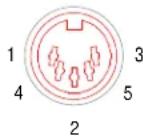
The three female connectors on the CNXMIDI accept standard MIDI male cables. Refer to the pinout table below if the connecting cable is to be made.
Standard MIDI 5-Pin Male DIN Pinout
| MIDI IN | MIDI OUT & MIDI THRU | ||
| PIN | ASSIGNMENT | PIN | ASSIGNMENT |
| 1 No Connection 1 No Connection | |||
| 2 No Connection 2 Ground | |||
| 3 No Connection 3 No Connection | |||
| 4 Current Source 4 Current Sink | |||
| 5 Current Sink 5 Current Source | |||
Programming with SIMPL Windows
SIMPL (Symbol Intensive Master Programming Language) is an easy-to-use programming language that is completely integrated and compatible with all Crestron system hardware. The objects that are used in SIMPL are called symbols. SIMPL Windows offers drag and drop functionality in a familiar Windows® environment.
SIMPL Windows is Crestron Electronics' software for programming Crestron control systems. It provides a well-designed graphical environment with a number of workspaces (i.e., windows) in which a programmer can select, configure, program, test, and monitor a Crestron control system.
The next two subsections describe a sample SIMPL Windows program that utilizes the CNXMIDI. The first subsection details how the sample program works with a textual description and block diagram. The second subsection provides a broad description of how to actually create the SIMPL Windows program.
NOTE: The following description assumes that the reader is familiar with SIMPL Windows. If not, please refer to the extensive help information provided with the software.
NOTE: There is no need to recreate the sample SIMPL Windows program. A copy of this program is available from Crestron's ControlCD (Version 5.1 or later). Search for the CNXMIDI.SMW project in the SIMPL Windows Example Base.
How the Program Works
A basic CNXMIDI SIMPL program is shown in block diagram form below. For this example, the CNXMIDI occupies slot #1 of a CNMSX-PRO. This example plays three notes on a MIDI keyboard. A note is turned on for 0.05s and then there is silence for 0.05s before the next note is played. The sequence is triggered when a certain note is received from the keyboard, and stopped at the end of the sequence.
Block Diagram of CNXMIDI

flowchart
graph TD
    A["ST-LT/MIDI Serial Driver"] -->|str1 str2 str3 str4 str5 str6 START| B["Set/Reset Latch"]
    B -->|reset_out["out*"]| C["OSC_GATE"]
    C --> D["Oscillator"]
    D --> E["NOTE_CLOCK"]
    B --> F["Ring Counter"]
    F --> G["C1_ON"]
    F --> H["C1_OFF"]
    F --> I["D_ON"]
    F --> J["D_OFF"]
    F --> K["E_ON"]
    F --> L["E_OFF"]
    F --> M["STOP"]
    A --> N["C1_ON"]
    A --> O["D_ON"]
    A --> P["E_ON"]
    A --> Q["C1_OFF"]
    A --> R["D_OFF"]
    A --> S["E_ON"]
    A --> T["E_OFF"]
    A --> U["STOP"]
    B --> V["HI_time 0.05s"]
    B --> W["IO_time 0.05s"]
    B --> X["Clk 01 C1_ON"]
    B --> Y["Clk 02 C1_OFF"]
    B --> Z["Clk 03 D_ON"]
    B --> AA["Clk 04 D_OFF"]
    B --> AB["Clk 05 E_ON"]
    B --> AC["Clk 06 E_OFF"]
    B --> AD["Clk 07 STOP"]
How to Create the Program
Configuration Manager
Use the Configuration Manager workspace in SIMPL Windows to select and configure all the devices that need to be included into the system. For this example, add a CNXMIDI to slot #1 of the control system, shown below.
NOTE: SIMPL Windows v1.21.03 or later is required to program the CNMSX-AV or PRO with a CNXMIDI card. If using an earlier version of SIMPL Windows, Crestron recommends a SIMPL Windows and operation system upgrade. The latest version can be obtained from the Software Downloads page of Crestron's website (www.crestron.com). New users are required to register in order to obtain access to the FTP site.
Graphical System View of CNXMIDI in SIMPL Windows' Configuration Manager
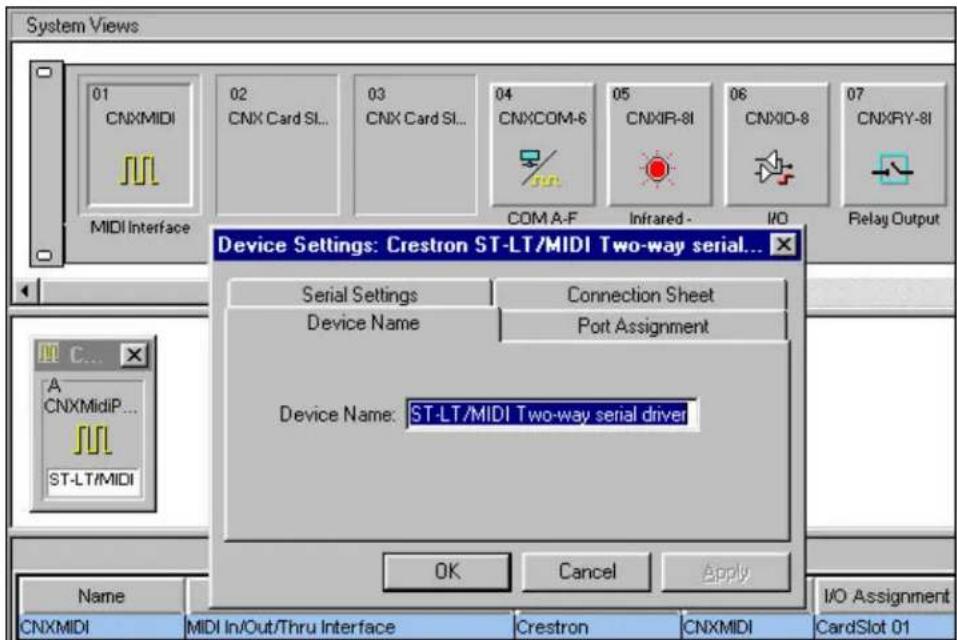
text_image
System Views 01 CNXMIDI MIDI Interface 02 CNX Card SI... 03 CNX Card SI... 04 CNXCOM-6 COM A-F 05 CNXIR-8I Infrared - 06 CNXIO-8 I/O 07 CNXRY-8I Relay Output Device Settings: Crestron ST-LT/MIDI Two-way serial... Serial Settings Connection Sheet Device Name Port Assignment Device Name: ST-LT/MIDI Two-way serial driver OK Cancel Apply C... CNXMIDI P... ST-LT/MIDI Name CNXMIDI MIDI In/Out/Thru Interface Crestron CNXMIDI CardSlot 01 I/O AssignmentProgramming Manager
Use the Programming Manager workspace in SIMPL Windows to select symbols and assign their respective signals. Expand the Network Module folder and expand the CNXMIDI. Double click on the ST-LT/MIDI serial driver to view it in detail view (alternatively CTRL+D), as shown on the next page.
Graphical Detail View of ST-LT/MIDI in SIMPL Windows' Programming Manager

flowchart
graph TD
    A["ST-LT/MIDI Serial Driver"] --> B["[enable"]]
    B --> C["C1_ON"]
    B --> D["D_ON"]
    B --> E["E_ON"]
    B --> F["C1_OFF"]
    B --> G["D_OFF"]
    B --> H["E_OFF"]
    B --> I["str7"]
    I --> J["[delimiter"]]
    C --> K["[x90\x3C\x40"]]
    D --> L["[x90\x3E\x40"]]
    E --> M["[x90\x40\x40"]]
    F --> N["[x90\x3C\x00"]]
    G --> O["[x90\x3E\x00"]]
    H --> P["[x90\x40\x00"]]
    I --> Q["[x90\x3C\x40"]]
    J --> R["[x90\x3C\x40"]]
    K --> S["[x90\x3C\x40"]]
    L --> T["[x90\x3C\x40"]]
    M --> U["[x90\x3C\x40"]]
    N --> V["[x90\x3C\x40"]]
    O --> W["[x90\x3C\x40"]]
    P --> X["[x90\x3C\x40"]]
    Q --> Y["[x90\x3C\x40"]]
    R --> Z["[START"]]
    S --> AA["[START"]]
    T --> AB["[START"]]
    U --> AC["[START"]]
    V --> AD["[START"]]
    W --> AE["[START"]]
Expand the Logic folder to display the logic symbols used in this program. They include Oscillator, Set Reset Latch, and Ring Counter symbols. Some logic symbols are shown in optional sub system folders. Assign the signals as shown.
Graphical Detail View of Oscillator in SIMPL Windows' Programming Manager

flowchart
graph LR
    A["OSC_GATE"] --> B["gate"]
    B --> C["hi_time"]
    B --> D["lo_time"]
    C --> E["Oscillator"]
    D --> F["Oscillator"]
    E --> G["NOTE_CLOCK"]
    F --> G
Graphical Detail View of Ring Counter in SIMPL Windows' Programming Manager
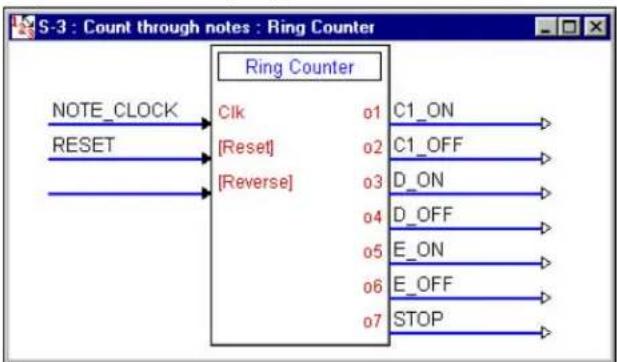
flowchart
graph TD
    A["NOTE_CLOCK"] --> B["Clk"]
    C["RESET"] --> D["Reset"]
    E["Ring Counter"] --> F["01 C1_ON"]
    E --> G["02 C1_OFF"]
    E --> H["03 D_ON"]
    E --> I["04 D_OFF"]
    E --> J["05 E_ON"]
    E --> K["06 E_OFF"]
    E --> L["07 STOP"]
Graphical Detail View of Set/Reset Latch in SIMPL Windows' Programming Manager

flowchart
graph LR
    A["START"] --> B["set"]
    C["STOP"] --> D["reset"]
    B --> E["out"]
    D --> F["[out*"]]
    E --> G["OSC_GATE"]
    F --> H["RESET"]
Problem Solving
Troubleshooting
The table below provides corrective action for possible trouble situations. If further assistance is required, please contact a Crestron technical support representative.
CNXMIDI Troubleshooting
| TROUBLE | POSSIBLE CAUSE(S) | CORRECTIVE ACTION |
| CNXMIDI does not function. Circuit | CNX Control System is not receiving power. | Verify power to CNX Control System. |
| card is not properly seated in slot. | Verify CNXMIDI is properly inserted into CNX Control System slot per procedures in this Operations Guide. | |
| Cable from CNXMIDI to controlled equipment is incorrect. | Verify wiring. Connect only the required pins for each communication type. | |
| Programming error. Check SIMPL Windows program. | ||
| Controlled device is not accepting commands. | Use manufacturer-supplied diagnostic tool to verify that controlled device is operating properly. | |
Further Inquiries
If after reviewing this Operations Guide for the CNXMIDI, you cannot locate specific information or have questions, please take advantage of Crestron's award winning technical support team by calling:
- In the US and Canada, call Crestron's corporate headquarters at 1-888-CRESTRON [1-888-273-7876] or 1-201-767-3400.
• In Europe, call Crestron International at +32-15-50-99-50.
• In Asia, call Crestron Asia at +852-2341-2016.
• In Latin America, call Crestron Latin America at +525-574-15-90.
For local support from exclusive Crestron factory-trained personnel call:
• In Australia, call Soundcorp at +613-941-61066.
• In New Zealand, call Amber Technologies at +649-410-8382.
Return and Warranty Policies
Merchandise Returns / Repair Service
- No merchandise may be returned for credit, exchange, or service without prior authorization from CRESTRON. To obtain warranty service for CRESTRON products, contact the factory and request an RMA (Return Merchandise Authorization) number. Enclose a note specifying the nature of the problem, name and phone number of contact person, RMA number, and return address.
- Products may be returned for credit, exchange, or service with a CRESTRON Return Merchandise Authorization (RMA) number. Authorized returns must be shipped freight prepaid to CRESTRON, Cresskill, N.J., or its authorized subsidiaries, with RMA number clearly marked on the outside of all cartons. Shipments arriving freight collect or without an RMA number shall be subject to refusal. CRESTRON reserves the right in its sole and absolute discretion to charge a 15% restocking fee, plus shipping costs, on any products returned with an RMA.
- Return freight charges following repair of items under warranty shall be paid by CRESTRON, shipping by standard ground carrier. In the event repairs are found to be non-warranty, return freight costs shall be paid by the purchaser.
CRESTRON Limited Warranty
CRESTRON ELECTRONICS, Inc. warrants its Cresnet products, denoted by a "CN" prefix model number, to be free from manufacturing defects in materials and workmanship for a period of three (3) years from the date of shipment to purchaser. Disk drives and any other moving or rotating mechanical parts are covered for a period of one (1) year. CRESTRON warrants all its other products for a period of one year from the defects mentioned above, excluding touchscreen display components which are covered for 90 days. Incandescent lamps are completely excluded from Crestron's Limited Warranty. CRESTRON shall, at its option, repair or replace any product found defective without charge for parts or labor. Repaired or replaced equipment and parts supplied under this warranty shall be covered only by the unexpired portion of the warranty.
CRESTRON shall not be liable to honor warranty terms if the product has been used in any application other than that for which it was intended, or if it has been subjected to misuse, accidental damage, modification, or improper installation procedures. Furthermore, this warranty does not cover any product that has had the serial number altered, defaced, or removed.
This warranty shall be the sole and exclusive remedy to the purchaser. In no event shall CRESTRON be liable for incidental or consequential damages of any kind (property or economic damages inclusive) arising from the sale or use of this equipment. CRESTRON makes no other warranties nor authorizes any other party to offer any warranty, expressed or implied, including warranties of merchantability for this product. This warranty statement supersedes all previous warranties.
Trademark Information
All brand names, product names, and trademarks are the sole property of their respective owners. Windows is a registered trademark of Microsoft Corporation. Windows95, Windows98 and WindowsNT are trademarks of Microsoft Corporation