501507 - Printer Intellinet - Free user manual and instructions
Find the device manual for free 501507 Intellinet in PDF.


User questions about 501507 Intellinet
0 question about this device. Answer the ones you know or ask your own.
Ask a new question about this device
Download the instructions for your Printer in PDF format for free! Find your manual 501507 - Intellinet and take your electronic device back in hand. On this page are published all the documents necessary for the use of your device. 501507 by Intellinet.
USER MANUAL 501507 Intellinet
Copyright ©2005/2006 by this company. All rights reserved. No part of this publication may be reproduced, transmitted, transcribed, stored in a retrieval system, or translated into any language or computer language, in any form or by any means, electronic, mechanical, magnetic, optical, chemical, manual or otherwise, without the prior written permission of this company.
Federal Communication Commission Interference Statement
This equipment has been tested and found to comply with the limits for a Class B digital device, pursuant to Part 15 of FCC Rules. These limits are designed to provide reasonable protection against harmful interference in a residential installation. This equipment generates, uses, and can radiate radio frequency energy and, if not installed and used in accordance with the instructions, may cause harmful interference to radio communications. However, there is no guarantee that interference will not occur in a particular installation. If this equipment does cause harmful interference to radio or television reception, which can be determined by turning the equipment off and on, the user is encouraged to try to correct the interference by one or more of the following measures:
- Reorient or relocate the receiving antenna.
- Increase the separation between the equipment and receiver.
- Connect the equipment into an outlet on a circuit different from that to which the receiver is connected.
- Consult the dealer or an experienced radio technician for help.
FCC Caution
This equipment must be installed and operated in accordance with provided instructions and a minimum 20 cm spacing must be provided between computer mounted antenna and person's body (excluding extremities of hands, wrist and feet) during wireless modes of operation.
This device complies with Part 15 of the FCC Rules. Operation is subject to the following two conditions: (1) this device may not cause harmful interference, and (2) this device must accept any interference received, including interference that may cause undesired operation.
Any changes or modifications not expressly approved by the party responsible for compliance could void the authority to operate equipment.
Federal Communication Commission (FCC) Radiation Exposure Statement
This equipment complies with FCC radiation exposure set forth for an uncontrolled environment. In order to avoid the possibility of exceeding the FCC radio frequency exposure limits, human proximity to the antenna shall not be less than 20cm (8 inches) during normal operation.
The antenna(s) used for this transmitter must not be co-located or operating in conjunction with any other antenna or transmitter.
R&TTE Compliance Statement
This equipment complies with all the requirements of DIRECTIVE 1999/5/EC OF THE EUROPEAN PARLIAMENT AND THE COUNCIL of March 9, 1999 on radio equipment and telecommunication terminal Equipment and the mutual recognition of their conformity (R&TTE)
The R&TTE Directive repeals and replaces in the directive 98/13/EEC (Telecommunications Terminal Equipment and Satellite Earth Station Equipment) As of April 8, 2000.
Safety
This equipment is designed with the utmost care for the safety of those who install and use it. However, special attention must be paid to the dangers of electric shock and static electricity when working with electrical equipment. All guidelines of this and of the computer manufacture must therefore be allowed at all times to ensure the safe use of the equipment.
EU Countries Intended for Use
The ETSI version of this device is intended for home and office use in Austria, Belgium, Denmark, Finland, France, Germany, Greece, Ireland, Italy, Luxembourg, the Netherlands, Portugal, Spain, Sweden, and the United Kingdom.
The ETSI version of this device is also authorized for use in EFTA member states: Iceland, Liechtenstein, Norway, and Switzerland.
EU Countries Not intended for use
None.
DISCLAIMER
This company makes no representations or warranties, either expressed or implied, with respect to the contents hereof and specifically disclaims any warranties, merchantability or fitness for any particular purpose. Any software described in this manual is sold or licensed "as is". Should the programs prove defective following their purchase, the buyer (and not this company, its distributor, or its dealer) assumes the entire cost of all necessary servicing, repair, and any incidental or consequential damages resulting from any defect in the software. Further, this company reserves the right to revise this publication and to make changes from time to time in the contents hereof without obligation to notify any person of such revision or changes.
CONTENTS
1. INTRODUCTION....1
1.1 Product Introduction...... 2
1.2 Product Package 3
1.3 Network Printing Architecture 4
1.3.1 Print Server Network Functions.... 5
1.3.2 Network Printing Functions for Clients.... 5
1.3.3 Network Printing Functions for Network Server.... 8
1.4 Network Printing Environment 9
1.5 Contents of the User's Manual 11
1.6 Firmware & Printing Function 13
2. HARDWARE INSTALLATION ....14
3. WINDOWS PEER-TO-PEER NETWORK ....15
3.1 System Architecture.... 16
3.2 Administrator Installation and Setup 18
3.3 Administrator Utilities 26
3.4 Client Installation and Setup 27
3.5 Client Utilities 32
3.5.1 Network Ports Quick Setup 32
3.5.2 Remote Ports (Utility) 34
3.6 Windows Add Printer Procedure.... 37
4. WINDOWS NT/2000/2003 NETWORK....41
4.1 System Architecture...... 42
4.2 Windows NT/2000/2003 Server Installation and Setup . 43
4.3 User Installation and Setup.... 45
5. NETWARE NETWORK 46
5.1 System Architecture......47
5.2 NetWare 3.x/4.x/5.x Installation & Setup 49
5.2.1 Installation Using PCONSOLE 49
6. UNIX SYSTEM NETWORK ....53
6.1 Introduction....54
6.2 Enable Print Server's TCP/IP Support....55
6.3 Setup Print Server's IP Address 56
6.3.1 DHCP....56
6.3.2 BOOTP 56
6.4 Verify Print Server's IP Address 59
6.5 Configure Remote LPD Printing on the Host...... 60
7. CONFIGURATION UTILITY ......63
7.1 Introduction....64
7.2 Search for All Available Print Server....66
7.3 Status of Print Server....67
7.4 Setup the Print Server 69
7.5 General Configuration.... 71
7.6 TCP/IP Configuration....72
7.7 Netware Print Server Configuration 74
7.8 AppleTalk Configuration 76
7.9 Bonjour Configuration....77
7.10 SNMP Configuration....78
7.11 SMB Configuration....79
7.12 System Configuration 80
7.13 Wireless Configuration....83
7.14 Wizard....92
7.15 Report....96
8. WEB MANAGEMENT....97
8.1 Introduction....98
8.2 Login....99
8.3 Device Status....100
8.3.1 System.... 100
8.3.2 Printer.... 101
8.3.3 TCP/IP....102
8.3.4 SMB....103
8.3.5 SNMP.... 104
8.3.6 NetWare.... 105
8.3.7 AppleTalk 106
8.3.8 Bonjour 107
8.4 Setup Wizard 108
8.4.1 System.... 108
8.4.1.1 Admin Password.... 109
8.4.1.2 Advanced Settings 110
8.4.2 Wireless Setting.... 111
8.4.2.1 Site Survey.... 114
8.4.2.2 Encryption.... 116
8.4.3 TCP/IP.... 120
8.4.4 SMB....122
8.4.5 SNMP....123
8.4.6 NetWare.... 124
8.4.7 AppleTalk 126
8.4.8 Bonjour 128
8.4.9 Save Settings.... 129
8.5 System Tools 130
8.5.1 Load Default 130
8.5.2 Upgrade....131
8.5.3 Backup System.... 132
8.5.4 Restore System.... 133
8.5.5 Language.... 134
9. TELNET MANAGEMENT....135
9.1 Introduction.... 136
9.2 Login....137
9.3 Get Setting Values – “get” Command.... 138
9.4 Modify Setting Values – “set” Command 141
9.5 Other Commands 144
9.5.1 ipconfig.... 144
9.5.2 reboot 144
9.5.3 exit.... 144
9.5.4 help.... 145
10. IPP PRINTING 146
10.1 Introduction.... 147
10.2 System Setup 148
10.2.1 Print Server Side.... 148
10.2.2 Client Side.... 148
- LPR SETTING IN MAC OS 153
- UPNP SETUP 157
- WINDOWS XP SP2 SETUP ....163
1. Introduction
1.1 Product Introduction
Thank you for purchasing and using our print server. This print server allows your printer to become a shared device on the network. It offers printing flexibility and manageability on your Local Area Network at an extremely low cost and with an absolute minimum setup and maintenance required.
This print server provides IEEE 802.11g/b wireless LAN (up to 54Mbps data transfer rate), an Ethernet network port (10/100Mbps Ethernet), two USB 2.0 ports and one Parallel port for printers.
This print server supports IPX/SPX, NetBEUI, TCP/IP and AppleTalk protocols. It is the best network printing solutions for various common network operating systems such as Windows 95/98SE/Me/NT/2000/XP/2003, NetWare, Unix/Linux and MAC OS, etc.
With the help of Installation Wizard, you can easily and instantly complete the settings for the printing environment, and start enjoying the fantastic features provided by the print server.
In the following chapters, we will introduce in detail the printing features, installation methods, and system configuration for different network environments.
If you would like to set up and install print server quickly, please refer to the Quick Installation Guide that comes along with this print server.
1.2 Product Package
This package contains the following components:
■ One Print Server
■ One Antenna
■ One Power Adapter
■ One Quick Installation Guide
■ One CD-ROM (Including all the software utilities, drivers and User's Manual)
1.3 Network Printing Architecture
This section illustrates how print server functions and operates on the network. Before you install and use print server, it is strongly recommended that you read this section completely, and select only the chapters you need according to your network operating system by “Contents of the User’s Manual” in next section.
This section will first introduce the role every component plays in the network-printing environment.
■ Print Server
■ Client User
■ Network Server (optional)
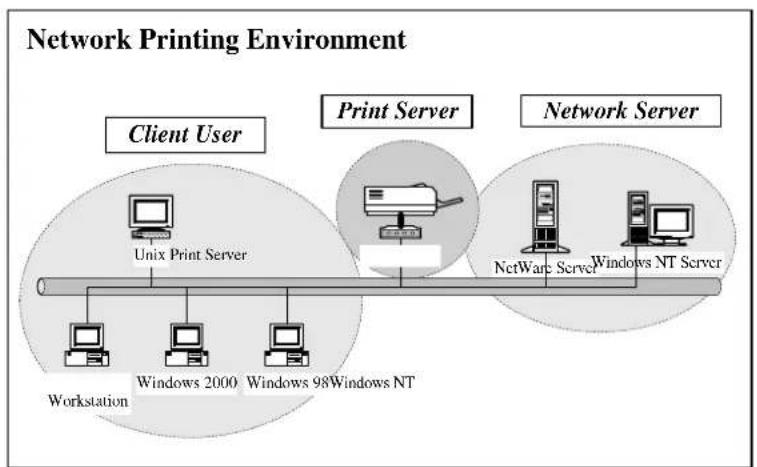
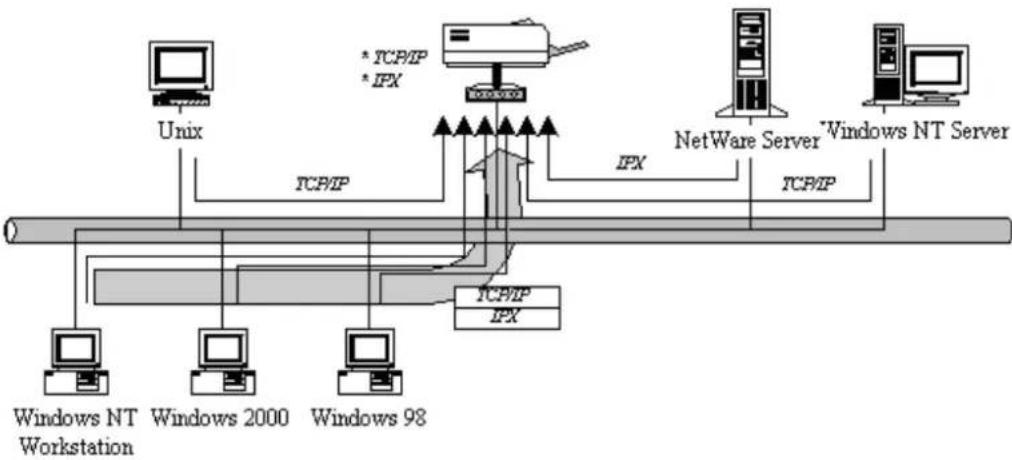
Because print server supports IPX/SPX, NetBEUI, TCP/IP and AppleTalk network protocols, any networked computer can directly print to the print server from any of its installed protocol.
flowchart
graph TD
    A["Unix"] -->|TCP/IP| B["NetWare Server"]
    B -->|IPX| C["Windows NT Server"]
    D["Windows NT Workstation"] -->|TCP/IP| E["Windows 2000"]
    F["Windows 98"] -->|TCP/IP| G["Windows NT Server"]
    H["IPX"] -->|TCP/IP| B
    I["IPX"] -->|TCP/IP| B
    J["IPX"] -->|TCP/IP| B
    K["IPX"] -->|TCP/IP| B
    L["IPX"] -->|TCP/IP| B
    M["IPX"] -->|TCP/IP| B
    N["IPX"] -->|TCP/IP| B
    O["IPX"] --> P["IPX"]
    Q["* TCP/IP * IFX"] --> B
    R["TCP/IP"] --> B
1.3.2 Network Printing Functions for Clients
flowchart
graph LR
    A["Client User"] --> B["Unit Plan Server"]
    B --> C["Workplace"]
    B --> D["Windows 2000"]
    B --> E["Windows NT"]
    B --> F["NetWarp Server"]
    B --> G["Windows NT Server"]
Common operating systems for clients are classified as following:
Windows 95/98SE/Me/NT/2000/XP/2003
Our print server system provides PTPP (Peer-to-Peer Printing) driver and utilities for Windows 95/98SE/Me/NT/2000/XP/2003 users. PTPP (Peer-to-Peer Printing) supports TCP/IP protocol.

flowchart
graph TD
    A["Application"] --> B["FTP"]
    B --> C["TCP/IP"]
    D["Windows 98"] --> E["Computer"]
    F["TCP/IP"] --> G["Server"]
    H["Windows 2000"] --> I["Computer"]
    J["Application"] --> K["TCP/IP"]
    L["Windows 2000"] --> M["Computer"]
    N["TCP/IP"] --> O["Server"]
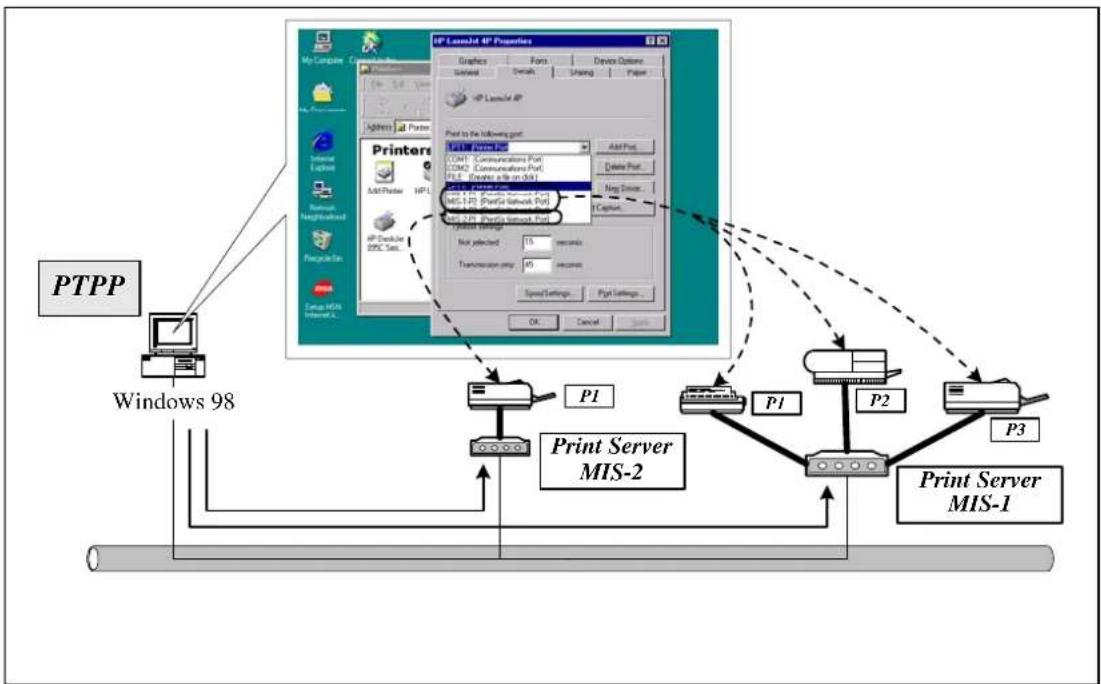
In the client installation procedure, after PTPP (Peer-to-Peer Printing Driver) is installed into Windows, the system will automatically (manual configuration is also allowed) search all the print servers on the network, and then add their printing ports into Windows' printing port (see below).
flowchart
graph TD
    A["PTPP"] --> B["Windows 98"]
    B --> C["Print Server MIS-2"]
    C --> D["Print Server MIS-1"]
    D --> E["P1"]
    D --> F["P2"]
    D --> G["P3"]
    C --> H["Print Server MIS-2"]
    H --> I["Print Server MIS-1"]
    I --> J["Print Server MIS-2"]
    J --> K["Print Server MIS-1"]
    K --> L["Print Server MIS-2"]
    L --> M["Print Server MIS-1"]
    M --> N["Print Server MIS-2"]
    N --> O["Print Server MIS-1"]
    O --> P["Print Server MIS-2"]
    P --> Q["Print Server MIS-1"]
    Q --> R["Print Server MIS-2"]
    R --> S["Print Server MIS-1"]
    S --> T["Print Server MIS-2"]
    T --> U["Print Server MIS-1"]
    U --> V["Print Server MIS-2"]
    V --> W["Print Server MIS-1"]
    W --> X["Print Server MIS-2"]
    X --> Y["Print Server MIS-1"]
    Y --> Z["Print Server MIS-2"]
    Z --> AA["Print Server MIS-1"]
    AA --> AB["Print Server MIS-2"]
    AB --> AC["Print Server MIS-1"]
    AC --> AD["Print Server MIS-2"]
    AD --> AE["Print Server MIS-1"]
    AE --> AF["Print Server MIS-2"]
    AF --> AG["Print Server MIS-1"]
    AG --> AH["Print Server MIS-2"]
    AH --> AI["Print Server MIS-1"]
    AI --> AJ["Print Server MIS-2"]
    AJ --> AK["Print Server MIS-1"]
    AK --> AL["Print Server MIS-2"]
    AL --> AM["Print Server MIS-1"]
    AM --> AN["Print Server MIS-2"]
    AN --> AO["Print Server MIS-1"]
    AO --> AP["Print Server MIS-2"]
    AP --> AQ["Print Server MIS-1"]
    AQ --> AR["Print Server MIS-2"]
    AR --> AS["Print Server MIS-1"]
    AS --> AT["Print Server MIS-2"]
    AT --> AU["Print Server MIS-1"]
    AU --> AV["Print Server MIS-2"]
    AV --> AW["Print Server MIS-1"]
    AW --> AX["Print Server MIS-2"]
    AX --> AY["Print Server MIS-1"]
    AY --> AZ["Print Server MIS-2"]
    AZ --> BA["Print Server MIS-1"]
    BA --> BB["Print Server MIS-2"]
UNIX / Linux
UNIX (include HP/UX, SCO Unix, SunOS, Solaris, Unixware DECUinx, IBM AIX and others) and Linux use the system-standard LPR to print through print server.
MAC OS
MAC OS can use the system-standard AppleTalk network to print through print server.
1.3.3 Network Printing Functions for Network Server
flowchart
graph TD
    A["Data Point Server"] --> B["Windows 2000"]
    A --> C["Windows 500Windows N1"]
    D["Network Server"] --> E["Windows N1 Server"]
    style A fill:#f9f,stroke:#333
    style B fill:#ccf,stroke:#333
    style C fill:#ccf,stroke:#333
    style D fill:#cfc,stroke:#333
    style E fill:#fcc,stroke:#333
Common network servers are classified as following:
Windows NT/2000/2003
Our print server system provides PTPP (Peer-to-Peer Printing) driver and utilities for Windows NT/2000/2003. After PTPP is installed, the server can directly print through print server. Adding this printing function into Windows NT/2000/2003 Server allows print queue, user authority management, and many other advanced features to be used.
NetWare 3.x/4.x/5.x
In NetWare environment, print server offers various printing modes like print queue, remote printer, etc.
1.4 Network Printing Environment
Common network environment are classified as following:
Windows Peer-to-Peer Network
The client's PTPP driver will use TCP/IP protocol to print through print server.

flowchart
graph TD
    A["Unix"] -->|TCP/IP| B["NetWare Server"]
    B -->|IPX| C["Windows NT Server"]
    B -->|TCP/IP| D["Windows 2000 Workstation"]
    B -->|TCP/IP| E["Windows 98 Workstation"]
    F["IPX"] --> B
    G["NetWare Server"] -->|TCP/IP| B
    H["Windows NT Server"] -->|TCP/IP| B
    I["Windows 2000 Workstation"] -->|TCP/IP| B
    J["Windows 98 Workstation"] -->|TCP/IP| B
Windows NT/2000/2003 Network
Network printing function will become available after PTPP driver is installed into Windows NT/2000/2003. Adding this printing function into Windows NT/2000/2003 Server allows print queue, user authority management, and many other advanced features to be used.

flowchart
graph TD
    A["Windows 98"] -->|TCP/IP| B["Windows NT Server"]
    C["Windows 2000"] -->|IPX| B
    B -->|PTPP\nTCP/IP| D["Printer"]
    D -->|* TCP/IP\n* IPX| E["Server"]
    B -->|Print Queue| F["Computer"]
    F -->|TCP/IP| A
NetWare Network (see below)

flowchart
graph TD
    A["Windows 98"] -->|IPX/IP| B["NetWare 3.x/4.x/5.x"]
    C["Windows 2000"] -->|IPX| B
    B -->|IPX| D["IPC"]
    B -->|TCP/IP*IPX| E["IPC"]
    F["Print Queue"] --> B
1.5 Contents of the User's Manual
Chapter 2 explains print server's hardware installation and configuration. It is strongly recommended for you to read.
The following chapters introduce:
Chapter 3. Windows Peer-to-Peer Network
Chapter 4. Windows NT/2000/2003 Server-Based Networks
Chapter 5. NetWare Network
Chapter 6. UNIX System Network
You may select the appropriate chapters and sections to read depending on your network printing's requirement.
Chapter 7 and chapter 8 introduce print server's management and configuration utilities on Windows and Web Browser's environment respectively. You may select the appropriate management utility according to the administrator's computer platform.
Chapter 9 introduces the commands that can be used in print server management through Telnet.
Chapter 10 introduces Print Server's IPP Printing function and setup procedure. The IPP Printing provides a convenient way to print documents across the Internet by the IPP protocol.
Chapter 11 introduces how to setup LPR printing in MAC OS.
Chapter 12 introduces the UPnP function of the print server. UPnP function will help to find the IP address of the print server and enables user directly link to the web page of the print server without entering the IP Address of the print server in web browser.
Chapter 13 In Windows XP SP2, you may not find any print server listed on the “Available Ports” in “Network Ports Quick Setup”. Please follow the instruction in this chapter and resolve the problem.
1.6 Firmware & Printing Function
The print server provides a complete network printing solution. The feature set is listed below:
■ PTPP (Peer-to-Peer-Printing)
■ TCP/IP (LPR)
■ IPP Printing
■ NetWare Bindery Printing
AppleTalk
■ SMB Printing
2. Hardware Installation
-
Unpack the print server package and verify that all the items listed in the section 1.2 are provided.
-
Connect the print server to the printer you want to share on the network.
-
Connect the print server to your network by attached the network cable to the UTP port of the print server.
-
Connect the power adapter to the print server. The print server will perform the Power-On-Self-Test (POST) after it is powered on. During the POST, the three Printer Port LEDs will be on. When the LEDs are unlighted, the print server is ready.
NOTE1: MUST use the power adapter shipped with the print server, do NOT use any other power adapter from any sources.
NOTE2: To prevent the compatibility problem between print server and a few printer, it is recommended that you power on the print server before the printer.
3. Windows Peer-to-Peer Network
3.1 System Architecture
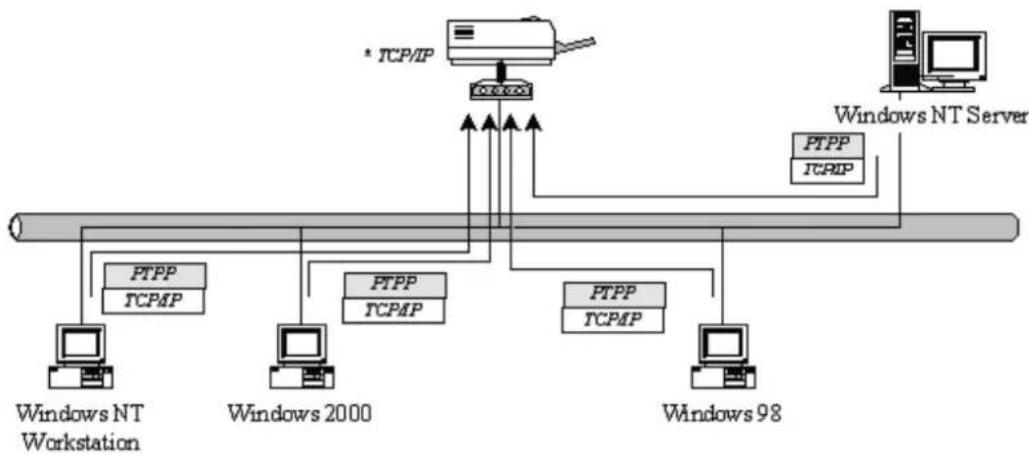
Print server supports Windows Peer-to-Peer network printing mode, which is suitable for most medium and small network environments. Through quick and simple installation procedure, users can immediately enjoy the convenience of network printing.
flowchart
graph TD
    A["Windows NT Workstation"] --> B["PTPP TCPMP"]
    C["Windows 2000"] --> D["PTPP TCPMP"]
    E["Windows 98"] --> F["PTPP TCPMP"]
    G["Windows NT Server"] --> H["PTPP TCPMP"]
    I["* TCP/IP"] --> J["Central Interface"]
    J --> K["PTPP TCPMP"]
    J --> L["PTPP TCPMP"]
    J --> M["PTPP TCPMP"]
    J --> N["PTPP TCPMP"]
Installation procedure is separated into following two parts:
- Administrator Installation and Setup (refer to section 2 for more detailed information).
System administrators must:
- Install administrator's utilities into his/her computer.
- Configure print server from administrator's configuration utility.
- Client Installation and Configuration (refer to section 3 for more detailed information).
Client users must install Windows PTPP driver (Peer-to-Peer Printing) for network printing.
In addition, after PTPP is installed, the system will automatically search for all print servers on the network, and add the printing port of the print servers into Windows' printing port (refer to Network Printing Architecture in section 1.4 for more detailed information).
3.2 Administrator Installation and Setup
The Administrator Installation can be performed on Windows 95/98SE/Me/NT/2000/XP/2003 with the same user interface. Before the installation, please verify that your network protocol is installed on your PC (TCP/IP, IPX and/or NetBEUI). It will be helpful in your installation process.
-
Insert the CD shipped along with the print server into your CD-ROM drive. The Autorun.exe program should be executed automatically. If not, run Autorun.exe manually from CD-ROM drive's root directory.
-
The “Installation Manager” will be displayed on the screen as following. Click “Administrator Installation”.

text_image
Administrator Installation Client Installation Quick Installation Guide User's Manual Exit- The “Print Server Utilities” window will be displayed. Click “Next”.

text_image
PrintServer Utilities - InstallShield Wizard Print Server Utilities 3.8.48 Setup Welcome! This installation wizard will: 1) Copy all necessary utilities and drivers 2) Guide you through the print server setup process 3) Add the print server network print port to your computer < Back Next > Cancel- Click “Next” to install the utilities in the default folder or click “Change” to specify the destination folder where you would like to install the utilities.

text_image
PrintServer Utilities - InstallShield Wizard Choose Destination Location Select folder where setup will install files. Install PrintServer Utilities to: C:\Program Files\PrintServer Utilities Change... < Back Next > Cancel- Select the components you want to install. It is highly recommended to install all provided components. Click "Next" to continue.

text_image
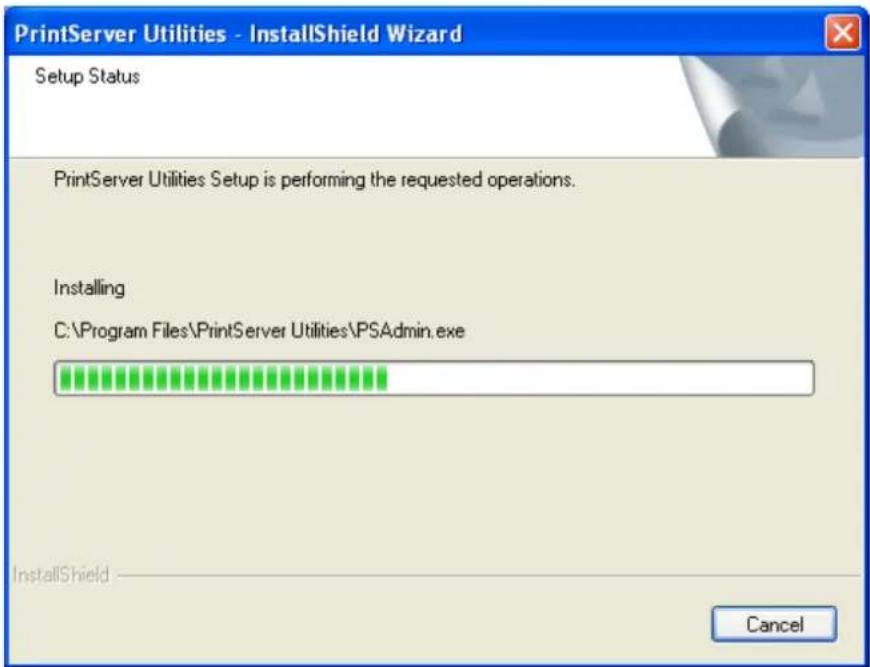
PrintServer Utilities - InstallShield Wizard Select Components Select the components setup will install. Select the components you want to install, and deselect the components you do not want to install. PrintServer Network Driver PrintServer Windows Utility Description This section will install PrintServer Network Driver 3.86 MB of space required on the C drive 1459.11 MB of space available on the C drive < Back Next > Cancel- The system will start to install the utilities automatically.
text_image
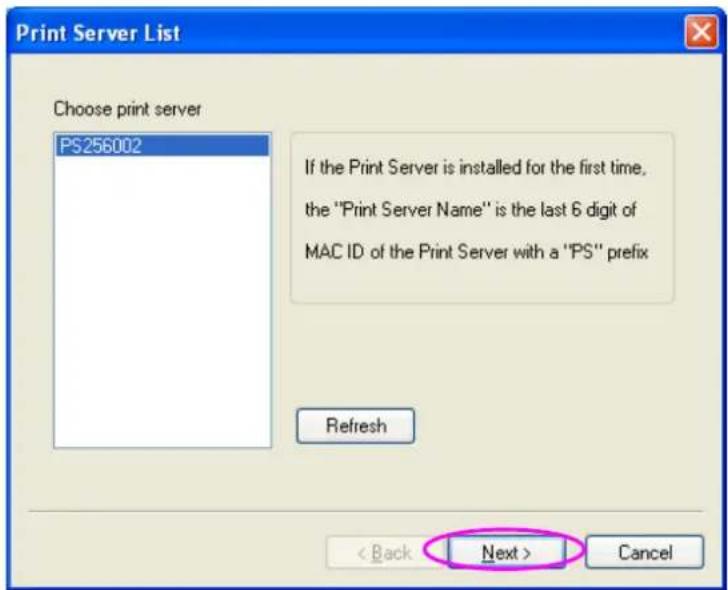
PrintServer Utilities - InstallShield Wizard Setup Status PrintServer Utilities Setup is performing the requested operations. Installing C:\Program Files\PrintServer Utilities\PSAdmin.exe InstallShield Cancel- You have completed the installation phase and prepare to configure the Print Server. The “Choose Print Server” will list all Print Servers within the network. Select the Print Server you would like to configure and click “Next”.
text_image
Print Server List Choose print server PS256002 If the Print Server is installed for the first time, the "Print Server Name" is the last 6 digit of MAC ID of the Print Server with a "PS" prefix Refresh < Back Next > CancelNOTE 1: If this is the first time you configure the Print Server, the “Print Server Name” is the last 6-digit of MAC ID with prefix “PS”. Please check the MAC ID on the print server.
NOTE 2: The list can only display the devices from the same manufacturer.
- Specify a recognizable name for the Print Server and click "Next".

text_image
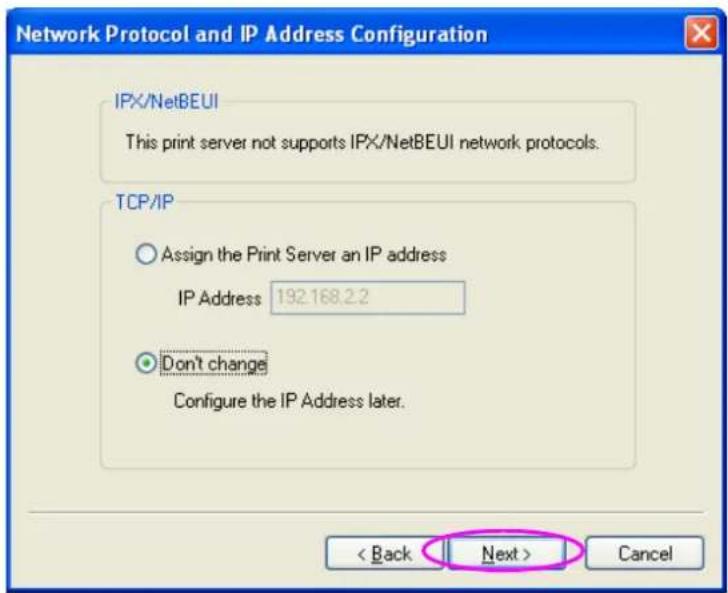
Name the Print Server Device name: PS266100 The unique serial number of the print server Alias Name: PS256002 An alternative name for easy management < Back Next > Cancel- Specify the IP Address for the Print Server manually or click "Next" to keep default IP Address, i.e. 192.168.2.2.
text_image
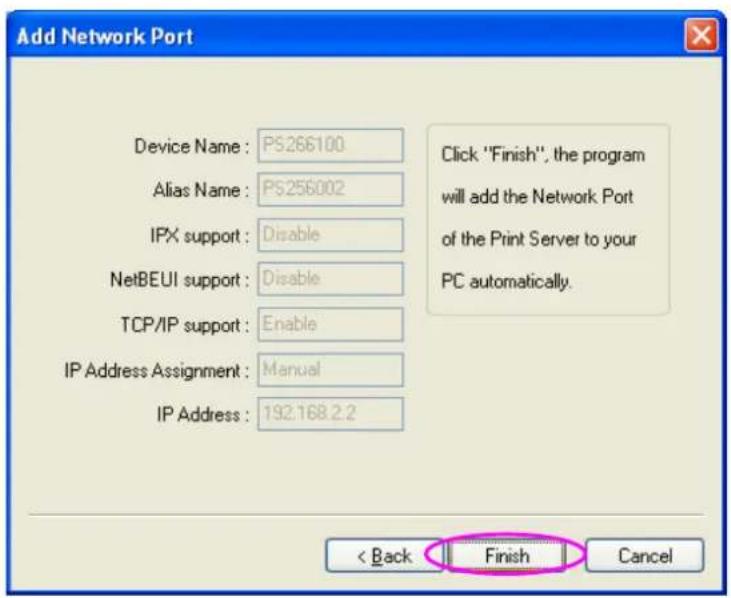
Network Protocol and IP Address Configuration IPX/NetBEUI This print server not supports IPX/NetBEUI network protocols. TCP/IP Assign the Print Server an IP address IP Address 192.168.2.2 Don't change Configure the IP Address later. < Back Next > Cancel- The configuration summary is displayed in the window. Now, you have completed the Print Server setup. Click "Finish" and your system will add network port of the Print Server to your PC automatically.
text_image
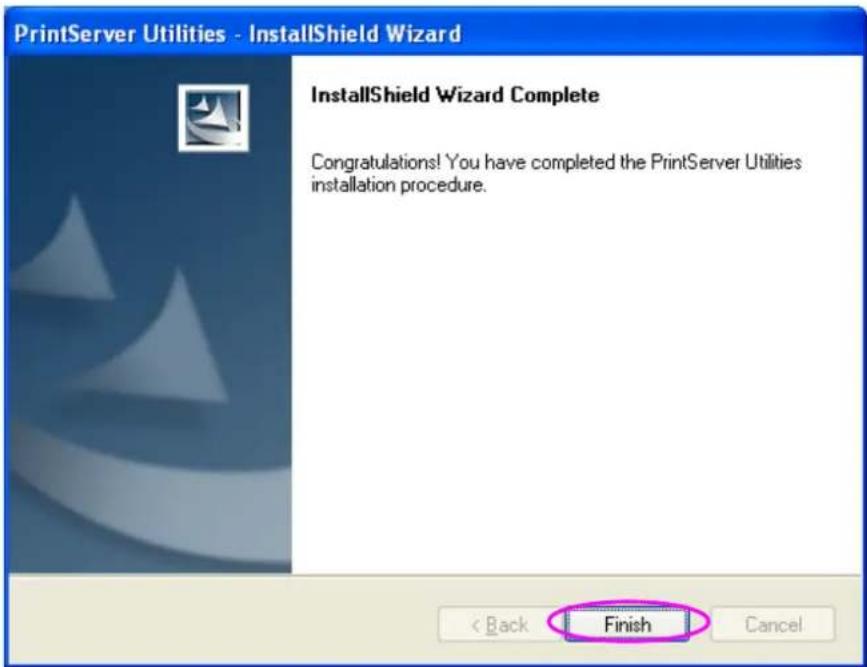
Add Network Port Device Name: PS266100 Alias Name: PS256002 IPX support: Disable NetBEUI support: Disable TCP/IP support: Enable IP Address Assignment: Manual IP Address: 192.168.2.2 Click "Finish", the program will add the Network Port of the Print Server to your PC automatically. < Back Finish Cancel- The Administrator Installation procedure is totally completed. Click "Finish".
text_image
PrintServer Utilities - InstallShield Wizard InstallShield Wizard Complete Congratulations! You have completed the PrintServer Utilities installation procedure. < Back Finish CancelThe Administrator Installation Program have executed the installation procedure that performs the following tasks:
- Install all utilities and drivers to the administrator's PC.
■ Configure the print server (including the print server name and network protocol)
- Add the network port of the print server to the administrator's PC.
If you want to print from this administrator's PC to the print server, all you need to do is to perform Windows' standard "Add Printer" procedure (please refer to Section 3.6).
3.3 Administrator Utilities
After Administrator Installation is completed, there will be four utilities in print server's Program folder.
■ Network Ports Quick Setup – Add the network ports of print servers within the network to your PC.
- Print Server Configuration – Allows you to configure the print server's IP Address, network protocols and other advanced functions. Please refer to Chapter 7 for the detail instruction of the configuration.
■ Remote Ports – Add the network port of remote printer server to your PC.
■ Uninstall – Assistant for removing all installed administrator software.

text_image
PrintServer Utilities File Edit View Favorites Tools Help Address C:\Documents and Settings\All Users\Start Menu\Programs\PrintServer Utilities Go File and Folder Tasks Make a new Folder Publish this folder to the Web Share this folder Network Parts Quick Setup Shortcut 1 KB PrintServer Configuration Shortcut 1 KB Remote parts Shortcut 1 KB Uninstall Shortcut 1 KB Other Places Programs My Documents Shared Documents My Computer My Network Places Details3.4 Client Installation and Setup
The Client Installation can be performed on Windows 95/98SE/Me/NT/2000/XP/2003 with the same user interface. Before the installation procedure, please confirm that your PC has connected to the network and installed at least one network protocol.
-
Insert the CD shipped along with the print server into your CD-ROM drive. The Autorun.exe program should be executed automatically. If not, run Autorun.exe manually from CD-ROM drive's root directory.
-
The "Installation Manager" will be displayed on the screen as follows. Click "Client Installation".
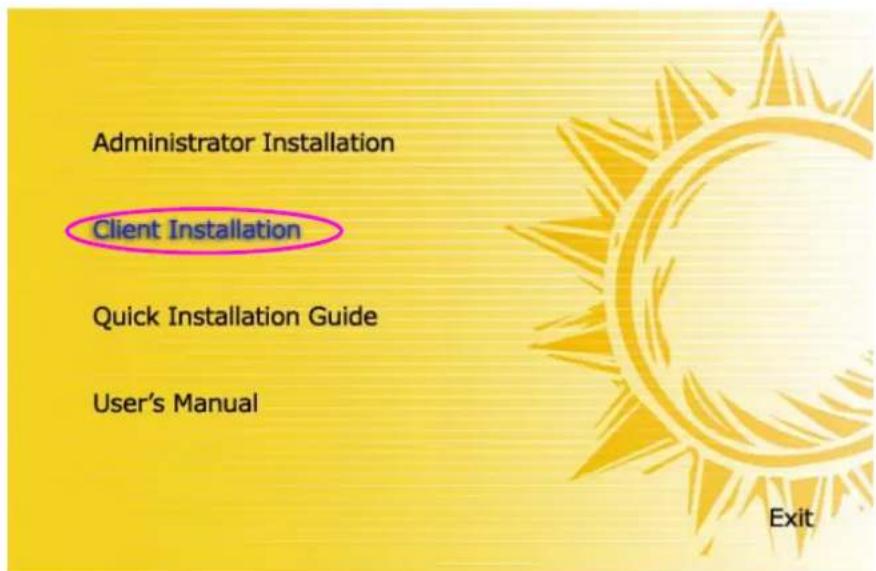
text_image
Administrator Installation Client Installation Quick Installation Guide User's Manual Exit- The “Print Server Utilities” window will be displayed. Click “Next”.
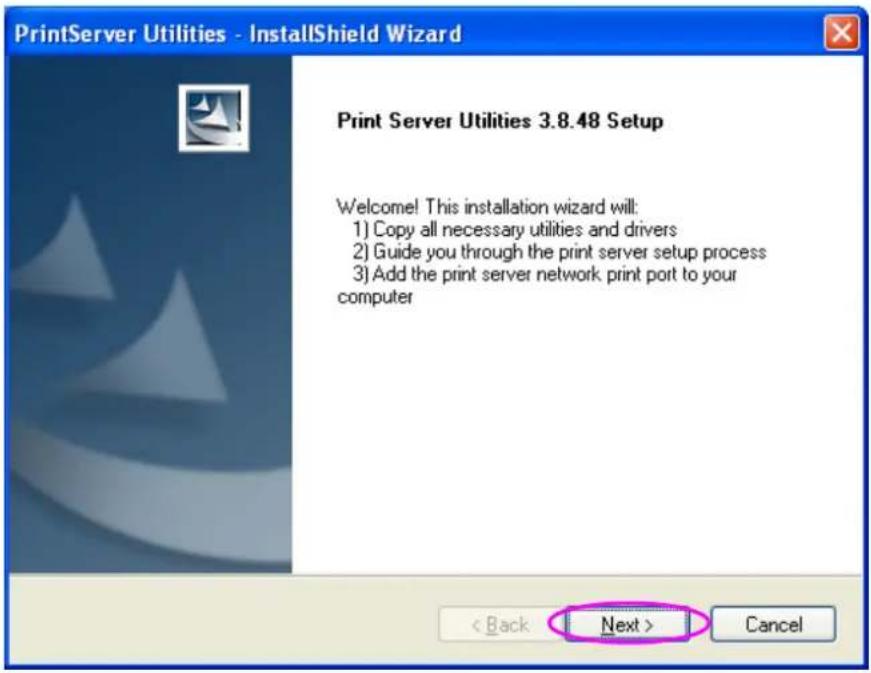
text_image
PrintServer Utilities - InstallShield Wizard Print Server Utilities 3.8.48 Setup Welcome! This installation wizard will: 1) Copy all necessary utilities and drivers 2) Guide you through the print server setup process 3) Add the print server network print port to your computer < Back Next > Cancel- Click “Next” to install the utilities in the default folder or click “Browse” to specify the destination folder where you would like to install the utilities.
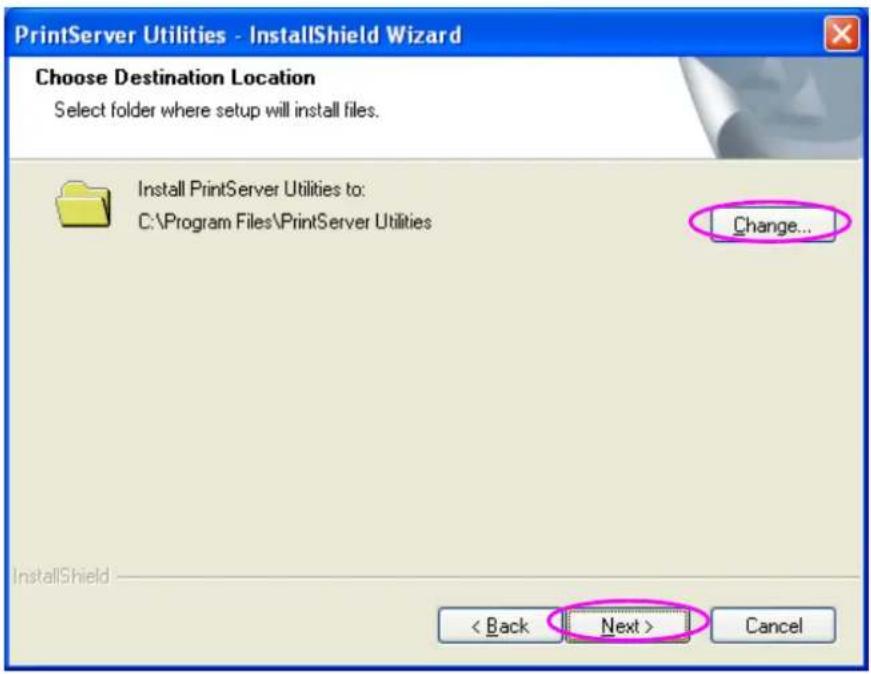
text_image
PrintServer Utilities - InstallShield Wizard Choose Destination Location Select folder where setup will install files. Install PrintServer Utilities to: C:\Program Files\PrintServer Utilities Change... < Back Next > Cancel- The system will start to install the utilities automatically.
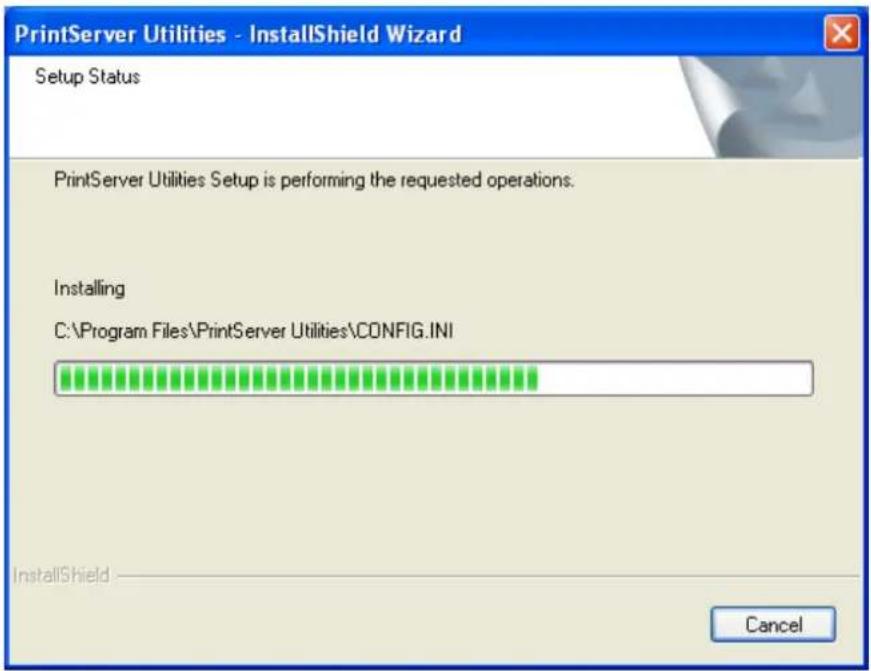
text_image
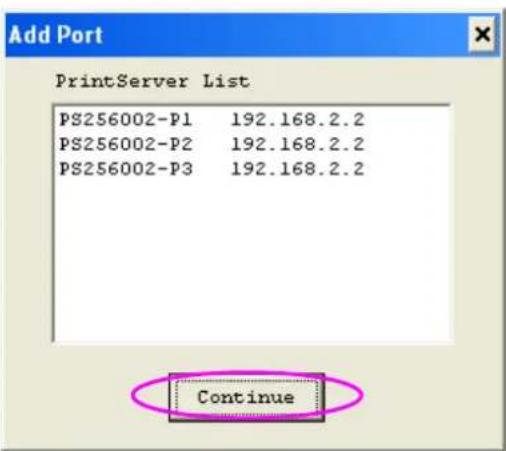
PrintServer Utilities - InstallShield Wizard Setup Status PrintServer Utilities Setup is performing the requested operations. Installing C:\Program Files\PrintServer Utilities\CONFIG.INI InstallShield Cancel- Now, the installation procedure is completed, you are ready to set up the client's computer. All network ports of the Print Servers detected on the network will be added to your PC automatically, click "Continue".
Note that if there are no print servers detected in the network currently, please click “Continue” to finish the installation. Please refer to Section 3.5.1 to add network ports of print servers manually.
text_image
Add Port PrintServer List PS256002-P1 192.168.2.2 PS256002-P2 192.168.2.2 PS256002-P3 192.168.2.2 Continue- The Client Installation procedure is completed. Click "Finish".

text_image
PrintServer Utilities - InstallShield Wizard InstallShield Wizard Complete Congratulations! You have completed the PrintServer Utilities installation procedure. < Back Finish CancelAfter the installation, you have completed the following tasks:
- Install all utilities and drivers to the client's PC.
- Add all the print server's network ports of the network to the client's PC.
You can then perform the Windows' standard "Add Printer" procedure to add network printers to your PC. Please refer to Section 3.6.
3.5 Client Utilities
After Client Installation is completed, there will be three tools in print server's Program folder.
■ Network Ports Quick Setup
■ Remote Ports
■ Uninstall Network Driver
The Uninstall Network Driver will assist you in removing all installed client software. The other two tools are described as follows.

text_image
Print Server Utilities File Edit View Favorites Tools Help Address C:\Documents and Settings\all Users\Start Menu\Program\Print Server Utilities File and Folder Tasks Make a new Folder Publish this folder to the Web Share this Folder Network Ports Quick Setup Shortcut 1 KB Remote ports Shortcut 1 KB Uninstall Network driver Shortcut 1 KB Other Places Programs My Documents Shared Documents My Computer My Network Places Details3.5.1 Network Ports Quick Setup
Network Ports Quick Setup Utility offers a very simple method to add or remove print server's printer port from the client's computer.
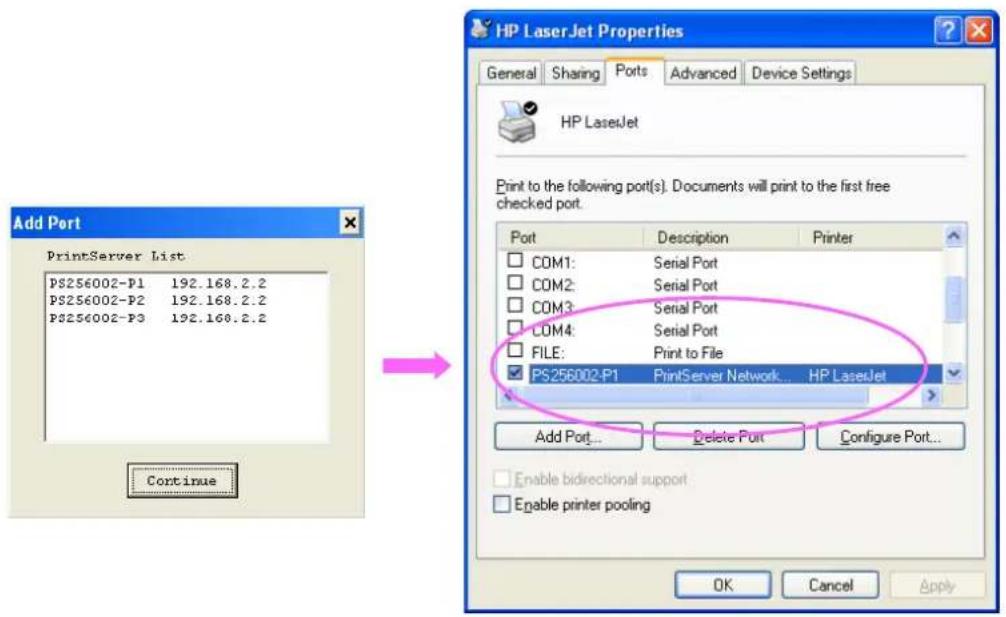
During the client's installation procedure, the system will automatically search for all print servers on the network, and add them into the printer ports of the client's computer (see below).
text_image
Add Port PrintServer List PS256002-P1 192.168.2.2 PS256002-P2 192.168.2.2 PS256002-P3 192.168.2.2 Continue HP LaserJet Properties General Sharing Ports Advanced Device Settings HP LaserJet Print to the following port(s). Documents will print to the first free checked port. Port Description Printer COM1: Serial Port COM2: Serial Port COM3: Serial Port COM4: Serial Port FILE: Print to File PS256002-P1 PrintServer Network... HP LaserJet Add Port... Delete Port Configure Port... Enable bidirectional support Enable printer pooling OK Cancel ApplyIf you have just installed another new print server in the network, you must run this program first. This program will search for new print servers and allow you to add the new network printer port into client's computer conveniently. Perform the standard Add Printer procedure, then you can print directly to the printer through the newly installed print server.
text_image
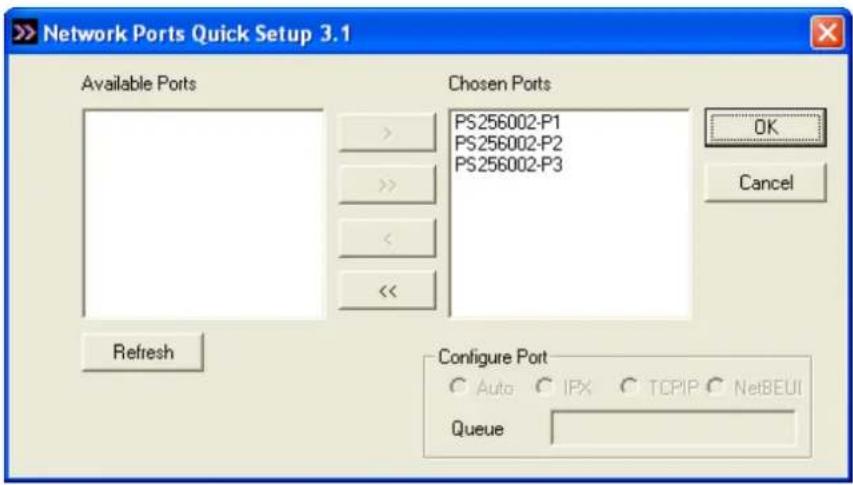
Network Ports Quick Setup 3.1 Available Ports Chosen Ports PS256002-P1 PS256002-P2 PS256002-P3 OK Cancel Refresh Configure Port Auto IPX TCPIP NetBEUI QueuePlease be aware that Network Ports Quick Setup Utility can only detect and configure all print servers on the same network, it cannot search and configure print servers on other subnets across network segments. You must use Remote Ports Utility described in the next section to manage remote (across network segments) print servers.
Select the network ports in the “Available Ports” list and click “>” to add ports. If you want to add all available ports, please click “>>”. To cancel some of the network ports or all ports from the “Chosen Ports” list, please click “<” or “<<”.
3.5.2 Remote Ports (Utility)
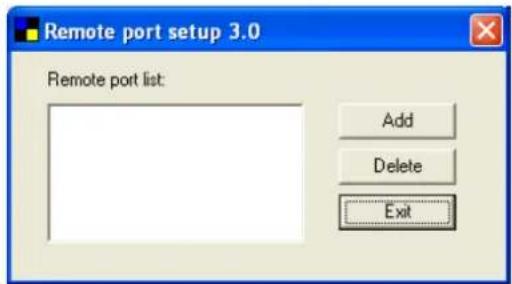
Remote Ports Utility offers a convenient way for you to manage and add printer port of the remote print server. From the assistant of this utility, you can print to other print servers outside the subnet across network segment. However, please note that this function only supports TCP/IP network protocol.
Please follow the procedures described below:
Step1. Run Remote Ports Utility. Clicks "Add" to add a remote print port.
text_image
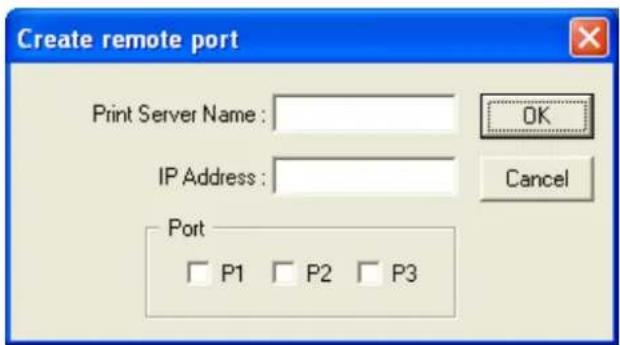
Remote port setup 3.0 Remote port list: Add Delete ExitStep2. Enter print server's name, IP address, select used ports, and enter LPR queue name of each port. Click "Ok".
text_image
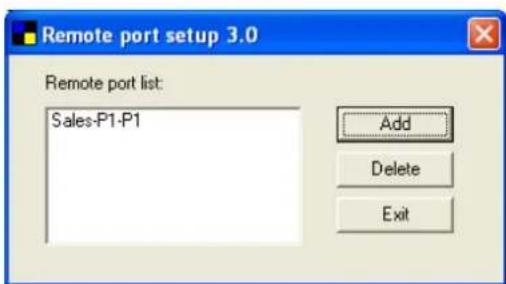
Create remote port Print Server Name : OK IP Address : Cancel Port P1 P2 P3Step3. The new remote print port is displayed as follows.
text_image
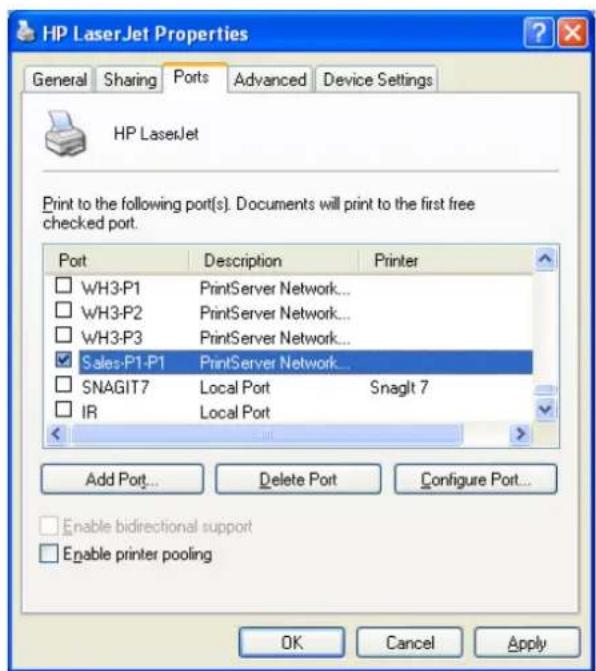
Remote port setup 3.0 Remote port list: Sales-P1-P1 Add Delete ExitIn order to use the remote printing function, you will have to proceed with normal Add Printer procedure and select your printer port as the newly added remote printer port.
text_image
HP LaserJet Properties General Sharing Ports Advanced Device Settings HP LaserJet Print to the following port(s). Documents will print to the first free checked port. Port Description Printer □ WH3-P1 PrintServer Network... □ WH3-P2 PrintServer Network... □ WH3-P3 PrintServer Network... ✓ Sales-P1-P1 PrintServer Network... □ SNAGIT7 Local Port Snaglt 7 □ IR Local Port Add Port... Delete Port Configure Port... Enable bidirectional support Enable printer pooling OK Cancel Apply3.6 Windows Add Printer Procedure
After adding a “Network Port” of the print server to your PC by Administrator or Client Installation Program, you can follow the procedure described below to add printer to the Windows. Note that following “Add Printer” steps are running in Windows XP, the steps in other Operating Systems are similar.
Step1. Click “Start”, choose “Settings” and select “Printers and Faxes”.
Step2. Click "Add a Printer".
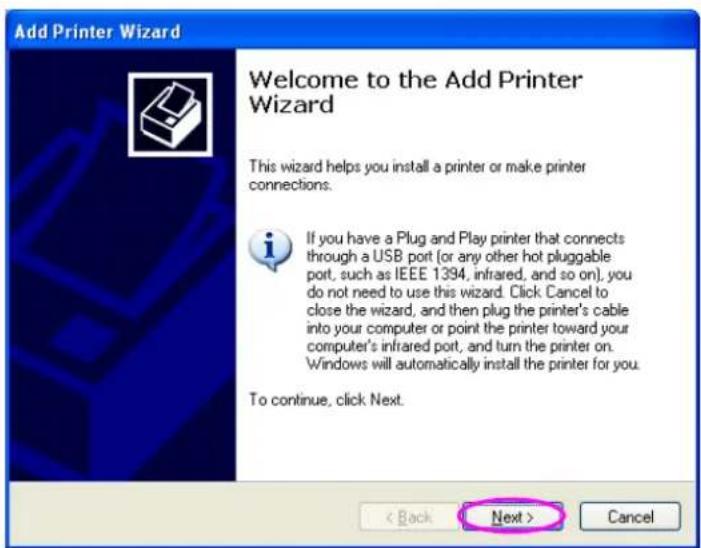
Step3. The “Add Printer Wizard” is displayed. Click “Next”.
text_image
Add Printer Wizard Welcome to the Add Printer Wizard This wizard helps you install a printer or make printer connections. If you have a Plug and Play printer that connects through a USB port (or any other hot pluggable port, such as IEEE 1394, infrared, and so on), you do not need to use this wizard. Click Cancel to close the wizard, and then plug the printer's cable into your computer or point the printer toward your computer's infrared port, and turn the printer on. Windows will automatically install the printer for you. To continue, click Next. < Back Next > CancelStep4. Select “Local printer attached to this computer” and make sure that “Automatically detect and install my Plug and Play printer” is not selected. Click “Next”.

text_image
Add Printer Wizard Local or Network Printer The wizard needs to know which type of printer to set up. Select the option that describes the printer you want to use: ● Local printer attached to this computer □ Automatically detect and install my Plug and Play printer ○ A network printer, or a printer attached to another computer To set up a network printer that is not attached to a print server, use the "Local printer" option. < Back Next > CancelStep5. Choose the suitable “Print Server Network Port” which was created by the Administrator Installation or Client Installation process and click “Next”.
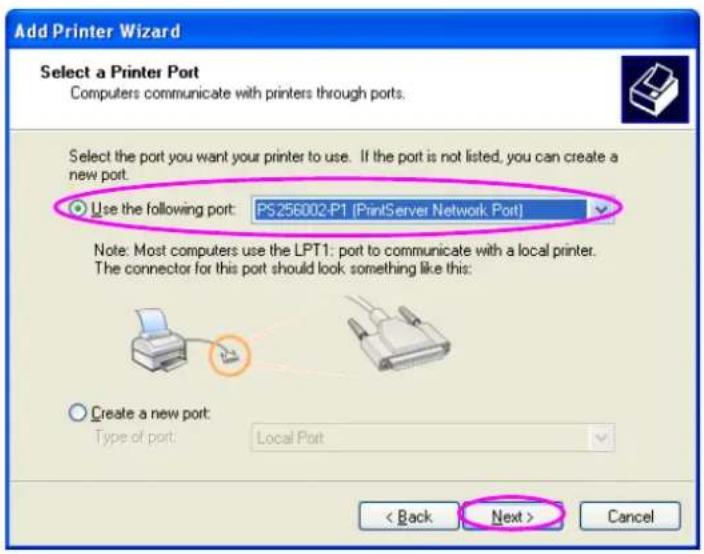
text_image
Add Printer Wizard Select a Printer Port Computers communicate with printers through ports. Select the port you want your printer to use. If the port is not listed, you can create a new port. Use the following port: PS256002-P1 (PrintServer Network Port) Note: Most computers use the LPT1: port to communicate with a local printer. The connector for this port should look something like this: Create a new port: Type of port: Local Port < Back Next > CancelStep6. Select a suitable printer manufacturer and the printer model and click "Next". If your printer is not in the list, click "Have Disk..." to install the driver of the printer. After installation, the printer model will be added to the list.

text_image
Add Printer Wizard Install Printer Software The manufacturer and model determine which printer software to use. Select the manufacturer and model of your printer. If your printer came with an installation disk, click Have Disk. If your printer is not listed, consult your printer documentation for compatible printer software. Manufacturer Generic Gestetner HP IBM infotec Printers HP LaserJet IIP Plus HP LaserJet IIP PostScript Cartridge v52.2 HP LaserJet HP LaserJet Plus This driver is digitally signed. Tell me why driver signing is important Windows Update Have Disk... < Back Next > CancelStep7. Name your printer and setup the default printer, click "Next".
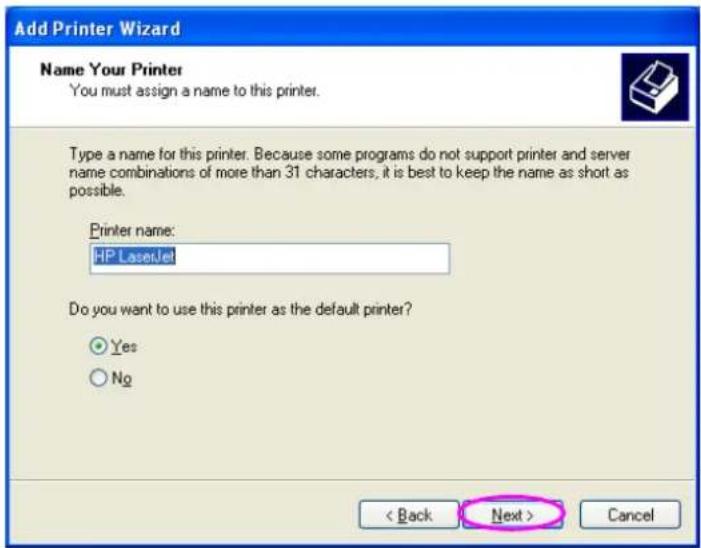
text_image
Add Printer Wizard Name Your Printer You must assign a name to this printer. Type a name for this printer. Because some programs do not support printer and server name combinations of more than 31 characters, it is best to keep the name as short as possible. Printer name: HP LaserJet Do you want to use this printer as the default printer? Yes No < Back Next > CancelStep8. Choose to print the test page or not. It is recommended to print a test page. Click "Next".
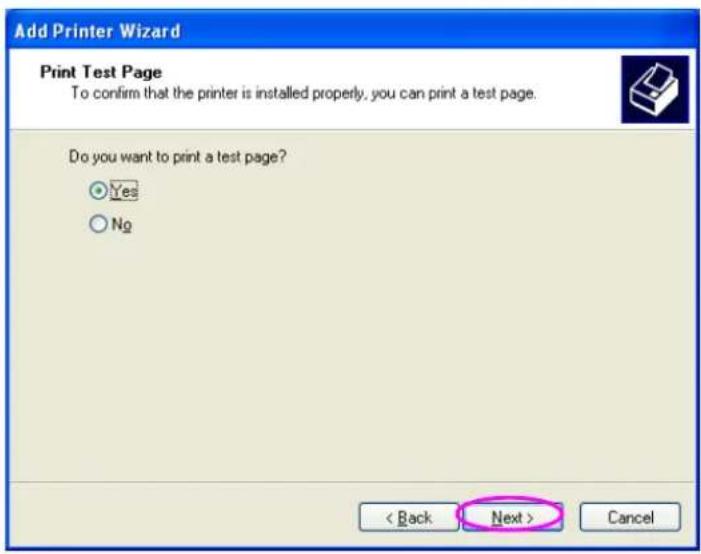
text_image
Add Printer Wizard Print Test Page To confirm that the printer is installed properly, you can print a test page. Do you want to print a test page? Yes No < Back Next > CancelStep9. You have added the printer to the PC successfully. The information of the printer is displayed in the windows. Click “Finish”.
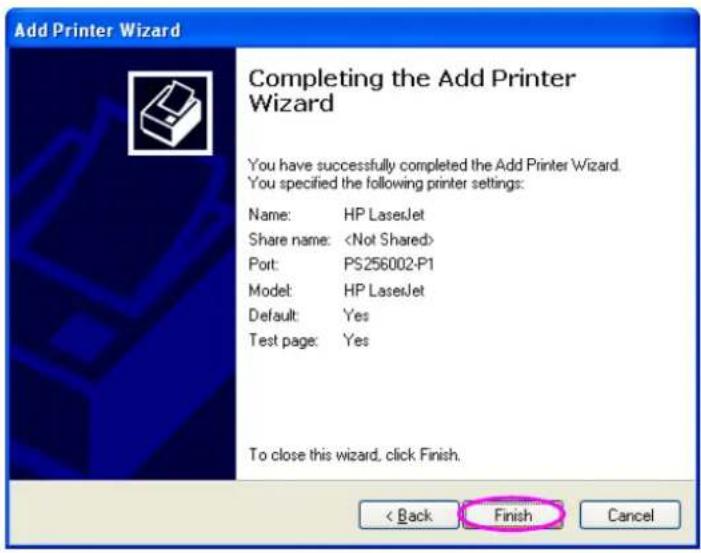
text_image
Add Printer Wizard Completing the Add Printer Wizard You have successfully completed the Add Printer Wizard. You specified the following printer settings: Name: HP LaserJet Share name:4. Windows NT/2000/2003 Network
4.1 System Architecture
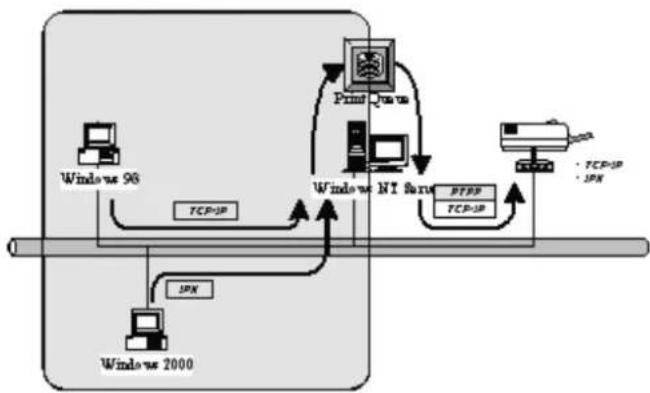
In Windows network environment, other than the Peer-to-Peer network printing architecture described in the previous chapter, we also offer the Server-Based Printing architecture for Windows NT/2000/2003 server. Only one Windows NT/2000/2003 is required to have Windows PTPP (Peer-to-Peer Printing) driver installed and share the printing service on the network. Other network users can simply connect to the server and access the shared printer (see below).

flowchart
graph TD
    A["Windows 98"] -->|TCP/IP| B["Windows NT Server"]
    C["Windows 2000"] -->|IPX| B
    B -->|TCP/IP| D["Print Queue"]
    D --> E["Windows NT Server"]
    E --> F["PTPP"]
    F --> G["PC"]
    G --> H["* TCP/IP * IPX"]
    style A fill:#f9f,stroke:#333
    style C fill:#f9f,stroke:#333
    style B fill:#ccf,stroke:#333
    style D fill:#cfc,stroke:#333
    style E fill:#fcc,stroke:#333
    style F fill:#cff,stroke:#333
    style G fill:#ffc,stroke:#333
    style H fill:#fcc,stroke:#333
4.2 Windows NT/2000/2003 Server Installation and Setup
Please follow the procedures described below for installation and construct a peer-to-peer connection (PTPP) between Windows NT/2000/2003 Server and Print Server.

flowchart
graph TD
    A["Windows 96"] -->|TCP/IP| B["Windows NT server"]
    C["Windows 2000"] -->|JPN| B
    B -->|TCP/IP| D["Computer"]
    B -->|JPN| E["Computer"]
    D --> F["Server"]
    E --> F
    F --> G["Server"]
    style A fill:#f9f,stroke:#333
    style C fill:#f9f,stroke:#333
    style B fill:#ccf,stroke:#333
    style D fill:#ccf,stroke:#333
    style E fill:#ccf,stroke:#333
    style F fill:#ccf,stroke:#333
Step1.
If this is your first time installing print server, please install the administrator software on Windows NT/2000/2003 server first. Refer to section 3.2 for installation instructions.
If your network has already installed a working print server and your Windows NT/2000/2003 server has not yet installed the PTPP driver, please install the client software. Refer to section 3.4 and 3.5 for installation instructions.
Step2.
Please add/configure the Peer-to-Peer Printing of the Windows NT/2000/2003 network printer and verify that you can print from Windows NT/2000/2003 to the print server by the installed PTPP driver.
Step3.
Share the above server's printer to the network by performing the standard Windows printer sharing process.
4.3 User Installation and Setup
flowchart
graph TD
    A["Windows 96"] -->|TCP-IP| B["Print Date"]
    C["Windows 2000"] -->|JPN| B
    B --> D["Windows NT Start"]
    D -->|JPN| E["PTPP"]
    E --> F["TCP-IP"]
    F --> G["Server"]
    style A fill:#f9f,stroke:#333
    style C fill:#f9f,stroke:#333
    style B fill:#ccf,stroke:#333
    style D fill:#ccf,stroke:#333
    style E fill:#ccf,stroke:#333
    style F fill:#ccf,stroke:#333
    style G fill:#ccf,stroke:#333
After server side's installation is completed, client side will be able to find the server's shared printer in Network Neighborhood. You only need to perform Window's standard Add New Printer procedure, select "Network Printer" shown in the screen below, and complete the configurations afterwards to access the shared printer.

text_image
Add Printer Wizard How is this printer attached to your computer? If it is directly attached to your computer, click Local Printer. If it is attached to another computer, click Network Printer ○ Local printer ● Network printer < Back Next > Cancel5. NetWare Network
5.1 System Architecture
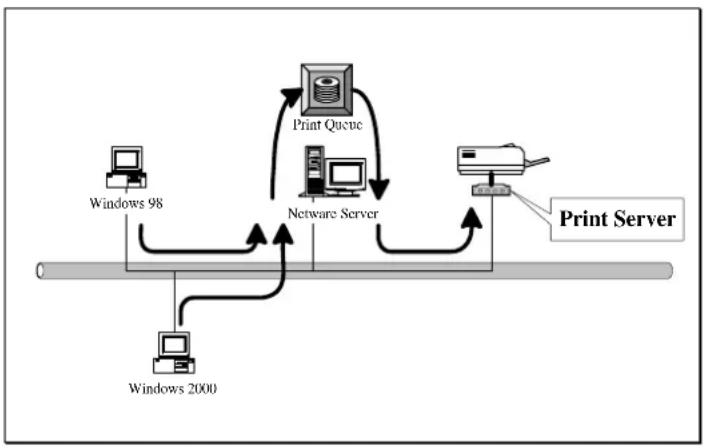
We implemented NetWare printer sharing functionality into the print server itself, thus allowing one or more printers attached by a print server to be connected to the network. We have developed the print server to support NetWare print server.
Embedded print server, which emulates the “queue management functionality” of NetWare print server, PSERVER program running on the NetWare server. A user first prints a job at a workstation, the job is routed to a NetWare server, the NetWare server stores the job in a print queue and then the print server gets the print job from the queue to printers.
flowchart
graph TD
    A["Windows 98"] --> B["Netware Server"]
    C["Windows 2000"] --> B
    B --> D["Print Queue"]
    D --> E["Print Server"]
Compare with NetWare printing functionality, the advantages of embedding the NetWare network printing functionality in the print server include:
■ Installation is easier and quicker.
■ Network management is easier.
■ Printing performance is enhanced.
- Relieve NetWare file server's burden.
■ Relieve the need of a workstation running the remote printer utility.
■ Improve productivity by locating the printer near the workgroup.
Each print server should log into a NetWare server before servicing the print jobs. Each print server will occupy a user account with which it can log into the NetWare server.
5.2 NetWare 3.x/4.x/5.x Installation & Setup
Once your print server is connected to your Ethernet network, you can set it up for use with your networking software.
5.2.1 Installation Using PCONSOLE
5.2.1.1 Configuring as Print Server Mode
- Run the NetWare PCONSOLE program.
- Change the current file server, if necessary, using the Change Current File Server menu selection.
- Choose the Print Queue Information menu selection.
- Press the Insert key to add a new print queue.
- Type in a print queue name, such as "PQ" or "Q1".

text_image
NetWare Print Console U3.75 Friday July 31, 1998 5:14 User SUPERVISOR On File Server SERVER Connection 2 Print Queues available Options ge Current File Server t Queue Information New Print Queue Name: PS30100C_Q1_-
You have now successfully created the print queue that your print server will serve. Press the Escape key until the Available Options main menu is displayed.
-
Select Print Server Information.
-
Press the Insert key to add a new NetWare print server object. The print server name can be identical to the PSxxxxxx name printed on the label of the print server.

text_image
NetWare Print Console U3.75 User SUPERVISOR On File Server SERVER Connection 2 Print Servers available Options ge Current File Server t Queue Information New Print Server Name: FS30100C-
Press Enter to select the newly created print server.
-
Select Print Server Configuration.
-
Select Printer Configuration.
-
Select Printer 0 (or Printer 1, Printer 2), and press Enter, then select LPT1 (or LPT2, LPT3) in the Type field. If your print server is with only one port, you do not need to configure this Type field.

text_image
NetWare Print Console 03.75 Friday July 31, 1998 5:17 User SUPERVISOR On File Server SERVER Connection 2 Co Printer 0 configuration Not In Name: Printer 0 Not In Type: Parallel, LPT1 Not In Use interrupts: Yes Not In IRQ: ? Not In Buffer size in K: 3 Not In Starting form: 0 Not In Queue service node: Minimize form changes within queues Not In Baud rate: Not In Data bits: Not In Stop bits: Not In Parity: Not In Use X-On/X-Off:-
Press Escape, and answer Yes to the Save Changes question.
-
Select Queues Serviced by Printer, then select Printer 0 (or Printer 1, Printer 2) and press Enter.
-
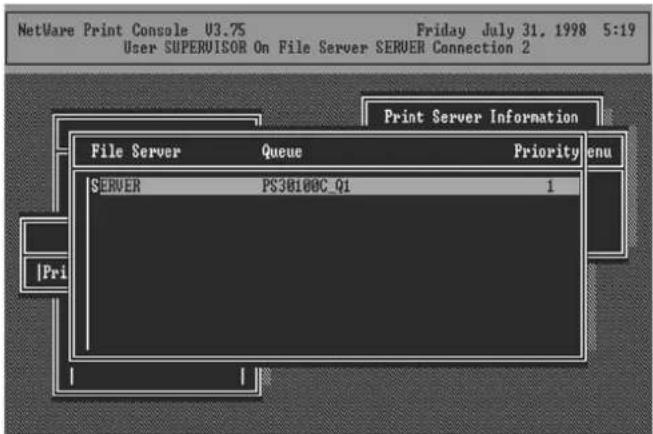
Press Insert and add your newly created print queue to the list of queues serviced by the printer. Enter a priority number for the queue service, or press Enter to accept the default.
text_image
NetWare Print Console U3.75 User SUPERVISOR On File Server SERVER Connection 2 Print Server Information File Server Queue Priority SERVER PS38100C_01 1 |Pri- Repeatedly press Escape to exit the PCONSOLE program.
- Reset the print server to have the changes take effect.
NOTE: If the print server you have is with multiple printer connectors, you may create multiple print queues and printer objects.
Your print server should now be ready to use. You should be able to redirect printing to your print server using a CAPTURE command such as the one shown in the previous section.
6. UNIX System Network
6.1 Introduction
The print server is available for TCP/IP printing by Unix LPD (Line Printer Daemon) protocol. The LPD protocol originated with Unix release is based on the BSD version of Unix and supported under most versions of Unix.
This chapter explains how to configure the print server for TCP/IP operation, and how to modify configuration files on your Unix system to allow printing to the print server. The configuration examples in this manual follow the syntax for BSD based Unix systems. Please refer to the related system documentation for the correct syntax of your systems.
To configure the print server for LPD printing, perform the procedures below:
- Enable Print Server's TCP/IP Support.
- Set up Print Server's IP address.
- Verify Print Server's IP Address.
- Configure remote LPD printing on the host.
- Print a test page.
In the next sections, we will describe these five procedures step by step.
6.2 Enable Print Server's TCP/IP Support
The default configuration of the print server is with TCP/IP support enabled. Anyway, you can configure the print server to enable TCP/IP support using the configuration program.
6.3 Setup Print Server's IP Address
The print server must have a unique IP address in order to be recognized by the network.
You can set up the IP address on the various Unix systems using any one of the following methods:
- DHCP (Dynamic Host Configuration Protocol)
- BOOTP (Bootstrap Protocol)
The print server will use the last three methods to obtain its IP address automatically if its IP address is configured as Auto (0.0.0.0).
6.3.1 DHCP
There are many Unix systems that support DHCP protocol, and the procedures to configure the DHCP server database are different. This manual does not describe the DHCP server configuration on the Unix systems. It is highly recommended that the DHCP server should be located on the same network as the print server.
6.3.2 BOOTP
If you have the BOOTP daemon, bootpd, running on your UNIX system that is accessible by the print server, you can use the BOOTP protocol to set up the IP address of the print server. We recommend that the BOOTP server should be located on the same subnet as the print server. If you use Network Information Services (NIS) in your system, you may need to rebuild the NIS map with the BOOTP
services before doing the following BOOTP configuration. To rebuild the NIS map, please refer to your system documentation.
To configure the IP address data for the BOOTP server, you will need to log in the host of BOOTP server as the superuser (root). Perform the following steps to add address entries,
- Optionally, assign a name corresponding to the print server's IP address. You can add this address to the /etc/hosts file, by adding a line such as:
203.66.191.12
pserver
- Add an entry to the host's /etc/bootptab file, similar to the following:
hostname:\
:ht=1:\
:ha=print_server_ethernet_address:
:ip=print_server_ip_address:
Lines should be indented with tabs.
Where hostname is the device name of a print server, the ht=1 tag specifies the hardware type is Ethernet, the ha= tag specifies the Ethernet address of a print server, which is the Node ID located on the print server. The ha tag must be preceded by the ht tag. The ip= tag should correspond to the IP address you want to assign to the print server.
For example, a print server with the following configuration:
Node ID: 0000B4010101 (this implies Ethernet
address is 0000B4010101),
IP address: 203.66.191.12
The entry for this print server in the /etc/bootptab file should be:
PS010101:\
:ht=1:\
:ha=0000B4010101:\
:ip=203.66.191.12:
6.4 Verify Print Server's IP Address
To verify that your print server is responding to the newly assigned IP address using a PING command:
ping ip-address
6.5 Configure Remote LPD Printing on the Host
The procedure you use to configure your Unix host(s) to allow printing to your network remote print server varies between different varieties of Unix. The procedure below can be used for Unix variants that are related to BSD Unix, such as SunOS or Linux. For other versions of Unix, consult your system documentation, keeping in mind that:
-
The print server should be treated as a BSD networked print server host.
-
The host name should be the name (or IP address) that you have assigned to the print server.
-
The printer name (or queue name) on the remote host should be lpt1, lpt2 or lpt3, the name of the printer port on the print server.
You will need to perform the tasks below, logged in as the superuser (root). To configure your Unix host for printing,
- Optionally, assign a name corresponding to the print server's IP address. You can add this address to the /etc/hosts file, by adding a line such as:
203.66.191.186
pserver
- Create a spool directory for the printer in the same directory where spool directories are normally kept on the machine, such as /var/spool or /var/spool/lpd:
mkdir /var/spool/lpd/pserverd
chown daemon /var/spool/lpd/pserverd
chgrp daemon /var/spool/lpd/pserverd
chmod 775 /var/spool/lpd/pserverd
- Add an entry to the host's /etc/printcap file, similar to the following:
printer-name:\
:lp=:\
:rm=203.66.191.186:\
:rp=lpt1:\
:lf=/var/spool/lpd/pserverd.log:\
:sd=/var/spool/lpd/pserverd:\
:mx#0:
Lines should be indented with tabs. More than one printer name can be used, with variants separated by vertical bars (name1|name2).
The rm= entry should correspond to the IP address you have assigned to the print server. You can also use a host name if you have assigned one in the /etc/hosts file.
The sd= entry should correspond to the spool directory you created in the previous step.
The rp= entry should correspond to the port name of the remote printer. The values should be one of lpt1, lpt2 or lpt3 depends on the printer port.
The print server should now be available for printing from your Unix host.
7. Configuration Utility
7.1 Introduction
This chapter introduces print server's system configuration utility in Windows environment. This utility is automatically installed during Windows Administrator Utility installation procedure - refer to section 3.2 and 3.3.
This utility provides the most complete management and configuration functions on the print server side. This utility only provides configuration functions for print server itself; it does not include configuration functions for client side or other file server or NetWare server in the network environment.
The Configuration Utility provides the following configuration and management functions:
■ Search Print Server: Search All Available Printer Servers on the Network.
■ Print Server Status: Display Print Server Network Status.
■ General Configuration: General Information of print server.
■ TCP/IP Configuration: IP Address and DHCP Server Configuration.
■ NetWare Configuration: NetWare Printing Configuration.
■ AppleTalk Configuration: AppleTalk Protocol Setting.
■ Rendezvous: Allow you to configure the Rendezvous function.
■ SNMP Configuration: SNMP Information Configuration.
■ SMB: Configure the SMB Group Name.
■ System Configuration: Print Server Network Ability Setting and Firmware Upgrade.
■ Wireless Configuration: Wireless LAN Configuration.
■ Setup Wizard: Guide You Through All the Settings.
■ Report: List the Status of All Available Print Servers on the Network.
We will explain each function separately in the following section.
7.2 Search for All Available Print Server
text_image
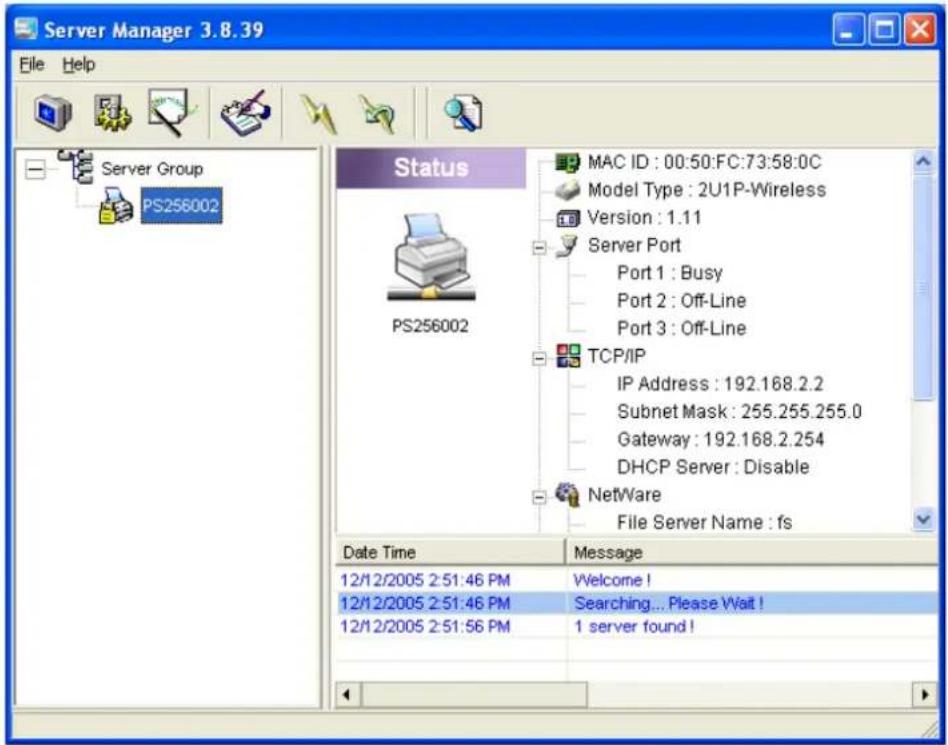
Server Manager 3.8.39 File Help Server Group PS256002 Status MAC ID : 00:50:FC:73:58:0C Model Type : 2U1P-Wireless Version : 1.11 Server Port Port 1 : Busy Port 2 : Off-Line Port 3 : Off-Line TCP/IP IP Address : 192.168.2.2 Subnet Mask : 255.255.255.0 Gateway : 192.168.2.254 DHCP Server : Disable NetWare File Server Name : fs Date Time Message 12/12/2005 2:51:46 PM Welcome ! 12/12/2005 2:51:46 PM Searching... Please Wait ! 12/12/2005 2:51:56 PM 1 server found !Every time when you run print server's configuration utility, click the "Search" icon on the tool bar. The configuration utility will delay for several seconds because the utility is using system's available network protocols to search for all print servers on the network. All available print servers will be listed under "Print Server Group" on the left side of the window.
You must select the print server you would like to configure from the list. The system will, at the same time, display the selected print server's status on the right side of the window.
7.3 Status of Print Server

text_image
Server Manager 3.8.39 File Help Server Group PS256002 Status MAC ID : 00:50:FC:73:58:0C Model Type : 2U1P-Wireless Version : 1.11 Server Port Port 1 : Busy Port 2 : Off-Line Port 3 : Off-Line TCP/IP IP Address : 192.168.2.2 Subnet Mask : 255.255.255.0 Gateway : 192.168.2.254 DHCP Server : Disable NetWare File Server Name : fs Date Time Message 12/12/2005 2:51:46 PM Welcome ! 12/12/2005 2:51:46 PM Searching... Please Wait ! 12/12/2005 2:51:56 PM 1 server found !
Click “Status” icon on the tool bar, the status of the current selected print server will be showed on the right side of the window.
The information of the print server displayed are MAC ID, Model Type, Firmware Version, status of each printer port, NetWare file server name, NetWare file server polling interval, NetWare printer queue names, IP address, subnet mask, default gateway, AppleTalk printer type, AppleTalk zone and print server printing ability...etc.
You can refresh the print server's status by pressing the "Refresh" button.
You can restart the print server by pressing the "Reboot" button.
7.4 Setup the Print Server
text_image
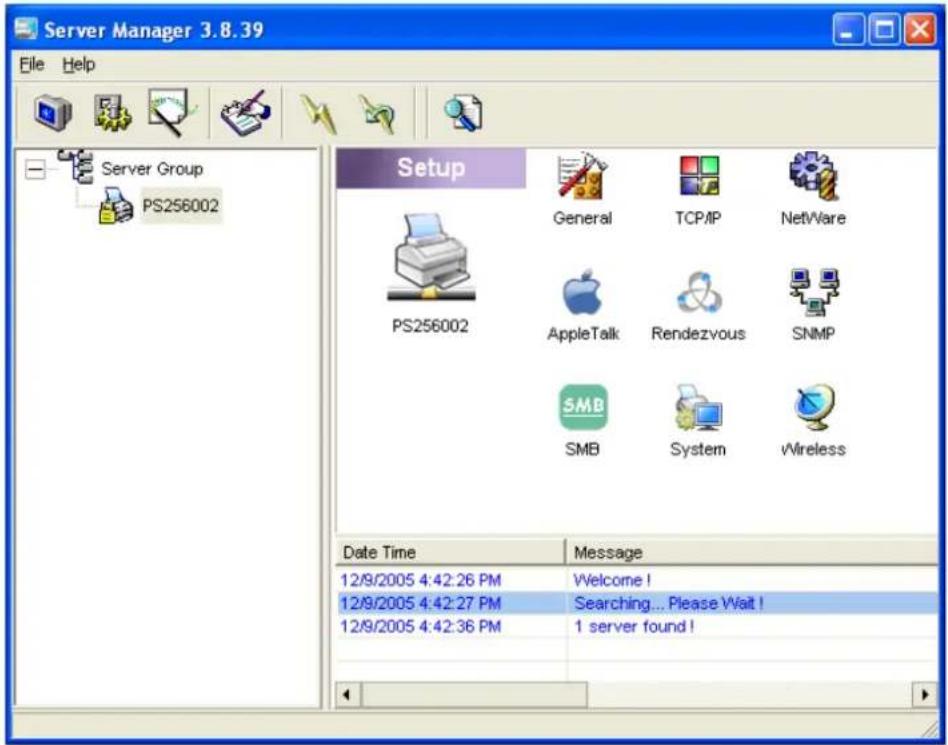
Server Manager 3.8.39 File Help Server Group PS256002 Setup General TCP/IP NetWare PS256002 AppleTalk Rendezvous SNMP SMB SMB System Wireless Date Time Message 12/9/2005 4:42:26 PM Welcome ! 12/9/2005 4:42:27 PM Searching... Please Wait ! 12/9/2005 4:42:36 PM 1 server found !Click “Setup” icon on the tool bar, the setup items of the current selected print server will be showed on the right side of the window.
Double click one of the icons to set up the selected print server. A screen will pop up to verify “User Name” and “Password” of the print server. The default values are as follows.
- User Name: admin
- Password: 1234

text_image
Login - PS256002 User Name : admin Password : ***** Login Cancel7.5 General Configuration
text_image
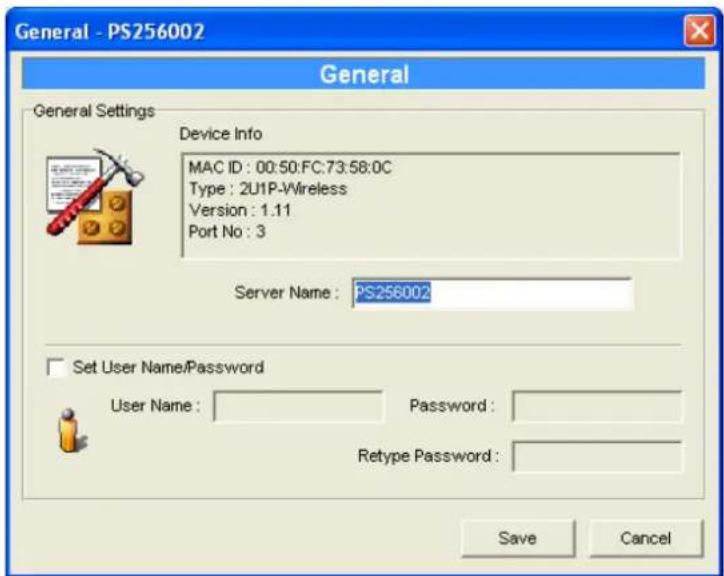
General - PS256002 General General Settings Device Info MAC ID: 00:50:FC:73:58:0C Type: 2U1P-Vireless Version: 1.11 Port No: 3 Server Name: PS256002 Set User Name/Password User Name: Password: Retype Password: Save CancelDouble Click “General” icon and the General configuration window will pop-up.
You can see basic print server information in this page. You also can configure the “Print Server Name”, “SMB Group Name”, “User Name” and “Password” here.
Server Name, the name of the print server. You can use this name to identify the print server when you are searching for the print server by the administration and client utilities.
User Name / Password is used to authenticate the administrator by the Web administration tool.
7.6 TCP/IP Configuration
text_image
TCP/IP - PS256002 TCP/IP TCP/IP Settings IP DHCP Server Auto IP Static IP IP Address: 192 168 2 2 Subnet Mask: 255 255 255 0 Gateway: 192 168 2 254 Save Cancel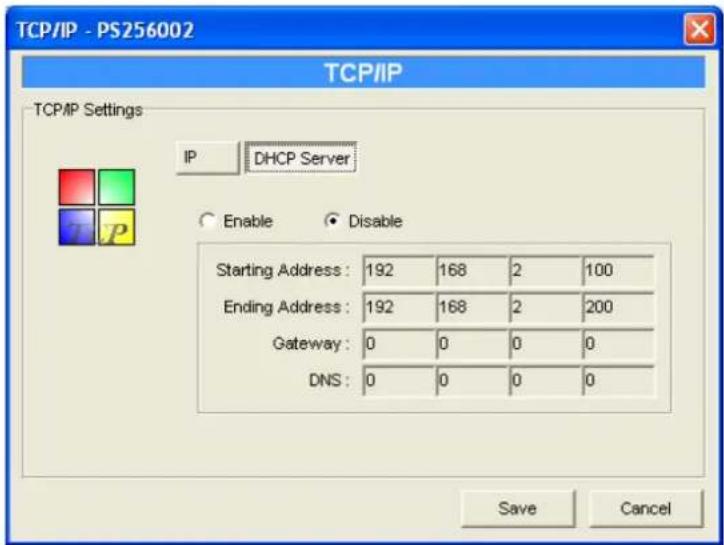
text_image
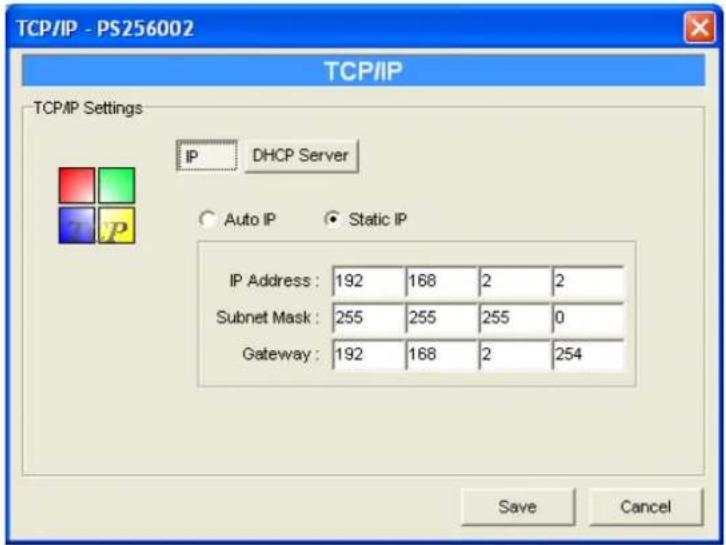
TCP/IP - PS256002 TCP/IP TCP/IP Settings IP DHCP Server Enable Disable Starting Address: 192 168 2 100 Ending Address: 192 168 2 200 Gateway: 0 0 0 0 DNS: 0 0 0 0 Save CancelDouble Click “TCP/IP” icon and the TCP/IP configuration window will pop-up.
You can configure the print server to automatically get IP from DHCP server or manually specify static IP. The print server also has a built-in DHCP server. You can enable this DHCP server and let it manages IP for you.
Click the “IP” button to enter the IP setting page. If you need the print server to automatically get an IP from DHCP server, select “Auto IP”. You also can select “Static IP” to manually assign “IP Address”, “Subnet Mask” and “Gateway” for the print server.
Click the “DHCP Server” button to enter the DHCP server’s setting page. You can “Enable/Disable” the DHCP server and assign a range of IP addresses here. The DHCP server is disabled by default. When “Enable” is selected, you have to configure “Starting Address”, “Ending Address”, “Gateway”, and “DNS”. The print server will assign a unique IP for each client.
7.7 Netware Print Server Configuration
text_image
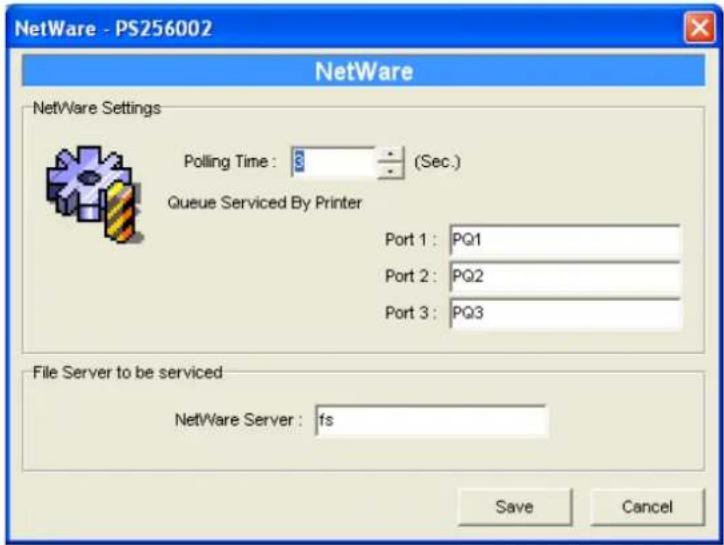
NetWare - PS256002 NetWare NetWare Settings Polling Time: 3 (Sec.) Queue Serviced By Printer Port 1: PQ1 Port 2: PQ2 Port 3: PQ3 File Server to be serviced NetWare Server: fs Save CancelDouble Click “NetWare” icon and the NetWare configuration window will pop-up.
This print server supports NetWare Bindery Printing method. The print server periodically polls the NetWare server printer queues for printing jobs. You have to assign the NetWare server name, print server polling interval and the name of queue on the NetWare server for each printer port.
Polling Time is the polling interval of the print server for waiting printing jobs on the NetWare server.
Queue Serviced by Printer is the name of the printer queue on the NetWare server. The printer queue keeps all printing jobs waiting on the NetWare server. You have to assign a printer queue for each printer port of this print server.
NetWare Server is the name of the NetWare file server that provides printer queues.
7.8 AppleTalk Configuration

text_image
AppleTalk - PS256002 AppleTalk AppleTalk Settings Zone Name: 1 Printer Type Port 1: LaserWriter Port 2: LaserWriter Port 3: LaserWriter Save CancelDouble Click “AppleTalk” icon and the AppleTalk configuration window will pop-up.
AppleTalk is a data communication protocol often used by Macintoshes. The print server can use these parameters to join the AppleTalk network and share the printer to other AppleTalk workstations. You have to setup the “Zone Name” and “Printer Type” for each printer port of this print server.
Zone Name: Print server has to join zones of AppleTalk before it can be shared to other workstations. Only workstations in the same zone can share the printer. If you want to share the printer to all workstations in all Zones, you should enter only “*” in the “Zone Name” field.
Printer Type, the type of printer attached to each printer port. You can get the printer type from the manufacturer of the printer.
7.9 Bonjour Configuration

text_image
Rendezvous - PS256002 Bonjour Bonjour Settings Service Name Port 1 : Port 2 : Port 3 : Save CancelBonjour technology (“Rendezvous” was renamed “Bonjour” with the release of Mac OS X v10.4), also known in the industry as Zero Configuration networking, enables automatic discovery of computers, devices, and services on IP networks. It uses industry standard IP protocols to allow devices to automatically find each other without the need to enter IP addresses or configure DNS servers. This technology is used in MAC OS.
Service Nam is a name to identify the device on IP network. The Print Server has three printer ports; please designate the unique and friendly service name for each printer connected to one of the three printer ports.
7.10 SNMP Configuration
text_image
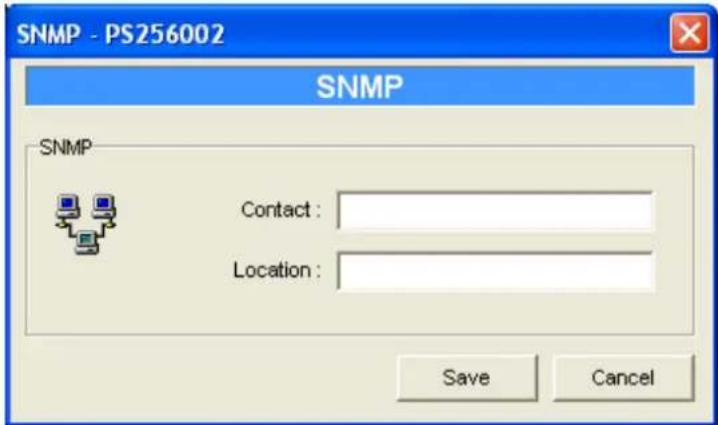
SNMP - PS256002 SNMP SNMP Contact : Location : Save CancelDouble Click “SNMP” icon and the SNMP configuration window will pop up.
Contact: You can enter the print server administrator's contact information here. This information will be displayed in the SNMP management tool.
Location: You can enter the installed location of the print server here. This information will be displayed in the SNMP management tool.
7.11 SMB Configuration

text_image
SMB - PS256002 SMB SMB Group Name: WORKGROUP ✓ Pass Job When Error Occurred Waiting time to Pass Job: 20 seconds(1~120) Save CancelSMB Group Name, the name of SMB group that this print server belongs to. All PC should join the same group before they can use this print server by SMB protocol.
Pass Job when Error Occurred: When the printer is interrupted because of paper out or off line while printing, user can enable this function and set the interval time to bypass the current printing job. Or the printing document will not be printed completely or with unformatted messages.
Waiting Time to Pass Job: The range is from 1 to 60 seconds. By default, the parameter is enabled and the default waiting time is 20 seconds.
7.12 System Configuration

text_image
System - PS256002 System System Settings Enable Appletalk Printing Enable Bonjour Printing Enable LPR Printing Enable NetWare Binary Printing Enable TCP RAW Printing Enable IPP Printing Enable SMB Enable SNMP Enable Telnet Enable NetBEUI Enable UPnP Port Name Port 1: p1 Port 2: p2 Port 3: p3 Update: ... Upgrade Wireless Function: ○ Auto ○ Enable ○ Disable Domain Country: FCC (1-11) Save CancelDouble Click “System” icon and the System configuration window will pop-up.
In the System configuration page, you can select to enable/disable each printing or management protocol, assign name for each printer port of this print server, upgrade the new firmware for this print server, and enable/disable wireless function.
Port Name is the name of the printer port. The Print Server has three printer ports, two USB 2.0 ports and one parallel port. Each printer port has to be assigned a name.
Then you can use this name to access the printer port. By default, the printer port name is “lpt1” for port 1, “lpt2” for port 2 and “lpt3” for port 3.
Upgrade: You can use this “Upgrade” tool to update the newest firmware of the print server. Click “☐” button and select the correct firmware in your PC. After selecting the firmware file, click the “Upgrade” button to finish the firmware update process.
Note that before you upgrade the firmware please make sure that the IP Address settings of the MFP Server are in the same network as your computer.
Wireless Function: You can select “Auto”, Enable” or “Disable” to manually configure the wireless function.
- Auto – “Auto” is the default setting of the print server. At this mode, the print server will automatically decide to enable or disable the wireless function. When the print server starts up, it will auto-detect if the LAN port is connected to an active network by an Ethernet cable. If this is the case, the print server will run in Ethernet mode. If the print server is not connected to an active network by Ethernet cable, the print server will run in wireless LAN mode.
Users can plug the Ethernet cable to the print server at the first, after configuring the print server features and wireless settings; they can unplug the Ethernet cable to enable the wireless connection. It makes the configuration much easier without creating the wireless connection in advance.
- Enable – Enable wireless function only, the print server's wireless LAN will be always enabled and Ethernet will be always disabled.
- Disable – Disable the wireless function, the print server's wireless LAN will be always disabled and Ethernet will be always enabled.
Domain Country: The wireless channels are different from country to country. Generally, the channels are from 1 to 11 in USA and from 1 to 13 in Europe. The Domain Country setting is for you to set the available channels according to your location.
7.13 Wireless Configuration
If you want to use the print server through wireless LAN, please set up the print server through Ethernet first and make sure your wireless LAN setting is correct. After setting the wireless LAN, unplug the Ethernet cable and restart the print server, then you can start to use the print server through wireless LAN. If the wireless configuration does not work, please plug the Ethernet cable again, restart the print server and configure the print server through Ethernet until the wireless LAN settings are correct.
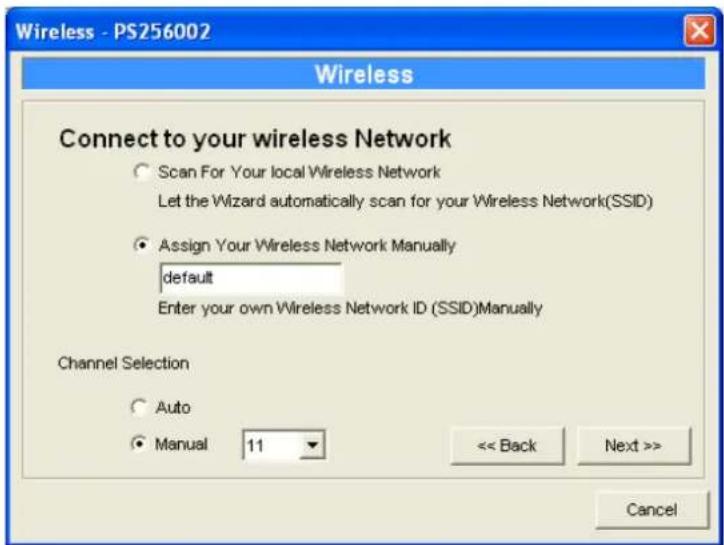
The default settings of the print server wireless function are as follows.
- Mode: Ad-Hoc
- SSID: Default
- Channel: 11

text_image
Wireless - PS256002 Wireless Set Your Wireless Adapter Mode ○ Infrastructure Mode If you wish to use Wireless to connect to your Wireless Access Point, please select this mode. ● Adhoc Mode If you wish to connect head to head with another Wireless client, please choose this mode. Wireless Function: ○ Auto ○ Enable ○ Disable Next >> CancelDouble Click “Wireless” icon and the wireless configuration window will pop-up.
If you use access point to build up wireless network, you have to select “Infrastructure Mode”. If you do not have any access point and want to use peer-to-peer connection to build up wireless network, you have to select “Ad-Hoc Mode”.
After selecting the operation modes of the wireless function, click “Next” to go to further detailed configuration.
Infrastructure Mode:

text_image
Wireless - PS256002 Connect to Your Wireless Network Scan For Your local Wireless Network Let the Wizard automatically scan for your Wireless Network(SSID) Assign Your Wireless Network Manually Enter your own Wireless Network ID (SSID)Manually << Back Next >> CancelIn the Infrastructure mode, you have to let the print server associate with an access point. You let the print server scan for an available access point automatically or manually assign the SSID of the access point you want to use.
If you select to let the print server scan for an available access point, the following window will pop up.

text_image
Wireless Wireless Network Name(SSID) SSID BSSID Channel frank 00:0E:2E:41:23:4C 11 Scan Please scan and select the name of your Wireless Network from the list above. If you do not see your Wireless Network please check to see if your Wireless Network is setup correctly and re-scan. << Back Next >> CancelThe list is the scanned available access points. Select an access point in the list and click "Next". If you cannot find the access point that you want to use, click "Scan" to let the print server scan again.
Ad Hoc Mode:
text_image
Wireless - PS256002 Wireless Connect to your wireless Network ○ Scan For Your local Wireless Network Let the Wizard automatically scan for your Wireless Network(SSID) ● Assign Your Wireless Network Manually default Enter your own Wireless Network ID (SSID)Manually Channel Selection ○ Auto ● Manual 11 << Back Next >> CancelIn the Ad-Hoc mode, you can let the print server automatically associate with other wireless station or manually assign the SSID of your wireless network. You can let the print server automatically select the channel that is the same with the peer or manually assign a channel.
If you select to let the print server scan for an active wireless station, the following window will pop up.

text_image
Wireless Wireless Network Name(SSID) SSID BSSID Channel frank 00:0E:2E:41:23:4C 11 Scan Please scan and select the name of your Wireless Network from the list above. If you do not see your Wireless Network please check to see if your Wireless Network is setup correctly and re-scan. << Back Next >> CancelThe list is the scanned active wireless stations. Select a wireless station in the list and click “Next”. If you cannot find the wireless station that you want the print server to communicate with, click “Scan” to let the print server scan again.
Both “Infrastructure” and “Ad-Hoc” mode have to go through the following procedure:

text_image
Wireless - PS256002 Wireless Wireless Security(WEP) Security Mode: Disable PassPhrase Disable WEP(ASCII) WEP(HEX) WPA-shared key If you wish to activate (WEP) wireless security or your wireless network is already running wireless security you may configure your settings here. (Note)All Wireless Devices on your network must use the same WEP key to function correctly. Key 1: ********** Key 2: ********** Key 3: ********** Key 4: ********** << Back Next >> CancelThis print server supports WEP and WPA-PSK security mode. If you want to use WEP encryption to protect your wireless network, you have to select “WEP(ASCII)” or “WEP(HEX)”. If you want to use WPA-PSK, you have to select “WPA-shared key”. The wireless security setting should be the same with other wireless devices in the same network.
WEP Security Mode:
text_image
Wireless - PS256002 Wireless Wireless Security(WEP) Security Mode: WEP(ASCII) PassPhrase 64 bit 128 bit Key 1: Key 2: Key 3: Key 4: If you wish to activate (WEP) wireless security or your wireless network is already running wireless security you may configure your settings here. (Note)All Wireless Devices on your network must use the same WEP key to function correctly. << Back Next >> Cancel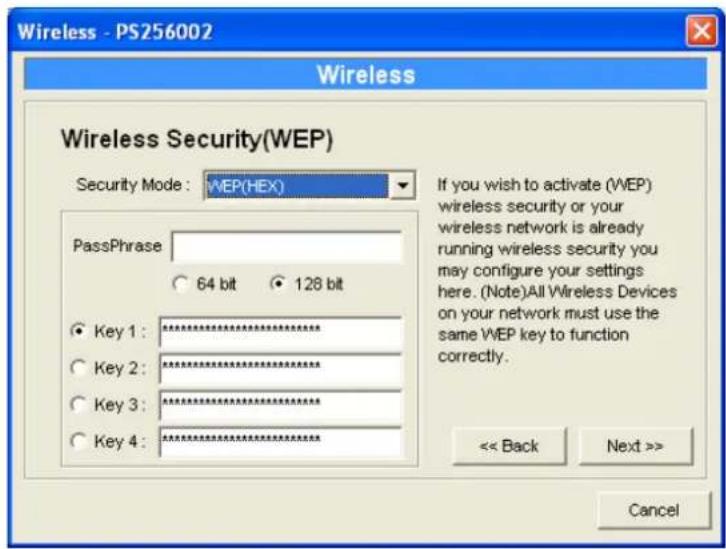
text_image
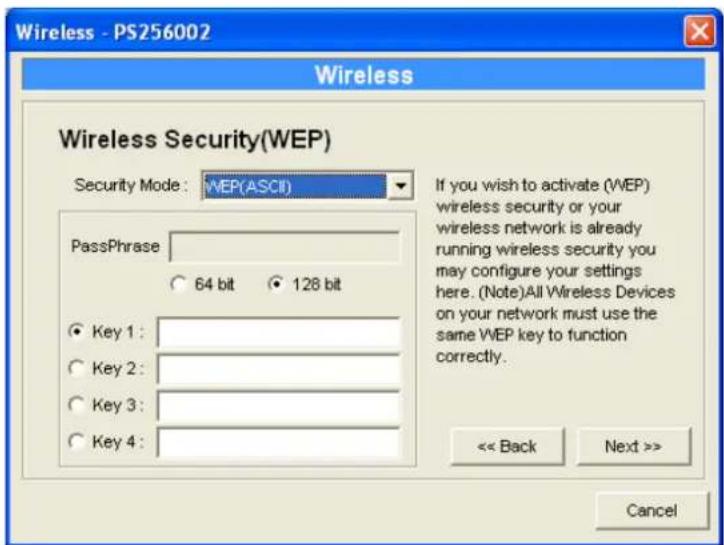
Wireless - PS256002 Wireless Wireless Security(WEP) Security Mode: WEP(HEX) PassPhrase 64 bit 128 bit Key 1: ********** Key 2: ********** Key 3: ********** Key 4: ********** If you wish to activate (WEP) wireless security or your wireless network is already running wireless security you may configure your settings here. (Note)All Wireless Devices on your network must use the same WEP key to function correctly. << Back Next >> CancelYou can select “64 bit” or “128 bit” length and “Hexadecimal” or “ASCII” format for the encryption key. Longer key length can provide stronger security but worth communication performance.
Enter four key values by following the rules below and select one key as the default key.
- PassPhrase – A passphrase simplifies the WEP encryption process by automatically generating the WEP encryption keys for the print server. This setting is only valid when the security mode is in “WEP(HEX)”.
- Key 1 to Key 4 – If the key length is 64-bit, enter 10-digit Hex values or 5-digit ASCII values as the encryption keys. For example: “0123456aef” or “Guest”.
If the key length is 128-bit, enter 26-digit Hex values or 13-digit ASCII values as the encryption keys. For example: "01234567890123456789abcdef" or "administrator".
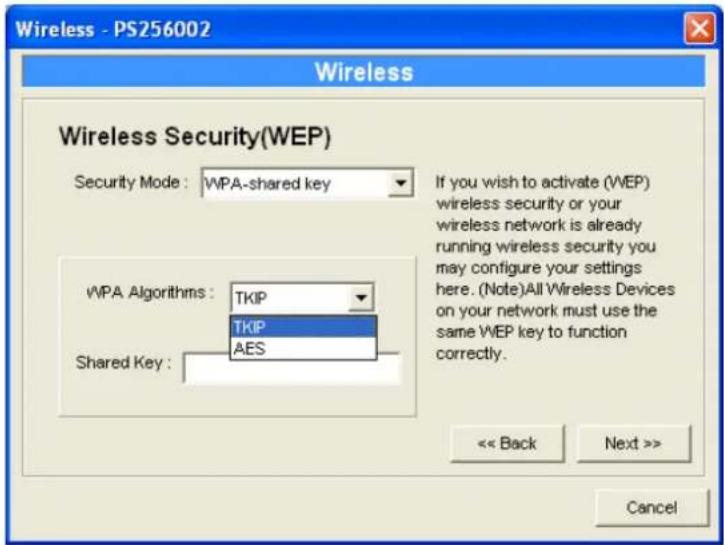
WPA-shared key Security Mode:
text_image
Wireless - PS256002 Wireless Wireless Security(WEP) Security Mode: WPA-shared key If you wish to activate (WEP) wireless security or your wireless network is already running wireless security you may configure your settings here. (Note)All Wireless Devices on your network must use the same WEP key to function correctly. << Back Next >> CancelWhen “WPA-shared key”, also named “WPA-PSK” requires users to select the advanced encryption methods, i.e. TKIP or AES and enter a set of shared key.
- TKIP – TKIP (Temporal Key Integrity Protocol) changes the temporal key every 10,000 packets. This insures much greater security than the standard WEP security.
- AES – AES has been developed to ensure the highest degree of security and authenticity for digital information and it is the most advanced solution defined by IEEE 802.11i for the security in the wireless network.
- Shared Key – Enter 8 to 63 digits of ASCII format to be the key for the authentication within the network.
When you finish configuring the wireless security, click "Next" to go to next step.

text_image
Wireless - PS256002 Configure Your Adapters IP Address ○ Automatically Obtain IP Settings(DHCP) Obtain your IP Settings from your Wireless Access Point/Router. (DHCP must be enabled on your Wireless Access Point/Router) ● Set Your IP Manually IP Address: 192 168 2 2 Subnet Mask: 255 255 255 0 Gateway: 192 168 2 254 << Back Next >> CancelYou can select to let the print server automatically obtain IP settings with DHCP client or manually assign the IP settings.
If you manually assign the IP settings, you have to enter IP address, subnet mask and default gateway address.
When you finish configuring the IP settings, click "Next" to confirm the IP Address configuration.

text_image
Wireless - PS256002 Wireless Setup Status Summary Server Name: PS256002 Connect Mode: Infrastructure Mode Wireless Network Name(SSID): frank IP Settings IP Address: 192.168.2.2 Subnet Mask: 255.255.255.0 Gateway: 192.168.2.254 Wireless Security: Disable << Back Save CancelClick "Save" to save the wireless configuration.
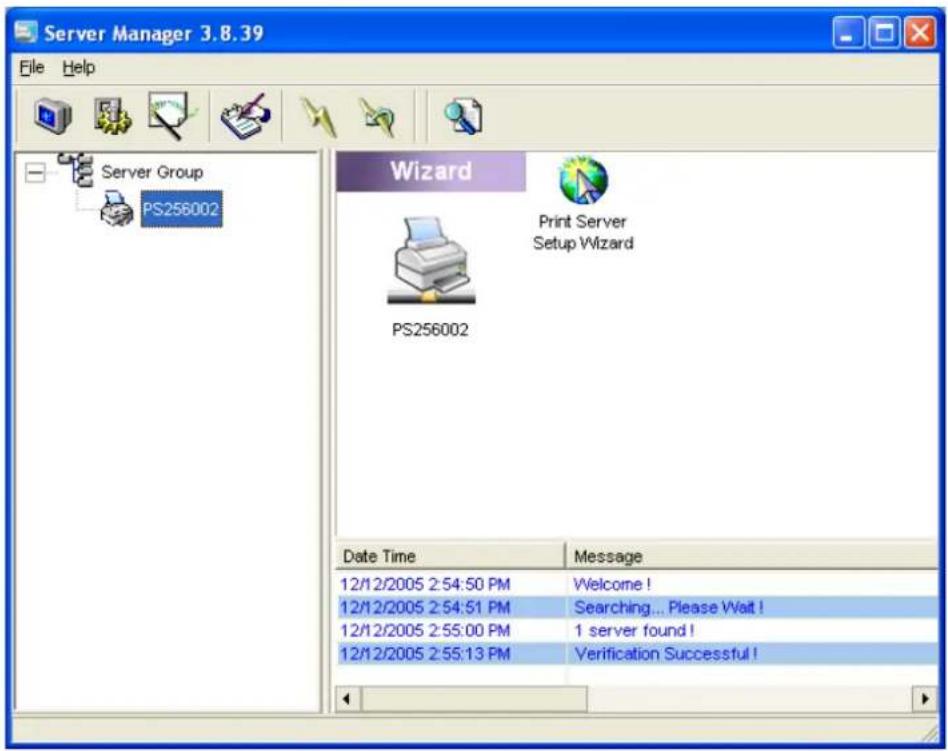
7.14 Wizard
text_image
Server Manager 3.8.39 File Help Server Group PS256002 Wizard Print Server Setup Wizard PS256002 Date Time Message 12/12/2005 2:54:50 PM Welcome ! 12/12/2005 2:54:51 PM Searching... Please Wait ! 12/12/2005 2:55:00 PM 1 server found ! 12/12/2005 2:55:13 PM Verification Successful !
Click “Wizard” icon on the tool bar, the setup wizard item of the current selected print server will be showed on the right side of the window.
Double click the "Print Server Setup Wizard" the setup wizard will guide you through all the setup process.
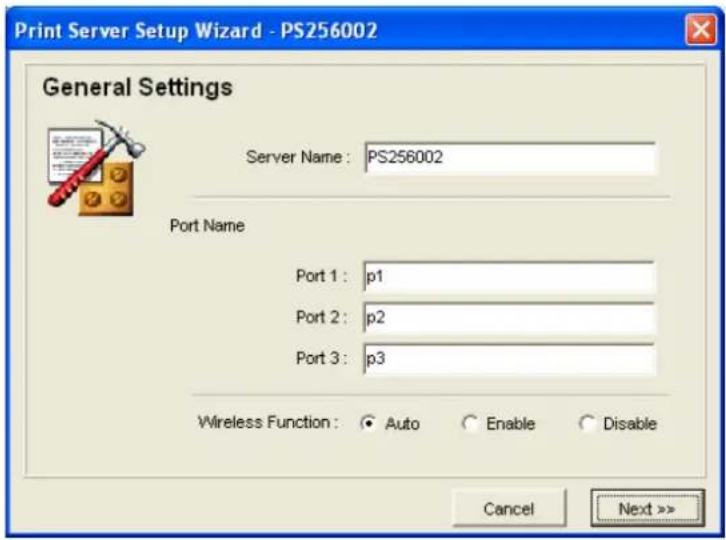
Step 1: Set up the name of this print server, and the port name for each printer port.
text_image
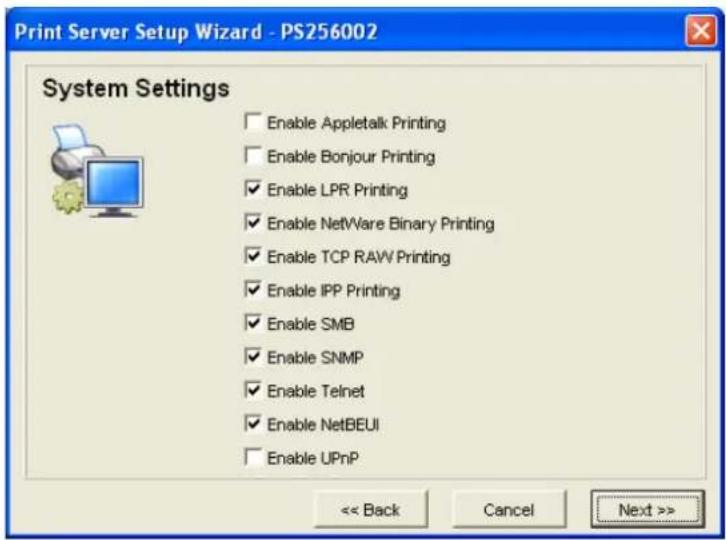
Print Server Setup Wizard - PS256002 General Settings Server Name: PS256002 Port Name Port 1: p1 Port 2: p2 Port 3: p3 Wireless Function: ● Auto ○ Enable ○ Disable Cancel Next >>Step 2: Select to enable required printing protocol. Please refer to section 7.12 for detail information.
text_image
Print Server Setup Wizard - PS256002 System Settings Enable Appletalk Printing Enable Bonjour Printing Enable LPR Printing Enable NetWare Binary Printing Enable TCP RAW Printing Enable IPP Printing Enable SMB Enable SNMP Enable Telnet Enable NetBEUI Enable UPnP << Back Cancel Next >>Step 3: Setup the IP of this print server and the DHCP server. Please refer to section 7.6 for detail information.

text_image
Print Server Setup Wizard - PS256002 TCP/IP Settings IP DHCP Server Auto IP Static IP IP Address: 192 168 2 2 Subnet Mask: 255 255 255 0 Gateway: 192 168 2 254 << Back Cancel Next >>Step 4: Setup the NetWare printing. Please refer to section 7.7 for detail information.
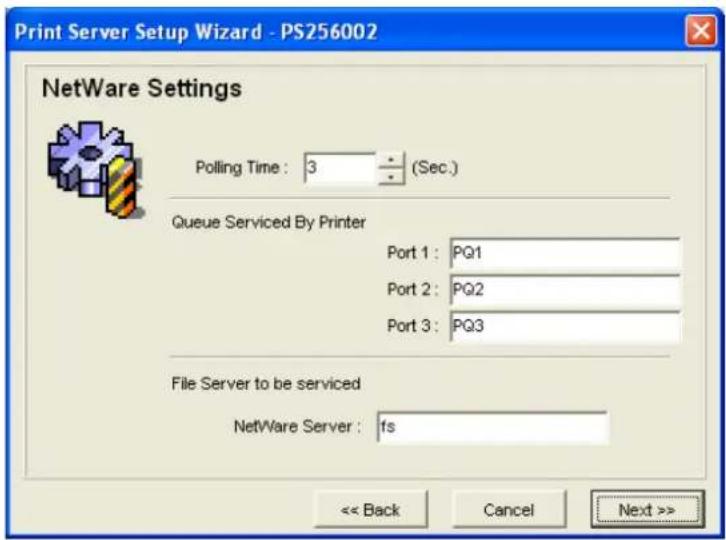
text_image
Print Server Setup Wizard - PS256002 NetWare Settings Polling Time: 3 (Sec.) Queue Serviced By Printer Port 1: PQ1 Port 2: PQ2 Port 3: PQ3 File Server to be serviced NetWare Server: fs << Back Cancel Next >>Step 5: Select the Wireless Adapter mode and complete wireless LAN settings. The other procedures are the same with “Wireless” Setting in “Setup” screen. Please refer to section 7.13 for detail information.

text_image
Set Your Wireless Adapter Mode • Infrastructure Mode If you wish to use Wireless to connect to your Wireless Access Point, please select this mode. ○ Adhoc Mode If you wish to connect head to head with another Wireless client, please choose this mode.Step 6: Click "Save" to finish setting.
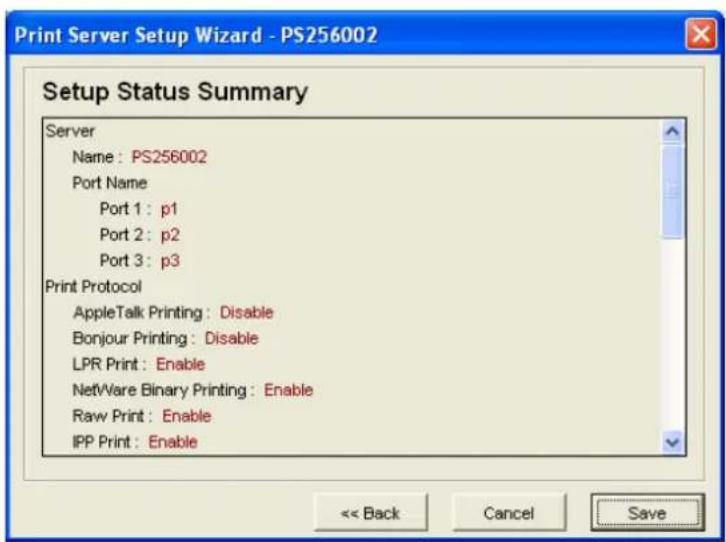
text_image
Print Server Setup Wizard - PS256002 Setup Status Summary Server Name: PS256002 Port Name Port 1: p1 Port 2: p2 Port 3: p3 Print Protocol AppleTalk Printing: Disable Bonjour Printing: Disable LPR Print: Enable NetWare Binary Printing: Enable Raw Print: Enable IPP Print: Enable << Back Cancel Save7.15 Report
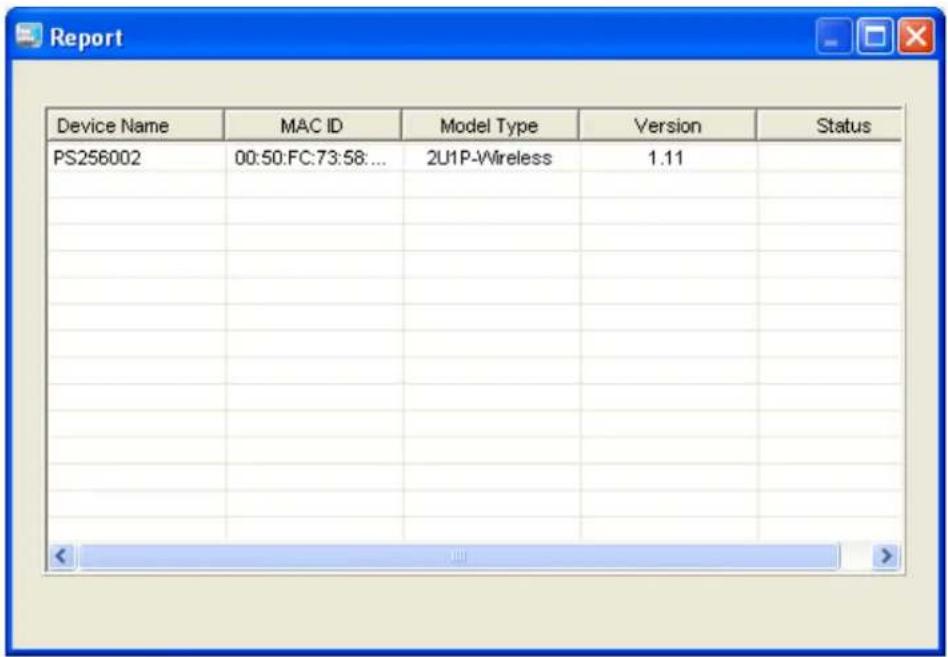
text_image
Report Device Name MAC ID Model Type Version Status PS256002 00:50:FC:73:58:... 2U1P-Wireless 1.11 _______________________________ _______________________________ _______________________________ _______________________________ _______________________________ _______________________________ _______________________________ _______________________________ _______________________________ _______________________________ _______________________________ _______________________________ _______________________________ _______________________________ _______________________________ _______________________________ _______________________________ _______________________________ _______________________________ _______________________________ _______________________________ _______________________________ _______________________________ _______________________________ _______________________________ ______________________________Click "Report" icon on the tool bar, the Report window will pop up.
The report lists basic information of all available print servers on the network. The information includes Device Name, MAC ID, Model Type and Firmware Version of print server.
8. Web Management
8.1 Introduction
Print server can be configured and managed on the Web. Through Local Area Network, or even Internet, administrator can easily configure and manage print server's various main functions in browsers. Simply enter print server's IP address into your browser's address field to manage a print server by print server's built-in Web Server.
The default IP Address, User Name and Password settings of the Print server are as follows.
• IP Address: 192.168.2.2
- User Name: Admin
- Password: 1234
8.2 Login
You may use any Web Browser to review the status or configure the settings of the print server. After entering the IP address of the print server, a login page display. You have to enter correct “User Name” and “Password” before going to the Web Management pages.
Notes: Default User Name is “admin”, default password is “1234”.
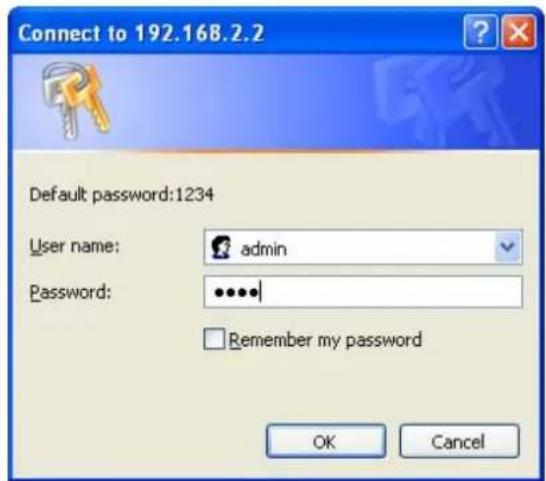
text_image
Connect to 192.168.2.2 Default password:1234 User name: admin Password: ••••• Remember my password OK Cancel8.3 Device Status
8.3.1 System
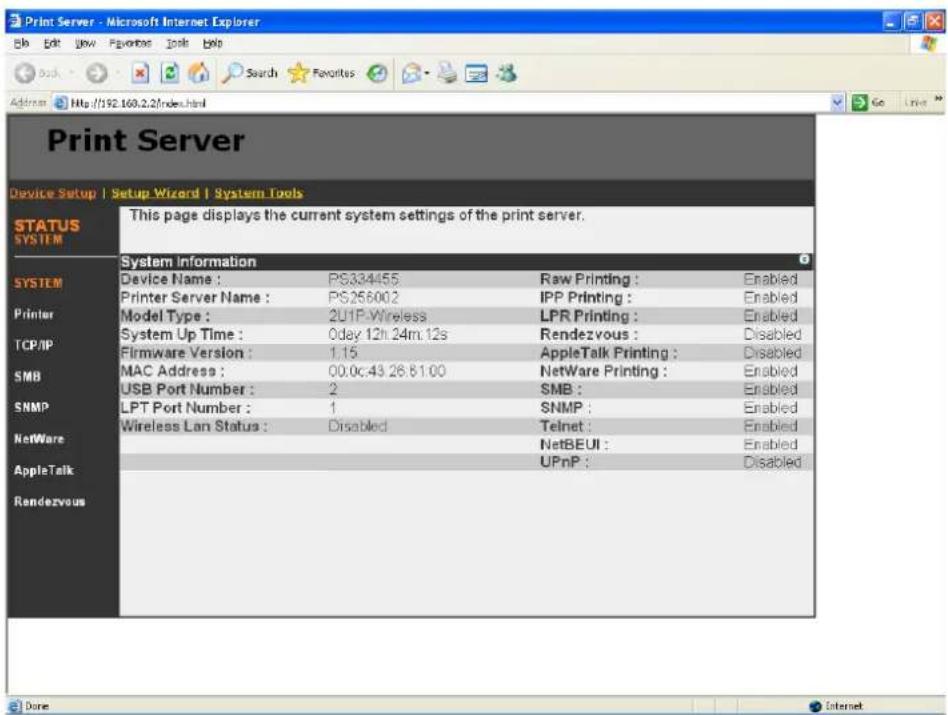
text_image
Print Server Device Setup | Setup Wizard | System Tools This page displays the current system settings of the print server. System Information Device Name : PS334455 Raw Printing : Enabled Printer Server Name : PS256002 IPP Printing : Enabled Model Type : 2U1P Wireless LPR Printing : Enabled System Up Time : 0day 12h 24m 12s Rendezvous : Disabled Firmware Version : 1.15 AppleTalk Printing : Disabled MAC Address : 00.0c.43.28.61.00 NetWare Printing : Enabled USB Port Number : 2 SMB : Enabled LPT Port Number : 1 SNMP : Enabled Wireless Lan Status : Disabled Telnet : Enabled NetBEUI : Enabled UPnP : Disabled Rendezvous Done InternetSystem Information includes “Device Name”, “Print Server Name”, “Model Type”, “System Up Time”, “Firmware Version”, “MAC Address”, “Wireless LAN configuration” and the protocols enabled status, etc.
8.3.2 Printer

text_image
Print Server Device Setup | Setup Wizard | System Tools Connected printer on the print server. STATUS Printer System Printer TCP/IP SMB SNMP NetWare AppleTalk Bonjour Printer 1 Manufacturer: Model Number: Printing Language Supported: Current Status: Off-Line Printer 2 Manufacturer: Model Number: Printing Language Supported: Current Status: Off-Line Printer 3 Manufacturer: Model Number: Printing Language Supported: Current Status: Off-LineThe Print Server can communicate with the printer to get the printer information including printer manufacturer, model number, printing language supported, and also the printer's status. This page lists the information of printers connected to all printer ports.
8.3.3 TCP/IP
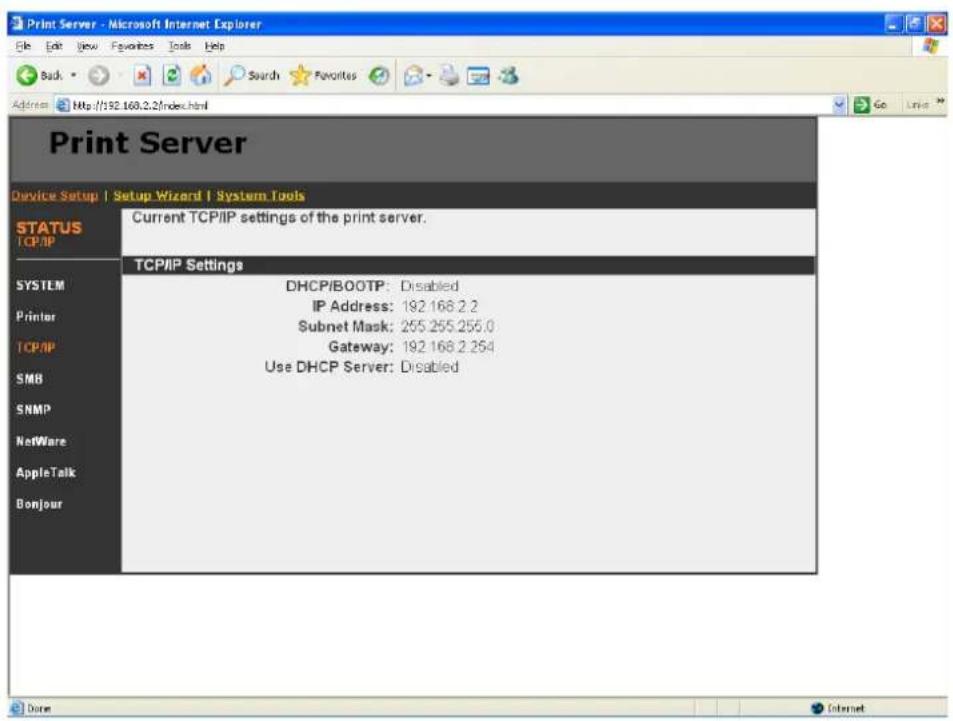
text_image
Print Server Device Setup | Setup Wizard | System Tools STATUS TCP/IP Current TCP/IP settings of the print server. TCP/IP Settings DHCP/BOOTP: Disabled IP Address: 192.168.2.2 Subnet Mask: 255.255.255.0 Gateway: 192.168.2.254 Use DHCP Server: DisabledThis page lists all TCP/IP settings of the print server including "IP Address", "Subnet Mask" and "Gateway". It also lists DHCP server setting.
8.3.4 SMB
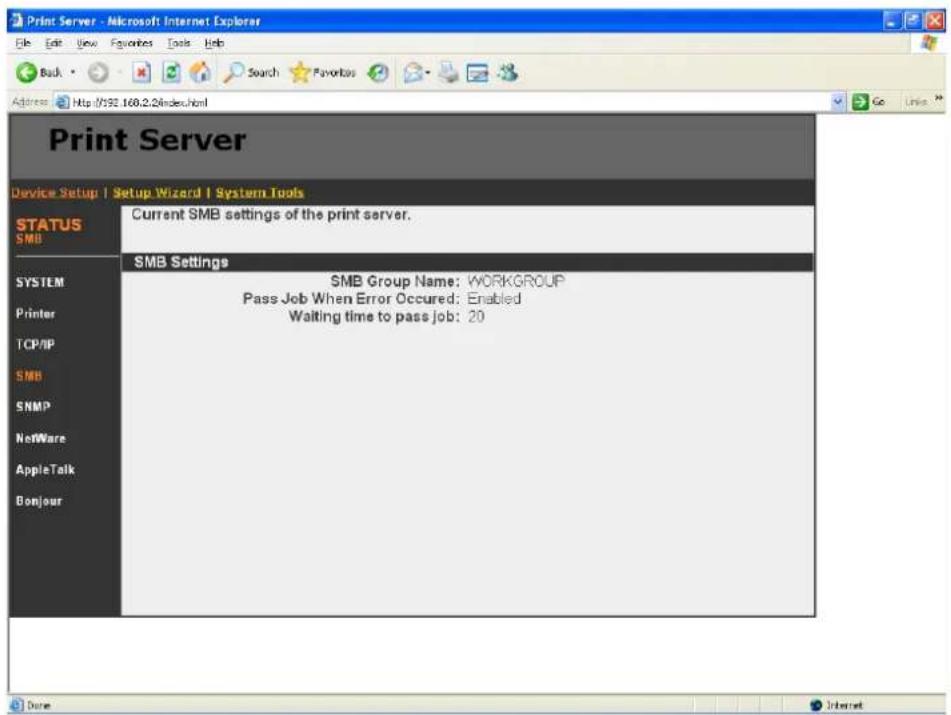
text_image
Print Server Device Setup | Setup Wizard | System Tools STATUS SMB SYSTEM Printer TCP/IP SMB SNMP NetWare AppleTalk Bonjour Current SMB settings of the print server. SMB Settings SMB Group Name: WORKGROUP Pass Job When Error Occured: Enabled Waiting time to pass job: 20This page lists the SMB group and the pass job interval time settings of the print server.
8.3.5 SNMP
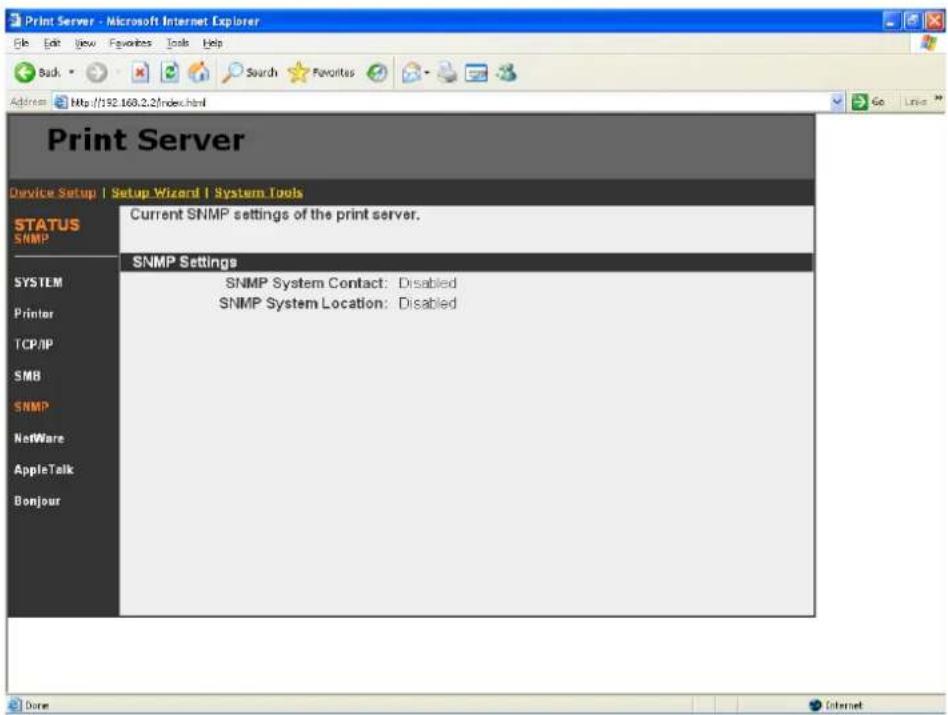
text_image
Print Server Device Setup | Setup Wizard | System Tools Current SNMP settings of the print server. SNMP Settings SNMP System Contact: Disabled SNMP System Location: DisabledThis page lists the SNMP settings of the print server. It includes the settings of “SNMP System Contact” and “SNMP System Location”.
8.3.6 NetWare
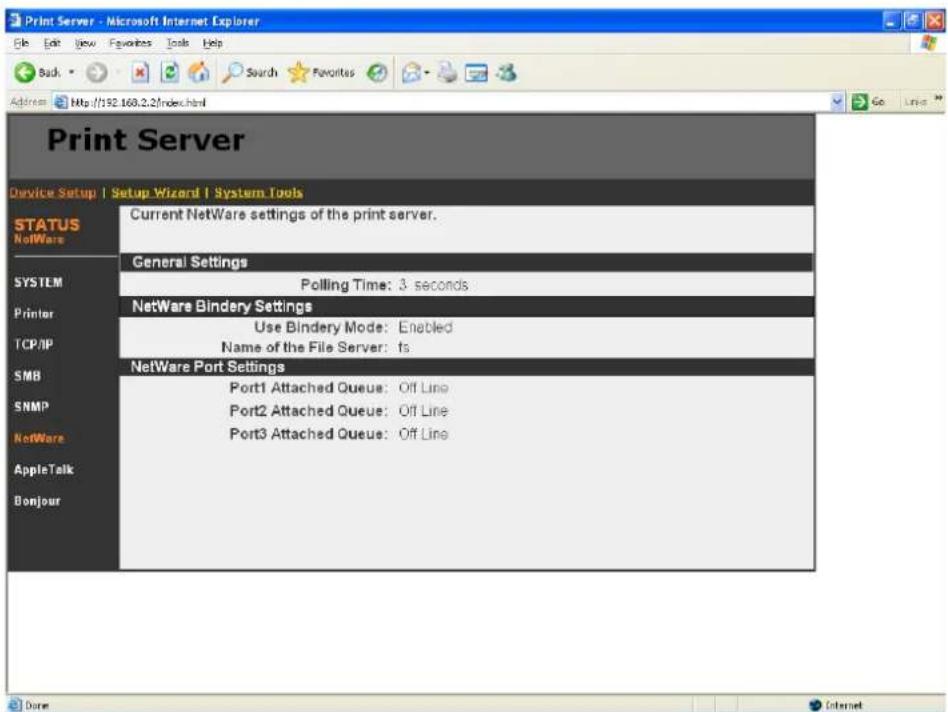
text_image
Print Server Device Setup | Setup Wizard | System Tools STATUS NetWare Current NetWare settings of the print server. General Settings Polling Time: 3 seconds NetWare Bindery Settings Use Bindery Mode: Enabled Name of the File Server: fs NetWare Port Settings Port1 Attached Queue: Off Line Port2 Attached Queue: Off Line Port3 Attached Queue: Off LineThis page lists NetWare settings, including “Polling Time”, “Use Bindery Mode”, “Name of the File Server” and “Port Attached Queue”.
8.3.7 AppleTalk
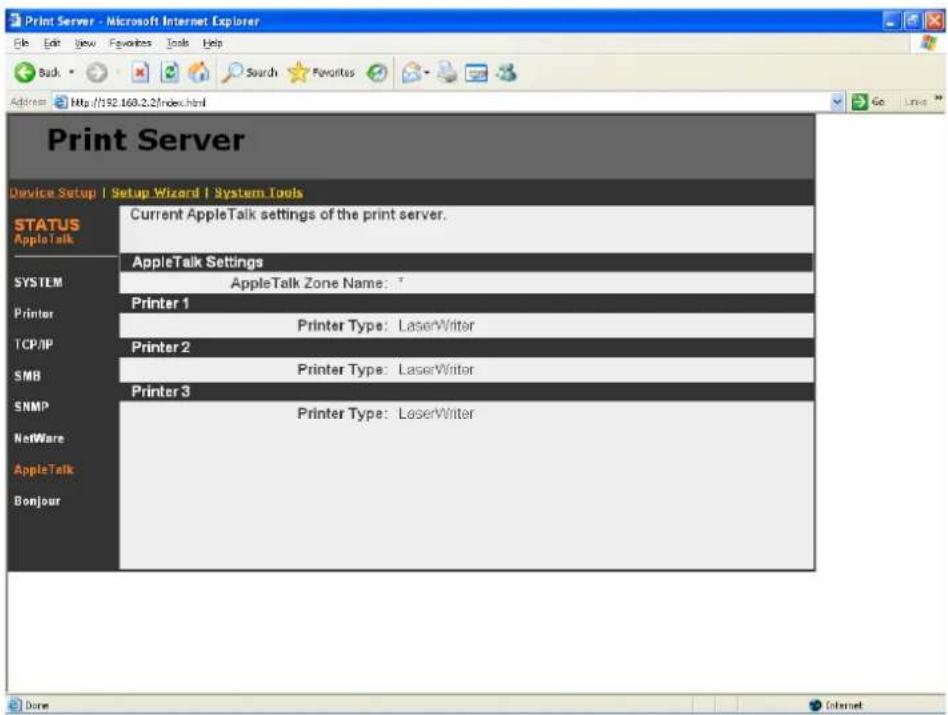
text_image
Print Server Device Setup | Setup Wizard | System Tools STATUS AppleTalk Current AppleTalk settings of the print server. AppleTalk Settings AppleTalk Zone Name: * Printer 1 Printer Type: LaserWriter Printer 2 Printer Type: LaserWriter Printer 3 Printer Type: LaserWriter System Printer TCP/IP SMB SNMP NetWare AppleTalk BonjourThis page lists AppleTalk settings, including "AppleTalk Zone Name" and "Printer Type" of printers connected to all print ports.
8.3.8 Bonjour
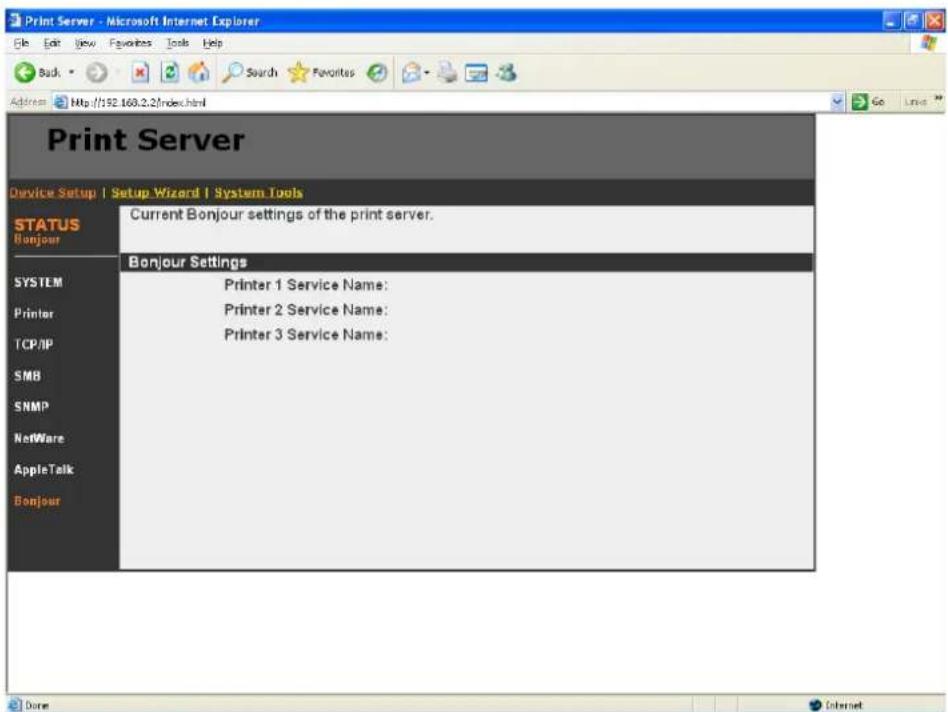
text_image
Print Server Device Setup | Setup Wizard | System Tools STATUS Bonjour Current Bonjour settings of the print server. Bonjour Settings Printer 1 Service Name: Printer 2 Service Name: Printer 3 Service Name:This page lists Bonjour settings, including “Printer Service Name” of each port.
8.4 Setup Wizard
8.4.1 System
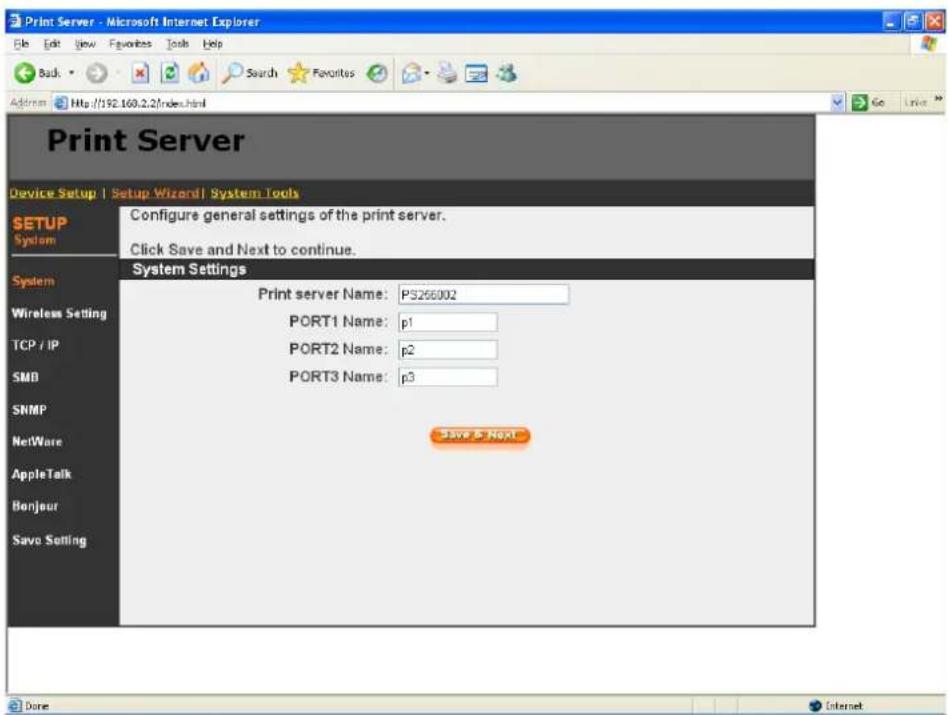
text_image
Print Server Device Setup | Setup Wizard | System Tools SETUP System Configure general settings of the print server. Click Save and Next to continue. System Settings Print server Name: PS260002 PORT1 Name: p1 PORT2 Name: p2 PORT3 Name: p3 Save & Next Done InternetYou can change the print server name and port name of the print server from here.
Print Server Name, the name of the print server. You can use this name to identify the print server when you are searching for the print server by the administration and client utilities. By default, the print server name is the last 6-digit of MAC ID with prefix “PS”.
Port Name is the name of the printer port. The Print Server has three printer ports, two USB 2.0 ports and one parallel port. Each printer port has to be assigned a name. Then you can use this name to access the printer port. By default, the printer port name is “lpt1” for port 1, “lpt2” for port 2 and “lpt3” for port 3.
8.4.1.1 Admin Password

text_image
Print Server Device Setup | Setup Wizard | System Tools Configure administrator settings of the print server. Click Save and Next to continue. Administrator's Password Name: admin Password: Re-type Password: SAVE & NEXT TCP / IP SMD SNMP NetWare AppleTalk Benjour Save SettingIt allows you to change the password of the print server.
Name is the administrator name of the print server. If you change the user name, you have to login to the print server from administrator utility or web management with the new name. The default user name is "admin".
Password, enter the password you want to change to the print server. The password can be up to 8-digit alphanumeric format. The default password is “1234”.
Re-type Password, enter the password you want to change to the print server again.
8.4.1.2 Advanced Settings

text_image
Print Server Device Setup | Setup Wizard | System Tools Configure Advance settings for the Print Server. Click Save and Next to continue. System Configure IPX: Enabled LPR: Enabled IPP: Enabled Raw Printing: Enabled Telnet: Enabled NetBEUI: Enabled UPnP: Enabled SWE X Next System Setup Setup Wizard | System Tools SETUP System System Admin Password Advance Setting Wireless Setting TCP / IP SMB SNMP NetWare AppleTalk Bonjour Save SettingYou can enable/disable the printing protocols and management tools from the screen. To enable the function, please select "Enable"; to disable the function, please select "Disable".
8.4.2 Wireless Setting

text_image
Print Server - Microsoft Internet Explorer File Edit View Favorites Tools Help Back Search Favorites Address Http://192.168.2.2/index.html Print Server Device Setup | Setup Wizard | System Tools SETUP Wireless Setting Define your ESSID, wireless mode channel no. Click Save and Next to continue. System Wireless Setting Site Survey Encryption TCP / IP SMD SNMP NetWare AppleTalk BenJour Save Setting Function: Auto Mode: Ad-hoc ESSID: default Channel: 11 Save & Next... InternetIf you want to use the print server through wireless LAN, please set up the print server through Ethernet first and make sure your wireless LAN setting is correct. After setting the wireless LAN, unplug the Ethernet cable and restart the print server, then you can start to use the print server through wireless LAN. If the wireless configuration does not work, please plug the Ethernet cable again, restart the print server and configure the print server through Ethernet until the wireless LAN settings are correct.
You can enable/disable the wireless function and set parameters that are used for the wireless stations to connect to this print server from here. The parameters include "Function", "Mode", "ESSID" and "Channel Number". You can manually set the parameters of wireless LAN in this
page or use the “Site Survey” function to automatically search for an available access point and associate with it.
Function: You can select “Auto”, Enable” or “Disable” to manually configure the wireless function.
- Auto – “Auto” is the default setting of the print server. At this mode, the print server will automatically decide to enable or disable the wireless function. When the print server starts up, it will auto-detect if the LAN port is connected to an active network by an Ethernet cable. If this is the case, the print server will run in Ethernet mode. If the print server is not connected to an active network by Ethernet cable, the print server will run in wireless LAN mode.
Users can plug the Ethernet cable to the print server at the first, after configuring the print server features and wireless settings; they can unplug the Ethernet cable to enable the wireless connection. It makes the configuration much easier without creating the wireless connection in advance.
- Enable – Enable wireless function only, the print server's wireless LAN will be always enabled and Ethernet will be always disabled.
- Disable – Disable the wireless function, the print server's wireless LAN will be always disabled and Ethernet will be always enabled.
Mode is the operation mode of wireless station. You can choose ether “Ad Hoc” or “Infrastructure” mode. If you do not have any access point and want to use peer-to-peer connection, you have to choose “Ad Hoc” mode. If you have an access point as the wireless LAN infrastructure, you have to choose “Infrastructure” mode.
ESSID is the unique name identified by in a wireless LAN. The ID prevents the unintentional merging of two co-located WLANs. Please make sure that the ESSID of all stations and access points in the same WLAN network are the same.
Channel Number is the channel number of your wireless LAN. Please make sure that the channel number of all stations and access points in the same WLAN network are the same.
8.4.2.1 Site Survey

text_image
Print Server Device Setup | Setup Wizard | System Tools SETUP Wireless Setting Scan wireless network for print server or IBSS Click Select then Submit to continue. System Wireless Site Survey ESSID BSSID Channel Mode Encrypt Signal Select Aballion 00.0E.2E.64.7B.12 11 Infrastructure off 46 ○ default 02:0C.FI.AD.C9.80 11 Ad-hoc off 32 ○ Refreshsi First Page satndt Send Done InternetYou can use this “Site Survey” function to search for available access points in you location. In the list is the information of all available access points or wireless stations, includes SSID, BSSID, Channel, Type, Encryption and Signal Strength. You can select one wireless device in the list for this print server to associate with or you have to go back to “Wireless” page to manually setup the wireless parameters.
Select: click the radio button in the "Select" column, and then click "Submit". The print server will be connected to the wireless device you have selected.
Refresh: click "Refresh" to update the list.
Next Page: go to next web page.
Submit: Click “Submit” to confirm the connection with the wireless device.
8.4.2.2 Encryption
This print server supports WEP and WPA-PSK security mode. If you want to use WEP encryption to protect your wireless network, you have to select “WEP”. If you want to use WPA-PSK, you have to select “WPA-shared key”. The wireless security setting should be the same with other wireless devices in the same network.
WEP Security Mode:
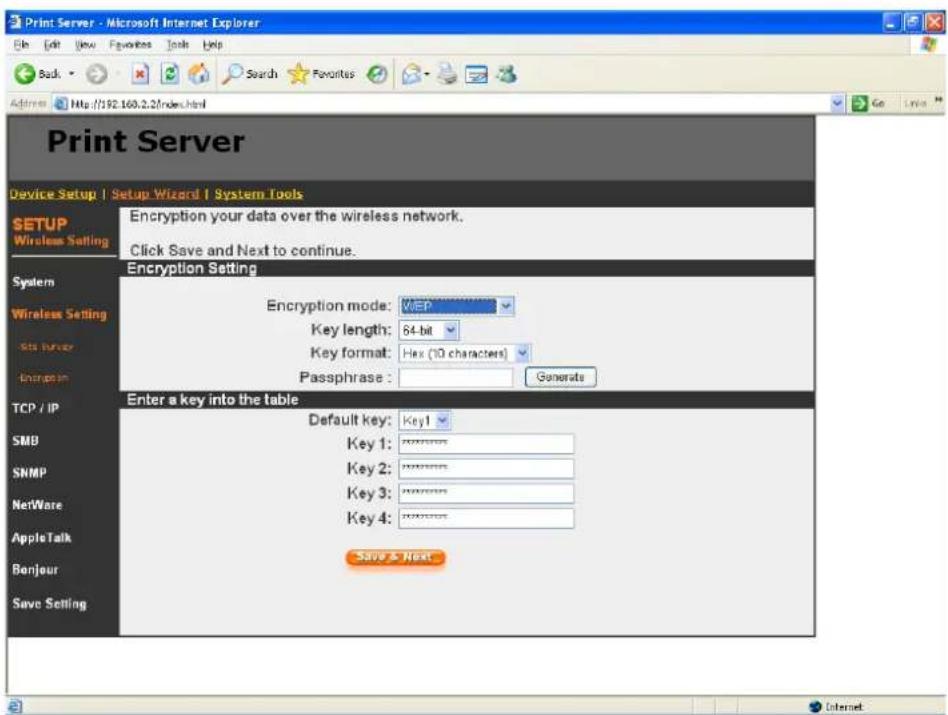
text_image
Print Server Device Setup | Setup Wizard | System Tools SETUP Wireless Setting Encryption your data over the wireless network. Click Save and Next to continue. Encryption Setting Encryption mode: WEP Key length: 64-bit Key format: Hex (10 characters) Passphrase : Generate Enter a key into the table Default key: Key1 Key 1: Key 2: Key 3: Key 4: Save & Next SMB SNMP NetWare AppleTalk Bonjour Save Setting- Key Length – You can choose “64-bit” to use WEP with 64-bit key length encryption or choose “128-bit” to use WEP with 128-bit key length encryption. The longer key length can provide better security but worse transmission throughput.
- Key Format – You may select to use ASCII Characters (alphanumeric format) or Hexadecimal digits (in the "A-F", "a-f" and "0-9" range) to be the WEP Key.
- PassPhrase – A passphrase simplifies the WEP encryption process by automatically generating the WEP encryption keys for the print server.
- Default Key – Select one of the four keys to encrypt your data. Only the key you select it in the “Default key” will take effect.
- Key 1 – Key 4 – The WEP keys are used to encrypt data transmitted within the wireless network. Fill the text box by following the rules below.
64-bit WEP: input 10-digit Hex values (in the "A-F", "a-f" and "0-9" range) or 5-digit ASCII character as the encryption keys. For example: "0123456aef" or "Guest".
128-bit WEP: input 26-digit Hex values (in the "A-F", "a-f" and "0-9" range) or 10-digit ASCII characters as the encryption keys. For example: "01234567890123456789abcdef" or "administrator".
WPA-shared key Security Mode:

text_image
Print Server Device Setup | Setup Wizard | System Tools SETUP Wireless Setting Encryption your data over the wireless network. Click Save and Next to continue. Encryption Setting Encryption mode: WPA-shared key WPA Unicast Cipher Suite : TKIP Pre-shared Key Format : Passphrase Pre-shared Key : Passphrase Hex (64 characters) Save & Next TCP / IP SMB SNMP NetWare AppleTalk Bonjour Save SettingWhen “WPA-shared key”, also named “WPA-PSK” requires users to select one of the advanced encryption methods, i.e. TKIP or AES and enter a set of shared key.
- TKIP – TKIP (Temporal Key Integrity Protocol) changes the temporal key every 10,000 packets. This insures much greater security than the standard WEP security.
- AES – AES has been developed to ensure the highest degree of security and authenticity for digital information and it is the most advanced solution defined by IEEE 802.11i for the security in the wireless network.
- Pre-shared Key Format – Select “Passphrase” or “Hex” key format. If “Passphrase” is selected, please enter 8 to 63 digits of ASCII format to be the key for the authentication within the
network. If “Hex” is selected, please enter 64 digits of Hex code which should be “0-9” and “A-F”.
- Pre-Shared Key – The “Pre-Shared Key” is different from the key format selection. Please see above description.
When you finish configuring the wireless security, click “Save & Next” to confirm the configuration.
8.4.3 TCP/IP
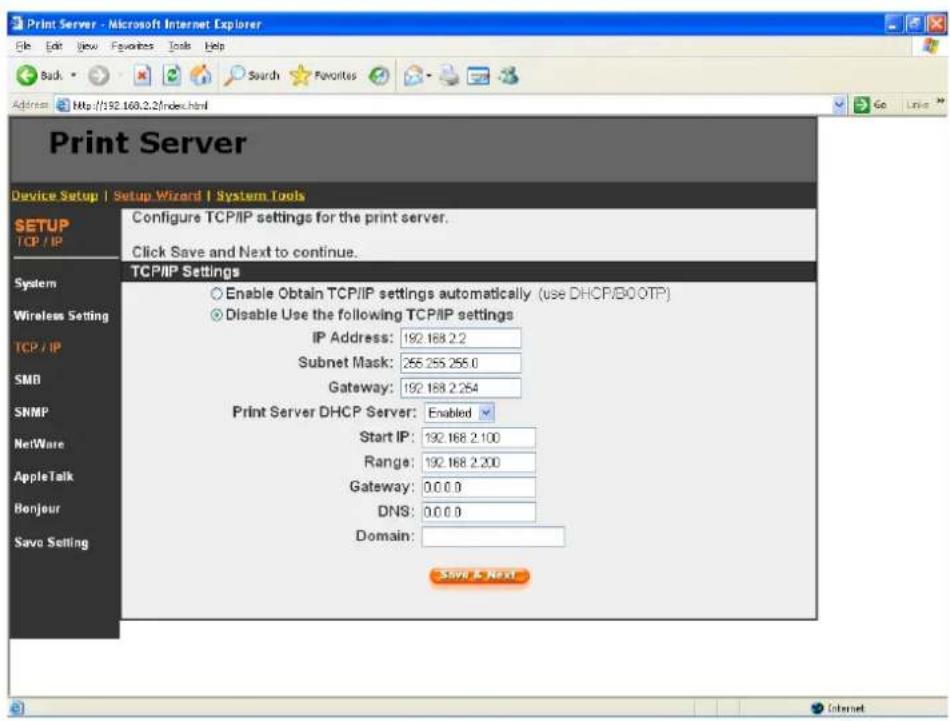
text_image
Print Server Device Setup | Setup Wizard | System Tools SETUP TCP / IP Configure TCP/IP settings for the print server. Click Save and Next to continue. TCP/IP Settings Enable Obtain TCP/IP settings automatically (use DHCP/BOOTP) Disable Use the following TCP/IP settings IP Address: 192.168.2.2 Subnet Mask: 255.255.255.0 Gateway: 192.168.2.254 Print Server DHCP Server: Enabled Start IP: 192.168.2.100 Range: 192.168.2.200 Gateway: 0.0.0.0 DNS: 0.0.0.0 Domain: Save & Next System Wireless Setting TCP / IP SMB SNMP NetWare AppleTalk Bonjour Save SettingYou can configure the print server to automatically get IP from DHCP server or manually specify static IP. The print server also has a built-in DHCP server. You can enable this DHCP server and let it manages IP for you.
If you need the print server to automatically get an IP from DHCP server, select "Enable Obtain TCP/IP Settings Automatically (Use DHCP/BOOTP)". You also can select "Disable Use the following TCP/IP Settings" to manually assign "IP Address", "Subnet Mask" and "Gateway" for the print server.
You can enable/disable for the print server's DHCP server. The DHCP server is disabled by default. If the DHCP Server is enabled, you have to assign a range of IP addresses here. Fill in the "Start IP", "Range", "Gateway",
“DNS”, and “Domain””, and the print server will assign a unique IP for each client.
8.4.4 SMB

text_image
Print Server Device Setup | Setup Wizard | System Tools SETUP SMB Configure SMB settings for the print server. Click Save and Next to continue. SMB Settings SMB Function: Enabled SMB Group Name: WORKGROUP Pass Job When Error Occurred: Enabled Waiting time to pass job: 20 seconds(1-60) Save & Next SMB SNMP NetWare AppleTalk Bonjour Save SettingYou can enable/disable the SMB protocol from here. If SMB is enabled, enter the “SMB Group Name” to specify the SMB group that this print server belongs to. All PC should join the same group before they can use this print server by SMB protocol.
Pass Job when Error Occurred: When the printer is interrupted because of paper out or off line while printing, user can enable this function and set the interval time to bypass the current printing job. Or the printing document will not be printed completely or with unformatted messages.
Waiting Time to Pass Job: The range is from 1 to 60 seconds. By default, the parameter is enabled and the default waiting time is 20 seconds.
8.4.5 SNMP
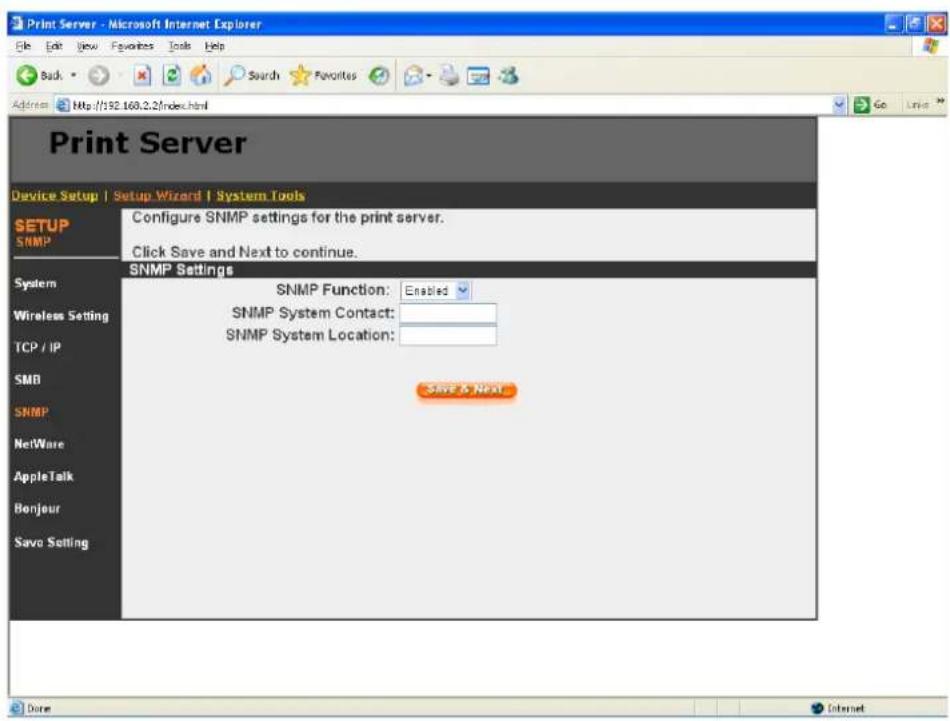
text_image
Print Server Device Setup | Setup Wizard | System Tools Configure SNMP settings for the print server. Click Save and Next to continue. SNMP Settings SNMP Function: Enabled SNMP System Contact: SNMP System Location: SAVE & NEXT.The print server supports SNMP configuration. If it is enabled, please set up the following parameters.
SNMP System Contact: You can enter the print server administrator's contact information here. This information will be displayed in the SNMP management tool.
SNMP System Location: You can enter the installed location of the print server here. This information will be displayed in the SNMP management tool.
8.4.6 NetWare
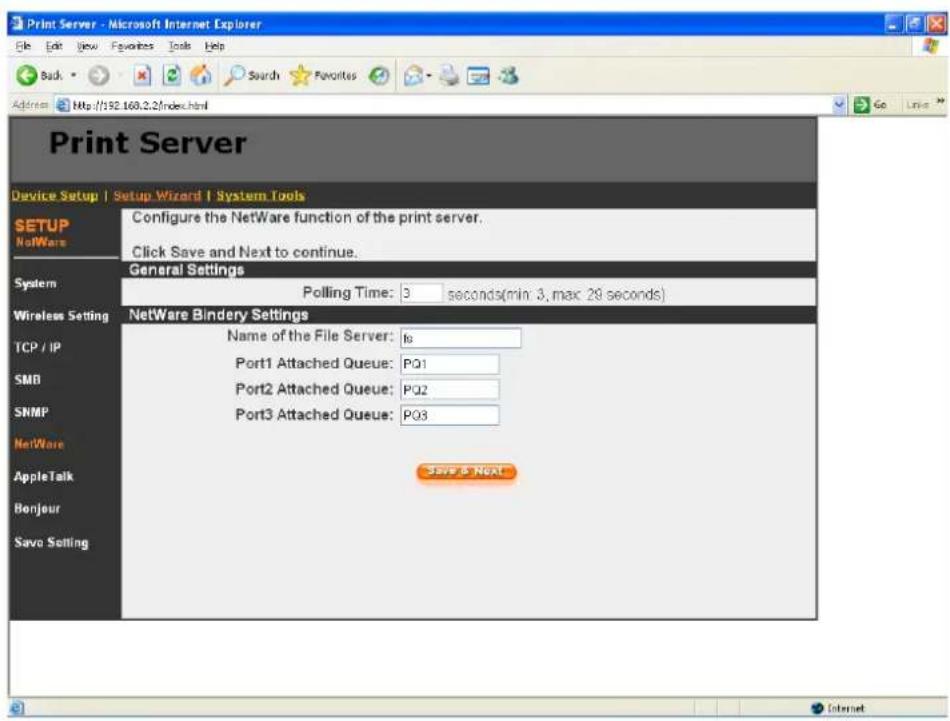
text_image
Print Server Device Setup | Setup Wizard | System Tools SETUP NoWare Configure the NetWare function of the print server. Click Save and Next to continue. General Settings Polling Time: 3 seconds(min: 3, max: 29 seconds) Wireless Setting TCP / IP SMB SNMP NetWare AppleTalk Bonjour Save Setting NetWare Bindery Settings Name of the File Server: Is Port1 Attached Queue: PQ1 Port2 Attached Queue: PQ2 Port3 Attached Queue: PQ3 Save & NextThis print server supports NetWare Bindery Printing method. The print server periodically polls the NetWare server printer queues for printing jobs. You have to assign the NetWare server name, print server polling interval and the name of queue on the NetWare server for each printer port.
Polling Time is the polling interval of the print server for waiting printing jobs on the NetWare server.
Name of the File Server is the name of the NetWare file server that provides printer queues.
Attached Queue is the name of the printer queue on the NetWare server. The printer queue keeps all printing
jobs waiting on the NetWare server. You have to assign a printer queue for each printer port of this print server.
8.4.7 AppleTalk

text_image
Print Server Device Setup | Setup Wizard | System Tools SETUP AppleTalk Configure AppleTalk settings for the print server. Click Save and Next to continue. AppleTalk Settings AppleTalk Function: Enabled AppleTalk Zone Name: Printer 1 Printer Type: LaserWriter Printer 2 Printer Type: LaserWriter Printer 3 Printer Type: LaserWriter Save & Next SMB SNMP NetWare AppleTalk Bonjour Save SettingAppleTalk is a data communication protocol often used by Macintoshes. The print server can use these parameters to join the AppleTalk network and share the printer to other AppleTalk workstations. You have to select to enable or disable AppleTalk, and setup the “Zone Name” and “Printer Type” for each printer port of this print server.
AppleTalk Enable: Enable or disable "AppleTalk".
AppleTalk Zone Name: Print server has to join zones of AppleTalk before it can be shared to other workstations. Only workstations in the same zone can share the printer. If you want to share the printer to all workstations in all Zones, you should enter only “*” in the “Zone Name” field.
Printer Type, the type of printer attached to each printer port. You can get the printer type from the manufacturer of the printer.
8.4.8 Bonjour
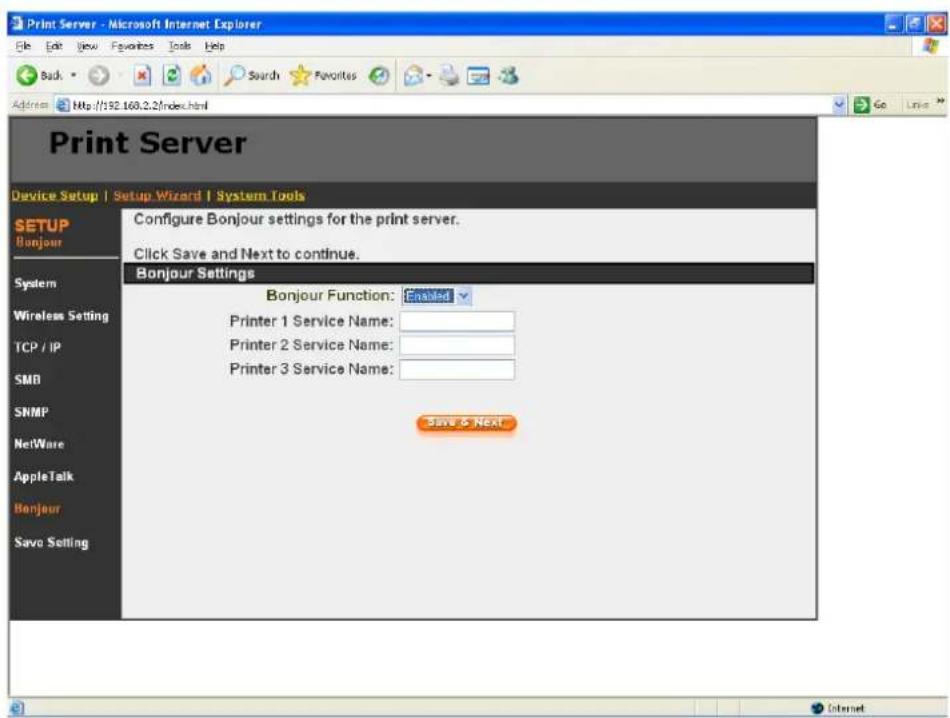
text_image
Print Server Device Setup | Setup Wizard | System Tools Configure Bonjour settings for the print server. Click Save and Next to continue. Bonjour Settings Bonjour Function: Enabled Printer 1 Service Name: Printer 2 Service Name: Printer 3 Service Name: Save 5 Next SETUP Bonjour System Wireless Setting TCP / IP SMB SNMP NetWare AppleTalk Bonjour Save Setting“Bonjour” technology (“Rendezvous” was renamed “Bonjour” with the release of Mac OS X v10.4), also known in the industry as Zero Configuration networking, enables automatic discovery of computers, devices, and services on IP networks. It uses industry standard IP protocols to allow devices to automatically find each other without the need to enter IP addresses or configure DNS servers.
Bonjour Function: Enable or disable “Bonjour” protocol on the print server.
Service Name is a name to identify the device on the IP network. The Print Server has three printer ports; please designate the unique and friendly service name for each printer connected to one of the three printer port.
8.4.9 Save Settings
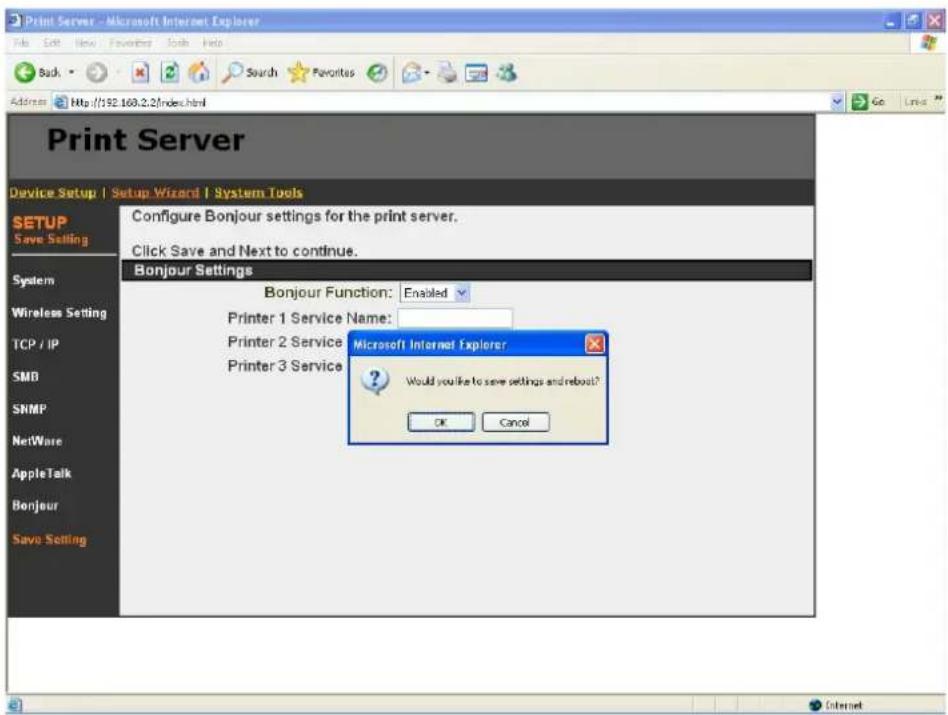
text_image
Print Server Device Setup | Setup Wizard | System Tools Configure Bonjour settings for the print server. Click Save and Next to continue. Bonjour Settings Bonjour Function: Enabled Printer 1 Service Name: Printer 2 Service Printer 3 Service Microsoft Internet Explorer Would you like to save settings and reboot? OK CancelYou can click the "Save Settings" to save the settings and restart the system.
8.5 System Tools
8.5.1 Load Default
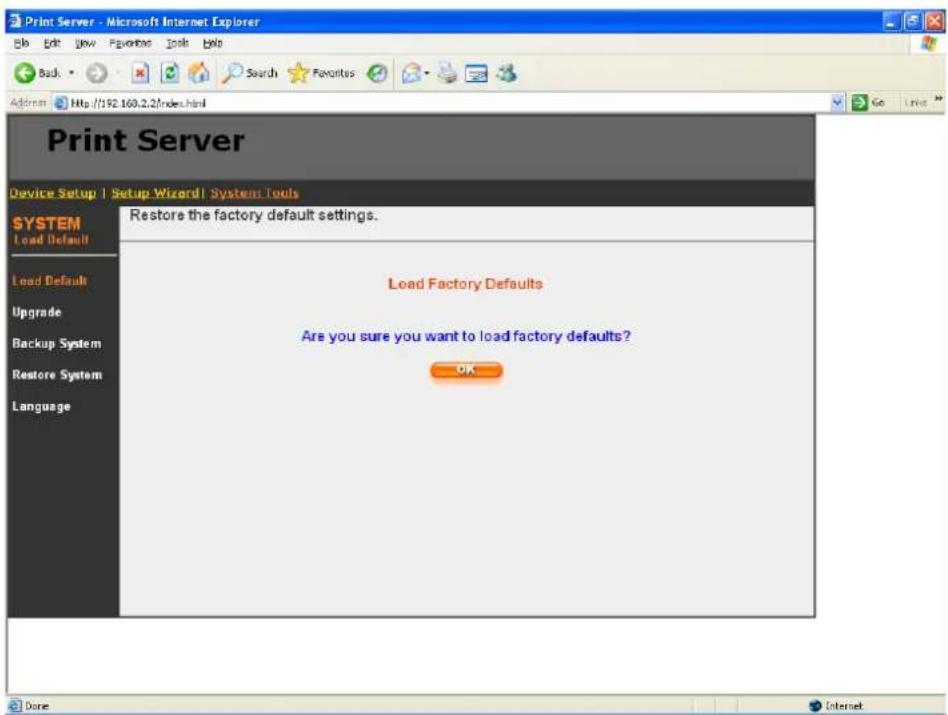
text_image
Print Server Device Setup | Setup Wizard | System Tools SYSTEM Load Default Load Default Upgrade Backup System Restore System Language Restore the factory default settings. Load Factory Defaults Are you sure you want to load factory defaults? OKYou can use this page to restore the factory default settings. All of your previous setup will be cleared.
8.5.2 Upgrade
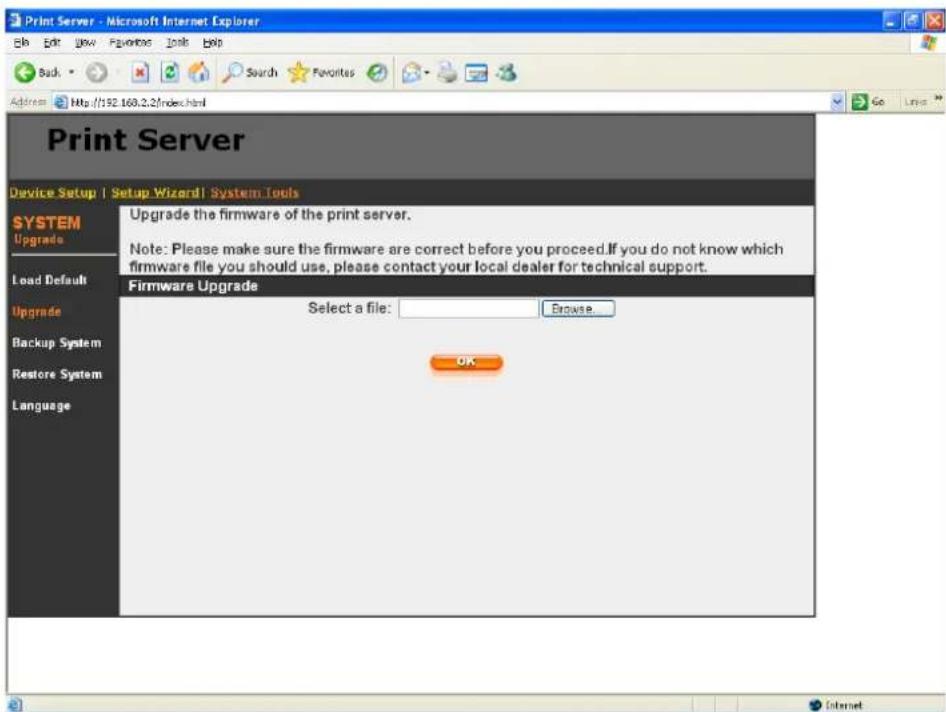
text_image
Print Server Device Setup | Setup Wizard | System Tools SYSTEM Upgrade Load Default Upgrade Backup System Restore System Language Upgrade the firmware of the print server. Note: Please make sure the firmware are correct before you proceed. If you do not know which firmware file you should use, please contact your local dealer for technical support. Firmware Upgrade Select a file: Browse OKYou can upgrade new firmware for this print server in this page. Click “Browse” to select the new firmware in your storage and then click “OK”, the firmware will be updated in several minutes.
Note that before you upgrade the firmware please make sure that the IP Address settings of the print server are in the same network as your computer.
Be aware that if you have started upgrading firmware, you have to follow all the upgrading steps or the print server can't turn back to normal configuration.
8.5.3 Backup System
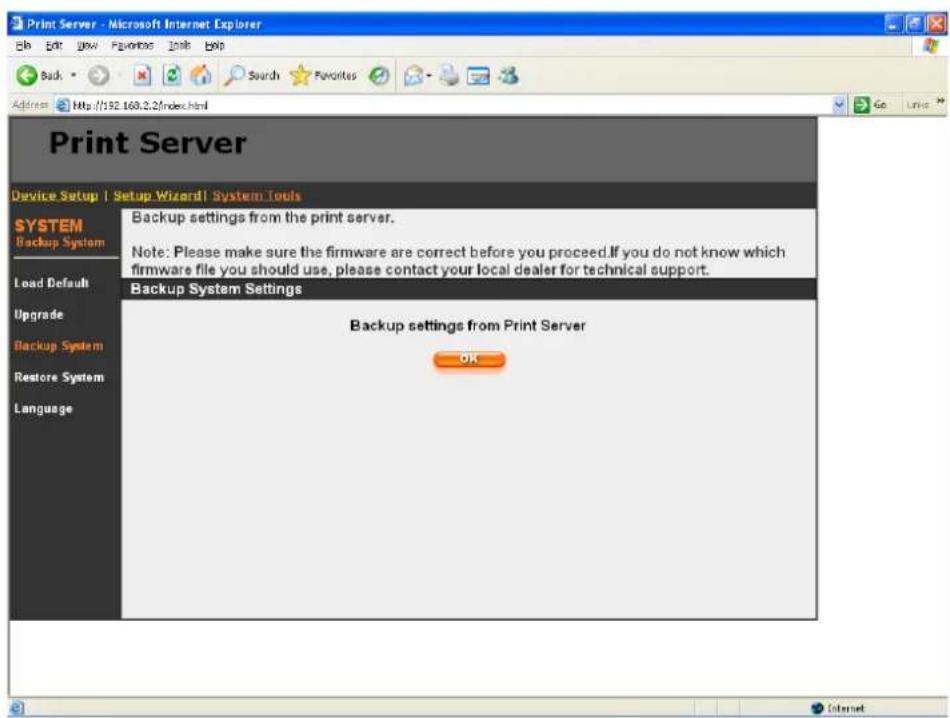
text_image
Print Server Device Setup | Setup Wizard | System Tools SYSTEM Backup System Load Default Upgrade Backup System Restore System Language Backup settings from the print server. Note: Please make sure the firmware are correct before you proceed. If you do not know which firmware file you should use, please contact your local dealer for technical support. Backup System Settings Backup settings from Print Server OKTo backup the print server setting to a "config.bin" file, select "Backup System" and click "OK".
text_image
Print Server Device Setup | Setup Wizard | System Tools SYSTEM Restore System Load Default Upgrade Backup System Restore System Language Restore the settings to print server. Note: Please make sure the firmware are correct before you proceed. If you do not know which firmware file you should use, please contact your local dealer for technical support. Restore System Settings Select a file: Browse OKTo apply the setting from the backup file, click "Browse" and specify a file to restore.
8.5.5 Language
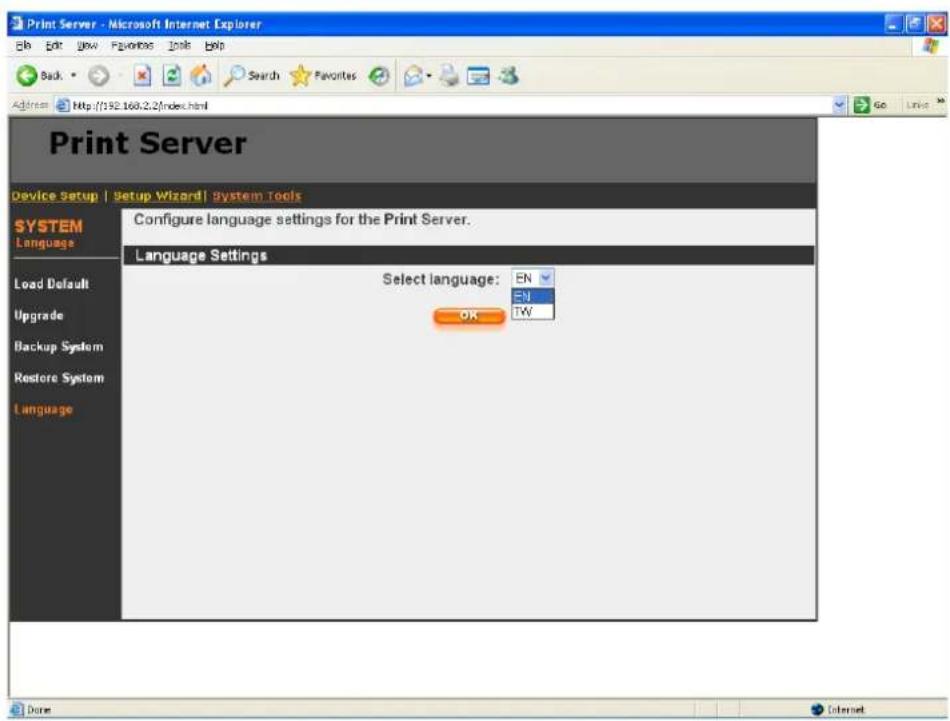
text_image
Print Server Device Setup | Setup Wizard | System Tools Configure language settings for the Print Server. Language Settings Select language: EN EN TW OKThe web management tool can support two languages: English (EN) and Traditional Chinese (TW). Please select the language what you need.
9. Telnet Management
9.1 Introduction
Print server can be configured and managed by Telnet. Through Local Area Network, or even Internet, administrator can easily configure and manage print server's various main functions by a telnet client.
9.2 Login
Execute the Telnet client tool and connect to the print server IP.
telnet 192.168.2.2
Then you will be prompted to enter the username and password.

text_image
Telnet 192.168.2.1 Please enter your user name and password!! Login:admin Password:After you successfully enter the correct username and password, the following prompt will be displayed and you can start to manage this print server by command.
admin#
9.3 Get Setting Values – “get” Command
“get” command is used to get the setting values of this print server. The format of “get” command is as following:
get argument
Then the argument value will be displayed after the command. For example, if I want to get IP address of the print server, I type “get ip” command and the IP value “IP_ADDR='192.168.2.2'" is displayed:
admin# get ip
$$ \mathrm {IP_ADDR} = 1 9 2. 1 6 8. 2. 2 $$
If you enter “get” only, the system will list all available arguments of “get” command.
The following table lists all the arguments whose value can be got by “get” command:
| Argument | Description Example | |
| psname | Print server name admin# | get psnamePORT1_PS='PS254896' |
| password | Login password admin# get | passwordUSER_PASSWORD='1234' |
| username | Login username admin# get | usernameUSER_NAME='admin' |
| wlfunc | Wireless LAN function is enabled or disabled0: disabled1: enabled2: auto | admin# get wlfuncWIRELESS_FUNCTION=2 |
| wlmode | Wireless LAN mode is Infrastructure or Ad Hoc0: Infrastructure1: Ad Hoc | admin# get wlmodeAP_MODE=1 |
| ESSID | ESSID of the wireless LAN | admin# get ESSIDSSID='default' |
| channel | Channel number used by wireless LAN | admin# get channel CHANNEL=11 |
| wep | The mode of WEP0: disable1: 64 bit WEP enabled2: 128 bit WEP enabled | admin# get wepWEP=0 |
| defkey | Default WEP key number0: key 11: key 22: key 33: key 4 | admin# get defkeyWEP_DEFAULT_KEY=0 |
| key641 | 64 bit WEP key 1 admin# | get key641WEP64_KEY1=0123456789 |
| key642 | 64 bit WEP key 2 admin# | get key641WEP64_KEY2=0123456789 |
| key643 | 64 bit WEP key 3 admin# | get key641WEP64_KEY3=0123456789 |
| key644 | 64 bit WEP key 4 admin# | get key641WEP64_KEY4=0123456789 |
| key1281 | 128 bit WEP key 1 admin# | get key1281WEP128_KEY1=0123456789abcdef0123456789a |
| key1282 | 128 bit WEP key 2 admin# | get key1282WEP128_KEY2=0123456789abcdef0123456789a |
| key1283 | 128 bit WEP key 3 admin# | get key1283WEP128_KEY3=0123456789abcdef0123456789a |
| key1284 | 128 bit WEP key 4 admin# | get key1284WEP128_KEY4=0123456789abcdef0123456789a |
| ip | IP of the print server admin# | get ipAP_ADDR='192.168.2.2' |
| gateway | Default gateway of the print server | admin# get gatewayDEFAULT_GATEWAY='192.168.2.254' |
| submask | Subnet mask of the print server | admin# get submaskSUBNET_MASK='255.255.255.0' |
| polling | Polling interval (in second) of the print server for waiting printing jobs on the NetWare server | admin# get pollingPORT1_POLLTIME=3 |
| aq1 | Name of the printer queue on the NetWare server | admin# get aqlPORT1_QNAME='PQ1' |
| applezone | The name of AppleTalk zone that this print server joins to | admin# get applezonePORT1_APPLEAONE='*' |
| printertype1 | The type of the printer attached to this print server | admin# get printertype1PORT1_PRINTTYPE='LaserWriter' |
| SMBDG | The name of the SMB group name that this print server joins to | admin# get SMBDGSMBD_NAME='default' |
| SNMPC | The administrator contact information of this print server for SNMP | admin# get SNMPCSNMP_CONTACT='sbdjohn@hotmail.com' |
| SNMPL | The installed location of this print server for SNMP | admin# get SNMPLSNMP_LOCATION='Room 301' |
| port1 | The port name of this print server | admin# get port1PORT1_LPTNAME='lpt1' |
| DHCPS | The DHCP server is enabled or disabled0: disable1: enable | admin# get DHCPSDHCPD=0 |
| DHCP | Get dynamic IP by DHCP is enabled or disabled0: disable1: enable | admin# get DHCPDYNAMIC_IP=0 |
| appletalk | AppleTalk printing is enabled or disabled0: disable1: enable | admin# get appletalkAPPLE_ENABLE=0 |
| SMBD | SMB printing is enabled or disabled0: disable1: enable | admin# get SMBDSMBD_ENABLE=1 |
| SNMP | SNMP management protocol is enabled or disabled0: disable1: enable | admin# get SNMPSNMP_ENABLE=1 |
| IPX | NetWare Bindery printing is enabled or disabled0: disable1: enable | admin# get IPXIPX_ENABLE=1 |
| LPD | LPR printing is enabled or disabled0: disable1: enable | admin# get LPDLPD_ENABLE=1 |
| IPP | IPP printing is enabled or disabled0: disable1: enable | admin# get IPPIPP_ENABLE=1 |
| RAW | RAW printing is enabled or disabled0: disable1: enable | admin# get RAWRAW_ENABLE=1 |
9.4 Modify Setting Values – “set” Command
“set” command is used to modify the setting values of this print server. The format of “set” command is as following:
set argument_name value
Then the value will be written into the system configuration. For example, if you want to set IP address of the print server to 192.168.2.2, type “set ip 192.168.2.2” command and the IP of the print server will be changed. After the setting is finished, please reboot the print server.
admin# set ip 192.168.2.2
admin# reboot
If you enter only “set”, the system will list all arguments of “set” command and the command format.
The following table lists all the arguments whose value can be modified by “set” command:
| Argument | Description | Example |
| psname | Print server name set psn | ame PS001 |
| password | Login password set password | 1234 |
| username | Login username set username | me admin |
| wlfunc | Enable or disable the wireless LAN function.The value should be "disabled", "enabled" or "auto" | set wlfunc auto |
| wlmode | Wireless LAN mode is Infrastructure or Ad Hoc.The value should be "inf" or "ad hoc" | set wlmode ad hoc |
| ESSID | ESSID of the wireless LAN | set ESSID default |
| channel | Channel number used by wireless LAN.The value should be 1~14. | set channel 11 |
| wep | The mode of WEP.The value should be "disable", "wep64" or "wep128" | set wep disable |
| defkey | Default WEP key number.The value should be 0~3.0:key 11:key 2key 3key 4 | set defkey 0 |
| key641 | 64 bit WEP key 1.The value should be 10 digit Hex value | set key641 0123456789 |
| key642 | 64 bit WEP key 2.The value should be 10 digit Hex value | set key641 0123456789 |
| key643 | 64 bit WEP key 3.The value should be 10 digit Hex value | set key641 0123456789 |
| key644 | 64 bit WEP key 4.The value should be 10 digit Hex value | set key641 0123456789 |
| key1281 | 128 bit WEP key 1.The value should be 26 digit Hex value | set key1281 0123456789abcdef0123456789a |
| key1282 | 128 bit WEP key 2.The value should be 26 digit Hex value | set key1282 0123456789abcdef0123456789a |
| key1283 | 128 bit WEP key 3.The value should be 26 digit Hex value | set key1283 0123456789abcdef0123456789a |
| key1284 | 128 bit WEP key 4.The value should be 26 digit Hex value | set key1284 0123456789abcdef0123456789a |
| ip | IP of the print server set | ip 192.168.2.2 |
| gateway | Default gateway of the print server | set gateway 192.168.2.254 |
| submask | Subnet mask of the print server | set submask 255.255.255.0 |
| polling | Polling interval (in second) of the print server for waiting printing jobs on the NetWare server | set polling 3 |
| aq1 | Name of the printer queue on the NetWare server | set aq1 PQ1 |
| applezone | The name of AppleTalk zone that this print server joins to | set applezone Apple |
| Argument | Description Example | |
| printertype1 | The type of the printer attached to this print server | set printertype1 LaserWriter |
| SMBDG | The name of the SMB group name that this print server joins to | set SMBDG default |
| SNMPC | The administrator contact information of this print server for SNMP | set SNMPC sbdjohn@hotmail.com |
| SNMPL | The installed location of this print server for SNMP | set SNMPL Room301 |
| port1 | The port name of this print server | set port1 lpt1 |
| DHCPS | Enable or disable the DHCP server.The value should be "disabled" or "enabled". | set DHCPS disable |
| DHCP | Enable or disable to get dynamic IP by DHCP.The value should be "disabled" or "enabled". | set DHCP disable |
| appletalk | Enable or disable AppleTalk printingThe value should be "disabled" or "enabled". | set appletalk disable |
| SMBD | Enable or disable SMB printingThe value should be "disabled" or "enabled". | set SMBD enable |
| SNMP | Enable or disable SNMP management protocolThe value should be "disabled" or "enabled". | set SNMP enable |
| IPX | Enable or disable NetWare Bindery printingThe value should be "disabled" or "enabled". | set IPX enable |
| LPD | Enable or disable LPR printingThe value should be "disabled" or "enabled". | set LPD enable |
| IPP | Enable or disable IPP printingThe value should be "disabled" or "enabled". | set IPP enable |
| RAW | Enable or disable RAW printingThe value should be "disabled" or "enabled". | set RAW enable |
9.5 Other Commands
9.5.1 ipconfig
“ipconfig” command is used to quickly get the IP settings (IP, subnet mask, default gateway) of the print server:
admin# ipconfig
IP_ADDR=192.168.2.2
SUBNET_MASK=255.255.255.0
DEFAULT_GATEWAY=192.168.2.254
9.5.2 reboot
“reboot” command is used to restart the print server:
admin# reboot
9.5.3 exit
“exit” command is used to leave the print server telnet management:
admin# exit
9.5.4 help
“help” command is used to list all telnet management commands of the print server:
admin# help
set argument value
get argument
ipconfig
reboot
exit
10. IPP Printing
10.1 Introduction
IPP (Internet Printing Protocol) Printing provides a convenient way of remote printing service by TCP/IP. The print server can support IPP printing by default. It is needless to do any setting. Any PC that can support IPP printing, for example Windows 2000/XP, can directly use the print server by IP. By using the IPP printing, you can share the printer to all the PC's that can access the print server by IP. You can even share your printer to Internet users.
10.2 System Setup
10.2.1 Print Server Side
It is needless to do any setting on the print server side. Make sure the print server has correct IP settings. If you want to share the printers to Internet users, you have to set a real IP to the print server. You also have to make sure that any gateway; router or firewall does not block IPP protocol if you have these gateway devices installed in your network.
10.2.2 Client Side
You only need to perform Window's standard Add New Printer procedure.
Step1. Click “Start”, choose “Settings” and select “Printers and Faxes”.
Step2. Click “Add a Printer”.
Step3. The "Add Printer Wizard" is displayed. Click "Next".

text_image
Add Printer Wizard Welcome to the Add Printer Wizard This wizard helps you install a printer or make printer connections. If you have a Plug and Play printer that connects through a USB port (or any other hot pluggable port, such as IEEE 1394, infrared, and so on), you do not need to use this wizard. Click Cancel to close the wizard, and then plug the printer's cable into your computer or point the printer toward your computer's infrared port, and turn the printer on. Windows will automatically install the printer for you. To continue, click Next. < Back Next > CancelStep4. Select “A network printer, or a printer attached to another computer”. Click “Next”.

text_image
Add Printer Wizard Local or Network Printer The wizard needs to know which type of printer to set up. Select the option that describes the printer you want to use: ○ Local printer attached to this computer □ Automatically select and install any Plan and Play printer ● A network printer, or a printer attached to another computer To set up a network printer that is not attached to a print server, use the "Local printer" option. < Back Next > CancelStep5. Select “Connect to a printer on the Internet or on a home or office network” and enter the URL of print server. The URL format is “http://IP:631/Port Name”. The IP should be the print server’s IP. The number 631 is IPP standard port number. Port Name is the port name of print server that your printer is connected to. The default port name is “lpt1”. One example of the URL is http://192.168.3.66:631/lpt1. After entering the URL of print server, click “Next”.
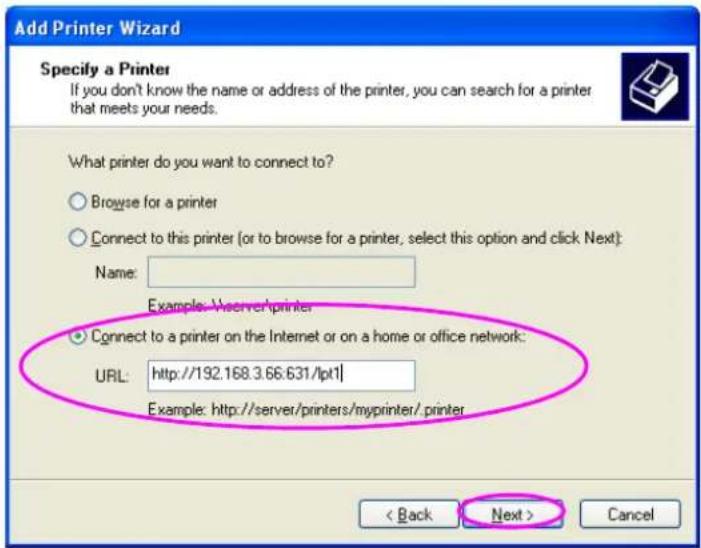
text_image
Add Printer Wizard Specify a Printer If you don't know the name or address of the printer, you can search for a printer that meets your needs. What printer do you want to connect to? Browse for a printer Connect to this printer (or to browse for a printer, select this option and click Next): Name: Example: Vserver/printer Connect to a printer on the Internet or on a home or office network: URL: http://192.168.3.66:631/lpt1| Example: http://server/printers/myprinter/ printer < Back Next > CancelStep6. Select a suitable printer manufacturer and the printer model and click "Next". If your printer is not in the list, click "Have Disk..." to install the driver of the printer. After installation, the printer model will be added to the list.

text_image
Add Printer Wizard Install Printer Software The manufacturer and model determine which printer software to use. Select the manufacturer and model of your printer. If your printer came with an installation disk, click Have Disk. If your printer is not listed, consult your printer documentation for compatible printer software. Manufacturer Generic Gestetner HP IBM infotec Printers HP LaserJet IIP Plus HP LaserJet IIP PostScript Cartridge v52.2 HP LaserJet HP LaserJet Plus This driver is digitally signed. Tell me why driver signing is important Windows Update Have Disk... < Back Next > CancelStep7. Choose to set the print whether as a default printer or not. Click "Next".
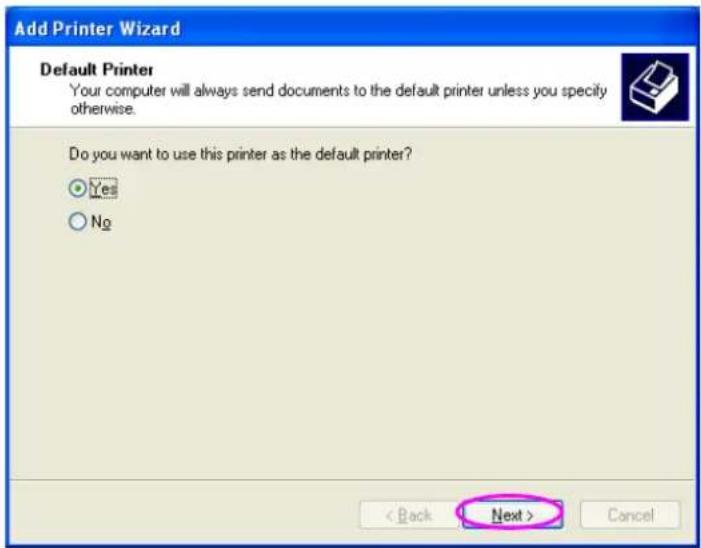
text_image
Add Printer Wizard Default Printer Your computer will always send documents to the default printer unless you specify otherwise. Do you want to use this printer as the default printer? Yes No < Back Next > CancelStep8. You have added the network printer to the PC successfully. The information of the printer is displayed in the windows. Click "Finish".
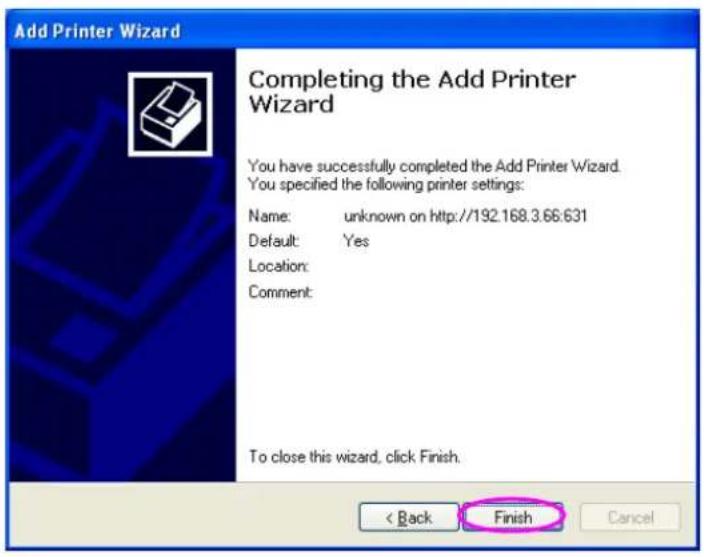
text_image
Add Printer Wizard Completing the Add Printer Wizard You have successfully completed the Add Printer Wizard. You specified the following printer settings: Name: unknown on http://192.168.3.66:631 Default: Yes Location: Comment: To close this wizard, click Finish. < Back Finish Cancel11. LPR Setting in MAC OS
LPR Printing (Line Printer Remote technology) allows Macintosh computers to connect to printers via TCP/IP. LPR Printing can be set up on any Macintosh with version 9.x above.
To enable LPR Printing in Macintosh, please follow the procedures below.
Step1. In the Desktop, click "System Preferences".

text_image
System PreferencesStep2. Click "Print & Fax".

text_image
System Preferences Personal Appearance Desktop & Screen Saver Dock Exposé International Security Hardware CDs & DVDs Displays Energy Saver Keyboard & Mouse Print & Fax Sound Internet & Network .Mac Network QuickTime Sharing System Accounts Classic Date & Time Software Update Speech Startup Disk Universal AccessStep3. From the “Print & Fax” screen, click “Set Up Printers...”.
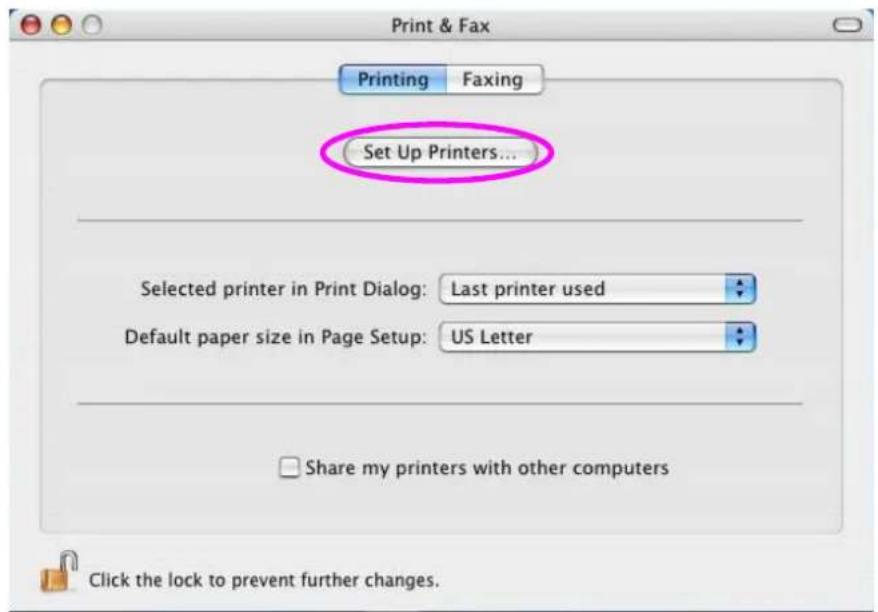
text_image
Print & Fax Printing Faxing Set Up Printers... Selected printer in Print Dialog: Last printer used Default paper size in Page Setup: US Letter Share my printers with other computers Click the lock to prevent further changes.Step4. Click "Add" to add the new Print Server through TCP/IP.

text_image
Print & Fax Printing Faxing Printer List Make Default Add Delete Utility ColorSync Show Info In Menu Name Add Status Kind Host ✓ PS000888_lpt1 EPSON Stylus Color... ✓ PS123487_lpt1 EPSON Stylus Color ... Click the lock to prevent further changes.Step5. Enter the “Printer Type”, “Printer Address” and “Queue Name” and select the “Printer Model” to setup the Print Server. Click “Add” to continue.
Printer Type: LPD/LPR
Printer Address: Input the IP Address of the Print Server Queue Name: The queue name of the Print Server is "lpt1" Printer Model: Select the Printer Model that is attached to the Print Server.

text_image
Printer Setup Utility Edit View Printers Window Help Printer List IP Printing Printer Type: LPD/LPR Printer Address: 192.168.1.227 Complete and valid address. Queue Name: lpt1 Leave blank for default queue Printer Model: EPSON Model Name EPSON Stylus C60, CUPS+Gimp-Print v4.2.5 EPSON Stylus C61, CUPS+Gimp-Print v4.2.5 EPSON Stylus C62, CUPS+Gimp-Print v4.2.5 EPSON Stylus C70, CUPS+Gimp-Print v4.2.5 EPSON Stylus C80, CUPS+Gimp-Print v4.2.5 Cancel AddStep6. The Print Server is installed completely. You can see it in the "Printer List".
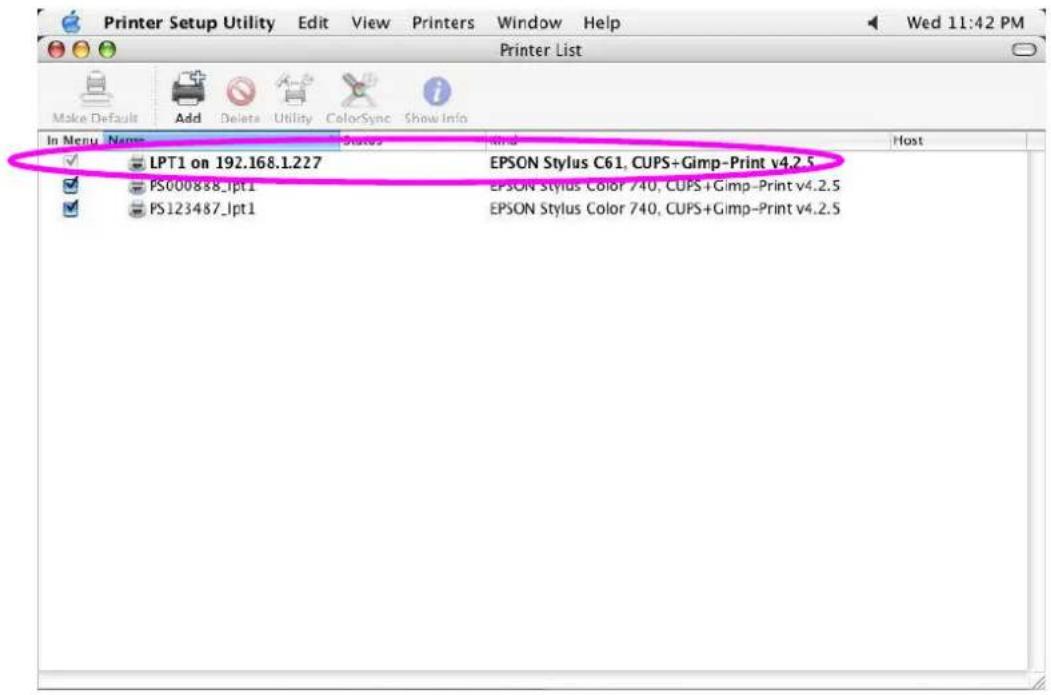
text_image
Printer Setup Utility Edit View Printers Window Help Printer List Make Default Add Delete Utility ColorSync Show Info In Menu Name Status find Host ✓ LPT1 on 192.168.1.227 EPSON Stylus C61, CUPS+Gimp-Print v4.2.5 ✓ PS000838_lpt1 EPSON Stylus Color 740, CUPS+Gimp-Print v4.2.5 ✓ PS123487_lpt1 EPSON Stylus Color 740, CUPS+Gimp-Print v4.2.5Step7. You can print a file to check whether the Print Server is installed successfully.

text_image
LPT1 on 192.168.1.227 Delete Hold Resume Stop Jc Stop Jobs SuperMario.jpg Spooling LPR job, 55% complete... Status Name Printing SuperMario.jpg12. UPnP Setup
When the UPnP function is enabled, the print server can be detected by UPnP compliant system such as Windows XP. The print server will be displayed in the Neighborhood of Windows XP, so you can directly double click the print server or right click the print server and select “Invoke” to directly get into the web page of the print server for configuration.

text_image
My Network Places File Edit View Favorites Tools Help Back Search Folders Address My Network Places Go Network Tasks Add a network place View network connections Set up a home or small office network Set up a wireless network for a home or small office View workgroup computers Hide icons for networked UPnP devices Local Network 2U1PWG Other Places Desktop My Computer My Documents Shared Documents Printers and Faxes Details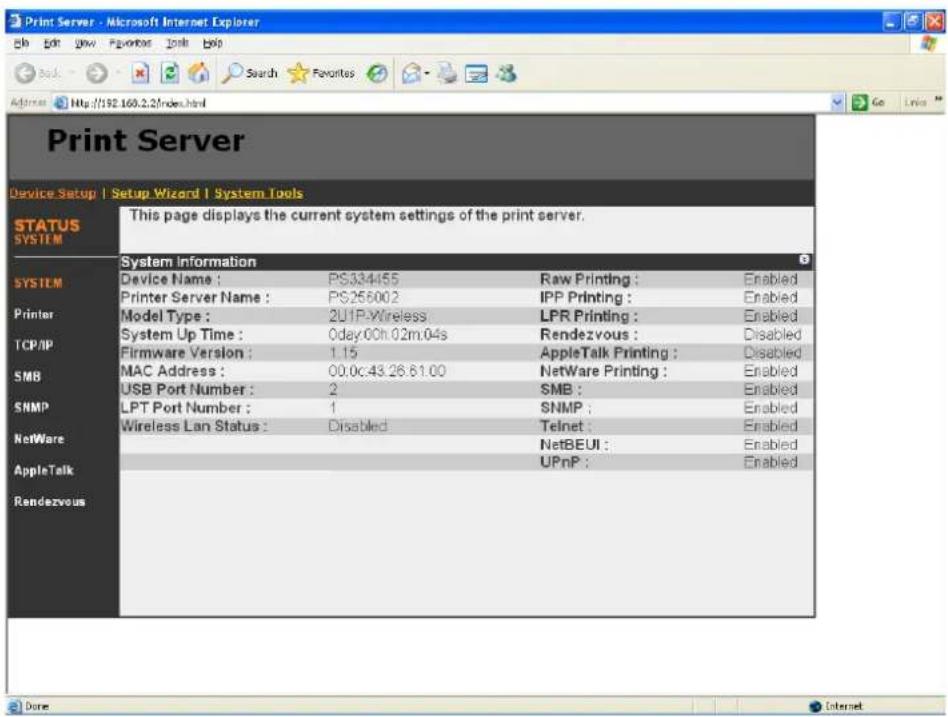
text_image
Print Server Device Setup | Setup Wizard | System Tools STATUS SYSTEM This page displays the current system settings of the print server. System information Device Name : PS334455 Raw Printing : Enabled Printer Server Name : PS256002 IPP Printing : Enabled Model Type : 2U1P Wireless LPR Printing : Enabled System Up Time : 0day.00h.02m.04s Rendezvous : Disabled Firmware Version : 1.15 AppleTalk Printing : Disabled MAC Address : 00.0c.43.26.61.00 NetWare Printing : Enabled USB Port Number : 2 SMB : Enabled LPT Port Number : 1 SNMP : Enabled Wireless Lan Status : Disabled Telnet : Enabled NetBEUI : Enabled UPnP : Enabled Rendezvous Done InternetEnable UPnP in Windows XP SP2
If you can't find the print server in the Neighborhood of Windows XP SP2 or you have seen the following message when you double click the print server. You have to check if UPnP function is blocked by the firewall. Please follow the steps below to enable it.
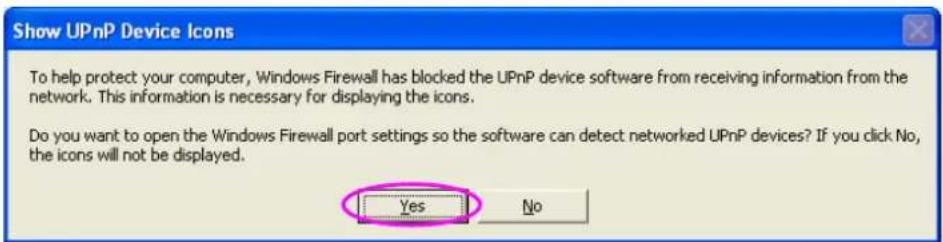
text_image
Show UPnP Device Icons To help protect your computer, Windows Firewall has blocked the UPnP device software from receiving information from the network. This information is necessary for displaying the icons. Do you want to open the Windows Firewall port settings so the software can detect networked UPnP devices? If you click No, the icons will not be displayed. Yes NoStep1. Click “Yes” on the above message or click “Start”, choose “Settings” and select “Network Connections” to enable UPnP manually.
Step2. Right click the “Local Area Connection” and select “Properties”.

text_image
Network Connections File Edit View Favorites Tools Advanced Help Back Search Folders Address Network Connections LAN or High-Speed Internet 1394 Connection Connected, Firewalled 1394 Net Adapter Local Area Connection Connected, Firewalled Intel(R) PRO/100 VE Network See Also Network Troubleshooter Other Places Control Panel My Network Places My Documents My Computer Details Network Connections System FolderStep3. In the “Local Area Connection Properties”, select “Advanced” option menu and click “Settings”.
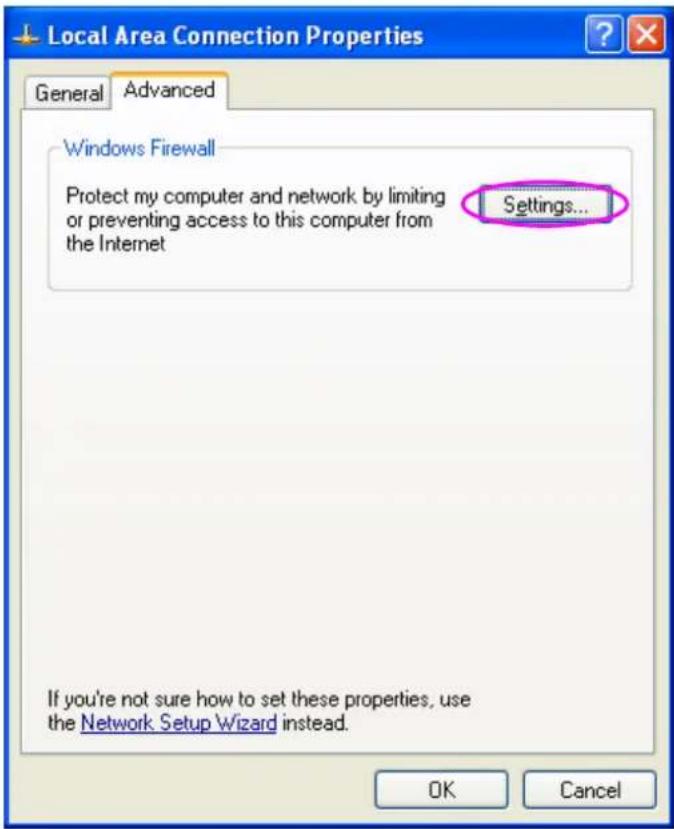
text_image
Local Area Connection Properties General Advanced Windows Firewall Protect my computer and network by limiting or preventing access to this computer from the Internet Settings... If you're not sure how to set these properties, use the Network Setup Wizard instead. OK CancelStep4. The “Windows Firewall” screen will be popped up, select “Exceptions” option menu.
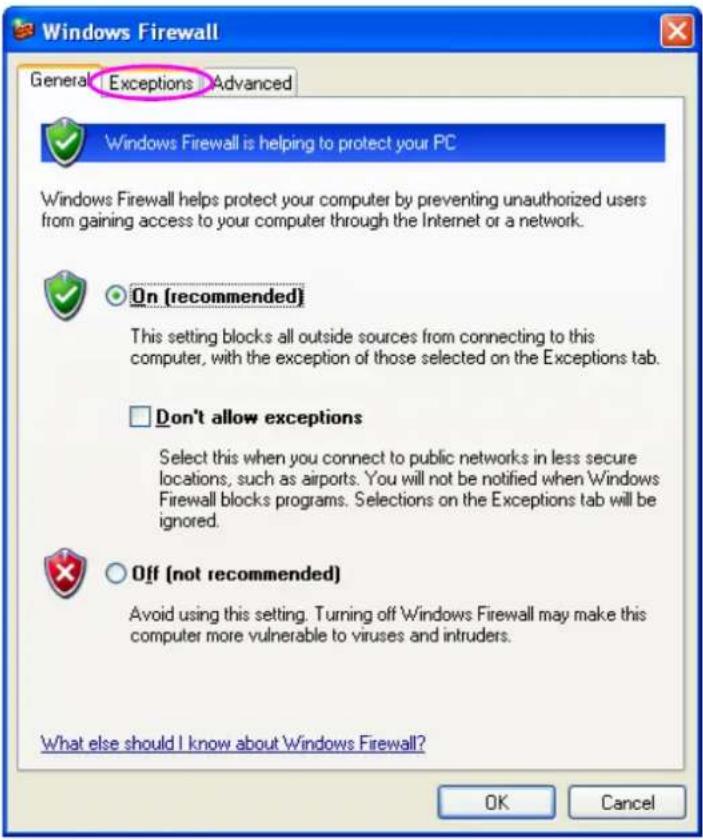
text_image
Windows Firewall General: Exceptions Advanced Windows Firewall is helping to protect your PC Windows Firewall helps protect your computer by preventing unauthorized users from gaining access to your computer through the Internet or a network. On [recommended] This setting blocks all outside sources from connecting to this computer, with the exception of those selected on the Exceptions tab. Don't allow exceptions Select this when you connect to public networks in less secure locations, such as airports. You will not be notified when Windows Firewall blocks programs. Selections on the Exceptions tab will be ignored. Off (not recommended) Avoid using this setting. Turning off Windows Firewall may make this computer more vulnerable to viruses and intruders. What else should I know about Windows Firewall? OK CancelStep5. Enable “UPnP Framework” from the “Programs and Services list” and click “Ok”.

text_image
Windows Firewall General Exceptions Advanced Windows Firewall is blocking incoming network connections, except for the programs and services selected below. Adding exceptions allows some programs to work better but might increase your security risk. Programs and Services: Name ✓ MFP Driver ✓ MFP Driver ✓ Print Server Utility ✓ Print Server Utility ✓ Print Server Utility ✓ Remote Assistance □ Remote Desktop ✓ Remote Virtual USB Client ✓ Skype ✓ UPnP Framework Add Program... Add Port... Edit... Delete ✓ Display a notification when Windows Firewall blocks a program What are the risks of allowing exceptions? OK Cancel13. Windows XP SP2 Setup
In Windows XP SP2, XP SP2's firewall would block the unknown communications. This print server has allowed the communications data passed through the XP SP2's firewall.
In case that you do not find any print server listed on the “Available Ports” in “Network Ports Quick Setup”, please follow the steps below.
Step1. Click “Start”, choose “Settings” and select “Network Connections”.
Step2. Right click “Local Area Connection” and select “Properties”.

text_image
Network Connections File Edit View Favorites Tools Advanced Help Back Search Folders Address Network Connections LAN or High-Speed Internet Network Tasks Create a new connection Set up a home or small office network Change Windows Firewall settings See Also Network Troubleshooter Other Places Control Panel My Network Places My Documents My Computer Details Network Connections System Folder Local Area Connection Connected Intel(P) PRO/100 VE Networking 1394 Connection Disabled, Firewallled 1394 Net AdapterStep3. Select "Advanced" tab and click "Settings...".

text_image
Local Area Connection Properties General Authentication Advanced Windows Firewall Protect my computer and network by limiting or preventing access to this computer from the Internet Settings... If you're not sure how to set these properties, use the Network Setup Wizard instead. OK CancelStep4. Select "Exceptions" tab and click "Add Program...".
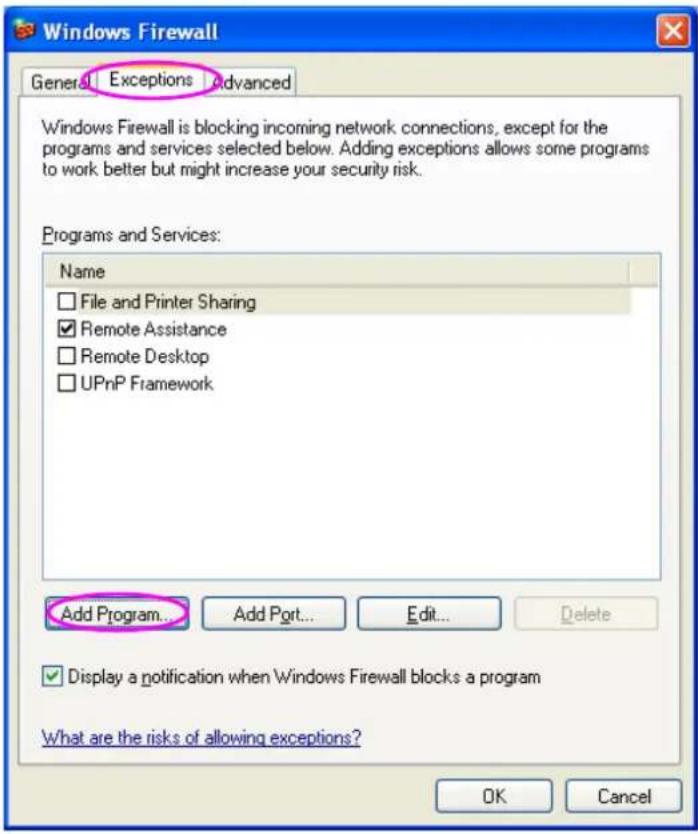
text_image
Windows Firewall General Exceptions Advanced Windows Firewall is blocking incoming network connections, except for the programs and services selected below. Adding exceptions allows some programs to work better but might increase your security risk. Programs and Services: Name □ File and Printer Sharing ☑ Remote Assistance □ Remote Desktop □ UPnP Framework Add Program... Add Port... Edit... Delete ✓ Display a notification when Windows Firewall blocks a program What are the risks of allowing exceptions? OK CancelStep5. Click "Browse" to add a new program.

text_image
Add a Program To allow communications with a program by adding it to the Exceptions list, select the program, or click Browse to search for one that is not listed. Programs: Admin Utility Camera Viewer CCS Configuration FreeCell Hearts Internet Backgammon Internet Checkers Internet Explorer Internet Hearts Internet Reversi Path: C:\Program Files\Internet Camera\admin\admi Browse... Change scope... OK CancelStep6. Open the “NPUtil” file from “C:\Program Files\PrintServer Utilities” (where C:\ is the system drive).

text_image
Browse Look jnc: PrintServer Utilities My Recent Documents Desktop My Documents My Computer My Network NetWare WebDESK Administrator WinUtil NPUtil Remote Uninstall File name: NPUtil Files of type: Applications (*.exe;*.com;*.icd) Open CancelStep7. A new program “Network Ports Quick Setup” is displayed in the list, click “Ok”.
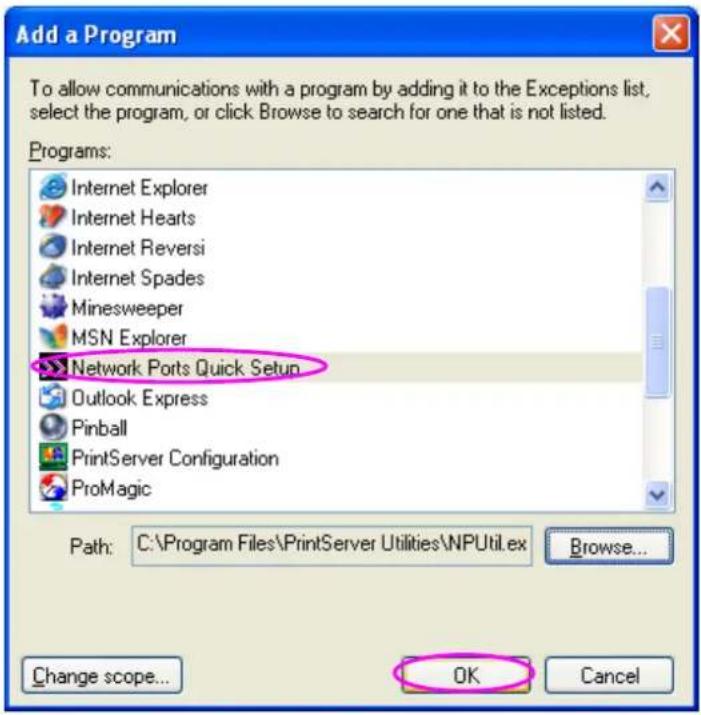
text_image
Add a Program To allow communications with a program by adding it to the Exceptions list, select the program, or click Browse to search for one that is not listed. Programs: Internet Explorer Internet Hearts Internet Reversi Internet Spades Minesweeper MSN Explorer Network Ports Quick Setup Outlook Express Pinball PrintServer Configuration ProMagic Path: C:\Program Files\PrintServer Utilities\NPUtil.ex Browse... Change scope... OK CancelStep8. Click “Ok”. You have completed the setting. The Windows XP SP2 will allow the incoming network connections activated by the program.