GPSmile 52 - Gps HOLUX - Free user manual and instructions
Find the device manual for free GPSmile 52 HOLUX in PDF.


| Product Type | Portable GPS Navigator |
| Model | GPSmile 52 |
| Brand | HOLUX |
| Screen Size | 4.3 inches |
| Display Type | Color TFT LCD with Touchscreen |
| Dimensions | 12.0 x 8.1 x 1.5 cm (4.7 x 3.2 x 0.6 in) |
| Weight | Approx. 150 g (5.3 oz) |
| Power Source | Rechargeable Lithium-ion Battery |
| Battery Life | Up to 5 hours (typical use) |
| Charging | Car charger and USB cable included |
| Navigation Features | Turn-by-turn directions, voice guidance, route planning |
| Map Storage | Internal memory and microSD card slot (up to 32 GB) |
| Points of Interest (POI) | Preloaded with thousands of POIs |
| Connectivity | USB 2.0 for data transfer and charging |
| Mounting | Windshield suction mount and dashboard disk |
| Languages Supported | Multiple languages (English, Spanish, French, etc.) |
| Maintenance | Clean with a soft, dry cloth; avoid liquid cleaners |
| Safety | Use windshield mount; do not place where it obstructs driver's view |
| Spare Parts / Repairability | Replacement chargers, mounts, and cables available; not user-serviceable beyond battery |
Frequently Asked Questions - GPSmile 52 HOLUX
User questions about GPSmile 52 HOLUX
0 question about this device. Answer the ones you know or ask your own.
Ask a new question about this device
Download the instructions for your Gps in PDF format for free! Find your manual GPSmile 52 - HOLUX and take your electronic device back in hand. On this page are published all the documents necessary for the use of your device. GPSmile 52 by HOLUX.
USER MANUAL GPSmile 52 HOLUX
HOLUX and GPSmile are trademarks of HOLUX Technology, Inc.
All other trademarks belong to each registered companies.
Note
● Contents of this manual will be modified without further notice.
- The products operating temperature is between 0°C \~ 40°C; please do not operate under extreme temperatures.
C€
Declaration of Conformity
The following products is herewith confirmed to comply with the requirements set out in the Council Directive on the Approximation of the laws of the Member States relating to Electromagnetic Compatibility Directive (89/336/EEC). The listed standard as below were applied:
The following Equipment:
Product : GPSmile52 Car Navigator
Trade Name : HOLUX
Model Number : NAV-52××
This product is herewith confirmed to comply with the requirements set out in the Council Directive on the Approximation of the laws of the Member States relating to Electromagnetic Compatibility Directive (89/336/EEC). For the evaluation regarding EMC, the following standards were applied:
RFI Emission:
EN 55022 : Emission standard
EN 61000-3-2 : Limits for harmonic current emission
EN 61000-3-3 : Limitation of voltage fluctuation and flicker in low-voltage supply system
Immunity:
EN 55024 : Immunity standard
The following importer/manufacturer is responsible for this declaration:
Company Name : HOLUX Technology, Inc
Company Address : 1F, No.30, R&D Rd. II, Hsinchu City 300, Taiwan (R.O.C.)
Telephone : 886-3-6687000
Facsimile: 886-3-6687111
Person is responsible for marking this declaration:
Wen Cheng Chung
Name (Full Name)
June-08-2006
Date
President
Position/ Title
Wenchen
Legal Signature
DECLARATION OF CONFORMITY
Per FCC Part 2 Section 2. 1077(a)

The following equipment:
Product Name : GPSmile52 CAR Navigator
Trade Name : HOLUX
Model Number : NAV-52××
Company Name : HOLUX Technology, Inc
It's herewith confirmed to comply with the requirements of FCC Part 15 Rules. (Class B)
Operation is subject to the following two conditions:
(1) This device may not cause harmful interference, and
(2) This device must accept any interference received, including interference that may cause undesired operation.
The result of electromagnetic emission has been evaluated by QuieTek Taiwan EMC laboratory (NVLAP Lab. Code: 200347-0) and showed in the test report.
(Report No.: QTK-066H011-IT-US-P01V02)
It is understood that each unit marketed is identical to the device as tested, and Any changes to the device that could adversely affect the emission
Characteristics will require retest.
The following importer / manufacturer is responsible for this declaration:
Company Name HOLUX Technology, Inc
Company Address 1F, No.30, R&D Rd. II, Hsinchu City 300, Taiwan (R.O.C.)
Telephone 886-3-6687000 Facsimile: 886-3-6687111
Person is responsible for marking this declaration:
Wen Cheng Chung
Name (Full name)
June-08-2006
Date
President
Position / Title
Wenchon
Legal Signature
Safety Precautions
- Use the power adapter included with the package, using power adapters other than the one provided will result in malfunction and could prove dangerous.
- The device should only be used with the supplied batteries.
- About the power adapter
- Do not use the power adapter in a wet environment. When hands and feet are wet, do not touch the power adapter.
- While using the power adaptor ensure that the area is well ventilated. Do not let paper or other material cover the power adaptor, as this will interfere with cooling. Do not use the power adaptor whilst it is in a bag.
- Do not attempt to repair the device. If device is damaged or is in a wet environment, replace the device immediately.
- About the battery
- Use only the original factory approved charger.
- A Lithium battery is built in to the device. To prevent fire or skin burns, do not disassemble, pierce, impact, or expose the battery to fire. The battery will crack, explode, or release dangerous chemicals if placed in a fire.
- Important instructions
Note: Replacing with an incorrect battery may result in an explosion. When disposing of the battery, follow the instructions. The replacement battery must be original factory approved.
- Regulations must be observed when recycling or disposing of batteries.
- The battery should only be used in this device.
Warranty Statement
- This warranty applies to parts and services of GPSmile52 manufactured and sold through Holux Technology Inc. The local area covered is Taiwan; the warrantee length is one year from date of purchase (counting from the date on the sales receipt). Under normal user operation, Holux Technology provides free repair services.
- The replaceable battery warranty is six months.
The replaced parts after repair are properties of Holux Technology Inc.
- Holux Technology is not responsible for providing repairs or replacements of any software; Holux Technology does not provide any warranty service for third party software/hardware.
- Important instructions
Note: This warranty does not cover damage or malfunction from the below causes: unauthorized disassembly/modification of unit, abuse or incorrect usage, accidental and other unpreventable causes, operation under variables mentioned other than in this product user manual, using parts not made or sold by Holux Technology, or repairs done by anyone other than Holux Technology and authorized retail/service provider.
- Expendable parts are not covered in the warranty.
✿ Any program, data, or portable storage media damages or loss are not responsible. Please contact your local Holux Technology authorized service provider to learn more about geographical limitations, proof of purchase requests, response time agreements, and other specific maintenance service requests.
Technical Support
- If there are any questions regarding the use of this product, please logon to the website www.holux.com and see the FAQ.
- If answers cannot be found on the website, please send us an e-mail at info@holux.com.tw, stating your query and location.
Maintenance Service
HOLUX Technology, Inc.
+886-3-6687000
Web Site: www.holux.com
HOLUX Technology, Inc.
www.holux.com
Table of Contents
Safety Precautions......i
Warranty Statement......ii
Technical Support......iii
Maintenance Service......iii
Preface....1
Symbols....1
Important Notice ....1
Other Functions ......2
First time use....3
Copyright.... 3
Important Notice.... 3
Package Contents......4
Basic Operation ....5
Introduction 5
Getting Started....7
SD memory card installation....7
Using the stylus....8
I/O interface 8
Charging....9
Using the In Vehicle Bracket 11
Operating Methods ......13
Startup 13
Shutdown.... 13
Using Functions....14
Function Menu ....15
Entering the Operation Menu.... 15
Setting....16
System Settings.... 16
Music Playback Function.... 21
Storing MP3 files onto SD memory cards.... 21
Starting music playback.... 21
Image Browsing Function...... 23
Using the CD 24
Troubleshooting....24
System reset.... 24
Quick Troubleshooting...... 25
Normal Care and Maintenance.... 25
Storage.... 26
Appendix....27
Specifications 27
Preface
We appreciate your purchase of the GPSmile 52.
Please read all instructions thoroughly for a full understanding of the products' features.
Symbols
For fast reference to the data you wish to find, this manual uses the following symbols.
√ This icon means to take note to messages and to read for while during use.
This icon means a warning and should take care not to damage the unit.
This icon means useful tips for extra information while using.
Important Notice
- This system only provides a navigational reference. Do not use this system for any directional, distance, and geographic etc precise measurements.
- The first GPS positioning should be performed at a single set point, wide-open area without building shelters. Positioning time length will depend on the satellite signal strength, cloud levels; possibly taking up to 10 minutes.
- GPS (Global Positioning System) is the satellite system used by the United States of America Department of Defense. All maintenance and operations are also managed by the United States of America Department of Defense. Should the system be modified and adjusted, the precision and operation of GPS related systems might be affected.
- Any wireless communication products (mobile phone, radio, speed detection unit etc) might affect the GPS signal, resulting in a poor signal.
• For safety reasons, do not operate this system while driving a vehicle.
- Do not leave this unit under your front windshield after you leave the vehicle. Exposure to high temperatures might be dangerous and cause overheating to the battery, resulting in malfunction of the device.
- Window tinting might interfere with the reception of satellite signals. We recommend you install a vehicle antenna to strengthen and stabilize the signal.
- The planned navigational route is for reference only; changes in roadside conditions (one way streets, no right turns) may happen so please respond accordingly to the situation and decide whether or not to follow the planned course.
- When placing this system in the vehicle, please secure with brackets on the car to ensure safety. The recommended installation location is illustrated below.

text_image
X Do not block driver's view X Do not secure in front of airbag X Do not place on unstable dashboard X Do not secure in front of airbag- Differences between manufactured and shipped versions may be present; this software may be updated frequently. If the descriptions in this manual are different from your software version, please follow the software version currently on hand.
Other Functions
• Music playback: plays MP3 music files.
- Image display: displays photographs or image files.
First time use
Copyright
Without the written consent of HOLUX Technology, Inc, this manual including the product and the software may not be duplicated, transmitted, recorded or saved on storage devices; nor shall it be translated under any circumstances into any other languages.
Copyright ©2006 HOLUX Technology, Inc. All rights reserved.
Important Notice
Please read thoroughly this manual of operating instructions and explanations. Use only original factory approved batteries and accessories to prevent unexpected damage. If the correct procedures were not followed for operation or incompatible accessories were connected, this violates the warrantee agreement and will automatically void the warrantee; even causing personal safety issues.
Package Contents
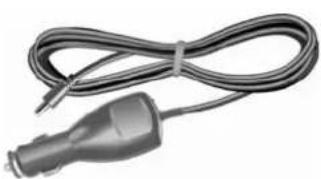
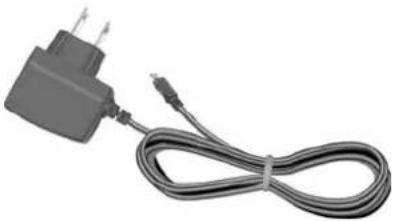
Your product should include the following accessories:
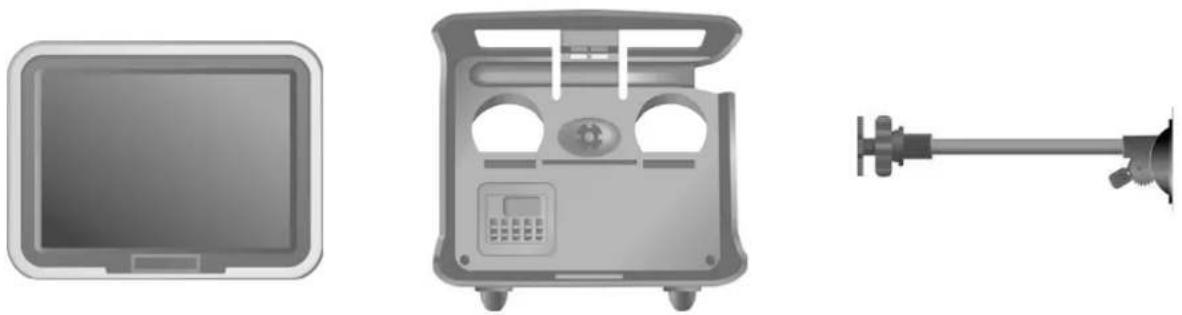
NAV-52 Unit In Vehicle Bracket Bracket fixing
natural_image
Coiled black cable with a connector, no visible text or symbolsCar Adapter
natural_image
Coiled black cable with two terminal leads, no visible text or symbolsHome / Travel Adapter (Optional)
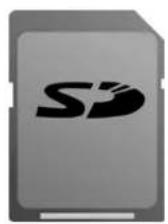
SD Memory Card (Optional)

natural_image
Circular metallic disc with concentric rings and central hole (no text or symbols)CD-ROM Quick Guide

Basic Operation
Introduction
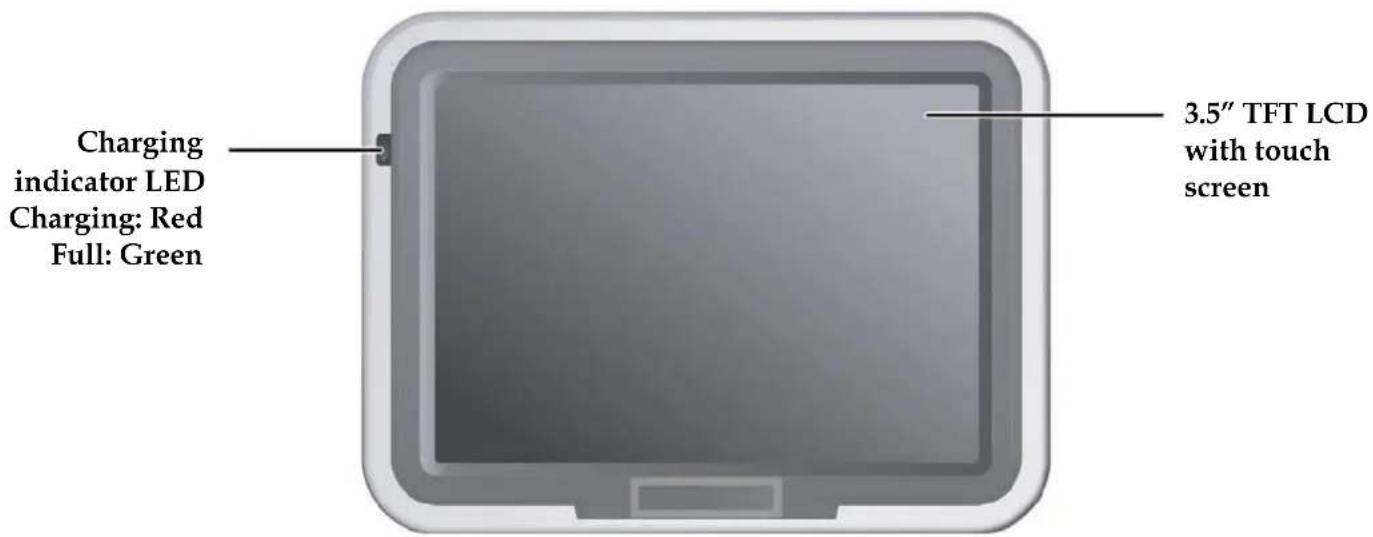
Front View
text_image
Charging indicator LED Charging: Red Full: Green 3.5" TFT LCD with touch screenRear View
text_image
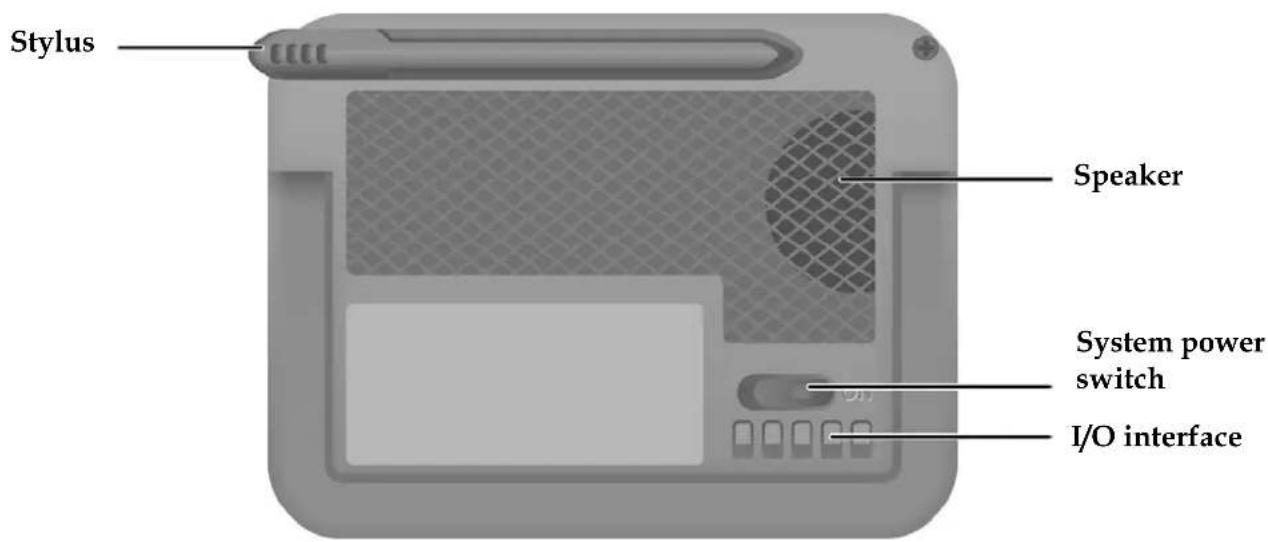
Stylus Speaker System power switch I/O interfaceLeft Side
text_image
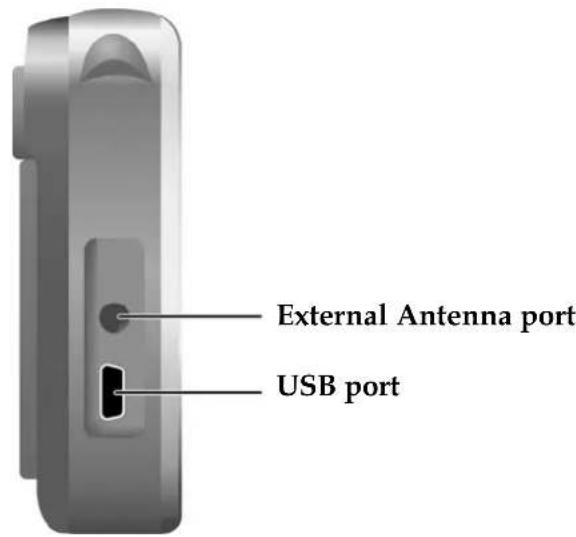
External Antenna port USB portRight Side

text_image
Stylus SD card slot Reset buttonTop View

text_image
MENU Power button Menu buttonNote: The Menu button is only functional during GPS navigation.
Getting Started
If you are a first-time system user, the following explanations will help you quickly understand the system operations, and experience the system's powerful and convenient functions.
SD memory card installation
This unit is equipped with a SD memory card slot; you can purchase SD (Secure Digital) Cards to expand the memory capacity.
To insert the memory card:
With the metal contacts of the memory card facing back, insert the card into the slot on the right side of the unit.
To remove the memory card:
-
Gently press the top of the memory card, and the card will eject automatically.
-
Then pull to remove the memory card.
√ The included memory card contains the digital map files that are required for the GPS navigational data. Please do not delete.
√ When removing the memory card, please make sure the card is not reading data, or it will cause a system crash.
√ Do not set the SD memory card as write protected, or the system will not operate properly.
When operating, accidental removal of the memory card will result in showing an error message. Please reinsert the memory card and the system may need to be reset before further use.
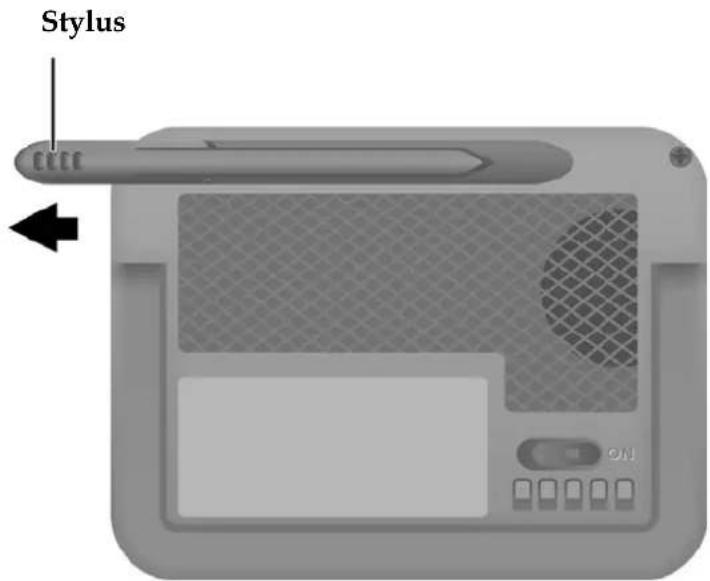
Using the stylus
This unit can be controlled easily though the touch screen. The stylus is an assist tool for operating this unit and is concealed in a pen slot at the rear. Pull out to use.
text_image
StylusI/O interface
The I/O interface has five pins, and each pin function is described as below.
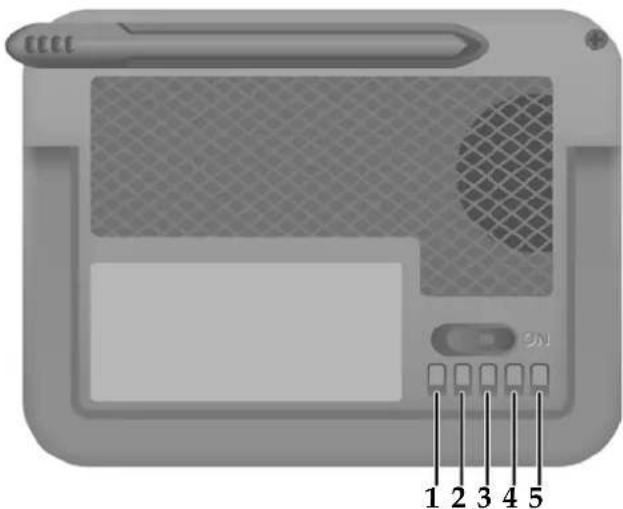
text_image
1 2 3 4 5Pin Function
1 VCCIN (DC 5.4 ± 0.2 1A)
2 TX Serial Data output port A (TTL Level ; Voh≥2.4V, Vol≤0.4V; Ioh=Iol=2mA)
3 RX Serial Data input port A(TTL Level ; Vih ≧ 0.7*VCC; Vil ≧ 0.3*VCC)
4 GND
5 Outside device (Reserve of software program definition.)
Charging
Using Home / Travel adapter:
Before using the device for the first time, we strongly suggest you use a fully charged battery.
- Insert the USB connector into the unit.
- Plug the adapter into a power outlet.

natural_image
Diagram showing two connected electrical plugs: one with a power outlet and the other with a cable (no text or symbols)Using the car charger:
While using the device in a vehicle, use the included car charger for long periods of usage.
- Plug in the small plug into the power jack on the rear of the in vehicle bracket.
- Insert the other end into the cigarette lighter.

natural_image
Diagram showing a cable being inserted into a device, with no visible text or symbols√ This device uses a built-in rechargeable battery, please note the following:
- Please do not charge in a hot environment, such as on a balcony or expose to direct sunlight.
- Do not wait until the battery is depleted to recharge.
- When not using the unit for a long time, please turn off the system switch.
- When charging a completely depleted battery, wait at least one minute before system startup. This will prevent excessive battery discharge.
- When charging starts, the charging indicator light will be red, please wait for the charging to complete (this might take several hours). After charging is completed the indicator light will be green.

text_image
Charging indicator LEDUsing the In Vehicle Bracket
The included in vehicle bracket set can be securely suctioned on the front windshield, or using the adhesive plate, securing on top of the glove compartment. This device will effectively secure the GPS unit in the vehicle. Follow the procedures below to secure the bracket:
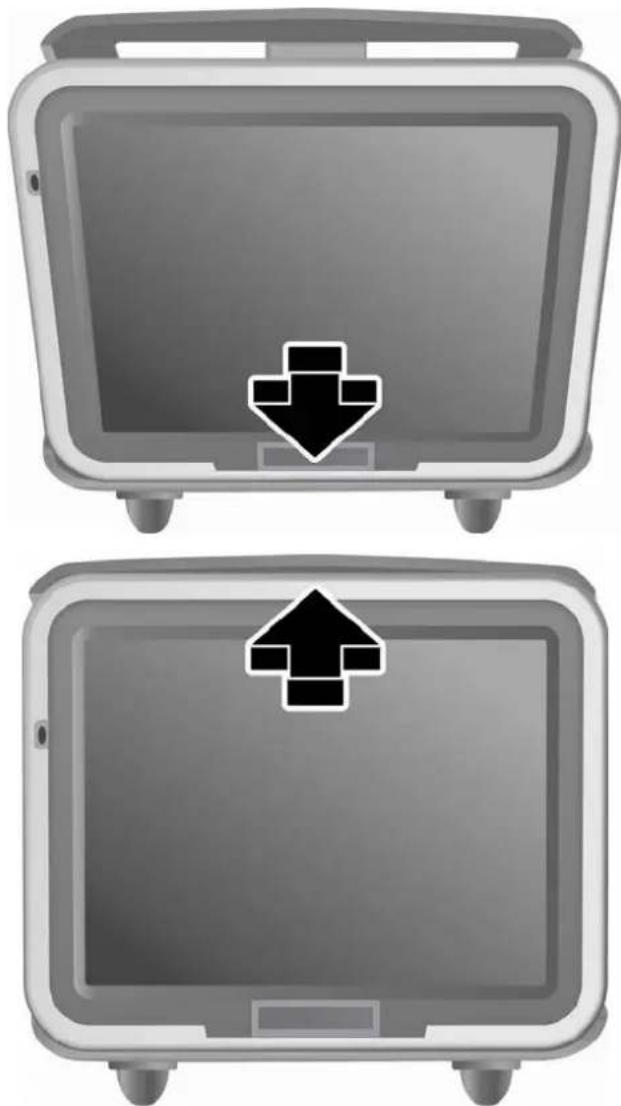
- Follow the arrows and stable the unit into the in-vehicle bracket fitting holes to secure.
- Gently push in the unit until the unit is tightly fixed with the bracket.
natural_image
Two identical gray electronic devices with black directional arrows, no text or symbols presentNote: Please note the directions of the arrows, when fitted the assembly should be tight. If these directions are not followed, a loose fit will result, and components must be reassembled.
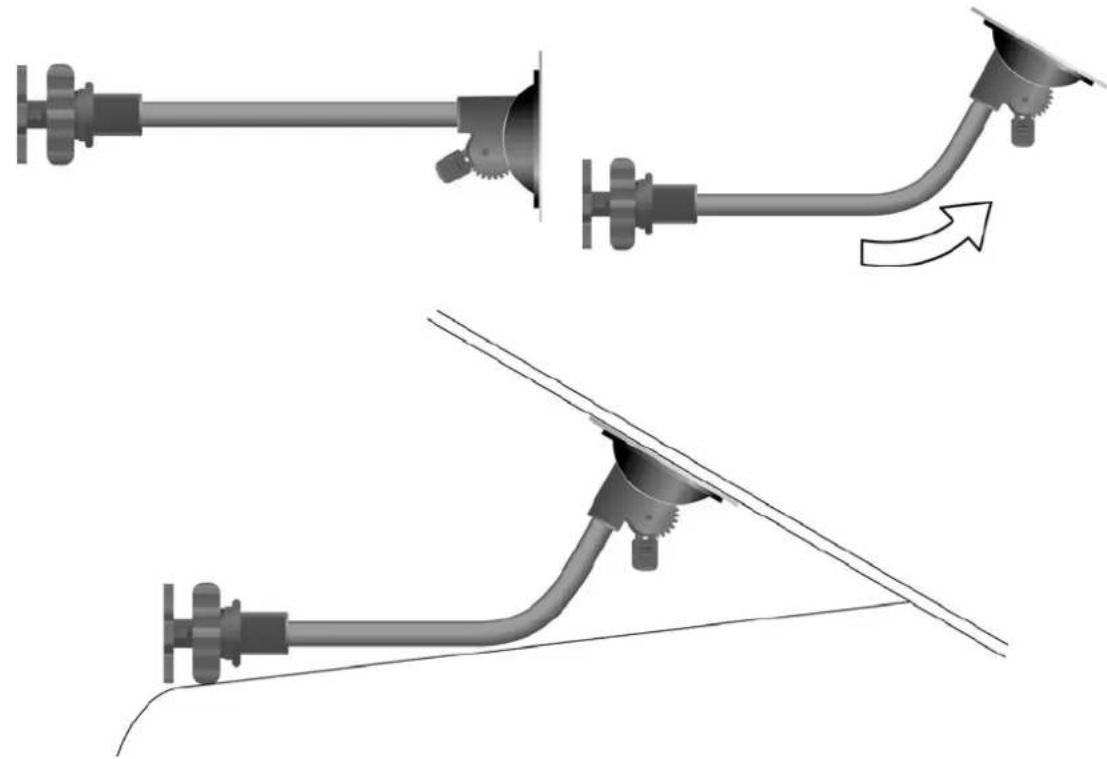
- Bend the bracket support to a proper angle. Suction the vehicle bracket securely to the windshield, ensuring its base is resting firmly on the dashboard.
natural_image
Diagram showing two mechanical pipe fittings with directional arrows indicating movement (no text or symbols)-
Follow the directions to insert the bracket into the slots on the bracket, and slide to fix the set (A B) .
-
The in vehicle bracket assembly is complete.
√ When using the in-vehicle secure bracket, do not install in a location that will block the view of the driver
√ Recommended installation requirements:

text_image
assembly A BThe bracket base should be resting securely on the dashboard to prevent excessive shock.
Operating Methods
Startup
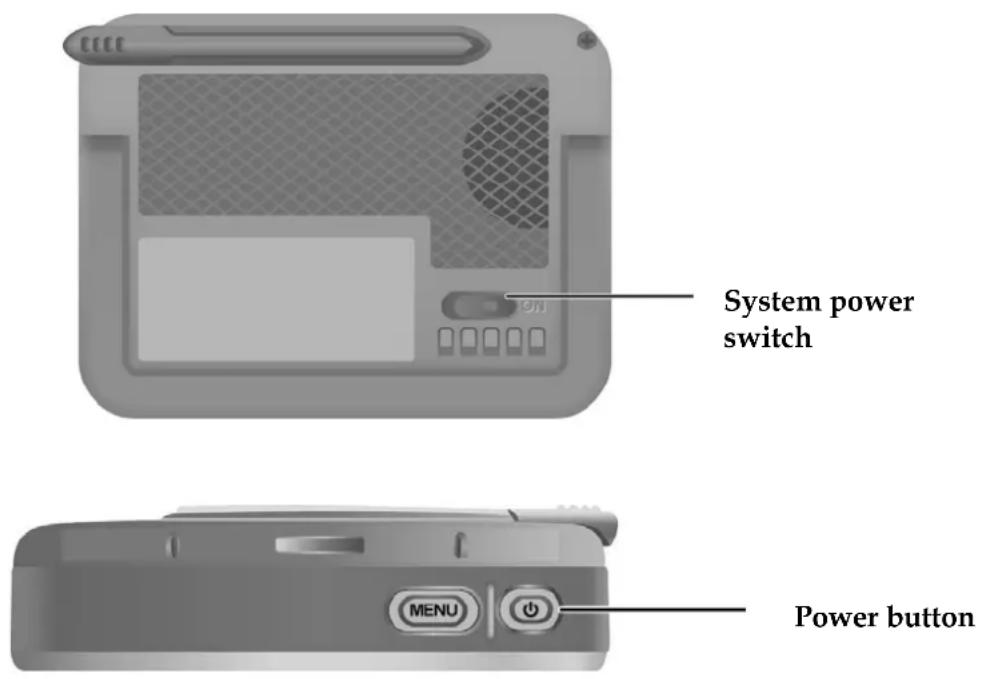
- For first time use, please turn the system power switch at the rear side On.
- Press and hold the power button for about two seconds to turn on the power.
Note: Before the first time use, please switch the system power on.
Shutdown
- While power is on, press the power button to turn off power.
- If the unit will not be used for a long time, turn the system power switch at the rear side Off.
text_image
System power switch Power buttonUsing Functions
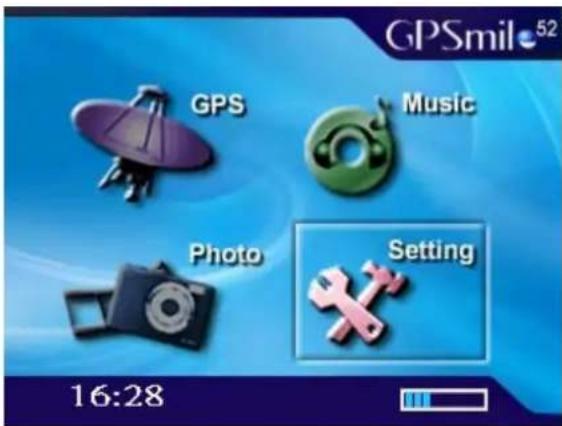
During the first startup, the screen will show the main screen consisting of four functions: navigation, music, photo, and settings. Directly select the icon onscreen to use the function.

text_image
GPS GPSmil 52 Music Photo Setting 16:26GPS Loads the navigation program and navigation screen
Note: If the SD card with navigator software is inserted, the system will enter GPS function automatically after startup.
Music Plays MP3 music
Photo Plays images
Setting Function adjustments and operation instructions
Function Menu
The function menu is the main function window other than the navigation screen and includes system settings, navigation settings, schedule plans, GPS status, MP3, image browsing.
Entering the Operation Menu
Under the navigation screen, press the Menu button to enter the operational menu.

text_image
MENU Menu button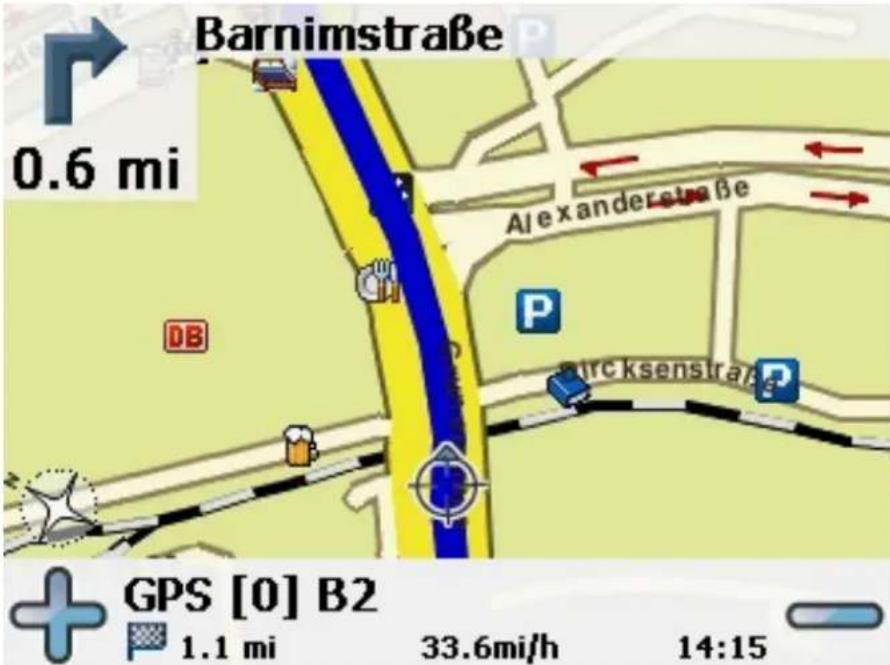
text_image
Barnimstraße 0.6 mi Alexanderstraße DB P Irk ksenstraße GPS [0] B2 1.1 mi 33.6mi/h 14:15Setting
The setting function gives you the ability to adjust the basic system options, including time settings, volume control, screen calibration, startup message, backlight setting, version info, and GPS reset etc. You can modify the settings according to personal preferences.
System Settings
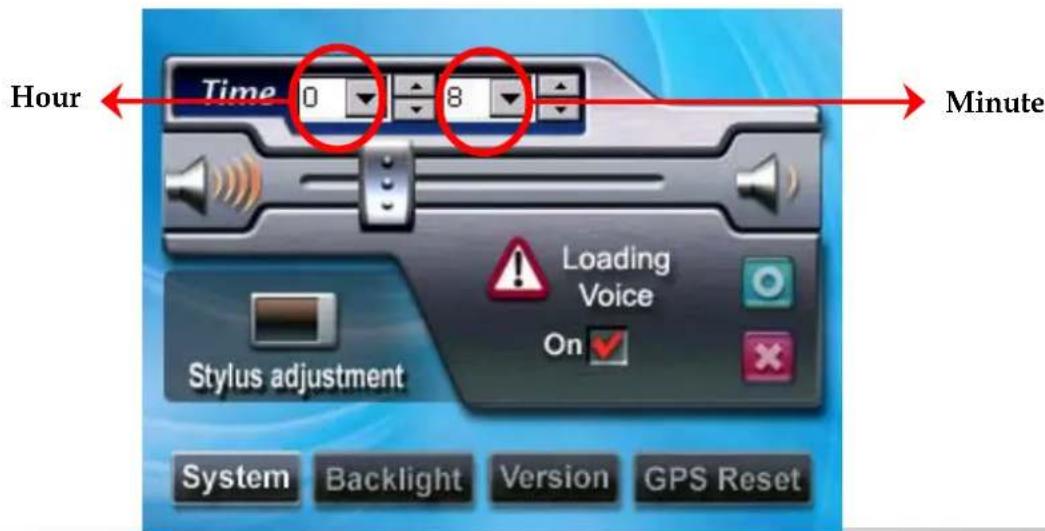
Time
- After system startup, select [Setting] from the main screen to go into the System Settings window.

text_image
GPSmil 52 GPS Music Photo Setting 16:28- Select from the Hour pull down menu and choose the correct value.
- Select from the Minute pull down menu and choose the correct value.
text_image
Hour Time 0 8 Minute Stylus adjustment Loading Voice On ✓ System Backlight Version GPS Reset- Select ☐ to confirm, or select ✗ to keep original settings.
- Select to return to main menu screen.
Volume
- Under the settings window, control the volume directly with the scroll bar. There are six levels of volume in total.

text_image
Time 0 8 Scroll Bar Loading Voice On Stylus adjustment System Backlight Version GPS ResetStartup Message
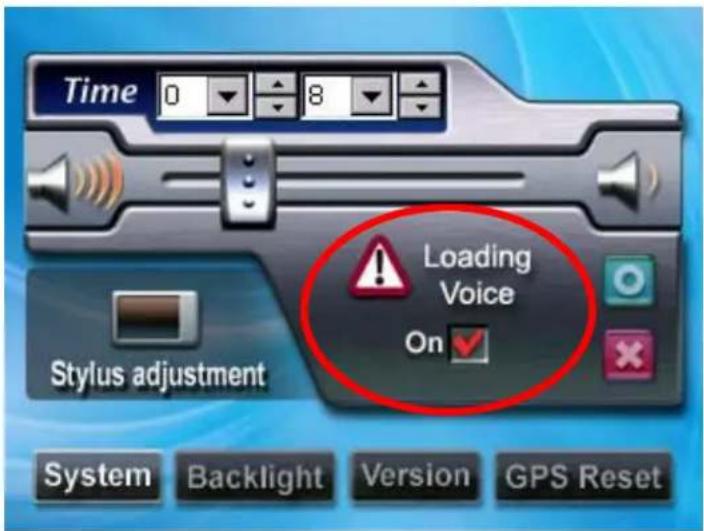
- Under the settings window, select the Warning Voice On or Off for whether the startup message is to be broadcast.
text_image
Time 0 8 Stylus adjustment Loading Voice On System Backlight Version GPS ResetStylus Adjustment
Control of the unit is accomplished primarily through the stylus by touching/writing on the screen. If the system cannot correctly identify your stylus' input, please run through the screen calibration procedure.
- From the settings window, select [Stylus Adjustment] to start the screen calibration procedure.

text_image
Time 0 8 Stylus adjustment Loading Voice On System Backlight Version GPS Reset- Use the stylus and touch the cross at the center of the screen once.
- Touch the cross in the second position once.
- Touch the cross in the third position once.
- Continue the calibration by touching the cross in the positions that follow
efully press and briefly hold stylus on the center of the targ Repeat as the target moves around the screen. Press the Esc key to cancel.

- To finish the calibration procedure, press the Enter key to accept the new settings.
- Press the Esc key to keep the old settings.
- Select 🔒 to go back to the main menu screen.
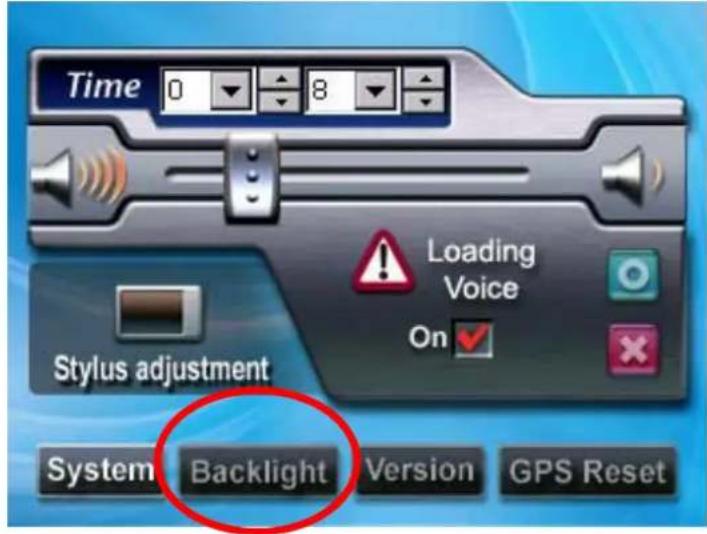
Backlight Settings
The backlight settings will adjust the brightness of the backlight and the auto-off time.
- Under the settings window, select Backlight to enter the backlight settings window.
text_image
Time 0 8 Loading Voice On Stylus adjustment System Backlight Version GPS Reset- Select the time to turn off backlight when running off the battery / external power (1 min, 3 min, 5 min, 10 min, 30 min, Always On).
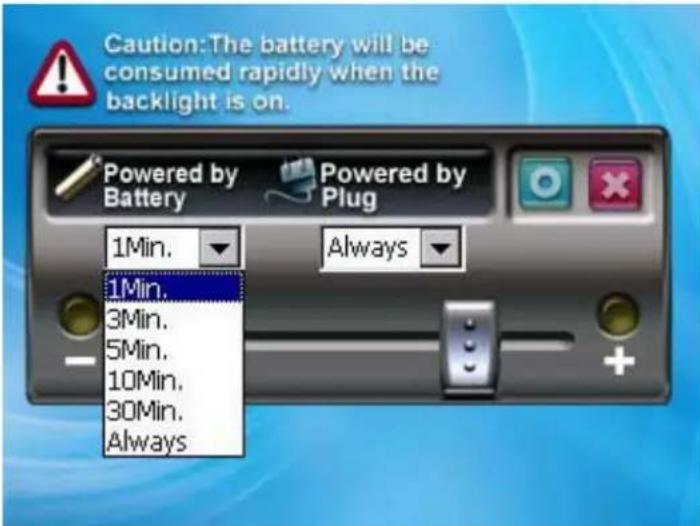
text_image
Caution: The battery will be consumed rapidly when the backlight is on. Powered by Battery Powered by Plug 1Min. Always 1Min. 3Min. 5Min. 10Min. 30Min. Always-
Scroll the brightness bar to control backlight brightness. There are six levels in total.
-
Select ☐ to confirm or select ✗ to keep the original settings.
-
Select to return to main menu screen.
Version
- Under the settings window, select Version to enter the version window.
- The screen display will show the version information and instructions for operation of music playback and image browsing functions.
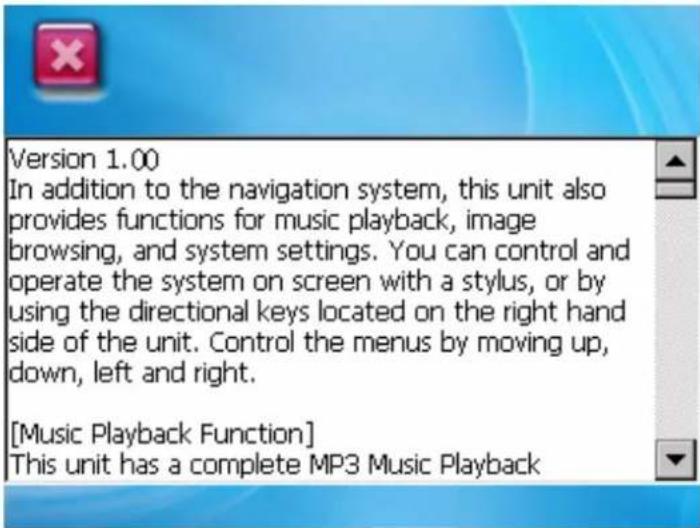
text_image
Version 1.00 In addition to the navigation system, this unit also provides functions for music playback, image browsing, and system settings. You can control and operate the system on screen with a stylus, or by using the directional keys located on the right hand side of the unit. Control the menus by moving up, down, left and right. [Music Playback Function] This unit has a complete MP3 Music Playback- Select ✗ to exit the Version screen.
Music Playback Function
This unit has an MP3 Music Playback function that is capable of playing back MP3 files stored on SD memory cards.
Storing MP3 files onto SD memory cards
On your computer, you must first convert the music from an audio CD into MP3 files, then save them onto the SD memory card.
All the files need to be stored under the MP3 directory, and the file format needs to be “*.mp3”.
Starting music playback
- Insert the SD memory card with stored MP3 files into the SD memory card slot on the unit.
- Power on, and select the [Music] icon on the main menu.

text_image
GPS GPSmile 52 Music Photo Setting 16:26- The Music Playback Window. Use the buttons to control each playback function.
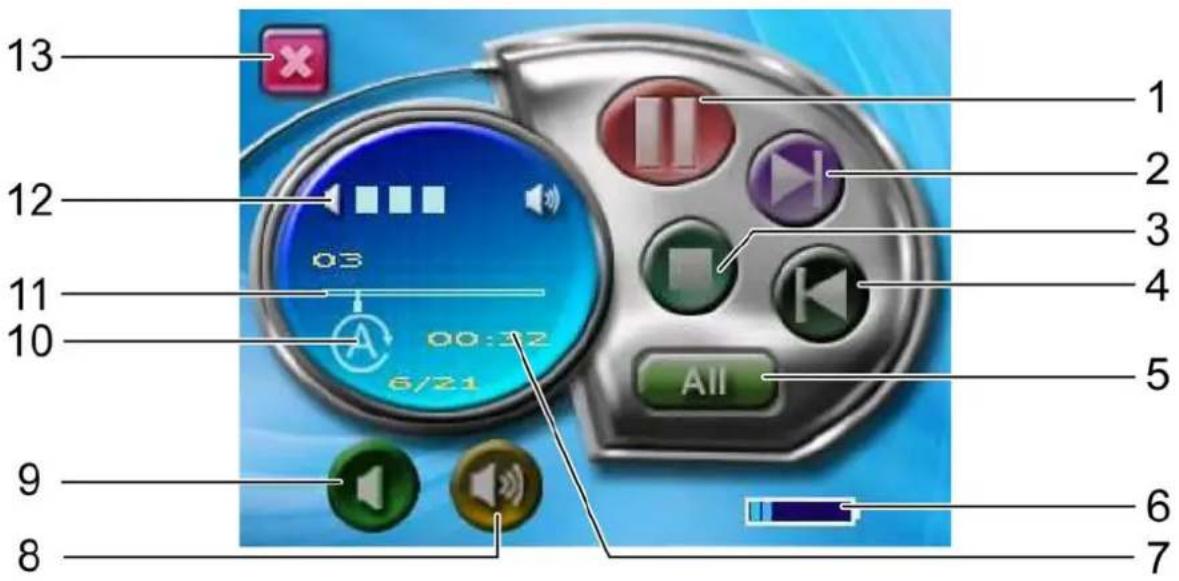
text_image
13 12 11 10 9 8 1 2 3 4 5 6 7 03 00:12 6/21 All1 Play 8 Volume up
2 Next 9 Volume down
3 Stop
4 Previous 11 Progress Bar
5 Repeat mode
6 Battery indicator 13 Exit
7 Timer
10 Repeat mode indicator
12 Volume display
Image Browsing Function
- The system has an Image Browsing function that is capable of displaying images/photographs stored on SD memory cards.
All the files need to be stored under the Image directory, and the file format needs to be "*.jpg".

text_image
GPSmil 52 GPS Music Photo Setting 16:25- Insert the SD memory card with stored image files into the SD memory card slot on the unit.
- Power on, and select [Photo] icon on Main Menu.
- The Image Browsing Window.
Exit

natural_image
Digital camera interface displaying a photo of white flowers on moss, with control buttons and playback controls visible (no text or symbols on the flower image itself)Next
Previous
Full screen mode
Multiple
Previous

natural_image
Close-up of white flowers blooming on moss-covered ground, no text or symbols visibleNext
Multiple

Exit full screen mode
Using the CD
Troubleshooting
System reset
Only under extremely few circumstances will it be required to reboot the system. Reset your system if the following situations occur:
-
Heavy lag experienced with screen refresh or operations, resulting in an inoperable system.
-
Cannot turn off the system with power button.
-
No response with selection on the screen.
- Press the reset button on the right side of the unit.
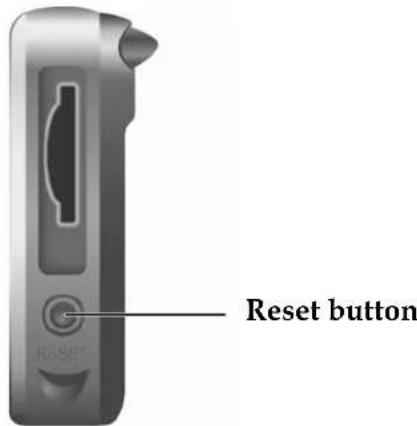
text_image
Reset button• The system will immediately reset.
- You will now see the main screen and the system is ready for use.
text_image
GPS GPSMe 52 Music Photo Setting 16:28Quick Troubleshooting
| Power Cannot startup Insufficient battery charge, please connect to the adapter and restart system. | ||
| Screen | No screen displayed | After powering up, if the system does not respond, try the following:1. Connect adapter, restart system.2. Reset system. |
| Display speed is too slow | 1. Check if the battery is low on power.2. Reset system. | |
| Screen has no response | Reset system. | |
| Navigation | GPS cannot display my current location | Make sure your current location is not obstructed by buildings or other interferences. |
Normal Care and Maintenance
To ensure the unit's normal operation and extended life span, please note the following while using and storing:
Keep dry
This product is not waterproof. If it comes into contact with water spray or is submerged it will seriously damage the components, resulting in irreversible damage.
Do not drop the unit
If violently impacted or shocked, serious damage may be caused.
Avoid sudden temperature changes
Condensation may occur when entering a warm room on a cold day. To prevent condensation from damaging the unit, please place into an airtight plastic bag before sudden temperature changes.
Keep away from strong magnetic fields
When using or storing, please keep away from strong electromagnetic/radioactive or magnetic field equipment.
Operating temperature
The products operating temperature is between 0^ C \~ 40^ C; please do not operate under extreme temperatures.
Avoid exposure to sunlight
Please avoid long periods of sunlight or high temperature exposure.
Using the stylus
The LCD screen is easily scratched; please use only the stylus for operation. Do not use any other sharp objects on the screen to avoid damaging the LCD screen.
Cleaning the screen
Using a soft clean cloth to wipe the screen is recommended; do not use ordinary tissue to wipe the screen.
Do not disassemble
Please do not disassemble the product, this may void the warranty and damage the unit.
Storage
When the product is not being used for a long period, please remove the battery and store in a cool and dry place. For long-term storage, keeping the unit in a dry box is recommended.
Please do not keep the product in the following environments:
- Unventilated and humid locations.
- In a car window that is exposed to excessive amounts of sunlight.
- In an environment where humidity is over 90%.
Appendix
Specifications
| Integrated GPS Receiver | 20 parallel channels |
| Acquisition Time | Reacquisition: 0.1 sec.Hot start: 1 sec.Warm start: 35 sec.Cold start: 42 sec. |
| Accuracy | Position: 10 m. for 90%Velocity: 0.1 m/s |
| GPS antenna | Built-in patch antenna |
| Handheld Software (Pre-loaded) | Companion CD: Adobe Acrobat Reader® for Pocket PC - PDF file viewerNAV-52 Handheld Manual |
| Processor | Centrality Atlas Processor at 200 MHz. |
| Operating System | Microsoft Windows CE. Net 4.2 Core Version |
| Memory | 32 MB NAND flash memory and 64MB SDRAM memory for operating system and embedded applications |
| Weight | < 180 g |
| Size | 95.5 (L) x 77 (W) x 22 (H) mm |
| Car Holder / Charger | Input voltage: 11V. ~ 28V.Output voltage: 5.5V. ± 0.3V. |
| Battery | Rechargeable 2600 mAh. Polymer Li-ionBattery life: 8 ~ 10 hrs. |
| Extension Slot | SD card slot, over 1 GB. |
| Display | 3.5" high-brightness & contrast ratio transflective TFT LCD (16.7 M colors) with touch screen.240 x 320 resolution |
| LED | Red/Green LED for battery charging status |
| Audio | Built-in speaker.Software volume control. |
| Operation Temperature | 0°C ~ 40°C |
| Storage Temperature | -20°C ~ 70°C |
| Mini-USB Connector | USB client; DC power in |
FEDERAL COMMUNICATIONS COMMISSION INTERFERENCE STATEMENT
This equipment has been tested and found to comply with the limits for a Class B digital device, pursuant to part 15 of the FCC Rules. These limits are designed to provide reasonable protection against harmful interference in a residential installation. This equipment generates, uses and can radiate radio frequency energy and, if not installed and used in accordance with the instructions, may cause harmful interference to radio communications. However, there is no guarantee that interference will not occur in a particular installation. If this equipment does cause harmful interference to radio or television reception, which can be determined by turning the equipment off and on, the user is encouraged to try to correct the interference by one or more of the following measures:
-Reorient or relocate the receiving antenna.
-Increase the separation between the equipment and receiver.
-Connect the equipment into an outlet on a circuit different from that to which the receiver is connected.
-Consult the dealer or an experienced radio/ TV technician for help.
CAUTION:
Any changes or modifications not expressly approved by the grantee of this device could void the user's authority to operate the equipment.
This device complies with Part 15 of the FCC Rules. Operation is subject to the following two conditions: (1) this device may not cause harmful interference, and (2) this device must accept any interference received, including interference that may cause undesired operation.
