Venue 7040 - Tablet DELL - Free user manual and instructions
Find the device manual for free Venue 7040 DELL in PDF.


User questions about Venue 7040 DELL
0 question about this device. Answer the ones you know or ask your own.
Ask a new question about this device
Download the instructions for your Tablet in PDF format for free! Find your manual Venue 7040 - DELL and take your electronic device back in hand. On this page are published all the documents necessary for the use of your device. Venue 7040 by DELL.
USER MANUAL Venue 7040 DELL
Regulatory model: T13G
Regulatory type: T13G001
Notes, cautions, and warnings

NOTE: A NOTE indicates important information that helps you make better use of your tablet PC.

CAUTION: A CAUTION indicates potential damage to hardware or loss of data if instructions are not followed.

WARNING: A WARNING indicates a potential for property damage, personal injury, or death.
Copyright © 2015 Dell Inc. All rights reserved.
This product is protected by U.S. and international copyright and intellectual property laws. Dell™ and the Dell logo are trademarks of Dell Inc. in the United States and/or other jurisdictions. All other marks and names mentioned herein may be trademarks of their respective companies.
Contents
Features......5
Tablet features 5
Keyboard features....8
Accessories....9
Setting up your tablet....10
Charging your tablet 10
Connecting your tablet to the keyboard 12
Disconnecting your tablet from the keyboard 14
Modes....15
Turning on your tablet 16
Turning off your tablet 16
Locking your tablet....17
Unlocking your tablet 17
Inserting microSD card....18
Removing microSD card 19
Using headphones....20
Using your tablet....21
Home screen 21
Gestures....26
Screen orientation 29
Wi-Fi....30
Bluetooth....31
Intel RealSense Snapshot 32
Synchronizing your tablet 34
Resetting your tablet 35
Using the keyboard....36
Pairing a keyboard with your tablet 36
Connecting to the keyboard in Airplane mode....38
Shortcut keys 39
Cleaning your tablet and keyboard 41
Troubleshooting 42
Locating your Service Tag and Express Service Code 46
Contacting Dell 47
Specifications....48
Glossary 51
Features
Tablet features

text_image
4 5 6 3 2 1 13 12 11 10 9 8 7 DOLLFeature Functionality
| 1 Front camera | Captures pictures or records videos.Use to make video calls. |
| 2 Ambient-light sensor Automatically adjusts the brightness of the display's backlight based on the surrounding light intensity. | |
| 3 Microphones (2) Record sound.Provide sound input. | |
| 4 Power button | Press and hold to turn the tablet on or off.Press to turn the display on or off.In standby mode, press and hold to display the options menu. |
| 5 Volume buttons Press to increase or decrease volume.Press and hold to continuously increase or decrease the volume. | |
| Feature Functionality | |
| 6 Microphone • Records sound.• Provides sound input. | |
| 7 Speakers (2) Provide audio output. | |
| 8 Keyboard slots (2) Connect the Venue 10 keyboard. For more information, see "Connecting your tablet to the keyboard". | |
| 9 Headset port Connect a headset, headphone,microphone, or other audio equipment to listen to sound, record audio, or make calls. | |
| 10 Micro-USB/Charging port • Connect the supplied power adapter and micro-USB cable to charge the tablet.• Connect the micro-USB cable to a computer to transfer documents, music, photos, and videos, or trickle charge the battery.• Connect USB devices, using an optional USB On-The-Go (OTG) dongle, for transferring documents, music, photos, videos, and so on. | |
| 11 MicroSD-card slot Insert a microSD card to expand the tablet's storage capacity. Your tablet supports a microSD card with capacity up to 512 GB. | |
| 12 Service Tag label Use the Service Tag and Express Service Code when contacting Dell for customer service or technical support. | |
| 13 Intel RealSense Snapshot Captures pictures or records videos. For more information, see "Intel RealSense Snapshot". | |
NOTE: The front camera supports zoom, but does not support face tracking, continuous auto-focus, or touch-to-focus feature.
NOTE: The Intel RealSense Snapshot supports continuous auto-focus, touch-to-focus, and zoom, but does not support face tracking.
NOTE: The micro-USB/charging port supports connecting to a computer and power sharing to connected USB devices.
Keyboard features

text_image
1 2 3Feature Functionality
1 Tablet connectors (2) Connect your tablet to the keyboard. For more information, see "Connecting your tablet to the keyboard".
2 Shortcut keys Provides quick access to the features you use most frequently. For more information, see "Shortcut keys".
3 Touchpad and click area Provides the function of a mouse.

NOTE: The keyboard is powered by your tablet. To activate the keyboard, ensure your tablet is properly connected to the keyboard. For more information, see "Connecting your tablet to the keyboard".

NOTE: The keyboard shipped with your tablet is already paired with the tablet. For pairing instructions, see "Pairing a keyboard with your tablet".
Accessories
Your tablet supports the following accessories:
Venue 10 keyboard
Provides traditional typing option within the Android interface, as well as various convenient navigation options, such as built-in shortcut keys and touchpad.

natural_image
Line drawing of a laptop keyboard layout with no text or symbolsSetting up your tablet

WARNING: Before you begin any of the procedures in this section, read the safety information that shipped with your tablet. For additional best practices information, see dell.com/regulatory_compliance.
Charging your tablet

CAUTION: Charge the battery in an ambient temperature of 0^ C to 35^ C ( 32^ F to 95^ F).

CAUTION: Use only the supplied power adapter to charge your tablet. Using unauthorized power adapters or micro-USB cables may severely damage your tablet.

NOTE: The battery may not be fully charged when you unpack your tablet.
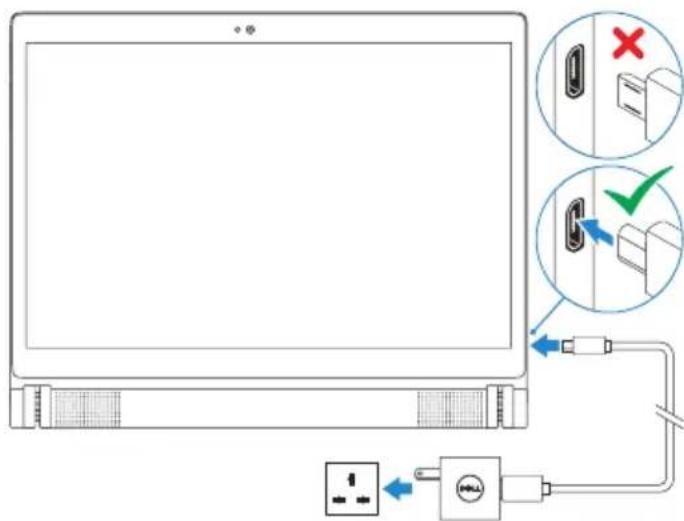
1 Connect the micro-USB cable into the power adapter.

natural_image
Line drawing of a DC power adapter connected to a Dell-branded charging unit with cable (no text or symbols)2 Connect the micro-USB cable to the micro-USB/charging port on the tablet.
3 Connect the power adapter to an electrical outlet and charge the tablet battery until it is fully charged.
text_image
Diagram showing connection between a laptop and a power outlet, with labeled switches and icons indicating status or repair.
NOTE: A fully discharged battery takes up to 7 hours to fully charge when the tablet is not in use.

NOTE: You can also trickle charge the tablet by connecting your tablet to a computer using the micro-USB cable. When connected to a computer, the battery charges slowly as the charge time depends on the power output of the USB port. The tablet may not charge if it is connected to a USB hub, or if the computer is switched off or in sleep mode.
You can check the tablet's battery charge status from the battery icon displayed at the top of the screen:
| Battery icon Description | |
| The battery is fully charged. | |
| Tablet is connected to a power supply and the battery is charging. | |
| Tablet is running on the battery power and the battery is discharging. | |
| Tablet is running on the battery power and the battery charge is low. | |
| Tablet is running on the battery power and the battery charge is critically low. | |
Connecting your tablet to the keyboard

NOTE: The keyboard communicates to your tablet using Bluetooth. Before using your keyboard, ensure that Bluetooth is enabled on your tablet. For more information, see "Turning on/off Bluetooth".
1 Align the keyboard slots with the tablet connectors.
2 Insert the tablet into the keyboard until it magnetically clicks into place.

natural_image
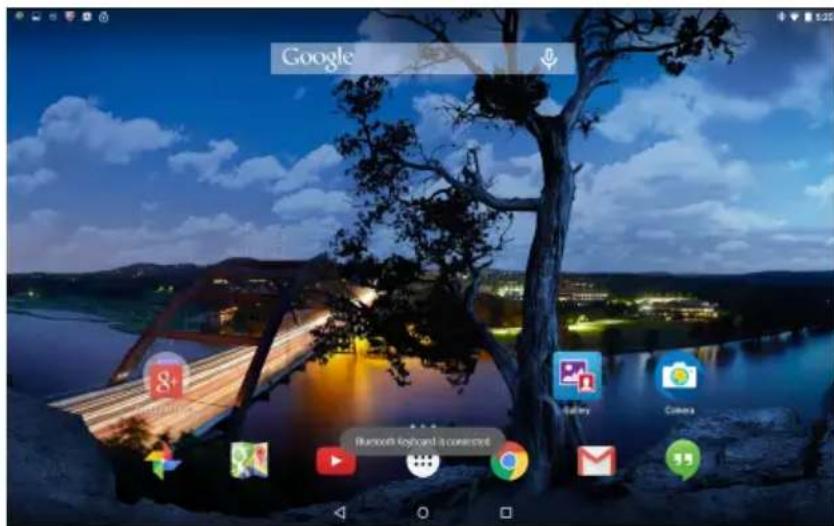
Line drawing of a laptop with a blank screen and two blue arrows pointing to the keyboard (no text or symbols)After your tablet successfully connects to the keyboard, the keyboard backlight and the Caps Lock light turn on, and the Bluetooth keyboard is connected message is displayed briefly on the screen.
text_image
Google 8+ Bluetooth keyboard is connected Gallery Camera
NOTE: When a keyboard is connected to your tablet, the on-screen keyboard does not appear when a text input field is selected.
Disconnecting your tablet from the keyboard
CAUTION: Do not try to forcefully disconnect your tablet from the keyboard. Disconnect your tablet from the keyboard by following these instructions.
CAUTION: To prevent the tablet from accidentally falling over, ensure that you hold the tablet firmly with one hand while disconnecting from the keyboard.
1 Open the tablet to the widest possible angle.

natural_image
Line drawing of a laptop with a blue arrow indicating the direction of change (no text or symbols present)2 Hold down the keyboard, and push the center of the tablet outwards.

natural_image
Line drawing of a laptop with a blue arrow indicating rotation, showing front and back views (no text or symbols)Modes
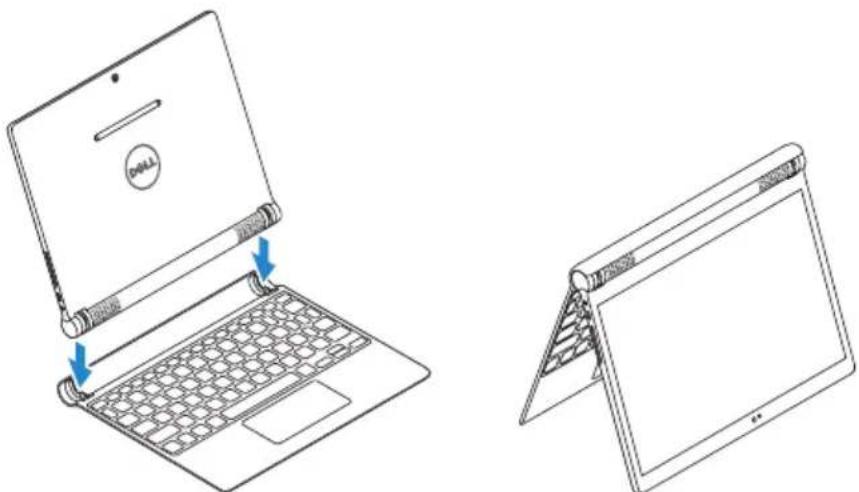
Laptop mode
Connect the tablet to the keyboard with the display facing toward the keyboard.

natural_image
Line drawings of two laptops with blue arrows indicating their keyboard positions (no text or symbols present)Tent mode
Connect the tablet to the keyboard with the display facing away from the keyboard.

NOTE: The keyboard is disabled in this mode.
natural_image
Line drawings of a Dell laptop and its open screen, showing front and side views with no text or symbols.Turning on your tablet
When you turn on the tablet for the first time, you must finish Android setup. For more information, see the Quick Start Guide that shipped with your tablet.
1 Press and hold the power button for 7 seconds to turn on your tablet.
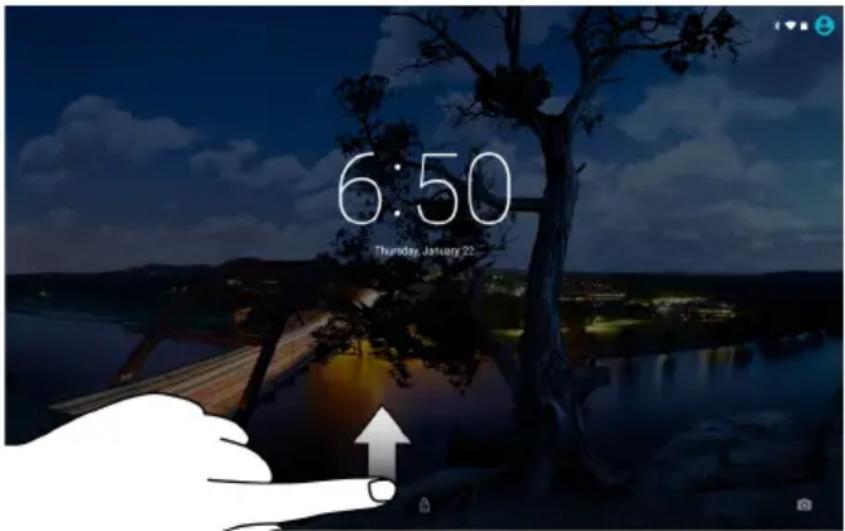
The lock screen appears.
2 Swipe the lock screen up to display the Android Home screen.

NOTE: Swipe the lock screen left to launch the Camera app.

NOTE: If the lock screen is set to PIN, Pattern or Password, you need to unlock the tablet first to access the Home screen. For more information, see "Unlocking your tablet".
text_image
6:50 Thursday, January 22The tablet is ready for use when the Android Home screen is displayed.
Turning off your tablet
To turn off your tablet, press and hold the power button until the options menu is displayed and then tap Power off.
Locking your tablet
Press the power button to turn off the screen and lock your tablet.
Your tablet provides several screen locks including Swipe, Pattern, PIN, and Password to protect your tablet against unauthorized access. To configure the screen lock:
1 Tap ⏻→ Settings → Security → Screen lock.
2 Select the screen lock you want to use for your tablet and follow the instructions on the screen.

NOTE: It is strongly recommended that you choose at least one of the screen locks to protect your tablet.

NOTE: The default screen lock is set to Swipe.
Unlocking your tablet
To unlock your tablet:
1 Press the power button to wake up the screen.
2 Unlock the screen using one of the following methods, depending on the type of lock you have configured:
Swipe Swipe the lock screen up.
Pattern Draw the correct pattern.
PIN Enter the correct PIN.
Password Enter the correct password.

NOTE: If a screen lock is not enabled, the Home screen is displayed after your press the power button.
Inserting microSD card
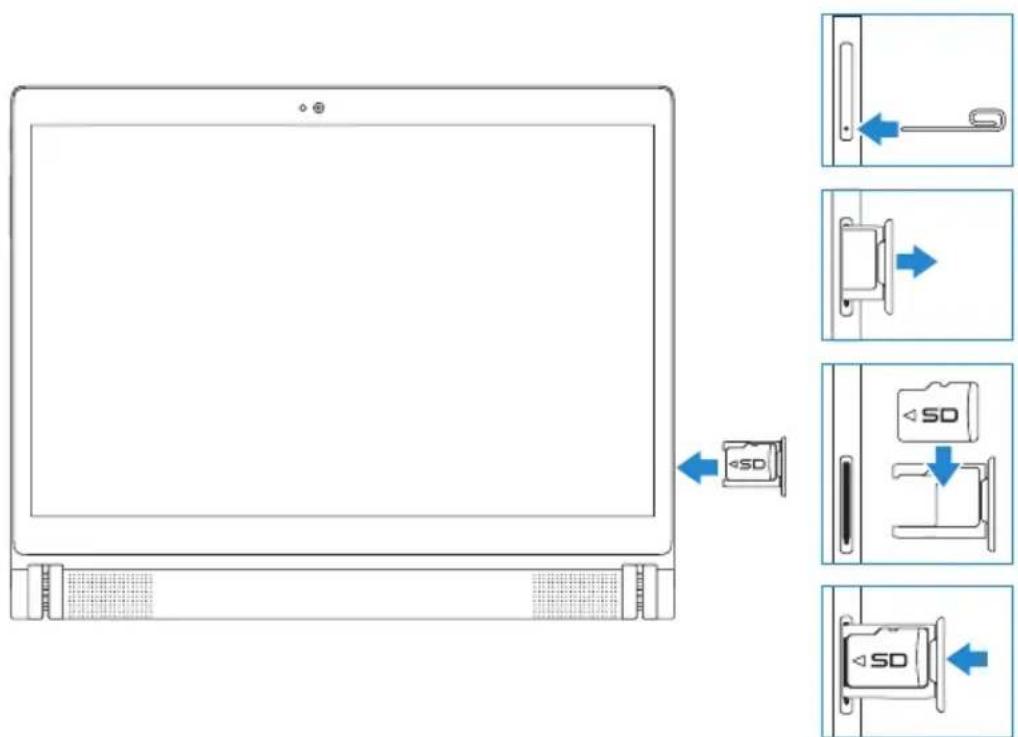
text_image
Diagram illustrating device port and storage mechanism with labeled arrows pointing to different storage states.1 Insert and press a pin or paper clip into the pinhole on the microSD-card tray to eject the microSD-card tray.
2 Remove the microSD-card tray.
3 Align and place the microSD card in the tray so that the pins are pointed toward the card slot and are facing toward the rear of the tablet.
4 Slide the microSD-card tray into the card slot.
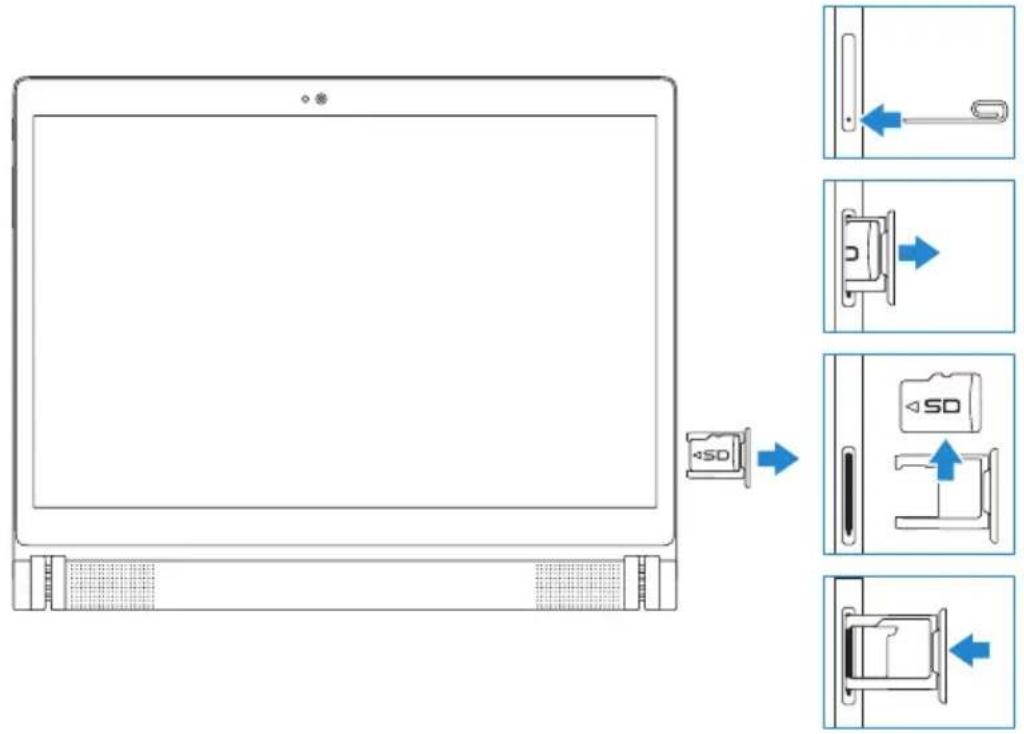
Removing microSD card

CAUTION: Removing the microSD card while it is in use may cause data loss or result in application errors. Ensure all save operations to the microSD card are complete before removing the microSD card.
1 Tap ⬙→ Settings → Storage.
2 In the SD Card menu, tap Unmount and then confirm your choice.
A message appears confirming that the microSD card can be safely removed.
3 Insert and press a pin or paper clip into the hole on the microSD-card tray to eject the microSD-card tray.
4 Remove the microSD-card tray.
5 Remove the microSD card from the tray and slide the tray into the card slot.
flowchart
graph TD
    A["Start"] --> B["Device with 'SD' label"]
    B --> C["Transfer to Tablet with 'S' icon"]
    C --> D["Device with 'SD' icon"]
    D --> E["Transfer to Tablet with 'S' icon"]
    E --> F["Device with 'SD' icon"]
Using headphones
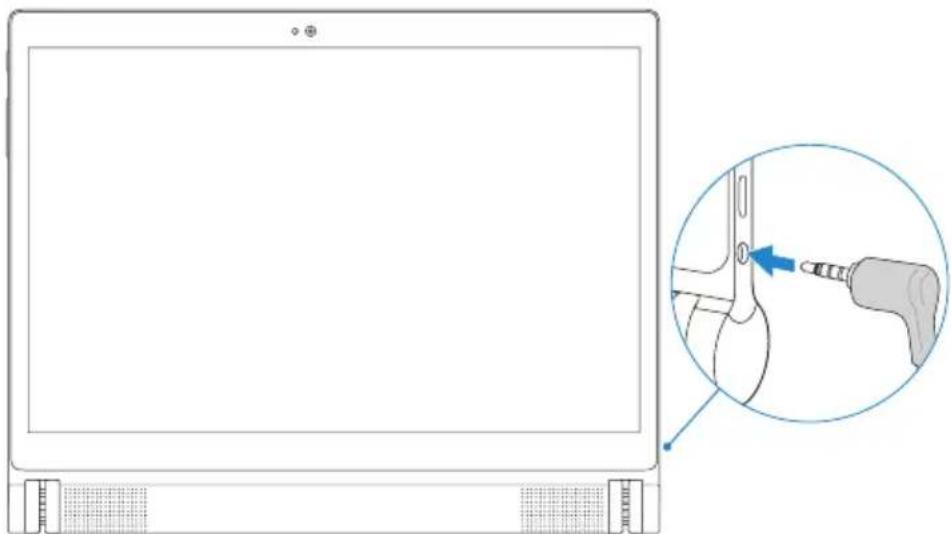
You can connect a headset, headphones, microphone, or other audio equipment to the headset port of your tablet.

WARNING: Listening to loud music for an extended period of time can lead to hearing loss.
natural_image
Illustration of a laptop with a close-up view showing a mechanical component inserted into the screen (no text or symbols present)1 Connect headphones to the headset port (3.5 mm) on the tablet. 2 Put on the headphones and adjust the volume to a comfortable level.

NOTE: When you connect an audio device to the 3.5 mm headset port, the integrated speakers on your tablet are muted automatically.

CAUTION: To prevent damaging your headphones when disconnecting from the tablet, pull the connector and not the cable.
Using your tablet
Home screen
When you turn on your tablet and unlock the screen, the Android Home screen is displayed. The Home screen displays app shortcuts, status icons, notification menu, Favorites tray, and navigation bar.
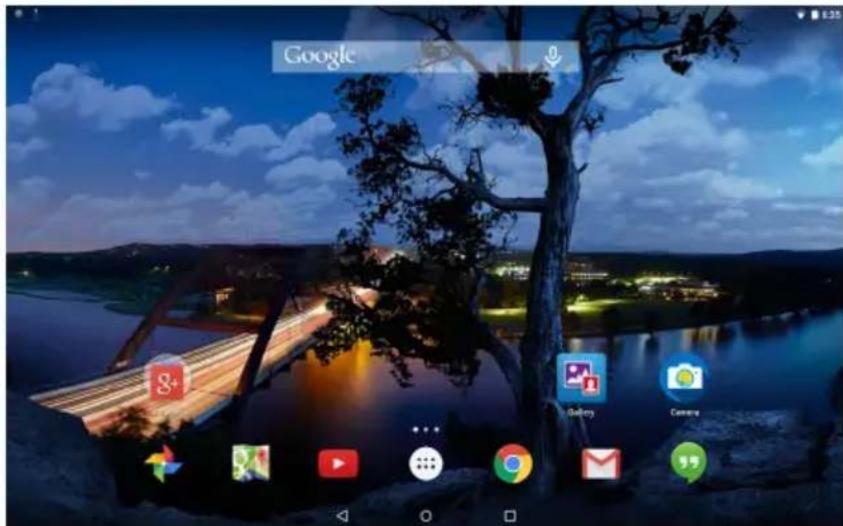
text_image
Google g+ Galaxy Camera
NOTE: Tap!! to display the All apps screen. The all apps screen allows you to browse all your apps and widgets that are installed on your tablet.
Customizing Home screen
You can customize your Home screen by adding app shortcuts, widgets, or changing the Home screen wallpaper.
Adding app shortcuts
You can add app shortcuts to your Home screen for quick access.
To add an app shortcut to the Home screen:
1 Tap
2 Touch and hold the app you want to add to the Home screen.
3 Move the app to the area you want to place it in and release your finger.
NOTE: If there is an app or widget in the area you want to place the app, it will be automatically moved to a nearby area.
NOTE: To create a folder, move the app shortcut on top of another app shortcut on the Home screen and release your finger.
Adding widgets
1 Touch and hold any empty space of the Home screen, and then tap ⏻WIDGETS.
2 Touch and hold the widget you want to add to the Home screen.
3 Move the widget to the area you want to place it in and release your finger.
NOTE: If there is an app or widget in the area you want to place the widget, it will be automatically moved to a nearby area.
Changing wallpaper
1 Touch and hold any empty space of the Home screen, and then tap WALLPAPERS.
2 Tap a wallpaper thumbnail to choose a pre-installed wallpaper image or tap Pick image to choose an image from your picture gallery.
Quick Settings
The status icons are displayed at the top-right of the Home screen. Swipe-down from the top of the display twice with one finger or once with two fingers to access the Quick Settings menu. The Quick Settings menu provides quick access to settings, such as Wi-Fi, Bluetooth, display brightness, and so on.

text_image
6:37 AM Thursday, January 22 87% Home Bluetooth Airplane mode Auto-rotate LocationNotification menu
Notifications are displayed on the top-left of the Home screen. Swipe-down from the top of the display with one finger to access the notification menu that shows notification alerts such as new messages, calendar events, ongoing downloads, and so on.
To access the related-app, tap the notification. To remove a notification, swipe it away. You can swipe down certain notification alerts slowly to expand it and view more details.

NOTE: To dismiss all notifications, tap at the bottom of the notification menu.

NOTE: The notifications can also be seen on the lock screen. Swipe-down within the notification to view more details or tap twice to open the related-app. If you have setup a screen lock, you must unlock your screen to see the contents of the notifications.
Favorites tray
The Favorites tray is displayed at the bottom of the Home screen and gives you quick access to your favorite apps. You can place six app shortcuts or folders in the Favorites tray.
To add an app shortcut to the Favorites tray:
1 Tap
2 Touch and hold the app you want to add to the Favorites tray.
3 Move the app into the position you want to place it in and release your finger.

NOTE: To create a folder, move the app shortcut on top of another app shortcut on the Favorites tray and release your finger.

NOTE: The All Apps icon 📄 in the Favorites tray on any Home screen is permanent. Tap 📋 open the All Apps screen.
Navigation bar
The navigation bar is displayed at the bottom on your screen and has three buttons — Back, Home, and Recent apps.
| Icon Item Description | |
| ◀ | Back button Tap to return to the previous screen or exit the running application. |
| NOTE: When the on-screen keyboard is displayed, the back button changes to the hide button ▼Tap to hide the on-screen keyboard. | |
| ○ | Home button • Tap to return to the Home screen.• Touch and hold, then swipe up to open Google Search. |
| □ | Recent apps button Tap to display a list of the most recently used apps. |
| NOTE: When the list of the recently used apps is displayed, swipe away a preview from the list or tap ×to close the app. | |
For more information on using Android, see support.google.com/android.
Gestures
Your tablet has a multi-touch display. You can touch the screen to operate the tablet.
| Finger gestures Allows you to: | |
TapTouch gently on the display with your fingertip.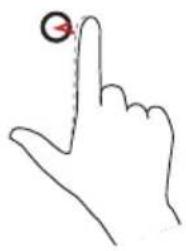 | Select items on the screen including options, entries, images, and icons.Start apps.Touch buttons on the screen.Input text using the on-screen keyboard. |
Touch and holdTouch and hold your finger on the display.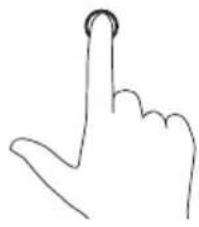 | Open the Wallpaper menu by touching and holding the background of the Home screen.Move or remove an app or a widget from the Home screen.Add an app icon on the Home screen.Uninstall an app.View app information from the All Apps screen. |
Drag1 Touch and hold your finger on an item on the screen.2 Keeping your finger in contact with the display, move your fingertip to the desired location.3 Take your finger off the display to drop the item at the desired location.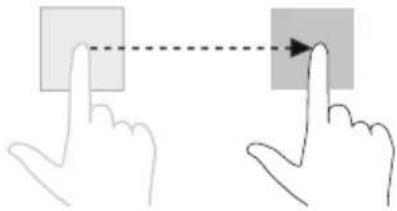 | Move items such as images, apps, and icons on the screen. |
Swipe or slideMove your finger in a vertical or horizontal direction on the display.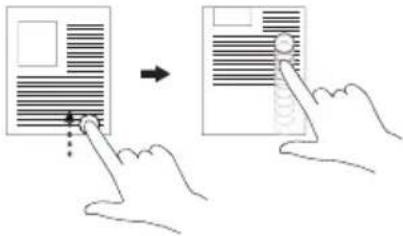 | Scroll through the Home screens, apps, web pages, lists, entries, photos, contacts, and so on. |
Zoom inTouch the display with two fingers and then move the fingers apart.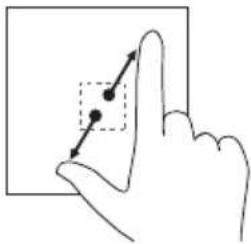 | Enlarge the view of an image or web page. |
| Zoom outTouch the display with two fingers and then move the fingers closer. | Reduce the view of an image or web page. |
 | |
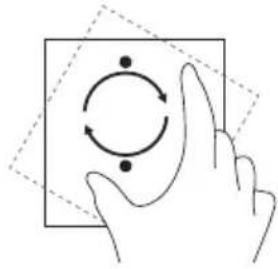
| RotateTouch the display with two fingers and then move the fingers in a clockwise or counter-clockwise arc. | Rotate objects within apps. |
 |
Screen orientation
For an optimal viewing experience, the screen orientation changes automatically to portrait or landscape depending on how you hold the tablet. You can disable automatic screen rotation and lock the screen in portrait or landscape mode.

NOTE: Some apps may not support automatic screen rotation and are designed to work only in one orientation.
Locking and unlocking the screen orientation
1 Hold the tablet in the desired orientation.
2 Access Quick Settings by swiping with two fingers from the top of the display.
3 Tap Auto-rotate to lock the screen orientation, or tap Portrait or Landscape to unlock the screen orientation.
Wi-Fi
Turning on/off Wi-Fi:
1 Tap ⏻→ Settings → Wi-Fi.
2 Use the slider to turn Wi-Fi on or off.

NOTE: You can also access the Wi-Fi setting in the Quick Settings menu. For more information, see "Quick Settings".
Connecting to a network:
1 Tap ⬙→ Settings → Wi-Fi.
2 Use the slider to turn Wi-Fi on.
3 Tap Wi-Fi to scan for Wi-Fi networks within range.
A list of available Wi-Fi network is displayed.

NOTE: To scan for available Wi-Fi networks again, tap at the top-right corner of the Wi-Fi menu and tap Refresh.
4 Tap the network you want to connect to.

NOTE: If you are connecting to a secured wireless network, enter the password for the wireless network access when prompted and tap Connect.
Bluetooth
Turning on/off Bluetooth:
1 Tap ⬙→ Settings → Bluetooth.
2 Use the slider to turn Bluetooth on or off.

NOTE: You can also access the Bluetooth setting in the Quick Settings menu. For more information, see "Quick Settings".
Pairing with Bluetooth-enabled devices:
1 Tap ⬙→ Settings → Bluetooth.
2 Use the slider to turn Bluetooth on.
3 Tap Bluetooth to scan for Bluetooth devices within range.
4 In the list of devices, tap the Bluetooth device you want to pair.
5 If prompted, verify that the Bluetooth passcode that appears on both the tablet and the Bluetooth-enabled device are the same.
6 Confirm the pairing process on both the tablet and device.

NOTE: Once a device is successfully paired with the tablet, it automatically connects with the tablet when Bluetooth is enabled on both tablet and device.

NOTE: To scan for available Bluetooth devices again, tap at the top-right corner of the Bluetooth menu and tap Refresh.
Intel RealSense Snapshot
Intel RealSense Snapshot is a depth-capturing technology allowing you to capture high-resolution pictures and videos with depth perception using the Camera app. You can change the color, exposure, effects, and focus settings for the photos and share with your friends using the Gallery app.
Taking Intel RealSense Snapshot photos
1 Tap ⬆ to launch the Camera app.
2 Tap the mode button ◀
A list of camera modes is displayed.
3 Tap Depth Snapshot
4 Tap the shutter button to take a photo.
To view the captured photo, tap the thumbnail on the camera screen or launch the Gallery app
Shortcut buttons
The three shortcut buttons located under the shutter button allow you to quickly toggle between various camera settings. You can customize these three shortcut buttons by choosing from a list of buttons in the camera settings menu.
To customize the shortcut buttons:
1 Tap ⬆ to launch the Camera app.
2 Tap the settings menu icon
3 Scroll down to the bottom of the settings menu.
4 Tap the button you want to set as your shortcut button in the Shortcut Button tabs. The changes are saved automatically.

NOTE: To dismiss the settings menu, tap anywhere on the screen outside the menu.
Editing Intel RealSense Snapshot photos
1 Tap 🔗 to launch the Gallery app.
2 Tap the thumbnail of the photo you want to edit.

NOTE: Intel RealSense Snapshot photos feature a 3D icon pn the top-left corner of the thumbnail.
3 Tap the buttons at the top-left corner of the photo to access photo-editing options.
| Icon Item Description | |
| Edit Add filters or frames, change the dimensionsor orientation, or adjust color settings. | |
| Measure distance Measure distances or areas within a photoby tapping separate points within the photo. | |
| Focus Change the focal point of a photo bytapping a point within the photo, or byswiping-up or down. Swipe-left or right todecrease or increase the range of focus. | |
For more information on taking or editing photos, see the tutorial in the Gallery app 📄
Synchronizing your tablet
Using a Google account
Sign in to your Google account on your tablet to allow contacts, emails, calendar, and other data to be synchronized between tablets or computers on which you use the same Google account.
If you choose not to sign in or create a Google account during the setup process, you can add an account at a later time.
To add an account:
1 Tap ⏻→ Settings → Accounts → Add account → Google.
2 Follow the instructions on the screen.
Copy music, photos, and videos
1 Connect your tablet to a computer using the supplied USB cable, then transfer files to or from the computer.
2 After transferring files, use the Safely Remove Hardware and Eject Media wizard to remove your tablet from the computer.
Files can also be shared with another device via Bluetooth. Before transferring files, ensure that Bluetooth is enabled on both the tablet and the paired device, and that the tablet is compatible with the Bluetooth-enabled device. For information on pairing with Bluetooth devices, see "Bluetooth". For file transfer details and Bluetooth compatibility, see the software documentation for the Bluetooth device.
Resetting your tablet

CAUTION: Resetting your tablet erases all data from your tablet's internal storage, including your Google account, system app data, system settings, downloaded apps, music, photos, and other user data. Ensure that you back up all the required data before you proceed.

NOTE: Any data stored in your Google account will be restored when you sign in to your Google account again after resetting your tablet.
To reset your tablet:
1 Tap ⏻→ Settings → Backup & reset → Factory data reset.
2 Read the warning and tap Reset tablet.
Using the keyboard
Pairing a keyboard with your tablet
Your tablet and keyboard function via a Bluetooth connection. If you order a keyboard along with your tablet, they are already paired when you received them. If, however, your tablet and the keyboard are unpaired, you must pair them before use.
Pairing your tablet with the keyboard for the first time
1 Turn on Bluetooth on your tablet. For more information, see "Turning on/off Bluetooth".
2 Connect your tablet to the keyboard so that the keyboard is powered on. For more information, see "Connecting your tablet to the keyboard".

NOTE: You may be unable to pair the keyboard with your tablet if they are not connected properly.
3 Your tablet automatically scans for the keyboard and displays a pairing request dialog box.
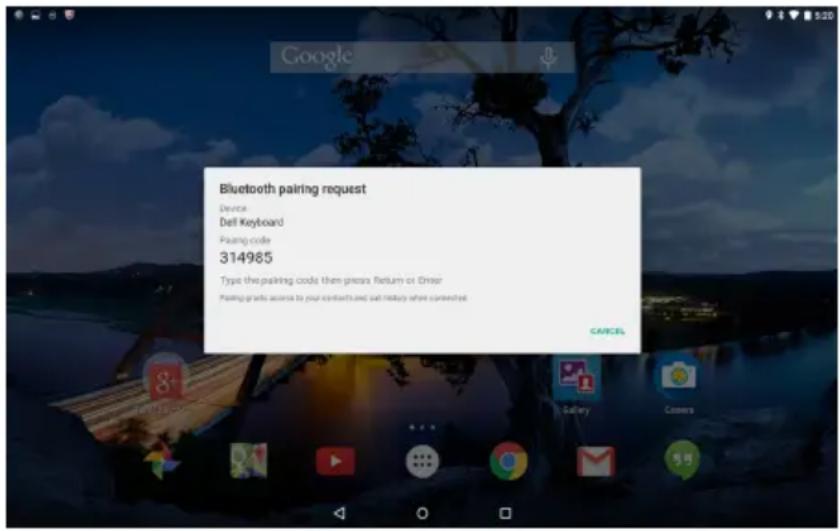
text_image
Bluetooth pairing request Device Dell Keyboard Pairing code 314985 Type the pairing code then gives Return on Dinner Pairing grants access to your contacted call history when prompted4 Use the keyboard to enter the pairing passcode that appears on the screen and press the Enter key.
The keyboard is ready for use when the Bluetooth keyboard is connected message is displayed.
Pairing your tablet with another keyboard
If your tablet has been paired with another keyboard or the keyboard to be paired has been paired with another tablet, a pairing failure message is displayed. Follow the steps below to pair the keyboard with your tablet.
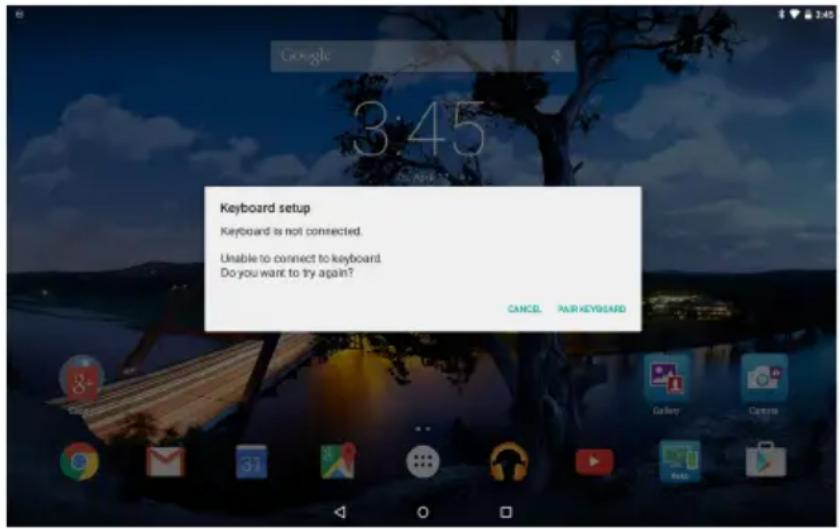
text_image
Keyboard setup Keyboard is not connected. Unable to connect to keyboard. Do you want to try again? CANCEL AIR KEYBOARD1 Tap PAIR KEYBOARD. Your tablet searches for the keyboard and displays a pairing request dialog box.
2 Use the keyboard to enter the pairing passcode that appears on the tablet screen and press the Enter key.

NOTE: Once your tablet is successfully paired with the keyboard and Bluetooth is enabled on your tablet, a Bluetooth connection automatically established each time your tablet is connected to the keyboard.

NOTE: You can use multiple Bluetooth-enabled devices simultaneously. For example, you can use the keyboard while listening to music on your Bluetooth headphones. For information on pairing with Bluetooth devices, see "Bluetooth".
Connecting to the keyboard in Airplane mode
If you enable Airplane mode on your tablet while the keyboard is connected, Bluetooth turns off and the keyboard stops working. To reactivate the keyboard with Airplane mode enabled, disconnect the keyboard from your tablet and then reconnect it. For more information, see "Disconnecting your tablet from the keyboard" and "Connecting your tablet to the keyboard".
When the tablet and keyboard are reconnected, your tablet stays in Airplane mode and only Bluetooth turns back on. You can also manually turn Bluetooth back on to reactivate the keyboard.
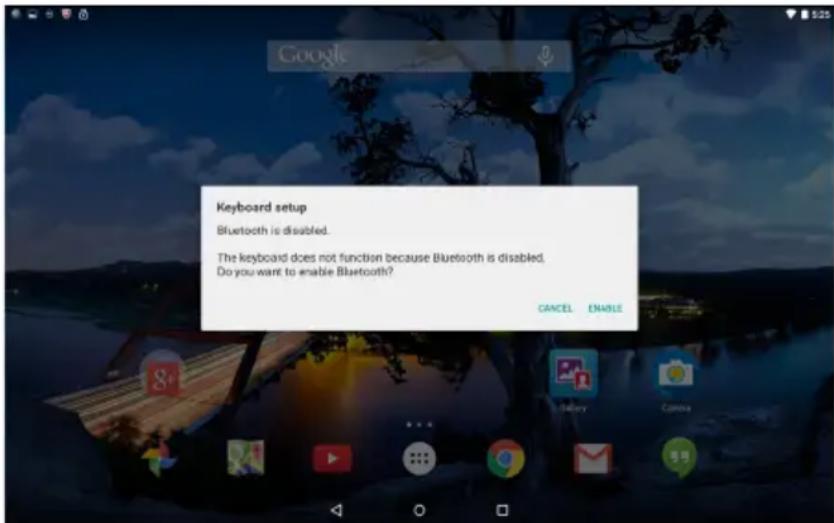
If you connect your tablet to the keyboard while Airplane mode is turned on, a prompt appears asking if you want to enable the keyboard. If you choose to enable the keyboard, Bluetooth turns back on automatically.
text_image
Keyboard setup Bluetooth is disabled. The keyboard does not function because Bluetooth is disabled. Do you want to enable Bluetooth? CANCEL ENABLEShortcut keys
The keyboard has shortcut keys along the top row of the keyboard that allow to you quickly access commonly-used functions.
| Icon Item Description | |
 | Back Return to the previous screen or exits the running application. |
 | Mute Mute the tablet's volume. |
 | Decrease volume Decrease the tablet's volume. |
 | Increase volume Increase the tablet's volume. |
 | Play previous track/ Play the previous track or chapter.chapter |
 | Play/Pause Play or pause the current media file. |
 | Play next track/ Play the next track or chapter.chapter |
 | All apps Open the All Apps screen. |
 | Action menu Access additional options for particular apps. |
 | Search Open a search menu. |
 | Keyboard backlight Turn the keyboard backlight on or off. |
 | Decrease brightness Decrease the brightness on the tablet's display. |
 | Increase brightness Increase the brightness on the tablet's display. |
Icon Item Description

Screen lock Turn off the screen and lock your tablet.
NOTE: To unlock the tablet, press any key on the keyboard or press the power button on your tablet. For information on unlocking the tablet, see "Unlocking your tablet".

Home Return to the Home screen.

NOTE: The left/right/up/down keys allow you to navigate through the Android Home screens, and select an app or app folders within each Home screen.

NOTE: If you type any alphanumeric keys on the Home screen, Google Search app opens and the text typed is entered in the Google search field.
Cleaning your tablet and keyboard
CAUTION: Before you clean your tablet, turn off the tablet, and disconnect the keyboard and any cables.
CAUTION: Clean your tablet with a soft cloth lightly dampened with water. Do not use liquid or aerosol cleaners which may contain flammable substances.
CAUTION: To avoid damaging the display, do not spray cleaning solution directly onto the display. Only use products specifically designed for cleaning displays and follow the instructions included with the product.
1 Disconnect your tablet from the keyboard. For more information, see "Disconnecting your tablet from the keyboard".
2 Turn off your tablet. For more information, see "Turning off your tablet".
3 Disconnect any attached devices, headphones, and speakers from the tablet.
4 Moisten a soft, lint-free cloth with either water or a display cleaner, and wipe the surface of the tablet until it is clean. Do not allow water from the cloth to seep down to the tablet ports or buttons.
5 Use a dry, lint-free cloth and wipe the surface of the keyboard until it is clean.
Troubleshooting
Battery problem
| Problems | Possible causes Possible solutions | |
| Battery does not charge. | Loose connections or cable problems. | 1 Check the cable, connectors, and power adapter to ensure proper connectivity.2 Verify that the wall outlet is functioning by connecting another device. |
| The tablet's temperature is below 0°C (32°F) or higher than 35°C (95°F). | Charge the battery in an ambient temperature between 0°C to 35°C (32°F to 95°F). | |
| The battery or power adapter is damaged. | Contact Dell for customer assistance.Seedell.com/support. | |
| Battery drains quickly even when the tablet is in standby mode. | If the tablet is not in the range of a Wi-Fi network it can connect to, the tablet continues to send out signals to locate a base station and drains the battery. | Temporarily turn off the tablet.Move the tablet in range of a network it can connect to or temporarily turn off Wi-Fi on your tablet. |
System problem
| Problems Possible causes Possible solutions | ||
| Tablet does not turn on. | The battery is completely discharged. | 1 Charge the tablet for at least 4 hours.2 Press and hold the power button for 7 seconds. |
| Tablet does not turn off. | Press and hold the power button for 10 seconds to turn off the tablet. | |
| Tablet locks up. Press and hold the power | button for 10 seconds to turn off the tablet and turn it on. | |
| Tablet does not respond or behaves unexpectedly. | 1 Restart the tablet.2 Reset the tablet. See “Resetting your tablet”.3 If the issue is unresolved, contact Dell for customer assistance. See dell.com/support. | |
| Tablet cannot boot into Android. | Contact Dell for customer assistance. See dell.com/support. | |
| Software or feature is not working as expected. | Software updates may have been downloaded in the background. Restart your tablet. | |
Network problem
| Problems Possible causes Possible solutions | |
| No wireless connection. | |
| Slow internet connections. | The signal strength is not strong enough. |
| Unable to pair with a Bluetooth device. |
Touchscreen problem
| Problems Possible causes | Possible solutions | |
| Touchscreen responds slowly or improperly. | The screen is dirty.A protective cover may prevent the tablet from recognizing your inputs. | Clean your tablet. See "Cleaning your tablet and keyboard".Remove any protective cover from the touchscreen. |
Keyboard problem
| Problems Possible causes Possible solutions | ||
| Keyboard does not work. | The keyboard is not connected to the tablet. | Ensure that your tablet is properly connected to the keyboard, and both keyboard backlight and Caps Lock light are illuminated. See "Connecting your tablet to the keyboard". |
| A Bluetooth connection between the keyboard and your tablet has not been established. | 1 Ensure that Bluetooth on your tablet is turned on. See "Turning on/off Bluetooth".2 Follow the proper pairing instruction to pair your tablet with the keyboard again. See "Pairing a keyboard with your tablet". | |
| Keyboard does not respond or responds intermittently. | The tablet is starting up. | Wait a few minutes and try again. If the issue is unresolved, pair the keyboard with your tablet again. See "Pairing a keyboard with your tablet". |
Locating your Service Tag and Express Service Code
You must provide the Service Tag and Express Service Code of your tablet when contacting Dell for customer service or technical support.

NOTE: The telephone system prompts you to enter the Express Service Code that helps in routing your call efficiently.
The Service Tag and Express Service Code for your tablet are located on a label at the back of the tablet. Example of the Service Tag and Express Service Code label is as shown in the image below:

text_image
DELL intel Inside PC ST3680017 011954982673 MB 133454769123456 Intel T136001
NOTE: Your Service Tag and Express Service Code information can also be seen in the My Dell app, along with other system information.
Contacting Dell
To contact Dell for sales, technical support, or customer service issues:
1 Have the Service Tag and Express Service Code information of your tablet ready. To locate the Service Tag and Express Service Code information, see "Locating your Service Tag and Express Service Code".
2 See dell.com/contactdell.
3 Select the appropriate service or support link based on your requirement or choose the method of contacting Dell that is convenient for you.
Dell provides several online and telephone-based support and service options. Availability varies by country and product, and some services may not be available in your area.

NOTE: If you do not have an internet connection, you can find contact information on your purchase invoice, packing slip, bill, or Dell product catalog.
Specifications
Tablet Dimensions
| Height 195.43 mm (7.69 in) |
| Width 243.36 mm (9.60 in) |
| Thickness 6.21 mm to 19.80 mm (0.24 in to 0.78 in) |
| Weight 595 g +/- 5 g (1.31 lb +/- 0.01 lb) |
Display
| Type 10.5-inch WQXGA display with multi-point capacitive touch |
| Resolution (maximum) 2560 x 1600 |
| Aspect ratio 16:10 |
| Brightness (maximum) 300 nits |
| Viewing angle Up to 180 degrees |
| Contrast ratio 10000:1 |
| Color depth 24 bit/pixel (16M colors) |
System Information
| Processor Intel Atom Processor Z3580 | |
| OS Android 5.0 (Lollipop) | |
| RAM Built-in 2 GB DDR3 memory | |
| Storage | 16 GB eMMC |
| 32 GB eMMC | |
Camera
| Resolution: |
| Front camera 2 MP (16:9) |
| Rear camera 8 MP (16:9 or 4:3) |
| Depth cameras (2) 720p (16:9) |
Communications
| Wi-Fi Dual-band 802.11b/g/n/ac |
| Bluetooth Bluetooth 4.0 LE |
Ports and Connectors
| Audio One headset port (headphone and microphone combo) |
| MicroSD card One microSD-card slot supporting cards up to 512 GB |
| USB One micro-USB 2.0 port |
| Docking connectors Two keyboard slots |
Power Adapter
| Input voltage 100-240 VAC | |
| Input current (maximum) 0.50 A | |
| Input frequency 50-60 Hz | |
| Output power 10 W | |
| Output current 2 A | |
| Rated output voltage | 5 VDC |
| Temperature range: | |
| Operating 0°C to 40°C (32°F to 104°F) | |
| Storage | -40°C to 70°C (-40°F to 158°F) |
Tablet Environment
| Temperature range: |
| Operating 0°C to 35°C (32°F to 95°F) |
| Non-operating -40°C to 65°C (-40°F to 149°F) |
| Relative humidity (maximum): |
| Operating 10% to 90% (non-condensing) |
| Non-operating 5% to 95% (non-condensing) |
| Altitude (maximum, unpressurized): |
| Operating -15.20 m to 3048 m (-50 ft to 10,000 ft) |
| Storage -15.20 m to 10,668 m (-50 ft to 35,000 ft) |
Keyboard Information
| Dimensions: | |
| Height 198.60 mm (7.82 in) | |
| Width 243.40 mm (9.58 in) | |
| Thickness 18.40 mm (0.72 in) | |
| Power source | From the tablet (once connected to the tablet) |
| LED lights | Keyboard backlightCaps Lock |
| Connection type | Bluetooth 4.0 LE |
Glossary
This section provides information about the terms used in this document that is for informational purposes only and may or may not describe features included with your tablet.
A
A - ampere—A measure of the amount of electric charge passing a point in an electric circuit.
AC - alternating current—The form of electricity that powers your tablet when you plug the AC adapter power cable into an electrical outlet.
Ambient light sensor - A feature that helps to control the display brightness.
Apps - Software that allows you to perform a specific task. Your tablet is preloaded with a variety of applications, and additional applications can be downloaded from Google Play.
B
Bluetooth - a wireless technology for exchanging data, communicating with a keyboard or mouse, listening to music and creating a wireless personal area network over a short distance between devices. The connection may be restricted according to the Bluetooth profiles of each device. To be marketed as a Bluetooth device, it must be qualified to standards defined by the Bluetooth SIG.
D
Device - Hardware such as a disk drive, printer, or keyboard that is installed in or connected to your tablet.
E
Email - Electronic mail—a method of exchanging digital messages from an author to one or more recipients via the internet. Email servers accept, forward, deliver, and store messages, and neither the users nor their computers are required to be online simultaneously.
G
Google Now - An intelligent personal assistant developed by Google that works on a tablet or smartphone that runs Android. It serves as a day planner.
GRMS - A unit of acceleration caused by the force of gravity. The grms value is typically used to express the overall energy of a particular random vibration event and is a statistical value used in mechanical engineering for structural design and analysis purposes.
H
Hz - Hertz—A unit of frequency measurement that equals 1 cycle per second. Computers and electronic devices are often measured in kilohertz (KHz), megahertz (MHz), gigahertz (GHz), or terahertz (THz).
M
MicroSD - micro-Secure Digital—A smaller size of SD which is a removable flash memory card used for storing information in portable devices, such as mobile phones, digital cameras, and tablet computers. The standard size of SD is 32 x 24 x 2.1 mm (1.260 x 0.945 x 0.083 inches) and microSD is 15 x 11 x 1.0 mm (0.591 x 0.433 x 0.039 inches).
Micro-USB - micro-universal serial bus—A hardware interface for a low-speed device such as a USB-compatible scanner, set of speakers, printer, broadband devices, imaging devices, or storage devices. Devices are plugged directly in to a 5-pin socket on your tablet, both to communicate and to supply electric power. The micro-USB port can be connected to a standard USB port using micro-USB to USB cable.
R
Resolution - The sharpness and clarity of an image produced by a printer or displayed on a monitor. The higher the resolution, the sharper the image.
S
Service Tag - A bar code label on your tablet that identifies your tablet when you call Dell for customer service or technical support.
Shortcut - An icon that provides quick access to frequently used programs, files, folders, and drives. When you place a shortcut on your Android Home screen, touch the icon to open its corresponding folder or file without having to find it first. Shortcut icons do not change the location of files.
Sleep mode - A power management mode that shuts down all unnecessary computer operations to save energy.
V
V - volt—The measurement of electric potential or electromotive force. 1 volt appears across a resistance of 1 ohm when a current of 1 ampere flows through that resistance.
VAC - voltage in alternating current—A mathematics of AC voltages, as alternating currents are caused by alternating voltages.
VDC - voltage in direct current—A measurement in a DC system. The current flows directly, in one direction in the circuit, and flows at a specific, constant voltage.
W
W - watt—The measurement of electrical power. 1 watt is 1 ampere of current flowing at 1 volt.
Wallpaper - The background pattern or picture on the Home screen.
Wi-Fi - A technology as a synonym for WLAN (wireless local area network) connects to the internet when within range of a wireless network.
Widgets - A small application which resides on the Home screen and provides quick and easy access to information.
WXGA - wide-aspect extended graphics array—A video standard for video cards and controllers that supports resolutions up to 1280 x 800.