eNook Pro - Support pour écran plat Anthro - Free user manual and instructions
Find the device manual for free eNook Pro Anthro in PDF.


User questions about eNook Pro Anthro
0 question about this device. Answer the ones you know or ask your own.
Ask a new question about this device
Download the instructions for your Support pour écran plat in PDF format for free! Find your manual eNook Pro - Anthro and take your electronic device back in hand. On this page are published all the documents necessary for the use of your device. eNook Pro by Anthro.
USER MANUAL eNook Pro Anthro
ASSEMBLY INSTRUCTIONS
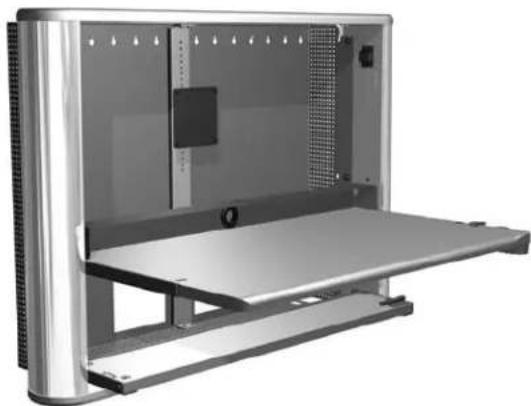
eNook® Pro
natural_image
Exterior view of a metallic server rack unit with ventilation grilles and mounting brackets (no text or symbols visible)Product Part#
eNook Pro for Laptops, 28w EPL2818zz/xx
eNook Pro for Laptops, 36w EPL3616zz/xx
eNook Pro for Monitors, 28w EPM2818zz/xx
eNook Pro for Monitors, 36w EPM3616zz/xx

ANTHRO
Technology Furniture®
- Fast and Friendly!
Anthro Corporation® | 10450 SW Manhasset Dr. | Tualatin, OR 97062
Toll-free: 800.325.3841 | Fax: 800.325.0045 | email: sales@anthro.com | anthro.com
Outside the U.S. | Tel: 503.691.2556 | Fax: 503.691.2409
Rev C, May 2009
text_image
Technical diagram of a device's internal components with numbered parts for identificationWELCOME
Thank you for purchasing eNook® Pro! This installation is a two-person job.
If you have any questions or if we can help you in any way, please contact us at 800.325.3841.
NOTE: We provide do-it-yourself hardware and instructions for installation to wood studs and dry wall. Your eNook can be mounted to other surfaces (like concrete and brick), and this work should be done by a qualified contractor.
PARTS LIST
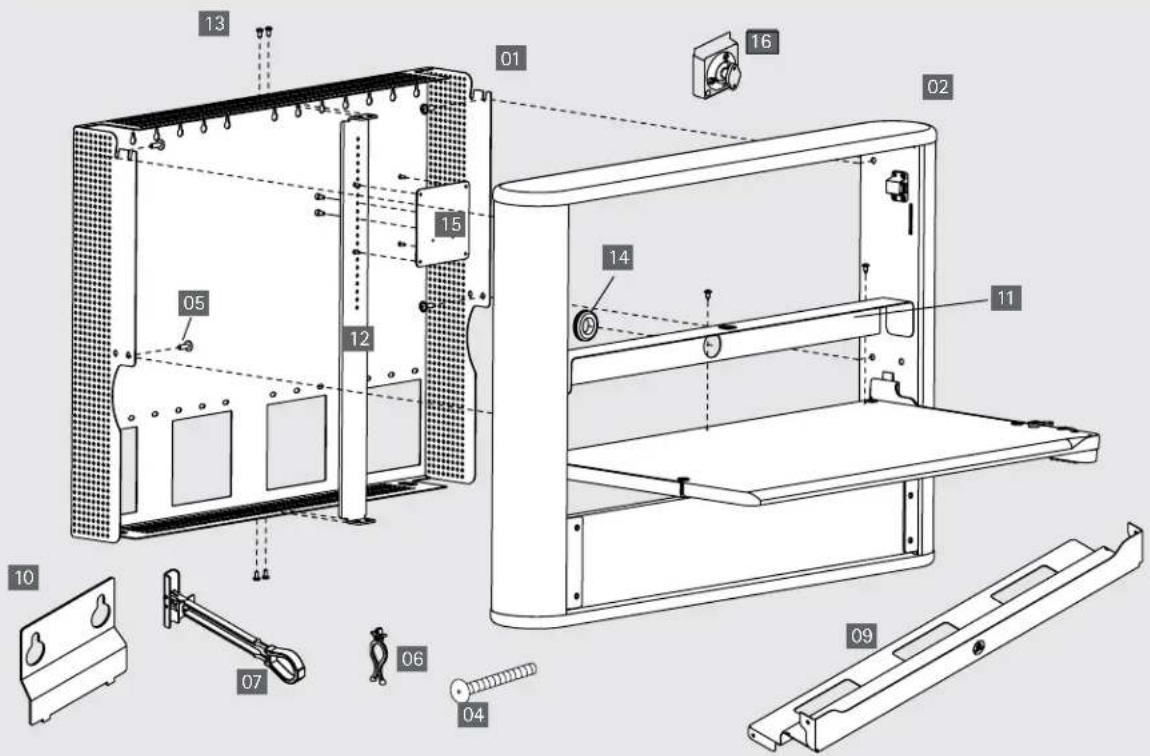
These instructions are for Anthro's eNook® Pro. Before beginning assembly, please take a moment to review the parts list below to verify that your shipment is complete.
Product Quantity Part Number
| 01 Back Frame 1 | ||
| 36w, Monitor | & Laptop Versions | 225-2802-23 |
| 28w, Monitor | & Laptop Versions | 225-2815-23 |
| 02 Main Unit 1 | ||
| 36w, Monitor | & Laptop Versions | 835-5258-00 |
| 28w, Monitor | & Laptop Versions | 835-5259-00 |
| 03 | 1-5/8" Screw (Not Shown) | 4 | 325-5086-00 |
| 04 | 1-1/2" Screw | 4 | 325-5358-00 |
| 05 | Workstation Screw | 325-5092-00 |
| Laptop Version 6 | ||
| Monitor Version 4 |
| 06 | Cable Clips | 6 | 175-5217-00 |
| 07 | Toggle Bolt Anchor | 4 | 325-5394-00 |
| 08 5/32" Anthro Hex Driver (not shown) | 1 375-5000-00 |
| 09 Laptop Tray (Laptop Version) | |
| 36w | 1 225-2811-00 |
| 28w (not shown) | 1 225-2816-00 |
| 10 | Cover Plate (36w Laptop Version) | 2 | 225-2814-00 |
Product Quantity Part Number
| ADDITIONAL COMPONENTS FOR MONITOR VERSION |
11 Keyboard & Mouse Keeper
| (Monitor Version) | 1 |
| 36w | 225-2823-00 |
| 28w | 225-2803-23 |
12 Monitor Bracket (Monitor Version) 1
| 36w | 225-2808-00 |
| 28w | 225-2810-00 |
| 13 | 3/8" Phillips Screw | 4 | 325-5150-00 |
| 14 | Rubber Grommet (Monitor Version) | 1 | 175-5237-00 |
| 15 | VESA Plates Kit | 1 | 825-3491-00 |
| Contains: |
| 75mm VESA Plate (1 ea) |
| 100mm VESA Plate (1 ea) |
| M4 x .7 x 8mm Screws (4 ea) |
| M4 x .7 x 13.5mm Screws (2 ea) |
| Hex Keys (3 ea) |
| 16 | Monitor Tilt & Pivot Mount (includes two Phillips mounting screws) | 1 | 575-5035-00 |
STEP 1
Select the Mounting Location
- When choosing the right place to install your eNook, be sure to check the location of your power source. The power cord on the optional medical-grade power strip (p/n 935PG) is 6 ft long.
- Your eNook can be mounted to drywall or to wood wall studs. If you're installing to wood wall studs, go to Step 2.
■ If you're installing into drywall, go to Step 7.
STEP 2
Find Wall Studs
■ Using a stud finder, locate the studs to which you'll attach your eNook.
STEP 3
Determine Mounting Point
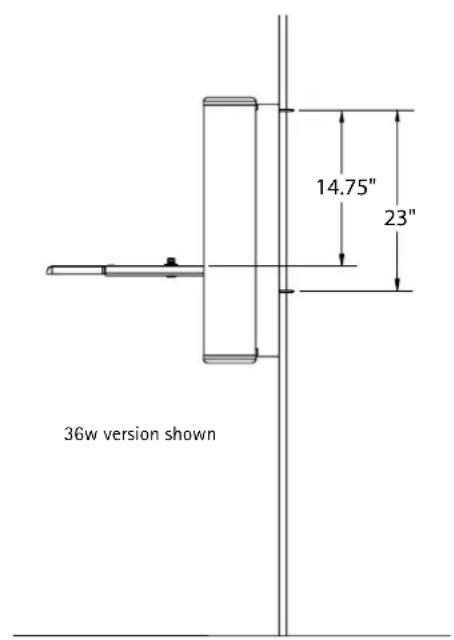
■ Determine the optimal desk height for your eNook. Typical sitting height is about 29" high; typical standing height is about 42" high.
- For the 36w eNook Pro, measure up 14-3/4" from the shelf location and mark that point on one stud. For the 28w eNook Pro, measure up 14-1/4" from the shelf location and mark that point on one stud.
text_image
36w version shown 14.75" 23"STEP 4
Attach Screws to Wall Studs
■ Using a 1/8" drill bit, drill one hole into a stud about 1-1/2" deep. How do you make sure that hole is 1-1/2" deep? Measure that length on your drill bit and mark it with a piece of masking tape. Stop drilling when you reach the masking tape.
■ Using a Phillips driver (or a power driver with a Phillips bit), attach the first 1-1/2" long screw at that mounting point, but don't tighten all the way to the wall. Stop tightening when the screw head is about 1/4" away from wall.

text_image
Wall Stud Profile 1½" Tape Drill 1/4" Screw 1-1/2" Screw 325-5358-00STEP 5
Lift eNook Frame onto screws
■ Lift the eNook frame onto the first mounting screw. Keyhole slots on the frame are spaced every 2", so you can position the eNook where you want it.
■ While one person holds the eNook frame level, the second person marks the installation point of the second 1-1/2" long screw. Make sure that the second screw goes into a stud, too!
■ Remove the frame from the wall and drill the second hole with the 1/8" drill bit.
■ Using a Phillips driver, attach the second 1-1/2" long screw. Stop tightening when the screw head is abut 1/4" away from the wall.
■ Lift the frame onto the two mounting screws.

text_image
1-1/2" Screw 325-5358-00STEP 6
Attach Lower Screws to Studs
■ Once the frame is on the wall, mark the mounting points for lower screws into the same studs.
■ Using the 1/8" drill bit, drill one hole in each stud about 1-1/2" deep.
- Attach the 1-1/2" long screws and tighten all four screws fully so that the Frame is snug against the wall.
Proceed to Step 11 for Monitor version; proceed to Step 12 for the Laptop version.
STEP 7
Determine the Mounting Point on Drywall
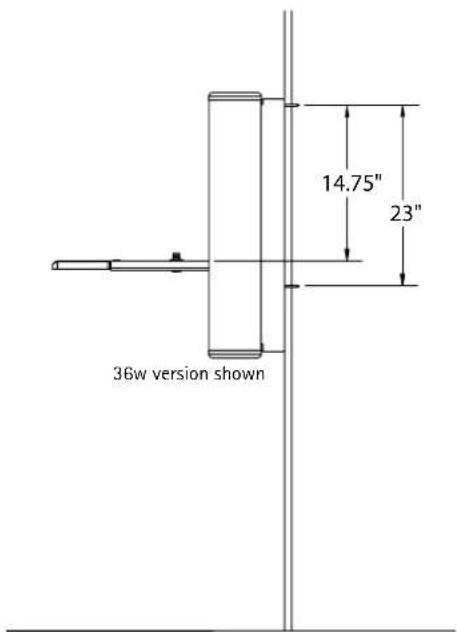
■ Determine the optimal desk height for the eNook work surface, refer to image for typical shelf heights.
- For the 36w eNook Pro, measure up 14-3/4" from the shelf location and mark that point. For the 28w eNook Pro, measure up 14-1/4" from the shelf location and mark that point.
■ Once you determine the right height for your eNook mark one mounting point hole location. When choosing the first mounting point, remember that the two upper mounting points should be at least 16" apart to keep the eNook stable. To help you visualize where eNook will be on your wall, use the eNook Frame as a template.
text_image
36w version shown 14.75" 23"STEP 8
Install one TOGGLER™ for Drywall Installation
- Drill 1/2" diameter hole in your wall at the mounting point.
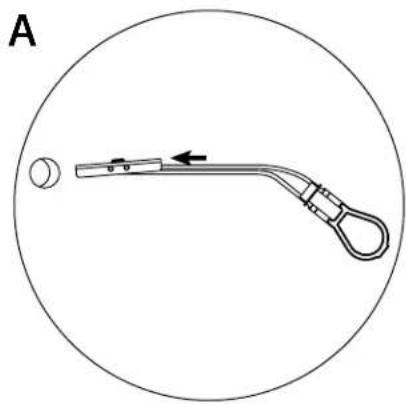
■ Insert a TOGGLER into a hole, metal end first.
■ Pull the plastic ring end so the metal channel rests flush behind the wall. With your other hand, slide the plastic cap along the straps until the flange of the cap is flush with the wall.
■ Place your thumb between the plastic straps. Push side to side, snapping off the straps at the wall. - Insert a 1-5/8" long screw into the TOGGLER, but don't tighten all the way. Leave the bolt head about 1/4" from the plastic cap.
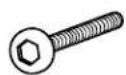
1-5/8" Screw
325-5086-00
natural_image
Diagram of a medical or laboratory tool with a curved handle and circular end, enclosed in a circle (no text or symbols)
natural_image
Diagram of a mechanical lever system with a circular boundary and directional arrow, no text or symbols present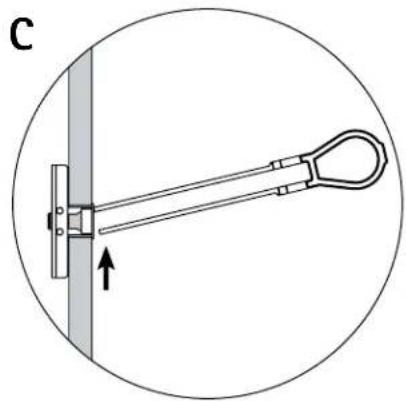
natural_image
Diagram of a mechanical lever system with a lever and pivot, enclosed in a circle (no text or symbols)
natural_image
Diagram of a screw fastener mounted on a wall, with an arrow indicating direction (no text or symbols)STEP 9
Install remaining TOGGLERs
This is a two-person step!
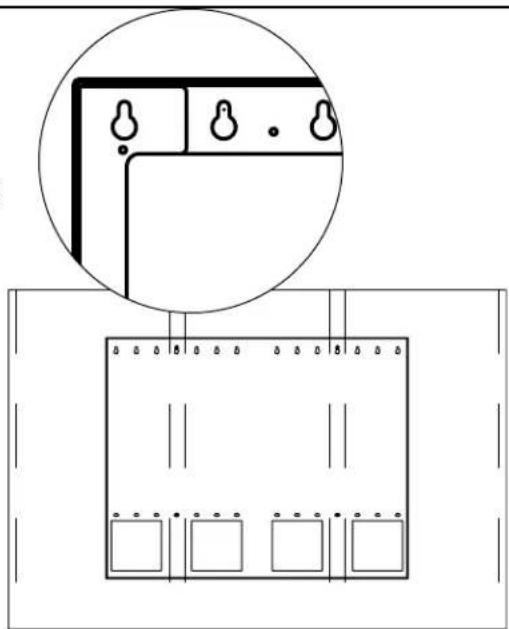
■ Lift the eNook Frame onto the bolt. Using a level to make sure that the Frame is level, mark the second mounting point as shown. Be sure that you mark your spot in the center of the small keyhole!
■ Mark the third and fourth mounting points along the bottom hole array. Set aside the Frame.
- Drill 1/2" diameter holes on the 2nd, 3rd, and 4th mounting points and install TOGGLERs as instructed above.
natural_image
Diagram showing a room layout with three windows and a circular inset view of a cabinet (no text or symbols)STEP 10
Insert Screw and Install Frame
- Insert one 1-5/8" long screw into the top two TOGGLERs, but don't tighten all the way. Leave the screw head about 1/4" from the plastic cap.
■ Lift the Frame onto the top two screws. Install the bottom two screws, then tighten down all four screws.
For Monitor version, go to Step 11. For Laptop version, go to Step 12.
STEP 11-A
Attach the Monitor Assembly to the Monitor Rail
■ Select the 75mm or 100mm VESA bracket that matches the hole pattern on the back of your monitor.
- Place the VESA plate in position in back of the monitor with the cut-out toward the top of the monitor. Using a Phillips screwdriver, attach the plate to the monitor with the four short fasteners packaged with the VESA plate.
■ Attach the Monitor Tilt and Pivot Mount to the VESA plate so that the tab on the top of the mount goes into the slot on the top of the plate. Secure using two 7.5mm screws using the Phillips screwdriver.
■ Orient the Monitor Rail so that the vertical hole array is at the top. Align the two holes on the back of the Monitor Pivot Mount with two holes on the Monitor Rail so the monitor is at the desired height, allowing enough space for your monitor to fit inside the enclosure. Secure the Monitor Assembly to the Monitor Rail with the two screws that came with the Monitor Pivot Mount.
■ If you purchased a second Monitor Rail, assemble it now.
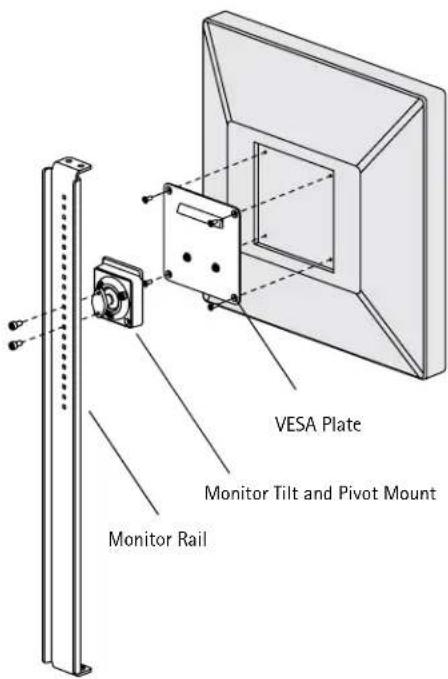
text_image
VESA Plate Monitor Tilt and Pivot Mount Monitor RailSTEP 11-B
Install the Monitor Rail onto the Back Frame
■ Determine the installation point of your Monitor Rail.
- Align the top of the Monitor Rail with the hole array at the top of the Back Frame so that your monitor is where you want it. Attach the Monitor Rail to the third row of holes from the back of the frame, in any left-to-right position. Use the Phillips screwdriver and two 3/8" Phillips screws. Next align the bottom of the Monitor Rail with the hole array at the bottom of the Back Frame. Attach using two more 3/8" Phillips screws.
■ If you have a second Monitor Rail, install it now.
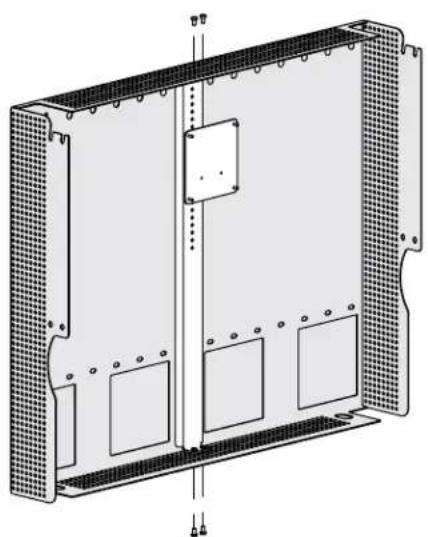
natural_image
Technical line drawing of a rectangular electronic enclosure with mounting holes and internal compartments (no text or symbols)STEP 12
Assemble the Main Unit
■ Using your Hex Driver, install two Workstation Screws onto the side walls at the top, but don't tighten all the way. Stop tightening when the screw head is about 1/2" from tight. If you have a Laptop version, skip ahead to Step 13.
- Slip the grommet into the cable opening at the back of the Keyboard Cubby. Place the Keyboard Cubby onto the shelf so that the logo faces up and the cable opening faces the back of the unit. Align the holes at the back of the cubby with the divets on the shelf. Attach the cubby to the shelf with three 1/2" Wood screws using the Anthro driver.

Workstation Screw
325-5092-00

1/2" Assembly Screw
325-5008-00
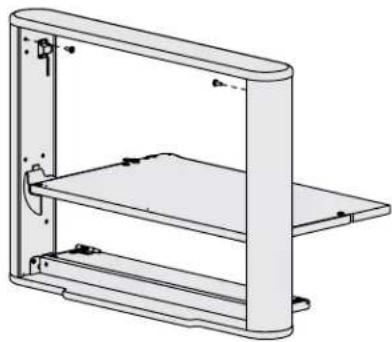
natural_image
Technical line drawing of a multi-tiered storage unit with mounting brackets and control knobs (no text or symbols)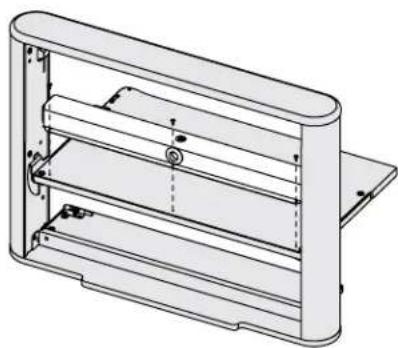
natural_image
Technical line drawing of a multi-layered mechanical housing or enclosure with no visible text or symbolsSTEP 13 - THIS STEP REQUIRES TWO PEOPLE
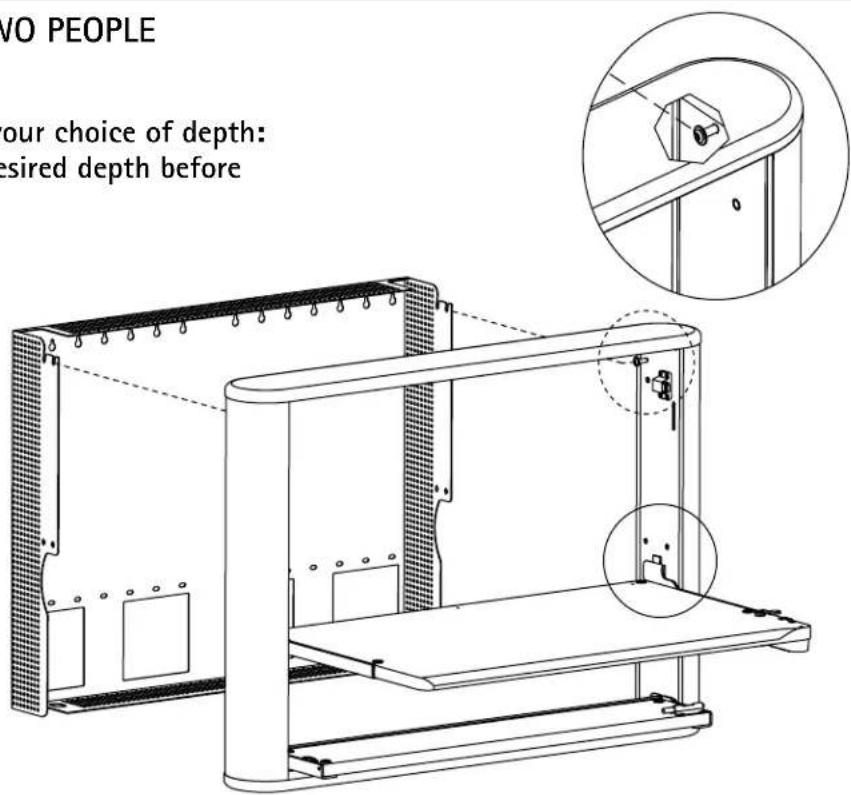
Attach Main Unit to Frame
NOTE: eNook Pro can be installed at your choice of depth: 7.25" or 8.25" deep. Determine the desired depth before beginning this step.
■ Open the top door and find the angle slots on the Back Frame.
The front set of angled slots is for 8.25" overall depth; the back set is for an overal depth of 7.25"
■ Lift the Main Unit onto the Back Frame by aligning the two Workstation Screws on the frame with the angle slots. Make sure that both fasteners are captured. For Laptop versions, skip ahead to Step 14.
■ For the Monitor versions, install two more Workstation Screws into the sidewalls at the bottom of the enclosure, just above the shelf bracket. Tighten all four Workstation Screws. Skip ahead to Step 15.
text_image
Two PEOPLE our choice of depth: desired depth beforeSTEP 14
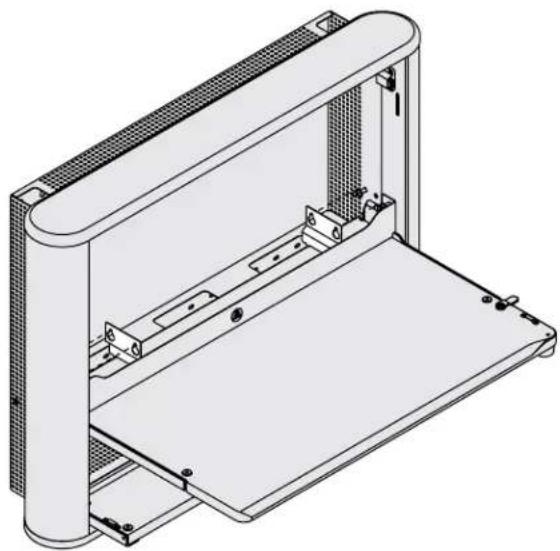
Insert the Laptop Tray and Cover Plates
- For the 28w Laptop versions, select a height for your laptop tray. While one person holds it in place, another loosely attaches with four 3/8" Phillips screws, two on the left and two on the right. Drive the screws through the ventilation holes on the sides of the Back Frame and into the threaded holes on the tray. When all screws are loosely installed, tighten them all. Skip ahead to Step 15.
- For the 36w Laptop versions, place the laptop tray on the eNook shelf so that the logo on the tray faces out. Slide the tray back and into place. Loosely secure the top of the tray with two Workstation screws, one on the left and one on the right, but leave the head of the screw about 1/2" from the edge of the unit.
■ Install a second pair of Workstation Screws next to the two that secure the laptop tray to the frame. Slip one Cover Plate over the pair of screws on the left so that the tabs at the bottom of the plate engage with the notches in the cubby. Repeat on the right.
■ Loosely secure the bottom of the tray with four 3/8" Phillips screws, two on the left and two on the right. Drive the screws through the ventilation holes on the sides of the Back Frame and into the threaded holes on the bottom of the tray.
■ Tighten all four Workstation screws and all four Phillips screws.
natural_image
Technical line drawing of a mechanical enclosure or enclosure with internal components and mounting brackets (no text or symbols)
Workstation Screw
325-5092-00

3/8" Phillips Hd Screw
325-5150-00
STEP 15
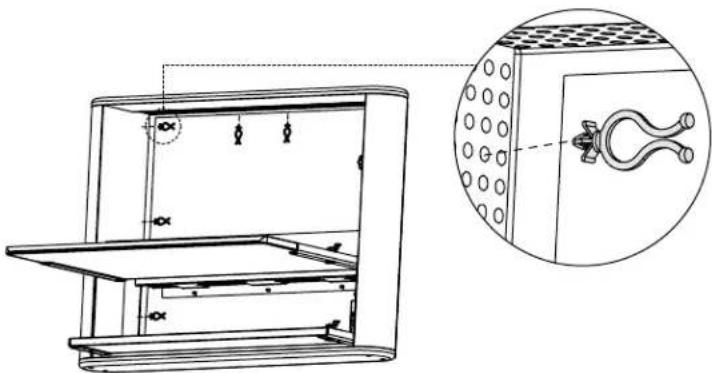
Insert Cable Clips
■ Cable Clips are provided to help manage your cables. Clips can be poked into any of the ventilation holes on the top, back, or side of eNook.
■ Twist the ends of the clips to keep the cables in place.
natural_image
Technical line drawing of a refrigerator interior with an inset close-up showing internal components (no text or symbols)CONGRATULATIONS! YOUR ENOOK PRO ASSEMBLY IS COMPLETE!
text_image
300-5455-00 Warranty: eNook has a five year warranty.Notices: . Patent Pending. Anthro reserves
Technology Furniture and eNook are trademarks of Anthro Corporation. Patent Pending. Anthro reserves the right to modify the design and specifications without prior notice.