Viper-X 3 - Drone Kogan - Free user manual and instructions
Find the device manual for free Viper-X 3 Kogan in PDF.


| Type | Quadcopter drone |
| Model | Viper-X 3 |
| Brand | Kogan |
| Dimensions (unfolded) | 50 x 50 x 15 cm |
| Dimensions (folded) | 30 x 30 x 10 cm |
| Weight | 250 g |
| Battery type | LiPo 3.7 V, 1800 mAh |
| Battery life | Approximately 15 minutes |
| Charging time | About 120 minutes |
| Remote control range | Up to 100 m |
| Camera resolution | 1080p Full HD |
| Flight modes | Altitude hold, Headless mode, One-key return |
| Gyroscope | 6-axis |
| Propeller count | 4 (2 CW, 2 CCW) |
| Spare parts available | Propellers, batteries, landing gear |
| Maintenance | Clean with soft dry cloth after flight |
| Safety features | Low battery warning, propeller guards, emergency stop |
| Recommended age | 14 years and up |
| Registration required | May vary by region; check local regulations |
| Included in box | Drone, remote controller, battery, USB cable, propeller guards, user manual |
Frequently Asked Questions - Viper-X 3 Kogan
User questions about Viper-X 3 Kogan
0 question about this device. Answer the ones you know or ask your own.
Ask a new question about this device
Download the instructions for your Drone in PDF format for free! Find your manual Viper-X 3 - Kogan and take your electronic device back in hand. On this page are published all the documents necessary for the use of your device. Viper-X 3 by Kogan.
USER MANUAL Viper-X 3 Kogan
natural_image
Line drawing of four identical propeller or fan components arranged in a symmetrical cross pattern (no text or symbols)VIPER-X 3 DRONE
WITH CAMERA AND VR HEADSET
KAVIP3DRONA
Safety & Warnings 3
Components 5
Overview 6
Installation 8
Operation 12
App Installation 19
Cleaning & Care 22
Notes 23
SAFETY & WARNINGS
Read all instructions in this guide before using this product. Retain this guide for future reference. Do not skip, substitute or modify any steps or procedures in this guide, doing so may result in personal injury or product damage.
Important notes
- Do not attempt to touch the drone whilst it is operating under any circumstances.
- This product is not a toy and can be dangerous when used incorrectly. Follow all instructions while operating. Disassembling or modifying the drone arbitrarily, operating improperly, or being unfamiliar with this product may lead to an accident and possible injuries.
- This product is intended for use by persons aged 14 years or older. It is recommended that people between 14-18 years operate the drone under supervision.
- Ensure the product is operated in a safe environment.
- It is recommended that you seek the assistance of an experienced drone pilot before attempting to fly the drone for the first time. A local expert is the best way to properly assemble, setup, and fly your drone for the first time. It requires a certain degree of skill to operate and is subject to normal wear and tear.
Safety notes
- Always operate the drone in a safe environment. Do not operate drones within the vicinity of people.
- Drones are prone to accidents and failures when piloted incorrectly. Operators are responsible for their actions as well as any damage or injury caused by pilot error and radio interference.
- This product is suitable for indoor and outdoor use. Always fly in a place clear of obstacles and keep a safe distance from people and pets.
- Do not operate the drone in unsafe conditions and keep clear of heat sources, wires, or electric power sources.
- This product contains precision electrical components. Always keep this product away from water and other liquids. Exposure to water or moisture in any form can cause this product to malfunction resulting in a crash.
-
To avoid a potential fire hazard, do not short, reverse the polarity, or puncture batteries. Buttery charging must be done under supervision and in a location out of reach of children.
-
Ensure that the orientation of the batteries is installed correctly based on polarity, as indicated in the battery compartment. Do not mix batteries of different chemistry/specification.
- Remove the batteries if you are not going to use this product for an extended period. Always dispose of old batteries according to your local environmental authority.
- Li-Polymer batteries pose higher operational risks compared to other battery types; thus it is imperative to follow its usage instructions.
- Avoid contact between the battery and metallic objects.
- If there is an increase in battery temperature after operation, cease use immediately and allow it to cool down. Continuous use of this battery may cause it to expand, deform, explode, or result in potential fire hazards.
- Drones are not to be flown within 5km of airports. Many locations are considered no fly zones and you must ensure that you fly in areas that align with your local laws and ordinances.
• Do not place heavy objects directly onto the drone or any of its components.
VR headset
- Do not use the VR headset while the phone is charging.
• During use, if you feel dizzy or sick, take a break before continuing operation. - Pregnant women, people with high blood-pressure, and people with a fear of heights should not use the VR headset.
COMPONENTS
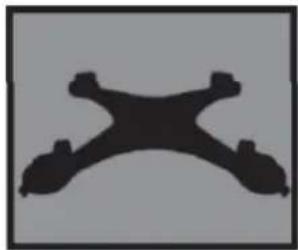
natural_image
Abstract black symmetrical shape on gray background (no text or symbols)Upper Body

natural_image
Abstract black silhouette of a symmetrical, bone-like shape on a gray background (no text or symbols)Lower Body

natural_image
Three identical gray propeller blades arranged vertically (no text or symbols visible)Propellers (x8)

natural_image
Four identical abstract curved shapes arranged in a 2x2 grid on a gray background (no text or symbols)Protecting Frames (x4)

natural_image
Four stylized blue elongated objects arranged in a row (no text or symbols)Landing Skids (x4)

natural_image
Simple 3D rendering of a cylindrical object with a small protrusion on top, shown against a plain gray background (no text or symbols)Motor (x4)

natural_image
Abstract white line drawing on gray background (no text or symbols)LED Lights (x2)
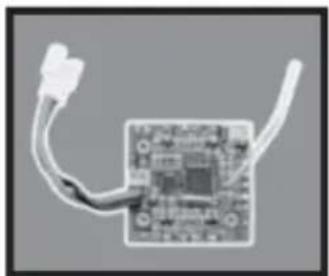
natural_image
Close-up of a circuit board with wires and connectors (no visible text or symbols)Receiver Board
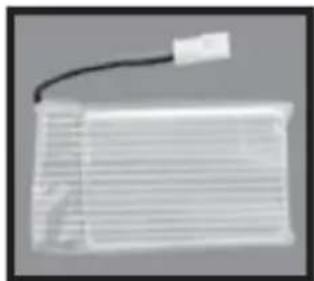
natural_image
Close-up of a rectangular electronic component with a black cable extending from its side (no visible text or symbols)Battery

natural_image
Close-up of a white USB cable with a small warning label (no readable text or symbols)USB Charging Cable

natural_image
Black plastic mechanical component with a handle and mounting bracket (no text or symbols visible)Phone Holder
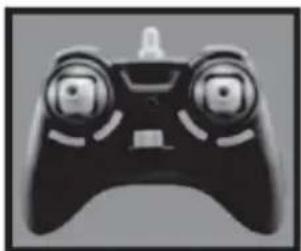
natural_image
Black and white image of a handheld game controller with dual circular dials (no text or symbols visible)Controller

natural_image
Close-up of a metallic cylindrical device with a black circular lens and a protruding handle (no visible text or symbols)Camera
OVERVIEW
Controller
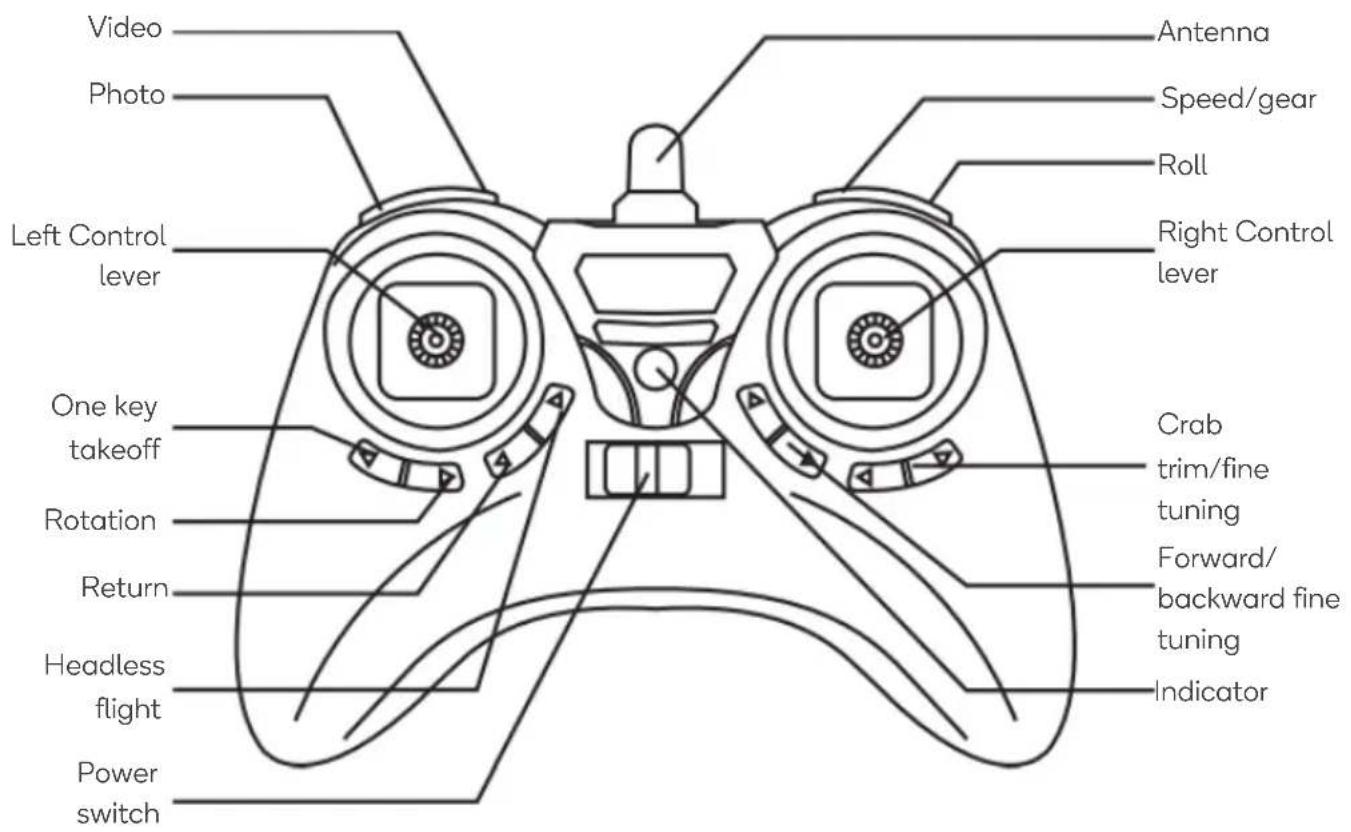
text_image
Video Photo Left Control lever One key takeoff Rotation Return Headless flight Power switch Antenna Speed/gear Roll Right Control lever Crab trim/fine tuning Forward/ backward fine tuning IndicatorVR headset
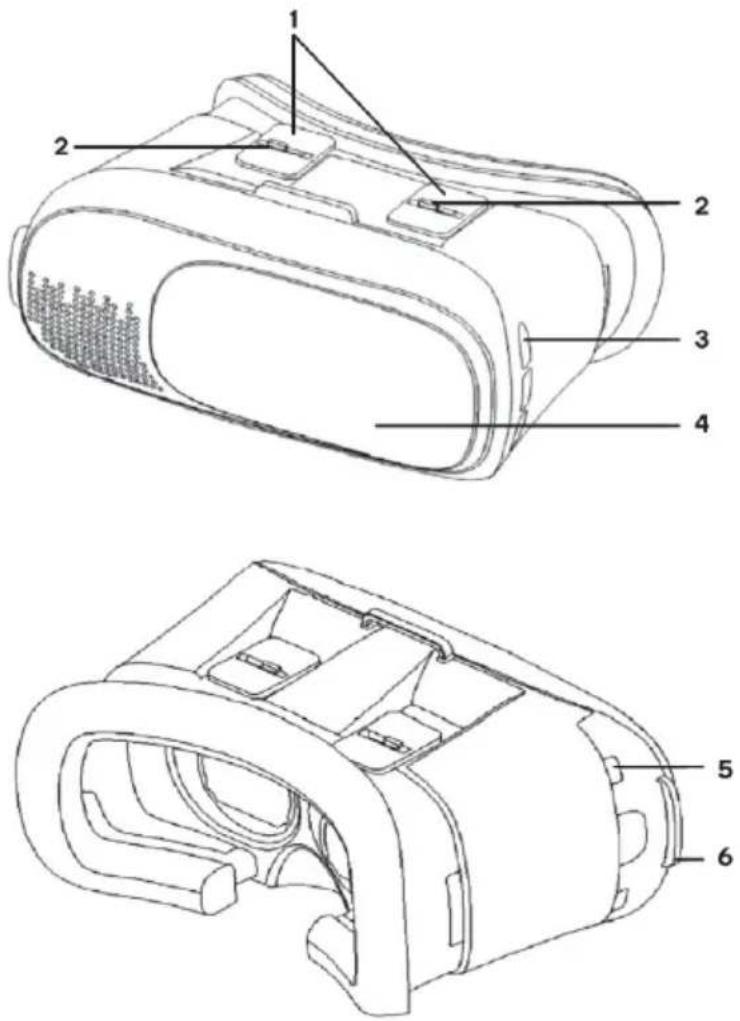
text_image
Technical diagram of a device's internal components with numbered labels for identification.| 1 | Focus slider | Adjusts the focal distance |
| 2 | IPD slider | Adjusts Inter-pupillary distance (IPD) |
| 3 | Left headphone jack | Left hand side headphone input |
| 4 | Sliding panel | Slides to expose the phone’s camera |
| 5 | Phone holder | Open to insert phone into headset |
| 6 | Right headphone jack | Right hand side headphone input |
INSTALLATION
Controller battery installation
- Remove the battery compartment cover.
• Install x4 AA batteries (not included) into the battery compartment. Pay attention to the orientation of the polarity symbols.
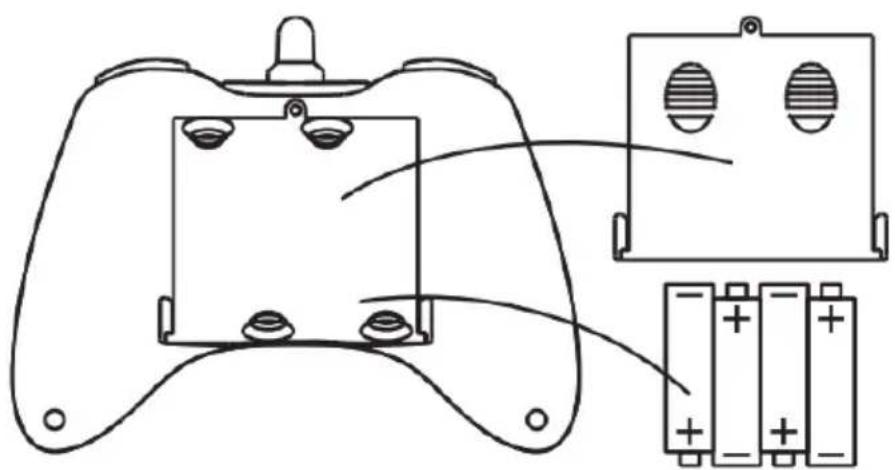
natural_image
Diagram of a game controller with two battery packs and an external circuit board (no text or symbols)x4 AA Batteries
Drone
• Install the landing skids on the underside of the drone (Figure 1).
- Attach the protecting frame onto each corner of the drone and secure it in place using the screws (Figure 2).

natural_image
Close-up of a black and red mechanical component with multiple protrusions (no visible text or symbols)Figure 1

natural_image
Close-up of a red quadcopter drone with black propeller wings (no visible text or symbols)Figure 2
Phone holder installation
- Attach the phone holder to the controller in the position shown (Figure 3).
- Secure the phone in place using the screw hole (Figure 4).
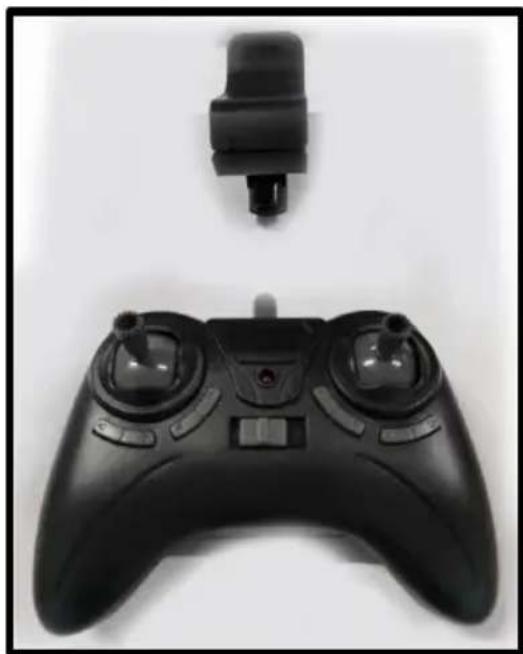
natural_image
Black remote control device with dual-mounted ports and a small connector (no text or symbols visible)Figure 3

text_image
Screw holeFigure 4
- To avoid accidentally engaging the buttons on your mobile phone, you can install the supplied rubber pads onto the phone holder.
- Attach the rubber pads to the phone holder according to the position of your phone buttons. (Figure 5)

text_image
Rubber pad Phone buttonsFigure 5
VR headset
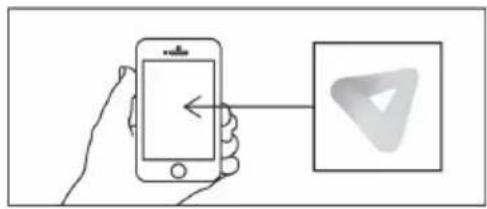
- Download the "Veer VR" app from the Play Store (Android) or App Store (iOS).
- In the "Veer VR" app settings, switch to the side-by-side mode.
- Slide open the phone holder and insert the phone into the VR headset.
text_image
Diagram showing hand holding smartphone with arrow pointing to a triangular icon, next to a square containing a triangle symbol.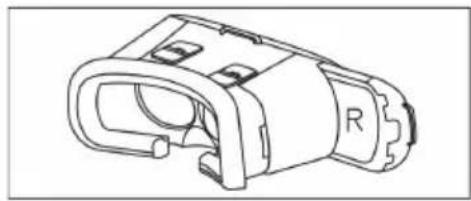
natural_image
Technical line drawing of a mechanical component with no visible text or symbolsStep 1:
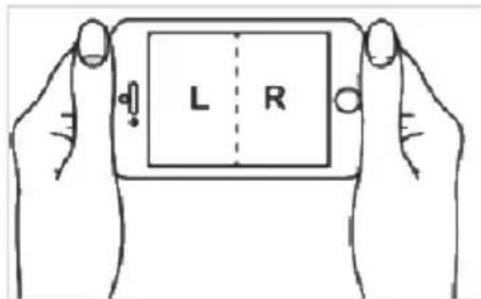
- Launch the "Veer VR" app and follow the in-app prompts to connect to the drone's camera.
• Ensure the app is running in split-screen mode (side-by-side mode).
text_image
L RStep 2:
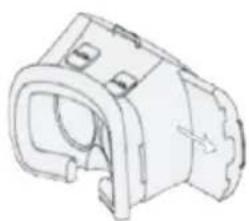
• Insert your phone into the VR headset.
- Align the middle line on the phone with the middle of the VR headset.
- Adjust the IPD and focus sliders.
natural_image
Technical line drawing of a mechanical component (no text or symbols)
natural_image
Line drawing of a VR headset with two circular lenses (no text or symbols)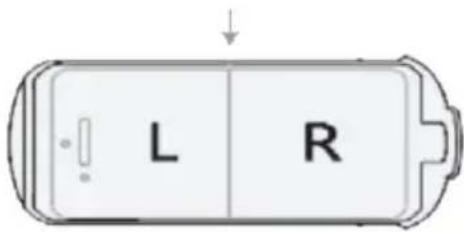
text_image
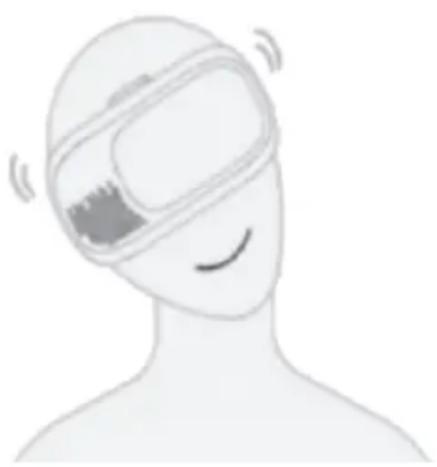
L RStep 3:
Control the viewing angle by moving your head.
natural_image
Illustration of a person wearing a VR headset with motion lines indicating speed (no text or symbols)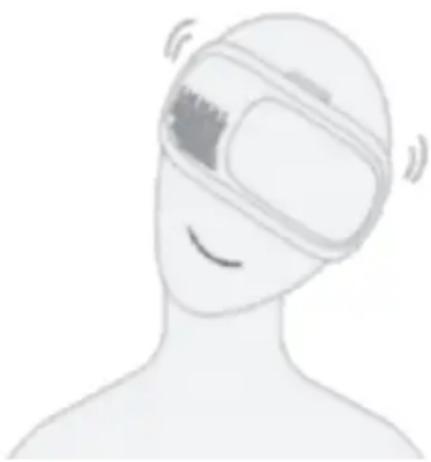
natural_image
Illustration of a person wearing a VR headset with motion lines indicating speed (no text or symbols)OPERATION
Charging the drone battery
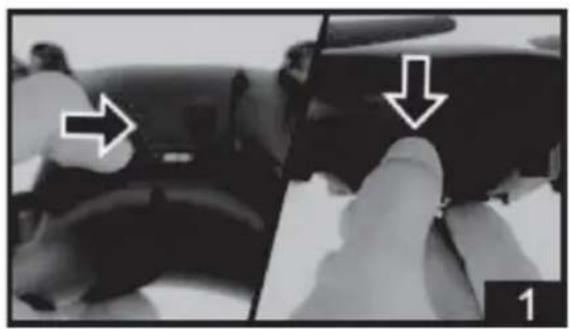
- Place the drone's power switch in the OFF position and then open the battery compartment.
• Disconnect the battery wire from the power port.
natural_image
Interior view of a car showing hand positioning and directional arrows (no text or symbols)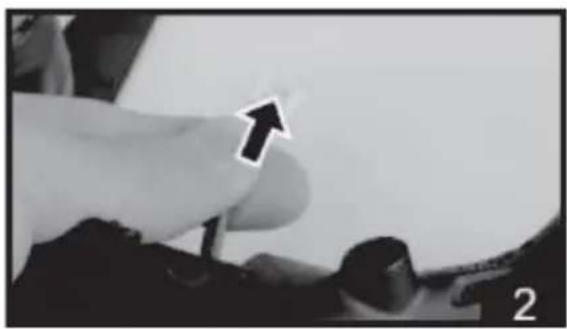
natural_image
Close-up of a finger pointing upward with an arrow, no visible text or symbols- Connect the battery wire to the USB charging cable and plug it into a USB power adapter (mobile phone charger). Ensure the cable is plugged in firmly and in the correct orientation.
• Charging time is approximately 140 - 165 minutes.
- Once the battery is fully charged, reconnect the battery wire to the power port and close the battery compartment.

natural_image
Close-up of hands holding a small object with two arrows pointing to it, no visible text or symbols
natural_image
Close-up of mechanical components with an arrow pointing to a component (no visible text or symbols)Turning on the drone
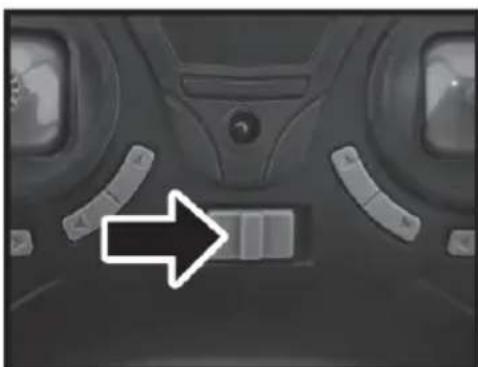
- Slide the power switch on the controller and the drone to the ON position.
- Push the Left control lever (throttle) up to the highest position and then pull it back to the lowest position. The controller will emit a sound, indicating that the drone is ready to fly.
natural_image
Interior view of a car dashboard with visible seats and a black arrow pointing to a component (no text or symbols)
text_image
QF QF
natural_image
Close-up of a black handheld device with two white directional arrows pointing to the left eye (no text or symbols visible)Flying the drone
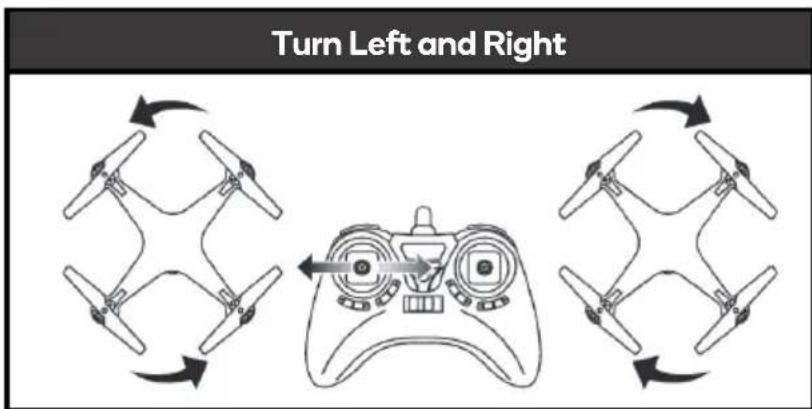
Push the left control lever left or right to rotate the drone in the respective direction.
text_image
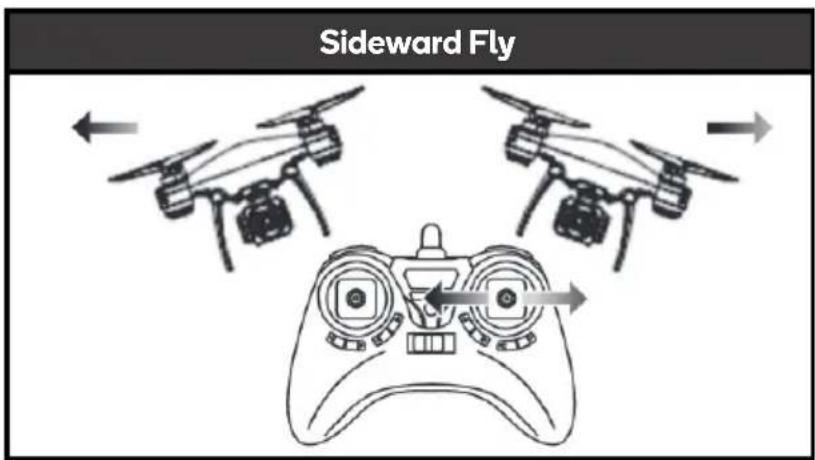
Turn Left and RightPush the right control lever left or right to fly the drone in the respective direction.
text_image
Sideward FlyThe forward/backward buttons can be used to the fine tune the direction of the drone.
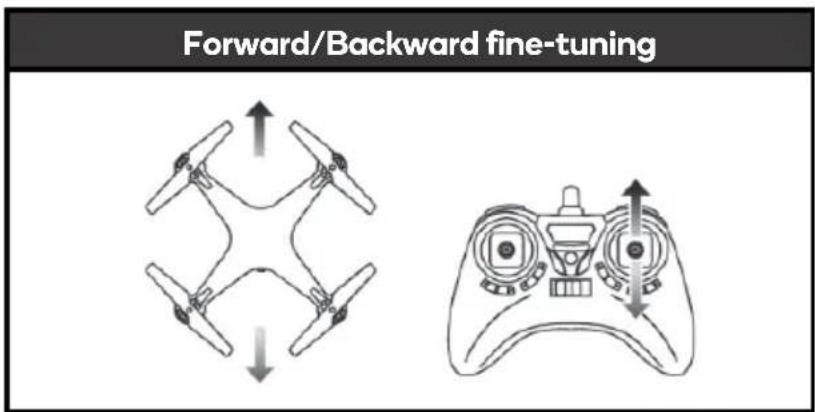
text_image
Forward/Backward fine-tuningPress the crab trim buttons to fine tune the drone flight left and right.

text_image
Sideward Fly fine-tuningAcrobatic flight:
When you are confident with the basic operation and controls, you can attempt tricks and stunts. Fly the aircraft to a height of more than 3 meters. Press the roll button on the controller, then push the right control lever (in any direction) to perform a 360^ flip.
Note:
When the drone is used with the camera, acrobatics will not be possible.

text_image
3 meters Speed gear RollHeadless flight mode
Press the headless flight mode button to enable headless mode. The indicator will begin flashing slowly. In this mode, the drone will override its front and rear azimuths and reposition the front and rear using the controller as a reference point. For example, when the right control lever is pushed forward, the drone will fly away from the controller; when the right control lever to pull back, the drone will fly towards the controller (camera front side).
Pressing the headless flight mode button again will disable the headless flight mode.
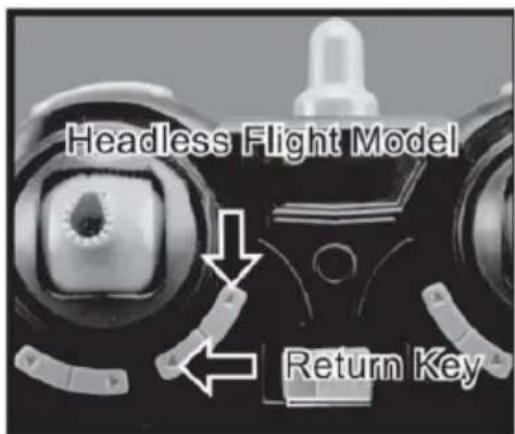
text_image
Headless Flight Model Return KeyReturn key:
- If the drone leaves your field of view, press the return key. The drone will fly backwards to the controller.
- When the drone comes back into your field of view, touching the right lever will cancel this function.
Camera
- Connect the 3-pin connector from the camera to the drone.
- Place the drone's power switch in the ON position. The indicator will turn solid red if the camera has successfully connected and operating normally.
Capturing photos and video:
- Press the photo button, then the camera will capture a photo. The controller will emit a beep and the green indicator on the camera will turn red and begin flashing.
- To capture video, press the video button and the camera will begin recording. The controller will emit a beep and the green indicator on the camera will turn red and begin flashing.
- Pressing the video button again will stop the recording. The controller will emit a beep and the camera indicator will turn solid green.

text_image
C Take photo Take videoLow battery protection
When the drone's battery is low, the indicator will flash, and the rotors will slow down and stop.
Over-current protection
If the drone's propellers become jammed, the control system will stop supplying power to the rotors automatically. Cease use and turn off the drone and controller. Inspect the propellers and replace/repair is necessary.
Factory reset
In the event the drone displays unusual flight characteristics, you can reset it back to factory default settings by following the steps below:
Step 1:
Slide the power switch on the controller and the drone to the ON position.
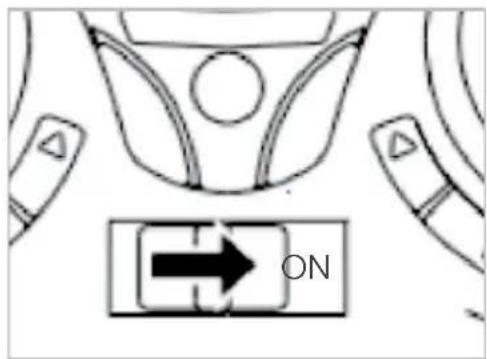
text_image
ON
text_image
Diagram showing a directional arrow with labeled boxes and arrows, likely indicating movement or flow in a road or pipeline system.Step 2:
When the drone's indicator changes from flashing rapidly to flashing slowly, push the left control (throttle) lever to the highest position and then pull it back to the lowest position. The indicator will then change from flashing slowly to a solid light.
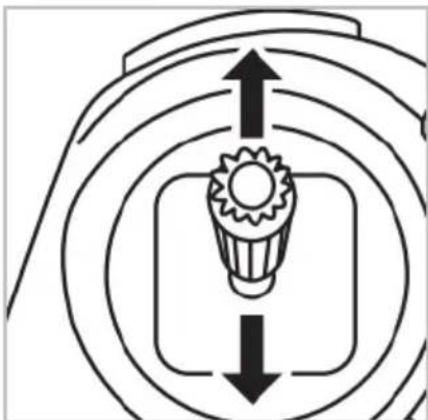
natural_image
Pure diagram of a mechanical component with concentric circles and arrows indicating direction (no text or symbols)Step 3:
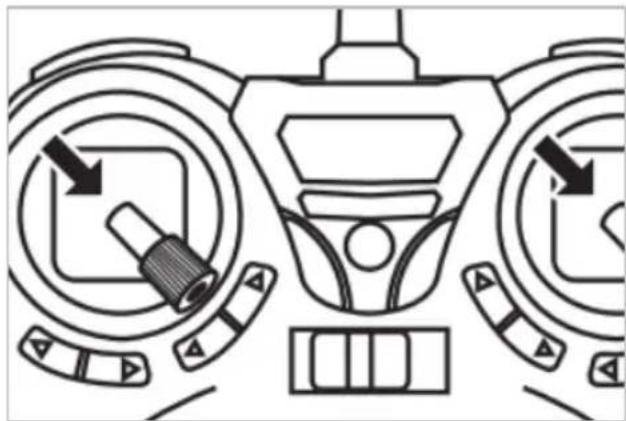
Place the drone on a horizontal, flat surface, then push both left and right control levers to the bottom right corner for approximately 2-3 seconds. The indicator will change from solid to flashing rapidly. After 2-3 seconds, the indicator will change to solid, and the drone has been successfully reset.
natural_image
Diagram of a vehicle dashboard with directional arrows and control buttons (no text or symbols)APP INSTALLATION
Apart from the controller, the drone can also be controlled through using the "VS FPV" app.
1. Installing the VS FPV app to your mobile phone
Please scan the below QR code to download the app according to your phone's operating system.

text_image
QR code image containing encoded data, no visible human-readable textiOS

text_image
QR code image containing encoded data, no visible human-readable textAndroid
2. Connecting
- Turn on the drone.
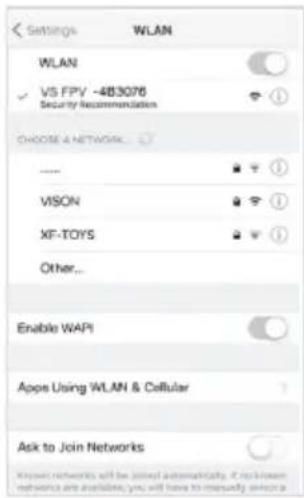
- Enter the Wi-Fi settings of your phone and search for the Wi-Fi network,
"VS FPV _***" and connect.
text_image
Settings WLAN WLAN ✓ VS FPV ~483076 Security Recommendation CHOOSE A NETWORK... VISON XF-TOYS Other... Enable WAPI Apps Using WLAN & Cellular Ask to Join Networks Known networks will be joined automatically. If non-known networks are available, you will have to mean up wireless3. Opening and using the app
- Open the "VS FPV" app, then tap "Connect".

natural_image
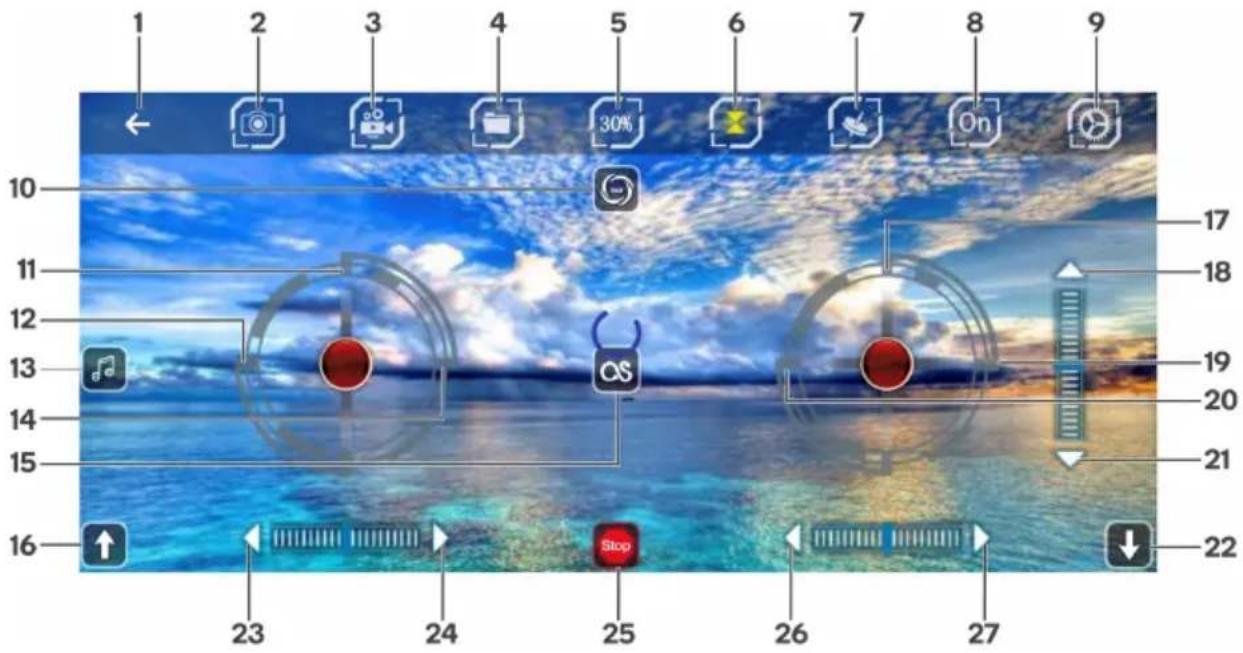
{{}^* * * * * * * * * * * * * * * * * * * * * * * * * * * * * * * * * * * * * * * * * * * * * * * * * * * * * * * * * * * * * * * * * * * * * * * * *} (app ver: 2.2.3)- Press the "Off" icon followed by the "Altitude hold" icon to reveal more functions and movement controls.
text_image
1 2 3 4 5 6 7 8 9 10 11 12 13 14 15 16 17 18 19 20 21 22 23 24 25 26 271 Back
2 Photo
3 Video
4 Gallery
5 Speed control (30%, 60%, 100%)
6 Altitude hold
7 Gravity control
8 Show/Hide movement controls
9 Settings
10 360° flips and rolls
11 Accelerate
12 Left flip/roll
13 Music
14 Right flip/roll
15 Flight planning
16 Left sideways tuning
17 Forward
18 Precise control of going forwards
19 Right sideways
20 Left sideways
21 Precise control of going backwards
22 One tap landing
23 Precise control of doing left flips/rolls
24 Precise control of doing right flips/rolls
25 Emergency stop
26 Precise control of going left sideways
27 Precise control of going right sideways
Settings

text_image
Screenshot of a beach photo editing interface with camera control buttons and playback controls labeled 1 to 41 Reverse camera
2 3D view
3 Headless flight mode
4 Reset
CLEANING & CARE
Ensure the drone is turned off before cleaning.
To clean dust, gently wipe the drone with a dry cloth.
Storage
It is recommended to store indoors, in a cool, dry environment. Keep away from children.
Note:
Do not store the drone near any sources of heat (for example, ovens, heaters).
NOTES
Need more information?
We hope that this user guide has given you the assistance needed for a simple set-up.
For the most up-to-date guide for your product, as well as any additional assistance you may require, head online to help.kogan.com
kogan.com