PowerConnect 5524P - Router DELL - Free user manual and instructions
Find the device manual for free PowerConnect 5524P DELL in PDF.


| Product Type | Managed PoE Switch/Router |
| Model | PowerConnect 5524P |
| Ports | 24 x 10/100/1000 PoE+ ports, 4 x SFP+ uplinks |
| PoE Budget | Up to 370W |
| Switching Capacity | 88 Gbps |
| Dimensions (H x W x D) | 44 x 442 x 340 mm (1.73 x 17.4 x 13.4 in) |
| Weight | 5.4 kg (11.9 lbs) |
| Power Supply | AC 100-240V, 50/60Hz, internal PSU |
| Power Consumption | 90W (without PoE), 460W (maximum with PoE) |
| Management | Web GUI, CLI, SNMP, RMON, VLAN, QoS, LACP, STP |
| Cooling | Fan cooling (temperature-controlled) |
| Mounting | 19-inch rack-mountable, 1U height |
| Operating Temperature | 0°C to 45°C (32°F to 113°F) |
| Safety Certifications | UL, CE, FCC Class A, VCCI |
| Features | Port mirroring, IGMP snooping, IPv4/IPv6 routing, ACL, 802.1x, DHCP snooping |
| Maintenance | Keep vents clean; avoid dust; use dry cloth for cleaning |
| Spare Parts / Repairability | No user-serviceable parts; contact Dell support for replacements |
| Warranty | Limited lifetime hardware warranty (terms apply) |
Frequently Asked Questions - PowerConnect 5524P DELL
User questions about PowerConnect 5524P DELL
0 question about this device. Answer the ones you know or ask your own.
Ask a new question about this device
Download the instructions for your Router in PDF format for free! Find your manual PowerConnect 5524P - DELL and take your electronic device back in hand. On this page are published all the documents necessary for the use of your device. PowerConnect 5524P by DELL.
USER MANUAL PowerConnect 5524P DELL
Notes, Cautions, and Warnings

NOTE: A NOTE indicates important information that helps you make better use of your system.

CAUTION: A CAUTION indicates potential damage to hardware or loss of data if instructions are not followed.

WARNING: A WARNING indicates a potential for property damage, personal injury, or death.
Information in this document is subject to change without notice. © 2010 Dell Inc. All rights reserved.
Reproduction of these materials in any manner whatsoever without the written permission of Dell Inc. is strictly forbidden.
Trademarks used in this text: Dell, the DELL logo, Inspiron, Dell Precision, Dimension, OptiPlex, Latitude, PowerEdge, PowerVault, PowerApp, Dell OpenManage and the YOURS IS HERE logo are trademarks of Dell Inc.; Intel, Pentium, and Celeron are registered trademarks of Intel Corporation in the U.S. and other countries; Microsoft, Windows, Windows Server, MS-DOS and Windows Vista are either trademarks or registered trademarks of Microsoft Corporation in the United States and/or other countries.
Other trademarks and trade names may be used in this document to refer to either the entities claiming the marks and names or their products. Dell Inc. disclaims any proprietary interest in trademarks and trade names other than its own.
Regulatory Models: PowerConnect 5524, 5524P, 5548, 5548P
September 2010 P/N JN2W1 A01
Contents
1 Installation 5
Overview 5
Site Preparation 5
Unpacking 6
Package Contents 6
Unpacking the Switch 6
Installing the Switch. 7
Installing in a Rack 7
Installing on a Flat Surface 8
Connecting the Switch to Power Supplies 8
2 S t a . c . k . i . n . g . . . . . . . . . . . . . . . 9
Overview 9
Stacking Switches. 9
Unit ID Assignment 11
Automatic Assignment 11
Manual Assignment 12
3 Configuring the Switch 13
Configuration Work Flow 13
Connecting the Switch to the Terminal ..... 14
Booting the Switch.... 15
Configuring the Stack 16
Configuration Using the Setup Wizard 16
Installation
Overview
This guide describes how to install and run the PowerConnect 5500 series switches. For more information, see the Dell PowerConnect 5500 Series User Guide, available on your Documentation CD, or check the Dell Support website at support.dell.com/manuals for the latest updates on documentation and software.
In this document, the word "switch" refers to either a single switch or a group of stacked switches.
For a complete description of the PowerConnect 5500 series switch, see the Dell PowerConnect 5500 Series User Guide, available on your Documentation CD.

NOTE: Even though the graphics in this guide show the Dell PowerConnect 5524P device, the instructions are the same for all models.
Site Preparation
PowerConnect 5500 series switches can be mounted in a standard 48.26-cm (19-inch) equipment rack or placed on a tabletop. Before installing the unit, verify that the chosen location for installation meets the following site requirements:
- Power —
- The unit is installed near an easily accessible 100-240 VAC, 50-60 Hz outlet.
- If a Redundant Power Supply (RPS) or a Modular Power Supply (MPS) is being used, check that it is easily accessible.
- Clearance — There is adequate frontal clearance for operator access. Allow clearance for cabling, power connections, and ventilation.
- Cabling — The cabling is routed to avoid sources of electrical noise, such as radio transmitters, broadcast amplifiers, power lines, and fluorescent lighting fixtures.
- Ambient Requirements — The ambient unit operating temperature range is 0 to 45°C (32 to 113°F) at a relative humidity of 10% to 90%, non-condensing.
Unpacking
Package Contents
While unpacking the switch, ensure that the following items are included:
- Switch
- AC power cable
• RS-232 cable with a male 8-pin RJ-45 connector
- Self-adhesive rubber pads
- Rack-mount kit for rack installation
- Documentation CD
Unpacking the Switch

NOTE: Before unpacking the switch, inspect the package and immediately report any evidence of damage.
To unpack the switch:
1 Place the box on a clean flat surface.
2 Open the box or remove the box top.
3 Carefully remove the switch from the box and place it on a secure and clean surface.
4 Remove all packing material.
5 Inspect the switch and accessories for damage. Report any damage immediately to the dealer.
Installing the Switch
The PowerConnect 5500 Series switches can be:
• Installed on a rack
- Placed on a flat surface
Installing in a Rack

CAUTION: Disconnect all cables from the unit before mounting the switch in a rack or cabinet.

CAUTION: When mounting multiple switches into a rack, mount the switches from the bottom up.
To install the switch in a rack:
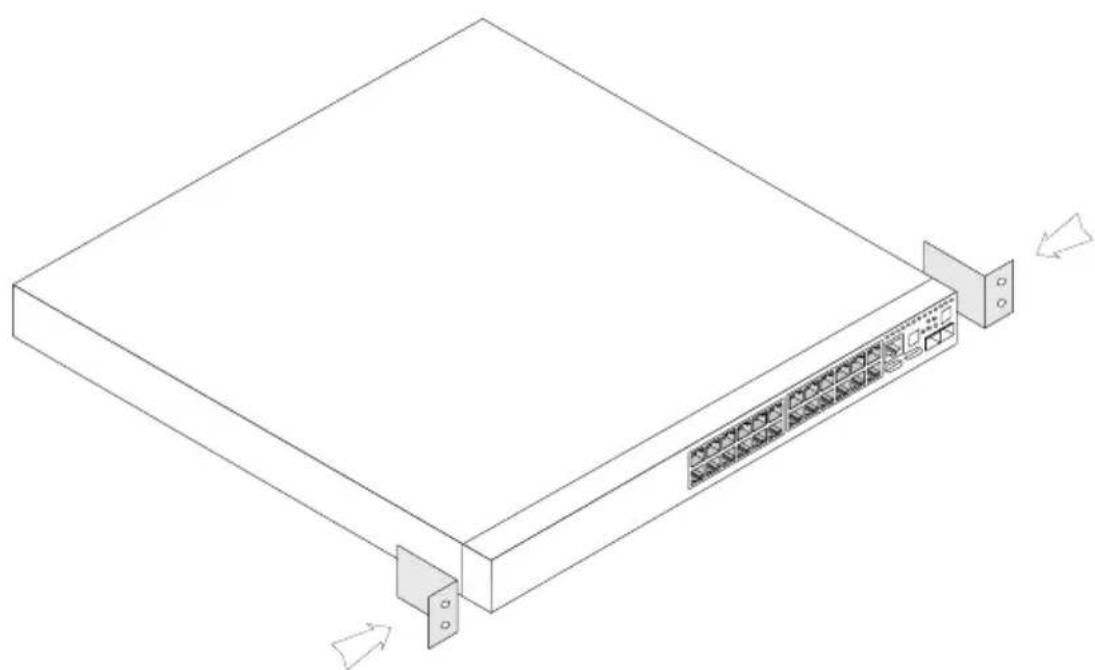
1 Place the supplied rack-mounting bracket on one side of the switch, ensuring that the mounting holes on the switch line up to the mounting holes on the rack-mounting bracket.
Figure 1-1 illustrates where to mount the brackets.
Figure 1-1. Bracket Installation for Rack Mounting
natural_image
Isometric line drawing of a network switch device with ports and connectors (no text or symbols)2 Insert the supplied screws into the rack-mounting holes and tighten with a screwdriver.
3 Repeat the process for the rack-mounting bracket on the other side of the switch.
4 Insert the unit into the 48.26-cm (19-inch) rack, ensuring that the rack-mounting holes on the switch line up to the mounting holes on the rack.
5 Secure the unit to the rack with the rack screws (not provided). Fasten the lower pair of screws before the upper pair of screws. Ensure that the ventilation holes are not obstructed.
Installing on a Flat Surface
Install the switch on a flat surface if it is not installed on a rack. The surface must be able to support the weight of the switch and the switch cables.
To install the switch on a flat surface:
1 Attach the self-adhesive rubber pads on each marked location on the bottom of the chassis.
2 Set the switch on a flat surface, leaving 5.08 cm (2 inches) on each side and 12.7 cm (5 inches) at the back.
3 Ensure that the switch has proper ventilation.
Connecting the Switch to Power Supplies
Each switch in the stack must be connected to an AC power supply.
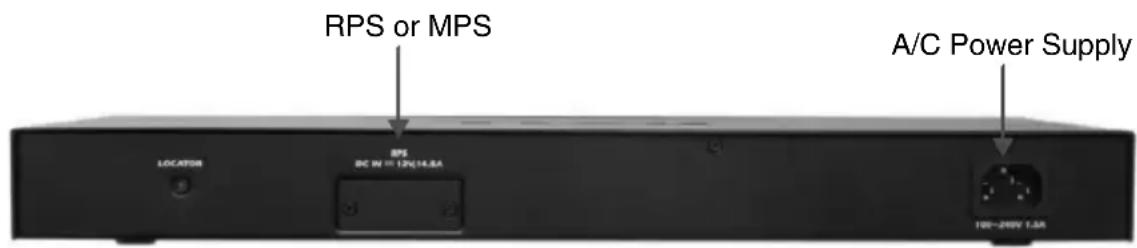
The power connectors are positioned on the back panel. Connecting a Redundant Power Supply (RPS) or Modular Power Supply (MPS) is optional, but recommended. The RPS or MPS connector is on the back panel of the switch. The RPS is used for non-PoE switches and MPS is used for PoE switches.
Figure 1-2. Back-Panel Power Connector
text_image
RPS or MPS A/C Power Supply LOCATION EPS DC W = 12P/14.6A 10P-26W 1.5AStacking
Overview
Each switch is a member in a stack, although the stack may consist of only a single switch. Up to eight switches are supported per stack.
All stacks must have a Master unit, and may have a Master Backup unit. All other switches are connected to the stack as members (slaves).
Stacking Switches
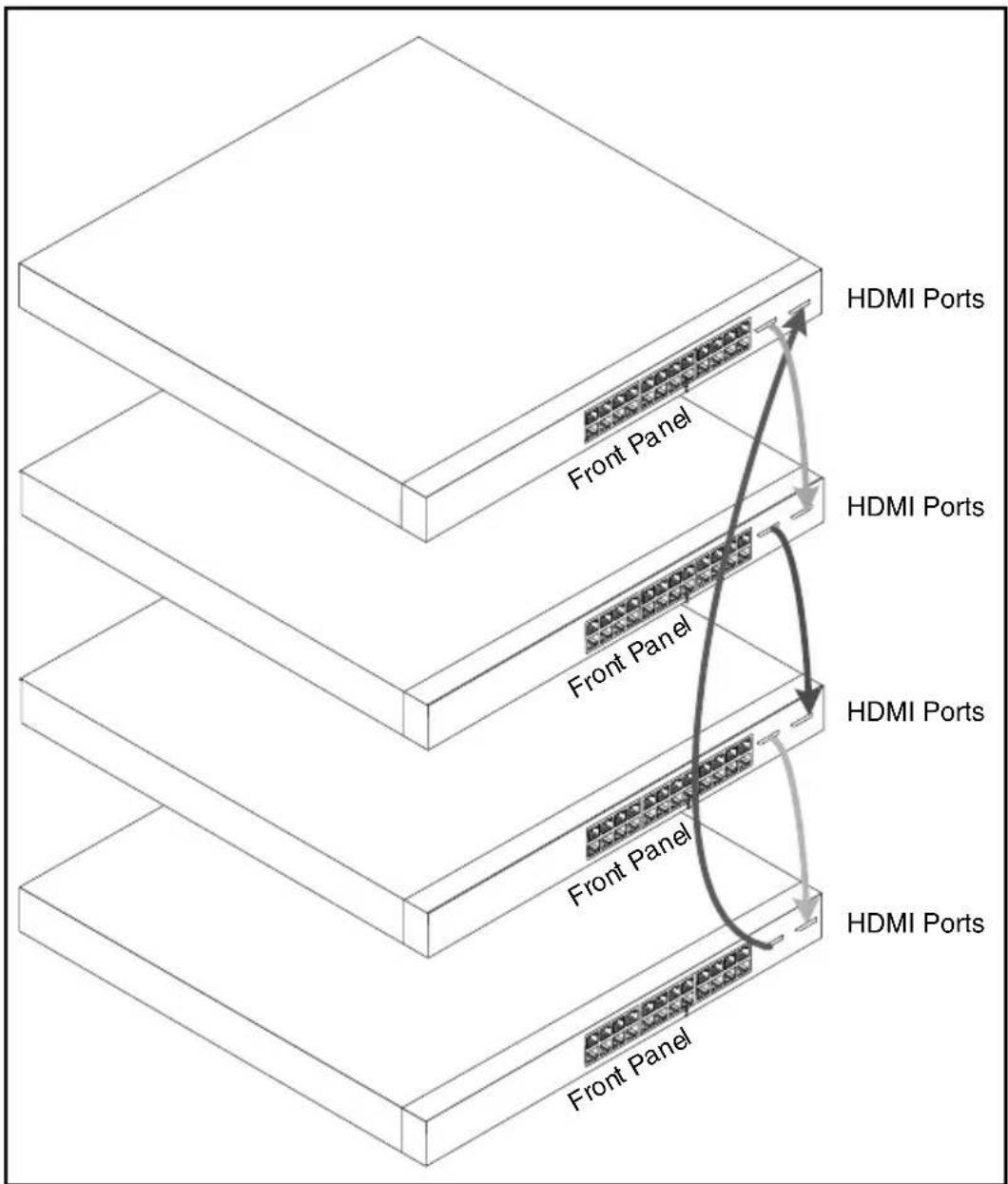
PowerConnect 5500 series switches use two HDMI 10G ports for stacking.
To connect the switches in the stack:
1 Insert one end of an HDMI cable into the left-hand HDMI port on the switch at the top of the stack and the other end into the right-hand HDMI port of the switch immediately below it.
2 Repeat this process until all switches are connected.
3 (Optional) Connect the left-hand HDMI port of the switch at the bottom of the stack to the right-hand HDMI port of the switch at the top of the stack. This step provides increased bandwidth and redundancy.
Figure 2-1 shows this process.
Figure 2-1. Stacking Cable Diagram
text_image
HDMI Ports Front Panel HDMI Ports Front Panel HDMI Ports Front Panel HDMI Ports Front PanelUnit ID Assignment
Each switch in the stack has a unique unit ID that defines the unit's position and function in the stack.
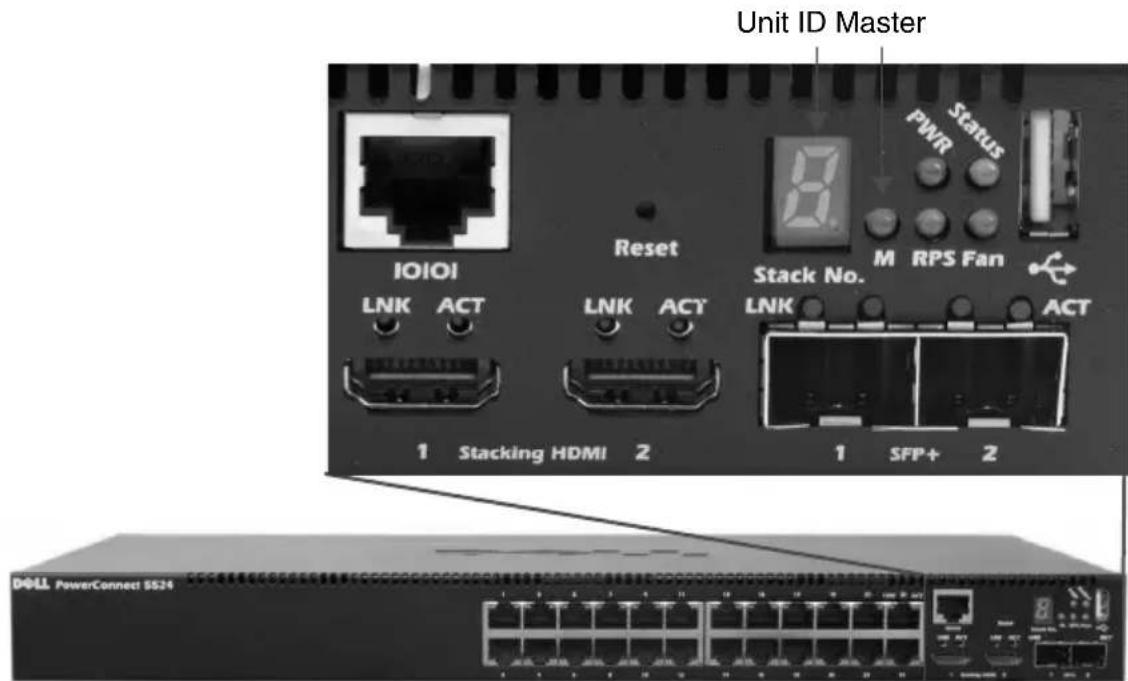
Figure 2-2 describes the stacking LEDs on the front panel of the switch.
Figure 2-2. Stacking LEDs on Front Panel
text_image
Unit ID Master IOIOI Reset Stack No. M RPS Fan Status PWR LNK ACT LNK ACT LNK ACT 1 Stacking HDMI 2 1 SFP+ 2 DOLL PowerConnect SS24The Unit ID of each switch can be either automatically assigned or manually assigned, as described below.
Automatic Assignment
When you power-up the stack, each switch is assigned a unique Unit ID. This is displayed on the front panel of the switch, as shown in Figure 2-2.
The switch that is assigned Unit ID 1 is the Master unit, by default. The switch that is assigned Unit ID 2 is the Master Backup unit.
Manual Assignment
To assign unit IDs to the switches in the stack, do the following for each switch in the stack:
1 Connect the switch to the terminal, as described in "Connecting the Switch to the Terminal".
2 Turn on the switch to begin auto boot and press Return or Esc to abort and enter the Start Up menu.
Startup Menu
[1] Download Software
[2] Erase Flash File
[3] Password Recovery Procedure
[4] Set Terminal Baud-Rate
[5] Stack menu
[6] Back
3 Select Stack menu to open the Stack Menu.
[1] Show unit stack id
[2] Set unit stack id
[3] Back
4 Select Set unit stack id. Enter either a Unit ID or 0.0 indicates that the unit ID will be assigned automatically.

NOTE: The entire stack should be installed, as shown in Figure 2-1, before powering up the switches.
For more information on stacking, see the Dell PowerConnect 5500 Series User Guide on the Documentation CD.
Configuring the Switch
This section describes the configuration that must be performed after the switch is installed and connected to power supplies. Additional advanced functions are described in the Dell PowerConnect 5500 Series User Guide on the Documentation CD.

NOTE: Before proceeding further, read the release notes for this product. You can download the release notes from the Dell Support website at support.dell.com.

NOTE: We recommend that you obtain the most recent revision of the user documentation from the Dell Support website at support.dell.com.
Configuration Work Flow
To configure the switches:
1 For each switch in the stack:
a Connect it to a terminal, as described in the "Connecting the Switch to the Terminal".
b Boot the switch, as described in the "Booting the Switch".
c Assign a unit ID to the switch, as described in "Unit ID Assignment".
2 Connect the units in the stack to each other, as described in "Configuring the Stack".
3 Connect the Master unit to the terminal, reboot the unit and the Setup Wizard is run automatically, as described in "Configuration Using the Setup Wizard".
4 Respond to the Setup Wizard prompts.
5 Continue managing the switch, either through the console or Telnet, using the CLI or the web GUI, as described in the Dell PowerConnect 5500 Series User Guide.
Connecting the Switch to the Terminal
The switch is configured and monitored through a terminal desktop system that runs terminal emulation software. The switch connects to the terminal through the console port.
To connect the switch to a terminal:
1 Connect an RS-232 cable to a VT100-compatible terminal or the serial connector of a desktop system running terminal emulation software.
2 Connect the RS-232 cable to the switch console port on the front panel of the switch (see Figure 3-1) using an 8-pin RJ-45 male connector.
Figure 3-1. Front-Panel Console Port

text_image
DOLL PowerConnect S524 Console Port3 Set the terminal emulation software as follows:
a Select the appropriate serial port to connect to the switch.
b Set the data rate to 9600 baud.
c Set the data format to 8 data bits, 1 stop bit, and no parity.
d Set Flow Control to none.
e Select VT100 for Emulation mode within your communication software.
f Select Terminal keys for Function, Arrow, and Ctrl keys. Ensure that the setting is for Terminal keys (not Windows keys).

NOTE: You can connect a console to the console port on any unit in the stack, but stack management is performed only from the stack master (Unit ID 1 or 2).
Booting the Switch
After the local terminal is connected, turn on power. The switch then goes through power-on self-test (POST). POST runs every time the switch is started and checks hardware components, to determine if the switch is operational before completely booting. If the system detects a critical problem, the boot process stops. If POST passes successfully, a valid executable image is loaded into RAM. POST messages are displayed on the terminal and indicate test success or failure.
The boot process runs for approximately 40-45 seconds.
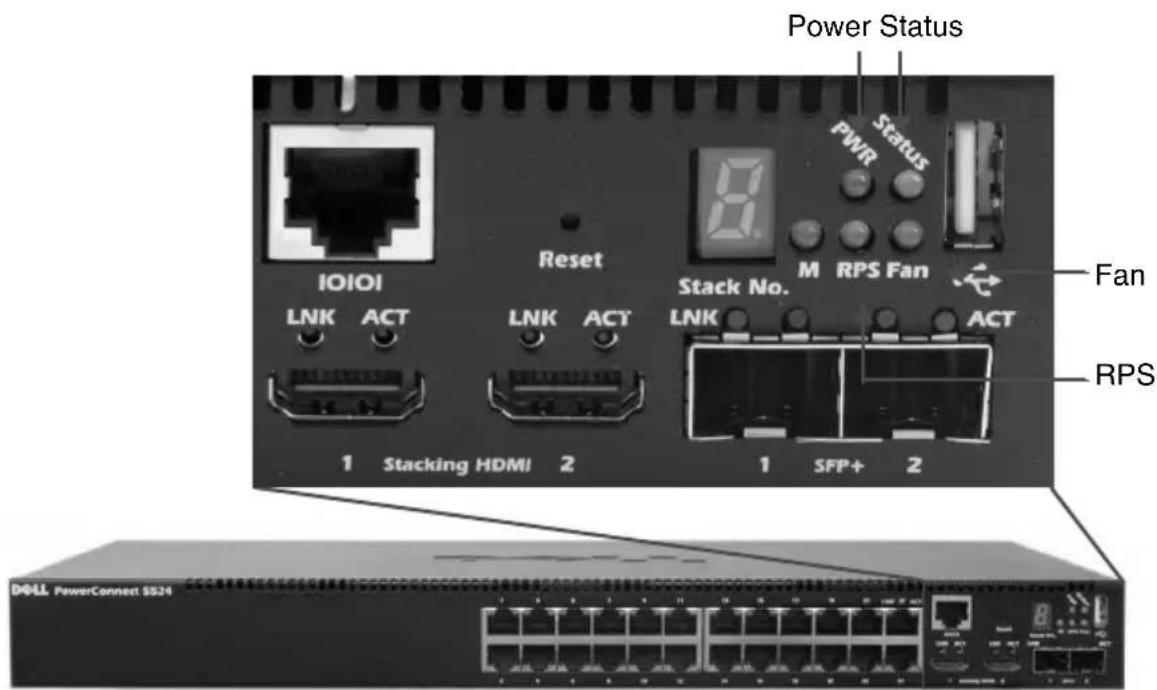
When the boot process completes, the following LEDs are lit, as shown in Figure 3-2:
- Power
- Status
- Fan (should be green)
- RPS (if it is being used)
Figure 3-2. Initial LEDs
text_image
Power Status IOIOI Reset Stack No. M RPS Fan LNK ACT LNK ACT LNK ACT 1 Stacking HDMI 2 1 SFP+ 2 DOLL PowerConnect SS24 PWR Status Fan RPSConfiguring the Stack
The switch is always considered to be a stack of switches even if the stack only contains a single switch. If there is more than one switch in the stack, each switch must be configured individually. See "Unit ID Assignment" for instructions on how to configure the stack.
Configuration Using the Setup Wizard
The Setup Wizard guides you through the initial switch configuration to get the system up and running as quickly as possible. Note that you can skip the Setup Wizard and configure the switch manually through the CLI.
The Setup Wizard configures the following fields:
- SNMP Community String and SNMP Management System IP address (optional)
- Username and password
- Management switch IP address
- IP subnet mask
- Default gateway IP address

NOTE: The Setup Wizard assumes the following:
- The PowerConnect switch was never configured before and is in the same state as when you received it.
- The PowerConnect switch booted successfully.
- The console connection is established and the console prompt is displayed on the screen of a VT100 terminal switch.
Connect the Master unit to a terminal. You can identify the Master unit by the illuminated Master LED on the front panel of the switch (see Figure 2-2). To configure the system using the Setup Wizard:
1 Obtain the following information from the network administrator:
- SNMP Community String and SNMP Management System IP address (optional)
-
Username and password
-
The IP address to be assigned to the VLAN 1 interface through which the switch is to be managed (by default, every external and internal port is a member of the VLAN 1)
• The IP subnet mask for the network - The default gateway (next hop router) IP address for configuring the default route
2 Boot the Master unit. The system automatically prompts you to use the Setup Wizard.
The Setup Wizard displays the following information:
Welcome to Dell Easy Setup Wizard
The Setup Wizard guides you through the initial switch configuration and gets you up and running easily and quickly. You can skip the Setup Wizard and enter CLI mode to manually configure the switch. The system will prompt you with a default answer; by pressing Enter, you accept the default value.
You must respond to the next question to run the Setup Wizard within 60 seconds, otherwise the system will continue with normal operation using the default system configuration.
Would you like to enter the Setup Wizard (you must answer this question within 60 seconds)? (Y/N)
3 Enter [Y] to run the wizard. If you enter [N] or if you do not respond within 60 seconds, the Setup Wizard automatically exits and the CLI console prompt appears.
If you enter [Y] the wizard provides interactive guidance through the initial switch configuration.
The following information is displayed:
You can exit the Setup Wizard at any time by entering [ctrl+Z].
The system is not set up for SNMP management by default.
To manage the switch using SNMP (required for Dell Network Manager) you can:
- Setup the initial SNMP version 2 account now.
- Return later and set up the SNMP version account. For more information on setting up a SNMP version 2 account, see the user documentation.
Would you like to set up the SNMP management interface now? [Y/N]
4 Enter [N] to skip to Step 7 or enter [Y] to continue the Setup Wizard. If you enter [Y] the following information is displayed:
To set up the SNMP management account you must specify the management system IP address and the "community string" or password that the particular management system uses to access the switch. The wizard automatically assigns the highest access level [Privilege Level 15] to this account.
You can use Dell Network Manager or other management interfaces to change this setting later and to add additional management system later. For more information on adding management systems, see the user documentation.
To add a management station:
Please enter the SNMP community string to be used:
5 Enter the SNMP community string. You can use the default name "public"
Please enter the IP address of the Management System (A.B.C.D) or wildcard (0.0.0.0) to manage from any Management Station: [0.0.0.0].
6 Enter the SNMP Management System IP.
7 Set up user account privilege level, as follows:
The following information is displayed:
Now we need to set up your initial privilege (Level 15) user account. This account is used to login to the CLI and Web interface. You may set up other accounts and change privilege levels later. For more information on setting up user accounts and changing privilege levels, see the user documentation.
To set up a user account:
Enter the user name:
Please enter the user password:
Please reenter the user password:
8 Enter the following:
- User name, for example "admin"
- Password and password confirmation.
9 Press Enter.
The following information is displayed:
Next, an IP address is setup. The IP address is defined on the default VLAN (VLAN #1). This is the IP address you use to access the Telnet, Web interface, or SNMP interface for the switch.
To set up an IP address:
Please enter the IP address of the device (A.B.C.D):
Please enter the IP subnet mask (A.B.C.D or nn):
10 Enter the management IP address and IP subnet mask, for example 192.168.2.100 as the IP address and 255.255.255.0 as the IP subnet mask.
11 Press Enter.
The following information is displayed:
Finally, set up the default gateway.
Please enter the IP address of the gateway from which this network is reachable
(e.g. 192.168.2.1).Default gateway
(A.B.C.D): [0.0.0.0]
12 Enter the default gateway.
13 Press Enter. The following is displayed (example):
This is the configuration information that has been collected:
SNMP Interface = "Dell Network Manager"@192.168.2.10
User Account setup = admin
Password = *****
Management IP address = 192.168.2.100 255.255.255.0
Default Gateway = 192.168.2.1
The following information is displayed:
If the information is correct, please select (Y) to save the configuration and copy to the start-up configuration file. If the information is incorrect, select (N) to discard configuration and restart the wizard: [Y/N]