SCS100 - Server Lantronix - Free user manual and instructions
Find the device manual for free SCS100 Lantronix in PDF.


| Product Type | Console Server |
| Form Factor | 1U Rackmount |
| Dimensions (W x D x H) | 17.3 x 10.2 x 1.7 inches (440 x 259 x 43 mm) |
| Weight | 5.5 lbs (2.5 kg) |
| Power Supply | AC 100-240V, 50/60 Hz, 30W |
| Ethernet Ports | 2 x Gigabit RJ45 |
| Serial Ports | 8 x RS-232 DB9 |
| USB Ports | 2 x USB 2.0 Type A |
| Management | Web GUI, CLI (SSH/Telnet), SNMP |
| Operating Temperature | 32°F to 122°F (0°C to 50°C) |
| Humidity | 10% to 90% non-condensing |
| Key Features | Remote console access, secure shell, port buffering, modem emulation |
| Maintenance | Clean with dry cloth; avoid liquids; ensure airflow |
| Safety | Do not open device; use only provided power adapter; keep away from water |
| Spare Parts | Power supply unit, cooling fan, rack mount kit |
| Repairability | Limited; contact Lantronix support for service |
| General Information | Firmware upgrades via web interface; reset to factory defaults via pinhole button |
Frequently Asked Questions - SCS100 Lantronix
User questions about SCS100 Lantronix
0 question about this device. Answer the ones you know or ask your own.
Ask a new question about this device
Download the instructions for your Server in PDF format for free! Find your manual SCS100 - Lantronix and take your electronic device back in hand. On this page are published all the documents necessary for the use of your device. SCS100 by Lantronix.
USER MANUAL SCS100 Lantronix
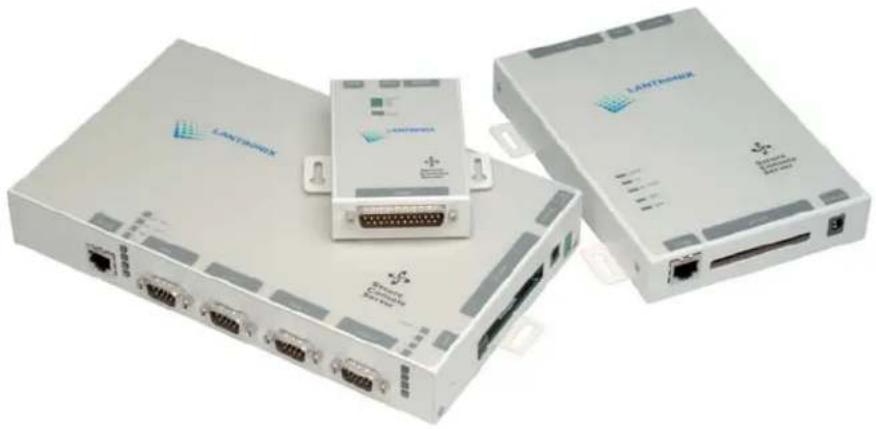
SCS100/200/400 User Guide
natural_image
Three white Ethernet devices with ports and connectors, no visible text or symbols on the devices themselves.Copyright & Trademark
© 2003, Lantronix. All rights reserved. No part of the contents of this book may be transmitted or reproduced in any form or by any means without the written permission of Lantronix. Printed in the United States of America.
Ethernet is a trademark of XEROX Corporation. UNIX is a registered trademark of The Open Group. Windows 95, Windows 98, Windows 2000, and Windows NT are trademarks of Microsoft Corp. Netscape is a trademark of Netscape Communications Corporation.
Contacts
Lantronix Corporate Headquarters
15353 Barranca Parkway
Irvine, CA 92618, USA
Phone: 949-453-3990
Fax: 949-453-3995
Technical Support
Phone: 800-422-7044 or 949-453-7198
Fax: 949-450-7226
Online: www.lantronix.com/support
E-mail support@lantronix.com
Sales Offices
For a current list of our domestic and international sales offices, go to the Lantronix web site at http://www.lantronix.com/about/contact/index.html
Disclaimer & Revisions
Operation of this equipment in a residential area is likely to cause interference in which case the user, at his or her own expense, will be required to take whatever measures may be required to correct the interference.
Note: This product has been designed to comply with the limits for a Class A digital device pursuant to Part 15 of FCC Rules. These limits are designed to provide reasonable protection against such interference when operating in a commercial environment. This equipment generates, uses, and can radiate radio frequency energy, and if not installed and used in accordance with this guide, may cause harmful interference to radio communications.
Changes or modifications to this device not explicitly approved by Lantronix will void the user's authority to operate this device.
The information in this guide may change without notice. The manufacturer assumes no responsibility for any errors that may appear in this guide.
Date Rev. Part No. Comments
| 4/02 | A | 900-249 |
| 12/03 | B | 900-249 Added new features: SSH connections, enhanced security, break sequences, modem mode, boot gateway, DHCP, and additional authentication for Web browser. Corrected diagram of the SCS200 RS-232 DB9 connector and updated contact information. Updated contact and warranty information. |
Contents
Copyright & Trademark ____ i
Contacts i
Disclaimer & Revisions ____ ii
Contents iii
1: Introduction to the SCS Family 1-1
Features 1-1
Protocol Support 1-2
2: The SCS100 2-1
Connectors 2-1
DB25 Connector Pinout 2-2
LEDs 2-2
Specifications of the SCS100 2-3
Power 2-3
Temperature 2-3
Humidity 2-3
Altitude 2-3
3: The SCS200 ____ 3-1
Connectors 3-1
Serial Connector Pinouts 3-2
RS-232/RS-485 DB25 Connector 3-2
RS-232 DB9 Connector 3-2
PC Card Slot 3-2
LEDs 3-3
Specifications of the SCS200 3-4
Power 3-4
Temperature 3-4
Humidity 3-4
Altitude 3-4
4: The SCS400 4-1
Connectors 4-1
Front Panel 4-1
Side Panel 4-1
DB9 Serial Connector Pinouts 4-2
PC Card Slots 4-2
PC Card Slot 4-2
Power Connectors 4-2
Power Jack 4-2
Screw Block Power 4-3
LEDs 4-3
Specifications of the SCS400 4-4
Power 4-4
Temperature 4-4
Humidity 4-4
Altitude 4-4
5: Installation 5-1
Connecting the SCS 5-1
Assigning an IP Address 5-2
EZWebCon Method 5-2
DHCP Method 5-4
Command Line Method 5-4
ARP and Ping Method 5-5
BOOTP or RARP Reply Method 5-6
Configuring the SCS 5-7
EZWebCon Method 5-7
Web Browser Method 5-9
Telnet Login Method 5-9
Command Line Method 5-9
6: Application Setup 6-1
Login Banner Pages 6-2
Menus 6-2
Enabling Menu Mode 6-2
Creating the Menu 6-3
Using Menu/Connection Commands 6-4
Enabling Menu Mode for a Port 6-5
Using the Menu 6-6
Break Sequences 6-7
Serial Breaks 6-7
Alternate Break Sequences 6-7
Modem Mode 6-8
Remote User Dial-Up 6-9
Event Port Logging and Email Notification 6-11
Creating an Email Site 6-13
Dial-Out ISP Connection 6-14
SSH Connections 6-15
Defining Supported SSH Connections 6-15
Creating an AUTHORIZED_KEYS File 6-16
Shared Key Authentication Process 6-16
Setting up RSA Shared Key Authentication (for SSHv1) 6-17
Setting up DSA Shared Key Authentication (for SSHv2) 6-18
Setting up Username/Password Authentication (SSHv1 or SSHv2) 6-18
Forming SSH Incoming Connections (Unix and Non-Unix) 6-19
Security Enhancements 6-20
Incoming Security 6-20
Port User Restrictions 6-20
Com Port Redirector 6-20
7: Troubleshooting 7-1
Technical Support 7-1
Power-up Troubleshooting 7-2
BOOTP Troubleshooting 7-3
RARP Troubleshooting 7-3
Boot Prompt Commands 7-4
Flash 7-4
Flush NVR 7-4
Help 7-4
Init 451 7-5
Set Server BOOTP {Enabled, Disabled} 7-5
Set Server Bootgateway ip_address 7-5
Set Server Hardware xx-xx-xx 7-5
Set Server IPAddress ip_address 7-5
Set Server Loadhost ip_address 7-5
Set Server RARP {Enabled, Disabled} 7-5
Set Server Secondary ip_address 7-5
Set Server Software filename 7-5
Show Server 7-6
8: Updating Software 8-1
Choosing the Right Software File 8-1
Obtaining Software 8-1
Via the Web 8-1
Via FTP 8-2
Reloading Software 8-2
EZWebCon Method 8-2
FTP Method 8-2
Web Interface Method 8-3
Command Line Methods 8-3
Troubleshooting Flash ROM Updates 8-4
Conformity Information A-1
Warranty A-2
1: Introduction to the SCS Family
The Lantronix SCS family of Secure Console Servers enables IT professionals to remotely and securely configure and administer servers, routers, switches, telephone equipment, or other devices equipped with a serial port. This user guide provides information about three SCS products: the SCS100, SCS200, and SCS400.
These products provide the same functionality and software features but differ in hardware and port configuration options. The SCS100 offers one serial RS232 port and one 10/100 Ethernet port for physical connections. The SCS200 and SCS400 provide added hardware functionality over the SCS100 with multiple serial ports and a PC card interface. The PC card interface allows these products to leverage current and future PC card technology such as 802.11 wireless, analog and cellular modems, and ATA storage cards. The units support baud rates between 300 and 230,400 bits per second.
Features
TCP/IP compatibility
Remote networking
- Dial-in access
- Dial-out ISP connections
- Event port logging
- Email event notification
- Authentication
- Accountability
- NAT with Port Mapping
Browser-based configuration
HTML pages in firmware
◆ Server configuration via any browser
EZWebCon utility for:
- Initial SCS configuration
- Extracting and downloading configuration to multiple SCS units
Command line editing
- Context-sensitive online help
◆ Re-loadable operating code
- Stored in Flash ROM
- Upgradeable using FTP, TFTP, and EZWebCon
◆ Diagnostics for network and serial line troubleshooting
Break safe for Sun Solaris systems (Solaris Ready Certified)
Note: See Using Menu/Connection Commands for information on how to send intentional breaks to connected equipment.
Protocol Support
The SCS supports the TCP/IP network protocol as well as:
◆ SSH, Telnet, and Rlogin for connections in and out of the SCS
DNS and WINS for text-to-IP address name resolution
SNMP for remote monitoring and management
FTP for file transfers and firmware upgrades
TFTP for firmware upgrades
BOOTP, RARP, and DHCP for IP address assignment
- HTTP for easy browser-based configurations
◆ NTP for time synchronization and authentication
- NAT for enabling private networks to share a connection to the Internet.
SSH (Secure Shell): A secure transport protocol based on public-key cryptography.
Telnet: A terminal protocol that provides an easy-to-use method of creating terminal connections to any network host supporting Telnet.
Rlogin: Allows you to initiate a TCP/IP login session.
DNS (Domain Name Servers): Lets a network nameserver translate text node names into numeric IP addresses.
SNMP (Simple Network Management Protocol): Commands that allow system administrators to monitor and manage nodes on a LAN (Local Area Network) and respond to queries from other network hosts. One community name can be configured with read/write access. Refer to the SCS Reference Manual for SNMP configuration instructions.
BOOTP, RARP, and DHCP: Methods for automatically assigning an IP address and network settings.
NTP (Network Time Protocol): Used to synchronize time on networked computers and equipment.
NAT (Network Address Translation): Allows private networks to share a single connection to the Internet. With Port Mapping, specific IP Ports can be mapped from the Internet to a private IP address and port.
2: The SCS100
This chapter describes the SCS100 connectors, pinouts, LEDs, and specifications.
Connectors
The SCS100 front panel has a male DB25 serial connector, as shown in the figure below.

text_image
SCS100 Front Panel Serial DB25 Serial PortThe SCS rear panel has an RJ45 Ethernet connector, a reset button, and a power connector, as shown in the figure below.
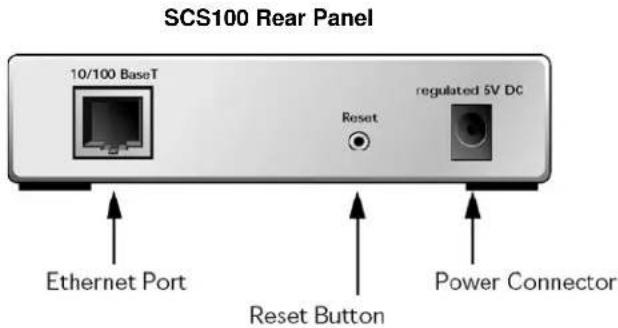
text_image
SCS100 Rear Panel 10/100 BaseT Reset regulated 5V DC Ethernet Port Reset Button Power ConnectorNote: The Reset button returns the SCS to its factory default configuration when you press and hold it during the power-up and boot process. Resetting to factory default will enable DHCP.
DB25 Connector Pinout
The figure below shows the pin connections of the SCS100 DB25 connector. . The default serial port settings are 9600 baud, 8 bits, no parity, and 1 stop bit.
DB25 Serial Connector

text_image
DTE DB25 Male TX RTS DSR DCD (in) RX CTS GND 1 13 14 CD (out) DTR 25LEDs
LEDs indicate serial port activity. The SCS100 has five LEDs on the top of the unit. A red LED during boot mode typically signals an error, but red LED patterns during normal operations do not signal an error. Refer to the following table for an understanding of LED functions:
SCS100 Serial and Network LED Functions
| LED Function | |
| Power | Glows green when power is supplied to the SCS. |
| Link | Glows green while the SCS is connected to a wired 10BASE-T or 100BASE-T Ethernet network. |
| 100 | Glows green to indicate a 100 Mb Ethernet connection. |
| OK | Blinks green, yellow, or red to indicate network activity.Green: Flashes 2-3 times per second during boot. When it flashes every 2-3 seconds, the unit is running.Yellow: Indicates outgoing network traffic.Red: Indicates incoming network traffic. |
| Serial | Blinks green or red to indicate serial activity.Green: Indicates outgoing serial activity.Red: Indicates incoming serial activity. |
Specifications of the SCS100
Power
Power Cube Adapter
input
120 VAC US; 100-240 VAC International
output
regulated 5 VDC at 700 mA
DC power input regulated 5 VDC
Current 800 mA @ 5 V
Power consumption 4.0 Watts max.
Temperature
Note: Rapid temperature changes may affect operation. Do not operate near heating or cooling devices or areas that open to the outdoors.
Operating range 5° to 50° C (41° to 122° F)
Storage range -40° to 66° C (-40° to 151° F)
Max. temp change 20^ C ( 36^ F) per hour
Humidity
Operation 10% to 90% non-condensing
Ideal 40% to 60%
Storage 10% to 90% non-condensing
Altitude
Note: For operations above 2.4 km (8,000 ft), decrease the operating temperature rating by 1.8°C for each 1,000 m (1°F for each 1,000 ft).
Operation 2.4 km (8,000 ft)
Storage 9.1 km (30,000 ft)
3: The SCS200
This chapter describes the SCS200 connectors, pinouts, LEDs, and specifications.
Connectors
The SCS200 front panel features a male DB9 serial connector, a male DB25 serial connector, and a reset button.
SCS200 Front Panel

text_image
console/serial 2 reset serial 1DB9 Serial Port Reset Button
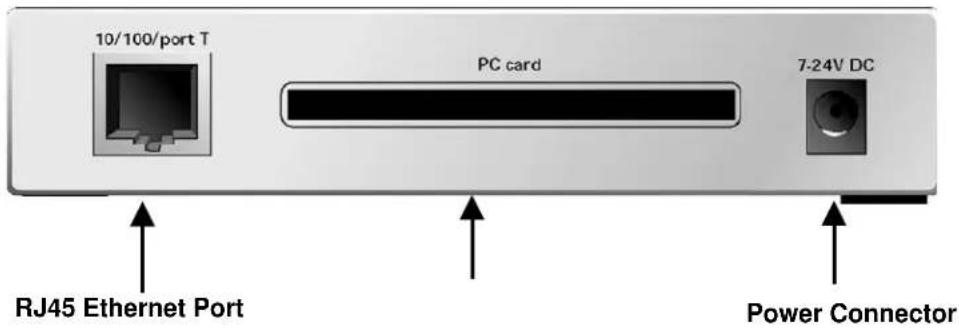
The SCS200 rear panel has an RJ45 Ethernet connector, a power connector, and a PC card interface. The SCS200 rear panel has an RJ45 Ethernet connector, a power connector, and a PC card interface.
SCS200 Rear Panel
text_image
10/100/port T PC card 7-24V DC RJ45 Ethernet Port Power ConnectorNote: The Reset button returns the SCS to its factory default configuration when you press and hold it during the power-up and boot process. Resetting to factory default will enable DHCP.
Serial Connector Pinouts
RS-232/RS-485 DB25 Connector
The DB25 connector provides a dual RS-232/RS-485 DTE serial port. The default serial port settings are 9600 baud, 8 bits, no parity, and 1 stop bit.
DB25 Serial Connector (DTE DB25 Male)

text_image
TX RTS DSR DCD (in) RX CTS GND 1 13 14 CD (out) DTR 25 RS232
text_image
1 13 14 TX- RX- TX+ RX+ 25 RS485RS-232 DB9 Connector
The SCS200 DB9 connector provides an RS-232 DTE serial port. The default serial port settings are 9600 baud, 8 bits, no parity, and 1 stop bit.
DB9 Serial Connector

text_image
TX GND RX DTR 1 5 6 RTS C 9 DSR CTSPC Card Slot
The SCS200 PC card slot accepts Type I/II PC cards. As of this writing, the SCS200 software supports 16-bit IEEE 802.11 wireless networking PC cards, PCMCIA modem cards, and ATA flash disks and hard-drive PC cards. New cards may be added.
Note: Changes in firmware releases may affect compatibility.
LEDs
LEDs indicate serial port and PC card activity. The SCS200 has five LEDs on the top of the unit. A red LED during boot mode typically signals an error, but red LED patterns during normal operations do not signal an error. Refer to the following tables for an understanding of LED functions:
SCS200 Serial and Network LED Functions
| LED Function | |
| Serial | Blinks green to indicate serial activity. |
| OK | Blinks green, or yellow to indicate network activity.Green: Flashes every two seconds when booted.Red: Indicates incoming network traffic.Yellow: Indicates outgoing network traffic. |
| 100 G | Gows green to indicate a 100 Mb Ethernet connection. |
| Link | Glows green while the SCS is connected to a wired 10BASE-T or 100BASE-T Ethernet network. |
The PC Card LED varies in meaning depending on what kind of card is currently installed.
SCS 200 PC Card LED Functions
| LED | 802.11 Cards | ATA Cards | Modem Cards |
| Not lit No card | in slot No card inserted No card inserted | ||
| Green solid Ready Ready Ready | |||
| Green blinking | Negotiating settings with AP or ad-hoc peer | PC card not formatted | n/a |
| Red solid | PC card failure | PC card failure | PC card failure |
| Red blinking | PC card not read or supported | PC card not read or supported | PC card not read or supported |
| Yellow solid | Initialization in progress | Initialization in progress | Initialization in progress |
| Yellow blinking | Scanning for Access Point (AP) or ad-hoc peer | n/a | Initialization problem |
Specifications of the SCS200
Power
Power Cube Adapter
input 120 VAC US; 100-240 VAC International
output 12 VDC
DC power input 7-24 VDC
Current 1A @ 12 V max. with PC card
Power consumption 12 Watts max.
Temperature
Note: Rapid temperature changes may affect operation. Do not operate near heating or cooling devices or areas that open to the outdoors.
Operating range 5° to 50° C (41° to 122° F)
Storage range -40^ to 66^ C ( -40^ to 151^ F)
Max. temp change 20^ C ( 36^ F) per hour
Humidity
Operation 10% to 90% non-condensing
Ideal 40% to 60%
Storage 10% to 90% non-condensing
Altitude
Note: For operations above 2.4 km (8,000 ft), decrease the operating temperature rating by 1.8°C for each 1,000 m (1°F for each 1,000 ft).
Operation 2.4 km (8,000 ft)
Storage 9.1 km (30,000 ft)
4: The SCS400
The chapter describes the SCS400 connectors, LEDs, and specifications.
Connectors
Front Panel
The SCS400 front panel has four DB9 serial port connectors and an RJ45 Ethernet connector.
SCS400 Front Panel

text_image
10/100BaseT PCC1 PCC2 Link OK Serial 1 Console Serial 2 Serial 3 Serial 4 Serial1 Serial2 Serial3 Serial4 RJ15 Ethernet Port DB9 Serial Console Port DB9 Serial PortsSide Panel
The SCS400 side panel has a reset button, two PC Card Slots, and two power connectors.
SCS400 Side Panel

text_image
Reset PC Card 1 PC Card 2 PC Cardo 0 30V DC 0 30V Reset Button PC Card Slots Power Connector Screw Terminal Power ConnectorNote: The Reset button returns the SCS to its factory default configuration when you press and hold it during the power-up and boot process. Resetting to factory default will enable DHCP.
DB9 Serial Connector Pinouts
The following figure shows the pin connections of the SCS400 DB9 RS-232 connector. The default serial port settings are 9600 baud, 8 bits, no parity, and 1 stop bit.
DB9 RS-232 Serial Connector

text_image
TX GND RX DTR 1 5 6 RTS C DSR CTSPC Card Slots
PC Card Slot
The SCS400 PC card slot accepts Type I/II PC cards. As of this writing, the SCS400 software supports 16-bit IEEE 802.11 wireless networking PC cards, PCMCIA modem cards, and ATA flash disks and hard-drive PC cards. New cards may be added.
Note: Changes in firmware releases may affect compatibility.
Power Connectors
Power is supplied to the SCS400 using one of the connectors described below.
Power Jack
The SCS400 ships with a standard barrel power jack whose inner conductor is positive.
Power Jack Connector

text_image
2.1 mm 5.5 mmScrew Block Power
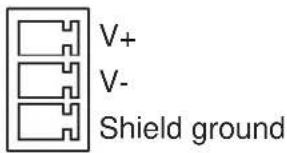
The SCS400 also has a 9-30 VDC screw block power jack.
Screw Block Power
text_image
V+ V- Shield groundLEDs
LEDs indicate serial port and PC card activity. The SCS400 has eight LEDs on the top of the unit. A red LED during boot mode typically signals an error, but red LED patterns during normal operations do not signal an error. Refer to the following tables for an understanding of LED functions:
SCS400 Serial and Network LED Functions
| LED Function | |
| Serial (14) | Blinks green to indicate serial activity. |
| OK | Blinks yellow, green, or red to indicate network activity.Green: Blinks every 2 seconds when booted.Yellow: Indicates outgoing network traffic.Red: Indicates ingoing network traffic. |
| Link | Glows green or yellow while the SCS is connected to a wired 10BASE-T or 100BASE-T Ethernet network.Off: Not connected to a wired Ethernet network.Green: Connected to a 10Base-T network.Yellow: Connected to either a 100Base-T or a 100BASE-FX network. |
The PCC1 and PCC2 LEDs, which correspond to the top and bottom PC card slot respectively, vary in meaning depending on what kind of card is currently installed.
SCS400 PCC1 and PCC2 Card LED Functions
| LED | 802.11 Cards | ATA Cards | Modem Cards |
| Not lit No card in slot | No card inserted | No card inserted | |
| Green solid Ready | Ready Ready | ||
| Green blinking | Negotiating settings with AP or ad-hoc peer | PC card not formatted | n/a |
| Red solid | PC card failure | PC card failure | PC card failure |
| Red blinking | PC card not read or supported | PC card not read or supported | PC card not read or supported |
| Yellow solid Initialization in progress | Initialization in progress | Initialization in progress | in progress |
| Yellow blinking | Scanning for Access Point (AP) or ad-hoc peer | n/a | Initialization problem |
Specifications of the SCS400
Power
Screw terminal power jack 9-30 VDC
Power Cube Adapter
input 100-240 VAC US; 100-240 VAC international power cord
output 12 VDC
DC power input 9-30 5 VDC
Current 1.5 A @ 12 V
Power consumption 18 Watts max.
Temperature
Note: Rapid temperature changes may affect operation. Do not operate near heating or cooling devices or areas that open to the outdoors.
Operating range 5° to 50° C (41° to 122° F)
Storage range -40^ to 66^ C ( -40^ to 151^ F)
Max. temp change 20°C (36°F) per hour
Humidity
Operation 10% to 90% non-condensing
Ideal 40% to 60%
Storage 10% to 90% non-condensing
Altitude
Note: For operations above 2.4 km (8,000 ft), decrease the operating temperature rating by 1.8°C for each 1,000 m (1°F for each 1,000 ft).
Operation 2.4 km (8,000 ft)
Storage 9.1 km (30,000 ft)
5: Installation
This chapter covers all of the steps needed to get the SCS online and working. EZWebCon is the preferred method for initial configuration, but this chapter also explains alternative methods such as the command line interface. The full command set is discussed in the SCS Reference Manual.
Before you begin, note the following points:
- The IP address must be configured before any TCP/IP functionality is available. You cannot use the web browser interface until an IP address is assigned.
- Most configuration commands require privileged user status. You must enter the Set Privileged command to become the privileged user. The default privileged password is system.
Connecting the SCS
- Place the SCS in a secure location close to the device or devices it will service.
- Connect your serial devices to the DB25 and/or DB9 serial connectors as appropriate for the SCS model.
- Connect the Ethernet network to the SCS in one of the following ways:
Connect to the 10/100BASE-T port.
Note: You must use a 10/100BASE-T wired connection if you wish to perform initial configuration over the network.
For the SCS200 and SCS400, if desired, insert a supported modem card, ATA card, or 802.11 card in the PC card slot.
-
Connect the power supply to the SCS. See the appropriate SCS Components chapter for power connection specifications.
-
Confirm the following:
a) The green Power LED lights up immediately.
b) After a few seconds, the green Link LED lights up.
c) After about 30 seconds, the green OK LED blinks green every two seconds.
d) If you installed a PC card, the PC card LED is solid green. If the LED is any other color, see the LED section of the appropriate SCS chapter.
- Continue with Assigning an IP Address.
Assigning an IP Address
You must assign an IP address to the SCS before you can perform any configurations. We recommend you use the first method listed below, EZWebCon.
EZWebCon Method
We recommend using EZWebCon software for initially configuring the SCS. EZWebCon is located on the distribution CD-ROM. The README file provides installation instructions.
Use the following steps to assign an IP address using EZWebCon:
- Start EZWebCon.
- On the menu bar, click Action → Assign IP Address. The Assign IP address – Select Device window displays.
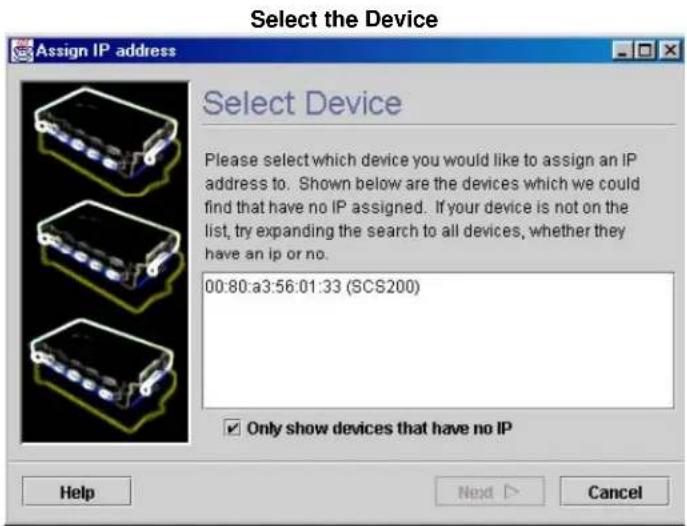
text_image
Select the Device Assign IP address Select Device Please select which device you would like to assign an IP address to. Shown below are the devices which we could find that have no IP assigned. If your device is not on the list, try expanding the search to all devices, whether they have an ip or no. 00:80:a3:56:01:33 (SCS200) ✓ Only show devices that have no IP Help Next > Cancel- Select the SCS that appears in the window and click Next. The Assign IP address - Assignment Method Select window displays.
Select the Assignment Method
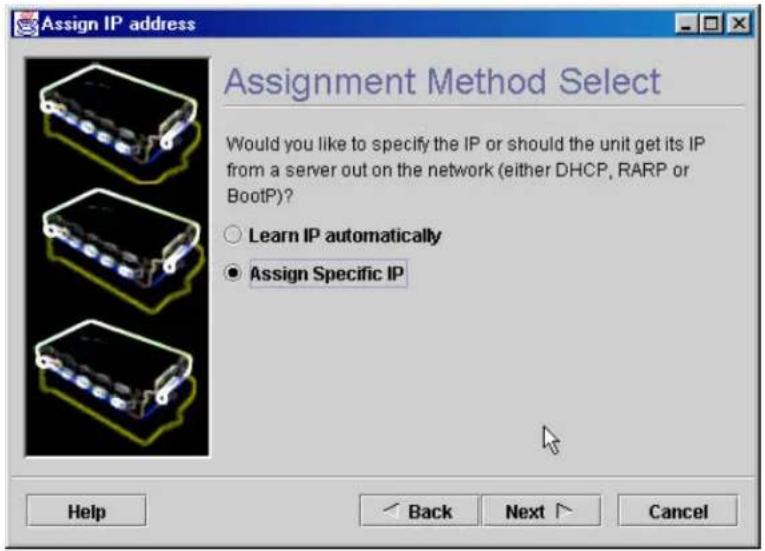
text_image
Assign IP address Assignment Method Select Would you like to specify the IP or should the unit get its IP from a server out on the network (either DHCP, RARP or BootP)? ○ Learn IP automatically ● Assign Specific IP Help Back Next Cancel- Select Assign Specific IP and click Next. The Assign address – IP Settings window displays.
Enter IP Settings

text_image
Assign IP address IP Settings Please fill in what ip, subnet, and gateway we should assign the device. We automatically fill in the device's natural subnet as you type, but please verify it for accuracy. Incorrect values in any of the below fields can make it impossible for your device to communicate, and can cause network disruption. IP Address: 172 . 19 . 22 . 100 Subnet Mask: 255 . 255 . 0 . 0 Gateway: None Help Back Next > Cancel- Enter the IP-related settings:
a) For IP Address, enter the desired IP address.
b) For Subnet Mask, change the values provided only if you wish to use a mask other than the default. The default value should be correct in most cases.
-
For Gateway Address, select None.
-
Click Next. The Assign IP address – Assignment Status window displays.
Assign IP
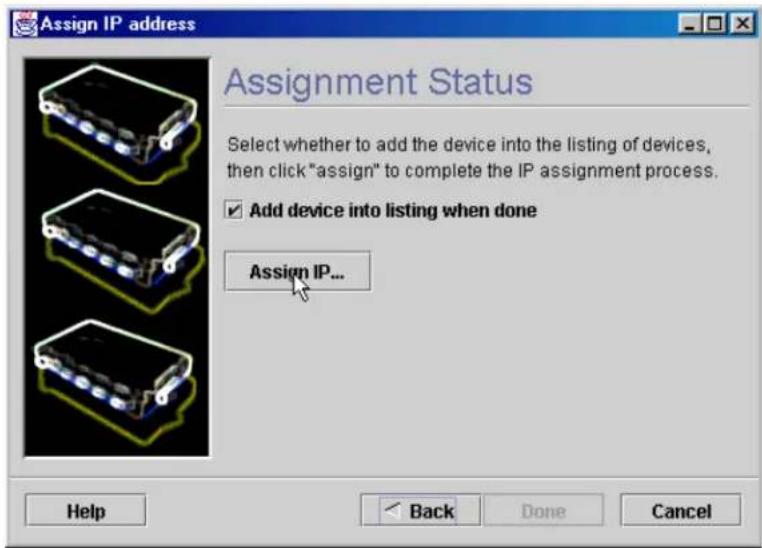
text_image
Assign IP address Assignment Status Select whether to add the device into the listing of devices, then click "assign" to complete the IP assignment process. ✓ Add device into listing when done Assign IP... Help Back Done Cancel- Click the Assign IP... button.
- Wait for instructions from EZWebCon.
For assistance once EZWebCon is running, refer to EZWebCon's online help.
DHCP Method
If DHCP is enabled on the SCS, the SCS will accept an IP address, gateway address, and subnet mask from a DHCP host. DHCP can be enabled or disabled with the following command:
Set/Define Server DHCP [Enabled | Disabled]
DHCP is disabled in production. Resetting the unit to factory defaults via the reset button, command line, or web interface will enable DHCP. (See page 2-1 for information on resetting hardware or page 7-4 for information on the Flush NVR command.)
Command Line Method
To assign an IP address to the SCS via a terminal:
- Attach a terminal to the serial port (port 2) and press Enter. You see a Local> prompt at which you can enter configuration commands.
- Once you are connected, become the privileged user and enter the Define IP IPaddress command.
Note: The default privileged password is system.
Entering IP Address at Local Prompt
Local> SET PRIVILEGED
Password> system (not echoed)
Local>> DEFINE IP IPADDRESS 192.0.1.228
-
Reboot the SCS for the IP address to take effect.
-
If the SCS encounters an Ethernet network problem while booting, it sends an alert message to port and waits ten seconds to detect serial port activity before attempting to finish booting. If you press Enter when the alert message displays, the Boot> prompt displays.
Note: For more information on Boot Configuration Program (BCP) commands, see Troubleshooting.
ARP and Ping Method
The ARP/ping method is available under UNIX and Windows. If the SCS has no IP address, it sets its address from the first directed IP packet it receives.
When the SCS receives the ping packet, it notices that its IP address is not set and sends out broadcasts to see if another node is using the specified address. If no duplicate is found, the SCS uses that IP address and responds to the ping packet.
UNIX Host
-
Create an entry in the host's ARP table and substitute the SCS's hardware address and intended IP address.
-
Ping that IP address. This process typically requires super-user privileges.
Entering ARP and Ping (UNIX)
| # arp -s 192.0.1.228 00:80:a3:xx:xx:xx% ping 192.0.1.228 |
Windows Host
- Type ARP -A at the DOS command prompt to verify that there is at least one entry in the ARP table.
- If there is no other entry beside the local machine, ping another IP machine on your network to build the ARP table. This has to be a host other than the machine on which you are working.
- Use the following commands to ARP the IP address to the SCS and make the SCS acknowledge the IP assignment.
Entering ARP and Ping (Windows)
| C:\ ARP -S 192.0.1.228 00-80-A3-XX-XX-XX |
| C:\ PING 192.0.1.228 |
Note: If the ARP command works, replies from the IP address display.
With the ARP method, the SCS does not save the learned IP address permanently. This procedure is just a temporary measure to enable a web browser or allow an administrator to Telnet into the SCS. Once logged in, the administrator can enter the Define IP IPaddress command to make the address permanent.
Changing the IP Address
% telnet 192.0.1.228 7000
<h1 id="access-not-echoed">access (not echoed)</h1>
Lantronix Version n.n/n (yymmdd)
Type Help at the `Local_> prompt for assistance.
Username> [gopher]
Local> SET PRIVILEGED
Password> system (not echoed)
Local>> DEFINE IP IPADDRESS 192.0.1.228
Note: The default login password is access. The default privileged password is system. After you have entered both passwords and gained access, change those passwords from their default settings.
BOOTP or RARP Reply Method
A host-based BOOTP or RARP server can provide information for the SCS to use to configure an IP address. See the host-based documentation pages for configuration information. Keep in mind that many BOOTP daemons do not reply to a BOOTP request if the download file name in the configuration file does not exist. If this is the case, create a file in the download path to get the BOOTP daemon to respond.
BOOTP and RARP are enabled by default on the SCS. If you wish to disable them, use the Define Server BOOTP Disabled and Define Server RARP Disabled commands.
Configuring the SCS
Once you have assigned the IP address, you can configure your SCS using any of the methods discussed below:
EZWebCon Method
If you have just assigned the IP address using EZWebCon, you may want to continue using EZWebCon to launch the web browser interface for SCS configuration. The EZWebCon user interface allows you to set up menus and change passwords without needing to know commands.
Once the IP address for your SCS is set, perform the following steps to launch the web browser interface from EZWebCon.
- Click to select the device you wish to configure.
- On the menu bar, click Action → Manage. This action launches the web browser interface to your device.
Authentication on the Web Browser Interface

text_image
Lantronix - Authentication for SCS_590176 - Microsoft Internet Explorer File Edit View Favorites Tools Help Back Search Favorites Media Address http://172.19.21.215/ Server: Lantronix SCS100 SCS_590176 at 172.19.21.215 Authentication Required Non-privileged pages still require a login-level authentication. Username: login Password: ******** Login- Type login (default username) in the Username field and access (default login password) in the Password field.
- Click the Login button. The Server Configuration window displays.
Server Configuration Window
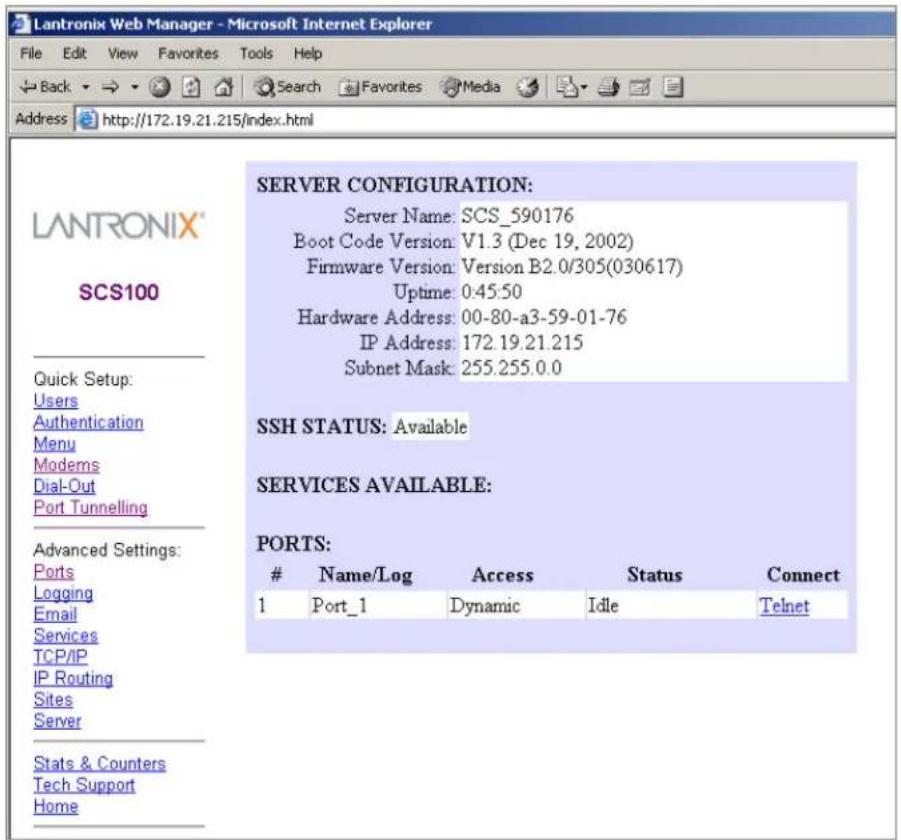
text_image
LANTRONIX Web Manager - Microsoft Internet Explorer File Edit View Favorites Tools Help Back Search Favorites Media Address http://172.19.21.215/index.html LANTRONIX® SCS100 Quick Setup: Users Authentication Menu Modems Dial-Out Port Tunnelling Advanced Settings: Ports Logging Email Services TCP/IP IP Routing Sites Server Stats & Counters Tech Support Home SERVER CONFIGURATION: Server Name: SCS_590176 Boot Code Version: V1.3 (Dec 19, 2002) Firmware Version: Version B2.0/305(030617) Uptime: 0:45:50 Hardware Address: 00-80-a3-59-01-76 IP Address: 172.19.21.215 Subnet Mask: 255.255.0.0 SSH STATUS: Available SERVICES AVAILABLE: PORTS:Name/Log Access Status Connect
1 Port_1 Dynamic Idle Telnet- Select a link from the left navigation column to configure the SCS. The root (privileged) level authorization window displays.
Root Level Authorization
text_image
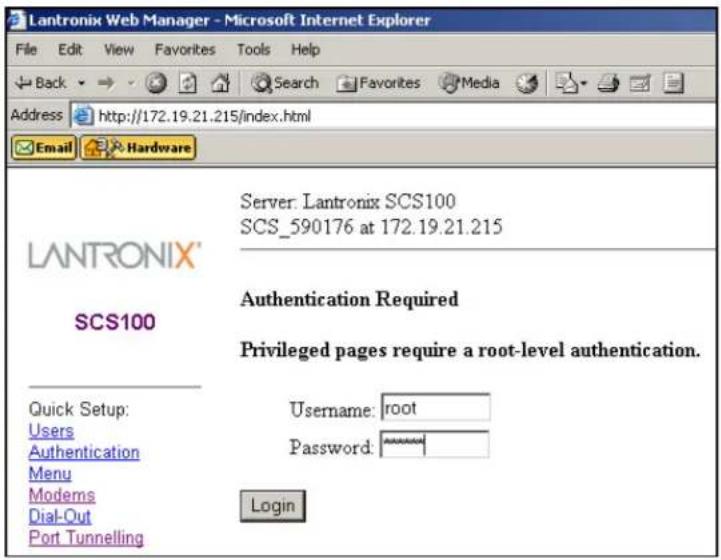
Lantronix Web Manager - Microsoft Internet Explorer File Edit View Favorites Tools Help Back Search Favorites Media Address http://172.19.21.215/index.html Email Hardware LANTRONIX® SCS100 Server: Lantronix SCS100 SCS_590176 at 172.19.21.215 Authentication Required Privileged pages require a root-level authentication. Quick Setup: Users Authentication Menu Modems Dial-Out Port Tunnelling Username: root Password: ******** Login- Type root in the Username field and system (default privileged password) in the Password field. (If a "remember password" popup window displays, select No and re-enter the password if necessary.)
- Click the Login button. The desired configuration page displays.
Note: For added security, change the login and privileged passwords from their default settings. You can set both passwords in the Server section of the web pages.
Web Browser Method
To launch the web browser interface outside of EZWebCon, open a standard browser and enter the SCS's IP address (for example, http://172.19.21.215) or resolvable text name into the URL/Location field. Follow the login process starting with step 3 in EZWebCon Method, above.
Telnet Login Method
Standard Telnet connections are not encrypted and pose a security risk. Incoming Telnet and SSH (Secure Shell) are enabled by default to allow TCP/IP connections.
To form a Telnet connection to the SCS:
- Enter the Telnet command followed by the SCS's IP address, a space, and 7000.
- Enter the login password. The default login password is access. Until authentication is configured and users are added, any username works.
Forming a Telnet Connection
%telnet 192.0.1.88 7000
#access (not echoed)
Lantronix SCS Version n.n/n (yymmdd)
Type Help at the 'Local>' prompt for assistance.
Enter Username>
Command Line Method
To monitor or configure the SCS via a terminal, attach a terminal to the serial (console port) and press Enter. You see a Local> prompt at which you can enter configuration commands. See the SCS Reference Manual for a complete list of available commands.
Note: For overall help, type and enter Help in a command line. For information regarding a specific command, type and enter Help
6: Application Setup
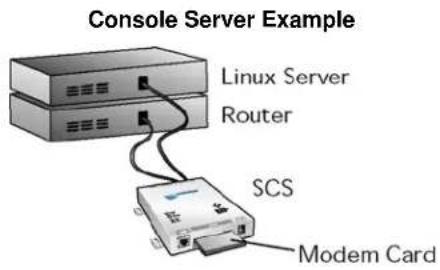
The SCS console server allows you to remotely manage devices and equipment from anywhere on the network or from a remote dial-in through an attached modem. To use the SCS as a console server, connect its serial ports to the serial console/management ports of equipment such as UNIX servers, PBX switches, routers, network switches, or other similar devices.
text_image
Console Server Example Linux Server Router SCS Modem CardOnce you have completed the physical connections, you can establish an SSH or Telnet connection to the SCS's IP address and the socket number of the desired port.
The SCS's serial ports allow three types of socket connections: SSH connections at socket 22xx, Telnet IAC interpretation at socket 20xx, and raw TCP connections at socket 30xx, where xx is the port number. For example, to open a Telnet connection to port 2 of an SCS at IP address 192.0.1.168, issue the command telnet 192.0.1.168 2002 from your system prompt.
Note: The syntax for SSH connections depends on your SSH client software.
Once you have connected the SCS, you can configure or use the following SCS features:
Login Banner Pages
Menus
Remote User Dial-Up
Event Port Logging and Email Notification
Dial-Out ISP Connection
Com Port Redirector
SSH Connections
Login Banner Pages
Banner Pages allow you to display text messages to users before and after authentication. Banner text information is taken from two files named prelogin.txt and postlogin.txt stored in the /ram or /flash directory on the SCS. The SCS does not store or display files stored in the /ram directory after rebooting.
To implement login and logout banner text:
- Create text files named prelogin.txt and/or postlogin.txt.
- FTP to the IP address of the SCS.
- Log in with the username root and enter the privileged password (system by default).
- Change directories to /flash.
- "Put" the text files into the desired directory.
- Reboot the SCS.
Subsequent users logging in or out of the SCS see the text in the prelogin.txt and postlogin.txt files, respectively. The standard company/product/version banner displays if either of these two files is not present in the SCS.
Menus
Enabling Menu Mode
If others need to access devices attached to the SCS, but you wish to limit their options, use menu mode. Menus allow users to access often-used hosts and services without needing to know command syntax, the IP address of the non-local devices, or the socket numbers involved. You can enable menu mode on either individual serial ports or on port 0 (the network port template) so users who Telnet to the SCS see the configured menu rather than the Local> prompt.
When menu mode is enabled, a user who logs in to an SCS port (or, if menu mode is enabled for port 0, a user who Telnets to the SCS) sees a menu listing various descriptive entries. Each menu entry corresponds to a command. For example, selecting option 4 from the following menu connects the user to the SCS Local> prompt.
Sample Menu
| Lantronix Console Server | |
| 1) Cisco Router | 4) Local> Prompt |
| 2) Sun Server | 5) Logout |
| 3) Linux Server | 6) |
| Enter Selection: | |
For a single global menu, the system administrator defines menus using the menu configuration web page. For multiple, group, or nested menus, the system administrator defines menu text files and uploads them to the SCS. For more information on defining menus, see the SCS Reference Manual.
Creating the Menu
The SCS supports a basic menu feature and an advanced menu feature. This section describes the basic menu function; for a more advanced menu structure, refer to the SCS Reference Manual.
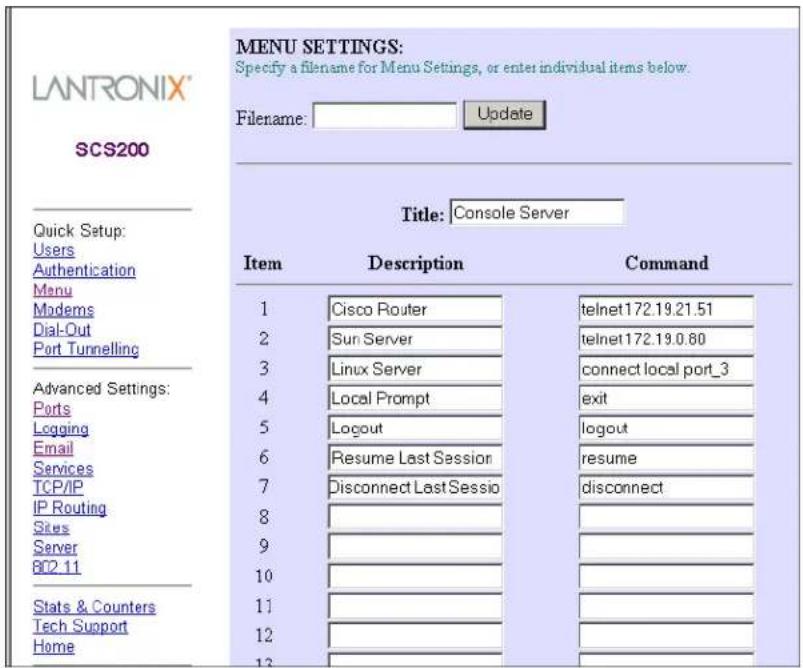
Create a menu with the web browser interface by performing the following steps:
- Click the Menu link under the Quick Setup options.
Menu Settings
text_image
LANTRONIX® SCS200 MENU SETTINGS: Specify a filename for Menu Settings, or enter individual items below. Filename: Update Title: Console Server Quick Setup: Users Authentication Menu Modems Dial-Out Port Tunnelling Advanced Settings: Ports Logging Email Services TCP/IP IP Routing Sites Server 802.11 Stats & Counters Tech Support Home Item Description Command 1 Cisco Router telnet172.19.21.51 2 Sun Server telnet172.19.0.80 3 Linux Server connect local port_3 4 Local Prompt exit 5 Logout logout 6 Resume Last Session resume 7 Disconnect Last Sessio disconnect 8 9 10 11 12 13-
Enter a title for your menu in the Title field.
-
Create menu entries by entering a description, which will be displayed in the menu, and a corresponding command that will be run when that entry is selected.
Each menu entry can do one of the following:
Connect to a device on the network using a Telnet command.
Telnet Menu Entry
| Item | Description | Command |
| 1 | Cisco Router | telnet 172.19.21.51 |
Connect to a device attached to the SCS with a Connect Local Port command. The port is the port name listed in the SCS, such as port_2.
Connect Local Menu Entry
| 3 | Linux Server | connect local port_3 |
Access a local service on the SCS with a general SCS command.
Local Service Menu Entry
| 4 | Local Prompt | exit |
| 5 | Logout | logout |
| 6 | Resume Last Session | resume |
| 7 | Disconnect Last Session | disconnect |
Note: The Exit command, which only works in menu mode, allows users to return to the SCS Local> prompt. It is helpful to include this command in your menus until you have fully tested them--otherwise there is no way for users on menu mode ports to return to the Local> prompt. To return to the menu from the Local> prompt, type menu.
- Click the Update button to save the menu settings.
Using Menu/Connection Commands
Changing a Port Name
You can change a port name to reference the type of device that port is connected to. For example, a port attached to a router could be named router. To change the name of a port, open the configuration page for that port (Ports → Configure) and enter the new name in the Port Name field.
Changing a Port Name
| Port Name: | Router |
You can enter more than one command in the Command field by separating each command with a semicolon (;). The most common use of this feature is in the form: connect {local or remote} portname;command (for example, connect local port_2;disconnect).
This command can be shortened to con loc port_2;disc. The disconnect command closes the connection to that port when you return to the menu.
Using Hot Keys
The SCS has default hot keys defined for Telnet connections to a port or from the menu. To change the default hot key; see the SCS Reference Manual.
Ctrl+L Allows you to jump back to the menu from a port connection.
Ctrl+F Allows you to jump forward to another connect session.
Ctrl+B Allows you to jump backward to a previous connect session.
Ctrl+Y Allows you to send a break from a Telnet or SSH connection. (The SCS will not cause unintentional breaks that can halt a Sun Solaris server.)
Using Multiple Ports
If you would like to open more than one port and jump between those connections, remove the disconnect command from your menu entry. Then, use the default hot keys to return to the menu (Ctrl+L) and select another connection. Once more than one connection is open, you can jump between connections using the Ctrl+B and Ctrl+F hot keys.
Note: If you do not include the disconnect command in the menu entry, you must manually disconnect each session using the disconnect command at the Local> prompt or from a menu selection. An alternative is to enable Inactivity Logout on each port to automatically logout a port. See the SCS Reference Manual for additional information.
To switch between several connections from a serial port using a terminal, you must configure four things on the serial port configuration pages: the Local switch, Forward switch, Backward switch, and the Break Control setting (which must be changed from Local to Remote).
Enabling Menu Mode for a Port
For a port to use the menu you just configured, you must enable menu mode for that port. Menu mode can also be enabled on port 0 for any users who Telnet to the SCS.
After you define and save all menu items, perform the following steps to enable menu mode.
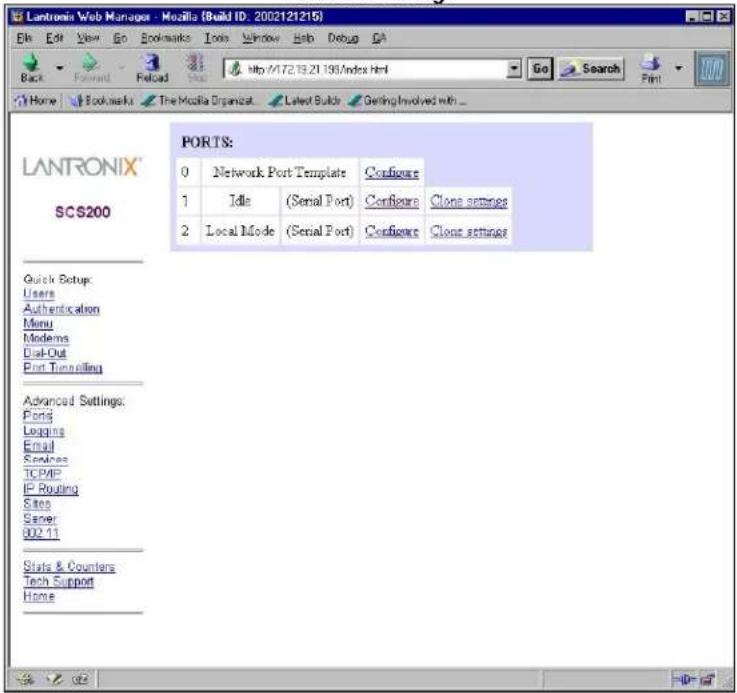
- Click the Ports link under Advanced Settings.
Serial Port Page
text_image
LANTRONIX Web Manager - Mozilla (Build ID: 2002121215) File Edit View Go Bookmarks Tools Window Help Debug GA Back Forward Reload http://72.13.21.138/Index.html Go Search Print Home Bookmarks The Mozilla Organizat Latest Build Getting Involved with _ PORTS: 0 Network Port Template Configure 1 Idle (Serial Port) Configure Clone settings 2 Local Mode (Serial Port) Configure Clone settings Quick Setup: Users Authentication Menu Modems Disk-Out Port Tuning Advanced Settings: Ports Logans Email Sendress TCP/IP IP Routing Sites Server B02.11 Stats & Counters Tech Support Home- Click the Configure link next to the desired serial port.
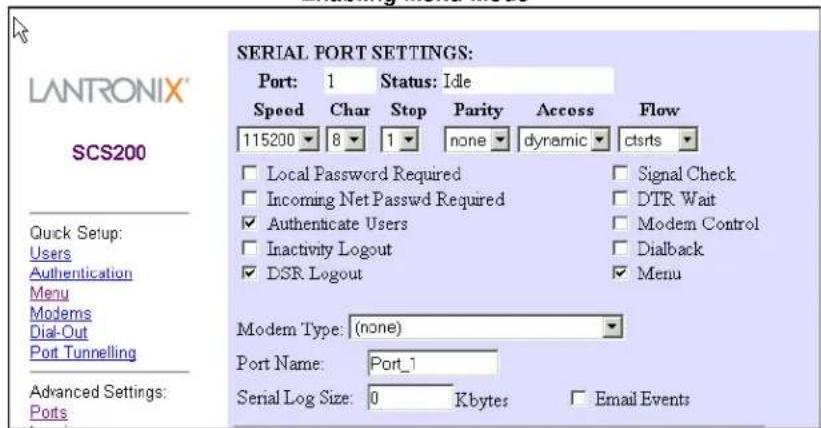
- Check the Menu checkbox.
Enabling Menu Mode
text_image
LANTRONIX® SCS200 Quick Setup: Users Authentication Menu Modems Dial-Out Port Tunnelling Advanced Settings: Ports SERIAL PORT SETTINGS: Port: 1 Status: Idle Speed Char Stop Parity Access Flow 115200 8 1 none dynamic ctsrs Local Password Required Signal Check Incoming Net Passwd Required DTR Wait Authenticate Users Modem Control Inactivity Logout Dialback DSR Logout Menu Modem Type: (none) Port Name: Port_1 Serial Log Size: 0 Kbytes Email Events- Click the Update Port Settings button.
- If desired, enable menu mode on other ports by repeating these steps.
Using the Menu
Once you have both configured the menu and enabled menu mode on a port, you can test the menu by forming a Telnet connection to that port.
When you log into a port with menu mode enabled, you are presented with an initial login screen.
Login Screen
Lantronix SCSxx Version B3.6/3 (000400)
Type HELP at the 'Local> ' prompt for assistance.
Username>
- Enter your user name (in this case, user) and press Enter.
Login Screen, part 2
Username> user
Press <CR> to continue...
- As instructed, press Enter once more to see the actual menu.
- Type the number of the desired menu option and press Enter. For example, to connect to the Linux server, type 3 and then press Enter.
Break Sequences
This section describes how to specify serial breaks and alternate break sequences.
Serial Breaks
Break conditions originating from serial connections are controlled on a per port basis. Break conditions originating from incoming Telnet and SSH connections are based on the settings for port 0, the network (template) port.
You must define where the break condition will be processed using the Set/Define Port Break [Local | Remote] command for each serial port and port 0.
The default break sequence for port 0 is Ctrl+Y. There is no default break sequence for the serial ports.
Alternate Break Sequences
You can additionally specify an alternate break (AltBreak) character for use with terminals that cannot natively generate a break condition and for Telnet or SSH clients that cannot generate break IAC sequences. The syntax for specifying an AltBreak sequence is:
Set/Define Port Break Character [ | None]
where
The table below shows some examples to help you understand how the SCS handles breaks.
Examples of Alternate Break Sequences
| If And Then | ||
| The user Telnets to a remote network host from a local (SCS) serial port | The serial port is set to Break = Local | The AltBreak sequence returns the user to a local (SCS) command prompt. |
| The Serial port is set to Break = Remote | The AltBreak sequence causes the SCS to transmit a Telnet Break IAC sequence to the remote host. | |
| The user issues a Connect Local command to another serial port from a local (SCS) serial port | The user serial port is set to Break = Local | The AltBreak sequence returns the user to a local (SCS) command prompt. |
| The user serial port is set to Break = Remote | The AltBreak sequence causes a break condition to be generated to the target port.Note: The target port's break settings do not apply or affect this situation. | |
| The user Telnets to the SCS Local> prompt and issues a Connect Local command to a serial port | Template port 0 is set to Break = Local | The AltBreak sequence returns the user to a local (SCS) command prompt. |
| Template port 0 is set to Break = Remote | The AltBreak sequence causes a break condition to be generated to the target port.Note: The target port's break settings do not apply or affect this situation. |
Modem Mode
Modem mode allows the SCS to emulate a modem for performing network connections. To configure specific ports to emulate modems, use the following command:
Set/Define Port Modem Emulation [Enabled | Disabled]
When the port is in modem mode, the following modem commands are available:
Modem Mode Commands
| Command Function | |
| ATC Provides passthru to the normal CLI | |
| ATDT ipaddress Forms a TCP connection | |
| ATEx | Enables or disables echo command:0 = echo off1 = echo on (default) |
| ATH Hangs up (d sconnects) network session | |
| ATI Displays software version information | |
| ATQx | Enables or disables result codes:0 = result codes on (default)1 = result codes off |
| ATS[xx=yy] | Sets/shows register:0: 0 means ATA answers; otherwise SCS autoanswersAll other registers are unimplemented. |
| ATSxx? Shows register value | |
| ATVx | Bit 0 sets response type:0 = numeric responses1 = text responses (default)Bit 1 sets response to unknown AT commands:0 = do not accept unknown AT commands1 = do accept unknown AT commands (default) |
| ATX[y] Accepted and ignored | |
| ATZ Restores settings from NVR | |
| AT&F Resets modem NVR to factory settings | |
| AT&V Views current and NVR settings | |
| AT&W Writes settings to NVR | |
| AT&Z Restores settings from NVR | |
The SCS holds DTR low until it forms a valid network session. The attached device can then monitor the SCS DTR output by tying it to its CD input. In addition, the SCS has DSRLogout enabled, so if the attached device drops its DTR, the network connection terminates, and the serial port logs out.
Remote User Dial-Up
You can accomplish dial-up access to the SCS either using a data-link protocol, typically PPP, or using an ASCII-based terminal connection with a terminal emulation application such as HyperTerminal.
Connectivity to the SCS from a remote location requires that you create a user account, connect and configure a modem, enable authentication, and specify an IP address range for use during remote sessions.
To configure your SCS for remote user dial-up:
- Create a user account.
a) From the Quick Setup column on the left, select Users.
b) Enter the user name and click Create.
c) Click the Configure link next to the user name.
d) Enter a password in the Password field.
e) For a PPP connection, type set PPP in the Login Command field.
f) For a terminal emulation connection to the console menu, enter menu in the Login Command field.
g) For a terminal emulation connection to the local SCS prompt, leave the Login Command field blank.
h) Click the Update button.
Creating a User Account

text_image
LANTRONIX Web Manager - Mozilla (Build ID: 2002121215) File Edit View Go Bookmarks Tools Window Help Debug QA Back Forward Refresh Copy http://172.19.21.139/index.html Go Search Font Home Bookmarks The Mobile Organics Latest Builds Getting Involved with USER CONFIGURATION: Username: user1 Password: password User can alter p password. Explore user's password now. Logan Command: setopp Example logan commands Remote Diskp User SET PPP Menu User: MBUU Port Restrictions Serial logs allowed on ports: All Network/local connects allowed to all ports: Serial logs are characteristic/PPP sessions Network/local consoles are TCP socket (30ms, 30pt, 35Hz) and Connect Local commands from a command line. Use All or Name for all ports, respectively. Update Back to Users LANTRONIX® SCS200 Quick Setup: Users Authentication Menu Modems Disk-Out Port Tunneling Advanced Settings: Ports Looping Email Services TCP/IP IP Routing Sites Server 802.11 Stats & Counters Tech Support Home- To configure an external serial modem, attach the modem to one of the serial ports and follow these steps:
a) Click the Modem link.
b) Click the Configure link for the port with the attached modem.
c) Select the modem type from the drop-down list.
d) If you want to enable authentication, check the Authenticate Users box.
e) Click the Update button.
- To configure a PC card modem for the SCS200 or SCS400, insert the PC card modem into the PC card slot and follow these steps:
a) Click the Modem link.
b) Click the Configure link next to port 3 (the PC card slot).
c) Leave the modem type as Generic (the default for a PC card modem).
d) If you want to enable authentication, check the Authenticate Users box.
e) Click the Update button.
Note: If you inserted a PC-card modem while the SCS was powered up, you need to restart the SCS.
- Specify an IP Pool address range for remote users:
a) Click the Modems or Back to Modems link.
b) Enter the IP pool address range for remote users.
Note: The IP pool range must be in the same subnet range as the SCS IP address and cannot be used by any other device on the network. If only one modem is connected to the SCS, then only one IP address is required for the pool. For this configuration, enter the same IP address in the Start and End fields.
- Reboot the SCS for the pool range settings to take effect.
Event Port Logging and Email Notification
You can configure each SCS serial port to store its console output in a log file. If email notification is also enabled, a system administrator receives an email through an SMTP mailserver if the connected device reboots or otherwise produces a burst of console output.
To enable email notification, configure the features discussed in the following sections. For more information on any of these features, see the SCS Reference Manual.
To enable port event logging:
- Click the Ports link under Advanced Settings.
- Click Configure next to the desired serial port.
Serial Port Settings

text_image
LANTRONIX® SCS200 Quick Setup: Users Authentication Menu Modems Dial-Out Port Turnelling Advanced Settings: Ports Logging Email Services TCP/IP IP Routing Sites Server 602 11 Stats & Counters Tech Support Home SERIAL PORT SETTINGS: Port: 1 Status: Idle Speed Char Stop Parity Access Flow 115200 8 1 none dynamic ctsrs Local Password Required Signal Check Incoming Net Passwd Required DTR Wait Authenticate Users Modem Control Inactivity Logout Dialback DSR Logout Menu Modem Type: (none) Port Name: Port_1 Serial Log Size: 0 Kbytes Email Events Packet Mode Settings: PPP Allowed SLIP Allowed PPP Detect SLIP Detect CHAP both PAP both PPP username (optional): PPP password (optional): ******** Interactive Connections: Local Switch: None Forward Switch: None Backward Switch: None Break Control: local Alternate Break None Character: Autostart with No Characters: Autostart with Characters: Save: none- Enable port logging (also referred to as serial logging) by changing the Serial Log Size from 0 to any number between 1 and 250 Kbytes.
Enabling Serial Logging and Email Events

This setting creates a log file on the /ram disk in the format /ram/Port_xx.log where xx is the port name and changes the specified port to access remote. You can access the port log via ftp to the /ram directory.
- Click the Email Events checkbox. This setting enables email notification for the serial log.
- Click the Update Port Settings button to save changes.
When a port that has Email Events enabled receives a burst of 20 or more characters in its serial log, the port buffers the incoming data for up to 25 seconds or until the log file reaches 1500 bytes before sending the contents of the file via email.
Creating an Email Site
Once port buffering is enabled, configure an email site for that port. An email site contains the information necessary to generate and send an email message at any system crash.
Note: Email sites are not related to the sites used by the SCS to manage connections. Sites are discussed in the SCS Reference Manual.
To create an Email site using the web browser interface:
-
Click the Email link under Advanced Settings.
-
Choose a port from the Create Email Site pull-down menu. You can also select a default. The settings for the default email site are used if a port-specific email site is not completely configured.
-
Click the Create button.
-
Configure the email site:
a) In the To field, enter the email address for the recipient. To enter a series of email addresses, separate each address with a comma. The maximum number of characters for this field is 64.
b) In the From field, enter the text to be displayed in the From field of the email message. The maximum number of characters for this field is 32.
c) In the SMTP Host field, enter a valid SMTP mailhost. The mailhost can be either a numeric IP address or, if a nameserver and domain name are configured, a hostname. The maximum number of characters for this field is 24.
d) In the Reply-to field, enter an email address that will receive any responses to the email message. The maximum number of characters for this field is 32.
e) In the Subject: field, enter the text that will be displayed in the subject line. The maximum number of characters for this field is 48.
Configuring an Email Site

text_image
Lantronix Web Manager - Mozilla (Build ID: 2002121215) File Edit View Go Bookmarks Tools Window Help Debug GA Back Forward Roll Back Help http://172.19.21.139/ Home Bookmarks The Mozilla Organizer Latest Build Getting Involved with LANTRONIX® SCS200 Quick Setup: Users Authentication Menu Modems Disk-Out Part Tuning Advanced Settings: Ports Logging Email Services TCP/IP Routing Sites Server 800.11 State & Counters Tech Support Home EMAIL SITE SETUP: PORT1 In order for Social Events on port 1 to be compiled to this site, the Port Log size must be > 0, and Email Send Events must be enabled. Log Size: 250 k Email Events To: sysmen@company.com From: scs@company.com SMTP Host: mobileservename Reply-to: helpdesk@company.com Subject: Port 1 message Update Create Email Site: Create Delete Email Site: Delete Name- Click the Update button to save changes.
Dial-Out ISP Connection
In some cases, you may require the SCS to connect to an ISP to access email or the Internet. You can configure the SCS to automatically connect to an ISP and accept a dynamically assigned IP address from the ISP.
When you configure a dial-out ISP connection using the web browser interface, a site named outgoing is created. Once the site is properly configured, outbound packets should cause the site outgoing to start and dial out using the modem.
- Configure a modem to handle connections from the SCS as described earlier.
- Click the Dial-Out link under Quick Setup.
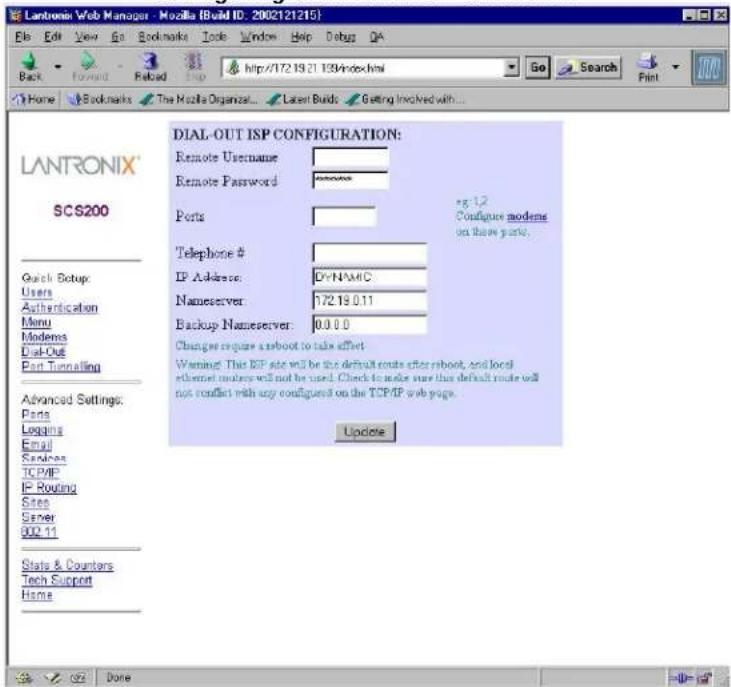
- Complete the following fields:
a) The Remote Username and Password for the ISP.
b) The Port that the modem is attached to (for a PC card modem, enter port 3).
c) The ISP's Telephone number.
d) If necessary, a static IP Address.
Note: Most ISPs assign a dynamic IP address. Set the IP address field on the web page to DYNAMIC for this situation.
- Specify a Nameserver.
Configuring a Dial-Out ISP Connection
text_image
LANTRONIX Web Manager - Mozilla (Build ID: 2002121215) File Edit View Go Bookmarks Tools Window Help Debug QA Back Forward Reload Stop http://72.19.21.139/index.html Go Search Print Home Bookmarks The Mozilla Organizat... Laser Builds Setting Involved with... LANTRONIX® SCS200 DIAL-OUT ISP CONFIGURATION: Remote Username Remote Password Ports e.g. 1,2 Configure modems on these ports. Telephone # IP Address: D:\NAMC Nameserver: 172.19.0.11 Backup Nameserver: 0.0.0.0 Changes require a reboot to take effect. Warning! This ISP site will be the default route after reboot, and local ethernet routes will not be used. Check to make sure this default route will not conflict with any configured on the TCP/IP web page. Update Quick Setup: Users Authentication Menu Modems Disk-Out Part Tuning Advanced Settings: Ports Logging Email Searcher TCP/IP IP Routing Sites Server 900.11 Stats & Counters Tech Support Home- Click the Update button. The default route is now set to site outgoing.
Note: Local Ethernet routes are not be used. To share an ISP connection with the local LAN, Network Address Translation (NAT) must be used. For more information on SCS IP routing and NAT, see the SCS Reference Manual.
- Reboot the SCS for these changes to take effect.
SSH Connections
Secure Shell (SSH) is a program that uses strong user authentication and encryption methods to secure communication from one host to another on a network. The SCS products support SSHv1 and the more robust SSHv2. This section describes how to configure the SCS to support either method.
To use SSH you need an SSH client program on your computer.
Defining Supported SSH Connections
By default, the SCS is configured to allow both SSHv1 and SSHv2 client connections. In the default mode, the remote client is prompted to choose the version to use when an SSH connection attempt is made to or from the SCS.
From the command prompt of the SCS, you can change this setting and specify the types of SSH connections allowed. Use the following syntax:
Set/Define Protocol SSH Mode [ V1Only | V1Prefer | V2Prefer | V2Only ]
In conjunction with the Set/Define SSH Mode command, you can use the following parameters:
SSH Parameters
| Parameter | Effect | |
| Incoming (host to SCS) | Outbound (SCS to host) | |
| V1ONLY SCS offers only SSHv1 connections | SCS only connects using SSHv1 | |
| V2ONLY SCS offers only SSHv2 connections | SCS only connects using SSHv2 | |
| V1PREFER | SCS offers both v1 and v2 and the client chooses | If both SSHv1 and SSHv2 are available, chooses SSHv1 |
| V2PREFER (default) | SCS offers both v1 and v2 and the client chooses | If both SSHv1 and SSHv2 are available, chooses SSHv2 |
If a compatible protocol version is not agreed upon (one node wants SSHv1 and the other wants SSHv2), the connection does not occur.
Creating an AUTHORIZED\_KEYS File
RSA and DSA are commonly used Internet encryption and authentication systems included as part of the web browsers from Netscape and Microsoft. To use RSA and DSA user authentication for connections to the SCS, you must create an AUTHORIZED_KEYS file and store it in the /flash/ssh/ directory of the SCS.
The AUTHORIZED_KEYS file consists of each user's public key. For example, on a UNIX host, your public key is stored in a file called .ssh/identity.pub. The SSH client's key generation software creates both an unreadable private key file (often called identity) and a human readable public key file (identity.pub).
Note: Not all clients come with this program. If yours does not, you may need to use the Username/Password Authentication method described below.
Once you have created a public key file:
- Copy the contents of the public key file (identity.pub) to a text file.
- Save the file with the name AUTHORIZED_KEYS. (AUTHORIZED_KEYS file names are case sensitive.)
Note: Make sure there is no file extension. In Windows, you may need to save the file as a .txt file and then rename the file to remove the extension.
Shared Key Authentication Process
RSA, DSA, and/or username/password authentication can be used to ensure only authorized users access the SCS and connected equipment. The following sections explain how to configure each of these.
Briefly, here's how public/private key authentication works on the SCS. We assume that the user's public/private key pair has been generated. In this example, RSA user authentication is used. DSA authentication is similar.
-
The SSH client on the user's computer sends the public half of the user's identity key to the SCS.
-
The SCS checks to see if this user's identity key is listed in the AUTHORIZED_KEYS (or AUTHORIZED_KEYS2) file on the SCS.
If the user's identity key is not listed in the AUTHORIZED_KEYS file on the SCS, then the authentication attempt fails. If the identity key is listed, then the process continues.
- The SSH client then sends the private half of the user's identity key to the SCS.
- The SCS compares the private half of the user's identity key to the key stored in the host_rsa_key (or host_dsa_key) file on the SCS.
- If the private keys match, then the user's identity is confirmed and an SSH connection forms.
If RSA or DSA user authentication fails, the SCS prompts for a username and password (or just a password, if the SSH client forwarded the username). The user's name and password are then checked against the Radius, SecurlD, or local user databases, in order of their precedence settings. (See the SCS Reference Manual for information on authentication precedence.)
Setting up RSA Shared Key Authentication (for SSHv1)
This procedure assumes you have generated the RSA authentication keys and copied the public half of the key pair to a file called AUTHORIZED_KEYS on your local computer.
- FTP to the IP address of the SCS.
- Change directories to /flash/ssh/.
- "Put" the AUTHORIZED_KEYS file into that directory.
-
Reboot the SCS.
-
Log in with the username of root and enter the privileged password (system by default).
RSA Method from Unix (OpenSSH) - No Passphrase
sshuser@UNIXHOST /# SSH -1 SSHUSER 172.19.21.51
Lantronix SCS Version B1.0/405(011102)
Type HELP at the 'Local_33>' prompt for assistance.
Username>
RSA Method from Unix (OpenSSH) - with Passphrase
sysadmin@UNIXHOST/# -1sysadmin
172.19.21.51
sysadmin@172.19.21.51's password:
Lantronix SCS200 Version B1.0/405(011102)
Type HELP at the 'Local_34>' 'prompt for assistance
Username>
Username/Password Authentication Setup
New authentication keys are generated within a few minutes based on the list of authorized user public keys. A file called host_rsa_key contains the authorized users' private identity keys. A file called host_rsa_key.pub contains the authorized users' public identity key.
As you add individual users, add their public keys to the AUTHORIZED_KEYS file on your workstation and FTP the updated file to the SCS.
Setting up DSA Shared Key Authentication (for SSHv2)
This procedure assumes you have generated the DSA authentication keys and copied the public half of the key pair to a file called AUTHORIZED_KEYS2 on your local computer
- FTP to the IP address of the SCS.
- Log in with the username root and enter the privileged password (system by default).
- Change directories to /flash/ssh/.
- Put the AUTHORIZED_KEYS2 file into that directory.
- Reboot the SCS. New authentication keys will be generated within a few minutes based on the list of authorized user public keys.
A file called host_dsa_key contains the authorized users' private identity keys. A file called host_dsa_key.pub contains the authorized users' public keys.
As you add individual users, add their public keys to the AUTHORIZED_KEYS2 file on your workstation and FTP the updated file to the SCS.
Setting up Username/Password Authentication (SSHv1 or SSHv2)
The SCS also supports username/password authentication through an internal user database, Radius, or SecureID.
If RSA authentication fails, the SCS prompts for a username and password (or just a password, if the SSH client forwarded the username). The SCS checks the user's name and password against the Radius, SecureID, and local authentication databases, in order of their precedence settings, if configured. You can use the SCS's web interface to configure authenticated users and set the authentication precedences.
Note: The SCS does not update expired local passwords or run login scripts at this point of the SSH process.
Authenticated User from Unix (OpenSSH)
sshuser@UNIXHOST /# ssh -l sshuser 172.19.21.51
The authenticity of host '172.19.21.51 (172.19.21.51)' can't be established.

RSA1 key fingerprint is e8:9b:7f:ee:9d:58:47:88:2e:72:a3:61:84:67:d0:d1.
Are you sure you want to continue connecting (yes/no)? yes
Warning: Permanently added '172.19.21.51' (RSA1) to the list of known hosts.

sshuser@172.19.21.51's password:

Lantronix SCS200 Version B1.0/405(011102)
Type HELP at the 'Local_33>' prompt for assistance.

Username>
Forming SSH Incoming Connections (Unix and Non-Unix)
Non-Unix Platforms
To form an SSH connection from a non-Unix platform to an SCS:
- Start your SSH client software.
- Enter the SCS host name or IP Address and specify the public key file to use.
- If connecting directly to a serial port on the SCS, specify the port number 22xx, where xx is the port number.
- If your RSA key is passphrase protected, enter your password.
- If you are not using an RSA key, specify the username and password the SCS will use to authenticate you.
UNIX Platforms
To form a connection from Unix, your computer must have an SSH client installed (OpenSSH, for example).
- At the command prompt, enter ssh followed by the SCS host name or IP Address. You may also specify a username by adding a -1 (username) or (username)@hostname.
Forming an SSH Connection (UNIX)
% ssh -l (username) (hostname or IP)
or
% ssh (username)@(hostname or IP)
Depending on whether your RSA key pair is passphrase protected, you may then be prompted for a password.
- To connect to a specific SCS port, use serial port 22xx, where xx is the port number.
Forming an SSH Connection to a Port
% ssh -p2202 (hostname or IP)
Security Enhancements
This section describes methods for increasing the security of the SCS.
Incoming Security
You can make the SCS into a highly secure host by turning off the FTP and HTTP services using the command:
Set/Define Proto [ HTTP | FTP ] [Enabled | Disabled]
Note: The web interface will no longer be available.
You can further restrict access to only SSH connections to the SCS command line and serial ports, using the following command:
Set/Define Server Incoming Secure
The Server Incoming Secure command disallows unsecure Telnet and TCP connection attempts. Access is through SSH only.
Port User Restrictions
To reject network connections to ports not on a user's port target list, use the command:
Set/Define Authentication User
To reject serial logins to ports not on a user's port list, use the command:
Set/Define Authentication User
To show the user's current port restrictions, use the command:
Show Authentication User
To reset the permissions back to the default, use the command:
Set/Define Authentication User
Com Port Redirector
The Com Port Redirector application allows Microsoft Windows-based PCs to access modems or other serial devices connected to a Secure Console Server as if those serial devices were local Com ports. The Redirector creates virtual com ports and intercepts communications from existing device software, then redirects those communications over the IP network to the serial ports on your SCS. The Com Port Redirector works in the background.
The Com Port Redirector software and installation instructions are included on the distribution CD-ROM or from the Lantronix web site at:
ftp://ftp.lantronix.com/pub/redirector
7: Troubleshooting
This chapter discusses how you can diagnose and fix errors quickly without having to contact a dealer or Lantronix. It helps to connect a terminal to the serial port while diagnosing an error to view summary messages that may be displayed.
When troubleshooting, always ensure that the physical connections (power cable, network cable, and serial cable) are secure. If you have trouble with wireless networking, it may help to connect the SCS to a wired Ethernet network to verify that it is working properly and to check the wireless settings.
Note: Some unexplained errors might be caused by duplicate IP addresses on the network. Make sure that your SCS's IP address is unique.
Technical Support
If you are experiencing an error that is not described in this chapter, or if you are unable to fix the error, you may:
Check our online knowledge base at www.lantronix.com/support.com
E-mail us at support@lantronix.com
Call us at:
(800) 422-7044 Domestic
(949) 453-7198 International
(949) 450-7226 Fax
Our phone lines are open from 6:00AM - 5:30 PM Pacific Time Monday through Friday excluding holidays.
Technical Support Europe, Middle East, and Africa
Phone: +49 (0) 77 20 30 1657
E-mail: eu techsupp@lantronix.com
Firmware downloads, FAQs, and the most up-to-date documentation are available at: www.lantronix.com/support
When you report a problem, please provide the following information:
- Your name, and your company name, address, and phone number
- Lantronix SCS model number
- Lantronix SCS serial number
◆ Software version (use the Show Server command to display)
◆ Network configuration, including the information from a Netstat command
◆ Description of the problem
◆ Debug report (stack dump), if applicable
Status of the unit when the problem occurred (please try to include information on user and network activity at the time of the problem)
Power-up Troubleshooting
Problem situations and error messages are listed in the table below. If you cannot find an explanation for your problem, try to match it to one of the other errors. If you cannot remedy the problem, contact your dealer or Lantronix Technical Support.
Problems and Error Messages
| Problem/Message Error Remedy | ||
| The SCS is connected to a power source, but there is no LED activity. | The unit or its power supply is damaged. | Contact your dealer or Lantronix Technical Support for a replacement. |
| The SCS is unable to complete power-up diagnostics. | This generally indicates a hardware fault. One of the LEDs will be solid red for three seconds, followed by one second of another color. | Note the blinking LED and its color, and then contact your dealer or Lantronix Technical Support. The SCS will not be operational until the fault is fixed. |
| The SCS completes its power-up and boot procedures, but there's no noticeable serial activity. | There is a problem with the serial connection or the set- up of the serial device. | Check the terminal setup and the physical connections, including the cable pinouts. Try another serial device or cable, or cycle power on the SCS. |
| A rapidly blinking OK LED may signal boot failure. | Reboot the unit. When the SCS is running normally, the OK LED blinks every two seconds. | |
| The terminal shows a Boot> prompt rather than a Local> prompt. | The SCS is not connected properly to the Ethernet. | Ensure that the SCS is firmly connected to a functional and properly terminated network node. |
| The terminal shows a Boot> prompt rather than a Local> prompt. | The SCS Ethernet address is invalid. | The SCS Ethernet address is on the bottom of the unit. Use the Set Server Hardware command to set the correct address (enter the last three hex pairs of the address), and then reboot. |
| Init Noboot command was entered. | See Boot Prompt Commands. | |
| The SCS passes power-up diagnostics, but attempts to download new Flash ROM code from a network host. | If the OK LED blinks rapidly, the Flash ROM code may be corrupt. | Reboot the unit. If you get the same message, you will need to reload Flash ROM. |
| If you did not request a TFTP boot, the flash ROM code is corrupt. The unit will remain in boot mode. | See Updating Software. | |
BOOTP Troubleshooting
If the BOOTP request is failing and you have configured your host to respond to the request, check these areas:
BOOTP Troubleshooting
| Area to Check Explanation | |
| BOOTP is in your system's /etc/services file. | BOOTP must be an uncommented line in /etc/services. |
| The SCS is in the loadhost's /etc/hosts file. | The SCS must be in this file for the host to answer a BOOTP or TFTP request. |
| The download file is in the correct directory and is world-readable. | The download file must be in the correct directory and world-readable. Specify the complete pathname for the download file in the BOOTP configuration file, or add a default pathname to the download filename. |
| The SCS and host are in the same IP network. | Some hosts do not allow BOOTP replies across routed IP networks. Either use a host running a different operating system or put the SCS in the same IP network as the host. |
RARP Troubleshooting
If the unit is unable to get an IP address using RARP, check these areas:
RARP Troubleshooting
| Area to Check Explanation | |
| The SCS name and hardware address in the host's /etc/ethers file | The SCS name and hardware address must be in this file for the host to answer an RARP request. |
| The SCS name and IP address in the /etc/hosts file | The SCS name and IP address must be in this file for the host to answer a RARP request. |
| The operating system | Many operating systems do not start an RARP server at boot time. Check the host's RARPD documentation for details, or use the ps command to see if there is an RARPD process running. |
Boot Prompt Commands
If the Boot> prompt appears on the serial console instead of the Local> prompt, one of two things may be wrong. Either the SCS does not have enough information to boot, or the network or flash reloading procedure has failed. If pressing Enter does not display a prompt, press any other key. The Boot> prompt should appear.
If the SCS does not have enough information to boot, or the network or flash reloading procedure has failed, it prints a message to the console and waits ten seconds for serial port activity. If the SCS detects serial port activity, it continues booting provided the flash is good. However, if the user presses a key during that time period, the SCS displays the Boot> prompt.
Note: If you see the message "Will attempt another download in x minutes," press any key for the Boot> prompt.
You can enter a series of commands called Boot Configuration Program (BCP) commands at the Boot> prompt to configure the SCS. These commands are a subset of the entire SCS command set. For example, a typical TCP/IP configuration might use the following commands:
BCP Command Examples
Boot> SET SERVER IPADDRESS 192.0.1.229
Boot> SET SERVER SOFTWARE /tftpboot/SCS200.SYS
Boot> SET SERVER LOADHOST 192.0.1.188
Boot> SET SERVER SECONDARY 192.0.1.22
Boot> FLASH
% Initialization begins in 5 seconds.....
These commands set the SCS's address, the software loadfile, and the loadhost's IP address (as well as that of a backup loadhost). The SCS then reboots using the Flash command and attempts to load the file firmware file from the host at 192.0.1.188.
Flash
This command forces the SCS to download new operational code and reload it into Flash ROM. This is necessary when a new version of software is released and you wish to upgrade your unit. If the SCS cannot download the file, the code in Flash ROM is still usable.
Flush NVR
This command is used to restore the SCS's non-volatile RAM to its factory default settings. It resets everything that is configurable on the SCS, including the unit's IP address.
Help
Displays a one-page summary of available commands and what they do.
Init 451
Reboots the SCS after it has been configured. If the SCS can find and load the specified software loadfile, it restarts itself with full functionality. If the loadfile is not found, the SCS attempts to reload continuously. If there is an error, or if the console's Enter key is pressed, the SCS re-enters the Boot Configuration Program.
Set Server BOOTP {Enabled, Disabled}
Enables or disables the sending of BOOTP queries during the boot sequence. It is enabled by default.
Set Server Bootgateway ip\_address
Specifies the address of a router so TFTP upgrades can be performed over a routed network. This requires Boot version 1.3 or higher. TFTP (UDP port 69) must not be blocked on the routers.
Set Server Hardware XX-XX-XX
Specifies the last three numbers of the SCS's Ethernet address. The first three numbers are supplied automatically.
The Ethernet address should have been set at the factory. Setting an incorrect address could cause serious network problems.
Set Server IPAddress ip\_address
Specifies this SCS's IP address. Uses the standard numeric format.
Set Server Loadhost ip\_address
Specifies the host to attempt to load the file from. The IP address should be in standard numeric format (no text names are allowed).
Set Server RARP {Enabled, Disabled}
Enables or disables the sending of RARP queries during the boot sequence. It is enabled by default.
Set Server Secondary ip\_address
Specifies a backup loadhost. The IP address should be in standard numeric format (no text names are allowed). The backup loadhost is queried if the primary host cannot load the server.
Set Server Software filename
Specifies the name of the file to load. The SCS automatically adds .SYS to the filename you specify. Note that all protocols must have a filename specified (either the default or set by the user). For more information, see Updating Software. TCP/IP users must use the Software option to specify the loadhost, the loadfile, and their own network address.
TFTP users can specify a complete path name (up to 31 characters) if the file is located in a directory other than the default. The case of the filename must match that of the filename loaded onto the host computer.
Show Server
Use this command when issuing other commands to view the current SCS setup.
8: Updating Software
Choosing the Right Software File
Lantronix intends to provide multiple software files for each SCS model. The software file name corresponds to the model name, as shown in the table below.
Software Files
| Software File Name | Models Supported |
| SCS100.SYS | SCS100 |
| SCS200.SYS | SCS200 |
| SCS400.SYS | SCS400 |
The SCS stores its software in Flash ROM. The software controls the initialization process, the operation of the SCS, and the processing of commands. You can update the contents of Flash ROM by downloading a new version of the operational software.
Obtaining Software
You can obtain a current firmware file and release notes for the SCS from the Lantronix web site (www.lantronix.com) or by using anonymous FTP (ftp.lantronix.com).
Via the Web
You can download the latest version of the firmware from the Technical Support area of the Lantronix web site. The files are listed as:
SCS100.SYS
SCS200.SYS
SCS400.SYS
Note:. Netscape Navigator may try to open the file as an ASCII text file. To avoid this, hold down the Shift key when choosing the software file.
Via FTP
The SCS software resides on the Lantronix FTP server (ftp.lantronix.com). Most of these files are binary data, so the binary option must be used to transfer the files. All released files are in the pub directory. Always download the README file in the pub directory before downloading anything else; it contains a list of available software files. To log into the FTP server, type anonymous as the username and enter your full email address as the password.
Reloading Software
The SCS stores software in Flash ROM to control the initialization process, operation, and command processing. You can update the contents of Flash ROM by downloading a new version of the operational software via EZWebCon, TFTP, FTP, or MOP. Regardless of which protocol you use to update Flash ROM, the following points are important:
The Flash ROM software file name should not be changed.
The download file should be world-readable on the host.
The path name has a sixteen-character length limit.
The file name has a twelve-character limit for the filename.
Note: If you experience problems reloading Flash ROM, refer to Troubleshooting Flash ROM Updates.
EZWebCon Method
You can use EZWebCon to update your software.
- In EZWebCon, highlight the SCS.
- Select Action → Reload Firmware.
- Follow the EZWebCon prompts.
FTP Method
Note: This feature is supported on firmware versions v1.0/5 and higher.
- Use an FTP client to open an FTP session to the IP address of the SCS.
- Log in with the username of root.
- Enter the privileged user password (the default is system).
- Make sure your FTP client is set to do a binary transfer.
- Stay in the same directory; the default login directory is the correct directory.
- Do an FTP Put of the scs***.sys file (for example, scs200.sys for the SCS200).
Once the file is downloaded, the SCS writes the file to Flash (this takes a few moments) and then automatically reboots. After rebooting, the unit runs the new firmware.
Web Interface Method
This method requires an external TFTP server. You can obtain one for Windows from the Lantronix web site.
- Open your web browser and enter the IP address of the SCS in the URL field.
- Under Advanced Settings, select Server.
- Specify the TFTP loadhost and verify the software file.
- Check the Reload Firmware checkbox.
- Click the Update Server Settings button.
Command Line Methods
If BOOTP or RARP is enabled on the SCS, the download process is delayed by approximately 30 seconds. The SCS first tries TFTP, and then tries MOP loading, provided that it has enough information to try each download method.
Downloading and rewriting the Flash ROM and rebooting take approximately two minutes from the time the Initialize Reload command is issued. If the SCS cannot find or access the download file, you can reboot the SCS with the code still in Flash ROM. The OK/Activity LED blinks quickly while the SCS is booting (and reloading code) and then slowly when it returns to normal operation.
Note: Before entering the Initialize Reload command, check your settings using the List Server Boot command.
If you are attempting to update the operating code of an SCS not on a local network, you must specify a boot gateway (router). To specify the boot gateway, use the command:
Set/Define Server Boot Gateway
The SCS directs subsequent IP traffic to the specified IP address.
Note: This functionality requires boot code V1.3.
TFTP Method
Some TFTP implementations require a specific directory for the firmware file. See your host's documentation for instructions.
To manually configure the SCS's IP parameters for a TFTP software reload, use the following process:
- Log in to the SCS via Telnet or by direct serial connection.
- Enter the commands shown in the figure below.
Configuring TCP/IP Reload
Local> SET PRIVILEGED
Password> SYSTEM (not echoed)
Local>> DEFINE SERVER LOADHOST nnn.nnn.nnn.nnn
Local>> DEFINE SERVER SOFTWARE "/SCS200.SYS"
Local>> LIST SERVER BOOT
Local>> INITIALIZE RELOAD
Note: For instructions on how to log into the SCS to enter these commands, see Installation.
The path and filename are case-sensitive and must be enclosed in quotation marks. When attempting to boot across an IP router, configure the router to proxy-ARP for the SCS.
MOP Method
The firmware filename is the only parameter that the SCS needs to reload via MOP. Make sure the service characteristic is enabled on the host's Ethernet circuit, copy the firmware file to the MOM\$LOAD directory, and reload the SCS using the Initialize Reload command. Be sure to use binary mode for any file transfers.
Troubleshooting Flash ROM Updates
Running the following checks can solve problems that may occur when updating the Flash ROM:
Troubleshooting Flash ROM Updates
| Protocol | Area to Check |
| TFTP | Check the file and directory permissions. |
| Ensure the loadhost name and address are specified correctly and that their case matches that of the filenames on the host system. | |
| Ensure the file and pathnames are enclosed in quotes to preserve case. | |
| Ensure that TFTP is enabled on the host; several major UNIX vendors ship their systems with TFTP disabled by default. | |
| For remote network reload, specify a boot gateway (router) with theSet/Define Server Boot Gatewaycommand. | |
| MOP | Ensure that the Ethernet circuit has theservic characteristic enabled. |
| Ensure that the MOM$LOAD search path includes the directory containing the firmware file. | |
| FTP | Ensure that you are using firmware version v1.0/5 and higher. |
| Ensure that your FTP client is set to do a binary transfer. |
A: Compliance and Warranty Information
Conformity Information
(according to ISO/IEC Guide 22 and EN 45014)
Manufacturer's Name & Address:
Lantronix 15353 Barranca Parkway, Irvine, CA 92618 USA
Declares that the following product:
Product Name & Model: Secure Console Server SCS100, SCS200, and SCS400
Conforms to the following standards or other normative documents:
Safety:
EN60950: 1992+A1, A2, A3, A4, A11
Electromagnetic Emissions:
EN55022: 1998 (CISPR 22, Class A: 1993, A1: 1995, A2: 1996)
IEC 1000-3-2/A14: 2000
IEC 1000-3-3: 1994
Electromagnetic Immunity:
EN55024: 1998 Information Technology Equipment-Immunity Characteristics
IEC61000-4-2: 1995 Electro-Static Discharge Test
IEC61000-4-3: 1996 Radiated Immunity Field Test
IEC61000-4-4: 1995 Electrical Fast Transient Test
IEC61000-4-5: 1995 Power Supply Surge Test
IEC61000-4-6: 1996 Conducted Immunity Test
IEC61000-4-8: 1993 Magnetic Field Test
IEC61000-4-11: 1994 Voltage Dips & Interrupts Test
Supplementary Information:
This Class A digital apparatus complies with Canadian ICES-003 (CSA) and has been verified as being compliant within the Class A limits of the FCC Radio Frequency Device Rules (FCC Title 47, Part 15, Subpart B CLASS A), measured to CISPR 22: 1993 limits and methods of measurement of Radio Disturbance Characteristics of Information Technology Equipment. This product also complies with the requirements of the Low Voltage Directive 72/23/EEC and the EMC Directive 89/336/EEC.
Manufacturer's Contact:
Director of Quality Assurance, Lantronix
15353 Barranca Parkway, Irvine, CA 92618 USA
Tel: 949-453-3990
Fax: 949-453-3995
Warranty
Lantronix warrants each Lantronix product to be free from defects in material and workmanship for a period of ONE YEAR after the date of shipment. During this period, if a customer is unable to resolve a product problem with Lantronix Technical Support, a Return Material Authorization (RMA) will be issued. Following receipt of an RMA number, the customer shall return the product to Lantronix, freight prepaid. Upon verification of warranty, Lantronix will -- at its option -- repair or replace the product and return it to the customer freight prepaid. If the product is not under warranty, the customer may have Lantronix repair the unit on a fee basis or return it. No services are handled at the customer's site under this warranty. This warranty is voided if the customer uses the product in an unauthorized or improper way, or in an environment for which it was not designed.
Lantronix warrants the media containing its software product to be free from defects and warrants that the software will operate substantially according to Lantronix specifications for a period of 60 DAYS after the date of shipment. The customer will ship defective media to Lantronix. Lantronix will ship the replacement media to the customer.
* * * *
In no event will Lantronix be responsible to the user in contract, in tort (including negligence), strict liability or otherwise for any special, indirect, incidental or consequential damage or loss of equipment, plant or power system, cost of capital, loss of profits or revenues, cost of replacement power, additional expenses in the use of existing software, hardware, equipment or facilities, or claims against the user by its employees or customers resulting from the use of the information, recommendations, descriptions and safety notations supplied by Lantronix. Lantronix liability is limited (at its election) to:
◆ Refund of buyer's purchase price for such affected products (without interest).
Repair or replacement of such products, provided that the buyer follows the above procedures.
There are no understandings, agreements, representations or warranties, express or implied, including warranties of merchantability or fitness for a particular purpose, other than those specifically set out above or by any existing contract between the parties. Any such contract states the entire obligation of Lantronix. The contents of this document shall not become part of or modify any prior or existing agreement, commitment or relationship.
For details on the Lantronix warranty replacement policy, go to our web site at http://www.lantronix.com/support/warranty/index.html