H-CMD4018 - Car stereo HYUNDAI - Free user manual and instructions
Find the device manual for free H-CMD4018 HYUNDAI in PDF.


| Product Type | Car Stereo |
| Brand | Hyundai |
| Model | H-CMD4018 |
| Dimensions (Approx.) | 178 x 50 x 160 mm (1-DIN) |
| Weight (Approx.) | 1.0 kg |
| Power Supply | 12V DC (negative ground) |
| Maximum Power Output | 4 x 50W (peak) |
| Radio Tuner | AM/FM with RDS |
| Playback Media | CD, CD-R/RW, MP3, USB, SD card |
| Audio Input | Front Aux (3.5mm) |
| Bluetooth | Yes (Hands-free calling & Audio streaming) |
| Display | LCD with multi-color illumination |
| Remote Control | Included (wired or wireless) |
| Equalizer | Preset EQ (Rock, Pop, Classic, Flat) |
| Steering Wheel Control Compatible | Yes (with adapter) |
| Fuse Rating | 10A (ATC type) |
| Cleaning Instructions | Wipe with soft, dry cloth. Avoid solvents. |
| Spare Parts Availability | Contact Hyundai service center for remote, wiring harness, mounting kit |
| Repairability Index | Moderate (user-replaceable fuse, professional repair recommended) |
Frequently Asked Questions - H-CMD4018 HYUNDAI
User questions about H-CMD4018 HYUNDAI
0 question about this device. Answer the ones you know or ask your own.
Ask a new question about this device
Download the instructions for your Car stereo in PDF format for free! Find your manual H-CMD4018 - HYUNDAI and take your electronic device back in hand. On this page are published all the documents necessary for the use of your device. H-CMD4018 by HYUNDAI.
USER MANUAL H-CMD4018 HYUNDAI
natural_image
Black remote control with blue circular buttons and a '100' button (no readable text or symbols beyond branding)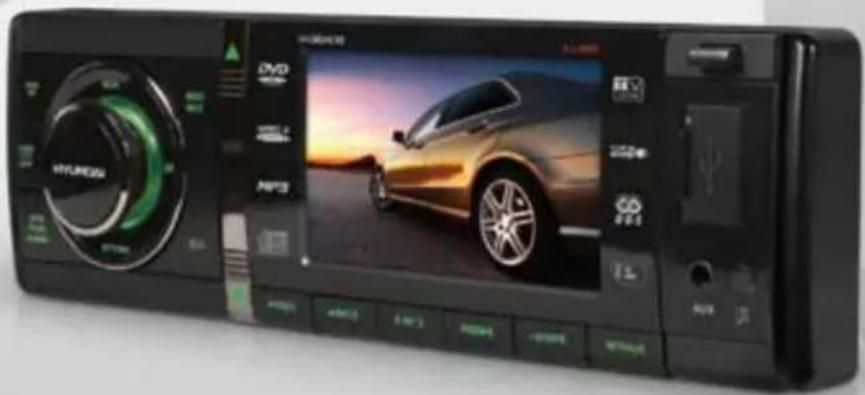
text_image
HYDRIDE DVD HAPP 4000 4000 4000 4000 4000 4000 4000 4000 4000 4000 4000 4000 4000 4000 4000 4000 4000 4000 4000 4000 4001 4002 4003 4004 4005 4006 4007 4008 4009 4010 4011 4012 4013 4014 4015 4016 4017 4018 4019 4020 4021 4022 4023 4024 4025 4026 4027 4028 4029 4030 4031 4032 4033 4034 4035 4036 4037 4038 4039 4040 4041 4042 4043 4044 4045 4046 4047 4048 4049 4050 4051 4052 4053 4054 4055 4056 4057 4058 4059 4060 4061 4062 4063 4064 4065 4066 4067 4068 4069 4070 4071 4072 4073 4074 4075 4076 4077 4078 4079 4080 4081 4082 4083 4084 4085 4086 4087 4088 4089 4090 4191 4192 4193 4194 4195 4196 4197 4198 4199 4261
MULTIMEDIA DVD/CD/MP3
RECEIVER WITH BUILT-IN
3" TFT DISPLAY AND TV TUNER
МУЛЬТИМЕДИЙНЫЙ
DVD/CD/MP3-РЕСИВЕР
Thank you for purchasing our product. For safety, it is strongly recommended to read this manual carefully before connecting, operating and/or adjusting the product and keep the manual for reference in the future.
Table of contents 2
Before you start 4
Utilization of the product 4
Important safeguards 4
Installation/Connection 5
Installation 5
General notes 5
Din Front/Rear-Mount 5
- DIN front-mount (Method A) 5
Dismantling the unit 6
Trim frame installation 6
- DIN rear-mount (Method B) 6
Detachable control panel 6
Anti-theft system 7
Connection 7
Connection diagram 7
ISO connection table 8
Using the ISO connector 8
Parking wire connection 9
Reverse cable connection 9
Operation 9
Control elements 9
Front panel 9
Inner panel 10
Remote controller 10
Changing battery 10
General operations 11
Reset the unit 11
Turning the unit on/off 11
Mode selection 11
Mute function 11
Volume control 11
Setting the sound characteristics ..... 12
EQ modes 12
Loudness 12
Clock setting 12
Beep 12
Button backlight color 12
TFT on/off 12
AUX in jack 12
Radio operations 12
Band select 12
Audio/Manual tuning 12
Programming tuner stations 12
Automatic store/preset scan 12
Mono/select control 13
Local radio station search 13
RDS function 13
AF function 13
TA function.... 13
PTY (Program Type).... 13
Other parameter setting 13
TV operations 14
TV and audio system 14
Search channels 14
Save channels 14
Disc/USB/SD/MMC operations 14
Insert/Eject disc 14
MP3/DivX/JPEG file playback 14
Play/pause/stop 15
Selecting tracks/chapters 15
Fast forward/rewind 15
Repeat playback 15
Random playback 15
Goto 15
Programming the playback 16
OSD function 16
Zooming in/out 16
Slow playback.... 16
PBC function 16
Changing angle 16
Selecting audio language 16
Selecting subtitle language 16
Selecting sound channel 16
Selecting video system 16
Menu navigation 16
ID3 tag information 17
USB/SD/MMC notes 17
Inserting SD/MMC card/USB device ..... 17
System setup 17
System setup 17
Disc setup 18
General information 19
Handling compact discs 19
Cleaning discs 19
Cleaning the unit body.... 19
Accessories 19
Troubleshooting guide 20
Specification 21
Utilization of the product
If you want to dispose this product, do not mix it with general household waste. There is a separate collection system for used electronic products in accordance with legislation that requires proper treatment, recovery and recycling.
Please contact your local authorities for the correct method of disposal. By doing so, you will ensure that your disposed product undergoes the necessary treatment, recovery and recycling and thus prevent potential negative effects on the environment and human health.
Important safeguards
- Read carefully through the manual to familiarize yourself with this unit.
- Keep this manual handy as a reference for operating procedures and precautions. Do not allow persons who have not read through this manual to use this unit.
- "CLASS 1 LASER PRODUCT"
This product contains a laser diode of higher class than 1. Laser beams from the optical pickup are dangerous to the eyes. To ensure continued safety, do not remove any covers or attempt to gain access to the inside of the product. Refer all servicing to qualified personnel.
- Do not allow this unit to come into contact with liquids. Electrical shock could result. Also, damage to this unit, smoke, and overheating could result from contact with liquids or dust. Protect this unit from moisture.
- Make sure that foreign objects do not get inside the unit; they may cause malfunctions, or create safety hazards such as electrical shock or laser beam exposure.
- The beginning of operation is the moment of the unit installation. Before use the device in winter it is recommended to heat up the passenger compartment during 20 seconds or to the operation temperature.
• Using the unit with the temperature that goes beyond the operation temperature greatly
decreases the operation resource of the screen and other components of the unit and can result in an outage.
- Disconnect the vehicle's negative battery terminal while mounting and connecting the unit.
- The unit is designed for negative terminal of the battery, which is connected to the vehicle metal. Please ensure it before installation.
- When replacing the fuse, be sure to use one with an identical amperage rating. Using a fuse with a higher amperage rating may cause serious damage to the unit.
- Do not allow the speaker wires to be shorted together when the unit is switched on. Otherwise it may overload or burn out the power amplifier.
- Make sure you disconnect the power supply and aerial if you will not be using the system for a long period or during a thunderstorm.
- Make sure you disconnect the power supply if the system appears to be working incorrectly, is making an unusual sound, has a strange smell, has smoke emitting from it or liquids have got inside it. Let a qualified technician check the system.
• Always keep the volume low enough so that you can hear sounds from outside the vehicle.
- Should this product fail to operate properly, contact your dealer or nearest service center.
Installation
General notes
- Choose the mounting location where the unit will not interfere with the normal driving function of the driver.
- Before finally installing the unit, connect the wiring and make sure that the unit works properly.
- Consult with your nearest dealer if installation requires the drilling of holes or other modifications of the vehicle.
- Install the unit where it does not get in the driver's way and cannot injure the passenger if there is a sudden stop, like an emergency stop.
- If installation angle exceeds 30^ from horizontal, the unit may not perform properly.
- Avoid installing the unit where it would be subject to high temperature, such as from direct sunlight, or from hot air, from the heater, or where it would be subject to dust, dirt or excessive vibration.
Din Front/Rear-Mount
This unit can be properly installed either from 'Front' (conventional DIN Front-mount) or 'Rear' (DIN Rear-mount installation, utilizing threaded screw Holes at the sides of the unit chassis). For details, refer to the following illustrated installation methods.
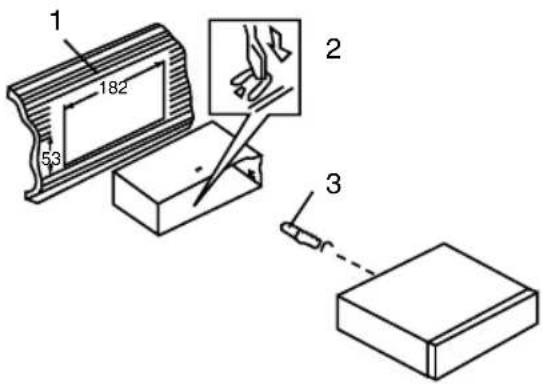
1. DIN front-mount (Method A)
- Car dashboard
- Sleeve
- Screw
- Nut (5 mm)
- Spring washer
- Screw (5 x 25 mm)
- Metal strap
- Flat washer
text_image
1 182 56 2 3- Install the sleeve into the dashboard; ensure it is installed with the correct side and there are no obstacles (wires, dashboard elements, etc) for the unit installation.
- After installing the sleeve into the dashboard, bend tabs fitting to the size of the dashboard to fix the sleeve in place.
- Use the metal strap to fix the rear side of the unit. Determine a place for fixing and install the strap as shown in the picture. You can bend the strap to the needed angle with your hands.
- Make the necessary wire connections. Ensure the connections are correct.
- Install the unit into the sleeve until the side locks are fixed.
text_image
Technical diagram showing labeled parts of a mechanical assembly with numbered annotationsDismantling the unit
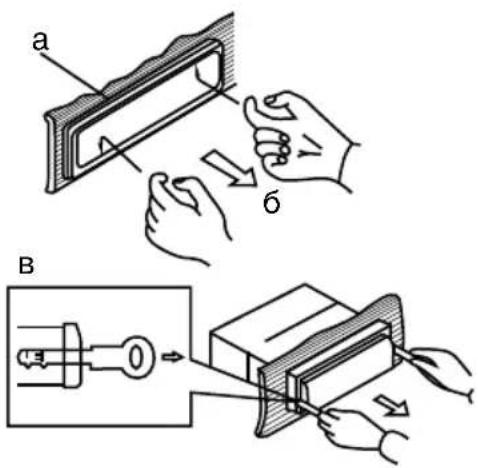
a - Trim frame
b – Frame uninstall direction
c – Release key insertion
text_image
Technical diagram illustrating a mechanical process with labeled parts and directional arrows, including section B showing tool insertion.- Switch off the unit and detach the front panel.
- Insert your fingers into the groove in the front side of the trim frame (apply some effort to detach the frame). Pull the frame to detach it.
- Insert the supplied release keys into the both sides of the unit body to click, as shown in the picture. To extract the unit from the dashboard, pull the release keys or the unit body to pull it out. Before detaching the unit, ensure it is not fixed with the metal strap.
Trim frame installation
To install the trim frame, press it to the unit body and push it to fix it in place. This should be done before installing the front panel; otherwise you are not able to install the trim frame. When the trim frame being installed, the side with the groove should face down and fixed first.
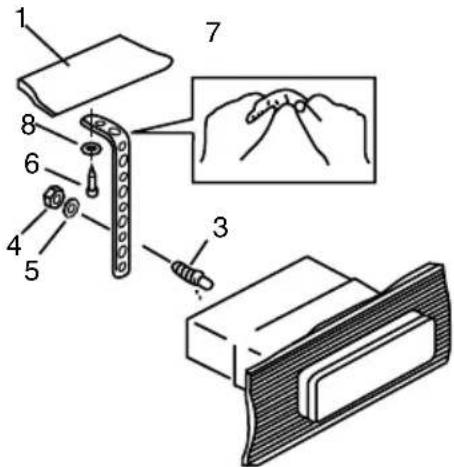
2. DIN rear-mount (Method B)
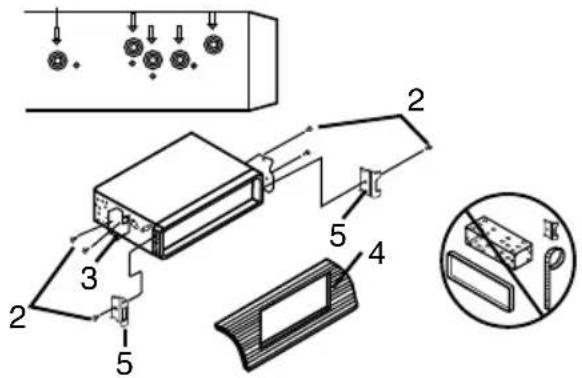
For this method, use the screw holes in the lateral sides of the unit. Fix the unit with the help of the factory radio mounting brackets.
- Select a position in which the screw holes of the brackets (3) are aligned with the screw holes in the unit body, and screw in two screws (2) in each side.
- Screw.
- Factory radio mounting brackets.
- Vehicle dashboard.
- Lock (remove this part).
The outer trim frame and mounting sleeve are not used for method of installation.
text_image
Technical diagram of a device with numbered components and an inset showing a close-up view of a component.Detachable control panel
Install the fastening hole on the right side of the front panel in the right fastening of the unit. Then insert the left fastening on the panel into the fixing hole on the left part of the unit. Press on the upper right part of the panel until a click. Ensure that the panel is properly fixed.
To detach the front panel, press OPEN button, then distract the left side of the panel from the fastening of the unit.
The control panel can easily be damaged by shocks. After removing it, place it in a protective case and be careful not to drop it or subject it to strong shocks. The rear connector that connects the main unit and the control panel is an extremely important part. Be careful not to damage it by pressing on it with fingernails, pens, screwdrivers, etc.
If the control panel is dirty, wipe off the dirt with soft, dry cloth only. And use a cotton swab soaked in isopropyl alcohol to clean the socket on the back of the control panel.
Anti-theft system
The front panel of this unit can be stored in the included protective case when not in used and carried away when you leave the vehicle to deter theft.
Switch off the power of the unit. Detach the front panel, then put it to the protective case and take it with you.
Connection
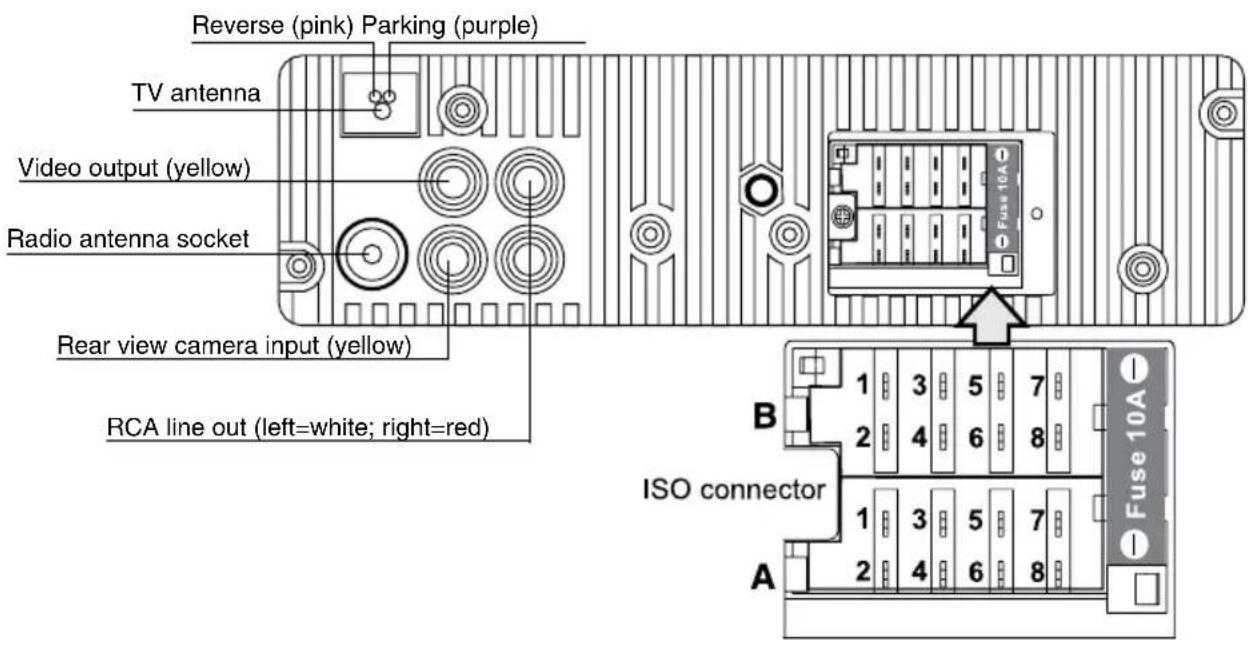
Connection diagram
text_image
Reverse (pink) Parking (purple) TV antenna Video output (yellow) Radio antenna socket Rear view camera input (yellow) RCA line out (left=white; right=red) B ISO connector 1 3 5 7 2 4 6 8 1 3 5 7 2 4 6 8 A Fuse 10A I Fuse 10AISO connection table
| Location Function | ||
| Connector A Connector B | ||
| 1 - Rear right (+) - Blue | ||
| 2 - Rear right (-) - Blue/White | ||
| 3 - Front right (+) - Grey | ||
| 4 Battery +12V/Yellow Front right (-) - Grey/White | ||
| 5 Power antenna/Orange Front left (+) - Green | ||
| 6 Panel light/White Front left (-) - Green/White | ||
| 7 Ignition key (+12V)/Red Rear left (+) - Brown | ||
| 8 Ground/Black Rear left (-) - Brown/White | ||
Power antenna wire is intended for power supply of the antenna and for remote control of an additional amplifier.
Using the ISO Connector
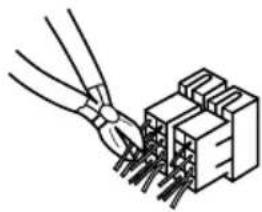
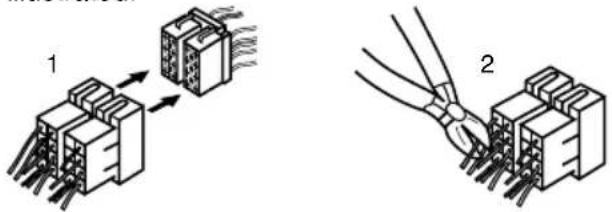
- If your car is equipped with the ISO connector, then connect the ISO connectors as illustrated.
text_image
Diagram showing two steps of connector assembly: one with a connector and arrow indicating connection, and another with a wire being inserted.- For connections without the ISO connectors, check the wiring in the vehicle carefully before connecting, incorrect connection may cause serious damage to this unit.
Cut the connector, connect the colored leads of the power cord to the car battery as shown in the colour code table above for speaker and power cable connections.
Parking wire connection
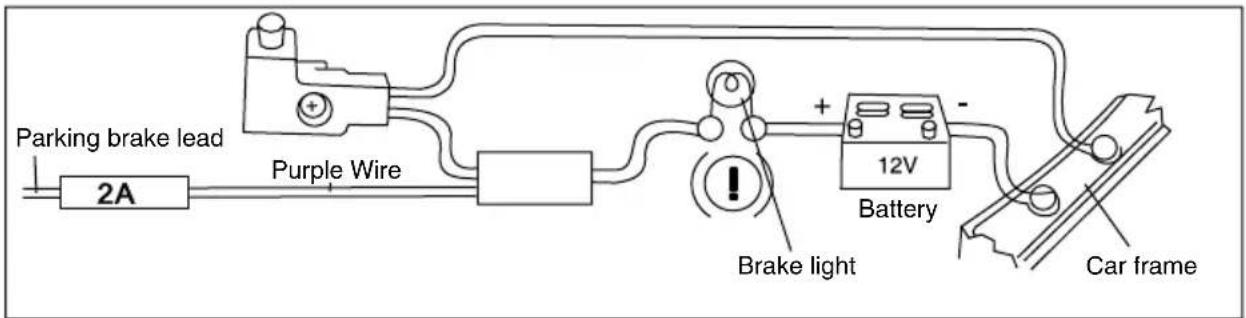
text_image
Parking brake lead 2A Purple Wire + - 12V Battery Brake light Car frameIf Parking cable is connected to hand brake switch, the video display of the TFT monitor will be controlled by driving status. When the car is moving ahead, if the video disc is played, the screen shows warning and blank screen. The warning screen will prevent the driver from watching images.
Reverse driving cable connection
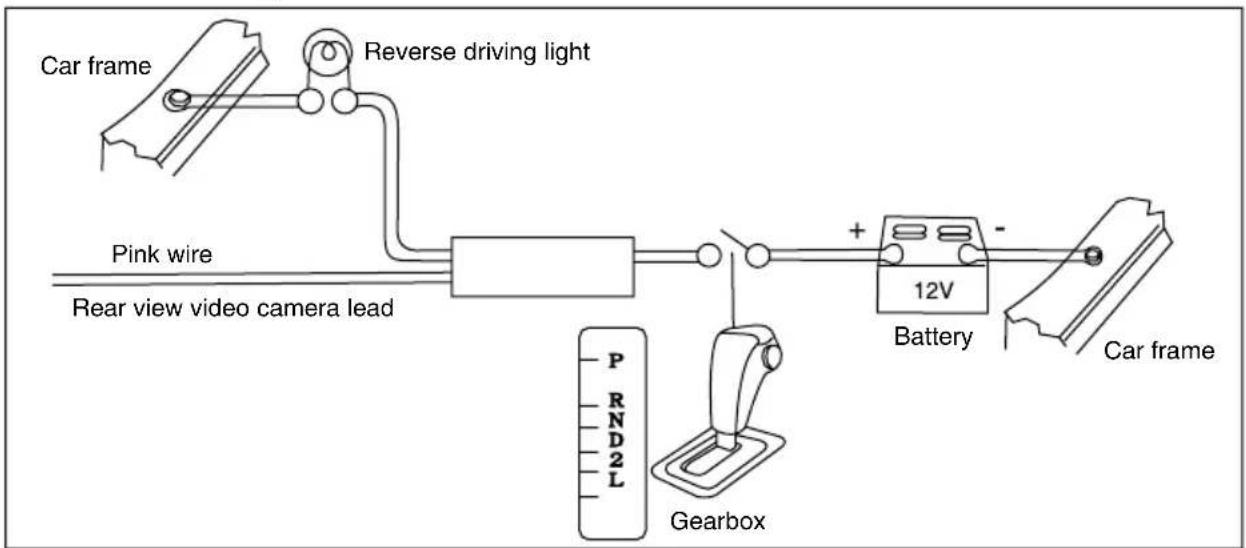
flowchart
graph LR
    A["Car frame"] --> B["Reverse driving light"]
    B --> C["Pink wire"]
    C --> D["Rear view video camera lead"]
    D --> E["+"]
    E --> F["Battery"]
    F --> G["Car frame"]
    H["Gearbox"] --> I["P"]
    H --> J["R"]
    H --> K["N"]
    H --> L["D"]
    H --> M["2"]
    H --> N["L"]
If the rear view video camera is connected, the unit automatically switches to camera mode during reverse driving. The unit returns to the original work mode after the reverse driving is done.
Control elements
Front panel
- BND/NP button
- PWR/OFF/TFT button
- SCN button
- SELECT button/VOLUME regulator
- MOD/MUT button
- NEXT button
- TFT display
- USB port
-
OPEN button
-
APS/TYPE/AUDIO button
- TA button
- PTY/PLAY/PAUSE button
- AF button
- CLK button
- PREVIOUS button
- 1/OSD/LEFT button
- 2/RPT/RIGHT button
- 3/INT/UP button
- 4/RDM/DOWN button
- 5/STOP/ENTER button
- 6/SET/PAU button
- AUX input
- IR sensor
123456789

text_image
BND NP PWR TFZ OFF TA APS TYPE AUDIO 10 11 12 13 14 15 16 17 18 19 20 21 22 23 SCN HYUNDAI AF MTD MUT CLK H-CMD4018 4 x 50W DVD MPEG 4 MP3 OPEN USB RDS AUXInner panel
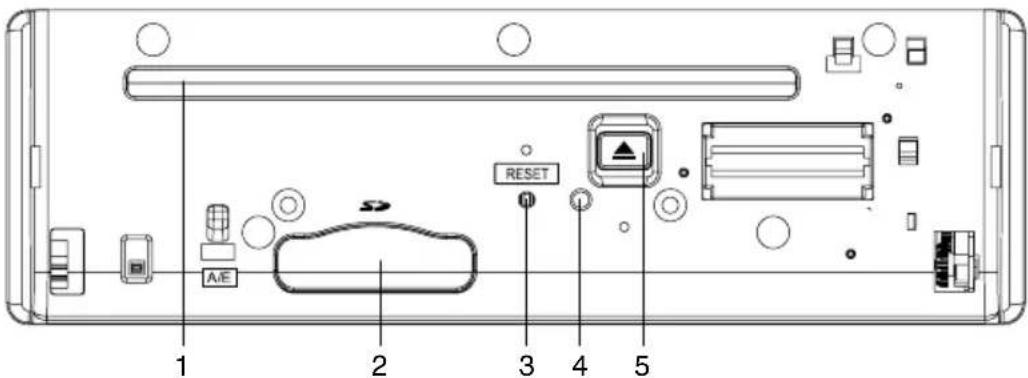
text_image
1 2 3 4 5 RESET- Disc loading slot
- SD/MMC memory card slot
- RESET button (hole)
- Panel status indicator
- EJECT button
Pressing RESET hole will erase the clock setting and stored stations.
Panel status indicator lights up when you flip down the panel and flashes when you remove the panel.
Remote controller
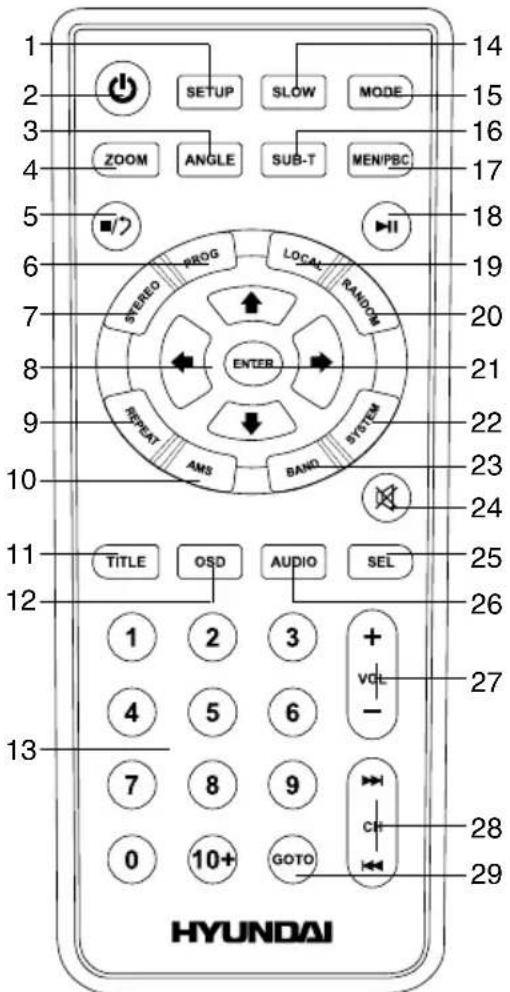
text_image
1 2 3 4 5 6 7 8 9 10 11 12 13 14 15 16 17 18 19 20 21 22 23 24 25 26 27 28 29 TITLE OSD AUDIO SEL TITLE AUDIO SETUP SLOW MODE ZOOM ANGLE SUB-T MEN/PBC STUDIO REG LOCAL RANDOM ENTER REPEAT AMS BAND SYSTEM HYUNDAI-
SETUP button
-
POWER button
-
ANGLE button
-
ZOOM button
-
STOP button
-
PROG button
-
STEREO button
-
Cursor (UP/DOWN/LEFT/RIGHT) buttons
-
REPEAT button
-
AMS button
-
TITLE button
-
OSD button
-
Number buttons
-
SLOW button
-
MODE button
-
SUB-T button
-
MEN/PBC button
-
PLAY/PAUSE button
-
LOCAL button
-
RANDOM button
-
ENTER button
-
SYSTEM button
-
BAND button
-
MUTE button
-
SEL button
-
AUDIO button
-
VOL+/VOL- buttons
-
PREVIOUS/NEXT buttons
-
GOTO button
Changing the battery
-
Press the catch and at the same time pull out the battery tray.
-
Insert the 1 x lithium battery, type CR 2025 3V with (+) mark facing up. Insert the battery tray into the remote control.
General operations
Reset the unit
Operating the unit for the first time or after replacing the car battery, you must reset the unit. Press RESET button (hole) with a pointed object, such as a ballpoint pen, to set the unit to initial state.
When some errors occur, you can also press RESET button to resume to normal, and it will erase some memorized functions.
Turning the unit on/off
Press any button on the panel or the RC (except OPEN button) to turn on the unit. Press and hold POWER/TFT OFF button on the panel or press POWER button on the RC to turn off the unit.
Mode selection
Repeatedly press MOD/MUT button on the panel or MODE button on the RC to select a mode: Radio => Disc => USB => Memory card => AUX.
The Disc, Card and USB modes are only available when corresponding storages are connected to the unit.
Mute function
Press MUTE button on the RC or press and hold MOD/MUT button on the panel to turn off the sound. "MUTE ON" appears on the display. Press the button again or adjust volume to resume the sound output.
Volume control
Press VOL+/VOL- buttons on the RC or rotate VOLUME regulator on the panel to decrease or increase sound volume level.
Setting the sound characteristics
Press repeatedly SELECT button on the panel or SEL button on the RC to select the audio setting: VOL (volume) => BAS (bass) => TRE (treble) => BAL (balance) => FAD (fader). Press VOL+/VOL- buttons on the RC or rotate VOLUME regulator on the panel to adjust the selected item. Balance is to adjust the balance between the left and right speakers. Fader is to adjust the balance between the rear and front speakers. After you have reached your desired effect, leave the unit idle in order for the new setting to take effect.
If the equalizer is set on, bass and treble are not adjustable.
EQ modes
Press repeatedly SELECT button on the panel or SEL button on the RC until the display shows EQ OFF. Press VOL+/VOL- buttons on the RC or rotate VOLUME regulator on the panel to choose an equalizer effect: POP => ROCK => CLASS => FLAT => EQ OFF. After you have reached your desired effect, leave the unit idle in order for the new setting to take effect.
Loudness
Press repeatedly SELECT button on the panel or SEL button on the RC until the display shows LOUD ON (LOUD OFF). Press VOL+/VOL- buttons on the RC or rotate VOLUME regulator on the panel to select between LOUD ON/LOUD OFF. LOUD function is to emphasize the bass output; the word LOUD ON indicates that the LOUD mode is on.
Clock setting
Press CLK button on the panel to show the time on the display. Press and hold it, the hour will be in green. Rotate VOLUME regulator on the panel or press VOL+/VOL- buttons on the RC to adjust the hour. Press SEL button on the RC or SELECT button on the panel, the minute will be in green. Rotate VOLUME regulator on the panel or press VOL+/VOL- buttons on the RC to adjust minutes. Press CLK button to confirm.
Beep
Press repeatedly SELECT button on the panel or SEL button on the RC until the display shows BEEP ON (BEEP OFF). Press VOL+/
VOL- buttons on the RC or rotate VOLUME regulator on the panel to select between BEEP ON (beep sound will be heard when buttons are pressed) and BEEP OFF. After you have reached your desired effect, leave the unit idle in order for the new setting to take effect.
Button backlight color
Press repeatedly SELECT button on the panel or SEL button on the RC until the display shows COLOR1 (COLOR2). Press VOL+/VOL-buttons on the RC or rotate VOLUME regulator on the panel to select between COLOR1 (green button backlight) and COLOR2 (red button backlight). After you have reached your desired effect, leave the unit idle in order for the new setting to take effect.
TFT on/off
Press POWER/TFT OFF button on the panel to switch the TFT display off. Press the button again to switch the display on.
AUX in jack
AUX-in jack is intended for connecting external audio equipment to amplify the sound. If connection is made correctly, the audio signal from the external source will be translated through the acoustics of the head unit. This enables to adjust the volume and quality of the sounding. For example, you can connect an MP3-player to listen to tracks using the car acoustic system.
Radio operations
Band select
Press repeatedly BND/NP button on the panel or BAND button on the RC to select your desired radio band in Radio mode: FM1, FM2, FM3, AM1 (MW1), AM2 (MW2). In each set of the bands you can store up to 6 preset stations, making total 30 preset memory stations.
Auto/Manual tuning
- Manual tuning: Press PREVIOUS/NEXT buttons on the panel or on the RC to manually adjust the radio frequency.
- Auto tuning: Press and hold PREVIOUS/ NEXT buttons on the panel or on the RC, the radio will seek to the next up or down strong and clear frequency station automatically. Repeat this action to seek for other desired stations. To stop automatic search, press NEXT or PREVIOUS button on the panel or on the RC.
Programming tuner stations
There are six numbered preset buttons, under which you can store and recall stations for each band. Select the needed frequency, then press and hold a preset button. The station will be saved in the memory under the corresponding number. To recall a stored station, press the corresponding preset button.
Automatic store/preset scan
- Automatic store: Press and hold AUDIO/TYPE/APS button on the panel or AMS button on the RC. SCAN ON will be displayed. The radio will automatically store the 6 strongest available stations to the 6 preset memories of the current band. To stop auto store, press this button again.
- Preset scan: Press AUDIO/TYPE/APS button on the panel or AMS button on the RC. INTRO ON will be displayed. The receiver will scan the saved stations in all bands for 5 seconds.
Mono/Stereo control (in FM radio mode)
Press repeatedly SELECT button on the panel or SEL button on the RC until the display shows ST ON (ST OFF). Press VOL+/VOL- buttons on the RC or rotate VOLUME regulator on the panel to select between ST ON/OFF. ST ON means stereo reception of the signal; ST OFF means mono reception mode. Or press STEREO button on the RC to switch stereo reception on/off. Improvement of reception of distant stations can be done
by selecting mono mode, which may cut down some reception noise.
Local radio station search
Press repeatedly SELECT button on the panel or SEL button on the RC until the display shows LOC ON (LOC OFF). Press VOL+/VOL- buttons on the RC or rotate VOLUME regulator on the panel to select between LOC ON/OFF. LOC ON means that only local stations are received; LOC OFF means that both local and distant stations with weak and strong signal are received. Or press LOCAL button on the RC to switch between local and distant station reception.
RDS function
RDS (Radio Data System) service availability varies with areas. Please understand if RDS service is not available in you area, the following service is not available, either.
AF (Alternative Frequencies) function
Press AF button on the panel to turn the AF function on or off. When the function is on, AF symbol will blink on the display.
When the radio signal strength is poor, enabling the AF function will allow the unit to automatically search another station with the same PI (Program Identification) as the current station but with a stronger signal, so that you do not have to retune the stations when driving between different transmitter coverage areas.
PS (Program Service name): the name of station will be display instead of frequency.
If RDS service is not available in your area, turn off the AF mode.
TA (Traffic Alarm) function
Press TA button to turn TA function on or off. When on, the TA symbol will show on the display.
In TA mode traffic program will be automatically searched, until the program is received. When traffic announcement is received the unit will temporarily switch to the tuner mode (regardless of the current mode) and begin broadcasting the announcement. After the traffic announcement is over, it will return to the previous mode and volume level. To interrupt traffic announcement press TA button shortly; it will not switch off the TA mode.
PTY (Program Type)
This radio will allow you to select the type of program required, and will search for a station broadcasting that type of program.
Press PTY/PLAY/PAUSE button to show the music type. Then press 1 - 6 number buttons to choose different music programs available.
Press PTY/PLAY/PAUSE button twice to show the speech type program. Then press 1 - 6 number buttons to choose different speech programs. Each number button will show 2 or 3 different speech programs for you to choose: Pop, Rock, Easy, Light, Classics, Other, Jazz, Country, Nation, Oldies, Folk, News, Affairs, Info, Sport, Educate, Drama, Culture, Science, Varied, Weather, Finance, Children, Social, Religion, Phone IN, Travel, Leisure, Document).
When PTY is selected, the radio starts to search corresponding PTY information, and stops if the corresponding PTY information is detected. If no buttons are pressed within several seconds, previously selected PTY is searched. During 1 loop, if desired PTY is not found, the unit will return to previous mode. Press PTY/PLAY/PAUSE button for the 3rd time to switch the PTY function off.
Other parameter setting
To choose the corresponding parameter, press and hold SELECT button on the panel or SEL button on the RC, then press it repeatedly until the display shows the needed parameter. Press VOL+/VOL- buttons on the RC or rotate VOLUME regulator on the panel to choose the needed option. After choosing, please leave the unit idle to activate.
- TA ALARM/TA SEEK: In TA SEEK mode, the unit will seek for traffic announcement program; in TA ALARM mode the alarm is set
off.
- PI SOUND/MUTE: Choose either PI sound or PI mute. PI sound refers to the reception noise when the AF function tries to scan alternative frequency.
- RETUNE S/L: RETUNE refers to the time period the unit allows for radio scan when reception is interrupted. SHORT represents a time period of 30 seconds and LONG represents a time period of 90 seconds.
- MASK DPI/ALL: During MASK DPI mode, the unit will mask only the AF which has different PI, this is the default mode; during MASK ALL mode, the unit will mask the AF which has different PI and no RDS signal with high field strength.
TV operations
TV and audio system
- Press repeatedly SYSTEM button on the RC or BAND/NP button on the panel to select one of the available TV systems.
- Press repeatedly AUDIO button on the RC to select one of the available sound systems.
Search channels
Press APS/TYPE/AUDIO button on the panel or AMS button on the RC to automatically search and save all available TV channels. Press and hold PREVIOUS/NEXT buttons on the panel or RC to adjust the current frequency step by step.
Save channels
- When a channel is found, press and hold a number button on the RC. The current channel will be saved in the corresponding number position. To call a saved station, press a number button on the RC.
- Press PREVIOUS/NEXT buttons on the RC or panel to go to previous or next saved channel.
Disc/USB/SD/MMC operations
Insert/Eject disc
- Open the front panel and insert a disc into the disc slot with label side up. The disc will be automatically loaded into the unit. The first file in the root folder will be played. Close the front panel.
- Open the front panel and press EJECT button to eject the disc from the slot. If the disc is not removed from the slot within several seconds, it will be automatically loaded into the slot again. When the disc is ejected and removed, the unit will automatically switch to another mode.
Manufacturer guarantees regular playback of licensed discs only. Some AVI files cannot be played due to their parameters and recording conditions. Video files more than 2 Gb having AVI extension can be played partially.
MP3/DivX/JPEG file playback
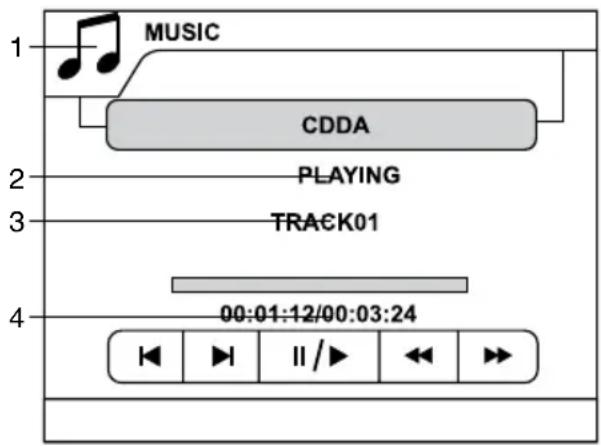
When you insert a storage containing MP3/DivX/JPEG files, the screen will show following interface:
text_image
MUSIC CDDA PLAYING TRACK01 00:01:12/00:03:24- Music/Photo/Video
- Playback status
- Track number/track name/folder name (depending on the format)
- Current track playback elapsed/remaining time
Press STOP button on the RC or press and hold 5/STOP/ENTER button on the panel; the disc menu will be displayed as follows:

text_image
MUSIC 001----WMA 001- 001----WMA 002MP4-3 002—WMA 003----WMA ———— 004---MP3 005---MP3 1 2- Folder list
- File list
You can select the needed folder or file by pressing cursor buttons. Press ENTER button on the RC or 5/STOP/ENTER button on the panel.
If you are using a multi-format storage, press repeatedly MEN/PBC button on the RC to select between music, photo and video files.
Play/Pause/Stop
During playback press PLAY/PAUSE button on the RC or press and hold 6/SET/PAU button on the panel to pause playback. Do this operation again to resume playback. To stop playback, press STOP button on the RC or press and hold 5/STOP/ENTER button on the panel.
Selecting tracks/chapters
During playback press PREVIOUS button on the panel or on the RC to play the previous track/chapter (depending on the format). Press NEXT button on the panel or on the RC to play the next track/chapter. Press number buttons (0-9) on the RC to select the desired track/chapter.
Fast forward/rewind
Press and hold repeatedly PREVIOUS or NEXT button on the panel or RC for fast backward or forward playing correspondingly. With each pressing and holding playback speed will increase as follows: x2 => x4 => x8 => x20 => Normal. While fast playback, press PLAY/PAUSE button on the RC or PTY/PLAY/PAUSE button on the panel to resume normal speed.
Repeat playback
Press and hold 2/RPT/RIGHT button on the panel or press REPEAT button on the RC repeatedly for repeat playing in different modes: track/chapter repeat, folder repeat, disc repeat, repeat cancel (depending on the format used).
Intro playback
Press and hold 3/INT/UP button on the panel to activate introduction playback function. Several initial seconds of each track will be played. Press and hold the button again to cancel intro playback.
Random playback
Press RANDOM button on the RC or press and hold 4/RDM/DOWN button on the panel to activate random playing mode. Press one more time to return to normal playing.
Goto
Press GOTO button to show the playback parameters for the current chapter/track/time (track/title/chapter number or time). Press cursor buttons to navigate between the parameters and use number buttons to input needed settings. Press ENTER button on the RC or 5/STOP/ENTER button on the panel to start playback from the set number or time.
Programming the playback
- Press PROG button on the RC to open program menu.
- Use cursor buttons to select the program position and use number buttons to input the desired track/title/chapter (depending on the disc type).
- Press PLAY/PAUSE button to start program play, or move the cursor to select PLAYING and press ENTER button on the RC or 5/STOP/ENTER button on the panel to play.
- Move the cursor to CLEAR, press ENTER
button on the RC or 5/STOP/ENTER button on the panel to delete the programmed list. Press PROG button to quit programming.
OSD (On Screen Display) function
Press OSD button on the RC or press and hold 1/OSD/LEFT button on the RC repeatedly to show current playback information, such as number of track/chapter/title, current track/chapter/title time elapsed/remaining, total track/chapter/title time remaining (depending on the disc type).
Zooming in/out
During playback of video or images, press repeatedly ZOOM button on the RC, the picture will be zoomed in the sequence: X2 =>X3 =>X4 =>X1/2 => X1/3 => X1/4 => Normal. When the image is zoomed in, you can move it by pressing cursor buttons.
Slow playback
During playback press repeatedly SLOW button on the RC to select the speed of slow playback: 1/2 => 1/3 => 1/4 => 1/5 => 1/6 => 1/7 => Normal. While slow playback, press and hold 6/SET/PAU button on the panel or PLAY/PAUSE button on the RC to resume normal playback.
PBC (Playback Control) function (for VCD only)
This function is only available for the VCD with PBC function. Press and hold MEN/PBC button on the RC to set PBC on/off; when PBC is off, the screen will show PBC menu if you switch PBC on. If the menu consists of a list of titles, you can select a desired one using number buttons on the RC.
Changing angle (for DVD only)
Press ANGLE button on the RC to playback images at different camera angles. If a disc doesn't support multi-angle playback, this function will not work.
Selecting audio language (for DVD
only)
During DVD disc playback, press AUDIO button on the RC repeatedly to select the audio language to listen. This function will not work if a disc does not support multi-language audio.
Selecting subtitle language (for DVD only)
If your DVD disc supports multi-language subtitle, press SUB-T button on the RC repeatedly to switch among disc-supported languages.
Selecting sound channel
During VCD/CD disc playback repeatedly press AUDIO button on the RC or press and hold AUDIO/TYPE/APS button on the panel to select the channel: Mono left => Mono right => Stereo.
Selecting video system
While video playback, press repeatedly SYSTEM button on the RC or BND/NP button on the panel to select the video system (NTSC/PAL/PAL60/AUTO).
Menu navigation
- Press MEN/PBC button on the RC to activate the disc menu list on the screen. Choose the desired item with cursor buttons. Press ENTER button on the RC or 5/STOP/ENTER button on the panel to confirm the selected item and start playing.
- When playing a DVD, press TITLE button on the RC to go to the title list of the disc.
Title and menu are only available if the disc has these functions.
ID3 Tag function
If an MP3 file has ID3-tag information in the supported format, such information will be displayed while playback.
USB/SD/MMC notes
- USB format supports 2.0. Capacity: up to 32 Gb.
- For correct and satisfactory operation,
licensed SD/MMC memory cards of famous brands should be used with this unit. Avoid using memory cards of unknown brands. Capacity: up to 32 Gb.
Inserting SD/MMC card/USB device
Insert an MMC/SD card or a USB device into MMC/SD slot or USB slot. Then the playing mode will be changed into Card or USB mode automatically. The first card/USB device track playback will start. If the unit is afterwards switched to another mode, press MOD/MUT button on the panel or MODE button on the RC to select USB or memory card mode.
All the operations with files stored in a memory card or USB are the same as described in Disc Operations for file discs.
System setup
Press SETUP button on the RC or 6/SET/PAU button on the panel to display setup screen, use UP/DOWN cursor buttons to select the desired setup page: System, Disc. Press RIGHT cursor button to go to the selected page item list. In the selected page select an item using UP/DOWN cursor buttons, then press ENTER button on the RC or 5/STOP/ENTER button on the panel to go to setting list. Use UP/DOWN cursor buttons to select the needed setting. Press ENTER button on the RC or 5/STOP/ENTER button on the panel to confirm your selection. Press SETUP button on the RC or 6/SET/PAU button on the panel to go the previous menu page.
System setup

flowchart
graph TD
    A["SETUP MENU 1/2"] --> B["SYSTEM NTSC/PAL"]
    B --> C["DISC"]
    C --> D["ADJUST"]
    C --> E["TV RATIO"]
    C --> F["..."]
NTSC/PAL
Select the TV system in the setting menu (NTSC, PAL, PAL-60, AUTO).
Adjust
Adjust brightness, contrast, hue, saturation and sharpness of the image.
TV Ratio
Select TV type to watch wide screen movies.
4:3 PS: For 4:3 TV, left and right edges will be cut.
4:3 LB: For 4:3 TV, black bars will appear on top and bottom.
16:9 Wide: For 16:9 wide screen TV.
Disc setup

flowchart
graph TD
    A["SETUP MENU 1/2"] --> B["SYSTEM OSD LANG"]
    A --> C["DISC"]
    C --> D["SUDIO LANG"]
    C --> E["SUBTITLE LANG"]
    C --> F["PASSWORD"]
    C --> G["RATING"]
Operation
OSD language
Select the language to be used for the on-screen display.
Audio language
Select the language to be used for the audio. You can select a preferred audio from those included on the DVD video disk.
Subtitle language
Select the language to be used for subtitles. You can select a preferred subtitle from those included in the DVD Video disk.
Password
Change the password. The initial factory password is 0000. You can set your own password. If you forget your own password, you can use 0000 as general password.
Rating
The control level is for parental to control playing content and protect your children from violence and erotic. The disc, the level of which is higher than the setting level can not be played. The rating can be selected only under the password unlocked status, and the limits can be worked only under the password locked status.
Handling compact discs
- Do not insert anything other than a CD into the CD loading slot.
- Do not use cracked, chipped, warped, or otherwise damaged discs as they may cause skipping or noise damage the player.
- Handle the disc only by the edges (as shown in the picture). To keep discs clean do not touch its surface.
• Store discs in their cases when not in use. - Do not expose discs to direct sunlight, high humidity, high temperature or dust.
- Prolonged exposure to extreme temperature (such as leaving the discs in your car during summertime) can wrap a disc.
- Do not attach labels, write on or apply chemicals to the surface of the discs.
- Do not touch the recorded surface of the discs.
- Use 12-cm CDs. Use only conventional, fully circular discs. Do not use shaped discs.
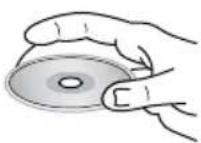
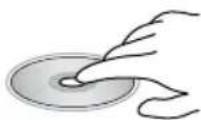
Cleaning discs
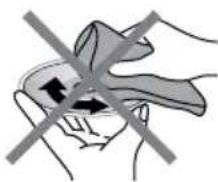
Fingerprints should be carefully wiped from the surface of disc with a soft cloth. Unlike conventional records, compact discs have no grooves to collect dust and macroscopic dirt, so gently wiping them with a soft cloth should remove must panicles. Wipe in a straight motion from the center to the edge.
Never use thinner benzine, record cleaner or anti static spray on a compact disc. Such chemicals can damage its plastic surface.

natural_image
Illustration of a hand holding a small object with two crossed arrows indicating direction (no text or symbols)Cleaning the unit body
Wipe with a soft cloth. If the cabinet is very dampen (not dropping wet) the cloth with a weak solution of soapy water, and then wipe clean.
Accessories
- Receiver 1 pc
- Front panel 1 pc
- Protective case.... 1 pc
- Remote controller 1 pc
- ISO connector 1 pc
- Mounting parts: Nut 1 pc
Spring washer.... 2 pcs
Flat washer.... 2 pcs
Screw M5 1 pc
Screw M5x5.... 1 pc
Metal strap 1 pc
Release key 2 pcs
- Instruction manual 1 pc
- Warranty card 1 pc
- Consumer information 1 pc
Troubleshooting
Below is a table describing simple measures that can help you eliminate most problems likely to emerge when this unit is in use. If below measures do not help, turn to a service center or to the nearest dealer.
| Symptom Cause $ | Solution | |
| No power The car ignition is not on. If the power supply is properly connected to the car accessory switch the ignition key to “ACC”. | ||
| No sound Volume is in minimum. Adjust volume to a desired level. | ||
| Bad sound quality The installation angle is more than 30 degrees. | Adjust the installation angle to less than 30 degrees. | |
| Disc cannot be loaded or ejected | The unit already contains a disc. | Remove the disc in the player then put a new one. |
| Moisture condensation. Leave the unit idle for an hour, then retry. | ||
| Disc cannot be read | The disc is inserted upside down. | Insert the compact disc with the label side facing upward. |
| Compact disc is extremely dirty or defective. | Clean the disc or try to play a new one. | |
| Temperature inside the car is too high. | Cool off until the ambient temperature returns to normal. | |
| Buttons do not work | The built-in microcomputer is not operating properly. | Reset the unit with the help of RESET button. |
| Front panel is not properly fix into its place. | Install the front panel properly. | |
| The radio does not work | The antenna cable is not connected. | Insert the antenna cable properly. |
| The radio station automatic tuning does not work | The signals are too weak. Select stations manually. | |
Specifications
General
Power supply 12 V DC
Maximum power output 4 x 50 W
Unit dimensions/Net weight 178 x 51 x 178 mm/2 kg
Temperature range -20 ^ C - +60 ^ C
Display
Display built-in 3-inch TFT
Aspect ratio 16:9
Resolution 320 (RGB) x 240
Brightness 300 cd/m ^2
Contrast 400:1
View angle 120
FM stereo radio
Frequency range 87.5 - 108.0 MHz
Presettable stations 18
MW Section
Frequency range 522 kHz - 1620 kHz
Presetable stations 12
TV tuner
Color system SECAM/PAL/NTSC
Disc player
Storage support DVD/DVD±R/DVD±RW, CD/CD-R/CD-RW, USB, SD/MMC
Format support DVD-video/DVD-audio/SVCD/VCD/CDDA/HDCD/MP3/
Picture-CD/Photo-CD/JPEG/MPEG4 (DivX/XviD)
ESP 8 sec. for DVD, 40 sec. for Audio-CD, 120 sec for MP3
Mounting angle 0 - +/-30
Specifications are subject to change without notice. Dimensions are approximate.
text_image
Technical diagram showing labeled parts of a mechanical assembly with numbered annotations and magnified detail viewСнятие устройства
text_image
Technical diagram of a device with numbered components and exploded view, including labeled parts 2 through 5.natural_image
Diagram showing two connected electrical connectors with wires, no text or symbols present