Zune HD - Mp3 player MICROSOFT - Free user manual and instructions
Find the device manual for free Zune HD MICROSOFT in PDF.


User questions about Zune HD MICROSOFT
0 question about this device. Answer the ones you know or ask your own.
Ask a new question about this device
Download the instructions for your Mp3 player in PDF format for free! Find your manual Zune HD - MICROSOFT and take your electronic device back in hand. On this page are published all the documents necessary for the use of your device. Zune HD by MICROSOFT.
USER MANUAL Zune HD MICROSOFT
Before connecting your Zune to your computer, visit www.zune.net/setup to install the latest version of the Zune software.
2
Connect your Zone to your computer.
Your Zone charges whenever it's connected. First charge might take an hour or more.
3
Sync your stuff
In the Zune software, set sync options in Software Settings or drag and drop items to the payer.
basics
On/off Press the on/off button to turn on. The player will turn off by itself after a period of inactivity. To turn it off manually, press and hold the button until you see the off option.
Return to home screen Press the home button.
Go to Quickplay Tap the background on the home screen to bring Quickplay to the fare.
Add Items to Quickplay Tap and hold an album, genre, video, or other item to see additional options, then select Add to Quickplay.
Shuffle all music Tap the play button at the immediate left of the word Music on the home screen.
Previous screen press the illuminated text at the top of the screen or the virtual back button (when visible)
Playback options Buttons to shuffle, repeat, and rate songs appear along the bottom of the now-playing screen.
Playlists To save a playlist of the songs you're listening to go to Music, Playlists. Now Playing and click the Save button.
Jump to a letter in a list Music lists have alphabetical headings. Tap any letter for a letter menu, then tap another letter to jump to that position in the list.
Zoom Two short taps will enlarge your view of a picture or a website.
Screen lock/unlock To avoid accidental touch commands, turn the screen off by pressing the on/off button. To turn on the screen, press the on/off button, then move your finger across the screen to unlock it
PIN lock/unlock Use PIN lock to require a 4-digit code for screen access. You can enable/disable PIN lock in Settings.
HD Radio Zone HD supports HD Radio®, offering digital reception and—in many cases—additional programming from your favorite FM stations. Availability depends on station broadcasts and Zune reception. For a list of stations in your area, visit www.hradio.com.
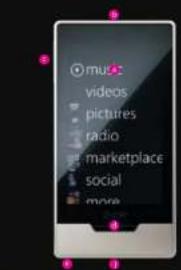
text_image
music videos pictures radio marketplace social more- Touch screen
- Home button
- On/off buttons
- Headphone jack
- Media button
- Sync port
media controls

When you're playing content, tap the screen once to access basic media controls.
Volume Press the media button, then move your finger up or down the screen to raise or lower the volume.
Next/previous Press the media button, then tap the onecreen previous/next buttons.
Fast-forward/rewind To fast-forward press the media button, then press and hold the left side of the screen. To go back, press and hold the right side.
Play
Add to now playing. This adds a song, album, or playlist to the end of your now playing list. If you're shuffling all music, the song, album, or playlist will follow the now playing song.
Send This sends a song, album, playlist, or picture to another Zone member's inbox.
Return to previous screen
questions
What if my Zune HD doesn't turn on when I first take it out of the box? Your player's battery might need to be charged before first use.
How long does Zuno HD take to charge? The player should fully charge in about 2 hours. If you don't see the charging symbol, try switching to another USB port on your PC or use the Zune AC adapter (sold separately).
What if the Zune software can't find my player? Try connecting to a different USB port on your computer.
What if my Zone HD isn't responding? Try restarting it press and hold the on/off button for 7 seconds.
What media file formats are supported by Zune? Zune supports vma, mp4, m4a, m4b and mp3 for audio; wmy and m4y for video; and jpg for photo.
How can I view high-definition programming with my Zone HD? Zure HD will display compatible 7Xip high-definition sources on its built-in screen (80 x 272). To view HD sources at true high-definition resolu however, your Zone HD must be playing HD files while connected to a high-definition TV using the Zure HD & AV Deck and an HDMI cable (both solid separately). Visit www.zure.net for more info.
Can I use my Zune while it's connected to my computer? Yes. Close the Zone software to use your Zun will continue to charge while it's connected.
How do I sync wirelessly with my computer? To set up wireless sync, connect your Zune using the supplied sync cable. Then, in the Zune software go to Settings. Player, Wireless Sync and follow the on-screen instructions. For more info, visit www.zune.net/wireless.

HD Radio
HOMI
HD Radio technology is manufactured under license from Biquity Digital Corp. U.S. and foreign patents. HD Radio and the HD Radio logo are proprietary trademarks of Biquity Digital Corp.
HDMI, the HDMI Logo, and High Definition Multimedia Interface are trademarks or registered trademarks of HDMI Licensing LLC.
Be sure to check out www.zune.net/support for tips and tricks and detailed product info.
[NO TEXT]
See the Zone® Product Guide for important safety information and helpful ups.
©20 Microsoft Corporation. All rights reserved.