LCAM0336OD - Security Camera LINKSYS - Free user manual and instructions
Find the device manual for free LCAM0336OD LINKSYS in PDF.


| Product Type | Security Camera |
| Brand | Linksys |
| Model | LCAM0336OD |
| Dimensions | 7.5 x 7.5 x 12.5 cm (approx.) |
| Weight | 200 g (approx.) |
| Power Supply | 12V DC adapter or PoE (Power over Ethernet) |
| Power Consumption | 5W (typical) |
| Video Resolution | 1080p Full HD (1920 x 1080) |
| Field of View | 120° diagonal |
| Night Vision | Up to 10m with IR LEDs |
| Connectivity | Wi-Fi 802.11 b/g/n, Ethernet |
| Audio | Built-in microphone and speaker (two-way audio) |
| Weatherproof Rating | IP66 (outdoor use) |
| Motion Detection | Yes, with push notifications |
| Storage | MicroSD card (up to 128GB) or cloud subscription |
| Operating Temperature | -20°C to 50°C |
| Maintenance | Clean lens with soft dry cloth; avoid solvents |
| Safety | Complies with FCC/CE/RoHS |
| Spare Parts & Repairability | Contact Linksys support for replacement parts; product is not user-serviceable |
| General Information | Works with Linksys app; supports Amazon Alexa and Google Assistant |
Frequently Asked Questions - LCAM0336OD LINKSYS
User questions about LCAM0336OD LINKSYS
0 question about this device. Answer the ones you know or ask your own.
Ask a new question about this device
Download the instructions for your Security Camera in PDF format for free! Find your manual LCAM0336OD - LINKSYS and take your electronic device back in hand. On this page are published all the documents necessary for the use of your device. LCAM0336OD by LINKSYS.
USER MANUAL LCAM0336OD LINKSYS
Samba Settings....14
HTTP Settings.....14
Digital Output (DO) 15
Audio Clip 15
Video Clip 16
Storage Management. 16
User Management....17
Access Control 1
Firmware Upgrade....17
Back Up and Restore 18
Reset to Default 18
Reboot 18
System 19
Date and Time 19
Save File Folder....20
LED Indicators 20
Device Information 20
VMS Compatibility....21
SPECIFICATIONS 22
Model No.: LCAD03FLN. 22
Model No.: LCAD03VLNOD 23
Model No.: LCAB03VLNOD. 24
Model No.: LCAB03VLNOD. 25
How to Access Web Configuration
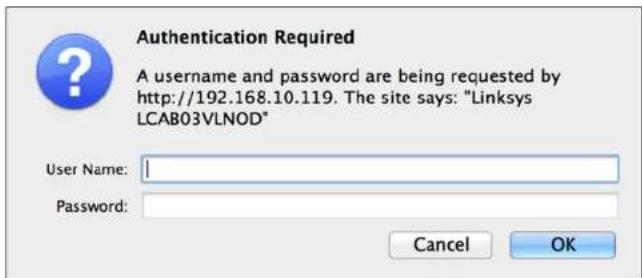
To access the camera's live view, open a Web browser and enter the IP address of the camera. The login window will pop up requesting a user name and password. The default user name and password are "admin" and "admin." For accounts other than the administrator's account, remember the password for future convenience.
NOTE:
If you don't have a DHCP server in the network, the default Camera IP address is 192.168.1.254.
text_image
Authentication Required A username and password are being requested by http://192.168.10.119. The site says: "Linksys LCAB03VLNOD" User Name: Password: Cancel OKLive Viewing
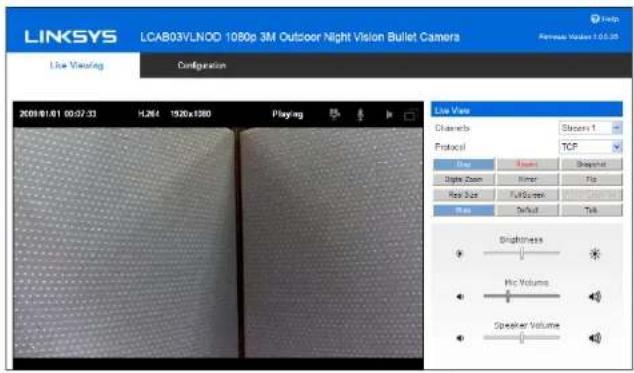
Live Viewing is the default page that opens when you access the camera. Live video is displayed directly in the browser window.
text_image
LINKSYS LCAB03VLNOD 1080p 3M Outdoor Night Vision Bullet Camera Live Viewing Configuration 2009/01/01 00:07:33 H.264 1920x1080 Playing Live View Channels Strains 1 Protocol TCP Blue Orange Steplight Digital Zoom Inner Flat Res Size Full Screen Circuit Blue Default Talk Brightness Mic Volumes Speaker VolumeChannels
The network camera offers simultaneous dual stream for optimized quality and bandwidth. Go to Configuration → Camera/Video/Audio → Video to configure the codec compression and video resolution or refer to the video configuration page.
Protocol
HTTP - This unicast method can be used to traverse firewalls. Firewalls are commonly configured to allow the HTTP protocol, thus allowing RTP to be tunneled.
TCP - This protocol guarantees the complete delivery of streaming data and provides better video quality. The downside of using this protocol is that the quality of its real-time effect is less than that of the UDP protocol.
UDP - This protocol allows for more real-time audio and video streams. However, network packets may be lost due to network burst traffic and images may be broken. The UDP connection time-sensitive responses are more important than video quality.
NOTE:
Camera Control Panel is only available when you are using Windows Internet Explorer.
Camera Control Panel - Icons

text_image
Recording on/off - displays the status of the recording video. MIC on /off - displays the status of the microphone volume. Speaker on/off - displays the status of the speaker. MD on/off - displays the status of Motion Detection.Camera Control Panel - Buttons
Play or Stop - play or stop the video.
Recording - record video to a computer.
Snapshot - capture and save still images.
Digital Zoom - enable the zoom operation.
Mirror - horizontally reflect the live video display.
Flip - vertically reflect the live video display.
Real Size - toggle between real size and normal mode.
Full Screen - enable full screen mode; press the Esc key to return to normal mode.
Motion Detection - enable the motion detection alert function.
Mute - turn off the sound.
Default - restore default settings.
Linksys
Live Viewing
Talk - transmit audio through the camera using the computer microphone.
Brightness - Drag the slider bar to adjust the image brightness level.
Mic Volume - Drag the slider bar to adjust the volume of the camera microphone.
Speaker Volume - Drag the slider bar to adjust the camera speaker volume.
Configuration
Click the Configuration tab on the main page to change the camera settings.
NOTE:
Only administrators can access the Configuration tab.
Camera Settings
text_image
Camera Settings Profile: Day Exposure Control Advanced AE Setting Auto Manual Flicker Free 50Hz 60Hz Environment Outdoor AE Speed 2 De-Noise Level 1 (Acceptable) Mirror and Flip Mirror Flip IR Cut IR Cut IR LED Enable Color Effect Color Black & White White Balance Auto WDR Enable Apply CancelCamera Settings
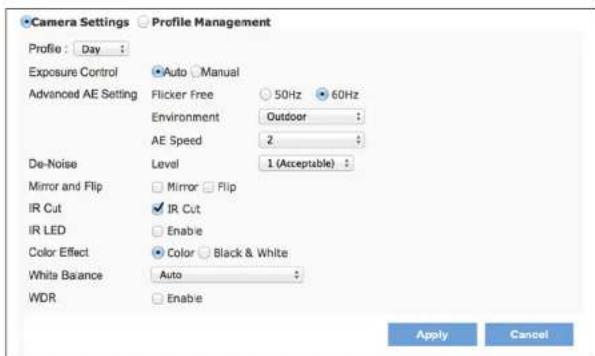
Profile - Up to five profiles can be created for different lighting environments. Day and night are default profiles. You can create up to three additional profiles. Select a profile from the drop-down menu or select different icons to change profile settings.
Brightness - Drag the bar to adjust the image brightness level from -5 to +5.
Contrast - Drag the bar to adjust the image contrast level from -5 to +5.
Sharpness - Drag the bar to adjust the image sharpness level from -5 to +5.
Saturation - Drag the bar to adjust the image saturation level from -5 to +5.
Exposure Control
Auto - The camera will automatically control exposure.
Manual - Control exposure yourself.
Advanced AE Setting
Flicker-Free - Eliminates flicker.
Environment - Select outdoor or indoor mode.
AE Speed - Automatically control exposure speed.
De-Noise - Set on range from 1 to 3, with 3 giving the best video resolution. Set to auto to have camera automatically filter the frame-to-frame defects.
Mirror and Flip
Mirror - Enable to horizontally reflect the display of the live video.
Flip - Enable to vertically reflect the display of the live video.
IR Cut (Only available with models with a IR-Cut) - Deactivate or activate the IR cut filter.
Color Effect - Select color or black-and-white video streams.
White Balance - Adjusts for different types of lighting to capture accurate colors.
WDR (Wide Dynamic Range) - In a scene with extremely bright and dark areas or in backlit situations where a person is in front of a bright window, a typical camera would produce an image where objects in the dark areas would hardly be visible. Wide dynamic range solves this by applying techniques such as using different exposures for different objects in a scene to enable objects in both bright and dark areas to be visible.
Profile Management
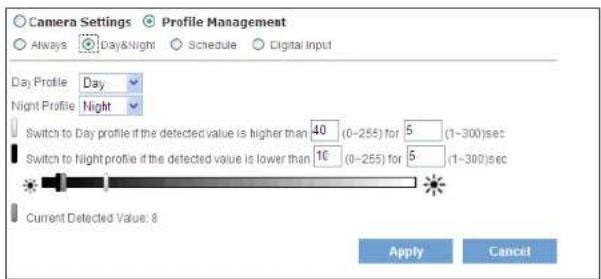
You can schedule profiles to change at specific times, or when lighting conditions change.
text_image
Camera Settings Profile Management Always Day&Night Schedule Digital Input Day Profile Day Night Profile Night Profile Switch to Day profile if the detected value is higher than 40 (0-255) for 5 (1-300)sec Switch to Night profile if the detected value is lower than 1€ (0-255) for 5 (1-300)sec Current Detected Value: 8 Apply CancelLinksys
Configuration
Always - Use a single profile selected from the drop-down menu.
Day & Night - Schedule separate profiles for day and night. Select profiles from the drop-down menus.
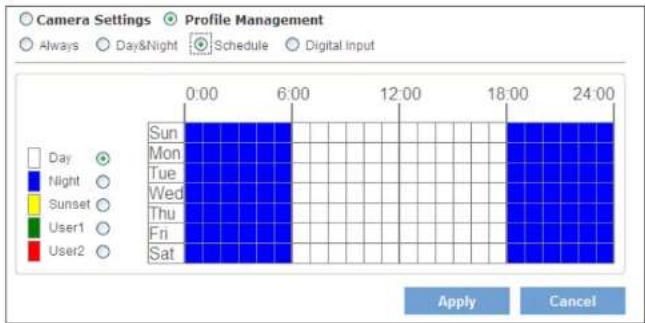
Schedule - Schedule specific time periods for different profiles.
text_image
Camera Settings Profile Management Always Day&Night Schedule Digital Input Sun Mon Tue Wed Thu Fri Sat 12:00 18:00 24:00 Apply CancelDigital Inputs (Only available with models with a DI/DO) - Profiles will be managed by an external sensor. Select profiles from the drop down menu. Profiles will change according to different trigger voltage levels.
Video Settings
The network camera offers two separate streams for different viewing options.

text_image
Video Settings STREAM Stream 1 Video Codec H.264 Video Resolution 1920x1080 Frame Rate 30 Bitrate Mode Constant Bitrate Bitrate 8000 Kbps (64~12000) Quality 3 Stream 2 Enable □ TV-out ✓ Video Codec MJPEG Video Resolution 1920x1080 Frame Rate 25 Bitrate Mode Variable Bitrate Bitrate 64 Kbps (64~12000) Quality 3 Stream 3 Enable ✓ Video Codec H.264 Video Resolution 320x180Wide Angle View - Captures a greater view angle.
Stream
Video Codec - Three choices of video codec standards for real-time viewing: H.264, MPEG-4 and MJPEG.
Video Resolution - Choose the best resolution recording settings.
Frame Rate - Set a higher frame rate for smoother video quality.
Bitrate Mode - Select Variable Bitrate to manually configure the bitrate. Select Constant Mode to have the bitrate set by the video codec. Set the bitrate higher for better quality
Linksys
Configuration
Quality - Video quality can be set in the range from Level 1 to Level 6, with Level 6 producing the best image quality.
Recording Stream - Select the stream you like to record when a scheduled event occurs.
Video Overlay
text_image
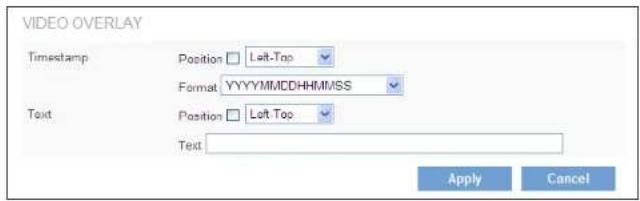
VIDEO OVERLAY Timestamp Position □ Left-Top Format YYYYYMMDDHHMMSS Text Position □ Left Top Text Apply CancelTimestamp - To display the date and time on the screen during live view, check the Position check box to enable the timestamp function and select the display position from the drop-down menu.
Text - To make a note about the camera, check the Position box to Enable and select the display position from the drop-down menu. Enter a description in the text box.
NOTE: The video overlay only applies to Stream 1.
RTSP Server
text_image
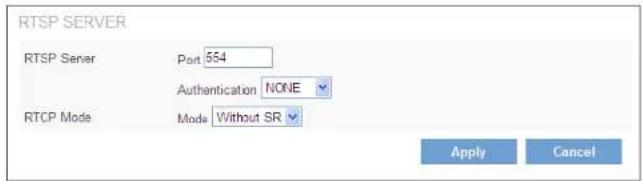
RTSP SERVER RTSP Server Port 554 Authentication NONE RTCP Mode Mode Without SR Apply CancelTo utilize RTSP authentication, you must first set a password for the camera. RTSP (Real-Time Streaming Protocol) controls the delivery of streaming media. By default the port number is 554.
Authentication - Depending on the network security requirements, the camera provides two types of authentication for streaming via RTSP: NONE and DIGEST.
If DIGEST authentication is selected, user credentials are encrypted using MD5 algorithm, thus providing better protection against unauthorized access.
RTCP Mode
Without SR - RTCP without SR (Sender Report) is the default option. Audio and video received from the network camera are played immediately and independent of each other.
RTCP with SR - RTCP with SR allows synchronization between video and audio during live viewing. Choose this option if audio and video become unsynchronized.
Audio Settings
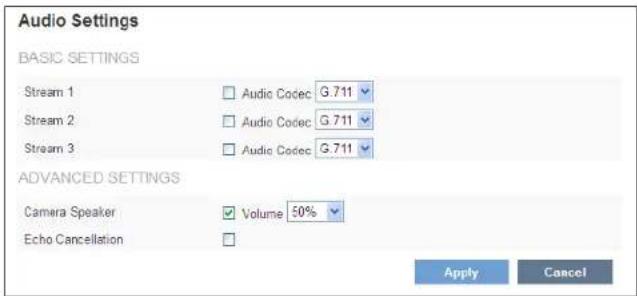
The administrator can set up two separate streams for different viewing devices. The administrator can enable or disable the audio function on either stream. If audio is enabled, select the Audio codec from the drop-down menu.
text_image
Audio Settings BASIC SETTINGS Stream 1 Audio Codec G.711 Stream 2 Audio Codec G.711 Stream 3 Audio Codec G.711 ADVANCED SETTINGS Camera Speaker Volume 50% Echo Cancellation Apply CancelAdvanced Settings
Camera Speaker - If the speaker is enabled, select the volume from the drop-down menu.
Echo Cancellation Enabled - Enable to avoid an echo.
Linksys
Configuration
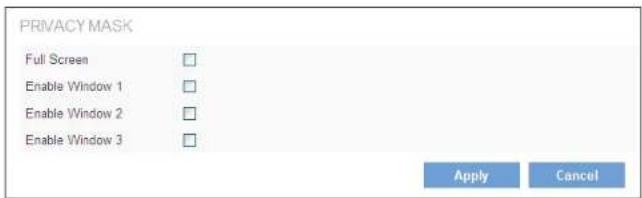
Privacy Mask Control
Privacy Mask - Remotely disables live view and recording. Configure the privacy windows for up to three individual windows or for the full screen.
text_image
PRIVACY MASK Full Screen Enable Window 1 Enable Window 2 Enable Window 3 Apply CancelPreset Point
NOTE:
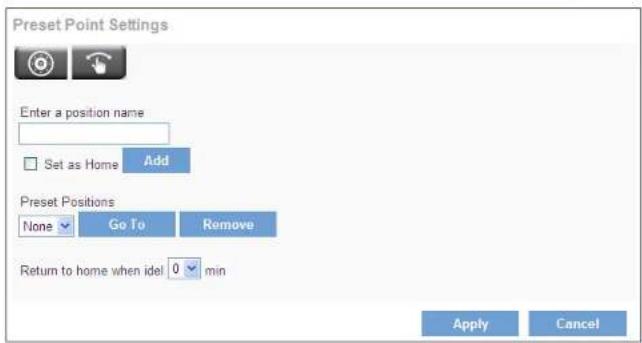
(Only available with models with a RS485 interface) – Preset Point only works if a pan-tilt scanner is connected to the camera's RS485 interface. This feature can ONLY be displayed correctly on Internet Explorer.
text_image
Preset Point Settings Enter a position name Set as Home Add Preset Positions None Go To Remove Return to home when idel 0 min Apply CancelA preset position is a pre-defined camera view that can be used to quickly move the camera view to a specific location.
How to create a preset position
- Use the Pan, Tilt and Zoom (PTZ) controls to steer the camera view to the required position.
- Enter a position name and click Add.
- The camera position and focus settings will be saved as a preset position.
NOTE:
A total of sixteen preset positions can be set.
Preset positions can be accessed at any time by selecting the position's name from the Preset Positions drop-down list. Set a Home position, which is readily accessible by clicking the Home in the PTZ panel.
NOTE:
The name of the preset point set as Home will have (H) added; for example, Gate (H).
The camera can be configured to return to the Home position when the camera has been idle for a specified length of time. Select the desired length of time (in minutes) from the drop-down menu and click Apply. Setting the time to zero prevents the camera from automatically returning to the Home position.
Patrol Setting
NOTE:
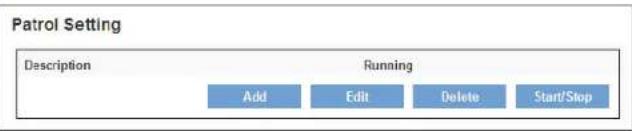
(Only available with models with a RS485 interface) – Patrol Setting only works if a pan-tilt scanner is connected to the camera's RS485 interface. This feature can ONLY be displayed correctly on Internet Explorer.
text_image
Patrol Setting Description Running Add Edit Delete Start/StopThe camera can be set to patrol a group of preset points. For each patrol group, the user can configure the preset point order, movement speed, and viewing duration.
How to create a patrol group
- Click Add to create a new patrol group.
- Enter description for this new patrol group.
- Use the right arrow buttons to add preset positions into the group.
- Use up and down arrow buttons to change the order of preset positions in the group.
- You can specify movement speed, viewing duration for each preset position in the group.
- Click Apply.
- To start a patrol group, click Start in the patrol group list.
NOTE:
A total of sixteen preset points can be assigned to a patrol group, and a total of four patrol groups can be assigned to a network camera.
Pan-Tilt Scanner
NOTE:
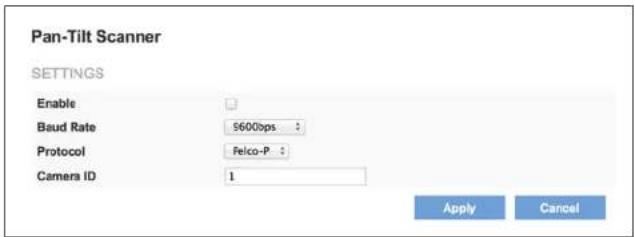
(Only available with models with a RS485 interface) – Pan-Tilt Scanner only works if it is connected to the camera's RS485 interface. This feature can ONLY be displayed correctly on Internet Explorer.
text_image
Pan-Tilt Scanner SETTINGS Enable Baud Rate 9600bps : Protocol Felco-P : Camera ID 1 Apply CancelEnabled - Click check box.
Baud Rate/Protocol - Baud rate and protocol values of the video server must be set to match the baud rate and protocol values of the scanner. See the scanner user manual for the baud rate and protocol configuration details
Camera ID - Enter a camera or scanner ID.
Network Settings
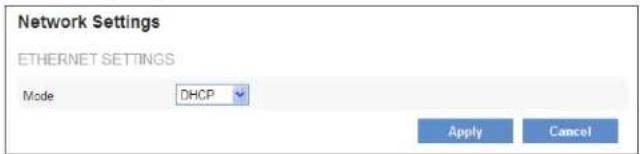
There are several ways to setup the camera over the Internet: (1) obtain an available dynamic IP address assigned by a DHCP server, (2) use a static IP, or use PPPoE (Point-to-point over Ethernet). Select the desired setup mode from the IP settings drop-down menu.
text_image
Network Settings ETHERNET SETTINGS Mode DHCP Apply Cancel- DHCP - The camera will automatically obtain an available dynamic IP address from the DHCP server each time it connects to the LAN.
- Static IP - Select this option to manually assign a static IP address to the camera. Enter the static IP address, Subnet Mask, Default Gateway, Primary and Secondary DNS provided by the ISP.
- PPPoE (Point-to-point over Ethernet) - Use this mode if connecting to the Internet through a DSL Line. To utilize this feature, it requires an account provided by an Internet Service Provider. Enter the user name and password provided by the ISP.
Discovery
text_image
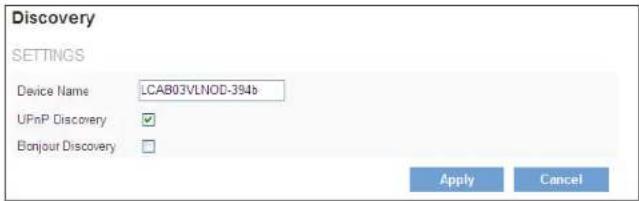
Discovery SETTINGS Device Name LCAB03VLNOD-394b UPnP Discovery ✓ Bonjour Discovery ✓ Apply CancelUPnP Discovery - Universal Plug and Play (UPnP) simplifies the process of adding a camera to a local area network. Once connected to a LAN, the camera will automatically appear on the intranet.
Bonjour Discovery - Click the check box if you would like the camera to be discovered by Bonjour.
Linksys
Configuration
DDNS (DYNAMIC DOMAIN NAME SERVICE)
DDNS links a domain name to an IP address, allowing users to easily access their camera even with a changing Internet IP address. Before utilizing this function, please apply an account from one of these DDNS providers - Dyndns or TZO.

text_image
DDNS DYNDNS Enable Username Password Hostname TZO Enable Email Address TZO Password Domain Name Apply CancelDynDNS - Obtain an account from the DynDNS website (http://dyn.com). When an account has been created, enter the username, password and hostname.
TZO – Obtain an account from the TZO website (http://tzodns.com). When an account has been created, enter the email address, password and domain name.
HTTP/HTTPS

text_image
HTTP/HTTPS HTTP Enable ✓ Port 80 HTTPS Enable □ Port 443 Apply CancelHTTP (HyperText Transfer Protocol) - This protocol allows for TCP quality without having to open specific ports for streaming. Users inside a firewall can utilize this protocol to allow streaming data through.
HTTPS (Hypertext Transfer Protocol over SSL) - This protocol allows authentication and encrypted communication over SSL (Secure Socket Layer). It helps protect streaming data transmission over the Internet on a higher security level than HTTP.
Multicast
Multicast sends a video stream to the multicast group address and allows multiple clients to acquire the stream at the same time by requesting a copy from the multicast group address. This effectively saves Internet bandwidth. The RTSP (Real-Time Streaming Protocol) controls the delivery of streaming media.

text_image
Multicast SETTINGS Stream 1 Enable Multicast Address 234 1 2 3 Port 10000 Stream 2 Enable Multicast Address 234 1 2 3 Port 10000 Stream 3 Enable Multicast Address 234 1 2 3 Port 10000 Apply CancelHow to enable the multicast stream
- Click Enable.
- The default value for multicast address and port are 234.1.2.3 and 10000.
- Use a different port number for different streams. It is recommended to use the default values.
NOTE:
Using the IP address of the network camera enables access to the video.
Example: rtsp://192.168.1.1/channel1
QoS
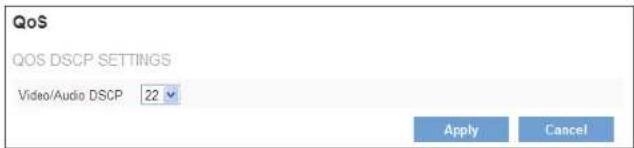
Differentiated Services Code Point (DSCP) is a field in an IP packet that enables different levels of service to be assigned to network traffic.
text_image
QoS QOS DSCP SETTINGS Video/Audio DSCP 22 Apply CancelVideo/Audio DSCP - Select a DSCP value.
Event Settings
text_image
Event Settings EVENT LIST Enable Name Event Type Action Add DeleteNOTIFICATION SETTINGS
text_image
Enable Name Scheduled Event Always Schedule Recurrence Pattern Event Motion Detection : Action Save Stream to FTP Send Snapshot to FTP Send HTTP Notification Send to Email Send UDP Notification to IP address ... ... ... Port Send Multicast Notification to IP address ... ... ... Port Apply CancelLinksys
Configuration
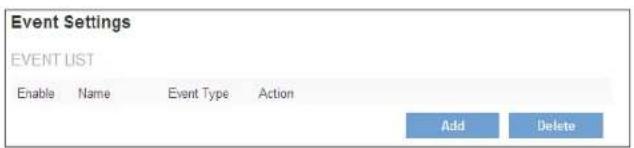
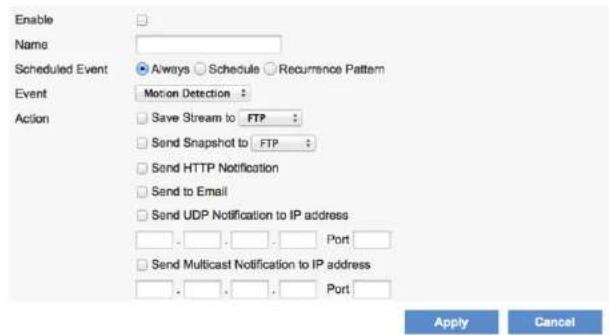
How to create an event
- Click Add.
- Click Enable.
- Enter an event name.
- Set an event schedule to define when the event is activated.
- Select an event type that will be used to trigger the event.
NOTE:
The Motion Detection, Digital Input and Audio Detection settings can be configured in camera Web configuration.
- Select an action for the camera to perform when an event occurs.
- Click Apply. The new event will appear on the event list above.
How to configure motion detection
1 Select
2. Use the mouse to resize or move the motion detection window.
3. Adjust the sensitivity level. Lower sensitivity levels will result in more activity needed to trigger an event.
4. Adjust the threshold to change the threshold level. The higher the threshold, the larger objects need to be to trigger an event.
5. The chart below the Live View window indicates the activity level of the Motion Detection window. When motion is detected by the camera and exceeds the defined threshold, a red bar will appear.
6. Click Apply.
Digital Input
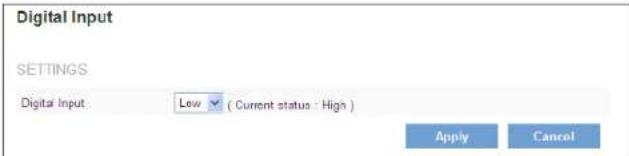
This feature allows the camera to receive input from an external device through DI/DO socket.
NOTE:
This feature is only available with models with a DI/DO interface.
text_image
Digital Input SETTINGS Digital Input: Low ( Current status : High ) Apply CancelDigital Input - Set a triggering voltage level. This option should be selected according to the capability of your external device.
Audio Detection
Schedule an event to be triggered if there is a change in the sound level of a monitored area. Audio detection can be used to measure change in the ambient voice. Select the sensitivity from the drop-down menu.

text_image
Audio Detection SETTINGS Sensitivity 30 % Current Detected Value 10 % Apply CancelSensitivity - Adjust the sensitivity of the sound level from 10 - 100%. The default sensitivity is 50%.
Current Detected Value - Display the current sound level.
Linksys
Configuration
FTP Settings
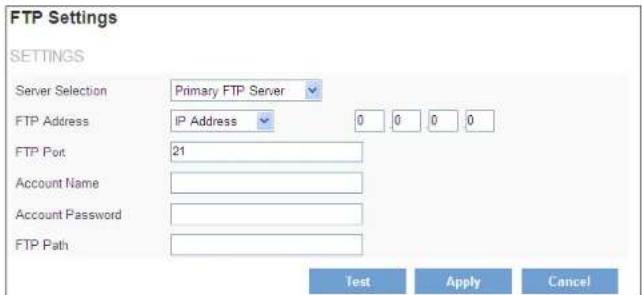
File Transfer Protocol (FTP) is used as an application component to automatically transfer files for program internal functions.
text_image
FTP Settings SETTINGS Server Selection Primary FTP Server FTP Address IP Address 0 0 0 0 FTP Port 21 Account Name Account Password FTP Path Test Apply CancelHow to configure FTP settings
- Select Primary FTP Server from the Server Selection drop down menu to send media files to an FTP server when an event is triggered.
- Enter the FTP IP address or hostname.
- By default, the FTP port server is set to 21.
- Enter the account name, password and FTP Path.
- Click Apply.
Email Settings

text_image
Email Settings SETTINGS Server Selection Primary Email Server SMTP Server SMTP Port 25 Authentication LOGIN Email Account Email Password Test Apply CancelHow to configure email settings
- Select Primary Email Server from the Server Selection drop down menu to send media files to an email server when an event is triggered.
- SMTP Server - Enter the server host name of the email server.
- SMTP Port - Enter the port number of the email server; by default, the SMTP port is set to 25.
- Authentication - Select the authentication type from the drop-down menu.
- Email Account - Enter the user name of the email account if necessary.
- Email Password - Enter the password of the email account if necessary.
- Click Apply.
Samba Settings
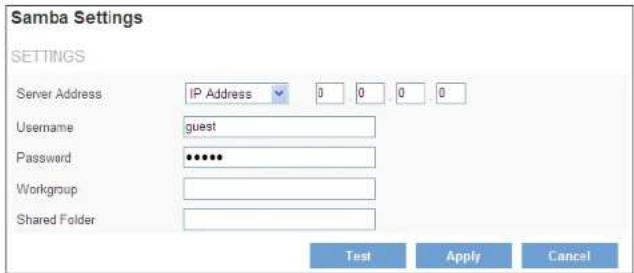
Select this option to send media files via a network neighborhood when an event is triggered.
text_image
Samba Settings SETTINGS Server Address IP Address 0 0 0 0 Username guest Password **** Workgroup Shared Folder Test Apply CancelHow to configure Samba settings
- Enter the IP address of the Samba server.
- Enter the username of the Samba server.
- Enter the password of the Samba server.
- Enter the workgroup of the Samba server.
- Enter the shared folder of the Samba server.
- Click Apply.
HTTP Settings
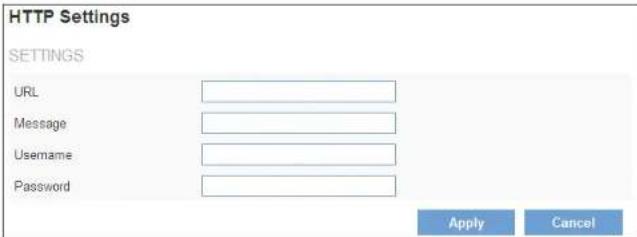
This section allows you to configure your HTTP notification when an event is triggered.
text_image
HTTP Settings SETTINGS URL Message Username Password Apply CancelURL - Specify the URL to send a HTTP notification. The URL is normally written as http://IP_address/ notification.cgi?parameter.
Example #1
URL: http://192.168.1.30/xxxx.cgi
Message: name1=value1&name2=vlaue2
Result: http://192.168.1.1/xxxx.cgi?name1=value1&name2=vlaue2
Example #2
http://192.168.1.30/notification.cgi?event=MD&camera=LCAM0336OD
Message - Enter the message notification that will be sent when an event is triggered.
Username - Please enter username if it is required.
Password - Please enter password if it is required.
Linksys
Configuration
Digital Output (DO)
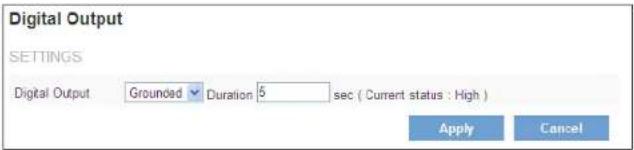
The DO socket allows the network camera to send output to an external device.
NOTE:
This feature is only available with models that have a DI/DO interface.
text_image
Digital Output SETTINGS Digital Output Grounded Duration 5 sec ( Current status : High ) Apply CancelDigital Output - Select the option according to the specification of your external device.
Duration - While executing the DO notification action, the network camera drives voltage on the connected DO wire to the triggering voltage level for X number of seconds. The connected external device will then be triggered for X number of seconds.
Audio Clip
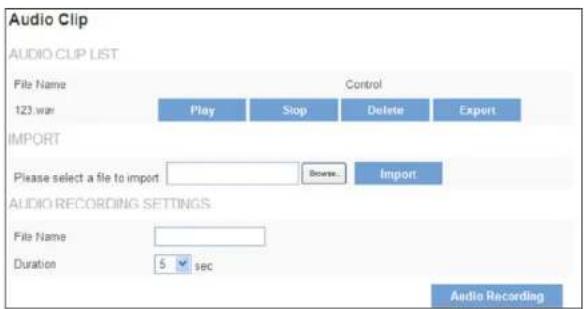
Audio clips can be played when an event occurs.
NOTE:
This feature is only available with models that have 2-Way audio streaming capability.
text_image
Audio Clip AUDIO CUP LIST File Name Control 123 war Play Stop Delete Export IMPORT Please select a file to import Browse... Import AUDIO RECORDING SETTINGS File Name Duration 5 sec Audio RecordingPlay - Play the audio clip.
Stop - Stop playing the audio clip.
Delete - Delete an audio clip.
Export - Export the audio clip to a local hard drive or network disk.
How to Import an audio clip
- Click Browse to import a file from a local hard drive or network disk.
- Select the file and click Import.
NOTE:
The camera can only play audio clips that are saved as .wav files with G.711 u-law encoding in 8000 Hz sampling rate.
How to record a new audio clip with the camera's microphone
- Enter a file name.
- Enter the number of seconds to record.
- Click Audio Recording to record the new audio clip.
- The new audio clip will appear on the audio clip list.
Linksys
Configuration
Video Clip
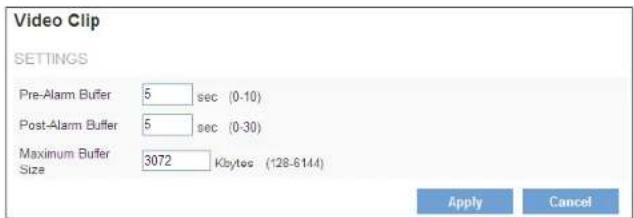
This function is used to determine when video clips will be recorded and stored after an event is triggered.
text_image
Video Clip SETTINGS Pre-Alarm Buffer 5 sec (0-10) Post-Alarm Buffer 5 sec (0-30) Maximum Buffer Size 3072 Kbytes (128-6144) Apply CancelPre-Alarm Buffer - Images can be stored internally on the server from the time immediately preceding the trigger. Enter the desired length of time.
Post-Alarm Buffer - Images can be stored internally on the server from the time immediately following the trigger. Enter the desired length of time.
Maximum buffer size - Specify the maximum file size allowed.
Storage Management
Storage Management is used to view all the recorded files on the Micro-SD/SDHC card.

text_image
Storage Management LOCAL STORAGE INFORMATION Item SD Card Total Capacity 0KB Used Space 0KB Available Space 0KB Memory Card Reload Management Automatic Recycle ✓ Offline Record Apply CancelItem - Type of memory card.
Total Capacity - Storage capacity of memory card.
Used Space - Used space on memory card.
Available Space - Free space on memory card.
Memory Card Management -Click Reload to reload the memory card.
Automatic Recycle - When remaining available space is less than 100MB older files will be overwritten so recording can continue.
Offline Record - Enable if you would like the camera to continue recording to the memory card if the camera temporarily disconnects from a network video recorder.
User Management
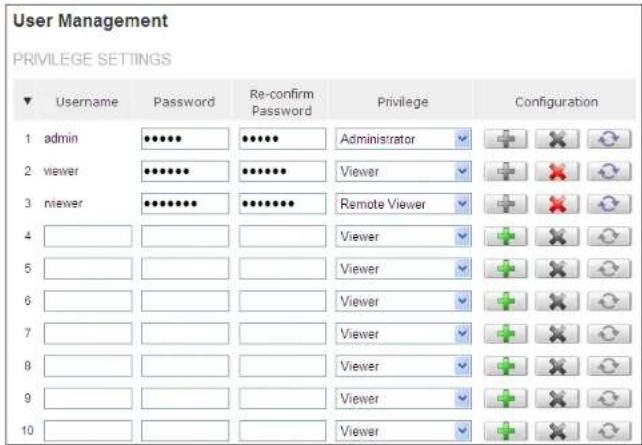
This section explains how to enable password protection and create multiple accounts.
text_image
User Management PRIVILEGE SETTINGS Username Password Re-confirm Password Privilege Configuration 1 admin •••••• •••••• Administrator 2 viewer ••••••• ••••••• Viewer 3 viewer ••••••• ••••••• Remote Viewer 4 5 6 7 8 9 10 Administrator Viewer Viewer Viewer Viewer Viewer ViewerEnter the new user's name, password and confirm password. Administrators can add up to 10 user accounts. Select the privilege level for the new user account from the drop-down list.
Click Delete or Update to delete or modify a user's account.
Privilege levels can be assigned as:
- Administrator - User has access to view and change the Configuration page. Users with administrator privilege can change other user's access rights and delete user accounts.
• Viewer - User can only access the main page for live viewing. - Remote Viewer - User can only access the main page for live viewing using TCP protocol.
Access Control
You can restrict camera access based on IP address.

text_image
Access Control IP FILTER Enable IP Filter Allow Access List Deny Access List From To Add to List Apply CancelHow to configure the IP Filter
- To enable Access Control, click check box of Enable IP Filter.
- Select Allow Access or Deny Access options.
- Enter IP address range and click Add to List.
- Click Apply.
Firmware Upgrade
Upgrading the camera firmware takes a few minutes to complete.

text_image
Firmware Upgrade UPGRADE DEVICE Please select a file to upgrade Browse... No file selected. UpgradeClick Browse... to find the firmware file. Click Upgrade. The camera will begin upgrading and will reboot automatically when the upgrade is finished.
NOTE: Do not power off the camera or disconnect the Ethernet cable during the upgrade.
The following message will show during the firmware upgrading process.

text_image
WARNING: DO NOT UNPLUG THE ETHERNET CABLE OR THE POWER CORD DURING THE FIRMWARE UPGRADE! 8 % Uploading the firmware image file...Back Up and Restore
Export/import the configuration files of the network camera.

text_image
Back Up and Restore EXPORT Export IMPORT Browse... ImportNOTE:
This features is required Windows Internet Explore to work properly.
Export - Click Export to pop up a dialog to indicate the location and file to export.
Import - Click Import to import the configuration file back into the network camera.
Reset to Default
Restore the camera to default factory settings.
Reset to Default
RESET TO DEFAULT
Press the Apply button to restore the network camera to factory default except settings in
□ Date and Time settings
□ IP settings
Apply
Click the check box if you don't want Data and Time settings or IP settings to be restored to default.
Reboot
The camera will take about one minute to reboot.

text_image
Reboot REBOOT DEVICE RebootSystem
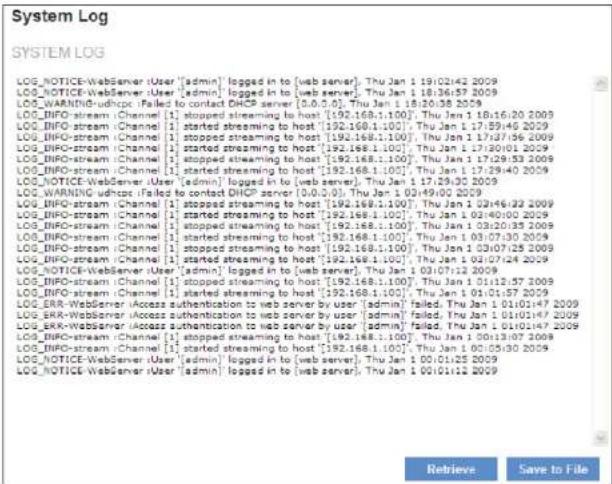
This page displays the system's log in chronological order. The system log is stored in the camera's buffer area and will be overwritten when the buffer area is full.
text_image
System Log SYSTEM LOG LOG_NOTICE-WebServer /user ['admin] logged in to [web server]. Thu Jan 1 19:02:42 2009 LOG_NOTICE-WebServer /user ['admin] logged in to [web server]. Thu Jan 1 18:36:57 2009 LOG.WARN#-udhtcpc : Failed to contact DHCP server [0.0.0.0], Thu Jan 1 18:20:38 2009 LOG_INFO-stream /Channel [1 stopped streaming to host [192.168.1.100], Thu Jan 1 18:16:20 2009 LOG_INFO-stream /Channel [1 started streaming to host [192.168.1.100], Thu Jan 1 17:59:46 2009 LOG_INFO-stream /Channel [1 stopped streaming to host [192.168.1.100], Thu Jan 1 17:37:56 2009 LOG_INFO-stream /Channel [1 started streaming to host [192.168.1.100], Thu Jan 1 17:20:01 2009 LOG_INFO-stream /Channel [1 stopped streaming to host [192.168.1.100], Thu Jan 1 17:29:53 2009 LOG_INFO-stream /Channel [1 started streaming to host [192.168.1.100], Thu Jan 1 17:29:40 2009 LOG_NOTICE-WebServer /user ['admin] logged in to [web server]. Thu Jan 1 17:29:30 2009 LOG.WARN#-udhtcpc : Failed to contact DHCP server [0.0.0.0], Thu Jan 1 02:49:00 2009 LOG_INFO-stream /Channel [1 stopped streaming to host [192.168.1.100], Thu Jan 1 02:46:33 2009 LOG_INFO-stream /Channel [1 started streaming to host [192.168.1.100], Thu Jan 1 02:40:02 2009 LOG_INFO-stream /Channel [1 stopped streaming to host [192.168.1.100], Thu Jan 1 03:20:35 2009 LOG_INFO-stream /Channel [1 started streaming to host [192.168.1.100], Thu Jan 1 03:07:30 2009 LOG_INFO-stream /Channel [1 stopped streaming to host [192.168.1.100], Thu Jan 1 03:07:25 2009 LOG_INFO-stream /Channel [1 started streaming to host [192.168.1.100], Thu Jan 1 03:07:24 2009 LOG_INFO-stream /Channel [1 stopped streaming to host [192.168.1.100], Thu Jan 1 03:07:23 2009 LOG_INFO-stream /Channel [1 started streaming to host [192.168.1.100], Thu Jan 1 03:07:22 2009 LOG_INFO-stream /Channel [1 stopped streaming to host [192.168.1.100], Thu Jan 1 03:07:22 2009 LOG_INFO-stream /Channel [1 started streaming to host [192.168.1.100], Thu Jan 1 03:07:22 2009 LOG_ERR-WebServer /Access authentication to web server by user [admin] failed, Thu Jan 1 03:37:57 2009 LOG_ERR-WebServer /Access authentication to web server by user [admin] failed, Thu Jan 1 03:37:57 2009 LOG_ERR-WebServer /Access authentication to web server by user [admin] failed, Thu Jan 1 03:37:57 2009 LOG_INFO-stream /Channel [1 stopped streaming to host [192.168.1.100], Thu Jan 1 03:37:57 2009 LOG_INFO-stream /Channel [1 started streaming to host [192.168.1.100], Thu Jan 1 03:37:57 2009 LOG_INFO-stream /Channel [1 stopped streaming to host [192.168.1.100], Thu Jan 1 03:37:57 2009 LOG_INFO-stream /Channel [I stopco streaming to host [I stopco streaming to host [I stopco streaming to host [I stopco streaming to host [I stopco streaming to host [I stopco streaming to host [I stopco streaming to host [I stopco streaming to host [I stopco streaming to host [I stopco streaming to host [I stopco streaming to host [I stopco streaming to host [I stopco streaming to host [I stopco streaming to host [I stopco streaming to host [L stopco streaming to host [L stopco streaming to host [L stopco streaming to host [L stopco streaming to host [L stopco streaming to host [L stopco streaming to host [L stopco streaming to host [L stopco streaming to host [L stopco streaming to host [L stopco streaming to host [L stopco streaming to host [L stopco streaming to host [L stopco streaming to host [L stopco streaming to host [L stopCO streamer] LOG_INFO-stream /Channel [I stopped streaming to host [I stopco streaming to host [I stopco streaming to host [I stopco streaming to host [I stopco streaming to host [I stopco streaming to host [I stopco streaming to host [I stopco streaming to host [I stopco streaming to host [I stopco streaming to host [I stopco streaming to host [I stopco streaming to host [I stopco streaming to host [I stopco streaming to host [I stopco streaming - http://www.webserver.com/ LOG_INFO-stream /Channel [I stopped streaming to host [I stopco streaming to host [I stopco streaming to host [I stopco streaming to host[ I stopco streaming - http://www.webserver.com/ LOG_INFO-stream /Channel [I started streaming to host [I stopco streaming - http://www.webserver.com/ LOG_INFO-stream /Channel [I stopped streaming to host [I stopco streaming - http://www.webserver.com/ LOG_INFO-stream /Channel [I stopped streaming to host [I stopco streaming - http://www.webserver.com/ LOG_INFO-stream /Channel [I stopped streaming to host [I stopco streaming - http://www.webserver.com/ LOG_INFO-stream /Channel [I stopped streaming to host [I stopco streaming - http://www.webserver.com/ LOG_INFO-stream /Channel [I stopped streaming to host[ I stopco streaming - http://www.webserver.com/ LOG_INFO-stream /Channel[ I stopped streaming to host[ I stopco streaming - http://www.webserver.com/ LOG_INFO-stream /Channel[ I stopped streaming to host[ I stopco streaming - http://www.webserver.com/ LOG_INFO-stream /Channel[ I stopped streaming to host[ I stopco streaming - http://www.webserver.com/ LOG_INFO-stream /Channel[ I stopped streaming to host[ I stopco streaming - http://www.webserver.com/ LOG_INFO-stream /Channel[ I stopped streaming to Host[ I stopco streaming - http://www.webserver.com/ LOG_INFO-stream /Channel[ I stopped streaming to Host[ I stopco streaming - http://www.webserver.com/ LOG_INFO-stream /Channel[ I stopped streaming to Host[ I stopco streaming - http://www.webserver.com/ LOG_INFO-stream /Channel[ I stopped streaming to Host[ I stopco streaming - http://www.webserver.com/ LOG_INFO-stream /Channel[ I stopped streaming to Host[ I stopCO streamer - http://www.webserver.com/ LOG_INFO-stream /Channel[ I stopped streaming to Host[ I stopCO streamer - http://www.webserver.com/ LOG_INFO-stream /Channel[ I stopped streaming to Host[ I stopCO streamer - http://www.webserver.com/ LOG_INFO-stream /Channel[ I stopped streaming to Host[ I stopCO streamer - http://www.webserver.com/ LOG_INFO-stream /Channel[ I stopped streaming to Host[ I stopCO streamER - http://www.webserver.com/ LOG_INFO-stream /Channel[ I stopped streaming to Host[ I stopCO streamER - http://www.webserver.com/ LOG_INFO-stream /Channel[ I stopped streaming to Host[ I stopCO streamER - http://www.webserver.com/ LOG_INFO-stream /Channel[ I stopped streaming to Host[ I stopCO streamER - http://www.webserver.com/ LOG_INFO-stream /Channel[ I stopped streaming to Host[ I stopCO streamE - http://www.webserver.com/ LOG_INFO-stream /Channel[ I stopped streaming to Host[ I stopCO streamE - http://www.webserver.com/ LOG_INFO-stream /Channel[ I stopped streaming to Host[ I stopCO streamE - http://www.webserver.com/ LOG_INFO-stream /Channel[ I stopped streaming to Host[ I stopCO streamE - http://www.webserver.com/ LOG_INFO-stream /Channel[ I stopped streaming to Host[ I stopCO streamER - http://www.webserver.com/ LOG_INFO-stream /Channel[ I stopped streaming to Host[ I stopCO streamER - http://www.webserver.com/ LOG_INFO-stream /Channel[ I stopped streaming to Host[ I stopCO streamER - http://www.webserver.com/ LOG_INFO-stream /Channel[ I stopped streaming to Host[ I stopCO streamR - http://www.webserver.com/ LOG_INFO-stream /Channel[ I stopped streaming to Host[ I stopCO streamR - http://www.webserver.com/ LOG_INFO-stream /Channel[ I stopped streaming to Host[ I stopCO streamR - http://www.webserver.com/ LOG_INFO-stream /Channel[ I stopped streaming to Host[ I stopCO streamR - http://www.webserver.com/ LOG_INFO-stream /Channel[ I stopped streaming to Host[ I stopCO streamER - http://www.webserver.com/ LOG_INFO-stream /Channel[ I stopped streaming to Host[ I stopCO streamER - http://www.webserver.com/ LOG_INFO-stream /Channel[ I stopped streaming to Host[ I stopCO streamER - http://www.webserver.com/ LOG_INFO-stream /Channel[ I stopped streaming to Host[ I stopCO streamRE - http://www.webserver.com/ LOG_INFO-stream /Channel[ I stopped streaming to Host[ I stopCO streamRE - http://www.webserver.com/ LOG_INFO-stream /Channel[ I stopped streaming to Host[ I stopCO streamRE - http://www.webserver.com/ LOG_INFO-stream /Channel[ I stopped streaming to Host[ I stopCO streamRE - http://www.webserver.com/ LOG_INFO-stream /Channel[ I stopped streaming to Host[ I stopCO streamER - http://www.webserver.com/ LOG_INFO-stream /Channel[ I stopped streaming to Host[ I stopCO streamER - http://www.webserver.com/ LOG_INFO-stream /Channel[ I stopped streaming to Host[ I stopCO streamER - http://www.webserver.com/ LOG_INFO-stream /Channel[ I stopped streaming to Host[ I stopCO streamRK - http://www.webserver.com/ LOG_INFO-stream /Channel[ I stopped streaming to Host[ I stopCO streamRK - http://www.webserver.com/ LOG_INFO-stream /Channel[ I stopped streaming to Host[ I stopCO streamRK - http://www.webserver.com/ LOG_INFO-stream /Channel[ I stopped streaming to Host[ I stopCO streamRK - http://www.webserver.com/ LOG_INFO-stream /Channel[ I stopped streaming to Host[ I stopCO streamEK - http://www.webserver.com/ LOG_INFO-stream /Channel[ I stopped streaming to Host[ I stopCO streamEK - http://www.webserver.com/ LOG_INFO-stream /Channel[ I stopped streaming to Host[ I stopCO streamEK - http://www.webserver.com/ LOG_INFO-stream /Channel[ I stopped streaming to Host[ I stopCO streamEK - http://www.webserver.com/ LOG_INFO-stream /Channel[ I stopped streaming to Host[ I stopCO streamER - http://www.webserver.com/ LOG_INFO-stream /Channel[ I stopped streaming to Host[ I stopCO streamER - http://www.webserver.com/ LOG_INFO-stream /Channel[ I stopped streaming to Host[ I stopCO streamER - http://www.webserver.com/ LOG_INFO-stream /Channel[ I stopped streaming to Host[ I stopCO streamEK - http://www.webserver.com/ LOG_INFO-stream /Channel[ I stopped streaming to Host[ I stopCO streamEK - http://www.webserver.com/ LOG_INFO-stream /Channel[ I stopped streaming to Host[ I stopCO streamER - http://www.webserver.com/ LOG_INFO-stream /Channel[ I stopped streaming to Host[ I stopCO streamRK - http://www.webserver.com/ LOG_INFO-stream /Channel[ I stopped streaming to Host[ I stopCO streamRK - http://www.webserver.com/ LOG_INFO-stream /Channel[ I stopped streaming to Host[ I stopCO streamER - http://www.webserver.com/ LOG_INFO-stream /Channel[ I stopped streaming to Host[ I stopCO streamRK - http://www.webserver.com/ LOG_INFO-stream /Channel[ I stopped streaming to Host[ I stopCO streamER - http://www.webserver.com/ LOG_INFO-stream /Channel[ I stopped streaming to Host[ I stopCO streamER - http://www.webserver.com/ LOG_INFO-stream /Channel[ I stopped streaming to Host[ I stopCO streamRK - http://www.webserver.com/ LOG_INFO-stream /Channel[ I stopped streaming to Host[ I stopCO streamER - http://www.webserver.com/ LOG_INFO-stream /Channel[ I stopped streaming to Host[ I stopCO streamRK - http://www.webserver.com/ LOG_INFO-stream /Channel[ I stopped streaming to Host[ I stopCO streamRK - http://www.webserver.com/ LOG_INFO-stream /Channel[ I stopped streaming to Host[ I stopCO streamEK - http://www.webserver.com/ LOG_INFO-stream /Channel[ I stopped streaming to Host[ I stopCO streamRK - http://www.webserver.com/ LOG_INFO-stream /Channel[ I stopped streaming to Host[ I stopCO streamRK - http://www.webserver.com/ LOG_INFO-stream /Channel[ I stopped streaming to Host[ I stopCO streamRK - http://www.webserver.com/ log/stop/stop/stop/stop/stop/stop/stop/stop/stop/stop/stop/stop/stop/stop/stop/stop/stop/stop/stop/stop/stop/stop/stop/stop/stop/stop/stop/stop/stop/stop/stop/stop/stop/stop/stop/stop/stop/stop/stop/stop/stop/stop/stop/stop/stop/stop/stop/stop/stop/stop/Stop/stop/stop/stop/stop/stop/stop/stop/stop/stop/stop/stop/stop/stop/stop/stop/stop/stop/stop/stop/stop/stop/stop/stop/stop/stop/stop/stop/stop/stop/stop/stop/stop/stop/stop/stop/stop/stop/stop/stop/stop/stop/stop/stop/stop/stop/stop/stop/stop/stop/ Stop/Stop/Stop/Stop/Stop/Stop/Stop/Stop/Stop/Stop/Stop/Stop/Stop/Stop/Stop/Stop/Stop/Stop/Stop/Stop/Stop/Stop/Stop/Stop/Stop/Stop/Stop/Stop/Stop/Stop/Stop/Stop/Stop/Stop/Stop/Stop/Stop/Stop/Stop/Stop/Stop/Stop/Stop/Stop/Stop/Stop/Stop/Stop/Stop/Stop/Stop/Help/Sale/Sale/Sale/Sale/Sale/Sale/Sale/Sale/Sale/Sale/Sale/Sale/Sale/Sale/Sale/Sale/Sale/Sale/Sale/Sale/Sale/Sale/Sale/Sale/Sale/Sale/Sale/Sale/Sale/Sale/Sale/Sale/Sale/Sale/Sale/Sale/Sale/Sale/Sale/Sale/Sale/Sale/Sale/Sale/Sale/Sale/Sale/Sale/Sale/Sale/Salve/Sale/Sale/Sale/Sale/Sale/Sale/Sale/Sale/Sale/Sale/Sale/Sale/Sale/Sale/Sale/Sale/Sale/Sale/Sale/Sale/Sale/Sale/Sale/Sale/Sale/Sale/Sale/Sale/Sale/Sale/Sale/Sale/Sale/Sale/Sale/Sale/Sale/Sale/Salve/Salve/Salve/Salve/Salve/Salve/Salve/Salve/Salve/Salve/Salve/Salve/Salve/Salve/Salve/Salve/Salve/Salve/Salve/Salve/Salve/Salve/Salve/Salve/Ta Retrieve Save To FileClick Retrieve to retrieve the log or click Save to file to save the system log into your local PC.
Date and Time
text_image
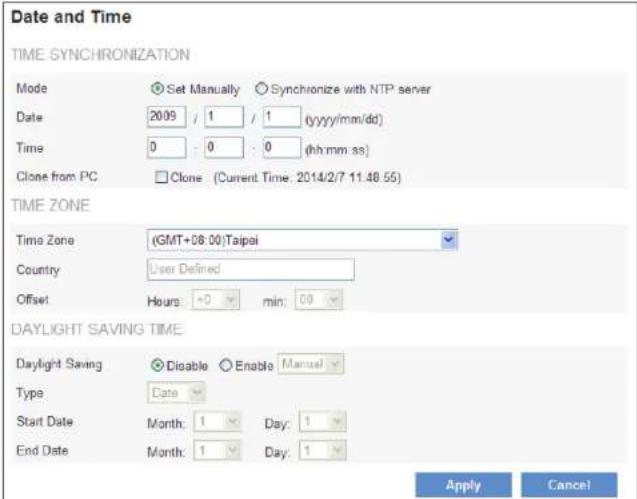
Date and Time TIME SYNCHRONIZATION Mode Set Manually Synchronize with NTP server Date 2009 / 1 / 1 (yyyy/mm/dd) Time 0 : 0 : 0 (hh:mm:ss) Clone from PC Clone (Current Time: 2014/2/7 11:48:55) TIME ZONE Time Zone (GMT+08:00)Taipei Country User Defined Offset Hours: +0 min: 00 DAYLIGHT SAVING TIME Daylight Saving Disable Enable Manual Type Date Start Date Month: 1 Day: 1 End Date Month: 1 Day: 1 Apply CancelMode - Manually enter the date and time or synchronize with NTP server automatically.
Date/Time/Clone from PC - If you select Set Manually, enter correct date and time in the fields or select Clone to synchronize the date and time on your computers.
Time Zone - Select the local time zone from drop-down menu.
Daylight Saving - Enable this option to automatically update for Daylight Saving Time.
Save File Folder
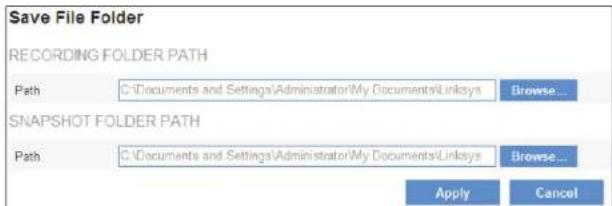
You can specify a location where you like video recording and snapshot of the live viewing to be stored.
NOTE:
This feature can only work with Internet Explorer browser.
text_image
Save File Folder RECORDING FOLDER PATH Path C:\Documents and Settings\Administrator\My Documents\Linksys Browse... SNAPSHOT FOLDER PATH Path C:\Documents and Settings\Administrator\My Documents\Linksys Browse... Apply CancelRecording Folder Path Click Browse... to select a path to store video recording data.
Snapshot Folder Path Click Browse... to select a path to store snapshot file.
LED Indicators
The power LED is located inside the camera and can be turned on and off. Click check box to turn off the LED.
Device Information
This section displays camera current status and configuration information.
| Device Information | ||
| SYSTEM INFORMATION | ||
| LAN MAC Address | 00:22:F4:CE:59:E4 | |
| Firmware Version | 1.0.1.03 | |
| Device Name | LCAM0336CD-50e4 | |
| NETWORK SETTINGS - IPv4 | ||
| IP Setting Type | DHCP | |
| IP Address | 192.168.168.170 | |
| Submit Mask | 255.255.255.0 | |
| Default Gateway | 192.108.168.1 | |
| Primary DNS | 99.99.99.53 | |
| Secondary DNS | 99.99.99.153 | |
| NETWORK SETTINGS - IPv6 | ||
| IP Address | fe80:222.4ff fece:59e4/64 | |
| Default Gateway | ||
| Primary DNS | ||
| Secondary DNS | ||
| NETWORK SERVICES | ||
| Discovery | Enabled | |
| DynDNS | Disabled | |
| TZO | Disabled | |
| VIDEO/AUDIO SETTINGS | ||
| Stream 1 | ||
| Video Codec | H264 | |
| Video Resolution | 2032x1538 | |
| Video Frame Rate | 20 fps | |
| Video Quality | 3 | |
| Audio Codec | G.711 | |
| Multicast IP | N/A | |
| Stream 2 | ||
| Video Codec | H264 | |
| Video Resolution | N/A | |
| Video Frame Rate | 15 fps | |
| Video Quality | 6 (Best) | |
| Audio Codec | G.711 | |
| Multicast IP | N/A | |
| Stream 3 | ||
| Video Codec | H264 | |
| Video Resolution | 338x240 | |
| Video Frame Rate | 15 fps | |
| Video Quality | 6 (Best) | |
| Audio Codec | G.711 | |
| Multicast IP | N/A | |
Linksys
Configuration
System Information - Displays basic system information such as MAC address, Firmware version and Device Name.
Network Settings IPv4/IPv6 - Displays current network status.
Network Services - Displays network services information.
Video/Audio Settings - Displays camera video and audio configuration settings.
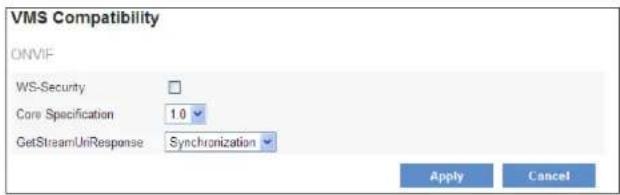
VMS Compatibility
Set your video management system format using ONVIF standards to ensure interoperability between products regardless of manufacturer.
text_image
VMS Compatibility ONVIF WS-Security Core Specification 1.0 GetStreamUriResponse Synchronization Apply CancelWS-Security - Enable/disable WS-Security.
Core Specification - Select an ONVIF version.
GetStreamUriResponse - Select a setting.
Specifications
Model No.: LCAD03FLN
Image
Sensor: 5 Megapixel CMOS
Maximum Image Resolution: 2048 x 1536, 3MP
Video
Maximum Frame Rate: 18 fps@2048x1536, 30 fps@1920x1080, 30 fps@1280x720
Image Compression: H.264/MJPEG/MPEG4
Bitrate Control: Variable Bitrate and Constant Bitrate
Lens
Fixed/Vari-focal: Fixed Lens
Iris Control: Fixed Iris
Focal Length: f = 4mm
Focal Ratio: F1.6
Viewing Angle: Horizontal: 62°, Vertical: 34°
Minimum Illumination: 0 lux (IR On, B/W), 0.5 lux (IR Off, Color)
IR Illuminator
Mechanical IR-Cut: Y
Infrared LED: 12 pcs
Wavelength: 850nm
Distance (IR Distance): 15m
Audio
Compression: G.711/AMR
Audio Streaming: 2-Way Audio
Audio Input: Y
Audio Output: Y
Compliance Information
FCC/IC Class A and CE Class A
Interface
100Base-T Ethernet, DI/DO and SD/SDHC Card Slot
Power Supply
Power over Ethernet: IEEE 802.3af
Maximum Power Consumption: < 6W
Environment
Operating Temperature: 0°C \~ 50°C
Operating Humidity: 10% to 80% Relative Humidity and Non-Condensing
Storage Temperature: -20°C to 60°C
Storage Humidity: 5% to 90% Non-Condensing
Dimensions
Unit Weight: 0.58kg
Model No.: LCAD03VLNOD
Image
Sensor: 5 Megapixel CMOS
Maximum Image Resolution: 2048 x 1536, 3MP
Video
Maximum Frame Rate: 18 fps@2048x1536, 30 fps@1920x1080, 30 fps@1280x720
Image Compression: H.264/MJPEG/MPEG4
Bitrate Control: Variable Bitrate and Constant Bitrate
Lens
Fixed/Vari-focal: Vari-focal Lens
Iris Control: Auto Iris
Focal Length: f = 3.3 \~ 10.5mm
Focal Ratio: F1.4
Viewing Angle: Horizontal: 26° \~ 70°, Vertical: 20° \~ 51°
Minimum Illumination: 0 lux (IR On, B/W), 0.5 lux (IR Off, Color)
IR Illuminator
Mechanical IR-Cut: Y
Infrared LED: 12 pcs
Wavelength: 850nm
Distance (IR Distance): 15m
Audio
Compression: G.711/AMR
Audio Streaming: 2-Way Audio
Audio Input: Y
Audio Output: Y
Compliance Information
FCC/IC Class A, CE Class A, IP67-Rated and IK10-Rated
Interface
100Base-T Ethernet, DI/DO and SD/SDHC Card Slot
Power Supply
Power over Ethernet: IEEE 802.3af
Maximum Power Consumption: < 6W
Environment
Operating Temperature: -40°C \~ 50°C
Operating Humidity: 10% to 80% Relative Humidity and Non-Condensing
Storage Temperature: -20°C to 60°C
Storage Humidity: 5% to 90% Non-Condensing
Dimensions
Unit Weight: 0.90kg
Model No.: LCAB03VLNOD
Image
Sensor: 5 Megapixel CMOS
Maximum Image Resolution: 2048 x 1536, 3MP
Video
Maximum Frame Rate: 18 fps@2048x1536, 30 fps@1920x1080, 30 fps@1280x720
Image Compression: H.264/MJPEG/MPEG4
Bitrate Control: Variable Bitrate and Constant Bitrate
Lens
Fixed/Vari-focal: Vari-focal Lens
Iris Control: Auto Iris
Focal Length: f = 3.3 \~ 10.5mm
Focal Ratio: F1.4
Viewing Angle: Horizontal: 26° \~ 70°, Vertical: 20° \~ 51°
Minimum Illumination: 0 lux (IR On, B/W), 0.5 lux (IR Off, Color)
IR Illuminator
Mechanical IR-Cut: Y
Infrared LED: 24 pcs
Wavelength: 850nm
Distance (IR Distance): 25m
Audio
Compression: G.711/AMR
Audio Streaming: 2-Way Audio
Audio Input: Y
Audio Output: Y
Compliance Information
FCC/IC Class A, CE Class A, IP67-Rated and Vandal Resistant
Interface
100Base-T Ethernet, DI/DO, SD/SDHC Card Slot, Analog Video Output and RS-485 for Scanners Pan-tilts.
Power Supply
Power over Ethernet: IEEE 802.3af
Maximum Power Consumption: < 7W
Environment
Operating Temperature: -40°C \~ 50°C
Operating Humidity: 10% to 80% Relative Humidity and Non-Condensing
Storage Temperature: -20°C to 60°C
Storage Humidity: 5% to 90% Non-Condensing
Dimensions
Unit Weight: 1.10kg
Model No.: LCAB03VLNOD
Image
Sensor: 3 Megapixel Sony CMOS
Maximum Image Resolution: 2048 x 1536, 3MP
Video
Maximum Frame Rate: 20 fps@2048x1536, 30 fps@1920x1080, 30 fps@1280x720
Image Compression: H.264/MJPEG/MPEG4
Bitrate Control: Variable Bitrate and Constant Bitrate
Lens
Fixed/Vari-focal: ImmerVision 360° Panomorph Lens
Focal Length: f = 0.98 \~ 1.02 mm
Focal Ratio: F2.0
Viewing Angle: Horizontal: 182°, Vertical: 182°
Minimum Illumination: 0.1 lux (B/W), 0.5 lux (Color)
Audio
Compression: G.711/AMR
Audio Streaming: 1-Way
Built-in Microphone: Y
Compliance Information
FCC/IC Class A, CE Class A, IP67-Rated and IK10-Rated
Interface
100Base-T Ethernet and SD/SDHC Card Slot
Power Supply
Power over Ethernet: IEEE 802.3af
Maximum Power Consumption: < 6W
Environment
Operating Temperature: -40°C \~ 50°C
Operating Humidity: 10% to 80% Relative Humidity and Non-Condensing
Storage Temperature: -20°C to 60°C
Storage Humidity: 5% to 90% Non-Condensing
Dimensions
Unit Weight: 0.40kg
NOTES
- For regulatory, warranty, and safety information, see the enclosed CD or go to Linksys.com/business
• Documentation is subject to change without notice.
Visit linksys.com/support for award-winning technical support
© 2014 Belkin International, Inc. and/or its affiliates. All rights reserved. BELKIN, LINKSYS and many product names and logos are trademarks of the Belkin group of companies. Third party trademarks mentioned are the property of their respective owners.
8820 01873 Rev. ACO