AE2500-RM - Network card / adapter LINKSYS - Free user manual and instructions
Find the device manual for free AE2500-RM LINKSYS in PDF.


| Product Type | Wireless USB Adapter |
| Model | AE2500-RM |
| Brand | Linksys |
| Wireless Standard | IEEE 802.11n |
| Frequency Band | 2.4 GHz / 5 GHz (Dual-Band) |
| Maximum Data Rate | Up to 300 Mbps |
| Interface | USB 2.0 |
| Security | WEP, WPA, WPA2 |
| Dimensions (L x W x H) | Approx. 3.0 x 1.0 x 0.5 in (76 x 25 x 13 mm) |
| Weight | Approx. 0.5 oz (14 g) |
| Power Consumption | Powered via USB bus |
| Operating Temperature | 32°F to 104°F (0°C to 40°C) |
| Storage Temperature | -4°F to 158°F (-20°C to 70°C) |
| Operating Humidity | 10% to 80% non-condensing |
| Storage Humidity | 5% to 90% non-condensing |
| Antenna Type | Internal dual-band antenna |
| Compatible Operating Systems | Windows 8/7/Vista/XP, Mac OS X 10.4+ |
| LED Indicators | Link/Activity |
| Certifications | FCC, CE, IC |
| Package Contents | AE2500-RM adapter, Setup Guide, CD with drivers |
Frequently Asked Questions - AE2500-RM LINKSYS
User questions about AE2500-RM LINKSYS
0 question about this device. Answer the ones you know or ask your own.
Ask a new question about this device
Download the instructions for your Network card / adapter in PDF format for free! Find your manual AE2500-RM - LINKSYS and take your electronic device back in hand. On this page are published all the documents necessary for the use of your device. AE2500-RM by LINKSYS.
USER MANUAL AE2500-RM LINKSYS
natural_image
Black Cisco Bluetooth device with USB port, against a blue gradient background (no text or symbols on device body)Using Your Adapter
AE1200/AE2500
Wireless-N USB Network Adapter
Linksys AE1200/AE2500
Contents
Product Overview
Features 1
Installation
Installation 2
Wireless Network Configuration
Windows 7 3
Windows Vista 4
Windows XP 6
Troubleshooting
AE1200/AE2500 9
Specifications
Linksys AE1200 10
Linksys AE1200 11
Product Overview
Thank you for choosing the Linksys Wireless-N USB adapter. Using the latest wireless networking technology, the adapter adds or upgrades wireless connectivity on your Windows-based desktop or laptop computer. To help protect your data and privacy, you can use Wi-Fi Protected Access 2 (WPA2) encryption to protect your wireless connection.
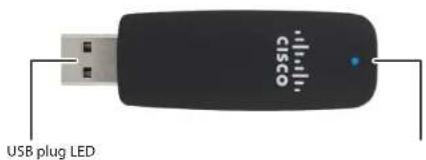
Features
text_image
USB plug LEDUSB plug: Connect this end to any available USB port on your computer.
LED: Flashes when there is wireless network activity.
Installation
This chapter describes the procedure for installing the adapter.
Installation
To install the adapter:
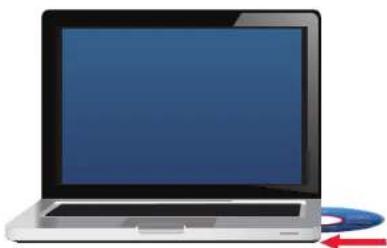
- Insert the CD into your CD or DVD drive.
natural_image
Illustration of a laptop computer with a CD and an arrow pointing to it (no text or symbols)- Click Set up your Linksys Adapter.

text_image
Always do this for software Install or run program Set up your Linksys Adapter Published by Cisco Consumer General options Open folder to view files using Windows ExplorerIf you do not see this, access setup on the CD directly. To do so, perform the following steps for your specific operating system:
Windows 7
a. Go to Start > Computer.
b. Double-click your CD or DVD drive.
Windows Vista
a. Go to Start > Computer.
b. Double-click your CD or DVD drive.
Windows XP
a. Go to Start > My Computer and select your CD or DVD drive.
b. Double-click Setup.exe.
- Follow the on-screen instructions to finish setting up your Linksys wireless adapter.

text_image
Windows 95.000 USB Adapter Welcome Start menu setup, read the License Agreement, then click Next ✓ Save access and adopt the terms of the Start Menu License Agreement Next Cancel CancelNote
You need to run Setup only once to install your adapter. After you run Setup, your computer recognizes the adapter each time it is connected to your computer's USB port.
Wireless Network Configuration
To configure the adapter's wireless connection settings, use a wireless network configuration utility. If you have installed such a utility on your computer, or if your computer came with one already installed, refer to that utility's documentation for instructions on use. Otherwise, follow the instructions in the appropriate section below to use your operating system's built-in utility:
- "Windows 7" on page 3
- "Windows Vista" on page 4
- "Windows XP" on page 6
Windows 7
After you have installed the adapter, the Wireless Network Configuration utility icon appears on your computer's system tray. (If you do not see the icon, click the Show hidden icons arrow in the system tray.)

When your mouse pointer hovers over the icon, the status information of your wireless connection appears.

New Wireless Connection
To connect to a different wireless network:
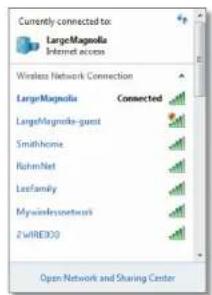
- Click the Wireless Network Configuration utility icon. A list of available wireless networks appears.
text_image
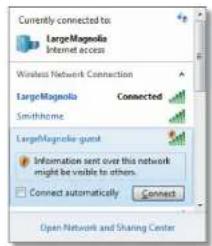
Currently connected to LargeMagnolia Internet access Wireless Network Connection LargeMagnolia Connected LargeMagnolia-guest Smithhome RohmNet LeeFamily Mywirelessnetwork 2WIRE300 Open Network and Sharing Center- Select your network, and then click Connect.
text_image
Currently connected to LargeMagnolia Internet access Wireless Network Connection LargeMagnolia Connected Smithhome LargeMagnolia guest Information sent over this network might be visible to others. Connect automatically Connect Open Network and Sharing Center-
If your network does not use wireless security, go to step 5.
-
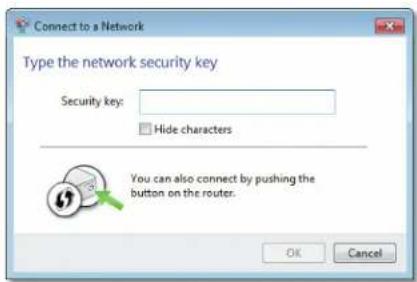
Enter the Wi-Fi Protected Access (WPA/WPA2) passphrase or the Wired Equivalent Privacy (WEP) key (depending on your type of security), then click OK.
text_image
Connect to a Network Type the network security key Security key: Hide characters You can also connect by pushing the button on the router. OK CancelThis screen appears while the adapter connects to your network. Do not cancel, unless you want to end the connection.
text_image
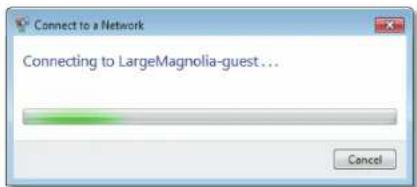
Connect to a Network Connecting to LargeMagnolia-guest... CancelYour computer is now connected to your wireless network.
Note
For help with the Wireless Network Configuration utility, click Start, then click Help and Support.
Windows Vista
After you have installed the adapter, the Wireless Network Configuration utility icon appears on your computer's system tray.
When your mouse pointer hovers over the icon, the status information of your wireless connection appears.

text_image
Currently connected to: LargeMagnolia Access: Local only 12:46 PMNew Wireless Connection
To connect to a different wireless network:
- Right-click the Wireless Network Configuration utility icon.
- Click Connect to a network.

text_image
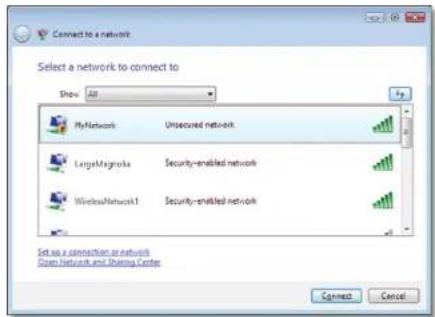
Connect to a network Turn on activity animation Turn off notification of new networks Diagnose and repair Network and Sharing Center3. Select your network, then click Connect.
text_image
Connect to a network Select a network to connect to Show All MyNetwork Unsecured network LargeMagnolia Security-enabled network WirelessNetwork1 Security-enabled network Set up a connection to network Open Network and Sharing Center Connect Cancel4. If your network uses wireless security, go to Step 5.
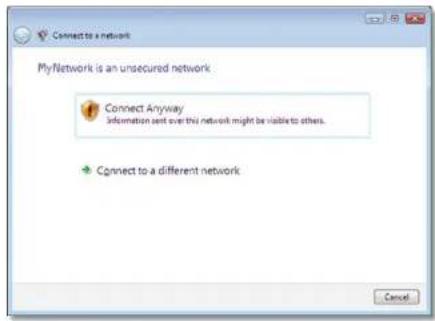
If your network does not use wireless security, this screen appears.
a. To connect to your unsecured network, click Connect Anyway and go to Step 6.
text_image
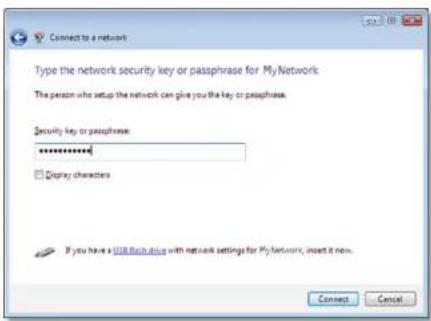
MyNetwork is an unsecured network Connect Anyway Information sent over this network might be visible to others. Connect to a different network Cancel5. Enter the Wi-Fi Protected Access (WPA/WPA2) passphrase or the Wired Equivalent Privacy (WEP) key (depending on your type of security), then click Connect.
text_image
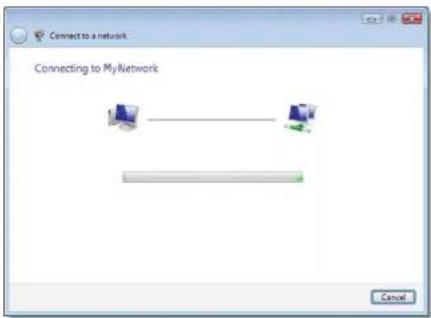
Connect to a network Type the network security key or passphrase for My Network The person who setup the network can give you the key or passphrase. Security key or passphrase: ****** Display characters If you have a USB flash drive with network settings for My Network, insert it now. Connect CancelThis screen appears while the adapter connects to your network. Do not cancel, unless you want to end the installation.
text_image
Connect to a network Connecting to MyNetwork CancelThis screen appears when you are connected to your network.

text_image
Connect to a network Successfully connected to MyNetwork ✓ Save this network ✓ Start this connection automatically Close-
If you want to save your settings, select Save this network.
-
Click Close.
The Set Network Location screen may appear. This screen helps apply the correct settings for your type of location.

text_image
Set Network Location Select a location for the "MyNetwork" network Windows will automatically apply the correct network settings for the location. Home Choose this for a home or similar location. Your computer is discoverable and you can see other computers and devices. Work Choose this for a workplace or similar location. Your computer is discoverable and you can see other computers and devices. Public location Choose this for airports, coffee shops, and other public places or if you are directly connected to the Internet. Discovery of other computers and devices is limited. Customize the name, location type, and size for the network Help me choose Cancela. Click Home, Work, or Public location, then click Close on the resulting screen.
Note
For help with the Wireless Network Configuration utility, click Start, then click Help and Support.
Your computer is now connected to your wireless network.
Windows XP
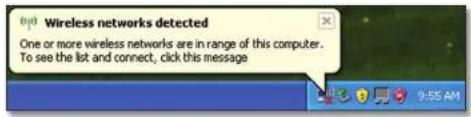
After you have installed the adapter, the Windows XP Wireless Zero Configuration Utility icon appears on your computer's system tray.

When your mouse pointer hovers over the icon, the status information of your wireless connection appears.
text_image
(p) Wireless networks detected One or more wireless networks are in range of this computer. To see the list and connect, click this messageNew Wireless Connection
To connect to a new wireless network:
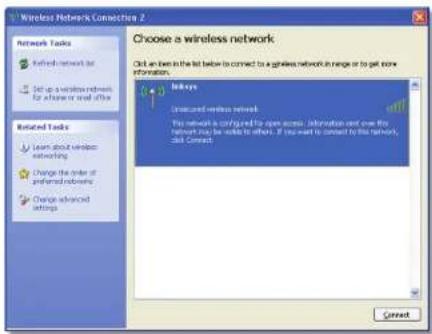
- Right-click the Windows XP Wireless Zero Configuration icon in your computer's system tray, then click View Available Wireless Networks. A window displays the available wireless networks.
- Select the network that you want, then click Connect.
text_image
Wireless Network Connection 2 Network Tasks Refined network for Set up wireless network for access to read of file Related Tasks Learn about wireless etworking Change the order of preferred networks Change advanced Settings Choose a wireless network Click an event in the list below to connect to a wireless network in range or to get more information. OK Unsecured wireless network: This network is configured for open access, information sent over the network may be available to others. If you want to connect to this network, Add Closed. CancelIf the network uses wireless security, go to Step 4. Otherwise, continue to Step 3.
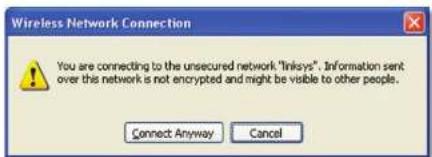
- Click Connect Anyway to connect the adapter to your unsecured network, then go to Step 5.
text_image
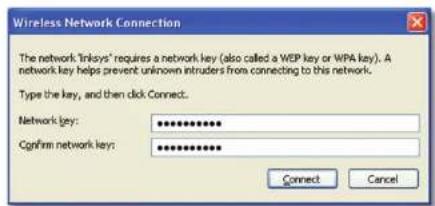
Wireless Network Connection You are connecting to the unsecured network "Linksys". Information sent over this network is not encrypted and might be visible to other people. Connect Anyway Cancel- If your network uses Wired Equivalent Privacy (WEP) wireless security, enter the WEP Key in the Network key and Confirm network key fields. If your network uses Wi-Fi Protected Access (WPA/WPA2) wireless security, enter the passphrase in the Network key and Confirm network key fields. Click Connect.
text_image
Wireless Network Connection The network 'Inkysys' requires a network key (also called a WEP key or WPA key). A network key helps prevent unknown intruders from connecting to this network. Type the key, and then click Connect... Network key: ************ Confirm network key: ************ Connect CancelNote
Windows XP Wireless Zero Configuration does not support the use of a WEP passphrase. Enter the exact WEP key used by your wireless router or access point.
Note
If your network is using WPA2 security, make sure that you have installed the Update for Windows XP (KB893357), available at www.microsoft.com.
Your wireless network will appear as Connected when your connection is active.

text_image
Wireless Network Connection 2 Choose a wireless network Click an item in the bit below to connect to a graphics network in range or to get more information. Blogs Connected Unsecured wireless network Connected Network Tasks Betwork networks list Set up a wireless network For a home or small office Related Tasks Learn about wireless networking Change the order of preferred networks Change advanced settingsNote
For help with the Wireless Network Configuration utility, click Start, then click Help and Support.
Your computer is now connected to your wireless network.
Troubleshooting
AE1200/AE2500
Your computer does not recognize the adapter.
- Make sure that the adapter is properly inserted into your computer's USB slot.
- Connect the adapter into a different USB port.
The adapter does not work properly.
Remove the adapter, and then reinsert it into the computer's USB slot.
Your computer cannot communicate with the other computers on your wireless network.
- Make sure that the computers are powered on.
- Make sure that the adapter is configured with the same Wireless Network Name (also called the SSID or Service Set Identifier) and wireless security settings as the other computers on your wireless network.
Note
If your questions are not addressed here, refer to our support section on the web at Linksys.com/support.
Specifications
Linksys AE1200
Model Name Linksys AE1200
Description High Performance Wireless-N USB
Adapter
Model Number AE1200
Standards 802.11b, 802.11g, 802.11n
Interface USB 2.0
LEDs Link/Act
Antennas 2 Internal Single-band
Transmitted Power 802.11b: 15 dBm ± 2.0
802.11g: 15 dBm ± 2.0
801.11n:
MCS15 (20 MHz): 15 dBm ± 2.0
MCS8 (20 MHz): 15 dBm ± 2.0
MCS7 (20 MHz): 15 dBm ± 2.0
MCS0 (20 MHz): 15 dBm ± 2.0
MCS15 (40 MHz): 13 dBm ± 2.0
MCS8 (40 MHz): 13 dBm ± 2.0
MCS7 (40 MHz): 13 dBm ± 2.0
MCS0 (40 MHz): 15 dBm ± 2.0
Receive Sensitivity 802.11b: (+2/-4 dB)
DBPSK: -96 dBm Typical
BPSK: -93 dBm Typical
QPSK: -90 dBm Typical
16-QAM: -84 dBm Typical
64-QAM: -76 dBm Typical
802.11n: (+2/-4 dB)
-72 dBm @MCS15 (20 MHz)
-90 dBm @MCS0 (20 MHz)
-68 dBm @MCS15 (40 MHz)
-87 dBm @MCS0 (40 MHz)
Antenna Gain in dBi Antenna 1: ≤ -1.2 dBi
Antenna 2: ≤-1.0 dBi
Power Consumption TX: MCS15 @20 MHz: 278 mA
MCS8 @20 MHz: 371 mA
MCS15 @40 MHz: 266 mA
MCS8 @40 MHz: 344 mA
RX: 20 MHz: 111 mA
Standby: 37 mA
Radio Off: 37 mA
Security Features WEP, WPA & WPA2 Personal,
WPA & WPA2 Enterprise, WPS
Security Key Bits Up to 128-Bit Encryption
OS Requirements Windows XP, Windows Vista,
Windows Vista 64-bit Edition,
Windows 7, or Windows 7 64-bit
Environmental
Dimensions 2.87" x 0.94" x 0.35"
(73.0 x 23.8 x 9.0 mm)
Weight 0.39 oz (11 g)
Certification FCC, CE, IC, UL, RoHS, WEEE, IDA,
C-Tick, Wi-Fi B/G/N
Operating Temp. 32 to 104°F (0 to 40°C)
Storage Temp. -4 to 158°F (-20 to 70°C)
Operating Humidity 10 to 85% Noncondensing
Storage Humidity 5 to 90% Noncondensing
Model Name Linksys AE2500
Description High Performance Dual-Band
Wireless-N USB Adapter
Specifications are subject to change without notice.
Linksys AE2500
Model Number AE2500
Standards 802.11a, 802.11b, 802.11g, 802.11n
Interface USB 2.0
LEDs Link/Act
Antennas 2 Internal Dual-band (selectable)
Transmitted Power 802.11a: 14 dBm ± 2.0
802.11b: 15 dBm ± 2.0
802.11g: 15 dBm ± 2.0
801.11n:
MCS15 (20 MHz): 14 dBm ± 2.0
MCS8 (20 MHz): 14 dBm ± 2.0
MCS7 (20 MHz): 14 dBm ± 2.0
MCS0 (20 MHz): 14 dBm ± 2.0
MCS15 (40 MHz): 13 dBm ± 2.0
MCS8 (40 MHz): 13 dBm ± 2.0
MCS7 (40 MHz): 13 dBm ± 2.0
MCS0 (40 MHz): 13 dBm ± 2.0
Receive Sensitivity 802.11b: (+2/-4 dB)
DBPSK: -96 dBm Typical
BPSK: -93 dBm Typical
QPSK: -90 dBm Typical
6-QAM: -84 dBm Typical
64-QAM: -76 dBm Typical
802.11n: (+2/-4 dB)
-72 dBm @MCS15 (20 MHz)
-90 dBm @MCS0 (20 MHz)
-68 dBm @MCS15 (40 MHz)
-87 dBm @MCS0 (40 MHz)
Antenna Gain in dBi Antenna 1
2.4 GHz: ≤ 3 dBi
5.15\~5.35 GHz: ≤ 1.5 dBi
5.5\~5.85 GHz: ≤ 4.5 dBi
Antenna 2
2.4 GHz: ≤ 4.0 dBi
5.15\~5.35 GHz: ≤ 1.0 dBi
5.5\~5.85 GHz: ≤ 5.0 dBi
Power Consumption TX: MCS15 @20 MHz: 364 mA
MCS8 @20 MHz: 447 mA
MCS15 @40 MHz: 316 mA
MCS8 @40 MHz: 430 mA
RX: 20 MHz: 176 mA
40 MHz: 173 mA
Standby: 48 mA
Radio Off: 48 mA
Security Features WEP, WPA & WPA2 Personal,
WPA & WPA2 Enterprise, WPS
Security Key Bits Up to 128-Bit Encryption
OS Requirements Windows XP, Windows Vista,
Windows Vista 64-bit Edition,
Windows 7, or Windows 7 64-bit
Environmental
Dimensions 2.87" x 0.94" x 0.35"
(73.0 x 23.8 x 9.0 mm)
Weight 0.39 oz (11 g)
Certification FCC, CE, IC, UL, RoHS, WEEE, IDA,
C-Tick, Wi-Fi A/B/G/N
Operating Temp.
32 to 104°F (0 to 40°C)
Storage Temp.
-4 to 158°F (-20 to 70°C)
Operating Humidity
10 to 85% Noncondensing
Storage Humidity
5 to 90% Noncondensing
Specifications are subject to change without notice.
Troubleshooting Guide
Visit linksys.com/support for award-winning 24/7 technical support

Cisco, the Cisco logo, and Linksys are trademarks or registered trademarks of Cisco and/or its affiliates in the United States and other countries. A listing of Cisco's trademarks can be found at www.cisco.com/go/trademarks. All other trademarks mentioned in this document are the property of their respective owners.
© 2011 Cisco and/or its affiliates. All rights reserved.