
HL-L1232W - Drucker BROTHER - Kostenlose Bedienungsanleitung
Finden Sie kostenlos die Bedienungsanleitung des Geräts HL-L1232W BROTHER als PDF.


| Produkttyp | Schwarzweißlaserdrucker |
| Marke | Brother |
| Modell | HL-L1232W |
| Abmessungen (B x T x H) | ca. 340 x 380 x 240 mm |
| Gewicht | ca. 6,2 kg |
| Stromversorgung | 220-240 V, 50/60 Hz |
| Drucktechnologie | Laserdruck, Schwarzweiß |
| Druckgeschwindigkeit | bis zu 20 Seiten/Minute (A4) |
| Papierfachkapazität | 150 Blatt |
| Konnektivität | WLAN 802.11b/g/n, USB 2.0 |
| Mobile Druckoptionen | Brother iPrint&Scan, AirPrint, Mopria |
| Verbrauchsmaterial | Toner: TN-2410 (ca. 1.000 Seiten), Trommel: DR-2410 (ca. 15.000 Seiten) |
| Energieverbrauch | Drucken: ca. 450 W, Bereitschaft: ca. 40 W, Schlaf: ca. 1,5 W |
| Garantie | 2 Jahre Herstellergarantie (abhängig vom Land) |
| Reinigung | Netzstecker ziehen, Gehäuse mit trockenem Tuch reinigen; Trommel und Toner vorsichtig handhaben |
| Sicherheitshinweise | Vor Reinigung Netzstecker ziehen; kein Wasser oder Sprays verwenden; nur in belüfteten Räumen betreiben |
| Ersatzteile und Reparierbarkeit | Toner und Trommel sind austauschbar; weiteres Zubehör über Brother-Händler oder support.brother.com |
| Lieferumfang | Quick Setup Guide, Produktsicherheitshandbuch, Tonerkartusche, Netzkabel |
Häufig gestellte Fragen - HL-L1232W BROTHER
Benutzerfragen zu HL-L1232W BROTHER
0 Frage zu diesem Gerät. Beantworten Sie die, die Sie kennen, oder stellen Sie Ihre eigene.
Eine neue Frage zu diesem Gerät stellen
Laden Sie die Anleitung für Ihr Drucker kostenlos im PDF-Format! Finden Sie Ihr Handbuch HL-L1232W - BROTHER und nehmen Sie Ihr elektronisches Gerät wieder in die Hand. Auf dieser Seite sind alle Dokumente veröffentlicht, die für die Verwendung Ihres Geräts notwendig sind. HL-L1232W von der Marke BROTHER.
BEDIENUNGSANLEITUNG HL-L1232W BROTHER

D033J1001-00
UK
Version 0
EN
Quick Setup Guide
HL-L1230W / HL-L1232W
Read the Product Safety Guide first, then read this Quick Setup Guide for the correct installation procedure.
Not all models are available in all countries.

The latest manuals are available on the Brother support website:
support.brother.com/manuals
Unpack the machine and check the components
Remove the protective tape or film covering the machine and the supplies.
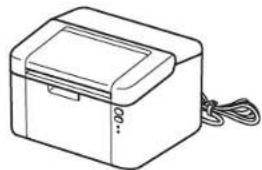
natural_image
Line drawing of a rectangular electronic device with a lid and cable (no text or symbols)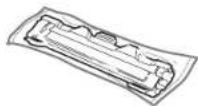
Toner Cartridge

Quick Setup Guide

A5 Paper Long Edge Support

Product Safety Guide
NOTE:
- The components included in the box may differ depending on your country.
- The available connection interfaces vary depending on the model.
USB cable
We recommend using a USB 2.0 cable (Type A/B) that is no more than 2 metres long.
• The screens and images in this Quick Setup Guide show the HL-L1232W.
- Brother aims to reduce waste and save both raw materials and the energy required to produce them.
Read more about our environmental work at www.brotherearth.com.
- Save all packing materials and the box in case you need to ship your machine.
1 Remove the packing materials and install the toner cartridge

flowchart
graph LR
    A["Open Paper Printer"] --> B["File Opening"]
    B --> C["File Insert"]
    C --> D["Assembly"]
    D --> E["Packaging"]
    E --> F["Final Packaging"]
2 Load paper in the paper tray

flowchart
graph LR
    A["Printer"] --> B["Printer"]
    B --> C["Printer"]
    C --> D["Printer"]
    D --> E["Printer"]
    E --> F["Adjust Paper Guides to fit the Paper being used."]

    subgraph Section 1
        G["For the long edge of A5 paper"]
    end

    subgraph Section 2
        H["Make sure the printing surface is face up."]
    end

    subgraph Section 3
        I["Adjust the paper guides to fit the paper being used."]
    end
3 Connect the power cord and turn the machine on
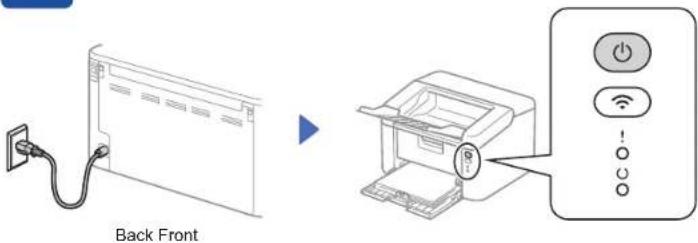
Printer LED Indications
Blinking


O
| Power Off | Ready Data Remaining | Sleep Deep Sleep | Warming Up Cooling Down | Receiving Data Toner Low Replace Toner Paper Jam | Drum End Soon Replace Drum | ||||
| ! | ○ | ○ | ○ | ○ | ○ | ○ | ○ | ○ | ○ |
| ○ | ○ | ● | ○ | ○ | ○ | ● | ○ | ○ | ● |
4
Connect your computer or mobile device to your machine
Follow these steps to complete the setup using one of the connection types available on your machine.
Visit setup.brother.com to download and install Brother software.
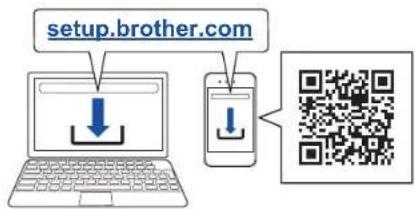
Follow the on-screen instructions and prompts.
Setup Finished
You can now print using your machine.
Important Notice for Network Security: The default password to manage this machine's settings is located on the back of the machine and marked "Pwd". We recommend immediately changing the default password to protect your machine from unauthorised access.
Can't Connect? Check the following:

Wireless network

Restart your wireless access point or router. If this is not possible, go to the next step.

Restart your machine and computer, and then go to 4

If still unsuccessful, go to


USB connection

Disconnect the cable.


If still unsuccessful, visit support.brother.com for FAQs and troubleshooting information.
5
Manual wireless setup (Wireless models)
If the wireless setup is unsuccessful, set up the connection manually.
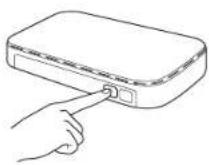
Press the WPS button on your wireless LAN access point or router.
natural_image
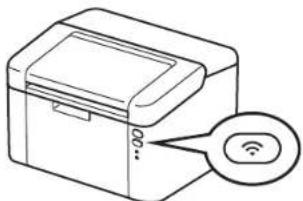
Illustration of a printer with a Wi-Fi symbol pointing to it (no text or labels present)Press and hold the Wi-Fi button on your machine for about 2 seconds. The Wi-Fi button will light up when connected.

Go to install software.
If the setup is unsuccessful, restart your Brother machine and your wireless access point or router, and repeat 5. If still unsuccessful, visit support.brother.com.
- Quick Setup Guide
- Unpack the machine and check the components
- NOTE:
- USB cable
- Remove the packing materials and install the toner cartridge
- Load paper in the paper tray
- Connect the power cord and turn the machine on
- 4
- Connect your computer or mobile device to your machine
- Setup Finished
- Can't Connect? Check the following:
- 5
- Manual wireless setup (Wireless models)
Marke : BROTHER
Modell : HL-L1232W
Kategorie : Drucker