
ROG XG GC31R - Nicht kategorisiert ASUS - Kostenlose Bedienungsanleitung
Finden Sie kostenlos die Bedienungsanleitung des Geräts ROG XG GC31R ASUS als PDF.


| Produkttyp | Gaming-Monitor |
| Marke | ASUS |
| Modell | ROG XG GC31R |
| Bildschirmdiagonale | 31,5 Zoll (80 cm) |
| Auflösung | 2560 x 1440 (WQHD) |
| Bildwiederholfrequenz | 165 Hz |
| Reaktionszeit | 1 ms (MPRT) |
| Panel-Typ | VA |
| Kontrastverhältnis | 3000:1 |
| Helligkeit | 400 cd/m² (typisch) |
| Anschlüsse | HDMI 2.0, DisplayPort 1.4, USB-C (DP Alt Mode), USB 3.0 Hub |
| Lautsprecher | 2x 2W Stereo |
| VESA-Aufnahme | 100x100 mm |
| Ständerfunktionen | Höhenverstellbar, neigbar, schwenkbar |
| Abmessungen (mit Ständer) | 730 x 520 x 280 mm |
| Gewicht (mit Ständer) | ca. 10,5 kg |
| Stromversorgung | 100-240V AC, 50/60Hz |
| Leistungsaufnahme (typisch) | 45 W |
| Leistungsaufnahme (Standby) | <0,5 W |
| Besonderheiten | G-Sync kompatibel, HDR10, Adaptive-Sync, GamePlus |
| Reinigung | Mit weichem, trockenem Tuch reinigen. Keine aggressiven Reinigungsmittel verwenden. |
| Sicherheit | Nur das mitgelieferte Netzteil verwenden. Gerät nicht öffnen. Bei Problemen Fachpersonal kontaktieren. |
| Reparatur | Reparaturen nur durch qualifiziertes Fachpersonal. Ersatzteile über den ASUS-Service. |
Häufig gestellte Fragen - ROG XG GC31R ASUS
Benutzerfragen zu ROG XG GC31R ASUS
0 Frage zu diesem Gerät. Beantworten Sie die, die Sie kennen, oder stellen Sie Ihre eigene.
Eine neue Frage zu diesem Gerät stellen
Laden Sie die Anleitung für Ihr Nicht kategorisiert kostenlos im PDF-Format! Finden Sie Ihr Handbuch ROG XG GC31R - ASUS und nehmen Sie Ihr elektronisches Gerät wieder in die Hand. Auf dieser Seite sind alle Dokumente veröffentlicht, die für die Verwendung Ihres Geräts notwendig sind. ROG XG GC31R von der Marke ASUS.
BEDIENUNGSANLEITUNG ROG XG GC31R ASUS
ROG XG Mobile Setup Guide
Front View
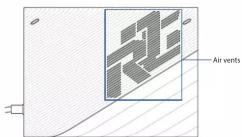
Rear View
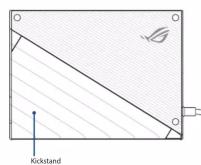
Top View
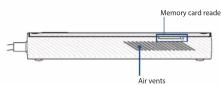
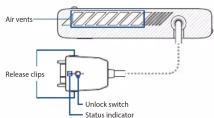
Left View (with ROG XG Mobile connector)
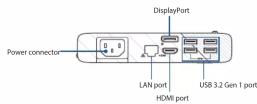
Right View
Getting started
IMPORTANT! Follow the instructions and ensure to save all data and stop applications that are using the current GPU before switching the GPUs.
NOTE: For more information on devices supporting the ROG XG Mobile, please visit the ROG official website.
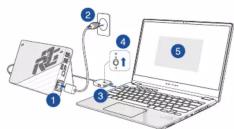
Connect your ROG XG Mobile
- Plug the bundled AC power cord into the power connector of your ROG XG Mobile.
- Plug your ROG XG Mobile into a 100V\~240V power source.
- Plug the ROG XG Mobile connector into your Notebook PC's ROG XG Mobile interface and USB Type-C® combo port
- Once you see the status indicator on the BOG XG Mobile connector turns white, push
the unlock switch to 🔒 lock the connector. - In the pop-up Settings window, activate the ROG XG Mobile. The status indicator turns red when the activation is complete.
Remove your ROG XG Mobile
- Left or right-click in the notification area (the right end of the taskbar) and
deactivate the ROG XG Mobile in the Settings window.
- When the status indicator on the ROG XG Mobile connector turns white, push the
unlock switch to ☑ unlock the connector.
- Press the release clips on both sides of the ROG XG Mobile connector to remove your
ROG XG Mobile from your Notebook PC
Safety notices for your ROG XG Mobile
WARNING!
- This device is not suitable for use in locations where children are likely to be present.
• This device is not a toy. Keep out of reach of children.
- For your safety, connect this device to a properly grounded electrical outlet only.
IMPORTANT!
- Never attempt to disassemble and reassemble the product.
- This product should only be used in environments with ambient temperatures between 5°C
(41°F) and 35°C (95°F).
• Power supply specifications:
• Input voltage: 100-240Vac
- Input frequency: 30-core
Rating output voltage: 20%
- Rating output voltage: 20V
Copyright Information
You acknowledge that all rights of this Manual remain with ASUS. Any and all rights, including without
Limitation, in the Manual or website, are and shall remain the exclusive property of ASUS and/or its licensors. Nothing in this Manual intends to transfer any such rights, or to vest any such rights to you.
ASUS PROVIDES THIS MANUAL "AS IS" WITHOUT WARRANTY OF ANY KIND SPECIFICATIONS AND
INFORMATION CONTAINED IN THIS MANUAL ARE FURNISHED FOR INFORMATIONAL USE ONLY, AND
ARE SUBJECT TO CHANGE AT ANY TIME WITHOUT NOTICE, AND SHOULD NOT BE CONSTRUED AS A COMMITMENT BY ASUS.
Copyright © 2020 ASUSTeK COMPUTER INC. All Rights Reserved.
Limitation of Liability
Circumstances may arise where because of a default on ASUS' part or other liability, you are entitled to recover damages from ASUS. In each such instance, regardless of the basis on which you are entitled to claim damages from ASUS, ASUS is liable for no more than damages for bodily injury (including death) and damage to real property and tangible personal property; or any other actual and direct damages resulted from omission or failure of performing legal duties under this Warranty Statement, up to the listed contract price of each product.
ASUS will only be responsible for or indemnify you for loss, damages or claims based in contract, tort or
Instruments under this maturity statement.
This limit also applies to ASOS suppliers and and your reseller are collectively responsible.
UNDER NO CIRCUMSTANCES IS ASUS LIABLE FOR ANY OF THE FOLLOWING: (1) THIRD-PARTY CLAIMS
AGAINST YOU FOR DAMAGES; (2) LOSS OF, OR DAMAGE TO, YOUR RECORDS OR DATA; OR (3) SPECIAL, INCIDENTAL, OR INDIRECT DAMAGES OR FOR ANY ECONOMIC CONSEQUENTIAL DAMAGES (INCLUDING
LOST PROFITS OR SAVINGS), EVEN IF ASUS, ITS SUPPLIERS OR YOUR RESELLER IS INFORMED OF THEIR
POSS
UL Safety Notices
• DO NOT use the External Graphics Extender near water, for example, near a bath tub, wash
bowl, kitchen sink or laundry tub, in a wet basement or near a swimming pool
• DO NOT use the External Graphics Extender during an electrical storm. There may be a remote
Risk of electric shock from lightning.
- SO NOT use the Extensor Graphics Extender in the Identity of a gas reform.
Coating Notice
IMPORTANT! To provide electrical insulation and maintain electrical safety, a coating
is applied to insulate the device except on the areas where the I/O ports are located.
India RoHS
This product complies with the "India E-Waste (Management) Rules, 2016" and prohibits use of
lead, mercury, hexavalent chromium, polybrominated biphenyls (Pubs) and polybrominated diphenyl ethers (PBDEs) in concentrations exceeding 0.1% by weight in homogenous materials
and 0.01% by weight in homogenous materials for cadmium, except for the exemptions listed
- 本报告期公司年报
Simplified EU Declaration of Conformity
ASUSTek Computer Inc. hereby declares that this device is in compliance with the essential
requirements and other relevant provisions of Directive 2014/53/EU. Full text of EU declaration of conformity is available at https://www.asus.com/support/.
[Non-Text]

Federal Communications Commission Interference
Statement
This equipment has been tested and found to comply with the limits for a Class B digital
device, pursuant to part 15 of the FCC Rules. These limits are designed to provide reasonable protection against harmful interference in a residential installation. This equipment generator
uses and can radiate radio frequency energy and, if not installed and used in accordance with
the instructions, may cause harmful interference to radio communications. However, there is no guarantee that interference will not occur in a particular installation. If this equipment does
cause harmful interference to radio or television reception, which can be determined by turnin
the equipment off and on, the user is encouraged to try to correct the interference by one or more of the following measures.
[Non-Text]
- Segment of relocate the receiving antenna.
- Increase the separation between the equipment and receiver.
- Connect the equipment into an outlet on a circuit different from that to which the receiver is connected.
7.1.1.2
- Consult the dealer of an experienced radio/TV technician for help.
FCC COMPLIANCE INFORMATION

Responsible Party: Asus Computer International
Address: 48720 Kato Rd., Fremont, CA 94538
Phone/Fax No: (510)739-3) // (510)608-4555
hereby declares that the product
Product Name : External Graphics Extender
Model Number: GC31 (GC31S, GC31R)
compliance statement:
This device complies with part 15 of the FCC Rules. Operation is subject to the
following two conditions: (1) This device may not cause harmful interference, and (2) this device must accept any interference received, including interference.
that may cause undesired operation.
- Connect your ROG XG Mobile
- Remove your ROG XG Mobile
- Safety notices for your ROG XG Mobile
- WARNING!
- IMPORTANT!
- Copyright Information
- Limitation of Liability
- UL Safety Notices
- Coating Notice
- India RoHS
- Simplified EU Declaration of Conformity
- Federal Communications Commission Interference
- Statement
- FCC COMPLIANCE INFORMATION
Marke : ASUS
Modell : ROG XG GC31R
Kategorie : Nicht kategorisiert