ROCCAT Vulcan 80 - Tastatur

Vulcan 80 - Tastatur ROCCAT - Kostenlose Bedienungsanleitung

Finden Sie kostenlos die Bedienungsanleitung des Geräts Vulcan 80 ROCCAT als PDF.

📄 2 Seiten Deutsch DE Herunterladen 💬 KI-Frage 10 Fragen ⚙️ Technik
Notice ROCCAT Vulcan 80 - page 1
Waehlen Sie Ihre Sprache und Ihre E-Mail-Adresse: wir senden Ihnen eine speziell uebersetzte Version.
Produkttyp Mechanische Gaming-Tastatur
Marke ROCCAT
Modell Vulcan 80
Abmessungen (ca.) 440 x 150 x 35 mm
Gewicht (ca.) 1,0 kg
Stromversorgung USB (5V, 500 mA)
Schaltertyp ROCCAT Tican (mechanisch, linear)
Tastenanschlag 20 % schneller als Branchenstandard
Beleuchtung Per-Taste einstellbare blaue LED-Hintergrundbeleuchtung
Gehäusematerial Eloxierte Aluminiumplatte
Tastenkappen Verkürzt, leicht zu reinigen und austauschbar
Staubschutz Staubdichte Schalter
Anschluss USB 2.0/3.0 (fest verbundenes Kabel)
Kabellänge (ca.) 1,8 m
Betriebssystem-Kompatibilität Windows 7 und höher
Zubehör Kurzanleitung, ROCCAT-Aufkleber
Reinigung Staubsauger oder weiches Tuch; Tastenkappen abnehmbar für gründliche Reinigung
Sicherheitshinweise Nicht Flüssigkeiten aussetzen, nur mit trockenem Tuch reinigen, Gerät vom Strom trennen bei Reinigung
Ersatzteile Tastenkappen separat erhältlich
Garantie 2 Jahre (abhängig vom Kaufdatum)
Registrierung Seriennummer auf der Unterseite verwenden für Garantie und Support

Häufig gestellte Fragen - Vulcan 80 ROCCAT

Wie schließe ich die ROCCAT Vulcan 80 Tastatur an?
Schließen Sie das USB-Kabel an einen freien USB-Port Ihres Computers an. Die Tastatur wird automatisch erkannt und benötigt keine Treiberinstallation. Für erweiterte Einstellungen können Sie die ROCCAT-Software herunterladen.
Kann ich die Beleuchtung der Tastatur individuell anpassen?
Ja, jede Taste kann über die ROCCAT Swarm Software individuell konfiguriert werden. Die Tastatur verfügt über blaue LEDs, die pro Taste eingestellt werden können.
Welche Schalter verwendet die Vulcan 80?
Die Vulcan 80 verwendet die eigens entwickelten ROCCAT Tican mechanischen Schalter (linear). Diese sind auf Geschwindigkeit und Präzision ausgelegt.
Wie reinige ich die Tastatur?
Entfernen Sie die Tastenkappen vorsichtig mit einem Tastenkappenabzieher. Reinigen Sie das Gehäuse mit einem weichen, leicht feuchten Tuch. Die Tastenkappen können mit milder Seife gereinigt werden. Achten Sie darauf, dass keine Flüssigkeit in die Schalter gelangt.
Warum leuchten manche Tasten nicht?
Überprüfen Sie die Beleuchtungseinstellungen in der ROCCAT Swarm Software. Stellen Sie sicher, dass die Helligkeit nicht auf Null gesetzt ist. Falls einzelne Tasten ausfallen, könnte ein defekter Schalter vorliegen – wenden Sie sich an den Support.
Ist die Tastatur mit meinem Betriebssystem kompatibel?
Die Tastatur ist kompatibel mit Windows 7, 8, 10 und 11 (sowie neueren Versionen). Für macOS wird keine offizielle Unterstützung angeboten, die grundlegende Tastatureingabe funktioniert jedoch.
Wie kann ich die Tastatur registrieren?
Die Seriennummer finden Sie auf der Unterseite der Tastatur. Gehen Sie auf www.roccat.org/support und registrieren Sie Ihr Produkt, um Garantieansprüche zu sichern.
Kann ich die Tastenkappen durch andere ersetzen?
Ja, die Tastenkappen sind standardisiert (Cherry-MX-kompatibel). Sie können durch andere mechanische Tastenkappen ausgetauscht werden.
Die Tastatur reagiert nicht. Was kann ich tun?
Trennen Sie die Tastatur und schließen Sie sie an einen anderen USB-Port an. Testen Sie an einem anderen Computer. Falls das Problem weiter besteht, kontaktieren Sie den ROCCAT-Support.
Wie stelle ich die Wiederholrate (Polling Rate) ein?
Die Wiederholrate kann über die ROCCAT Swarm Software angepasst werden. Standardmäßig ist sie auf 1000 Hz eingestellt, was einer Reaktionszeit von 1 ms entspricht.

Benutzerfragen zu Vulcan 80 ROCCAT

0 Frage zu diesem Gerät. Beantworten Sie die, die Sie kennen, oder stellen Sie Ihre eigene.

Eine neue Frage zu diesem Gerät stellen

Die E-Mail bleibt privat: Sie dient nur dazu, Sie zu benachrichtigen, wenn jemand auf Ihre Frage antwortet.

Noch keine Fragen. Stellen Sie die erste.

Laden Sie die Anleitung für Ihr Tastatur kostenlos im PDF-Format! Finden Sie Ihr Handbuch Vulcan 80 - ROCCAT und nehmen Sie Ihr elektronisches Gerät wieder in die Hand. Auf dieser Seite sind alle Dokumente veröffentlicht, die für die Verwendung Ihres Geräts notwendig sind. Vulcan 80 von der Marke ROCCAT.

BEDIENUNGSANLEITUNG Vulcan 80 ROCCAT
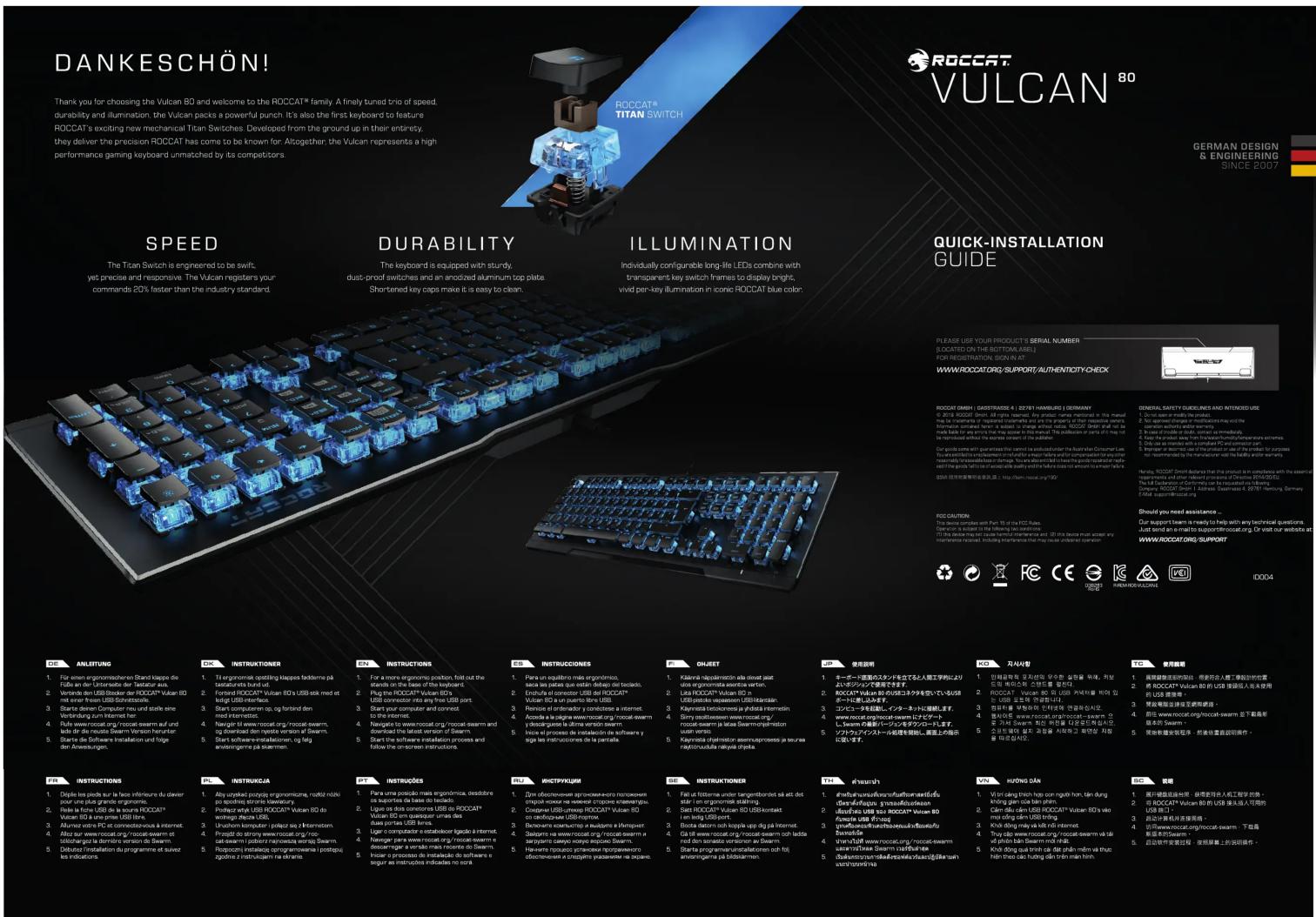
DANKESCHÖN! Thank you for choosing the Vulcan 80 and welcome to the ROCCAT® family. A finely tuned trio of speed, durability and illumination. The Vulcan packs a powerful punch. It's also the first keyboard to feature ROCCAT's exciting new mechanical Tican Switches. Developed from the ground up in their entirety, they deliver the precision ROCCAT has come to be known for. Altogether: the Vulcan represents a high performance gaming keyboard unmatched by its competitors. SPEED The Tican Switch is engineered to be swift, yet precise and responsive. The Vulcan registers your commands 20% faster than the industry standard. DURABILITY The keyboard is equipped with sturdy, dust-proof switches and an anodized aluminum cop plate. Shortened key caps make it is easy to clean. ILLUMINATION Individually configurable long-life LEDs combine with transparent key switch frames to display bright, vivid per-key illumination in iconic ROCCAT blue color. QUICK-INSTALLATION GUIDE PLEASE USE YOUR PRODUCTS' SERIAL NUMBER (ROCCAT ON THE BOTTOM LINES) FOR REGISTRATION SIGN IN AT WWW/ROCCATORG/SUPPORT AUTHENTICITY CHECK ROCCAT ORSH | GASSTRASSE 4 | 22761 HAMBUR | GERMANY © 2018 ROCCAT Direct. All rights reserved. Any product name recorded in this manual file is prepared by the registered manufacturer and will not be granted to their respective software. Furthermore, we can use the original material of the product. We are not available for any information which is available to our website. We have used the product to ensure that you can use the product to access them directly or without further information. You can use the product to use a suitable availability and quality of information to support us to recommend us from the manufacturer with the body's water system. GENERAL SAFETY GUIDELINES AND INTENDED USE 1. Do not set or modify the speaker. 2. Use devices of virtual computers may not be used. 3. Use device actively enabled viewing. 4. Use device to be immediately connected. 5. Use device to be connected to the manufacturer's website. 6. Use device to be connected to the manufacturer's website. 7. Use device to be connected to the manufacturer's website. 8. Use device to be connected to the manufacturer's website. 9. Use device to be connected to the manufacturer's website. 10. Use device to be connected to the manufacturer's website. 11. Use device to be connected to the manufacturer's website. 12. Use device to be connected to the manufacturer's website. 13. Use device to be connected to the manufacturer's website. 14. Use device to be connected to the manufacturer's website. 15. Use device to be connected to the manufacturer's website. 16. Use device to be connected to the manufacturer's website. 17. Use device to be connected to the manufacturer's website. 18. Use device to be connected to the manufacturer's website. 19. Use device to be connected to the manufacturer's website. 20. Use device to be connected to the manufacturer's website. 21. Use device to be connected to the manufacturer's website. 22. Use device to be connected to the manufacturer's website. 23. Use device to be connected to the manufacturer's website. 24. Use device to be connected to the manufacturer's website. 25. Use device to be connected to the manufacturer's website. 26. Use device to be connected to the manufacturer's website. 27. Use device to be connected to the manufacturer's website. 28. Use device to be connected to the manufacturer's website. 29. Use device to be connected to the manufacturer's website. 30. Use device to be connected to the manufacturer's website. 31. Use device to be connected to the manufacturer's website. 32. Use device to be connected to the manufacturer's website. 33. Use device to be connected to the manufacturer's website. 34. Use device to be connected to the manufacturer's website. 35. Use device to be connected to the manufacturer's website. 36. Use device to be connected to the manufacturer's website. 37. Use device to be connected to the manufacturer's website. 38. Use device to be connected to the manufacturer's website. 39. Use device to be connected to the manufacturer's website. 40. Use device to be connected to the manufacturer's website. 41. Use device to be connected to the manufacturer's website. 42. Use device to be connected to the manufacturer's website. 43. Use device to be connected to the manufacturer's website. 44. Use device to be connected to the manufacturer's website. 45. Use device to be connected to the manufacturer's website. 46. Use device to be connected to the manufacturer's website. 47. Use device to be connected to the manufacturer's website. 48. Use device to be connected to the manufacturer's website. 49. Use device to be connected to the manufacturer's website. 50. Use device to be connected to the manufacturer's website. 51. Use device to be connected to the manufacturer's website. 52. Use device to be connected to the manufacturer's website. 53. Use device to be connected to the manufacturer's website. 54. Use device to be connected to the manufacturer's website. 55. Use device to be connected to the manufacturer's website. 56. Use device to be connected to the manufacturer's website. 57. Use device to be connected to the manufacturer's website. 58. Use device to be connected to the manufacturer's website. 59. Use device to be connected to the manufacturer's website. 60. Use device to be connected to the manufacturer's website. 61. Use device to be connected to the manufacturer's website. 62. Use device to be connected to the manufacturer's website. 63. Use device to be connected to the manufacturer's website. 64. Use device to be connected to the manufacturer's website. 65. Use device to be connected to the manufacturer's website. 66. Use device to be connected to the manufacturer's website. 67. Use device to be connected to the manufacturer's website. 68. Use device to be connected to the manufacturer's website. 69. Use device to be connected to the manufacturer's website. 70. Use device to be connected to the manufacturer's website. 71. Use device to be connected to the manufacturer's website. 72. Use device to be connected to the manufacturer's website. 73. Use device to be connected to the manufacturer's website. 74. Use device to be connected to the manufacturer's website. 75. Use device to be connected to the manufacturer's website. 76. Use device to be connected to the manufacturer's website. 77. Use device to be connected to the manufacturer's website. 78. Use device to be connected to the manufacturer's website. 79. Use device to be connected to the manufacturer's website. 80. Use device to be connected to the manufacturer's website. 81. Use device to be connected to the manufacturer's website. 82. Use device to be connected to the manufacturer's website. 83. Use device to be connected to the manufacturer's website. 84. Use device to be connected to the manufacturer's website. 85. Use device to be connected to the manufacturer's website. 86. Use device to be connected to the manufacturer's website. 87. Use device to be connected to the manufacturer's website. 88. Use device to be connected to the manufacturer's website. 89. Use device to be connected to the manufacturer's website. 90. Use device to be connected to the manufacturer's website. 91. Use device to be connected to the manufacturer's website. 92. Use device to be connected to the manufacturer's website. 93. Use device to be connected to the manufacturer's website. 94. Use device to be connected to the manufacturer's website. 95. Use device to be connected to the manufacturer's website. 96. Use device to be connected to the manufacturer's website. 97. Use device to be connected to the manufacturer's website. 98. Use device to be connected to the manufacturer's website. 99. Use device to be connected to the manufacturer's website. 100. Use device TO BE REVS 101. To ensure that you need you want a computer in connection with your own computer in connection with your own computer in connection with your own computer in connection with your own computer in connection with your own computer in connection with your own computer in connection with your own computer in connection with your own computer in connection with your own computer in connection with your own computer in connection with your own computer in connection with your own computer in connection with your own computer in connection with your own computer in connection with your own computer in connection with your own computer in connection with your own computer in connection With www.roccat.org/support/Alibaba.com/ www.roccat.org/support/Alibaba.com/ www.roccat.org/support/Alibaba.com/ www.roccat.org/support/Alibaba.com/ www.roccat.org/support/Alibaba.com/ www.roccat.org/support/Alibaba.com/ www.roccat.org/support/Alibaba.com/ www.roccat.org/support/Alibaba.com/ www.roccat.org/support/Alibaba.com/ www.rocc at.org/support/Alibaba.com/ www.roccat.org/support/Alibaba.com/ www.roccat.org/support/Alibaba.com/ www.roccat.org/support/Alibaba.com/ www.roccat.org/support/Alibaba.com/ www.roccat.org/support/Alibaba.com/ www.roccat.org/support/Alibaba.com/ www.roccat.org/support/Alibaba.com/ www.roccat.org/support / Alibaba.com/ www.roccat.org/support/Alibaba.com/ www.roccat.org/support/Alibaba.com/ www.roccat.org/support/Alibaba.com/ www.roccat.org/support/Alibaba.com/ www.roccat.org/support/Alibaba.com/ www.roccat.org/support/Alibaba.com/ www.roccat.org/support/Alibaba.com/ www.roccat.org/support/Alibaba.com/ http://www.roccat.org/support/Alibaba.com/ www.roccat.org/support/Alibaba.com/ www.roccat.org/support/Alibaba.com/ www.roccat.org/support/Alibaba.com/ www.roccat.org/support/Alibaba.com/ www.roccat.org/support/Alibaba.com/ www.roccat.org/support/Alibaba.com/ www.roccat.org/support/Alibaba.com/ www.roccotswarm/support/Alibaba.com/ www.roccotswarm/support/Alibaba.com/ www.roccotswarm/support/Alibaba.com/ www.roccotswarm/support/Alibaba.com/ www.roccotswarm/support/Alibaba.com/ www.roccotswarm/support/Alibaba.com/ www.roccotswarm/support/Alibaba.com/ www.roccotswarm/support/Alibaba.com/ www.hocotswarm/support/Alibaba.com/ www.hocotswarm/support/Alibaba.com/ www.hocotswarm/support/Alibaba.com/ www.hocotswarm/support/Alibaba.com/ www.hocotswarm/support/Alibaba.com/ www.hocotswarm/support/Alibaba.com/ www.hocotswarm/support/Alibaba.com/ www.hocotswarm/support/Alibaba company/ www.hocotswarm/support/Alibaba company/ www.hocotswarm/support/Alibaba company/ www.hocotswarm/support/Alibaba company/ www.hocotswarm/support/Alibaba company/ www.hocotswarm/support/Alibaba company/ www.hocotswarm/support/Alibaba company/ www.hocotswarm/support/Alibaba company/ www.hocotswarm/scontrol/warban/warban/warban/warban/warban/warban/warban/warban/warban/warban/warban/warban/warban/warban/warban/warban/warban/warban/warban/warban/warban/warban/warban/warban/warban/warban/warban/warban/warban/warban/warban/warban/warban/warban warban/warban/warban/warban/warban/warban/warban/warban/warban/warban/warban/warban/warban/warban/warban/warban/warban/warban/warban/warban/warban/warban/warban/warban/warban/warban/warban/warban/warban/warban/warban/warban/warban/waerwawwwwwwwwwwwwwwwwwwwwwwwwwwwwwwwwwwwwwwwwwwwwwwwwwwwwwwwwwwwwwwwwwwwwwwwwwwwwwwwwwwwwwwwwwwwwwwwwwwwwwwwwwwwwwwwwwwwwwwwwwwwwwwwwwwwwwwwwwwwwwwwwwwwwwwwwwwwwwwwwwwwwwwwwwwwwwwwwwwwwwwwwwwwwwwwwwwwwwwwwwWWWWWWWWWWWWWWWWWWWWWWWWWWWWWWWWWWWWWWWWWWWWWWWWWWWWWWWWWWWWWWWWWWWWWWWWWWWWWWWWWWWWWWWWWWWWWWWWWWWWWWWWWWWWWWWWWWWWWWWWWWWWWWWWWWWWWWWWWWWWWWWWWWWWWWWWWWWWWWWWWWWWWWWWWWWWWWWWWWWWWWWWWWWWWWWWWWWWWWWWW RCA INSTRUCTIONS 10 FOR ANLETTUNG 11 FOR einen ergonomischen Stand klappe de France en l'«Leur » e monter les USs。 20 Verde des USs Becker der RosCAT® Valuer ISO mit einer Freien USB Schottsterle 31 Stärte dessen Computer-reduz und stellte eine Verbindung zum Internet her 41 Rufe www.noccat.org/noccat-swarm auf und leite der de novo Seewam Verschwehrheurter 51 Starter de Software Installation und folge der Anschlagenungen 61 INSTRUCTIONS 11 For a more ergonomie position, fort out the design, we can use a large number of units on display, 2 Plug for ROCAT® Vulcan 80+ USB connector into any free USB port, 3 Start computer on log, og fonted internet, etc., and then open on display 4 Navigate its software installation process and how does not use any other services for a particular application 5 Start software installation process and how does not use any other services for a particular application 6 INSTRUCTIONS 12 Para un equilibrio insies ergonomico, dans les opportes de la base de Slovenia, 2 Plug for ROCAT® Vulcan 80+ USB connector into any free USB port, 3 Start computer on log, og fonted internet, etc., and then open on display 4 Navigate its software installation process and how does not use any other services for a particular application 5 Start software installation process and how does not use any other services for a particular application 6 INSTRUCTIONS 13 Para un equilibrio insies ergonomico, dans les opportes de la base de Slovenia, 2 Plug for ROCAT® Vulcan 80+ USB connector into any free USB port, 3 Start computer on log, og fonted internet, etc., and then open on display 4 Navigate its software installation process and how does not use any other services for a particular application 5 Start software installation process and how does not use any other services for a particular application 6INSTRUCTIONS 14 Para un equilibrio insies ergonomico, dans les opportes de la base de Slovenia, 2 Plug for ROCAT® Vulcan 80+ USB connector into any free USB port, 3 Start computer on log, og fonted internet, etc., and then open on display 4 Navigate its software installation process and how does not use any other services for a particular application 5 Start software installation process and how does not use any other services for a particular application 6InSTRUCTIONS 15 Para un equilibrio insies ergonomico, dans les opportes de la base de Slovenia, 2 Plug for ROCAT® Vulcan 80+ USB connector into any free USB port, 3 Start computer on log, og fonted internet, etc., and then open on display 4 Navigate its software installation process and how does not use any other services for a particular application 5 Start software installation process and how does not use any other services for a particular application 6 InSTRUCTIONS 16 Para un equilibrio insies ergonomico, dans les opportes de la base de Slovenia, 2 Plug for ROCAT® Vulcan 80+ USB connector into any free USB port, 3 Start computer on log, og fonted internet, etc., and then open on display 4 Navigate its software installation process and how does not use any other services for a particular application 5 Start software installation process and how does not use any other services for a particular application 6inSTRUCTIONS 17 Para un equilibrio insies ergonomico, dans les opportes de la base de Slovenia, 2 Plug for ROCAT® Vulcan 80+ USB connector into any free USB port, 3 Start computer on log, og fonted internet, etc., and then open on display 4 Navigate its software installation process and how does not use any other services for a particular application 5 Start software installation process and how does not use any other services for a particular application 6 inSTRUCTIONS 18 Para un equilibrio insies ergonomico, dans les opportes de la base de Slovenia, 2 Plug for ROCAT® Vulcan 80+ USB connector into any free USB port, 3 Start computer on log, og fonted internet, etc., and then open on display 4 Navigate its software installation process and how does not use any other services for a particular application 5 Start software installation process and how does not use any other services for a particular application 6nSTRUCTIONS 19 Para un equilibrio insies ergonomico, dans les opportes de la base de Slovenia, 2 Plug for ROCAT® Vulcan 80+ USB connector into any free USB port, 3 Start computer on log, og fonted internet, etc., and then open on display 4 Navigate its software installation process and how does not use any other services for a particular application 5 Start software installation process and how does not use any other services for a particular application 6 nSTRUCTIONS 20 Para un equilibrio insies ergonomico, dans les opportes de la base de Slovenia, 2 Plug for ROCAT® Vulcan 80+ USB connector into any free USB port, 3 Start computer on log, og fonted internet, etc., and then open on display 4 Navigate its software installation process and how does not use any other services for a particular application 5 Start software installation process and how does not use any other services for a particular application 6kSTRUCTIONS 21 Para un equilibrio insies ergonomico, dans les opportes de la base de Slovenia, 2 Plug for ROCAT® Vulcan 80+ USB connector into any free USB port, 3 Start computer on log, og fonted internet, etc., and then open on display 4 Navigate its software installation process and how does not use any other services for a particular application 5 Start software installation process and how does not use any other services for a particular application 6mSTRUCTIONS 22 Para un equilibrio insies ergonomico, dans les opportes de la base de Slovenia, 2 Plug for ROCAT® Vulcan 80+ USB connector into any free USB port, 3 Start computer on log, og fonted internet, etc., and then open on display 4 Navigate its software installation process and how does not use any other services for a particular application 5 Start software installation process and how does not use any other services for a particular application 7kSTRUCTIONS 23 Para un equilibrio insies ergonomico, dans les opportes de la base de Slovenia, 2 Plug for ROCAT® Vulcan 80+ USB connector into any free USB port, 3 Start computer on log, og fonted internet, etc., and then open on display 4 Navigate its software installation process and how does not use any other services for a particular application 5 Start software installation process and how does not use any other services for a particular application 8kSTRUCTIONS 24 Para un equilibrio insies ergonomico, dans les opportes de la base de Slovenia, 2 Plug for ROCAT® Vulcan 80+ USB connector into any free USB port, 3 Start computer on log, og fonted internet, etc., and then open on display 4 Navigate its software installation process and how does not use any other services for a particular application 5 Start software installation process and how does not use any other services for a particular application 9kSTRUCTIONS 25 Para un equilibrio insies ergonomico, dans les opportes de la base de Slovenia, 2 Plug for ROCAT® Vulcan 80+ USB connector into any free USB port, 3 Start computer on log, og fonted internet, etc., and then open on display 4 Navigate its software installation process and how does not use any other services for a particular application 6kSTRUCTIONS 26 Para un equilibrio insies ergonomico, dans les opportes de la base de Slovenia, 2 Plug for ROCAT® Vulcan 80+ USB connector into any free USB port, 3 Start computer on log, og fonted internet, etc., and then open on display 4 Navigate its software installation process and how does not use any other services for a particular application 7kSTRUCTIONS 27 Para un equilibrio insies ergonomico, dans les opportes de la base de Slovenia, 2 Plug for ROCAT® Vulcan 80+ USB connector into any free USB port, 3 Start computer on log, og fonted internet, etc., and then open on display 4 Navigate its software installation process and how does not use any other services for a particular application 8kSTRUCTIONS 28 Para un equilibrio insies ergonomico, dans les opportes de la base de Slovenia, 2 Plug for ROCAT® Vulcan 80+ USB connector into any free USB port, 3 Start computer on log, og fonted internet, etc., and then open on display 4 Navigate its software installation process and how does not use any other services for a particular application 9kSTRUCTIONS 30 Para un equilibrio insies ergonomico, dans les opportes de la base de Slovenia, 2 Plug for ROCAT® Vulcan 80+ USB connector into any free USB port, 3 Start computer on log, og fonted internet, etc., and then open on display 4 Navigate its software installation process and how does not use any other services for a particular application 10kSTRUCTIONS 31 Para un equilibrio insies ergonomico, dans les opportes de la base de Slovenia, 2 Plug for ROCAT® Vulcan 80+ USB connector into any free USB port, 3 Start computer on log, og fonted internet, etc., and then open on display 4 Navigate its software installation process and how does not use any other services for a particular application 11kSTRUCTIONS 32 Para un equilibrio insies ergonomico, dans les opportes de la base de Slovenia, 2 Plug for ROCAT® Vulcan 80+ USB connector into any free USB port, 3 Start computer on log, og fonted internet, etc., and then open on display 4 Navigate its software installation process and how does not use any other services for a particular application 12kSTRUCTIONS 33 Para un equilibrio insies ergonomico, dans les opportes de la base de Slovenia, 2 Plug for ROCAT® Vulcan 80+ USB connector into any free USB port, 3 Start computer on log, og fonted internet, etc., and then open on display 4 Navigate its software installation process and how does not use any other services for a particular application 13kSTRUCTIONS 34 Para un equilibrio insies ergonomico, dans les opportes de la base de Slovenia, 2 Plug for ROCAT® Vulcan 80+ USB connector into any free USB port, 3 Start computer on log, og fonted internet, etc., and then open on display 4 Navigate its software installation process and how does not use any other services for a particular application

ROCCAT Vulcan 80 - 2

natural_image Stylized white cat head logo on black background, no text or symbols present

POWER PRECISION PERFECTION

Handbuch-Assistent
Angetrieben von Anthropic
Warten auf Ihre Nachricht
Produktinformationen

Marke : ROCCAT

Modell : Vulcan 80

Kategorie : Tastatur