U7 - Mikrofon CAD Audio - Kostenlose Bedienungsanleitung
Finden Sie kostenlos die Bedienungsanleitung des Geräts U7 CAD Audio als PDF.


Benutzerfragen zu U7 CAD Audio
0 Frage zu diesem Gerät. Beantworten Sie die, die Sie kennen, oder stellen Sie Ihre eigene.
Eine neue Frage zu diesem Gerät stellen
Laden Sie die Anleitung für Ihr Mikrofon kostenlos im PDF-Format! Finden Sie Ihr Handbuch U7 - CAD Audio und nehmen Sie Ihr elektronisches Gerät wieder in die Hand. Auf dieser Seite sind alle Dokumente veröffentlicht, die für die Verwendung Ihres Geräts notwendig sind. U7 von der Marke CAD Audio.
BEDIENUNGSANLEITUNG U7 CAD Audio
U7 USB Tabletop Recording Microphone
Before using the U7 in your favorite audio or communications application you must confirm that the computer's operating system recognizes the U7 microphone.
Windows XP recognition instructions
- Plug the U7 into the USB port on the computer.
(When using a USB hub, check with the hub manufacturer to be sure the hub supports a device such as a microphone. Plug the microphone directly into the computer's powered USB port for optimal performance.)
-
Allow 30 to 60 seconds for the system software to recognize the U7. (A series of bubbles will appear by the Windows toolbar to notify you of a new device.)
-
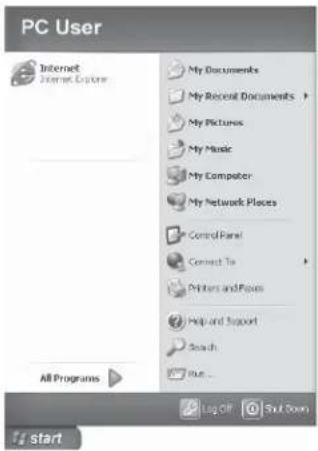
In the Start Menu, select Control Panel.
text_image
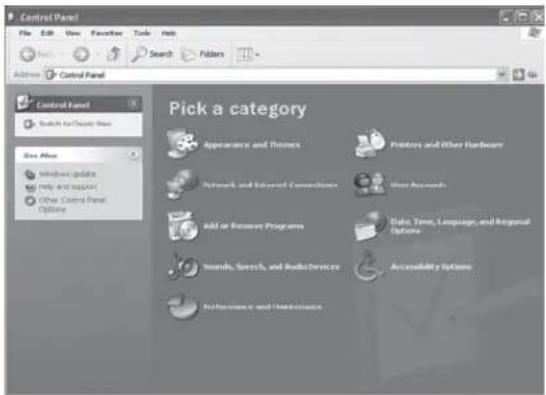
PC User Internet Internet Explorer My Documents My Recent Documents My Pictures My Music My Computer My Network Places Control Panel Connect To Printers and Files Help and Support Search Bus... All Programs Log Off Start Open- Select "Sounds, Speech, and Audio Devices".
text_image
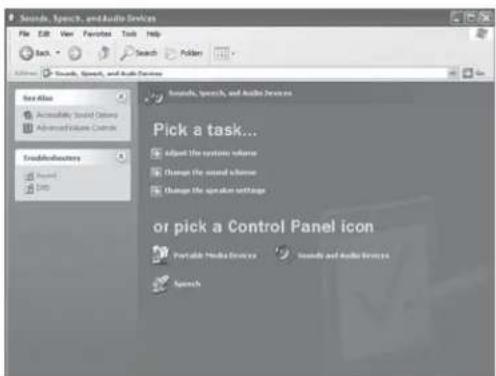
Control Panel File Edit View Favorites Tools Help Address Control Panel Control Panel Switch for Desktop Name Save Asks Windows update Help and support Other Control Panel Options Pick a category Appearance and Theory Network and Internal Connections Add or Remove Programs Sounds, Speech, and Audio Devices Printers and Other Hardware Store Accounts Data, Time, Language, and Rergerial Options Accessibility Options Applications and Transactions- Select "Sounds and Audio Devices".
text_image
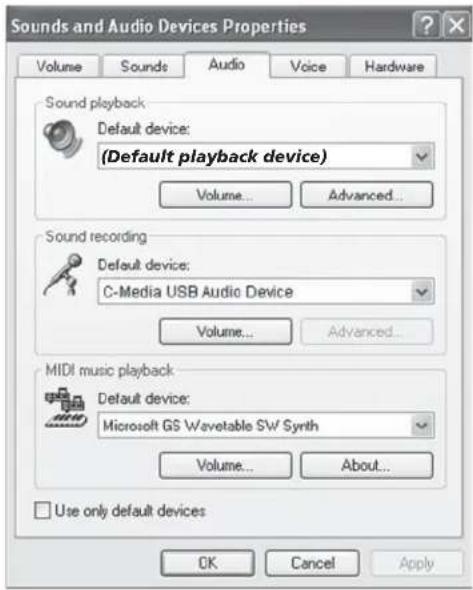
Sound, Speech, and Audio Devices File Edit View Favorites Tools Help Back Search Pattern Sound, Speech, and Audio Devices Show Also Accessible, Sound Options Advanced/Failure Controls Sound/Buspectors Named Add Sound, Speech, and Audio Devices Pick a task... Adjust the system scheme Change the sound scheme Change the operation settings or pick a Control Panel icon Portable Media Devices Sound and Audio Services Search- Select the "Audio" tab. Confirm that under the "Sound recording" section the "C-Media USB Audio Device" is selected. (The "Sound playback" should remain your usual sound output device).
text_image
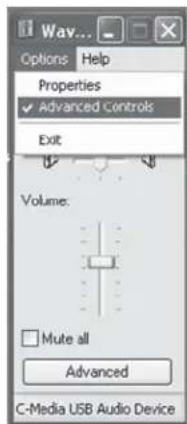
Sounds and Audio Devices Properties Volume Sounds Audio Voice Hardware Sound playback Default device: (Default playback device) Volume... Advanced... Sound recording Default device: C-Media USB Audio Device Volume... Advanced... MIDI music playback Default device: Microsoft GS Wavetable SW Synth Volume... About... Use only default devices OK Cancel Apply- Select the "Volume" tab under the Sound recording heading and select "Advanced Controls" in the Options menu of this window.
text_image
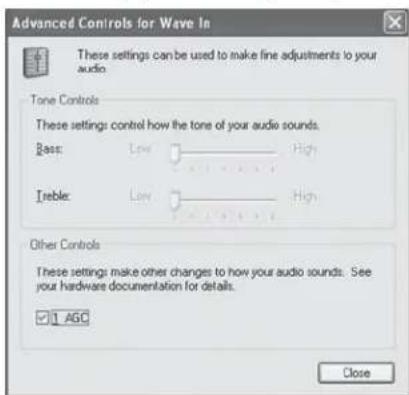
Way... Options Help Properties ✓ Advanced Controls Exit Volume: □ Mute all Advanced C-Media USB Audio Device- Click the "Advanced" button to open the "Advanced Controls for Wave In" window. Depending upon your system, you might have the option of selecting "1 AGC" or "Mic boost". Checking this option will significantly increase the sensitivity of the microphone. Use this for recording softer sounds. If you experience distortion when recording louder sounds, try unchecking this option.
text_image
Advanced Controls for Wave In These settings can be used to make fine adjustments to your audio. Tone Controls These settings control how the tone of your audio sounds. Bass: Low High Ireble: Low High Other Controls These settings make other changes to how your audio sounds. See your hardware documentation for details. 1 AGC Close- Launch your audio recording software.
- Position the U7 approximately 4 to 6 inches from the sound source for best results.
- Locate the preferences in your audio program and select the "C-Media USB Audio Device". Adjust the input level in this program so that the audio signal is not distorted.
- Enjoy your CAD U7 USB Tabletop Recording Microphone.
Mac OSX recognition instructions
- Plug the U7 into the USB port on the computer.
(When using a USB hub, check with the hub manufacturer to be sure the hub supports a device such as a microphone. Plug the U7 directly into the computer's powered USB port for optimal performance.) - Allow 30 to 60 seconds for the system software to recognize the U7.
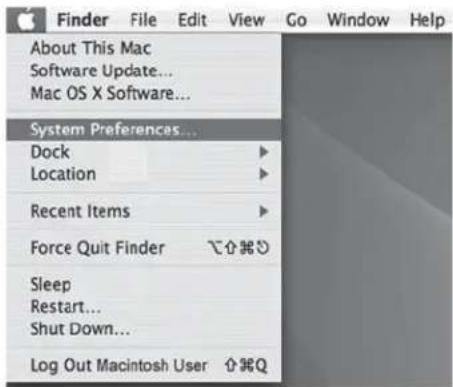
- Go to the Apple Menu and locate "System Preferences".
text_image
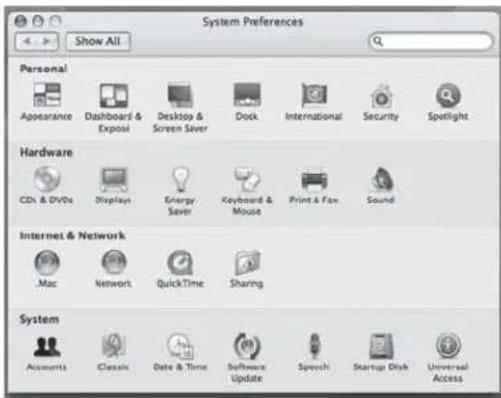
Finder File Edit View Go Window Help About This Mac Software Update... Mac OS X Software... System Preferences... Dock Location Recent Items Force Quit Finder Sleep Restart... Shut Down... Log Out Macintosh User ⌘⌘Q- Under "Hardware" click on the "Sound" icon.
text_image
System Preferences Show All Personal Appearance Dashboard & Export Desktop & Screen Saver Dock International Security Spotlight Hardware CDs & DVDs Displays Energy Saver Keyboard & Mouse Print & Fax Sound Internet & Network Mac Network QuickTime Sharing System Accounts Classics Date & Time Software Update Speech Startup Disk Universal Access- Click on the "Input" button and choose the "C-Media USB Audio Device".
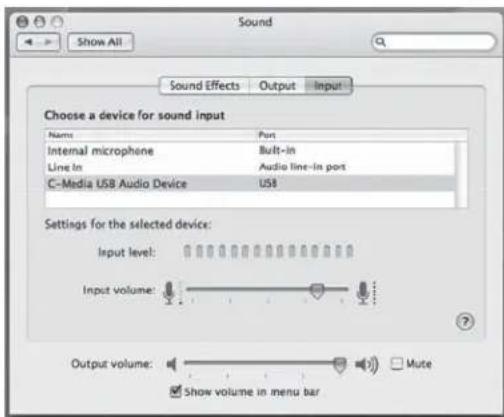
text_image
Sound Show All Sound Effects Output Input Choose a device for sound input Name Port Internal microphone Built-in Line In Audio line-In port C-Media USB Audio Device USB Settings for the selected device: Input level: Input volume: Output volume: Mute Show volume in menu bar- Click on the "Output" button and choose the internal speakers or the output speakers of your choice. (The "Sound playback" should remain your usual sound output device).
- Position the U7 4 to 6 inches away from your source (your mouth or music instrument).
- Test the U7 by speaking or playing into the microphone.
- You will see activity in the "Input Level" meter.
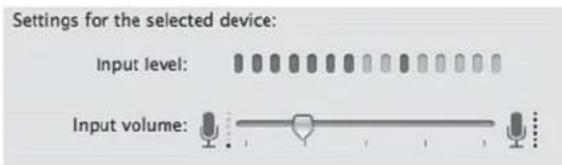
text_image
Settings for the selected device: Input level: Input volume:- As you are speaking or playing adjust the "Input Volume" slider. Take care not to allow the signal to go beyond the meter, if the meter is fully illuminated the sound can become distorted. The meter should be illuminated 3/4ths of the way to obtain the best sound quality.
- Close the System Preferences window to complete the settings.
- Launch your audio recording software.
- Position the U7 approximately 4 to 6 inches from the sound source for best results.
- Locate the Preferences in your audio program and select the "C-Media USB Audio Device". Adjust the input level in this program so that the audio signal is strong but not distorted.
- Enjoy your CAD U7 USB Tabletop Recording Microphone.
NOTE: This equipment has been tested and found to comply with the limits for a Class A digital device, pursuant to Part 15 of the FCC Rules. These limits are designed to provide reasonable protection against harmful interference when the equipment is operated in a commercial environment. This equipment generates, uses, and can radiate radio frequency energy and, if not installed and used in accordance with the instruction manual, may cause harmful interference to radio communications. Operation of this equipment in a residential area is likely to cause harmful interference in which case the user will be required to correct the interference at his own expense.
Two-Year Limited Warranty
CAD Professional Microphones hereby warrants that this product will be free of defects in material and workmanship for a period of two years from the date of purchase. In the unlikely event that a defect occurs CAD will, at its option, either repair or replace with a new unit of equal or greater value. Retain proof of purchase to validate the purchase date and return it with any warranty claim.
Return warranty claims carefully packed, insured and prepaid to the Service Department at the address listed below. This warranty excludes exterior finish or appearance, damage from abuse, misuse of the product, use contrary to CAD's instructions or unauthorized repair. All implied warranties, merchantably, or illness for a particular purpose is hereby disclaimed and CAD hereby disclaims liability for incidental, special or consequential damages resulting from the use or unavailability of this product.
This warranty gives you specific legal rights and you may have other rights that vary from state to state. Some states do not allow the exclusion or limitation of incidental or consequential damages or limitations on how long an implied warranty lasts, so the above exclusions and limitations may not apply to you.
Note: No other warranty, written or oral is authorized by CAD Professional Microphones.
Shipping Instructions
Please call our customer service department at 440-349-4900 for a pre-approved return authorization number. Carefully
repack the unit and return it to CAD Professional Microphones, 6573 Cochran Road, Building I, Solon, Ohio 44139.
RETURNS WITHOUT A PRE-APPROVED RETURN AUTHORIZATION NUMBER WILL BE REFUSED. If outside the United States, contact your local dealer or distributor for warranty details.

CAD Professional Microphones
6573 Cochran Rd., Bldg. J Solon, OH 44139
800-762-9266 www.cadmics.com
Q2007 CAD Professional Microphones Part No. 64516-22-00 Oct2007