
Bluetooth Stereo Headset - Kopfhörer MANHATTAN - Kostenlose Bedienungsanleitung
Finden Sie kostenlos die Bedienungsanleitung des Geräts Bluetooth Stereo Headset MANHATTAN als PDF.


| Produkttyp: | Bluetooth-Stereo-Headset mit Hinterkopf-Bügel |
| Modellnummer: | 175944 |
| Marke: | MANHATTAN |
| Abmessungen (gefaltet): | 98 × 72 × 75 mm |
| Abmessungen (ungefaltet): | 180 × 140 × 60 mm |
| Gewicht: | 62,3 g |
| Akku-Typ: | Eingebauter Lithium-Polymer-Akku |
| Ladezeit: | ca. 1,5 Stunden (erste Ladung 10 Stunden) |
| Betriebsdauer: | Bis zu 8 Stunden Musikwiedergabe/Gesprächszeit |
| Bereitschaftszeit: | Bis zu 240 Stunden |
| Bluetooth-Version: | V 1.2, Klasse 2 |
| Reichweite: | Bis zu 10 m (im Freien) |
| Frequenzbereich: | 2402 – 2480 MHz |
| Audio-Sample-Rate: | 48 kHz |
| Signal-Rausch-Abstand: | >85 dB |
| Frequenzgang: | 20 Hz – 22 kHz |
| Ausgangsleistung: | 20 mW |
| USB-Ladekabel: | 1 m Länge |
| Unterstützte Profile: | A2DP (AV-Profil), AVRCP, Headset, Freisprechen |
| Kompatibilität: | Bluetooth-fähige Geräte (Smartphones, PCs, MP3-Player, Skype) |
| Lieferumfang: | Headset, USB-Ladekabel, Reisetasche, Bedienungsanleitung |
| Garantie: | Lebenslange Garantie |
| Reinigung und Pflege: | Mit einem trockenen Tuch reinigen; vor Feuchtigkeit schützen |
| Sicherheitshinweise: | Nicht in Wasser tauchen; nur mit geeigneten Ladegeräten laden |
| Ersatzteile: | Nicht spezifiziert; bei Defekt Hersteller kontaktieren |
Häufig gestellte Fragen - Bluetooth Stereo Headset MANHATTAN
Benutzerfragen zu Bluetooth Stereo Headset MANHATTAN
0 Frage zu diesem Gerät. Beantworten Sie die, die Sie kennen, oder stellen Sie Ihre eigene.
Eine neue Frage zu diesem Gerät stellen
Laden Sie die Anleitung für Ihr Kopfhörer kostenlos im PDF-Format! Finden Sie Ihr Handbuch Bluetooth Stereo Headset - MANHATTAN und nehmen Sie Ihr elektronisches Gerät wieder in die Hand. Auf dieser Seite sind alle Dokumente veröffentlicht, die für die Verwendung Ihres Geräts notwendig sind. Bluetooth Stereo Headset von der Marke MANHATTAN.
BEDIENUNGSANLEITUNG Bluetooth Stereo Headset MANHATTAN
BLUETOOTH STEREO HEADSET USER MANUAL
MODEL 175944


MANHATTAN
MAN-175944-UM-1106-03
Thank you for purchasing the MANHATTAN® Bluetooth Stereo Headset, Model 175944.
Providing wireless listening for Bluetooth-enabled audio sources, the Bluetooth Stereo Headset offers the following features and benefits.
- Enjoy clear voice and stereo reception with most Bluetooth-enabled devices – never miss a call while listening to music.
- Add wireless convenience to notebook and desktop PCs, MP3 players, Skype and other Bluetooth-enabled audio sources.
• Comfortable, behind-the-neck design with built-in microphone folds for travel and storage.
• Control Bluetooth mobile phone and audio functions directly from the headset. - Quick recharge and power sleep mode provide up to eight hours of use; easy setup — no drivers required.
- Lifetime Warranty
Package contents:
- Bluetooth Stereo Headset
- USB recharging cable
- Travel bag
- User manual
OPERATION
Charging the Battery
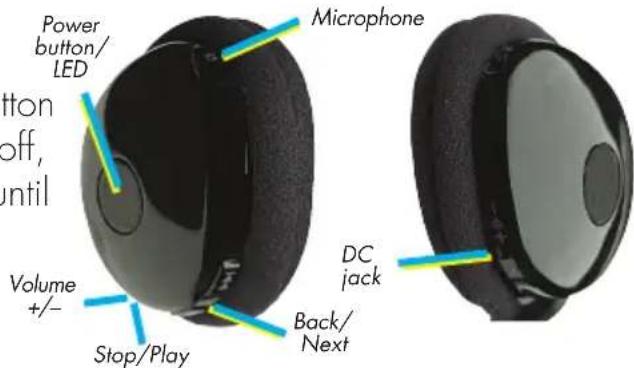
The battery provides power for eight hours. To recharge the battery, plug the USB cable into the DC jack on the headset and connect it to your PC. NOTE: Before the first use of the headset, charge the battery fully for 10 hours. Thereafter, recharging takes approximately 90 minutes.
Turning the Headset On / Controls
To turn the headset on, press and hold the Power button (about 3 seconds) until the LED lights blue. To turn it off, press and hold the Power button (about 3 seconds) until the Power LED turns off.
Power Button/LED:
- Solid blue: Power is on.
- Flashing blue: Connected to another device.
• Solid red: The battery is charging. (The red LED turns off when the battery is charged.)
- Flashing red: The battery is low. Recharge before the LED turns off.
Volume +/-: Toggle to raise/lower the volume incrementally.
Stop/Play: Press to stop/mute; press again to play/resume. (Button is between volume controls.)
Back/Next: Slide to go back or move forward on a connected song track list.

MANHATTAN
Using the Headset with Your Bluetooth-Enabled Mobile Phone
- Enable Bluetooth on your phone (refer to the phone's user manual).
- Turn on the headset. Check that no other device connects with the headset by confirming that the Power/Link LED is not flashing.
- In the phone's Bluetooth menu, select "Devices."
- Select "Stereo Headset."
- Enter the PIN code "0000."
To answer a call, push the Power button. To end a call, simply push the Power button again.
Using IVT BlueSoleil™
To use IVT's BlueSoleil (application software that enables/supports many Bluetooth features), first connect the Bluetooth Stereo Headset to your computer. Ensure that BlueSoleil is running on your computer, then turn on your headset.
NOTE: IVT BlueSoleil software is not included with your Bluetooth headset. Refer to a BlueSoleil user's guide or IVT's Web site (http://www.ivtcorporation.com) for further details and support.
Using Profiles

To use the AV Profile to play audio: 1. Double-click the BlueSoleil icon in the task tray. 2. Press F5 to search for Bluetooth devices. 3. Double-click the "MM-BTSH9" headset icon. 4. Click "Bluetooth AV Service" to create a connection shortcut.
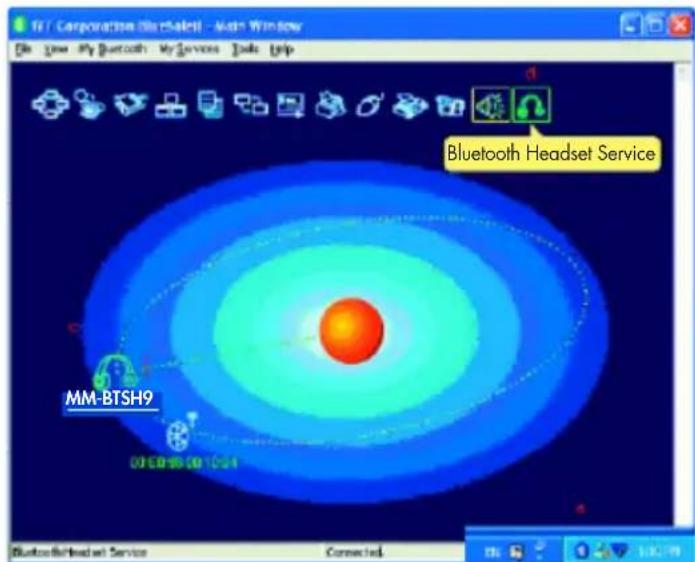
To use the Headset Profile with Skype™: 1. Double-click the BlueSoleil icon in the task tray. 2. Press F5 to search for Bluetooth devices. 3. Double-click the "MM-BTSH9" headset icon. 4. Click "Bluetooth Headset Service" to create a connection shortcut.
Configuring the audio output
- Go to the Control Panel and double-click the "Sound and Audio Devices" icon.
- When the Sounds and Audio Devices Properties screen displays, select the Audio tab.
- In the "Sound playback" panel, change the "Default device" to "Bluetooth AV Audio."
- In the "Sound recording" panel, change the "Default device" to "Bluetooth AV Audio."
- Click "OK."

Using WidComm® Bluetooth Software
To use WidComm Bluetooth software, first connect the Bluetooth Stereo Headset to your computer. Ensure that WidComm is running on your computer, then turn on your headset.
NOTE: WidComm Bluetooth software is not included with your Bluetooth headset.
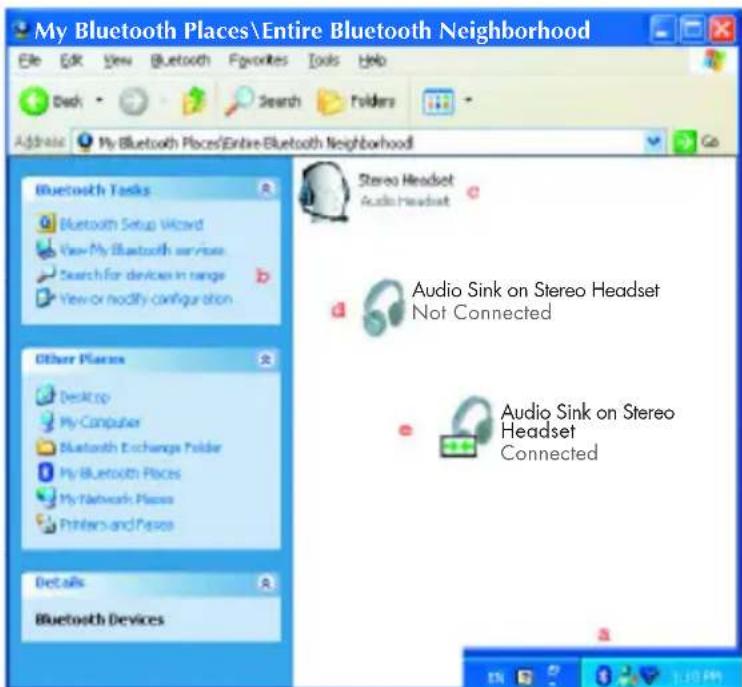
To use the AV Profile to play audio:
- Double-click the WidComm icon in the task tray.
- Click "Search for devices in range."
- Double-click the "Stereo Headset" icon.
- Click "Audio Sink on Stereo Headset" to create a connection shortcut.
Configuring WidComm® Audio Output
- Go to the Control Panel and double-click the "Sound and Audio Devices" icon.
- When the Sounds and Audio Devices Properties screen displays, select the Audio tab.
- In the "Sound playback" panel, change the "Default device" to "Bluetooth High Quality Audio."
- In the "Sound recording" panel, change the "Default device" to "Bluetooth High Quality Audio."
- Click "OK."

Configuring for Use with Computers
- On the computer, go to Start → Programs → Bluetooth → Bluetooth Settings.
- On the headset, hold down the Power button until the Power LED lights and stays blue.
- On the Bluetooth Settings screen (right), click "New Connection."


- When the Add New Connection Wizard screen displays (left), select "Custom Mode" and click "Next."

MANHATTAN
- When the "Select a device" Wizard screen displays, highlight "Stereo Headset" in the "Bluetooth device" window; click "Next."

- When the Bluetooth Manager – Bluetooth Security screen displays, enter "0000" in the "Bluetooth Passkey (PIN)" text field; click "OK."
![Bluetooth Manager - Bluetooth Security Bluetooth Passkey (PIN) 0000 [If left blank, the default PIN will be used.] Request Device Bluetooth Device Address: 0012A1:00 FB A0 Bluetooth Device Name: Stereo-Headset OK Cancel](/content/2026/05/820460/images/992a4f1e88f64c4a1081305849e8a8cf028a2587c2fff800d1e5fd4fcc22eef9.jpg)
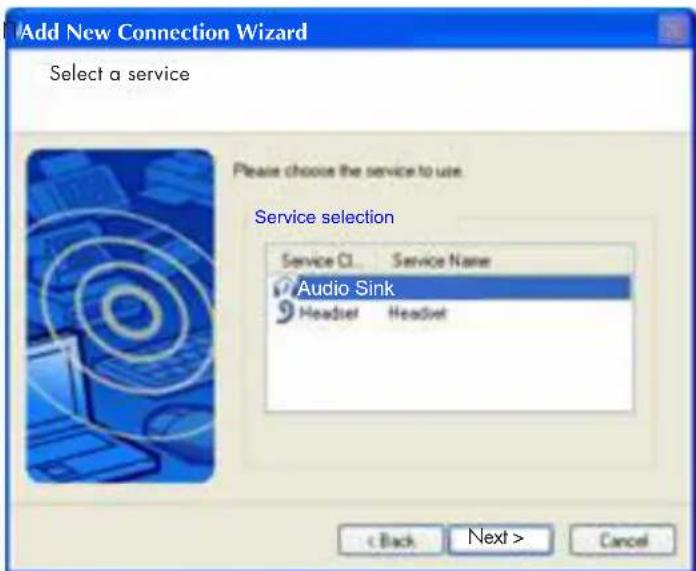
- When the "Select a service" Wizard scree displays (right), select "Audio Sink" in the "Service selection" window; click "Next."

- When the "Enter a name and select an icon" Wizard screen displays (left), "Stereo Headset" should appear as the default in the "Connection Name" field in the "Setting information" panel. Select "Create a shortcut on the desktop"; click "Next."

MANHATTAN
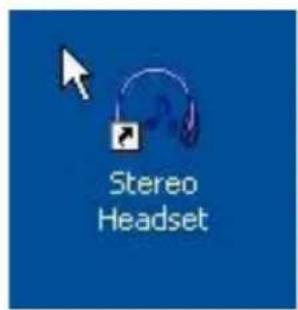
- To enable the Bluetooth Headset, double-click the Stereo Headset icon (or use the desktop shortcut shown below).

TROUBLESHOOTING
If the Bluetooth Stereo Headset does not work, try the following:
- Ensure that all connecting devices are sufficiently charged.
- Turn off all devices and then turn them on in the order shown in this manual.
- Ensure devices are within the effective 10-meter range.

MANHATTAN
SPECIFICATIONS
General:
- Bluetooth standards: V 1.2, Class 2; A2DP profile (AV profile); headset and hands-free profile
• Frequency range: 2402 – 2480 MHz - Compatibility: supports Bluetooth A2DP (AV profile), AVRCP, HS and HF profiles
• Effective range: 10 m (32 ft.)
Headset:
• Audio sample rate: 48 kHz (streaming format)
- S/N: >85 dB
• Frequency response: 20 Hz – 22 kHz
- Output: 20 mW
- Battery type: built-in rechargeable lithium-polymer battery
- Charging time: 1.5 hours
- Playing time: up to 8 hours
• Standby time: up to 240 hours
• USB charging cable: 1 m (42 in.)
- Dimensions, folded: 98 × 72 × 75 mm (3.8 × 2.8 × 2.9 in.)
- Dimensions, unfolded: 180 × 140 × 60 mm (7 × 5.5 × 2.3 in.)
• Weight: 62.3 g (2.2 oz.)
Mobile phone compatibility (check other phones for interoperability):
- BlackBerry 7100t
- Fujitsu F900iT
- Motorola A768i, A780, E398, V3, V600, V710
- Nokia 3600, 3660, 6230, 6600, 6670, 6820, 7610, N-Gage
- Panasonic X70
- Siemens SX1, U15
- Sony-Ericsson P800, P900, T610, T68i, S700i, Z600, K700i

MANHATTAN® offers a complete line of PC Components, Peripherals, Cables and Accessories. Ask your local computer dealer for more information or visit us online at
www.manhattan-products.com
Copyright © MANHATTAN
All products mentioned are trademarks or registered trademarks of their respective owners.


- BLUETOOTH STEREO HEADSET USER MANUAL
- OPERATION
- CHARGING THE BATTERY
- TURNING THE HEADSET ON / CONTROLS
- USING THE HEADSET WITH YOUR BLUETOOTH-ENABLED MOBILE PHONE
- USING IVT BLUESOLEIL™
- USING PROFILES
- CONFIGURING THE AUDIO OUTPUT
- USING WIDCOMM® BLUETOOTH SOFTWARE
- CONFIGURING WIDCOMM® AUDIO OUTPUT
- CONFIGURING FOR USE WITH COMPUTERS
- MANHATTAN
- TROUBLESHOOTING
- SPECIFICATIONS
- GENERAL
- HEADSET
- MOBILE PHONE COMPATIBILITY (CHECK OTHER PHONES FOR INTEROPERABILITY)
Marke : MANHATTAN
Modell : Bluetooth Stereo Headset
Kategorie : Kopfhörer