IPMan S - Hi-Fi-System Z CAM - Kostenlose Bedienungsanleitung
Finden Sie kostenlos die Bedienungsanleitung des Geräts IPMan S Z CAM als PDF.


Benutzerfragen zu IPMan S Z CAM
0 Frage zu diesem Gerät. Beantworten Sie die, die Sie kennen, oder stellen Sie Ihre eigene.
Eine neue Frage zu diesem Gerät stellen
Laden Sie die Anleitung für Ihr Hi-Fi-System kostenlos im PDF-Format! Finden Sie Ihr Handbuch IPMan S - Z CAM und nehmen Sie Ihr elektronisches Gerät wieder in die Hand. Auf dieser Seite sind alle Dokumente veröffentlicht, die für die Verwendung Ihres Geräts notwendig sind. IPMan S von der Marke Z CAM.
BEDIENUNGSANLEITUNG IPMan S Z CAM
text_image
IPMAN S Z CAMZ CAM Monitor (App Store)

text_image
QR code image containing encoded data, no visible human-readable textZ Camera (Google Play)

text_image
QR code image containing encoded data, no visible human-readable textZ CAM IPMAN S Wireless Video Streaming Device - Quick User Guide
What is in the box?
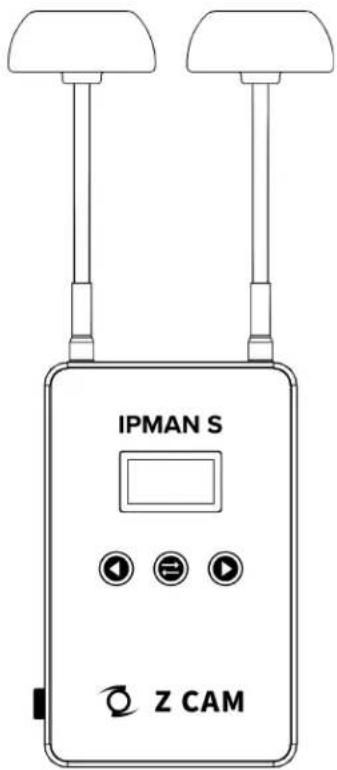
- Z CAM IPMAN S main unit x 1.
- Wi-Fi antenna x 2.
How to power up Z CAM IPMAN S?
- Mount NP-F battery on to the rear socket of the main unit.
- Press and hold the release button next to the socket to unmount the battery.
- For external power supply, connect the DC plug to the power socket (6.2\~18V) on the side.
How to switch on Z CAM IPMAN S?
- Ensure that power is connected.
- Push power switch upward to ON position to switch on.
- Push power switch downward to OFF position to switch off.
How to feed video signal to the HDMI input of Z CAM IPMAN S?
- Connect HDMI output of camera or other equipment to HDMI IN of the main unit.
How to get video signal from the HDMI output of Z CAM IPMAN S?
- Connect HDMI input of monitor or other equipment to HDMI OUT of the main unit.
How to install WiFi antenna?
- Align the bottom of the antenna and the antenna port on top of the main unit.
- Screw in the antenna clockwise until it is fixed in position.
- Both antennas need to be installed.
How to switch the operating mode of Z CAM IPMAN S?
- Mode selector on the side of the main unit set to Rx, status display will change to RX.
- Mode selector on the side of the main unit set to M, status display will change to TX-P.
- Mode selector on the side of the main unit set to Tx, status display will change to TX.
How to use wireless video monitoring feature?
- Camera HDMI output signal must be 1080p60 or below (1080i is not supported).
- Connect camera HDMI output to HDMI IN of main unit, set to TX mode.
- Set another main unit to RX mode, connect HDMI OUT to monitor input.
- Press and hold the function button in the middle for two second until pairing icon shows up.
- Release the function button and wait for auto pairing.
• Channel number on both units should be the same once pairing is successful. - Once there is a camera HDMI signal output it will be streamed to the RX connected monitor.
- Repeat above procedure to add RX main unit up to a maximum of four.
How to use mobile devices for video monitoring?
- Download and install "Z CAM Monitor" app on iOS devices. (use Z Camera app on Android devices)
- Camera HDMI output signal must be 1080p60 or below (1080i not supported).
- Connect camera HDMI output to HDMI IN of main unit, set to TX mode.
- Note the SSID on the top left corner of main unit display.
- Open "Z CAM Monitor" app, click the bottom right wireless hotspot icon 📞, enter SSID and tap the arrow sign to connect.
- Once there is a camera HDMI signal output it will be streamed to the "Z CAM Monitor" app.
- Repeat above procedure to add mobile devices up to a maximum of four.
How to connect to a wireless router? (\* This feature is not yet supported on Android.)
- Select M mode on the main unit.
- Connect iOS device to main unit using USB-C to Lightning cable.
- Turn on the main unit and iOS device, open the Z CAM Monitor app.
- Tap the bottom right wireless network icon 📤. Available wireless networks will be shown.
- Select the wireless network, enter password and and tap the arrow sign to connect.
- Connected WiFi SSID and IP address will be shown on the main unit display.
Please visit www.z-cam.com for latest product information and user guide.