
RT-54NA41T - Fernseher LG - Kostenlose Bedienungsanleitung
Finden Sie kostenlos die Bedienungsanleitung des Geräts RT-54NA41T LG als PDF.


Benutzerfragen zu RT-54NA41T LG
0 Frage zu diesem Gerät. Beantworten Sie die, die Sie kennen, oder stellen Sie Ihre eigene.
Eine neue Frage zu diesem Gerät stellen
Laden Sie die Anleitung für Ihr Fernseher kostenlos im PDF-Format! Finden Sie Ihr Handbuch RT-54NA41T - LG und nehmen Sie Ihr elektronisches Gerät wieder in die Hand. Auf dieser Seite sind alle Dokumente veröffentlicht, die für die Verwendung Ihres Geräts notwendig sind. RT-54NA41T von der Marke LG.
BEDIENUNGSANLEITUNG RT-54NA41T LG

LG
Colour Television OWNER'S MANUAL

УКРСЕРТРЕА

BZ03
Please read this manual carefully before operating your set. Retain it for future reference.
Record model number and serial number of the set.
See the label attached on the back cover and quote this information to your dealer when you require service.
Model number :
Serial number :
Contents
Installation 3
Location and function of controls 4
Remote control handset
Battery installation
Front panel / Side panel
Basic operation 7
On and off / Programme selection
Volume adjustment / Quick view
Mute function / Auto Demonstration
On screen language selection (option)
On screen menus 8
Menu selection
Setting up TV stations 9
Auto programme tuning
Manual programme tuning
Fine tuning
Programme edit
Calling the programme table
Picture adjustment 14
PSM (Picture Status Memory)
Picture adjustment / 100Hz mode
Convergence / Turbo picture selection
Sound adjustment 16
SSM (Sound Status Memory) / Sound adjustment
Turbo sound selection
Sound output selection / Stereo/Dual reception
NICAM reception (option)
Other functions 18
TV and AV modes / VGA mode (option)
Auto AV switching (option)
Child lock / Auto sleep
Blue back (option) / Sleep timer
PIP operation (option) 21
On and off / Input mode selection for sub picture
Swapping between main and sub pictures
Programme selection for sub picture
Sub picture size / Sub picture freeze
Sub picture position change / Programme scan
Teletext (option) 22
Switch on/off
SIMPLE text / TOP text (option)
FASTEXT / Special teletext functions
Connection of external equipment 25
Aerial socket
Audio/Video in sockets (option)
Euro scart socket (option)
S-video / Audio in sockets (S-AV) (option)
Component in sockets (option)
PC Input / Audio in sockets (option)
Troubleshooting check list Back cover
Installation
Power
This set operates on an AC mains supply, the voltage is as indicated on the label on the back cover. Never apply DC power to the set. In the event of thunderstorms or powercuts, please pull out the aerial and mains plugs.
Warning
To prevent fire or shock hazard, do not expose the set to rain or moisture.
Service
Never remove the back cover of the set as this can expose you to very high voltage and other hazards. If the set does not operate properly, unplug it and call your dealer.
Aerial
Connect the aerial cable to the socket marked 175 Ω on the back cover. For the best reception an outdoor aerial should be used.
Location
Position your set so that no bright light or sunlight falls directly onto the screen. Care should be taken not to expose the set to any unnecessary vibration, moisture, dust or heat. Also ensure that the set is placed in a position to allow a free flow of air. Do not cover the ventilation openings on the back cover.
Do not place the set on a sloping or unstable area as the casters on the bottom of the set may cause it to move and to be damaged.
When displaying still pictures such as videogames, 16:9 picture format, PIP display, and station label for a long time, the image may be persisted on the screen.
Manufactured under license from Dolby Laboratories. "Dolby" "Pro Logic" and the double-D symbol are trademarks of Dolby Laboratories.
Location and function of controls
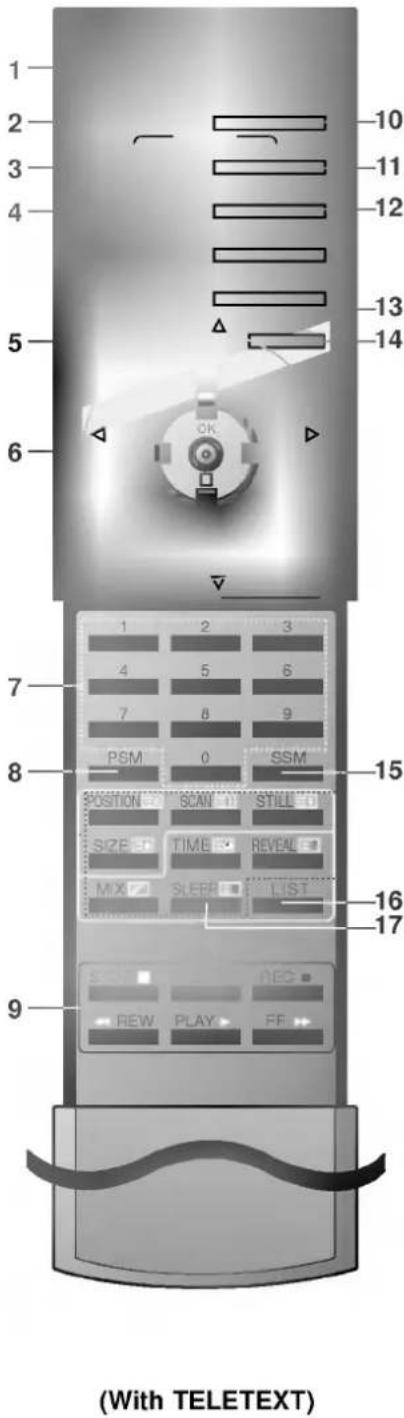
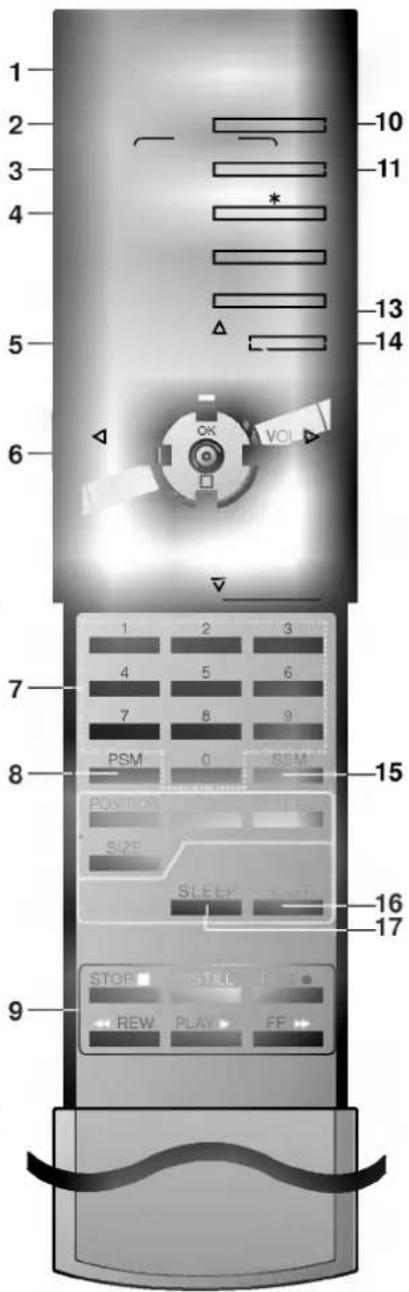
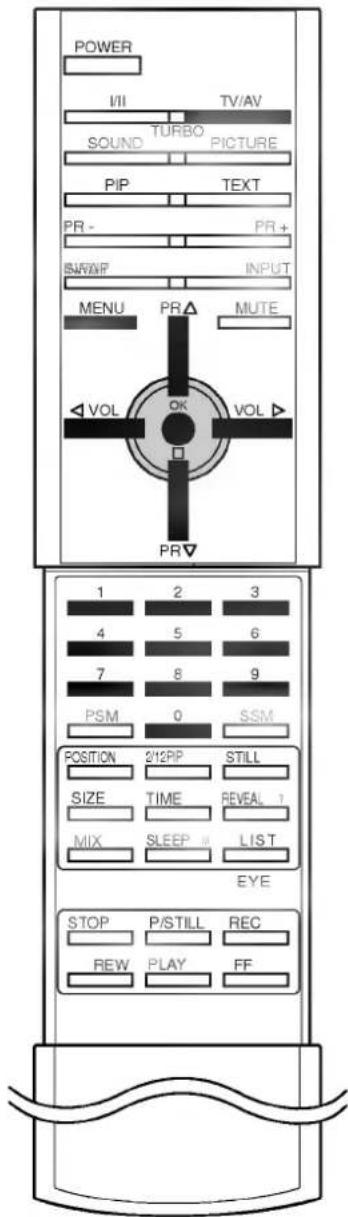
All the functions can be controlled with the remote control handset. Some functions can also be adjusted with the buttons on the front panel of the set.
text_image
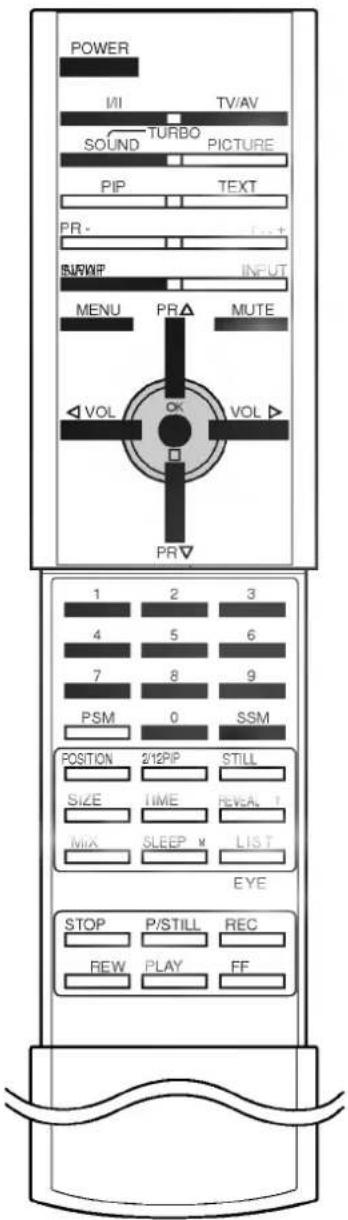
1 2 3 4 5 6 10 11 12 13 14 OK 7 8 9 PSM 0 SSM 15 POSITION SCAN STILL SIZE TIME REVEAL MIX SLEEP LIST 16 17 9 REC REW PLAY FF (With TELETEXT)Remote control handset
Before you use the remote control handset, please install the batteries. See the next page.
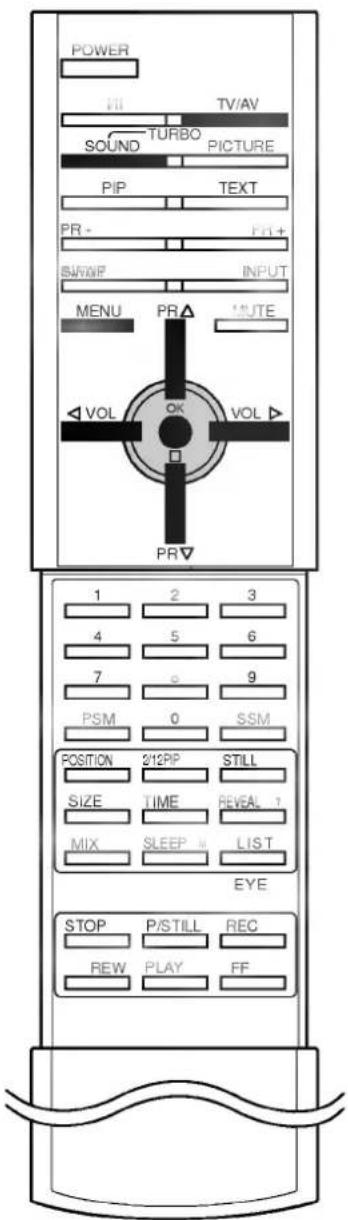
- POWER switches the set on from standby or off to standby.
- I/II selects the language during dual language broadcast. selects the sound output.
-
TURBO SOUND BUTTON selects Turbo sound.
-
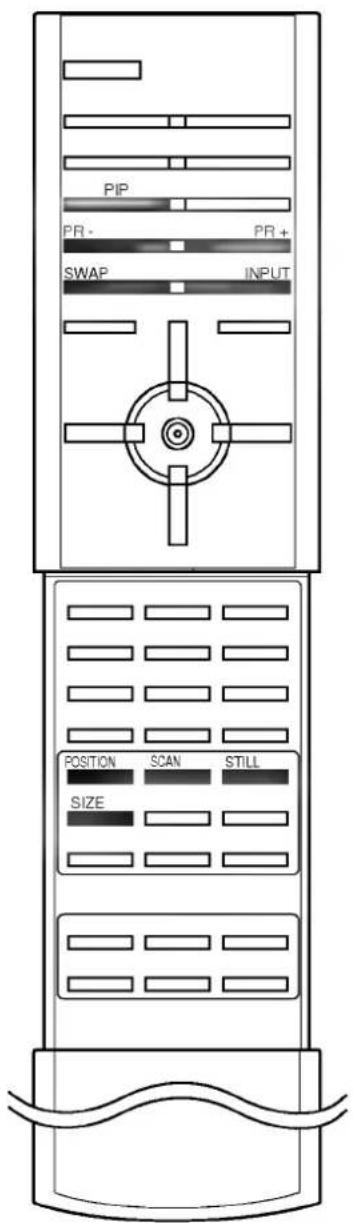
PIP BUTTONS PIP switches the sub picture on or off. PR +/- selects a programme for the sub picture. SWAP alternates between main and sub picture. INPUT selects the input mode for the sub picture. SIZE adjusts the sub picture size. STILL freezes motion of the sub picture. POSITION relocates the sub picture in clockwise direc SCAN switches on or off the programme scan mo
-
MENU selects a menu.
-
▲ / ▼ (Programme Up/Down) selects a programme or a menu item. switches the set on from standby. ◀ / ▶ (Volume Up/Down) adjusts the volume. adjusts menu settings. OK accepts your selection or displays the
-
NUMBER BUTTONS switches the set on from standby or directly select a number.
- PSM (Picture Status Memory) recalls your preferred picture setting.
- VCR BUTTONS control a LG video cassette recorder.
Location and function of controls
10. TV/AV
selects TV or AV mode. clears the menu / text from the screen. switches the set on from standby.
11. TURBO PICTURE BUTTON
selects Turbo picture.
12. TELETEXT BUTTONS (option)
These buttons are used for teletext. For further details, see the 'Teletext' section.
13. SWAP
returns to the previously viewed programme.
14. MUTE
switches the sound on or off.
15. SSM (Sound Status Memory)
recalls your preferred sound setting.
16. LIST
displays the programme table.
17. SLEEP
sets the sleep timer.
Note : In teletext mode, the PR +/-, SWAP and INPUT buttons are used for teletext function.
Battery installation
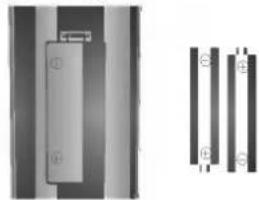
The remote control handset is powered by two AAA type batteries. To load the batteries, turn the remote control handset over and open the battery compartment. Install two batteries as indicated by the polarity symbols (⊕ and ⊖) marked inside the compartment.
natural_image
Pure electrical circuit lines without any symbolsNote : To avoid damage from possible battery leakage, remove the batteries if you do not plan to use the remote control handset for an extended period of time.
text_image
1 2 3 4 5 6 10 11 * * 13 14 OK VOL PSM 0 PSM 15 7 8 9 8 POS TICKER SLEEP 16 17 SIZE STOP REW STILL PLAY FF(Without TELETEXT)
Location and function of controls
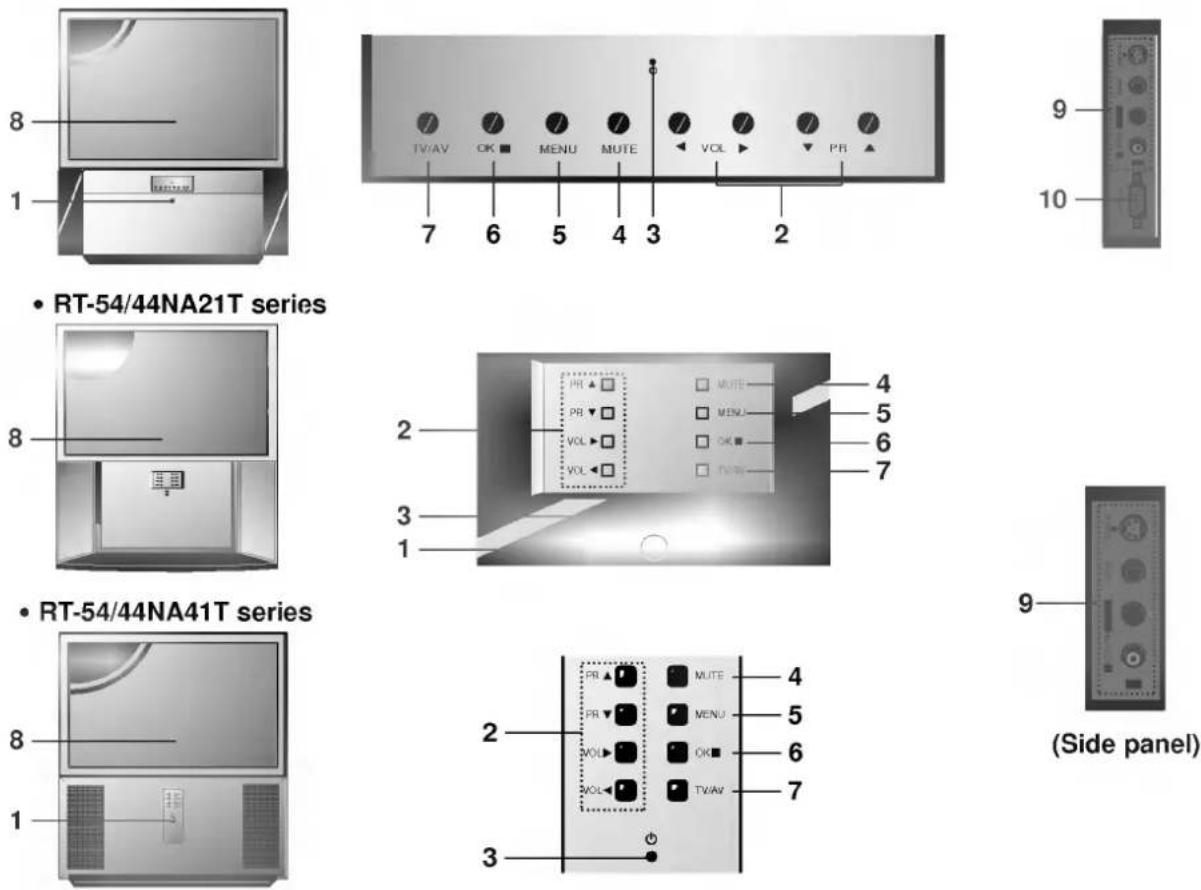
Front panel
• RT-54/49/44NA11T series
- MAIN POWER
switches the set on or off.
- ◀ / ▶ (Volume Up/Down)
adjusts the volume.
adjusts menu settings.
▲ / ▼ (Programme Up/Down)
selects a programme or a menu item.
switches the set on from standby.
- POWER/STANDBY INDICATOR
illuminates brightly when the set is in standby mode.
dims when the set is switched on.
- MUTE
switches the sound on or off.
- MENU
selects a menu.
- OK
accepts your selection or displays the current mode.
- TV/AV
selects TV or AV mode.
clears the menu / text from the screen.
switches the set on from standby.
-
REMOTE CONTROL SENSOR
-
AUDIO/VIDEO IN SOCKETS (AV3 or IN3)
Connect the audio/video out sockets of external equipment to these sockets.
S-VIDEO/AUDIO IN SOCKETS (S-AV)
Connect the video out socket of an S-VIDEO VCR to the S-VIDEO socket.
Connect the audio out sockets of the S-VIDEO VCR to the audio sockets as in AV3 or IN3.
- PC INPUT SOCKET (option)
Connect the PC cable from the monitor output socket of the PERSONAL COMPUTER to this socket.
* CASTERS (on the bottom)
turn and move the set easily.
Basic operation
On and off
- Press the main power button to switch the set on.
- If the set is in standby mode, press the POWER, ▲ / ▼, TV/AV or NUMBER buttons on the remote control handset to switch it on fully.
- Press the POWER button on the remote control handset. The set reverts to standby mode.
- Press the main power button again to switch the set off.
Note : If, while the set is switched on, the mains plug is disconnected the set will switch to standby or power on when the mains plug is replaced in the mains power socket.
Programme selection
You can select a programme number with the ▲ / ▼ or NUMBER buttons.
Volume adjustment
Press the ◀ / ▶ button to adjust the volume.
Quick view
Press the SWAP button to view the last programme you were watching.
Mute function
Press the MUTE button. The sound is switched off and the display appears.
You can cancel it by pressing the MUTE, ◀ / ▶, I/II, TURBO SOUND button.
Auto Demonstration
To review all the menus programmed in the set, press the OK button of the front panel control for about 5 seconds. To stop auto demonstration, press any button of the front panel control and POWER button of the remote control.
On screen language selection (option)
The menu can be displayed on the screen in desired language. First select your language.
- Press the MENU button to select the Station menu.
- Press the ▶ button and then ▲ / ▼ button to select Language.
- Press the ▶ button and then ▲ / ▼ button to select your desired language.
All the on screen displays will appear in the selected language. Press the OK or ◀ button to select the Station menu. - Press the TV/AV button to return to normal TV viewing.
text_image
POWER MI TV/AV SOUND TURBO PICTURE PIP TEXT PR - BURNIF INPUT MENU PR MUTE VOL OK VOL PR 1 2 3 4 5 6 7 8 9 PSM 0 SSM POSITION 2/12PIP STILL SIZE TIME REVEAL MIX SLEEP LIST EYE STOP P/STILL REC REW PLAY FFOn screen menus
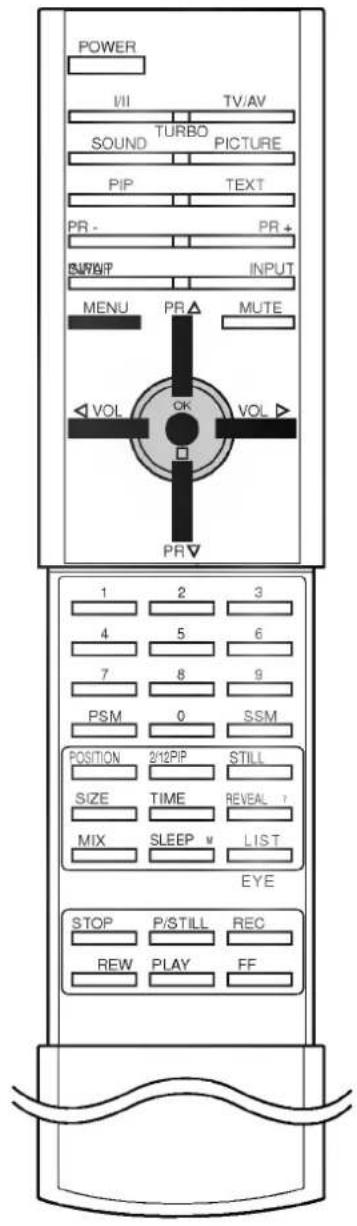
The dialogue between you and your set takes place on screen with an operator menu. The buttons required for the operating steps are also displayed.
Menu selection
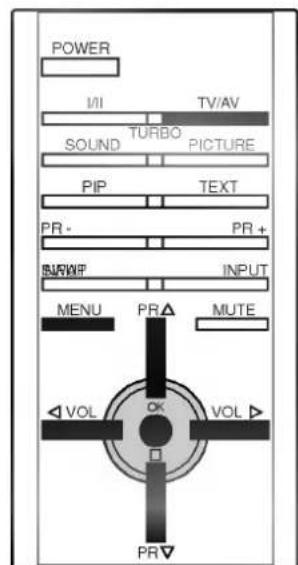
- Repeatedly press the MENU button to display each menu.
- Press the ▶ button and then ▲ / ▼ button to select a menu item.
- Press the ▶ button to display the sub menu or the pull-down menu.
- Change the setting of an item in the sub or pull-down menu with ▶ / ▶ or ▲ / ▼. You can move to the higher level menu with OK or ▶ button and to move to the lower level menu press the ▶ button
Note :
a. In the AV modes, the Station menu is not displayed.
b. In the teletext mode, menus are not displayed.
c. In some models, the Normal/Turbo search will not display, only the Start will display in the Auto programme menu.
d. In some models, the Language, AV4 will not display.
text_image
POWER VII TV/AV SOUND TURBO PICTURE PIP TEXT PR- PR+ BWWIP INPUT MENU PR MUTE VOL OK VOL PR▼ 1 2 3 4 5 6 7 8 9 PSM 0 SSM POSITION 2/12PIP STILL SIZE TIME REVEAL ? MIX SLEEP LIST EYE STOP P/STILL REC REW PLAY FF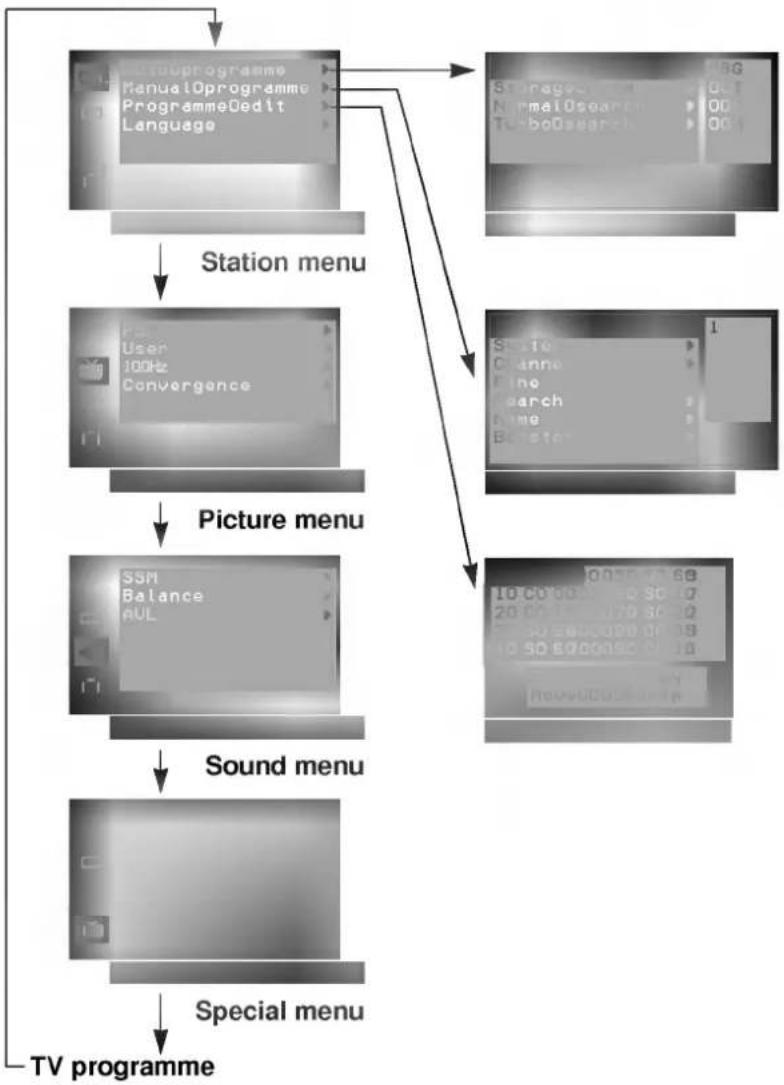
flowchart
graph TD
    A["Studio Oprogramme\nManualOprogramme\nProgrammeOedit\nLanguage"] --> B["Station menu"]
    B --> C["User\n100Hz\nConvergence"]
    C --> D["Picture menu"]
    D --> E["SSM\nBalance\nAUL"]
    E --> F["Sound menu"]
    F --> G["Special menu"]
    G --> H["TV programme"]
Setting up TV stations
Up to 100 TV stations can be stored by programme numbers (0 to 99). Once you have preset the stations, you will be able to use the ▲ / ▼ or NUMBER buttons to scan the stations you programmed. Stations can be tuned using automatic or manual modes.
Note : In some models up to 200 TV stations can be stored.
Auto programme tuning
All stations that can be received are stored by this method. It is recommended that you use auto programme during installation of this set.
- Repeatedly press the MENU button to select the Station menu.
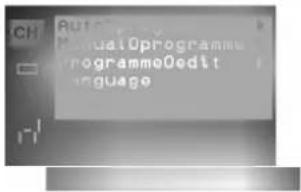
- Press the ▶ button and then ▲ / ▼ button to select Auto programme.
- Press the ▶ button to display the Auto programme menu.
text_image
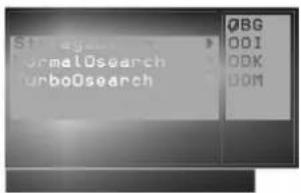
St-egany Normal0search Turbo0search QBG ODI ODK BOM- Press the ▶ button. Select a TV system with the ▲ / ▼ button on the System pull-down menu;
BG : (Asia/New Zealand/M.East/Africa/Australia)
I : (Hong Kong/South Africa)
DK : (East Europe/China/Africa/CIS)
M : (USA/Korea/Philippines) (option)
- Press the OK or ◀ button.
- Press the ▲ / ▼ button to select Storage from.
- Press the ▶ button. Select the beginning programme number with the ◀ / ▶ button or NUMBER buttons on the Storage from pull-down menu. Any number under 10 is entered with a numeric '0' (or '00') in front of it, i.e. '05' (or '005') for 5.
- Press the OK button.
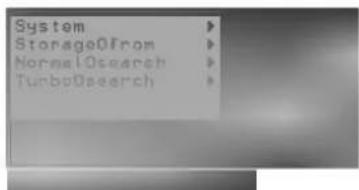
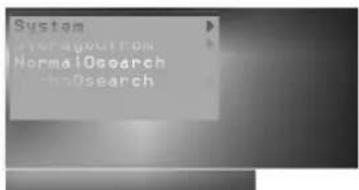
- Press the ▲ / ▼ button to select Normal or Turbo search.
Option: In some models, you can only select Start.
Note :
a. Turbo search is further faster than Normal search and in some models, these searches will automatically store all receivable stations.
b. If the programmed station has poor quality sound, select the system again in the Manual programme menu.
10. Press the ▶ button to begin auto programming.
text_image
System StorageOfrom NormalOsearch TurboOsearch(Normal search)
text_image
System Normal0search the0search(Turbo search)
All receivable stations are stored.
To stop auto programming, press the MENU button.
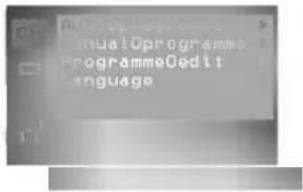
When auto programming is completed, the Programme edit menu appears on the screen. See the 'Programme edit' section to edit the stored programme.
- Press the TV/AV button to return to normal TV viewing.
text_image
ManualOprogramme ProgrammeEdit LanguageStation Menu
text_image
POWER VII TV/AV SOUND TURBO PICTURE PIP TEXT PR- PR+ SURWIP INPUT MENU PR ▲ MUTE VOL OK VOL ▲ PR▼
text_image
1 2 3 4 5 6 7 8 9 PSM 0 SSM POSITION 2/12PIP STILL SIZE TIME REVEAL MIX SLEEP LIST EYE STOP P/STILL REC REW PLAY FFSetting up TV stations
Station Menu
text_image
Auto ManualOprogramme programmoEdit language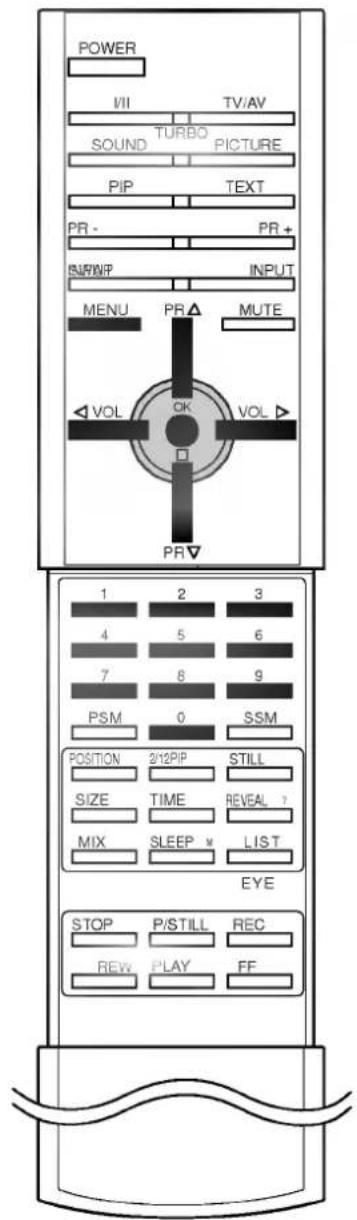
text_image
POWER VII TV/AV SOUND TURBO PICTURE PIP TEXT PR- PR+ BURN/P INPUT MENU PR MUTE VOL CK VOL PR▼ 1 2 3 4 5 6 7 8 9 PSM 0 SSM POSITION 2/12PIP STILL SIZE TIME REVEAL ? MIX SLEEP LIST EYE STOP P/STILL REC REW PLAY FFManual programme tuning
Manual programme lets you manually tune and arrange the stations in whatever order you desire. Also you can assign a station name with five characters to each programme number.
- Repeatedly press the MENU button to select the Station menu.
- Press the ▶ button and then ▲ / ▼ button to select Manual programme.
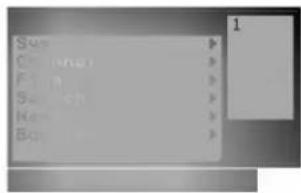
- Press the ▶ button to display the Manual programme menu.
text_image
Save Edit (no) Print Search Read Save- Press the ▲ / ▼ button to select PR..
-
Press the ▶ button to select the programme number. Select the desired programme number (0 to 99) with the ◀ / ▶ button or NUMBER buttons on the PR. pull-down menu. Any number under 10 is entered with a numeric '0' (or '00') in front of it, i.e. '05' (or '005') for 5.
-
Press the OK button.
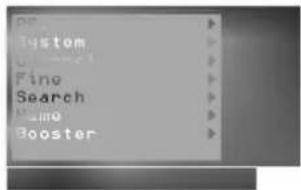
- Press the ▲ / ▼ button to select System.
- Press the ▶ button. Select a TV system with the ▲ / ▼ button on the System pull-down menu;
BG : (Asia/New Zealand/M.East/Africa/Australia)
I : (Hong Kong/South Africa)
DK : (East Europe/China/Africa/CIS)
M : (USA/Korea/Philippines) (option)
- Press the OK or ◀ button.
- Press the ▲ / ▼ button to select Channel.
- Press the ▶ button. Press the ▲ / ▼ button to select V/UHF or Cable on the Channel pull-down menu. If possible, select the channel number directly with the number buttons. Any number under 10 is entered with a numeric '0' (or '00') in front of it, i.e. '05' (or '005') for 5.
- Press the OK or ◀ button
- Press the ▲ / ▼ button to select Search.
- Press the ▶ button. Press the ◀ / ▶ button to commence searching on the Search pull-down menu. If a station is found the search will stop.
- Press the OK button to store it. The display Stored will appear.
text_image
System Search Booster- To store another station, repeat steps 4 to 15.
- Press the TV/AV button to return to normal TV viewing.
Setting up TV stations
Assigning a station name
- Repeat the 'Manual programme tuning' steps 1 to 3.
- Press the ▲ / ▼ button to select Name.
- Press the ▶ button on the Name pull-down menu.
- Press the ▲ button. You can use a blank, +, -, the numeric 0 to 9 and the alphabet A to Z.
With the ▼ button you can select in the opposite direction.
- Select the position by pressing the ◀ / ▶ button and then take your choice of the second character, and so on.
- Press the OK button.
- Press the TV/AV button to return to normal TV viewing.
Booster
When the interference between programmes appear, select Booster to Off.
- Repeat the 'Manual programme tuning' steps 1 to 3.
- Press the ▲ / ▼ button to select Booster.
- Press the ▶ button.
- Press the ▲ / ▼ button to select On or Off on the Booster pull-down menu.
- Press the OK or ◀ button.
- Press the TV/AV button to return to normal TV viewing.
Fine tuning
Normally fine tuning is only necessary if reception is poor.
- Repeat the 'Manual programme tuning' steps 1 to 3.
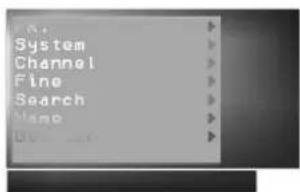
- Press the ▲ / ▼ button to select Fine.
- Press the ▶ button.
- Press the ◀ / ▶ button to fine tune for the best picture and sound on the Fine pull-down menu.
text_image
System Channel Fine Search Name- Press the OK button.
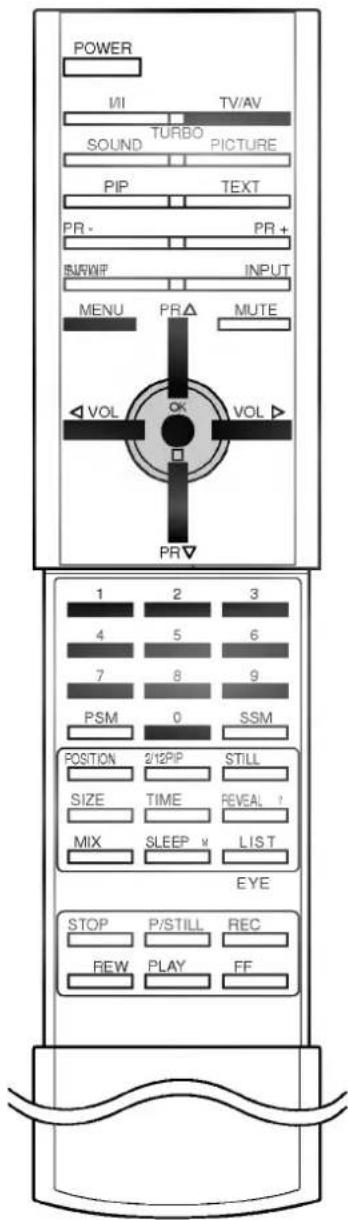
- Press the TV/AV button to return to normal TV viewing. The finely tuned programme will be indicated by yellow number during programme selection.
text_image
Parchograph 0.1.1 ManualOprogramm. ProgrammeEdit LanguageStation Menu
text_image
POWER MI TV/AV SOUND TURBO PICTURE PIP TEXT PR- PR+ SURWF INPUT MENU PR △ MUTE VOL OK VOL ▲ PR▼ 1 2 3 4 5 6 7 8 9 PSM 0 SSM POSITION 2/12PIP STILL SIZE TIME REVEAL ? MIX SLEEP LIST EYE STOP P/STILL REC REW PLAY FFSetting up TV stations
Station Menu
text_image
AutoD ManualProgramme rogrammeEdit language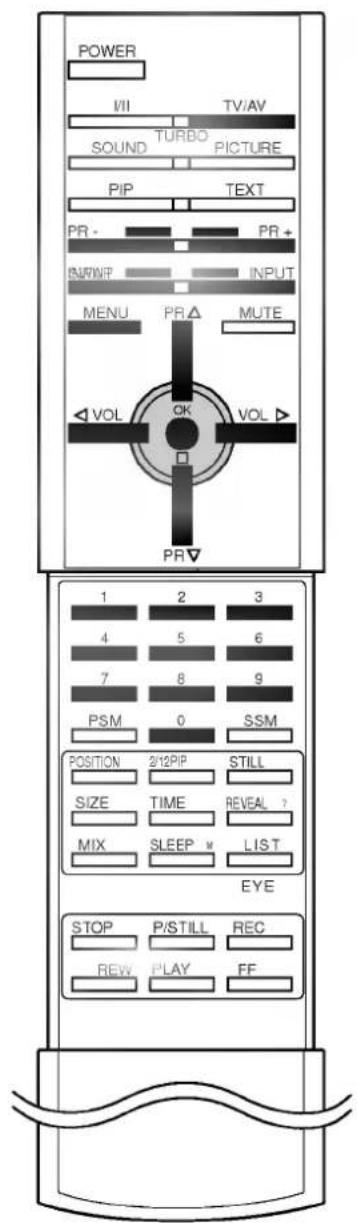
text_image
POWER VII TV/AV SOUND TURBO PICTURE PIP TEXT PR - PR+ BWWF INPUT MENU PR △ MUTE VOL OK VOL ▷ PR▼ 1 2 3 4 5 6 7 8 9 PSM 0 SSM POSITION 2/12PIP STILL SIZE TIME REVEAL ? MIX SLEEP LIST EYE STOP P/STILL REC REW PLAY FFProgramme edit
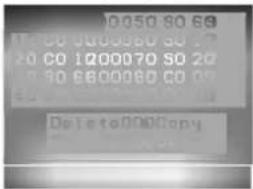
This function enables you to delete or skip the stored programmes. Also you can move some stations to other programme numbers or insert a blank station data into the selected programme number.
- Repeatedly press the MENU button to select the Station menu.
- Press the ▶ button and then ▲ / ▼ button to select Programme edit.
- Press the ▶ button to display the Programme edit menu.
text_image
10:50 80 69 12:00 100000 50 70 20:00 1700070 50 20 3:30 6800080 00 00 Delete to 00 CopyDeleting a programme
- Select a programme to be deleted with the ▲ / ▼ or ◀ / ▶ button.
- Press the RED button twice.
The selected programme is deleted, all the following programmes are shifted up one position.
text_image
10 CO 00 180 SO 10 20 CO 170 SO 2 30 1800080 CO 3 50 6800190 CO 4 DeleteCopying a programme
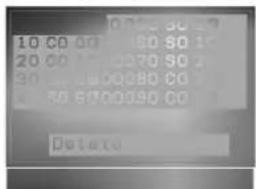
- Select a programme to be copied with the ▲ / ▼ or ◀ / ▶ button.
- Press the GREEN button.
All the following programmes are shifted down one position.
Moving a programme
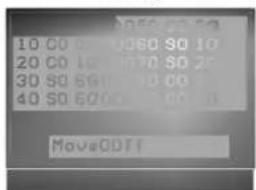
- Select a programme to be moved with the ▲ / ▼ or ◀ / ▶ button.
- Press the YELLOW button.
- Move the programme to the desired programme number with the ▲ / ▼ or ◀ / ▶ button.
- Press the YELLOW button again to release this function.
text_image
10 C0 00 U080 S0 10 20 C0 10 U070 S0 20 30 S0 60 U0 10 C0 40 S0 60 U0 10 C0 MoveODFFSkipping a programme number
- Select a programme number to be skipped with the ▲ / ▼ or ◀ / ▶ button.
- Press the BLUE button. The skipped programme turns to blue.
- Press the BLUE button again to release the skipped programme.
When a programme number is skipped it means that you will be unable to select it using the ▲ / ▼ button during normal TV viewing. If you want to select the skipped programme, directly enter the programme number with the NUMBER buttons or select it in the programme edit or table menu.
Press the TV/AV button to return to normal TV viewing.
Setting up TV stations
Calling the programme table
You can check the programmes stored in the memory by displaying the programme table.
Displaying programme table
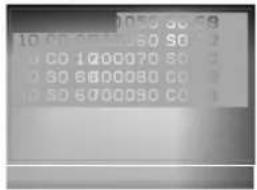
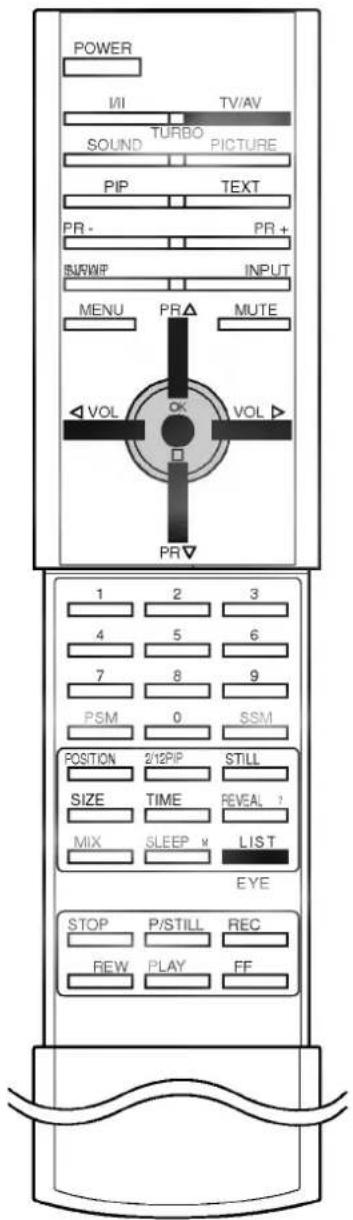
Press the LIST button to display the Programme table menu. The programme table appears on the screen. One programme table contains ten programmes as below.
text_image
1075 56 59 10 40 120 50 50 3 0 CD 1200070 50 3 0 50 6000080 50 3 0 50 6000080 50 3Note :
a. You may find some blue programmes. They have been set up to be skipped by auto programming or in the programme edit mode.
b. Some programmes with the channel number shown in the programme table indicate there is no station name assigned.
Selecting a programme in the programme table
Select a programme with the ▲ / ▼ or ◀ / ▶ button.
Then press the OK button.
The set switches to the chosen programme number.
Paging through a programme table
There are 10 (or 20) programme table pages in which contain 100 (or 200) programmes.
Pressing the ▲ / ▼ or ◀ / ▶ button repeatedly turns the pages.
Press the TV/AV button to return to normal TV viewing.
text_image
POWER MI TV/AV SOUND TURBO PICTURE PIP TEXT PR- PR+ SURWF INPUT MENU PR MUTE VOL OK VOL PR▼ 1 2 3 4 5 6 7 8 9 PSM 0 SSM POSITION 2/12PIP STILL SIZE TIME REVEAL ? MIX SLEEP LIST EYE STOP P/STILL REC REW PLAY FFPicture adjustment
Picture Menu
text_image
PSM User Icon Connection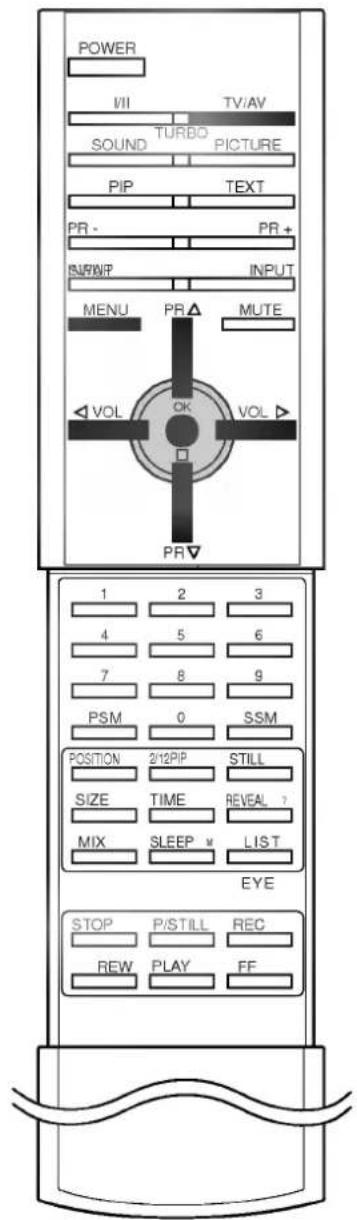
text_image
POWER VII TV/AV SOUND TURBO PICTURE PIP TEXT PR- PR+ BUNWIP INPUT MENU PR ▲ MUTE VOL OK VOL ▲ PR▼ 1 2 3 4 5 6 7 8 9 PSM 0 SSM POSITION 2/12PIP STILL SIZE TIME REVEAL ? MIX SLEEP LIST EYE STOP P/STILL REC REW PLAY FFPSM (Picture Status Memory)
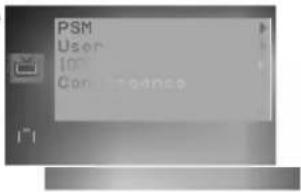
- Repeatedly press the MENU button to select the Picture menu.
- Press the ▶ button and then ▲ / ▼ button to select PSM
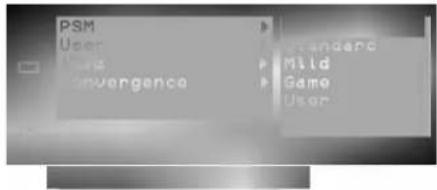
- Press the ▶ button and then ▲ / ▼ button to select a picture setting on the PSM pull-down menu.
text_image
PSM User User Convergence Standard Mild Game User-
Press the OK or ◀ button.
-
Press the TV/AV button to return to normal TV viewing.
You can also recall a desired picture (Dynamic, Standard, Mild, Game or User) with PSM button on the remote control. The picture Dynamic, Standard, Mild and Game are programmed for good picture reproduction at the factory and cannot be changed.
Picture adjustment
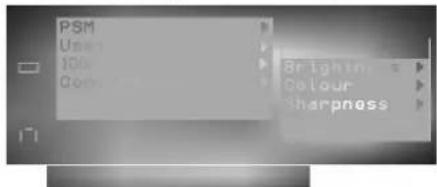
You can adjust picture contrast, brightness, colour intensity, sharpness and tint (NTSC input only) to the levels you prefer.
- Repeatedly press the MENU button to select the Picture menu.
- Press the ▶ button and then ▲ / ▼ button to select User.
- Press the ▶ button and then ▲ / ▼ button to select the desired picture item on the User pull-down menu.
text_image
PSM User 100% Color Mode Brightness Colour Sharpness-
Press the ▶ button.
-
Press the ◀/▶ button to make appropriate adjustments on the each sub menu.
natural_image
Two gray rectangular shapes on a white background, no text or symbols present.You can also select other User items directly with ▲ / ▼ button and adjust them with ◀ / ▶ button.
-
Press the OK button to store it for the picture User.
-
Press the TV/AV button to return to normal TV viewing.
100Hz mode
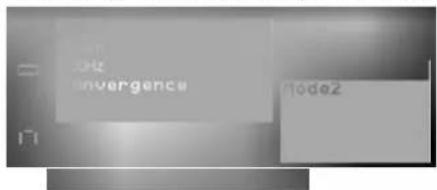
When watching VCR, select desired picture condition by choosing Mode 1 or Mode 2.
- Repeatedly press the MENU button to select the Picture menu.
- Press the ▶ button and then ▲ / ▼ button to select 100Hz
- Press the ▶ button and then ▲/▼ button to select a picture setting (Mode 1 or 2) on the 100Hz pull-down menu.
text_image
in Hz invergence mode2-
Press the OK or ◀ button.
-
Press the TV/AV button to return to normal TV viewing.
Note :
a. This mode works only in AV mode and TV programme 0.
b. The 100Hz mode isn't suitable to use NTSC signal.
Picture adjustment
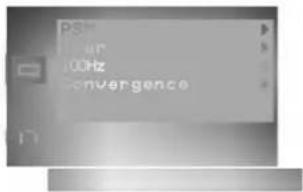
Convergence
This function enables you to adjust the colour convergence of screen during receiving the signals. When the set is first installed or it is relocated, the picture may be unstable with three colour ghosts (red, green, blue). This problem can be solved by adjusting the colour convergence.
-
Repeatedly press the MENU button to select the Picture menu.
-
Press the ▶ button and then ▲ / ▼ button to select Convergence.
-
Press the ▶ button to display the Convergence menu.
If the display + are unstable with three colour ghosts, the colour convergence needs to be adjusted.

If the display + is white, colour convergence adjustment is not necessary.
- Press the OK button to adjust the colour convergence.
The display ▲ ▼ ◀ ▶ is selected in red.
Press it again to select the display ▲ ▼ ◀ ▶ in blue.
- Press the ▲ / ▼ / ◀ / ▶ button to superimpose the display + (red or blue) with the green one.
The display + is moved to the left, right, up or down by pressing the ▲ / ▼ / ◀ / ▶ button.
-
If the red and blue display + are superimposed with the green one, the display + will be changed to yellow or cyan.
-
Press the TV/AV button to return to normal TV viewing.
Note : The convergence isn't suitable to use in case of no broadcasting signal.
Turbo picture selection
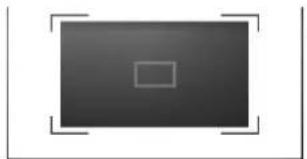
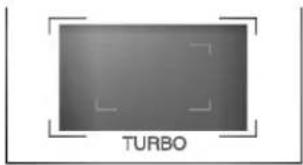
When this function is on, picture will be more brilliant and distinct picture than normal picture. You can enjoy the Turbo picture so much better than normal picture.
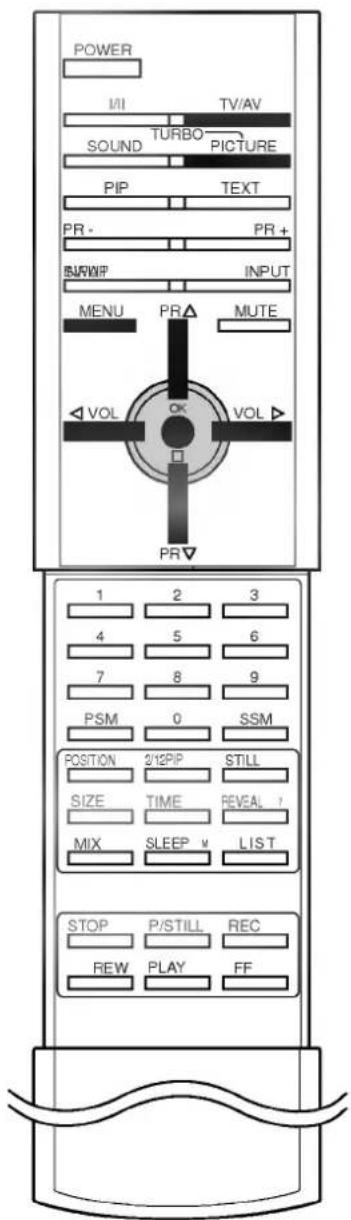
Repeatedly press the TURBO PICTURE button to switch on or off.
natural_image
Simple gray rectangle with a white square at the center, surrounded by corner brackets (no text or symbols)(Turbo Picture off)
natural_image
Gray rectangular object with 'TURBO' label and control frame, no other text or symbols visible(Turbo Picture on)
text_image
PSH 100Hz convergencePicture Menu
text_image
POWER I/II TV/AV SOUND TURBO PICTURE PIP TEXT PR- PR+ BWRWP INPUT MENU PR ▲ MUTE VOL OK VOL ▲ PR▼ 1 2 3 4 5 6 7 8 9 PSM 0 SSM POSITION 2/12PIP STILL SIZE TIME REVEAL ? MIX SLEEP LIST STOP P/STILL REC REW PLAY FFSound adjustment
Sound Menu
text_image
SSM Balance None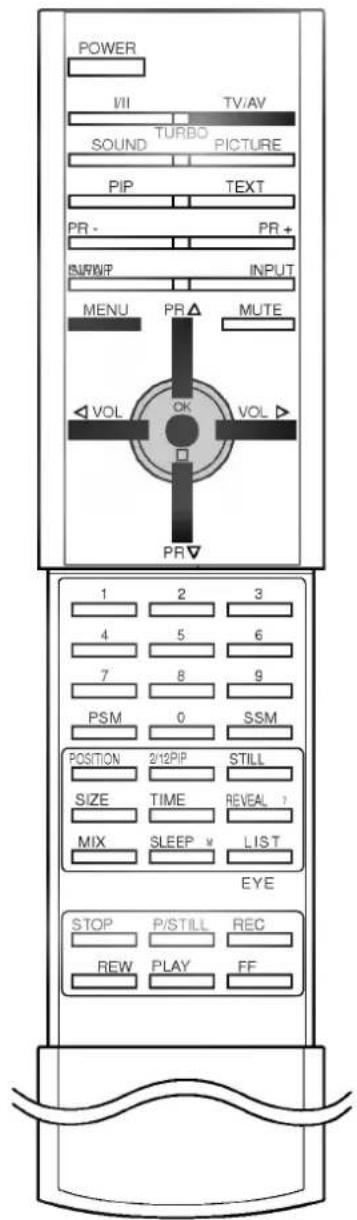
text_image
POWER VII TV/AV SOUND TURBO PICTURE PIP TEXT PR- PR+ BUNWIP INPUT MENU PR MUTE VOL CK VOL PR▼ 1 2 3 4 5 6 7 8 9 PSM 0 SSM POSITION 2/12PIP STILL SIZE TIME REVEAL ? MIX SLEEP LIST EYE STOP P/STILL REC REW PLAY FFSSM (Sound Status Memory)
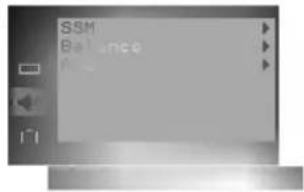
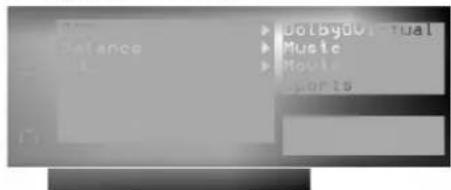
You can select your preferred sound setting; Dolby Virtual, Music, Movie or Sports and you can also adjust the sound frequency of equalizer.
- Repeatedly press the MENU button to select the Sound menu.
- Press the ▶ button and then ▲ / ▼ button to select SSM.
- Press the ▶ button and then ▲ / ▼ button to select a sound setting on the SSM pull-down menu.
text_image
Balance Dotbydual Music SportsDolby Virtual
Dolby Virtual lets you experience panoramic effects of sound.
Sound Frequency Adjustment
a. Press the ▶ button in User to display the User sub menu.
natural_image
Two grayscale gradient bars with no text or symbols visibleb. Select a sound band by pressing the ◀ / ▶ button.
c. Make appropriate sound level with the ▲ / ▼ button.
d. Press the OK button to store it for the sound User.
The display Stored appears.
Press the TV/AV button to return to normal TV viewing.
Sound adjustment
You can adjust balance or AVL (Auto Volume Leveler). AVL automatically keeps on an equal volume level even if you change programmes.
- Repeatedly press the MENU button to select the Sound menu.
- Press the ▶ button and then ▲ / ▼ button to select the desired sound item; Balance or AVL.
- Make desired adjustment with the ◀ / ▶, ▲ / ▼ or OK button on each pull-down menu.
natural_image
Grayscale image of a flat-screen monitor with no visible text, symbols, or graphics- Press the TV/AV button to return to normal TV viewing.
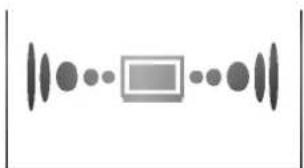
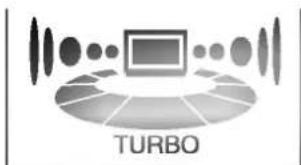
Turbo sound selection
When this function is on, sound will be more emphasized and amplified sound than normal sound. You can enjoy the Turbo Sound so much better than normal Sound. Repeatedly press the TURBO SOUND button to switch on or off.
natural_image
Abstract diagram with circular and rectangular shapes, no text or symbols present(Turbo Sound off)
text_image
TURBO(Turbo Sound on)
Sound adjustment
Sound output selection
In AV mode, you can select output sound for the left and right loud-speakers.
Repeatedly press the I/II button to select the sound output.
L+R : Audio signal from audio L input is sent to left loud-speaker and audio signal from audio R input is sent to right loud-speaker.
L+L : Audio signal from audio L input is sent to left and right loud-speakers.
R+R : Audio signal from audio R input is sent to left and right loud-speakers.
Stereo/Dual reception
When a programme is selected, the sound information for the station appears after the programme number and station name disappear.
Broadcast
On Screen Display
Mono
MONO
Stereo
STEREO
Dual
DUAL I
Mono sound selection
In stereo reception if the stereo signal is weak, you can switch to mono by pressing the I/II button twice. In mono reception the depth of sound is improved. To switch back to stereo, press the I/II button twice again.
Language selection for dual language broadcast
If a programme received in two languages (dual language), you can switch to DUAL I, DUAL II or DUAL I+II by pressing the I/II button repeatedly.
DUAL I sends the primary broadcast language to the loudspeakers.
DUAL II sends the secondary broadcast language to the loud-speakers.
DUAL I+II sends a separate language to each loudspeaker.
NICAM reception (option)
If your set is equipped with the receiver for NICAM reception, the high quality NICAM (Near Instantaneous Companding Audio Multiplex) digital sound can be received.
Sound output can be selected according to the type of received broadcast as follows by pressing the I/II button repeatedly.
- When NICAM mono is received, you can select NICAM MONO or FM MONO.
- When NICAM stereo is received, you can select NICAM STEREO or FM MONO. If the stereo signal is weak, switch to FM mono.
- When NICAM dual is received, you can select NICAM DUAL I, NICAM DUAL II or NICAM DUAL I+II or MONO. When FM mono is selected the display MONO appears on the screen.
text_image
POWER III TV/AV SOUND TURBO PICTURE PIP TEXT PR - FRI+ SURFACE INPUT MENU PR ▲ MUTE VOL OK VOL ▲ PR▼ 1 2 3 4 5 6 7 o 9 PSM 0 SSM POSITION 2'12PIP STILL SIZE TIME REVEAL 1 MIX SLEEP LIST EYE STOP P/STILL REC REW PLAY FFOther functions
Special Menu
natural_image
Plain metallic surface with a small rectangular mark and a small icon, no text or symbols present.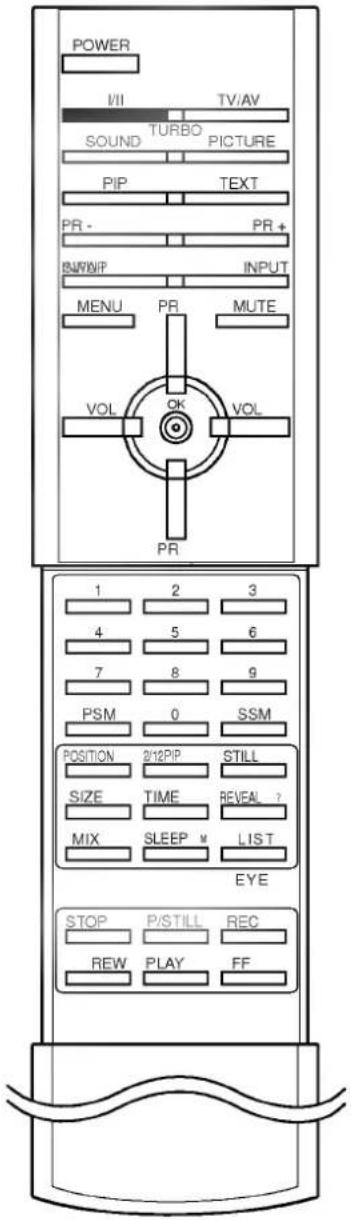
text_image
POWER VII TV/AV SOUND TURBO PICTURE PIP TEXT PR- PR+ IN/VINP INPUT MENU PR MUTE VOL OK VOL PR 1 2 3 4 5 6 7 8 9 PSM 0 SSM POSITION 2/12PIP STILL SIZE TIME REVEAL ? MIX SLEEP LIST EYE STOP P/STILL REC REW PLAY FFTV and AV modes
Inputs can be set for TV or AV mode. AV mode is used when a video cassette recorder (VCR), or other equipment is connected to the set.
Note : When a VCR is connected via the aerial socket the set is used in TV mode. See the 'Connection of external equipment' section.
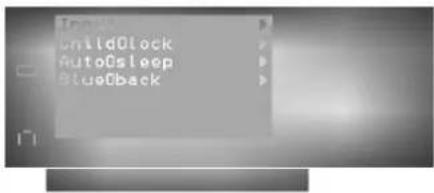
- Repeatedly press the MENU button to select the Special menu.
- Press the ▶ button and then ▲ / ▼ button to select Input.
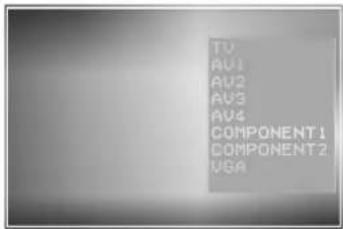
- Press the ▶ button and then ▲ / ▼ button to select TV, AV1, AV2, AV3, AV4 (option), COMPONENT 1, COMPONENT 2 or VGA (option) on the Input pull-down menu.
text_image
Open Unidlock AutoSleep BlueOBackAV 1 : VCR connected to the AV1 sockets on the set
AV 2 : VCR connected to the AV2 sockets on the set
AV 3 : VCR connected to the AV3 sockets on the set
AV4 : VCR connected to the Euro scart socket on the set (option)
COMPONENT 1 : COMPONENT connected to the COMPONENT 1 sockets on the back
COMPONENT 2 : COMPONENT connected to the COMPONENT 2 sockets on the back
VGA : PC connected to the PC INPUT sockets on the back (option)
- Press the TV/AV button to return to normal TV viewing.
Alternatively you can select the TV or AV mode by pressing the TV/AV button.
In AV mode, to return to TV mode, press the ▲ / ▼ or NUMBER buttons.
VGA mode (option)
You can adjust picture contrast, brightness, convergence.
- Press the MENU button to select the Special menu.
- Press the ▶ button and then ▲ / ▼ button to select Input.
- Press the ▶ button and then ▲ / ▼ button to select VGA on the Input pull-down menu.
text_image
TV AV1 AV2 AV3 AV4 COMPONENT 1 COMPONENT 2 USA- Press the MENU button.
- Press the ▲ / ▼ button to select Contrast, Brightness, V-Position, H-Position or Convergence on the VGA mode menu.
Other functions
Contrast
This function is to adjust the display to the contrast desired.
Brightness
This function is to adjust the display to the brightness desired.
Horizontal Position / Vertical Position
This function is to adjust picture to left/right and up/down as you prefer.
Convergence
This function enables you to adjust the colour convergence of screen during receiving the signals.
Note : The convergence isn't suitable to use in case of no PC cable signal.
Auto AV switching (option)
If your VCR outputs switching voltage when it is switched to play-back with the VCR connected to the Euro scart socket. The set is automatically switched to AV 4 mode when an AV signal is input. But if you want to keep on watching TV mode, press the ▲ / ▼ or NUMBER buttons.
Press the TV/AV button to return to AV modes.
Child lock
The TV can be set so that the remote control handset is needed to control it. This feature can be used to prevent unauthorized viewing.
- Repeatedly press the MENU button to select the Special menu.
- Press the ▶ button and then ▲ / ▼ button to select Child lock.
- Press the ▶ button and then ▲ / ▼ button to select On or Off on the Child lock pull-down menu.
- Press the TV/AV button to return to normal TV viewing.
With the lock on, the display Child lock on appears on the screen if any button on the front panel is pressed while viewing the TV.
Note : The display Child lock on will not appear on the screen if any button on the front panel is pressed while displaying the menus.
natural_image
Plain gray rectangular surface with no visible text, symbols, or markingsSpecial Menu
text_image
POWER VII TV/AV SOUND TURBO PICTURE PIP TEXT PR- PR+ SWAP INPUT MENU PR MUTE VOL OK VOL PR▼ 1 2 3 4 5 6 7 8 9 PSM 0 SSM POSITION 2/12PIP STILL SIZE TIME REVEAL 1 MIX SLEEP LIST EYE STOP P/STILL REC REW PLAY FFOther functions
Special Menu
natural_image
Plain metallic surface with no visible text, symbols, or markings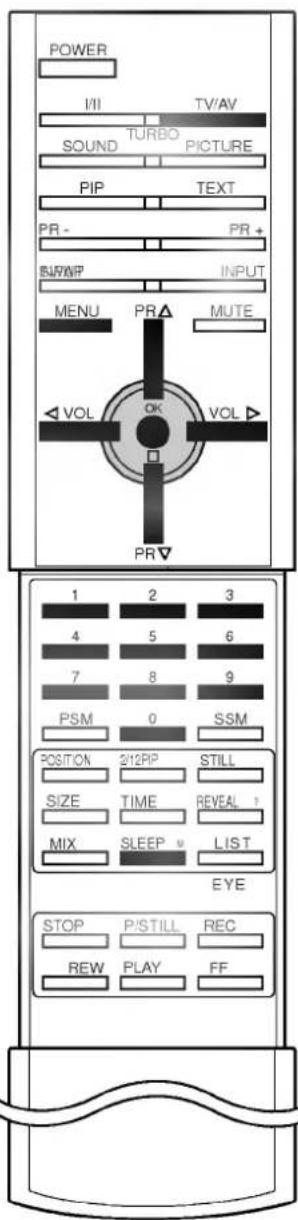
text_image
POWER I/II TV/AV SOUND TURBO PICTURE PIP TEXT PR- PR+ SWWP INPUT MENU PR ▲ MUTE VOL OK VOL ▲ PR▼ 1 2 3 4 5 6 7 8 9 PSM 0 SSM POSITION 2/12PIP STILL SIZE TIME REVEAL ? MIX SLEEP LIST EYE STOP P/STILL REC REW PLAY FFAuto sleep
If you select On on the Auto sleep pull-down menu, the set will automatically switch itself to standby mode approximately ten minutes after a TV station stops broadcasting.
- Repeatedly press the MENU button to select the Special menu.
- Press the ▶ button and then ▲ / ▼ button to select Auto sleep.
- Press the ▶ button and then ▲ / ▼ button to select On or Off on the Auto sleep pull-down menu.
- Press the TV/AV button to return to normal TV viewing.
Blue back (option)
If you select On on the Blue back pull-down menu, the blue background appears on the screen when there is no or poor signal.
- Repeatedly press the MENU button to select the Special menu.
- Press the ▶ button and then ▲/▼ button to select Blue back.
- Press the ▶ button and then ▲ / ▼ button to select On or Off on the Blue back pull-down menu.
- Press the TV/AV button to return to normal TV viewing.
Note :
a. The blue background automatically appears on the screen when there is no signal in AV mode.
b. The Blue back isn't suitable to use COMPONENT 2 mode.
Sleep timer
You don't have to remember to switch the set off before you go to sleep. The sleep timer automatically switches the set to standby after the preset time elapses.
Press the SLEEP button to select the number of minutes. The display ⏻ 0 will appear on the screen, followed by 10, 20, 30, 60, 90, 120, 180 and 240. The timer begins to count down from the number of minutes selected.
Note :
a. To view the remaining sleep time, press the SLEEP button once.
b. To cancel the sleep time, repeatedly press the SLEEP button until the display ⏻ 0 appears.
c. When you switch the set off, the set releases the preset sleep time.
PIP operation (option)
Option :
PIP is an optional function, so that only the set with PIP function can operate.
PIP (Picture in Picture) displays a picture within a picture.
On and off
Press the PIP button to switch on the sub picture. press this button again to switch it off.
Input mode selection for sub picture
Press the INPUT button to select the input mode for the sub picture. Each time this button is pressed, each input mode for the sub picture is displayed as shown below.

flowchart
graph LR
    A["Programme number"] --> B["AV1"]
    B --> C["AV2"]
    D["COMPONENT1"] <--_E["AV4 (option)"]
    E <--_F["AV3"]
Swapping between main and sub pictures
Press the SWAP button to exchange the main and sub pictures.
Programme selection for sub picture
Press the PR +/- buttons to select a programme for the sub picture. The selected programme number is displayed just below the programme number of main picture.
Sub picture size
Repeatedly press the SIZE button to select the desired sub picture size. The sub picture appears as below.

text_image
1/16 size of the main picture → 1/9 size → 1/2 sizeNote : If broadcasting system of the main picture for PIP is differ from sub picture's for PIP, the sub picture not be natural. (ex: In case that main picture/sub picture is PAL/NTSC system)
Sub picture freeze
Press the STILL button to freeze motion of the sub picture. Press this button again to restore motion.
Sub picture position change
Press the POSITION button repeatedly until desired position is achieved. The sub pictures move clockwise.
Programme scan
This function enables you to search all the stored stations on 12 sub pictures and see your favorite station by exchanging the main and sub pictures.
Press the SCAN button repeatedly to select 12 sub pictures. The selected sub pictures search all the stored stations. Press the SCAN button again to switch off sub pictures.
text_image
PIP PR- PR+ SWAP INPUT POSITION SCAN STILL SIZETeletext (option)
Teletext (or TOP text) is an optional function, therefore only a set with the teletext system can receive the teletext broadcast.
Teletext is a free service broadcast by most TV stations which gives up-to-the-minute information on news, weather, television programmes, share prices and many other topics.
The teletext decoder of this TV can support the SIMPLE, TOP and FASTEXT systems. SIMPLE (standard teletext) consists of a number of pages which are selected by directly entering the corresponding page number. TOP and FASTEXT are more modern methods allowing quick and easy selection of teletext information.
Switch on/off
Press the TEXT button to switch to teletext.
The initial page or last page appears on the screen.
Two page numbers, TV station name, date and time are displayed on the screen headline. The first page number indicates your selection, while the second shows the current page displayed.
Press the TEXT or TV/AV button to switch off teletext. The previous mode reappears.
SIMPLE text
Page selection
-
Enter the desired page number as a three digit number with the NUMBER buttons. If during selection you press a wrong number, you must complete the three digit number and then re-enter the correct page number.
-
The ▲ / ▼ button can be used to select the preceding or following page.
Programming a colour button in LIST mode
If the TV is in SIMPLE text, TOP text or FASTEXT mode, press the ≡M button to switch to LIST mode.
Four teletext page numbers of your choice can be colour coded and easily selected by pressing the corresponding coloured button on the remote control handset.
- Press a coloured button.
- Using the NUMBER buttons, select the page you wish to programme.
- Press the OK button. Then the selected page is stored as the selected page number with blinking once. From now on, you can select this page with the same coloured button.
- The three other coloured buttons are programmed in this way.
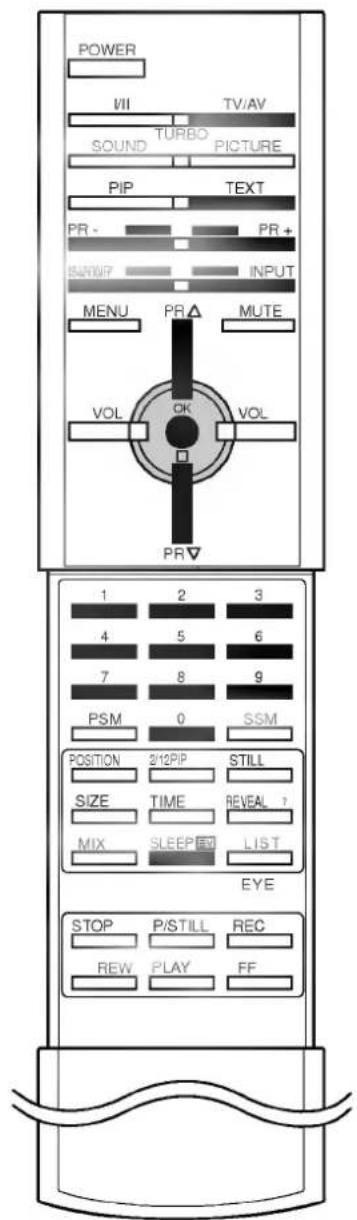
text_image
POWER VII TV/AV SOUND TURBO PICTURE PIP TEXT PR- PR+ BANUP INPUT MENU PR △ MUTE VOL OK VOL PR▼ 1 2 3 4 5 6 7 8 9 PSM 0 SSM POSITION 2/12PIP STILL SIZE TIME REVEAL ? MIX SLEEP LIST EYE STOP P/STILL REC REW PLAY FFTeletext (option)
TOP text (option)
The user guide displays four fields-red, green, yellow and blue at the bottom of the screen. The yellow field denotes the next group and the blue field indicates the next block.
Block / group / page selection
- With the blue button you can progress from block to block.
- Use the yellow button to proceed to the next group with automatic overflow to the next block.
- With the green button you can proceed to the next existing page with automatic overflow to the next group. Alternatively the ▲ button can be used.
- The red button permits to return to previous selection. Alternatively the ▼ button can be used.
Direct page selection
Corresponding to the SIMPLE teletext mode, you can select a page by entering it as a three digit number using the NUMBER buttons in TOP mode.
FASTEXT
The teletext pages are colour coded along the bottom of the screen and are selected by pressing the corresponding coloured button.
Page selection
- Press the ☑ button to select the index page.
- You can select the pages which are colour coded along the bottom line with the same coloured buttons.
- Corresponding to the SIMPLE teletext mode, you can select a page by entering its three digit page number with the NUMBER buttons in FASTEXT mode.
- The ▲ / ▼ button can be used to select the preceding or following page.
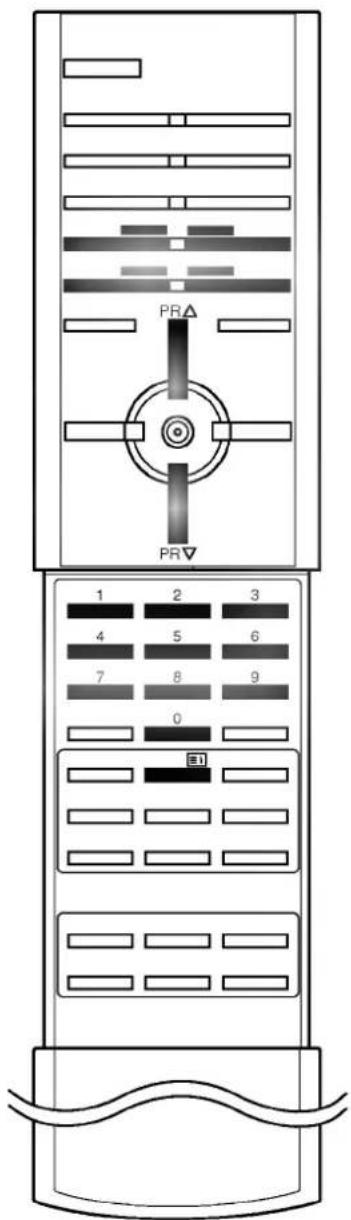
text_image
PR PR▼ 1 2 3 4 5 6 7 8 9 0Teletext (option)
Special teletext functions
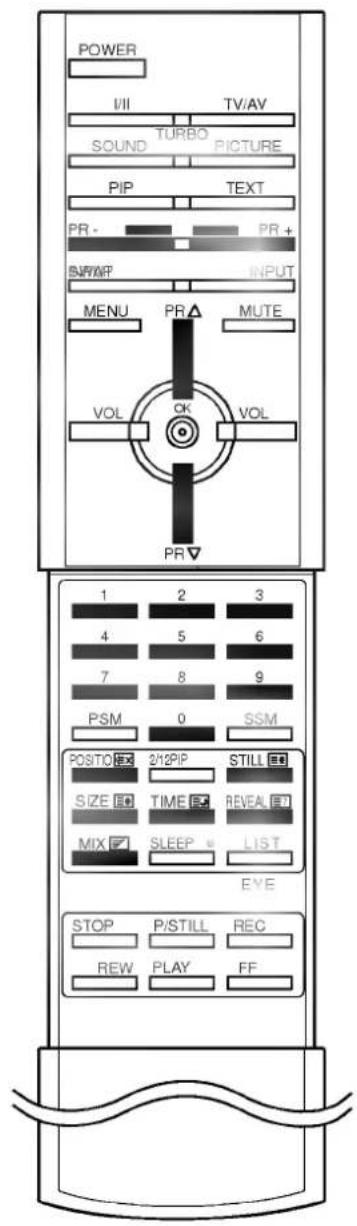
text_image
POWER VII TV/AV SOUND TURBO PICTURE PIP TEXT PR- PR+ BMP/MP INPUT MENU PR △ MUTE VOL CK VOL PR▼ 1 2 3 4 5 6 7 8 9 PSM 0 SSM POSTO 2/12PIP STILL SIZE TIME REVEAL MIX SLEEP LIST EYE STOP P/STILL REC REW PLAY FF
REVEAL
Press this button to display concealed information, such as solutions of riddles or puzzles.
Press this button again to remove the information from the display.

SIZE
Selects double height text.
Press this button to enlarge the top half of the page.
Press this button again to enlarge the bottom half of the page.
Press this button again to return to the normal display.

UPDATE
Displays the TV picture on the screen while waiting for the new teletext page. The display ⒽX will appear at the top left hand corner of the screen. When the updated page is available then display ⒽX will change to the page number.
Press this button to view the updated teletext page.

HOLD
Stops the automatic page change which will occur if a tele-text page consists of 2 or more sub pages. The number of sub pages and the sub page displayed is, usually, shown on the screen below the time. When this button is pressed the stop symbol is displayed at the top left-hand corner of the screen and the automatic page change is inhibited.
To continue press this button again.

MIX
Displays the teletext pages superimposed on the TV picture.
To switch the TV picture off press this button again.
Note : When TV and text picture are displayed half and half of the screen, MIX function is not available.

TIME
When viewing a TV programme, press this button to display the time at the top right hand corner of the screen. Press this button again to remove the display. In the teletext mode, press this button to select a sub page number. The sub page number is displayed at the bottom of the screen. To hold or change the sub page, press the RED / GREEN, ▲ / ▼ or NUMBER buttons.
Press again to exit this function.
Connection of external equipment
You can connect additional equipment, such as VCRs, camcorders etc. to your set.
Here shown may be somewhat different from your set.
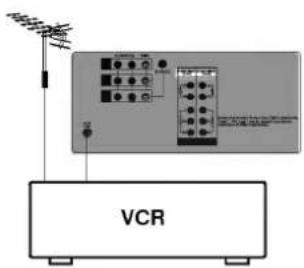
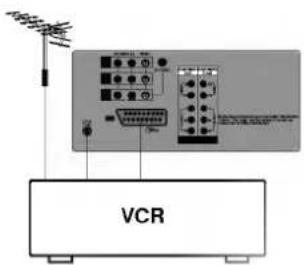
Aerial socket
- Connect the RF out socket of the VCR to the aerial socket on the back of the set.
- Connect the aerial cable to the RF aerial in socket of the VCR.
- Store the VCR channel on a desired programme number using the 'Manual programme tuning' section.
- Select the programme number where the VCR channel is stored.
- Press the PLAY button on the VCR.
Audio/Video in/out sockets (option)
- Connect the audio/video out sockets of the VCR to audio/video in sockets of the set and in sockets of the VCR to out sockets of the set.
- Press the TV/AV button to select AV 1, AV 2 or AV 3.
- Press the PLAY button on the VCR.
The VCR playback picture appears on the screen.
You can also record programmes received by the TV on video tape via audio/video out sockets.
Note : If you have a mono VCR, connect the audio cable from the VCR to the AUDIO L/MONO socket of the set.
text_image
VCR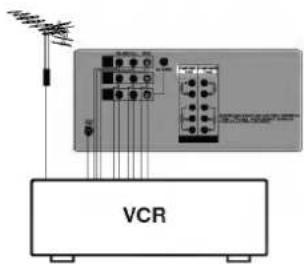
text_image
VCR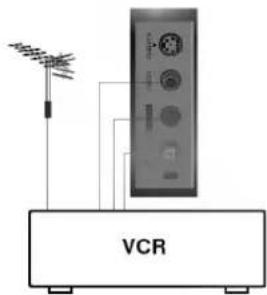
text_image
VCR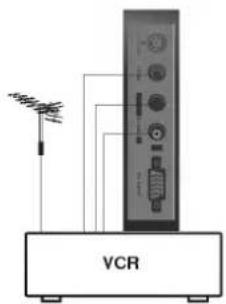
natural_image
Diagram of a VCR (Video Control Rating) device with antenna and control panel, no text or symbols presentConnection of external equipment
text_image
VCR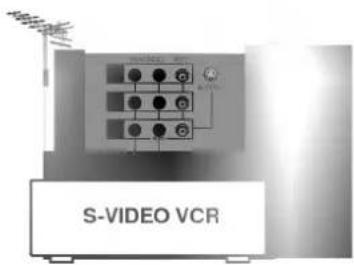
text_image
S-VIDEO VCR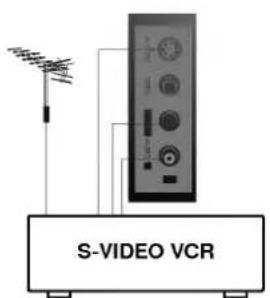
text_image
S-VIDEO VCR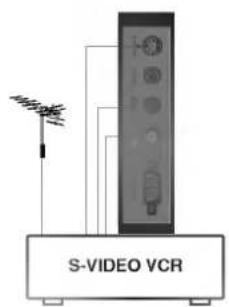
text_image
S-VIDEO VCR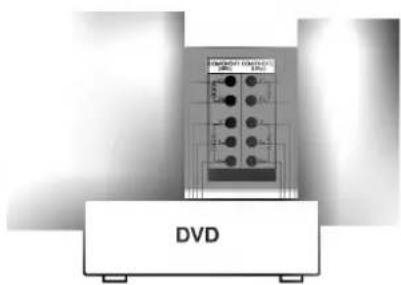
natural_image
Exterior view of a DVD case with multiple buttons and a front panel (no visible text or symbols on the device itself)Euro scart socket (option)
-
Connect the Euro scart socket of the VCR to the Euro scart socket of the set.
-
Press the PLAY button on the VCR. If your VCR outputs a switching voltage connect to Euro scart socket, the set will switch to AV 4 mode automatically. But if you want to keep on watching TV mode, press the ▲ / ▼ or NUM-BER buttons.
Otherwise press the TV/AV button on the remote control handset to select AV 4. The VCR playback picture appears on the screen.
You can also record programmes received by the TV on video tape.
Note : Signal type RGB, i.e. the signals red, green and blue can only be selected for the Euro scart can be received. These signals are transmitted, for example, by a pay TV decoder, game machine or photo CD unit, etc.
S-Video / Audio in sockets (S-AV) (option)
When connecting an S-VIDEO VCR to the S-VIDEO socket, the picture quality will be further improved.
- Connect the S-video socket of the VCR to the S-VIDEO socket of the set.
- Connect the audio cable from the S-VIDEO VCR to the AUDIO sockets of the set.
- Select AV1 or AV3 by pressing the TV/AV button repeatedly.
- Press the PLAY button on the VCR. The VCR playback picture appears on the screen.
Note : If both S-VIDEO and VIDEO sockets have been connected to the S-VHS VCR simultaneously, only the S-VIDEO can be received.
Component in sockets (option)
- Connect the COMPONENT DVD output sockets (Y Cb Cr, Y Pb Pr, Y B-Y R-Y or Y P B P R ) of the COMPONENT to the COMPONENT 1 (480i)/COMPONENT 2 (480p) sockets (Y P B P R ) of the set.
- Connect the audio cable from the COMPONENT to COMPONENT 1 (480i)/COMPONENT 2 (480p) AUDIO sockets of the set.
- Press the TV/AV button to select COMPONENT 1 or COMPONENT 2.
- Press the PLAY button on the COMPONENT. The COMPONENT playback picture appears on the screen.
Note :
a. Even when DVD video input can be output, you will have only black and white picture, but DVD audio input cannot be output.
b. Only COMPONENT 2 (480p) can be received vertical Frequency (60Hz) Progressive signal. If the picture is poor by connecting the COMPONENT 2 (480p), connect the DVD to the COMPONENT 1 (480i).
Connection of external equipment
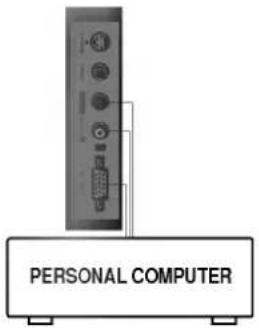
PC Input / Audio in sockets (option)
- Connect the PC cable from the monitor output socket of the PC to the PC INPUT sockets of the set.
- Connect the audio cable from the PC to the AUDIO sockets of the set.
- Switch on the PC, and the PC screen appears on the set. The set can be operated as the PC monitor.
Note :
a. The cables are not supplied, such as the PC cable, audio cable etc.
b. Set the resolution of PC to VGA 640x480 (60 Hz) video mode to use this set as PC monitor.
text_image
PERSONAL COMPUTERDisplayable Monitor Specification (only)
| MODE | Resolution | Horizontal Frequency(KHz) | Vertical Frequency(Hz) |
| VGA | 640x480 | 31.5KHz | 60Hz |
(Synchronization input form : separate)
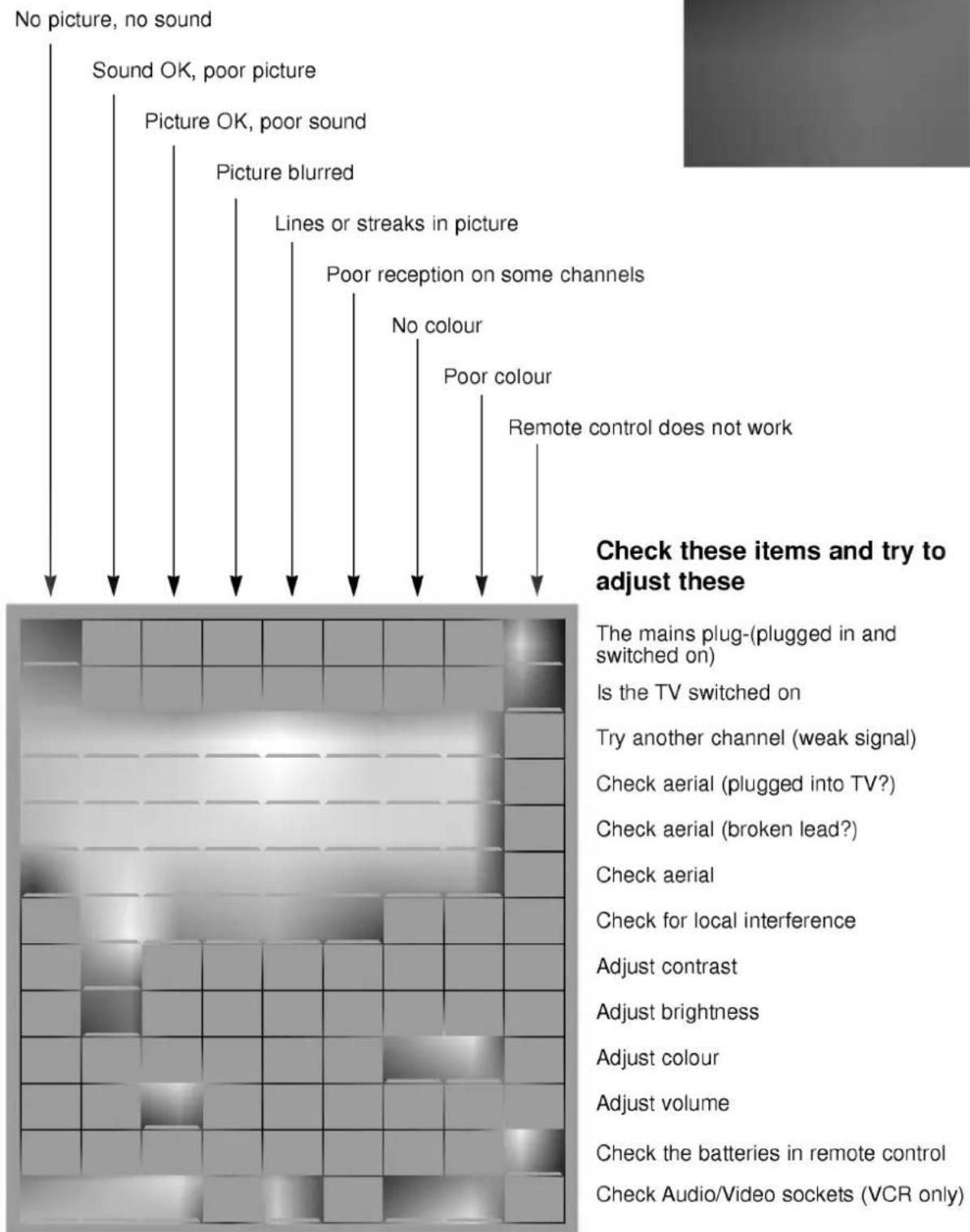
Troubleshooting check list
Symptoms
text_image
No picture, no sound Sound OK, poor picture Picture OK, poor sound Picture blurred Lines or streaks in picture Poor reception on some channels No colour Poor colour Remote control does not work Check these items and try to adjust these The mains plug-(plugged in and switched on) Is the TV switched on Try another channel (weak signal) Check aerial (plugged into TV?) Check aerial (broken lead?) Check aerial Check for local interference Adjust contrast Adjust brightness Adjust colour Adjust volume Check the batteries in remote control Check Audio/Video sockets (VCR only)
natural_image
Blank gray image with no visible content, text, or symbolsCheck these items and try to adjust these
The mains plug-(plugged in and switched on)
Is the TV switched on
Try another channel (weak signal)
Check aerial (plugged into TV?)
Check aerial (broken lead?)
Check aerial
Check for local interference
Adjust contrast
Adjust brightness
Adjust colour
Adjust volume
Check the batteries in remote control
Check Audio/Video sockets (VCR only)