
Honor 6X - Smartphone HUAWEI - Kostenlose Bedienungsanleitung
Finden Sie kostenlos die Bedienungsanleitung des Geräts Honor 6X HUAWEI als PDF.


| Produkttyp | Smartphone |
| Marke | Huawei |
| Modell | Honor 6X |
| Abmessungen (Höhe x Breite x Tiefe) | 150,9 x 76,2 x 8,2 mm |
| Gewicht | ca. 162 g |
| Stromversorgung | Eingebauter Akku, 3340 mAh (typisch), nicht entfernbar |
| Hauptfunktionen | Fingerabdrucksensor, Dual-SIM, Weitwinkelaufnahmen, Pro-Kamera-Modus, Bildschirmrekorder, Augenschonmodus, Wi-Fi-Signalbrücke |
| Wartung und Reinigung | Nur mit trockenem Tuch reinigen; kein Wasser oder Reinigungsmittel verwenden |
| Sicherheit | Fingerabdruckerkennung, App-Sperre, Tresor, microSD-Kartenverschlüsselung, SIM-PIN |
| Ersatzteile und Reparierbarkeit | Akku nur durch autorisierten Huawei-Service austauschbar; keine vom Benutzer austauschbaren Teile |
| Allgemeine Informationen | Betriebssystem: Android mit EMUI; Prozessor: Kirin 655; Speicher: 32/64 GB erweiterbar; Kamera: Dual 12+2 MP hinten, 8 MP vorne; Display: 5,5 Zoll Full-HD |
Häufig gestellte Fragen - Honor 6X HUAWEI
Benutzerfragen zu Honor 6X HUAWEI
0 Frage zu diesem Gerät. Beantworten Sie die, die Sie kennen, oder stellen Sie Ihre eigene.
Eine neue Frage zu diesem Gerät stellen
Laden Sie die Anleitung für Ihr Smartphone kostenlos im PDF-Format! Finden Sie Ihr Handbuch Honor 6X - HUAWEI und nehmen Sie Ihr elektronisches Gerät wieder in die Hand. Auf dieser Seite sind alle Dokumente veröffentlicht, die für die Verwendung Ihres Geräts notwendig sind. Honor 6X von der Marke HUAWEI.
BEDIENUNGSANLEITUNG Honor 6X HUAWEI
honor 6X
User Guide
Contents
Exciting New Features
Wide aperture photos 1
Pro camera mode 2
Screen recorder 2
Eye comfort mode 3
Wi-Fi signal bridge 4
Unboxing your Phone
Getting to know your phone 5
Inserting a SIM card and microSD card 5
Charging your phone 6
Turning your phone on and off 7
Transferring Data
Using the Backup application to transfer data 8
Transferring data between your phone and a computer 10
Copying contacts from an old phone to a new phone 10
First Use and Initial Setup
Initial setup 11
Dual SIM settings 11
Connecting to the Internet 12
Configuring your fingerprint ID 14
Installing Applications
Sharing applications using a microSD card 15
Uninstalling an application 15
Getting Started
Locking and unlocking the screen 16
Touchscreen gestures 17
Status and notification icons 18
Home screen 20
Taking a screenshot 25
Notifications 26
Using fingerprint recognition 29
Accessing applications 31
Personalising your phone 34
Entering text 36
Tips and Tricks
Searching for settings 39
Quickly returning a call 39
Adding contact details quickly 39
Sharing your QR card 40
Calling contacts when the screen is off 40
Pocket mode 41
Taking snapshots when the screen is off 41
Perfect selfie 42
Using time-lapse mode to fast forward the action 42
Taking photos while recording video 43
Finding applications quickly 43
Connecting to the Wi-Fi network with the strongest signal 44
Adjusting the system volume rapidly 45
Using the floating dock 45
Aligning home screen applications automatically 46
Touch-disable mode 46
Calls and Contacts
Making calls 47
Answering or rejecting a call 49
Functions available during a call 50
Answering a third-party call 51
Making a conference call 52
Viewing the call log 52
Turning on pocket mode 53
Call settings 53
Creating a contact 55
Adding contact details quickly 55
Importing or exporting contacts 56
Managing contacts 57
Finding a contact 58
Viewing contacts from different accounts 59
Adding a contact to your favourites 59
Contact groups 59
Messaging and Email
Sending a message 61
Replying to a message 61
Searching for messages 62
Deleting threads 62
Managing messages 62
Blocking spam messages 63
Managing common phrases 63
Adding a message signature 63
Adding an email account 63
Sending an email 64
Checking your emails 65
Managing VIP contacts 65
Account settings 66
Camera and Gallery
Accessing the viewfinder 67
Taking a photo 67
Shooting modes 67
Beauty mode 68
Perfect Selfie mode 68
Ultra Snapshot 70
Burst shooting 71
Voice activated shooting 71
Launching the camera from Gallery 72
Object tracking 72
Audio notes 73
HDR mode 73
Super Night mode 74
Pro camera mode 74
Light Painting mode 77
Panoramic shots 79
Adding watermarks to photos 81
Shooting a video 81
Time-lapse mode 82
Slow motion recording 83
Document correction 83
Camera and video settings 84
Viewing photos and videos 86
Adding photos or videos to a new album 87
Moving photos or videos to other albums 87
Deleting images or videos 88
Sharing images or videos 88
Managing albums 88
Adding notes to an image 88
Editing an image 89
Using Camera or Gallery to scan a QR code 90
Music and Video
Adding songs to your phone 91
Searching for local music 91
Listening to music 91
Controlling playback using a smart headset 92
Creating a playlist 93
Playing a playlist 93
Setting a song as the ringtone 94
Playing a video 94
Accessing the Internet
Connecting to the Internet using mobile data 95
Connecting to the Internet using Wi-Fi 95
Sharing your mobile Internet with other devices 96
Transferring data using Bluetooth 98
Transferring data using Wi-Fi Direct 99
Transferring data between your phone and a USB storage device 100
Streaming multimedia content to your TV 100
Backup and Restore
Using the Backup application to back up and restore data 102
Restoring factory settings 103
Updating your phone 103
OTA updates 103
File Management
Viewing files 105
Sharing files 105
Creating folders 106
Renaming files 106
Copying, moving or deleting files 106
Creating or extracting archives 106
Excluding small images 107
Storing private files in a safe 107
Power Management
Viewing battery usage statistics 108
Reducing power consumption 108
Enabling the Ultra power plan 108
Closing background applications when the screen is locked 109
Preventing background applications from accessing the Internet 109
Configuring display and sound settings 109
Phone Manager
Optimising your system 110
Managing data usage 110
Harassment filter 110
Battery management 111
Tools
Calendar 112
Clock 113
Weather 115
Notepad 117
Calculator 118
Sound recorder 118
Mirror 119
Settings
Enabling location access 121
Increasing indoor positioning accuracy 121
Configuring the display settings 122
Sound settings 122
Changing the screen unlock method 123
Gestures and navigation settings 124
Aeroplane mode 124
Using the floating dock 125
Setting your SIM card PIN 126
Setting up an account 126
Setting the date and time 127
Changing the system language 127
Viewing your phone's specifications 128
Viewing the available storage space 128
Encrypting a microSD card 128
Formatting the microSD card 128
Accessibility Features
About your phone's accessibility features 130
TalkBack 130
Magnification gestures 132
Using the power button to end a call 133
Adjusting the screen response time 133
Colour correction 134
Appendix
Obtaining help 135
Personal Information and Data Security 135
List of safety features 136
Legal Notice 137
Exciting New Features
Wide aperture photos
Use wide aperture mode for close-up shots of objects and people. You can also adjust the focal point after taking a photo to blur the background and make the subject stand out.
i Ensure that the subject is no more than 2 metres (6 ft) from the camera for optimum results.
1 Open ● Camera. Touch ⬇ at the top of the screen to enable wide aperture mode. Touch the icon again to exit wide aperture mode. If the icon is not displayed, select Photo mode.
2 Touch the viewfinder to focus on a particular area. Swipe up or down on the slider next to the icon to preview the blurred background. Touch to take a photo.
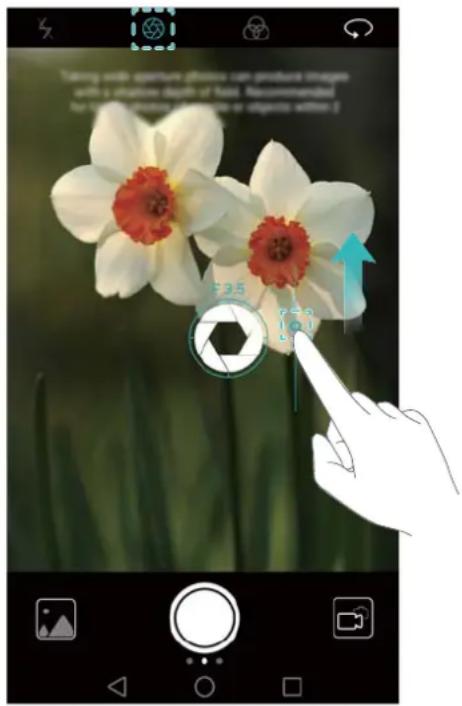
3 Touch the thumbnail, then touch to edit the photo.
i The icon indicates photos that were taken in wide aperture mode.
- Touch the subject of the photo to adjust the focal point.
- To adjust the blurred background effect, touch the screen and then swipe up or down on the slider next to the aperture icon ( ).
- Touch to apply a filter.
4 Touch☐ to save the photo.
Pro camera mode
Pro camera mode lets you fine-tune photos and gives you full control over composition, exposure and shutter speed.
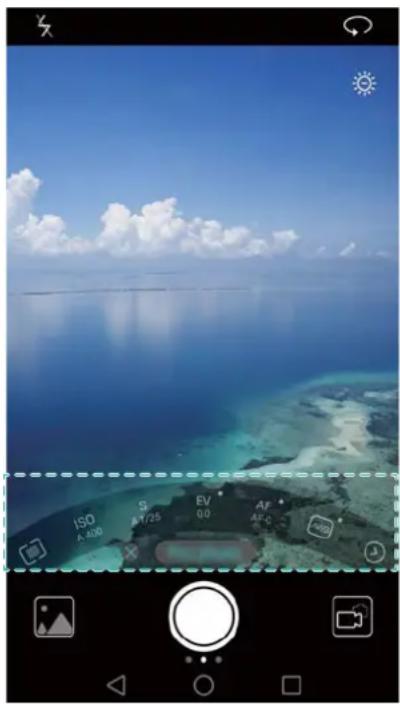
1 Open ● Camera and swipe right on the screen. Touch Pro photo.
2 Configure the camera settings, such as exposure and shutter speed.
- Add an overlay: Swipe left on the screen and touch Camera grid. You can choose from a 3 x 3 grid or spiral overlay to help you compose your image. For more information, see Adding an overlay.
- Shutter speed and exposure control: Adjust the parameters at the bottom of the screen to produce a perfectly-exposed shot. You can set the ISO, shutter speed, white balance, exposure compensation, focus mode and metering mode.
natural_image
Aerial view of a tropical beach with turquoise water, clear sky, and ocean reflection (no visible text or symbols)i For more information, see Pro camera mode.
Screen recorder
Use the screen recorder feature to record video game footage or teach friends and family how to use phone features.
To protect your privacy, unlock your phone before recording your screen.
Starting the recording
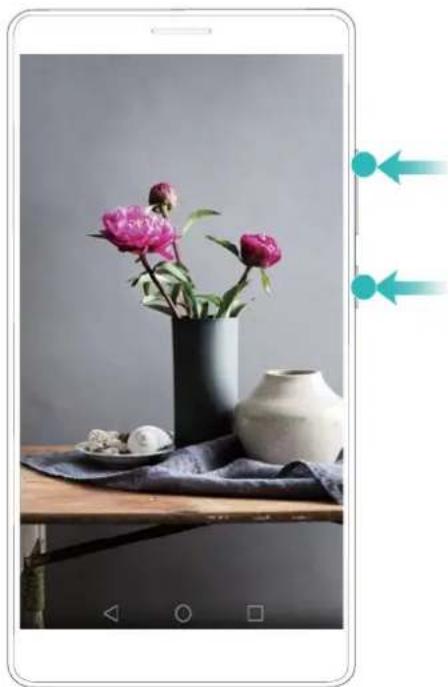
Press the volume up and power buttons simultaneously and select the desired recording mode.
natural_image
Still life photo of peony flowers in a vase on a wooden table, accompanied by a white ceramic vase and small round objects (no text or symbols visible)You can choose from HD mode or Mini mode. Mini mode records in a lower resolution, resulting in smaller file sizes and faster upload speeds.
- Audio will also be recorded, therefore make sure that you are in a quiet environment.
- Recording will stop automatically when you make or receive a call.
- When making a screen recording, you will not be able to use the recording feature in other applications.
- Longer recordings will take up more space on your phone's internal storage, so ensure there is enough space before recording.
Stopping the recording
Stop recording the screen using one of the following methods:
- Press the volume up and power buttons simultaneously
- Touch the screen recording icon in the upper left corner of the status bar.
Open the notification panel and touch ⚙ to share your screen recording.
By default, screen recordings are stored in Gallery, within the Screen recordings folder.
Eye comfort mode
Eye comfort mode reduces the amount of blue light emitted and adjusts the screen backlight to be kinder to your eyes, preventing visual fatigue and better protecting your eyesight.
When eye comfort mode is enabled, the screen appears to be tinted yellow because much of the blue light is filtered out. When taking or viewing photos or watching videos, you can disable eye comfort mode to enjoy better colour fidelity.
1 Touch Settings, and then go to Display > Eye comfort.
2 Switch on Eye comfort.
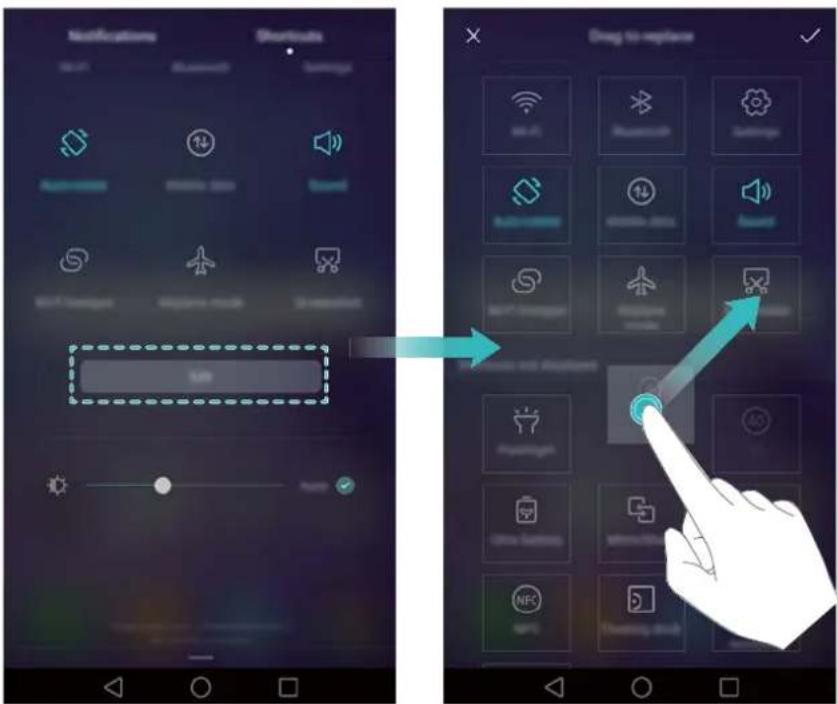
To quickly enable or disable eye comfort mode, swipe down on the status bar. In the Shortcuts tab, touch Edit, then drag the switch for Eye comfort to frequently-used shortcut area.
Wi-Fi signal bridge
Wi-Fi signal bridge dramatically expands the transmission scope and enhances the strength of Wi-Fi signals. You can share a Wi-Fi network with others using a Wi-Fi signal bridge.
Connect your phone to a Wi-Fi hotspot before using this function.
1 Touch Settings, and then go to More > Tethering & portable hotspot.
2 Touch WiFi bridge, then touch the toggle button for Wi-Fi bridge.
3 Touch Configure Wi-Fi bridge to set the Wi-Fi hotspot name and password.
4 On another device, find the Wi-Fi hotspot you have configured and enter the password. If the device successfully connects to the hotspot, it will now have access to the Wi-Fi network.
Unboxing your Phone
Getting to know your phone
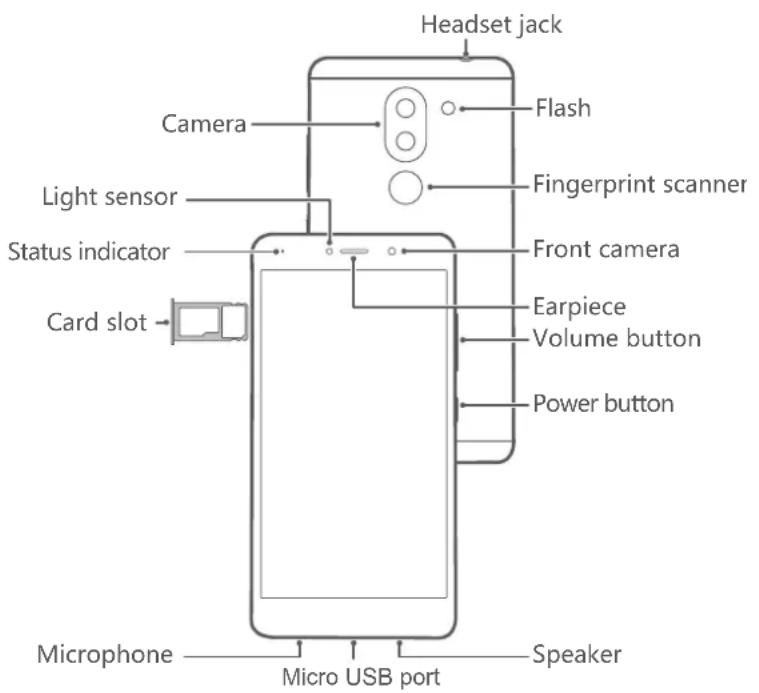
Do not cover the light sensor, as this will affect some of the phone's functions. Ensure that you use a screen protector that has a purpose-built hole for the light sensor.
Inserting a SIM card and microSD card
Your phone's 2-in-1 card slot is located on the upper-left side of the phone. You can insert 2 nano-SIM cards, or 1 nano-SIM card and 1 microSD card.
Tips:
- Your phone only supports nano-SIM cards. Contact your carrier for a new or replacement nano-SIM card.
- Only use standard nano-SIM cards to avoid damaging the SIM card tray.
- Ensure that the card is in the correct position and keep the card tray level when inserting it into your phone.
- Be careful not to hurt yourself or damage your phone when using the SIM eject pin.
- Store the SIM eject pin out of the reach of children to prevent accidental swallowing or injury.
1 Press and hold the power button and then select ⏻ to turn off your phone.
2 To remove the card tray, insert the SIM eject PIN included with your phone into the small hole next to the card tray.
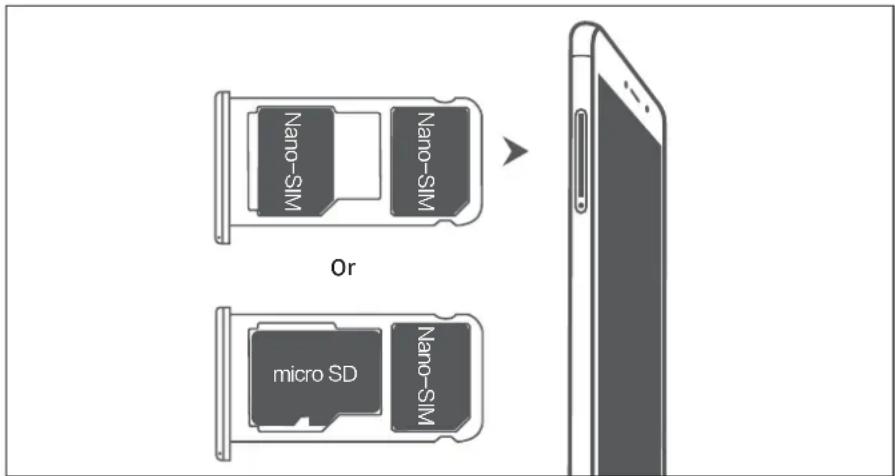
3 Insert a SIM card or microSD card into the card tray
4 Insert the card tray back into your phone in the correct orientation.
Charging your phone
Your phone comes with a long-lasting battery and efficient power-saving technology. This section outlines how to care for your battery in order to maximise its lifespan.
Using your battery
- You can recharge your battery many times, but all batteries have a limited lifespan. If you notice a significant deterioration in your phone's battery life, contact an authorised Huawei service centre for a replacement battery. The battery is built into the phone and is not removable. Do not attempt to remove the battery yourself.
- Your phone may become warm after prolonged use or when exposed to high ambient temperatures. This is entirely normal. If your phone becomes hot to the touch, stop charging it and disable unnecessary features. Place your phone in a cool location and allow it to cool down to room temperature. Avoid prolonged contact with the surface of your phone if it becomes hot.
- When charging your phone, only use genuine Huawei batteries, chargers and USB cables. Third-party accessories are a potential safety hazard and may impair your phone's performance. Avoid using your phone when it is charging. Do not cover your phone or the power adapter.
- Charging times may vary depending on the ambient temperature and the remaining battery level.
- A low battery warning will be displayed when the battery level is low.
- Your phone will switch off automatically when the battery is nearly empty.
Battery status indicator
The battery status is indicated by your phone's indicator light and the battery icon in the status bar.
- If the status indicator blinks red and the battery icon changes to 📄, the battery level is below 4%.
- The status indicator and the battery icon indicate the battery status during charging. A red status indicator and a battery icon indicate that the battery level is below 10%. A yellow status indicator and a battery icon indicate that the battery level is between 10% and 90%.
A green status indicator and a battery icon indicate that the battery level is between 90% and 100%. A green status indicator and a battery icon indicate that the battery is fully charged and you can unplug the charging cable from your phone.
If your phone does not respond when you press the power button, this indicates that the battery is empty. Charge your battery for at least 10 minutes using a genuine Huawei charger and then turn on your phone.
Turning your phone on and off
- To turn on your phone, press and hold the power button until your phone vibrates and the screen turns on.
- To turn off your phone, press and hold the power button and then touch ⏻.
If your phone does not respond after holding down the power button for 20 seconds, the battery may be empty. If so, connect your phone to a charger to charge the battery.
Transferring Data
Using the Backup application to transfer data
Use the Backup application to transfer data from your old phone to your new phone.
i Features may vary depending on your carrier.
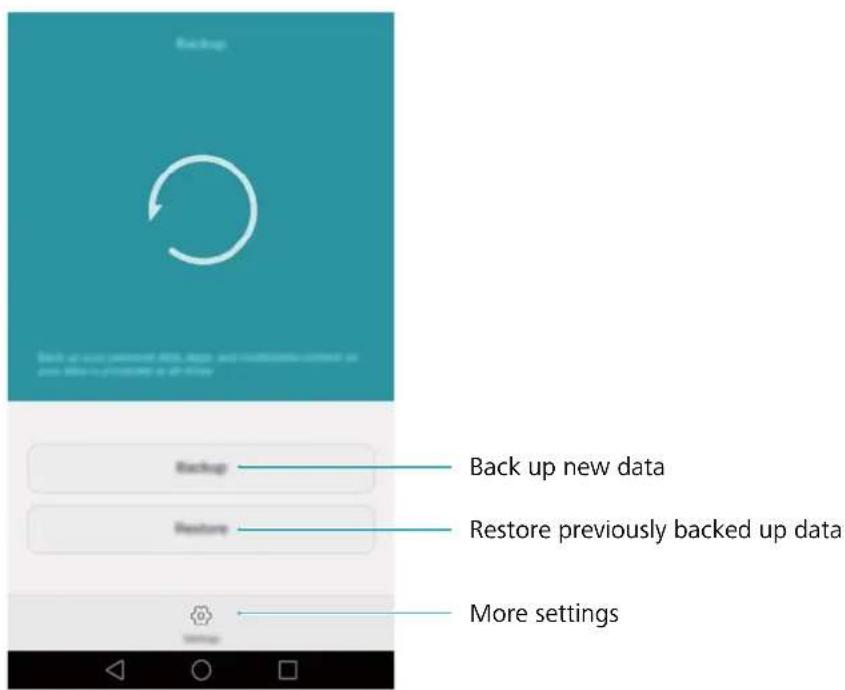
Backing up data to a microSD card
You can back up data on your old phone to a microSD card. For more information on inserting or removing a microSD card, see Inserting a SIM card and microSD card.
Data that can be backed up: contacts, messages, call log, photos, audio, videos, files and applications.
1 Open Backup.
2 Touch Backup >SD card >Next.
3 Select the data you want to back up. No backup password is required if you back up photos, audio, videos and documents. To back up other types of data, follow the onscreen instructions to set a backup password.
4 Touch Back up.
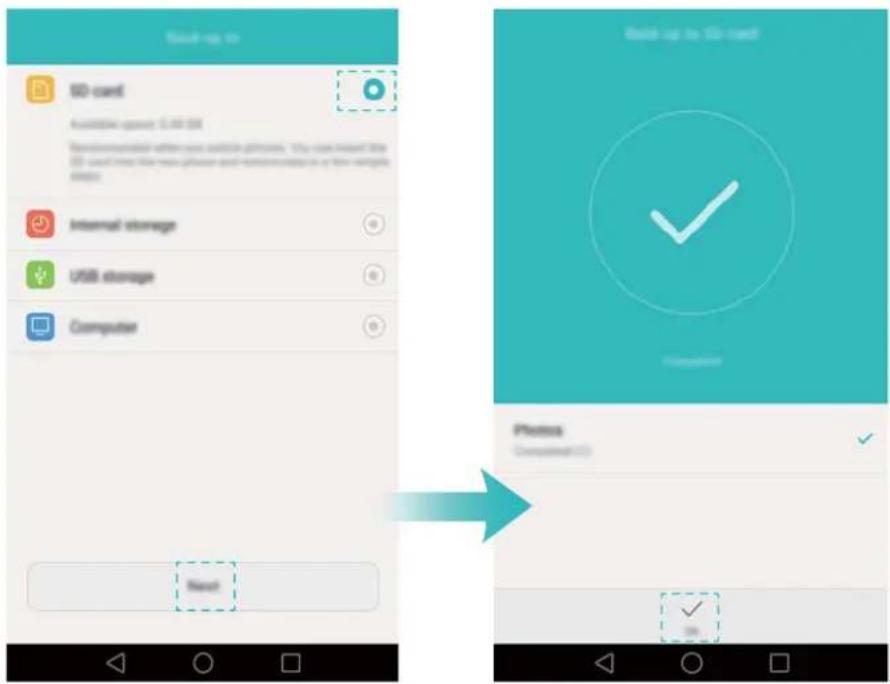
By default, backup data is saved to the HuaweiBackup folder in Files.
Restoring data from a microSD card
1 Insert the microSD card containing the backup files into your new phone. For more information on inserting microSD cards, see Inserting a SIM card and microSD card.
2 Open Backup.
3 Touch Restore >Restore from SD card >Next.
4 Select the backup you want to restore.
If the backup data is encrypted, enter the encryption password when prompted.
5 Select the data you want to restore, then touch Start restoration.
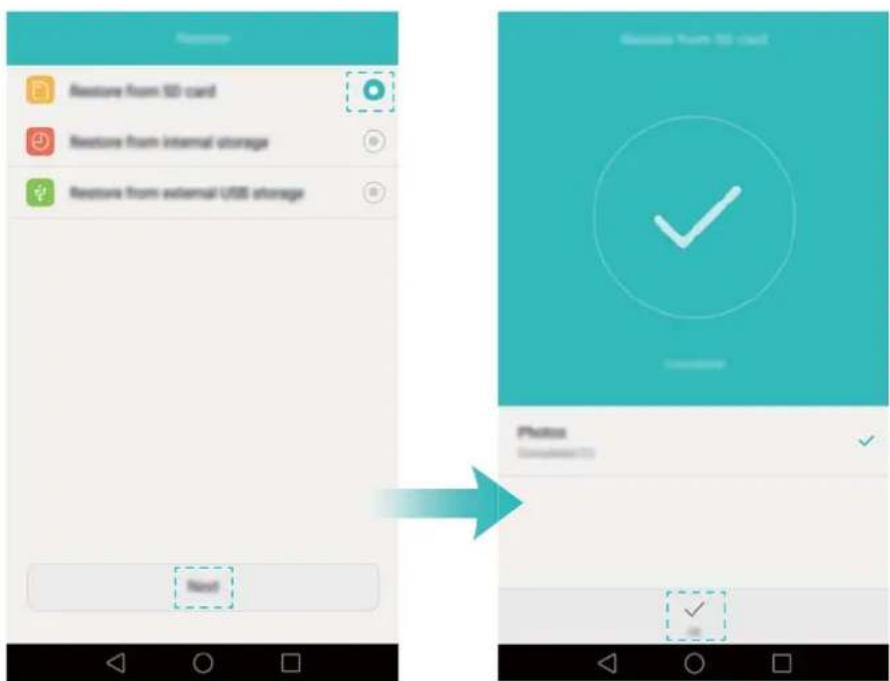
Transferring data between your phone and a computer
Transfer the data on your old phone to your computer, then transfer it to your new phone.
Connect your phone to a computer using a USB cable. Select Photos or Files. Your computer will automatically install any necessary drivers. Once installed, double-click on the new disk drive to manage files. The drive name should be your phone's model number.
- Photos: View photos that are stored on your phone.
- Files: Transfer files between your phone and a computer.
- If no connection type is specified, your phone will remain in charging mode.
Copying contacts from an old phone to a new phone
Use any of the following methods to copy contacts from your old phone to your new phone.
| SIM card | Use the SIM import feature to copy SIM card contacts to your new phone. For more information, see Importing contacts from a SIM card. |
| Storage device | If both phones have a microSD slot, export your contacts to a microSD card in vCard format on the old phone, then copy the contacts to the new phone. For more information, see Importing contacts from a storage device. |
| Bluetooth | Enable Bluetooth on both your old and new phones, then import your contacts using Bluetooth. For more information, see Importing contacts using Bluetooth. |
| Backup | If your old phone supports Backup, you can back up your contacts and then restore them to your new phone. For more information, see Using the Backup application to back up and restore data. |
| Other methods | • Install social networking applications and synchronise your contacts.• Log in to your Exchange account and synchronise your contacts. |
First Use and Initial Setup
Initial setup
Ensure that the SIM card is inserted correctly before using your phone for the first time. Read the Quick Start Guide for more information on how to set up your phone.
Press and hold the power button to turn on your phone, then follow the onscreen instructions to complete the initial setup.
1 Select your language and region, then touch Next.
2 Proceed to the Wi-Fi settings screen. Your phone will automatically list available Wi-Fi networks. Select the network you want to connect to, then enter the password to access the Internet.
3 Proceed to the Terms and Conditions screen. Read the content carefully, accept the user terms and Huawei Privacy Policy, then touch Agree.
4 Follow the onscreen instructions to enable Wi-Fi+.
5 Your phone has a fingerprint sensor. Follow the onscreen instructions to add your fingerprint. You also need to set a PIN or password in order to unlock the screen when your phone fails to recognise your fingerprint.
6 On the Configuration successful screen, touch Begin to complete the settings. Wait for a moment and the EMUI interface should launch. You can now start using your phone.
Dual SIM settings
When two SIM cards are inserted, only one SIM card can be set as the 4G/3G/2G SIM. The other SIM card slot only supports 2G networks. You can also configure the default card for mobile data and phone calls according to your monthly plan.
i This feature is only available on dual SIM phones.
Open Settings and touch Dual card management. You can configure both SIM cards as desired.
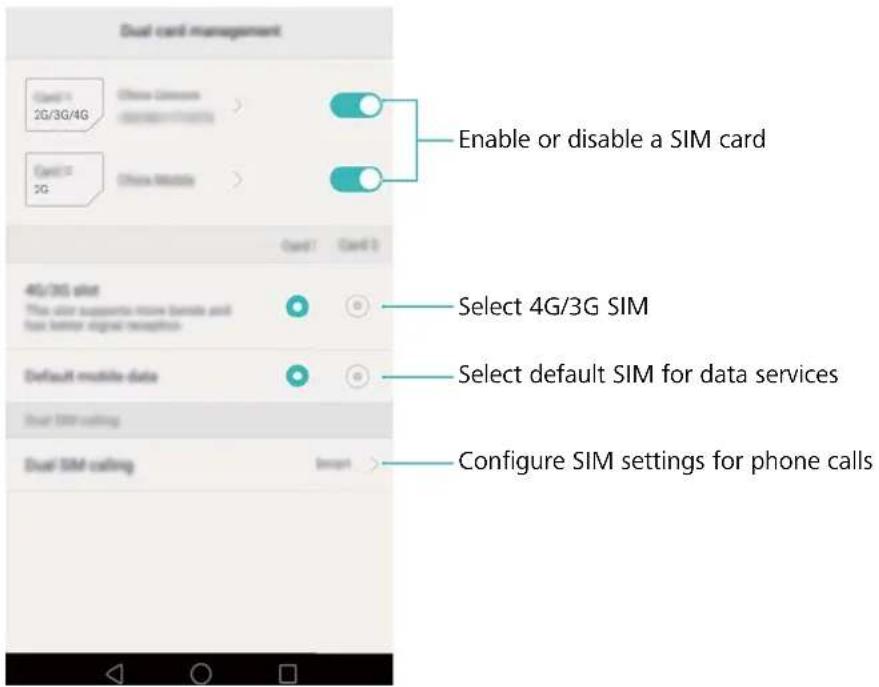
- If you disable a SIM card, you will be unable to use it to make calls, send messages or access the Internet.
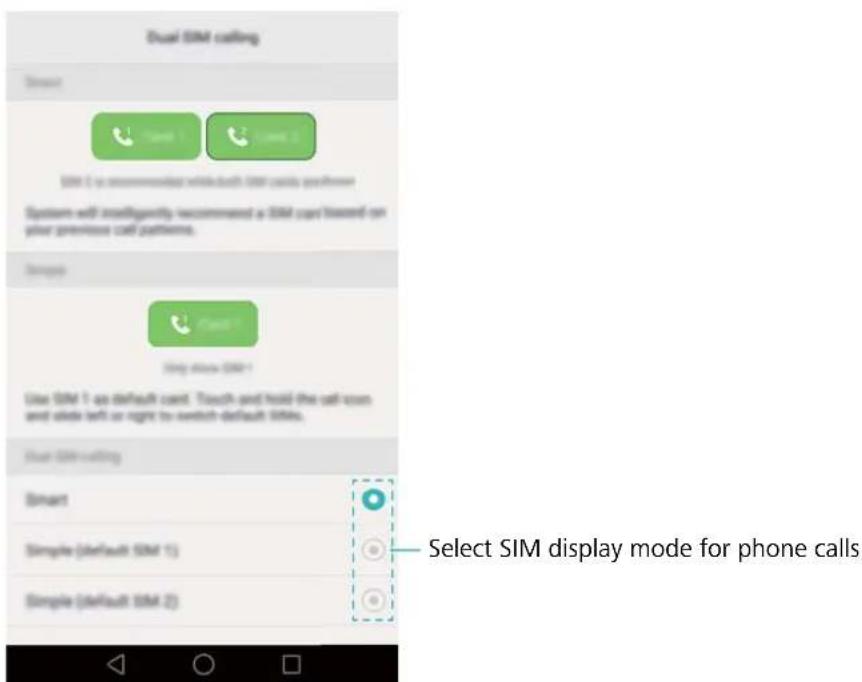
- Select Dual SIM calling. You can configure whether you want to select a SIM card manually or use the default SIM card each time you make a call. If you choose to use the default SIM card, your phone will use that SIM card for all outgoing calls.
Connecting to the Internet
Connect to the Internet using Wi-Fi or mobile data to surf the web, play games and use instant messaging applications.
Connecting to a Wi-Fi network
1 Swipe down from the status bar to open the notification panel.
2 In the Shortcuts tab, touch and hold 🔊 to open the Wi-Fi settings screen.
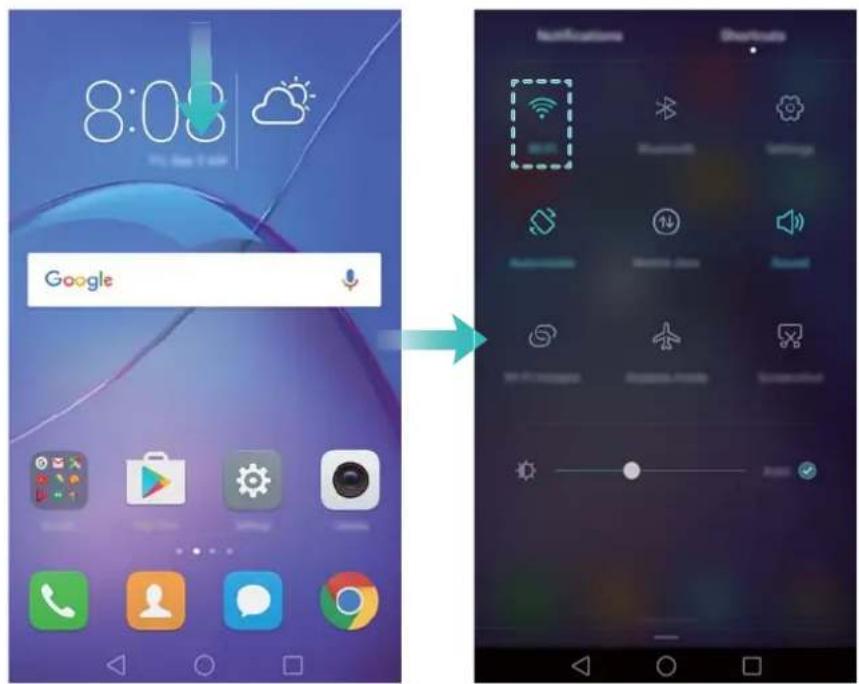
3 Turn on the Wi-Fi switch. Your phone will list available Wi-Fi networks.
4 Select the Wi-Fi network you want to connect to. If the Wi-Fi network is encrypted, enter the password when prompted.
Using mobile data
Before using mobile data, ensure that you have a data plan with your carrier.
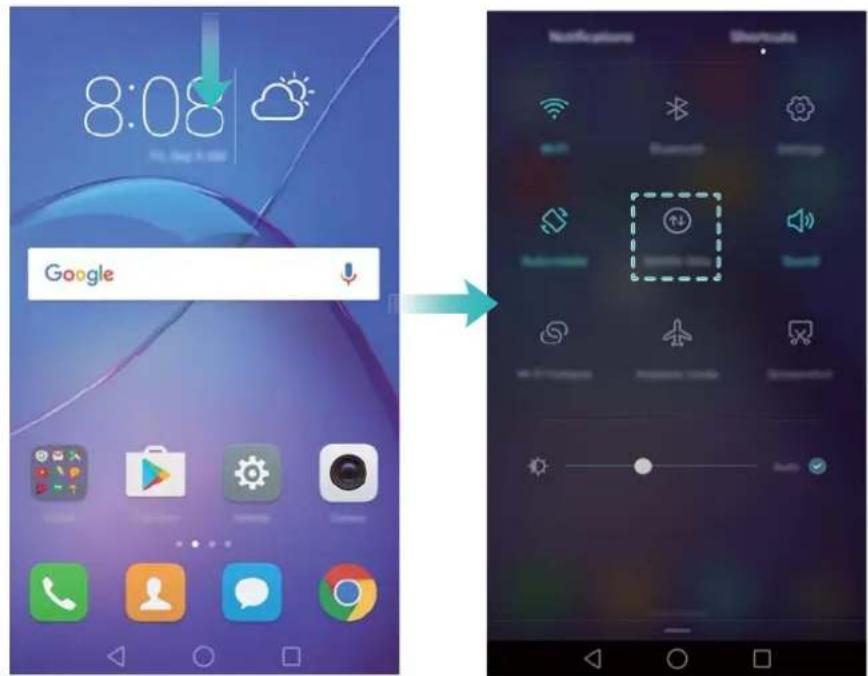
1 Swipe down from the status bar to open the notification panel.
2 In the Shortcuts tab, touch ↑↓ to enable mobile data.
i Disable mobile data when not required in order to save battery power and reduce data usage.
Configuring your fingerprint ID
Use the fingerprint sensor to unlock the screen, access the Safe and App Lock and authorise payments in third-party applications.
For added security and to ensure that you can still access your data if your phone fails to recognise your fingerprint, you will need to set a backup password when configuring fingerprint unlock.
1 Open Settings and touch Fingerprint ID > Fingerprint management.
2 SelecPIN or Password, then follow the onscreen instructions to set a screen lock password.
3 Once you have configured the password, touch New fingerprint to add your fingerprint.
4 Place your fingertip on the fingerprint sensor. Press down lightly on the sensor until your phone vibrates. Repeat this step using different parts of your fingertip until your phone has successfully added your fingerprint.
5 Once you have added your fingerprint, touch OK.
On the Fingerprint management screen, turn off the Unlock screen switch to disable fingerprint unlock.
To delete a fingerprint, select the desired fingerprint on the Fingerprint management screen, touch Delete, then follow the onscreen instructions.
Installing Applications
Sharing applications using a microSD card
Save installation packages to a microSD card to share them with other phones.
i Installation packages from third-party sources may contain viruses or malicious software and should be installed with caution. Only install applications from trusted sources.
1 Insert the microSD card containing the installation package into your phone.
2 Open Files, locate the installation package on the microSD card, then touch to install.
A warning message may be displayed during the installation process. Always read these messages carefully. If you wish to proceed with the installation, touch Settings and then turn on the Unknown sources switch to allow your phone to install third-party applications. After you have finished installing the application, touch Settings > Advanced settings > Security and turn off the Unknown sources switch to prevent your phone from installing applications downloaded from unofficial sources.
After installation, the application will be visible on your home screen.
Uninstalling an application
Free up space on your phone and boost performance by removing unused applications.
i Some pre-installed system applications cannot be removed.
- On the home screen, touch and hold the application you want to uninstall and drag it to the icon.
- Touch Settings >Apps, select the application you want to uninstall and then touch Uninstall.
Getting Started
Locking and unlocking the screen
Locking the screen
- Press the power button to manually lock the screen.
- The screen will lock automatically and enter sleep mode after it has been idle for a certain period to reduce power consumption and prevent unintended operations.
To change the screen sleep time, open Settings. Touch Display > Sleep and select a time.
Your phone will continue to receive messages, notifications and incoming calls when the screen is locked. The status indicator will flash green when you receive new notifications. When you receive an incoming call, the screen will turn on and display the caller information.
Unlocking the screen
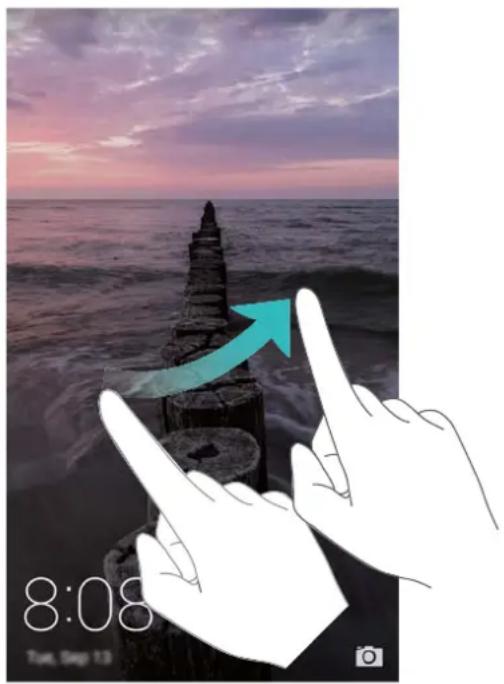
When the screen is off, press the power button to wake the screen. Slide your finger in any direction to unlock the screen.
natural_image
Digital illustration of hands pointing at a stone tower at sunset with waves, no text or symbols presentMagazine Unlock
Use Magazine Unlock to create your own selection of lock screen images and bring your lock screen to life.
Swipe up from the bottom of the lock screen to display the Magazine Unlock options.
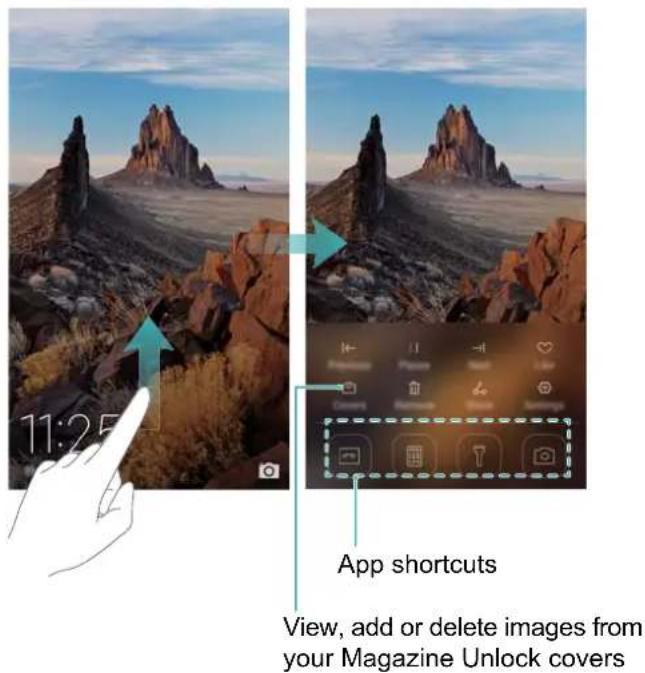
Manage Magazine Unlock covers: Touch 📋, then touch . Select the desired images to add them to the viewing list. To delete covers from the viewing list, touch 📋, then touch and hold the desired image and select Remove.
Add covers to favourites: Touch ♥ to add the current cover to your favourites. Images that have been added to your favourites will not be deleted from the viewing list after an online update.
Touchscreen gestures
Use simple touchscreen gestures to perform a variety of tasks, such as open applications, scroll through lists and zoom images.

natural_image
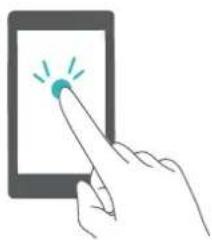
Illustration of a hand pointing at a smartphone screen with a teal dot (no text or symbols)Touch: Touch an item once. For example, touch to select an option or open an application.
natural_image
Hand pointing at a tablet screen with a glowing green icon (no text or symbols)Double touch: Touch the target area of the screen twice in quick succession. For example, double touch an image in full screen mode to zoom in or out.

Touch and hold: Touch and hold the target area of the screen for at least 2 seconds. For example, touch and hold a blank area on the home screen to access the home screen editor.
Swipe: Swipe your fingers on the screen. For example, in the Notifications tab, swipe left or right on a notification to dismiss it. Swipe vertically or horizontally to go to other home screens, scroll through a document and more.
Drag: Touch and hold an item, then move it to another position. For example, use this gesture to rearrange applications and widgets on the home screen.
Spread fingers apart: Spread two fingers apart on the screen. For example, spread two fingers apart to zoom in on a picture or web page.
Pinch fingers together: Pinch two fingers together on the screen. For example, pinch two fingers together to zoom out on an image.
Status and notification icons
Status icons
Status icons are displayed on the right-hand side of the status bar. Status icons display information about your phone's status, such as network connection information, signal strength, battery level and time.
Status icons may vary according to your region or carrier.

Signal strength
No signal


Connected over Wi-Fi
Connected over 3G
| E | Connected over EDGE Connected over HSPA |
| H+ | Connected over HSPA+ Roaming R |
| 4G | Connected over LTE Bluetooth enabled |
| Battery low Vibration mode enabled | |
| Aeroplane mode enabled Alarm enabled | |
| Receiving location data from GPS Battery full | |
| Silent mode enabled No SIM card found | |
| Charging Headset inserted |
Notification icons
Notification icons are displayed on the left-hand side of the status bar when you receive a new message, notification or reminder.
| Missed calls Call in progress | ||
| New emails New messages | ||
| Select an input method New voicemail | ||
| 2G | Connected over GPRS Wi-Fi network available | |
| ↓ | Downloading data Uploading data↑ | |
| 1 | Upcoming events Phone memorynull | |
| Synchronising data Synchronisation failed | ||
| ▲ | Login or synchronisation problem... | More notifications |
| Portable Wi-Fi hotspot enabled Connected to a VPN | ||
| USB tethering enabled | USB debugging enabled | |
Home screen
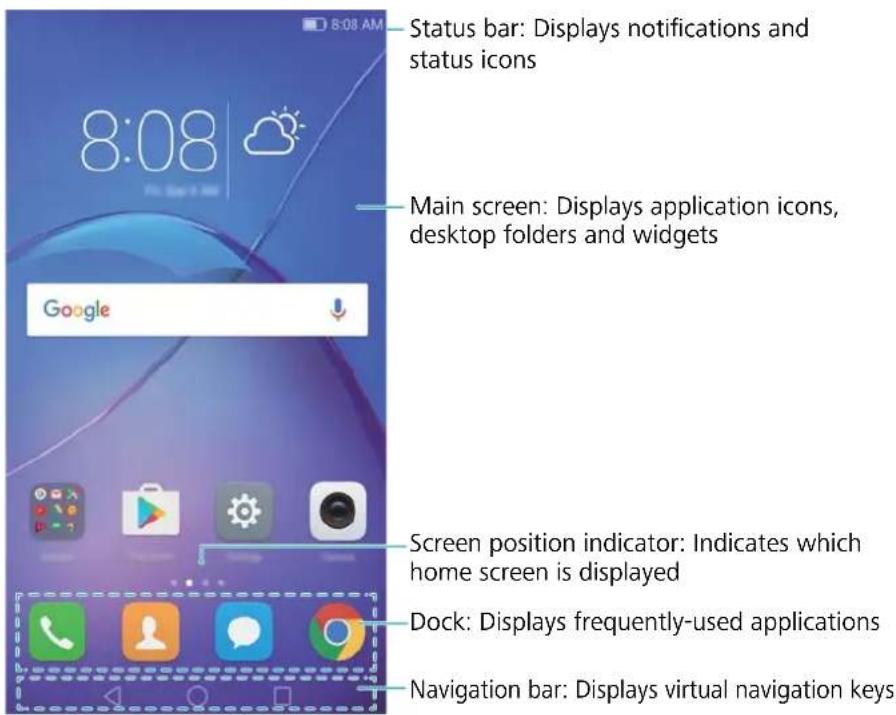
Getting to know your home screen
Your home screens are where you can find your favourite widgets and all your applications. The application list has been removed to give you a more convenient and direct path to your applications.
Virtual navigation bar keys:
- Back: Touch to return to the previous screen or close an application. When entering text, touch to close the onscreen keyboard.
• Home: Touch to return to the home screen. - □ Recent: Touch to access the list of recently used applications, or touch and hold to enable dual windows mode.
Switching between home screens
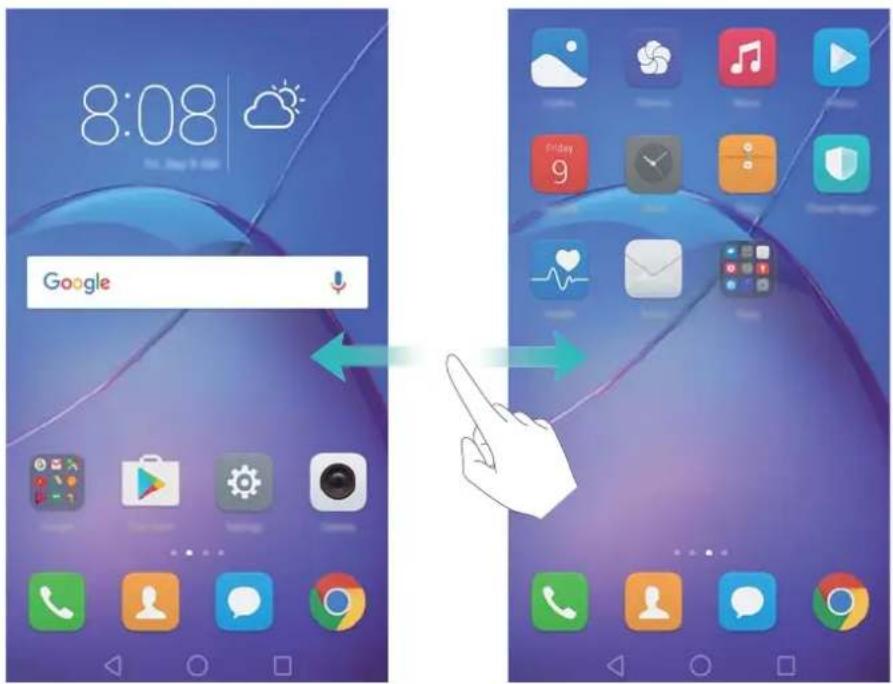
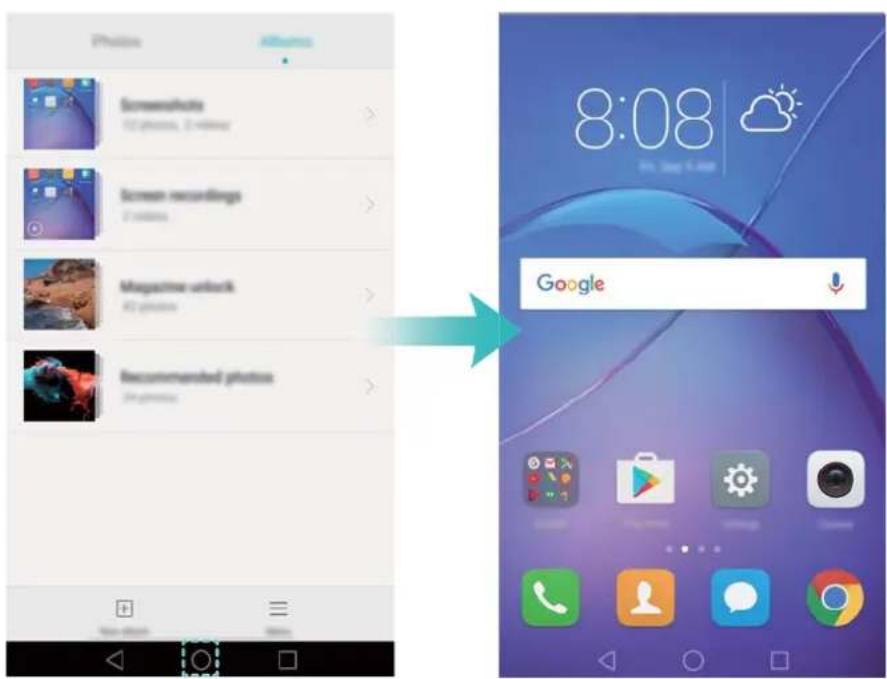
Swipe left or right to view the extended home screens. Touch ○Home to return to the default home screen.
On the home screen, pinch two fingers together or touch and hold a blank area on the screen to access the home screen editor. You can:
- Set the default home screen: such at the top of the home screen to set the chosen home screen as the default home screen.
- Move a home screen: Drag the home screen to the desired location.
- Add a home screen: ☑uch + on the home screen furthest to the left or right.
- Delete a blank home screen: Touch ✗ at the bottom of a blank screen.
Automatic screen rotation
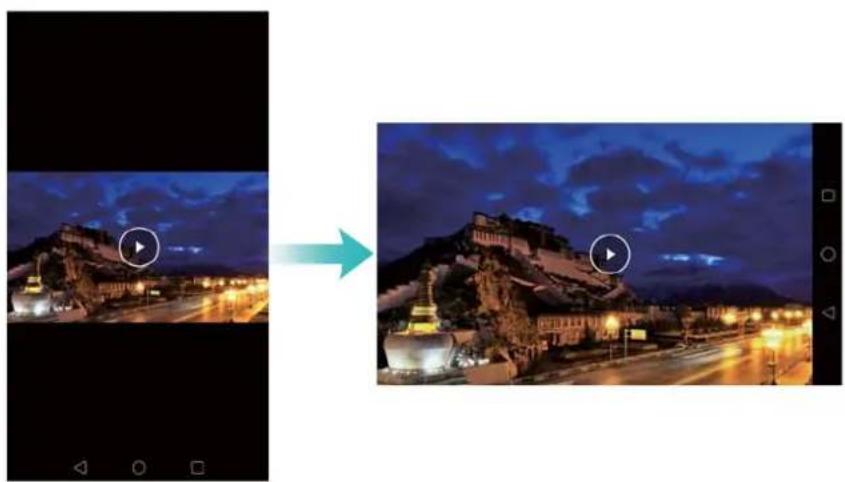
When you rotate your phone, some applications will automatically adjust the screen orientation to make them easier to use. This feature also lets you use tilt-controlled applications.
Swipe down from the status bar to open the notification panel, then touch Auto Rotate in the Shortcuts tab to enable or disable automatic screen rotation.
natural_image
Nighttime photo of Potala Palace at dusk, showing illuminated watchtowers and a city street (no visible text or symbols)Organising applications and widgets on the home screen
Adding a widget to the home screen
Add frequently used widgets to the home screen for quick access.
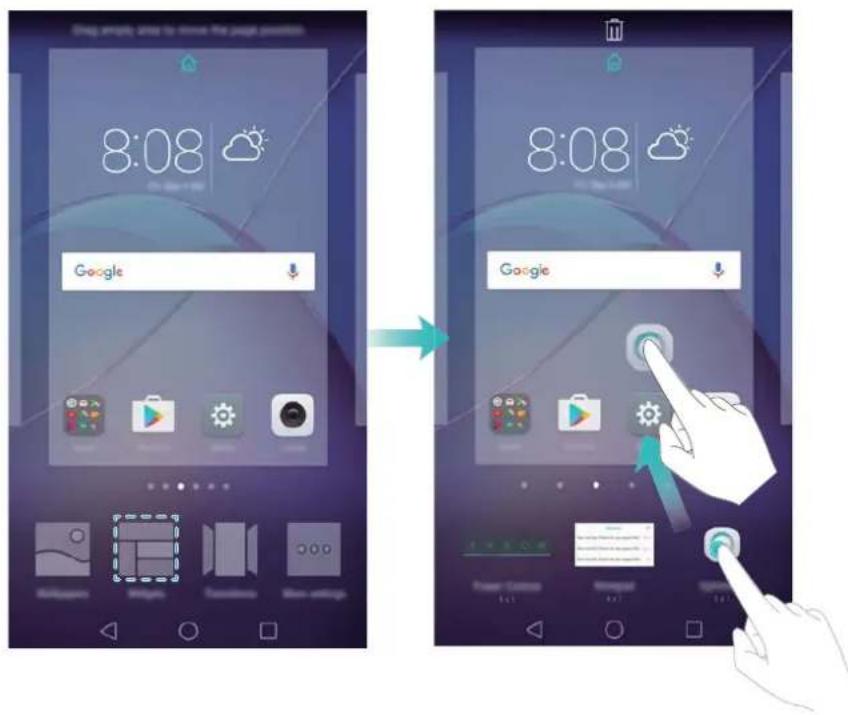
On the home screen, pinch two fingers together to open the home screen editor. Touch Widgets and select a widget. Touch and hold the widget and drag it to a blank area on the home screen.
You must have enough space on the home screen to add widgets. If there is not enough space, add another home screen or free up some space.
Moving a widget or icon
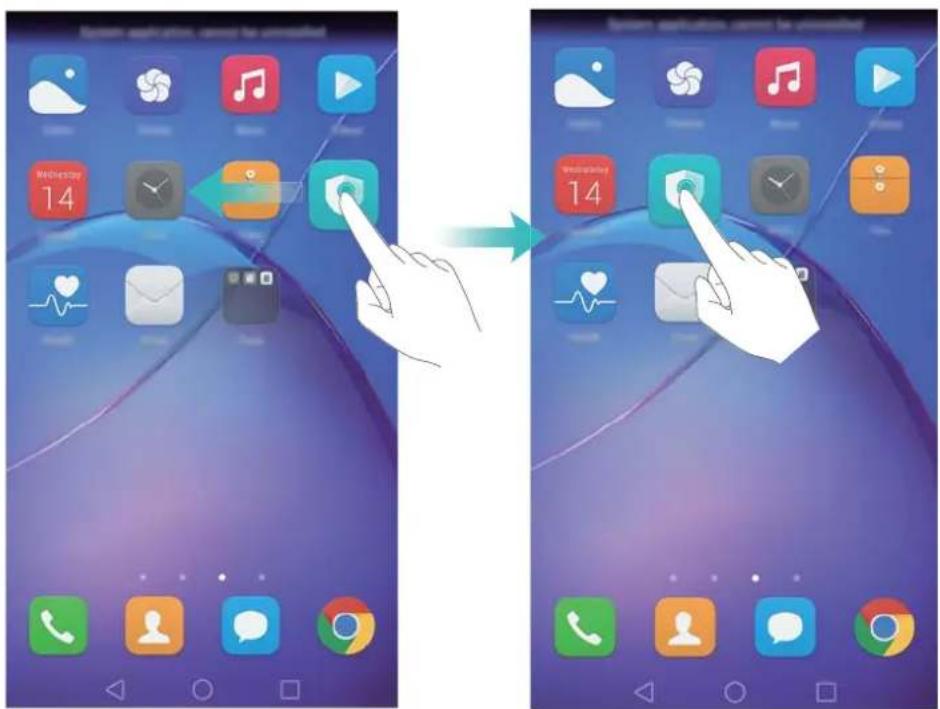
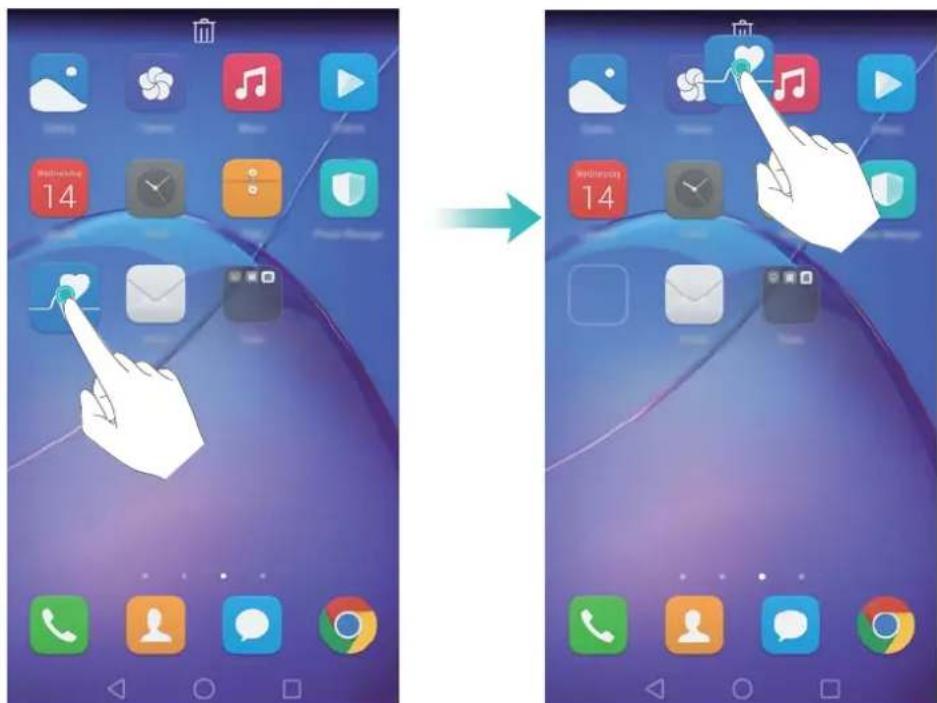
On the home screen, touch and hold an application icon or widget until your phone vibrates. You can then drag the application icon or widget to the desired location.
Deleting a widget or icon
On the home screen, touch and hold the application icon or widget you want to delete until is displayed at the top of the screen. Drag the unwanted application icon or widget to
After you have moved/deleted an application icon, a blank space will appear on the home screen. You can sort application icons automatically; for more information, see Aligning home screen applications automatically.
Creating a folder
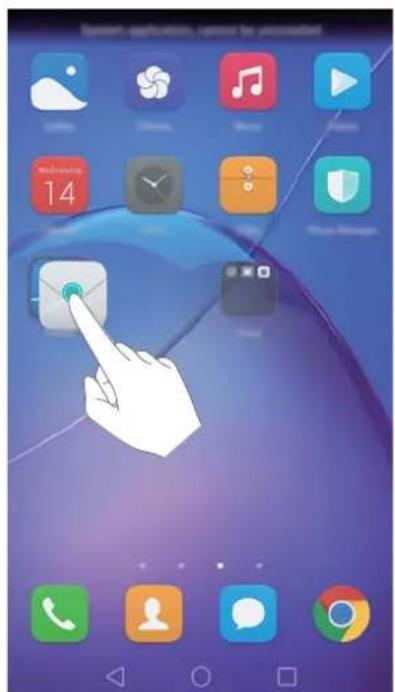
Create home screen folders to organise your applications by type. For example, you can create a Games folder that contains all of your game applications.
On the home screen, drag an icon on top of another icon to create a folder containing both applications. To rename the folder, open the folder, then touch the folder name.
Hiding applications
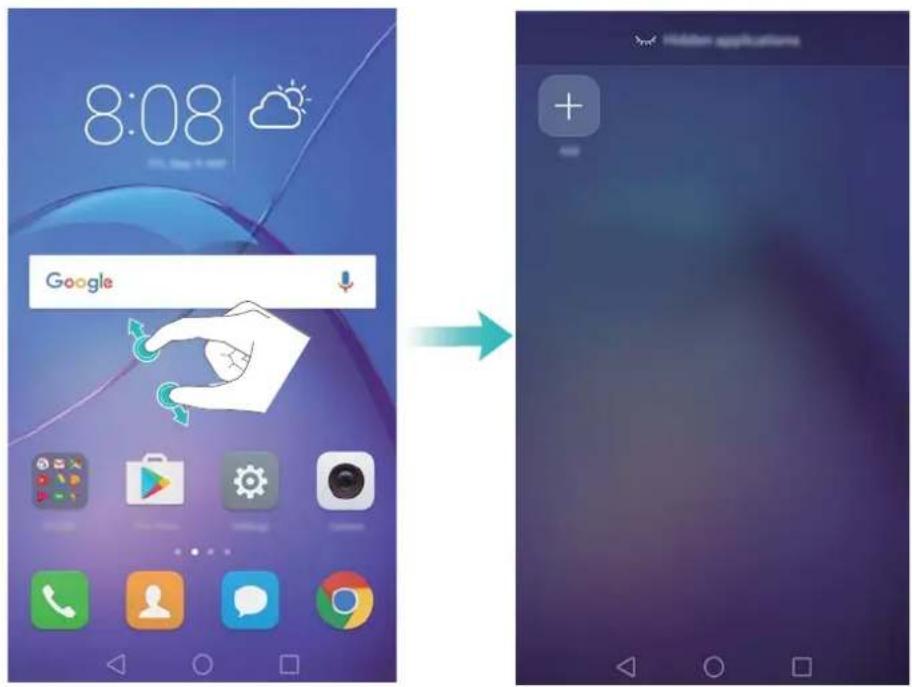
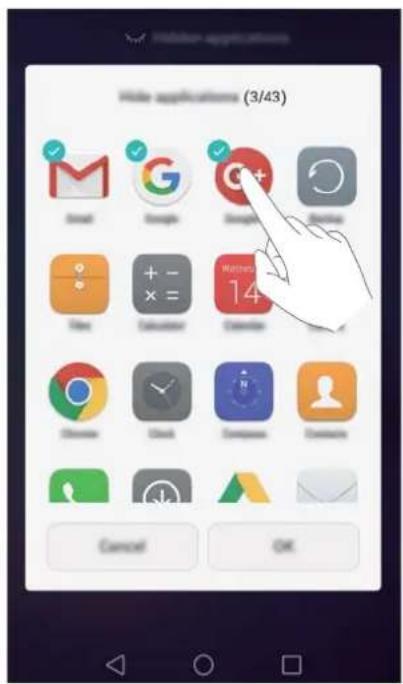
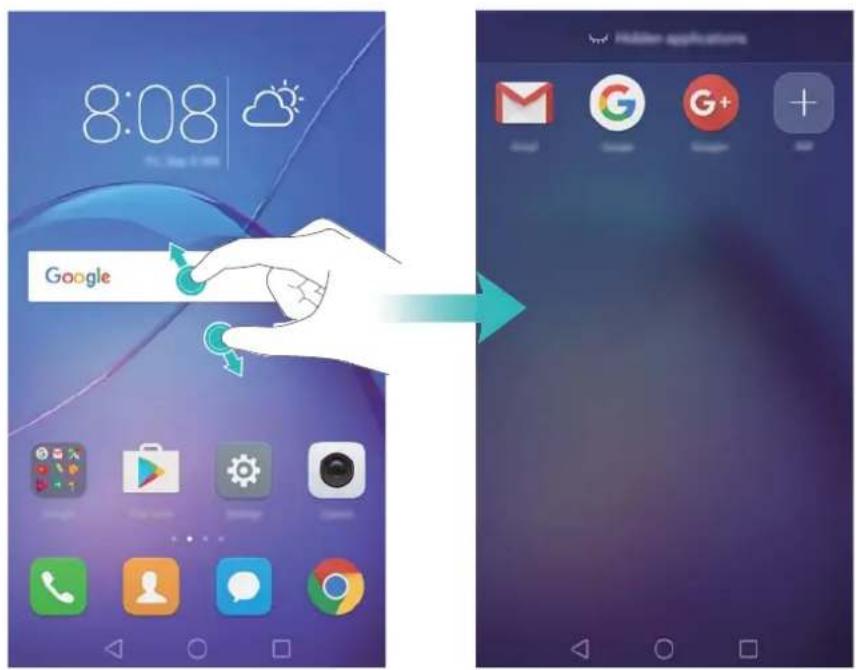
On the home screen, spread two fingers apart. Touch Add. Select the applications you want to hide and touch OK. Applications will not appear on the home screen after they have been hidden.
To restore a hidden application to the home screen, touch Add on the hidden applications screen, deselect the desired application, then touch OK.
Taking a screenshot
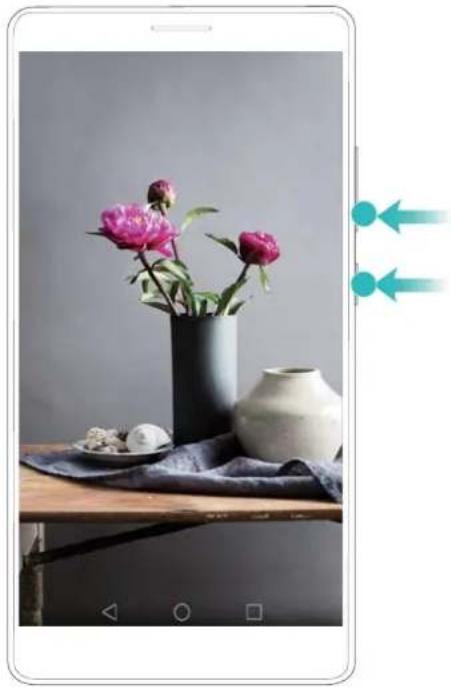
Using the power and volume down buttons
Press the power and volume down buttons at the same time to take a full screenshot.
natural_image
Still life photo of pink peonies in a vase and ceramic vase on a wooden table, with decorative items nearby (no text or symbols visible)Using the screenshot shortcut switch
Open the notification panel, then touch in the Shortcuts tab to take a full screenshot.
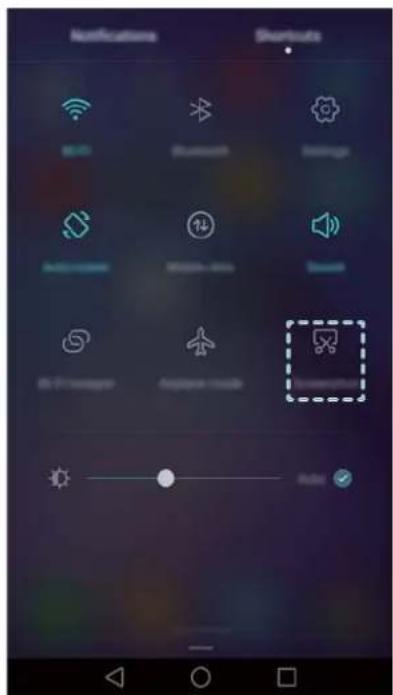
By default, screenshots are saved to the Screenshots folder in Gallery.
Notifications
Status indicator
The status indicator changes colour and flashes to indicate the following:
- Steady red (not charging): The battery level is critically low and the phone will turn off automatically.
- Steady red (when charging): The battery level is critically low.
- Steady yellow (when charging): The battery level is medium.
- Steady green (when charging): The battery is almost full or already full. Unplug the charger when the battery level reaches 100%.
- Flashing green (not charging): You have unread messages, notifications or missed calls.
Notification badges
Notification badges appear in the top right corner of application icons.
The badge number indicates the number of new notifications. Open the corresponding application to view more details about the notifications.
To disable notification badges for an application, pinch two fingers together on the home screen to open the home screen editor, then touch More settings > Badge app icons and turn off the switch next to the corresponding application.
Notification panel
Swipe down from the status bar and open the notification panel to view notifications.
Swipe left on the notification panel to go to the shortcuts tab.
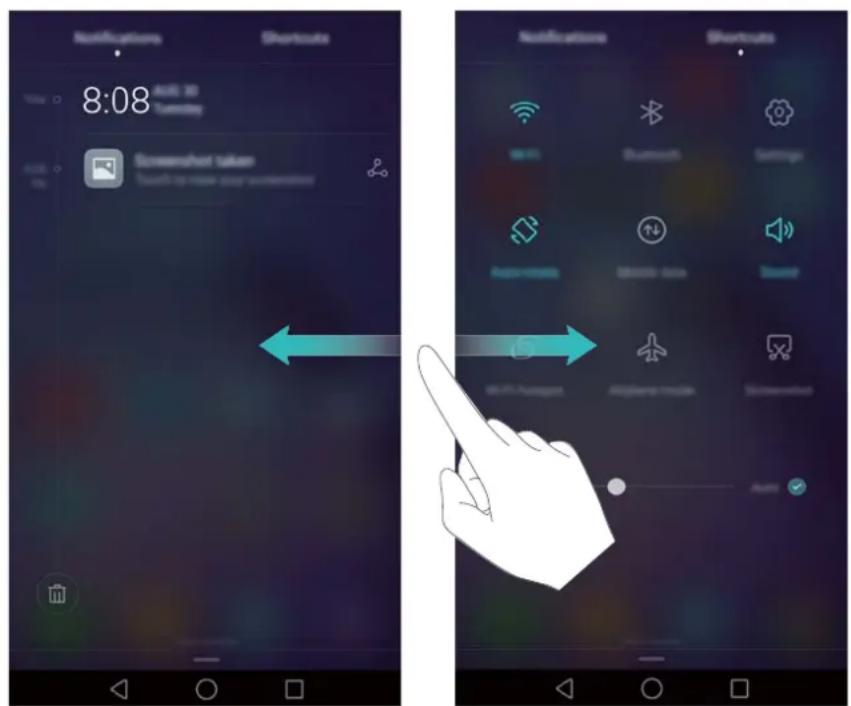
Swipe up on the screen, or touch △ Back or ○ Home to close the notification panel.
Customise shortcut switches: Swipe up on the shortcuts tab, then touch Edit. Drag the shortcut switch to the desired location for easier access.
Viewing notifications on the lock screen
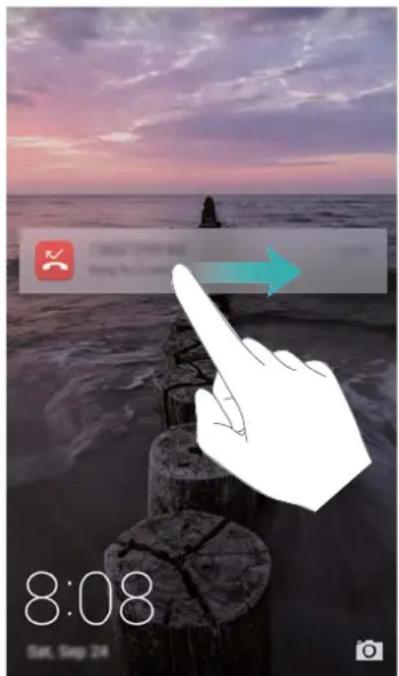
New notifications (such as missed calls and messages) are displayed on the lock screen.
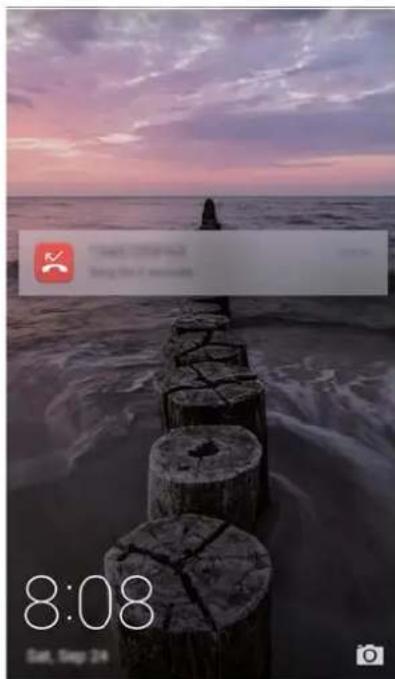
Swipe right on a lock screen notification to view its details.
i By default, your phone will only display lock screen notifications for certain applications. If you want to enable lock screen notifications for more applications, see Managing notification permissions.
Managing notification permissions
Disable notifications for an application to prevent unnecessary disturbances.
1 Open Settings.
2 Touch Notification panel & status bar > Notification manager, then select the desired application.
3 Enable or disable notification settings as desired.
Display notifications in do not disturb mode: Select the desired application in Notification manager, then turn on the Priority display switch. Notifications will still be displayed when Define priority interruptions is enabled in do not disturb mode.
Notification and status bar settings
Change the notification and status bar settings to customise how notifications and status reminders are displayed.
Open Settings, then touch Notification panel & status bar to configure the drop-down and display settings for the notification and status bar.
Configuring the drop-down settings for the notification bar
- Touch Drag actions > Smart selection. When you open the notification panel, your phone will go to the notifications tab if you have new notifications, otherwise it will go to the shortcuts tab.
- Touch Drag actions > Determine from drag position. Swipe down from the left of the status bar to open to the notifications tab, or swipe down from the right of the status bar to open the shortcuts tab.
- Turn on the Notification panel switch to access the notification panel when the screen is locked.
You cannot access the notification panel from the lock screen if you have set a screen lock password.
Configuring the display content for the notification and status bar
Turn the Display carrier name, Display network speed, and Battery status switches on or off to configure the content that is displayed in the status bar.
Turn off the Show notification icons switch to hide notification icons in the status bar.
Using fingerprint recognition
In addition to waking and unlocking the screen, the fingerprint sensor can also be used to take a photo, answer an incoming call and disable an alarm.
Adding a fingerprint for the first time
See Configuring your fingerprint ID for more information on configuring fingerprint unlock.
Adding, deleting or renaming a fingerprint
Add multiple fingerprints to make it easier to unlock your phone. You can also delete or rename fingerprints.
1 Open Settings.
2 Touch Fingerprint ID > Fingerprint management.
3 Enter the screen lock password, then touch Next.
4 In the Fingerprint listsection, you can:
- Touch New fingerprint to add a fingerprint. You can add up to five in total.
- Touch a previously added fingerprint to rename or delete it.
Accessing Safe with your fingerprint
Use your fingerprint to access your Safe without entering the password.
1 Open Settings.
2 õuch Fingerprint ID > Fingerprint management.
3 Enter the screen lock password, then touch Next.
4 Such Access safe, then follow the onscreen instructions to enter your Safe password and enable fingerprint recognition.
Once you have completed the settings, touch Files > Safe. You can now use your fingerprint to access your Safe.
Accessing App Lock with your fingerprint
Use your fingerprint to access locked applications.
1 Open Settings.
2 Touch Fingerprint ID > Fingerprint management.
3 Enter the screen lock password, then touch Next.
4 TouchAccess app lock, then follow the onscreen instructions to enter your App Lock password and enable fingerprint recognition.
Touch Phone Manager > App lock once you have completed the settings, then use your fingerprint to view the App Lock status. You can also use your fingerprint to access locked applications on the home screen.
Fingerprint sensor touch gestures
Touch or swipe the sensor with any finger to perform common tasks.
1 Open Settings.
2 Touch Fingerprint ID.
3 In the Touch and hold gesture section, turn on switches for features you want to enable.
- Take photo/video: When using the camera viewfinder, touch and hold the fingerprint sensor to take a picture.
- Answer call: When you have an incoming call, touch and hold the fingerprint sensor to answer it.
- Stop alarm When your alarm goes off, touch and hold the fingerprint sensor to disable it.
4 In the Slide gesture section, turn on switches for features you want to enable.
- Show notification panel: Swipe down on the fingerprint sensor using any finger to open the notification panel. Tap the sensor twice to clear all notifications, and swipe up on the sensor to close the notification panel.
- Browse photos: When viewing photos in full screen mode, swipe left or right on the sensor to switch between photos.
Accessing applications
Opening and switching between applications
Opening applications from the lock screen
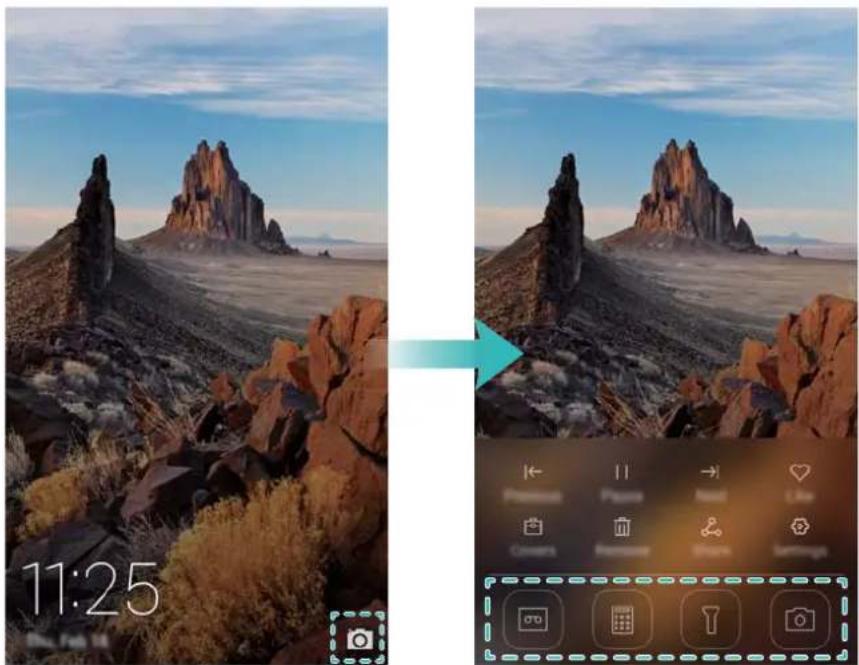
Swipe up on the lock screen and touch 📷 to launch the camera application. You can also swipe up from the bottom of the screen and touch a shortcut icon to quickly launch the corresponding application.
natural_image
Split image showing a desert landscape with rocky peaks and a blue arrow pointing to a home screen interface (no readable text or symbols)Opening an application from the home screen
On the home screen, touch an icon to open the corresponding application.
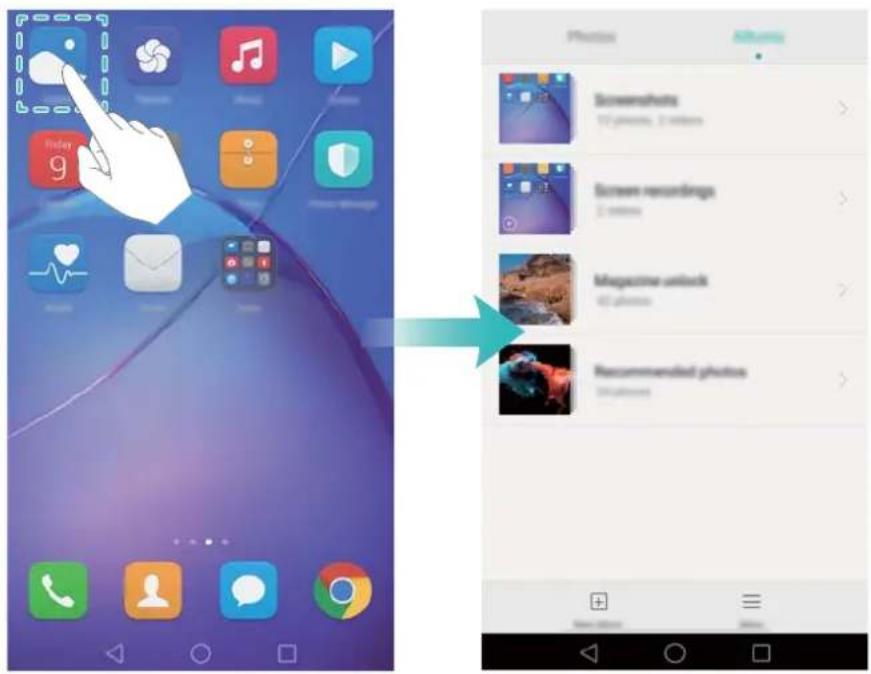
Switching between applications
To switch to another application, touch Home to return to the home screen, then touch the icon of the application you want to open.
Searching for applications
Finding applications
Swipe down from the middle of the screen to access the search bar, then enter the name of an application. The search results will be displayed underneath the search bar. For more information, see Finding applications quickly.
i Hidden applications are not listed in the search results.
Finding hidden applications
On the home screen, spread two fingers apart to view your hidden applications.
Viewing recently used applications
Touch □Recent to display the list of recently used applications.
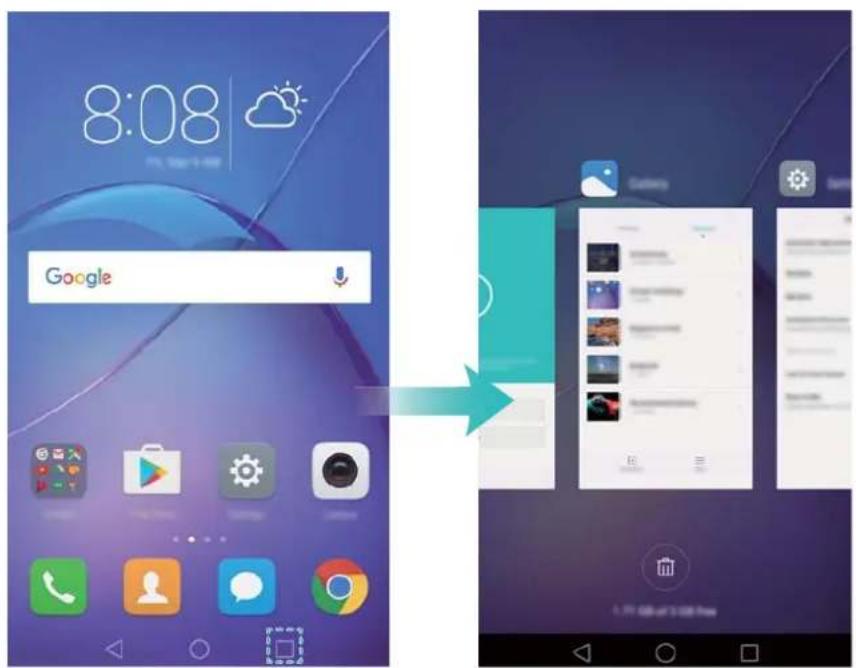
- View more applications: Swipe left or right on the screen to view more recently used applications.
- Open an application: Touch a thumbnail to open the corresponding application.
-
Close an application: Swipe up on a thumbnail to close the corresponding application.
-
Close all unlocked applications: Touch Ⓞ to close all unlocked applications.
- Lock or unlock an application: Swipe down on a thumbnail to lock an application. 📋 will appear above an application once it has been locked. Locked applications cannot be closed by touching ⏻ Swipe down again on the thumbnail to unlock the application.
Personalising your phone
Simple home screen
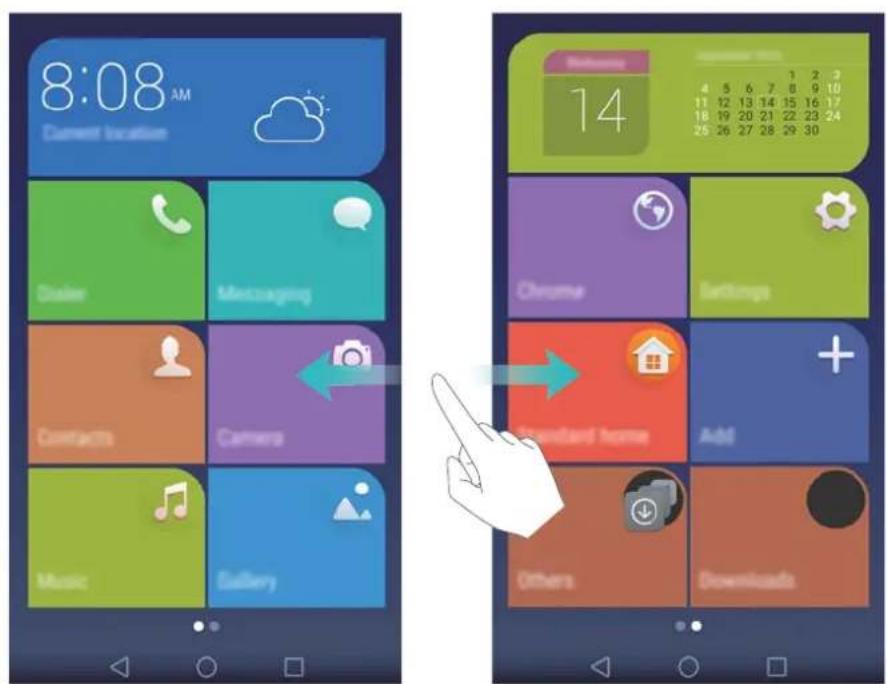
The simple home screen mode uses large icons and fonts to display content in a more easy-to-read layout.
1 Open Settings.
2 Touch Home screen style > Simple then touch √ to enable the simple home screen.
3 On the simple home screen, you can:
- Touch application icons or widgets to open them.
- Touch and hold an icon to open the home screen editor and add or delete application icons.
- TouchOthers to open the application list and view or open applications.
- Touch + to add contacts or applications to the home screen.
- Touch Standard home to exit the simple home screen.
Changing the theme
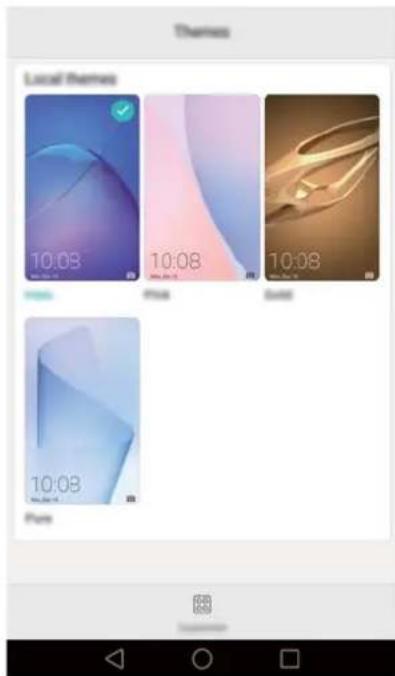
Personalise your phone's home screen using a wide range of themes and wallpapers.
Open Themes and select a theme, then touch Touch to mix and match lock screen methods, wallpapers, application icons and more.
Changing the wallpaper
Set your favourite images or photos as your phone's wallpaper.
1 Open Settings and select Display.
2 Touch Wallpaper then touch Lock screen wallpaper or Home screen wallpaper.
3 In the Wallpapers or Live wallpaper tab, select an image, then follow the onscreen instructions to set it as the wallpaper.
Turn on the Shake to change switch. The wallpaper will change every time you shake your phone. Turn on the Random change switch. Configure Interval or Album to display. Your phone will automatically change the wallpaper at the specified time interval.
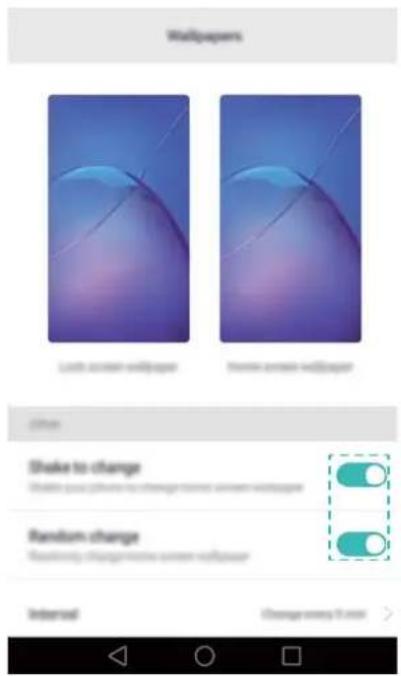
You can also open 📋 Gallery, touch and hold an image, then touch ≡ > Set as > Wallpaper. Follow the onscreen instructions to set the image as the wallpaper.
Assigning a ringtone to a contact
Assign a unique ringtone to each contact so that you can easily tell who is contacting you.
1 Open Contacts.
2 Select the desired contact, then touch Phone ringtone.
3 Select the desired ringtone or music file, then touch √.
For more information on how to configure call and message ringtones and vibration settings, see Sound settings.
Changing the font size
The phone's font size can be increased to make words easier to read.
Open Settings, then touch Display > Font size to set the system font size.
i The Extra huge font size will only be displayed in messages, contacts and the dialler application.
Entering text
Switching text input methods
Switch between text input methods as desired.
1 On the text input screen, swipe down from the status bar to open the notification panel.
2 Such Select input method in the Notifications tab, then select the desired input method.
If there are no input methods to choose from, go to Settings. Touch Advanced settings > Language & input > Default keyboard > Configure input methods and turn on the switch next to the corresponding input method.
Huawei Swype input method
Quickly enter words by swiping on the keyboard.
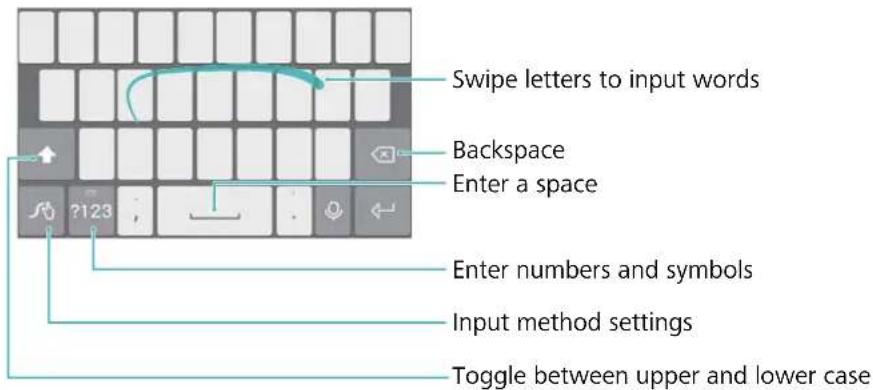
Huawei Swype input supports a wide range of languages.
Android input method
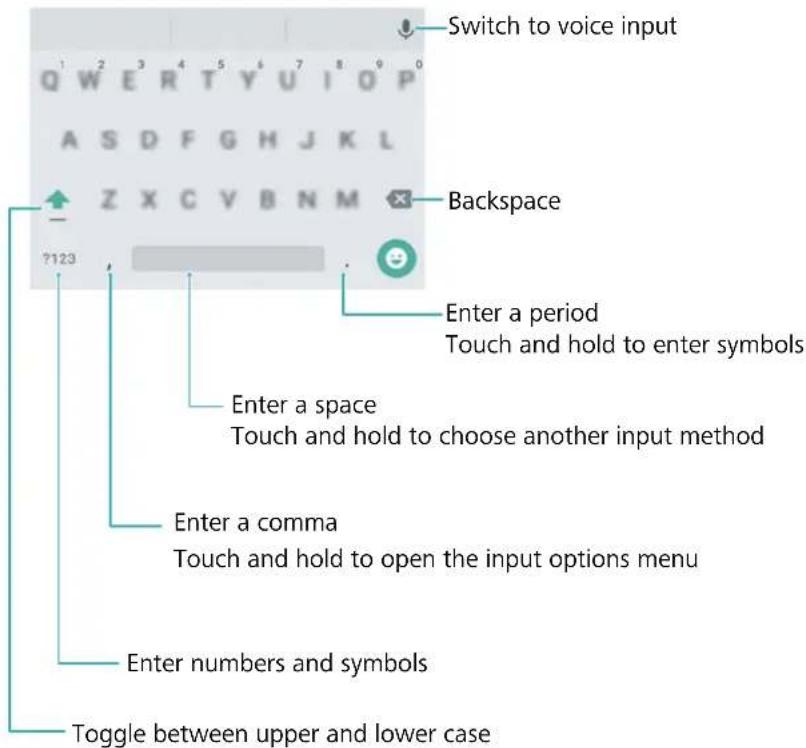
i The Android input method supports a wide range of languages.
Editing text
You can select, cut, copy and paste text on your phone.
- Select text: Touch and hold the text to bring up . Drag or to select more or less text, or touch Select all to select all text.
- Copy text: Select text and touch Copy.
- Cut text: Select text and touch Cut.
- Paste text: Buch and hold where you want to insert the text, then touch Paste.
- Share text: Select text, then touch Share to select a sharing method.
Tips and Tricks
Searching for settings
Use the search feature in Settings to search for menu options.
Open Settings. Touch the search box at the top of the screen and enter a search term (such as Sound). Your phone will display the search results; touch an option to access the corresponding setting.
Quickly returning a call
On the lock screen, swipe right on a missed call notification and unlock the screen. The dialler screen will be displayed; touch the corresponding number to return the call.
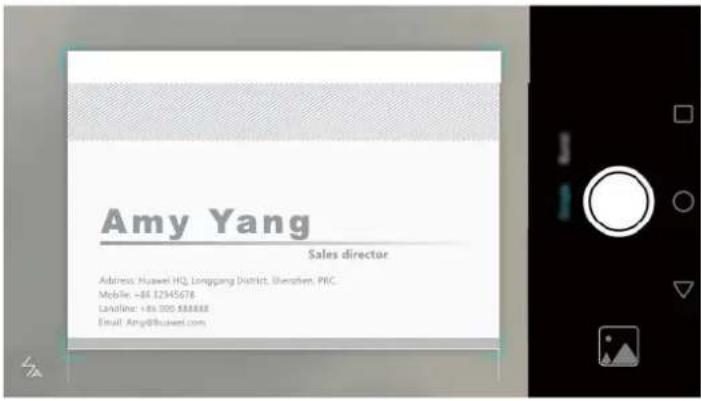
Adding contact details quickly
Use the camera to take a photo of a business card. Your phone will recognise the contact details and add them automatically. In Contacts, touch Business cards > Scan.
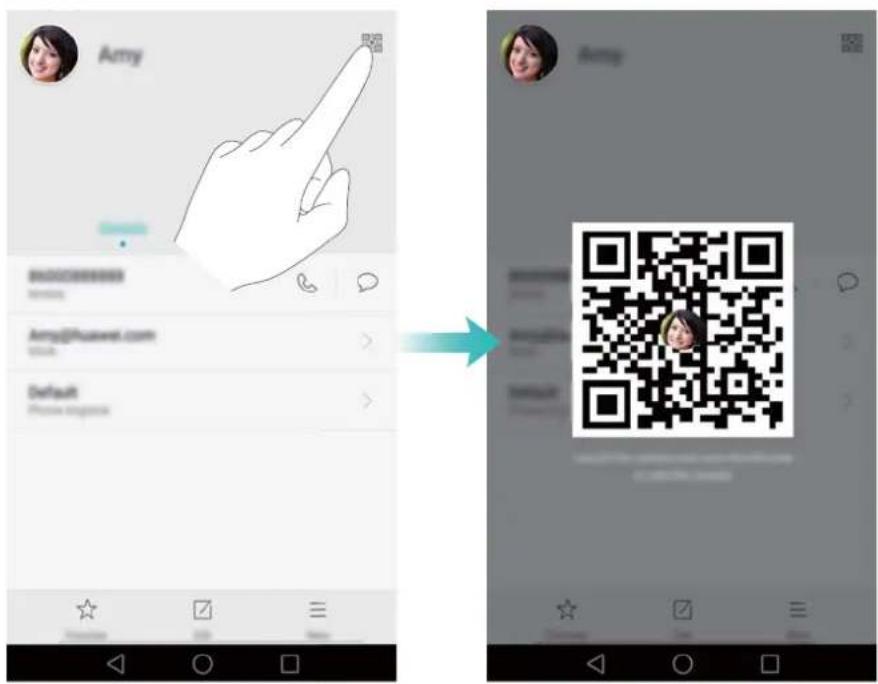
Sharing your QR card
Share your QR card with your friends so that they can add you to their contacts quickly. On the contact details screen, touch the QR code at the top of the screen to display your personal QR code.
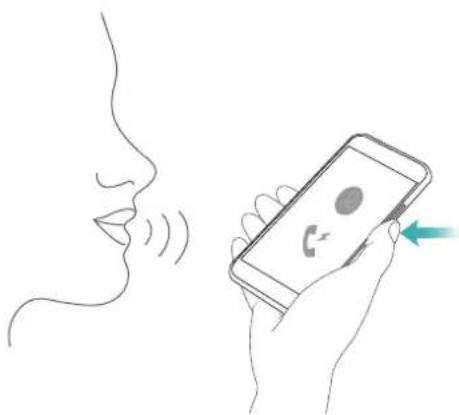
Calling contacts when the screen is off
When the screen is off, press and hold the volume down button. When you hear the alert sound, say the name of the contact you want to call. Your phone will automatically call the contact.
natural_image
Line drawing of a person speaking into a speech bubble while holding a smartphone with a call icon (no text or symbols present)Pocket mode
Enable Pocket mode to prevent you from missing important calls when your phone is in your pocket. The call ringtone and vibration intensity will gradually increase when you receive an incoming call.
Open 📞 Dialler. Touch ≡ > Settings in the Dialler tab and turn on the Pocket mode switch.

natural_image
Simple line drawing of a shopping bag with a smartphone and wireless signal icon (no text or symbols)Taking snapshots when the screen is off
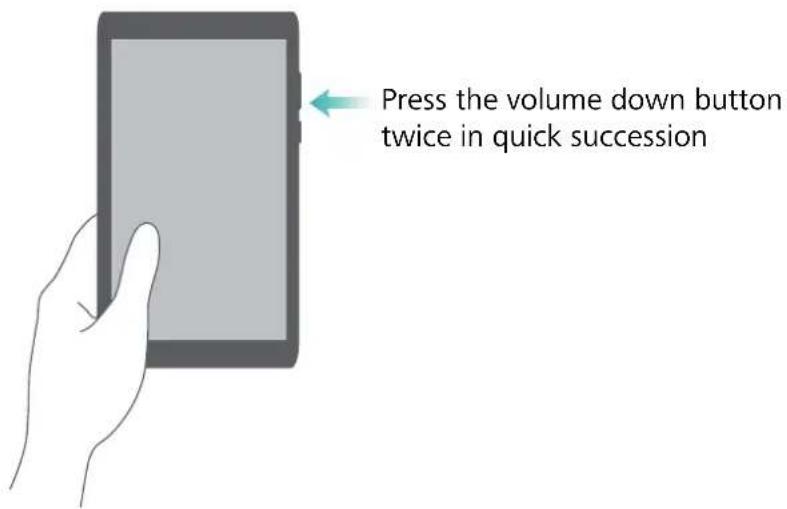
You can take rapid snapshots with your phone, even when the screen is off.
When the screen is off, point your phone at a subject and press the volume down button twice.
Your phone will take a photo and display how fast it was captured.
Perfect selfie
Enable perfect selfie mode and customise the beauty settings to make sure you shine in group photos.
In the camera application, go to Beauty mode and then touch Perfect selfie. Turn on the Perfect selfie switch and then configure your custom beauty settings.
Next, switch to Beauty mode and touch ⚙ to take a photo. Your phone will detect your face and apply your custom beauty settings to make you stand out in a group shot.

natural_image
Two side-by-side photos of a smiling woman using smartphones, showing the same facial expression (no text or symbols visible)Using time-lapse mode to fast forward the action
Time-lapse mode lets you capture and accelerate subtle changes in scenery, such as a sunrise, sunset or the movement of clouds.
On the camera screen, swipe right to switch to Time-lapse. Hold your phone steady and touch

to start capturing video.

natural_image
Aerial night view of a modern city skyline with illuminated skyscrapers and a river, no visible text or signage.Taking photos while recording video
Ever wanted to take a photo during a video recording?
On the camera interface, swipe right and then select Video to start a video recording. While recording video, touch 📷 to take a photo.

natural_image
White Lamborghini sports car parked on a bridge with green hills and buildings in the background (no visible text or symbols)Finding applications quickly
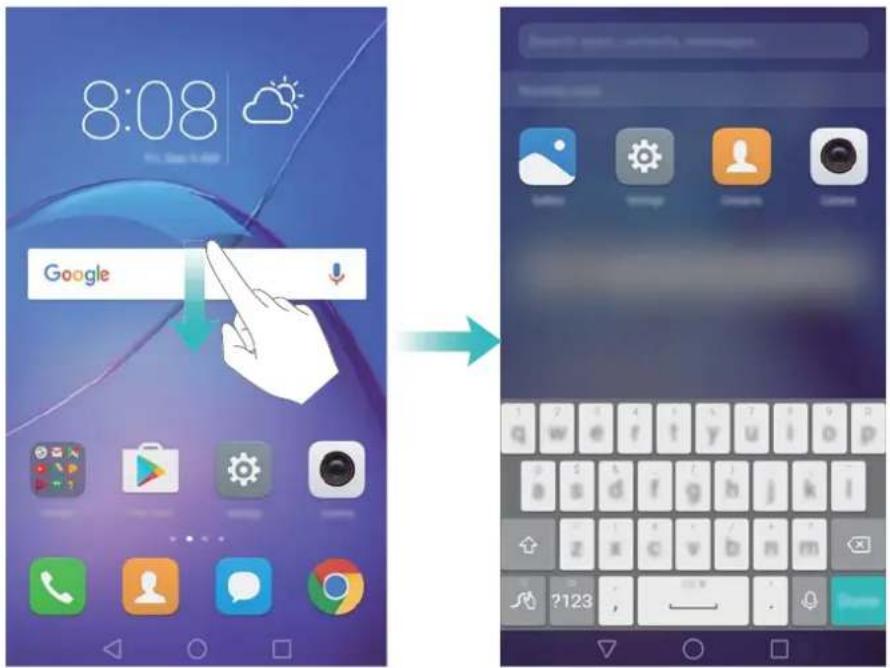
Use the search feature to quickly find an application.
Swipe down from the middle of the screen to access the search bar and then enter the name of the application that you are looking for. The search results will be displayed underneath the search bar.
Connecting to the Wi-Fi network with the strongest signal
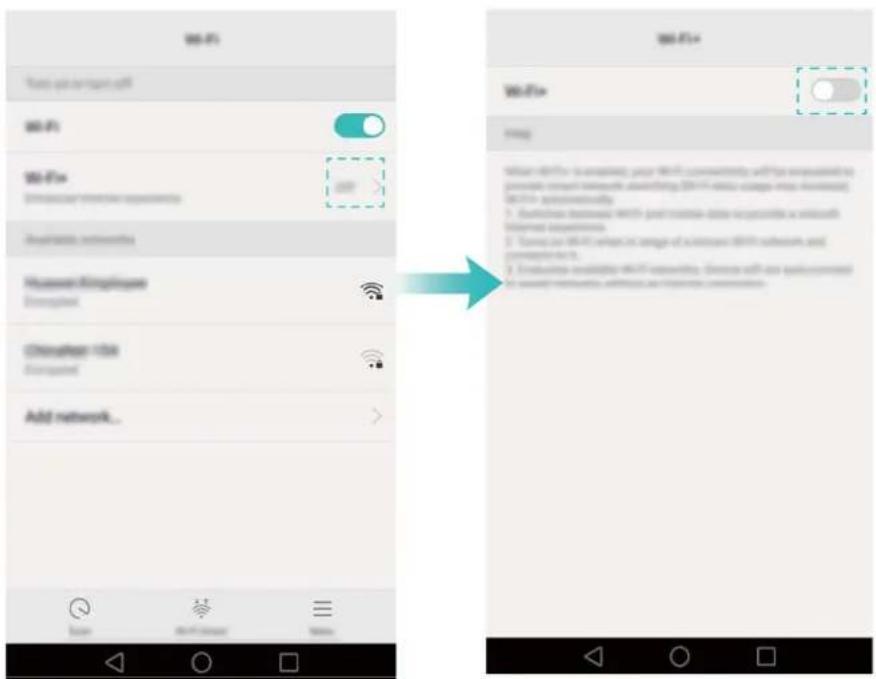
After enabling Wi-Fi+, your phone will monitor Wi-Fi networks and mobile data and select the connection with the best signal and fastest data transfer speeds.
Swipe down from the status bar to open the notification panel. In the Shortcuts tab, touch and hold 📋 and select Wi-Fi+. Turn on the Wi-Fi+ switch to enable this feature.
Adjusting the system volume rapidly
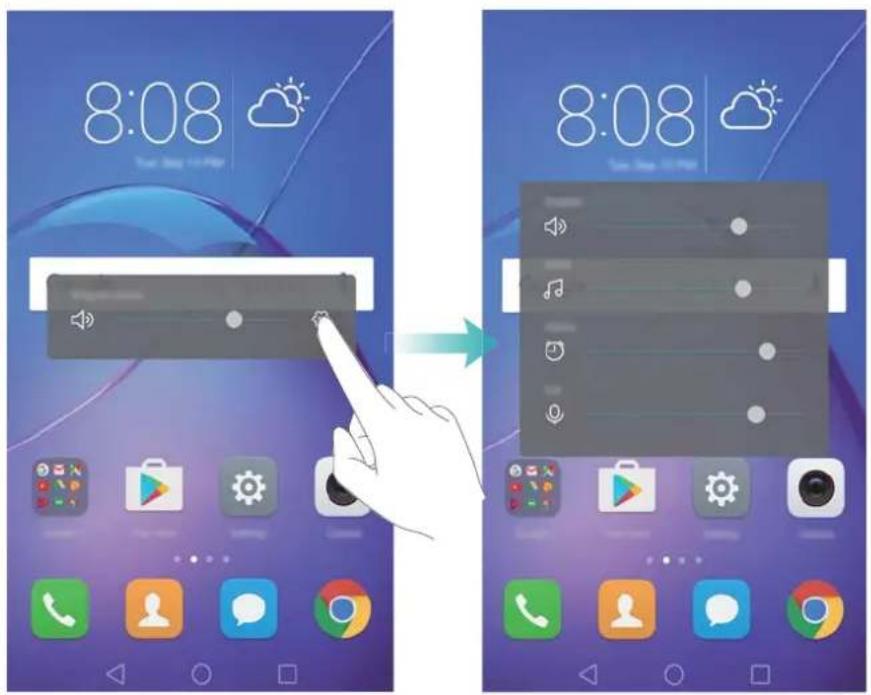
Press the volume button on the side of the phone and then touch ⚙️ to adjust the ringtone, multimedia, alarm and call volume.
Using the floating dock
The floating dock gives you access to a number of frequently-used options and features, such as the back key, home key and one-touch optimisation. You can move the floating dock around the screen for easy one-hand use.
Under Settings, select Smart assistance > Floating dock and then turn on the Floating dock switch.
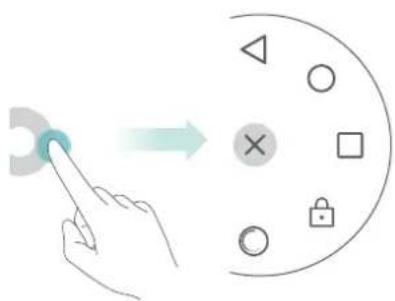
The floating dock is displayed on most screens. Drag the dock to the desired location to adjust its position.
Aligning home screen applications automatically
Gaps may appear on the home screen after you uninstall applications or move them into folders. Use the automatic align feature to arrange applications neatly on the home screen.
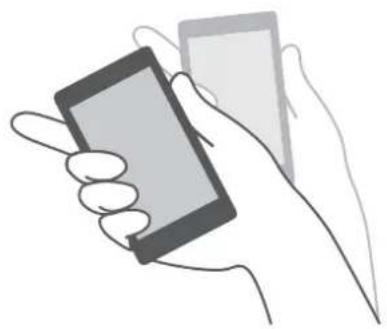
Pinch two fingers together to open the home screen editor. Touch More settings and then turn on the Shake switch. Touch and hold the home screen to open the home screen editor. Shake your phone to realign application icons and fill any gaps.
natural_image
Line drawing of a hand holding a smartphone (no text or symbols present)Touch-disable mode
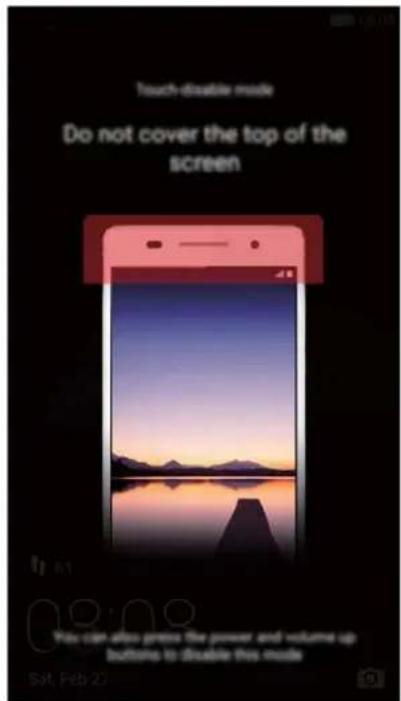
Enable touch-disable mode to prevent unintended operations when your phone is in your pocket.
Open Settings, touch Smart assistance and then turn on the Touch-disable mode switch.
Screen gestures will not work in touch-disable mode, even when the screen is on. Uncover the top of the screen, or press the power and volume up buttons simultaneously to turn off touch-disable mode.
Calls and Contacts
Making calls
Smart dialling
Enter the name, initials or number of a contact in the dialler. Your phone will display matching contacts.
1 Open Dialler.
2 Enter the name or initials of a contact in the dialler (for example, Howard Smith or HS). Your phone will search your contacts and call log and list the results above the dialler.
47
Howard Smith
138-6712 0844
①
3 From the list, select the contact you want to call. If your phone has dual SIM support, touch

or

to make a call.
4 Touch to end the call.
Enabling quick calling
Call people quickly even when the screen is switched off.
1 Open Dialler.
2 Touch ≡ > Settings > Quick calling and then turn on the Quick calling switch.
Press and hold the volume down button for one second when the screen is off. When you hear the alert sound, release the volume down button and say the name of the contact you want to call. The phone will dial their number.
Making a call from Contacts
1 Open Contacts.
2 Touch the search bar and enter the name or initials of the person you want to call. For more information on searching for contacts, see Finding a contact.
3 Touch the contact number. If your phone has dual SIM support, touch the contact's phone number, then touch 📞 ^1 or 📞 ^2 to initiate the call.
Making a call from the call log
View incoming and outgoing calls in the call log and dial the corresponding numbers.
1 Open Dialler.
2 Slide the list up and down to view all calls. Touch the name or number of the person that you want to call. If your phone has dual SIM support, touch 📞 or 📞 to make a call.
Making an emergency call
In the event of an emergency, you can make emergency calls from your phone, even without a SIM card. However, you must be in an area with cellular coverage.
1 Open Dialler.
2 Enter the emergency number for your location in the dialler, then touch
You can dial an emergency number even when the screen is locked. On the lock screen, touch Emergency call, enter your local emergency number, then touch
The ability to make emergency calls can depend on local regulations and carriers in your area. Poor network reception or environmental interference may prevent your call from being connected. Never rely solely on your phone for essential communication during emergencies.
Speed dialling
Configure speed dialling for people you call frequently. Simply touch and hold a number key to dial their number.
i 1 is the default key for voicemail. It cannot be used as a speed-dial number.
1 Open Dialler.
2 Touch and hold a number key to associate it with a contact.
3 Return to the dialler and touch and hold a number key to call the associated contact. If you are using a dual SIM phone, touch and hold a number key, then select 📞 or 📞 to call the associated contact.
To delete a key association, open the dialler and touch > Settings > Speed dial. Select the contact association you want to remove, then touch Clear assigned number.
Making an international call
Before making a long-distance call, contact your carrier to activate an international calling or roaming service.
1 Open Dialler.
2 On the dialler screen, touch and hold the 0 key to enter a + symbol, then enter the country code, area code and phone number.
3 Touch. If your phone has dual SIM support, touch or
Auto redial
Use auto redial to keep redialling a contact's number until your call is connected.
- The first time a call does not connect or is interrupted, your phone will display the single redial screen. Touch 📞 to redial the number once.

- If a call does not connect after the first redial attempt, your phone will display the infinite redial screen. Touch 📞 to redial the number until the call connects.

- Ensure you touch promptly. The redial screen will close if you don't redial within 10 seconds.
- To cancel a redial attempt, touch ?
Answering or rejecting a call
When a call comes in, you can press the volume button to mute the ringtone.
While the screen is locked:
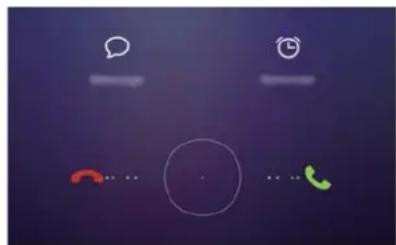
- Drag right to answer the call.
- Drag left to reject the call.
- Touch to reject the call and send an SMS.
- Touch ⏻ to configure a callback reminder.
While the screen is unlocked:
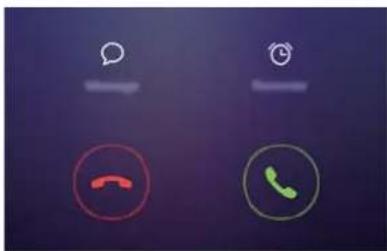
- Touch to answer the call.
- Touch ⏻ to reject the call.
- Touch 🔔 to reject the call and send an SMS.
- Touch ⏻ to configure a callback reminder.
On the dialler screen, touch ≡ > Settings > Reject calls with SMS to edit the predefined text messages.
Functions available during a call
During a call, your phone will display an in-call menu.
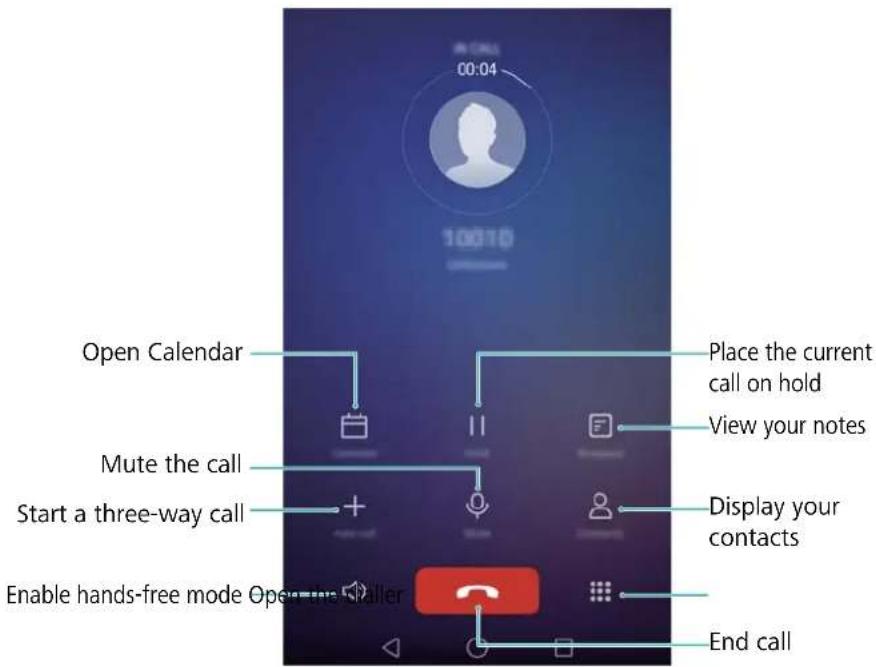
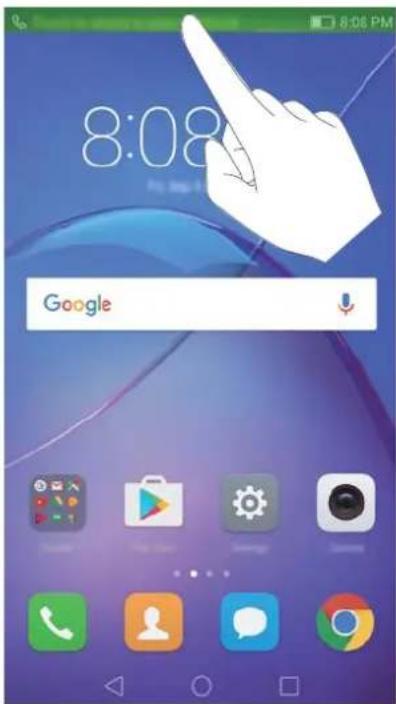
- Hide the in-call menu: Touch ○ Home or ◀ Return. To return to the in-call menu, touch the green status bar at the top of the screen.
- Start a three-way call: Please contact your carrier to find out how to use this feature. For more information, see Making a conference call.
- Adjust the volume: Press the volume up button to increase the volume, or the volume down button to decrease the volume.
To end a call using the power button, go to on the Power button ends call switch.
Dialler, touch ≡ > Settings and then turn
Answering a third-party call
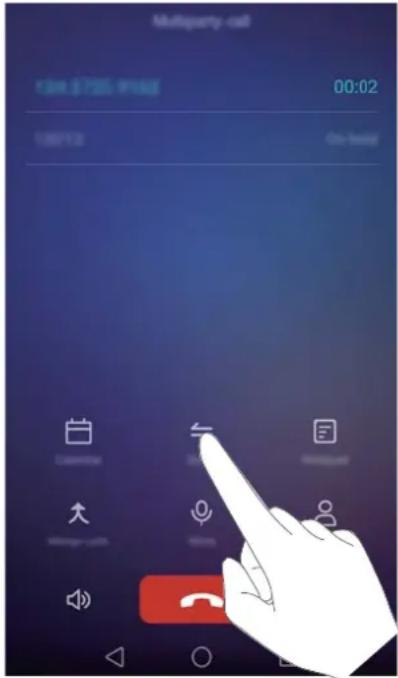
Before using this feature, check that you have subscribed to a call hold service and enabled call waiting on your phone. For more information on enabling call waiting, see Enabling call waiting or contact your carrier.
1 If you receive an incoming call when in another call, touch 📋. You can then answer the incoming call and hold the other line.
2 Touch to switch between the two calls.
Making a conference call
You can set up a conference call using the multi-party call feature on your phone. Call a number (or receive a call), then call another number to add it to the conference call.
i Conference calling requires network support. Please ensure you have activated this service. For details, contact your carrier.
1 Call the first participant.
2 Once the call is connected, touch + and then dial the second participant's number. The first participant will be placed on hold.
3 When the second call is connected, touch ↑ to start a conference call.
4 To add more people to the call, repeat steps 2 and 3.
5 Touch to end the call.
Viewing the call log
The call log is displayed above the dialler. Missed calls are displayed in red.
Adding a number from the call log
Select a number from the call log and save it to your contacts.
1 Open Dialler.
2 In the call log, touch the ⓘ icon next to the number you want to add and do the following:
- Touch + to create a new contact. For more information, see Creating a contact.
- Touch 🔊 to add the number to an existing contact.
Clearing the call log
Open 📞 Dialler. You can:
- Delete one entry: Touch and hold a log entry then touch Delete entry.
- Delete multiple entries: Touch ≡ > Delete call log and select the entries you want to delete. Touch 📄> Delete.
Turning on pocket mode
Enable pocket mode to make sure you don't miss calls when your phone is in your pocket. The ringtone volume and vibration intensity will gradually increase when you receive a call.
1 Open Dialler.
2 Touch > Settings.
3 Turn on the Pocket mode switch.

natural_image
Simple line drawing of a shopping bag with a smartphone icon and wireless signal waves (no text or symbols)Call settings
Enabling call forwarding
If you are unavailable to take a call, you can configure your phone to forward calls to another number.
1 Open Dialler.
2 Touch≡> Settings.
3 Touch Call forwarding. If your phone has dual SIM support, touch Call forwarding under SIM 1 or SIM 2.
4 Select a forwarding method, enter the destination number, then touch Enable.
When call forwarding is enabled, your phone will forward certain calls (such as unanswered calls) to the number you specified.
Enabling call waiting
Call waiting allows you to take an incoming call when you are already in a call and switch between the two conversations.
1 Open Dialler.
2 Touch≡> Settings.
3 Touch Additional settings and turn on the Call waiting switch. If your phone has dual SIM support, touch Additional settings under SIM 1 or SIM 2, then turn on the Call waiting switch.
When you receive an incoming call while already in a call, touch 📋 to answer the new call, and ⇌ to switch between the two calls.
Enabling do not disturb mode
Do not disturb mode allows you to work or relax in peace and quiet. Your phone will only notify you about important calls or messages.
1 Open Settings.
2 Touch Do not disturb and turn on the Do not disturb switch.
3 Touch Define priority interruptions > Whitelist for calls and messages > + to add contacts to the whitelist.
When do not disturb mode is enabled, your phone will only ring or vibrate when chosen contacts call or message you. Your phone will mute ringtones or vibrations for any other calls or messages. Notifications for these can be viewed in the notification panel.
Configuring the harassment filter
The harassment filter automatically blocks calls and messages from unknown or blacklisted sources. The blacklist is constantly updated, ensuring that you are never disturbed.
Open 📋 Phone Manager, then touch Harassment filter to configure filter rules and the blacklist or whitelist. For more information, see Harassment filter.
You can also open 📞 Dialler and then touch ≡ > Harassment filter to configure the harassment filter.
Configuring voicemail
Divert calls to your voicemail when your phone is switched off or unavailable. Callers can leave a voice message which you can listen to later.
i Voicemail must be supported by your carrier. Please ensure that you have subscribed to this service. Contact your carrier for information about their voicemail service.
1 Open Dialler.
2 Touch≡> Settings
3 Touch Additional settings. If your phone has dual SIM support, touch Additional settings under SIM 1 or SIM 2.
4 Touch Voicemail > Voicemail number and then enter your voicemail number.
When you receive a voicemail message, the 🔗 icon is displayed in the status bar. Dial the voicemail number to retrieve the message.
Creating a contact
The number of contacts you can store on your phone depends on the size of your phone's internal storage. The maximum number of SIM card contacts may vary depending on your SIM card's storage capacity.
1 Open Contacts.
2 Touch + . Touch Create a new contact if you are creating a contact for the first time.
3 Select a location to save the contact from the options menu.
4 Enter the contact's name, phone number and other information, then touch √.
If you want to save a number from your call log, touch the iicon next to the number you want to save, then select + or . You can also save phone numbers or email addresses in Messaging or Email to your contacts.
Adding contact details quickly
Enter contact information on your phone more rapidly. Simply scan or take pictures of business cards to automatically add names, phone numbers and other information to your contacts.
1 Open Contacts.
2 Touch Business cards >Scan.
3 You can then:
- Take a photo of one card: Place the business card on a flat surface and hold the phone in a landscape orientation. Adjust the viewfinder frame so that the card fits the guidelines, then touch Ⓐ.
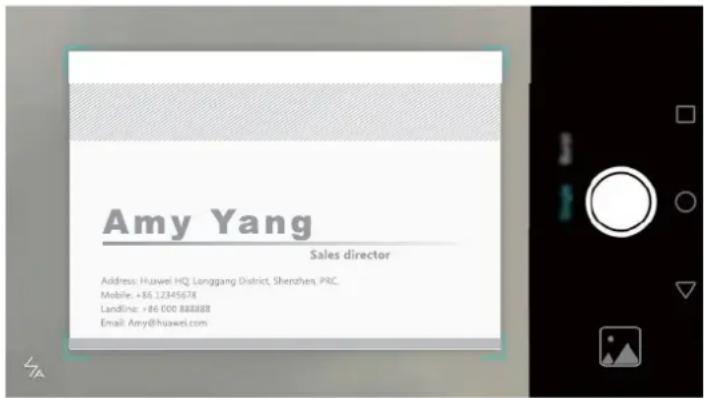
- Take photos of multiple cards: Switch to Burst mode and follow the onscreen instructions to photograph multiple cards.
After you have finished scanning or taking photos, contact information will automatically be saved to Business cards.
Importing or exporting contacts
Your phone supports .vcf contact files. VCF is a standard file format for storing contact information, including names, addresses and phone numbers.
Importing contacts from a storage device
1 Open Contacts.
2 Touch ≡ > Import/Export > Import from storage.
3 Select one or more .vcf files, then touch OK.
Importing contacts from a SIM card
1 Open Contacts.
2 Touch ≡ > Import/Export > Import from SIM. If your phone has dual SIM support, you can choose whether to import from SIM 1 or SIM 2.
3 Select the contacts you want to import, then touch ↗.
4 Choose the location to import contacts to. Your phone will automatically import the contacts.
Importing contacts using Bluetooth
1 Open Contacts.
2 Touch ≡ > Import/Export > Import from another phone.
3 Select Supports Bluetooth and then touch Next.
4 Enable Bluetooth on the device from which you want to import contacts and set the device to be visible to other Bluetooth devices.
5 Such Next. Your phone will automatically turn on Bluetooth and search for nearby devices.
6 Touch the Bluetooth device from which you want to import contacts. Once connected, your phone will automatically import contacts from the other Bluetooth device.
Importing contacts using Wi-Fi Direct
1 Open Contacts.
2 Touch ≡ > Import/Export > Import from another phone.
3 Select Import via Wi-Fi Direct and then touch Next. Your phone then prompts you to enable Wi-Fi and scans for Wi-Fi Direct devices.
4 Select the Wi-Fi Direct device you want to connect to. Once connected, your phone will automatically import contacts from the other device.
Exporting contacts to a storage device
1 Open Contacts.
2 Touch ≡ > Import/Export > Export to storage.
3 Touch Export.
4 Choose where you want to export the contacts from and touch OK.
Exporting contacts to a SIM card
1 Open Contacts.
2 Touch ≡ > Import/Export > Export to SIM. If your phone has dual SIM support, you can choose whether to export to SIM 1 or SIM 2.
3 Select the contacts you want to export, then touch ↗.
4 Touch Continue.
Sharing contacts
1 Open Contacts.
2 Touch ≡ > Import/Export > Share contact.
3 Select the contacts you want to share and touch.
4 Choose your sharing method and follow the onscreen instructions.
Managing contacts
Editing a contact
After creating a contact, you can edit their contact information at any time. This includes adding or deleting default information such as phone numbers or email addresses. You can also choose a custom ringtone and add a birthday, nickname or photo.
1 Open Contacts.
2 Touch and hold the contact you want to edit, then touch Edit.
3 Touch the contact's photo, then selectTake photo or Select new photo from Gallery.
Alternatively, enter the contact's new information and touch √.
The contact's photo will be displayed when the contact calls you. Other contact information such as company name and job title will also be displayed.
i Add multiple numbers for one contact: Select a contact from the contact list, then touch Edit > Add phone number.
Merging duplicate contacts
When you add contacts to your phone from different sources, you may end up with duplicate entries. These duplicate entries can be merged into one to help keep your contacts organised.
1 Open Contacts.
2 Touch ≡ > Organise contacts > Merge duplicate contacts.
3 Select the contacts you want to merge, then touch√.
Deleting contacts
1 Open Contacts.
2 Touch ≡ > Organise contacts > Delete contacts by batch.
3 Select the contacts you want to delete, then touch 📄.
4 Touch Delete.
You can also touch and hold a contact you want to delete. From the popup options menu, select Delete to delete that contact.
Finding a contact
Search contacts stored on the phone, SIM card or linked to an online account.
1 Open Contacts.
For more complete search results, ensure that Contacts is configured to display all of your contacts. On the contacts screen, touch Display preferences and then select All contacts.
2 On the contact list, use one of the following methods to find a contact:
- Swipe the contact list up or down.
-
Slide your finger up or down the index on the right-hand side of the screen to scroll through your contacts.
-
Enter the contact's name, initials, phone number, email address or other contact information in the search bar at the top of the contact list. Search results will be displayed underneath.
3 Select a contact. You can then choose to call them, send them a text message or edit their contact information.
If an error message is displayed or you are unable to search for a contact, touch Organise contacts and then select Rebuild index data.
Viewing contacts from different accounts
You can select which contacts to display on your phone.
1 Open Contacts.
2 Touch = > Display preferences.
3 Select the account you want to display or customise the accounts to display.
Hide contact photos, company information and job title: Touch ≡ > Display preferences on the contacts screen, then turn on the Simple layout switch.
Adding a contact to your favourites
You can add frequently-contacted people to your favourites to make them easier to find.
1 Open Contacts.
2 Touch and hold the contact you want to add to your favourites, then touch Add to favourites to add the contact to Favourites.
When viewing contact details, touch ☆ to add the contact to your favourites.
Remove contacts from your favourites: Touch Favourites > ⊖ on the contacts screen.
Select the contacts that you wish to remove from your favourites, then touch
Contact groups
Organise friends and family into different groups. You can send text messages or emails to everyone in a group. Contacts now also features Smart groups. Your phone can automatically sort contacts according to their company or the date you last contacted them, making it easier to manage contacts and groups.
Creating a group
1 Open Contacts.
2 Touch Groups and then +.
3 Enter the group name (for example Family or Friends) and touch OK.
4 Touch+. Select the contacts you want to add to the group, then touch √.
Editing a group
Add or remove people from a group or change the group name.
1 Open Contacts.
2 Touch Groups and select the group you want to edit.
3 Õuch + and add new members to the group.
4 Touch≡. You can then:
- Touch Remove members to remove members from the group.
- Buch Delete group to delete the group.
- Touch Rename to edit the group name.
Sending messages or emails to a group
1 Open Contacts.
2 Touch Groups and select which group you want to send a message or email to.
3 Such to send a message or to send an email.
Deleting a group
1 Open Contacts.
2 Touch Groups.
3 Such and hold the group you want to delete, then touch Delete.
4 Touch Delete.
i Deleting a group will not remove the contacts in the group.
Messaging and Email
Sending a message
Spice up your messages by adding emoticons, images, videos, music, recordings and more.
1 Open Messaging.
2 In the list of message threads, touch +.
3 Select the recipient box and enter the contact name or phone number. You can also touch to open your contact list and choose a contact or contact group.
4 Select the text field and enter your message, then touch.
If you enter more than three lines of text, touch to switch to full screen text entry. Touch to add an attachment to your message.
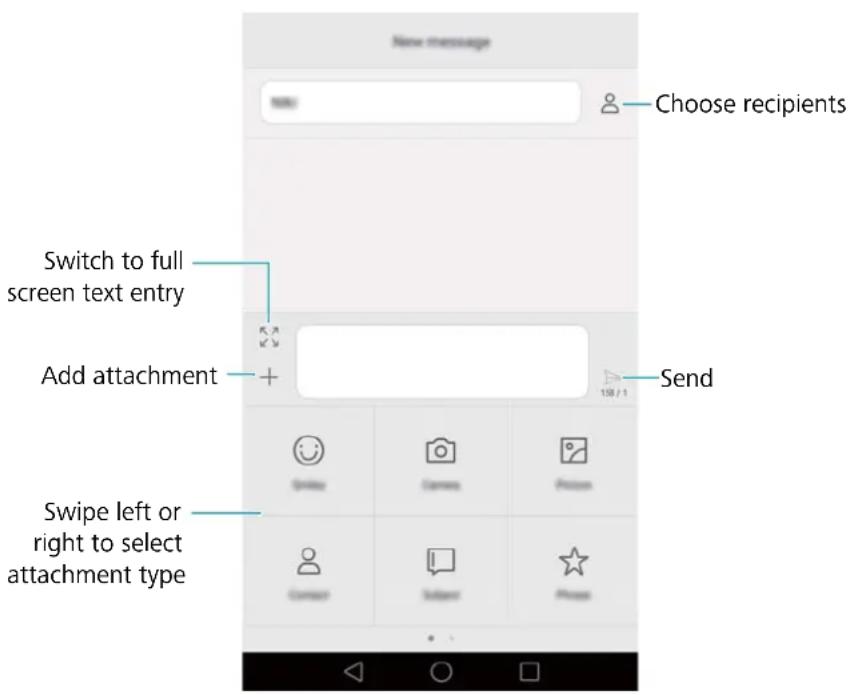
Cancel a message: You can cancel a message up to four seconds after it was sent. Touch ≡ > Settings, then turn on the Cancel send switch.
Replying to a message
1 Open Messaging.
2 In the list of message threads, touch a contact name or phone number to view your conversations.
3 Select the text field and enter your message, then touch ▶.
i Reply to a message from the notification bar: New messages will be displayed in the notification bar. Touch the button to compose a reply.
Searching for messages
Use the message search feature to find messages quickly.
1 Open Messaging.
2 Swipe down on the screen in the list of message threads to bring up the search bar.
3 Enter one or more keywords. The search results will be displayed underneath the search bar.
Deleting threads
Delete unwanted or old threads to tidy up your message list.
i Deleted threads cannot be retrieved, so please proceed with caution.
1 Open Messaging.
2 In the list of message threads, touch and hold a thread.
3 Select the threads you want to delete, then touch 📄 > Delete.
Managing messages
Delete unwanted messages, forward messages to other contacts, copy and paste message content, and lock messages or add them to your favourites to prevent them from being deleted by accident.
1 Open Messaging.
2 In the list of message threads, touch a contact name or phone number to view your conversations.
3 õuch and hold a message. You can:
- Forward the message: to forward the message to another contact.
- Delete the message: Touch 📄 > Delete to delete the message. Deleted messages cannot be retrieved.
- Copy the message: Touch ☐ to copy the message to the clipboard and paste it elsewhere. When viewing a message, touch the message twice to enter full screen text selection view.
- Add the message to your favourites: Touch > Copy to Favourites to add the message to your favourites. When you delete messages, messages in your favourites will not be affected. In the list of message threads, touch Favourites to view your favourite messages.
- Lock the message: Touch ≡ >Lock to lock the message. When you delete messages, locked messages will not be affected.
Blocking spam messages
1 Open Messaging.
2 In the list of message threads, touch ≡ > Harassment filter to view blocked messages.
3 Touch ✅ to configure the spam rules and keywords. Blocked messages are not shown in the list of message threads.
Managing common phrases
Create common phrases to save you time when you're composing a message.
1 Open Messaging.
2 In the list of message threads, touch > Settings > Advanced > Common phrases. You can:
- Buch a common phrase to edit it.
- Buch + to create a common phrase.
Use a common phrase in a message: When composing a message, touch +Select Phrase, then select a common phrase to add it to your message.
Adding a message signature
Add a message signature to save you time when sending messages.
1 Open Messaging.
2 Ñuch ≡ > Settings > Advanced > Signature in the list of message threads, then turn on the Attach signature switch.
3 Touch Edit signature. Enter your signature and touch OK.
Adding an email account
Adding a personal email account
When adding an account, consult your email service provider if you are unsure about the account settings.
1 Open Email.
2 Choose an email service provider or touch Others.
3 Enter your email address and password, then touch Next. Touch Manual setup to configure an email account manually.
4 Follow the onscreen instructions to configure your account. The system will automatically connect to the server and check the server settings.
Once the account has been set up, your Inbox will be displayed.
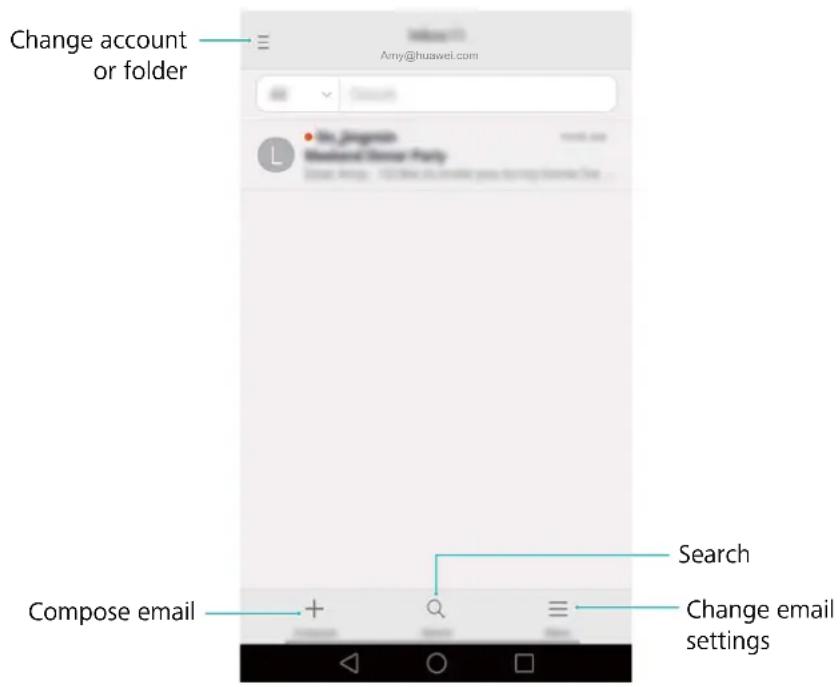
i After adding an email account, touch ≡ > Settings > Add account in your Inbox to continue adding other accounts.
Adding an Exchange account
Exchange is an email system developed by Microsoft for businesses. Some email service providers also provide Exchange accounts for individuals and families.
When adding an account, consult your email service provider if you are unsure about the account settings.
1 Open Email.
2 Touch Exchange.
3 Enter your email address, user name and password. Such Next.
4 Follow the onscreen instructions to configure your account. The system will automatically connect to the server and check the server settings.
Once the account has been set up, your Inbox will be displayed.
Sending an email
1 Open Email.
2 Touch+.
3 Touch From: and then select the email account you want to use.
4 Enter one or more recipients.
To Cc or Bcc the email to multiple recipients, touch Cc/Bcc:.
5 Enter your email subject and main body. Touch© to add an attachment.
6 Touch.
Your email service provider may place a limit on the size of email attachments. If your attachments exceed the limit, send the attachments in separate emails.
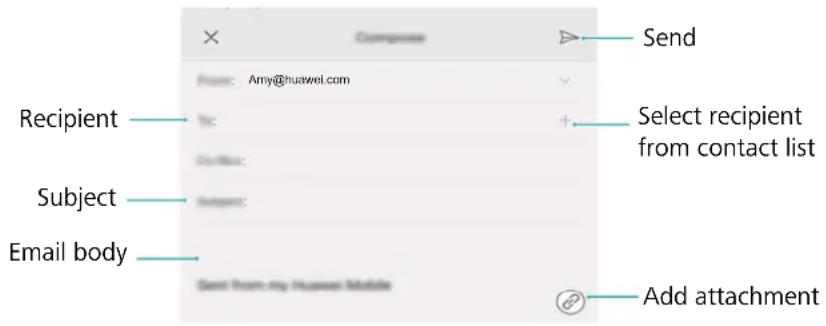
Touch ✗> Save to save your email as a draft.
Checking your emails
Open Email and then swipe down in your Inbox to refresh the list of emails.
1 Open Email.
2 In your Inbox, touch ≡ in the upper left corner to select an account.
3 Touch the email you want to read. You can:
- Touch☆ to star for future reference.
- Touch 📄 to delete.
- Touch email to reply.
- Touch to reply to all.
- Touch → to forward.
- Touch≡, and then select Mark unread to mark an email as unread.
- Swipe left or right to read the next or previous email.
Managing VIP contacts
Add important contacts to your VIP list. Emails from your VIP contacts will appear in a separate inbox.
1 Open Email.
2 In your Inbox, open the email that you want to read.
3 Such the contact's photo, then select Add to VIP list in the popup menu.
To change the notification settings and ringtones for your VIP contacts, touch Settings > VIP notifications in your Inbox.
Account settings
Changing email accounts
If you have added multiple email accounts on your phone, ensure you switch to the right account before viewing or sending emails.
1 Open Email.
2 In your Inbox, touch ≡ in the upper left corner to open the account list.
3 Select the desired email account.
Removing an email account
1 Open Email.
2 In your Inbox, touch≡> Settings.
3 Select the account you want to remove.
4 Õuch Remove account > OK.
After you remove an email account, you will no longer be able to send or receive emails using that account.
Personalising your email account
Display contact pictures, choose what to display after deleting an email, change your signature, set inbox update frequency and change email notification tones.
1 Open Email.
2 In your Inbox, touch ≡ > Settings and then choose the desired settings.
Camera and Gallery
Accessing the viewfinder
Open ● Camera to access the viewfinder.
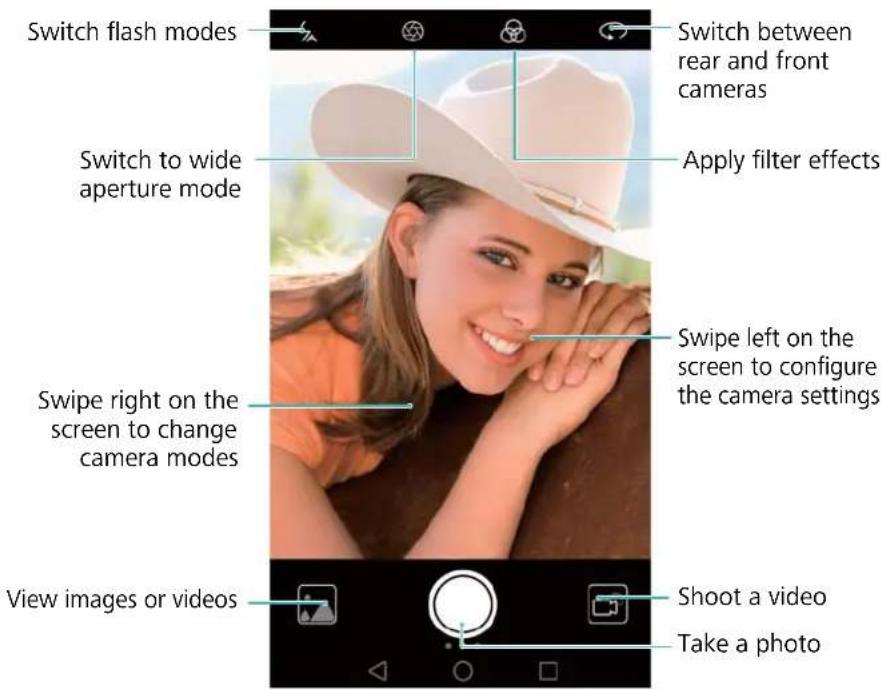
For more information on the camera settings, see Camera settings.
Taking a photo
Your phone comes with a feature-packed camera that you can use to capture life's unforgettable moments.
1 Open Camera.
2 Frame the scene you want to capture. The camera will focus automatically. Touch any part of the viewfinder to focus on the corresponding area. To adjust the focal length, pinch two fingers together or spread them apart on the viewfinder.
3 Touch.
i Touch the thumbnail to view a photo and share it with friends. For more information, see Sharing images or videos.
Shooting modes
Your phone features a variety of different camera modes for different shooting scenarios.
i Availability of different shooting modes varies by model.
Swipe right on the viewfinder to change the capture mode.
- Beauty: Drag the slider to adjust the beauty level and apply facial enhancement effects. For more information, see Beauty mode.
- Panorama: Use this mode to take wide-angle shots. For more information, see Taking a panoramic photo.
- Panoramic self-portraits Use this mode to take panoramic self-portraits. For more information, see Taking a panoramic self-portrait.
- Night shot: Use this mode to take night-time shots. The camera will automatically adjust the exposure based on the ambient light conditions. For more information, see Super Night mode.
- HDR: Enhance a photo taken under insufficient or excessive light conditions. For more information, see HDR mode.
- Pro photo: Take stunning, DSLR-quality images. For more information, see Pro camera mode.
- Document scan: Automatically straighten out images taken from an angle to make them easier to read. For more information, see Document correction.
- Light painting: Capture trails of light by using slow shutter speeds. For more information, see Light Painting mode.
- Watermark: Add a selection of watermarks to your photos. For more information, see Adding watermarks to photos.
- Audio note: Record a few seconds of audio when taking a photo. For more information, see Audio notes.
- Wide aperture: Take close-up shots of objects and people with a blurred background. For more information, see Wide aperture photos.
- Time-lapse: Make an accelerated video of a slow-changing scene. For more information, see Time-lapse mode.
- Slow-mo: Record a slow motion clip. For more information, see Slow motion recording.
Beauty mode
Use beauty mode for stunning selfies and younger, smoother-looking skin.
1 Open ● Camera and swipe right on the screen. Touch Beauty.
2 Drag the slider to adjust the beauty level.
3 Frame the scene you want to capture, then touch Ⓐ. The camera will automatically detect each face in the photo and apply the beauty settings.
Perfect Selfie mode
Use Perfect Selfie mode to automatically apply custom beauty settings to your face when you are in a group photo. Adjust the settings for your eyes, pupils, skin tone and face shape to make you stand out from the crowd.
Using Perfect Selfie mode
Perfect Selfie mode automatically detects your face in a group shot and applies custom beauty settings to your skin.
1 Open ● Camera. Swipe right on the screen and touch Beauty.
2 (Optional) Swipe left on the screen and check that the Perfect selfie switch is turned on. See Configuring Perfect Selfie if you are enabling this mode for the first time.
3 Go back to the Beauty screen to take a photo. Switch to the front camera if you are taking a selfie. Touch ● The camera will automatically detect your face and apply the preset facial enhancement settings.
Configuring Perfect Selfie
Follow the steps below when using Perfect Selfie for the first time.
1 Open ● Camera. Swipe right on the screen and touch Beauty.
2 Touch Perfect selfie to configure the facial enhancement settings.
a take three photos of your face from the front, side, and with your head lowered.
b Configure the settings for skin tone, pupils and face shape as desired. Choose a higher setting for a more noticeable effect. Touch √.
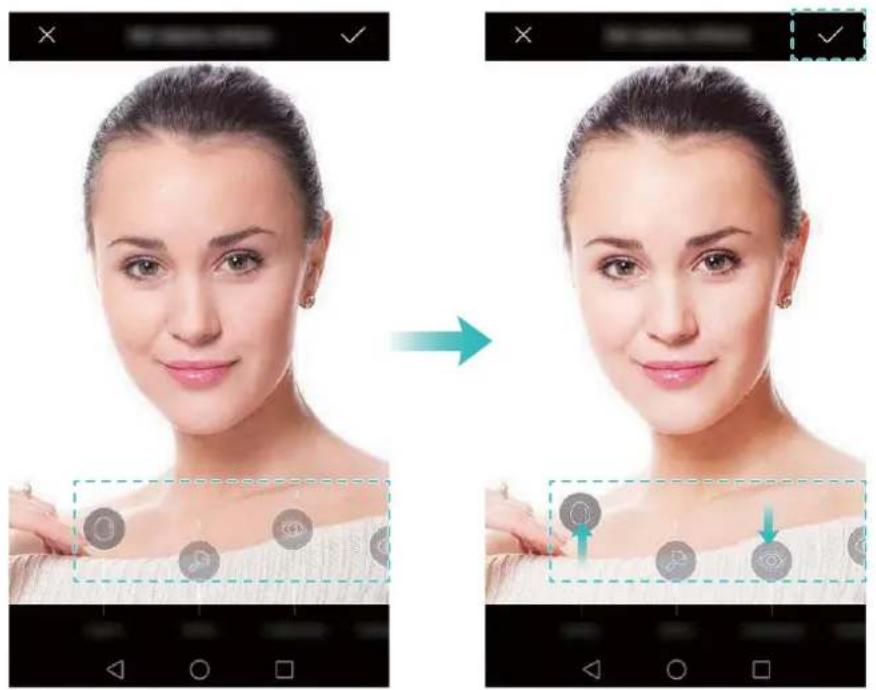
- Update your personal information: On the camera settings screen, touch Perfect selfie > Edit personal info to update your calibration photos.
- Adjust your beauty settings: On the camera settings screen, touch Perfect selfie > Set beauty effects to adjust the beauty settings, such as skin tone and face shape.
- Disable Perfect Selfie mode: On the camera settings screen, turn off the Perfect selfie switch to disable Perfect Selfie.
Ultra Snapshot
Press the volume down button twice to take a photo, even when the screen is off.

This feature is not available during music playback. Not all camera modes support this feature.
1 Open ● Camera and then swipe left on the screen to access the camera settings. Touch Camera > Ultra snapshot.
2 When the screen is off point the camera at the desired object, then press the volume down button twice in quick succession to take a photo. The camera will automatically take a photo and display the capture time.
i Disabling Ultra Snapshot: On the camera settings screen, touch Ultra snapshot > Off.
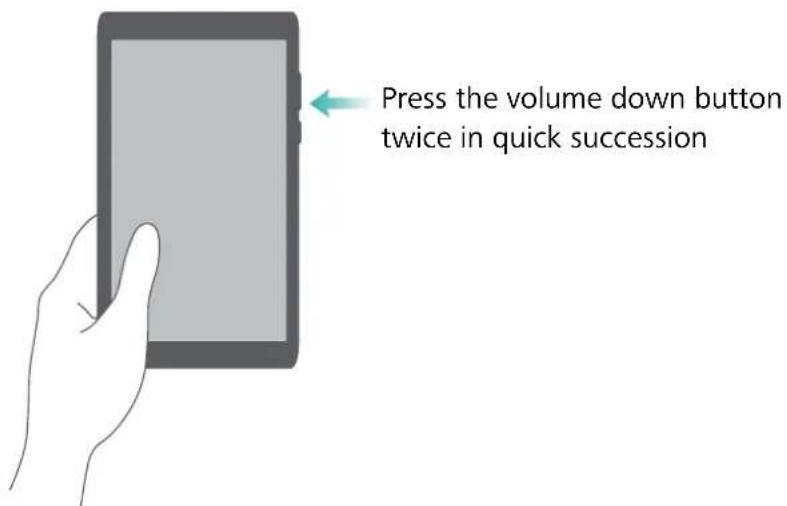
Due to the rapid capture time, image quality may decrease for night-time or close-up shots. Choose a location with ample light and shoot from a suitable distance.
Burst shooting
Use burst shooting when you want to take a photo of a moving subject, such as during a football match. The camera will capture several images in quick succession so that you don't miss out on the action.
i Not all camera modes support this feature.
1 Open ● Camera. 2 Focus on the subject and then press and hold ● to start the burst sequence. Release your finger to stop shooting.
3 To view and select images, touch the image thumbnail and then touch i indicates photos that were taken in burst mode.
4 Our phone will automatically select the best shot. To select other photos, touch √. Touch and then follow the onscreen instructions to save the image.
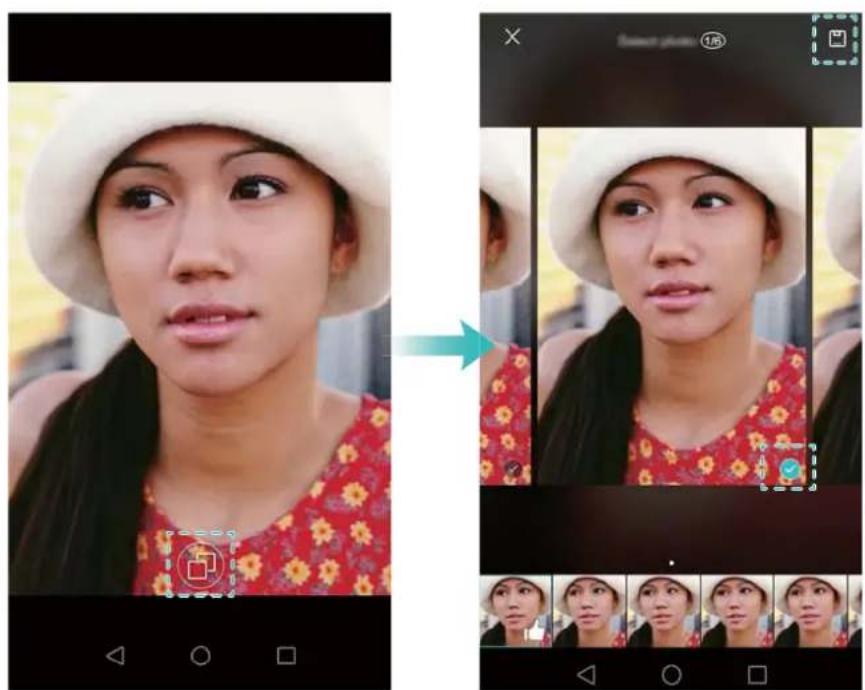
natural_image
Side-by-side comparison of a person's facial features before and after applying a camera (no text or symbols visible)If you cannot access Burst shooting mode, touch Touch & hold shutter button on the camera settings screen and check that Burst shoot is selected.
Voice activated shooting
Use voice activated shooting to control the shutter when taking a group shot.
1 Open ● Camera. Swipe left on the screen to access the camera settings.
2 Touch Audio control and turn on the Audio control switch. You can then:
- Say "cheese" to take a photo.
- Set the camera to take a photo when the ambient noise reaches a certain decibel level.
3 Frame the scene you want to capture. The camera will take a photo automatically when you issue a voice command or the camera detects a loud sound.
Launching the camera from Gallery
1 Open Gallery.
2 Go to the Photos tab and swipe down to display the viewfinder in half-screen mode. Swipe down again to launch the camera.
i Not all camera features are available in half-screen mode.
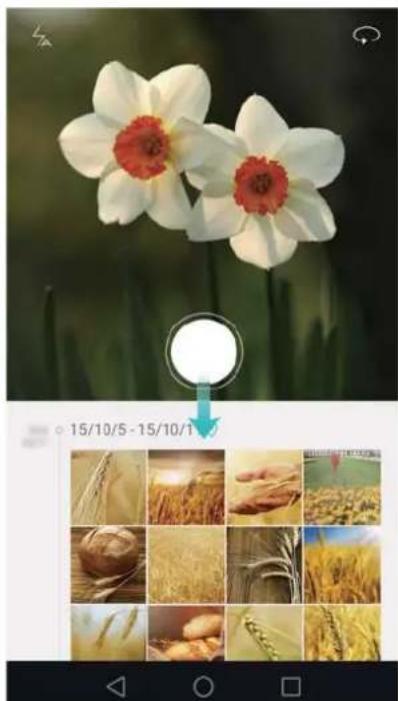
natural_image
Close-up of white daffodils with red centers against a green background, accompanied by a circular lens and a grid of small images below (no text or symbols on the objects themselves)3 Select the desired shooting mode. For more information, see Shooting modes.
4 Touch to take a photo.
5 Touch ◀ Return to return to Gallery.
Object tracking
Use object tracking when taking photos of moving subjects, such as people or animals. The camera will automatically focus on the moving subject to ensure that your image stays in focus.
Object tracking mode and smile capture cannot be used at the same time.
1 Open ● Camera. Swipe left on the screen to access the camera settings.
2 Turn on the Object tracking switch.
3 Touch the subject on the screen. Your camera will remain focused on the subject.
4 Õuch
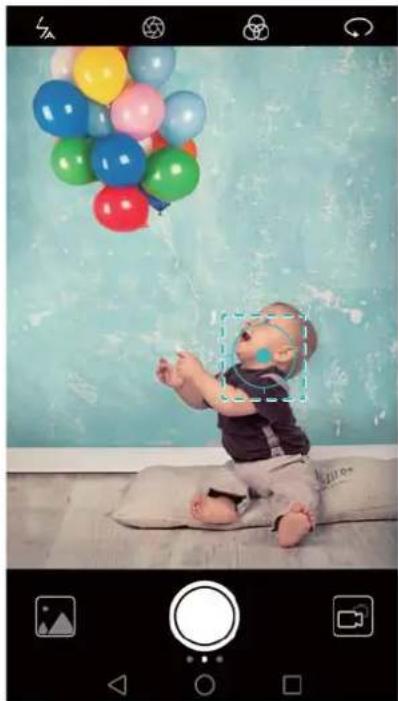
natural_image
Baby sitting on a bed with a floating balloon in the background (no text or symbols visible)Audio notes
Add audio notes to bring your photos to life.
1 Open ● Camera and swipe right on the screen. Touch Audio note.
2 Frame the scene you want to capture.
3 Touch to take a photo with an audio note. The camera will record a short audio clip to add to your photo.
HDR mode
Use HDR mode for scenes with a large contrast to prevent under- or overexposure and ensure clarity in every shot.
i HDR mode is not available for the front camera.
1 Open ● Camera and swipe right on the screen. Touch HDR.
2 Hold your phone steady, frame the scene and then touch.
Super Night mode
Super Night mode improves the quality of images taken at night and in low-light conditions by accentuating the detail of darker areas to produce brighter, more colourful images.
i Use a tripod to minimise camera shake.
1 Open ● Camera and swipe right on the screen. Touch Night shot.
i Touch Auto and follow the onscreen instructions to manually adjust the ISO and other exposure settings.
2 Hold your phone steady, frame the scene and then touch. The camera will automatically take several images and merge them into one photo.
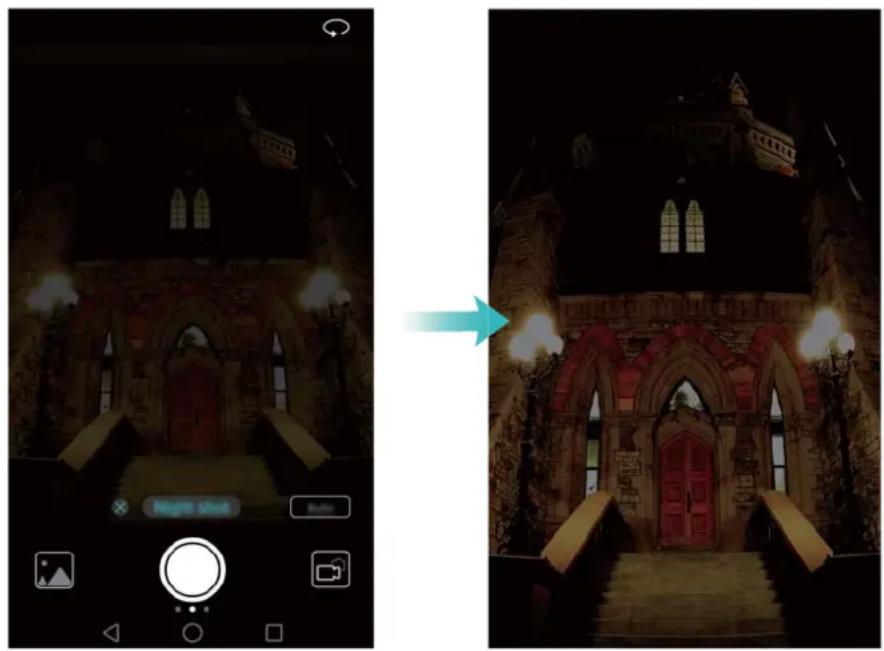
natural_image
Two-panel image showing a night scene of a Gothic-style building with red doors and arched windows, alongside a UI panel with 'Right should' buttons (no readable text on building itself)Pro camera mode
Pro camera mode gives you full control over the camera settings so that you can take professional-looking shots in challenging shooting scenarios.
Using Pro camera mode
Your phone comes with Pro camera mode, which gives you manual control over the camera settings (such as overlays, exposure and shutter speed) for professional quality shots.
1 Open ● Camera and swipe right on the screen. Touch Pro photo.
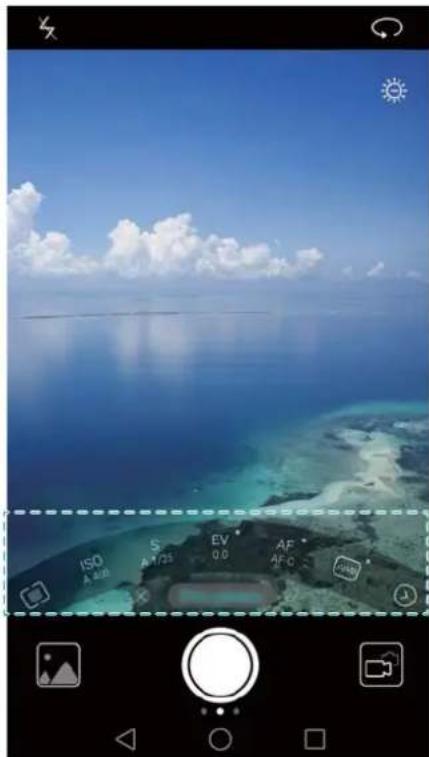
natural_image
Aerial view of a tropical island with ocean and sky reflections, captured via smartphone camera interface (no readable text or symbols on the scene itself)2 In Pro camera mode, you can adjust the exposure, shutter speed and other camera settings.
- Adjust the shutter speed, white balance and other camera settings: You can adjust the ISO, exposure compensation, white balance, focus mode, shutter speed and more on the Pro camera settings screen. For more information, see Pro camera settings.
- Add an overlay: Swipe left on the screen and touch Camera grid. Select an overlay to help you compose your image. For more information, see Adding an overlay.
3 After you have finished adjusting the camera settings, touch ⚙ to take a photo.
The low exposure icon will appear when the exposure is too low. Touch this icon to restore the default exposure settings.
Pro camera settings
When you switch to Pro camera mode, you can adjust a whole range of camera settings in the viewfinder to produce professional-looking shots. For example, you can adjust the ISO, exposure compensation, white balance, focus mode, shutter speed and more.
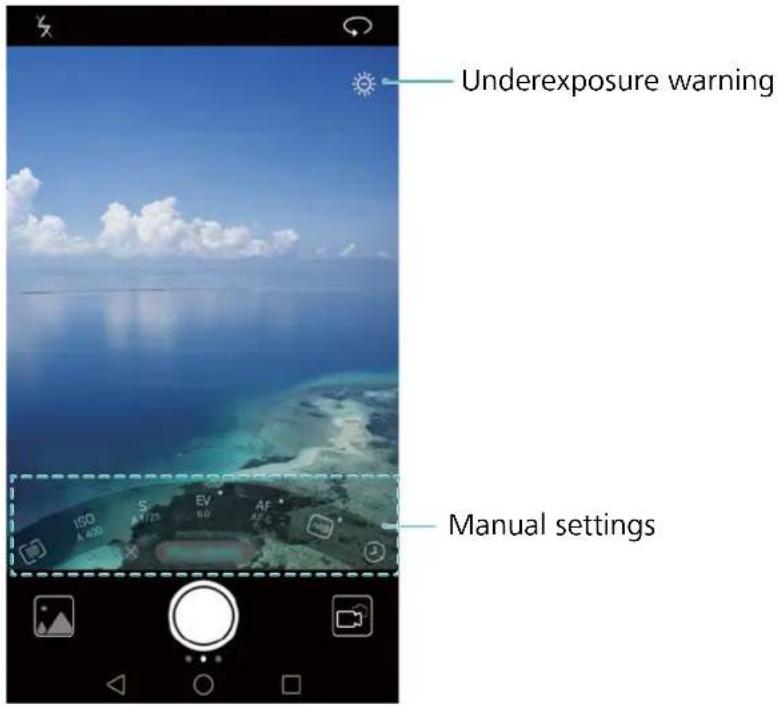
Low exposure icon
Touch this icon to restore the default exposure settings. This icon will only appear when the exposure is too low.
Manual settings
- Touch to set the metering mode (the way in which your camera determines the exposure). You can select matrix metering, centre-weighted metering or spot metering. Matrix metering is set by default.
- ISO Touch to adjust the camera's sensitivity to light. Increasing the ISO will create a brighter picture, but there will be a noticeable increase in noise. You can configure the camera to adjust the ISO automatically, or you can adjust it manually.
- S: Touch to set the shutter speed. You can configure the camera to adjust the shutter speed automatically, or you can adjust it manually.
- EV: Touch to set the exposure compensation. Select an exposure setting to increase/decrease the brightness. Touch and hold the icon to lock the current exposure setting.
- AF: Touch to set the focus mode. You can select touch to focus, continuous autofocus or manual focus. Continuous autofocus is set by default. When continuous autofocus is selected, touch and hold the icon to enable the focus lock.
- AWB: Touch to select a white balance according to the ambient light conditions. You can choose from daylight, tungsten bulb, fluorescent lamp and more. You can also adjust the colour temperature. Touch and hold the icon to lock the white balance.
Light Painting mode
Light Painting mode enables you to take stunning shots of light trails without the need to manually adjust the aperture or shutter speed. Four different settings are available for different shooting scenarios.
• Tail lights: Capture trails of light made by cars at night.
• Light graffiti: Capture trails of light in a dark environment.
- Silky water: Capture silky smooth images of flowing water
- Star track: Capture stunning images of star trails in the night sky.
Tail lights
In Light Painting mode, select Tail lights to capture the trails of light made by cars at night.

natural_image
City skyline at dusk with illuminated skyscrapers and light trails from a multi-lane highway (no visible text or signage)1 Select a suitable location and hold your phone steady. Use a tripod for long exposures.
i Shoot from a distance for the best results. Avoid pointing the camera at car headlights to prevent parts of the image from becoming overexposed.
2 Open ● Camera and swipe right on the screen. Touch Light painting > Tail lights.
3 Touch ⚙ to start the exposure. The exposure time is displayed at the bottom of the screen.
4 A preview of the image is displayed in the viewfinder. When the desired exposure time has elapsed, touch to end the exposure.
Light graffiti
In Light Painting mode, select Light graffiti to create patterns or text by moving a light source in front of the camera.

natural_image
Woman holding a glowing pink heart-shaped light effect against a black background (no text or symbols)i Use a small torch or a glow stick to create a pattern.
1 Select a suitable location and hold your phone steady. Use a tripod for long exposures.
i Choose a location away from other sources of light to ensure that the pattern stands out.
2 Open ● Camera and swipe right on the screen. Touch Light painting > Light graffiti.
3 Touch when the subject starts to draw a pattern using the source of light. The exposure time is displayed at the bottom of the screen.
i Turn on the flash if you wish to capture the person creating the pattern.
4 A preview of the image is displayed in the viewfinder. Touch to end the exposure.
Silky water
In Light Painting mode, select Silky water to capture silky smooth images of waterfalls and rivers.

natural_image
Scenic autumn forest stream with flowing water, moss-covered rocks, and vibrant yellow foliage (no text or symbols visible)1 Select a suitable location and hold your phone steady. Use a tripod for long exposures.
2 Open ● Camera and swipe right on the screen. Touch Light painting > Silky water.
3 Touch ⚙ to start the exposure. The exposure time is displayed at the bottom of the screen.
4 A preview of the image is displayed in the viewfinder. When the desired exposure time has elapsed, touch to end the exposure.
Star track
You can use your camera to capture the movement of stars in the night sky.

natural_image
Night sky with star trails forming a spiral pattern and distant hills (no text or symbols)i Use a tripod to minimise camera shake and hold your phone in place.
1 Select a suitable location away from obstructions. Clear skies will produce the best results.
When shooting the image, stay away from sources of light and avoid excessive exposure times to prevent parts of the image from becoming overexposed.
2 Open ● Camera and swipe right on the screen. Touch Light painting > Star track.
3 Touch ⚙ to start the exposure. The exposure time is displayed at the bottom of the screen.
4 A preview of the image is displayed in the viewfinderWhen the desired exposure time has elapsed, touch □ to end the exposure.
Panoramic shots
Taking a panoramic photo
Select Panorama mode to take wide-angle shots.

natural_image
Nighttime cityscape featuring a large illuminated steel truss bridge over a river, with illuminated skyscrapers in the background (no visible text or signage)1 Select a suitable location and hold your phone steady. Shoot the image in a wide, open space and avoid monochromatic backgrounds.
2 Open ● Camera and swipe right on the screen. Touch Panorama.
3 Touch to start shooting.
4 Follow the onscreen instructions to take the photo. Slowly move your camera from left to right, ensuring that the arrow stays level with the centre line. To take a panoramic shot in portrait mode, select → and then slowly move your camera upwards.
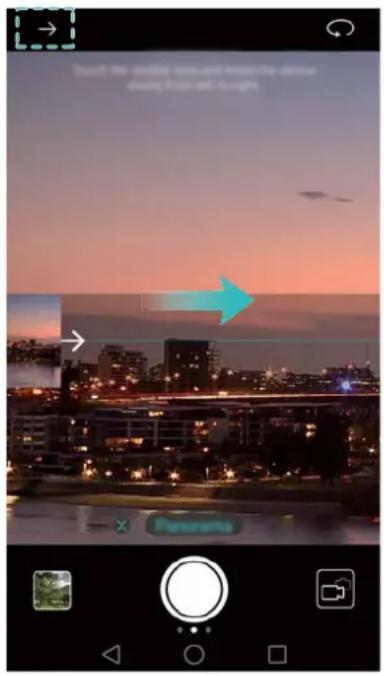
5 Touch ☐ to stop shooting. The camera automatically stitches the photos together to create one panoramic photograph.
Taking a panoramic self-portrait
You can also take wide-angle shots in self-portrait mode to capture the beautiful surroundings.
i You cannot take panoramic self-portraits in landscape mode.
1 Open Camera.
2 Touch to select the front-facing camera.
3 Swipe right on the screen and touch Panorama.
4 Hold your phone steady, point the camera at the subject and then touch ⚙ to take the first photo.
i Make sure that subjects don't move between each photo.
5 Follow the onscreen instructions and slowly turn your camera to the left. Our camera will take the second photo automatically when the blue box lines up with box on the left-hand side.
6 Follow the onscreen instructions and slowly turn your camera to the right. Your camera will take the final photo when the blue box lines up with the box on the right-hand side. The camera automatically stitches the photos together to create a panorama.
Hold your phone steady and move slowly while you turn.
Adding watermarks to photos
Add watermarks to personalise your photos and help you remember where they were taken.
1 Open ● Camera and swipe right on the screen. Touch Watermark.
2 Touch the < or > navigation icon or touch More and then select the desired watermark.
3 Drag the watermark to reposition, then touch ⚙ to take a photo.
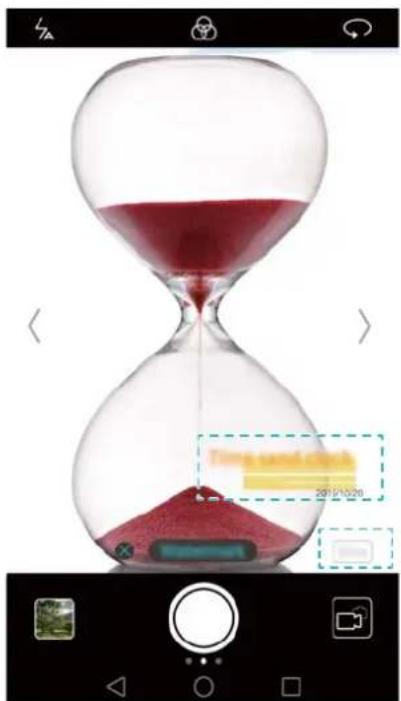
natural_image
Hourglass with red sand flowing, showing a small object inside (no text or symbols visible)Shooting a video
1 Open ● Camera and swipe right on the screen. Touch Video.
2 õuch to start a video recording.
3 Touch the screen to focus on an object or area during recording. Touch ^11 to pause recording, then touch ☑to resume. Touch ☑to save the current scene as a photo.

natural_image
White Lamborghini sports car parked on a road with green hills and blue sky in the background (no visible text or symbols)4 Touch to end the recording.
i Automatic facial enhancement: Swipe right on the screen and touch Beauty video. Stabilisation cannot be enabled in this mode.
Time-lapse mode
Time-lapse mode allows you to capture and speed up subtle changes in the natural world. For example, you can record the opening of a flower or the movement of clouds.

natural_image
Dry grassland with a lone bare tree under a blue sky with scattered clouds, distant mountains in background (no text or symbols)1 Open ● Camera and swipe right on the screen. Touch Time-lapse.
2 Touch to start a video recording.
Your camera will automatically select a suitable frame rate according to the length of the recording. The focal length cannot be adjusted during recording.
3 Touch to end the recording.
Touch the thumbnail to play the recording. The video will be played back at a higher frame rate. The frame rate is determined automatically by your camera and cannot be adjusted.
Slow motion recording
You can record videos in slow motion to enjoy fast moving scenes in detail, such as falling water droplets or dance moves.
1 Open ● Camera and swipe right on the screen. Touch Slow-mo.
2 Touch to start a video recording.
3 Touch the screen to focus on an object or area during recording.
4 Touch to end the recording.
Touch the thumbnail to play the recording back in slow motion. You can also select a clip from the video and play it in slow motion.
Document correction
Use document correction mode to automatically adjust the orientation of a document in a photo. For example, if you're sitting at the edge of a meeting room, you can take a photo of a PPT and then use document readjustment to crop and straighten the image so that it fits perfectly on your screen.
1 Open ● Camera and swipe right on the screen. Touch Document scan.
i Touch Auto to turn off automatic shooting mode and take a photo manually.
2 Focus on the subject (for example, a PPT, poster or screen) and then touch to take a photo. Your camera will automatically extract the part of the image containing text and adjust its orientation so that it is easier to read.
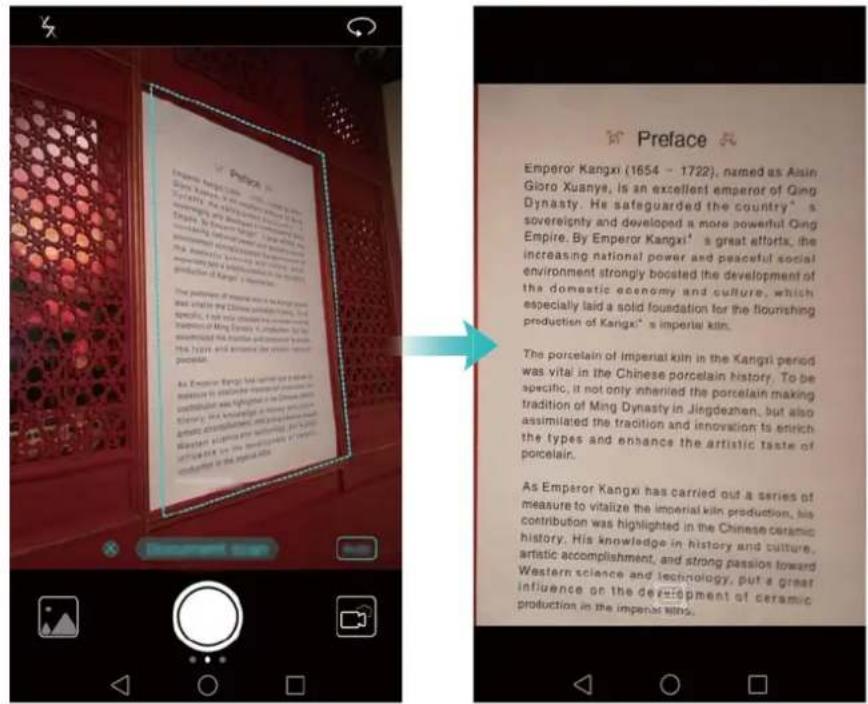
Touch the thumbnail to read the text in the image, then touch to edit the image.
Camera and video settings
Setting the photo and video resolutions
Increase the resolution for higher quality images and videos. However, larger resolution images take up more space on your phone. Changing the resolution will also change the image dimensions.
i Some shooting modes may not support all resolutions.
Open ● Camera. Swipe left on the screen and touch Resolution to change the resolution.
Configuring the default storage location for photos and videos
Open Camera and swipe left on the screen. Turn on the Priority save to SD card switch to set the default storage location to the microSD card. This option will not be available if there is no microSD card in your phone. If the microSD card is full, photos will be saved to your phone's internal storage.
Adding an overlay
You can add a grid or spiral overlay to the viewfinder to help you compose your image.
i Overlays may not be available in some shooting modes.
Open ● Camera. Swipe left on the screen, touch Camera grid and then select an overlay to help you compose your image. Select Off to delete the reference lines.
You can choose from a 3 x 3 grid, phi grid or spiral overlay. Use the 3 x 3 grid for general shooting scenarios. The phi grid is similar to the 3 x 3 grid, but uses the golden ratio to divide the viewfinder into distinct sections. Use the spiral grid for indoor photography or portrait shots.
Video settings
i Some settings may not be available in certain shooting modes.
Swipe left on the video shooting screen to configure the following settings:
- Resolution: Configure the video resolution.
• GPS tag: Display the location where the video was recorded. - Priority save to SD card: Set the default storage location for your videos. You can select your phone's internal storage or the microSD card.
- Object tracking: Touch an object on the screen. The camera will focus on the selected object when capturing the video.
Camera settings
i Some shooting modes may not support all settings.
Swipe left on the photo shooting screen to configure the following settings:
- Resolution: Set the photo resolution.
• GPS tag: Display the location where the photo was taken. - Priority save to SD card: Set the default storage location for your photos. You can select your phone's internal storage or the microSD card.
- Perfect selfie: Enable or disable this function in Beauty mode for automatic facial recognition and customised portrait enhancement. For more information, see Using Perfect Selfie mode.
- Buch & hold shutter button: Configure the shutter's touch and hold settings. You can select Burst shoot or Focus.
• Audio control: Take a photo using voice commands. - Volume button function: Configure the volume button settings. You can select Shutter, Zoom or Focus.
- Mute: Enable this feature to mute the camera. Due to legal constraints, this feature is not available in all countries and regions.
- Timer: Enable this feature to set a self-timer.
- Touch to capture: Touch the viewfinder to take a photo.
- Capture smiles: The camera will automatically take a photo when it detects a smile.
- Object tracking: Touch the object you want to focus on. The camera will track and focus on the selected object. For more information, see Object tracking.
- Ultra snapshot: Press the volume down button twice to take a photo when the screen is off. For more information, see Ultra Snapshot.
- Image adjustment: Adjust saturation, contrast and brightness.
Viewing photos and videos
You can view the following photos and videos in Gallery:
- Photos and videos shot with the camera.
- Photos and videos that your friends shared with you.
- Photos and videos synced from your computer.
- Photos and videos saved from messages, emails or websites, as well as screenshots.
Open Gallery and go to the Photos tab to sort photos and videos according to the time and location they were shot. Go to the Albums tab to sort photos and videos by album.
Viewing photos in chronological order
Go to the Photos tab. Photos are automatically displayed in chronological order. Touch ≡ > Settings and then turn on the Show time switch to display the time that the shot was taken when viewing an image.
Viewing photos by location
Go to the Photos tab and touch 📋 Photos with location information will be displayed on a map. Touch ≡ > Settings and then turn on the Show location switch to display the location where the shot was taken when viewing an image.
Viewing photos by album
Go to the Albums tab. Photos and videos are automatically added to the default folders. For example, videos that you shot using the camera are automatically added to the Camera videos folder, and screenshots are added to the Screenshots folder.
i Touch Hide albums and turn on the switch next to albums that you want to hide. These albums will not appear in the album list.
Viewing photos as a slideshow
Go to the Photos tab and touch ≡ > Slideshow. Touch the screen to stop the slideshow.
Viewing photos in full-screen mode
Open Gallery and then touch an image to view it in full-screen mode. Touch the screen to display or hide the screen menu.
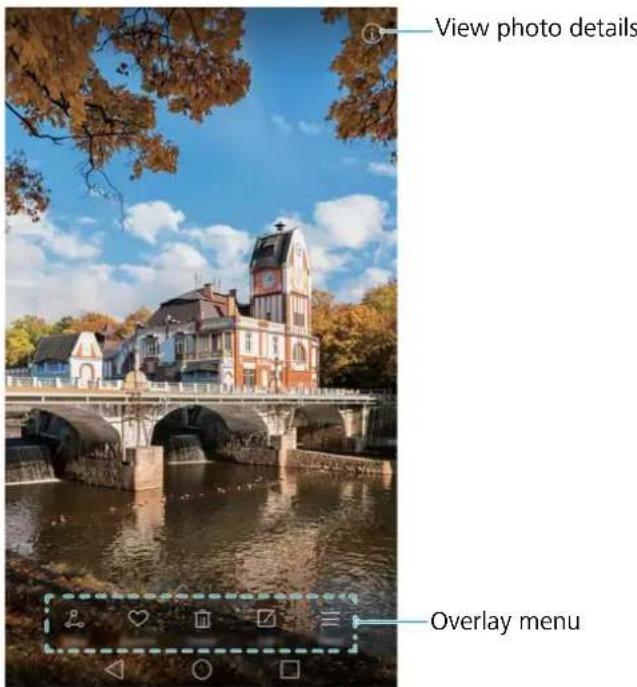
- Zoom or in out: Spread two fingers apart to zoom in, or pinch two fingers together to zoom out.
- View image details: Touch ⓘ to view the image details, such as the ISO, exposure compensation and resolution.
- Rename photo: To rename a photo, touch ≡ >Rename. Enter the new name and then select OK.
- Set photo as the home screen wallpaper: Touch ≡ > Set as > Wallpaper to set a photo as the home screen wallpaper.
Playing a video
Touch ☑ to play a video. Touch the screen when the video is playing to display or hide the control bar. For more information, see Playing a video.
Adding photos or videos to a new album
1 Open Gallery.
2 Go to the Albums tab. 4uch 4 and then enter the album name.
3 Select the images or videos that you want to add to the new album, then touch √.
4 Copy or move the photos or videos to the new album.
Moving photos or videos to other albums
1 Open Gallery.
2 Touch and hold an image or video thumbnail and then select the files that you want to move.
3 Touch and select the destination album, or touch to create a new album and select it as the destination album.
Deleting images or videos
If you're running out of storage space, delete unwanted photos and videos from Gallery.
1 Open Gallery.
2 Touch and hold an image or video thumbnail, then select the files that you want to delete.
3 Touch > Delete to delete the selected files.
Sharing images or videos
1 Open Gallery.
2 Touch and hold an image or video thumbnail, then select the files that you want to share.
3 Touch, choose a sharing method, then follow the onscreen instructions to share your files.
Managing albums
1 Open Gallery.
2 Go to the Albums tab, then touch and hold an album to access the menu. You can:
- Rename an album: Touch ≡ >Rename, enter the new album name and then select OK.
- Delete an album: Select the album you want to delete, then touch 📄 > Delete.
- Share an album: Select the album you want to share, then touch ⏻. Select a sharing method and follow the onscreen instructions to share the album files.
Adding notes to an image
Use Gallery to add notes to your images.
1 Open Gallery.
2 Touch an image to view it in full-screen mode. Touch ≡ > Add memo.
3 Enter your note, then touch √. Add the image to your Magazine Unlock covers so that it will be displayed on the lock screen.
Editing an image
The Gallery application comes with powerful image editing tools that you can use to bring your photos to life. For example, you can draw graffiti, add watermarks or apply a variety of filters.
1 Open Gallery.
2 Touch an image to view it in full-screen mode. Touch ☑ to edit the image.
3 Select an image editing tool. You can:

natural_image
Scenic view of a historic European town with a stone bridge over a river, surrounded by autumn trees and colorful foliage under a blue sky (no visible text or symbols)Swipe left to view more editing tools
- Rotate an image: Touch ⏻ and swipe the screen to adjust the angle of rotation. Touch Mirror to create a mirror image of the photo.
- Crop an image: Touch ☐ to select the crop ratio (for example, 16:9). Drag the dotted edges to crop the image to the desired size.
- Add a filter: Touch and select the desired filter.
- Accentuate colours: Touch 🔔 and select the colours that you wish to accentuate.
- Blur an image: Touch Ⓞ. Drag the slider to adjust the amount of blur. Drag the circle to the part of the image that you do not want to blur.
- Adjust image parameters: Touch Ⓞ. You can adjust the brightness, contrast, saturation and more to make your image look more vivid.
- Apply mosaic effects: Touch 📋 and then select the desired mosaic effect.
- Draw graffiti: Touch to select the brush and colour.
- Add a watermark: Touch Ⓤ to add a watermark and personalise your photo. You can choose from time, location, weather, exercise type and more.
- Add a label: Touch 🔒 and then select the desired label type and font. You can use labels to record your mood or thoughts.
Using Camera or Gallery to scan a QR code
QR codes are a quick and convenient way to receive information. For example, you can scan a QR code to view discount information or add contacts. You can scan a QR code using the camera, or use Gallery to scan a QR code contained in an image stored on your device.
Scanning a QR code using Gallery
1 Open Gallery.
2 Select the image containing the QR code that you want to scan to view it in full-screen mode.
3 Such the screen. Gallery will automatically scan the QR code.
4 Touch View details to view the QR code details.
Scanning a QR code using Camera
1 Open Camera.
2 Frame the QR code in the viewfinder. The camera will automatically scan the QR code.
3 Touch few details to view the QR code details.
Music and Video
Adding songs to your phone
Before you can listen to your music, you need to copy your songs onto your phone.
To add songs to your phone:
- Copy songs from your computer using the USB cable.
- Download songs from the Internet.
- Copy songs with Bluetooth. For more information, see Sending and receiving files using Bluetooth.
- Copy songs with Wi-Fi Direct. For more information, see Using Wi-Fi Direct to send and receive files.
Searching for local music
Sort your music by category or search with a keyword to find your music files quickly.
1 Open Music.
2 Touch Local songs.
3 òuch ⏻ to search for and view your local music.
4 You can choose to organise your music by song name, artist, album name or folder. To search for a specific song, touch 🔒 and then enter the song name, artist or album in the search bar.
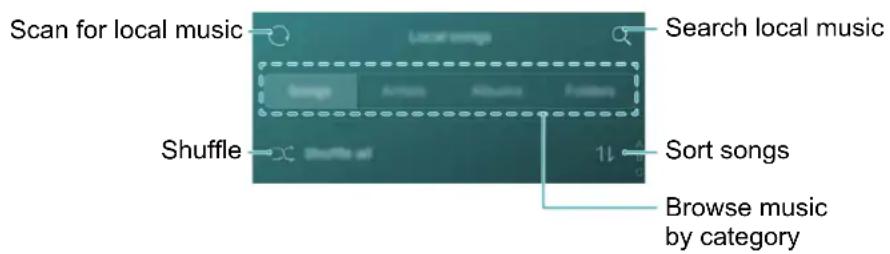
Listening to music
1 Open Music.
2 Touch Local songs.
3 Such the song you want to play.
Using your phone during music playback
- When a song is playing, touch ○ Home to exit the music playback screen without stopping the song. To return to the music playback screen, open the notification panel and touch the song that is playing.
- Touch the song that is playing to return to the playback screen. Swipe left or right to view the song list, album cover and lyrics.
i Lyrics files must be downloaded separately and saved in .lrc format. The name and file path must be the same as the music file.
- On the My music screen, touch ⚙ > Close to close the music player.
Using the playback screen
Touch the playback screen to display or hide the menu icons.
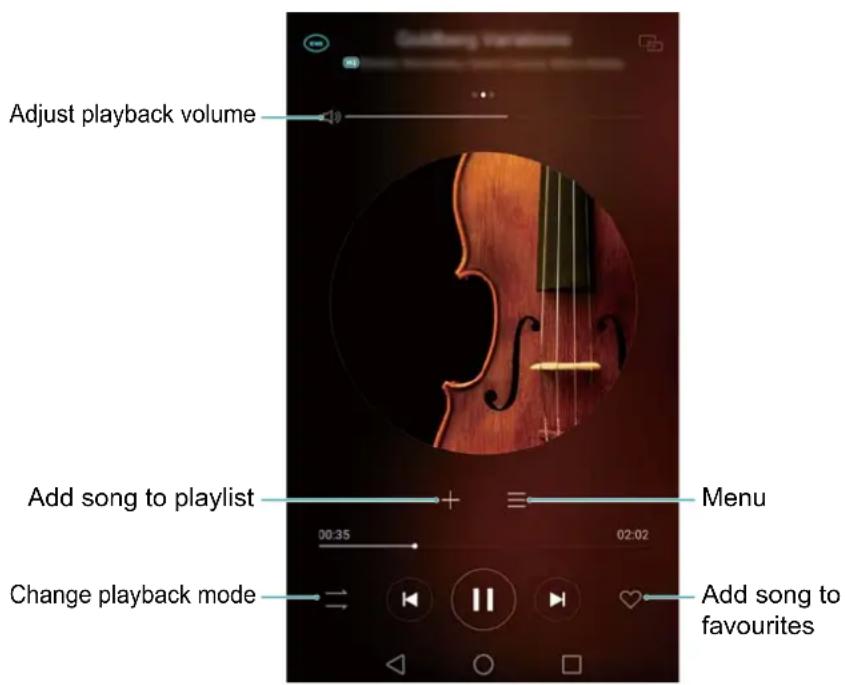
Controlling playback using a smart headset
When smart headset control is enabled, you can use the buttons on a headset to control playback without turning on the screen.
- Not all headsets are compatible with your phone. You are advised to purchase an official Huawei headset.
- You can also use a headset to control video playback (this feature is not supported by all video players).
1 Open Settings.
2 Touch Smart assistance > Smart headset control.
3 Turn on the Smart headset control switch.
Use the following buttons to control playback:
• Volume up button: Press once to increase the volume, or twice to add the current song to your favourites.
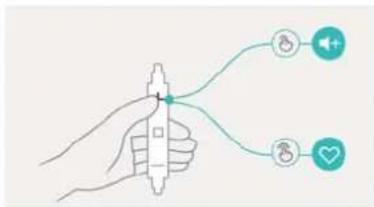
- Pause button: Press once to pause or resume playback, twice to skip to the next song, or three times to go to the previous song.
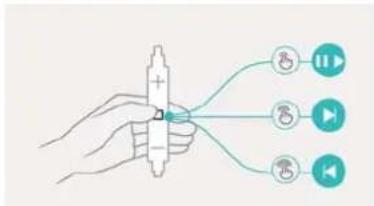
- Volume down button: Press once to decrease the volume, or twice to change the playback mode.
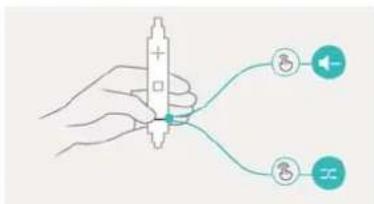
Creating a playlist
Organise your music by creating customised playlists that contain your favourite songs.
1 Open Music.
2 Touch Playlists >Create new playlist.
3 Name the playlist and touch Save.
4 Touch Add in the dialogue box.
5 Select the songs you want to add and touch√.
i Touch ***next to the playlist to Rename or Delete the playlist.
Playing a playlist
1 Open Music.
2 Touch Playlists.
3 Select the desired playlist, then touch a song to start playback, or touch Shuffle all to shuffle all songs.
Setting a song as the ringtone
Set your favourite song as the call, notification or alarm ringtone.
1 Open Music.
2 Touch Local songs.
3 Ñuch *** > Set ringtone next to the song name. You can choose to set the song as the call, notification or alarm ringtone.
Playing a video
1 Open Videos.
2 Touch the video you want to play.
3 Touch II to pause the video playback.
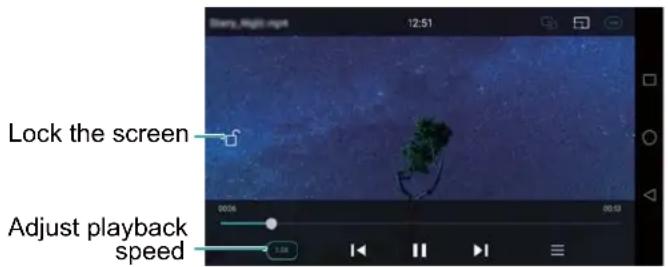
Using your phone during video playback
- Swipe left or right to rewind or fast-forward the video.
- Swipe up or down on the left side of the screen to adjust the screen brightness.
- Swipe up or down on the right side of the screen to adjust the volume.
Accessing the Internet
Connecting to the Internet using mobile data
Data charges may apply when using mobile data to access the Internet.
Before using mobile data, ensure that you have a data plan with your carrier.
1 Open Settings.
2 Touch More > Mobile network.
3 Turn on the Mobile data switch to enable mobile data.
i Disable mobile data when not required in order to save battery power and reduce data usage.
Connecting to the Internet using Wi-Fi
You can connect to the Internet using a Wi-Fi access point or hotspot.
Your personal data and financial information may be at risk if you connect to insecure public Wi-Fi networks.
Connecting to a Wi-Fi network
1 Open Settings.
2 Touch Wi-Fi and then turn on the WFi switch. Your phone will list available Wi-Fi networks.
- Search manually for Wi-Fi networks: Touch Scan. Your phone will scan again for available Wi-Fi networks.
- Add a Wi-Fi network that is not shown in the list: Touch Add network.... Follow the onscreen instructions to configure the Wi-Fi settings and password.
3 Select the Wi-Fi network you want to connect to:
- If the Wi-Fi network does not require a password, your phone will connect automatically.
- If the network is protected, enter the password when prompted, then touch Connect.
Once your phone is connected to a Wi-Fi network, it will display the 📤 icon in the status bar. Your phone will remember Wi-Fi networks that you have used before and reconnect to them automatically.
Connecting to a Wi-Fi network using WPS
Connect your phone to a WPS-enabled router without having to enter the network key.
1 Open Settings.
2 Touch Wi-Fi and then turn on the WFi switch.
3 Touch≡ > Advanced settings, then choose one of the following methods:
- Touch WPS connection and then press the Wi-Fi router's WPS button.
- Touch WPS PIN connection to generate a PIN, then enter this PIN on the Wi-Fi router.
Once your phone is connected to a Wi-Fi network, it will display the 📤icon in the status bar. Your phone will remember Wi-Fi networks that you have used before and reconnect to them automatically.
Connecting to the Wi-Fi network with the strongest signal
When Wi-Fi+ is enabled, your phone will automatically enable or disable Wi-Fi and connect to the Wi-Fi network with the best signal.
You may incur additional data charges when downloading large files or watching online videos over mobile data. Purchase a suitable data plan to ensure that you do not incur excessive data charges. Contact your carrier for details.
1 Open Settings and touch More.
2 Touch Wi-Fi→ Wi-Fi+ settings and then turn on the Wi-Fi+ switch.
When Wi-Fi+ is enabled, your phone will automatically record your Wi-Fi connection history and monitor the signal strength and your location. This information is then used to enable or disable Wi-Fi and connect to the Wi-Fi network with the strongest signal.
- Connect to the network with the best signal: When Wi-Fi signal strength is poor or your current Wi-Fi network is not reachable, your phone will automatically connect to another available Wi-Fi network with a better signal. If no other Wi-Fi networks are available and mobile data is enabled, your phone will use mobile data (data charges may apply). If the Wi-Fi signal strength improves, your phone will reconnect to the Wi-Fi network.
- Automatically turn Wi-Fi on or off: Your phone will automatically disable Wi-Fi when you move out of range of a Wi-Fi hotspot (such as when you leave home). Wi-Fi will be re-enabled when you return to the location of a previously used hotspot (such as when you return home).
- Monitor Wi-Fi network quality: Your phone will automatically monitor the signal strength of nearby public hotspots.
Sharing your mobile Internet with other devices
You can share your phone's mobile Internet with other devices (such as phones, tablets or computers). The following Internet sharing methods can be used:
- Portable Wi-Fi hotspot: Create a portable Wi-Fi hotspot to share your mobile Internet with other devices.
- Bluetooth tethering: Share your mobile Internet with other devices using Bluetooth.
- USB tethering: Use a USB cable to share your mobile Internet with a computer.
Using a portable Wi-Fi hotspot to share your mobile Internet
Set up a portable Wi-Fi hotspot to share your phone's mobile Internet with other devices. Compared with Bluetooth tethering, the portable Wi-Fi hotspot feature offers quicker, longer-range connections, but power consumption is higher.
- Your device can't access the Internet using Wi-Fi when your Portable Wi-Fi hotspot is switched on.
- To enable mobile data, see Connecting to the Internet using mobile data.
1 Open Settings.
2 Touch More > Tethering & portable hotspot.
3 Such Portable Wi-Fi hotspot and then turn on the Wi-Fi hotspot switch.
After enabling your personal Wi-Fi hotspot, your phone will display the 📋 icon in the status bar.
4 Touch Configure WiFi hotspot to view or modify the hotspot name, security settings and password, and then touch Save.
- Change the hotspot name: The Network SSID is the hotspot's name. By default, this is the name of your phone model. You can manually change the name to something that is easier to remember.
- Change the hotspot security settings: Touch Encryption type to configure the hotspot security settings. Your phone uses WPA2 PSK encryption by default. Other devices will require a password to connect to the hotspot. If you choose None, devices will not require a password to connect to the hotspot.
- Configure a password that is easy to remember: The hotspot password is generated randomly by your phone. For security reasons, choose a password that is not easy to guess and change it regularly.
- Configure the maximum number of connections: Touch Max. allowed connections and change the maximum number of connections. By default, your phone will allow eight devices to connect to the hotspot concurrently.
You will need to remember the hotspot name and password to connect to it using other devices.
Limit the amount of data that other devices can use: Touch Data limit on the Portable Wi-Fi hotspot screen and follow the onscreen instructions to set the data limit. When connected devices exceed this limit, your phone will automatically disable the Wi-Fi hotspot.
Using USB tethering to share mobile Internet with a computer
Use a USB cable to share your phone's mobile Internet with a computer. This is useful if your computer's Internet connection stops working.
- USB tethering can be used to share your Wi-Fi and mobile Internet connection. To enable mobile data, see Connecting to the Internet using mobile data.
- Depending on your computer's operating system, you may need to install phone drivers on the computer or establish a network connection in order to use USB tethering. Please read the instructions for your operating system.
1 Use a USB cable to connect your phone to the computer.
2 Open Settings.
3 Touch More > Tethering & portable hotspot.
4 Turn on the USB tethering switch to share your mobile Internet.
i You cannot use the mass storage feature when your phone is in USB tethering mode.
Using Bluetooth tethering to share your mobile Internet
Use Bluetooth tethering to turn your phone into a wireless router and share your mobile Internet with other devices. Compared with a portable hotspot, Bluetooth tethering offers a slower Internet connection, but consumes less power.
Bluetooth tethering can be used to share your Wi-Fi and mobile Internet connection. To enable mobile data, see Connecting to the Internet using mobile data.
1 Establish a Bluetooth connection between two devices and check that they are paired. For more information, see Enabling Bluetooth and pairing your phone with another device.
2 Open Settings.
3 Touch More > Tethering & portable hotspot.
4 Turn on the Bluetooth tethering switch to share your mobile Internet.
5 On the Bluetooth screen, touch ⓘ next to the name of the paired device and turn on the Internet access switch to establish an Internet connection.
Send an Internet access request to your phone from the device that requires an Internet connection.
After enabling Bluetooth tethering, your phone will display the *icon in the status bar. Other devices can now connect and use your mobile Internet.
Transferring data using Bluetooth
Enabling Bluetooth and pairing your phone with another device
1 Open Settings and touch Bluetooth.
2 Turn on the Turn on Bluetooth switch and ensure that Visibility is enabled. Your phone will automatically list available devices. If the device you want to pair with is not displayed, check that the device is discoverable.
3 Select the device you want to pair with and follow the onscreen instructions.
Sending and receiving files using Bluetooth
Check that both devices are paired before attempting to transfer files.
- Send files: Touch and hold the file you want to send and touch Share > Bluetooth. Your device will automatically search for nearby devices. Select the receiving device.
- Receive files: When another device tries to send you files using Bluetooth, select Accept from the dialogue box that appears. Open the notification panel to view file transfer progress.
By default, received files are saved to the bluetooth folder on your device's internal storage.
Unpairing Bluetooth devices
1 Open Settings and touch Bluetooth.
2 Turn on the Turn on Bluetooth switch.
3 Õuch the ⓘ icon next to the name of the paired device, then touch Unpair.
Renaming your phone
By default, your phone's model number is used as the device name when you enable Bluetooth. You can change the name to something more recognisable.
1 Open Settings and touch Bluetooth > Device name.
2 Rename the phone and touch OK.
Transferring data using Wi-Fi Direct
Use Wi-Fi Direct to transfer photos and files between two devices without connecting to a Wi-Fi network. Wi-Fi Direct is similar to Bluetooth but is faster, making it suitable for the transfer of larger files such as videos.
Wi-Fi Direct can only be used to transfer data between two Huawei devices. Check that both devices support Wi-Fi Direct.
Connecting two devices using Wi-Fi Direct
Establish a Wi-Fi Direct connection to transfer data wirelessly between two devices.
1 Open Settings, select Wi-Fi and then turn on the Wi-Fi switch. Touch Wi-Fi Direct.
2 Repeat the above steps on the other device and keep the Wi-Fi Direct search screen open on both devices.
3 When your phone detects the other device, select it. Follow the onscreen instructions to establish a Wi-Fi Direct connection between the two devices.
To terminate the Wi-Fi Direct connection, select 🔊 to open the Wi-Fi Direct screen. Select the device you want to disconnect from and touch OK to disconnect.
Using Wi-Fi Direct to send and receive files
Share files between two devices by establishing a Wi-Fi Direct connection.
This feature requires a Wi-Fi connection. Ensure that Wi-Fi is enabled on both devices.
1 Open Gallery and select the picture you want to send.
2 Õuch Share > Wi-Fi Direct. Wait until the receiving device is detected, then select it. If the receiving device is not detected, check that Wi-Fi is enabled.
3 A prompt will be displayed on the receiving device. Touch Accept to accept the file transfer request.
Open the notification panel and touch Notifications to monitor the file transfer progress.
By default, received files are saved to the Wi-Fi Direct folder on your phone's internal storage.
Transferring data between your phone and a USB storage device
Connect a USB OTG cable to your phone to access data on USB flash drives, card readers and other storage devices.
1 Connect your phone to a USB flash drive with a USB OTG cable.
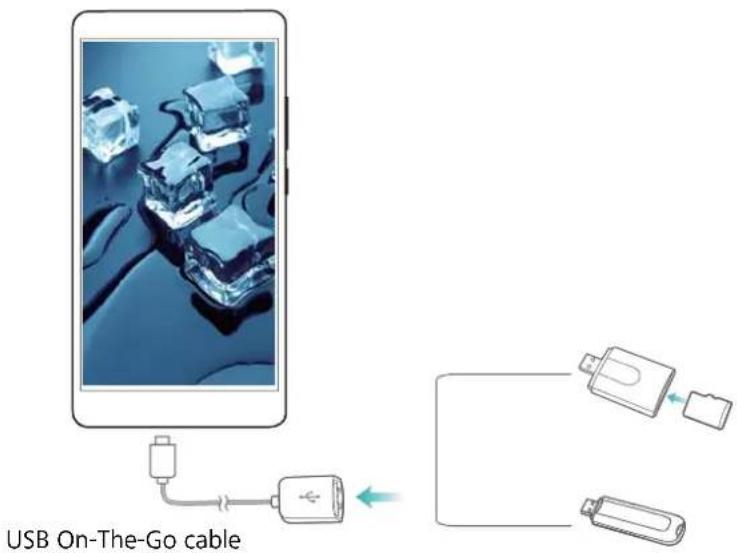
2 Touch 📋 > Local > USB drive to browse data on the flash drive. You can select and copy data to a destination folder. For more information, see Copying, moving or deleting files.
3 When you have finished browsing, touch Settings > Advanced settings > Memory & storage > USB drive > Eject.
4 Disconnect the USB OTG cable from your phone and the USB flash drive.
Streaming multimedia content to your TV
Use MirrorShare to share multimedia content with friends and family. MirrorShare lets you connect wirelessly to a TV or screen and display your photos, videos and games.
If your TV doesn't support MirrorShare, you can stream your phone's content using an Android TV box or other devices that support Miracast (your TV must have an HDMI port).
1 In Settings, touch Advanced settings > MirrorShare to enable the MirrorShare feature.
2 Check that MirrorShare is enabled on the HDMI device.
i See the operating instructions for your TV box for more information.
Backup and Restore
Using the Backup application to back up and restore data
Backups help ensure that you never lose your data. You can use a local backup to copy data to your phone's internal storage or a microSD card.
i Features may vary depending on your carrier.
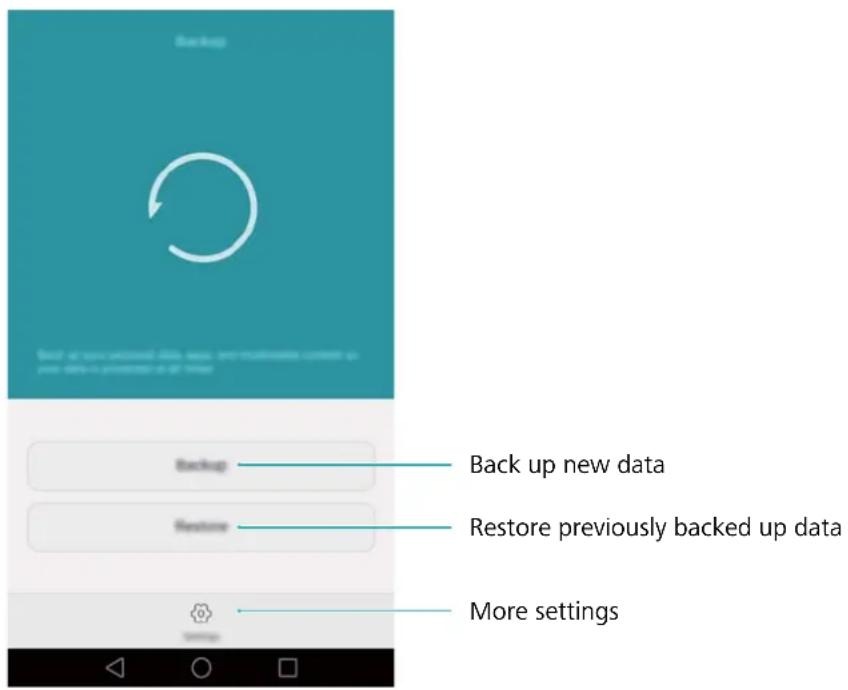
Backing up data to local storage
You can back up your contacts, messages, call log, photos, music, videos, files and applications.
1 Open Backup.
2 Touch Backup Internal storage > Next.
3 Select the data you want to back up. No backup password is required if you back up photos, audio, videos and documents. To back up other types of data, follow the onscreen instructions to set a backup password.
4 Touch Back up.
i By default, backup data is saved to the HuaweiBackup folder in Files.
Restoring data from local storage
1 Open Backup.
2 Touch Restore >Restore from internal storage >Next.
3 Select the backup you want to restore.
If the backup data is encrypted, enter the encryption password when prompted.
4 Select the data you want to restore and touch Start restoration.
Restoring factory settings
Restore your phone to its factory settings if it crashes or is slow to respond.
Back up important data on your phone before restoring factory settings. For more information, see Using the Backup application to back up and restore data.
Restoring factory settings will erase all personal data from your phone, including fingerprints, account information, downloaded applications and application settings.
1 Open Settings.
2 Touch Advanced settings >Backup & reset > Factory data reset.
3 Choose whether to format your internal storage, then touch Reset phone.
Selecting Erase internal storage will delete all files on your internal storage, such as music and images. Proceed with caution.
4 Such Reset phone to restore your phone to its factory settings. Your phone will restart automatically when the process is complete.
Updating your phone
Update your phone's system to the latest version to enhance performance.
⚠️ Using unauthorised third-party software to update your phone may render your phone unusable or put your personal information at risk.
z Your personal data may be erased during a system update. Ensure that you back up important data before updating your phone.
z When updating, ensure that your phone has at least 20% battery power remaining.
z After updating, you may find that some third-party applications are incompatible with your system, such as Internet banking applications and games. This is because it takes a while for third-party application developers to release updates for new Android releases. Please wait until a new version of the application is released.
i Touch Settings > About phone > Build number to view your phone's version number.
OTA updates
When a new system update is released, you will be prompted to download and install the latest version. Select OTA update for quick and secure updates.
i Ensure that your phone is connected to the Internet before updating. Connect to a Wi-Fi network before updating to avoid incurring data charges. In addition, ensure that your phone has sufficient battery power remaining.
1 Open Settings.
2 Touch Update. Your phone will automatically check for updates.
3 Select the latest version to download the update package.
4 Once the download is complete, touch Restart and updateThe update process may take a while to complete. Do not use your phone before it has finished updating. Your phone will restart automatically when it has finished updating.
File Management
Viewing files
Viewing files by category
Open the Categories tab in Files. Your files are automatically sorted into different categories.
Finding files quickly
Use the search feature to quickly find what you are looking for.
1 Open Files.
2 In the Local tab, touch Internal storage or SD card.
3 Touch 🔒 and then enter the file name or keywords. Search results will be displayed below the search bar.
Sorting your files
Use the sort feature to arrange your files by type, name, size or date.
1 Open Files.
2 In the Local tab, touch Internal storage or SD card.
3 Touch1↓ and then sort files by type, name, size or date as desired.
Creating file shortcuts on the home screen
Create a shortcut to frequently-used files on the home screen for easy access.
1 Open Files.
2 In the Local tab, touch Internal storage or SD card.
3 Touch and hold the file you want to create a shortcut for, then touch ≡ > Create desktop shortcut.
Sharing files
Use Files to share photos or videos on social media or with friends.
1 Open Files.
2 In the Local tab, touch Internal storage or SD card.
3 Select the files you want to share and touch≡> Share.
4 Choose a sharing method and follow the onscreen instructions to share your files.
Creating folders
Create folders and place files inside them to keep your phone organised.
1 Open Files.
2 In the Local tab, touch Internal storage or SD card.
3 Touch+. Enter the name of the new folder, then touch Save.
Renaming files
Give your files distinctive names so that you can find them more quickly.
1 Open Files.
2 In the Local tab, touch Internal storage or SD card.
3 Touch and hold the file or folder you want to rename, then touch ≡ >Rename.
4 Enter a new name and touch OK.
Copying, moving or deleting files
1 Open Files.
2 In the Local tab, touch Internal storage or SD card.
3 Select the files you want to copymove or delete. You can:
- Copy files to a destination folder: Touch ☐. Select a destination folder, then touch ☐.
- Move files to a destination folder: Touch ☐. Select a destination folder, then touch ☐.
- Delete files: Touch > Delete
Creating or extracting archives
Combine multiple files into a single zip archive to free up storage space and make your files easier to share.
1 Open Files.
2 In the Local tab, touch Internal storage or SD card.
3 Select the files or folders you want to add to the archive, then touch≡ > Compress.
4 Choose the archive destination. The selected files will be compressed into a zip archive, which will be named automatically.
To extract an archive, touch and hold the archive file, then touch Extract to. Select where the archive should be extracted to.
Excluding small images
When viewing images, you may find that Files also displays cached images and thumbnails from web pages you have visited. Exclude these images for a clutter-free viewing experience.
1 Open Files.
2 Touch ≡ > Settings and then turn on the Filter small pictures switch to prevent files smaller than 30 KB from being shown.
Storing private files in a safe
To ensure the privacy of your files, enable Safe, set a password, and move files into a safe to encrypt them. You can always remove them from the safe at a later date.
1 Open Files.
2 In the Categories or Local tab, touch Safe.
3 TouchEnable and set the safe storage location.
4 Follow the onscreen instructions to set a password and security question, then touch Done to open Safe.
5 Touch→. Follow the onscreen instructions to select files, then touch →to add them to the safe.
- Remove files from a safe: In Safe, open the folder which contains the files you want to remove. Touch and hold any file. Select the files you want to move, then touch →
- Destroy a safe: In Safe, touch Settings > Destroy safe. Follow the onscreen instructions to remove files from the safe and destroy it.
- Change the safe password: In Safe, touch Settings > Change password. Follow the onscreen instructions to change the password.
Power Management
Viewing battery usage statistics
Use Phone Manager to view detailed per-application battery usage statistics.
Open 📋 Phone Manager and then touch remaining. You can:
- Touch Optimise Your phone will check for power consumption problems and automatically optimise performance.
- Touch Power usage details to view detailed battery usage statistics.
- Touch Consumption level to see what is using the most power.
- Turn on the Remaining battery percentage switch to display the remaining battery percentage in the status bar.
Reducing power consumption
Use Phone Manager to optimise performance and reduce power consumption.
Open 📋 Phone Manager and then touch remaining. You can:
- Optimise performance: TouchOptimise. Your phone will check for power consumption problems and automatically optimise performance. To further reduce power consumption, see Optimisable issues. Select View or Optimise to adjust the power settings manually.
- Restrict applications: Touch Protected apps and turn off the switch next to the applications that you do not want to run in the background when the screen is locked.
- Close power-intensive applications: Touch Power usage firewall (power-intensive apps), select the desired applications and then touch ✗ to close them.
A message will appear in the notification panel if power-intensive applications are running in the background. If you don't want to receive such notifications, touch and then turn off the Power-intensive prompt switch.
- Automatically close power-intensive applications: Touch 🎨 and then turn on the History of closed apps switch.
Enabling the Ultra power plan
If you're waiting for an important call but your phone has low battery, enable the Ultra power saving power plan in Phone Manager. This disables everything except essential calling, SMS and contact functions, prolonging battery life.
Open 📋 Phone Manager. Touch remaining and then turn on the Ultra power saving switch. Touch Exit to disable the Ultra power plan and restore the original settings.
Closing background applications when the screen is locked
Reduce power consumption by closing background applications when the screen is locked.
1 Open Phone Manager.
2 Touch Protected apps.
3 Turn of switches for non-essential applications to prevent them from running while the screen is locked.
If you want an application to continue running after the screen is locked (such as the Backup application), turn on the switch for that application.
Press the power button to lock the screen. Your phone will close all background applications except those that are protected.
Preventing background applications from accessing the Internet
Use the networked applications manager to prevent certain applications from connecting to the Internet and using your data allowance.
1 Open Phone Manager.
2 Touch Traffic manager > Networked apps.
3 Switch between the Installed apps and System apps tabs to configure the Internet access permissions for individual applications. Touch ≡ to configure which applications have Internet access while roaming.
If you disable Internet access for an application, you will be asked if you want to enable Internet access next time you open it.
Configuring display and sound settings
Reduce power consumption by optimising the display and sound settings on your phone.
See Configuring the display settings to learn how to save power by disabling Daydream, turning off the indicator light and reducing the screen brightness and screen-off time.
See Sound settings to learn how to save power by disabling unnecessary sound or vibration alerts.
Phone Manager
Optimising your system
Use Phone Manager to make your phone run faster and optimise performance.
Conducting a comprehensive scan
Open 📋 Phone Manager. Your phone will automatically conduct a comprehensive scan and optimise your system.
Cleaning up your phone
1 Open Phone Manager.
2 Touch System optimization to scan for and clear cached application data and system trash.
i Follow the onscreen instructions to manually clear files or configure the settings.
3 Once the data has been cleared, touch Finish.
Managing data usage
Phone Manager comes with a data management feature that you can use to monitor data usage and avoid exceeding your monthly allowance.
Open 📋 Phone Manager and then touch Traffic manager. You can view detailed data usage statistics or configure the following settings:
- Taffic use ranking: View per-application data usage.
- Networked apps: Manage Internet access permissions for applications. Close unnecessary background applications that connect to the Internet to reduce data usage and power consumption. For more information, see Preventing background applications from accessing the Internet.
- Portable Wi-Fi hotspot: Configure the settings for a mobile hotspot or mobile network connection.
Harassment filter
Phone Manager features a harassment filter and notification centre to block spam calls and messages and unwanted push notifications.
Open Phone Manager. You can:
- Touch Harassment filter> and follow the onscreen instructions to configure a call blacklist or whitelist, keywords and spam settings.
- Touch Notification centre and select an application to configure its notification permissions and settings.
Battery management
Phone Manager comes with a battery management feature to help you save power and prevent you from missing important calls and messages.
Open Phone Manager and then touch remaining. You can:
- View detailed battery usage statistics. For more information, see Viewing battery usage statistics.
- Optimise battery use to reduce power consumption, For more information, see Reducing power consumption.
- Select a suitable power plan.
Tools
Calendar
Calendar helps you to plan your daily schedule. For example, it helps you to plan ahead and displays information about bank holidays. If you have saved your contacts' birthdays, Calendar will automatically create birthday reminders.
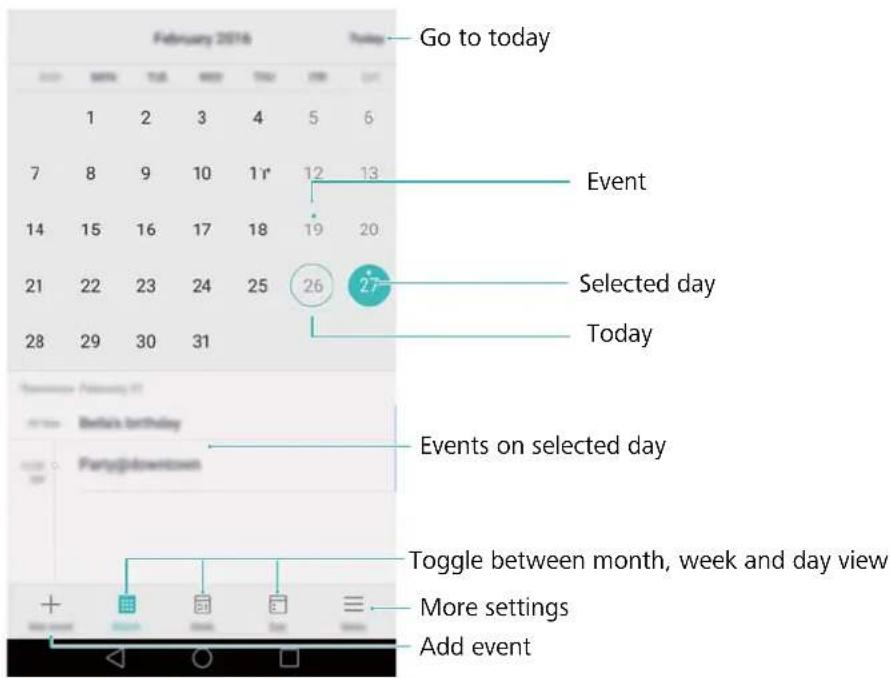
Adding and deleting events
Add events and set reminders to help you plan ahead.
- Add an event: Open Calendar, touch + and then enter the name, start and end time, and location of the event. Touch √ to save the event. If you add a reminder, your phone will send you a reminder at the preset time.
- Delete an event: Go to the event that you want to delete and then touch 📄.
Viewing the calendar
Open 26 Calendar. You can:
- Switch to month, week or day view: Touch Month, Week or Day. When in month, week or day view, swipe left or right to change the month, week or day that is displayed.
- View week number: Touch≡ > Settings and then turn on the Show week number switch to display the week number on the left of the calendar.
- Change first day of the week: Touch ≡ > Settings > Week starts on and select a day.
- Switch to a different calendar: Make sure that you are connected to the Internet and then touch > Calendars to be displayed. Touch Local calendar and select the desired calendar.
For more information on connecting to the Internet, see Accessing the Internet.
- Automatically import contacts' birthdays: Touch ≡ > Calendars to be displayed and then turn on the Contacts' birthdays switch. Your phone will automatically import your contacts' birthdays and create birthday reminders.
Viewing global holidays
Enable the global holidays option to help you plan your next business trip or holiday.
i This feature requires Internet access. For more information, see Accessing the Internet.
1 Open 26 Calendar.
2 Such ≡ > Calendars to be displayed > Global holidays.
3 Turn on the switch next to the country whose holidays you want to view. Your phone will automatically download the country's holiday information.
Synchronising a calendar
Sync your calendar with your account for easy access wherever you are.
1 Open 26 Calendar.
2 Touch≡> Calendars to be displayed.
3 Select the account whose calendar you want to display.
4 Touch≡> Calendars to be synced.
5 Select the desired account and log in to your Exchange account to sync the calendar.
Clock
In the Clock application, you can add alarms, view world times and bank holiday dates and use the stopwatch and timer features.
Managing alarms
Open Clock. In the Alarm tab, you can:
- Add an alarm: Touch + and set the alarm time, ringtone, repetitions and more. Touch √ to apply.
- Enable or disable an alarm: Touch the switch next to an alarm.
- Configure the alarm settings: Touch ⚙ to configure the snooze duration, silent mode settings and volume button behaviour.
- Delete an alarm: Touch and hold the alarm you want to delete and then touch ⏻.
- Turn off an alarm: Touch Slide to turn off alarm at the bottom of the lock screen.
- Mute an alarm: Press the volume down button.
- Snooze for 10 minutes: Press the power button. The alarm will go off again after 10 minutes. Swipe down on the screen to open the notification panel and touch the alarm notification to turn off the alarm.
- Enable alarm when phone is powered off: Select Keep alarm active, will ring in when you turn off your phone. Alarms will still go off after your phone turns off.
World clock
Add multiple clocks to view the time in various cities around the world.
Open Clock. In the World clock tab, you can:
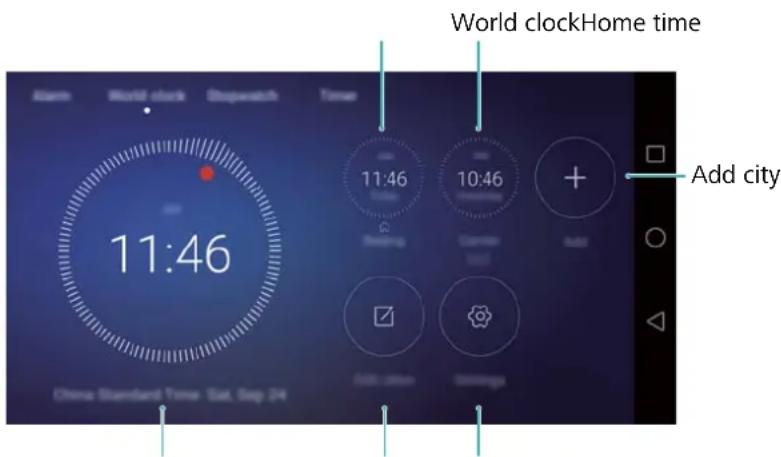
Set date, time and home time zoneC
- Add a city: Touch + . Enter a city name or select a city from the list.
- Set the home time zone: Touch ⚙️, turn on the Display home clock switch and then touch Home time zone.
- Set the system date and time: Tuch > Date & time.
- Delete a city: Touch Edit cities. Touch the ⏻ icon next to the city you want to delete and then touch √.
Dual clock display
Your phone displays the network time by default. Turn on dual clocks to display the local time and home time on the lock screen.
Touch 📋 > Date & time > Dual clocks and then turn on the Dual clocks switch. Touch Set home city and then select your home time zone from the list of cities.

natural_image
Black mug with pink polka dots and floating heart-shaped lights in the background (no text or symbols)Current time zoneHc
i Only one clock is displayed when the local time zone is the same as the home time zone.
Stopwatch
1 Open Clock.
2 Under Stopwatch, touch ▶ to start timing.
While timing, touch Ⓞ to count laps. Swipe up on the timer in the middle of the screen to view your lap data.
3 òuch ⑪ to pause the stopwatch.
4 Such ▶ to resume the stopwatch or to clear the stopwatch records.
Timer
1 Open Clock.
2 Under Timer, turn the wheel to set the countdown time.
i Touch 🔔 to set a ringtone for the timer.
3 Touch ▶ to start the timer.
4 When the timer goes off, swipe the screen to silence the ringtone.
When the timer is counting down, touch ☐ to reset the timer or ☑ to pause the countdown.
Weather
Weather allows you to check the current weather and multi-day forecast for your location and many other destinations around the world.
Viewing weather information
Open Weather. You can:
- View detailed weather information: Swipe up on the screen to view the weather forecast for the next 24 hours, chance of rainfall, air quality, comfort index, wind speed and direction and sunrise/sunset times.
- View weather for other cities: Swipe left or right on the screen to view the weather forecast for other cities.
- Change temperature unit: The temperature unit is set according to the system language. Touch ⚙ > Temperature unit to change the unit.
- Enable weather sounds: Weather sounds are disabled by default. To enable them, touch and turn on the Weather tones switch.
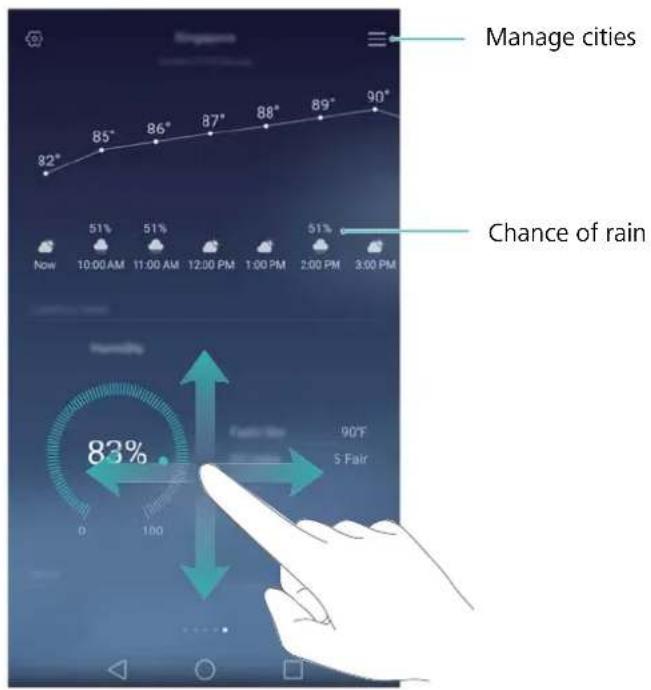
Updating the weather
1 Open Weather.
2 Swipe left or right to find the city whose weather you want to update.
3 Swipe down from the top of the screen to update the weather manually
You can also configure automatic weather updates. Touch 📋 Turn on the Auto update switch and configure your Update interval. Your phone will update weather data at the scheduled interval.
Adding and deleting cities
Add multiple cities to the weather application so that you can keep track of the weather in cities of interest to you.
1 Open Weather.
2 Touch≡. You can then:
- Add a city: Touch > . Select a city from the list or search for the desired city in the search bar. You can add a maximum of 10 cities to the weather application.
- Remove a city: 曲uch and hold the city you wish to remove and then touch ⊖.
Notepad
Use Notepad to record important information or shopping lists. You can set up reminders for each note.
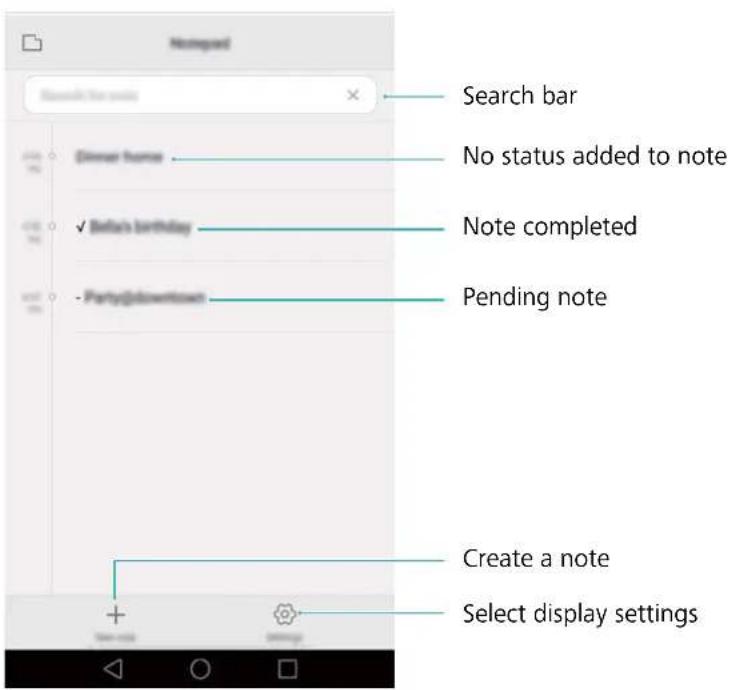
On the Notepad home screen, pending notes are prefixed with "-" to help you quickly identify which notes require your attention.
Creating a note
1 Open Notepad.
2 Touch ^+ , enter your note and then touch √ to save.
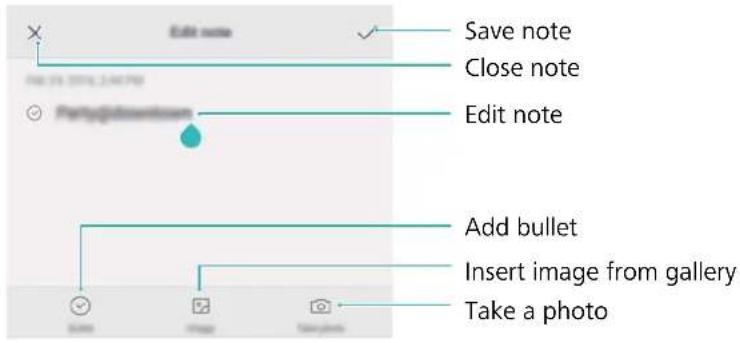
Once you have saved a note, follow the onscreen instructions to share or delete it or add it to your favourites.
Deleting a note
1 Open Notepad.
2 Touch and hold the note that you want to delete (or select multiple notes) and then touch 📄.
3 Touch Delete.
Calculator
Open Calculator. Rotate the screen orientation to switch between the standard and scientific calculators.
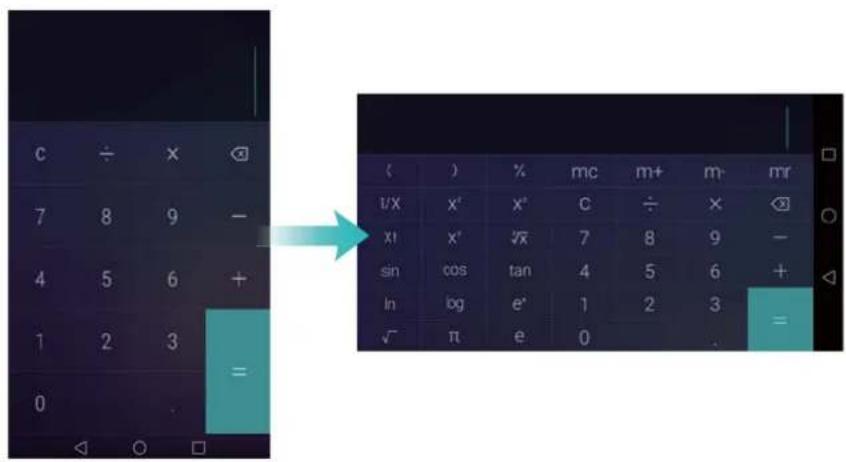
Sound recorder
You can use the Recorder application to record sound in a variety of different scenarios, such as meetings or interviews.
Recording sound
1 Open Recorder.
2 Touch to start recording.
In order to ensure optimum recording quality, place your phone on a flat surface and do not cover the microphone.
3 When you are recording, touch || to pause or □ to add a tag.
4 To end a recording, touch ☐. Enter a name for the recording file and then touch Save.
Playing a recording
1 Open Recorder.
2 Touch≡.
3 Select the recording file you wish to play or touch the play button next to the file name.
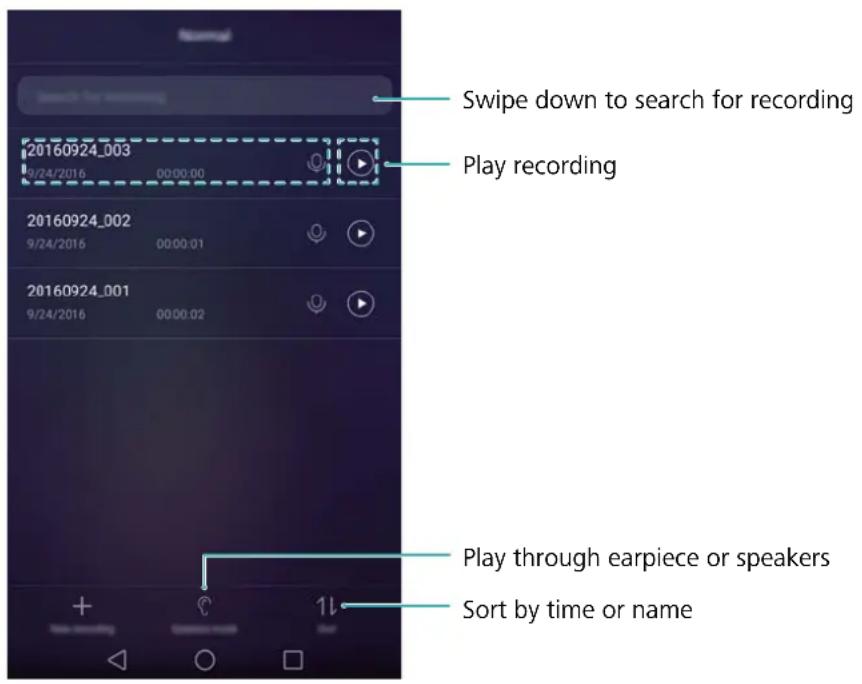
Mirror
Your phone can double up as a mirror.
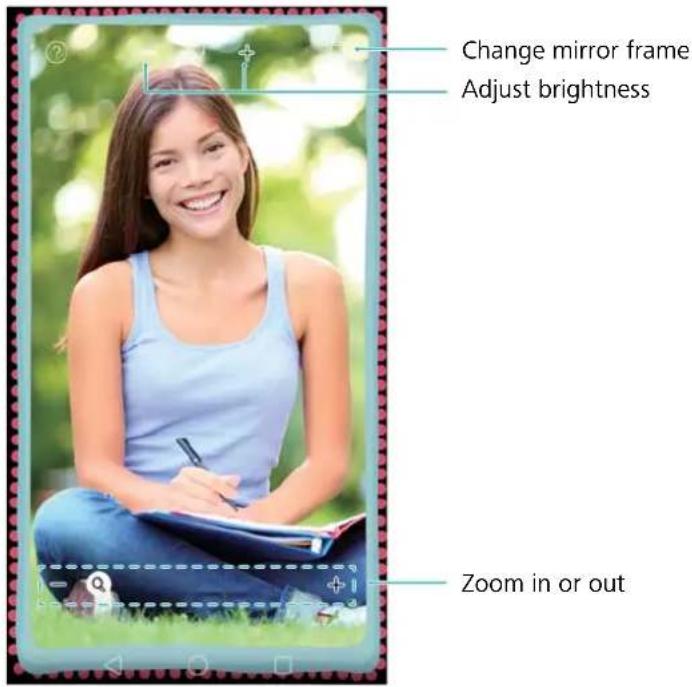
Open Mirror.
- Save an image: Touch the screen and select 📄 to save the image to Gallery. Your phone will return to the mirror once the image has been saved.
- Zoom in: Double touch the screen to zoom in. Double touch again to revert to the original screen.
- Increase the brightness: When you blow on the microphone, the mirror will display a "steamed up" effect. Wipe the screen to remove this effect.
Settings
Enabling location access
Enable location-based services to ensure that map, navigation and weather applications can access your location information.
i Features may vary depending on your carrier.
1 Open Settings.
2 Touch Advanced settings Location services and then turn on the Access to my location switch.
3 Three options are available under Mode:
- Use GPS, Wi-Fi and mobile networks: Uses GPS and your phone's Internet connection. Enable this option for highly accurate positioning.
- Use Wi-Fi and mobile networks: Only uses your phone's Internet connection. Enable this option for reduced power consumption and longer standby times.
- Use GPS only: Does not require an Internet connection. Enable this option to reduce mobile data usage.
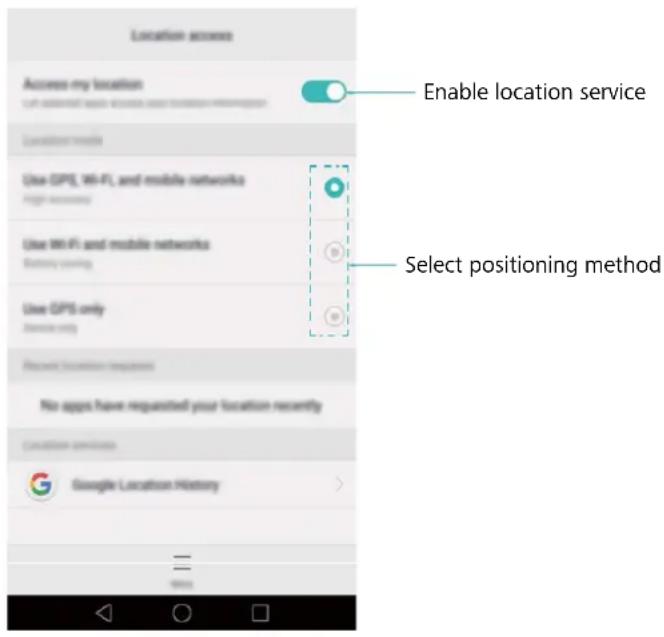
Increasing indoor positioning accuracy
Your phone uses Wi-Fi and Bluetooth for more accurate positioning when you are indoors.
1 Open Settings.
2 Touch Advanced settings > Location services > Menu > Scan settings.
- Turn on the Wi-Fi scanning switch. Location applications and services will continually scan for Wi-Fi networks for more accurate positioning.
- Turn on the Bluetooth scanning switch. Location applications and services will search for Bluetooth devices for more accurate positioning.
Configuring the display settings
Configure the display settings to personalise your phone. For example, you can change the wallpaper, font size and screen-off time.
Go to Settings and then touch Display. You can configure the following settings:
- Colour temperature: Adjust the colour temperature for images displayed on your phone. Select a warmer colour temperature for a softer look and a cooler colour temperature for a sharper image.
- Wallpaper Set the lock screen and home screen wallpapers. For more information, see Changing the wallpaper.
- Font size: Set the font size.
- Daydream: When this feature is enabled and you have configured Picture source and Duration, your phone will automatically display images when it's being charged and the screen is locked.
- Indicator light: The status indicator will blink when you receive incoming calls, messages or other notifications.
- Brightness: Your phone will automatically adjust the screen brightness according to the ambient brightness. Clear the Automatic brightness check box to manually adjust the brightness.
- Sleep: The screen will lock automatically after a period of inactivity to reduce power consumption. Select Sleep to adjust the screen-off time or disable the automatic screen lock feature.
- Auto-rotate screen: If this option is enabled, your screen's orientation will switch automatically depending on how you hold your phone when performing certain operations, such as browsing a web page, viewing a picture or writing a message.
- Eye comfort: Eye comfort mode helps filter out blue light to relieve visual fatigue.
i The above options may not be available on all phone models.
Sound settings
Change the incoming call and message ringtones or set the system alert sound and vibration effects.
Go to Settings and then touch Sound. You can configure the following settings:
- Volumes: Adjust the ringtone, media, alarm and call volume.
- Silent mode: Once enabled, your phone will not ring when you receive an incoming call or message, but the screen will still turn on. If you have also enabled Vibrate in silent mode, your phone will vibrate to alert you of incoming calls and messages.
You can also enable or disable these features in the shortcuts tab. Touch to switch between Sound, Vibration and Silent. - Select a ringtone under Call ringtone & vibration to change the ringtone. You can choose from preset ringtones or a local music file. Turn on the switch to enable vibrations when your phone rings.
- Notification ringtone: Choose a preset ringtone or a local music file as the notification tone for messages, emails and other notifications.
i The above options may not be available on all phone models.
Changing the screen unlock method
Set a screen lock password to prevent unauthorised access to your phone.
Setting a screen unlock pattern
1 Open Settings.
2 Touch Screen lock & passwords > Password > Pattern.
3 Connect at least four dots to create a screen unlock pattern, then release your finger. Draw your screen unlock pattern again to confirm.
4 Enter a backup PIN containing at least four digits. If you forget your screen unlock pattern, you can enter the backup PIN to unlock the screen.
Unlocking the screen with a password
1 Open Settings.
2 Touch Screen lock & passwords > Password.
3 You can choose to set a PIN or password:
- Buch PIN, then enter a PIN containing at least four digits and select Done.
- Touch Password, then enter a password containing at least four characters and select Done.
You can also use your fingerprint to unlock the screen. Touch Enrol in the popup dialogue box to add your fingerprint.
Enabling fingerprint unlock
See Using fingerprint recognition for more information on configuring fingerprint unlock.
Removing the screen lock password
1 Open Settings.
2 Touch Screen lock & passwords > Password.
3 Enter your screen lock password or unlock pattern, then touch None.
Gestures and navigation settings
Use simple gestures to control your phone. For example, flip your phone to mute ringtones or hold it to your ear to answer calls or dial a number.
Motion control
Open Settings. Touch Smart assistance > Motion control and then select the motions you want to enable.
Flip: Mute sounds and disable vibrations for incoming calls, alarms and timers.
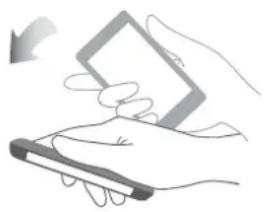
natural_image
Illustration of a hand holding a smartphone with a partially open screen (no text or symbols visible)Navigation bar
Open Settings and then touch Smart assistance > Navigation bar to configure the navigation bar.
Choose a custom navigation bar layout. If you select a navigation bar containing you can touch for fast access to the notification panel.
Aeroplane mode
Wireless devices may interfere with an aeroplane's flight system. Power off your phone or switch to aeroplane mode when you are on a flight.
After you enable aeroplane mode, all of your phone's network features will be disabled. You will not be able to make or receive calls, or use mobile data, Bluetooth or Wi-Fi. However, you will still be able to play music, watch videos and use applications that do not require an Internet connection.
Use one of the following methods to enable or disable aeroplane mode:
- Swipe down from the status bar to open the notification panel. In the Shortcuts tab, turn on the Aeroplane mode switch.
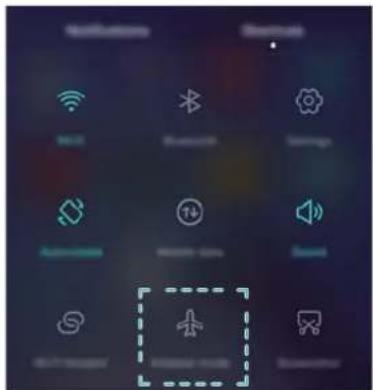
- Press and hold the power button, then touch Aeroplane mode.
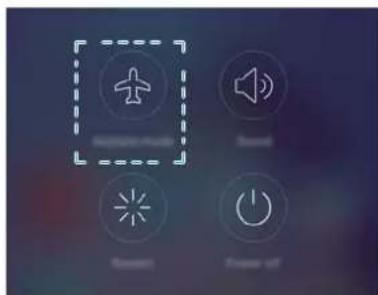
natural_image
Four circular icons with basic symbols: airplane, speaker, refresh, power, and star (no text or labels)- Open Settings, then turn on the Aeroplane mode switch.
When aeroplane mode is on, 🙏 is displayed in the status bar.
Using the floating dock
The floating dock gives you access to a number of frequently-used options and features, such as the back key, home key and one-touch optimisation. You can move the floating dock around the screen for easy one-hand use.
Open Settings. Touch Smart assistance > Floating dock and then turn on the Floating dock switch.
Once enabled, the floating dock button ( ) will be shown on all screens except the lock screen and notification panel. Touch to expand the floating dock menu.
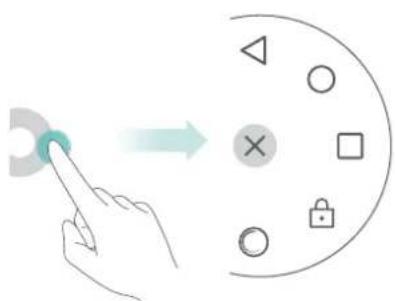
Drag the floating dock to the desired location.
From the expanded menu, you can:
- Touch ◀ to return to the previous screen or exit the current application.
- Touch to return to the home screen.
- Touch □ to display the list of recently used applications.
- Touch 🔒 to lock the screen.
- Touch Ⓐ to clean up the phone memory and close power-intensive applications running in the background.
- Touch × to collapse the menu.
Setting your SIM card PIN
A personal identification number (PIN) is delivered with your SIM card to protect your phone data. If you have enabled PIN protection for your SIM card, you will need to enter the PIN each time you turn on your phone or insert the SIM card into another phone.
i Features may vary depending on your network carrier.
Before you perform the following operations, make sure you have received a SIM card PIN from your carrier.
1 Open Settings.
2 Touch Advanced settings >Security, then select the options under Card lock to configure the SIM lock settings.
3 Turn on the Lock SIM card switch.
4 Enter your PIN, then touch OK. To change your PIN, touch Change SIM PIN.
- You will need to enter the PUK code if you exceed the maximum number of incorrect PIN attempts. The SIM card will be permanently locked if the PUK code is entered incorrectly too many times.
- Contact your carrier for details about these limits.
Setting up an account
Adding an account
Many applications and online services require you to create an account in order to access the full range of features.
1 Open Settings.
2 Touch Accounts > Add account.
3 Select an account type, then follow the onscreen instructions to enter your account information.
- You must install the corresponding application before you can add an account for a third-party application.
- To add a company account, see Adding an Exchange account.
- To add an email account, see Adding a personal email account.
Deleting an account
1 Open Settings.
2 Touch Accounts, then select the account type.
3 Select the account that you want to delete, then follow the onscreen instructions to delete it.
Syncing data with your phone
Enable the sync feature to keep all of your phone's data up-to-date and prevent data loss. You can sync emails, contacts and other data from your old phone or computer.
The type of data that can be synced depends on the account type. Some applications may not support syncing for all data types.
The example below illustrates how to sync data for an email account.
1 Open Settings.
2 Such Accounts > == then select Auto-sync data. Follow the onscreen instructions, then touch OK to turn on the sync data switch.
3 On the Accounts screen, select an account type, then select the account that you want to sync with your phone.
4 Touch to sync your emails.
Setting the date and time
i Features may vary depending on your carrier.
Open Settings. Touch Advanced settings > Date & time to configure the settings.
Changing the system language
1 Open Settings.
2 Touch Advanced settings >Language & input.
3 Touch Language & region, then select the desired language.
Viewing your phone's specifications
View your phone's specifications in a few simple steps. You can view information about your processor, memory, screen resolution and more.
Open Settings and touch About phone. Swipe up or down on the screen to view information about the processor, RAM, internal storage, screen resolution, IMEI and more.
Viewing the available storage space
Check that there is enough space on your phone's internal storage or microSD card before downloading update packages or large files.
Open Settings and touch Advanced settings > Memory & storage to view storage information.
Touch Default location to set the default storage location to Internal storage or SD Card.
Encrypting a microSD card
Encrypt your microSD card to prevent unauthorised access to your data. A password must be entered when the microSD card is inserted into another phone.
- Not all microSD cards can be encrypted. An error message may be displayed when you attempt to encrypt or unlock unsupported cards. Back up the data on your microSD card before encryption.
- Encrypted microSD cards will not be recognised by devices that do not support microSD card encryption.
- If you forget the microSD card password, you will have to clear all data on the card.
1 Open Settings.
2 Touch Advanced settings >Security.
3 Touch Set SD card password and follow the onscreen instructions.
Touch Change SD card password or Clear SD card password to change or remove the microSD card password.
Formatting the microSD card
Format your microSD card to delete all data and free up storage space.
Perform a backup before formatting your microSD card to prevent losing important data.
1 Open Settings.
2 Touch Advanced settings >Memory & storage > SD card.
3 Touch Format > Erase & format.
Accessibility Features
About your phone's accessibility features
Accessibility features make it easier for users with impaired vision or hearing to use their phone.
TalkBack
Enabling or disabling TalkBack
TalkBack is an accessibility feature designed for visually impaired users. It provides audible prompts to help you operate your phone. Once it is enabled, your phone will issue audible prompts for all content that you touch, select or enable. Please enable with caution.
i TalkBack's audible prompts are not available for all languages.
1 Open Settings.
2 Touch Advanced settings >Accessibility >TalkBack.
3 Turn on the TalkBack switch and then touch OK to enable TalkBack. The audible tutorial will be started automatically when you enable TalkBack for the first time. If you need to play the tutorial again, touch 📋 to access the settings and then select the tutorial.
4 Touch 🙏 and then select Explore by touch. Your phone will not issue audible prompts for the content that you touch unless you turn on Explore by touch.
Using TalkBack to control your phone
After you have enabled TalkBack, use gestures to:
Browse the screen: Use two fingers to swipe the screen (instead of one). Swipe up or down with two fingers to scroll through menu lists. Swipe left or right to move between screens.
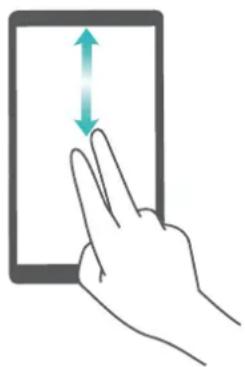
natural_image
Illustration of a hand holding a tablet with an upward and downward arrow indicating vertical motion (no text or symbols)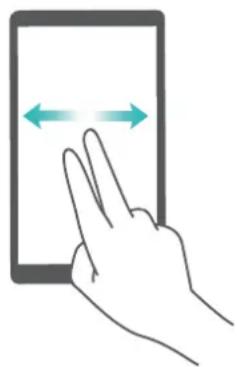
natural_image
Illustration of a hand interacting with a tablet device, showing two arrows indicating left and right motion (no text or symbols)Select an item: Touch an item with one finger to select it (it will not open). The phone will read out the content of the selected item.
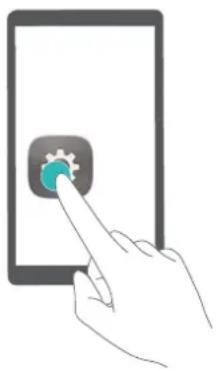
natural_image
Hand pressing a button on a tablet device (no text or symbols visible)Open an item: Double touch any part of the screen using one finger to confirm your selection from the previous step.
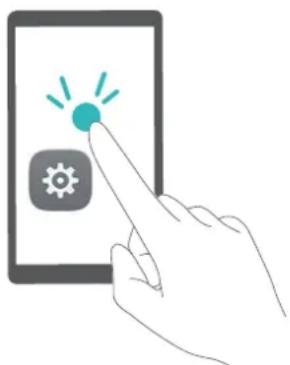
natural_image
Hand pointing at a smartphone screen displaying a notification icon (no text or symbols present)For example, if you want to open Settings, two steps are required: Touch the Settings icon once using one finger and then touch twice on any part of the screen.
Configuring the TalkBack settings
TalkBack settings can be customised to suit your individual needs.
1 Open Settings.
2 Touch Advanced settings >Accessibility >TalkBack >
3 You can adjust the feedback volume, audible feedback settings, control gestures and more.
Audible password prompts
This feature provides audible feedback for visually impaired users. When you enter a password, your phone will read out the letters as you type. This feature requires TalkBack to be enabled.
1 Open Settings.
2 Touch Advanced settings >Accessibility and then turn on the Speak passwords switch.
Text To Speech (TTS) output
This feature converts text into speech for visually impaired users. This feature requires TalkBack to be enabled.
1 Open Settings.
2 Touch Advanced settings > Accessibility > Text-to-speech output.
3 Select the desired speech synthesis engine and voice speed.
Captions
In addition to providing audible prompts, TalkBack also displays captions for hearing-impaired users. This feature requires TalkBack to be enabled.
1 Open Settings.
2 Touch Advanced settings >Accessibility > Captions.
3 Turn on the Captions switch and then configure the language, font size and caption style.
Magnification gestures
Use magnification gestures to zoom in on a specific area.
i The keyboard and the navigation bar cannot be magnified.
1 Open Settings.
2 Touch Advanced settings >Accessibility > Magnification gestures.
3 Turn on the Magnification gestures switch.
- Zoom in: Touch the screen three times in quick succession to zoom in. Touch the screen three times again to zoom back out. Magnification gestures will still be enabled when you touch the screen three times. Turn off the Magnification gestures switch to disable magnification gestures.
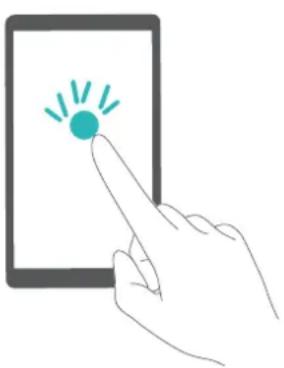
natural_image
Illustration of a hand pointing at a smartphone screen with a glowing blue sun icon (no text or symbols)- Browse a magnified area: Swipe the screen using two or more fingers.
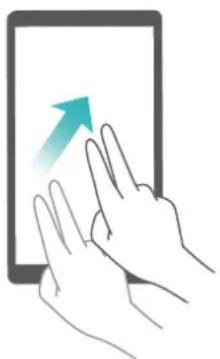
natural_image
Illustration of two hands interacting with a tablet screen displaying a blue upward arrow (no text or symbols)- Adjust the zoom: Pinch two or more fingers together or spread them apart. To zoom in, spread your fingers apart. Pinch your fingers together to zoom back out.
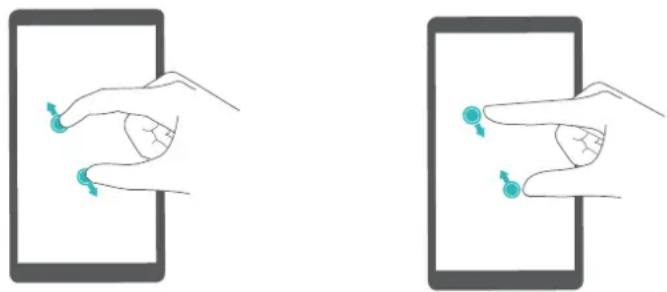
natural_image
Illustration of two hand gestures on a smartphone screen, showing finger placement (no text or symbols)- Zoom in temporarily: Touch the screen three times in quick succession and then hold your finger on the screen. Keep your finger on the screen and swipe to browse a magnified area. Release your finger to zoom back out.
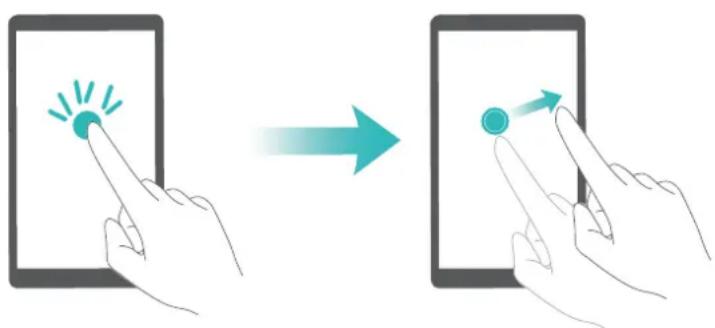
natural_image
Illustration of two hands interacting with a tablet device, showing the screen and touch functions (no text or symbols)Using the power button to end a call
1 Open Settings.
2 Touch Advanced settings >Accessibility and then turn on the Power button ends call switch.
Once you have enabled this feature, press the power button to end a call.
Adjusting the screen response time
You can adjust the time that it takes for your phone to respond to gestures, such as touch and hold.
1 Open Settings.
2 Touch Advanced settings >Accessibility > Touch & hold delay.
3 Select the desired delay time: Short, Medium or Long.
Colour correction
Colour correction mode adjusts colours to make it easier for colour vision impaired users to distinguish between different parts of the screen.
i Enable this mode with caution, as it may affect your phone's battery.
1 Open Settings.
2 Touch Advanced settings >Accessibility and then turn on the Colour correction switch.
3 Touch Correction mode and then select a correction mode.
Appendix
Obtaining help
Read the Quick Start Guide included with your phone.
Touch Settings > About phone > Legal information to read the legal information.
About this guide
All pictures and illustrations in this document are for your reference only and may differ from the final product.
Features in this guide are for your reference only. Some features may not be supported by all phones or carriers.
Copyright © 2016 Huawei Technologies Co., Ltd. All rights reserved.
This guide is for reference purposes only and does not constitute any form of guarantee.
Personal Information and Data Security
The use of some functions or third-party applications on your device could result in your personal information and data being lost or becoming accessible to others. Several measures are recommended to help you protect personal and confidential information.
- Place your device in a safe area to prevent it from unauthorized use.
- Set your device screen to lock and create a password or unlock pattern to open it.
- Periodically back up personal information kept on your SIM card, memory card, or stored in your device memory. If you change to a different device, be sure to move or delete any personal information on your old device.
- If you are worried about viruses when you receive messages or emails from a stranger, you can delete them without opening them.
- If you use your device to browse the Internet, avoid websites that might pose a security risk to avoid theft of your personal information.
- If you use services such as Wi-Fi tether or Bluetooth, set passwords for these services to prevent unauthorized access. When these services are not in use, turn them off.
- Install or upgrade device security software and regularly scan for viruses.
- Be sure to obtain third-party applications from a legitimate source. Downloaded third-party applications should be scanned for viruses.
• Install security software or patches released by Huawei or third-party application providers. - Some applications require and transmit location information. As a result, a third-party may be able to share your location information.
- Your device may provide detection and diagnostic information to third-party application providers. Third party vendors use this information to improve their products and services.
List of safety features
Huawei phones come with a series of built-in security measures to keep your data secure.
| Full-disk encryption | All data on the memory chipset is automatically encrypted. Each phone has a different security key, meaning that other devices cannot access the data stored on your phone's memory chipset. |
| Fingerprint recognition | Your phone comes with a fingerprint sensor to give you quick and easy access to your phone's features. For example, you can use your fingerprint to unlock the screen, access files in your Safe, open locked applications and more. For more information, see Using fingerprint recognition. |
| Harassment filter | Use the harassment filter in Phone Manager to block spam calls and messages. For more information, see Harassment filter. |
| App Lock | Use the App Lock in Phone Manager to lock applications and prevent unauthorised access. The App Lock password is required to open locked applications. |
| Managing data usage | Use the data management feature in Phone Manager to keep track of your mobile data usage. Mobile data will be automatically disabled when you exceed the preset limit to prevent you from incurring excessive data charges. For more information, see Managing data usage. |
| Safe | Enable the Safe feature, set a password and then add your confidential files to prevent unauthorised access. For more information, see Storing private files in a safe. |
| MicroSD card encryption | Encrypt your microSD card to prevent unauthorised access to your data. A password must be entered when the microSD card is inserted into another phone. For more information, see Encrypting a microSD card. |
| SIM lock | Set a SIM card PIN to protect the data stored on your SIM card. If you have enabled PIN protection for your SIM card, you will need to enter the PIN each time you turn on your phone or insert the SIM card into another phone. For more information, see Setting your SIM card PIN. |
| Screen unlock method | Choose from a range of screen unlock methods to prevent unauthorised access to your phone. For more information, see Changing the screen unlock method. |
Legal Notice
Copyright © Huawei Technologies Co., Ltd. 2016. All rights reserved.
This document, whether in part or whole, shall not be reproduced or transmitted in any way, shape, or form without the prior written consent of Huawei Technologies Co., Ltd. and its affiliates ("Huawei").
The product described in this document may include software that is the copyright of Huawei or its licensors. Such software shall not be reproduced, distributed, modified, decompiled, disassembled, decrypted, extracted, reverse engineered, leased, assigned, or sublicensed unless such restrictions are prohibited by law or such actions are approved by the copyright holder.
Trademarks and Permissions

HUAWEI, HUAWEI
and

are trademarks or registered trademarks of Huawei Technologies Co.,
Ltd.
Android ^™ is a trademark of Google Inc.
LTE is a trade mark of ETSI.
The Bluetooth ^® word mark and logos are registered trademarks owned by Bluetooth SIG, Inc. and any use of such marks by Huawei Technologies Co., Ltd. is under license.
Other trademarks, products, services and company names mentioned herein may be the property of their respective owners.
Notice
Some features of the product and its accessories described herein rely on the software installed or the capacities and settings of the local network, and therefore may not be activated or may be limited by local network operators or network service providers.
Therefore, the descriptions herein may not exactly match the purchased product or its accessories.
Huawei reserves the right to change or modify any information or specifications contained in this document at any time without prior notice and without any liability.
Third-Party Software Statement
Huawei does not own the intellectual property of the third-party software and applications that are delivered with this product. Therefore, Huawei will not provide any warranty of any kind for third-party software and applications. Neither will Huawei provide support to customers who use third-party software and applications, nor be responsible or liable for the functions or performance of third-party software and applications.
Third-party software and applications services may be interrupted or terminated at any time, and Huawei does not guarantee the availability of any content or service. Third-party service
providers provide content and services through network or transmission tools outside of the control of Huawei. To the greatest extent permitted by applicable law, it is explicitly stated that Huawei shall not compensate or be liable for services provided by third-party service providers, or the interruption or termination of third-party contents or services.
Huawei shall not be responsible for the legality, quality, or any other aspects of any third-party software installed on this product, or for any uploaded or downloaded third-party works in any form, including but not limited to texts, images, videos, or software etc. Customers shall bear the risk for any and all effects, including incompatibility between the software and this product, which result from installing software or uploading or downloading the third-party works.
This product is based on the open-source Android™ platform. Huawei has made necessary changes to the platform. Therefore, this product may not support all the functions that are supported by the standard Android platform or may be incompatible with third-party software. Huawei does not provide any warranty or representation in connect with any such compatibility and expressly excludes all liability in connection with such matters.
DISCLAIMER
ALL CONTENTS OF THIS DOCUMENT ARE PROVIDED "AS IS". EXCEPT AS REQUIRED BY APPLICABLE LAWS, NO WARRANTIES OF ANY KIND, EITHER EXPRESS OR IMPLIED, INCLUDING BUT NOT LIMITED TO, THE IMPLIED WARRANTIES OF MERCHANTABILITY AND FITNESS FOR A PARTICULAR PURPOSE, ARE MADE IN RELATION TO THE ACCURACY, RELIABILITY OR CONTENTS OF THIS DOCUMENT.
TO THE MAXIMUM EXTENT PERMITTED BY APPLICABLE LAW, UNDER NO CIRCUMSTANCES SHALL HUAWEI BE LIABLE FOR ANY SPECIAL, INCIDENTAL, INDIRECT, OR CONSEQUENTIAL DAMAGES, OR LOSS OF PROFITS, BUSINESS, REVENUE, DATA, GOODWILL SAVINGS OR ANTICIPATED SAVINGS REGARDLESS OF WHETHER SUCH LOSSES ARE FORSEEABLE OR NOT.
THE MAXIMUM LIABILITY (THIS LIMITATION SHALL NOT APPLY TO LIABILITY FOR PERSONAL INJURY TO THE EXTENT APPLICABLE LAW PROHIBITS SUCH A LIMITATION) OF HUAWEI ARISING FROM THE USE OF THE PRODUCT DESCRIBED IN THIS DOCUMENT SHALL BE LIMITED TO THE AMOUNT PAID BY CUSTOMERS FOR THE PURCHASE OF THIS PRODUCT.
Import and Export Regulations
All applicable export or import laws and regulations must be complied with and all necessary governmental permits and licenses must be obtained before exporting or importing the product, including the software and technical data, described in this document.
Privacy Policy
To better understand how we protect your personal information, please see our privacy policy at http://www.hihonor.com.
This guide is for reference only. The actual product, including but not limited to the color, size, and screen layout, may vary. All statements, information, and recommendations in this guide do not constitute a warranty of any kind, express or implied.
BLN-L21:

The N-Mark is a trademark or registered trademark of NFC Forum, Inc. in the United States and in other countries.
Please visit http://www.hihonor.com for recent updated hotline and email address in your country or region.
Model: BLN-L21
BLN-L22
V100R001_01

- honor 6X
- User Guide
- Contents
- Exciting New Features
- Unboxing your Phone
- Transferring Data
- First Use and Initial Setup
- Installing Applications
- Getting Started
- Tips and Tricks
- Calls and Contacts
- Messaging and Email
- Camera and Gallery
- Music and Video
- Accessing the Internet
- Backup and Restore
- File Management
- Power Management
- Phone Manager
- Tools
- Settings
- Accessibility Features
- Appendix
- Wide aperture photos
- Pro camera mode
- Screen recorder
- Starting the recording
- Stopping the recording
- Eye comfort mode
- Wi-Fi signal bridge
- Getting to know your phone
- Inserting a SIM card and microSD card
- Tips:
- Charging your phone
- Using your battery
- Battery status indicator
- Turning your phone on and off
- Using the Backup application to transfer data
- Backing up data to a microSD card
- Restoring data from a microSD card
- Transferring data between your phone and a computer
- Copying contacts from an old phone to a new phone
- Initial setup
- Dual SIM settings
- Connecting to the Internet
- Connecting to a Wi-Fi network
- Using mobile data
- Configuring your fingerprint ID
- Sharing applications using a microSD card
- Uninstalling an application
- Locking and unlocking the screen
- Locking the screen
- Unlocking the screen
- Magazine Unlock
- Touchscreen gestures
- Status and notification icons
- Status icons
- Notification icons
- Home screen
- Getting to know your home screen
- Virtual navigation bar keys:
- Switching between home screens
- Automatic screen rotation
- Organising applications and widgets on the home screen
- Adding a widget to the home screen
- Moving a widget or icon
- Deleting a widget or icon
- Creating a folder
- Hiding applications
- Taking a screenshot
- Using the screenshot shortcut switch
- Notifications
- Status indicator
- Notification badges
- Notification panel
- Viewing notifications on the lock screen
- Managing notification permissions
- Notification and status bar settings
- Configuring the drop-down settings for the notification bar
- Configuring the display content for the notification and status bar
- Using fingerprint recognition
- Adding a fingerprint for the first time
- Adding, deleting or renaming a fingerprint
- Accessing Safe with your fingerprint
- Accessing App Lock with your fingerprint
- Fingerprint sensor touch gestures
- Accessing applications
- Opening and switching between applications
- Opening applications from the lock screen
- Opening an application from the home screen
- Switching between applications
- Searching for applications
- Finding applications
- Finding hidden applications
- Viewing recently used applications
- Personalising your phone
- Simple home screen
- Changing the theme
- Changing the wallpaper
- Assigning a ringtone to a contact
- Changing the font size
- Entering text
- Switching text input methods
- Huawei Swype input method
- Android input method
- Editing text
- Searching for settings
- Quickly returning a call
- Adding contact details quickly
- Sharing your QR card
- Calling contacts when the screen is off
- Pocket mode
- Taking snapshots when the screen is off
- Perfect selfie
- Using time-lapse mode to fast forward the action
- Taking photos while recording video
- Finding applications quickly
- Connecting to the Wi-Fi network with the strongest signal
- Adjusting the system volume rapidly
- Using the floating dock
- Aligning home screen applications automatically
- Touch-disable mode
- Making calls
- Smart dialling
- Enabling quick calling
- Making a call from Contacts
- Making a call from the call log
- Making an emergency call
- Speed dialling
- Making an international call
- Touch. If your phone has dual SIM support, touch or
- Auto redial
- Answering or rejecting a call
- Functions available during a call
- Answering a third-party call
- Making a conference call
- Viewing the call log
- Adding a number from the call log
- Clearing the call log
- Turning on pocket mode
- Call settings
- Enabling call forwarding
- Enabling call waiting
- Enabling do not disturb mode
- Configuring the harassment filter
- Configuring voicemail
- Creating a contact
- Importing or exporting contacts
- Importing contacts from a storage device
- Importing contacts from a SIM card
- Importing contacts using Bluetooth
- Importing contacts using Wi-Fi Direct
- Exporting contacts to a storage device
- Exporting contacts to a SIM card
- Sharing contacts
- Managing contacts
- Editing a contact
- Merging duplicate contacts
- Deleting contacts
- Finding a contact
- Viewing contacts from different accounts
- Adding a contact to your favourites
- Contact groups
- Creating a group
- Editing a group
- Sending messages or emails to a group
- Deleting a group
- Sending a message
- Replying to a message
- Searching for messages
- Deleting threads
- Managing messages
- Blocking spam messages
- Managing common phrases
- Adding a message signature
- Adding an email account
- Adding a personal email account
- Adding an Exchange account
- Sending an email
- Checking your emails
- Managing VIP contacts
- Account settings
- Changing email accounts
- Removing an email account
- Personalising your email account
- Accessing the viewfinder
- Taking a photo
- Shooting modes
- Beauty mode
- Perfect Selfie mode
- Using Perfect Selfie mode
- Configuring Perfect Selfie
- Ultra Snapshot
- Burst shooting
- Voice activated shooting
- Launching the camera from Gallery
- Object tracking
- Audio notes
- HDR mode
- Super Night mode
- Using Pro camera mode
- Pro camera settings
- Low exposure icon
- Manual settings
- Light Painting mode
- Tail lights
- Light graffiti
- Silky water
- Star track
- Panoramic shots
- Taking a panoramic photo
- Taking a panoramic self-portrait
- Adding watermarks to photos
- Shooting a video
- Time-lapse mode
- Slow motion recording
- Document correction
- Camera and video settings
- Setting the photo and video resolutions
- Configuring the default storage location for photos and videos
- Adding an overlay
- Video settings
- Camera settings
- Viewing photos and videos
- Viewing photos in chronological order
- Viewing photos by location
- Viewing photos by album
- Viewing photos as a slideshow
- Viewing photos in full-screen mode
- Playing a video
- Adding photos or videos to a new album
- Moving photos or videos to other albums
- Deleting images or videos
- Sharing images or videos
- Managing albums
- Adding notes to an image
- Editing an image
- Using Camera or Gallery to scan a QR code
- Scanning a QR code using Gallery
- Scanning a QR code using Camera
- Adding songs to your phone
- Searching for local music
- Listening to music
- Using the playback screen
- Controlling playback using a smart headset
- Creating a playlist
- Playing a playlist
- Setting a song as the ringtone
- Using your phone during video playback
- Connecting to the Internet using mobile data
- Connecting to the Internet using Wi-Fi
- Connecting to a Wi-Fi network using WPS
- Sharing your mobile Internet with other devices
- Using a portable Wi-Fi hotspot to share your mobile Internet
- Using USB tethering to share mobile Internet with a computer
- Using Bluetooth tethering to share your mobile Internet
- Transferring data using Bluetooth
- Enabling Bluetooth and pairing your phone with another device
- Sending and receiving files using Bluetooth
- Unpairing Bluetooth devices
- Renaming your phone
- Transferring data using Wi-Fi Direct
- Connecting two devices using Wi-Fi Direct
- Using Wi-Fi Direct to send and receive files
- Transferring data between your phone and a USB storage device
- Streaming multimedia content to your TV
- Using the Backup application to back up and restore data
- Backing up data to local storage
- Restoring data from local storage
- Restoring factory settings
- Updating your phone
- OTA updates
- Viewing files
- Viewing files by category
- Finding files quickly
- Sorting your files
- Creating file shortcuts on the home screen
- Sharing files
- Creating folders
- Renaming files
- Copying, moving or deleting files
- Creating or extracting archives
- Excluding small images
- Storing private files in a safe
- Viewing battery usage statistics
- Reducing power consumption
- Enabling the Ultra power plan
- Closing background applications when the screen is locked
- Preventing background applications from accessing the Internet
- Configuring display and sound settings
- Optimising your system
- Conducting a comprehensive scan
- Cleaning up your phone
- Managing data usage
- Harassment filter
- Battery management
- Calendar
- Adding and deleting events
- Viewing the calendar
- Viewing global holidays
- Synchronising a calendar
- Clock
- Managing alarms
- World clock
- Dual clock display
- Stopwatch
- Timer
- Weather
- Viewing weather information
- Open Weather. You can:
- Updating the weather
- Adding and deleting cities
- Notepad
- Creating a note
- Deleting a note
- Calculator
- Sound recorder
- Recording sound
- Playing a recording
- Mirror
- Open Mirror.
- Enabling location access
- Increasing indoor positioning accuracy
- Configuring the display settings
- Sound settings
- Changing the screen unlock method
- Setting a screen unlock pattern
- Unlocking the screen with a password
- Enabling fingerprint unlock
- Removing the screen lock password
- Gestures and navigation settings
- Motion control
- Navigation bar
- Aeroplane mode
- Setting your SIM card PIN
- Setting up an account
- Adding an account
- Deleting an account
- Syncing data with your phone
- Setting the date and time
- Changing the system language
- Viewing your phone's specifications
- Viewing the available storage space
- Encrypting a microSD card
- Formatting the microSD card
- About your phone's accessibility features
- TalkBack
- Enabling or disabling TalkBack
- Using TalkBack to control your phone
- Configuring the TalkBack settings
- Audible password prompts
- Text To Speech (TTS) output
- Captions
- Magnification gestures
- Using the power button to end a call
- Adjusting the screen response time
- Colour correction
- Obtaining help
- About this guide
- Personal Information and Data Security
- List of safety features
- Legal Notice
- Trademarks and Permissions
- Notice
- Third-Party Software Statement
- DISCLAIMER
- Import and Export Regulations
- Privacy Policy
Marke : HUAWEI
Modell : Honor 6X
Kategorie : Smartphone