
HDR-AS300 - Sportkamera SONY - Kostenlose Bedienungsanleitung
Finden Sie kostenlos die Bedienungsanleitung des Geräts HDR-AS300 SONY als PDF.


| Produkttyp | Sportkamera |
| Marke | Sony |
| Modell | HDR-AS300 |
| Kategorie | Action-Kamera |
| Videoauflösung | Full HD (1920 x 1080) |
| Bildstabilisierung | SteadyShot (elektronisch) |
| WLAN | Ja (802.11 b/g/n) |
| NFC | Ja |
| GPS | Ja |
| Akku | NP-BX1 (wiederaufladbar) |
| Speicherkarten | microSD/microSDHC/microSDXC, Memory Stick Micro |
| Wasserdicht | Bis 60 m mit Unterwassergehäuse |
| Anschlüsse | Micro USB, HDMI, Mikrofonbuchse |
| Abmessungen (ca.) | 75,0 x 51,0 x 30,0 mm (nur Kamera) |
| Gewicht (ca.) | 90 g (nur Kamera) |
| Lieferumfang | Kamera, Unterwassergehäuse MPK-UWH1, Micro USB-Kabel, Akku NP-BX1, Befestigungsschnalle, Kurzanleitung |
| Funktionen | Zeitraffer, Loop-Aufnahme, Live-Streaming, Zeitcode/User Bit |
| Reinigung | Mit einem weichen, trockenen Tuch abwischen |
| Sicherheitshinweise | Nicht ohne Gehäuse in Wasser verwenden; Akku nicht überladen |
| Ersatzteile/Reparatur | Erhältlich über Sony-Service; Gehäuse und Akku austauschbar |
Häufig gestellte Fragen - HDR-AS300 SONY
Benutzerfragen zu HDR-AS300 SONY
0 Frage zu diesem Gerät. Beantworten Sie die, die Sie kennen, oder stellen Sie Ihre eigene.
Eine neue Frage zu diesem Gerät stellen
Laden Sie die Anleitung für Ihr Sportkamera kostenlos im PDF-Format! Finden Sie Ihr Handbuch HDR-AS300 - SONY und nehmen Sie Ihr elektronisches Gerät wieder in die Hand. Auf dieser Seite sind alle Dokumente veröffentlicht, die für die Verwendung Ihres Geräts notwendig sind. HDR-AS300 von der Marke SONY.
BEDIENUNGSANLEITUNG HDR-AS300 SONY
Digital 4K Video Camera Recorder Digital HD Video Camera Recorder
Startup Guide
Diese Anleitung beschreibt die notwendigen Vorbereitungen, um die Kamera zu verwenden, die grundlegenden Bedienvorgänge und so weiter. Einzelheiten finden Sie in der "Hilfe" (Online-Handbuch).
http://rd1.sony.net/help/cam/1640/h_zz/

Für detaillierte Informationen zur Verwendung der Kamera und der Software,
besuchen Sie die folgende Website.
http://www.sony.net/actioncam/support/


FDR-X3000/HDR-AS300
Lesen Sie dies zuerst
Was benötigt wird, um mit der Kamera ansprechende Filme zu erstellen
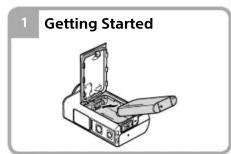
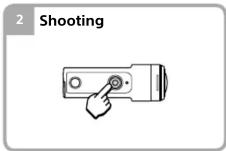
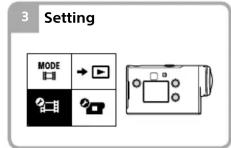
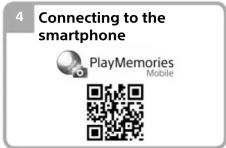
5 Erstellen Sie Ihren Film
Sie können Filme mit der Anwendungssoftware von Sony bearbeiten. • Action Cam App (für Smartphone/Tablet) • Action Cam Movie Creator (für PC) http://www.sony.net/acmc/
http://www.sony.net/acap/


© 2016 Sony Corporation
http://www.sony.net/
Gedruckt in China
4586864110
Prüfen der mitgelieferten Artikel
Die Zahl in Klammern gibt die Menge des jeweiligen Artikels an.
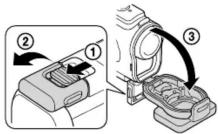
- Kamera (1) / Unterwassergehäuse (MPK-UWH1) (1) Die Kamera ist im Unterwassergehäuse eingesetzt. Öffnen Sie den Deckel des Gehäuses wie unten abgebildet.
- Micro-USB-Kabel (1)
- Wiederaufladbarer Akku (NP-BX1) (1)
- Befestigungsschnalle (1)
- Starthandbuch (dieses Dokument) (1) • Referenzhandbuch (1)
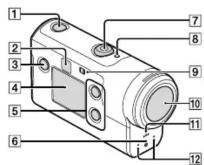
Bezeichnung der Hauptteile
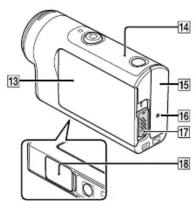
1 Ein-/Bereitschaftstaste 2 IR-Fernbedienungsempfänger (nur FDR-X3000) 3 MENU-Taste 4 Anzeigefeld 5 AUF/AB-Tasten 6 REC-Klemme 7 REC-Taste (Film/Standbild)/ENTER-Taste (Menü bestätigen) 8 REC/LIVE-Lampe 9 N (N-Markierung) 10 Objektiv 11 Lautsprecher 12 Mikrofone 13 Batteriefachdeckel 14 GPS-Sensor 15 Anschlussabdeckung (HDMI OUT, Multi/Micro-USB-Anschluss, Mikrofonbuchse) 16 REC-Klemme 17 Verriegelungshebel 18 Speicherkartenfachdeckel
Erste Schritte
Laden des Akkus
1 Schieben Sie den Verriegelungshebel nach unten, um das Batteriefach zu öffnen, und setzen Sie dann den Akku ein.
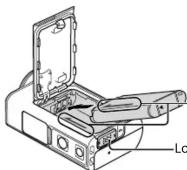
Richten Sie die Pfeile auf Kamera und Akku aus.
-Verriegelungshebel
2 Schließen Sie die Abdeckung fest und schieben Sie dann den Verriegelungshebel nach oben, um zu verriegeln.
Bestätigen Sie, dass die gelbe Markierung am Verriegelungshebel nicht sichtbar ist.
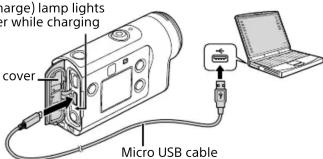
3 Öffnen Sie die Anschlussabdeckung und verbinden Sie die deaktivierte Kamera mit einem aktivierten Computer über das mitgelieferte Micro-USB-Kabel.
Die CHG-Lampe (Ladeanzeige) leuchtet
während des Ladevorgangs gelb.
V
Anschlussabdeckung
Einsetzen einer Speicherkarte
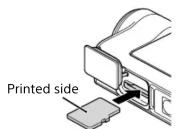
microSD-Karte/
microSDHC-Karte/
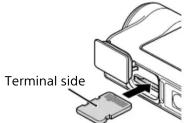
Memory Stick Micro™
(Mark2)-Medien
Speicherkarten, die mit der Kamera verwendet werden können
| Memory card MP4 XAVC S | ||
| Memory Stick MicroTM (Mark2) media | ○ (Mark2 only) | - |
| microSD memory card | *1 | - |
| microSDHC memory card | *1 | *2 |
| microSDXC memory card | *1 | *2 |
*1 SD Speed Class 4 (oder schneller, oder UHS Speed Class 1 ( ) oder schneller)
Eine Speicherkarte, die alle folgenden Spezifikationen erfüllt:
- 4 GB oder mehr Speicher
- SD-Geschwindigkeitsklasse 10 (CLASS⑩) oder UHS-Geschwindigkeitsklasse 1 (L) oder schneller
Eine Speicherkarte mit UHS-Geschwindigkeitsklasse 3 (3) ist erforderlich, wenn Sie mit
100 Mbit/s oder schneller aufnehmen (nur FDR-X3000).
Hinweise
- Der Betrieb mit allen Speicherkarten ist nicht gewährleistet. Details zu Speicherkarten, die nicht von Sony hergestellt werden, erhalten Sie beim jeweiligen Hersteller.
- Achten Sie auf die Richtung der Speicherkarte. Wenn Sie die Speicherkarte gewaltsam in die falsche Richtung einführen, können die Speicherkarte, der Speicherkartenschlitz oder die Bilddaten beschädigt werden.
- Formatieren Sie die Speicherkarte vor der Verwendung mit der Kamera.
- Vergewissern Sie sich vor der Verwendung, dass der Anschlussdeckel und der Akku-/Speicherkartendeckel sicher geschlossen sind und sich keine Fremdkörper im Deckel befinden. Andernfalls kann es zu Wassereintritt kommen.
Einstellen der Uhr
Wenn die Kamera zum ersten Mal durch Drücken der Taste d (Ein/Bereitschaft) eingeschaltet wird, wird der Bildschirm für Bereich/Sommerzeit (Sommerzeit)/Datum und Uhrzeit angezeigt.
Drücken Sie die Taste AUF oder AB, um ein Element auszuwählen, und drücken Sie dann die Taste ENTER, um die Auswahl zu bestätigen.
Hinweise
- Der Bildschirm für Datum und Uhrzeit/Bereich/Sommerzeit (Sommerzeit) wird auch angezeigt, nachdem die Einstellungen zurückgesetzt wurden.
- Regionen werden durch die Zeitdifferenz zwischen der Greenwich Mean Time (GMT) und der Standardzeit Ihres Wohnorts definiert. Einzelheiten zur Zeitdifferenz finden Sie unter "Liste der Zeitdifferenzen für Hauptstädte der Welt" in der "Hilfe" (Online-Handbuch).
Aufnahme
Einstellen des Aufnahmemodus
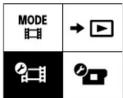
Drücken Sie die MENU-Taste und wählen Sie dann MODE, um den Aufnahmemodus einzustellen.
![graph LR A["Mobile Phone Icon"] --> B["MODE"] B --> C["→"] C --> D["OK"] D --> E["Cancel"]](/content/2026/05/812143/images/1a929048ae6ddc686e4c2e83ad8c61f9dc74c24e8c25b2575000eab6b151e1be.jpg)
Liste der Modi
| Icons | Shooting modes |
| Movie mode | |
| Photo mode | |
| Time-lapse capture mode | |
| Live streaming mode | |
| Loop recording mode |
Einstellen des Filmformats
Drücken Sie die MENU-Taste und wählen Sie dann ⚡ (Aufnahmeeinstellungen) → das Filmformat (Standard: MP4).
Wählen Sie, um Bilder in 4K-Qualität aufzunehmen (nur FDR-X3000).
Aufnahme
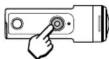
Drücken Sie die REC-Taste, um die Aufnahme zu starten.
Um die Aufnahme zu stoppen, drücken Sie erneut die REC-Taste. * Wenn Sie die REC-Taste drücken, während die Einstellung "One-Touch-Aufnahme" auf "ON" gesetzt ist, beginnt die Aufnahme mit dem letzten Aufnahmemodus, der vor dem Ausschalten der Kamera eingestellt war.
Hinweise
- Bei längerer Aufnahme kann die Kameratemperatur so stark ansteigen, dass die Aufnahme automatisch stoppt.
- Wenn Sie die Kamera über das mitgelieferte Micro-USB-Kabel an eine externe Stromversorgung anschließen, können Sie den Akkuverbrauch beim Aufnehmen oder Wiedergeben von Bildern reduzieren. In diesem Fall ist ein geladener Akku erforderlich.
Einstellung
Drücken Sie die MENU-Taste, wählen Sie mit der UP- oder DOWN-Taste das Element aus, und drücken Sie dann die ENTER-Taste, um es auszuführen.
1 Aufnahmebildschirm 2 MENU-Bildschirm
MENU-Taste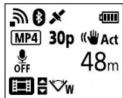
→
ENTER-Taste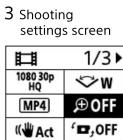
→ 4 Einstellungsbildschirm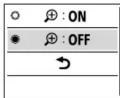
Aufnahmeeinstellungen*1
| Icons Settirg items | |
| 1080 30pHQ | Image quality setting |
| MP4 | Movie format |
| Time-lapse capture image size | |
| 5 min | Loop recording time |
| Still image mode switching | |
| 10f 1s | Still image shooting interval |
| OFF | Self-timer |
| 1s | Time-lapse shooting interval |
| 300 | Time-lapse shot number |
| SteadyShot (Movie) | |
| SteadyShot (Still) | |
| Angle setting | |
| OFF | Zoom setting |
| Flip | |
| ± 0.0 | AE shift |
| AET | Time-lapse AE mode |
| SCN N | Scene |
| AWB | White balance |
| Color mode | |
| ON | Audio recording setting |
| OFF | Wind noise reduction |
Kameraeinstellungen
| Icons Setting items | |
| + OFF | Airplane mode |
| Wi-Fi connection setting | |
| Wi-Fi Hi Power Setting *2 | |
| ON | Bluetooth setting |
| Bluetooth remote controller power setting | |
| × ON | GPS log |
| Format | |
| TC/UB | Time code/user bit *3 |
| IR remote *3 | |
| HDMI | HDMI settings *4 |
| Back ground music *2 | |
| USB ON | USB power supply |
| Beep | |
| Beep volume | |
| Lamp setting | |
| One touch recording | |
| AUTO OFF 60 s | Auto power off |
| NTSC → PAL | Switching NTSC/PAL |
| Date & time setting | |
| Area setting | |
| Daylight saving time (summer time) setting | |
| Ver. | Version |
| RESET | Resetting the settings |
*1 Welche Elemente eingestellt werden können, hängt vom Aufnahmemodus ab. *2 Diese Einstellung ist nur in einigen Ländern und Regionen verfügbar. *3 Diese Einstellung ist nur mit FDR-X3000 verfügbar. *4 Ein Teil dieser Einstellung ist nur mit FDR-X3000 verfügbar.
Einzelheiten zu den Einstellungselementen finden Sie unter "Ändern der Einstellungen" im "Hilfe-Handbuch" (Web-Handbuch).
Verbindung mit dem Smartphone herstellen
Installieren von PlayMemories Mobile™ auf Ihrem Smartphone
Android OS
Suchen Sie auf Google Play nach PlayMemories Mobile und installieren Sie es.

iOS
Suchen Sie im App Store nach PlayMemories Mobile und installieren Sie es.

- Bei Verwendung von iOS sind die One-Touch-Funktionen (NFC) nicht verfügbar.
Hinweise
- Aktualisieren Sie PlayMemories Mobile auf die neueste Version, falls Sie es bereits auf Ihrem Smartphone installiert haben.
- Die in dieser Anleitung beschriebene Wi-Fi-Funktion ist nicht für alle Smartphones und Tablets garantiert.
- Die Bedienungsmethoden und Anzeigebilder der Anwendung können sich durch zukünftige Updates ohne Vorankündigung ändern.
- Weitere Informationen zu PlayMemories Mobile finden Sie auf der folgenden Website. (http://www.sony.net/pmm/)
- Google Play ist möglicherweise nicht in allen Ländern oder Regionen verfügbar. In diesem Fall suchen Sie im Internet nach "PlayMemories Mobile" und installieren Sie es.
Verbinden
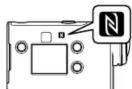
◆ Verwenden der One-Touch-Funktion zum Verbinden mit einem NFC-fähigen Android-Smartphone
Aktivieren Sie Wi-Fi an der Kamera und halten Sie das N-Symbol des Smartphones gegen das N-Symbol der Kamera. Wenn PlayMemories Mobile startet, werden die Einstellungen automatisch angewendet, um die Wi-Fi-Verbindung herzustellen.
◆ Verwenden des QR-Codes zum Verbinden mit einem Smartphone über Wi-Fi
① Schalten Sie die Kamera ein und aktivieren Sie Wi-Fi an der Kamera.
② Wählen Sie den Aufnahmemodus: ③ Starten Sie PlayMemories Mobile auf dem Smartphone. ④ Wählen Sie [QR-Code der Kamera scannen] auf dem Bildschirm von PlayMemories Mobile. ⑤ Wählen Sie [OK] (Wenn eine Meldung angezeigt wird, wählen Sie erneut [OK]). ⑥ Lesen Sie den QR-Code, der auf dem Aufkleber auf der Rückseite des Akkufachs der Kamera aufgedruckt ist.
③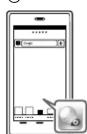
④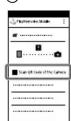
⑤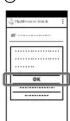
⑥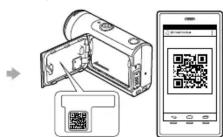
Android
⑦ Wenn [Mit der Kamera verbinden?] auf dem Smartphone angezeigt wird, wählen Sie [OK].
iPhone/iPad
⑦ Installieren Sie ein Profil (Einstellungsinformationen) auf Ihrem Smartphone gemäß den Anweisungen auf dem Bildschirm. ⑧ Wählen Sie auf dem Startbildschirm [Einstellungen] → [Wi-Fi]. ⑨ Wählen Sie die SSID. ⑩ Kehren Sie zum Startbildschirm zurück und starten Sie PlayMemories Mobile.
⑦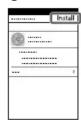
⑧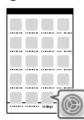
⑨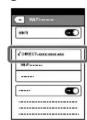
⑩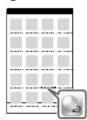
Benutzer-ID und Passwort ohne Aufkleber abrufen
Wenn der Aufkleber abgeblättert oder unleserlich ist, können Sie Ihre Benutzer-ID und Ihr Passwort wie folgt abrufen. ① Setzen Sie einen geladenen Akku in die Kamera ein. ② Verbinden Sie die Kamera mit dem mitgelieferten Micro-USB-Kabel mit einem Computer. ③ Drücken Sie die Taste (Ein/Bereitschaft), um die Kamera einzuschalten. ④ Zeigen Sie auf Ihrem Computer [Computer] → [PMHOME] → [INFO] → [WIFI_INF.TXT] an und bestätigen Sie Ihre ID und Ihr Passwort.
Erstellen Ihres Films
Bearbeiten eines Films mit der Action Cam App
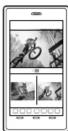
Mit der Action Cam App können Sie Filme auf Ihr Smartphone importieren und sie einfach bearbeiten. Darüber hinaus können Sie Zeitrafferfilme erstellen. Weitere Informationen zur Action Cam App finden Sie auf der folgenden Website: http://www.sony.net/acap/
Installieren Sie die Action Cam App, die mit Ihrem Smartphone kompatibel ist.
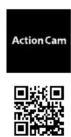


Hinweis
- Google play wird je nach Land oder Region möglicherweise nicht unterstützt.
Bearbeiten eines Films mit Action Cam Movie Creator
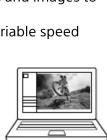
Mit Action Cam Movie Creator können Sie Filme und Bilder auf Ihren Computer importieren und die Filme bearbeiten.
Darüber hinaus können Sie Effekte (wie Multi View, variable Wiedergabegeschwindigkeit usw.) hinzufügen und Zeitrafferfilme erstellen.
Weitere Informationen zu Action Cam Movie Creator finden Sie auf der folgenden Website. http://www.sony.net/acmc/

- DIGITAL 4K VIDEO CAMERA RECORDER DIGITAL HD VIDEO CAMERA RECORDER
- STARTUP GUIDE
- LESEN SIE DIES ZUERST
- WAS BENÖTIGT WIRD, UM MIT DER KAMERA ANSPRECHENDE FILME ZU ERSTELLEN
- ERSTELLEN SIE IHREN FILM
- PRÜFEN DER MITGELIEFERTEN ARTIKEL
- BEZEICHNUNG DER HAUPTTEILE
- ERSTE SCHRITTE
- LADEN DES AKKUS
- EINSETZEN EINER SPEICHERKARTE
- HINWEISE
- EINSTELLEN DER UHR
- AUFNAHME
- EINSTELLEN DES AUFNAHMEMODUS
- EINSTELLEN DES FILMFORMATS
- EINSTELLUNG
- VERBINDUNG MIT DEM SMARTPHONE HERSTELLEN
- INSTALLIEREN VON PLAYMEMORIES MOBILE™ AUF IHREM SMARTPHONE
- ANDROID OS
- IOS
- VERBINDEN
- ANDROID
- IPHONE/IPAD
- BENUTZER-ID UND PASSWORT OHNE AUFKLEBER ABRUFEN
- ERSTELLEN IHRES FILMS
- BEARBEITEN EINES FILMS MIT DER ACTION CAM APP
- HINWEIS
- BEARBEITEN EINES FILMS MIT ACTION CAM MOVIE CREATOR
Marke : SONY
Modell : HDR-AS300
Kategorie : Sportkamera