
Outdoor CPE B2368 - Router HUAWEI - Kostenlose Bedienungsanleitung
Finden Sie kostenlos die Bedienungsanleitung des Geräts Outdoor CPE B2368 HUAWEI als PDF.


| Produkttyp | Outdoor-Router (CPE) |
| Marke | Huawei |
| Modell | B2368 |
| SIM-Karten-Slot | 1 x Micro-SIM (3FF) |
| RJ-45 (PoE) | 1 Anschluss für IDU |
| LAN-Ports | 3 x Gigabit Ethernet (LAN0-2) |
| WLAN-Standard | IEEE 802.11bgn/ac |
| Telefonie | SIP-Konto für Telefonanschluss |
| WPS-Unterstützung | Ja |
| LED-Anzeigen (ODU) | Power, LTE-Signalstärke (rot/grün/blau/orange) |
| LED-Anzeigen (IDU) | PWR/SYS, PHONE, WPS/Wi-Fi, LTE-Signalstärke, LAN0-2 |
| Standard-IP-Adresse | 192.168.1.1 |
| Standard-Benutzername | user |
| Standard-Passwort | LTE@Endusr |
| Stromversorgung | PoE (Power over Ethernet) über IDU |
| Betriebstemperatur | -40 °C bis 55 °C (typisch für Outdoor) |
| Schutzart | IP65 (geschätzt für Outdoor-Geräte) |
| Gewicht | Ca. 1,5 kg (inkl. Montagematerial) |
| Maße (ODU) | Ca. 260 x 200 x 60 mm |
Häufig gestellte Fragen - Outdoor CPE B2368 HUAWEI
Benutzerfragen zu Outdoor CPE B2368 HUAWEI
0 Frage zu diesem Gerät. Beantworten Sie die, die Sie kennen, oder stellen Sie Ihre eigene.
Eine neue Frage zu diesem Gerät stellen
Laden Sie die Anleitung für Ihr Router kostenlos im PDF-Format! Finden Sie Ihr Handbuch Outdoor CPE B2368 - HUAWEI und nehmen Sie Ihr elektronisches Gerät wieder in die Hand. Auf dieser Seite sind alle Dokumente veröffentlicht, die für die Verwendung Ihres Geräts notwendig sind. Outdoor CPE B2368 von der Marke HUAWEI.
BEDIENUNGSANLEITUNG Outdoor CPE B2368 HUAWEI
B2368- User Guide

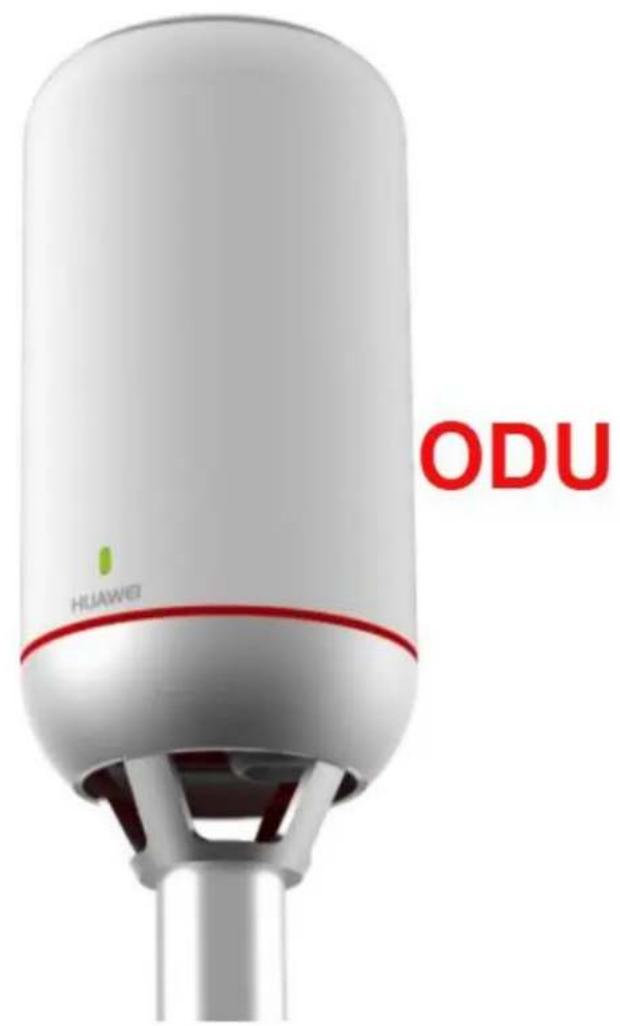
1. Hardware Description
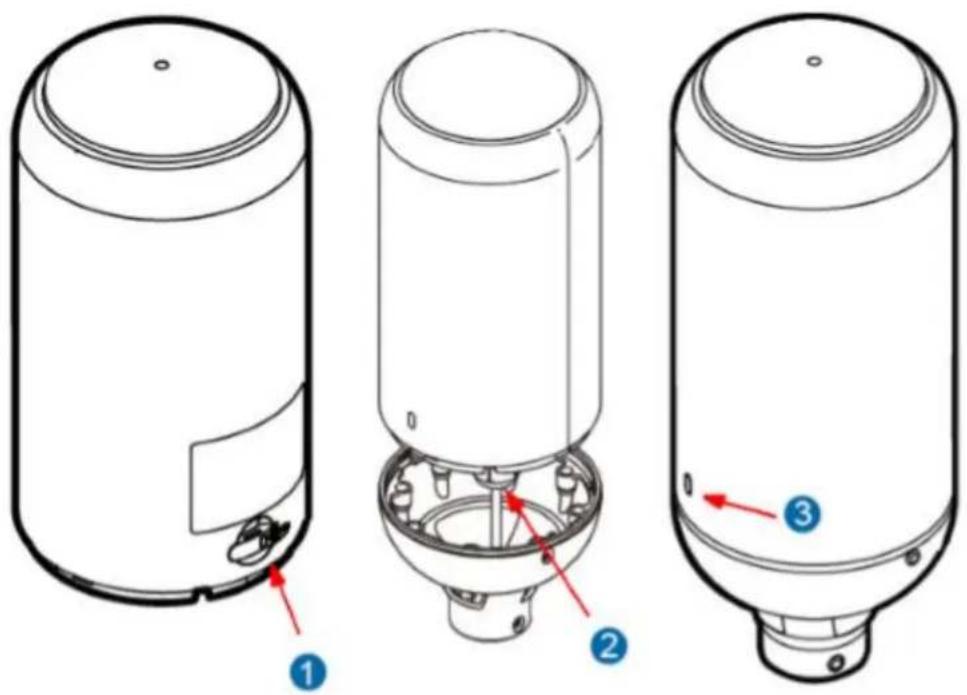
- One slot for one SIM card (3FF Micro-SIM is supported)
- One RJ-45 connector for connecting to the IDU PoE port
- LED indicator
ODU LED Indicators
| Color | LED Behavior | Status Indication |
| Off | Power Off | |
| Red | Steady ON | Error, malfunction, or no SIM |
| Blinking | Upgrading | |
| Green | Blinking | Booting up |
| Steady ON | Strong LTE signal: SINR ≥ 10 dB | |
| Blue | Steady ON | Medium LTE signal: 10 dB > SINR ≥ 4 dB |
| Orange | Steady ON | Weak LTE signal: SINR < 4 dB |
| Blinking | No LTE signal, searching, or disconnected. | |

natural_image
Front view of a Huawei-branded wireless device with no visible text or symbols on the body or side.IDU Front Panel
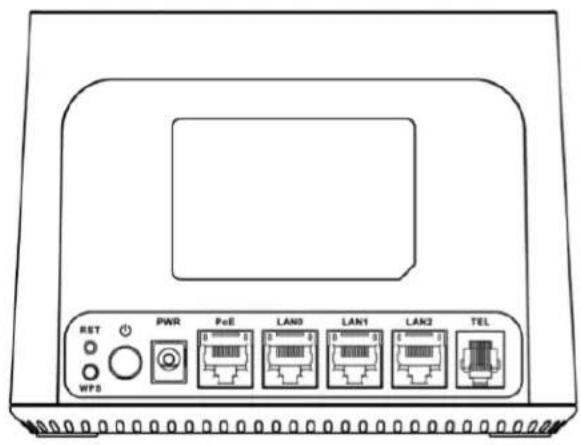
IDU Rear Panel
IDU LED Indicators description (from left to right)
| LED | COLOR | STATUS | Description |
| PWR /SYS[0875] | Green | On | The LTE Device is receiving power and ready for use. |
| Blinking | The LTE Device is booting up. | ||
| Red | On | The LTE Device detected an error while self-testing, or there is a device malfunction or no SIM card. | |
| Blinking | The LTE Device is upgrading the firmware. | ||
| Off | The LTE Device is not receiving power. | ||
| PHONE[2645] | Green | On | A SIP account is registered for the phone port. |
| Blinking | A telephone connected to the phone port has its receiver off of the hook or there is an incoming call. | ||
| Yellow | On | A SIP account is registered for the phone port and there is a voice message in the corresponding SIP account. | |
| Blinking | A telephone connected to the phone port has its receiver off of the hook and there is a voice message in the corresponding SIP account. | ||
| Off | The phone port does not have a SIP account registered. | ||
| WPS /Wi-Fi[8w23] | Green | On | Either IEEE 802.11bgn or 802.11ac is activated. |
| Blinking | The LTE Device is communicating with wireless clients. | ||
| Yellow | Blinking | The LTE Device is setting up a WPS connection. | |
| Off | The wireless network is not activated. | ||
| LTE Signal Strength([p])○ | Green | On | Strong LTE signal: SINR ≥ 10 dB |
| Blue | On | Medium LTE signal: 10 dB > SINR ≥ 4 dB | |
| Orange | On | Weak LTE signal: SINR < 4 dB | |
| Blinking | No LTE signal, searching, or disconnected. | ||
| LAN0-2 | Yellow (Giga Ethernet) | On | The LTE Device has a successful 1000 Mbps Ethernet connection with a device on the Local Area Network (LAN). |
| Blinking | The LTE Device is sending or receiving data to/from the LAN at 1000 Mbps. | ||
| Green (Fast Ethernet) | On | The LTE Device has a successful 10/100 Mbps Ethernet connection with a device on the Local Area Network (LAN). | |
| Blinking | The LTE Device is sending or receiving data to/from the LAN at 10/100 Mbps. | ||
| Off | The LTE Device does not have an Ethernet connection with the LAN. | ||
2. Accessing the web configuration
Step 1. Make sure all hardware is properly connected
Step 2. Launch your web browser
Step 3. Type 192.168.1.1 as the URL
Step 4. The Web Configurator password screen displays.
- For user access, type "user" as the default username and "LTE@Endusr" as the default password.
Click login. If you have changed the password, enter your own password and click Login.

Login Screen
Step 5. The following screen displays if you have not yet changed your password. It is strongly recommended you change the default password. Enter a new password, retype it to confirm and click Modify; alternatively click Skip to proceed to the main menu if you do not want to change the password now.
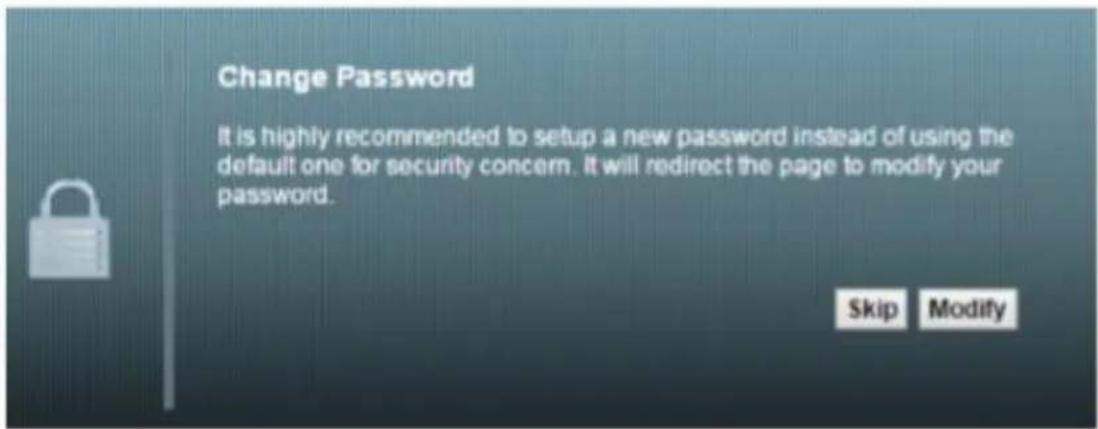
Step 6. The Connection Status screen appears


Marke : HUAWEI
Modell : Outdoor CPE B2368
Kategorie : Router