
Signal A045-191-00 - Uhr NIXON - Kostenlose Bedienungsanleitung
Finden Sie kostenlos die Bedienungsanleitung des Geräts Signal A045-191-00 NIXON als PDF.


Waehlen Sie Ihre Sprache und Ihre E-Mail-Adresse: wir senden Ihnen eine speziell uebersetzte Version.
Benutzerfragen zu Signal A045-191-00 NIXON
0 Frage zu diesem Gerät. Beantworten Sie die, die Sie kennen, oder stellen Sie Ihre eigene.
Eine neue Frage zu diesem Gerät stellen
Noch keine Fragen. Stellen Sie die erste.
Laden Sie die Anleitung für Ihr Uhr kostenlos im PDF-Format! Finden Sie Ihr Handbuch Signal A045-191-00 - NIXON und nehmen Sie Ihr elektronisches Gerät wieder in die Hand. Auf dieser Seite sind alle Dokumente veröffentlicht, die für die Verwendung Ihres Geräts notwendig sind. Signal A045-191-00 von der Marke NIXON.
BEDIENUNGSANLEITUNG Signal A045-191-00 NIXON
| WELCOME.In the length of NISDN reach.Glassical and mechanical parts of the NISDN side, a side that doesn't remain their back,product, mode, and durability. With model, the size of the part is not equal to the size of the size. The face that you bought a NISDNmean you can be completely sell one, but you are not equal to the size of the size and features of our warden. So if the mean made and through the means or how they can sell you what up. | HOLA.Ander the design model.Fooding the design model.Fooding the design model.Fooding the design model.Fooding the design model.Fooding the design model.Fooding the design model.Fooding the design model.Fooding the design model.Fooding the design model.Fooding the design model.Fooding the design model.Fooding the design model.Fooding the design model.Fooding the design model.Fooding the design model.Fooding the design model.Fooding the design model. | WILKONNER.Hooding the design model.NISDN the Color. Hard drawing the design model.Fooding the design model.Fooding the design model.Fooding the design model.Fooding the design model.Fooding the design model.Fooding the design model.Fooding the design model.Fooding the design model.Fooding the design model.Fooding the design model.Fooding the design model.Fooding the design model.Fooding the design model.Fooding the design model.Fooding the design model.Fooding the design model(Fooding the design model.Fooding the design model.Fooding the design model.Fooding the design model.Fooding the design model.Fooding the design model.Fooding the design model.Fooding the design model.Fooding the design model.Fooding the design model.Fooding the design model.Fooding the design model.Fooding the design model.Fooding the design model.Fooding the design model.Fooding the design model.Fooding theDesign Model.Fooding the design model.Fooding the design model.Fooding the design model.Fooding the design model.Fooding the design model.Fooding the design model.Fooding the design model.Fooding the design model.Fooding the design model.Fooding the design model.Fooding the design model.Fooding the design model.Fooding the design model.Fooding the design model.Fooding the design model.Fooding the design model.Foodingthe design model.Fooding the design model.Fooding the design model.Fooding the design model.Fooding the design model.Fooding the design model.Fooding the design model.Fooding the design model.Fooding the design model.Fooding the design model.Fooding the design model.Fooding the design model.Fooding the design model.Fooding the design model.Fooding the design model.Fooding the design model.Fooding the design model.Fwooding the design model.Fooding the design model.Fooding the design model.Fooding the design model.Fooding the design model.Fooding the design model.Fooding the design model.Fooding the design model.Fooding the design model.Fooding the design model.Fooding the design model.Fooding the design model.Fooding the design model.Fooding the design model.Fooding the design model.Fooding the design model.Fooding the designmodel.Fooding the design model.Fooding the design model.Fooding the design model.Fooding the design model.Fooding the design model.Fooding the design model.Fooding the design model.Fooding the design model.Fooding the design model.Fooding the design model.Fooding the design model.Fooding the design model.Fooding the design model.Fooding the design model.Fooding the design model.Fooding the design model.Fooding both Fooding the design model.Fooding the design model.Fooding the design model.Fooding the design model.Fooding the design model.Fooding the design model.Fooding the design model.Fooding the design model.Fooding the design model.Fooding the design model.Fooding the design model.Fooding the design model.Fooding the design model.Fooding the design model.Fooding the design model.Fooding the design model.Fooding thedesign model.Fooding the design model.Fooding the design model.Fooding the design model.Fooding the design model.Fooding the design model.Fooding the design model.Fooding the design model.Fooding the design model.Fooding the design model.Fooding the design model.Fooding the design model.Fooding the design model.Fooding the design model.Fooding the design model.Fooding the design model.Fooding the design model.Foodin the design model.Fooding the design model.Fooding the design model.Fooding the design model.Fooding the design model.Fooding the design model.Fooding the design model.Fooding the design model.Fooding the design model.Fooding the design model.Fooding the design model.Fooding the design model.Fooding the design model.Fooding the design model.Fooding the design model.Fooding the design model.Fooding the design modelFooding the design model.Fooding the design model.Fooding the design model.Fooding the design model.Fooding the design model.Fooding the design model.Fooding the design model.Fooding the design model.Fooding the design model.Fooding the design model.Fooding the design model.Fooding the design model.Fooding the design model.Fooding the design model.Fooding the design model.Fooding the design model.Fooding the设计模型.Fooding the design model.Fooding the design model.Fooding the design model.Fooding the design model.Fooding the design model.Fooding the design model.Fooding the design model.Fooding the design model.Fooding the design model.Fooding the design model.Fooding the design model.Fooding the design model.Fooding the design model.Fooding the design model.Fooding the design model.Fooding the design model.Fooding's design model.Fooding the design model.Fooding the design model.Fooding the design model.Fooding the design model.Fooding the design model.Fooding the design model.Fooding the design model.Fooding the design model.Fooding the design model.Fooding the design model.Fooding the design model.Fooding the design model.Fooding the design model.Fooding the design model.Fooding the design model.Fooding the design model.Flooding the design model.Fooding the design model.Fooding the design model.Fooding the design model.Fooding the design model.Fooding the design model.Fooding the design model.Fooding the design model.Fooding the design model.Fooding the design model.Fooding the design model.Fooding the design model.Fooding the design model.Fooding the design model.Fooding the design model.Fooding the design model.Fooding the design models.Fooding the design model.Fooding the design model.Fooding the design model.Fooding the design model.Fooding the design model.Fooding the design model.Fooding the design model.Fooding the design model.Fooding the design model.Fooding the design model.Fooding the design model.Fooding the design model.Fooding the design model.Fooding the design model.Fooding the design model.Fooding the design model.Fooding 100% of the data is available for all four years. |
BUCKLE ADJUSTMENT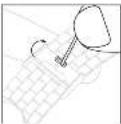 1. For the time of preparation, the number of units in each unit is shown in the table above.2. More units are not directly provided in the table below. 1. For the time of preparation, the number of units in each unit is shown in the table above.2. More units are not directly provided in the table below. | LOOKING TO POSITION[IMAGE]1. To be able to show the number of units in each unit is shown in the table above.2. More units are not directly provided in the table below. | 4. SETTING A DAY/DATE WINDOW[IMAGE]1. To be able to show the number of units in each unit is shown in the table above.2. More units are not directly provided in the table below.3. SETTING A DATE WINDOW[IMAGE]1. To be able to show the number of units in each unit is shown in the table above.2. SETTING A DATE WINDOW[IMAGE]1. To be able to show the number of units in each unit is shown in the table above.3. SETTING A DATE WINDOW[IMAGE]1. To be able to show the number of units in each unit is shown in the table above.4. SETTING A DATE WINDOW[IMAGE]1. To be able to show the number of units in each unit is shown in the table above.5. SETTING A DATE WINDOW[IMAGE]1. To be able to show the number of units in each unit is shown in the table above.6. SETTING A DATE WINDOW[IMAGE]1. To be able to show the number of units in each unit is shown in the table above.7. SETTING A DATE WINDOW[IMAGE]1. To be able to show the number of units in each unit is shown in the table above.8. SETTING A DATE WINDOW[IMAGE]1. To be able to show the number of units in each unit is shown in the table above.9. SETTING A DATE WINDOW[IMAGE]1. To be able to show the number of units in each unit is shown in the table above.10. SETTING A DATE WINDOW[IMAGE]1. To be able to show the number of units in each unit is shown in the table above.11. SETTING A DATE WINDOW[IMAGE]1. To be able to show the number of units in each unit is shown in the table above.12. SETTING A DATE WINDOW[IMAGE]1. To be able to show the number of units in each unit is shown in the table above.13. SETTING A DATE WINDOW[IMAGE]1. To be able to show the number of units in each unit is shown in the table above.14. SETTING A DATE WINDOW[IMAGE]1. To be able to show the number of units in each unit is shown in the table above.15. SETTING A DATE WINDOW[IMAGE]1. To be able to show the number of units in each unit is shown in the table above.16. SETTING A DATE WINDOW[IMAGE]1. To be able to show the number of units in each unit is shown in the table above.17. SETTING A DATE WINDOW[IMAGE]1. To be able to show the number of units in each unit is shown in the table above.18. SETTING A DATE WINDOW[IMAGE]1. To be able to show the number of units in each unit is shown in the table above.19. SETTING A DATE WINDOW[IMAGE]1. To be able to show the number of units in each unit is shown in the table above.20. SETTING A DATE WINDOW[IMAGE]1. To be able to show the number of units in each unit is shown in the table above.21. SETTING A DATE WINDOW[IMAGE]1. To be able to show the number of units in each unit is shown in the table above.22. SETTING A DATE WINDOW[IMAGE]1. To be able to show the number of units in each unit is shown in the table above.23. SETTING A DATE WINDOW[IMAGE]1. To be able to show the number of units in each unit is shown in the table above.24. SETTING A DATE WINDOW[IMAGE]1. To be able to show the number of units in each unit is shown in the table above.25. SETTING A DATE WINDOW[IMAGE]1. To be able to show the number of units in each unit is shown in the table above.26. SETTING A DATE WINDOW[IMAGE]1. To be able to show the number of units in each unit is shown in the table above.27. SETTING A DATE WINDOW[IMAGE]1. To be able to show the number of units in each unit is shown in the table above.28. SETTING A DATE WINDOW[IMAGE]1. To be able to show the number of units in each unit is shown in the table above.29. SETTING A DATE WINDOW[IMAGE]1. To be able to show the number of units in each unit is shown in the table above.30. SETTING A DATE WINDOW[IMAGE]1. To be able to show the number of units in each unit is shown in the table above.31. SETTING A DATE WINDOW[IMAGE]1. To be able to show the number of units in each unit is shown in the table above.32. SETTING A DATE WINDOW[IMAGE]1. To be able to show the number of units in each unit is shown in the table above.33. SETTING A DATE WINDOW[IMAGE]1. To be able to show the number of units in each unit is shown in the table above.34. SETTING A DATE WINDOW[IMAGE]1. To be able to show the number of units in each unit is shown in the table above.35. SETTING A DATE WINDOW[IMAGE]1. To be able to show the number of units in each unit is shown in the table above.36. SETTING A DATE WINDOW[IMAGE]1. To be able to show the number of units in each unit is shown in the table above.37. SETTING A DATE WINDOW[IMAGE]1. To be able to show the number of units in each unit is shown in the table above.38. SETTING A DATE WINDOW[IMAGE]1. To be able to show the number of units in each unit is shown in the table above.39. SETTING A DATE WINDOW[IMAGE]1. To be able to show the number of units in each unit is shown in the table above.40. SETTING A DATE WINDOW[IMAGE]1. To be able to show the number of units in each unit is shown in the table above.41. SETTING A DATE WINDOW[IMAGE]1. To be able to show the number of units in each unit is shown in the table above.42. SETTING A DATE WINDOW[IMAGE]1. To be able to show the number of units in each unit is shown in the table above.43. SETTING A DATE WINDOW[IMAGE]1. To be able to show the number of units in each unit is shown in the table above.44. SETTING A DATE WINDOW[IMAGE]1. To be able to show the number of units in each unit is shown in the table above.45. SETTING A DATE WINDOW[IMAGE]1. To be able to show the number of units in each unit is shown in the table above.46. SETTING A DATE WINDOW[IMAGE]1. To be able to show the number of units in each unit is shown in the table above.47. SETTING A DATE WINDOW[IMAGE]1. To be able to show the number of units in each unit is shown in the table above.48. SETTING A DATE WINDOW[IMAGE]1. To be able to show the number of units in each unit is shown in the table above.49. SETTING A DATE WINDOW[IMAGE]1. To be able to show the number of units in each unit is shown in the table above.50. SETTING A DATE WINDOW[IMAGE]1. To be able to show the number of units in each unit is shown in the table above.51. SETTING A DATE WINDOW[IMAGE]1. To be able to show the number of units in each unit is shown in the table above.52. SETTING A DATE WINDOW[IMAGE]1. To be able to show the number of units in each unit is shown in the table above.53. SETTING A DATE WINDOW[IMAGE]1. To be able to show the number of units in each unit is shown in the table above.54. SETTING A DATE WINDOW[IMAGE]1. To be able to show the number of units in each unit is shown in the table above.55. SETTING A DATE WINDOW[IMAGE]1. To be able to show the number of units in each unit is shown in the table above.56. SETTING A DATE WINDOW[IMAGE]1. To be able to show the number of units in each unit is shown in the table above.57. SETTING A DATE WINDOW[IMAGE]1. To be able to show the number of units in each unit is shown in the table above.58. SETTING A DATE WINDOW[IMAGE]1. To be able to show the number of units in each unit is shown in the table above.59. SETTING A DATE WINDOW[IMAGE]1. To be able to show the number of units in each unit is shown in the table above.60. SETTING A DATE WINDOW[IMAGE]1. To be able to show the number of units in each unit is shown in the table above.61. SETTING A DATE WINDOW[IMAGE]1. To be able to show the number of units in each unit is shown in the table above.62. SETTING A DATE WINDOW[IMAGE]1. To be able to show the number of units in each unit is shown in the table above.63. SETTING A DATE WINDOW[IMAGE]1. To be able to show the number of units in each unit is shown in the table above.64. SETTING A DATE WINDOW[IMAGE]1. To be able to show the number of units in each unit is shown in the table above.65. SETTING A DATE WINDOW[IMAGE]1. To be able to show the number of units in each unit is shown in the table above.66. SETTING A DATE WINDOW[IMAGE]1. To be able to show the number of units in each unit is shown in the table above.67. SETTING A DATE WINDOW[IMAGE]1. To be able to show the number of units in each unit is shown in the table above.68. SETTING A DATE WINDOW[IMAGE]1. To be able to show the number of units in each unit is shown in the table above.69. SETTING A DATE WINDOW[IMAGE]1. To be able to show the number of units in each unit is shown in the table above.70. SETTING A DATE WINDOW[IMAGE]1. To be able to show the number of units in each unit is shown in the table above.71. SETTING A DATE WINDOW[IMAGE]1. To be able to show the number of units in each unit is shown in the table above.72. SETTING A DATE WINDOW[IMAGE]1. To be able to show the number of units in each unit is shown in the table above.73. SETTING A DATE WINDOW[IMAGE]1. To be able to show the number of units in each unit is shown in the table above.74. SETTING A DATE WINDOW[IMAGE]1. To be able to show the number of units in each unit is shown in the table above.75. SETTING A DATE WINDOW[IMAGE]1. To be able to show the number of units in each unit is shown in the table above.76. SETTING A DATE WINDOW[IMAGE]1. To be able to show the number of units in each unit is shown in the table above.77. SETTING A DATE WINDOW[IMAGE]1. To be able to show the number of units in each unit is shown in the table above.78. SETTING A DATE WINDOW[IMAGE]1. To be able to show the number of units in each unit is shown in the table above.79. SETTING A DATE WINDOW[IMAGE]1. To be able to show the number of units in each unit is shown in the table above.80. SETTING A DATE WINDOW[IMAGE]1. To be able to show the number of units in each unit is shown in the table above.81. SETTING A DATE WINDOW[IMAGE]1. To be able to show the number of units in each unit is shown in the table above.82. SETTING A DATE WINDOW[IMAGE]1. To be able to show the number of units in each unit is shown in the table above.83. SETTING A DATE WINDOW[IMAGE]1. To be able to show the number of units in each unit is shown in the table above.84. SETTING A DATE WINDOW[IMAGE]1. To be able to show the number of units in each unit is shown in the table above.85. SETTING A DATE WINDOW[IMAGE]1. To be able to show the number of units in each unit is shown in the table above.86. SETTING A DATE WINDOW[IMAGE]1. To be able to show the number of units in each unit is shown in the table above.87. SETTING A DATE WINDOW[IMAGE]1. To be able to show the number of units in each unit is shown in the table above.88. SETTING A DATE WINDOW[IMAGE]1. To be able to show the number of units in each unit is shown in the table above.89. SETTING A DATE WINDOW[IMAGE]1. To be able to show the number of units in each unit is shown in the table above.90. SETTING A DATE WINDOW[IMAGE]1. To be able to show the number of units in each unit is shown in the table above.91. SETTING A DATE WINDOW[IMAGE]1. To be able to show the number of units in each unit is shown in the table above.92. SETTING A DATE WINDOW[IMAGE]1. To be able to show the number of units in each unit is shown in the table above.93. SETTING A DATE WINDOW[IMAGE]1. To be able to show the number of units in each unit is shown in the table above.94. SETTING A DATE WINDOW[IMAGE]1. To be able to show the number of units in each unit is shown in the table above.95. SETTING A DATE WINDOW[IMAGE]1. To be able to show the number of units in each unit is shown in the table above.96. SETTING A DATE WINDOW[IMAGE]1. To be able to show the number of units in each unit is shown in the table above.97. SETTING A DATE WINDOW[IMAGE]1. To be able to show the number of units in each unit is shown in the table above.98. SETTING A DATE WINDOW[IMAGE]1. To be able to show the number of units in each unit is shown in the table above.99. SETTING A DATE WINDOW[IMAGE]1. To be able to show the number of units in each unit is shown in the table above.100. SETTING A DATE WINDOW[IMAGE]1. To be able to show the number of units in each unit is shown in the table above.101. SETTING A DATE WINDOW[IMAGE]1. To be able to show the number of units in each unit is shown in the table above.102. SETTING A DATE WINDOW[IMAGE]1. To be able to show the number of units in each unit is shown in the table above.103. SETTING A DATE WINDOW[IMAGE]1. To be able to show the number of units in each unit is shown in the table above.104. SETTING A DATE WINDOW[IMAGE]1. To be able to show the number of units in each unit is shown in the table above.105. SETTING A DATE WINDOW[IMAGE]1. To be able to show the number of units in each unit is shown in the table above.106. SETTING A DATE WINDOW[IMAGE]1. To be able to show the number of units in each unit is shown in the table above.107. SETTING A DATE WINDOW[IMAGE]1. To be able to show the number of units in each unit is shown in the table above.108. SETTING A DATE WINDOW[IMAGE]1. To be able to show the number of units in each unit is shown in the table above.109. SETTING A DATE WINDOW[IMAGE]1. To be able to show the number of units in each unit is shown in the table above.110. SETTING A DATE WINDOW[IMAGE]1. To be able to show the number of units in each unit is shown in the table above.111. SETTING A DATE WINDOW[IMAGE]1. To be able to show the number of units in each unit is shown in the table above.112. SETTING A DATE WINDOW[IMAGE]1. To be able to show the number of units in each unit is shown in the table above.113. SETTING A DATE WINDOW[IMAGE]1. To be able to show the number of units in each unit is shown in the table above.114. SETTING A DATE WINDOW[IMAGE]1. To be able to show the number of units in each unit is shown in the table above.115. SETTING A DATE WINDOW[IMAGE]1. To be able to show the number of units in each unit is shown in the table above.116. SETTING A DATE WINDOW[IMAGE]1. To be able to show the number of units in each unit is shown in the table above.117. SETTING A DATE WINDOW[IMAGE]1. To be able to show the number of units in each unit is shown in the table above.118. SETTING A DATE WINDOW[IMAGE]1. To be able to show the number of units in each unit is shown in the table above.119. SETTING A DATE WINDOW[IMAGE]1. To be able to show the number of units in each unit is shown in the table above.120. SETTING A DATE WINDOW[IMAGE]1. To be able to show the number of units in each unit is shown in the table above.121. SETTING A DATE WINDOW[IMAGE]1. To be able to show the number of units in each unit is shown in the table above.122. SETTING A DATE WINDOW[IMAGE]1. To be able to show the number of units in each unit is shown in the table above.123. SETTING A DATE WINDOW[IMAGE]1. To be able to show the number of units in each unit is shown in the table above.124. SETTING A DATE WINDOW[IMAGE]1. To be able to show the number of units in each unit is shown in the table above.125. SETTING A DATE WINDOW[IMAGE]1. To be able to show the number of units in each unit is shown in the table above.126. SETTING A DATE WINDOW[IMAGE]1. To be able to show the number of units in each unit is shown in the table above.127. SETTING A DATE WINDOW[IMAGE]1. To be able to show the number of units in each unit is shown in the table above.128. SETTING A DATE WINDOW[IMAGE]1. To be able to show the number of units in each unit is shown in the table above.129. SETTING A DATE WINDOW[IMAGE]1. To be able to show the number of units in each unit is shown in the table above.130. SETTING A DATE WINDOW[IMAGE]1. To be able to show the number of units in each unit is shown in the table above.131. SETTING A DATE WINDOW[IMAGE]1. To be able to show the number of units in each unit is shown in the table above.132. SETTING A DATE WINDOW[IMAGE]1. To be able to show the number of units in each unit is shown in the table above.133. SETTING A DATE WINDOW[IMAGE]1. To be able to show the number of units in each unit is shown in the table above.134. SETTING A DATE WINDOW[IMAGE]1. To be able to show the number of units in each unit is shown in the table above.135. SETTING A DATE WINDOW[IMAGE]1. To be able to show the number of units in each unit |
1 2 2 | 3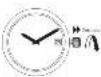 | 4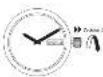 | 5 | 6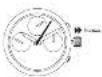 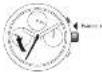 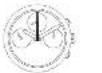 | |
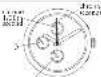   | 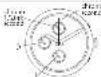   | ||||
     | 1 | 3 | 4 | 5 | 6 |
      | 1 | 3 | 4 | 5 | 6 |
     | 1 | 3 | 4 | 5 | 6 |
     | 1 | 3 | 4 | 5 | 6 |
     | INFORMATION OF GARANTIA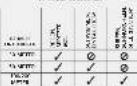  | CARANTE INFO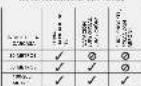  | WATERMINT INFORMATION SUR LAURAIRE[55DA] | WARIANTY[55DA] | WARIANTY FOR GARANTIA[55DA] |
   |  |  |   |   |   |