GSA ZONE - Nicht kategorisiert 3Bays - Kostenlose Bedienungsanleitung
Finden Sie kostenlos die Bedienungsanleitung des Geräts GSA ZONE 3Bays als PDF.


Benutzerfragen zu GSA ZONE 3Bays
0 Frage zu diesem Gerät. Beantworten Sie die, die Sie kennen, oder stellen Sie Ihre eigene.
Eine neue Frage zu diesem Gerät stellen
Laden Sie die Anleitung für Ihr Nicht kategorisiert kostenlos im PDF-Format! Finden Sie Ihr Handbuch GSA ZONE - 3Bays und nehmen Sie Ihr elektronisches Gerät wieder in die Hand. Auf dieser Seite sind alle Dokumente veröffentlicht, die für die Verwendung Ihres Geräts notwendig sind. GSA ZONE von der Marke 3Bays.
BEDIENUNGSANLEITUNG GSA ZONE 3Bays
User Manual
natural_image
Sketch of a muscular figure in motion, holding a baton (no text or symbols)3BaysGSA ZONE - Golf Swing Analyzer EMPOWER YOUR SWING
PREFACE
Congratulations on purchasing the 3BaysGSA ZONE (MX-G106). The unique combination of features and ease of use of your new swing analysis device will allow you to record your swing motions and parameters. Through GSA ZONE app, you are able to review your swing information and playback your swing arc on iPod, iPhone and iPad.
WARNING:
The signals used by this monitor may interfere with a pacemaker or other implanted devices. Consult the manufacturer of the implant device and your physician before using this monitor.
SAFETY PRECAUTION
Please read all safety information prior to using the Golf Swing Analyzer. Failure to do so may result in unnecessary injury.
- Please read all the information in this manual or any other literature included in the box before using the device. Please keep this manual for future reference.
- Do not make judgments yourself regarding the measurement results or self-treat yourself. Contact your physician or healthcare provider before beginning a weight reduction or exercise program.
- Consult your physician before using this device when pregnant.
- Operate the device only as intended. Do not use for any other purpose.
- Do not replace heavy objects on the device and keep the device away from humid, dusty and smoky environments.
- Do not use water, chemicals or detergent to clean the device. Clean the surface with a soft cloth.
- Do not use excessive force on the buttons.
- Keep out of extreme heat or cold. The device is only operable between 0°C and 40°C.
- To avoid damage, make sure you do not drop, smash, bend or crash the device.
- Keep the device away from strong magnetic fields.
- Do not disassemble or modify the device yourself.
- Use only 3Bays Corporation Limited authorized parts and accessories. Parts and accessories not approved for use with the device may damage the unit.
- When you upload or download files using a USB cable, do not disconnect the USB cable during data transfer or turn the device off.
- Data can be damaged because of physical impact, lightning and power failure.
DISCLAIMER
Accuracy of Collected Information
3Bays Corporation Limited will on its own initiative, correct or erase any personal data which is incomplete, inaccurate or outdated for the purposes for which it is used. You always have the right to access and correct the personal information you have provided, and you are encouraged to ensure that your contact information and any other information you have provided is accurate, complete and up-to-date by visiting 3BaysGSA website: www.3bayslife.com/gsa.
Disclarimer
3BaysGSA is providing this manual and its contents on an “as is” and “as available” basis and makes no representations or warranties of any kind, whether express or implied, with respect to the availability, accuracy, reliability or content of the manual or any website. To the fullest extent permissible pursuant to applicable law, 3BaysGSA disclaims all such representations and warranties, express or implied, including, but not limited to, warranties of title or non-infringement of implied warranties of merchantability and fitness for a particular purpose. In addition, 3BaysGSA does not represent or warrant that this manual or 3BaysGSA website will be uninterrupted or error-free, that the defects will be corrected, or that the 3BaysGSA website or the server that makes the website available are free of viruses or other harmful components. Applicable law may not allow the exclusion of certain warranties, so the above exclusion may not apply to you. Please note that the information, exercise/training programs and/or guides in www.3bayslife.com/gsa cannot replace the services of health professionals or physicians.
Table of Contents
Introduction
Device and Accessories
Charging your device
How to install
- Install GSA ZONE mobile app
- Pair your device with GSA ZONE app
- Install the device on your golf club
How to record your swing motions
- Record your swing
- Swing data transmission
Usage of GSA ZONE app
- Function keys on main screen
- Club selection
- View selection of your swing arc
- Sharing
- Playback of your swing arc
- Playback of your swing video
- Review all parameters
-
Auto-Video Recording
-
Best swing setup
- Compare your current swing with your best swing
- Settings
- 3BaysCloud - account setup
- 3BaysCloud – swing record upload
- Club length adjustment
- My golf bag
- Video alert alarm
- Unit format settings
- Date format settings
- Swing arc color settings
- How to connect
- How to use
- Golf tips
- Information
LED light indication
Trouble Shooting
Product Specification
Customer Service
Introduction
3BaysGSA ZONE is a patent innovation in golf swing technology. It records your swing motion and sends the information straight to your mobile phone through its unique GSA ZONE app, which compares each swing against your own or your instructor's best swing for greater accuracy.
The following table lists out the definition of some specific names using in this manual.
| Item | Description |
| Club Head | The head of the golf club which strikes the ball |
| Grip | Grip is how you hold the club. Your hands should be fixed on the club; they don't move. Their only job is to hold, like clamps. They don't manipulate it by snapping the wrist or forcing the club. |
| Club Face | The surface on the head of a golf club used to strike the ball directly. |
| Consistency | This compares each swing information and shows you how close each swing is to being repeated. |
| Club Head Speed | This gives you how fast the club heads is travelling as it hits the ball. |
| Face Angle | This gives you where your club face is at impact relative to the target, OPEN, SQUARE, CLOSED |
| Swing Path | This gives you what path your club is just before impact, INSIDE, SQUARE, CLOSED |
| Swing Tempo | This gives you the rhythm of your swing speed during the backswing and downswing (in ratio) |
| Backswing Time | This gives you the time taken to swing from setup to the top of the backswing in seconds |
| Downswing Time | This gives you the time taken to swing from the top of the backswing down to the impact, in seconds |
| Carry Distance | This gives you the attainable distance in the golf shot, from start to landing area. |
Device and Accessories
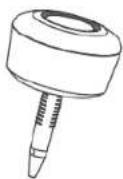
3BaysGSA
Quick Start Guide
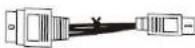
USB cable
Leather Bag
Charging your device
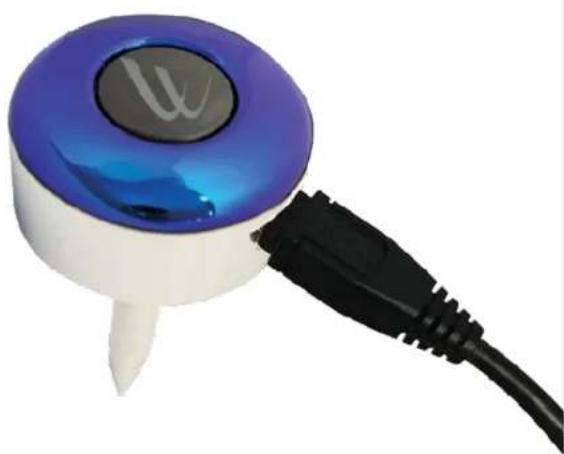
Please charge your 3BaysGSA ZONE via USB adaptor as following before use.
natural_image
Close-up of a blue and white electronic device with a black cable, no visible text or symbols.Charging: Red LED lights up
Full Charged: Blue LED lights up
Low Battery: Red LED is flashing
How to install
1a. iOS user
a) Search "GSA ZONE" app from App Store.

text_image
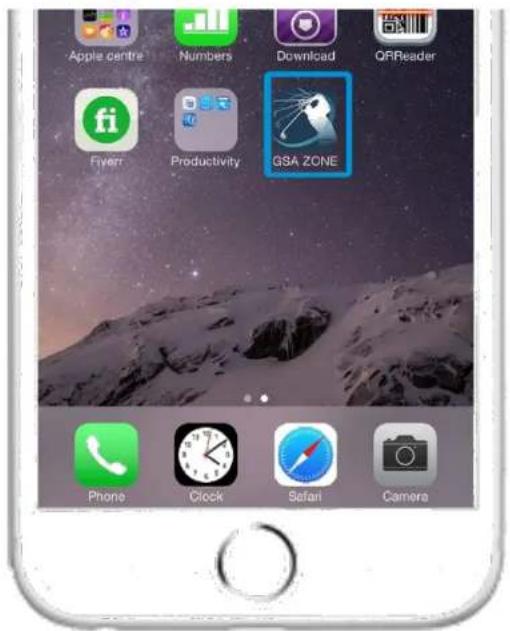
●●○○○ csl. 4G 16:08 @ 71% ■ GSA ZONEb) Install the app on your iPhone or iPad.
text_image
Apple centre Numbers Download QRReader Fiverr Productivity GSA ZONE Phone Clock Safari Camera1b. Android OS user
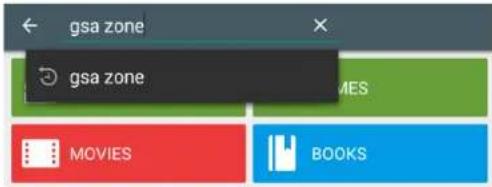
a) Search "GSA ZONE" app from Google Play Store.
text_image
gsa zone gsa zone MOVIES BOOKSb) Install the app on your Android phone or tablet.
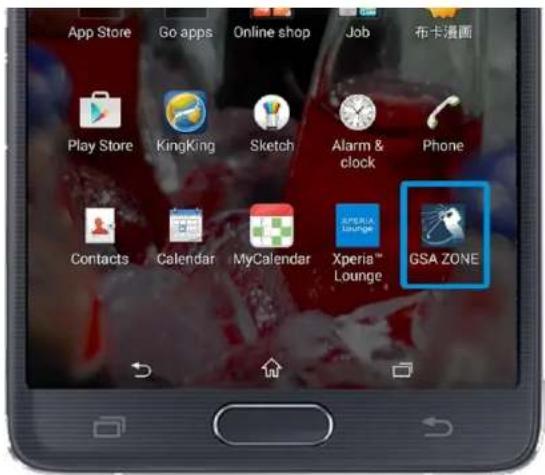
text_image
App Store Go apps Online shop Job 布卡漫画 Play Store KingKing Sketch Alarm & clock Phone Contacts Calendar MyCalendar Xperia™ Lounge GSA ZONE4.
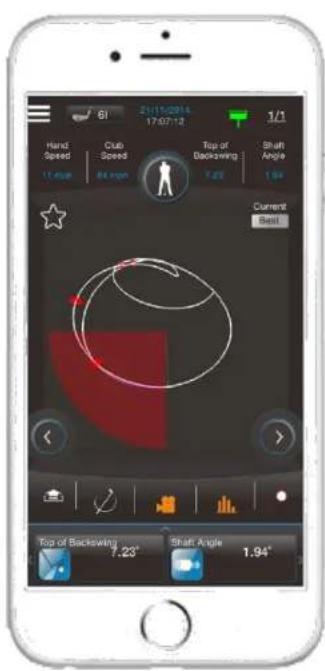
text_image
61 21/15/2014 17:07:12 1/1 Hand Speed Club Speed Top of Backswing Shaft Angle 11.8mm 64.8mm 7.22 1.94 Current Best Top of Backswing 7.23° Shaft Angle 1.94°Blue LED flashes slowly
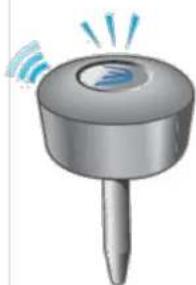
natural_image
Illustration of a stylized digital device with a circular top and spike emitting signal waves (no text or symbols)3BaysGSA ZONE
Successfully paired!
* For Android user, please switch off and then switch on the unit once after pairing successfully.
How to record your swing motions
- Swing
1.1 Keep your GSA ZONE app running.
1.2 Align the triangle mark of 3BaysGSA ZONE device with Square club face.
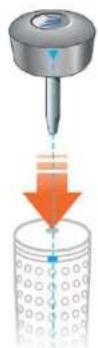
Plug 3BaysGSA ZONE at the top of your golf club, then align the arrow of unit with the mark of the club
1.3 Standstill at setup position for 2 seconds. Blue LED lights up.
1.4 When Blue LED lights up, start your swing.
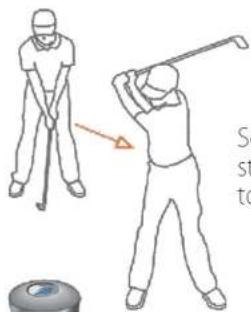
text_image
Illustration showing two golfers demonstrating a forehand stroke technique with a red arrow and partial text on the right.Set up and keep the club still for 2 sec, you can start to swing.

Blue LED lights up (Ready to swing)
- Swing data transmission
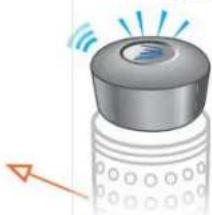
2.1 After you swing, blue light is flashing quickly when swing data is transmitting to mobile phone.
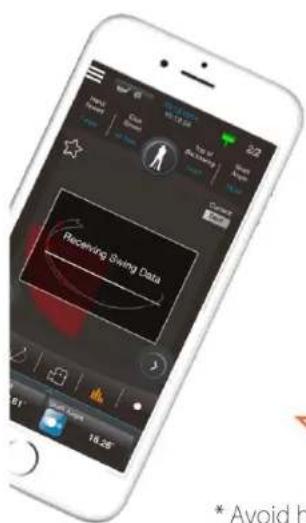
text_image
Peceiving Being Data 01 18.25° * Avoid hBlue LED flashes
natural_image
Illustration of a water level sensor with signal waves and an arrow indicating direction (no text or symbols)* Avoid having obstacles between 3BaysGSA ZONE and smart device when data is being transmitted.
How to use GSA ZONE app
Function keys on main screen
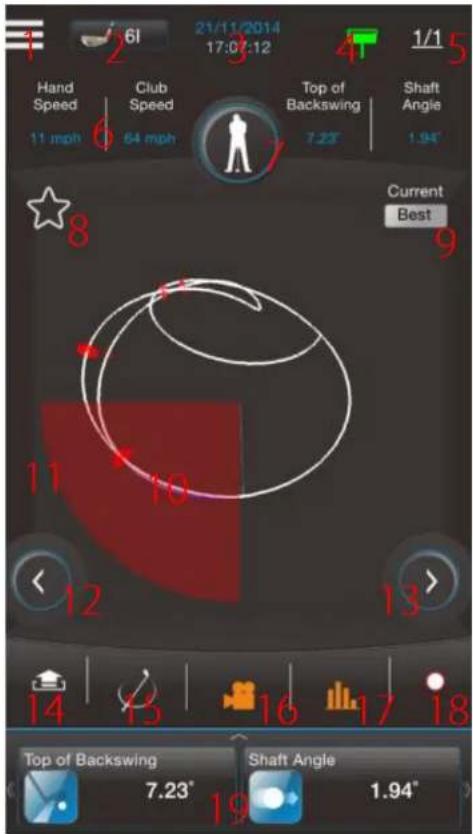
text_image
1 2 6l 21/11/2014 17:07:12 4 1/1 Hand Speed Club Speed Top of Backswing Shaft Angle 11 mph 64 mph 7.23° 1.94° Current Best 8 9 11 10 12 13 14 15 16 17 18 Top of Backswing Shaft Angle 7.23° 19- Settings menu
- Club Selection
- Swing date and time
- GSA battery and connectivity indication
- Swing history button and swing record number
- Swing parameters along the swing path
- View selection
- Best Swing settings menu
- Show or hide the best swing data
- Start to release power point
- Guideline of power release zone
- Previous record review
- Next record review
- Sharing the swing record via social media channels
- Playback of swing simulation
- Playback of swing video motion
- Change view to swing parameters
- Video Recording
- Current swing parameters
Club selection
- You can select which club you are using before getting new swing record.
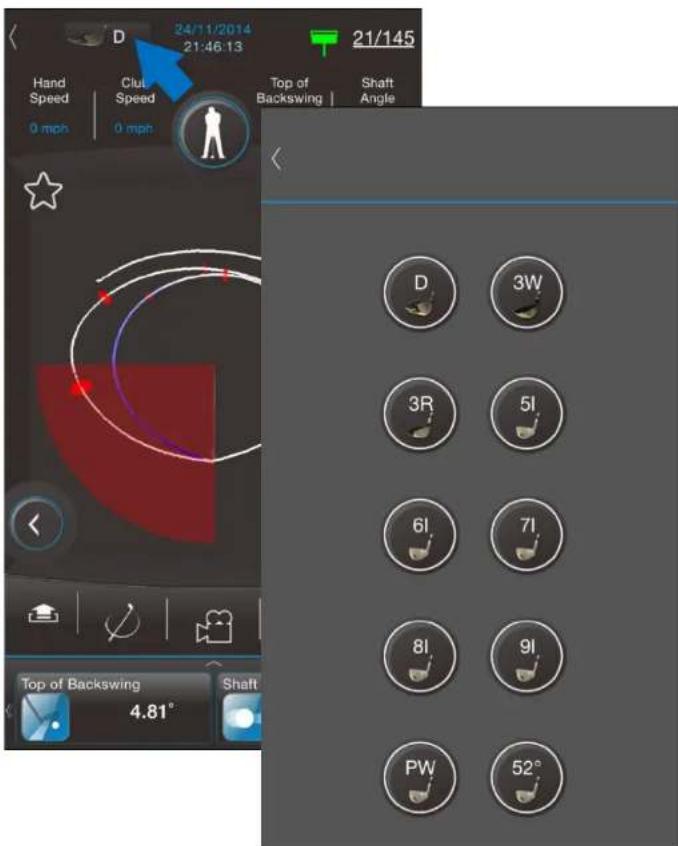
text_image
24/11/2014 21:46:13 21/145 Hand Speed Clui Speed 0 mph 0 mph Top of Backswing Shaft Angle D 3W 3R 5I 6I 7I 8I 9I PW 52° Top of Backswing 4.81° ShaftView selection of your swing arc
- You can change the view angle by switching view selection button (Front, Right, Left, Top).
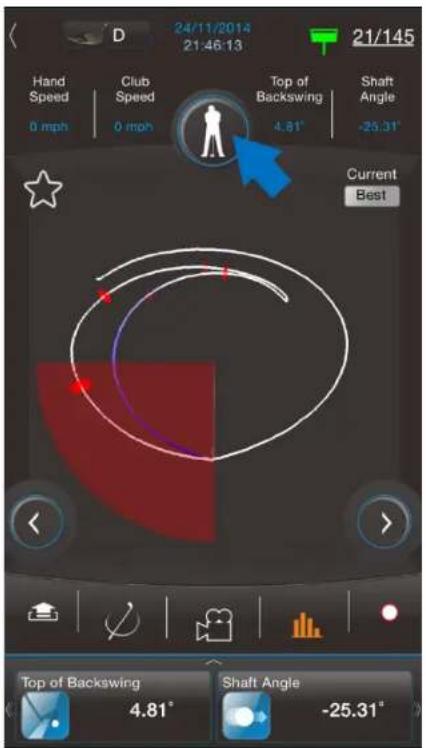
text_image
D 24/11/2014 21:46:13 21/145 Hand Speed Club Speed 0 mph 0 mph Top of Backswing 4.81° Shaft Angle -25.31° Current Best Top of Backswing 4.81° Shaft Angle -25.31°Sharing
For iOS user,
- Please select which screen /result you would like to share to your friends.
- GSA ZONE can capture the screen and you can share to your friends by installed apps, e.g. email, whatsapp, etc.
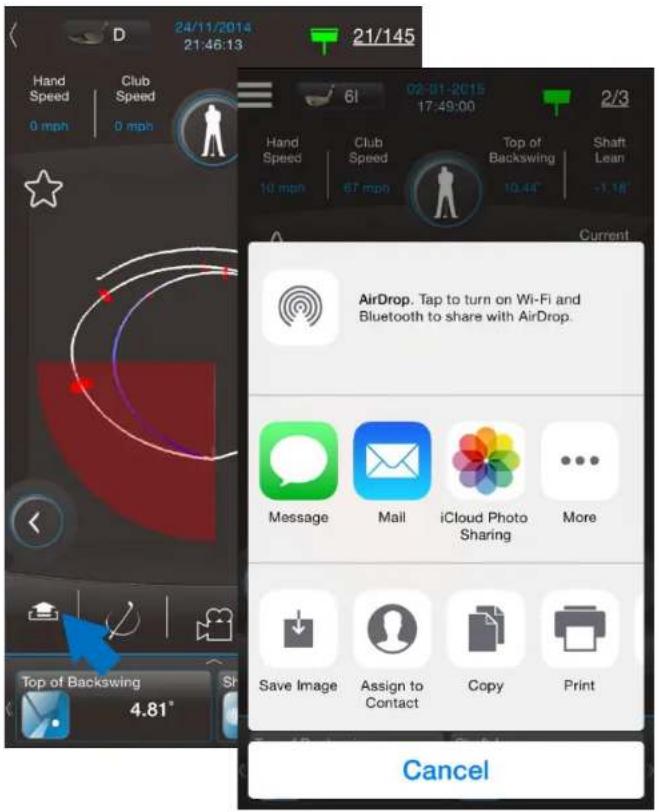
text_image
24/11/2014 21:46:13 21/145 Hand Speed Club Speed 0 mph 0 mph 61 02-01-2015 17:49:00 2/3 Hand Speed Club Speed Top of Backswing Shaft Lean 10 mph 67 mph 10.44° -1.18° Current AirDrop, Tap to turn on Wi-Fi and Bluetooth to share with AirDrop. Message Mail iCloud Photo Sharing More Save Image Assign to Contact Copy Print CancelFor Android OS user,
- Please select which screen/result you would like to share to your friends.
- GSA ZONE can capture the screen and you can share to your friends by installed apps, e.g. email, whatsapp, etc.
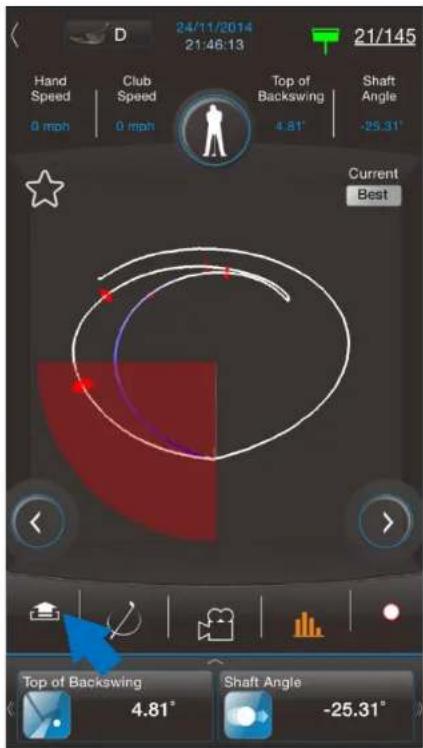
text_image
D 24/11/2014 21:46:13 21/145 Hand Speed Club Speed 0 mph 0 mph Top of Backswing 4.81° Shaft Angle -25.31° Current Best Top of Backswing 4.81° Shaft Angle -25.31°Playback of your swing arc
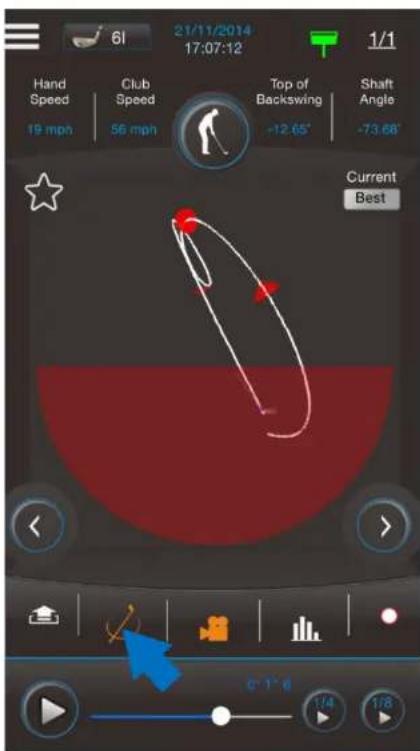
You can press swing playback button to review your swing in normal speed or slow motion (1/4 speed or 1/8 speed).
text_image
6l 21/11/2014 17:07:12 1/1 Hand Speed Club Speed Top of Backswing Shaft Angle 19 mph 56 mph -12.65° -73.68° Current Best 0 1 6 1/4 1/8Playback of your swing video
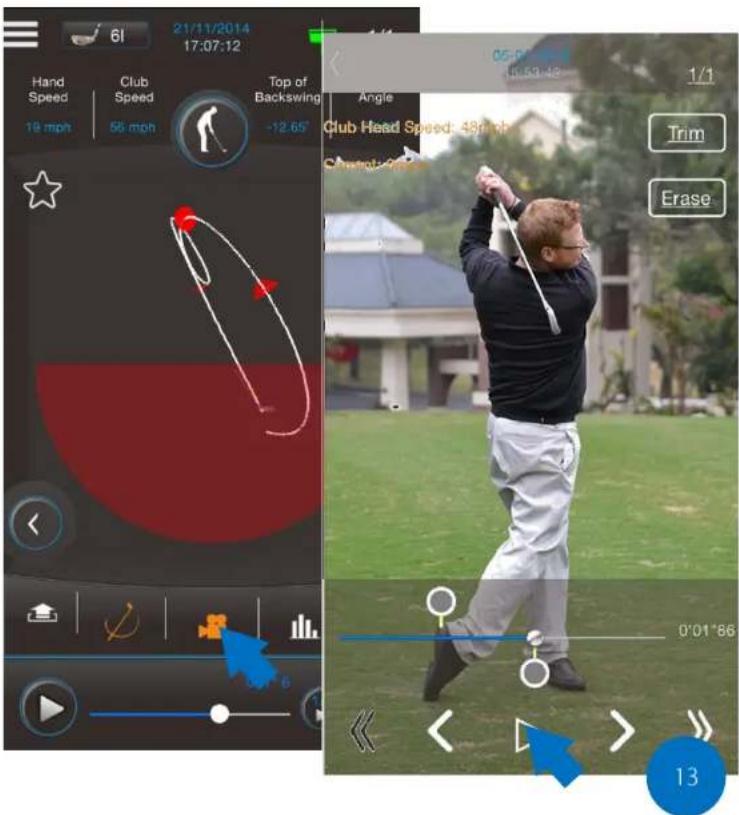
When the swing video is recorded in the swing record, you can press video playback button to review the actual swing motion.
text_image
6l 21/11/2014 17:07:12 Hand Speed Club Speed Top of Backswing 19 mph 55 mph -12.65° Angle Club Head Speed: 480 mph Trim Erase 05:00:00 10:53:42 1/1 0'01'86 13Review all parameters
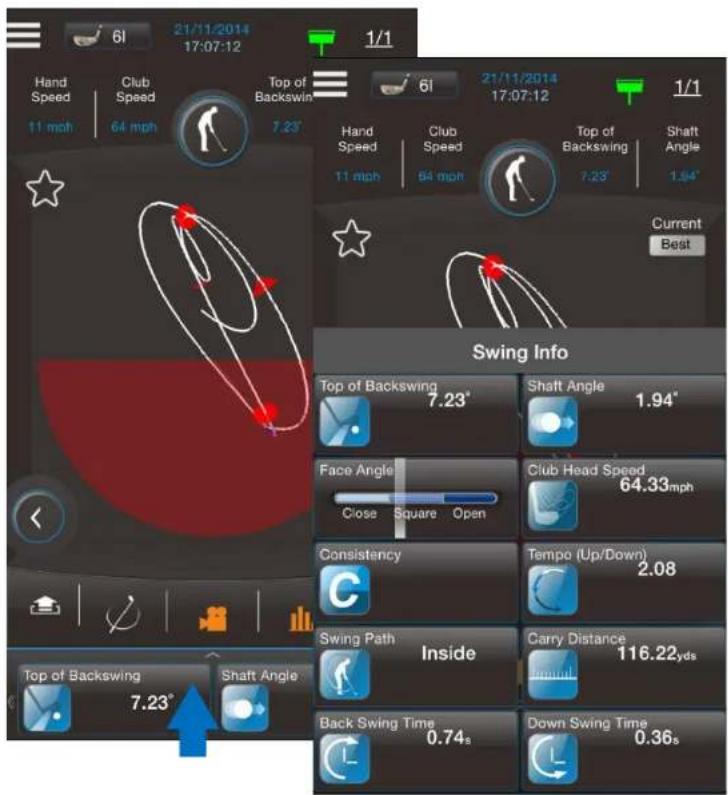
You can swipe up from parameter box to check all the swing parameters.
text_image
6l 21/11/2014 17:07:12 1/1 Hand Speed Club Speed Top of Backswing 64 mph 7.23' 6l 21/11/2014 17:07:12 1/1 Hand Speed Club Speed Top of Backswing 7.23' Shaft Angle 11 mph 54 mph Current Best Swing Info Top of Backswing 7.23" Shaft Angle 1.94" Face Angle Close Square Open Club Head Speed 64.33mph Consistency Tempo (Up/Down) 2.08 Swing Path Inside Carry Distance 116.22yds Back Swing Time 0.74s Down Swing Time 0.36s Top of Backswing 7.23" Shaft AngleAuto-video Recording
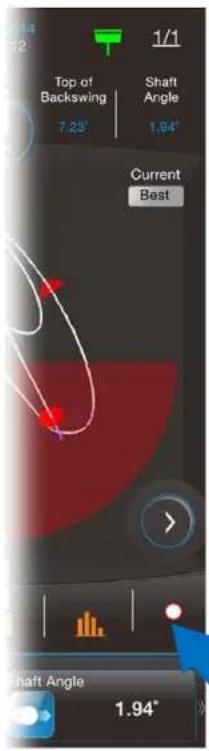
Recording:

- Press Video Recording button
- Fit the golfer just within the red color frame
- Press the "Record" button on the bottom bar
- Swing with 3BaysGSA ZONE device. The recording will be stopped automatically when the swing is recognized and data start transmitting.
- An alert sound is heard, you are ready to swing again.
- Press "Record" button to quit the recording.
text_image
1/14 12 Top of Backswing 7.23° Shaft Angle 1.94° Current Best Shaft Angle 1.94°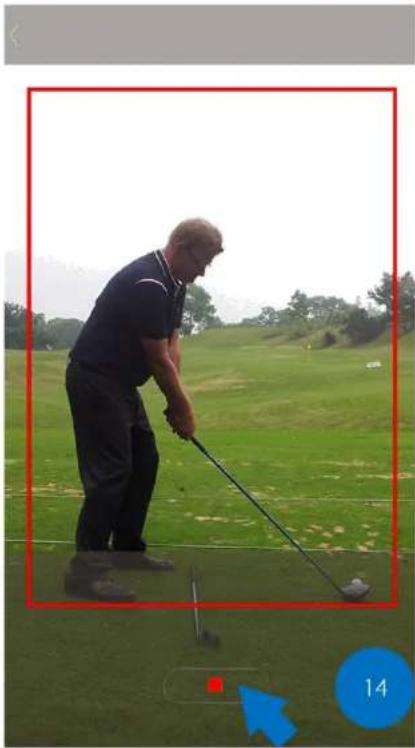
natural_image
Golfman in action on a grassy field, holding a long pole with a red square marker and blue arrow indicator (no text or symbols)Auto-Video Recording
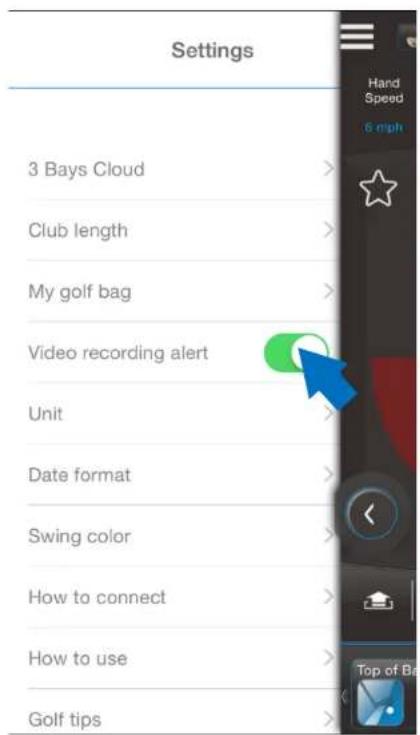
Settings:
An alert sound can be set when 3BaysGSA ZONE is ready to capture the swing data and take video.
text_image
Settings 3 Bays Cloud Club length My golf bag Video recording alert Unit Date format Swing color How to connect How to use Golf tips Hand Speed 6 mph Top of BaAuto-video Recording
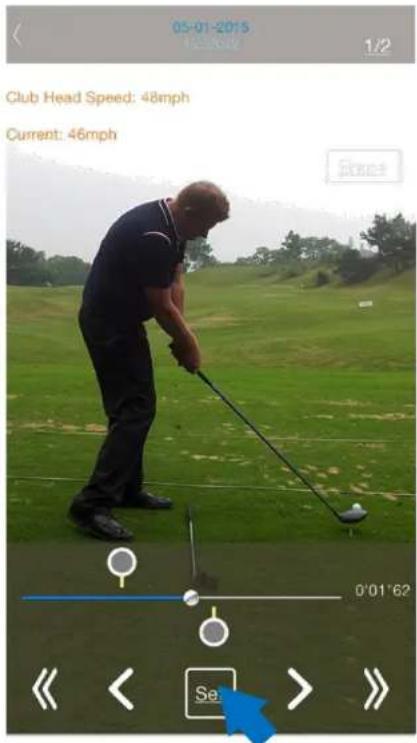
Trimming:
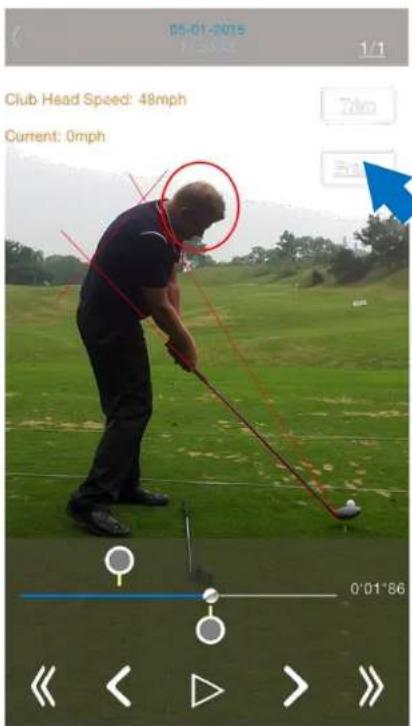
- Lines can be drawn on screen to determine swing plane, spin angle or head position. Press "Erase" button to clear up the screen
- Press "Trim" button and navigate the control panel to identify the moment at impact. Then press "Set" button. The video will be automatically trimmed down to the swing-only footage.
text_image
05-01-2015 Club Head Speed: 48mph Current: 46mph 0'01'62 Se
Auto-Video Recording
Erase:
Lines can be drawn on screen to determine swing plane, Spin angle or head position. Press "Erase" button to clear Up the screen.
text_image
05-01-2015 Club Head Speed: 48mph Current: 0mph 0'01'86Best Swing setup
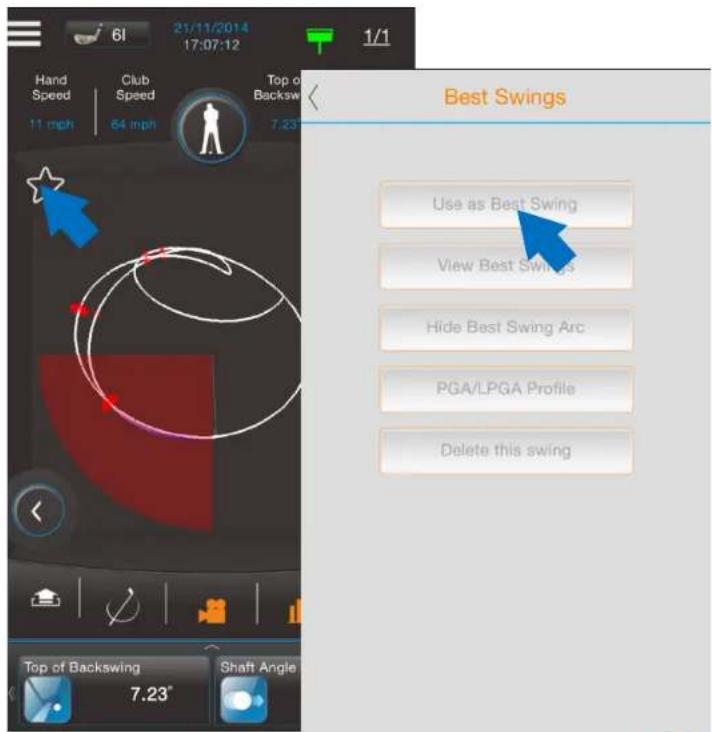
- Select one record and show on the home page
- Press the Star button
- Press "Use as Best Swing"
- The swing path color will be changed
text_image
61 21/11/2014 17:07:12 Hand Speed Club Speed Top of Backswing 11 mph 64 mph 7.23° Best Swings Use as Best Swing View Best Swings Hide Best Swing Arc PGA/LPGA Profile Delete this swing Top of Backswing Shaft Angle 7.23°Compare your current swing with your best swing
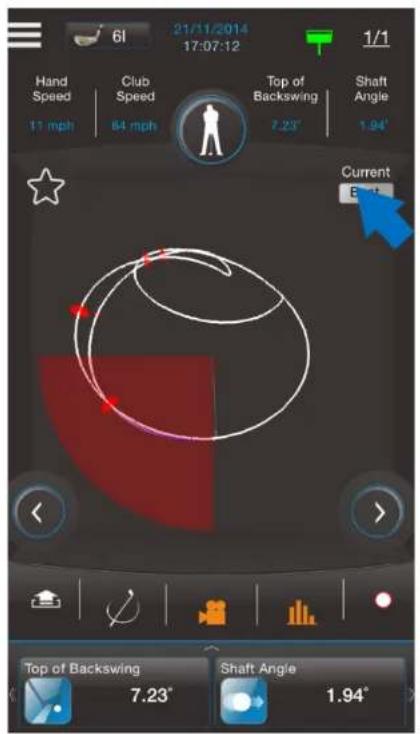
You can press "Best Swing" button to turn on/off the best swing record to compare the current one.
text_image
6l 21/11/2014 17:07:12 1/1 Hand Speed Club Speed Top of Backswing Shaft Angle 17 mph 64 mph 7.23° 1.94° Current E Top of Backswing Shaft Angle 7.23° 1.94°Settings
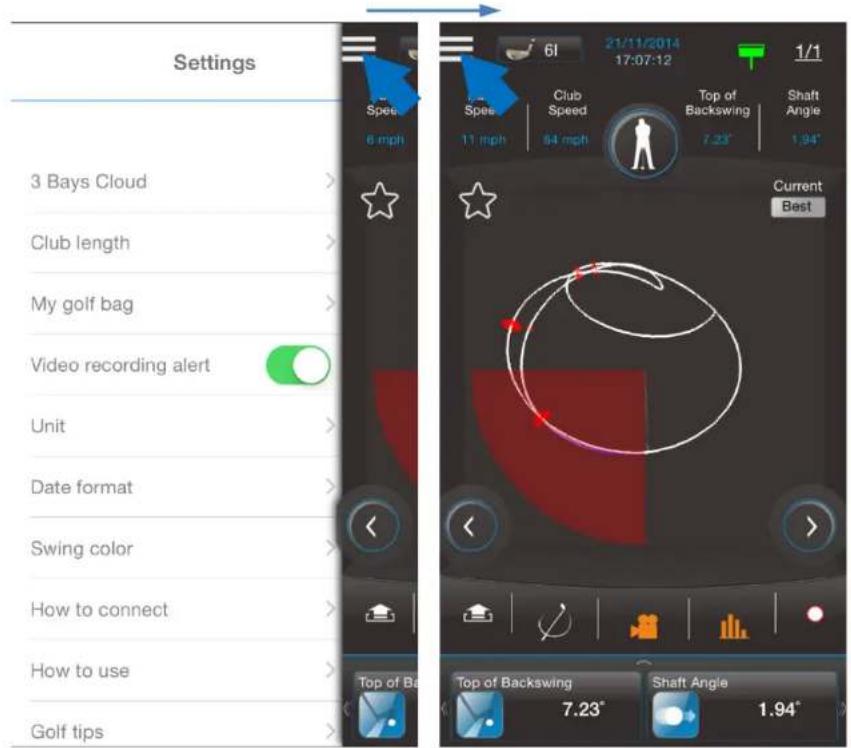
- Press "Settings" button
- Press "Settings" button again to go back to home screen
text_image
Settings 3 Bays Cloud Club length My golf bag Video recording alert Unit Date format Swing color How to connect How to use Golf tips 6 mph 61 21/11/2014 17:07:12 Spes 6 mph Spes 11 mph Club Speed 54 mph Top of Backswing 7.23° Shaft Angle 1.94° Current Best Top of Backswing 7.23° Shaft Angle 1.94°Settings
3BaysCloud – account setup
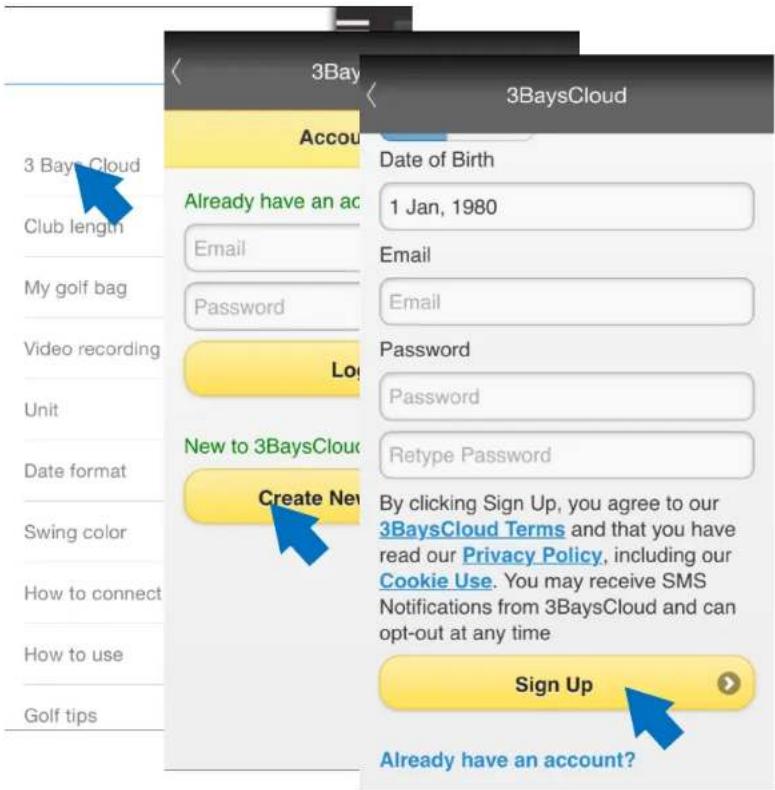
- Press "Create New Account" button
- Fill in all information and press "Sign Up" button
- You will get a confirmation email, please reply to activate the account
text_image
3Bay 3BaysCloud Accou Date of Birth 3 Bays Cloud Club length Already have an ac Email 1 Jan, 1980 Email My golf bag Password Email Video recording Lot Password Unit New to 3BaysCloud Retype Password Date format Create New By clicking Sign Up, you agree to our 3BaysCloud Terms and that you have read our Privacy Policy, including our Cookie Use. You may receive SMS Notifications from 3BaysCloud and can opt-out at any time Golf tips Sign Up Already have an account?Settings
3BaysCloud – Swing record upload
- Press "Synchronize Swings" button
- Press "Sync data & videos (Slower)" button to upload all records
- Press "Sync data only (Faster)" button to upload swing records only (without video records)

text_image
3BaysCloud Account Setup Synchronization How do you want to synchronize your records? Note: It may take long time to sync with videos. Sync data only (Faster) Sync data & videos (Slower) Cancel Synchronize Swings 3BaysCloud Account Setup Name Marcus Lui Email marcuslui@pe Logout Synchronize Sw 18Settings
Club length adjustment
- Press "Club length" button
- You can adjust the length in each club
- All adjustments will be saved when you press "Done" button
- Press "Back" button to go back to Settings menu
| Setting | Club length | |
| 3 Bays Cloud | D | 45.00 |
| Club length | 3W | 43.00 |
| My golf bag | 4W | 42.50 |
| Video recording alert | 5W | 42.00 |
| Unit | Club Length(inch) | Done |
| Date format | 44.25 | |
| 44.50 | ||
| Swing color | 44.75 | |
| 45.00 | ||
| How to connect | 45.25 | |
| 45.50 | ||
| How to use | 45.75 | |
| Golf tips | ||
Settings
My golf bag
- Press "My golf bag" button
- Select and highlight your clubs which you want to add into the club selection list
- Press "Back" button to go back to Settings menu
| Settings | < My golf bag |
| 3 Bays Cloud | D |
| Club length | 3W |
| My golf bag | 4W |
| Video recording alert | 5W |
| Unit | 7W |
| Date format | 3R |
| Swing color | 4R |
| How to connect | 5R |
| How to use | 7R |
| Golf tips | 3I |
Settings
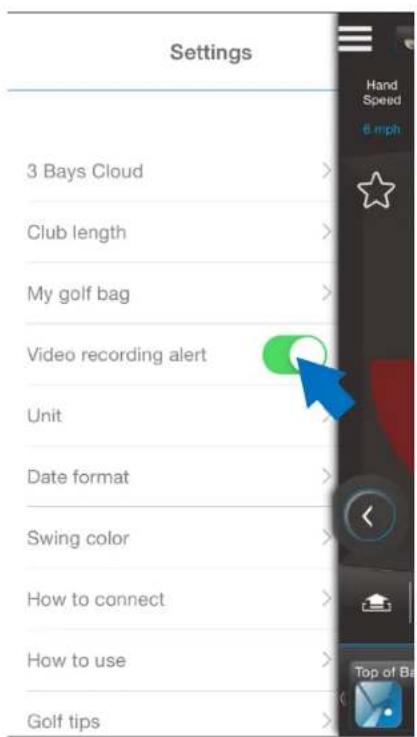
Video alert alarm
- When you switch ON, a notification will be alerted when 3BaysGSA ZONE is ready to capture data during Auto-Video Recording mode.
- Press "Back" button to go back to Settings menu
text_image
Settings 3 Bays Cloud Club length My golf bag Video recording alert Unit Date format Swing color How to connect How to use Golf tipsSettings
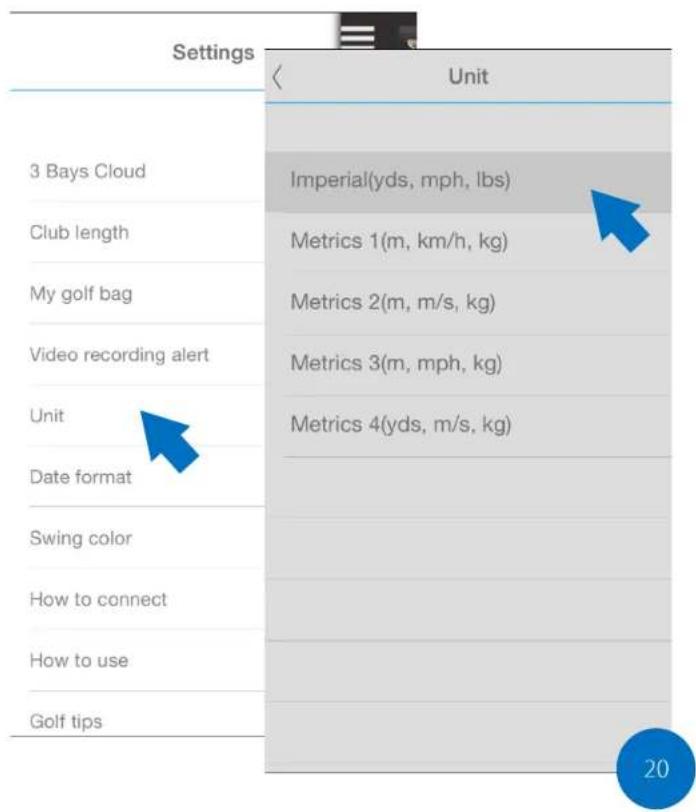
Unit format settings
- Select and highlight unit format
- Press "Back" button to go back to Settings menu
text_image
Settings Unit 3 Bays Cloud Imperial(yds, mph, lbs) Club length Metrics 1(m, km/h, kg) My golf bag Metrics 2(m, m/s, kg) Video recording alert Metrics 3(m, mph, kg) Unit Metrics 4(yds, m/s, kg) Date format Swing color How to connect How to use Golf tips 20Settings
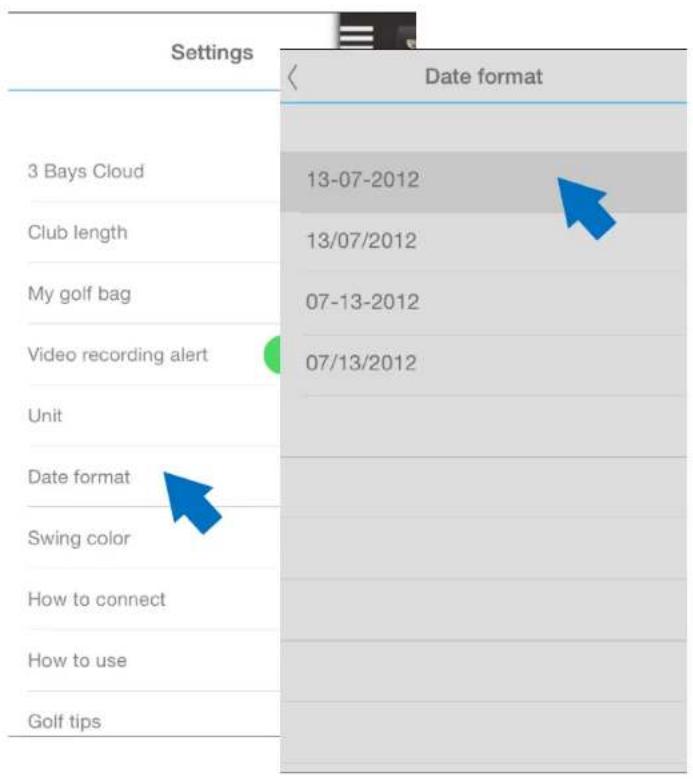
Date format settings
- Select and highlight date format
- Press "Back" button to go back to Settings menu
text_image
Settings Date format 3 Bays Cloud 13-07-2012 Club length 13/07/2012 My golf bag 07-13-2012 Video recording alert 07/13/2012 Unit Date format Swing color How to connect How to use Golf tipsSettings
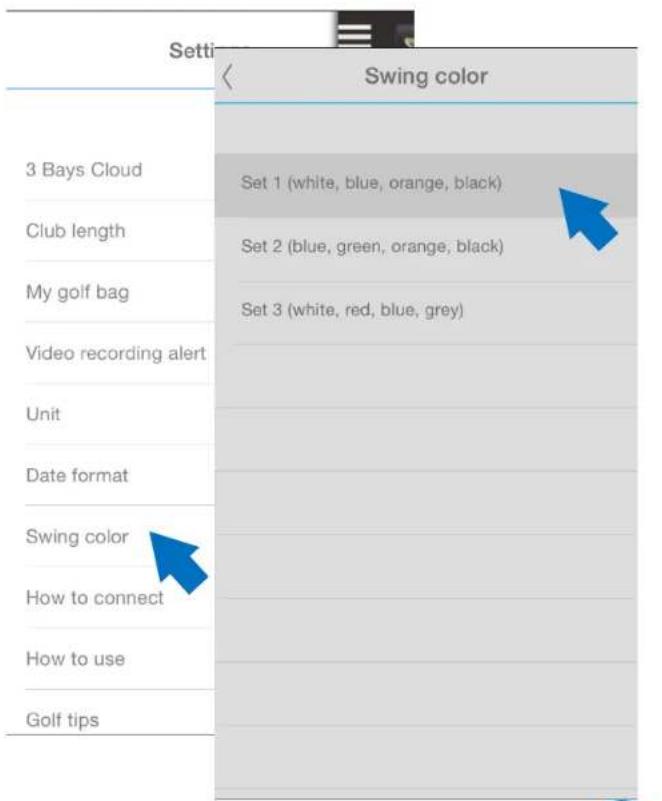
Swing arc color settings
- Select and highlight swing arc color
- Press "Back" button to go back to Settings menu
text_image
Setti Swing color 3 Bays Cloud Set 1 (white, blue, orange, black) Club length Set 2 (blue, green, orange, black) My golf bag Set 3 (white, red, blue, grey) Video recording alert Unit Date format Swing color How to connect How to use Golf tipsSettings
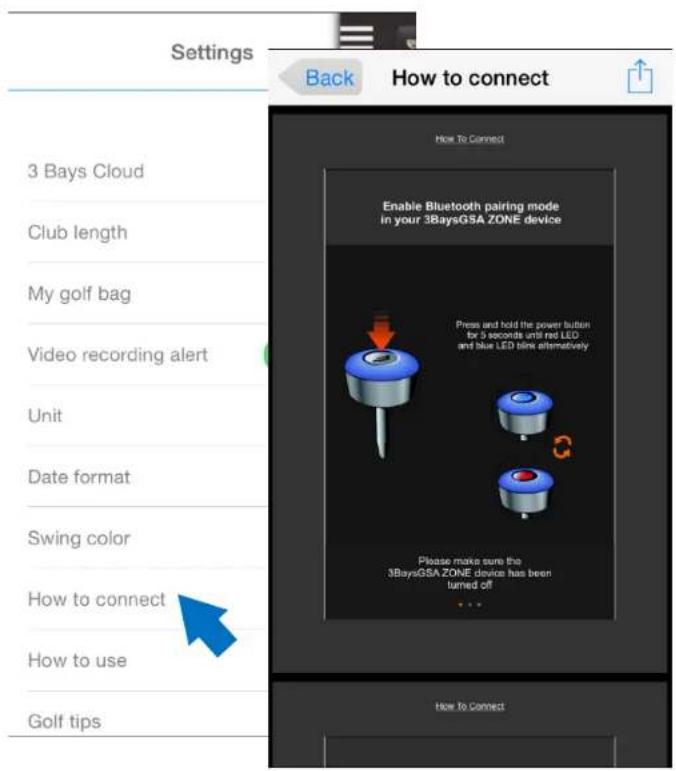
How to connect
1a. For iOS user, please find the Bluetooth pairing procedure.
1b. For Android OS user, you can pair 3BaysGSA ZONE device in GSA ZONE app. Please follow the instruction to pair up the device.
- Press "Back" button to go back to Settings menu
text_image
Settings Back How to connect 3 Bays Cloud Club length My golf bag Video recording alert Unit Date format Swing color How to connect How to use Golf tips Enable Bluetooth pairing mode in your 3BaysGSA ZONE device Press and hold the power button for 5 seconds until red LED and blue LED films alternatively Please make sure the 3BaysGSA ZONE device has been turned off How to ConnectSettings
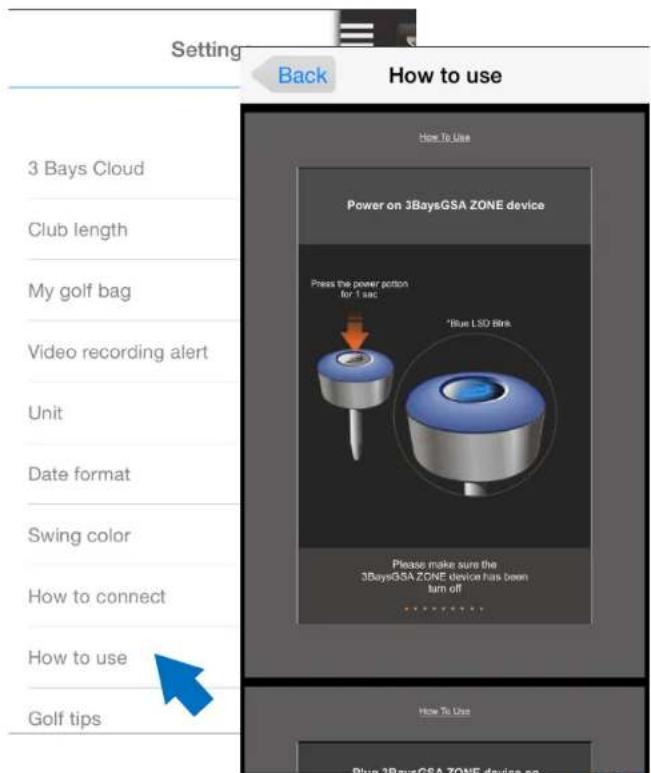
How to use
- Please find how to receive GSA swing data from device to GSA ZONE app
- Press "Back" button to go back to Settings menu
text_image
Setting Back How to use 3 Bays Cloud Club length My golf bag Video recording alert Unit Date format Swing color How to connect How to use Golf tips How To Use Power on 3BaysGSA ZONE device Press the power portion for 1 sec "Blue LSO Sink" Please make sure the 3BaysGSA ZONE device has been turn off How To Use Plug 3BaysGSA ZONE device onSettings
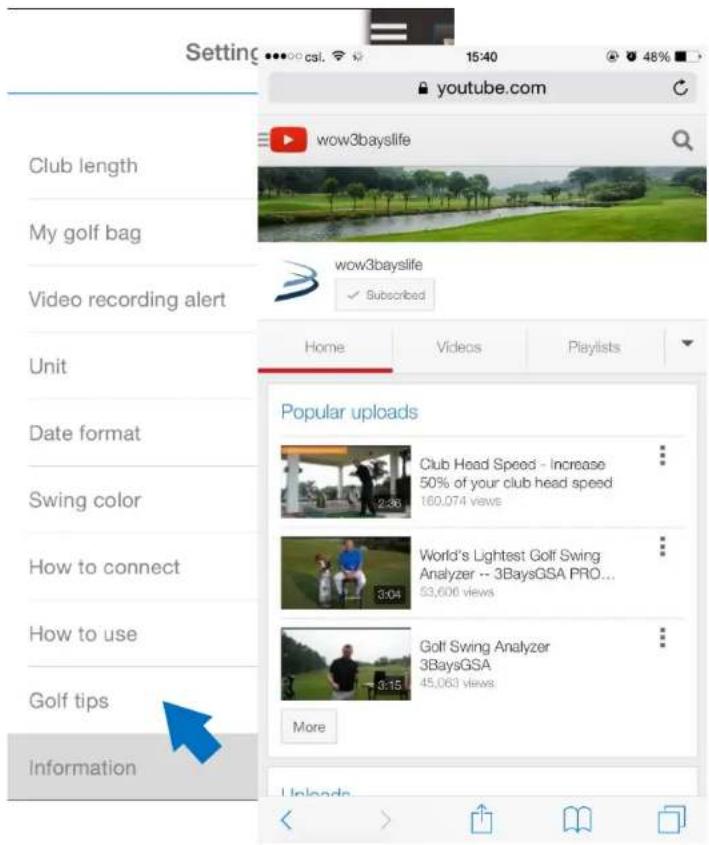
Golf tips
- You can go to 3BaysGSA YouTube channel to get more golf tips videos
text_image
Setting club length My golf bag Video recording alert Unit Date format Swing color How to connect How to use Golf tips Information youtube.com wow3bayslife wow3bayslife ✓ Subscribed Home Videos Playlists Popular uploads Club Head Speed - Increase 50% of your club head speed 160,074 views World's Lightest Golf Swing Analyzer -- 3BaysGSA PRO... $3,600 views Golf Swing Analyzer 3BaysGSA 45,063 views More UnloadsSettings
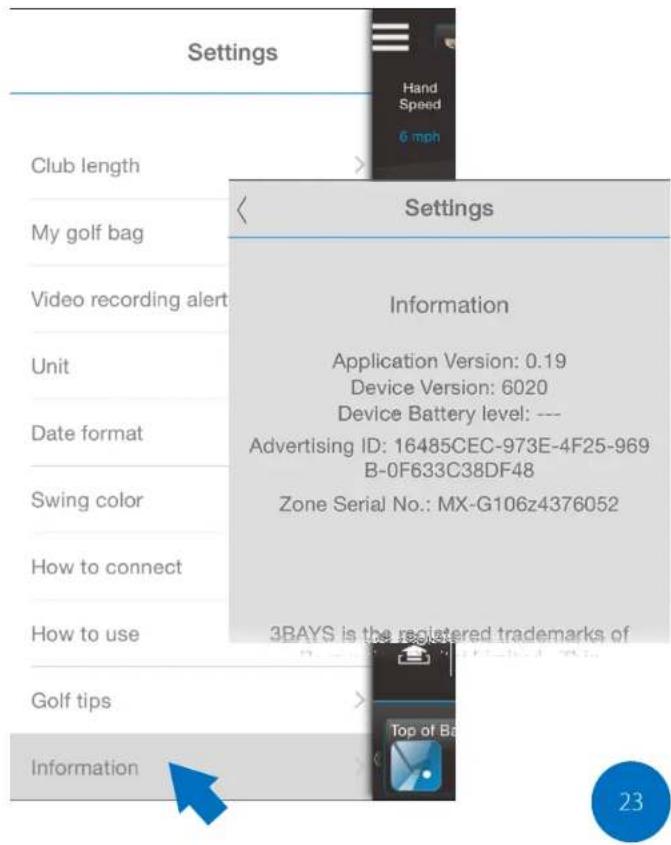
Information
- You can check the app version, device version, serial number and battery level of ZONE device
- Press "Back" button to go back to Settings menu
text_image
Settings Club length My golf bag Video recording alert Unit Date format Swing color How to connect How to use Golf tips Information Settings Information Application Version: 0.19 Device Version: 6020 Device Battery level: --- Advertising ID: 16485CEC-973E-4F25-969 B-0F633C38DF48 Zone Serial No.: MX-G106z4376052 3BAYS is the registered trademarks of Top of Ba 23LED light indication
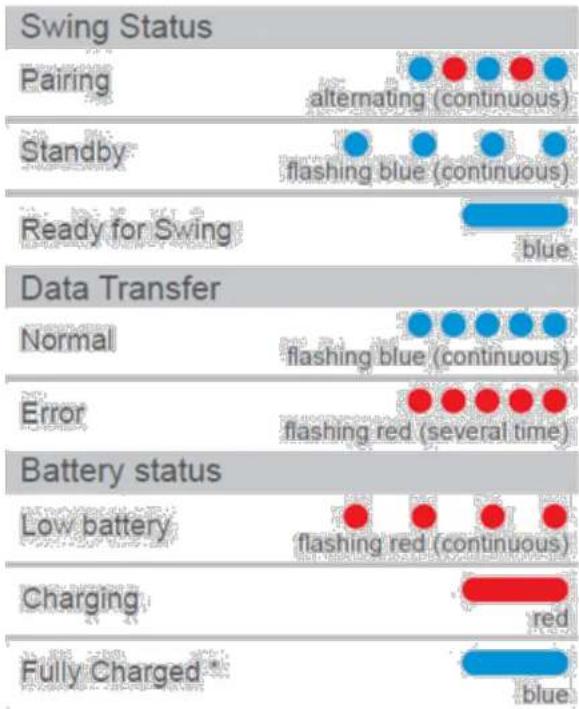
bar
| Swing Status | Category | Red Dot Count | Blue Dot Count | |---|---|---|---| | Pairing | alternating (continuous) | ● | ● | | Standby | flashing blue (continuous) | ● | ● | | Ready for Swing | blue | - | - | | Data Transfer | - | ● | ● | | Normal | flashing blue (continuous) | ● | ● | | Error | flashing red (several time) | ● | ● | | Battery status | - | ● | ● | | Low battery | flashing red (continuous) | ● | ● | | Charging | red | - | - | | Fully Charged * | blue | - | - |* When 3BaysGSA ZONE is connected to power source
Trouble Shooting
Q1: I can't pair my 3BaysGSA ZONE to smart phone or tablet
A: For iPhone or iPad or Android device users:
- Go to System Settings in your iPhone/iPad
- Turn on the Bluetooth in your iPhone/iPad
- Power off 3BaysGSA ZONE device
- Long press power button of 3BaysGSA ZONE device for 4 – 5 seconds until blue-red light is flashing
- You can find and select the serial number (MX-G106zXXXXXXX) in the Bluetooth scan list
- Bluetooth pairing finished
- After finishing the Bluetooth pairing, you can go to GSA ZONE app and start to use
For Android device users,
You can also pair the device in GSA ZONE app. Please press "Settings" button and then select "How to connect". Please follow the working instruction to pair 3BaysGSA ZONE device.
Remark:
Please charge up 3BaysGSA ZONE device before Bluetooth pairing.
Q2: I can't search my 3BaysGSA ZONE device on the Bluetooth list.
A; Please reboot your smart phone or tablet and try the Bluetooth pairing procedures again.
Q3: After I swing, the Blue LED of the device doesn't flash quickly and transmit data.
A: You may have some practice swing movements at the setup position before you actually swing. Please keep your club still at the setup position for 2 seconds before swinging. (Blue LED is on and ready to swing)
Q4: After I swing, 3BaysGSA ZONE starts transmitting data to the mobile but it stops without data transmission complete.
A: 3BaysGSA ZONE device may be at low battery level, please charge the device for an hour (when Blue LED is on, it is fully charged) and then you can swing again.
Trouble Shooting
Q5: After I swing, 3BaysGSA ZONE does not flash quickly and transmit data
A: 3BaysGSA ZONE device may be at low batter y level, please charge the device for an hour.
Q6: Blue LED never goes on during setup position even I keep my club still.
A: 3BaysGSA ZONE device may not be applied correctly on the end of your club. Please align the triangle mark on 3BaysGSA ZONE device with the SQUARE club face.
Q7: I can't playback my swing arc animation.
A: You can press "Playback" button 📋. You can even playback in slow motion by pressing the 1/4 and 1/8 button.
Q8: My Club Head Speed is unreasonably high or low.
A: Please choose the golf club you are using to get the accurate reading. Please make sure that no gap/space in between the end of grip and 3BaysGSA ZONE device.
Q9: How to share my swing information to Facebook friends?
A: You can share your swing information screen with your friends and coaches via Facebook and other social media channels. You can press "Share" button, then the screen will be captured and you can find in your photo gallery. Please go to Facebook or other social media to upload the captured screens in photo gallery.
Q10: How to switch off and restart the device?
A: To turn off the device, please press and hold the power button for 2 seconds until you see the Red LED flashing. To restart the device, please press and hold the power button for 1 second until you see the Blue LED flashing.
Product Specification
Size (W x H): 29.3 x 43 mm (with pin)
29.3 x 18 mm (without pin)
Weight: 9.8g or 1/3 oz
Operation time: up to 6 hours
Standby time: 7 days
Connectivity: Bluetooth version 2.1 + EDR
USB port: Micro USB 2.0 for charging purpose only
Compatible device: iPhone, iPod touch (4 ^th generation) and iPad, iPad mini, iPad Air (iOS 5.0 or later)
Android phone, tablet (OS version 2.3 or later)
Dedicated mobile app: GSA ZONE
Customer Service
If you have any questions about this product, please email your question to: wow@3bayslife.com
or you can visit our website to see more product details. www.3bayslife.com/gsa
LIABILITY EXEMPTION STATEMENT
- All the information included in this manual was produced with our great caution, but there may still be some errors and mistakes. 3Bays Corporation Limited will not be held responsible for those errors and mistakes.
- As we can't control users' understanding of this manual, 3Bays Corporation Limited will not be held responsible for any accident or other loss caused by misunderstanding of this manual. We shall not be held responsible either for any loss caused by using this product or for any claim by any third party.
- 3Bays Corporation Limited will be held responsible only for the inherent problem of the device itself, but not for data loss, modification of the device or other indirect loss resulting from mal-operation of software, maintenance or other accidents. 3Bays Corporation Limited will not be held responsible for restoration of any personal data lost.
- 3Bays Corporation Limited reserves the right to modify software, hardware and user manual of this device without prior notice.
- To make copies, publish, transfer, store in a traceable system, or translate to any other language without written authorization from 3Bays Corporation Limited is strictly prohibited.
TRADEMARKS
3BaysGSA™ is the registered trademarks of 3Bays Corporation Limited.
REGULATORY INFORMATION
Declaration of Conformity Trade Name: 3Bays Corporation Limited
For customers in USA or Canada
This device complies with part 15 of FCC rules. Operation is subject to the following two conditions:
(1) This device may not cause harmful interference.
(2) This device must accept any interference received, including interference that may cause undesired operation.
FCC Notice:
This equipment has been tested and found to comply with the limits for a Class B digital device, pursuant to part 15 of the FCC Rules. These limits are designed to provide reasonable protection against harmful interference in a residential installation. This equipment generates, uses, and can radiate radio frequency energy and, if not installed and used in accordance with the instructions, may cause harmful interference to radio communications. However, there is no guarantee that interference will not occur in a particular installation. If this equipment does cause harmful interference to radio and television reception, which can be determined by turning the equipment off and on, the user is encouraged to try to correct the interference by one or more of the following measures:
- Reorient or relocate the receiving antenna,
- Increase the separation between the equipment and the receiver,
- Connect the equipment into an outlet on a circuit different from that to which the receiver is connected.
- Consult the dealer or an experienced radio/TV technician for help.
For customers in Europe
1) This product conforms to the following European Directives: 89/336/EEC (EMC Directive)
2) This product complies with EN55022/A1:2000 and EN55024/A1:2001 for use in the following areas: residential, commercial and light industrial.
DISPOSAL OF YOUR OLD PRODUCT
Your product is designed and manufactured with high quality materials and components, which can be recycled and reused.
When this crossed-out wheeled bin symbol is attached to a product, it means the product is covered by the European Directive 2002/96/EC.
To prevent any potential negative consequences for the environment and human health, please act according to your local rules regarding the disposal of this device.