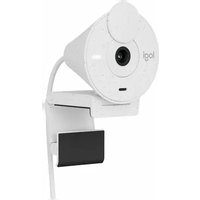
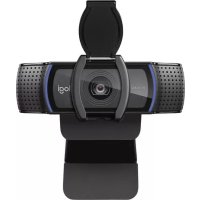
Brio Webcam - Webcam LOGITECH - Kostenlose Bedienungsanleitung
Finden Sie kostenlos die Bedienungsanleitung des Geräts Brio Webcam LOGITECH als PDF.


| Produkttyp | Webcam |
| Marke | Logitech |
| Modell | Brio Webcam |
| Sensorauflösung | 4K Ultra HD (3840 x 2160) |
| Bildwiederholrate | Bis zu 30 fps bei 4K, 60 fps bei 1080p |
| Bildsensor | CMOS |
| Autofokus | Ja, mit Gesichtserkennung |
| Sichtfeld | 90° (einstellbar: 65°, 78°, 90°) |
| HDR | Ja |
| Mikrofon | Integriertes omnidirektionales Mikrofon |
| Anschluss | USB-C (USB 3.0 kompatibel) |
| Kompatibilität | Windows, macOS, Chrome OS, Linux (UVC) |
| Abmessungen (B x H x T) | 27 mm x 102 mm x 27 mm |
| Gewicht | 63 g |
| Kabellänge | 1,5 m |
| Stromversorgung | Über USB |
| Befestigung | Monitorclip oder Stativgewinde |
| Privatsphäre | Integrierter Datenschutzschieber |
| Lichtkorrektur | RightLight 3 mit HDR |
| Lieferumfang | Webcam, USB-C-Kabel, Montageclip, Kurzanleitung |
| Garantie | 2 Jahre Herstellergarantie |
Häufig gestellte Fragen - Brio Webcam LOGITECH
Benutzerfragen zu Brio Webcam LOGITECH
0 Frage zu diesem Gerät. Beantworten Sie die, die Sie kennen, oder stellen Sie Ihre eigene.
Eine neue Frage zu diesem Gerät stellen
Laden Sie die Anleitung für Ihr Webcam kostenlos im PDF-Format! Finden Sie Ihr Handbuch Brio Webcam - LOGITECH und nehmen Sie Ihr elektronisches Gerät wieder in die Hand. Auf dieser Seite sind alle Dokumente veröffentlicht, die für die Verwendung Ihres Geräts notwendig sind. Brio Webcam von der Marke LOGITECH.
BEDIENUNGSANLEITUNG Brio Webcam LOGITECH
REFERENCE GUIDE
Logitech BRIO
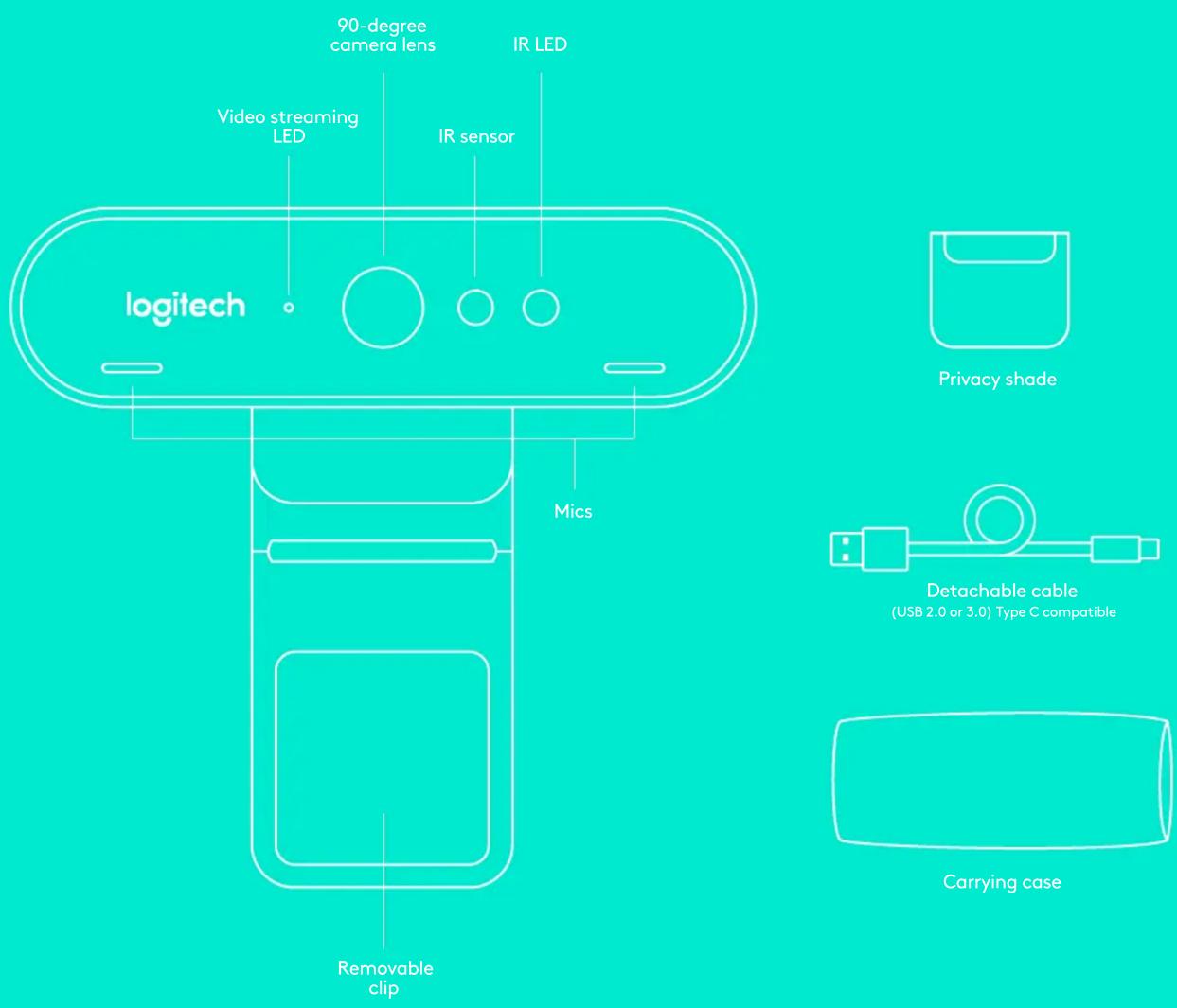
Logitech ^ delivers our best webcam ever with 4K UHD and 5X zoom for amazing video quality. BRIO is packed with advanced features, like Logitech's RightLight ^TM 3 with HDR to look great in any illumination from low light to direct sunlight, support for infrared-based facial recognition to strengthen login security, and offers multiple FOV options – 65°, 78°, and 90°.
REFERENCE GUIDE
Logitech BRIO
1 SET UP
Set up camera on an LCD or on a tripod.
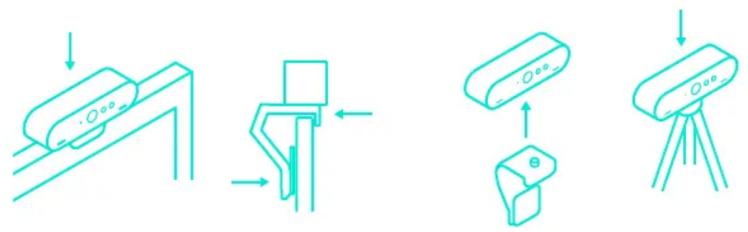
flowchart
graph TD
    A["Add Cable"] --> B["Add Lens"]
    B --> C["Add Object"]
    C --> D["Add Triangle"]
LCD Tripod
2 CONNECT
Connect cable to the camera and a computer. Please give the camera a few seconds to enumerate in the operating system.
Note: IR and 4K are better achieved with USB 3.0

3 GO
Start your video or audio call from your application. The LEDs on the camera will light when streaming.
natural_image
Line drawing of a laptop with wireless signal icon on screen (no text or symbols)WINDOWS HELLO
Your camera is certified for Windows® Hello™ to use facial recognition login for Windows 10.
Note: The camera will also work with other facial recognition software for both Windows and Mac ^® . Please visit our support website for more details.
The camera and IR sensor/LED supports this feature plug-and-play, following setup in Windows 10. Just look at the camera and the system will log you in.
Note: The IR sensor supports a more reliable login. IR is more reliably supported with USB 3.0
CAMERA SETTINGS APP
Logitech offers downloadable software for adjustable field of view, camera image settings, pan, tilt and zoom, and an integrated background replacement labs project, powered by Personify.
DISCOVER BRIO'S FULL POTENTIAL
Visit www.logitech.com/BRIO or contact us at 800-308-8666.
TROUBLESHOOTING TIPS
For troubleshooting tips, information on software tools and for a diagnostic tool to help troubleshoot any issues you may have with your BRIO, please visit www.logitech.com/support/brio