P216I3-W7P-120/4 - Nicht kategorisiert Giada - Kostenlose Bedienungsanleitung
Finden Sie kostenlos die Bedienungsanleitung des Geräts P216I3-W7P-120/4 Giada als PDF.


Benutzerfragen zu P216I3-W7P-120/4 Giada
0 Frage zu diesem Gerät. Beantworten Sie die, die Sie kennen, oder stellen Sie Ihre eigene.
Eine neue Frage zu diesem Gerät stellen
Laden Sie die Anleitung für Ihr Nicht kategorisiert kostenlos im PDF-Format! Finden Sie Ihr Handbuch P216I3-W7P-120/4 - Giada und nehmen Sie Ihr elektronisches Gerät wieder in die Hand. Auf dieser Seite sind alle Dokumente veröffentlicht, die für die Verwendung Ihres Geräts notwendig sind. P216I3-W7P-120/4 von der Marke Giada.
BEDIENUNGSANLEITUNG P216I3-W7P-120/4 Giada
Dear Users, Thank you for choosing Gada product. This Guide would allow you better understand the device. Therefore, please carefully read the whole Guide before you operate the device.
1. Precautions
In order to prevent the PC from being damaged, extend its service time, and ensure your normal use and personal safety, please carefully read the whole Guide and the related safety information and strictly follow the requirements in it. You should also keep the Guide well.
- Please read the documents attached to the product first. The page exclusively inserted should be read firstly.
- Please observe all alarm information and marks on safety.
- Please use the original power adapter, or use special power supply mentioned in the Manual.
- Please place the product correctly on your table and make sure the anti-sliding base is installed.
- In lightning time, do not plug or unplug the phone cable, network cable, power core or other conductors connecting outside.
- Unplug the power cord before you clean the device. Never use liquid, sprayed cleaning speed or weight to clean the product.
- In order to protect the operating system, motherboard and hard disk, please do not keep pressing the power switch or the reset key. Avoid interrupt power failure during system's running, which might also physically damage the operating system.
- Do not remove the shell or repair the product without permission. Such work should be done by professionals.
- Keep the PC away from next source Never block the heat verbs. Keep your PC away from direct sunshine.
- Keep the product away from moisture Never spill water or other liquid onto it. You should call the professional service personnel under following circumstances:
a. The power cord or plug was damaged.
b. Conductive liquid went into the product.
c. The product was dropped onto the ground or its shell was damaged.
d. When underrified errors assured or the product's performance is obviously deteriorated, please cut off power immediately.
Accessories
| Host | 1 Unit |
| Adapter (with power cord) | 1 Piece (optional) |
| Quick Installation Guide | 1 Copy |
| Drivers Disk | 1 Piece |
II. Product appearance
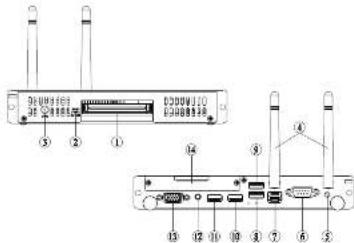
text_image
Diagram of an electronic device rear panel with labeled ports and connectors, showing internal components and wiring connections.| NO. | Description | Usage |
| 1 | GPS IAG port | GPS IAG port |
| 2 | JNHC Switch | Auto Power On Set |
| 3 | 3D-4M | Contact to A3DCD Power adaptor |
| 4 | AI-P Antenna | Mobile wireless signal interface/Banobase SPEC have not |
| 5 | Power Switch | Start the FIC |
| 6 | CCM port | Contact COM Port devices |
| 7 | Network Interface | RAM port |
| 8 | USB3 0 Port | Contact USB3 D devices |
| 9 | USB2 0 Port | Contact USB2 0/1, 12VDC |
| 10 | USB3 0 Port | Contact USB3D devices |
| 11 | USB3 0 Port | Contact USB3D devices |
| 12 | Add-in/SMVC in | Contact audio output AI/microphone devices |
| 13 | MSA Port | Contact VGA port encoder |
| 14 | HDD Interface | HDD Channels |
III. Operation System Setting Up And Driver Installation
- Please read Glada Mini PC MANUAL which is in Drivers DISK
2 System Recovery (Some custom modes have this function)
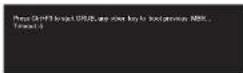
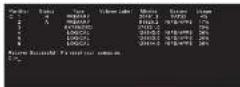
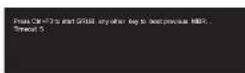
After Powered on the Host press "Ctrl+F3" when the screens showing Press Ctrl+F3 to start GRUB, any other key to boot previous MBR...".
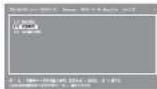
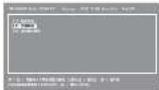
After the GRUB started, please select "【2】Recover the system" and press "Enter" to execute
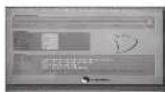
After "Recover Successful! PIs reset your computer", press "Ctrl +Alt +Del" to restart the host.
IV. Power Supply and Maintenance
1. Power Supply
In order to avoid personal injury and ensure the normal operation of the product, please make sure the AC power you provide conforms to the specifications described on the sign at the back of the adapter. Use three-core receptacle and reliable grounding. In addition, you should also make sure the voltage from your local power matches the respective rated value of the monitor and other external equipment.
It is recommended the attached adapter be used. If the attached adapter can't be used under some special circumstances, you must use an adapter with the same specification.
Input Characteristics The range of input voltage is from 90Vac to 264Vac with a single phase.
| Max. | Rating | Max. | |
| Input Voltage | 90Vac | 100Vac - 200Vac | 200Vac |
| Input Frequency | 47Hz | 60-855Hz | 68Hz |
Output Characteristics Static Output Characteristics
| Output | Rated Load | Output Range | Ripple & Noise | Remark | |
| Rating | Min | Max | |||
| +19.0V | CA | 4.74A | ±5% | 360mV/p-p | |
2. Maintenance
As a high-tech product with sophisticated structure, Giada Mini PCs needs to be maintained properly. Mouse or rough handling may result in damage or system failure. • Body
Please do not remove the protective film on the surface before using, and prevent sharp objects from scratching on it. Make sure the power supply to the host is cut off before cleaning the body. Never use wet cloth for cleaning. Otherwise, water drops or other conductive liquid may go into the host. To clean the base of the host, you should first remove the host. At the time, you should put the host in a safe place where it isn't slide down or fall onto the ground.
- Handling
This product is an ultra-light PC, never place the product at the edge of the table. Otherwise, it may fall on the ground and be damaged. Always check the peripheral equipment and the connection cables to see whether they are properly arranged, so that people might not be stumbled by the wire or equipment and equipment not damaged.
- Radiation
Radiation is of great significance for PCs. Please place the product in a proper position. Never block the air inlet and air outlet that are used for ventilation. Do not place the product onto the bed, soils or other soft objects for use. Otherwise, the vents might be blocked and system halted because of the overheating.
- Interfaces
Never use other objects to jam the interfaces on the host, nor use sharp objects to scratch the pins. Otherwise, the pins might be damaged. If there is any poor contact, you can use a soft brush to dust the place.
V. Troubleshooting
Ciada Min PC was strictly tested before delivery. It can provide long continuous working period and few failures might occur. You may encounter some simple problems on setup, operation or system compatibility at times you use the product. In this part, we will present the information on how to identify the cause of a failure and how to solve the problems. Identification:
When your PC has a problem, please check it by referring the information provided below: 1. PC has no reaction after the host is powered on. Make sure the power is supplied to the host and the monitor, and check the power supply is normal running side. If the hardware has been upgraded, make sure the new hardware was properly and reliably installed. Check whether all signal cables are properly connected, including cables between the keyboard and host, and mouse and host.
-
Host is automatically shut off. Please check whether the power supply is cut off, or the power adapter is firmly inserted.
-
After the host is started, the start-up information appears. However, the operating system can't be loaded. The start-up order of setup looks is not compatible with the configuration of the PC, or a password is set for your operating system. In the latter case, you should enter the password to load the operating system.
-
Speaker sounds when the system is being electrified. Check whether there is any part inside the host, especially whether the hard disk and memory are properly installed. Note: The shell of the host should be opened only with the assistance of professionals from Giada.
-
When the system is started, it seems the set parameters of the host have been changed. It is possible the BIOS setup made at the time the system seted last time was not saved.
-
PC stops responding Press
-
PC runs slowly and system halted frequently. Use antivirus software to check whether the system is infected. Check whether excessive programs are added when the computer is being started. They may temporarily occupy too many resources. If many programs are installed in your system and the system has not been optimized for a long time, it will also run slowly. In this case, you should run the optimization software programs for the disk, or run the third-party optimization software. If the problem still
ecsts after above measures are taken, it is recommended that the operating system be re-installed.
-
Abnormal display and sound. If some software or game programs can't run normally, you should check whether the software failure is caused by wrong operation (including wrong installation of operating system and driver). Check whether the version of your DirectX is conforming.
-
Sound disappeared abruptly. Check whether the connection between power amplifier and speaker are reliable, and double click the volume icon to see whether the audio part is set as "rule".
-
Can't access to Internet. Check whether the network system is properly connected, or the wireless router runs normally. Check whether the driver for the network equipment is properly installed and the related parameters are correctly set. Finally, make sure the ISR service is still valid.
-
System can't access the information on hard disk. Check whether the hard disk is infected by virus. Note whether the hard disk is detected during the self-detection process.
-
Blue screen and system crash. Check whether the system is infected by virus. If the problem still exists, it is recommended that the operating system be re-installed.
-
PC can't recognize USB devices or USB devices can't run normally. Check whether these devices are properly installed (or the power is turned on), or the latest version of the drive for the device is installed.
-
For some models, when you first install the operating system, after installed display driver, the display resolution settings should be
After settings are finished securely and tightly, turn your monitor ON and press the power button on your computer. The Power indicated LED will light and please wait until the operating system loads automatically.
Note:
Illustrations are for reference only. The ports and their locations, and the chassis colour vary with different models.
Always remove the AC power by unplugging the power cord from the power outlet before installing or other hardware components.
Before using the product, please verify that all cables and power connectors of your hardware components are connected.
Caution:
Risk of explosion if battery is replaced by an incorrect type. Dispose of used batteries according to the instructions
Copyright and Trademark
Shenzhen JEHE Technology development Co., Ltd will try our best to ensure the accuracy and effectiveness of this Guide. However, as our products are being upgraded all the time, we can't guarantee that this Guide is flawless and shall bear no responsibility if it is misunderstood by the year. The Guide is responsible for independent
by the user. The guide is subject to change without prior notice. Grade and the related mark are trademarks owned by Shenzhen JEHE Technology Development Co., Ltd.
Windows ^® , MS, MS-DOS, Windows XP, Windows Vista and Windows 7. S are trademarks of USA Microsoft Corporation, which were registered in the US, other countries or other regions in the world.
Intel ^® Core ^™ and Atom ^™ are trademarks of USA's INTEL, which were registered in the US, other countries or other regions in the world.
AMD ^® and AMD Radeon ^™ , are trademarks of USA's AMD, which were registered in the US, other countries or other regions in the world. NVIDIA ^® , NVIDIA ION, GeForce, GeForce CUDA, PureVideo HD and PhysX are trademarks of USA's NVIDIA, which were registered in the US, other countries or other regions in the world.
Shenzhen JEHE Technology Development Co., Ltd reserves the right for final interpretation of this Guide. Copying and reproduction of the contents in this document, or storage and transfer in any form without the prior written permission of Shenzhen JEHE Technology development Co., Ltd is prohibited.
In case you have any questions concerning after-sales services in using the product, please contact us according to the contact information below.
Shenzhen JONE Technology Development Co., Ltd
Add 2T. Building A, Telephone Information Harbor, North Section
Shenzhen H-Toch Park, Nanshan, Shenzhen, China
Website: www.guosen.com
Email: sireng@edtech.com support@edtech.com
尊敬的杰和用户,您好!非常感谢您购买Giada杰拓迷你电脑产品。请您在安装使用前仔细阅读,这会有助于您更好地使用本产品。
一、使用注意事项
请仔细阅读本指南使用说明和安全事项,并在使用过程中严格执行。这将有助于防止损坏电脑主机、延长使用寿命、保证您正常的使用和电脑维护,确保您的人生安全。
- 请不要私自拆机,不要尝试自行维修本产品,请由授权的专业人士进行此项工作
- 请首先读懂机器带的相关文件,如含有夹页,请务必先行阅读。
- 遵循本产品上所有的安全警告和标志。
- 请使用原装的电源适配器或只能按照本产品注明的电源类型使用本产品。
- 在甘肃天气,请不要拖曳网线、电源线等可能会与外界连接的导电体、
- 清洁本产品之前请发挥电感。请勿使用液体、吸料剂或泡沫布进行清洁。
- 为避免损坏操作系统,主板和酒仓,切换光纤按主机电源开关或复位键;
尽量避免运行途中突然断电,非正常关机,请勿在开机状态时移动,晃动主机、容量造成操作系统损坏,或者硬件损坏。 - 不要将电脑放在靠近热源的地方,不要堵塞主机散热孔,不要让阳光直射到您的电脑主机。
- 注意防潮,切勿将水或其它液体泼洒到电脑上。如出现以下情况,请立即拔掉主机电源。以下特殊情况需请专业维修人员维修:
a. 电源线或插头损坏
b. 本产品内浸入了导电液体。
c. 产品跌落或产品外壳严重损坏。
d. 产品出现不明错误或明显性能变化,经过常规故障指引无法排除。
物品清单
- 主机一台
- 电源适配器(含电源线)一个(选配)
- 快速安装指南一份
- 驱动光盘一张
·产品合格证一份
·三包凭证一份
二、产品外观及接口
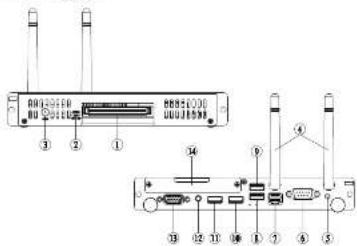
text_image
Diagram of an electronic device rear panel with labeled ports and connectors| 编号 | 描述 | 功能 |
| 1 | CPS JAE接口 | CPS JAE定时钟 |
| 2 | IACIC驱动开关 | 软盘上电并切换器 |
| 3 | DC-UN | 电源输入接口 |
| 4 | 无线阵卡天线 | 宽带WIP信号(采集电路模块和无关线) |
| 5 | 电源开关 | 开关控制箱 |
| 6 | COM | 电源COM端口设备 |
| 7 | 有线阵接口 | 宽带有线阵路(RUS) |
| 8 | USB3接口 | 电源USB3.0设备 |
| 9 | USB3接口 | 电源USB3.0设备 |
| 10 | USB3接口 | 电源USB3.0设备 |
| 11 | USB3接口 | 电源USB3.0设备 |
| 12 | 台数输入接头二合一接口 | 连接控制设备 |
| 13 | VGA接口 | 连接VGA端口显示器 |
| 14 | HDD模式互设 | 宽带接入互设 |
三、系统安装
-
操作系统安装,驱动安装,请参考配送光盘内的文件 Giada Mini PC Manual。
-
系统还原(部分定制机型有此功能)
开机后将出现“Press Ctrl+F3 to start GRUB, any other key to boot previous MBR.”提示,请按组合键“Ctrl+F3”进入还原界面。
进入还原界面后,请选择“【2】还原系统”,按Enter键进入下一步。
还原结束后,将出现“Recover Successful! PIs reset your computer”,此时重启您的电脑即可。

四、电源和产品保养
1. 由源适配器
为了您的人身安全和本产品的正常使用,请务必确认您所提供的交流电源能否满足在本产品电源适配器背部标示的输入电源信息;请使用三芯电源插座且具有可靠的接地端子。
建议使用本机原装电源适配器,特殊情况下无法使用原装电源时,务必使用相同规格电源适配器。
- 输入特性
输入电压范围:从90Vac\~264Vac,单相输入
| 最小 | 额定值 | 最大 | |
| 输入电压 | 90Vac | 100Vac - 240Vac | 264Vac |
| 输入频率 | 47Hz | 60Hz/58Hz | 63Hz |
- 输出特性
静态输出特性<输出&纹波+模台>
| Output | 额定负压 | 输出电压范围 | 纹波与噪声 | 备注 | |
| Rating | Min | Max | |||
| +19.0V | OA | 4.74A | ±5% | 350mVp-p | |
2. 产品保养
Giade杰拓迷你电脑系列产品属于高科技精密电子产品,请您采用正确的方法适时保养机器,避免不当地操作,造成电脑故障或损坏。
避免直接接触尖锐物品造成机身留下划痕。在清洁机身前请确保已关闭主机电源,不可用瀑布进行清洁,以免水滴等导电液体进入主机内部。
在清洁主机底座时,请拆除主机后再进行清洁,并保证主机放在安全位置,以免滑落、坠落造成损坏。
- 内部
更换内部组件时,请确保已关闭主机电源后再拆机。清洁主板上的灰尘时,应该用柔性毛刷倾向除去灰尘。
散热片的清洗不能用洗清剂,水等含有水分的液体清洗,推荐用无水乙醇或者工业酒精清洗。散热器放置硅胶的地方不能用利器刮伤,硅胶干燥后应该更换新硅胶,导热硅胶不能太多,以能满CPU导热片为高。
- 提放
本产品为超轻便型电信产品,请不要随意将主机底放在桌子的边缘,以免不注意时使产品坠落地面造成损坏。
· 當热
散热对电脑产品来说非常重要,请注意本产品的摆放位置,不要随意堵塞散热出风口或是进风口。不要随意放置在床、沙发等柔软的物品上使用,有可能造成散热风道的堵塞,影响产品的散热,甚至造成死机重启。
· 接口
不要随意用其他物品堵塞主机上的各种接口或是用尖锐物品划伤造成针刺损坏,接触不良时可用柔性毛刷轻轻擦除灰尘。
五、常见故障排除
Giada 杰托迷你电脑出厂前都经过严格的成品检测,产品经久耐用,实际使用中很少出现问题,可能你在使用过程中会碰到一些简单的设置和操作问题,或是遇到一些设备兼容性等问题。本常见故障非禁信息有助于您及时解决一些简单的操作问题,或是识别需要维修故障的原因。
| NO | 故障现象 | 解决方法 |
| 1 | 开机后电脑没有没皮 | 请确认主机和演示器供电是否正常,主机提醒是否正确。 |
| 2 | 主机无启动关机 | 请携带电信息是否有效,电源控制器是否切换。 |
| 3 | 主机无启动驱动 | 请调整主机是否温度过高,系统是否正常。 |
| 4 | 开机显示自检回位不能手动或按 | 确认启动调试是否正常,系统是否正常,硬盘是否连接好。 |
| 5 | 开机自检过程中错误调用 | 检查主机内部设备是否启动,尤其是内存和硬盘安装异常。 |
| 6 | 自动时主机装置参数发生变化 | 可能延迟进行 BIOS 设置后,就当时没有保存更改。 |
| 7 | 开机提示拨号 F2 播码时发送名为出厂时间 | 检查 CMOS 电池警告电量充足,电池连接能否良好。 |
| 8 | 电脑停止重启 | 请随时签下 - Ctrl+Alt+Del+ 组合轮,结束停止响应的纪律。 |
| 9 | 参数运行使噪声报警预警机 | 检查电脑是否被有毒感染,是否还满足了过多的部件。电脑反馈是否过速,如果上述处理后问题来未解决,造成重要安装系统。 |
| 10 | 熔放频波时显示图像曝光声音 | 检查音频输出设备是否正常,是否静音,声字驱动是否正常。 |
| 11 | 网络无法连接 | 检查信号输出设备是否较多是否正常,网卡移动是否正常,网卡参数设置是否正确,确认您的 USB 服务器范围相。 |
| 12 | 系统不能访问硬件的信息 | 检查硬盘是否被安装而,注意开机自检时断路检测到硬盘。 |
| 13 | 系统经常无故泄漏、外壳 | 检查是否再维修。 |
| 14 | 外显 USB 设备无法设定 | 检查该设备功能是否正常,驱动是否正常安装。 |
| 注:1)主机不提前水或渗入导电液体,请立即切断电源,用纸中散热清除,切换热风吸风子,被动投为合理的,建议定期与售后联系进行实时监控检修。2)在主机不做滑落、坠落造成外观损坏损坏,事故损坏,请立即与售后联系损坏。 | ||
版权和商标
深圳市杰和科技发展有限公司将尽力保证本指南的准确性和完整性,由于我们的产品更新或替代,我们不保证本手册文档没有任何的错误。深圳市杰和科技发展有限公司对本指南不做任何担保,本公司对指南中的印痕错误及用户对指南可能造成的误解不负任何责任。本产品指南的内容如有变动,恕不另行通知。
Giada 杰乐 ^® 及其标志是深圳市杰和科技发展有限公司注册商标、Windows ^® 、MS、MS-DOS、Windows Vista 和 Windows 7 是美国 Microsoft Corporation 在美国和其它国家或地区的注册商标。
Intel ^® Atom ^™ , Intel Celeron ^® , Intel Core ^™ 是美国 INTEL 公司在美国和其它国家或地区的注册商标。
AMD® and AMD Radeon™ 是美国 AMD 公司在美国和其它国家或地区的注册商标。
NVIDIA ^® , NVIDIA ION, GeForce, GeForce CL/DA, PureVideo HD and PhysX 是美国 NVIDIA 公司在美国和其它国家或地区的注册商标。
本指南最终解释权归深圳市杰和科技发展有限公司所有。未经本公司书面同意,严禁拷贝、复制本指南内容,或以任何电子形式储存、传播。
在您使用本产品的过程中,若您有任何关于产品售后服务和质量问题,您可以拨打我们的售后服务热线和技术支持热线或者官方论坛,我们将为您提供热线服务。
深圳市杰和科技发展有限公司
地址:深圳市南山区高新技术产业园北区清华信息港A栋1-2层
售后服务热线:800-888-0123 技术支持热线:0755-33300315