
JUA254 - Netzwerkkarte / Adapter j5 create - Kostenlose Bedienungsanleitung
Finden Sie kostenlos die Bedienungsanleitung des Geräts JUA254 j5 create als PDF.


| Produkttyp | USB-Multi-Monitor-Adapter |
| Modell | JUA254 |
| Marke | j5 create |
| Kompatible Betriebssysteme | Windows 10 / 8.1 / 8 / 7 (32- oder 64-Bit), Mac OS X 10.8 oder höher |
| Anschluss | USB 3.1 / 3.0 / 2.0 |
| Unterstützte Anzeigemodi | Erweiterter Modus, Spiegelmodus, Primärmodus, Bildschirmdrehung (nicht auf Mac) |
| Systemvoraussetzungen (Mindest) | CPU: Intel Dual Core 1,8 GHz, RAM: 2 GB |
| Treiberinstallation Windows | Automatisch unter Windows 10 / 8.1 / 7 (Internet erforderlich) |
| Treiberinstallation Mac | Manuelle Installation vor dem Anschließen des Adapters |
| Stromversorgung | Über USB (kein externes Netzteil erforderlich) |
| Abmessungen (ca.) | 80 x 30 x 15 mm |
| Gewicht (ca.) | 50 g |
| Farbe | Weiß |
| Lieferumfang | USB-Multi-Monitor-Adapter, Schnellinstallationsanleitung |
| Garantie | Herstellergarantie (Details siehe Hersteller) |
| Wartung und Reinigung | Mit einem trockenen, fusselfreien Tuch reinigen. Keine Flüssigkeiten oder Reinigungsmittel verwenden. |
| Sicherheitshinweise | Nur in trockenen Räumen verwenden. Vor Feuchtigkeit und direkter Sonneneinstrahlung schützen. |
| Ersatzteile | Keine vom Benutzer austauschbaren Teile. Bei Defekt Kundendienst kontaktieren. |
| Reparatur | Reparaturen nur durch autorisiertes Fachpersonal. |
| Technische Unterstützung | Kundendienst: 888-988-0488, Technischer Support: 888-689-4088, E-Mail: Service@j5create.com |
Häufig gestellte Fragen - JUA254 j5 create
Benutzerfragen zu JUA254 j5 create
0 Frage zu diesem Gerät. Beantworten Sie die, die Sie kennen, oder stellen Sie Ihre eigene.
Eine neue Frage zu diesem Gerät stellen
Laden Sie die Anleitung für Ihr Netzwerkkarte / Adapter kostenlos im PDF-Format! Finden Sie Ihr Handbuch JUA254 - j5 create und nehmen Sie Ihr elektronisches Gerät wieder in die Hand. Auf dieser Seite sind alle Dokumente veröffentlicht, die für die Verwendung Ihres Geräts notwendig sind. JUA254 von der Marke j5 create.
BEDIENUNGSANLEITUNG JUA254 j5 create
j5create°

Quick Installation Guide
If you have any problems with this product please contact our technical support team before returning it to the store Si tiene algún problema con este producto, comuníquese con nuestro equipo de asistencia técnica antes de devolverlo a la tienda
USB Multi-Monitor Adapter
JUA214 / JUA254
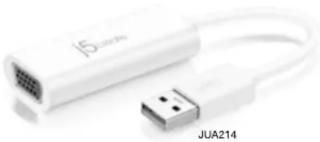
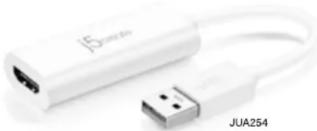
TECHNICAL SUPPORT
Customer Service : 888-988-0488
Technical Support : 888-689-4088
Email : Service@j5create.com
Live Chat : www.j5create.com/livechat
Online support : tickets.j5create.com


A B
C D


EN :
A. Extended Mode
B. Mirror Mode
C. Primary Mode
D. Display Rotation*
*Not supported on a Mac
ES :
A. Modo extendido
B. Modo de espejo
C. Modo primario
D. Rotación de la pantalla*
*No es compatible con un Mac
English
Windows Driver Installation
Driver will automatically install on
Windows 10 / 8.1 / 7
(Plug & Play requires internet access)
Step 1

Step 2

Step 3
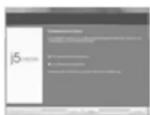
Step 1. Download the latest driver from www.j5create.com under Support & Services – scroll down to the product's driver you are installing and download the latest driver for your operating system.
(Note: If possible run as an administrator)
Step 2. Follow the prompts to install the driver. (You may have to click on My Computer > Downloads and choose j5UsbDisplayAdapter to begin installation).
Step 3. Once the driver has been installed choose "Yes" and click "Finish" to restart your computer and complete driver installation.
Once your computer has restarted, connect the j5create USB Display Adapter to your display first and then to your computer. Now you are ready to use your j5create USB Display Adapter!
Step 4. Display Settings
Right click on the icon 📄 on the lower right-hand side of the toolbar to open display settings. If your driver automatically installed, you will see a different icon 📋
Mac Driver Installation
Do NOT plug the j5create USB display adapter
into the computer until the driver
is completely installed
Please download the file from
www.j5create.com/support.html#JUA214 www.j5create.com/support.html#JUA254
Step 1

Step 2

Step 3
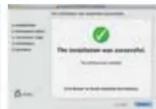
Step 1. Download the latest driver from www.j5create.com under Support & Services – scroll down to the product's driver you are installing and download the latest driver for your operating system. (Note: If possible run as an administrator)
Step 2. Choose the correct operating system for your system and follow the prompts to install the driver. (You may have to click on Finder > downloads and choose j5UsbDisplayAdapter to begin installation).
For v10.12 users: When the pop-up window appears click "Ok". Then go to Security and Privacy > General and click on "Open Anyway" to install the driver.
Step 3. Once initial installation has completed, click "Restart" to finish installing the software. After your computer has restarted, connect the j5create USB Display Adapter to your display first and then to your computer. Now you are ready to use your j5create USB Display Adapter!
Step 4. Display Settings
Go to ( 📄 ) and then System Preferences, choose the Display or Arrangement tab to adjust.
System Requirements
Microsoft Windows 10 / 8.1 / 8 / 7 (32-bit or 64-bit) Mac OS x 10.8 or later
Available USB 3.1 / 3.0 / 2.0 port
Minimum System Requirements
CPU : Intel 2 Dual Core 1.8 GHz / RAM : 2 GB
* MAC USB 2.0 for "office applications only" is recommended.
Driver will automatically install on Win 10 / 8.1 / 7
(Requires Internet access)
Marke : j5 create
Modell : JUA254
Kategorie : Netzwerkkarte / Adapter