Cloud Box S1 - Videorekorder Vimtag - Kostenlose Bedienungsanleitung
Finden Sie kostenlos die Bedienungsanleitung des Geräts Cloud Box S1 Vimtag als PDF.


Benutzerfragen zu Cloud Box S1 Vimtag
0 Frage zu diesem Gerät. Beantworten Sie die, die Sie kennen, oder stellen Sie Ihre eigene.
Eine neue Frage zu diesem Gerät stellen
Laden Sie die Anleitung für Ihr Videorekorder kostenlos im PDF-Format! Finden Sie Ihr Handbuch Cloud Box S1 - Vimtag und nehmen Sie Ihr elektronisches Gerät wieder in die Hand. Auf dieser Seite sind alle Dokumente veröffentlicht, die für die Verwendung Ihres Geräts notwendig sind. Cloud Box S1 von der Marke Vimtag.
BEDIENUNGSANLEITUNG Cloud Box S1 Vimtag
V1.1
Product Diagram
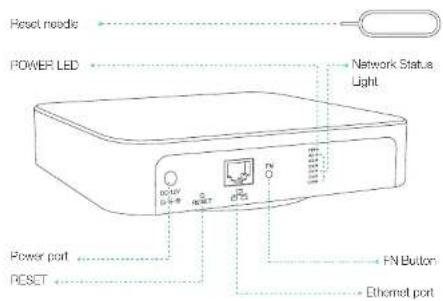
text_image
Reset needle POWER LED Network Status Light Power port RESET FN Button Ethernet portDescription Introduction
Reset needle For clicking the reset hole
POWER LED Red light shows normal power supply.
Network LED Different flash shows different device working states.
Power port 12V-5A external power
Ethernet port External WAN port
FN Button Reserved function keys
RESET Restart key, press it is when box working normal.
then box restarted, and back to factory setting.
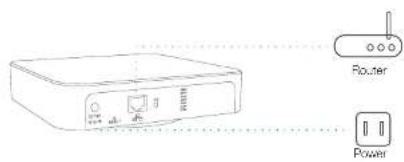
Connect Box
After cloud box connected to the ethernet and power, waiting for 50s, then the green light of network flash once every 3s. It shows cloud box connected successfully.
text_image
Router PowerBefore-operation introduction
① Cloud camera connection
First please make sure you have Vimlag brand cloud camera. And connect to be online.
② Add cloud box
Add the new cloud box to the registered account
Remarks: the website visit and app download address: www.vimtag.com
Camera configuration to cloud box
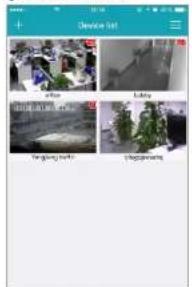
① Access the device list
text_image
Device list Office Library Promoting tools Promoting② Click the camera loon

text_image
Device List Before During Standing Marks Pre Slovenia Lacking⑤ Click 'enable' button
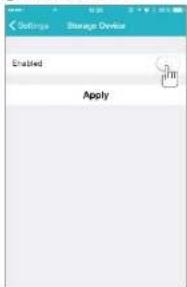
text_image
Settings Storage Device Enabled ApplyInput the S1's ID and password, click "Apply"
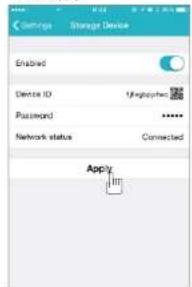
text_image
Settings Storage Device Enabled Device ID 1.9+<|vision_start|> Password ****** Network status Connected ApplyRecording Play-back
① Access device 1st ,click St Icon
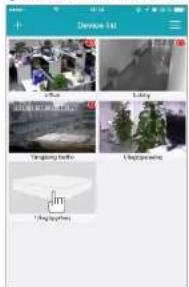
text_image
Device list Office Building Designing Tools Display Options② Choose the relative camera