Toughball 2 - Tastatur Accuratus - Kostenlose Bedienungsanleitung
Finden Sie kostenlos die Bedienungsanleitung des Geräts Toughball 2 Accuratus als PDF.


Benutzerfragen zu Toughball 2 Accuratus
0 Frage zu diesem Gerät. Beantworten Sie die, die Sie kennen, oder stellen Sie Ihre eigene.
Eine neue Frage zu diesem Gerät stellen
Laden Sie die Anleitung für Ihr Tastatur kostenlos im PDF-Format! Finden Sie Ihr Handbuch Toughball 2 - Accuratus und nehmen Sie Ihr elektronisches Gerät wieder in die Hand. Auf dieser Seite sind alle Dokumente veröffentlicht, die für die Verwendung Ihres Geräts notwendig sind. Toughball 2 von der Marke Accuratus.
BEDIENUNGSANLEITUNG Toughball 2 Accuratus
Hot Keys
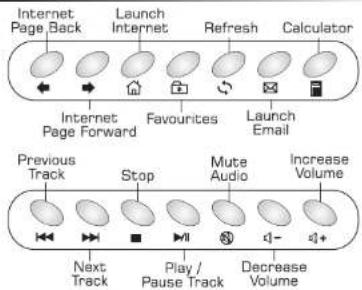
flowchart
graph TD
    A["Internet Page Back"] --> B["Launch"]
    B --> C["Internet"]
    C --> D["Refresh"]
    D --> E["Calculator"]
    F["Internet Page Forward"] --> G["Favourites"]
    G --> H["Launch Email"]
    I["Previous Track"] --> J["Stop"]
    J --> K["Mute Audio"]
    K --> L["Increase Volume"]
    M["Next Track"] --> N["Play / Pause Track"]
    N --> O["Decrease Volume"]
Troubleshooting
The chances of your new keyboard being faulty are very rare. In virtually all cases the problems occur during the set-up period. It should be noted that the supplied batteries could have been in storage for some time and may be low on charge. You should consider these as start-up batteries and we recommend you purchase new good quality batteries as soon as possible.
On the keyboard you will notice there is no separate number keypad, certain keys are dual layered. If you get numbers instead of letters on some keys please press the Num Lock key to switch between them.
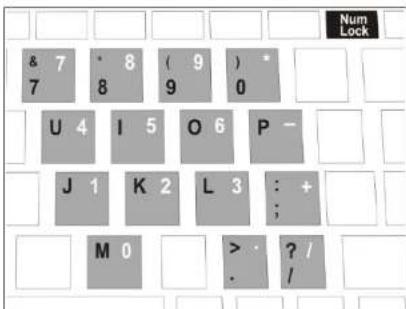
text_image
& 7 * 8 ( 9 ) * 7 8 9 0 U 4 I 5 O 6 P - J 1 K 2 L 3 : + ; M 0 > ? / / . /You will also notice there is a blue FN key, this is similar to some laptops. Press and hold this in with some of the other blue keys (excluding the number pad ones as above) to access their function. For example FN with F2 lets you use F12 as printed on the key in blue. Use this method with F1,F2,↑,↓,←,→ keys
Troubleshooting...continued
If your Toughball 2 keyboard is not working, please check the following:
- Check the condition or replace the batteries as necessary, then try reconnecting the device.
- Consider your receiver as the antenna on a radio. If the antenna is obstructed it may cause problems. Move the receiver to a new position or in worst cases add a USB extension lead to bring it out from the PC.
- Ensure that the receiver isn't next to a power source. In some cases the USB ports on your PC will be close to the computers power supply. This power can affect reception. Should this be the case then use a suitable USB extension lead.
- Make sure you have connected the USB wireless receiver correctly to a USB socket on the computer.
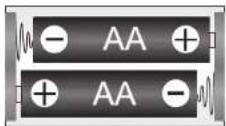
- Ensure you have inserted the two AA batteries with the correct polarity in the battery compartment.
- If you are using more than two units and the two units interfere with each other, please reset the ID.
- If in use and the keyboard / trackball stops working, press a mouse button or any key on the keyboard and the Toughball 2 should wake up and start to work. The Toughball 2 goes into sleep mode after around 8 minutes of not being used to save battery power.
Additional Information
- No drivers are needed for the Toughball 2 keyboard to operate. The Toughball 2 keyboard is 'plug and play' and designed to operate with Microsoft Windows 98SE, ME, 2000, XP, VISTA, 7 and 8.
- The Toughball 2 should work with Linux and Mac operating systems, but the Hot Keys may not work.
- The Hot Keys on the Toughball 2 cannot be programmed with different commands.
Technical Support
If you have gone through the troubleshooting section in this user manual and are still experiencing problems please contact your IT dealer or contact our support department via email or telephone:
Email: support@ceratech.co.uk
Telephone: 01420 81847 Monday-Thursday, 9am-5pm) (Friday, 9am-4pm)

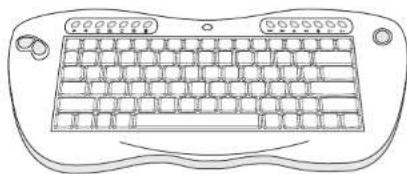
2.4GHz Wireless Multimedia Keyboard with Optical Trackball
natural_image
Line drawing of a computer keyboard with no text or symbolsUser Manual

ACCURATUS® BY CERATECH
www.accuratus.co.uk
Introduction
Thank you for purchasing this ACCURATUS Toughball 2 2.4GHz wireless keyboard.
The ACCURATUS brand has been available in Europe since 1993. The name ACCURATUS (AK-UR-ARTUS) is Latin for 'With Care Precise - Exact'.
This proud addition to your desk will allow you to work without having untidy trailing wires. A lot of care has been put into your Toughball 2 keyboard, right down to the special rubberised paint finish which gives a great tactile feel and excellent durability.
From this special coating to its pin sharp optical trackball, the Toughball is a thing of beauty. Hook the Toughball up to a media / home cinema PC with a large LCD screen and be staggered at it's wireless range. Use it with media centre and realise it works from all corners of the room or simply use it as a solid workhorse in the office. Either way the Toughball 2 will not disappoint.
Box Contents
- Toughball Keyboard
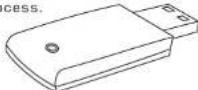
- USB Wireless Receiver (USB DONGLE)
- 2 x AA Batteries
- User Manual
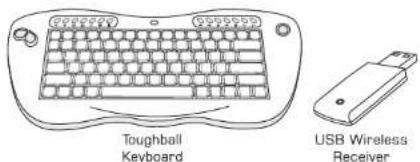
text_image
Toughball Keyboard USB Wireless ReceiverSpecification
- Soft rubberised coating
- 2.4GHz radio frequency
- Operating distance up to 15 metres
- Integrated 800dpi optical trackball
- Inbuilt scroll wheel
- Multimedia and internet hot keys
- Low battery indicator
- Requires 2 x AA batteries - Included
- Dimensions: (L x W x H) 344 x 162 x 47.5 mm
- Weight: 600g
Installation
-
Turn on the computer.
-
Plug the USB wireless receiver into an empty USB port on your computer. Allow for the PC to recognise the 'adding new hardware' process.
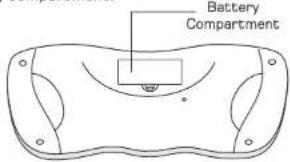
- On the underside of the Toughball 2, open the battery compartment.
text_image
Battery Compartment-2-
Installation...continued
- Insert the 2 x AA batteries (supplied) making sure that they follow the correct polarity - shown below.
- The Toughball 2 keyboard should now be working. If it does not, you may need to Reset the ID. Please refer to the bottom of this sheet to Reset the ID.
Battery Disposal
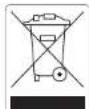
Please be aware that due to EU regulations, disposal of used batteries have to be disposed of following the WEEE directive.
They should not be placed in household waste refuse/recycling bin. They should be taken to your local amenities refuse centre.
Resetting the ID
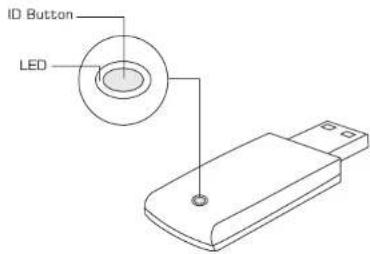
- Press the and release ID button on the USB wireless receiver, (Please note it has to be plugged into the computer's USB port) The LED will flash to show that it is searching for the Toughball keyboard. This will only flash for 15 seconds.
text_image
ID Button LEDContinued on next page...
-3-
Resetting the ID...continued
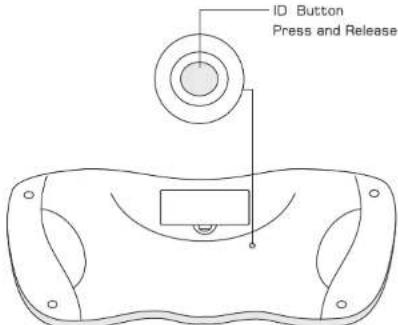
- Press and release the ID button within 15 seconds on the Toughball 2 keyboard. When the keyboard has connected with the USB wireless receiver, the LED on the USB wireless receiver will stop flashing.
text_image
ID Button Press and Release- You have now successfully reset the ID and the Toughball 2 should be working, move the trackball to check. If it doesn't move please follow this ID resetting process again.
Toughball Buttons / Features
text_image
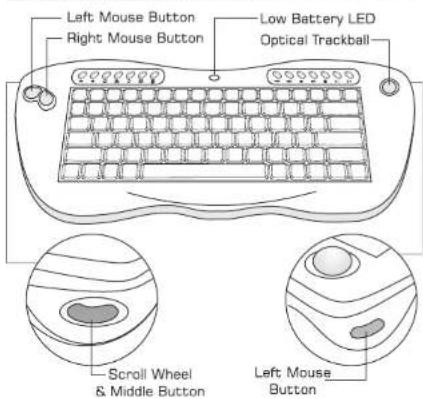
Left Mouse Button Right Mouse Button Low Battery LED Optical Trackball Scroll Wheel & Middle Button Left Mouse Button-4-