
Warrior - Computermaus Tracer - Kostenlose Bedienungsanleitung
Finden Sie kostenlos die Bedienungsanleitung des Geräts Warrior Tracer als PDF.


| Produkttyp | Funkmaus (optisch) |
| Modell | Warrior |
| Marke | Tracer |
| Anschluss | Bluetooth |
| Sensor | Optisch |
| Stromversorgung | 2 × AAA-Alkalibatterien |
| Batterielebensdauer | Energiesparmodus; schaltet nach 8 Sekunden Inaktivität in den Schlafmodus |
| Abmessungen | Ca. 10 × 6 × 3 cm (geschätzt) |
| Gewicht | Ca. 80 g (mit Batterien) |
| Reichweite | Bis zu 10 m (Bluetooth-Klasse 2) |
| Tasten | 2 Maustasten + Scrollrad |
| Kompatible Betriebssysteme | Windows, macOS (mit Bluetooth-Adapter) |
| Besondere Merkmale | Energiesparfunktion, einfache Bluetooth-Pairing |
| Lieferumfang | Maus, Bedienungsanleitung |
| Garantie | 2 Jahre (Herstellergarantie) |
| Farbe | Schwarz (typisch) |
| Zertifizierungen | CE, RoHS |
Häufig gestellte Fragen - Warrior Tracer
Benutzerfragen zu Warrior Tracer
0 Frage zu diesem Gerät. Beantworten Sie die, die Sie kennen, oder stellen Sie Ihre eigene.
Eine neue Frage zu diesem Gerät stellen
Laden Sie die Anleitung für Ihr Computermaus kostenlos im PDF-Format! Finden Sie Ihr Handbuch Warrior - Tracer und nehmen Sie Ihr elektronisches Gerät wieder in die Hand. Auf dieser Seite sind alle Dokumente veröffentlicht, die für die Verwendung Ihres Geräts notwendig sind. Warrior von der Marke Tracer.
BEDIENUNGSANLEITUNG Warrior Tracer
Bezprzewodowa mysz optyczna BIUetootH WARRIOR
Instrukcja obsługi
wireless BIUetootH optical moUse WARRIOR
User manual
UWAGA:
przed zainstalowaniem urządzenia prosimy przeczytać instrukcję obsługi.
Wymiana baterii
Mysz optyczna Warrior zasilana jest dwiema bateriami alkalicznymi typu AAA.
Kolejność czynności podczas wymiany baterii:
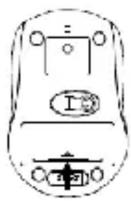
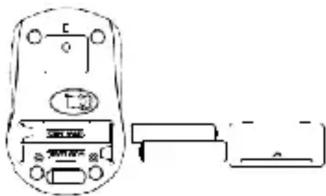
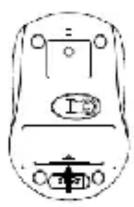
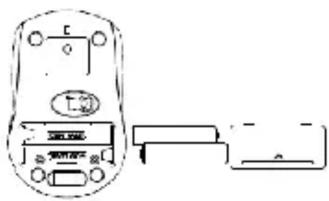
Krok 1: otwórz pokrywę komory baterii.
Krok 2: do komory baterii włóż dwie baterie typu AAA zgodnie z rysunkiem zamieszczonym poniżej.
Krok 3: zamknij pokrywę komory baterii.
natural_image
Pure electrical circuit lines without any symbolsInstalacja myszy
Krok 1: sprawdź działanie odbiornika Bluetooth w komputerze lub notebooku. Jeżeli w komputerze lub notebooku dostępny jest odbiornik Bluetooth, na pasku zadań wyświetli się ikona aplikacji.
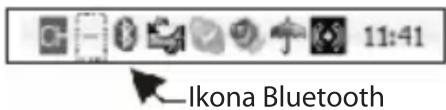
Jeżeli w komputerze lub notebooku nie jest dostępny odbiornik Bluetooth, na pasku zadań nie wyświetli się ikona aplikacji.
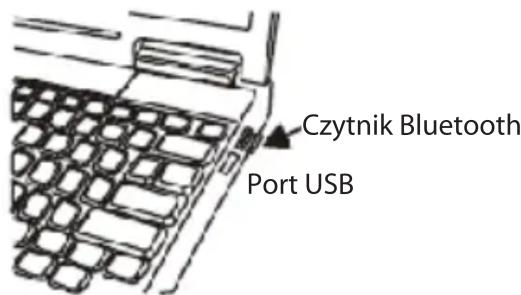
Konieczne może być podłączenie czytnika Bluetooth do portu USB komputera lub notebooka.
Krok 2: kiedy na pasku zadań komputera lub notebooka pojawi się ikona Bluetooth, możesz rozpocząć instalację myszy. Wykonaj poniższe czynności.
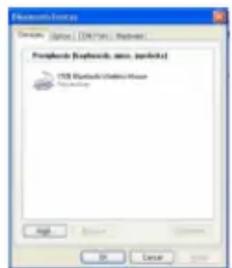
Kliknij dwukrotnie ikonę Bluetooth, aby wyświetlić listę.
Kliknij „Dodaj urządzenie”
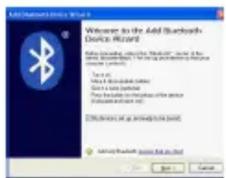
W tym kroku wybierz opcję i kliknij „Dalej”
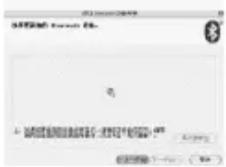
Po pojawieniu się tego okna wciśnij przycisk połączenia na spodzie myszy
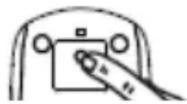
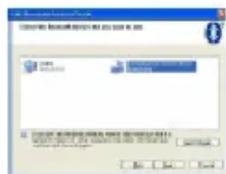
Przez kilka sekund trwać będzie wyszukiwanie, a następnie wyświetlone zostanie okno, w którym należy wybrać jedną ze znalezionych opcji i nacisnąć „Dalej”
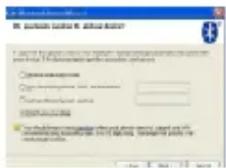
W kolejnym oknie wybierz „Bez hasła” i naciśnij „Dalej”.
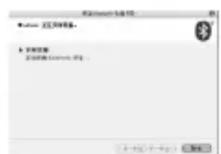
System zakończy instalację automatycznie, co należy potwierdzić przyciskiem „Zakończ”.
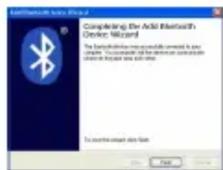
Instalacja urządzenia Bluetooth została zakończona. Urządzenie jest dostępne i gotowe do pracy.
Tryb energooszczędny
Mysz może pracować w trybie energooszczędnym. W celu ograniczenia zużycia energii dioda LED myszy wyłącza się automatycznie, kiedy mysz nie jest używana. Warunkiem jest jednak wcześniejsze wyłączenie odbiornika w notebooku lub komputerze. Jeżeli w ciągu 8 sekund nie zostanie wciśnięty żaden przycisk, a mysz i kółko nie będą używane, urządzenie przełączone zostanie w tryb uśpienia. Aby przywrócić normalny tryb pracy, obróć kółko lub wciśnij dowolny przycisk.
ENGLISH
CAUTION:
To use this device properly, please read the user's guide before installation.
Installing the Batteries
The Warrior Optical mouse use two AAA alkaline batteries.
Battery Installation Procedure Of Mouse
Step 1: Open the battery cover.
Step 2: Insert two AAA batteries into the battery compartment as picture below.
Step 3: Close the battery cover.
natural_image
Pure electrical circuit lines without any symbolsInstalling the mouse
Step 1: Check the bluetooth receiver on your PC or notebook system.
If your PC or notebook has this bluetooth receiver, the setup applet's icon will appear on the windows taskbar.
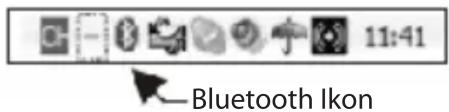
If your PC or notebook has no this bluetooth receiver, the setup applet's icon will not appear on the windows taskbar. Maybe you need insert a new bluetooth dongle to your PC or notebook USB port for use.
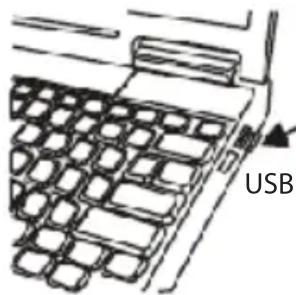
Bluetooth dongle
USB Port
Step 2: When your PC or notebook had appear the bluetooth icon on the windows taskbar, you will can install your bluetooth mouse to your PC or notebook. Following the next guide.
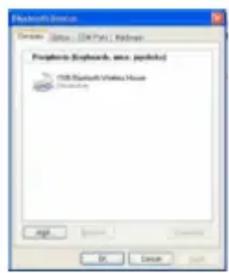
Double click the bluetooth icon, and you will find the list show on your displayer.
You will only need click the icon "add device".
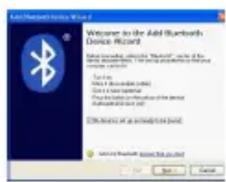
Power-Save function
This mouse is equipped with Traveling-Power-Save function. When you are traveling with this mouse, the LED of the mouse will be switched off automatically for the purpose of power-save, but the pre-condition is that the receiver is disconnected with your notebook or PC. When your mouse no any click or scroll or moving, the mouse will come to sleep state for the economize after about 8 seconds, for the wake up, you can scroll the wheel or click any button for this.
Marke : Tracer
Modell : Warrior
Kategorie : Computermaus