P774A - Tablet HKC - Kostenlose Bedienungsanleitung
Finden Sie kostenlos die Bedienungsanleitung des Geräts P774A HKC als PDF.


Benutzerfragen zu P774A HKC
0 Frage zu diesem Gerät. Beantworten Sie die, die Sie kennen, oder stellen Sie Ihre eigene.
Eine neue Frage zu diesem Gerät stellen
Laden Sie die Anleitung für Ihr Tablet kostenlos im PDF-Format! Finden Sie Ihr Handbuch P774A - HKC und nehmen Sie Ihr elektronisches Gerät wieder in die Hand. Auf dieser Seite sind alle Dokumente veröffentlicht, die für die Verwendung Ihres Geräts notwendig sind. P774A von der Marke HKC.
BEDIENUNGSANLEITUNG P774A HKC
HKC
INSTRUCTION MANUAL
P774A
7" Capacitive Multi-Touch Tablet
text_image
HKC Touch the wonderful worldDual-Core Processor
HKC brings you the latest in Android™ technology, giving you the performance you want at an affordable price. The crystal clear 7" capacitive touch screen is great for watching movies, reading books, surfing the web, video conferencing online and more. With Google Play you can take advantage of more than 700,000 apps and games, as well as the world's largest collection of eBooks, millions of songs, thousands of movies, TV shows and magazines. Designed to enhance your entertainment experience at home or on the go and with multiple colors to choose from, you can enjoy your technology in style! Welcome to HKC...
HKC notes:
- Please backup your data in case your important data is lost, especially before you upgrade the firmware. HKC will not be responsible for any loss of data.
- Do not disassemble.
- Do not wipe the surface of the unit by alcohol, thinner or benzene.
- Do not disconnect the unit while it is formatting or uploading/downloading, or the procedures may lead to errors
Note: The pictures list in the manual are for reference only.
Operating Instructions
Power on / Power off:
Power on: Press and hold the power button for 5 seconds, the unit displays the start-up logo and enters the working mode.
Power off: Press and hold the power switch for 3 seconds to turn the tablet off.
Sleep: While the device is on, press the power button, it will enter the sleeping mode, and the screen will turn off. Press the button again, and it will shift to the on status. You may use this function when you don't' use the device temporarily to save power.
Charging:
When the device prompts a low battery status, please charge it by the provided AC Adaptor.
Note:
To improve the longevity of the battery, you may charge for another 15 minutes after it prompts the battery is full.
Appearance and Buttons
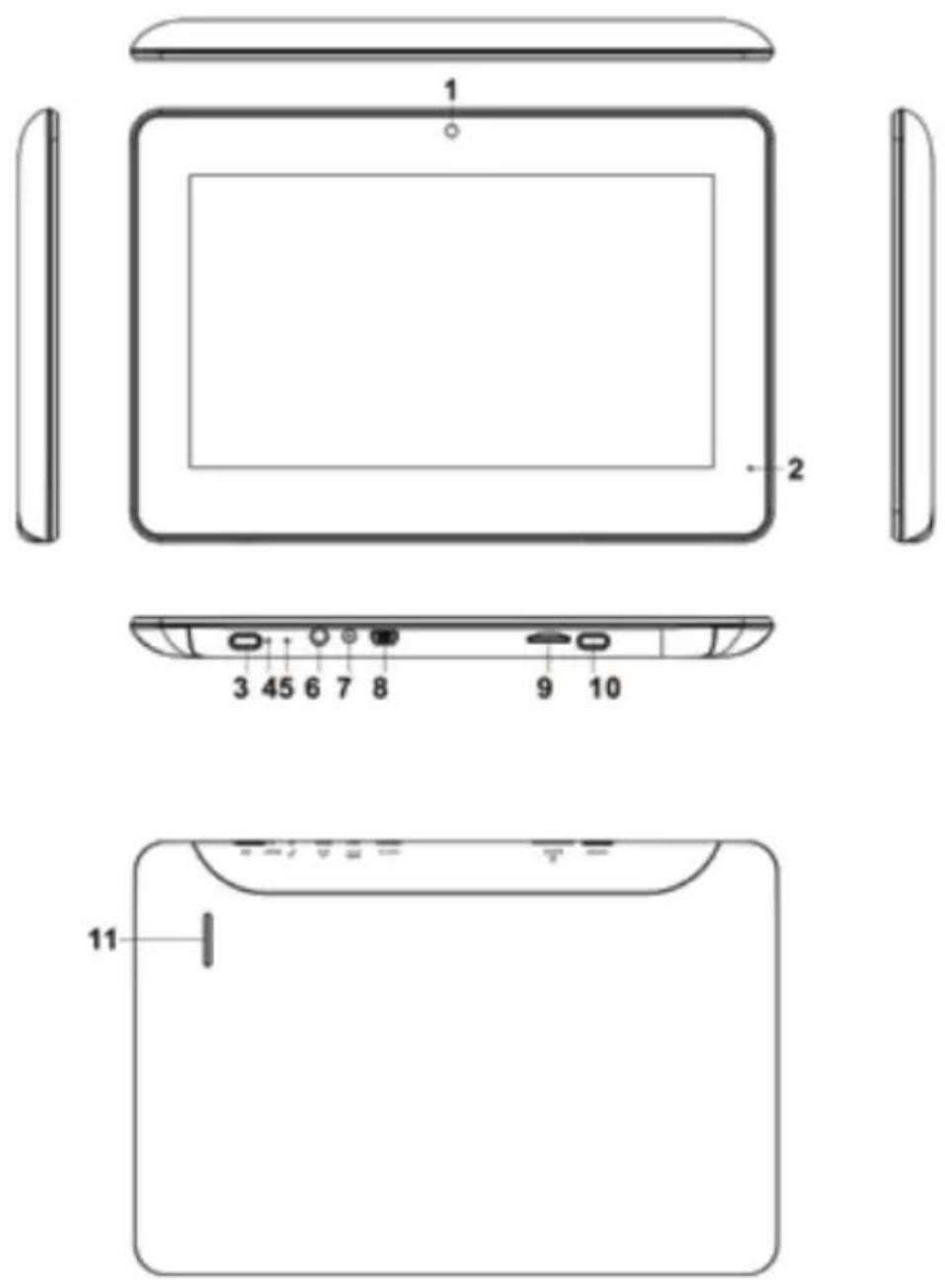
- Front Camera
- Indicator
- Home
- Reset
- Microphone
-
3.5mm port
-
Charging port
- MINI USB interface
- Micro SD card slot
- Power on/off
- Speaker
Main menu
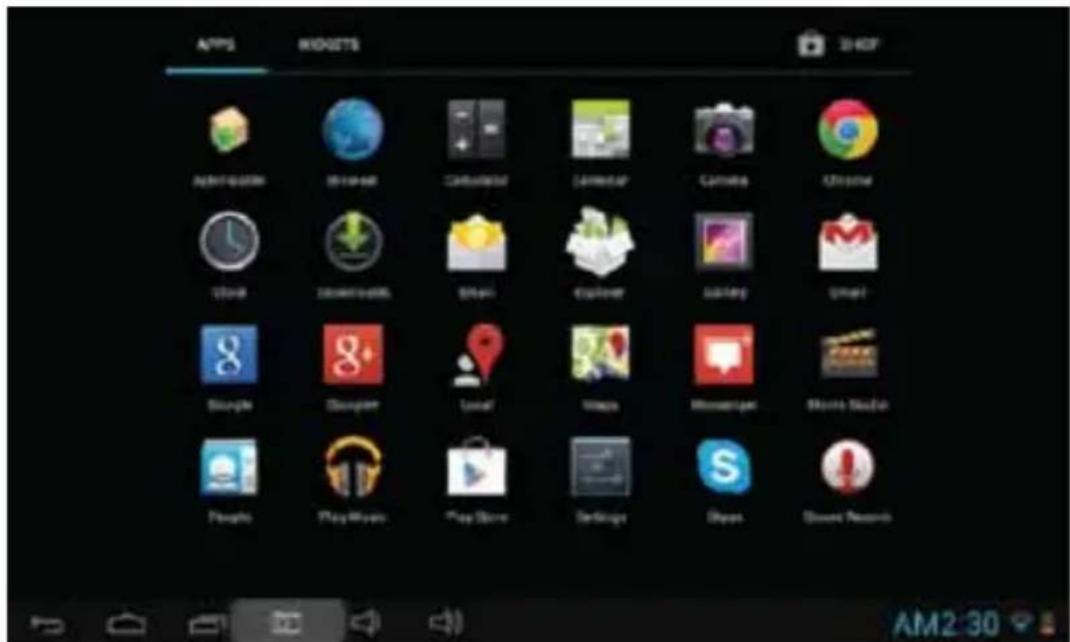
Click the 📄 icon in the main menu interface, to view the main menu. Here you will be able to see all the system settings, music playback, video playback, web browser and any other applications you have installed on the tablet.
Settings
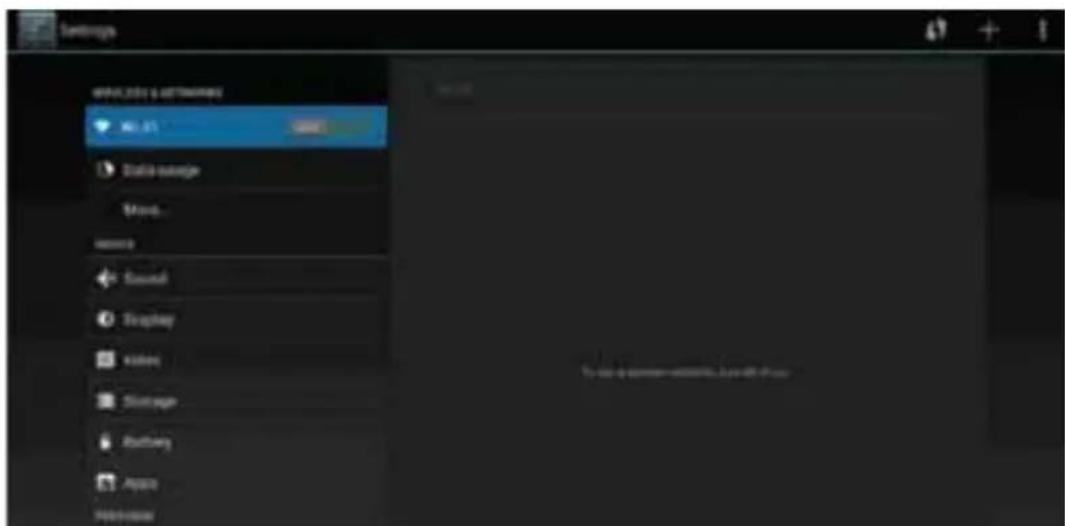
Click the icon in the main menu interface to enter the settings interface. Click the corresponding settings item to operate.
text_image
Settings MAX: 251.00000000 Static mode Stand... Audio Sound Display Video Discharge Ruthing Audio PerformanceDate and Time Settings
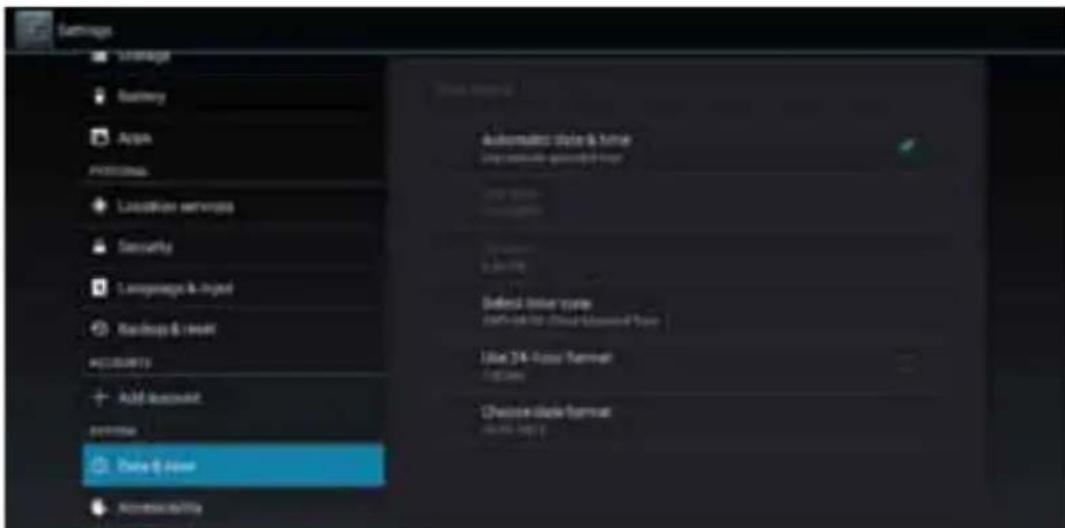
Click "Date & Time" in the setting interface to set the date and time on your tablet. You may set the date, time zone, time, time format and date format etc. in the menu.
text_image
Auto Automotive Style & Interior Play available - designed crop Auto Auto Auto Auto Auto Auto Auto Auto Auto Auto Auto Auto Auto Auto Auto Auto Auto Auto Auto Auto Auto Auto Auto Auto Auto Auto Auto Auto Auto Auto Auto Auto Auto Auto Auto Auto Auto Auto Auto Auto Auto Auto Auto Auto Auto Auto Auto Auto Auto Auto AUTO & Auto OptionsBrightness
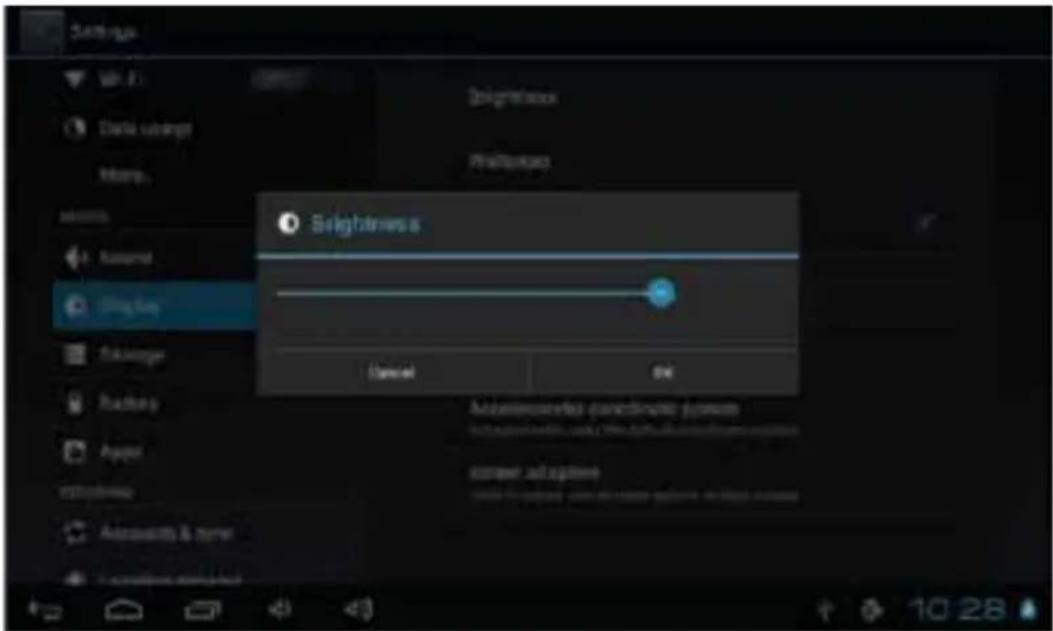
Select "Display" in the settings interface. Click "Brightness" to enter, and slide the bar to adjust the brightness on the tablet.
text_image
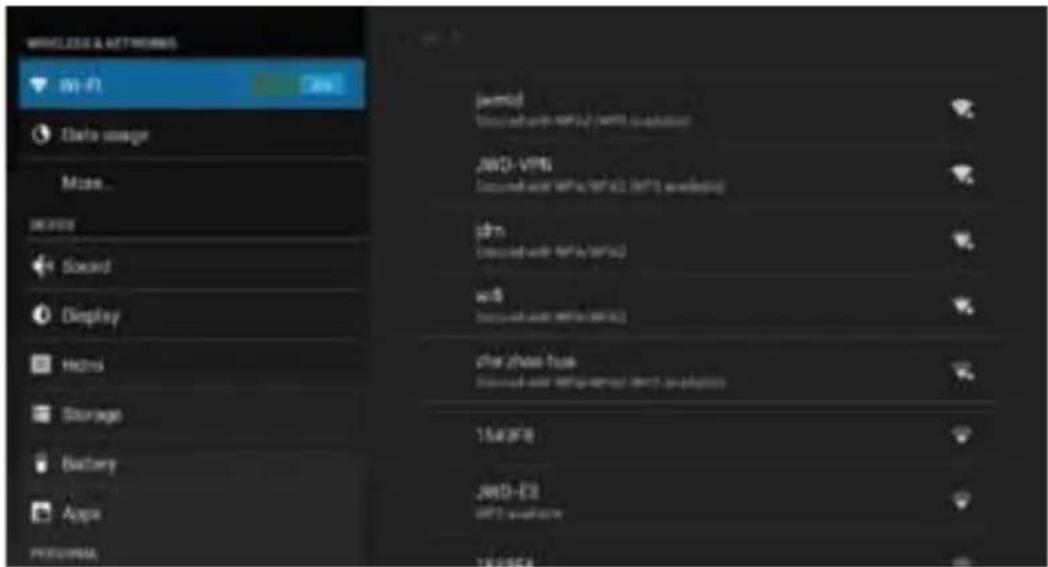
Settings Data ubcings Intemp. Brightness Brightness Frequency Brightness Frequency Frequency Frequency Frequency Frequency Frequency Frequency Frequency Frequency Frequency Frequency Frequency Frequency Frequency Frequency Frequency Frequency Frequency Frequency Frequency Frequency Frequency Frequency Frequency Frequency Frequency Frequency Frequency Frequency Frequency Frequency Frequency Frequency Frequency Frequency Frequency Frequency Frequency Frequency Frequency Frequency Frequency Frequency Frequency Frequency Frequency Frequency Frequency Frequency Frequency Frequencies Frequencies Frequencies Frequencies Frequencies Frequencies Frequencies Frequencies Frequencies Frequencies Frequencies Frequencies Frequencies Frequencies Frequencies Frequencies Frequencies Frequencies Frequencies Frequencies Frequencies Frequencies Frequencies Frequencies Frequencies Frequencies Frequencies Frequencies Frequencies Frequencies Frequencies Frequencies Frequencies FrequenciesClick "Settings" in the main interface and click "Wireless & Networks" to enter the wireless and network settings interface. Click Wi-Fi to turn on the WIFI. Click Wi-Fi settings to set and manage wireless access on the tablet.
text_image
WINGLESS & NETWORKS Wi-Fi Data usage Misc... Sound Display Hours Storage Battery Apps Professional JwMD-VFM JwMD-VFM (with wireless) idm JwMD-VFM (with wireless) win other phone use 15436 JwMD-E3 dFT 200000 15436Click "Network Notification", it lists the open networks available. Click the name of the network; and it will show the setting window. You may connect to WIFI according to the prompts. You need to input the user name and password if networks are encrypted.
Application Installation
Install
There are many ways to install applications under Android, such as via USB, by third party programs and via Google Play.
Click the "Explorer" or "Apk installer" in the main menu interface. Select the APK file you want and enter the application installation interface. Click "Install" to install the application automatically. After installation, it prompts "Open" and "Finish". Click "Open" to open the application. Click "Finish" to exit.
Uninstall
You may use the corresponding third party software management tool or the installed application management software of the device to install applications. Select "Setting/Applications/Manage applications" to select the installed applications and check the attribute of it or uninstall it.
Audio and video playback
Audio playback
Click the "Play Music" in the main menu to enter the audio playback interface. It lists the audio files in the device and you may click the file name to play it. In the audio playing interface, click the icons to play/pause/increase volume/decrease volume/FF/REW....
text_image
APPS MROSETS SHOP App Store Bri dish Carbohydr Coffee Camera Chrome Cloud Downloading Snap Explorer Snacking Smart Google Disgout Local Video Messenger Myers Audio Play Music Play Store Desktops Dyneo Smart Records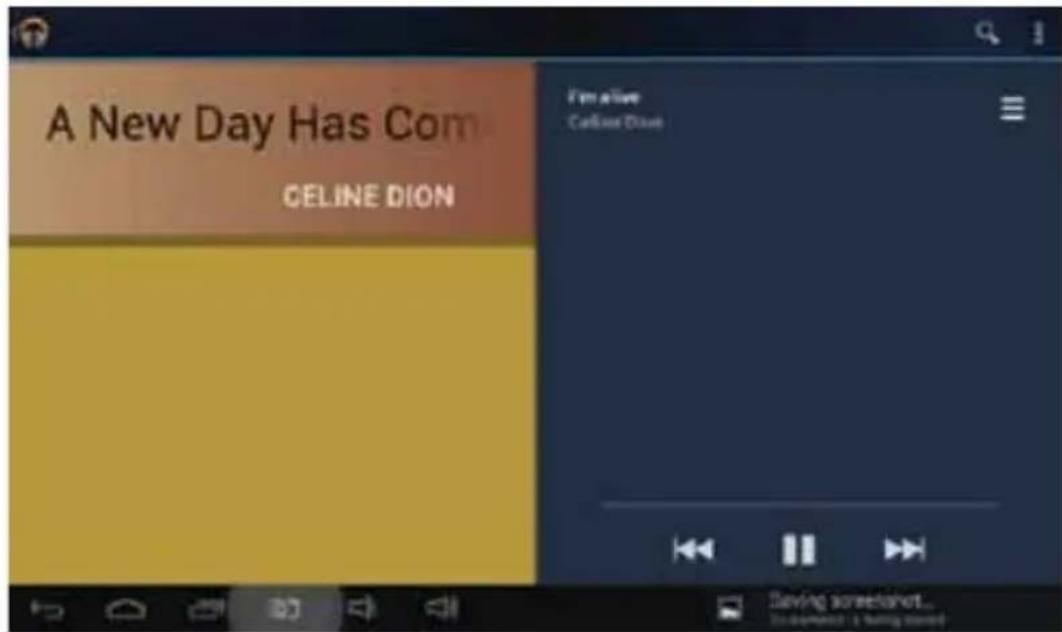
text_image
A New Day Has Com CELINE DION I'm alive CELINE DION Saving screenshot...Video Playback
Click the "Video" icon in the main menu to enter the video playback interface. It lists the video files in the device, and you may click the file name to play it. In the video playing interface, touch the screen to pop-up the operation icons and click the icons to play/pause/increase volume/decrease volume/skip to next file/skip to previous file....

natural_image
Night sky with a large moon and silhouetted trees, no text or symbols visiblePicture viewing
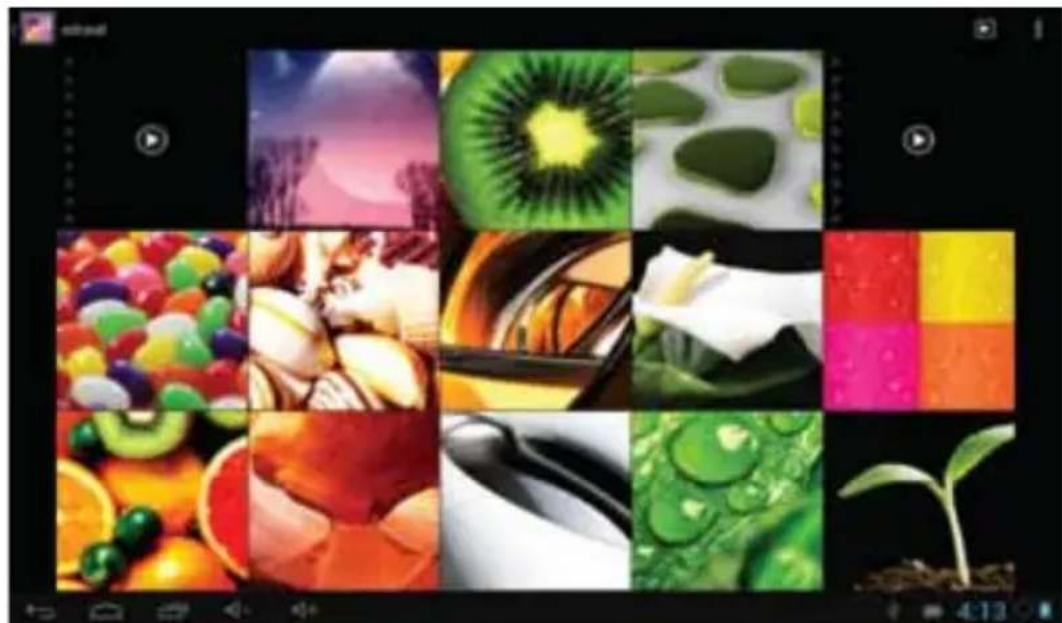
Click "Gallery" in the main menu to enter the picture folder list. Select and click the folder you want to enter. Touch the screen to pop-up the operation icons while viewing the picture, you may zoom in/zoom out/ skip to next picture/skip to previous picture/ rotate/ delete the picture...
natural_image
Grid of 12 colorful and textured images including fruits, vegetables, and a plant, displayed in a play button (no text or symbols)
natural_image
Close-up of fresh fruits including orange slices, kiwi, and a red-gang against dark background (no text or symbols)Camera
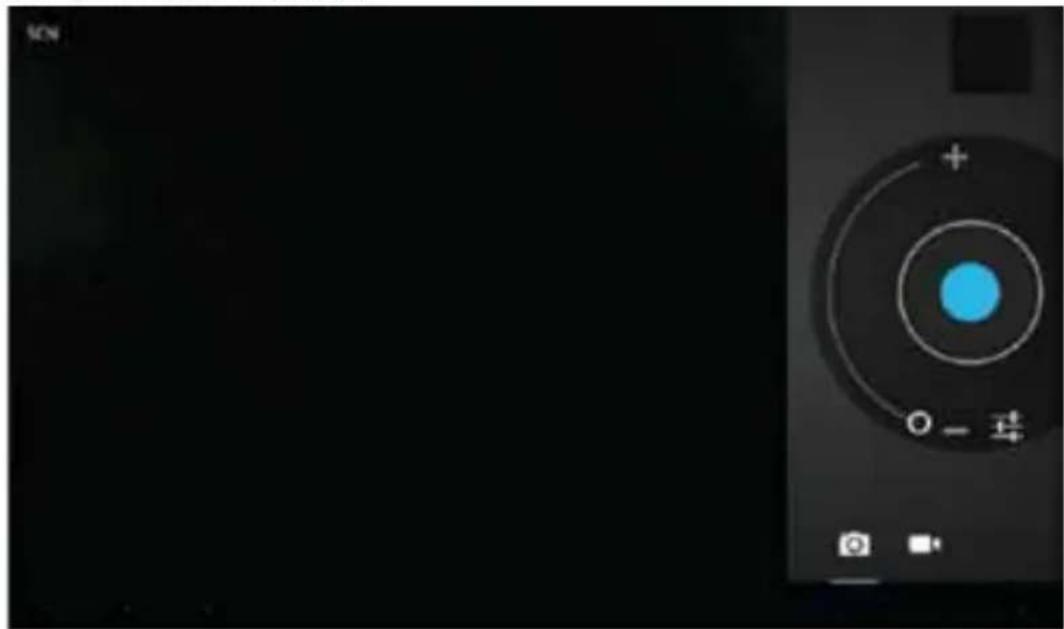
Click "Camera" in the main interface.
natural_image
Close-up of a camera lens with concentric rings and a blue center, no visible text or symbolsIf the cursor is at the position, the device is at Camera mode.
Click to take picture.
Click 📁 to set the scene mode, picture size, picture quality, and color effect.
Click to set white balance.
Click 📄 to select the camera.
Video recording
If the cursor is at position, the device is in recording mode.
Click to take record.
Click 📋 to set the color effect or restore to default settings.
Connect with external device
Connect with PC
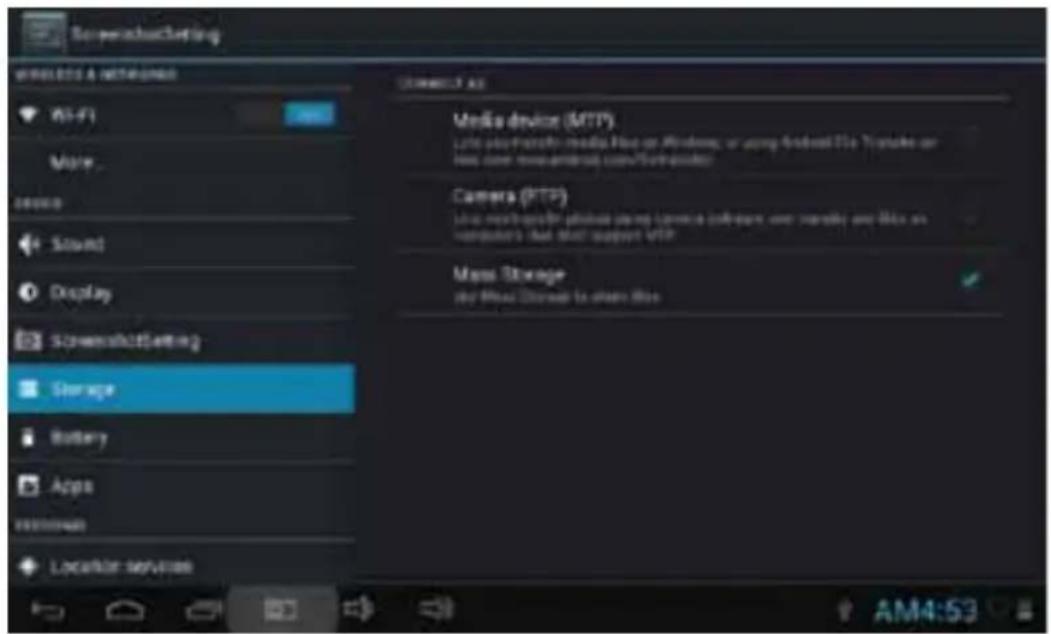
Click "Settings" in the main interface and click "Storage", Click on the upper right corner to enter the storage settings setting interface. Click Mass Storage Options.
text_image
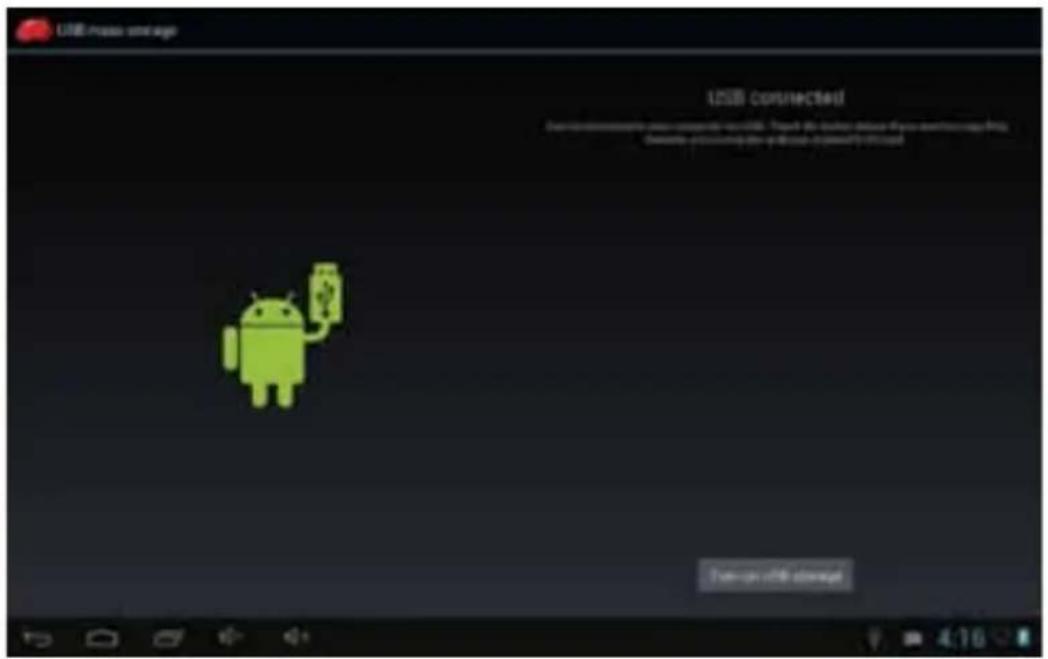
SerenobusSetting WIRELESS A NETWORKS MS-F1 More... Sound Display SerenobusSetting Storage Battery Apps Termination Locator services Connect to AS Media device (MTP) Life platform: media files on Windows, or using Android File Tools or Web content. www.muware.com/Serverwriter Camera (MTP) Life platform: video using camera software, or separately and less on computer's chat and support MTP Mass Storage by Blue Storage to share less AM4:53Connect the device with the PC via the USB cable. The PC appears two new disk symbols after connected successfully. One is the TF card, and the other is the built-in flash.
text_image
USB press setup USB connected! Save up with storageHost function
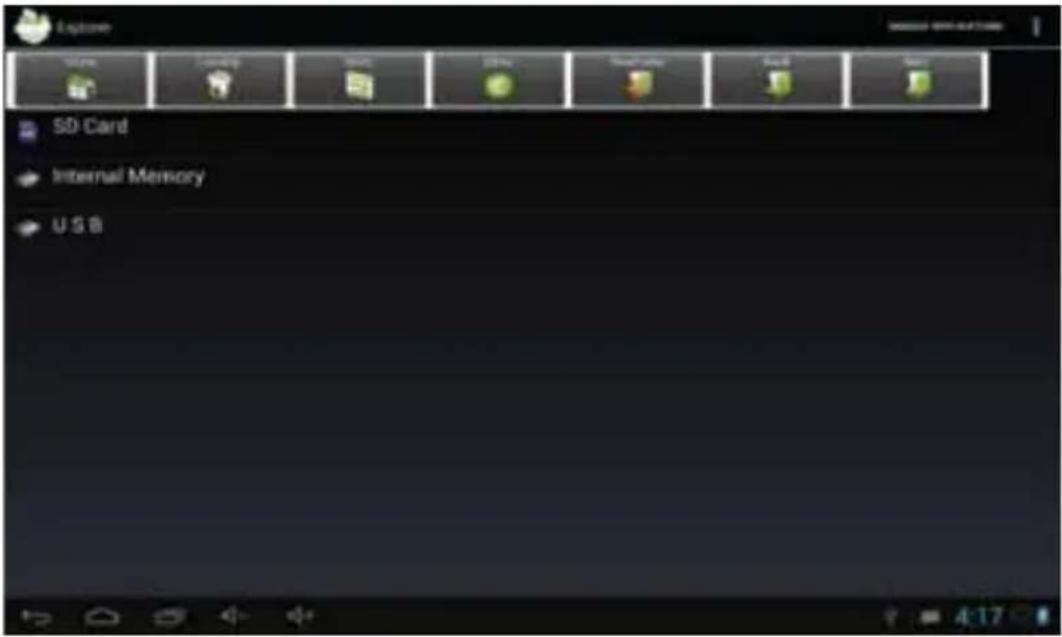
It supports the movable device with FAT32 format, such as U disk and MP3. Connect the movable device to the tablet.
text_image
Explore SD Card Internal Memory USBApplications
For convenient usage, some third party applications are pre-installed on the tablet. For detailed operation methods, please check the corresponding instruction. Some of the software may have usage limitations based on network service.
System update
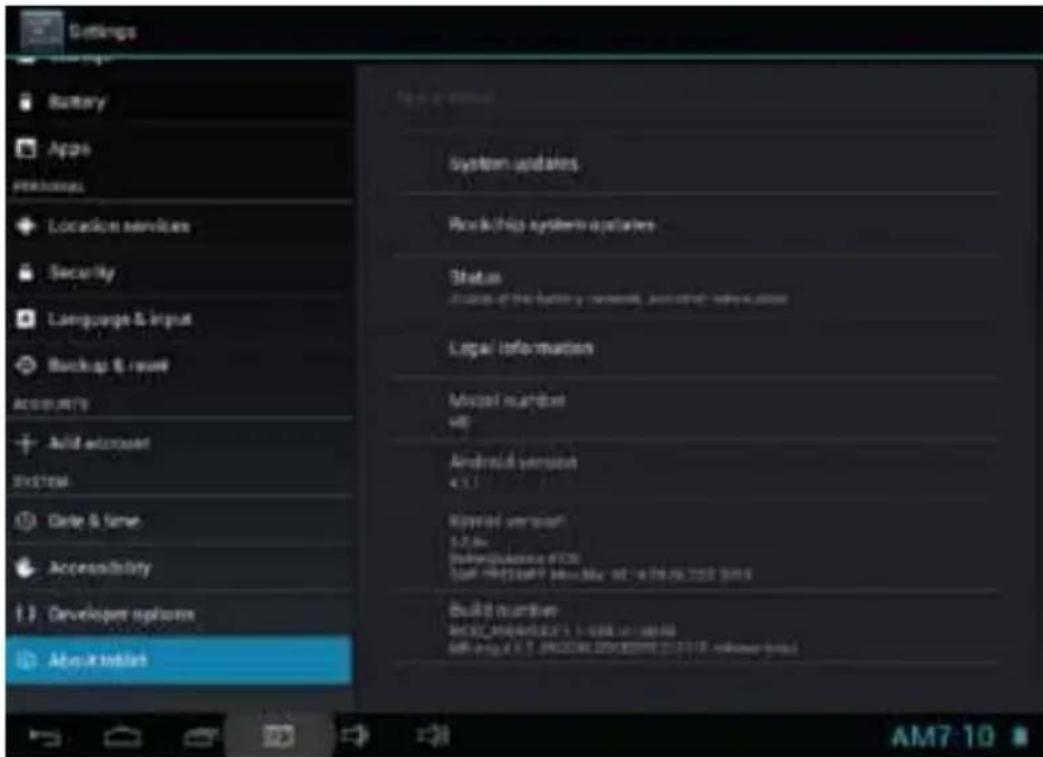
Click "Settings" in the main menu interface and click "About tablet", click the 'System updates' setting interface.
text_image
Settings Battery Apps Personal Location services Security Language & input Backup & reset Accessories Add account System Date & time Accessibility Developer updates About tablets System updates Book chips system updates Status Access of the battery components, not other than access Legal Information Model number 46 Android version 4.5.1 Approved version 0.2.00 Inflow/Quotation FCS Self-Print/Stack-May-on-Net-PC 2003 Build Version AM7-10 AM7-10 AM7-10 AM7-10 AM7-10 AM7-10 AM7-10 AM7-10 AM7-10 AM7-10 AM7-10 AM7-10 AM7-10 AM7-10 AM7-10 AM7-10 AM7-10 AM7-10 AM7-10 AM7-10 AM7-10 Build Version AM7-10 AM7-10 AM7-10 AM7-10 AM7-10 AM7-10 AM7-10 AM7-10 AM7-10 AM7-10 AM7-10 AM7-10 AM7-10 AM7-10 AM7-10 AM7-10 AM7-10 AM7-10 AM7-10Please refer to www.hkcdigital.com for update information
Troubleshooting
What if the device is abnormal during operation?
- Reboot the device to see if it works OK.
- Charge the device by the AC adapter to activate the battery. Make sure it has power before you operate it.
Why the standby time is so short sometimes?
The use time of the battery depends on the temperature and use. If the temperature is too high or too low, the use time of the battery might be effected. It is suggested to use the device in normal temperature conditions. The use time is also affected by increased volume and frequent operation.
How to update the software on your device:
Please visit www.hkcdigital.com and follow the directions on the site.
Please contact HKC customer service at 888-999-1683
Office hours:
Monday through Friday 8:30 AM to 5:30 PM pacific standard time.
For repair please e-mail: warranty@hkcdigital.com to get an RMA (Return Merchandise authorization) # and ship to LTI Computer, Inc. @ 398 Lemon Creek Dr. Suite L, Walnut CA 91789.
REGISTER YOUR TABLET
Keep your tablet up to date with the latest software updates and release from HKC by registering your tablet. Please visit www.hkcdigital.com or mail the following info to HKC to register your tablet;
- Name
• E-mail - Address
• Product Purchased - Model Purchased
• Where was it Purchased - Date Purchased
- Serial #
• Proof of Purchase
Mail to:
HKC Digital USA, INC. (attn: registration)
17921 Rowland Street, City Of Industry, CA 91748
HKC Limited Warranty – Tablets
This HKC branded Product and delivered new in the original carton to the original purchaser is warranted by HKC against manufacturing defects in materials and workmanship for a limited warranty period of Ninety (90) Days for Labor and One (1) Year Hardware. However, there will only be a 90 day hardware and labor limited warranty for commercial use. HKC is not responsible for Software defects. Please refer to your Owner's Manual for Software Provider contact information.
This Limited Warranty does not apply to store display products and product sold as a "marked down" special, in "as is" condition, "close outs", "liquidation and clearance sales", 'open box' products missing accessories, no fault found or damaged at time of delivery to HKC's authorized service center listed below.
Proof of purchase in the form of a Bill of Sale, Receipt or Receipted Invoice is evidence the Product is within the limited warranty period. The Bill of Sale, Receipt or Receipted Invoice must be presented as a pre-condition to obtaining the limited warranty service.
This limited warranty begins on the original date of purchase, and is valid only on Products This limited warranty covers manufacturing defects in materials and workmanship encountered in normal, and except to the extent otherwise expressly provided for in this statement, noncommercial use of this product, and shall not apply to the following, including, but not limited to: Damage which occurs in shipment; delivery and installation; applications and uses for which this product was not intended; altered product or serial numbers; cosmetic damage or exterior finish; accidents, abuse, neglect, fire, water, lightning or other acts of nature; use of products, equipment, systems, utilities, services, hardware, supplies, accessories, applications, installations, repairs, external wiring or connectors not supplied or authorized by HKC which damage this Product or result in service problems; incorrect electrical line voltage, fluctuations and surges; customer adjustments and failure to follow operating instructions, cleaning, maintenance and environmental instructions that are covered and prescribed in the instruction book; reception problems and distortion related to noise, echo, interference or other signal transmission and delivery problems; burned-in images. HKC does not warrant uninterrupted or error-free operation of the product.
THERE ARE NO EXPRESS OR IMPLIED WARRANTIES OTHER THAN THOSE LISTED AND DESCRIBED ABOVE, AND NO WARRANTIES WHETHER EXPRESS OR IMPLIED, INCLUDING, BUT NOT LIMITED TO, ANY IMPLIED WARRANTIES OF MERCHANTABILITY OR FITNESS FOR A PARTICULAR PURPOSE, SHALL APPLY AFTER THE EXPRESS WARRANTY PERIODS STATED ABOVE, AND NO OTHER EXPRESS WARRANTY OR GUARANTY GIVEN BY ANY PERSON, FIRM OR CORPORATION WITH RESPECT TO THIS PRODUCT SHALL BE BINDING ON HKC. REPAIR OR REPLACEMENT AS PROVIDED UNDER THIS LIMITED WARRANTY IS THE EXCLUSIVE REMEDY OF THE CONSUMER. HKC SHALL NOT BE LIABLE FOR ANY INCIDENTAL, OR CONSEQUENTIAL DAMAGES FOR BREACH OF ANY EXPRESS OR IMPLIED WARRANTY ON THIS PRODUCT; EXCEPT TO THE EXTENT PROHIBITED BY APPLICABLE LAW, ANY IMPLIED WARRANTY OF MERCHANTABILITY OR FITNESS FOR A PARTICULAR PURPOSE ON THIS
PRODUCT IS LIMITED FOR THE DURATION OF THIS LIMITED WARRANTY. THIS LIMITED WARRANTY SHALL NOT EXTEND TO ANYONE OTHER THAN THE ORIGINAL PURCHASER OF THIS PRODUCT, IS NONTRANSFERABLE AND STATES YOUR EXCLUSIVE REMEDY.
Some states do not allow limitations on how long an implied warranty lasts, or the exclusion or limitation of incidental or consequential damages, so the above limitations or exclusions may not apply to you. This warranty gives you specific legal rights, and you may also have other rights which vary from state to state. Any provision contained herein which is found contrary to state or local laws shall be deemed null and void and the remaining provisions shall continue in full force and effect.
To obtain warranty service, please contact LTI Computer, Inc.at:888-999-1683
This HKC branded Product and delivered new in the original carton to the original purchaser is warranted by HKC against manufacturing defects in materials and workmanship for a limited warranty period of Ninety (90) Days for Labor and One (1) Year Hardware. However, there will only be a 90 day hardware and labor limited warranty for commercial use. HKC is not responsible for Software defects. Please refer to your Owner's Manual for Software Provider contact information.
This Limited Warranty does not apply to store display products and product sold as a "marked down" special, in "as is" condition, "close outs", "liquidation and clearance sales", 'open box' products missing accessories, no fault found or damaged at time of delivery to HKC's authorized service center listed below.
Proof of purchase in the form of a Bill of Sale, Receipt or Receipted Invoice is evidence the Product is within the limited warranty period. The
Bill of Sale, Receipt or Receipted Invoice must be presented as a pre-condition to obtaining the limited warranty service.
This limited warranty begins on the original date of purchase, and is valid only on Products purchased through HKC authorized dealers and used in the United States, Canada, and Puerto Rico by the original purchaser. To receive warranty service, the purchaser must contact HKC for problem determination and service procedures. Warranty service may only be performed by HKC's authorized service center. The original dated bill of sale, receipt or receipted invoice must be presented upon request as proof of purchase.
HKC's service center listed below will repair your Product or if repairs cannot be made, HKC will replace this Product at no charge with the same or similar Product. If the Product is defective as specified in this limited warranty during the limited warranty period, HKC may use new or remanufactured hardware or products to repair or replace the Product with a similar Product at its sole discretion. All replaced hardware and Products become the property of HKC and must be returned to HKC. Replacement hardware and Products assume the remaining original limited warranty, or ninety (90) days, whichever is longer.
Product freight must be prepaid by original purchaser and shipped in either its original packaging or packaging affording an equal degree of protection. HKC shall not be responsible for or obligated to replace damaged goods.
If the product is received damaged by HKC's service center, it is the responsibility of the consumer to file a claim against the carrier. HKC's service center will only store the damaged product for 30 days and reserves the right, in its sole discretion, to dispose of the damaged product or ship it back to the consumer at consumer's expense after 30 days.
This limited warranty covers manufacturing defects in materials and workmanship encountered in normal, and except to the extent otherwise expressly provided for in this statement, noncommercial use of this product, and shall not apply to the following, including, but not limited to: Damage which occurs in shipment; delivery and installation; applications and uses for which this product was not intended; altered product or serial numbers; cosmetic damage or exterior finish; accidents, abuse, neglect, fire, water, lightning or other acts of nature; use of products, equipment, systems, utilities, services, hardware, supplies, accessories, applications, installations, repairs, external wiring or connectors not supplied or authorized by HKC which damage this Product or result in service problems; incorrect electrical line voltage, fluctuations and surges; customer adjustments and failure to follow operating instructions, cleaning, maintenance and environmental instructions that are covered and prescribed in the instruction book; reception problems and distortion related to noise, echo, interference or other signal transmission and delivery problems; burned-in images. HKC does not warrant uninterrupted or error-free operation of the product.
THERE ARE NO EXPRESS OR IMPLIED WARRANTIES OTHER THAN THOSE LISTED AND DESCRIBED ABOVE, AND NO WARRANTIES WHETHER EXPRESS OR IMPLIED, INCLUDING, BUT NOT LIMITED TO, ANY IMPLIED WARRANTIES OF MERCHANTABILITY OR FITNESS FOR A PARTICULAR PURPOSE, SHALL APPLY AFTER THE EXPRESS WARRANTY PERIODS STATED ABOVE, AND NO OTHER EXPRESS WARRANTY OR GUARANTY GIVEN BY ANY PERSON, FIRM OR CORPORATION WITH RESPECT TO THIS PRODUCT SHALL BE BINDING ON HKC. REPAIR OR REPLACEMENT AS PROVIDED UNDER THIS LIMITED WARRANTY IS THE EXCLUSIVE REMEDY OF THE CONSUMER. HKC SHALL NOT BE LIABLE FOR ANY INCIDENTAL, OR CONSEQUENTIAL DAMAGES FOR BREACH OF ANY EXPRESS OR IMPLIED WARRANTY ON THIS PRODUCT; EXCEPT TO THE EXTENT PROHIBITED BY APPLICABLE LAW, ANY IMPLIED WARRANTY OF MERCHANTABILITY OR FITNESS FOR A PARTICULAR PURPOSE ON THIS PRODUCT IS LIMITED FOR THE DURATION OF THIS LIMITED WARRANTY. THIS LIMITED WARRANTY SHALL NOT EXTEND TO ANYONE OTHER THAN THE ORIGINAL PURCHASER OF THIS PRODUCT, IS NONTRANSFERABLE AND STATES YOUR EXCLUSIVE REMEDY.
Some states do not allow limitations on how long an implied warranty lasts, or the exclusion or limitation of incidental or consequential damages, so the above limitations or exclusions may not apply to you. This warranty gives you specific legal rights, and you may also have other rights which vary from state to state. Any provision contained herein which is found contrary to state or local laws shall be deemed null and void and the remaining provisions shall continue in full force and effect. To obtain warranty service, please contact: LTI Computer, Inc. @ 888-999-1683