4040 - Zahlungsterminal HID Identity - Kostenlose Bedienungsanleitung
Finden Sie kostenlos die Bedienungsanleitung des Geräts 4040 HID Identity als PDF.


Benutzerfragen zu 4040 HID Identity
0 Frage zu diesem Gerät. Beantworten Sie die, die Sie kennen, oder stellen Sie Ihre eigene.
Eine neue Frage zu diesem Gerät stellen
Laden Sie die Anleitung für Ihr Zahlungsterminal kostenlos im PDF-Format! Finden Sie Ihr Handbuch 4040 - HID Identity und nehmen Sie Ihr elektronisches Gerät wieder in die Hand. Auf dieser Seite sind alle Dokumente veröffentlicht, die für die Verwendung Ihres Geräts notwendig sind. 4040 von der Marke HID Identity.
BEDIENUNGSANLEITUNG 4040 HID Identity
USER GUIDE
3121-905-ENEN, Rev A.4
February 2012
© 2008 - 2012 HID Global Corporation. All rights reserved.
This guide describes the HID OMNIKEY® Smart Card Reader installation. Reference your driver documentation (readme) for a list of supported windows versions.
Three types of installation exist:
• Unattended (preferred installation)
• Automatic (internet connection required)
- Manual
Unattended
The Unattended installation is the preferred method. Unattended installation files are found at www.hidglobal.com/omnikey.
Optionally, obtain these files from an installation CD (if available).
- To download the latest HID OMNIKEY Unattended setup drivers, go to: www.hidglobal.com/omnikey, and select Driver Downloads.
- Select your OMNIKEY product and operating system.
- From the list, select the Unattended Setup Installer and confirm the license agreement.
- Double-click the executable file and follow the instructions displayed in the setup window.
Note: In addition, download API drivers. The SYNC-API is often required for applications with memory or contactless (HID iCLASS) cards. While the CT-API is often required for PinPad reader use (electronic signature applications), as well as health care applications.
In standard installations, installing these APIs is suggested.
CAUTION:
- For driver installation local administration rights may be required.
-
Do not plug-in the OMNIKEY reader into your computer until setup is complete.
-
Execute the Unattended Setup.EXE file and follow the Install Wizard instructions.
Note: For uninstalling the OMNIKEY drivers, restart the setup or (from the control panel) use Add/Remove Programs.
- After finishing the installation, plug-in your reader to the port (USB, ExpressCard, or PCMCIA).
- Windows automatically detects and installs the new hardware connected to the port (USB, ExpressCard, or PCMCIA).
Proceed to the OMNIKEY Workbench section for testing and installation.
Automatic
Ensure your computer has an online connection to the Internet.
- Connect the reader to the computer port (USB, ExpressCard, or PCMCIA).
- Windows detects the new hardware connected to the port (USB, ExpressCard, or PCMCIA) and requests the drivers.
- After the Windows Hardware Wizard opens. Windows requests to connect to Windows Update to search for software, click Yes, this time only.
- The OMNIKEY reader automatically is recognized and the appropriate driver installed through Windows Update.
The OMNIKEY reader is ready for use.
Note:
If your OMNIKEY reader is CCID compliant, use a native Windows CCID driver to operate the reader. However the native driver does not allow you to utilize the readers advanced features and functions.
Proceed to the OMNIKEY Workbench section for testing the installation.
Manual
For manual driver installation, local administration rights may be required.
Original OMNIKEY drivers must be locally available on your computer (for example, after internet download or from a CD).
- To download the latest OMNIKEY drivers, go to: http://www.hidglobal.com/omnikey, and select Driver Downloads.
- Select your OMNIKEY product and operating system.
-
From the list, select the driver for download and confirm the license agreement.
Note: In addition, download API drivers. The SYNC-API is often required for applications with memory or contactless cards (HID iCLASS). While the CT-API is often required for PinPad reader use (electronic signature applications), as well as health care applications.
In standard installations, installing these APIs is suggested. -
After downloading the self-extracting file, execute the file to extract the drivers to the local hard drive (default path c:\HID Global).
Note: Drivers have not yet been installed.
-
Select the driver location, click Next.
-
Once the drivers are stored on the computer, connect the OMNIKEY reader to the port (USB, ExpressCard, or PCMCIA) and start the installation process. When the Windows Hardware Wizard requests for the driver, select Install from a list or specific location.
- Check Include this location in search and specify the location where the drivers are stored (for example: C:\HID Global\5x21_V1.2.9.2). Click Next. When installation is complete, click Finished.
Note: If using unsigned BETA drivers, choose the Don't search, I will choose the driver to install radio button.
After finishing the installation your OMNIKEY Smart Card Reader is ready for use.
Installation Check
Ensure your device is recognized and listed in the Windows Device Manager dialog, for example OMNIKEY 5x21, in the Smart Card Reader section.
Note: If you are using an OMNIKEY reader with a native CCID driver, the reader is listed as a CCID compliant device.
- Open Windows Explorer. Click Start > Programs > Accessories > Click Windows Explorer.
- Open the Device Manager. Right-click Computer > Properties > click Device Manager.
- Expand the Smart card readers and ensure the OMNIKEY reader is found.
Proceed to the OMNIKEY Workbench section for testing the installation.
Release Notes
When installing with Unattended or Manual options, the readme, and Driver Release Notes are installed by default at C:\Program Files\HID Global\HID OMNIKEY Workbench.
OMNIKEY Workbench
- Download the latest OMNIKEY OMNIKEY Workbench, by going to: http://www.hidglobal.com/omnikey. Select Driver Downloads.
- Select your OMNIKEY product and operating system. Choose to download the OMNIKEY Workbench and confirm the license agreement. When download is complete, click Run.
Note: The OMNIKEY Workbench only works with OMNIKEY readers. Older drivers uses a Diagnostic tool which is available from the control panel.
Start the OMNIKEY Workbench from the program shortcut. Go to Start > Programs > HID Global > OMNIKEY Workbench.
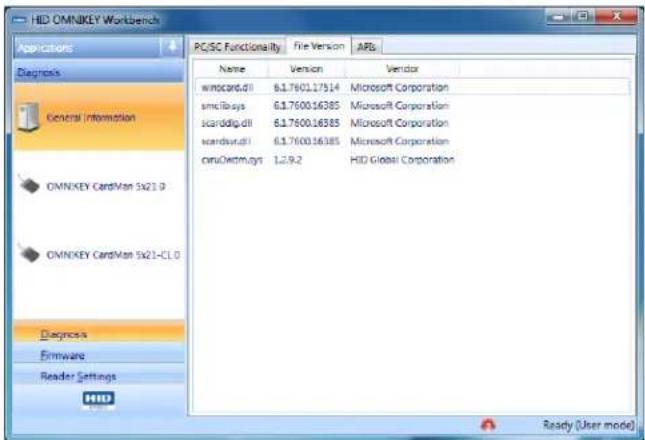
OMNIKEY Workbench provides various applications. On startup the Diagnosis application shows the General Settings view with different tabs for smart card reader service status. Also shown is the driver file and API DLL information.
text_image
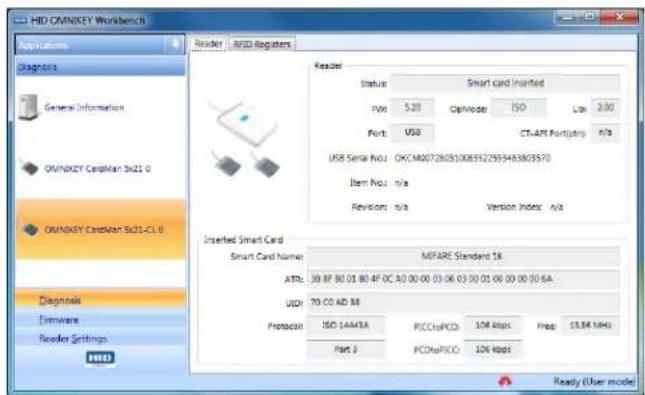
HID OMNIKEY Workbench Applications Diagnosis General Information OMNIXEY CardMan 5x21.0 OMNIXEY CardMan 5x21-CL.0 Diagnosis Emmware Reader Settings PC/SC Functionality File Version APG Name Version Vendor wmocard.dll 61.7601.17514 Microsoft Corporation smcibays 61.7600.16385 Microsoft Corporation scarddig.dll 61.7600.16385 Microsoft Corporation scardini.dll 61.7600.16385 Microsoft Corporation cpuOwstm.nys 1,2,9,2 HID Global Corporation Ready (User mode)The Diagnosis application also lists all connected OMNIKEY smart card reader details (per the available contact and contactless interface).
text_image
HID OMNIKEY Workbench Applications Reader AFID Registers Reader Status Smart card inserted FMs 5.20 Optimize ISO Lock 2.00 Port: USB CT-APT Port(ptry) F/B USB Serial No: OKCM007280310083122959483809370 Item No: n/a Revision: n/a Version Index: A/A Inserted Smart Card Smart Card Name: MFARE Standard 1K ATRs: 39 BF 80 01 80 4F OC A0 00 00 03 06 03 00 01 06 00 00 00 6A UDR: 70 CO AD M Protocols ISO 14M13A PCClsPCCD 10K kbps Pres 15.5K MHz Part 3 PCOnePCCD 10K kbps Ready (User mode) Diagnosis Eirmware Reader Settings FREEDFor a functional test, insert a working smart card into the reader. As a result, an ATR string and other card details display.
| North America15370 Barranca ParkwayIrvine, CA 92618USA | Asia Pacific19/F 625 King's RoadNorth Point, Island EastHong Kong | Europe, Middle East & AfricaPhoenix RoadHaverhill, Suffolk CB9 7AEEngland |
| www.hidglobal.comsupport.hidglobal.com | ||