
EL-6050 - Taschenrechner SHARP - Kostenlose Bedienungsanleitung
Finden Sie kostenlos die Bedienungsanleitung des Geräts EL-6050 SHARP als PDF.


| Produkttyp | Taschenrechner |
| Modell | EL-6050 |
| Marke | Sharp |
| Anzeige | 10-stelliges LCD |
| Zeichenhöhe | 15 mm |
| Stromversorgung | Batterie (LR54) und Solarzelle |
| Batterielebensdauer | ca. 2 Jahre (bei täglicher Nutzung) |
| Abmessungen (B x T x H) | 150 x 80 x 20 mm |
| Gewicht | 150 g |
| Farbe | Schwarz/Grau |
| Tastenanzahl | 30 |
| Grundrechenarten | Addition, Subtraktion, Multiplikation, Division |
| Prozentrechnung | Ja |
| Quadratwurzel | Ja |
| Speicher | Ein Speicher (M+/M-/MR) |
| Automatische Abschaltung | Nach ca. 7 Minuten |
| Betriebstemperatur | 0°C bis 40°C |
| Lagertemperatur | -20°C bis 60°C |
| Wartung | Mit leicht feuchtem Tuch reinigen, keine Lösungsmittel |
| Sicherheit | Vor Feuchtigkeit und direkter Sonneneinstrahlung schützen |
| Reparierbarkeit | Keine reparaturfähigen Teile im Inneren |
| Garantie | 2 Jahre (Standard) |
Häufig gestellte Fragen - EL-6050 SHARP
Benutzerfragen zu EL-6050 SHARP
0 Frage zu diesem Gerät. Beantworten Sie die, die Sie kennen, oder stellen Sie Ihre eigene.
Eine neue Frage zu diesem Gerät stellen
Laden Sie die Anleitung für Ihr Taschenrechner kostenlos im PDF-Format! Finden Sie Ihr Handbuch EL-6050 - SHARP und nehmen Sie Ihr elektronisches Gerät wieder in die Hand. Auf dieser Seite sind alle Dokumente veröffentlicht, die für die Verwendung Ihres Geräts notwendig sind. EL-6050 von der Marke SHARP.
BEDIENUNGSANLEITUNG EL-6050 SHARP
SHARP®
EL-6050
ELEKTRONISCHER ORGANIZER
BEDIENUNGSANLEITUNG
HINWEIS
SHARP empfiehlt dringend, separate dauerhafte schriftliche Aufzeichnungen aller wichtigen Daten zu führen. Daten können unter bestimmten Umständen in praktisch jedem elektronischen Speicherprodukt verloren gehen oder verändert werden. Daher übernimmt SHARP keine Verantwortung für Daten, die verloren gehen oder anderweitig unbrauchbar werden, sei es durch unsachgemäße Verwendung, Reparaturen, Defekte, Batteriewechsel, Nutzung nach Ablauf der angegebenen Batterielebensdauer oder aus anderen Gründen. SHARP übernimmt keine Verantwortung, weder direkt noch indirekt, für finanzielle Verluste oder Ansprüche Dritter, die sich aus der Verwendung dieses Produkts und seiner Funktionen, dem Verlust oder der Veränderung gespeicherter Daten usw. ergeben. Die in dieser Anleitung enthaltenen Informationen können ohne vorherige Ankündigung geändert werden.
VORSICHTSMASSNAHMEN
- Tragen Sie den Organizer nicht in der Gesäßtasche von Hosen oder Stoffhosen.
- Lassen Sie den Organizer nicht fallen und üben Sie keine übermäßige Kraft darauf aus.
- Setzen Sie den Organizer keinen extremen Temperaturen aus.
- Reinigen Sie ihn nur mit einem weichen, trockenen Tuch.
- Nutzen Sie nur eine von SHARP zugelassene Serviceeinrichtung.
Inhalt
Teilbezeichnungen ...... E2
Anzeigesymbole E3
Verwendung des Organizers zum ersten Mal E3
Bei Fehlfunktionen durch abnormale Bedingungen ... E4
Eingabe von Zeichen ...... E5
Korrekturen vornehmen E5
Telefonmodus E6
- Speichern von Telefonnummern ...... E6
- Abrufen von Telefonnummern ...... E8
- Bearbeiten von Telefonnummern ....E10
- Löschen von Telefonnummern .... E11
Rechnermodus E13
Währungs-/Einheitenumrechnung ...... E15
Speicherfunktion....E19
Geheimfunktion E20
- Passwortregistrierung E20
- Ein- und Ausschalten der Geheimfunktion ... E21
- Einstufung von Einträgen als geheim ...... E22
- Ändern geheimer Einträge in nicht geheim .... E23
- Ändern des Passworts ...... E24
- Löschen des Passworts und geheimer Einträge ..... E24
Austausch der Batterien E25
- Vorsichtsmaßnahmen E25
- Batteriewechsel E26
Technische Daten E27
Teilnamen
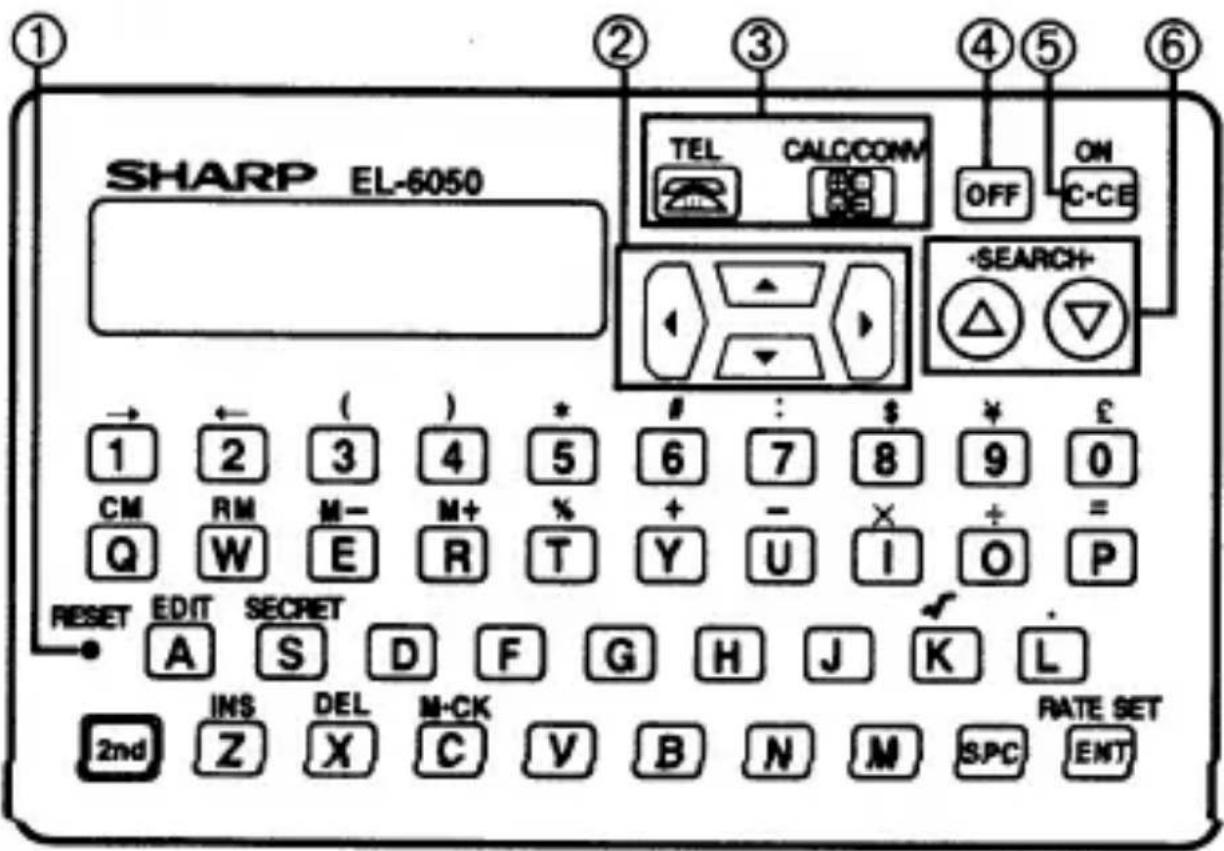
① RESET-Schalter ② Cursorbewegungstasten ③ MODE-Tasten ④ Power OFF-Taste ⑤ Power ON/Clear/Clear-Entry-Taste ⑥ SEARCH-Tasten
Für Tastenoperationen werden die folgenden Notationen verwendet.
![graph TD A["CM"] --> B["Q"] B --> C["CM : Clear memory"] B --> D["Q : Letter "Q""]](/content/2026/05/1035509/images/d8ea8d048596e86eb9ad393b0f642f382dd381aaade74eecca957e0ac465c01b.jpg)
![graph TD A["1"] --> B["2nd"] B --> C[": Symbol "→""] B --> D[": Number "1""]](/content/2026/05/1035509/images/fda2c44fa7c38c1347ce5fb671d195f6fc92d2891af2c45a5b7b64bd5d1d5a18.jpg)
E2
Die blauen Tasten werden durch Drücken von 2nd und der entsprechenden Taste betätigt.
Anzeigesymbole
■: Auf geheime Einträge kann zugegriffen werden.
←→ : Weitere Informationen sind in der durch das Symbol angegebenen Richtung vorhanden. (Drücken Sie ▶, ◀, ▲ oder ▼, um die Informationen anzuzeigen).
*: Zeigt an, dass der abgerufene Eintrag geheim ist.
2nd: Zeigt an, dass 2nd gedrückt wurde.
- In diesem Handbuch werden nur die für die Erklärung notwendigen Symbole gezeigt.
Verwendung des Organizers zum ersten Mal
Führen Sie vor der ersten Verwendung des Organizers unbedingt die folgenden Schritte aus.
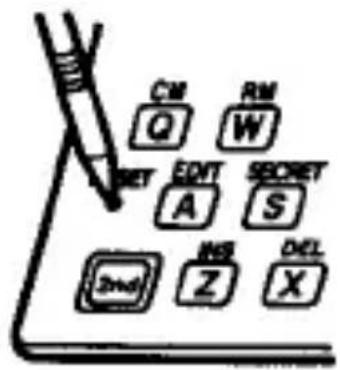
- Drücken Sie zweimal den RESET-Schalter.
- Drücken Sie den RESET-Schalter mit einem Kugelschreiber oder einem ähnlichen Gegenstand.
Verwenden Sie keinen Gegenstand mit einer zerbrechlichen oder scharfen Spitze.
2. Drücken Sie 2nd ENT.
• Die Eingabeaufforderung für den Telefonmodus erscheint, um einen Telefoneintrag einzugeben.
TEL1:NAME?
Bei Fehlfunktionen durch abnormale Bedingungen
Wenn der Organizer während des Gebrauchs starken externen elektrischen Störungen oder Stößen ausgesetzt ist, kann ein abnormaler Zustand auftreten, in dem keine Tasten (einschließlich ON C-CE) reagieren. Wenn dies geschieht, drücken Sie den RESET-Schalter auf der linken Seite.
Wenn ein interner Fehler auftritt, werden "DATA PROBLEM" und "PRESS RESET!" abwechselnd angezeigt. Löschen Sie alle Speicher, indem Sie die obigen Schritte ausführen.
Eingabe von Zeichen
1. Eingabe von Zahlen und Buchstaben
Drücken Sie die gewünschte Zahlen- oder Buchstabentaste.
2. Eingabe von Symbolen
Insgesamt können 10 Symbole eingegeben werden: →, ←, (, ), *, #, :, \$, ¥ und £. Um ein Symbol einzugeben, drücken Sie zuerst 2nd und dann die gewünschte Symboltaste.
Korrekturen vornehmen
Bewegen Sie den Cursor auf die zu korrigierende Zahl oder den zu korrigierenden Buchstaben. Geben Sie die richtige Zahl oder den richtigen Buchstaben ein, um die vorherige zu ersetzen.
Cursor
Der Cursor (_ oder ■) zeigt die Position für die Eingabe eines Zeichens oder einer Zahl an. Bewegen Sie den Cursor mit ▶◀ ▲ oder ▼.
- Einfügen von Zeichen
Jedes Mal, wenn Sie 2nd INS drücken, wird an der Cursorposition ein Leerzeichen eingefügt, um die Eingabe eines Zeichens zu ermöglichen.
- Löschen von Zeichen
Drücken Sie 2nd DEL, um das Zeichen an der Cursorposition zu löschen.
Telefonmodus
Das Telefonverzeichnis besteht aus zwei Dateien, TEL1 und TEL2. Drücken Sie TEL, um den Telefonmodus auszuwählen. Durch Drücken von TEL wechseln Sie abwechselnd zwischen TEL1 und TEL2.
Im Namensfeld können maximal 36 Zeichen eingegeben werden, im Zahlenfeld maximal 60 Zeichen. Zusätzlich können die Zeichen "F" und "C" für Fax bzw. Mobiltelefon eingegeben werden.
1. Speichern von Telefonnummern
Beispiel:
Geben Sie das folgende Beispiel in TEL1 ein. SMITH ROBERT, 012-345-6789, F 345-6790
- Drücken Sie TEL, um den Telefonmodus (TEL1) anzuzeigen.
TEL1:NAME?
- Geben Sie den Namen ein. SMITH SPC ROBERT
• MITH ROBERT
- Drücken Sie ☐ENT, um die Eingabe einer Telefonnummer zu ermöglichen.
NUMMER?
- Geben Sie die Telefonnummer ein.
012-345-6789
012-345-6789 + —
- Verwenden Sie ☑, um "-" einzugeben.
- Geben Sie die Faxnummer ein.
- Wenn die Anzahl der Ziffern einer Telefonnummer weniger als 12 beträgt, fügen Sie zusätzliche Leerzeichen ein, bis insgesamt 12 Ziffern erreicht sind, um den Telefonbucheintrag besser lesbar zu machen.
- Drücken Sie ENT.
Der Name und die Nummer werden kurz angezeigt, danach erscheint die Eingabeaufforderung für den nächsten Eintrag. Der Telefonbucheintrag ist nun gespeichert.
- Wenn der Speicher voll ist, wird "FULL! NOT IN" angezeigt und der Telefonbucheintrag kann nicht gespeichert werden. Drücken Sie in diesem Fall C-CE, um die Fehlermeldung zu löschen.
- Wenn Sie ein Symbol wie "(" oder "#" eingeben möchten, drücken Sie 2nd und die gewünschte Symboltaste.
- Wenn Pfeilsymbole wie →, ←, ↓ und ↑ angezeigt werden, können die verborgenen Informationen angezeigt werden. Drücken Sie ⏻, ⏱, ▲ oder ▼, um die Informationen anzuzeigen.
- Um einen Telefonbucheintrag für die nächste Person einzugeben, geben Sie Name und Telefonnummer auf die gleiche Weise weiter ein. Wenn andere Daten angezeigt werden, drücken Sie C-CE, um zur Eingabeaufforderung des Telefonmodus zurückzukehren und Name und Telefonnummer einzugeben.
- Um die Eingabe einer Telefonnummer zu überspringen, drücken Sie ENT, während "NUMBER?" angezeigt wird. Die Eingabe des Namens einer Person kann jedoch nicht übersprungen werden.
2. Abrufen von Telefonbucheinträgen
Wählen Sie TEL1 oder TEL2 und rufen Sie Telefonbucheinträge ab. Es gibt drei Möglichkeiten, Telefonbucheinträge abzurufen: (1) Sequenzielle Suche, (2) Direkte Suche und (3) Stichwortsuche. Unabhängig von der Eingabereihenfolge werden Telefonbucheinträge nach dem ersten Zeichen der Namen der Personen in der folgenden Reihenfolge gespeichert.
Leerzeichen → Symbole (\$, ¥, £, →, ←, (, ), #, *, -, ) → Zahlen (0 bis 9) → Doppelpunkt (:) → Buchstaben (A bis Z)
(1) Sequenzielle Suche
Drücken Sie Ⓥ oder Ⓐ auf dem Bildschirm des Telefonmodus, um den Telefonbucheintrag der Reihe nach abzurufen. Halten Sie die Taste gedrückt, um die Telefonbucheinträge mit hoher Geschwindigkeit anzuzeigen.
☑: Ruft das Telefonverzeichnis in Vorwärtsreihenfolge auf.
Ⓐ: Ruft das Telefonverzeichnis in umgekehrter Reihenfolge auf.
- Wenn die Symbole → , ← , und angezeigt werden, sind weitere Informationen vorhanden. Durch Drücken von ▶ oder ◀ wird der Name um 12 Zeichen gescrollt, und durch Drücken von ▲ oder ▼ wird die Telefonnummer um eine Zeile gescrollt.
- Wenn keine weiteren Telefonbucheinträge aufzurufen sind (das Ende des Telefonverzeichnisses erreicht ist), kehrt die Anzeige zum Telefonmodus-Bildschirm zurück.
(2) Direkte Suche
- Geben Sie den Anfangsbuchstaben des Namens der Person ein.
- Drücken Sie Ⓥ (△), um den gewünschten Telefonbucheintrag aufzurufen.
- Wenn kein Telefonbucheintrag mit dem eingegebenen Buchstaben beginnt, wird kurz "■NICHT GEFUNDEN!■" angezeigt und die Anzeige kehrt zum Telefonmodus-Bildschirm zurück.
- Drücken Sie anschließend ⬇ oder Ⓐ, um eine direkte Suche durchzuführen.
(3) Stichwortsuche
Um den Telefonbucheintrag mit den eingegebenen Zeichen (Wort) aufzurufen, drücken Sie C-CE, geben Sie die Zeichen ein und drücken Sie 2nd ▼ (△).
Beispiel:
Rufen Sie den Telefonbucheintrag mit dem Wort "ROB" im TEL1-Modus auf.
- Drücken Sie mehrfach TEL, um den Modus TEL1 auszuwählen.
- Geben Sie "ROB" ein.
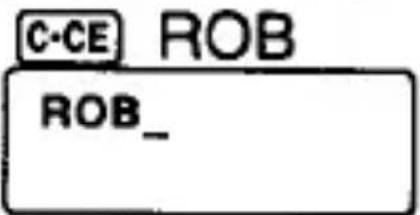
- Drücken Sie 2nd, um das Telefonverzeichnis aufzurufen.
SMITH ROBERT 012-345-6789↓
• Jedes Mal, wenn 2nd gedrückt wird, werden nacheinander Telefonbucheinträge angezeigt, die das Wort "ROB" enthalten. - Wenn kein Telefonbucheintrag mit dem eingegebenen Wort vorhanden ist, wird kurz "NOT FOUND!" angezeigt und die Anzeige kehrt zum Telefonmodus-Bildschirm zurück.
3. Bearbeiten von Telefonbucheinträgen
- Rufen Sie den zu bearbeitenden Telefonbucheintrag auf.
- Drücken Sie 2nd EDIT, um den Bearbeitungsmodus aufzurufen; der Cursor blinkt.
- Bewegen Sie den Cursor mit ▶, ◀, ▼ oder ▲ an die zu bearbeitende Stelle und geben Sie das richtige Zeichen ein.
- Drücken Sie 2nd INS, um an der Cursorposition ein Leerzeichen einzufügen, damit Sie ein Zeichen eingeben können. Drücken Sie 2nd DEL, um das Zeichen an der Cursorposition zu löschen.
- Drücken Sie ENT, um die Bearbeitung abzuschließen.
- Durch Drücken von 2nd ENT wird ein neuer Eintrag erstellt, ohne den alten Eintrag zu löschen.
4. Löschen von Telefonbucheinträgen
- Rufen Sie den zu löschenden Telefonbucheintrag auf.
- Drücken Sie 2nd DEL. "DELETE OK?" erscheint.
- Drücken Sie ☐ENT, um den aktuell angezeigten Telefonbucheintrag zu löschen.
Um den Telefonbucheintrag zu behalten, drücken Sie C-CE. Löschen aller Telefonbucheinträge in der Datei TEL1 oder TEL2
- Drücken Sie 2nd DEL auf dem Bildschirm des Telefonmodus (TEL1 oder TEL2).
"TEL1 DELETE?" oder "TEL2 DELETE?" erscheint.
- Drücken Sie 2nd ENT, um alle Telefonbucheinträge in der ausgewählten Datei gleichzeitig zu löschen.
Um die Telefonbucheinträge in der Datei zu behalten, drücken Sie C-CE.
Löschen aller Telefonbucheinträge im Telefonmodus
Drücken Sie 2nd DEL in Schritt 3, Anzeige des registrierten Datensatzes des geprüften Speicherverfahrens (auf Seite E19). "RESET OK?" erscheint. Drücken Sie anschließend 2nd ENT, um alle Telefonbucheinträge zu löschen; die Anzeige kehrt zum Bildschirm des Telefonmodus zurück. Um die Telefonbucheinträge zu behalten, drücken Sie C-CE.
Hinweis:
Beim Löschen aller Telefonbucheinträge erscheint kurz "SECRET ON!" und die Anzeige kehrt nach dem Drücken von 2nd DEL zum Bildschirm des Telefonmodus zurück, wenn die Geheimfunktion aktiviert ist. Schalten Sie in diesem Fall die Geheimfunktion aus (siehe Seite E22) und führen Sie die obigen Schritte erneut aus.
Rechnermodus
Der Organizer kann Zahlen mit bis zu 12 Stellen berechnen.
Berechnung
Drücken Sie CALC/CONV, um den Rechnermodus zu wählen. Drücken Sie CALC/CONV im Rechnermodus, um in den Währungs-/Einheitenumrechnungsmodus zu gelangen. Durch Drücken von CALC/CONV wechseln Sie abwechselnd zwischen Rechner- und Umrechnungs-/Einheitenmodus. Vor einer Berechnung drücken Sie C-CE, C-CE und CM, um Speicher und Anzeige zu löschen.
Hinweis:
Wenn ⊕, ⊖, ⊗ oder ⊖ gedrückt wird, wird das jeweilige Symbol +, -, x oder ÷ angezeigt. Wenn ⊖ oder Ⓧ gedrückt wird, wird das Symbol ⊖ angezeigt. (In den Beispielen auf den folgenden Seiten werden diese Symbole in diesem Handbuch nicht beschrieben).
Fehler
Wenn das Berechnungsergebnis oder der ganzzahlige Teil des Zahlenwerts im Speicher 12 Stellen überschreitet oder wenn eine Zahl durch Null (0) geteilt wird, tritt ein Fehler auf (E wird angezeigt). Wenn ein Fehler auftritt, drücken Sie C-CE, um ihn zu löschen.
| Example | Operation | Display |
| (-24+2)÷ 4=-5.5 | C-CE-24+2÷4= | -5.5 |
| 34+57=91 | 34+57= | 91. |
| 45+57=102 | 45= | 102. |
| 68×25=1700 | 68×25= | 1'700. |
| 68×40=2720 | 40= | 2'720. |
| 200×10%=20 | 200×10% | 20. |
| 9÷36=25% | 9÷36% | 25. |
| 200+(200×10%)=220 | 200+10% | 220. |
| 500-(500×20%)=400 | 500-20% | 400. |
| 46=(43)2=4096 | 4×=×= | 4'096. |
| 1/8=0.125 | 8÷= | 0.125 |
| 25× 5=125 | CM25×5M+ | M125. |
| -)84÷ 3= 28 | 84÷3M- | M28. |
| +)68+17= 85 | 68+17M+ | M85. |
| 182 | RM | M182. |
| √25-9=4 | 25-9=√ | 4. |
| 123456789098×145=17901234419210 | 123456789098×145=17901234419210 | 17.9012344192 |
| C-CE 17.9012344192 | ||
| (17.9012344192×1012=17901234419200) | ||
Währungs-/Einheitenumrechnung
Währungsumrechnungen, z. B. von \in £ und von ¥ in \, können durchgeführt werden. Einheitenumrechnungen, z. B. von Zentimetern in Zoll, sind ebenfalls möglich. Die folgenden Währungen und Einheiten sind im Organizer ab Werk vorhanden.
Drücken Sie CALC/CONV zweimal, um den Währungs-/Einheitenumrechnungsmodus zu wählen. Drücken Sie CALC/CONV erneut, um den Rechnermodus zu wählen.
| No. | Currency/Unit | Conversion Rate | |
| A | B | ||
| 1 | ¥ | 0 | |
| 2 | £ | 0 | |
| 3 | $ | DM | 0 |
| 4 | inch | cm | 2.54 |
| 5 | oz | g | 28.35 |
| 6 | °F | °C | 5/9 (F-32) |
- Der Kurs in der obigen Tabelle zeigt den Wert von B, wenn A gleich 1 ist. Die Umrechnung von B in A (z. B. von ¥ in \$) ist ebenfalls möglich.
- Die Währungen Nr. 1 bis Nr. 3 können geändert werden. Stellen Sie den richtigen Kurs ein, bevor Sie die Umrechnungsfunktion verwenden.
- Einheiten und Kurse für die Punkte Nr. 4 bis Nr. 6 können nicht geändert werden.
Einstellen eines Kurses
Beispiel:
Stellen Sie den Kurs so ein, dass ein Dollar 103 Yen entspricht.
- Drücken Sie CALC/CONV, um den Währungs-/Einheitenumrechnungsmodus zu wählen.
![[1] $ → ¥ 0.](/content/2026/05/1035509/images/d5d357d05b38142b5e83793f35adbbce7293e8acabdaffe33559a9b62d0b8c57.jpg)
- Wählen Sie die Währung oder Einheit, für die der Kurs festgelegt werden soll.
- Drücken Sie ⬇ (Ⓐ), um die Währung oder Einheit auszuwählen, für die der Kurs festgelegt werden soll. (In diesem Beispiel wird Nr. 1 verwendet. Daher ist diese Auswahl nicht erforderlich).
- Geben Sie den Kurs ein.
![103 2nd RATE SET [1] $ → ¥ 103.](/content/2026/05/1035509/images/b73366e6f3c91b19097390397a997d56bb43fcb1ea6a95ace25d1d4dca1339d9.jpg)
- "SETTING RATE" erscheint kurz und der Kurs ist nun registriert. Der Kurs bleibt erhalten, bis ein neuer Kurs eingegeben wird. • Der Kurs kann mit bis zu 12 Ziffern eingegeben werden.
Umrechnung von Währung/Einheit
Um Einheit A in Einheit B umzurechnen, drücken Sie ▶.
Um Einheit B in Einheit A umzurechnen, drücken Sie ↙.
Beispiel:
Konvertieren Sie \$119,8 in Yen.
- Drücken Sie Ⓥ (Ⓐ), um die Einheit auszuwählen. (In diesem Beispiel wählen Sie Nr. 1).
- Geben Sie den umzurechnenden Wert ein.
- Drücken Sie ▶, um umzurechnen.
![[1] $ ▶ ¥ 12339.4](/content/2026/05/1035509/images/a462c2077e79178d1a7eddb541d7b729242b629705decefa5312be73b6372fa3.jpg)
Das Symbol „→“ wird in „▶“ geändert und das Umrechnungsergebnis wird angezeigt.
Beispiel:
Rechne 25°C in °F um.
- Drücke Ⓥ (Ⓐ), um die Einheit auszuwählen. (In diesem Beispiel wähle Nr. 6. Bei Nr. 6 wird der Kurs nicht angezeigt).
- Gib den umzurechnenden Wert ein. 25
- Drücke ◀, um umzurechnen.
![[6] °F ← °C 77.](/content/2026/05/1035509/images/5c7365acef42776e92ed021302a0317958dae04c40463a4b03d47f3d3e38f7ca.jpg)
- Das Umrechnungsergebnis kann aufgrund von Rundungen einen leichten Rechenfehler aufweisen. Verwenden Sie das Umrechnungsergebnis nur als Referenz.
Ändern des Einheitennamens
Nur die Punkte Nr. 1 bis Nr. 3 können geändert werden.
- Wählen Sie die Währung oder Einheit, die geändert werden soll, und drücken Sie 2nd EDIT.
Der Cursor blinkt.
- Geben Sie den neuen Namen ein, um den vorherigen zu ersetzen.
In A und B können bis zu vier Zeichen eingegeben werden. Nachdem der neue Einheitenname in A eingegeben wurde, drücken Sie ▶, um den Cursor zu B zu bewegen und den neuen Einheitenname in B einzugeben. Um den Umrechnungsfaktor anschließend einzustellen, drücken Sie ▼ und geben Sie den neuen Faktor ein.
- Nachdem die neuen Namen und der Faktor eingegeben wurden, drücken Sie ENT.
Speicher
Speicher prüfen
- Drücken Sie TEL, um den Speicher zu prüfen.
- Drücken Sie 2nd M-CK.
BELEGT VERBLEIBEND 447 416
Die Anzahl der belegten und verbleibenden Bytes wird angezeigt.
- Drücken Sie M-CK.
TEL1 TEL2 17 11
Die Anzahl der registrierten Einträge in TEL1 und TEL2 wird angezeigt.
- Drücken Sie C-CE oder TEL, um zum Telefonmodus-Bildschirm zurückzukehren.
Der Organizer kann bis zu 863 Bytes im Speicher speichern (ohne den Speicher des Rechnermodus).
Für die Namenseinträge ist jeweils ein Byte pro Zeichen erforderlich, und für zwei Ziffern im Telefonnummerneintrag ist ein Byte erforderlich. Bei einer ungeraden Anzahl von Ziffern in einem Nummerneintrag belegt die letzte Ziffer ein Byte. Zusätzlich werden zwei Bytes benötigt, um jeden Telefonbucheintrag zu trennen.
Geheimfunktion
1. Passwortregistrierung
Bis zu sieben Zeichen können als Passwort registriert werden. Leerzeichen sind nur gültig, wenn ihnen andere Zeichen folgen.
Wenn das Passwort vergessen wird, müssen das Passwort und alle geheimen Einträge aus dem Speicher gelöscht werden (siehe Seite E24). Als Sicherheitsmaßnahme sollten Sie das Passwort schriftlich festhalten.
Beispiel:
Registrieren Sie das Passwort "1234567".
- Drücken Sie TEL, um den Telefonmodus zu wählen.
- Wählen Sie entweder TEL1 oder TEL2. Ein Passwort gilt für beide, TEL1 und TEL2.
- Drücken Sie 2nd SECRET.
PASSWORT EINGEBEN
- Geben Sie das Passwort ein.
1234567
1234567
4. Drücken Sie ENT.
- "☐" wird angezeigt und das Passwort ist nun registriert. Die Anzeige kehrt zur Eingabeaufforderung zurück.
- Wenn "PASSWORD?" angezeigt wird, ist bereits ein Passwort registriert. Zum Ändern oder Löschen des Passworts siehe Seite E24.
2. Ein- und Ausschalten der Geheimfunktion
Wenn die Geheimfunktion ausgeschaltet ist, wird "☐" angezeigt (geheime Einträge können aufgerufen werden). Wenn die Geheimfunktion eingeschaltet ist, wird "☐" auch nach der Passwortregistrierung gelöscht (geheime Einträge können nicht aufgerufen werden).
(1) Einschalten der Geheimfunktion
- Drücken Sie 2nd SECRET, wenn die Eingabeaufforderung für den Telefonmodus (TEL1 oder TEL2) erscheint.
Das Passwort wird angezeigt.
2. Drücken Sie ENT.
Die Geheimfunktion ist nun eingeschaltet. "→" wird gelöscht und die Anzeige kehrt zur Eingabeaufforderung zurück.
- Auch wenn das Gerät ausgeschaltet wird, bleibt die Geheimfunktion eingeschaltet.
(2) Ausschalten der Geheimfunktion
- Drücken Sie 2nd SECRET, wenn die Eingabeaufforderung für den Telefonmodus (TEL1 oder TEL2) erscheint.
- Geben Sie das Passwort ein und drücken Sie ENT. (Drücken Sie in diesem Fall "1234567").
Die Secret-Funktion ist jetzt ausgeschaltet. "→" wird angezeigt und die Anzeige kehrt zur Eingabeaufforderung zurück.
- Wenn bei ausgeschalteter Secret-Funktion nach dem Telefonverzeichnis gesucht wird, wird zuerst das geheime Verzeichnis durchsucht und dann das nicht geheime Verzeichnis.
- Wenn bei ausgeschalteter Secret-Funktion ein Telefonverzeichniseintrag eingegeben wird ("■" auf der Anzeige), wird dieser als geheimer Eintrag registriert.
3. Einträge als geheim kennzeichnen
"*" neben einem Eintrag zeigt an, dass er geheim ist. Geheime Einträge werden nur abgerufen, wenn die Secret-Funktion ausgeschaltet ist.
(1) Einträge als geheim speichern Schalten Sie die Secret-Funktion aus und geben Sie dann den Eintrag ein. Alle Einträge, die bei ausgeschalteter Secret-Funktion eingegeben werden, werden als geheime Einträge gekennzeichnet.
(2) Gespeicherte Einträge als geheim kennzeichnen
Beispiel:
Kennzeichnen Sie den Eintrag für SMITH ROBERT als geheim.
- Rufen Sie den Eintrag ab.
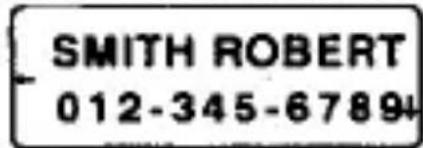
- Drücken Sie 2nd EDIT.
Der Cursor blinkt.
- Drücken Sie 2nd SECRET.
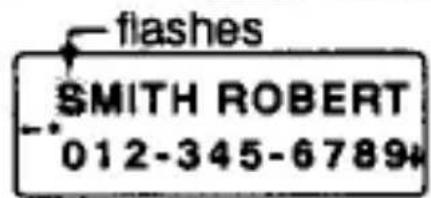
"*" wird angezeigt.
- Drücken Sie ENT.
Der Eintrag für SMITH ROBERT ist jetzt als geheim gekennzeichnet.
4. Ändern von geheimen Einträgen in nicht-geheime
- Schalten Sie die Geheim-Funktion aus (siehe Seite E22).
- Rufen Sie den gewünschten geheimen Eintrag ab.
- Drücken Sie 2nd EDIT.
Der Cursor blinkt.
- Drücken Sie 2nd SECRET.
"*" verschwindet.
- Drücken Sie ENT.
Der geheime Eintrag ist jetzt in einen nicht-geheimen geändert.
Hinweis:
Um den geheimen Eintrag zu bearbeiten und dabei geheim zu halten, bearbeiten Sie den Eintrag, nachdem Sie in Schritt 3 2nd EDIT gedrückt haben, und drücken Sie ENT, um den geheimen Eintrag erneut zu speichern.
5. Ändern des Passworts
- Schalten Sie die Secret-Funktion aus („→“ wird angezeigt).
- Drücken Sie C-CE 2nd SECRET.
- Drücken Sie 2nd EDIT. Das erste Zeichen des Passworts blinkt.
- Geben Sie ein neues Passwort ein.
- Drücken Sie ENT.
Das neue Passwort ist nun registriert.
Hinweis:
Wenn beim Ausschalten der Secret-Funktion ein falsches Passwort eingegeben wird,
erscheint „■PW. ERROR!■“. Drücken Sie in diesem Fall C-CE und geben Sie das richtige Passwort ein.
6. Löschen des Passworts und der Secret-Einträge
Löschen Sie nur die Secret-Einträge und deren Passwort.
- Drücken Sie C-CE 2nd SECRET.
- Drücken Sie 2nd DEL.
- Drücken Sie 2nd ENT.
• Zum Abbrechen drücken Sie C-CE.
Austausch der Batterien
Verwendete Batterie
| Type | Model | Quantity |
| Lithium battery | CR2016 | 1 |
- Beim Austausch der Batterie werden alle Speicherinhalte gelöscht.
- Notieren Sie unbedingt alle wichtigen im Speicher abgelegten Informationen, bevor Sie die Batterie austauschen.
1. Vorsichtsmaßnahmen
Da unsachgemäßer Gebrauch der Batterien zu Auslaufen oder Explosion führen kann, beachten Sie strikt die folgenden Anweisungen.
- Setzen Sie die Batterie mit der positiven Seite (+) korrekt ausgerichtet, wie angegeben, in den Halter ein.
- Werfen Sie Batterien niemals ins Feuer, da sie explodieren könnten.
- Halten Sie Batterien von Kindern fern. Da die Batterien im Organizer werkseitig installiert wurden, können sie vor Ablauf der angegebenen Lebensdauer erschöpft sein.
2. Batteriewechsel
(1) Zeitpunkt für den Batteriewechsel
Wenn das Display schwach und schwer lesbar wird, ersetzen Sie die Batterie sofort durch eine neue. Die weitere Verwendung des Organizers mit einer erschöpften Batterie kann die Speicherinhalte verändern oder löschen.
• Stellen Sie sicher, dass das Gerät ausgeschaltet ist, bevor Sie die Batterien austauschen. - Drücken Sie nicht ON C-CE, bis der Batteriewechselvorgang abgeschlossen ist.
(2) Austausch der Batterie
- Drücken Sie OFF, um das Gerät auszuschalten.
- Lockern Sie die Schraube und entfernen Sie die Abdeckung des Batteriefachs auf der Rückseite des Geräts.
- Entfernen Sie die verbrauchte Batterie wie abgebildet,
indem Sie sie mit einem Kugelschreiber heraushebeln.
- Setzen Sie eine neue Batterie ein, wobei die (+) Seite nach oben zeigt.

- Setzen Sie die Abdeckung wieder auf und ziehen Sie die Schraube fest.
- Drücken Sie ON, um das Gerät einzuschalten. Wenn nichts auf dem Bildschirm erscheint, drücken Sie den RESET-Schalter und dann erneut ON.
Um den Batterieverbrauch zu minimieren, ist der Organizer so konzipiert, dass er sich automatisch ausschaltet, wenn etwa sieben Minuten lang keine Taste gedrückt wurde.
Technische Daten
Modell: EL-6050
Produktname: Elektronischer Organizer
Anzeige: 2 Zeilen mit 12 Ziffern
Speicherkapazität: 863 Bytes
Telefonmodus:
Name: max. 36 Zeichen
Anzahl: max. 60 Stellen (12 Stellen × 5 Zeilen)
Rechnermodus:
12 Stellen (mit Berechnungsstatus-Symbolen)
Arithmetische Berechnungen, Prozent, Quadrat
Wurzel, Speicherberechnung
Währungs-/Einheitenumrechnung:
bis zu 6 Arten von Währungen und Einheiten
Stromverbrauch: 0,0002 W
E27
Betriebstemperatur:
0 bis 40 °C
Stromversorgung:
3 V ... (Gleichstrom)
(Lithiumbatterie CR2016; 1)
Automatische Abschaltung:
Ca. 7 Minuten
Batterielebensdauer:
Ca. 2000 Stunden (Daueranzeige)
Gewicht:
Ca. 50 g (0,11 lb) (einschließlich Batterien, ohne Etui)
Abmessungen:
108 mm (B) × 68 mm (T) × 7,6 mm (H)
(4-1/4" (B) × 2-11/16" (T) × 5/16" (H))
(ohne Etui)
Zubehör:
1 Lithiumbatterie (eingebaut), Bedienungsanleitung
EINGESCHRÄNKTE GARANTIE
SHARP ELECTRONICS CORPORATION gewährleistet dem ersten Endverbraucher, dass dieses Produkt der Marke Sharp (das „Produkt“) bei Versand in der Originalverpackung frei von Material- und Verarbeitungsfehlern ist, und verpflichtet sich, nach eigenem Ermessen den Defekt zu reparieren oder das defekte Produkt oder das defekte Teil kostenlos für Teile oder Arbeit für die unten angegebenen Zeiträume zu ersetzen.
Diese Garantie gilt nicht für kosmetische Teile des Produkts, für die unten aufgeführten ausgeschlossenen Teile oder für Produkte, deren Äußeres beschädigt oder verunstaltet wurde, die missbräuchlich verwendet, abnormal gewartet oder behandelt wurden oder deren Design oder Konstruktion verändert oder modifiziert wurde.
Um die Rechte aus dieser eingeschränkten Garantie geltend zu machen, sollte der Käufer die unten aufgeführten Schritte befolgen und dem Kundendienst einen Kaufbeleg vorlegen.
Die hierin beschriebene beschränkte Garantie gilt zusätzlich zu etwaigen gesetzlichen Gewährleistungsansprüchen des Käufers. ALLE STILLSCHWEIGENDEN GARANTIEN, EINSCHLIESSLICH DER GARANTIEN DER MARKTGÄNGIGKEIT UND DER EIGNUNG FÜR EINEN BESTIMMTEN ZWECK, SIND AUF DEN UNTEN ANGEGEBENEN ZEITRAUM AB KAUFDATUM BESCHRÄNKT. In einigen Bundesstaaten sind Beschränkungen der Dauer stillschweigender Garantien nicht zulässig, sodass die oben genannte Beschränkung möglicherweise nicht für Sie gilt.
Weder das Verkaufspersonal des Verkäufers noch eine andere Person ist befugt, andere als die hierin beschriebenen Garantien zu gewähren oder die Dauer von Garantien über den hierin beschriebenen Zeitraum hinaus im Namen von Sharp zu verlängern.
Die hierin beschriebenen Garantien sind die alleinigen und ausschließlichen Garantien von Sharp und stellen das alleinige und ausschließliche Rechtsmittel des Käufers dar. Die Behebung von Mängeln in der hierin beschriebenen Art und Weise und innerhalb des hierin beschriebenen Zeitraums stellt die vollständige Erfüllung aller Verpflichtungen und Verantwortlichkeiten von Sharp gegenüber dem Käufer in Bezug auf das Produkt dar und stellt die vollständige Befriedigung aller Ansprüche dar, sei es aus Vertrag, Fahrlässigkeit, Gefährdungshaftung oder anderweitig. In keinem Fall haftet Sharp für Schäden oder Mängel am Produkt, die durch Reparaturen oder Reparaturversuche verursacht wurden, die von anderen als einem autorisierten Kundendienst durchgeführt wurden. Sharp haftet auch nicht für zufällige oder Folgeschäden, weder wirtschaftlicher noch materieller Art. In einigen Bundesstaaten ist der Ausschluss von zufälligen oder Folgeschäden nicht zulässig, sodass der obige Ausschluss möglicherweise nicht für Sie gilt.
DIESE GARANTIE GIBT IHNEN BESTIMMTE GESETZLICHE RECHTE. MÖGLICHERWEISE HABEN SIE AUCH ANDERE RECHTE, DIE VON BUNDESSTAAT ZU BUNDESSTAAT UNTERSCHIEDLICH SIND.
Ihr Produkt
Garantiezeitraum für dieses Produkt
Zusätzliche von der Garantie ausgeschlossene Artikel.
Wo Sie Service erhalten:
Was Sie tun müssen, um Service zu erhalten:
Elektronischer Taschenrechner
Ein (1) Jahr Teile und Arbeit ab Kaufdatum.
Verbrauchsmaterialien wie Papier, Wartungspatronen, Tintenpatronen, die mit dem Produkt geliefert werden, sowie jegliche Ausrüstung oder Hardware, Software, Firmware, Leuchtstofflampen, Netzkabel, Abdeckungen, Gummiteile oder Peripheriegeräte, die nicht zum Produkt gehören.
Bei einem Sharp Authorized Servicer in den Vereinigten Staaten. Um den Standort des nächstgelegenen Sharp Authorized Servicer zu erfahren, rufen Sie Sharp gebührenfrei unter 800-BE-SHARP an.
Senden Sie Ihr Produkt (frachtfrei) oder bringen Sie es zu einem Sharp Authorized Servicer. Halten Sie unbedingt den Kaufbeleg bereit. Wenn Sie das Produkt versenden, verpacken Sie es sorgfältig.
SHARP
SHARP CORPORATION
96DUP (Z0131T)①
IN CHINA GEDRUCKT /
IN CHINA GEDRUCKT / IN CHINA GEDRUCKT
OLG42195201011

- SHARP®
- HINWEIS
- VORSICHTSMASSNAHMEN
- INHALT
- TEILBEZEICHNUNGEN ...... E
- VERWENDUNG DES ORGANIZERS ZUM ERSTEN MAL E
- EINGABE VON ZEICHEN ...... E
- TELEFONMODUS E
- RECHNERMODUS E
- WÄHRUNGS-/EINHEITENUMRECHNUNG ...... E
- SPEICHERFUNKTION....E
- GEHEIMFUNKTION E
- AUSTAUSCH DER BATTERIEN E
- TECHNISCHE DATEN E
- TEILNAMEN
- ANZEIGESYMBOLE
- VERWENDUNG DES ORGANIZERS ZUM ERSTEN MAL
- DRÜCKEN SIE 2ND ENT
- BEI FEHLFUNKTIONEN DURCH ABNORMALE BEDINGUNGEN
- EINGABE VON ZEICHEN
- EINGABE VON ZAHLEN UND BUCHSTABEN
- EINGABE VON SYMBOLEN
- KORREKTUREN VORNEHMEN
- CURSOR
- EINFÜGEN VON ZEICHEN
- LÖSCHEN VON ZEICHEN
- TELEFONMODUS
- SPEICHERN VON TELEFONNUMMERN
- BEISPIEL
- ABRUFEN VON TELEFONBUCHEINTRÄGEN
- SEQUENZIELLE SUCHE
- DIREKTE SUCHE
- STICHWORTSUCHE
- BEARBEITEN VON TELEFONBUCHEINTRÄGEN
- LÖSCHEN VON TELEFONBUCHEINTRÄGEN
- LÖSCHEN ALLER TELEFONBUCHEINTRÄGE IM TELEFONMODUS
- RECHNERMODUS
- BERECHNUNG
- FEHLER
- WÄHRUNGS-/EINHEITENUMRECHNUNG
- EINSTELLEN EINES KURSES
- UMRECHNUNG VON WÄHRUNG/EINHEIT
- ÄNDERN DES EINHEITENNAMENS
- SPEICHER
- SPEICHER PRÜFEN
- GEHEIMFUNKTION
- PASSWORTREGISTRIERUNG
- DRÜCKEN SIE ENT
- EIN- UND AUSSCHALTEN DER GEHEIMFUNKTION
- EINSCHALTEN DER GEHEIMFUNKTION
- EINTRÄGE ALS GEHEIM KENNZEICHNEN
- ÄNDERN VON GEHEIMEN EINTRÄGEN IN NICHT-GEHEIME
- ÄNDERN DES PASSWORTS
- LÖSCHEN DES PASSWORTS UND DER SECRET-EINTRÄGE
- AUSTAUSCH DER BATTERIEN
- BATTERIEWECHSEL
- ZEITPUNKT FÜR DEN BATTERIEWECHSEL
- AUSTAUSCH DER BATTERIE
- TECHNISCHE DATEN
- BETRIEBSTEMPERATUR
- STROMVERSORGUNG
- AUTOMATISCHE ABSCHALTUNG
- BATTERIELEBENSDAUER
- GEWICHT
- ABMESSUNGEN
- ZUBEHÖR
- EINGESCHRÄNKTE GARANTIE
- SHARP
- SHARP CORPORATION
Marke : SHARP
Modell : EL-6050
Kategorie : Taschenrechner