
EL-6053 - Taschenrechner SHARP - Kostenlose Bedienungsanleitung
Finden Sie kostenlos die Bedienungsanleitung des Geräts EL-6053 SHARP als PDF.


| Produkttyp | Elektronischer Organizer mit Taschenrechnerfunktion |
| Modell | EL-6053 |
| Marke | Sharp |
| Abmessungen (geschlossen) | 125,0 mm (B) × 86,3 mm (T) × 12,0 mm (H) |
| Abmessungen (offen) | 125,0 mm (B) × 168,5 mm (T) × 8,3 mm (H) |
| Gewicht (mit Batterie) | Ca. 88 g |
| Stromversorgung | 1 Lithiumbatterie CR2025, 3 V DC |
| Batterielebensdauer | Ca. 2 Jahre bei typischer Nutzung (30 Min. Anzeige, 20 Sek. Alarm, 100 Tastentöne pro Tag) |
| Auto-Ausschaltung | Nach ca. 7 Minuten Inaktivität |
| Display | 3 Zeilen mit je 12 Stellen |
| Speicherkapazität | 7671 Byte (ca. 7671 Zeichen) |
| Uhr-Genauigkeit | ±60 Sekunden pro Monat bei 25°C |
| Hauptfunktionen | Telefonmodus (Name, Adresse, E-Mail, Telefon), Terminplaner, Memo, Taschenrechner, Währungs-/Einheitenumrechnung, Wecker (täglich/stündlich/Termin), Weltzeit, 24/12-Stunden-Format, Sommerzeit, Spiel (Alpha Attack) |
| Taschenrechner-Funktionen | Arithmetik, Prozent, Quadratwurzel, Speicher, Konstantenberechnung, 10-stellige Anzeige |
| Währungsumrechnung | 5 editierbare Währungen, Wechselkurs einstellbar |
| Einheitenumrechnung | 9 feste Einheiten (nicht editierbar) |
| Spiele | Alpha Attack (Buchstaben/Zahlen eingeben) |
| Geheimfunktion | Passwortschutz für Telefon, Terminplaner und Memo (bis zu 6 Zeichen) |
| Gehäusematerial | Kunststoff |
| Reinigung | Mit weichem, trockenem Tuch reinigen |
| Betriebstemperatur | 0 °C bis 40 °C |
| Zubehör | 1 Lithiumbatterie (eingebaut), Bedienungsanleitung |
Häufig gestellte Fragen - EL-6053 SHARP
Benutzerfragen zu EL-6053 SHARP
0 Frage zu diesem Gerät. Beantworten Sie die, die Sie kennen, oder stellen Sie Ihre eigene.
Eine neue Frage zu diesem Gerät stellen
Laden Sie die Anleitung für Ihr Taschenrechner kostenlos im PDF-Format! Finden Sie Ihr Handbuch EL-6053 - SHARP und nehmen Sie Ihr elektronisches Gerät wieder in die Hand. Auf dieser Seite sind alle Dokumente veröffentlicht, die für die Verwendung Ihres Geräts notwendig sind. EL-6053 von der Marke SHARP.
BEDIENUNGSANLEITUNG EL-6053 SHARP
HINWEIS
- SHARP empfiehlt dringend, separate dauerhafte schriftliche Aufzeichnungen aller wichtigen Daten zu führen. Daten können unter bestimmten Umständen in praktisch jedem elektronischen Speicherprodukt verloren gehen oder verändert werden. Daher übernimmt SHARP keine Verantwortung für Daten, die verloren gehen oder anderweitig unbrauchbar werden, sei es durch unsachgemäße Verwendung, Reparaturen, Defekte, Batteriewechsel, Verwendung nach Ablauf der angegebenen Batterielebensdauer oder aus anderen Gründen.
- SHARP übernimmt keine Verantwortung, weder direkt noch indirekt, für finanzielle Verluste oder Ansprüche Dritter, die sich aus der Verwendung dieses Produkts und seiner Funktionen ergeben, wie z.B. gestohlene Kreditkartennummern, Verlust oder Veränderung gespeicherter Daten usw. - Die in diesem Handbuch enthaltenen Informationen können ohne vorherige Ankündigung geändert werden.
In Europa
Dieses Gerät entspricht den Anforderungen der Richtlinie 89/36/EWG in der Fassung der Änderung 93/68/EWG. Dieses Gerät entspricht den Anforderungen der EG-Richtlinie 89/36/EWG mit Änderung 93/68/EWG. Dieses Gerät entspricht den Anforderungen der Richtlinie 89/36/EWG in der Fassung der Änderung 93/68/EWG. Dieses Gerät entspricht den Anforderungen der Richtlinie 89/36/EWG in der Fassung der Änderung 93/68/EWG. Dieses Gerät entspricht den Anforderungen der Richtlinie 89/36/EWG in der Fassung der Änderung 93/68/EWG. Dieses Gerät entspricht den Anforderungen der Richtlinie 89/36/EWG in der Fassung der Änderung 93/68/EWG.
Dieses Gerät entspricht den Anforderungen der Richtlinie 89/336/EWG in der Fassung der Änderung 99/336/EWG.
Dieses Gerät entspricht den Anforderungen der Richtlinie 89/336/EWG in der Fassung der Änderung 99/336/EWG.
Dieses Gerät entspricht den Anforderungen der Richtlinie 89/336/EWG in der Fassung der Änderung 99/336/EWG.
Dieses Gerät entspricht den Anforderungen der Richtlinie 89/336/EWG in der Fassung der Änderung 99/336/EWG.
Dieses Gerät entspricht den Anforderungen der Richtlinie 89/336/EWG in der Fassung der Änderung 99/336/EWG.
Dieses Gerät entspricht den Anforderungen der Richtlinie 89/336/EWG in der Fassung der Änderung 99/336/EWG.
Hinweise
- Während die Bedienung hauptsächlich für den EL-6053 beschrieben wird, gelten die Textmaterialien, sofern nicht anders angegeben, für beide Modelle. Bei Bedarf werden die Bedienungsvorgänge als "Nur für EL-6810" beschrieben.
• Eines der in diesem Handbuch beschriebenen Modelle ist möglicherweise in einigen Ländern nicht erhältlich.
Teilebezeichnungen
EL-6053 EL-6810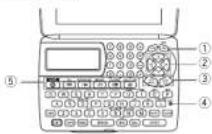
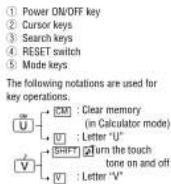
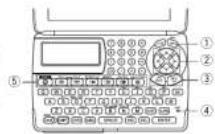
- Gelb markierte Funktionen werden durch Drücken von SHIFT ("SHIFT" ist aktiviert) und der entsprechenden Tasten ausgeführt. - In diesem Handbuch werden nur die Anzeigesymbole gezeigt, die für die Erklärung dieses Produkts notwendig sind.
Erste Verwendung des Organizers
Führen Sie vor der ersten Verwendung des Organizers unbedingt die folgenden Schritte aus: 1. Entfernen Sie die Isolierfolie, die am Batteriehalter auf der Rückseite des Geräts angebracht ist. 2. Drücken Sie den RESET-Schalter mit einem Kugelschreiber oder einem ähnlichen Gegenstand. "RESET?" wird angezeigt. 3. Drücken Sie [SHIFT] ENTER, um den Organizer zu initialisieren. Nachdem "RESET" angezeigt wird, wird die Heim-Uhr angezeigt. (Siehe "Uhr-Modus") Sie haben jetzt alle Speicherinhalte gelöscht.
HINWEISE
- Wenn der Organizer während des Gebrauchs starken, externen elektrischen Störungen oder Stößen ausgesetzt ist, kann ein anormaler Zustand auftreten, in dem keine Tasten (einschließlich [SHIFT]) reagieren. Drücken Sie den RESET-Schalter und drücken Sie [SHIFT] ENTER), um alle Speicherinhalte zu löschen. - Um den Batterieverbrauch zu minimieren, ist der Organizer so konzipiert, dass er sich automatisch ausschaltet, wenn etwa 7 Minuten lang keine Taste gedrückt wurde. - Der Tastenton wird durch Drücken von [SHIFT] ein- und ausgeschaltet. Wenn der Ton eingeschaltet ist, ist "as" eingeschaltet.
Ändern der Führungssprache
Führungsmeldungen können in 7 Sprachen angezeigt werden – Englisch, Niederländisch, Portugiesisch, Italienisch, Deutsch, Französisch und Spanisch. Nach der Initialisierung des Organizers ist die Standardeinstellung Englisch.
Um die Sprache zu ändern, drücken Sie SHIFT LANGUAGE, gefolgt von PREV oder NEXT, um die gewünschte Sprache auszuwählen, und drücken Sie dann ENTER.
Eingabe von Zeichen
• Alphanumerische Buchstaben, Symbole und "+ - - - " können in den Punktanzeigebereich (die 1. Zeile) eingegeben werden. • Zahlen und einige Zeichen (nur Leerzeichen, - und F und P im Telefonmodus) können in den Zahlenanzeigebereich (die 2. und 3. Zeile) eingegeben werden. • Grundsätzlich werden Buchstaben in Großbuchstaben eingegeben ("CAPS" ist aktiviert). Um Kleinbuchstaben einzugeben, drücken Sie [CAPS], um "CAPS" zu deaktivieren. Eingabe von Symbolen und Buchstaben mit Akzentzeichen • Um ein Symbol einzugeben, drücken Sie [SHIFT] wiederholt, bis das gewünschte Symbol erscheint: @#\\Y-E:-/-/_&<>0!? it • Um einen Buchstaben mit Akzentzeichen einzugeben, drücken Sie [SHIFT], um "SHIFT LOCK" zu aktivieren, und drücken Sie die entsprechende Taste wiederholt. (Siehe "SCHNELLREFERENZ" im Umschlag.) • Um "SHIFT LOCK" zu deaktivieren, drücken Sie erneut [SHIFT].
Korrekturen vornehmen
Bewegen Sie den Cursor auf das zu korrigierende Zeichen. Geben Sie das richtige Zeichen ein, um das vorherige zu ersetzen. Cursor Der Cursor (_) zeigt die Position für die Eingabe eines Zeichens an. Bewegen Sie den Cursor mit den Cursortasten. Einfügen von Zeichen Jedes Mal, wenn [RE] gedrückt wird, wird an der Cursorposition ein Leerzeichen eingefügt, um die Eingabe eines Zeichens zu ermöglichen. Löschen von Zeichen Drücken Sie [RE], um das Zeichen an der Cursorposition zu löschen. Drücken Sie [CCF], um alle eingegebenen und noch nicht gespeicherten Zeichen zu löschen. Nur für EL-6810: Drücken Sie [RE], um das Zeichen links vom Cursor zu löschen.
Uhr-Modus
Heim-Uhr
Heimatstadt (mit „*“ Wochentag
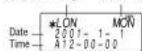
Jedes Mal, wenn Sie [CLOCK] drücken, wechselt die Uhr zwischen Heimat- und Weltzeit. (Bei Weltzeit wird * nicht angezeigt.)
1. Vor dem Einstellen der Uhr
- Die Standardeinstellung für das Datum ist "JJJJ/MM/TT" (Jahr-Monat-Tag). Um die Einstellung auf "MM/TT/JJJJ" (Monat-Tag-Jahr) oder "TT/MM/JJJJ" (Tag-Monat-Jahr) zu ändern: 1. Drücken Sie CLOCK ein- oder zweimal, um die Heimatzeit anzuzeigen (mit *). 2. Drücken Sie SHIFT DATE TYPE. 3. Drücken Sie WiFi oder RESET, um den gewünschten Typ auszuwählen. 4. Drücken Sie ENTER, um die neue Einstellung zu speichern. Um die 12-Stunden-Anzeige auf die 24-Stunden-Anzeige umzustellen, drücken Sie (P=2221) ("A" oder "P" wird gelöscht). Bei jedem Drücken von (P=2221) wechselt die Uhr. Während der Sommerzeit drücken Sie vorher SET ("F" wird angezeigt).
2. Einstellen der Uhr
- Drücken Sie CLOCK ein- oder zweimal, um die Heimatzeit anzuzeigen (mit *).
- Drücken Sie SHIFT GET, um die Einstellung zu starten. Der Cursor beginnt auf dem Städtenamen zu blinken.
- Drücken Sie (siehe) oder [RETR], um die gewünschte Zeitzone auszuwählen. (Siehe Liste der Städte unten.) • Geben Sie bei Bedarf den Städtenamen ein (maximal 6 Zeichen). Nur ein geänderter Name für die Heimatzeit kann gespeichert werden.
- Drücken Sie ▼, um den Cursor auf das Jahr zu bewegen.
- Geben Sie das Jahr (4 Ziffern), den Monat und den Tag (je 2 Ziffern) ein. • Der eingebaute Kalender reicht vom 1. Januar 1901 bis zum 31. Dezember 2098.
- Drücken Sie (passing), um "A" (Vormittag) oder "P" (Nachmittag) für die 12-Stunden-Anzeige auszuwählen.
- Geben Sie die Zeit (Stunden und Minuten) ein. Hinweis: P12-00: Mittag, A12-00: Mitternacht
- Drücken Sie ENTER. Die Uhr startet bei '00' Sekunden. Hinweise • Für ein einstelliges Datum oder eine einstellige Zeit geben Sie "0" und die Ziffer ein (z. B. '102"). • Wenn Sie ein ungültiges Datum oder eine ungültige Zeit eingeben, erscheint kurz "ERROR!". Geben Sie das korrekte Datum und die korrekte Zeit ein und drücken Sie ENTER.
| Zone No. | Display | City | Zone No. | Display | City |
| 0 | TING | TONGA | 18 | MCW | MOSCOW |
| 1 | WLG | WELLINGTON | 11 | CAI | CAIRO |
| 2 | NOU | NOUMEA | 12 | PAR | PARIS |
| 3 | SYD | SNDNEY | 13 | LON | LONDON |
| 3.3 | ADL | ABLAIDE | 14 | ARID | AZORE ISLANDS |
| 4 | TYD | TOKYO | 15 | -2H | ZIN (BATH) LION |
| 5 | HBG | HONG KONG | 16 | RID | RID DE JAMERO |
| 6 | BK | BAKKSOK | 17 | CCS | CARADAS |
| 6.3 | RGN | VANCON | 18 | NYC | NEW YORK |
| 7 | DHC | DAHKA | 19 | CHICAGO | CHINESE |
| 7.3 | DEL | NEW DELHI | 20 | DEN DENNER | |
| 8 | KH | KARACHI | 21 | LAV | LOSANGELES |
| 8.3 | KBL | KABUL | 22 | ANC | ANCHORAGE |
| 9 | DBX | DUBAI | 23 | HWL | HOWLULU |
| 9.3 | THR | TEHRAN | 24 | MID | MIDWAY |
3. Verwendung der Weltzeit
- Drücken Sie CLOCK ein- oder zweimal, um die Weltzeit anzuzeigen (ohne *).
- Drücken Sie PREV oder NEXT, um die gewünschte Stadt auszuwählen.
4. Ändern der Städte zwischen Heimat- und Weltzeit
Sie können die Heimatstadt in eine Stadt in einer anderen Zeitzone ändern, ohne die gespeicherte korrekte Zeit anzupassen. 1. Drücken Sie CLOCK ein- oder zweimal, um die Weltzeit anzuzeigen (ohne *). 2. Drücken Sie (oder NEXT) oder (NEXT) und wählen Sie die gewünschte Stadt als neue Heimatstadt aus. 3. Drücken Sie SHIFT SET, um die Städte zwischen Heimat- und Weltzeit zu tauschen. • Die bisherige Heimatstadt wird nun als Weltstadt (ohne *) festgelegt. 4. Drücken Sie CLOCK, um die Heimatstadt zu überprüfen. • Die in Schritt 2 ausgewählte Stadt wird als Heimatstadt (mit *) festgelegt. 5. Drücken Sie CLOCK, um die Weltstadt erneut zu überprüfen, und drücken Sie (oder NEXT) oder (NEXT), um bei Bedarf die neue Weltstadt auszuwählen.
5. Einstellen der Sommerzeit (DST: Sommerzeit)
- Drücken Sie CLOCK ein- oder zweimal, um die Heimat- oder Weltzeit anzuzeigen.
- Drücken Sie DST. "# wird angezeigt. Die Zeit wird um 1 Stunde vorgestellt. Um DST zu deaktivieren, drücken Sie DST, um "# zu löschen. Die Zeit wird um 1 Stunde zurückgestellt. Hinweise • DST kann unabhängig für die Heimat- oder Weltzeit eingestellt werden. • Wenn DST für eine Weltstadt eingestellt ist, gilt es für alle in der Weltzeit angezeigten Städte.
6. Einstellen von Alarmen
Der Organizer verfügt über 3 Arten von Alarmen: 1. Tagesalarm .... piept jeden Tag zur Alarmzeit (1 Minute lang), wenn " eingeschaltet ist. 2. Stundenalarm .... piept jede Stunde, wenn die Minuten "00" erreichen, wenn " eingeschaltet ist. 3. Terminalarm ... piept zur Zeit für alle Termineinträge (1 Minute lang), wenn " eingeschaltet ist. (Siehe "Terminmodus"). Drücken Sie eine beliebige Taste, um den Alarmton zu stoppen.
Einstellen/Ändern der Tagesalarmzeit 1. Drücken Sie CLOCK ein- oder zweimal, um die Heimatzeit anzuzeigen.
- Drücken Sie ALARM, um den Tagesalarm-Bildschirm anzuzeigen. (Die Anzeige unterscheidet sich
(12) zwischen der 12-Stunden- und der 24-Stunden-Anzeige.) 3. Drücken Sie SHIFT SET
- Geben Sie die Zeit ein.
- Drücken Sie ENTER.
• Die tägliche Weckzeit ist eingestellt.
Alarme ein- und ausschalten Ein Alarm ertönt nur, wenn das jeweilige Symbol (●) eingeschaltet ist. Zeigen Sie die Heimzeit an (drücken Sie CLOCK ein- oder zweimal) und drücken Sie ALARM, um den Tagesalarm-Bildschirm anzuzeigen. Jedes Mal, wenn Sie ALARM drücken, während der Tagesalarm-Bildschirm angezeigt wird, wechselt die Kombination der Symbole. Hinweis • Die Alarme ertönen auch, wenn der Organizer ausgeschaltet ist.
Telefonmodus
Der Telefonmodus besteht aus zwei Dateien, TEL1 ("1" ist eingeschaltet) und TEL2 ("2" ist eingeschaltet). Verwenden Sie diese Felder nach Bedarf, z. B. für geschäftliche und private Dateien. Ein Telefoneintrag besteht aus den Feldern Name, Adresse, E-Mail-Adresse und Nummer. Nur für EL-6810: • Darüber hinaus hat der EL-6810 das Feld für die Webadresse (URL), das auf das Feld für die E-Mail-Adresse folgt. • Drücken Sie bei den folgenden Vorgängen anstelle von (TEL) ein- oder zweimal (FELT) oder (FEL2) einmal.
Speichern von Telefoneinträgen
| Press TEL once or twice to display the Telephone mode screen (in this case, TEL1).Enter the name, e.g. SMITH SPACE ROBERT, and press ENTER. Enter the address, e.g. 18 SPACE EAST SPACE ROAD, and press ENTER. Enter the E-mail address, e.g. SARSPEC.COM_ (To enter)@ SHARPEC.COM, and press ENTER. • The E-mail address is automatically entered in small letters. For EL-6810 only: • To enter " @", simply press instead of (BURL). • After entering the E-mail address and pressing ENTER, enter the web address (URL), e.g. WWW.SHARP-USA.COM, and press ENTER. |
- Geben Sie die Telefonnummer und dann bei Bedarf die Faxnummer ein, z. B. 012-3456-7890 ▼ F SPACE | SPACE | SPACE | 3456-7891, und drücken Sie ENTER. • "GESPEICHERT!" erscheint kurz, dann wird der Telefonmodus-Bildschirm angezeigt. Der Telefoneintrag ist nun gespeichert.
| Field | Number of characters | Allowable characters |
| The 1st line: Name, address, E-mail address (and web address (URL) for EL-6810 only) | 36 characters or under | Alphabetic letters, numbers, symbols, + - - . . , space |
| The 2nd and the 3rd lines: Phone number | Numbers, space -, F (Fax), P (Pager) |
Nur für FL-6810
Terminmodus
Der Terminmodus dient zum Speichern von Termindetails (maximal 36 Zeichen), Datum und Uhrzeit (Jahr, Monat, Tag, Stunde und Minute). In der ersten Zeile sind dieselben Zeichen zulässig wie im Telefonmodus.
1. Speichern von Termineinträgen
| 1. Press [SCHEDULE] to display the Schedule mode screen. | SCHEDULE? |
| 2. Enter the details and press [ENTER]. | |
| 3. Enter the date and time. | The types of date and time are the same as the types set for the clock.To enter a single-digit date or time, enter "0" and the digit (e.g. "02"). |
- Drücken Sie ENTER, um im Speicher zu speichern. Hinweise • Termine für die folgenden Daten können gespeichert werden: Januar 1901 bis Dezember 2098. • Wenn versucht wird, einen Eintrag ohne Datum oder Uhrzeit oder mit ungültigem Datum oder ungültiger Uhrzeit zu speichern, erscheint kurz "FEHLER!". Geben Sie das korrekte Datum und die korrekte Uhrzeit ein und drücken Sie ENTER.
2. Alarm für den Terminmodus
Wenn der Terminalarm ("☐") eingeschaltet ist, wird er für alle Termineinträge eingestellt. Wenn die Zeit für einen Termineintrag erreicht ist, ertönt ein Piepton für 1 Minute. Drücken Sie eine beliebige Taste, um den Alarm zu stoppen. Der Terminalarm kann nicht für einen einzelnen Eintrag eingestellt werden.
Notizmodus
Notizen oder andere Informationen, die nicht für den Telefon- oder Terminmodus geeignet sind, können zur Bequemlichkeit eingegeben werden. In der ersten Zeile sind dieselben Zeichen zulässig wie im Telefonmodus. In der zweiten und dritten Zeile können Sie Zahlen, - und Leerzeichen eingeben. (In jeder Zeile können maximal 36 Zeichen eingegeben werden.)
Speichern von Memo-Einträgen
| 1. Press MEMO to display the Memo mode screen. | MEMO? |
- Geben Sie den Memo-Eintrag und die Nummern ein. Z.B. UNION SPACE BANK ENTER 01 272-0011223
- Drücken Sie ENTER, um im Speicher zu speichern. UNION BANK 01 272-0011223
Hinweise zum Speichern und Abrufen von Einträgen
- Wenn der Speicher voll ist, erscheint kurz "MEMORY FULL!" und der Eintrag kann nicht gespeichert werden. - Wenn das Symbol "oder" eingeschaltet ist, sind weitere Informationen vorhanden. Drücken Sie 10, um die Anzeige umzuschalten. Überprüfen von Details zu Einträgen im Telefonmodus - Um jedes Feld in der ersten Zeile anzuzeigen, folgen Sie dem Symbol "oder" und drücken Sie oder (Das Symbol über der ersten Zeile zeigt jedes Feld an.)
- Drücken von E-MAIL zeigt die E-Mail-Adresse direkt in der ersten Zeile an. Nur für EL-6810: Drücken von E-MAIL (WWW) erneut zeigt die Webadresse (URL) in der ersten Zeile an. Jedes Mal, wenn Sie E-MAIL (WWW) drücken, wechselt die Anzeige zwischen der E-Mail- und der Webadresse. - Halten Sie □ gedrückt, um den automatischen Bildlauf in der ersten Zeile zu starten. Drücken Sie □ erneut, um den Bildlauf zu stoppen oder neu zu starten. Drücken Sie □ C-CE, um den automatischen Bildlauf zu beenden.
Abrufen von Einträgen – Telefon, Terminplan, Memo –
Drücken Sie zuerst die gewünschte Modustaste. NEXT: Ruft Einträge in Vorwärtsreihenfolge ab PREV: Ruft Einträge in Rückwärtsreihenfolge ab Sequenzielle Suche Drücken Sie NEXT oder PREV in jedem Modus. Direkte Suche • Geben Sie die ersten Zeichen (7 Zeichen oder weniger) des Namens der Person, der Termindetails oder des Memo-Eintrags ein und drücken Sie NEXT oder PREV. Drücken Sie dann NEXT oder PREV, um eine direkte Suche fortzusetzen.
Sortierreihenfolge • Telefon- und Memo-Einträge werden nach dem ersten Zeichen des Namens der Person oder des Memo-Eintrags in der folgenden Reihenfolge gespeichert (Groß-/Kleinschreibung wird beachtet): Leerzeichen Zahlen (0 bis 9) Buchstaben (A, a bis Z, z)
AAAAAAA A A A A A A E E E E E E E E E I I I C C O O O O O O N N U U O U S S R Y Z Z D C • Terminplaneinträge werden nach Datum und Uhrzeit gespeichert. Hinweis • Wenn kein (weiterer oder relevanter) Eintrag abzurufen ist, erscheint kurz "NOT FOUND!" und die Anzeige kehrt zum Modusbildschirm zurück.
Bearbeiten oder Löschen von Einträgen – Telefon, Terminplan, Memo –
Bearbeiten
- Rufen Sie den zu bearbeitenden Eintrag ab.
- Drücken Sie EDIT. Der Cursor beginnt zu blinken. • Drücken Sie im Telefonmodus mehrmals ENTER, um jedes Feld anzuzeigen (das Adressfeld usw.).
- Drücken Sie ▶ ▶, um den Cursor zu
der zu bearbeitenden Position zu bewegen.
- Geben Sie Zeichen ein, fügen Sie sie ein oder löschen Sie sie (siehe
"Eingabe von Zeichen"). • Zum Abbrechen der Bearbeitung drücken Sie [C-CE].
- Drücken Sie mehrmals ENTER (bis kurz "GESPEICHERT!" erscheint), um die Bearbeitung abzuschließen und den Eintrag zu speichern.
Löschen
- Rufen Sie den zu löschenden Eintrag ab
- Drücken Sie DEL
- "LÖSCHEN?" wird angezeigt. - Zum Abbrechen des Löschvorgangs drücken Sie C-CI. 3. Drücken Sie ENTER, um den Eintrag zu löschen.
Rechnermodus
| The Organizer can calculate numbers of up to 10 digits. PressCALCOCONVseveral times to display the Calculator mode screen (Calculator → Currency conversion → Unit conversion → Calculator...). | Calculation examples | ||
| Example(-24+2)÷4—5.534±52-9145±52-102 | OperationSCOD 24 2 2 4 0(The addend becomes a constant.) | Display-5.581.102. | |
Berechnung
Drücken Sie vor einer Berechnung unbedingt C-CE, C-CE und CM, um Anzeige und Speicher zu löschen.
Hinweis
- Wenn ⊙, ⊖, ⊗ oder ⊕ gedrückt wird, wird das jeweilige Symbol +, -, · oder ÷ angezeigt. (In den Beispielen in diesem Handbuch werden diese Symbole nicht beschrieben.)
Wenn ein Fehler auftritt
Wenn das Berechnungsergebnis oder der ganzzahlige Teil des Speicherwerts 10 Stellen überschreitet oder eine Zahl durch Null (0) geteilt wird, tritt ein Fehler auf ("ERR" wird angezeigt).
Berechnungsbeispiele
| Example | Operation | Display | |||
| (-24±2)4—5.5 | ☒ ☐ 24 | 2 ⊙ 4 | ☒ | -5.5 | |
| 34±52+91 | 34 ⊕57 | ☐ | 91. | ||
| 45±57+102 | 45 | ☐ | 102. | ||
| (The added becomes a constant.) | |||||
| 68_25=1700 | 68 ⊕25 | ☐ | 1700. | ||
| 68_40=2720 | 40 | ☐ | 2720. | ||
| (The multiplicand becomes a constant.) | |||||
| 200-10%=20 | 200 ⊕ 10 | ☒ | 20. | ||
| 9-36-25% | 9 ⊕36 | ☒ | 25. | ||
| 200+(200-10%)=220 | 200 ⊕ 10 | ☒ | 220. | ||
| 500-(500-20%)=400 | 500 ⊕20 | ☒ | 400. | ||
| 41+(47-4936 | 41 ⊕496 | ☒ | 4936. | ||
| 1/8=125 | 1/8 ⊕ | 0.125 | |||
| 25-5=125 | ☒25 ⊕ 5 | ☒ | * 125. | ||
| -184-3=28 | 84 ⊕ 3 | ☒ | * 28. | ||
| +168+17.85 | 68 ⊕ 17 | ☒ | * 85. | ||
| 182 | 182 | ☒ | * 182. | ||
| V25=9-4 | 25 ⊕ ☑ | ☒ | 4. | ||
| 1234567890 145 1234567890 | ERR | ||||
| +179012344050 | 145 ☑ | 17.90123440 | |||
| ☒☐ | 17.90123440 | ||||
| (17.90123440 10^179012344000) | |||||
Währungs-/Einheitenumrechnungsmodus
1. Einstellen eines Wechselkurses
| 1. PressCALC/CONVseveral times todisplay the currency | EURO → USD30 |
| 0. |
Bildschirm (siehe "Rechnermodus"). Beispiel: 1 CAD (kanadische Dollar) = 0,66 USD (US-Dollar)
- Drücken Sie NEXT NEXT NEXT, um die Anzeige zu ändern, und drücken Sie SHIFT SET. Das erste Zeichen von "CAD" beginnt zu blinken. • Sie können jeden Währungsnamen ändern, indem Sie Zeichen (jeweils bis zu 4) eingeben und bei Bedarf ▶ verwenden.
- Drücken Sie ENTER. "0" beginnt zu blinken.
| 4. Enter the rate (up to 10 digits). | CAD → USD |
| 0.66 | 0.66 |
| 5. Press [ENTER] to |
2. Währung/Einheit umrechnen
Sie müssen den Umrechnungskurs festlegen, bevor Sie die Währungsumrechnung durchführen.
Beispiel: Konvertieren Sie 500 CAD in USD mit dem von Ihnen festgelegten Kurs.
- Zeigen Sie den Bildschirm an: "CAD → USD".
- Geben Sie den umzurechnenden Wert ein.
500
| 3. Press ☑ convertCAD into USD. | CAD → USD 22 330. |
| • To convert in reverse order (e.g. 200 USD into CAD), enter 200 and press ☑• You can use the unit conversion in the same manner. You cannot change the units or the rates for units.• The conversion result may have a slight error as a result of rounding off the number (e.g. up to 2 decimal places for currency conversions).Use the conversion result for reference. | |
Spielmodus
Drücken Sie [GAME], um das Spiel "ALPHA ATTACK" zu spielen.
Nur für EL-6810: Jedes Mal, wenn Sie [GAME] drücken, wechselt die Anzeige zwischen "BLACKJACK" und "ALPHA ATTACK".
ALPHA ATTACK
Geben Sie Zeichen (A bis Z, 0 bis 9) ein, die in der ersten Zeile angezeigt werden, um sie zu löschen. Das Spiel ist in 20 Geschwindigkeitsstufen unterteilt.
- Drücken Sie GAME, um den folgenden Spielmodus-Bildschirm anzuzeigen.
- Geben Sie die Stufennummer (2 Ziffern von 01 bis 20) ein. • 01: langsam, 20: schnell
- Drücken Sie [ENTER], um
ein Spiel zu starten.
- Drücken Sie dieselbe Taste
| As the first characterat the left end of the 1st line. (In this case, press keys in the order: E → Y → 3 → K → W.) |
- Wenn Sie die richtige Taste in der richtigen Reihenfolge drücken, wird das Zeichen gelöscht.
- Wenn in jedem Level 12 Zeichen angezeigt werden, geht das Spiel im schnelleren Level weiter (bis zu 20).
- Wenn keine weiteren Zeichen angezeigt werden können, ist das Spiel beendet. Der Spielmodus-Bildschirm mit dem Level, bei dem das Spiel beendet ist, wird angezeigt.
Nur für EL-6810: BLACKJACK (Einundzwanzig)
Bringen Sie Ihre "Hand" (die Summe der Zahlen der Karten) nahe an 21, ohne 21 zu überschreiten.
| 1. Press [GAME] to display the following Game mode screen. | BLACKJACK |
| 2. Press [ENTER] to start a game. The left 2 cards are dealt for you. (One is facing up and one is facing down.) | 3.0Your chips |
| 3. Agree the left-displayed maximum bet (up to 10) or enter the fewer bet. Pressing also can bet to the maximum. | |
| Your hand | The dealer's hand |
| J28 | 4 |
| 1.0 | 2.0 |
| Your bet Your chips | |
- "A" kann als 1 oder 11 gezählt werden. - Wenn die ersten 2 Karten "A" und eine Bildkarte ("J", "Q" oder "K") sind, ist Ihre Hand
| Your total | The dealer total | |
| 1/2 28 | 32K4 | |
| 2/0 | 19 | |
| 20 | 20 | |
| Your bet | Your chip |
Ihre Summe blinkt und Ihr Einsatz wird verdoppelt. - Wenn Sie mit "BLACKJACK" gewinnen, wird Ihr Einsatz verdreifacht.
- Drücken Sie ENTER und zeigen Sie den Spielmodus-Bildschirm an.
- Wenn Sie keine Chips mehr zum Setzen haben, ist das Spiel beendet. - Um das Spiel zu beenden, drücken Sie [C-CE] oder eine beliebige Modustaste. Ihre Chips werden für das nächste Mal gespeichert. - Um Ihre Chips auf 30 zurückzusetzen, drücken Sie [DEL] und [ENTER] auf dem Spielmodus-Bildschirm.
Geheimfunktion
1. Registrieren eines Passworts und Speichern geheimer Einträge
Bis zu 6 Zeichen können als Passwort registriert werden. - Ein Passwort gilt für die Modi Telefon, Terminplan und Notiz.
Wenn das Passwort vergessen wurde, kann nur das Passwort nicht gelöscht werden. Sie müssen den gesamten Speicherinhalt löschen. (Führen Sie die Schritte 2 und 3 im Abschnitt "Verwendung des Organizers zum ersten Mal" aus.) Als Sicherheitsmaßnahme sollten Sie das Passwort schriftlich festhalten.
Passwort registrieren
- Drücken Sie TEL (TEL1 oder TEL2), SCHEDULE oder MEMO, um "NAME?", "SCHEDULE?" oder "MEMO?" anzuzeigen.
| 2. Press [SECRET] | PASSWORD? |
- Geben Sie das Passwort ein (Groß-/Kleinschreibung beachten), z. B. ABC.
- Drücken Sie (SECRET), um es zu registrieren. • Das Display kehrt zum Bildschirm von Schritt 1 mit dem Symbol "●" zurück. • Wenn kurz "ERROR!" erscheint, wurde bereits ein Passwort registriert. Geben Sie das richtige Passwort ein oder löschen Sie das Passwort und den gesamten Speicherinhalt.
- Drücken Sie SECRET SECRET, um die Geheimfunktion einzuschalten. "→" verschwindet.
Geheime Einträge speichern
- Geben Sie Zeichen im Telefon-, Terminplan- oder Notizmodus ein, wenn "→" nicht angezeigt wird (Geheimfunktion ist eingeschaltet).
- Wenn "→" angezeigt wird, drücken Sie [SECRET] [SECRET], um die Geheimfunktion einzuschalten.
- Drücken Sie SECRET, bevor Sie ENTER drücken, um zu speichern, "→" erscheint.
- Drücken Sie ENTER, um einen geheimen Eintrag im Speicher zu speichern.
- "STOREDI" erscheint kurz, und die Anzeige kehrt zum Modusbildschirm zurück, ohne "→" (Geheimfunktion ist aktiv). - Sie können den geheimen Eintrag erst anzeigen, wenn Sie die Geheimfunktion deaktivieren.
2. Ein- und Ausschalten der Geheimfunktion
Wenn die Geheimfunktion aktiviert ist, wird "→" nicht angezeigt.
• Sie können Einträge anzeigen, bearbeiten oder löschen
außer geheimen Einträgen.
- Sie können neue Einträge als geheim oder nicht geheim eingeben.
Wenn die Geheimfunktion deaktiviert ist, wird "→" angezeigt.
- Sie können nur geheime Einträge anzeigen, bearbeiten oder löschen. (Sie können keine nicht geheimen Einträge anzeigen.)
- Sie können keinen neuen Eintrag eingeben.
Deaktivieren der Geheimfunktion
- Drücken Sie TEL (TEL1 oder TEL2), SCHEDULE oder MEMO und prüfen Sie, dass "→" nicht angezeigt wird.
- Drücken Sie [SECRET]. "PASSWORD?" wird angezeigt.
- Geben Sie das Passwort ein und drücken Sie. GEHEIM
• "0" wird angezeigt und Sie können
geheime Einträge anzeigen.
- Wenn Sie ein falsches Passwort eingeben, erscheint kurz "FEHLER!". Folgen Sie den obigen Schritten und geben Sie das richtige Passwort ein. - Auch wenn die Geheimfunktion ausgeschaltet ist, wird sie automatisch eingeschaltet ("→" verschwindet):
A) wenn Sie GAME, CLOCK oder CALCICONV drücken, oder B) nachdem die Stromversorgung manuell oder automatisch ausgeschaltet wurde.
Geheimfunktion einschalten
- Drücken Sie TEL (TEL1 oder TEL2), SCHEDULE oder MEMO und prüfen Sie, dass "→" angezeigt wird.
- Drücken Sie SICRUIT,
Das Passwort wird angezeigt. Merken Sie es sich erneut. 3. Drücken Sie erneut [SECRET].
"①" verschwindet und Sie können keine geheimen Einträge anzeigen.
3. Passwort ändern
- Schalten Sie die Geheimfunktion aus ("→" erscheint).
- Drücken Sie [SECRET]. Das Passwort wird angezeigt.
- Drücken Sie [EDIT].
Das erste Zeichen des Passworts beginnt zu blinken.
- Geben Sie Zeichen ein oder bearbeiten Sie sie und erstellen Sie ein neues Passwort.
- Drücken Sie [SECRET]. Das neue Passwort ist nun registriert.
Pflege Ihres Organizers
- Tragen Sie den Organizer nicht in der Gesäßtasche von Hosen oder Röcken.
- Lassen Sie den Organizer nicht fallen und setzen Sie ihn keiner übermäßigen Kraft aus.
- Setzen Sie den Organizer keinen extremen Temperaturen aus.
- Da dieses Produkt nicht wasserdicht ist, verwenden oder lagern Sie es nicht an Orten, an denen Flüssigkeiten darauf spritzen können.
• Reinigen Sie es nur mit einem weichen, trockenen Tuch.
• Verwenden Sie nur eine von SHARP zugelassene Serviceeinrichtung.
Austausch der Batterie
Verwendete Batterie
| Type Model Quantity | ||
| Lithium battery | EL-6053: CR2025 | 1 |
| EL-6810: CR2032 | ||
- Ein unsachgemäßer Austausch der Batterie kann den Speicherinhalt verändern oder löschen.
- Notieren Sie sich alle wichtigen im Speicher abgelegten Informationen, bevor Sie die Batterie austauschen.
- Stellen Sie sicher, dass das Gerät ausgeschaltet ist, bevor Sie die Batterie austauschen.
- Drücken Sie nicht OFF (ON), bis der Batteriewechsel abgeschlossen ist.
1. Vorsichtsmaßnahmen
Da ein unsachgemäßer Gebrauch der Batterie zu Auslaufen oder Explosion führen kann, beachten Sie strikt die folgenden Anweisungen.
- Setzen Sie die Batterie mit der positiven Seite (+) korrekt nach oben ein.
- Werfen Sie die Batterie niemals ins Feuer, da sie explodieren könnte.
- Halten Sie die Batterie von Kindern fern. Da die Batterie im Organizer werkseitig installiert wurde, kann sie vor Ablauf der angegebenen Lebensdauer erschöpft sein.
2. Batteriewechsel
Wenn das Display schwach wird und schwer zu lesen ist, ersetzen Sie die Batterie sofort durch eine neue. Die weitere Verwendung des Organizers mit einer entladenen Batterie kann den Speicherinhalt verändern oder löschen.
Nur für EL-6053:
- Verwenden Sie kein metallisches Objekt, um die Batterie herauszuziehen. Der Organizer könnte einen elektrischen Schlag erleiden und der gesamte Speicherinhalt würde gelöscht.
- Schließen Sie den Batteriewechsel innerhalb von 1 Minute ab, andernfalls kann der gesamte Speicherinhalt gelöscht werden.
Nur für EL-6053:
- Drücken Sie ON, um das Gerät auszuschalten.
- Lockern Sie die Schraube und entfernen Sie die Abdeckung des Batteriefachs auf der Rückseite des Geräts. (Schieben Sie die Abdeckung ab.)
- Entfernen Sie die erschöpfte Batterie, indem Sie sie mit der Ecke der Fachabdeckung aus dem Fach hebeln. (Abb. 1)
- Setzen Sie eine neue Batterie mit der positiven Seite (+) nach oben in das
Abb.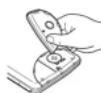
- Setzen Sie die Fachabdeckung wieder auf und befestigen Sie sie mit der Schraube.
- Drücken Sie OFF ON, um das Gerät einzuschalten. • Wenn nichts auf dem Display erscheint, drücken Sie den RESET-Schalter und dann C-CT. • Drücken Sie nicht SHIFT ENTER. Das Drücken von SHIFT ENTER löscht den gesamten Speicherinhalt.
- Stellen Sie die Uhr ein.
Nur für EL-6810:
- Drücken Sie ON, um das Gerät auszuschalten.
- Lockern Sie die Schraube und entfernen Sie die Batteriefachabdeckung auf der Rückseite des Geräts. (Schieben Sie die Abdeckung ab.)
- Setzen Sie eine neue Batterie mit der positiven Seite (+) nach oben in das obere oder untere leere Fach ein (Abb. 1).
- Entfernen Sie die entladene Batterie, indem Sie sie mit einem Kugelschreiber heraushebeln. (Abb. 2)
- Setzen Sie die Abdeckung wieder auf und befestigen Sie sie mit der Schraube.
- Drücken Sie ON, um das Gerät einzuschalten.
- Wenn nichts auf dem Display erscheint, drücken Sie den RESET-Schalter und dann C-CT.
- Drücken Sie nicht SHIFT ENTER. Das Drücken von SHIFT ENTER löscht den gesamten Speicher.
- Stellen Sie die Uhr ein.
Abb. 1 Abb. 2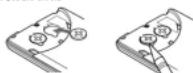
Speicher
1. Speicherplatz prüfen
- Drücken Sie TEL (TEL oder TEL2), SCHEDULE oder MEMO, um "NAME?", "SCHEDULE?" oder "MEMO?" anzuzeigen.
- Drücken Sie SHIFT M-CK. Die Anzahl der verbleibenden Bytes wird kurz angezeigt.
Hinweise
• Der Organizer kann die folgenden Bytes im Speicher ablegen (ohne den Speicher des Rechnermodus).
EL-6053: 7671 Bytes / EL-6810: 66838 Bytes • 1 Byte wird pro Zeichen benötigt (in der 1. Zeile)
für Telefon-, Zeitplan- und Memo-Einträge.
- 1 Byte wird für 2 Ziffern im Zahlenteil (in der 2. und 3. Zeile) von Telefon- und Memo-Einträgen benötigt. (Bei einer ungeraden Anzahl von Ziffern in einem Zahleneintrag belegt die letzte Ziffer 1 Byte.)
- Zusätzlich zur Speichergröße für Zeichen (in der 1. Zeile) und Zahlen (in der 2. und 3. Zeile) benötigt jeder Eintrag die folgende Speichergröße:
Telefon-Eintrag ..... EL-6053: 5 Bytes EL-6810: 6 Bytes Zeitplan-Eintrag ..... 8 Bytes (einschließlich Datum und Uhrzeit) Memo-Eintrag ..... 3 Bytes
2. Löschen des gesamten Speicherinhalts
Führen Sie die Schritte 2 und 3 wie im Abschnitt "Verwendung des Organizers zum ersten Mal" beschrieben aus. Um den Löschvorgang abzubrechen, drücken Sie in Schritt 3 anstelle von SHIFT ENTER die Taste .
Technische Daten
• Modell: EL-6053 EL-6810
• Produktname: Elektronischer Organizer
• Anzeige: 3 Zeilen mit 12 Ziffern
• Speicherkapazität: EL-6053: 7671 Bytes EL-6810: 66838 Bytes
- Uhrmodus:
Genauigkeit: ± 60 Sekunden/Monat bei 25°C/77°F Anzeige: Jahr, Monat, Tag, Wochentag, Stunde, Minute, Sekunde, AM/PM Uhrenfunktion: 12-Stunden-/24-Stunden-Format (umschaltbar), 3 Arten von Datumsformat (umschaltbar), Weltzeituhrfunktion, Sommerzeit (Sommerzeit) Anzeige, Tagesalarm, Stundenalarm
- Telefonmodus: Eingabe und Abruf von Telefoneinträgen (Name, Adresse, E-Mail-Adresse und Telefonnummer; und Webadresse (URL) nur für EL-6810)
- Terminmodus: Eingabe und Abruf von Termineinträgen (Details, Jahr, Monat, Tag, Stunde und Minute), Terminalarm
- Memo-Modus: Eingabe und Abruf von Memoeinträgen
- Rechnermodus: 10 Ziffern (mit Berechnungsstatus-Symbolen), arithmetische Berechnungen, Prozent, Quadratwurzel, Speicherberechnung usw.
- Währungs-/Einheitenumrechnungsmodus: 5 Arten von Währungsumrechnung (bearbeitbar) und 9 Arten von Einheitenumrechnung
• Spielmodus: EL-6053: 1 Spiel EL-6810: 2 Spiele
• Stromverbrauch: EL-6053: 0,003 W EL-6810: 0,003 W
- Betriebstemperatur: 0°C bis 40°C (32°F bis 104°F)
• Stromversorgung: 3V ...-(DC), Lithiumbatterie EL-6053: CR2025 · 1 EL-6810: CR2032 · 1
• Automatische Abschaltung: Nach ca. 7 Minuten
- Batterielebensdauer: ca. 2 Jahre bei einer Umgebungstemperatur von 25°C / 77°F, unter der Annahme der folgenden täglichen Nutzung: 30 Minuten Anzeige, Alarm ertönt 20 Sekunden lang und Tastenton 100 Mal ein-/ausgeschaltet.
• Gewicht (einschließlich Batterie): EL-6053: ca. 88 g (0,194 lb.) EL-6810: ca. 105 g (0,231 lb.)
• Abmessungen:
EL-6053 offen:
125,0 mm (B) · 168,5 mm (T) · 8,3 mm (H) 4 29/32" (B) · 6 2/8" (T) · 5/16" (H)
Geschlossen:
125,0 mm (B) · 86,3 mm (T) · 12,0 mm (H) 4 29/32" (B) · 3 13/32" (T) · 15/32" (H)
EL-6810
139,0 mm (B) · 174,7 mm (T) · 9,5 mm (H) 5 15/16" (B) · 6 7/8" (T) · 3/8" (H)
139,0 mm (B) · 89,5 mm (T) · 13,7 mm (H) 5 15/16" (B) · 3 17/32" (T) · 17/32" (H)
• Zubehör: 1 Lithiumbatterie (eingebaut), Bedienungsanleitung

- HINWEIS
- IN EUROPA
- HINWEISE
- TEILEBEZEICHNUNGEN
- ERSTE VERWENDUNG DES ORGANIZERS
- ÄNDERN DER FÜHRUNGSSPRACHE
- EINGABE VON ZEICHEN
- KORREKTUREN VORNEHMEN
- UHR-MODUS
- HEIM-UHR
- VOR DEM EINSTELLEN DER UHR
- EINSTELLEN DER UHR
- VERWENDUNG DER WELTZEIT
- ÄNDERN DER STÄDTE ZWISCHEN HEIMAT- UND WELTZEIT
- EINSTELLEN DER SOMMERZEIT (DST: SOMMERZEIT)
- EINSTELLEN VON ALARMEN
- TELEFONMODUS
- SPEICHERN VON TELEFONEINTRÄGEN
- NUR FÜR FL
- TERMINMODUS
- SPEICHERN VON TERMINEINTRÄGEN
- ALARM FÜR DEN TERMINMODUS
- NOTIZMODUS
- SPEICHERN VON MEMO-EINTRÄGEN
- HINWEISE ZUM SPEICHERN UND ABRUFEN VON EINTRÄGEN
- ABRUFEN VON EINTRÄGEN – TELEFON, TERMINPLAN, MEMO
- BEARBEITEN ODER LÖSCHEN VON EINTRÄGEN – TELEFON, TERMINPLAN, MEMO
- BEARBEITEN
- LÖSCHEN
- RECHNERMODUS
- BERECHNUNG
- WENN EIN FEHLER AUFTRITT
- WÄHRUNGS-/EINHEITENUMRECHNUNGSMODUS
- EINSTELLEN EINES WECHSELKURSES
- WÄHRUNG/EINHEIT UMRECHNEN
- SPIELMODUS
- ALPHA ATTACK
- NUR FÜR EL-6810: BLACKJACK (EINUNDZWANZIG)
- GEHEIMFUNKTION
- REGISTRIEREN EINES PASSWORTS UND SPEICHERN GEHEIMER EINTRÄGE
- PASSWORT REGISTRIEREN
- GEHEIME EINTRÄGE SPEICHERN
- EIN- UND AUSSCHALTEN DER GEHEIMFUNKTION
- DEAKTIVIEREN DER GEHEIMFUNKTION
- GEHEIMFUNKTION EINSCHALTEN
- PASSWORT ÄNDERN
- PFLEGE IHRES ORGANIZERS
- AUSTAUSCH DER BATTERIE
- VERWENDETE BATTERIE
- VORSICHTSMASSNAHMEN
- BATTERIEWECHSEL
- NUR FÜR EL
- SPEICHER
- SPEICHERPLATZ PRÜFEN
- LÖSCHEN DES GESAMTEN SPEICHERINHALTS
- TECHNISCHE DATEN
- UHRMODUS
- EL
Marke : SHARP
Modell : EL-6053
Kategorie : Taschenrechner