
EL-6082 - Taschenrechner SHARP - Kostenlose Bedienungsanleitung
Finden Sie kostenlos die Bedienungsanleitung des Geräts EL-6082 SHARP als PDF.


| Produkttyp | Taschenrechner |
| Marke | Sharp |
| Modell | EL-6082 |
| Display | 8-stelliges LCD |
| Stromversorgung | Batterie (LR1130) und Solarzelle |
| Tastenanzahl | 48 Tasten |
| Gewicht | Ca. 100 g |
| Abmessungen (B x H x T) | 120 x 70 x 10 mm |
| Grundrechenarten | Addition, Subtraktion, Multiplikation, Division |
| Zusätzliche Funktionen | Prozent, Speicher (M+, M-, MR, MC), Quadratwurzel, Vorzeichenwechsel |
| Speicher | 1 Speicherplatz |
| Gehäusematerial | Kunststoff |
| Farbe | Schwarz/Weiß (je nach Ausführung) |
| Reinigung | Mit einem weichen, trockenen Tuch abwischen |
| Sicherheit | Nicht wasserdicht, vor Feuchtigkeit schützen |
| Batteriewechsel | Knopfzelle LR1130, Zugang über Batteriefach an der Rückseite |
| Reparierbarkeit | Kann vom autorisierten Kundendienst repariert werden |
| Garantie | 2 Jahre (abhängig vom Händler) |
Häufig gestellte Fragen - EL-6082 SHARP
Benutzerfragen zu EL-6082 SHARP
0 Frage zu diesem Gerät. Beantworten Sie die, die Sie kennen, oder stellen Sie Ihre eigene.
Eine neue Frage zu diesem Gerät stellen
Laden Sie die Anleitung für Ihr Taschenrechner kostenlos im PDF-Format! Finden Sie Ihr Handbuch EL-6082 - SHARP und nehmen Sie Ihr elektronisches Gerät wieder in die Hand. Auf dieser Seite sind alle Dokumente veröffentlicht, die für die Verwendung Ihres Geräts notwendig sind. EL-6082 von der Marke SHARP.
BEDIENUNGSANLEITUNG EL-6082 SHARP
SHARP®
ELEKTRONISCHER ORGANIZER
MEMO MASTER ALARM
MODELL
EL-6082
BEDIENUNGSANLEITUNG

HINWEIS
- Sharp empfiehlt dringend, separate dauerhafte schriftliche Aufzeichnungen aller wichtigen Daten zu führen. Daten können unter bestimmten Umständen in praktisch jedem elektronischen Speicherprodukt verloren gehen oder verändert werden. Daher übernimmt Sharp keine Verantwortung für Daten, die verloren gehen oder anderweitig unbrauchbar werden, sei es durch unsachgemäße Verwendung, Reparaturen, Defekte, Batteriewechsel, Verwendung nach Ablauf der angegebenen Batterielebensdauer oder aus anderen Gründen.
- Sharp übernimmt keine Verantwortung, weder direkt noch indirekt, für finanzielle Verluste oder Ansprüche Dritter, die sich aus der Verwendung dieses Produkts und aller seiner Funktionen ergeben, wie z. B. gestohlene Kreditkartennummern, Verlust oder Veränderung gespeicherter Daten usw.
Verwendung des EL-6082 zum ersten Mal
Führen Sie vor der ersten Verwendung des EL-6082 unbedingt die folgenden Schritte aus.
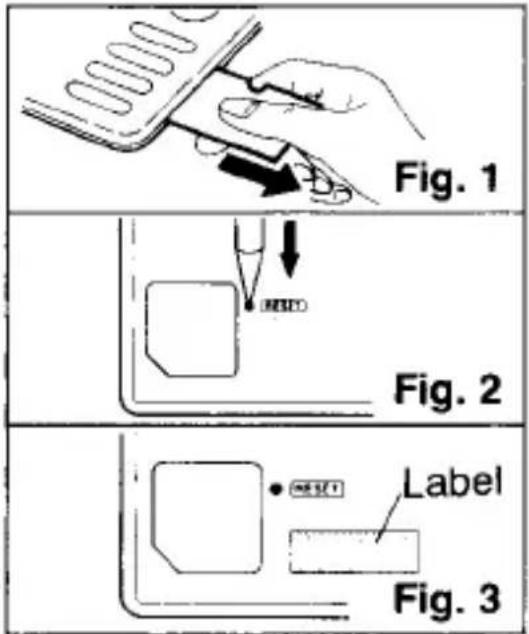
1 Ziehen Sie die Isolierfolie heraus. (Abb. 1) (Diese Folie wurde im Werk eingelegt, um Batterieverschleiß zu verhindern. Der Betrieb des EL-6082 beginnt, wenn sie herausgezogen wird.) 2 Drücken Sie den RESET-Schalter auf der Rückseite. (Abb. 2) 3 Drücken Sie ENTER. 4 Wiederholen Sie die Schritte 2 und 3 noch einmal. 5 Notieren Sie auf dem Batteriewechsel-Datumsetikett auf der Rückseite des EL-6082 das Datum der Entfernung der Isolierfolie. (Abb. 3) (Verwenden Sie dies als Erinnerung für den nächsten Batteriewechsel.)
6 Stellen Sie Datum und Uhrzeit der Uhr ein. (Siehe Seite 8.)
Vorsichtsmaßnahmen
- Tragen Sie den EL-6082 nicht in der Hosentasche Ihrer Hose oder Stoffhose.
- Lassen Sie es nicht fallen und setzen Sie es keiner übermäßigen Kraft aus.
- Setzen Sie den EL-6082 keinen extremen Temperaturen aus.
- Reinigen Sie es nur mit einem weichen, trockenen Tuch.
- Gelegentlich können 加 und 英 schwach auf dem Display erscheinen. Dies beeinträchtigt jedoch nicht die Funktion des EL-6082.
- Verwenden Sie nur eine von SHARP zugelassene Serviceeinrichtung.
Bei Fehlfunktionen durch anormale Bedingungen
Wenn der EL-6082 während des Gebrauchs starken elektrischen Störungen oder Stößen ausgesetzt ist, kann ein anormaler Zustand auftreten, bei dem keine Tasten (einschließlich ONC) reagieren. Wenn dies geschieht, drücken Sie den RESET-Schalter auf der Rückseite des EL-6082 und eine beliebige Taste außer ENTER.
2 Hinweis: Der obige Vorgang kann den gesamten Speicher löschen und die Uhr zurücksetzen.
Verwendung des EL-6082 zum ersten Mal 1
Vorsichtsmaßnahmen 2
Bei Fehlfunktionen durch anormale Bedingungen 2
- Bezeichnung der Teile 4
- Ändern der Betriebsmodi 6
- Tastenton ein- und ausschalten 7
- Uhrmodus 7
- Telefonmodus 14
- Zeitplanmodus 21
- Geheimfunktion 30
- Rechnermodus 34
- Speicher 37
- Batteriewechsel 40
- Technische Daten 43
1 Bezeichnung der Teile
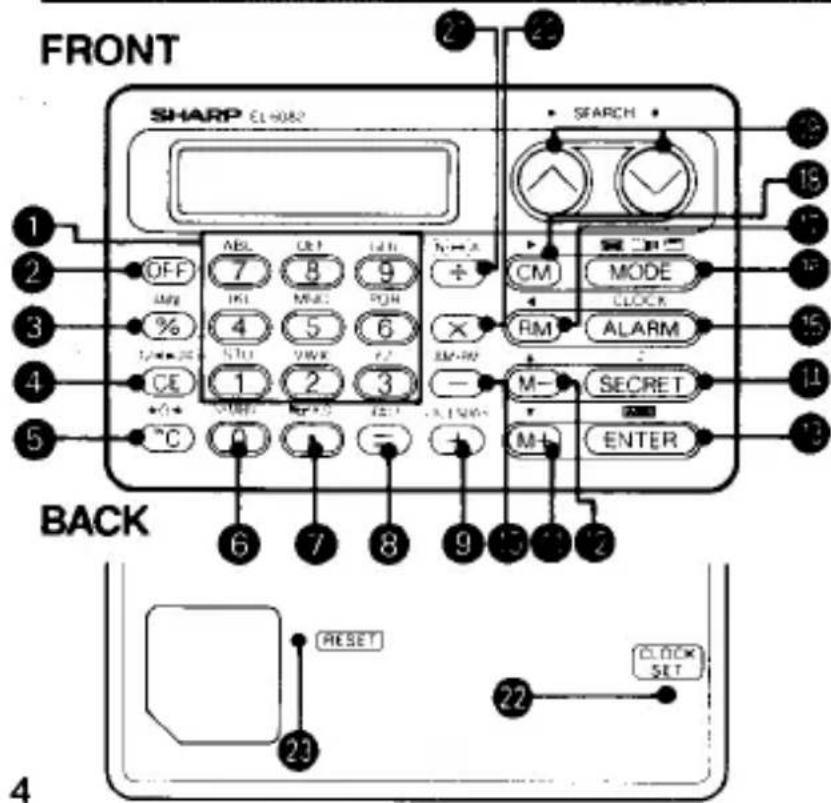
① Alphanumerische Tasten

② Ausschalttaste OFF
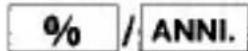
③ Prozent-/Jahrestag-Taste
④ Löschen-Eingabe/12-24-Stunden-Taste
⑤ Einschalten-Löschen/Sekunden

⑥ Null/Symbol-Taste 0 / SYMBOL
⑦ Dezimalpunkt/Tagesalarm-
Stündliche Alarm Ein-Aus-Taste

⑧ Gleichheitszeichen/Leertaste = /SPACE
⑨ Addition/Kalender-Taste + / KALENDER Subtraktion/AM-PM-Taste — / AM·PM ① Speicher Plus/Cursor nach unten Taste M + / ▼ ⑫ Speicher Minus/Cursor nach oben Taste M - / ▲ 13 EINGABE/Speicherprüfung Taste ENTER / M·CK 19 GEHEIM/Tonwahl Taste GEHEIM/ ⑤ UHR/ALARM Taste UHR / ALARM
MODE-Taste MODE ● Speicher Abruf-Taste / Cursor-Links-Taste RM / B Speicher Löschen-Taste / Cursor-Rechts-Taste CM / ▶ 19 Suchtasten ∨ • ∧ 20 Multiplikationstaste × ② Divisions-/Zahlen-Alphabet-Taste ÷ / [N] ↔ [A] 21 CLOCK SET-Schalter (auf der Rückseite) CLOCK SET ② RESET-Schalter (auf der Rückseite) •RESET
In diesem Handbuch werden die Tasten durch vereinfachte Symbole entsprechend ihrer Funktion dargestellt.
Drücken Sie die CLOCK SET- und RESET-Schalter mit einem Kugelschreiber oder einem ähnlichen Gegenstand. Verwenden Sie keinen Gegenstand mit einer abbrechbaren oder spitzen Spitze.
2 Ändern der Betriebsmodi
Der EL-6082 ist mit vier Betriebsmodi ausgestattet: Uhr, Telefon, Terminplaner und Rechner.
- Drücken Sie CLOCK, um den Uhr-Modus auszuwählen.
- Drücken Sie MODE, um den Telefon-, Terminplaner- oder Rechner-Modus auszuwählen.
Der Modus wechselt in der folgenden Reihenfolge:
![graph TD A["1 - 1 SUN\n0 : 01 05"] --> B["MODE"] B --> C["NAME ?"] C --> D["(Telephone mode)"] D --> E["Schedule mode"] E --> F["MODE"] F --> G["0."] G --> H["(Calculator mode)"] H --> I["Flashes"] I --> J["-DATE--TIME-\n00-00 00:00"] J --> K["CLOCK"] K --> L["(Clock mode)"] L --> A](/content/2026/05/1035506/images/6c4c3fa66f3cf0bdecf054fab5589f54bd221a3b35f5155074f903f43d00b733.jpg)
6, wenn das Gerät wieder eingeschaltet wird.
3 Ein- und Ausschalten des Tastenton-Signals
Der EL-6082 kann bei jedem Tastendruck einen Ton erzeugen. Dieser Ton wird durch Drücken von ▶ ein- und ausgeschaltet, wenn sich der EL-6082 im Rechner-Modus befindet.
♪ erscheint oder verschwindet jedes Mal, wenn □ gedrückt wird.
Der Tastenton ertönt, wenn ♩ angezeigt wird.
4 Uhr-Modus
Im Uhr-Modus werden die folgenden zwei Bildschirme angezeigt:
![graph LR A["Time Screen"] --> B["Date"] B --> C["Day of the week"] C --> D["1 - 1 SUN 0:11 05"] D --> E["Clock"] E --> F["Switches every time CLOCK is pressed."] F --> G["Daily Alarm Screen"] G --> H["ALARM OFF 0:00"] H --> I["Daily alarm setting time"] style A fill:#f9f,stroke:#333 style G fill:#cc…](/content/2026/05/1035506/images/f50aac5312d7916179614e01bc5f427bde6474b4fd62257c3308d90fa1835a4e.jpg)
1. Einstellen der Uhrzeit
Uhrzeit und Datum werden gleichzeitig eingestellt.
Beispiel: Datum und Uhrzeit auf den 10. September 1991, 10:05 Uhr einstellen
1 Drücken Sie CLOCK, um den Uhrzeit-Bildschirm anzuzeigen. 2 Drücken Sie den Schalter CLOCK SET auf der Rückseite.
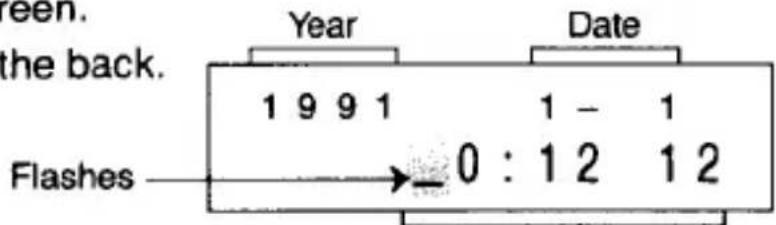
Stunden, Minuten und Sekunden
3 Drücken Sie 12▶24, um die 12-Stunden- oder 24-Stunden-Anzeige einzustellen.
Die Anzeige wechselt bei jedem Drücken zwischen der 12-Stunden- und der 24-Stunden-Anzeige. Bei der 12-Stunden-Anzeige werden AM oder PM angezeigt.
(Hier wird die 12-Stunden-Anzeige eingestellt.)
4 Geben Sie die Stunden und Minuten ein. ★1

(Geben Sie jeweils zwei Ziffern für Stunden und Minuten ein.)
5 Geben Sie Jahr, Monat und Datum ein.

(Geben Sie jeweils zwei Ziffern für Monat und Datum ein.)
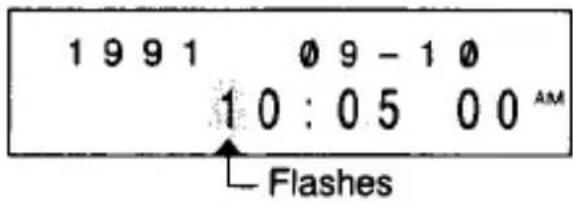
6 Drücken Sie ENTER im Gleichklang mit einem externen Zeitzeichen.
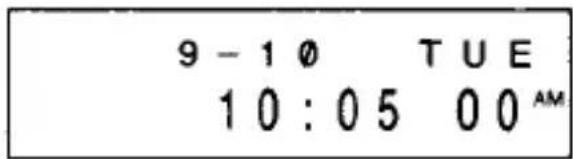
Die Uhr beginnt, die Sekunden zu zählen. ★3
- Wenn ein unmögliches Jahr, Monat, Datum oder eine unmögliche Uhrzeit eingegeben wird, erscheint kurzzeitig "ERROR!" beim Drücken von ENTER.
Geben Sie die richtige Zeit ein und drücken Sie erneut ENTER.
★1: Die Zeit kann entweder über die 12-Stunden- oder die 24-Stunden-Uhr eingegeben werden, unabhängig vom bei 3 eingestellten Uhrzeitsystem.
★2: Durch Drücken von AM·PM werden in der folgenden Reihenfolge angezeigt: AM → PM → kein Symbol (24-Stunden-Uhr) → AM ...
★3: Der Wochentag wird angezeigt, sobald die Sekunden zu zählen beginnen. Der EL-6082 bestimmt automatisch den richtigen Wochentag, wenn Jahr, Monat und Datum eingestellt sind. Der eingebaute Kalender erstreckt sich vom 1. Januar 1901 bis zum 31. Dezember 2098.
2. Überprüfen des Jahres
Drücken Sie CALENDAR, um das Jahr anzuzeigen, wenn der Zeitbildschirm angezeigt wird. Drücken Sie CALENDAR, um zur ursprünglichen Anzeige zurückzukehren.
3. Korrektur
(1) Zurücksetzen der Zeit
1 Drücken Sie CLOCK, um den Zeitbildschirm anzuzeigen. 2 Drücken Sie den CLOCK SET-Schalter auf der Rückseite. 3 Drücken Sie ▶, ◀, ▲ oder ▼, um den Cursor über die zu korrigierende Zahl zu bewegen. Diese Zahl blinkt dann.
4 Geben Sie die richtige Zahl ein. 5 Drücken Sie ENTER.
(2) Einstellen der Sekunden
Der EL-6082 funktioniert immer mit der richtigen Zeit, wenn die Sekunden regelmäßig (etwa einmal im Monat) nach dem Einstellen der Zeit angepasst werden. Diese Funktion korrigiert die Zeit, ohne die gesamte Zeiteingabe erneut vorzunehmen.
1 Drücken Sie CLOCK, um den Zeitbildschirm anzuzeigen. 2 Drücken Sie den CLOCK SET-Schalter auf der Rückseite. 3 Drücken Sie ▶0◀.
Durch Drücken von ▶0◀ werden die Sekunden auf 00 gesetzt, wenn es zwischen 00 und 29 Sekunden gedrückt wird, und auf 00 der nächsten Minute erhöht, wenn es zwischen 30 und 59 Sekunden gedrückt wird.
4. Umschalten der 12-24-Stunden-Uhr
1 Drücken Sie CLOCK, um den Zeitbildschirm anzuzeigen. 2 Drücken Sie den Schalter CLOCK SET auf der Rückseite.
3 Drücken Sie 12▶24.
Das Uhrzeitsystem wechselt bei jedem Drücken zwischen der 12-Stunden- und der 24-Stunden-Anzeige.
4 Drücken Sie ENTER.
5. Ein- und Ausschalten der Stundenalarme
Wenn ① angezeigt wird, ertönt jeder volle Stunde ein Signalton.
Das Symbol erscheint oder verschwindet bei jedem Drücken, während der Zeitbildschirm angezeigt wird.
6. Täglicher Alarm
Wenn die Uhr die eingestellte Zeit erreicht, ertönt eine Minute lang ein Signalton.
Drücken Sie entweder ALARM, ONC, CE oder OFF, um den Alarmton auszuschalten.
(1) Einstellen der täglichen Alarmzeit
1 Drücken Sie CLOCK, um den Bildschirm für den täglichen Alarm anzuzeigen.
2 Drücken Sie den Schalter CLOCK SET auf der Rückseite.
3 Geben Sie die Zeit ein. 4 Drücken Sie ENTER.
Die tägliche Alarmzeit ist eingestellt. Der tägliche Alarm wird auch automatisch eingeschaltet.
- Das Uhrsystem für die tägliche Weckzeit ist dasselbe wie das der Uhr. 5 Drücken Sie nach Abschluss der Einstellung CLOCK. Der Zeitanzeigebildschirm wird erneut angezeigt.
(2) Täglichen Alarm ein- und ausschalten
Der tägliche Alarm ertönt, wenn angezeigt wird.
erscheint oder verschwindet jedes Mal, wenn gedrückt wird, während der Tagesalarm-Bildschirm angezeigt wird.
(3) Tägliche Weckzeit ändern
Die tägliche Weckzeit wird durch Einstellen einer neuen Zeit geändert. (Siehe „(1) Tägliche Weckzeit einstellen“.)
5 Telefonmodus
In diesem Modus werden Telefonnummern gespeichert. Er kann auch zum Speichern eines kurzen Zeitplans usw. verwendet werden.
In diesem Modus können für jeden Eintrag bis zu 6 Zeilen (72 Spalten) eingegeben werden. Jede Zeile besteht aus 12 Spalten. Die erste Zeile wird alphanumerische Zeile genannt und kann Buchstaben, Symbole und Zahlen enthalten. Die restlichen 5 Zeilen (60 Spalten) werden Zahlenzeilen genannt und können nur Zahlen enthalten.
1. Eingeben von Zeichen in die alphanumerische Zeile
Drücken Sie MODE, um den Telefonmodus auszuwählen, und drücken Sie dann ONC, um die Eingabeaufforderung für den Eintrag anzuzeigen.
(1) Buchstaben eingeben
Buchstaben können eingegeben werden, während A angezeigt wird.
A erscheint oder verschwindet jedes Mal, wenn ↔ gedrückt wird.
Beispiel: Eingabe von „TU“
1 Drücken Sie zweimal STU. "T" wird angezeigt.
- Wenn \1 wiederholt gedrückt wird, ändert sich das angezeigte Zeichen in der folgenden Reihenfolge: S → T → U → S ...
2 Drücken Sie ▶. Der Cursor bewegt sich zur nächsten Spalte.
- Dieser Schritt kann weggelassen werden, wenn dieselbe Taste nicht zur Eingabe aufeinanderfolgender Buchstaben verwendet wird.
3 Drücken Sie dreimal STU. "U" wird angezeigt.
(2) Eingabe von Symbolen
Symbole können eingegeben werden, während A angezeigt wird.
- Drücken Sie SYMBOL. Wenn SYMBOL wiederholt gedrückt wird, ändert sich das angezeigte Symbol in der folgenden Reihenfolge: \→ ¥ → ⇒ → \ ...
2 Um aufeinanderfolgende Symbole einzugeben, drücken Sie ▶.
(3) Eingabe von Zahlen
Zahlen können eingegeben werden, während A nicht angezeigt wird.
Drücken Sie 0 bis , um Zahlen einzugeben.
(4) Eingabe von Bindestrichen (-) , Punkten (·) oder Leerzeichen ( )
Drücken Sie - , • oder LEERZEICHEN.
2. Speichern im Speicher
Beispiel: Speichern von SMITH ROBERT 212-555-1212, 212-555-4321
1 Drücken Sie MODE, um den Telefonmodus auszuwählen, und drücken Sie dann ONC. 2 Geben Sie den Namen in der alphanumerischen Zeile ein.
| STU1 | MNO5 | GHI9 | GHI9 | GHI9 | STU1 | STU1 | GHI9 | GHI9 | SPACE | POR6 | POR6 |
| POR6 | MNO5 | MNO5 | MNO5 | ABC7 | ABC7 | DEF8 | DEF8 | POR6 | POR6 | POR6 | STU1 |
| STU1 | |||||||||||
3 Drücken Sie ▼ oder ▶, um den Cursor zur nächsten Zeile zu bewegen.

4 Geben Sie die Telefonnummern in den Nummernzeilen ein.

5 Drücken Sie ENTER, um im Speicher zu speichern.
- Gespeicherte Telefoneinträge werden intern in der folgenden Reihenfolge sortiert:
Leerzeichen → Buchstaben → Zahlen → - → • → Symbole (\$ → ¥ → →)
Wenn „↑“ oder „↓“ angezeigt wird, bedeutet dies, dass sich oberhalb oder unterhalb der aktuellen Anzeige weitere Informationen befinden. Drücken Sie ▲ oder ▼, um den Inhalt anzuzeigen.
3. Abrufen
Einträge können auch im Uhr- oder Rechnermodus abgerufen werden.
(1) Sequenzielle Suche
Drücken Sie ∨ oder ∧. Halten Sie diese Tasten gedrückt, um schnell abzurufen.
∨: Ruft Einträge in Vorwärtsreihenfolge ab. ∧: Ruft Einträge in umgekehrter Reihenfolge ab.
(2) Direkte Suche
Geben Sie das erste Zeichen bzw. die ersten Zeichen des Eintrags ein und drücken Sie ∨ oder ∧, um diesen Eintrag direkt abzurufen.
Wenn nach einer direkten Suche kein passender Eintrag im Speicher gefunden wird, wird kurzzeitig "NICHT GEFUNDEN!" angezeigt und die Anzeige kehrt zur Eingabeaufforderung für den Eintrag zurück.
4. Korrektur
1 Drücken Sie ▶, ◀, ▲ oder ▼, um den Cursor auf das zu korrigierende Zeichen zu bewegen. 2 Geben Sie das richtige Zeichen ein. 3 Drücken Sie ENTER.
- Oder geben Sie den Eintrag nach Drücken von ONC erneut ein.
1 Drücken Sie ∨ oder ∧, um den zu korrigierenden Eintrag abzurufen.
2 Drücken Sie ▶ oder ◀. Der Cursor blinkt. 3 Befolgen Sie das Korrekturverfahren, das unter "Korrektur während einer Eingabe" oben beschrieben ist.
5. Löschen
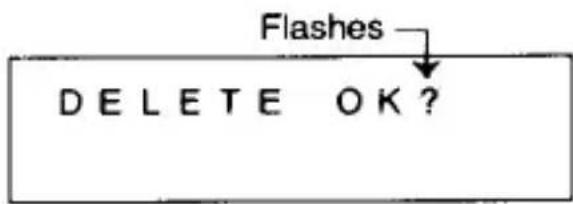
1 Rufen Sie den zu löschenden Eintrag ab. 2 Drücken Sie CE. 3 Drücken Sie ENTER.
- Um das Löschen abzubrechen, drücken Sie eine beliebige Taste außer ENTER.
6. Berechnung mit im Speicher gespeicherten Daten (Datenspeicher-Berechnung)
Währungsumrechnungen und andere Berechnungen können mit Daten durchgeführt werden, die im Telefonmodus gespeichert sind.
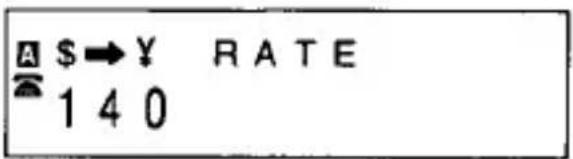
Beispiel: Umrechnung von \2,75 in Yen, wenn \1 = ¥140
Zuerst wird "\$→¥ KURS" in der alphanumerischen Zeile und "140" in der Zahlenzeile gespeichert.
- Die für die Berechnung verwendete Zahl wird in der zweiten Zeile (13. bis 24. Spalte) einschließlich Dezimalpunkt gespeichert. Die Datenspeicher-Berechnung kann nicht durchgeführt werden, wenn Zahlen über die 3. Zeile hinaus eingegeben werden.
- Der Cursor bewegt sich nicht über die 2. Zeile hinaus, wenn in der 2. Zeile ein Dezimalpunkt eingegeben wird.
Drücken Sie ▼ oder ∧, um den Umrechnungsposten abzurufen.

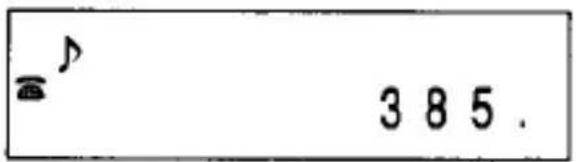
2,75 $ entsprechen 385 ¥.
Wenn die für die Berechnung verwendete Zahl eine Telefonnummer ist oder 10 Stellen überschreitet, tritt ein Fehler auf ("E" wird angezeigt).
Führen Sie den korrekten Vorgang nach dem Drücken von ONC aus.
6 Zeitplanmodus
Der Zeitplanmodus dient zum Speichern von Zeitplaninformationen (Monat, Datum, Stunde, Minuten und Zeitplandetails) im Speicher.
In diesem Modus können für jeden Eintrag bis zu 2 Zeilen eingegeben werden. Die obere Zeile wird als alphanumerische Zeile bezeichnet und dient zur Eingabe von Zeitplandetails (12 Spalten). Die untere Zeile wird als Zahlenzeile bezeichnet, und für Monat, Datum, Stunde und Minuten können jeweils 2 Ziffern eingegeben werden.
In der alphanumerischen Zeile können Buchstaben, Symbole und Zahlen eingegeben werden. In der Zahlenzeile können nur Zahlen eingegeben werden.
1. Speichern im Speicher
Beispiel: Speichern eines Zeitplaneintrags (z. B. BESPRECHUNG um 14:30 Uhr am 25. September)
1 Drücken Sie MODE, um den Zeitplanmodus auszuwählen, und drücken Sie dann ONC. 2 Beginnen Sie die Eingabe in der unteren (Zahlen-)Zeile.

Minuten sollten jeweils aus zwei Ziffern bestehen.)
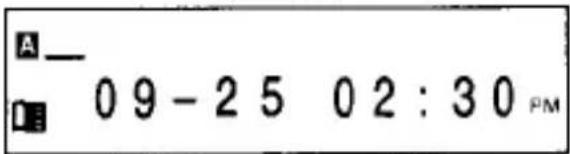
• Nach der Eingabe der Minuten bewegt sich der Cursor in die obere Zeile.
- Die Zeit kann entweder im 12-Stunden- oder im 24-Stunden-Format eingegeben werden. Wenn der Eintrag jedoch abgerufen wird, ist das Uhrzeitsystem für den Zeitplanmodus dasselbe wie das des Uhrzeitmodus.
- Wenn Sie die Zeit nicht eingeben, drücken Sie ▲ nach der Eingabe von Monat und Datum. Die Zeit wird als 00:00 eingegeben, und der Cursor bewegt sich in die obere Zeile.
- Durch Drücken von AM·PM werden in der folgenden Reihenfolge angezeigt:
AM → PM → kein Symbol → AM ...
Das Ändern der Symbole mit AM·PM kann durchgeführt werden, wenn sich der Cursor in der unteren (Zahlen-)Zeile befindet.
3 Geben Sie die Termindetails in der oberen (alphanumerischen) Zeile ein.
| MNO5 | DEF8 | DEF8 | DEF8 | DEF8 | STU1 | |
| STU1 | GHI9 | GHI9 | GHI9 | MNO5 | MNO5 | GHI9 |
| AMEETING09-25 02:30PM |
4 Drücken Sie ENTER, um im Speicher zu speichern.
- Wenn der Benutzer versucht, ein unmögliches Datum oder eine unmögliche Uhrzeit zu speichern, wird "FEHLER!" angezeigt. Geben Sie das korrekte Datum und die korrekte Uhrzeit ein und drücken Sie ENTER.
- Der EL-6082 weist jedem eingegebenen Datum ein Jahr zu, unter der Annahme, dass es in der Zukunft liegt, verglichen mit dem Datum des Uhrzeitmodus. (Beispiel: Wenn eine Eingabe für den 20. August gemacht wird, während das aktuelle Datum im Uhrzeitmodus der 10. September 1991 ist, wird die Eingabe unter dem 20. August 1992 gespeichert.)
- Gespeicherte Termine werden chronologisch ab dem aktuellen Datum des Uhrzeitmodus sortiert.
2. Abruf
(1) Sequenzielle Suche
Drücken Sie ∨ oder ∧. Halten Sie diese Tasten gedrückt, um schnell abzurufen.
∨ : Ruft Einträge in Vorwärtsreihenfolge ab. ∧ : Ruft Einträge in Rückwärtsreihenfolge ab.
(2) Detailierte Suche
Drücken Sie ▲, um den Cursor in die obere Zeile zu bewegen, geben Sie das erste Zeichen bzw. die ersten Zeichen der Termindetails ein und drücken Sie ∨ oder ∧, um diesen Eintrag direkt abzurufen.
(3) Datumssuche
Geben Sie das Datum ein und drücken Sie ∨ oder ∧, um diesen Eintrag direkt aufzurufen.
Wenn nach einer Detail- oder Datumssuche kein passender Eintrag im Speicher gefunden wird, wird kurzzeitig "NOT FOUND!" angezeigt und die Anzeige kehrt zur Eingabeaufforderung für den Eintrag zurück.
3. Korrektur
Die Korrektur erfolgt nach demselben Verfahren wie im Telefonmodus (Seite 18).
4. Löschen
Termineinträge können auf zwei Arten gelöscht werden:
(1) Löschen durch Aufruf
Dies erfolgt nach demselben Verfahren wie im Telefonmodus (Seite 19).
(2) Automatisches Löschen mit der Auto-Lösch-Funktion
Mit jedem Tag, der gemäß der Uhrzeit vergeht, werden Einträge von früheren Tagen automatisch gelöscht.
- Wenn das Datum der Uhrzeit geändert wird, gelten Einträge mit einem früheren Datum als das neue Datum als vergangene Einträge und werden von der Auto-Lösch-Funktion gelöscht.
5. Terminlisten (Wochenübersichtsfunktion)
Der EL-6082 kann die Anzahl der Termineinträge für bis zu 10 oder 9 Tage in der Zukunft ab dem aktuellen Datum der Uhrzeit anzeigen.
1 Drücken Sie MODE, um den Terminmodus zu wählen, und drücken Sie dann ONC. 2 Drücken Sie CALENDAR.
Die Wochentage werden in der oberen Zeile und die Anzahl der Einträge für jeden Tag in der unteren Zeile angezeigt.
3 Drücken Sie ONC, nachdem Sie den Wochenplan überprüft haben.
Die Anzeige kehrt zur Eingabeaufforderung für Einträge zurück.
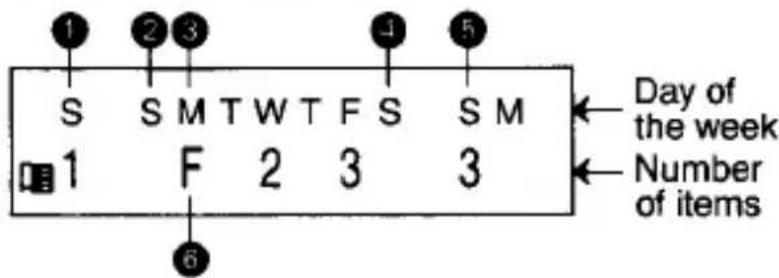
Samstag (Der aktuelle Tag wird zuerst angezeigt.) ② Sonntag ③ Montag Samstag der nächsten Woche 5 Sonntag eine Woche später 2 6 "F" wird angezeigt, wenn 10 oder mehr gespeicherte Einträge für diesen Tag vorhanden sind.
6. Jahrestage
Der Planungsmodus ist mit einer Jahrestagsfunktion ausgestattet, die die Speicherung von 10 Jahrestagen zusätzlich zu den normalen Planungsdaten ermöglicht. Jeder Eintrag besteht aus einem Jahrestagsdetail (12 Spalten) sowie Monat und Datum.
(1) Eingabe
Beispiel: Speichern eines Jahrestags (30. April HOCHZEIT)
1 Drücken Sie MODE, um den Planungsmodus auszuwählen. 2 Drücken Sie ANNI. ③ Beginnen Sie die Eingabe in der unteren Zeile.
Geben Sie Monat und Datum ein, jeweils mit zwei Ziffern.
| 0 | JKL4 | YZ3 | 0 |
4 Geben Sie die Details ein.
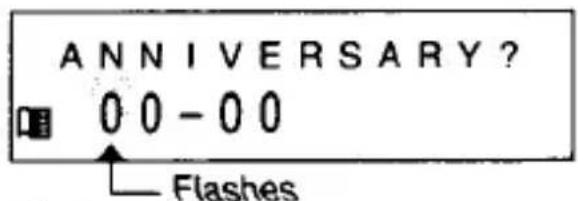
| VWX2 | VWX2 | DEF8 | DEF8 | DEF8 | ||
| DEF8 | GHI9 | GHI9 | QHI9 | MNÖ5 | MNÖ5 | GHI9 |
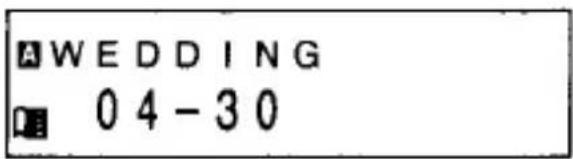
5 Drücken Sie ENTER, um im Speicher zu speichern.
- Bis zu 10 Jahrestage können im Speicher abgelegt werden. Wenn ENTER gedrückt wird, um Einträge zu speichern, wenn die Kapazität von zehn Einträgen nicht ausreicht, wird "FULL! NOT IN" angezeigt und der Eintrag wird nicht im Speicher gespeichert. Wenn dies auftritt, löschen Sie unnötige oder weniger wichtige Jahrestagseinträge und wiederholen Sie den Vorgang. • Die gespeicherten Einträge werden in chronologischer Reihenfolge vom 1. Januar bis zum 31. Dezember sortiert.
(2) Abrufen·Korrigieren·Löschen
Drücken Sie ANNI., um die Eingabeaufforderung für Jahrestagseinträge anzuzeigen, nachdem Sie den Planungsmodus ausgewählt haben.
Einträge können mit demselben Verfahren wie bei normalen Planungseinträgen abgerufen, korrigiert oder gelöscht werden.
Für Einträge, die über die Jahrestagsfunktion eingegeben wurden, gibt es keine automatische Löschfunktion (siehe Seite 24).
7. Überprüfung des Wochentags (Wochentagsbestätigungsfunktion)
Es gibt drei Möglichkeiten, den Wochentag zu überprüfen.
Dies kann im Zeitplanmodus durchgeführt werden.
(1) Tagesbestätigung durch Abrufen von Zeitplaneinträgen
Rufen Sie den Zeitplan des Tages ab, um den Wochentag zu bestätigen, und halten Sie dann CALENDAR gedrückt.
(2) Tagesbestätigung durch Angabe von Monat und Datum
Geben Sie das Datum in der unteren Zeile ein und halten Sie dann CALENDAR gedrückt.
(3) Tagesbestätigung durch Angabe von Jahr, Monat und Datum
Geben Sie Monat, Datum und Jahr in der unteren Zeile ein und halten Sie dann CALENDAR gedrückt.
Das Jahr wird in der Stunden- und Minutenspalte des Zeitplaneintrags eingegeben.
8. Alarme für den Zeitplanmodus
Der Zeitplanmodus ist mit den folgenden drei Alarmen ausgestattet:
(1) Vorab-Alarm
Es ertönt 10 Minuten vor dem festgelegten Zeitplaneintrag 20 Sekunden lang ein langsames Piepen.
(2) Zeitplan-Alarm
Wenn die für einen Zeitplaneintrag eingestellte Zeit erreicht ist, ertönt 20 Sekunden lang ein schnelles Piepen.
(3) Jahrestags-Alarm
An einem festgelegten Jahrestag ertönt von 9:00 Uhr bis 15:00 Uhr stündlich etwa 5 Sekunden lang ein schnelles Piepen.
Die Einträge werden angezeigt, wenn der Alarm ertönt. (Bei geheimen Einträgen wird "GEHEIME DATEN" angezeigt. Informationen zu geheimen Daten finden Sie auf Seite 30.)
Drücken Sie ALARM, ONC, CE oder OFF, um den Alarmton auszuschalten. Der Alarm kann für Einträge im Zeitplanmodus nicht ausgeschaltet werden. Er ertönt immer für die festgelegten Geschäfte.
• Der Zeitplan- und der Jahrestags-Alarm ertönen in folgenden Fällen nicht: Wenn der Vorlaufalarm gestoppt wird, ertönt der Zeitplan-Alarm für diesen Eintrag nicht.
Sobald der Jahrestags-Alarm gestoppt wurde, ertönt während dieses Jahrestags kein weiterer Alarm.
- Mehrere Alarme, die für dieselbe Zeit eingestellt sind, ertönen in der folgenden Prioritätsreihenfolge:
① Zeitplan-Alarm ② Vorlaufalarm ③ Tagesalarm ④ Jahrestags-Alarm ⑤ Stündliche Alarme
7 Geheimfunktion
Diese Funktion verhindert, dass andere Personen auf Einträge im Telefon- oder Zeitplanmodus zugreifen können. Für diese Funktion ist eine Passwortregistrierung erforderlich.
1. Passwort registrieren (Einrichten der Geheimfunktion) Beispiel: Registrieren von "ADG"
1 Drücken Sie MODE, um den Telefon- (oder Zeitplan-) Modus auszuwählen, und drücken Sie dann ONC. 2 Drücken Sie SECRET. "PASS. W SET?" wird angezeigt und blinkt.
- Wenn "PASSWORD?" angezeigt wird, wurde bereits ein Passwort registriert. Um "ADG" als neues Passwort zu registrieren, löschen Sie das aktuelle Passwort. (Informationen zum Löschen finden Sie auf Seite 38.)
3 Geben Sie das Passwort "ADG" ein und drücken Sie SECRET.

hört auf zu blinken und das Passwort wird registriert.
- Wenn das Passwort vergessen wird, müssen sowohl das Passwort als auch die geheimen Einträge gelöscht werden. Bewahren Sie das Passwort unbedingt an einem sicheren Ort auf.
- Es kann nur ein Passwort registriert werden, aber viele geheime Einträge können eingegeben werden. Bis zu 6 Zeichen (Buchstaben, Symbole, Zahlen, Bindestriche, Punkte oder Leerzeichen) können als Passwort eingegeben werden. Auf ein Leerzeichen im Passwort muss ein anderes Zeichen folgen.
2. Schließen und Öffnen der Geheimfunktion
(1) Schließen der Geheimfunktion
1 Drücken Sie MODE, um den Telefon- (oder Zeitplan-) Modus zu wählen, und drücken Sie dann ONC. 2 Drücken Sie SECRET, wenn angezeigt wird.
Das Passwort wird angezeigt und die gesamte Anzeige blinkt.
3 Drücken Sie SECRET erneut.
verschwindet, um anzuzeigen, dass die Geheimfunktion geschlossen wurde.
- Die Geheimfunktion kann auch geschlossen werden, indem Sie OFF drücken, um das Gerät auszuschalten, oder indem Sie SECRET drücken, während Sie gespeicherte Einträge abrufen.
(2) Öffnen der Geheimfunktion
1 Drücken Sie MODE, um den Telefon- (oder Zeitplan-) Modus zu wählen, und drücken Sie dann ONC. 2 Drücken Sie SECRET. "PASSWORD?" wird angezeigt. ③ Geben Sie das Passwort ein und drücken Sie SECRET.
wird angezeigt, um anzuzeigen, dass die Geheimfunktion geöffnet ist.
- Die Geheimfunktion kann auch geöffnet werden, indem Sie nach dem Drücken von ONC das Passwort eingeben und SECRET drücken.
(Im Planmodus nach Drücken von ONC und Bewegen des Cursors mit ▲ in die obere Zeile das Passwort eingeben und SECRET drücken.)
3. Speichern geheimer Einträge
Einträge, die bei geöffneter Geheimfunktion gespeichert werden, werden geheim.
Einträge, die bei geschlossener Geheimfunktion gespeichert werden, bleiben auch nach der Registrierung eines Passworts nicht geheim.
1 Öffnen Sie die Geheimfunktion. (Siehe Seite 32.) 2 Speichern Sie den Eintrag mit demselben Verfahren wie für nicht geheime Einträge.
- Es ist nicht mehr möglich, geheime Einträge abzurufen, nachdem die Geheimfunktion geschlossen wurde. (Siehe Seite 31.)
4. Abrufen, Korrigieren oder Löschen geheimer Einträge
Nach dem Öffnen der Geheimfunktion können geheime Einträge mit denselben Verfahren wie für nicht geheime Einträge abgerufen, korrigiert oder gelöscht werden.
1 Öffnen Sie die Geheimfunktion. (Siehe Seite 32.) ② Rufen Sie die geheimen Einträge ab, korrigieren oder löschen Sie sie mit denselben Verfahren wie für nicht geheime Einträge. - Während des Abrufs sind Einträge, bei denen ➕ blinkt, geheim. Im Telefonmodus werden geheime Einträge vor nicht geheimen Einträgen abgerufen.
5. Ändern des Passworts
1 Öffnen Sie die Geheimfunktion. (Siehe Seite 32.) 2 Drücken Sie ONC SECRET. Das Passwort wird angezeigt und die gesamte Anzeige blinkt.
3 Drücken Sie ▶. ▶ und das erste Zeichen des Passworts blinken. 4 Geben Sie das neue Passwort ein. 5 Drücken Sie SECRET. ■ hört auf zu blinken und das Passwort wird geändert.

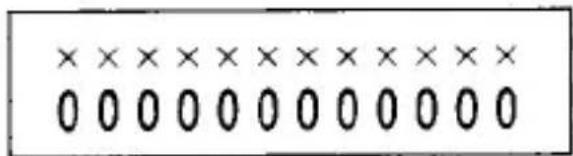
Wenn beim Öffnen der Geheimfunktion ein falsches Passwort verwendet wird, erscheint die Anzeige wie gezeigt. Drücken Sie ONC und wiederholen Sie den Vorgang mit dem richtigen Passwort.
8 Rechnermodus
1. Berechnung
Drücken Sie MODE, um den Rechnermodus auszuwählen.
Drücken Sie vor der Durchführung einer Berechnung ONC CM, um den Speicher und die Anzeige zu löschen.
| Example | Operation | Display | |||||||
| (-24+2)÷4=-5.5 | ONC | - | 24 | + | 2 | ÷ | 4 | = | -5.5 |
| 34+57=91 | 34 | + | 57 | = | 91. | ||||
| 45+57=102 | 45 | = | 102. | ||||||
| 68×25=1700 | 68 | × | 25 | = | 1700. | ||||
| 68×40=2720 | 40 | = | 2720. | ||||||
| 200×10%=20 | 200 | × | 10 | % | 20. | ||||
| 9÷36=25(%) | 9 | ÷ | 36 | % | 25. | ||||
| 200+(200×10%)=220 | 200 | + | 10 | % | 220. | ||||
| 500-(500×20%)=400 | 500 | - | 20 | % | 400. | ||||
| 46=(43)2=4096 | 4 | × | = | = | × | = | 4096. | ||
| 1/8=0.125 | 8 | ÷ | = | 0.125 | |||||
| 25×5=125- )84÷3=28+ )68+17=85182 | CM 25 × 5 M+84 ÷ 3 M-68 + 17 M+RM | M 125.M 28.M 85.M 182. |
| 1234567891×145=179012344195 | E1234567891 × 145 = 17.90123441CE 17.90123441(17.90123441×1010=179012344100) | |
2. Fehler
Wenn der ganzzahlige Teil eines Berechnungsergebnisses oder eine ganze Zahl im Speicher 10 Stellen überschreitet oder andere unmögliche Operationen versucht werden, tritt ein Fehler auf.
("E" erscheint in der oberen Zeile.)
Drücken Sie ONC, um den Fehler zu löschen.
Überlauffehler können mit CE gelöscht werden.
9 Speicher
1. Speicherprüfung
1 Drücken Sie MODE, um den Telefon- (oder Zeitplan-) Modus auszuwählen, und drücken Sie dann ONC. 2 Drücken Sie M·CK.
Die Anzahl der Zeichen, die noch gespeichert werden können, wird angezeigt.
3 Drücken Sie erneut M·CK.
Die Anzahl der im Telefon- und Zeitplanmodus gespeicherten Einträge wird angezeigt.
- Die beiden oben beschriebenen Anzeigen (verbleibende Zeichen und Anzahl der Einträge) wechseln sich bei jedem Drücken von M·CK ab.
Drücken Sie eine beliebige Taste außer M·CK, um zur Eingabeaufforderung für den Eintrag zurückzukehren.
Hinweis
Der EL-6082 kann bis zu 1752 Zeichen in seinem Speicher speichern (ausgenommen Speicher der Jubiläumsfunktion und des Rechnermodus).
Wenn ENTER gedrückt wird, um Elemente zu speichern, wenn die verbleibende Speicherkapazität nicht ausreicht, wird "FULL! NOT IN" angezeigt und das Element wird nicht gespeichert. Drücken Sie in diesem Fall ONC und löschen Sie entweder zuvor gespeicherte Elemente oder ändern Sie das zu speichernde Element so, dass es die Speicherkapazität nicht überschreitet. Wiederholen Sie den Speichervorgang erneut.
Beim Speichern von Zeichen wird eine Spalte in der alphanumerischen Zeile als ein Zeichen gezählt, und zwei Spalten in den Zahlenzeilen werden als ein Zeichen gezählt. Wenn es eine ungerade Anzahl von Spalten in den Zahlenzeilen gibt, wird die übrig gebliebene Ziffer als ein Zeichen gezählt. Zusätzlich zu dem Platz, den sichtbare Zeichen einnehmen, werden vier Zeichen als Trennzeichen für jedes Element verwendet.
Wenn in einer alphanumerischen Zeile nichts eingegeben wird, wird ein Leerzeichen im Speicher gespeichert.
2. Löschen des Speichers (Reset-Vorgang)
Die im EL-6082 gespeicherten Daten enthalten geheime und nicht geheime Elemente.
Beim Löschen aller Elemente löschen Sie zuerst die geheimen Elemente und dann die nicht geheimen Elemente.
1 Drücken Sie ONC. 2 Drücken Sie den RESET-Schalter auf der Rückseite.
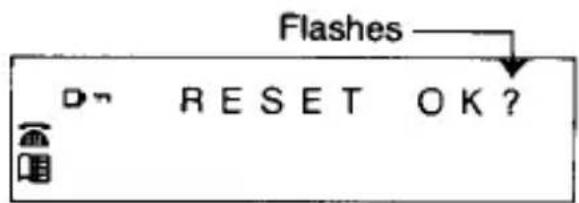
3 Drücken Sie ENTER. Dies löscht nur das Passwort und die geheimen Elemente. 4 Drücken Sie den RESET-Schalter erneut.
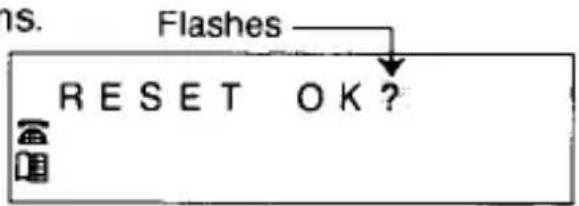
5 Drücken Sie ENTER.
Die nicht geheimen Elemente wurden gelöscht.
Die Uhr wird durch diesen Vorgang ebenfalls zurückgesetzt und startet ab 0:00 Uhr, 1. Januar 1989.
- Um das Löschen abzubrechen, drücken Sie nach dem Drücken des RESET-Schalters eine beliebige Taste außer ENTER.
- Wenn keine Passwortregistrierung vorhanden ist, löschen die Schritte [1], [4] und [5] alle Daten im EL-6082.
10 Batteriewechsel
Verwendete Batterie: 1 Lithiumbatterie (CR2016)
- Wann die Batterie zu ersetzen ist: Ersetzen Sie die Batterie sofort, wenn die Anzeige auch bei direkter Betrachtung schwer lesbar ist. (Auch wenn die Batterie erschöpft ist, ertönt der Alarm oder der Tastenton möglicherweise nicht.)
- Ersetzen Sie die Batterie einmal pro Jahr. (Die Batterie wird durch den Uhrbetrieb erschöpft.)
Hinweis
Bei Verwendung der erschöpften Batterie oder unsachgemäßem Austausch können gespeicherte Daten verloren gehen oder verändert werden.
Bewahren Sie unbedingt eine schriftliche Aufzeichnung aller wichtigen Daten auf.
Daten können auch verloren gehen oder verändert werden, wenn Folgendes nicht beachtet wird:
- Drücken Sie vor dem Austausch OFF, um das Gerät auszuschalten.
- Führen Sie die Schritte 3 und 4 innerhalb einer Minute aus.
• Setzen Sie die Batterie mit der Plus-Seite (⊕) nach oben ein. - Drücken Sie ONC erst, nachdem die Ersatzbatterie eingesetzt wurde.
1 Drücken Sie OFF, um das Gerät auszuschalten. 2 Entfernen Sie die Schraube von der Batterieabdeckung auf der Rückseite des EL-6082 und nehmen Sie die Batterieabdeckung ab. (Abb. 1) 3 Entfernen Sie die alte Batterie mit einem Kugelschreiber oder einem ähnlichen Gegenstand. (Abb. 2) 4 Setzen Sie die neue Batterie mit der Plus-Seite (⊕) nach oben ein, indem Sie sie zuerst unter die Lasche haken. (Abb. 3) 5 Setzen Sie die Batterieabdeckung wieder auf und ziehen Sie die Schraube fest. 6 Drücken Sie ONC, um das Gerät einzuschalten.
Wenn nichts angezeigt wird, drücken Sie den RESET-Schalter und drücken Sie erneut ONC.
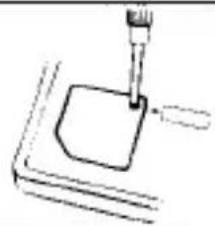
Abb. 1
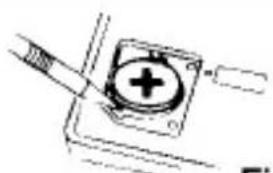
Abb. 2
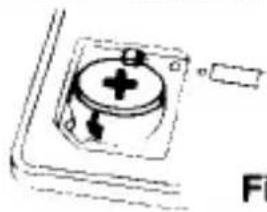
Abb. 3
7 Drücken Sie MODE, um den Modus auszuwählen, und drücken Sie v, um alle Daten zu prüfen.
(Korrigieren Sie Daten oder geben Sie sie erneut ein, wenn sie verloren gegangen oder geändert wurden.)
8 Stellen Sie die Uhr ein.
Wenn die Schritte 6 bis 8 nicht ordnungsgemäß ausgeführt werden können, führen Sie den Reset-Vorgang durch. (Siehe Seite 38.) Dadurch werden jedoch alle Daten gelöscht.
Vorsichtsmaßnahmen
- Batterien von Kindern fernhalten.
- Eine verbrauchte Batterie, die im EL-6082 verbleibt, kann auslaufen und den EL-6082 beschädigen.
- Durch unsachgemäße Handhabung kann Explosionsgefahr entstehen.
- Es darf nur durch denselben Batterietyp ersetzt werden.
Automatische Abschaltfunktion
Wenn etwa 7 Minuten lang keine Taste gedrückt wird, schaltet sich das Gerät automatisch ab, um die Batterie zu schonen. Der Speicherinhalt bleibt erhalten. (Die tatsächliche Zeit kann je nach Nutzungsbedingungen variieren.)
11 Technische Daten
Modell: EL-6082
Anzeige: Obere Zeile: 12 Spalten (Zeichen), 2 Spalten (Symbole) Untere Zeile: 12 Spalten (Zeichen), 2 Spalten (Symbole)
Speicherkapazität: 1752 Bytes (ohne die Jahrestagsfunktion) 10 Einträge (Jahrestagsfunktion)
Genauigkeit: ±30 Sekunden/Monat (bei 25°C (77°F))
Angezeigte Informationen: Jahr, Monat, Datum, Wochentag, Stunde, Minuten, Sekunden, AM/PM
Uhrsystem: Umschaltbar von 12-Stunden-Uhr auf 24-Stunden-Uhr
Funktionen: Eingabe und Abruf von Namen und Nummern, Datennotizberechnung
Funktionen: Eingabe und Abruf von Terminen (Details, Datum, Uhrzeit) und Jahrestagen (Details und Datum), Wochentagsbestätigung, wöchentliche Terminanzeige 4
Ziffern: 10
Funktionen: Tastenton ein/aus, Addition, Subtraktion, Multiplikation, Division, Prozent, Speicherberechnungen, usw.
Stromversorgung: 3V—(DC) (Lithiumbatterie CR2016; 1)
Stromverbrauch: 0,003 W
Batterielebensdauer: ca. 1 Jahr (wenn der Alarm 20 Sekunden ertönt, die Tastentöne 100 Mal ertönen und die Anzeige 30 Minuten eingeschaltet ist, jeweils pro Tag bei 25°C (77°F)).
Betriebstemperatur: 0°C — 40°C (32°F — 104°F)
Abmessungen: 108 (B) × 68 (T) × 7,2 (H) mm (ohne das Etui)
(4 - 1 / 4 ^ (B) × 2 - 1 1 / 1 6 ^ (T) × 9 / 3 2 ^ (H))
Gewicht: 71 g (0,16 lb.) (einschließlich Batterie und Etui)
Zubehör: 1 Lithiumbatterie (eingebaut), Bedienungsanleitung, Karte mit Warnhinweis zum Batteriewechsel
EL-6082
EINGESCHRÄNKTE GARANTIE:
SHARP ELECTRONICS CORPORATION gewährleistet diesem ersten Käufer, dass dieses Produkt frei von Material- und Verarbeitungsfehlern ist. Im Rahmen dieser Garantie wird das Produkt nach unserer Wahl repariert oder ersetzt, ohne Berechnung von Teilen oder Arbeitszeit, mit Ausnahme von Batterien, wenn es an ein SHARP CONSUMER FACTORY SERVICE CENTER zurückgesendet wird, das in der mitgelieferten Anleitung aufgeführt ist.
Diese Garantie gilt nicht für kosmetische Teile, nicht für Produkte, deren Äußeres beschädigt oder verunstaltet wurde, nicht für Produkte, die missbräuchlich verwendet, abnormal gewartet oder behandelt wurden, und nicht für Produkte, die von anderen als einem SHARP CONSUMER FACTORY SERVICE CENTER verändert oder repariert wurden. Diese Garantie gilt nicht für Produkte, die außerhalb der USA, ihrer Territorien oder Besitzungen gekauft wurden.
Die Dauer dieser Garantie umfasst ein (1) Jahr für Teile und ein (1) Jahr für Arbeitszeit ab Kaufdatum.
Diese Garantie berechtigt den ersten Käufer, die garantierten Teile und die Arbeitszeit während des oben beschriebenen Garantiezeitraums kostenlos zu erhalten, wenn das Gerät zusammen mit dem Kaufbeleg zu einem SHARP CONSUMER FACTORY SERVICE CENTER gebracht oder vorausbezahlt versendet wird.
DIES IST DIE AUSSCHLIESSLICHE SCHRIFTLICHE GARANTIE DES ERSTEN KÄUFERS, UND WEDER DIESE GARANTIE NOCH EINE ANDERE GARANTIE, AUSDRÜCKLICH ODER STILLSCHWEIGEND, GEHT ÜBER DEN OBEN AUFGEFÜHRTEN ZEITRAUM HINAUS. IN KEINEM FALL HAFTET SHARP FÜR FOLGESCHÄDEN WIRTSCHAFTLICHER ART ODER FOLGESCHÄDEN AN EIGENTUM. EINIGE STAATEN ERLAUBEN KEINE EINSCHRÄNKUNG DER DAUER EINER STILLSCHWEIGENDEN GARANTIE ODER DEN AUSSCHLUSS VON FOLGESCHÄDEN, DAHER TREFFEN DIE OBIGEN EINSCHRÄNKUNGEN UND AUSSCHLÜSSE MÖGLICHERWEISE NICHT AUF SIE ZU. DARÜBER HINAUS GIBT DIESE GARANTIE BESTIMMTE GESETZLICHE RECHTE, UND SIE HABEN MÖGLICHERWEISE WEITERE RECHTE, DIE VON STAAT ZU STAAT UNTERSCHIEDLICH SIND.
SHARP KUNDENDIENSTADRESSE
Sharp Electronics Corporation
1300 Naperville Drive, Romeoville, IL 60441
(708) 759-8555
REGIONALE VERKAUFSBÜROS UND VERTRIEBSZENTREN.
Osten: Sharp Plaza, Mahwah, New Jersey, 07430-2135
Telefon: (201) 529-8200
Midwest: 1300 Naperville Drive, Romeoville, IL 60441
Telefon: (708) 759-8555
Western: Sharp Plaza, 20600 South Alameda St., Carson, Kalifornien 90810
Telefon: (213) 637-9488
SHARP
SHARP ELECTRONICS CORPORATION
Sharp Plaza, Mahwah, New Jersey, 07430-2135
SHARP CORPORATION
© 1990 SHARP CORPORATION
GEDRUCKT IN HONGKONG / IMPRIME A HONG KONG
KS(E0014T)

- SHARP®
- HINWEIS
- VERWENDUNG DES EL-6082 ZUM ERSTEN MAL
- VORSICHTSMASSNAHMEN
- BEI FEHLFUNKTIONEN DURCH ANORMALE BEDINGUNGEN
- BEZEICHNUNG DER TEILE
- ÄNDERN DER BETRIEBSMODI
- EIN- UND AUSSCHALTEN DES TASTENTON-SIGNALS
- UHR-MODUS
- EINSTELLEN DER UHRZEIT
- ÜBERPRÜFEN DES JAHRES
- KORREKTUR
- EINSTELLEN DER SEKUNDEN
- UMSCHALTEN DER 12-24-STUNDEN-UHR
- EIN- UND AUSSCHALTEN DER STUNDENALARME
- TÄGLICHER ALARM
- TELEFONMODUS
- EINGEBEN VON ZEICHEN IN DIE ALPHANUMERISCHE ZEILE
- BUCHSTABEN EINGEBEN
- BEISPIEL: EINGABE VON „TU
- EINGABE VON ZAHLEN
- EINGABE VON BINDESTRICHEN (-) , PUNKTEN (·) ODER LEERZEICHEN ( )
- SPEICHERN IM SPEICHER
- ABRUFEN
- SEQUENZIELLE SUCHE
- DIREKTE SUCHE
- LÖSCHEN
- BERECHNUNG MIT IM SPEICHER GESPEICHERTEN DATEN (DATENSPEICHER-BERECHNUNG)
- ZEITPLANMODUS
- ABRUF
- DETAILIERTE SUCHE
- DATUMSSUCHE
- LÖSCHEN DURCH AUFRUF
- AUTOMATISCHES LÖSCHEN MIT DER AUTO-LÖSCH-FUNKTION
- TERMINLISTEN (WOCHENÜBERSICHTSFUNKTION)
- JAHRESTAGE
- EINGABE
- ÜBERPRÜFUNG DES WOCHENTAGS (WOCHENTAGSBESTÄTIGUNGSFUNKTION)
- ALARME FÜR DEN ZEITPLANMODUS
- VORAB-ALARM
- ZEITPLAN-ALARM
- JAHRESTAGS-ALARM
- GEHEIMFUNKTION
- PASSWORT REGISTRIEREN (EINRICHTEN DER GEHEIMFUNKTION) BEISPIEL: REGISTRIEREN VON "ADG
- SCHLIESSEN UND ÖFFNEN DER GEHEIMFUNKTION
- ÖFFNEN DER GEHEIMFUNKTION
- SPEICHERN GEHEIMER EINTRÄGE
- ABRUFEN, KORRIGIEREN ODER LÖSCHEN GEHEIMER EINTRÄGE
- ÄNDERN DES PASSWORTS
- RECHNERMODUS
- BERECHNUNG
- FEHLER
- SPEICHER
- SPEICHERPRÜFUNG
- LÖSCHEN DES SPEICHERS (RESET-VORGANG)
- BATTERIEWECHSEL
- VERWENDETE BATTERIE: 1 LITHIUMBATTERIE (CR2016)
- AUTOMATISCHE ABSCHALTFUNKTION
- TECHNISCHE DATEN
- EL
- EINGESCHRÄNKTE GARANTIE
Marke : SHARP
Modell : EL-6082
Kategorie : Taschenrechner