
Raid w/Thunderbolt - NAS G-TECHNOLOGY - Kostenlose Bedienungsanleitung
Finden Sie kostenlos die Bedienungsanleitung des Geräts Raid w/Thunderbolt G-TECHNOLOGY als PDF.


| Produkttyp | Externes RAID-Speichersystem mit zwei Wechselrahmen |
| Modell | G-RAID USB (mit Thunderbolt? – Modellbezeichnung unsicher, basierend auf Handbuch G-RAID USB) |
| Abmessungen (ca.) | 14,0 x 21,6 x 11,4 cm (B x T x H) |
| Gewicht (ca.) | 1,5 kg (ohne Verpackung) |
| Schnittstelle | USB 3.0 (abwärtskompatibel zu USB 2.0) |
| Stromversorgung | Externes Netzteil (AC 100-240V, 50/60 Hz) |
| Festplatten | 2 x HGST 7200 U/min SATA III (entfernbare Module) |
| RAID-Level | RAID 0 (Performance), RAID 1 (Protected), JBOD |
| Maximale Übertragungsrate | Bis zu 400 MB/s (über USB 3.0) |
| Kompatibilität (Betriebssystem) | Mac OS 10.7+, Windows 7/8/8.1 (nach Neuformatierung) |
| Vorkonfiguration | RAID 0 (Performance), formatiert als HFS+ (Journaled) |
| LED-Anzeigen | Weiß (Aktivität/Strom), Rot (Festplattenfehler) |
| Gehäuse | Aluminium, belüftet |
| Sicherheitsvorrichtungen | Kensington-Sicherheitsschloss |
| Betriebstemperatur | 5 °C bis 35 °C |
| Betriebsluftfeuchtigkeit | 5% bis 80% (nicht kondensierend) |
| Wartung | Festplattenmodule wechselbar; Lüftungsschlitze frei halten; Reinigung mit trockenem Tuch |
| Ersatzteile | Ersatzfestplattenmodule und Netzteil über G-Technology erhältlich |
| Garantie | 3 Jahre (eingeschränkt, je nach Region) |
| Besonderheiten | Auto-Rebuild bei RAID 1; USB 3.0; kompaktes, leises Design |
Häufig gestellte Fragen - Raid w/Thunderbolt G-TECHNOLOGY
Benutzerfragen zu Raid w/Thunderbolt G-TECHNOLOGY
0 Frage zu diesem Gerät. Beantworten Sie die, die Sie kennen, oder stellen Sie Ihre eigene.
Eine neue Frage zu diesem Gerät stellen
Laden Sie die Anleitung für Ihr NAS kostenlos im PDF-Format! Finden Sie Ihr Handbuch Raid w/Thunderbolt - G-TECHNOLOGY und nehmen Sie Ihr elektronisches Gerät wieder in die Hand. Auf dieser Seite sind alle Dokumente veröffentlicht, die für die Verwendung Ihres Geräts notwendig sind. Raid w/Thunderbolt von der Marke G-TECHNOLOGY.
BEDIENUNGSANLEITUNG Raid w/Thunderbolt G-TECHNOLOGY
Product Manual

natural_image
Silver rectangular electronic device with a perforated grille and 'G' logo on front panel (no text or symbols beyond branding)Table of Contents
Safety & General Use
Safety Precautions....4
Backup Your Data 5
About Your G-RAID USB
Introduction 7
What's in the Box 8
System Requirements 8
Overview of the Drive 9
Activity & Failure LED 10
Using Your Drive on Mac
Easy Installation for Mac 12
Optimize Performance 12
Use With Time Machine 13
Disconnect the Drive 15
Using RAID Modes
Supported RAID Modes 17
The RAID Configuration Utility for Mac ..... 18
Configure the RAID Mode for Mac 19
RAID 1 Degraded Mode & Rebuild (Mac) ..... 22
The RAID Configuration Utility (Windows) .... 23
Configure the RAID Mode for Windows ..... 24
RAID 1 Degraded Mode & Rebuild (Win.) ..... 27
Maintenance for Your Drive
Initialize the Drive for Mac 29
Restore the Drive Icon 33
Reformat with Partitions 35
Replace a Failed Drive Module 40
Using Your Drive on Windows
Windows Use 43
Cross Platform Use 43
Support & Warranty
Technical Support 47
Limited Warranty 48
Copyright 50
G RAID USB
with removable drives
Safety & General Use
• Safety Precautions p. 4
• Backup Your Data ......p. 5

G Technology*
Safety Precautions
G-RAID USB's warranty may be void as a result of the failure to respect the precautions listed here. If you detect a problem with your drive, please contact our Technical Support department.
If the product is returned with damage caused by improper handling, the warranty will be void and liability will rest with the user. Please read our Limited Warranty.
- Servicing: Your drive contains no user-serviceable parts. If it appears to be malfunctioning, have it inspected by a qualified Technical Support representative.
- Moisture: Place the device away from moisture or liquids. To reduce the risk of damage, do not expose this drive to rain or moisture. Do not use it in damp or wet conditions. Never place objects containing liquids on the drive as they may spill into its openings.
- Ventilation: Place the device in a vented area. The drive should never be placed near or over a radiator or heat source.
- Temperature: Do not expose this drive to temperatures outside the range of 5°C to 35°C (41°F to 95°F); or to operational humidity beyond 5-80%, non-condensing, or non-operating humidity beyond 10-90%, non-condensing. Avoid placing your drive near a source of heat, or exposing it to sunlight (even through a window), or in an environment that is too cold or humid.
- Physical Damage: Do not place heavy objects on the drive. Never use excessive force on your drive.
Backup Your Data
The disk drives contained in your G-RAID USB device are delicate electronic instruments and are susceptible to damage due to excessive physical shock. Under no circumstances will G-Technology be held liable for the recovery or restoration of lost data. Any loss, corruption or destruction of data while using a G-Technology drive is the sole responsibility of the user.
Make Two Backups
To help prevent the loss of your data, we highly recommend that you keep TWO copies of your data in separate storage locations. Keep one copy on your G-Technology drive. Keep a second copy on your internal hard drive, another G-Technology drive or a form of removable storage media. If possible, it is advisable to keep your data in two physically disparate locations for added safety.
GRAID USB
with removable drives
About Your G-RAID USB
• Introduction......p. 7
• What's in the Box......p. 8
• System Requirements ...... p. 8
• Overview of the Drive .....p. 9
• Activity & Failure LED......p. 10

G Technology
GRAID'USB
About Your G-RAID USB
Introduction
Thank you for purchasing G-RAID USB from G-Technology. The G-RAID USB hard drive is a high-speed, low-cost RAID that provides an ideal storage solution for content creation professionals. With its unique industrial design and all-aluminum housing, G-RAID USB is the de facto standard for many post-production facilities worldwide.
G-RAID USB features a USB 3.0 interface. When connected via the USB 3.0 interface, G-RAID USB provides data transfer rates up to 400MB/second to support the most demanding professional content creation applications such as Final Cut Pro ^® , Avid and Adobe Premiere ^® .
With its built-in RAID controller, the G-RAID USB is not tied to a single workstation and can be easily transported for use in the edit bay or on the road. The unit contains an internal RAID controller and can be configured in RAID 0 (Performance), RAID 1 (Protected) or JBOD mode.
In the RAID 1 or JBOD mode of operation, if a single hard drive failure occurs, your data will still be safe and accessible (in RAID 1 all your data is safe, whereas in JBOD all your data in the good drive is safe).
What's in the Box
The following items are included in the box:
• G-RAID USB storage solution with two removable disk modules
• USB cable (3.0; backward compatible with USB 2.0 ports)
• External AC power supply and cable
If any items are missing, please contact G-Technology at support@g-technology.com or call (888) 426-5214.

natural_image
Silver GDDR2 smartphone with speaker grille and logo (no visible text or symbols beyond branding)System Requirements
G-RAID USB supports the following operating systems:
- Mac OS ^ 10.7 +
- Windows ^® 8.1, 8 and 7 (via reformat)
The drive has been preconfigured in RAID 0 (Performance) mode for use with Mac OS ^® systems, formatted as "HFS+ with Journaling."
Overview of the Drive
The following diagram shows the helpful features of your G-RAID USB.
The compact and quiet G-RAID USB features two removable HGST 7200 RPM SATA III hard drives. It has a uniquely designed all-aluminum enclosure with an activity/failure LED in the front panel. The rear panel features a Kensington™ security slot, a high-speed USB 3.0 port, a DC power in slot and a soft-touch on/off switch. The features combine to provide universal connectivity and industry-leading performance. All cables are included.
IMPORTANT: G-RAID USB has been set up at the factory in RAID 0 (Performance) mode. To change to RAID 1 (Protected) mode or JBOD mode, read Configure the RAID Mode.
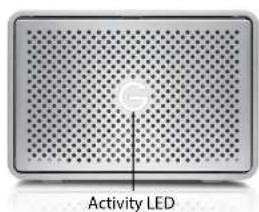

Activity and Failure LEDs
G-RAID USB contains LEDs for drive activity (WHITE) and drive failure (RED) that are next to each other on the front panel and describe the following operations:
- System initialization
- System ready
- Disk activity
- Disk drive failure
The following table explains the meaning of each combination of LEDs on the drive. When both LEDs are illuminated, the color turns lighter RED.
| State Activity/Power LED Drive Failure LED | ||
| System Initialization | On | Flashing |
| System ready | On | Off |
| Disk Activity | Flashing | Off |
| Disk 1 or Disk 2 Failure (RAID 0) | On | On (constant RED) |
| Fail Sato Mode (RMD 1) Disk 1 failure | On | Flashing 1 time/sec |
| Fail Sato Mode (RMD 1) Disk 2 failure | On | Flashing 4 times/sec |
The activity light will glow when power is applied. It will flash brighter as data is transferred to or from the hard drive.
In the event of a disk drive failure, the RED drive failure LED located on the front panel will illuminate. In RAID 1 mode - If the red light flashes once per second, it indicates that the top drive has failed; if the red light flashes four times per second, it indicates that the bottom drive has failed. If a drive failure occurs in RAID 0 mode then the LED in the front panel turns constant RED.
- If configured in protected RAID 1 mode, all the data stored on the system will be intact.
- If configured in JBOD mode, only the data in the bad drive will be lost; the rest of the data will be intact.
- If configured in RAID 0 mode, all data will be lost. Please contact Technical Support for help if the RED LED is constantly lit indicating drive failure.
GRAID USB
with removable drives
Using Your Drive on Mac
- Easy Installation for Mac ...... p. 12
- Optimize Performance ......p. 12
• Use With Time Machine....p. 13 - Disconnect the Drive ......p. 15

G Technology*
Easy Installation for Mac
G-RAID USB attaches to your computer via a USB 3.0 port.
Connect the power cord to the unit and plug the other end into a surge protector or wall outlet. Press and hold the power button until the unit turns on. The drive will automatically mount on the desktop if you are running Mac OS X.

Optimize Performance
G-RAID USB can be connected to any Mac or Windows machine equipped with USB 3.0 or USB 2.0.
If you are going to use the drive on a Windows machine, read Using Your Drive on Windows.
Use with Time Machine ^®
Your G-RAID USB can be easily used as a backup drive via Time Machine when connected to a Mac. Time Machine is an application that ships with your Mac and provides automatic file backup. The following steps will quickly set up G-RAID USB with Time Machine.
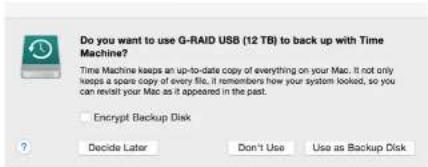
When you attach your G-RAID USB for the first time, the Time Machine dialog box should automatically appear. Click the Use as Backup Disk button.
If the Time Machine dialog box does not launch, go to the Apple Menu > System Preferences. Click on the Time Machine icon. The Time Machine Preference panel will open. Click the Select Backup Disk button.
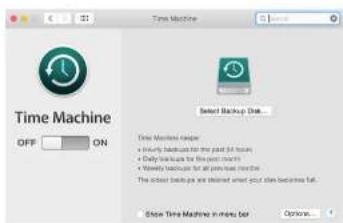
In the subsequent dialog box, select the G-RAID USB. Click the Use Disk button.

Make sure the Time Machine switch is set to ON. You can set its options by clicking the Options button. Do this to choose volumes, folders, or files you do NOT want to backup.
G-RAID USB will now backup your important files automatically with Time Machine. It's really that easy!

Disconnect the Drive
A great feature of G-RAID USB is its ability to connect and disconnect while your computer is running. To prevent failures and/or data loss, it is important to follow the steps below when disconnecting or "unmounting" the drive from your computer.
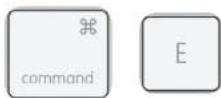
- Before powering down and disconnecting the drive, unmount the system by dragging the G-RAID USB icon to the trash located in the dock. Keyboard shortcut: Select the drive icon and hit Command+E.
- It is safe to remove the drive from your system when the drive icon is no longer present on your desktop.
- To power off G-RAID USB, press and hold the On/Off power button until the unit shuts down.
Helpful links
• To use G-RAID USB on Windows, go to Windows Use.
• To use G-RAID USB on Mac and Windows together, go to Cross-Platform Use.
GRAID USB
with removable drives
Using RAID Modes
• Supported RAID Modes.... p. 17
• The RAID Configuration Utility for Mac.... p. 18
- Configure the RAID Mode for Mac ...... p. 19
• RAID 1 Degraded Mode and Rebuild for Mac ..... p. 22
• The RAID Configuration Utility for Windows ...... p. 23
- Configure the RAID Mode for Windows ...... p. 24
• RAID 1 Degraded Mode and Rebuild for Windows ..... p. 27

G Technology
G RAID USB
with remarkable virtue
Using RAID Modes
Supported RAID Modes
G-RAID is preconfigured in RAID 0 (Performance) mode, for use with Mac OS systems. The drive can also be configured in RAID 1 (Protected) mode or JBOD mode. The following table explains the advantages and disadvantages for each RAID level.
| RAID Level Advantage Description | Disadvantage | Ideal For | ||
| RAID 0 | Disk Striping | Highest read/write performance Storage capacity is 100% utilized. | No fault tolerance. Single drive failure will result in complete data loss. | Highest storage capacity utilization and highest performance. |
| RAID 1 | Disk mirroring | Complete data protection in case of a single drive failure. | Read/write performance is reduced to half of RAID 0 performance. | Sensitive data, which requires constant backing up. High performance not required. |
| JBOD | Disks not RAIDxd | Storage capacity is 100% utilized. Partial data protection if a single drive fails. | Read/write performance is reduced to half of RAID 0 performance. | Highest storage capacity utilization when partial data loss is acceptable. |
To change the RAID mode of G-RAID USB, follow the steps in Configure the RAID Mode.
RAID 0 (Performance)
G-RAID USB ships in RAID 0 (Performance) mode. This RAID mode is ideal for maximizing your throughput when video editing. In RAID 0 mode, the drives are combined and data is split between the two drives for increased performance.
RAID 1 (Protected)
RAID 1 is great for protecting and securing data, making it ideal for sensitive data, but it operates at the speed of a single drive. In RAID 1, the array will be at 50 percent of its total capacity as the same data is written or mirrored to both drives simultaneously.
JBOD
JBOD mode is great for maximum capacity utilization without fear of losing all your data, as in the case of RAID 0, but they each operate at the speed of a single drive.
The RAID Configuration Utility for Mac
The G-Technology RAID Configurator is used to change the RAID level of your G-RAID USB. To configure G-RAID USB, it will need to be the only device connected to your computer.
The RAID Configurator utility is available for download from the G-Technology website at g-technology.com/support.
Once you have downloaded the RAID Configurator, you should launch it directly from the mounted disk image.

Configure the RAID Mode for Mac
You can easily configure G-RAID USB's RAID mode with the following steps.
Important Note: Changing the RAID level will erase all data on the drive. Be sure all of the data and files you want to save are backed up to separate media.
- Launch the G-Technology RAID Configuration utility. A dialog window will ask you to disconnect all other external hard disks from your computer. This is important to ensure that the configurator does not affect other eSATA, FireWire or USB devices on your system.

- Click the Continue button. A window will appear telling you that the utility is searching for your G-RAID USB.
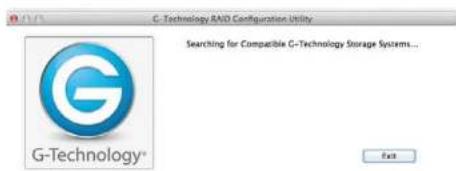
- Once the utility finds your G-RAID USB, the following window will appear. Select your desired configuration: RAID 1 (Protected), RAID 0 (Performance) or JBOD. Then click the Configure button to continue.

- Two warning windows will appear, letting you know that the following step will erase all your data. Click the Yes buttons to continue.


- A window will appear telling you that the configuration is in progress. The next window will confirm that your G-RAID USB is configured in RAID 1, RAID 0 or JBOD mode.


- Changing the RAID mode of G-RAID USB will require you to re-initialize the disk with the Disk Utility application. The disk insertion dialog below should appear. Click the Initialize button to launch Disk Utility. Then follow the simple steps to initialize G-RAID USB for use with Mac OS.

- NOTE: If the Disk Insertion dialog does not appear, go to Application > Utilities and open the Disk Utility program. Once Disk Utility is open, you are ready to initialize and partition G-RAID USB for use with Mac.
RAID 1 Degraded Mode and Rebuild for Mac
If your G-RAID USB is in RAID 1 configuration and either a single drive failure occurs or if a member of the RAID 1 set is removed, then the active drive will operate in degraded mode.
What is Degraded Mode? In a two-drive RAID 1 array, if one of the drives fails or if one of the drives is removed then the active drive keeps the user data intact but without any fail-safe mechanism until the RAID array is rebuilt. This state of operation is called degraded mode.
To rebuild the RAID 1 set, please insert a new drive in place of the failed drive or the drive that has been removed. If this new drive is not formatted then the Disk Utility function will automatically launch and you can format the drive. If this replacement drive is formatted then you are ready to rebuild the RAID set. To see how to replace a failed drive, please refer to the section Replace a Failed Drive Module.
G-RAID USB has an auto rebuild feature built into it. Once you insert a formatted replacement disk the RAID 1 will start rebuilding automatically. Total rebuild time is dependent on the total capacity of each drive. The rebuild time is approximately two hours per terabyte.
The RAID Configuration Utility for Windows
The G-Technology RAID Configurator is used to change the RAID level of your G-RAID USB. To configure your G-RAID USB, it will need to be the only device connected to your computer.
The RAID Configurator utility is available for download from the G-Technology website at g-technology.com/support.
Once you have downloaded the RAID Configurator, you should launch it directly from the zipped package with the application inside.

Configure the RAID Mode for Windows
You can easily configure G-RAID USB's RAID mode with the following steps.
Important Note: Changing the RAID level will erase all data on the drive. Be sure all of the data and files you want to save are backed up to separate media.
- Launch the G-Technology RAID configuration utility. A dialog window will ask you to disconnect all other external hard disks from your computer. This is important to ensure that the Configurator does not affect other eSATA, FireWire or USB devices on your system.

- Click the Continue button. A window will appear telling you that the utility is searching for G-RAID USB.
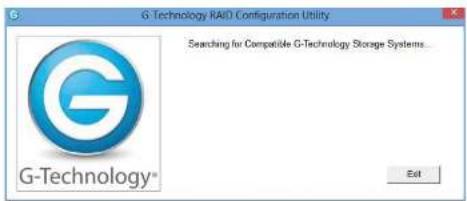
- Once the utility finds your G-RAID USB, the following window will appear. Select your desired configuration: RAID 1 (Protected), RAID 0 (Performance) or JBOD. Then click the Configure button to continue.
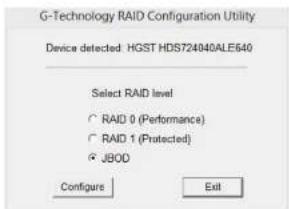
- Two warning windows will appear, letting you know that the following step will erase all your data. Click the OK and Yes buttons to continue.

- A window will appear telling you that the configuration is in progress. The next window will confirm that your G-RAID USB is configured in RAID 1, RAID 0 or JBOD mode.
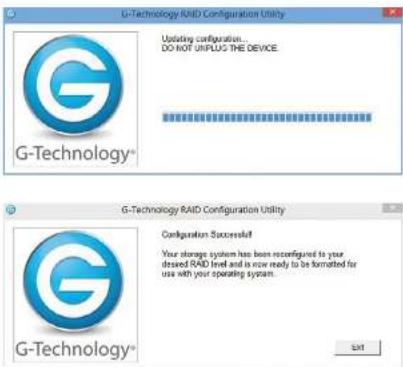
- Changing the RAID mode of G-RAID USB will require you to re-initialize the disk. For helpful information on initializing your drive with Windows, please visit g-technology.com/windows.
RAID 1 Degraded Mode and Rebuild for Windows
If your G-RAID USB is in RAID 1 configuration and either a single drive failure occurs or if a member of the RAID 1 set is removed, then the active drive will operate in degraded mode.
What is Degraded Mode? In a two-drive RAID 1 array, if one of the drives fails or if one of the drives is removed then the active drive keeps the user data intact but without any fail-safe mechanism until the RAID array is rebuilt. This state of operation is called degraded mode.
To rebuild the RAID 1 set, please insert a new drive in place of the failed drive or the drive that has been removed. If this new drive is not formatted. For more information about formatting your drive to NTFS for Windows please CLICK HERE and you can format the drive. If this replacement drive is formatted then you are ready to rebuild the RAID set. To see how to replace a failed drive, please refer to the section Replace a Failed Drive Module.
G-RAID USB has an auto rebuild feature built into it. Once you insert a formatted replacement disk the RAID 1 will start rebuilding automatically. Total rebuild time is dependent on the total capacity of each drive. The rebuild time is approximately two hours per terabyte.
G RAID USB
with removable drives
Maintenance for Your Drive
- Initialize the Drive for Mac ......p. 29
- Restore the Drive Icon ......p. 33
• Reformat with Partitions ..... p. 35 - Replace a Failed Drive Module ......p. 40

G Technology
G RAID USB
with remonable status
Maintenance for Your Drive
Initialize the Drive for Mac
G-RAID USB is factory formatted or "initialized" for use with Mac OS. You can follow these steps to reinitialize your drive if you would like to quickly erase the contents of the drive.
- Open the Disk Utility application. Disk Utility is located on your hard drive under Applications/Utilities/Disk Utility. The window below will appear. Your G-RAID USB will be displayed in the left column.
- Select G-RAID USB by clicking its drive icon in the left column. Information about the drive will be displayed at the bottom of the window.
- Select the Erase tab to view the formatting options. By default, the Format pop-up menu is set to the Mac OS Extended (Journaled) option.

-
Choose the Format option you prefer.
-
Mac OS Extended (Journalled): This basic File System format is intended for generally formatted drives including Time Machine backup and creating separate bootable Disk Images.
- Mac OS Extended Case-sensitive and Encryption options: The Case-sensitive option treats file names that are the same but with different cases as different while the Encryption option adds an additional layer of security for your personal files.
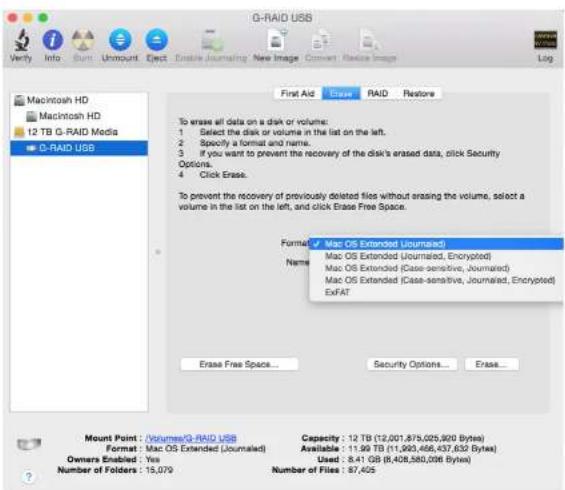
- Click the Erase button in the lower-right corner of the window. A dialog box will appear asking if you want to erase the G-RAID USB partition.
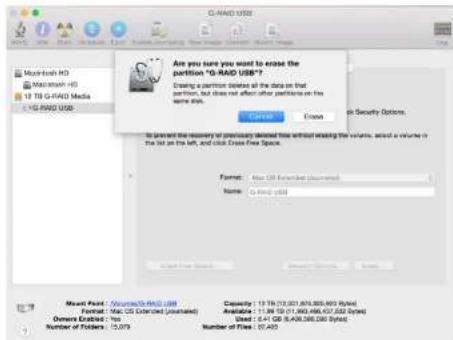
WARNING: THIS NEXT STEP WILL ERASE ALL DATA ON YOUR DRIVE.
- Click the Erase button to continue. A progress bar in the lower-right corner of the window will show the progress of the disk's reformatting process.

-
After the drive is re-initialized, you should automatically see the Time Machine dialog box.
-
Click the Use as Backup Disk button if you want to use the drive with Time Machine.
- Click the Don't Use or Decide Later buttons if you do not want to use Time Machine at this point.

- Quit the Disk Utility program. After you reinitialize the drive, the custom icon for G-RAID USB will be erased. You can optionally restore this icon with the steps on the next page.
Restore the Drive Icon
If the G-RAID USB drive icon was erased during the configuration process (see the previous section), you can restore the icon with the following easy steps.
NOTE: This process is not required for the operation of the G-RAID USB. However, it will make your drive's appearance on the computer desktop look cleaner and more accurate.
- To get the G-Technology icon package, go to www.g-technology.com/support and navigate to your product. There will be a link to download the icons on the product support page.
- Once downloaded, the G-Technology icons folder shown below should load automatically. If not, double-click the zip file to open. Next, double-click the DMG file to open the G-Technology icons package.
- Click to select the drive icon for G-RAID USB in the package window. Press Command+C to copy the icon.
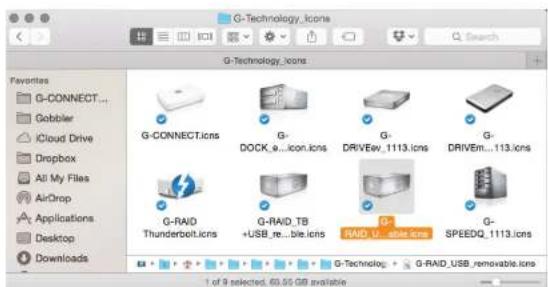
- Select the default G-RAID USB drive icon on your desktop and press Command+I. This opens the Get Info window (below left).
- Select the default icon in the Get Info window (below left).
- Press Command+V to paste the custom G-RAID USB icon into the Get Info window (below right).


The icon for your G-RAID USB has been restored and you can close the Get Info window. Your drive is now ready for use!
Reformat with Partitions
Partitioning a hard drive is the process of dividing a hard drive into separate, discrete sections called volumes. Each volume works like a separate disk. You can create up to 16 different partitions on a hard drive in Mac OS X, and each partition can be a different size and format.
With hard drives getting bigger, it is useful to partition your hard drive so you can use sections of its space for different purposes. For instance, you can segment user data from backup data, set up a multi-boot environment with different operating systems, or create a dedicated capture scratch disk for programs such as Final Cut Pro and Adobe Premiere.
The following steps will guide you through the simple process of partitioning your drive. In this example, we will partition a 12TB G-RAID USB connected via USB 3.0. The steps will be identical for your drive, although the name may be different.
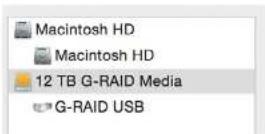
- Open the Disk Utility program. This application is located on your hard drive under Applications/Utilities/Disk Utility. The window below will appear. Your G-Technology drive will be displayed in the left column.
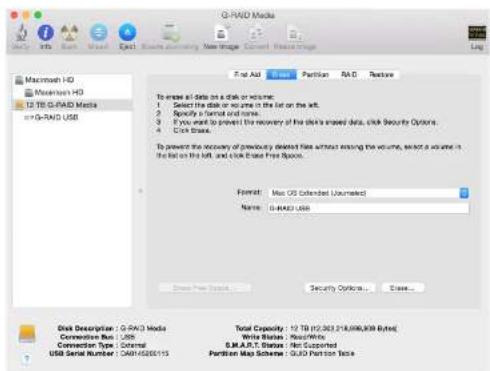
- Select the USB icon — not the G-Technology drive icon — by clicking it in the left column.
- Click on the Partition button in the main window.

- Select the number of partitions you would like from the Partition Layout menu. Below, we have selected "2 Partitions" to create two partitions.
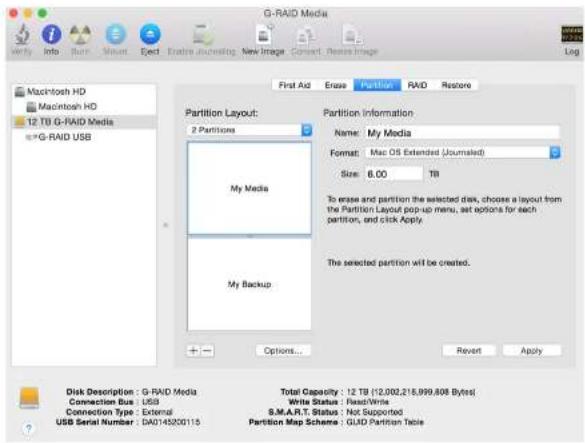
- Click on the first partition in the Partition Layout area. Your partition will be in a white box surrounded by blue lines.
• In the Name field, type a name for the partition.
- From the Format menu, choose your desired disk format. If you will use your drive primarily on Mac OS, it is recommended to use Mac OS Extended (Journaled). For details about formats, go here.
- In the Size field, type in a size for the partition. Alternately, you can drag the bar between each partition in the Partition Layout area to quickly change the size.
-
Repeat this process for each partition you have created.
-
Click the Apply button in the lower-right corner of the window. A dialog box will appear asking if you want to erase the G-Technology drive partition.
WARNING: THE NEXT STEP WILL ERASE ALL DATA ON YOUR DRIVE.

- Click on the Partition button to continue. A progress bar in the lower-right corner of the window will show you the progress of the disk's reformatting.

- When partitioning is complete, the multiple partitions will be displayed in the left panel of Disk Utility.
- Quit the Disk Utility program. After re-initializing the drive, the custom icon for the G-Technology drive has been erased. To restore the G-RAID USB icon for each partition follow the steps from the Restore the Drive Icon section.

- The multiple partitions of the G-Technology drive will be displayed on your desktop. Your drive is now set up with two or more partitions and is ready for use.

Replace a Failed Drive Module
The internal components of G-RAID USB continually monitor the health of each of its disk drives. In the event of a drive failure, a visual alarm will appear. Read more in Activity and Failure LEDs.
RAID 0: If G-RAID USB was configured in RAID 0 (Performance) mode, a drive failure will result in data loss.
RAID 1: If G-RAID USB is configured as RAID 1, a single drive failure will not result in data loss. However, the array is now in a degraded or unprotected state, and the failed drive should be replaced as soon as possible to avoid data loss.
Read more in Supported RAID Modes.
Follow the steps below to identify and replace a failed drive.
- With the unit powered on, the flashing RED LED will indicate which drive module failed. For more information, see Activity and Failure LEDs.
- Remove the failed drive by pressing the module release button, and gently sliding the drive module out of the enclosure.
- Replace the failed drive with a new disk module. Secure it in place by pushing in the drive and latching the handle.
NOTE: During the 3-Year warranty period, contact G-Technology Technical Support for replacement of a defective drive module.

natural_image
Product photo of a gray G8003 hard drive with two external units and a red circular logo (no visible text or symbols)G RAID USB
- If G-RAID USB was set up in RAID 1 mode, the unit will begin rebuilding data on the drive. During this process, the activity LED will indicate data access. The rebuild time is approximately two hours per terabyte.
- Once the rebuild process is complete, G-RAID USB is back to normal and once again protecting your valuable data. Furthermore the drive LED light will return to a solid white light visually indicating a healthy RAID 1 set.
Helpful tips
You can continue using G-RAID USB even while the drive volume is being rebuilt. However, it will run at a slower data rate.
It is good practice to keep at least one spare drive module on hand in case of a disk failure. That way, you can rebuild your array in hours rather than wait days for a new one to ship.
G RAID USB
with removable drives
Using Your Drive on Windows
- Windows Use ......p. 43
• Cross Platform Use ......p. 43

G Technology
G RAID USB
with permeable values
Using Your Drive on Windows
Windows Use
G-RAID USB is set up at the factory for use with Mac OS systems. A simple initialization will prepare your drive for use with Windows 7, 8 and 8.1 systems.
For helpful information on configuring and using your drive with Windows, please visit g-technology.com/windows.
Cross Platform Use
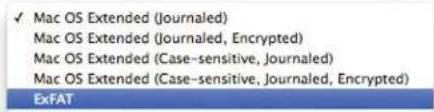
You can set up G-RAID USB for use on both Windows and Mac systems by formatting the drive as 'exFAT'. To do this, use the Disk Utility application on the Mac system and format the drive to exFAT.
- First, open the Mac system's Disk Utility program. This application is located on your hard drive under Applications/Utilities/Disk Utility. The window below will appear. Your G-RAID USB will be displayed in the left-hand column.
- Select the G-RAID USB by clicking on its drive icon in the left-side column. Information about the drive will be displayed at the bottom of the window.
- Select the Erase tab to view the formatting options.
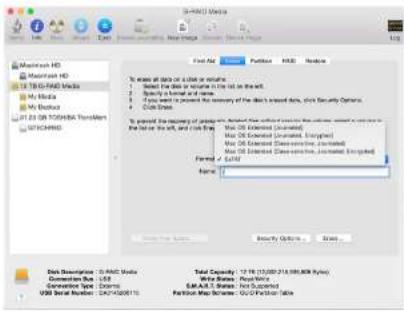
- Select exFAT File System from the Format pop-up menu. This will format to exFAT.
NOTE: You may need to rename the drive because exFAT does not support more than 11 letters in the drive name.
WARNING: THIS NEXT STEP WILL ERASE ALL DATA ON YOUR DRIVE.
- Click the Erase button in the lower right corner of the window. A dialog box will appear asking if you want to erase the G-RAID USB partition.
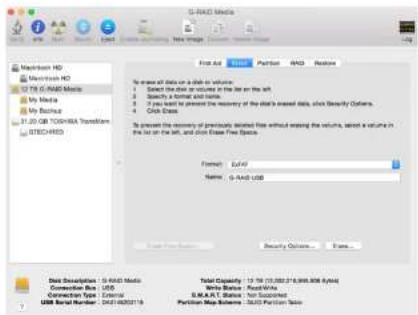
- Click the Erase button in the pop-up dialog box. A progress bar in the lower right corner of the window will show the progress of the disk's reformatting. Your drive will be formatted to its full capacity as exFAT.

-
Quit the Disk Utility program. You are finished!
-
After reinitializing, the custom icon for the G-RAID USB will be erased.
With this format, you will be able to read/write on Windows Vista, Windows 7 and on Mac OS machines.
G RAID USB
with removable drives
Support & Warranty
• Technical Support ...... p. 47
- Limited Warranty ......p. 48
• Copyright p. 50

G Technology
GRAID'USB
Support & Warranty
Technical Support
Thank you for purchasing G-RAID USB. If you have any comments or questions about this manual or the product, please let us know!
As a valued customer, G-Technology strives to provide you with the finest products and support. If you encounter any difficulties while installing or using you G-RAID USB, our tech support team members will gladly assist you at: g-technology.com/support.
Helpful information for support
When contacting Technical Support, it's best to be in front of your computer and have the following information available:
- Your G-RAID USB serial number (on bottom of unit)
- Operating System and version
- Computer model
• List of other devices attached to your computer
Limited Warranty
HGST, a Western Digital Company including G-Technology for External Hard Disk Drives.
What does this limited warranty cover?
This Limited Warranty applies to new HGST products purchased from an authorized HGST dealer by the original purchaser for normal use and not for resale. HGST warrants that a covered product is free from defects in materials and workmanship, with the exceptions stated below.
How long does limited warranty coverage last?
This limited warranty lasts for 1 year, 2 years, 3 years or 5 years, or a fixed period from date of purchase, depending on when and where it was originally purchased. To determine the warranty specifically for your product, visit www.g-technology.com. A valid proof of purchase may be required to prove eligibility. If you do not have a valid proof of purchase, the limited warranty period will be measured from the date of sale from HGST to the authorized distributor.
What does this limited warranty not cover?
The limited warranty does not cover damage resulting from commercial use, misuse, accident, modification or alteration to hardware or software, tampering, unsuitable physical or operating environment beyond product specifications, improper maintenance, or failure caused by a product for which HGST is not responsible.
There is no warranty of uninterrupted or error-free operation. There is no warranty for loss of data—you must regularly backup the data stored on your product to a separate storage product. There is no warranty for product with removed or altered identification labels.
HGST DOES NOT PROVIDE ANY OTHER WARRANTIES OF ANY KIND, INCLUDING, BUT NOT LIMITED TO, THE IMPLIED WARRANTIES OR CONDITIONS OF MERCHANTABILITY AND FITNESS FOR A PARTICULAR PURPOSE. SOME JURISDICTIONS DO NOT ALLOW THE LIMITATION OF IMPLIED WARRANTIES, SO THIS LIMITATION MAY NOT APPLY TO YOU. HGST is not responsible for returning to you product, which is not covered by this limited warranty.
What must you do?
If you are having trouble with a product, before seeking limited warranty service, first follow the troubleshooting procedures that HGST or your reseller provides.
To obtain limited warranty service, you must first obtain a Return Materials Authorization (RMA) and ship-to address by contacting G-Technology at http://www.g-technology.com/support. Please follow the instructions found on the website. You must return the covered hard disk drive using approved packaging to our logistics center. You must pay any associated transportation charges, duties and insurance in shipping the drive to our logistics center. You should remove all personal information from the product prior to its return.
What will HGST do?
HGST will replace the drive with a functionally equivalent replacement product, transportation prepaid. HGST may replace your product with a product that was previously used, repaired and tested to meet HGST specifications. You receive title to the replaced product at delivery to the carrier at HGST's shipping point. You are responsible for importation of the replaced product, if applicable. HGST will not return the original drive to consumers; therefore, the consumer is responsible for moving data to another media before returning. Data Recovery is not covered under this warranty and is not part of the warranty returns process. HGST warrants that the replaced products are covered for the remainder of the original product warranty or 90 days, whichever is greater.
How is our liability limited?
HGST AND ITS AFFILIATES, SUPPLIERS, DISTRIBUTORS, AND RESELLERS ARE NOT LIABLE FOR ANY OF THE FOLLOWING: 1) THIRD-PARTY CLAIMS AGAINST YOU FOR DAMAGES (OTHER THAN BODILY INJURY INCLUDING DEATH AND TANGIBLE PERSONAL PROPERTY; 2) LOSS OF, OR DAMAGE TO, YOUR DATA; OR 3) SPECIAL, INCIDENTAL, OR INDIRECT DAMAGES OR FOR ANY ECONOMIC CONSEQUENTIAL DAMAGES (INCLUDING LOST PROFITS OR SAVINGS), EVEN IF INFORMED OF THE POSSIBILITY. SOME JURISDICTIONS DO NOT ALLOW LIMITATION OF LIABILITY, INCIDENTAL DAMAGES, OR CONSEQUENTIAL DAMAGES, SO THE ABOVE LIMITATIONS MAY NOT APPLY TO YOU.
How do local laws apply?
THIS LIMITED WARRANTY GIVES YOU SPECIFIC LEGAL RIGHTS, AND YOU MAY ALSO HAVE OTHER RIGHTS, WHICH VARY FROM JURISDICTION TO JURISDICTION.
CAPACITY DEFINITION AND DISCLAIMER
For G-Technology products 1TB or greater: "One gigabyte (GB) is equal to one billion bytes and one terabyte (TB) equals 1,000 GB (one trillion bytes). Accessible capacity will vary from the stated capacity due to formatting and partitioning of the hard drive, the computer's operating system, and other factors."
For G-Technology products less than 1TB: "One gigabyte (GB) is equal to one billion bytes when referring to hard drive capacity. Accessible capacity will vary depending on the operating environment and formatting."
Copyright
G-RAID, G-Technology and the G-Technology logo are registered trademarks of G-Technology and its affiliates in the U.S. and other countries. Apple, Mac, MacBook Pro, Time Machine and the Mac logo are trademarks of Apple, Inc. RED and MINI-MAG are trademarks or registered trademarks of Red.com, Inc. in the USA and other countries. Other trademarks are the property of their respective owners. ©2015 G-Technology, G-Technology, a Western Digital Corporation brand. All rights reserved. R1 1015

G-Technology®

g-technology.com


- Table of Contents
- Safety & General Use
- About Your G-RAID USB
- Using Your Drive on Mac
- Using RAID Modes
- Maintenance for Your Drive
- Using Your Drive on Windows
- Support & Warranty
- G RAID USB
- Safety Precautions
- Backup Your Data
- Make Two Backups
- GRAID USB
- Introduction
- What's in the Box
- System Requirements
- Overview of the Drive
- Activity and Failure LEDs
- Easy Installation for Mac
- Optimize Performance
- Use with Time Machine ®
- Disconnect the Drive
- Helpful links
- Supported RAID Modes
- RAID 0 (Performance)
- RAID 1 (Protected)
- JBOD
- The RAID Configuration Utility for Mac
- Configure the RAID Mode for Mac
- Important Note: Changing the RAID level will erase all data on the drive. Be sure all of the data and files you want to save are backed up to separate media.
- RAID 1 Degraded Mode and Rebuild for Mac
- The RAID Configuration Utility for Windows
- Configure the RAID Mode for Windows
- RAID 1 Degraded Mode and Rebuild for Windows
- Initialize the Drive for Mac
- WARNING: THIS NEXT STEP WILL ERASE ALL DATA ON YOUR DRIVE.
- Restore the Drive Icon
- Reformat with Partitions
- Replace a Failed Drive Module
- Helpful tips
- Windows Use
- Cross Platform Use
- Technical Support
- Helpful information for support
- Limited Warranty
- What does this limited warranty cover?
- How long does limited warranty coverage last?
- What does this limited warranty not cover?
- What must you do?
- What will HGST do?
- How is our liability limited?
- How do local laws apply?
- CAPACITY DEFINITION AND DISCLAIMER
- Copyright
Marke : G-TECHNOLOGY
Modell : Raid w/Thunderbolt
Kategorie : NAS