
AC1750 (525787) - Zugangspunkt Intellinet - Kostenlose Bedienungsanleitung
Finden Sie kostenlos die Bedienungsanleitung des Geräts AC1750 (525787) Intellinet als PDF.


| Produkttyp | Drahtloser Zugangspunkt (Access Point) |
| Marke | Intellinet |
| Modell | AC1750 (525787) |
| Wireless-Standards | IEEE 802.11a/b/g/n/ac |
| Frequenzbänder | 2,4 GHz (bis zu 450 Mbit/s) + 5 GHz (bis zu 1300 Mbit/s) |
| Maximale Datenrate | 1750 Mbit/s (aggregiert) |
| Antennen | 3 externe abnehmbare Antennen (RP-SMA) |
| Schnittstellen | 1x Gigabit-Ethernet-Port (10/100/1000) mit PoE-Unterstützung |
| Stromversorgung | PoE 802.3af (48V) oder optionales 12V DC-Netzteil (nicht im Lieferumfang) |
| Abmessungen (B x T x H) | ca. 230 x 160 x 35 mm |
| Gewicht | ca. 300 g |
| Sicherheit | WPA2-Enterprise, WPA2-PSK, WPA, WEP, MAC-Filter, SSID-Ausblendung |
| Verwaltung | Webinterface (HTTP/HTTPS), SNMP, CLI (Telnet/SSH) |
| Betriebsmodi | Access Point, WDS, Repeater, Multidomain (bis zu 4 SSIDs pro Band) |
| Umgebungsbedingungen | Betriebstemperatur: 0°C bis 40°C; Luftfeuchtigkeit: 10% bis 90% (nicht kondensierend) |
| Lieferumfang | AC1750 Access Point, Montagehalterung, Kurzanleitung, Ethernet-Kabel |
| Garantie | 3 Jahre Herstellergarantie |
Häufig gestellte Fragen - AC1750 (525787) Intellinet
Benutzerfragen zu AC1750 (525787) Intellinet
0 Frage zu diesem Gerät. Beantworten Sie die, die Sie kennen, oder stellen Sie Ihre eigene.
Eine neue Frage zu diesem Gerät stellen
Laden Sie die Anleitung für Ihr Zugangspunkt kostenlos im PDF-Format! Finden Sie Ihr Handbuch AC1750 (525787) - Intellinet und nehmen Sie Ihr elektronisches Gerät wieder in die Hand. Auf dieser Seite sind alle Dokumente veröffentlicht, die für die Verwendung Ihres Geräts notwendig sind. AC1750 (525787) von der Marke Intellinet.
BEDIENUNGSANLEITUNG AC1750 (525787) Intellinet
HIGH-POWER WIRELESS AC1750 DUAL-BAND GIGABIT POE ACCESS POINT
USER MANUAL
MODEL 525787

natural_image
White Siemens i32 microcontroller with three ports and a logo on top (no visible text or symbols on the device body)
INT-525787-UM-0615-01
CONTENTS
I. Product Information .... 1
I-1. Package Contents .... 1
1-2. System Requirements....2
I-3. Hardware Overview....2
I-4. LED Status ....3
1-5. Reset 3
1-6. Magnetic Wall Mount....4
1-7. Console 5
1-8. Safety Information 6
II. Quick Setup 7
II-1. Initial Setup....7
II-2. Basic Settings 9
II-3. Wi-Fi Protected Setup (WPS)....13
III. Hardware Installation.... 14
III-1. Connecting the access point to a router or PoE switch....14
III-2. Using LAN Port 2....15
IV. Browser-Based Configuration Interface 16
IV-1. Information....18
IV-1-1. System Information 18
IV-1-2. Wireless Clients....22
IV-1-3. Wireless Monitor 23
IV-1-4. Log....25
IV-2. Network Settings 27
IV-2-1. LAN-Side IP Address....27
IV-2-2. LAN Port 29
IV-2-3. VLAN 30
IV-3. Wireless Settings....31
IV-3-1. 2.4GHz 11bgn....31
IV-3-2. 5GHz 11ac 11an ....43
IV-3-3. WPS....52
IV-3-4. RADIUS....54
IV-3-5. MAC Filter 60
IV-3-6. WMM....62
IV-4. Management 64
IV-4-1. Admin....64
IV-4-2. Date and Time....67
IV-4-3. Syslog Server....69
IV-4-4. I'm here! 70
IV-5. Advanced 71
IV-5-1. LED Settings 71
IV-5-2. Update Firmware....72
IV-5-3. Save/Restore Settings....73
IV-5-4. Factory Default 75
IV-5-5. Reboot....76
IV. Appendix....77
V-1. Configuring your IP address....77
V-1-1. Windows XP 78
V-1-2. Windows Vista 80
V-1-3. Windows 7 82
V-1-4. Windows 8....86
V-1-5. Mac 90
V-1-6. Glossary....92
V-2. Hardware Specifications....95
V-3. Environmental & Physical....95
I. Product Information
I-1. Package Contents
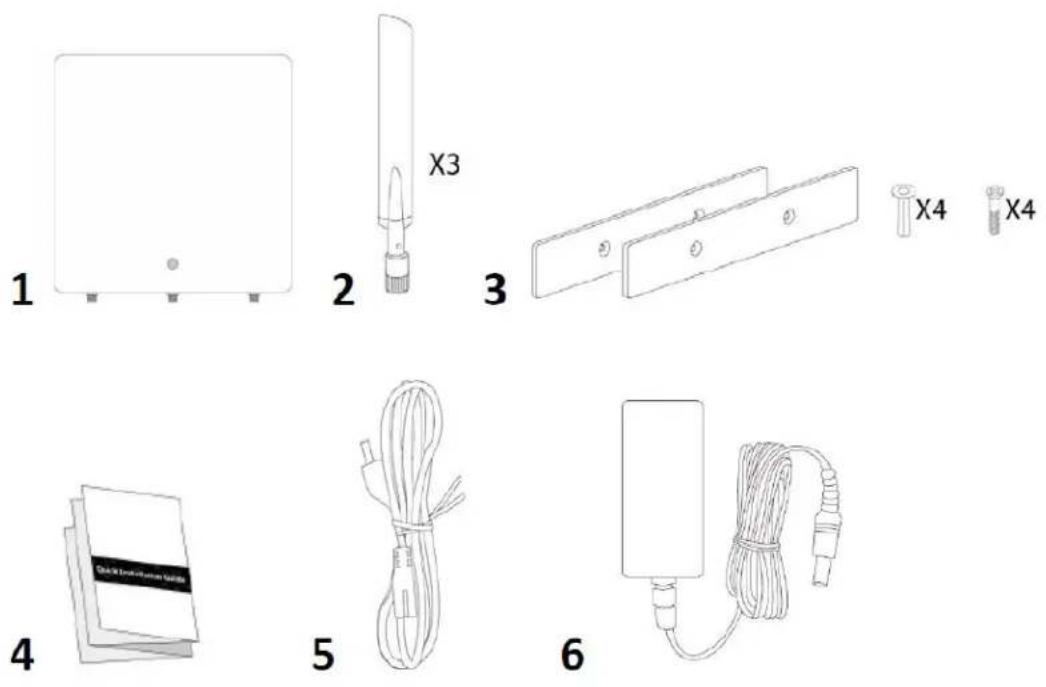
- Access Point
- Antennas x 3
-
Magnetic Wall Mount x 2 & Screws
-
Quick Installation Guide
- Power Cable
- Power Adapter
I-2. System Requirements
- Existing cable/DSL modem & router
- Computer with Web browser for access point configuration
I-3. Hardware Overview

A. 12V DC port to connect the power adapter
B. LAN port with Power over Ethernet (PoE PD, IN)
C. LAN port with Power over Ethernet (PoE PSE, OUT)
D. USB Port for system log, save/restore settings
E. Eject an attached USB device
F. Connect a management console
G. Reset the access point to factory default settings
H. Wi-Fi Protected Setup (WPS) button
I. Switch the access point on/off
I-4. LED Status
| LED Color | LED Status | Description |
| Blue | On | The access point is on. |
| Purple | On | The access point is starting up. |
| Off Of | f | The access point is off. |
I-5. Reset
If you experience problems with your access point, you can reset the device back to its factory settings. This resets all settings back to default.
- Press and hold the Reset button on the access point for at least 10 seconds, then release the button.

You may need to use a pin or similar sharp object to push the reset button.

- Wait for the access point to restart. The access point is ready for setup when the LED is Blue.
I-6. Magnetic Wall Mount
The access point includes a magnetic wall mount which requires some assembly.
- Attach the two magnetic wall mount strips to your wall using the included screws, as shown below.
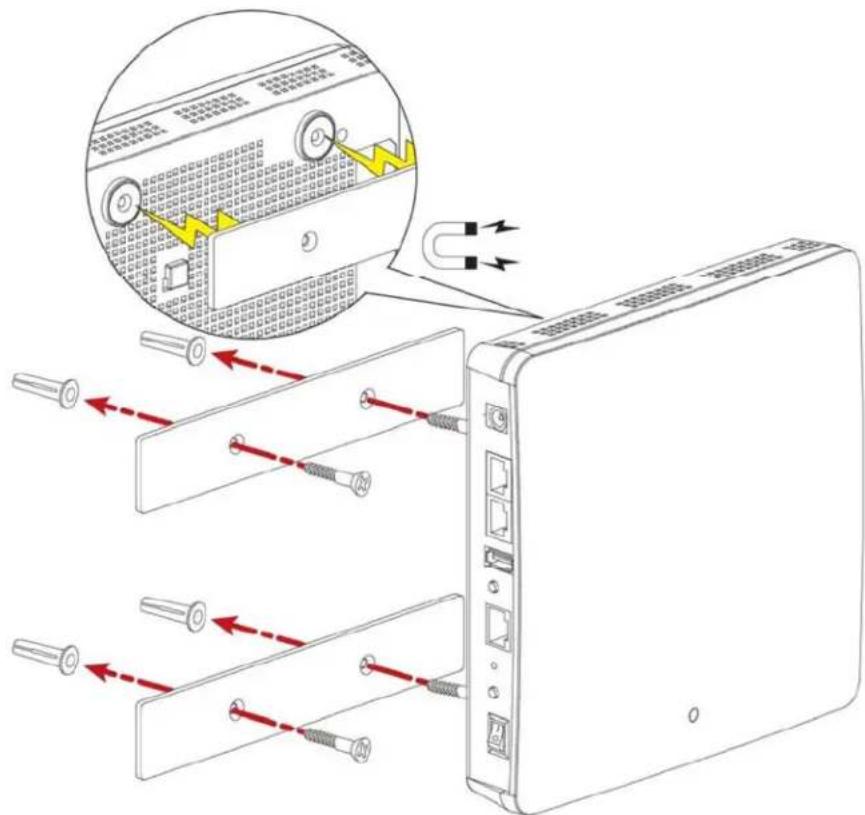
- Press the back of your access point firmly against the two wall mounted magnetic strips, with the access point's in the correct position, upright orientation as displayed above.
Caution: Ensure your access point is securely attached to the magnetic strips.
I-7. Console
The access point can be configured via the “Console” port located on the access point’s side panel using a terminal-emulation program (e.g. HyperTerminal).
Use the following configuration settings for terminal-emulation programs:
| Baud Rate | 115200 |
| Data | 8 bit |
| Parity | None |
| Stop | 1 bit |
| Flow Control | None |
I-8. Safety Information
In order to ensure the safe operation of the device and its users, read and act in accordance with the following safety instructions.
- The access point is designed for indoor use only; do not place the access point outdoors.
- Do not place the access point in or near hot/humid places, such as a kitchen or bathroom.
- Do not pull any connected cable with force; carefully disconnect it from the access point.
- Handle the access point with care. Accidental damage will void the warranty of the access point.
- The device contains small parts which are a danger to small children under 3 years of age. Please keep the access point out of reach of children.
- Do not place the access point on paper, cloth or other flammable materials. The access point may become hot during use.
- There are no user-serviceable parts inside the access point. If you experience problems with the access point, contact your dealer of purchase and ask for help.
- The access point is an electrical device and as such, if it becomes wet for any reason, do not attempt to touch it without switching the power supply off. Contact an experienced electrical technician for further help.
- If you smell something burning or see smoke coming from the access point or power adapter, disconnect the access point and power adapter immediately, as much as it is safely possible to do so. Call your dealer of purchase for help.
Your access point can be up and running in just a few minutes. This quick installation guide will help you set up your access point and direct you to the initial settings screens. Follow the instructions in the chapters below.
II-1. Initial Setup
-
Connect the access point to a computer via Ethernet cable.
-
Connect the power adapter to the access point's 12VDC port and plug the power adapter into a power supply using the included cable.

-
Wait a moment for the access point to start up. The access point is ready when the LED is blue.
-
Set your computer's IP address to 192.168.2.x where x is a number in the range 3 - 100. If you are unsure how to do this, refer to Section II-2 Basic Settings.

Ensure there are no other active network connections on your computer (disconnect Wi-Fi connections and Ethernet cables).
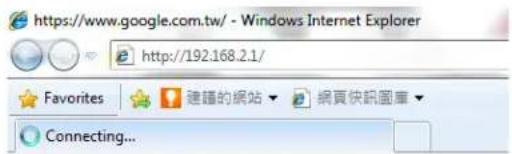
- Enter the access point's default IP address 192.168.2.1 into the URL bar of a Web browser.
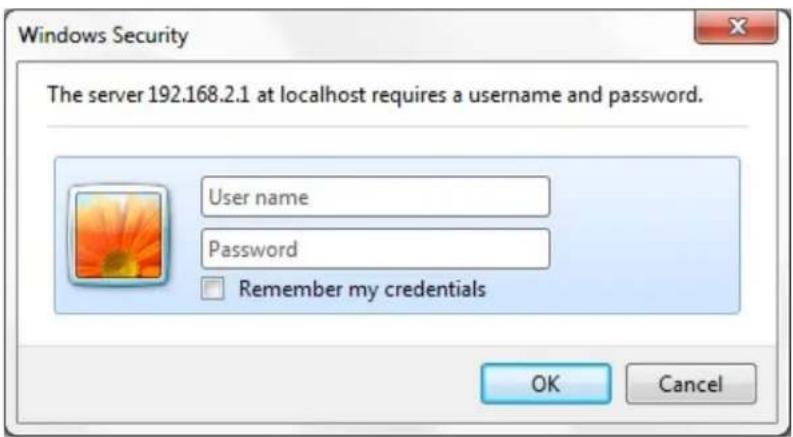
- You will be prompted for a username and password. Enter the default username "admin" and the default password "1234."
- You will arrive at the System Information screen shown below.

- Next, follow the instructions below in II-2. Basic Settings to configure the access point's basic settings.

For more advanced configurations, refer to IV. Browser Based Configuration Interface.
II-2. Basic Settings
The instructions below will help you to configure these basic settings of the access point:
- LAN IP Address
- 2.4GHz & 5GHz SSID & Security
- Administrator Name & Password
- Time & Date

It is recommended that you configure these settings before using the access point.
- To change the access point's LAN IP address, go to "Network Settings" > "LAN-side IP Address" and you will see the screen below.
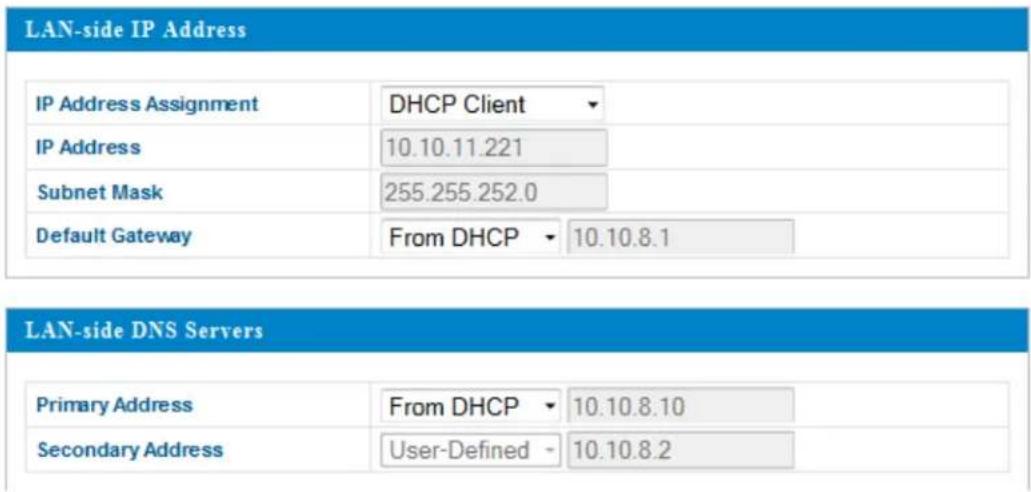
- Enter the IP address settings you wish to use for your access point. You can use a dynamic (DHCP) or static IP address, depending on your network environment. Click "Apply" to save the changes and wait a few moments for the access point to reload.

When you change your access point's IP address, you need to use the new IP address to access the browser-based configuration interface instead of the default IP 192.168.2.1.
- To change the SSID of your access point's 2.4GHz wireless network(s), go to "Wireless Settings" > "2.4GHz 11bgn" > "Basic." Enter the new SSID for your 2.4GHz wireless network in the "SSID1" field and click "Apply."

To utilize multiple 2.4GHz SSIDs, open the drop-down menu labeled "Enable SSID number" and select how many SSIDs you require. Then enter a new SSID in the corresponding numbered fields below and click "Apply."
2.4 GHz Basic Settings
| Wireless | Enable Disable | |
| Band | 11b/g/n | |
| Enable SSID number | 1 | |
| SSID1 | ICU-WLS2 | VLAN ID 1 |
| Auto Channel | Enable Disable | |
| Auto Channel Range | Ch 1 - 11 | |
| Auto Channel Interval | Two daysChange channel even if clients are connected | |
| Channel Bandwidth | Auto | |
| BSS BasicRate Set | 1.2.5.5.11 Mbps | |
- To configure the security of your access point's 2.4GHz wireless network(s), go to "Wireless Setting" > "2.4GHz 11bgn" > "Security." Select an "Authentication Method" and enter a "Pre-shared Key" or "Encryption Key" depending on your preference, then click "Apply."

If using multiple SSIDs, specify which SSID to configure using the "SSID" drop-down menu.
| 2.4 GHz Wireless Security Settings | |
| SSID | ICU-WLS2 ▼ |
| Broadcast SSID | Enable ▼ |
| Wireless Client Isolation | Disable ▼ |
| Load Balancing | 50 /50 |
| Authentication Method | WPA-EAP ▼ |
| WPA Type | WPA2-EAP ▼ |
| Encryption Type | AES ▼ |
| Key Renewal Interval | 60 mnue(s) |
| Additional Authentication | No additional authentication ▼ |
- Go to "Wireless Setting" > "5GHz 11ac 11an" and repeat steps 3 & 4 for the access point's 5GHz wireless network.
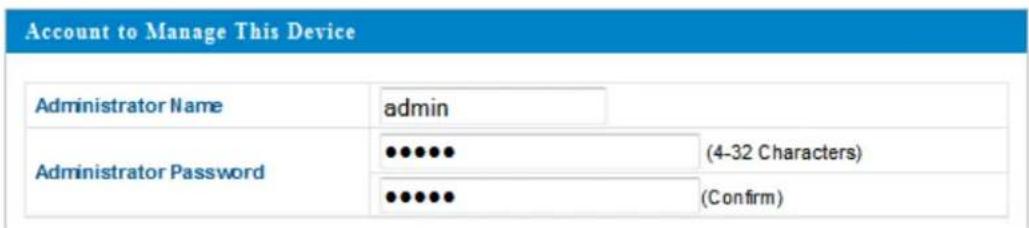
- To change the administrator name and password for the browser-based configuration interface, go to "Management" > "Admin."
-
Complete the "Administrator Name" and "Administrator Password" fields and click "Apply."
-
To set the correct time for your access point, go to "Management" > "Date and Time."
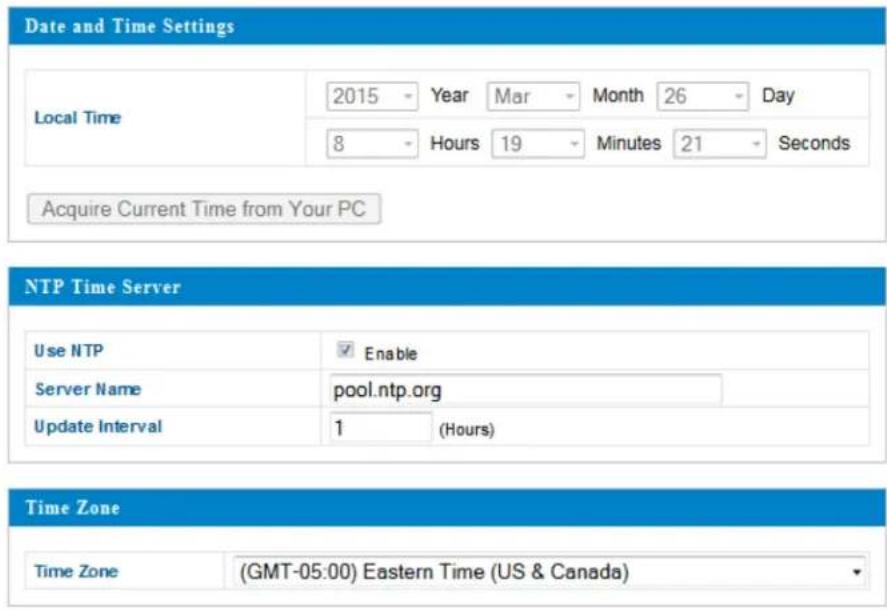
- Set the correct time and time zone for your access point using the dropdown menus. The access point also supports NTP (Network Time Protocol) so alternatively you can enter the host name or IP address of a time server. Click "Apply" when you are finished.

You can use the "Acquire Current Time from your PC" button if you wish to set the access point to the same time as your PC.
- The basic settings of your access point are now configured. Refer to III. Hardware Installation for guidance on connecting your access point to a router or PoE switch.
II-3. Wi-Fi Protected Setup (WPS)
Wi-Fi Protected Setup (WPS) is a computing standard that attempts to allow easy establishment of secure wireless home-network connections. Created by the Wi-Fi Alliance and introduced in 2007, the goal of the protocol is to allow home users who know little of wireless security and may be intimidated by the available security options to set up the encryption method WPA2, as well as making it easy to add new devices to an existing network without entering long passphrases.
You can use the WPS button to establish a connection between the access point and a WPS-compatible wireless device/client.
- Press and hold the WPS/Reset button on the side of the access point for 2 seconds.

-
Within two minutes, activate WPS on your WPS-compatible wireless device. Please check the documentation for your wireless device for information regarding its WPS function.
-
If all goes well, the devices will establish a connection.
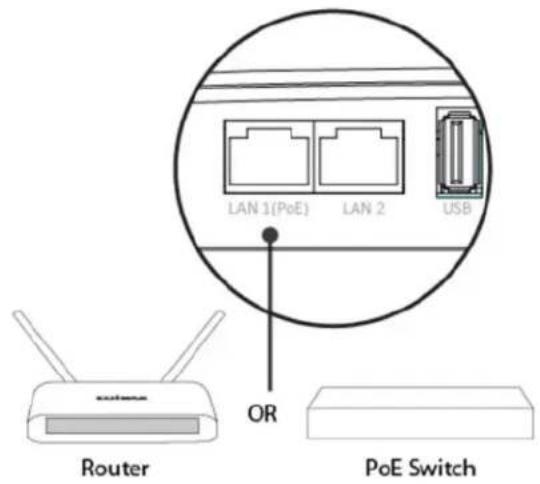
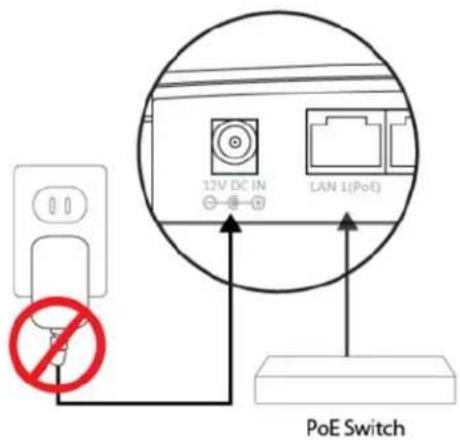
III-1. Connecting the access point to a router or PoE switch
- If you need to, remove the cap from the underside of the access point. This creates extra space for your cables to pass through.
-
If you are using a router, then connect the power adapter to the access point's 12V DC port and plug the power adapter into a power supply.
-
If you are using a router, connect the power adapter to the access point's 12VDC port and plug the power adapter into a power supply.

Do not use the power adapter if you are using a PoE switch.
III-2. Using LAN Port 2
The second LAN port can be used to connect to another Ethernet device. This can be another LAN switch, or an IEEE803.2af PoE powered device.

Be careful not to create a network loop when connecting LAN port 2 to other networking devices.
When connecting another PD (PoE) device to LAN port 2, you must consider how much power that device uses in order to operate. The maximum power output on LAN port 2 is 12.9 watts. This is not enough to connect another Intellinet AC1750 Access Point, as its maximum power draw is rated 18 watts. Not only that, but 12.90 watts can only be achieved, if the external power adapter is used.
If the access point is connected and powered via PoE, there will be less than 12.9 watts power available on LAN port 2. Refer to the table below.
| Access Point is connected to power via | Power available at PD | ||
| 12V 4A Power adapter | 12.9 watts maximum | ||
| IEEE802.3at compliant PSE @ 30 watts | |||
IV. Browser-Based Configuration Interface
The browser-based configuration interface enables you to configure the access point's advanced features. The device features a range of advanced functions, such as MAC filtering, MAC RADIUS authentication, VLAN configurations, up to 32 SSIDs and many more. To access the browser-based configuration interface:
- Connect a computer to your access point using an Ethernet cable.
- Enter your access point's IP address in the URL bar of a Web browser. The access point's default IP address is 192.168.2.1.
- You will be prompted for a username and password. The default username is "admin" and the default password is "1234," though it was recommended that you change the password during setup (see II-2. Basic Settings).

If you cannot remember your password, reset the access point back to its factory default settings. Refer to I-5. Reset.
- You will arrive at the System Information screen shown below.

- Use the menu across the top and down the left side to navigate.

- Click "Apply" to save changes and reload the access point, or "Cancel" to cancel changes.

Wait a few seconds for the access point to reload after you "Apply" changes, as shown below.
Configuration is complete. Reloading now... Please wait for 23 seconds.
- Refer to the following chapters for full descriptions of the browser-based configuration interface features.
IV-1. Information


Screenshots displayed are examples. The information shown on your screen will vary depending on your configuration.
IV-1-1. System Information
The System Information page displays basic system information about the access point.
| Model | 525787 |
| Product Name | AP801F0275EEF0 |
| Uptime | 3 days 00:51:42 |
| Boot from | Internal memory |
| Version | 1.0.4 |
| MAC Address | 80:1F:02:75:EE:F0 |
| Management VLAN ID | 1 |
| IP Address | 10.10.11.221 |
| Default Gateway | 10.10.8.1 |
| DNS | 10.10.8.1010.10.8.2 |
| DHCP Server | — |
Wired LAN Port Settings
| Wired LAN Port | Status | VLAN Mode/ID |
| Wired Port (#1) | Connected (1000 Mbps Full-Duplex) | Untagged Port / 1 |
Wireless 2.4GHz
| Status | Enabled |
| MAC Address | 80:1F:02:75:EE:F0 |
| Channel | Ch 1 + 5 (Auto) |
| Transmit Power | 100% |
Wireless 2.4GHz /SSID
| SSID | Authentication Method | Encryption Type | VLAN ID | Additional Authentication | Wireless Client Isolation |
| ICU-WLS2 | WPA2-EAP | AES | 1 | No additional authentication | Disabled |
Wireless 2.4GHz /WDS Disabled
| MAC Address | Encryption Type | VLAN Mode/ID |
| No WDS entries. |
Wireless 5GHz
| Status | Enabled |
| MAC Address | 80:1F:02:75:EE:F1 |
| Channel | Ch 36 + 40 + 44 + 48 |
| Transmit Power | 100% |
Wireless 5GHz /SSID
| SSID | Authentication Method | Encryption Type | VLAN ID | Additional Authentication | Wireless Client Isolation |
| ICU-WLS2_5G | WPA/WPA2-EAP | TKIP/AES Mixed Mode | 1 | No additional authentication | Disabled |
Wireless 5GHz /WDS Disabled
| MAC Address | Encryption Type | VLAN Mode/ID |
| No WDS entries. |
| System | |
| Model | Displays the model number of the access point. |
| Product Name | Displays the product name for reference, which consists of “AP” plus the MAC address. |
| Uptime | Displays the total time since the device was turned on. |
| Boot From | Displays information for the booted hardware. |
| Version | Displays the firmware version. |
| MAC Address | Displays the access point's MAC address. |
| Management VLAN ID | Displays the management VLAN ID. |
| IP Address | Displays the IP address of this device. Click “Refresh” to update this value. |
| Default Gateway | Displays the IP address of the default gateway. |
| DNS | IP address of DNS (Domain Name Server). |
| DHCP Server | IP address of DHCP Server. |
| Wired LAN Port Settings | |
| Wired LAN Port | Specifies which LAN port. |
| Status | Displays the status of the LAN port (connected or disconnected). |
| VLAN Mode/ID | Displays the VLAN mode (tagged or untagged) and VLAN ID for the LAN port. See IV-2-3.VLAN |
| Wireless 2.4GHz (5GHz) | |
| Status | Displays the status of the 2.4GHz or 5GHz wireless (enabled or disabled). |
| MAC Address | Displays the access point's MAC address. |
| Channel | Displays the channel number the specified wireless frequency is using for broadcast. |
| Transmit Power | Displays the wireless radio transmit power level as a percentage. |
| Wireless 2.4GHz (5GHz) / SSID | |
| SSID | Displays the SSID name(s) for the specified frequency. |
| Authentication Method | Displays the authentication method for the specified SSID. See IV-3. Wireless Settings. |
| Encryption Type | Displays the encryption type for the specified SSID. See IV-3. Wireless Settings. |
| VLAN ID | Displays the VLAN ID for the specified SSID. See IV-2-3. VLAN. |
| Additional Authentication | Displays the additional authentication type for the specified SSID. See IV-3. Wireless Settings. |
| Wireless Client Isolation | Displays whether wireless client isolation is in use for the specified SSID. See IV-2-3. VLAN. |
| Wireless 2.4GHz (5GHz) / WDS Status | |
| MAC Address | Displays the peer access point’s MAC address. |
| Encryption Type | Displays the encryption type for the specified WDS. See IV-3-1-4. WDS. |
| VLAN Mode/ID | Displays the VLAN ID for the specified WDS. See IV-3-1-4. WDS. |
| Refresh | Click to refresh all information. |
IV-1-2. Wireless Clients
The Wireless Clients page displays information about all wireless clients connected to the access point on the 2.4GHz or 5GHz frequency.
Refresh time
Auto Refresh time
Manual Refresh

5 seconds

1 second

Disable
Refresh
2.4 GHz WLAN Client Table
| # | SSID | MAC Address | Tx | Rx | Signal (%) | Connected Time | Idle Time |
| 1 | ICU-WLS2 | C0:CB:38:35:16:65 | 285.4 KBytes | 11.7 KBytes | 70 | 36 min 20 secs | 1 |
| 2 | ICU-WLS2 | 10:0B:A9:0E:2A:98 | 68.9 KBytes | 17.5 KBytes | 26 | 15 min 14 secs | 4 |
| 3 | ICU-WLS2 | D0:DF:9A:8D:35:9F | 7.1 MBytes | 2.1 MBytes | 86 | 13 min 44 secs | 0 |
| 4 | ICU-WLS2 | D0:DF:9A:A1:8B:2D | 32.7 KBytes | 26.9 KBytes | 70 | 4 min 0 secs | 0 |
| 5 | ICU-WLS2 | 4C:0B:BE:28:CE:90 | 6.0 MBytes | 3.9 MBytes | 78 | 33 min 58 secs | 0 |
| 6 | ICU-WLS2 | C0:CB:38:35:13:8F | 336.2 KBytes | 13.7 KBytes | 100 | 45 min 7 secs | 1 |
| 7 | ICU-WLS2 | 5C:AC:4C:96:E4:7B | 501.1 KBytes | 66.6 KBytes | 100 | 57 min 18 secs | 1 |
| 8 | ICU-WLS2 | C0:CB:38:35:16:BF | 520.8 KBytes | 93.8 KBytes | 100 | 41 min 48 secs | 1 |
5 GHz WLAN Client Table
| # | SSID | MAC Address | Tx | Rx | Signal (%) | Connected Time | Idle Time |
| No wireless client | |||||||
| Refresh time | |
| Auto Refresh Time | Select a time interval for the client table list to automatically refresh. |
| Manual Refresh | Click refresh to manually refresh the client table. |
| 2.4GHz (5GHz) WLAN Client Table | |
| SSID | Displays the SSID which the client is connected to. |
| MAC Address | Displays the MAC address of the client. |
| Tx | Displays the total data packets transmitted by the specified client. |
| Rx | Displays the total data packets received by the specified client. |
| Signal (%) | Displays the wireless signal strength for the specified client. |
| Connected Time | Displays the total time the wireless client has been connected to the access point. |
| Idle Time | Client idle time is the time during which the client has not transmitted any data packets; i.e., has been idle. |
| Vendor | The vendor of the client's wireless adapter is displayed here. |
IV-1-3. Wireless Monitor
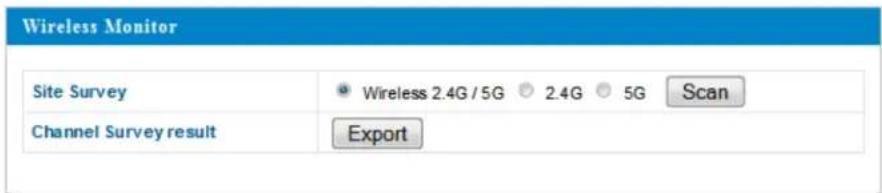
Wireless Monitor is a tool built into the access point to scan and monitor the surrounding wireless environment. Select a frequency and click “Scan” to display a list of all SSIDs within range along with relevant details for each SSID.
| Ch | SSID | MAC Address | Security | Signal (%) | Type |
| 7 | 80:1F:02:DC:BA:EB | WPA2PSK/AES | 100 | b/g/n | |
| 7 | IC-Visitor | 00:0F:11:EE:22:55 | NONE | 86 | b/g/n |
| 7 | ManhattanAC24 | 00:E0:4C:81:96:D1 | WPA2PSK/AES | 100 | b/g/n |
| 7 | MH24RP | 80:3F:5D:60:00:75 | WPA2PSK/AES | 100 | b/g/n |
| 11 | ICU-WLS | 00:1F:1F:B1:0E:D0 | WPA2/AES | 100 | b/g/n |
| Wireless 5GHz (2 Accesspoints) | |||||
| Ch | SSID | MAC Address | Security | Signal (%) | Type |
| 36 | 80:1F:02:DC:BA:EC | WPA2PSK/AES | 100 | ac | |
| 36 | ManhattanAC5 | 00:E0:4C:81:96:C1 | WPA2PSK/AES | 100 | ac |
| Wireless Monitor | |
| Site Survey | Select which frequency (or both) to scan, and click “Scan” to begin. |
| Channel Survey Result | After a scan is complete, click “Export” to save the results to local storage. |
| Site Survey Results | |
| Ch | Displays the channel number used by the specified SSID. |
| SSID | Displays the SSID identified by the scan. |
| MAC Address | Displays the MAC address of the wireless router/access point for the specified SSID. |
| Security | Displays the authentication/encryption type of the specified SSID. |
| Signal (%) | Displays the current signal strength of the SSID. |
| Type | Displays the 802.11 wireless networking standard(s) of the specified SSID. |
| Vendor | Displays the vendor of the wireless router/access point for the specified SSID. |
IV-1-4. Log
The system log displays system operation information such as up time and connection processes. This information is useful for network administrators.

When the log is full, old entries are overwritten.
![Jan 1 00:02:49 [SYSTEM]: LAN, Port[1] link status is changed to down Jan 1 00:02:25 [SYSTEM]: LAN, Port[1] link is changed to 100Mbps-Full-Duplex Jan 1 00:00:58 [SYSTEM]: WLAN[2.4G], Best channel selection start, switch to channel 1 + 5 Jan 1 00:00:38 [SYSTEM]: WLAN[5G], Skip Best channel selection and wait for next time Jan 1 00:00:12 [SYSTEM]: LAN, Port[1] link status is changed to down Jan 1 00:00:12 [SYSTEM]: LAN, Port[0] link status is changed to down Jan 1 00:00:11 [SYSTEM]: TFTP server, Stopping Jan 1 00:00:11 [SYSTEM]: FTP server, Stopping Jan 1 00:00:11 [SYSTEM]: HTTPS, start Jan 1 00:00:11 [SYSTEM]: HTTP, start Jan 1 00:00:10 [SYSTEM]: LEDs, light on specific LEDs Jan 1 00:00:07 [SYSTEM]: WLAN[5G], Channel = AutoSelect Jan 1 00:00:07 [SYSTEM]: WLAN[5G], Wireless Mode = 11ACVHT80 Jan 1 00:00:02 [SYSTEM]: WLAN[2.4G], Channel = AutoSelect Jan 1 00:00:02 [SYSTEM]: WLAN[2.4G], Wireless Mode = 11NGHT40MINUS Jan 1 00:00:02 [SYSTEM]: DHCP, start Jan 1 00:00:02 [SYSTEM]: LAN, start Jan 1 00:00:02 [SYSTEM]: Bridge, start](/content/2026/05/1031479/images/fdb5da78798ad295ab4943c612f5dffb32da332406396bef0ced64ebc7f63f15.jpg)
Save
Clear
Refresh
| Save | Click to save the log as a file on your local computer. |
| Clear | Clear all log entries. |
| Refresh | Refresh the current log. |
The following information/events are recorded by the log:
◆ Wireless Client
Connected & disconnected
Key exchange success & fail
◆ Authentication
Authentication fail or successful
Association
Success or fail
◆ WPS
M1 - M8 messages
WPS success
◆ Change Settings
◆ System Boot
Displays current model name
◆ NTP Client
◆ Wired Link
LAN Port link status and speed status
◆ Proxy ARP
Proxy ARP module start & stop
Bridge
Bridge start & stop.
SNMP
SNMP server start & stop
HTTP
HTTP start & stop
HTTPS
HTTPS start & stop
◆ SSH
SSH-client server start & stop
Telnet
Telnet-client server start or stop
♦ WLAN (2.4G)
WLAN (2.4G) channel status and country/region status
♦ WLAN (5G)
WLAN (5G) channel status and country/region status
ADT
IV-2. Network Settings
Information
Network Settings
Wireless Settings
Management
Advanced

Screenshots displayed are examples. The information shown on your screen will vary depending on your configuration.
IV-2-1. LAN-Side IP Address
The LAN-side IP Address page allows you to configure your access point on your Local Area Network (LAN). You can enable the access point to dynamically receive an IP address from your router's DHCP server or you can specify a static IP address for your access point, as well as configure DNS servers.

The access point's default IP address is 192.168.2.1.
LAN-side IP Address
| IP Address Assignment | DHCP Client | |
| IP Address | 10.10.11.221 | |
| Subnet Mask | 255.255.252.0 | |
| Default Gateway | From DHCP ▼ 10.10.8.1 | |
LAN-side DNS Servers
| Primary Address | From DHCP | 10.10.8.10 |
| Secondary Address | User-Defined | 10.10.8.2 |
| LAN-side IP Address | |
| IP Address Assignment | Select “DHCP Client” for your access point to be assigned a dynamic IP address from your router’s DHCP server, or select “Static IP” to manually specify a static/fixed IP address for your access point (below). |
| IP Address | Specify the IP address here. This IP address will be assigned to your access point and will replace the default IP address. |
| Subnet Mask | Specify a subnet mask. The default value is 255.255.255.0 |
| Default Gateway | For DHCP users, select “From DHCP” to get a default gateway from your DHCP server or “User-Defined” to enter a gateway manually. For static IP users, the default value is blank. |
DHCP users can select to get a DNS servers' IP address from DHCP or manually enter a value. For static IP users, the default value is blank.
| Primary Address | DHCP users can select “From DHCP” to get a primary DNS server’s IP address from DHCP or “User-Defined” to manually enter a value. For static IP users, the default value is blank. |
| Secondary Address | Users can manually enter a value when the DNS server’s primary address is set to “User-Defined.” |
IV-2-2. LAN Port
The LAN Port page allows you to configure the settings for your access point's two wired LAN (Ethernet) ports.
| Wired LAN Port | Speed & Duplex | 802.3az |
| Wired Port (#1) | Auto | Enabled |
| Wired LAN Port | Identifies LAN port 1. |
| Enable | Enable/disable LAN port. |
| Speed & Duplex | Select a speed & duplex type for LAN port, or use the “Auto” value. LAN ports can operate up to 1000Mbps and full-duplex enables simultaneous data packets transfer/receive. |
| Flow Control | Enable/disable flow control. Flow control can pause new session request until current data processing is complete, in order to avoid device overloads under heavy traffic. |
| 802.3az | Enable/disable 802.3az. 802.3az is an Energy Efficient Ethernet feature which disables unused interfaces to reduce power usage. |
IV-2-3. VLAN
The VLAN (Virtual Local Area Network) screen enables you to configure VLAN settings. A VLAN is a local area network which maps workstations virtually instead of physically and allows you to group together or isolate users from each other. VLAN IDs 1 – 4094 are supported.

VLAN IDs in the range 1 - 4094 are supported.
| Wired LAN Port | VLAN Mode | VLAN ID |
| Wired Port (#1) | Untagged Port | 1 |
| Wireless 2.4GHz | VLAN Mode | VLAN ID |
| SSID [ICU-WLS2] | Untagged Port | 1 |
| Wireless 5GHz | VLAN Mode | VLAN ID |
| SSID [ICU-WLS2_5G] | Untagged Port | 1 |

| VLAN Interface | |
| Wired LAN Port/Wireless | Identifies LAN port 1 and wireless SSIDs (2.4GHz or 5GHz). |
| VLAN Mode | Select “Tagged Port” or “Untagged Port” for a LANinterface. |
| VLAN ID | Set a VLAN ID for a specified interface, if “Untagged Port” is selected. |
| Management VLAN | |
| VLAN ID | Specify the VLAN ID of the management VLAN. Only the hosts belonging to the same VLAN can manage the device. |
IV-3. Wireless Settings


Screenshots displayed are examples. The information shown on your screen will vary depending on your configuration.
IV-3-1. 2.4GHz 11bgn
The 2.4GHz 11bgn menu allows you to view and configure information for your access point's 2.4GHz wireless network across four categories: Basic, Advanced, Security and WDS.
IV-3-1-1. Basic
The Basic screen displays basic settings for your access point's 2.4GHz Wi-Fi network(s).
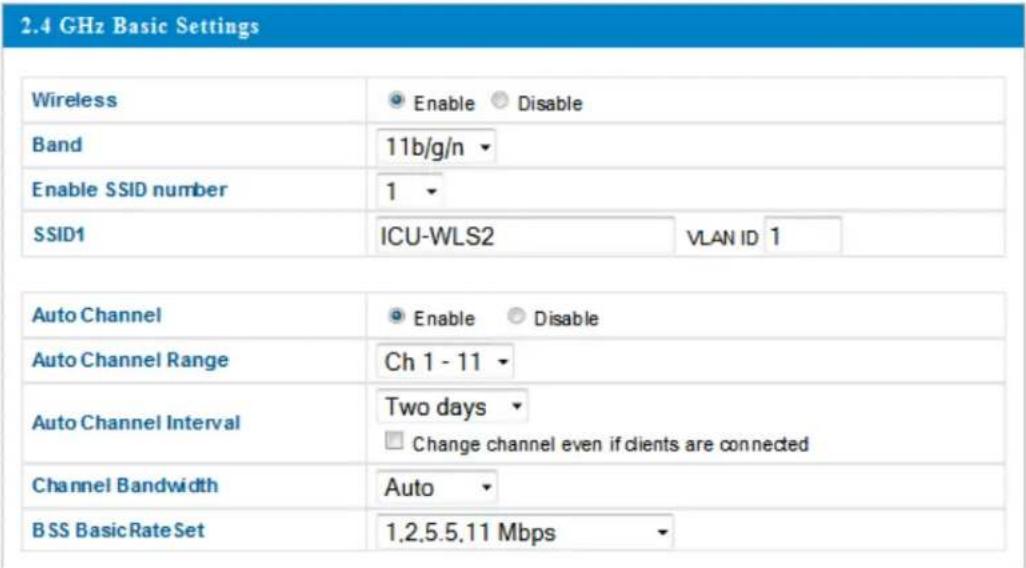
| Wireless | Enable or disable the access point's 2.4GHz wireless radio. When disabled, no 2.4GHz SSIDs will be active. |
| Band | Select the wireless standard used for the access point. Combinations of 802.11b, 802.11g & 802.11n can be selected. |
| Enable SSID Number | Select how many SSIDs to enable for the 2.4GHz frequency from the drop-down menu. A maximum of 16 can be enabled. |
| SSID# | Enter the SSID name for the specified SSID (up to 16). The SSID can consist of any combination of up to 32 alphanumeric characters. |
| VLAN ID | Specify a VLAN ID for each SSID. |
| Auto Channel | Enable/disable auto channel selection. Auto channel selection will automatically set the wireless channel for the access point's 2.4GHz frequency based on availability and potential interference. When disabled, select a channel manually as shown in the next table. |
| Auto Channel Range | Select a range from which the auto channel setting (above) will choose a channel. |
| Auto Channel Interval | Specify a frequency for how often the auto channel setting will check/reassign the wireless channel. Check/unchecked the “Change channel even if clients are connected” box according to your preference. |
| Channel Bandwidth | Set the channel bandwidth: 20MHz (lower performance but less interference), 40MHz (higher performance but potentially higher interference) or Auto (automatically select based on interference level). |
| BSS BasicRateSet | Set a Basic Service Set (BSS) rate: This is a series of rates to control communication frames for wireless clients. |
| Auto Channel | Enable Disable |
| Channel | Ch 11, 2462MHz |
| Channel Bandwidth | Auto, +Ch 7 |
| BSS BasicRateSet | 1,2,5.5,11 Mbps |
When auto channel is disabled, select a wireless channel manually:
| Channel | Select a wireless channel from 1 – 11 (1-13). |
| Channel Bandwidth | Set the channel bandwidth: 20MHz (lower performance but less interference), 40MHz (higher performance but potentially higher interference) or Auto (automatically select based on interference level). |
| BSS BasicRate Set | Set a Basic Service Set (BSS) rate: This is a series of rates to control communication frames for wireless clients. |
IV-3-1-2. Advanced
These settings are for experienced users only. It's recommended that you not change any of the values on this page unless you are already familiar with these functions.

Changing these settings can adversely affect the performance of your access point.
2.4 GHz Advanced Settings
| Contention Slot | Short ▼ | |
| Preamble Type | Short ▼ | |
| Guard Interval | Short GI ▼ | |
| 802.11g Protection | ● Enable ● Disable | |
| 802.11n Protection | ● Enable ● Disable | |
| DTIM Period | 1 | (1-255) |
| RTS Threshold | 2347 | (1-2347) |
| Fragment Threshold | 2346 | (256–2346) |
| Multicast Rate | Auto ▼ | |
| Tx Power | 100% ▼ | |
| Beacon Interval | 100 | (40-1000 ms) |
| Station idle timeout | 60 | (30-65535 seconds) |
| Contention Slot | Select “Short” or “Long.” This value is used for contention windows in WMM (see IV-3-6. WMM). |
| Preamble Type | Set the wireless radio preamble type. The preamble type in 802.11 based wireless communication defines the length of the CRC (Cyclic Redundancy Check) block for communication between the access point and roaming wireless adapters. The default value is “Short Preamble.” |
| Guard Interval | Set the guard interval. A shorter interval can improve performance. |
| 802.11g Protection | Enable/disable 802.11g protection, which increases reliability but reduces bandwidth.(Clients will send a Request to Send [RTS] to the access point, and the access point will broadcast Clear to Send [CTS] before a packet is sent from the client.) |
| 802.11n Protection | Enable/disable 802.11n protection, which increases reliability but reduces bandwidth.(Clients will send a Request to Send [RTS] to the access point, and the access point will broadcast Clear to Send [CTS] before a packet is sent from the client.) |
| DTIM Period | Set the DTIM (delivery traffic indication message) period value of the wireless radio.The default value is 1. |
| RTS Threshold | Set the RTS threshold of the wireless radio. The default value is 2347. |
| Fragment Threshold | Set the fragment threshold of the wireless radio. The default value is 2346. |
| Multicast Rate | Set the transfer rate for multicast packets or use the “Auto” setting. |
| Tx Power | Set the power output of the wireless radio. You may not require 100% output power. Setting a lower power output can enhance security since potentially malicious/unknown users in distant areas will not be able to access your signal. |
| Beacon Interval | Set the beacon interval of the wireless radio.The default value is 100. |
| Station idle timeout | Set the interval for keepalive messages from the access point to a wireless client to verify if the station is still alive/active. |
IV-3-1-3. Security
The access point provides various security options (wireless data encryption). When data is encrypted, information transmitted wirelessly cannot be read by anyone who does not know the correct encryption key.

It's essential to configure wireless security in order to prevent unauthorized access to your network.

Select hard-to-guess passwords which include combinations of numbers, letters and symbols, and change your password regularly.
2.4 GHz Wireless Security Settings
| SSID | ICU-WLS2 |
| Broadcast SSID | Enable |
| Wireless Client Isolation | Disable |
| Load Balancing | 50 /50 |
| Authentication Method | WPA-EAP |
| WPA Type | WPA2-EAP |
| Encryption Type | AES |
| Key Renewal Interval | 60 minute(s) |
| Additional Authentication | No additional authentication |
| SSID Selection | Select which SSID to configure security settings for. |
| Broadcast SSID | Enable or disable SSID broadcast. When enabled, the SSID will be visible to clients as an available Wi-Fi network. When disabled, the SSID will not be visible as an available Wi-Fi network to clients – clients must manually enter the SSID in order to connect. A hidden (disabled) SSID is typically more secure than a visible (enabled) SSID. |
| Wireless Client Isolation | Enable or disable wireless client isolation.Wireless client isolation prevents clients connected to the access point from communicating with each other and improves security. Typically, this function is useful for corporate environments or public hotspots and can prevent brute force attacks on clients' usernames and passwords. |
| Load Balancing | Load balancing limits the number of wireless clients connected to an SSID. Set a load balancing value (maximum 50). |
| Authentication Method | Select an authentication method from the drop-down menu and refer to the information below that is appropriate for your method. |
| Additional Authentication | Select an additional authentication method from the drop-down menu and refer to the information below (IV-3-1-3-6.) that is appropriate for your method. |
IV-3-1-3-1. No Authentication
Authentication is disabled and no password/key is required to connect to the access point.

Disabling wireless authentication is not recommended. When disabled, anybody within range can connect to your device's SSID.
IV-3-1-3-2. WEP
WEP (Wired Equivalent Privacy) is a basic encryption type. For a higher level of security, consider using WPA encryption.
| Key Length | Select 64-bit or 128-bit. 128-bit is more secure than 64-bit and is recommended. |
| Key Type | Choose from “ASCII” (any alphanumeric character 0-9, a-z and A-Z) or “Hex” (any characters from 0-9, a-f and A-F). |
| Default Key | Select which encryption key (1 – 4 below) is the default key. For security purposes, you can set up to four keys (below) and change which is the default key. |
| Encryption Key 1 – 4 | Enter your encryption key/password according to the format you selected above. |
IV-3-1-3-3. IEEE802.1x/EAP
| Key Length | Select 64-bit or 128-bit. 128-bit is more secure than 64-bit and is recommended. |
WPA-PSK is a secure wireless encryption type with strong data protection and user authentication, utilizing 128-bit encryption keys.
| WPA Type | Select from WPA/WPA2 Mixed Mode-PSK, WPA2 or WPA only. WPA2 is safer than WPA only, but is not supported by all wireless clients. Make sure your wireless client supports your selection. |
| Encryption | Select “TKIP/AES Mixed Mode” or “AES” encryption type. |
| Key Renewal Interval | Specify a frequency for key renewal in minutes. |
| Pre-Shared Key Type | Choose from “Passphrase” (8 – 63 alphanumeric characters) or “Hex” (up to 64 characters from 0-9, a-f and A-F). |
| Pre-Shared Key | Please enter a security key/password according to the format you selected above. |
IV-3-1-3-5. WPA-EAP
| WPA Type | Select from WPA/WPA2 Mixed Mode-EAP, WPA2-EAP or WPA-EAP. |
| Encryption | Select “TKIP/AES Mixed Mode” or “AES” encryption type. |
| Key Renewal Interval | Specify a frequency for key renewal in minutes. |

WPA-EAP must be disabled to use MAC-RADIUS authentication.
Additional wireless authentication methods can also be used:
MAC Address Filter
Restrict wireless clients' access based on MAC addresses specified in the MAC filter table.

See IV-3-5.MAC Filter to configure MAC filtering.
MAC Filter & MAC-RADIUS Authentication
Restrict wireless clients' access using both of the above MAC filtering & RADIUS authentication methods.
MAC-RADIUS Authentication
Restrict wireless clients' access based on MAC address via a RADIUS server, or password authentication via a RADIUS server.

See IV-3-4.RADIUS to configure RADIUS servers.

WPS must be disabled to use MAC-RADIUS authentication. See IV-3-3. for WPS settings.

| MAC RADIUS Password | Select whether to use MAC address or password authentication via RADIUS server. If you select “Use the following password,” enter the password in the field below. The password should match the “Shared Secret” used in IV-3-4. RADIUS. |
IV-3-1-4. WDS
Wireless Distribution System (WDS) can bridge/repeat access points together in an extended network. WDS settings can be configured as shown below.

When using WDS, configure the IP address of each access point to be in the same subnet and ensure there is only one active DHCP server among connected access points, preferably on the WAN side.
WDS must be configured on each access point, using correct MAC addresses. All access points should use the same wireless channel and encryption method.
2.4 GHz
| WDS Functionality | Disabled |
| Local MAC Address | 80:1F:02:75:EE:F0 |
WDS Peer Settings
| WD S #1 | MAC Address | |
| WD S #2 | MAC Address | |
| WD S #3 | MAC Address | |
| WD S #4 | MAC Address |
WDS VLAN
| VLAN Mode | Untagged Port (Enter at least one MAC address.) |
| VLAN ID | 1 |
WDS Encryption method
| Encryption | None (Enter at least one MAC address.) |
| 2.4GHz | |
| WDS Functionality | Select “WDS with AP” to use WDS with an access point or “Dedicated WDS” to use WDS and also block communication with regular wireless clients. When WDS is used, each access point should be configured with corresponding MAC addresses, wireless channel and wireless encryption method. |
| Local MAC Address | Displays the MAC address of your access point. |
| WDS Peer Settings | |
| WDS # | Enter the MAC address for up to four other WDS devices you wish to connect to. |
| WDS VLAN | |
| VLAN Mode | Specify the WDS VLAN mode to “Untagged Port” or “Tagged Port.” |
| VLAN ID | Specify the WDS VLAN ID when “Untagged Port” is selected above. |
| WDS Encryption method | |
| Encryption | Select whether to use “None” or “AES” encryption and enter a pre-shared key for AES consisting of 8-63 alphanumeric characters. |
IV-3-2. 5GHz 11ac 11an
The 5GHz 11ac 11an menu allows you to view and configure information for your access point's 5GHz wireless network across four categories: Basic, Advanced, Security and WDS.
IV-3-2-1. Basic
The Basic screen displays basic settings for your access point's 5GHz Wi-Fi network (s).
5 GHz Basic Settings
| Wireless | Enable Disable | |
| Band | 11a/n/ac | |
| Enable SSID number | 1 | |
| SSID1 | ICU-WLS2_5G | VLAN ID 1 |
| Auto Channel | Enable Disable |
| Channel | Ch 36.5.18GHz |
| Channel Bandwidth | Auto 80/40/20 MHz |
| BSS BasicRateSet | 6.12,24 Mbps |
| Wireless | Enable or disable the access point's 5GHz wireless radio. When disabled, no 5GHz SSIDs will be active. |
| Band | Select the wireless standard used for the access point. Combinations of 802.11a, 802.11n & 802.11ac can be selected. |
| Enable SSID Number | Select how many SSIDs to enable for the 5GHz frequency from the drop-down menu. A maximum of 16 can be enabled. |
| SSID# | Enter the SSID name for the specified SSID (up to 16). The SSID can consist of any combination of up to 32 alphanumeric characters. |
| VLAN ID | Specify a VLAN ID for each SSID. |
| Auto Channel | Enable/disable auto channel selection. Auto channel selection will automatically set the wireless channel for the access point's 5GHzfrequency based on availability and potential interference. When disabled, select a channel manually as shown in the next table. |
| Auto Channel Range | Select a range from which the auto channel setting (above) will choose a channel. |
| Auto Channel Interval | Specify a frequency for how often the auto channel setting will check/reassign the wireless channel. Check/unchecked the “Change channel even if clients are connected” box according to your preference. |
| Channel Bandwidth | Set the channel bandwidth: 20MHz (lower performance but less interference), Auto 40/20MHz or Auto 80/40/20MHz (automatically select based on interference level). |
| BSS BasicRate Set | Set a Basic Service Set (BSS) rate: This is a series of rates to control communication frames for wireless clients. |
| Auto Channel | ○ Enable ● Disable |
| Channel | Ch 36, 5.18GHz √ |
| Channel Bandwidth | Auto 80/40/20 MHz √ |
| BSS BasicRate Set | 6,12,24 Mbps √ |
When auto channel is disabled, select a wireless channel manually:
| Channel | Select a wireless channel. |
| Channel Bandwidth | Set the channel bandwidth: 20MHz (lower performance but less interference), Auto 40/20MHz or Auto 80/40/20MHz (automatically select based on interference level). |
| BSS BasicRate Set | Set a Basic Service Set (BSS) rate: This is a series of rates to control communication frames for wireless clients. |
IV-3-2-2. Advanced
These settings are for experienced users only. It's recommended that you not change any of the values on this page unless you are already familiar with these functions.

Changing these settings can adversely affect the performance of your access point.
| Guard Interval | Short GI ▼ | |
| 802.11n Protection | ● Enable ● Disable | |
| DTIM Period | 1 | (1-255) |
| RTS Threshold | 2347 | (1-2347) |
| Fragment Threshold | 2346 | (256-2346) |
| Multicast Rate | Auto ▼ | |
| Tx Power | 100% ▼ | |
| Beacon Interval | 100 | (40-1000 ms) |
| Station idle timeout | 60 | (30-65535 seconds) |
| Guard Interval | Set the guard interval. A shorter interval can improve performance. |
| 802.11n Protection | Enable/disable 802.11n protection, which increases reliability but reduces bandwidth. (Clients will send a Request to Send (RTS) to the access point, and the access point will broadcast Clear to Send (CTS) before a packet is sent from the client.) |
| DTIM Period | Set the DTIM (delivery traffic indication message) period value of the wireless radio. The default value is 1. |
| RTS Threshold | Set the RTS threshold of the wireless radio. The default value is 2347. |
| Fragment Threshold | Set the fragment threshold of the wireless radio. The default value is 2346. |
| Multicast Rate | Set the transfer rate for multicast packets or use the “Auto” setting. |
| Tx Power | Set the power output of the wireless radio. You may not require 100% output power. Setting a lower power output can enhance security since potentially malicious/unknown users in distant areas will not be able to access your signal. |
| Beacon Interval | Set the beacon interval of the wireless radio. The default value is 100. |
| Station idle timeout | Set the interval for keepalive messages from the access point to a wireless client to verify if the station is still alive/active. |
IV-3-2-3. Security
The access point provides various security options (wireless data encryption). When data is encrypted, information transmitted wirelessly cannot be read by anyone who does not know the correct encryption key.

It's essential to configure wireless security in order to prevent unauthorized access to your network.

Select hard-to-guess passwords which include combinations of numbers, letters and symbols, and change your password regularly.
| 5 GHz Wireless Security Settings | |
| SSID | ICU-WLS2_5G ▼ |
| Broadcast SSID | Enable ▼ |
| Wireless Client Isolation | Disable ▼ |
| Load Balancing | 50 /50 |
| Authentication Method | WPA-EAP ▼ |
| WPA Type | WPA/WPA2 mixed mode-EAP ▼ |
| Encryption Type | TKIP/AES Mixed Mode ▼ |
| Key Renewal Interval | 60 minute(s) |
| Additional Authentication | No additional authentication ▼ |
| SSID Selection | Select which SSID to configure security settings for. |
| Broadcast SSID | Enable or disable SSID broadcast. When enabled, the SSID will be visible to clients as an available Wi-Fi network. When disabled, the SSID will not be visible as an available Wi-Fi network to clients – clients must manually enter the SSID in order to connect. A hidden (disabled) SSID is typically more secure than a visible (enabled) SSID. |
| Wireless Client Isolation | Enable or disable wireless client isolation. Wireless client isolation prevents clients connected to the access point from communicating with each other and improves security. Typically, this function is useful for corporate environments or public hot spots and can prevent brute force attacks on clients' usernames and passwords. |
| Load Balancing | Load balancing limits the number of wireless clients connected to an SSID. Set a load balancing value (maximum 50). |
| Authentication Method | Select an authentication method from the drop-down menu and refer to the information below that is appropriate for your method. |
| Additional Authentication | Select an additional authentication method from the drop-down menu and refer to the information below that is appropriate for your method. |
Refer back to IV-3-1-3. Security for more information on authentication and additional authentication types.
IV-3-2-4. WDS
Wireless Distribution System (WDS) can bridge/repeat access points together in an extended network. WDS settings can be configured as shown below.

When using WDS, configure the IP address of each access point to be in the same subnet and ensure there is only one active DHCP server among connected access points, preferably on the WAN side.
WDS must be configured on each access point, using correct MAC addresses. All access points should use the same wireless channel and encryption method.
5 GHz WDS Mode
| WDS Functionality | Disabled |
| Local MAC Address | 80:1F:02:75:EE:F1 |
WDS Peer Settings
| WD S #1 | MAC Address | |
| WD S #2 | MAC Address | |
| WD S #3 | MAC Address | |
| WD S #4 | MAC Address |
WDS VLAN
| VLAN Mode | Untagged Port | (Enter at least one MAC address.) |
| VLAN ID | 1 |
Encryption method
| Encryption | None ▼ (Enter at least one MAC address.) |
| 5GHz WDS Mode | |
| WDS Functionality | Select “WDS with AP” to use WDS with access point or “Dedicated WDS” to use WDS and also block communication with regular wireless clients. When WDS is used, each access point should be configured with corresponding MAC addresses, wireless channel and wireless encryption method. |
| Local MAC Address | Displays the MAC address of your access point. |
| WDS Peer Settings | |
| WDS # | Enter the MAC address for up to four other WDA devices you wish to connect. |
| WDS VLAN | |
| VLAN Mode | Specify the WDS VLAN mode to “Untagged Port” or “Tagged Port.” |
| VLAN ID | Specify the WDS VLAN ID when “Untagged Port” is selected above. |
| WDS Encryption | |
| Encryption | Select whether to use “None” or “AES” encryption and enter a pre-shared key for AES with 8-63 alphanumeric characters. |
IV-3-3. WPS
Wi-Fi Protected Setup is a simple way to establish connections between WPS-compatible devices. WPS can be activated on compatible devices by pushing a WPS button on the device or from within the device's firmware/configuration interface (known as PBC or "Push Button Configuration"). When WPS is activated in the correct manner and at the correct time for two compatible devices, they will automatically connect. "PIN code WPS" is a variation of PBC which includes the additional use of a PIN code between the two devices for verification.

Refer to the manufacturer's instructions for your other WPS device.
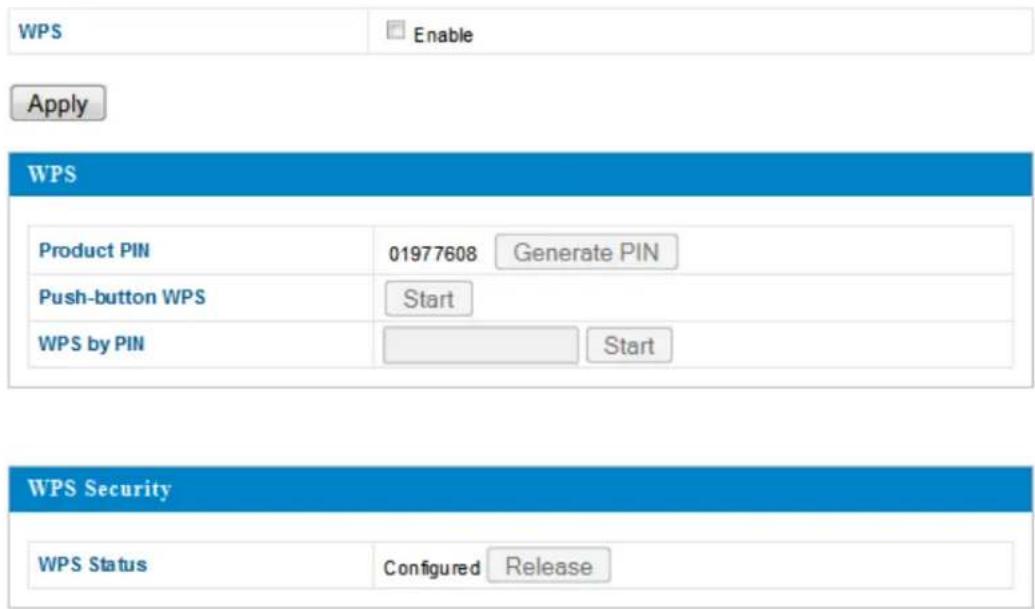
| WPS | Check/uncheck this box to enable/disable WPS functionality. WPS must be disabled when using MAC RADIUS authentication (see IV-3-1-3-6 & IV-3-4). |
| Product PIN | Displays the WPS PIN code of the device, used for PIN code WPS. You will be required to enter this PIN code into another WPS device for PIN code WPS. Click “Generate PIN” to generate a new WPS PIN code. |
| Push-Button WPS | Click “Start” to activate WPS on the access point for approximately 2 minutes. This has the same effect as physically pushing the access point’s WPS button. |
| WPS by PIN | Enter the PIN code of another WPS device and click “Start” to attempt to establish a WPS connection for approximately 2 minutes. |
| WPS Status | WPS security status is displayed here. Click “Release” to clear the existing status. |
IV-3-4. RADIUS
The RADIUS submenu allows you to configure the access point's RADIUS server settings, categorized into three submenus: RADIUS settings, Internal Server and RADIUS accounts.
A RADIUS server provides user-based authentication to improve security and offer wireless client control – users can be authenticated before gaining access to a network.
The access point can utilize both a primary and secondary (backup) RADIUS server for each of its wireless frequencies (2.4GHz & 5GHz). External RADIUS servers can be used or the access point's internal RADIUS server can be used.

To use RADIUS servers, go to "Wireless Settings" → "Security" and select "MAC RADIUS Authentication" → "Additional
Authentication" and select "MAC RADIUS Authentication" (see IV-3-1-3. & IV-3-2-3).
IV-3-4-1. RADIUS Settings
Configure the RADIUS server settings for 2.4GHz & 5GHz. Each frequency can use an internal or external RADIUS server.

RADIUS Server (5 GHz)
| Primary RADIUS Server | |
| RADIUS Server | 10.10.8.10 |
| Authentication Port | 1812 |
| Shared Secret | ●●●●●●●●● |
| Session Timeout | 3600 second(s) |
| Accounting | ○ Enable ● Disable |
| Accounting Port | 1813 |
Secondary RADIUS Server
| RADIUS Server | |
| Authentication Port | 1812 |
| Shared Secret | |
| Session Timeout | 3600 second(s) |
| Accounting | Enable Disable |
| Accounting Port | 1813 |
| RADIUS Type | Select “Internal” to use the access point’s built-in RADIUS server or “external” to use an external RADIUS server. |
| RADIUS Server | Enter the RADIUS server host IP address. |
| Authentication Port | Set the UDP port used in the authentication protocol of the RADIUS server. Value must be between 1 – 65535. |
| Shared Secret | Enter a shared secret/password between 1 – 99 characters in length. This should match the “MAC RADIUS” password used in IV-3-1-3-6 or IV-3-2-3. |
| Session Timeout | Set a duration of session timeout in seconds between 0 – 86400. |
| Accounting | Enable or disable RADIUS accounting. |
| Accounting Port | When accounting is enabled (above), set the UDP port used in the accounting protocol of the RADIUS server. Value must be between 1 – 65535. |
IV-3-4-2. Internal Server
The access point features a built-in RADIUS server which can be configured as shown below used when “Internal” is selected for “RADIUS Type” in the “Wireless Settings” → “RADIUS” → “RADIUS Settings” menu.

To use RADIUS servers, go to "Wireless Settings" → "Security" and select "MAC RADIUS Authentication" → "Additional
Authentication" and select "MAC RADIUS Authentication" (see IV-3-1-3. & IV-3-2-3).
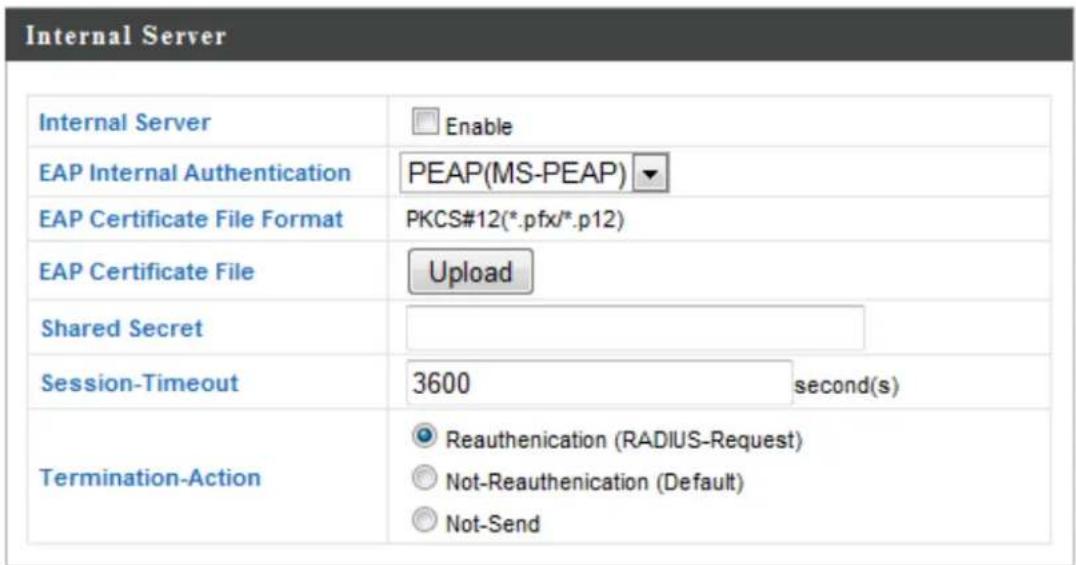
| Internal Server | Check/unchecked to enable/disable the access point's internal RADIUS server. |
| EAP Internal Authentication | Select EAP internal authentication type from the drop down menu. |
| EAP Certificate File Format | Displays the EAP certificate file format: PCK#12(*.pfx/*.p12) |
| EAP Certificate File | Click “Upload” to open a new window and select the location of an EAP certificate file to use. If no certificate file is uploaded, the internal RADIUS server will use a self-made certificate. |
| Shared Secret | Enter a shared secret/password for use between the internal RADIUS server and RADIUS client. The shared secret should be 1 – 99 characters in length. This should match the “MAC RADIUS” password used in IV-3-1-3-6 or IV-3-2-3. |
| Session Timeout | Set a duration of session timeout in seconds between 0 – 86400. |
| Termination Action | Select a termination-action attribute: “Reauthentication” sends a RADIUS request to the access point, “Not-Reauthentication” sends a default termination-action attribute to the access point, “Not-Send” no termination-action attribute is sent to the access point. |
IV-3-4-3. RADIUS Accounts
The internal RADIUS server can authenticate up to 256 user accounts. The RADIUS Accounts page allows you to configure and manage users.

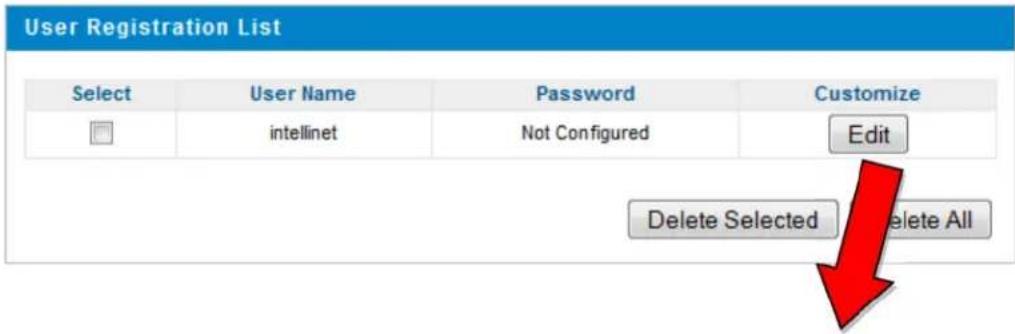
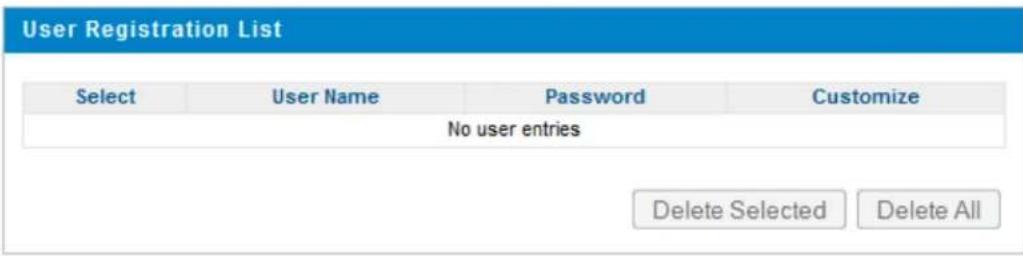
| User Name | Enter the usernames here, separated by commas. |
| Add | Click “Add” to add the user to the user registration list. |
| Reset | Clear text from the username box. |
| Select | Check the box to select a user. |
| User Name | Displays the username. |
| Password | Displays if specified username has a password (configured) or not (not configured). |
| Customize | Click “Edit” to open a new field to set/edit a password for the specified username (below). |
| Delete Selected | Delete selected user from the user registration list. |
| Delete All | Delete all users from the user registration list. |
Edit User Registration List
| User Name | Existing username is displayed here and can be edited according to your preference. |
| Password | Enter or edit a password for the specified user. |
IV-3-5. MAC Filter
MAC (media access control) filtering is a security feature that can help to prevent unauthorized users from connecting to your access point.
This function allows you to define a list of network devices permitted to connect to the access point. Devices are each identified by their unique MAC address. If a device which is not on the list of permitted MAC addresses attempts to connect to the access point, it will be denied.

To enable MAC filtering, go to "Wireless Settings" → "2.4GHz 11bgn/5GHz 11ac 11an" → "Security" → "Additional Authentication" and select "MAC Filter" (see IV-3-1-3. & IV-3-2-3).
The MAC address filtering table is displayed below:
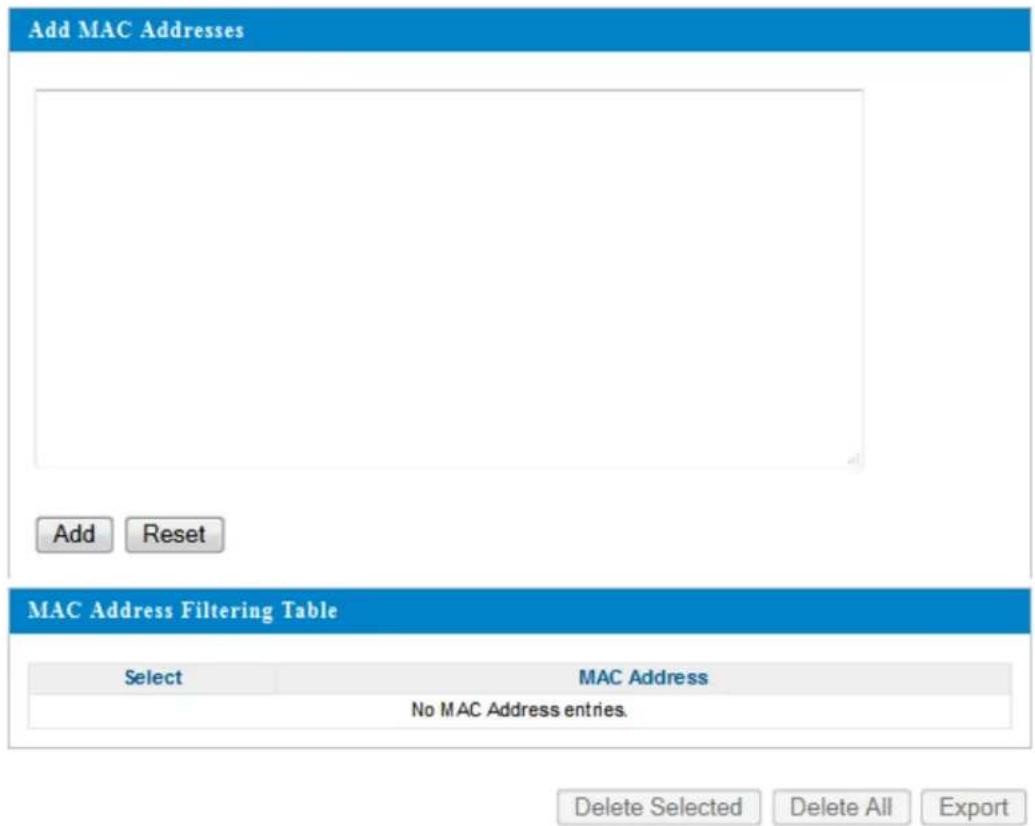
| Add MAC Address | Enter a MAC address of computer or network device manually; e.g., “aa-bb-cc-dd-ee-ff”; or enter multiple MAC addresses separated with commas; e.g., “aa-bb-cc-dd-ee-ff,aa-bb-cc-dd-ee-gg.” |
| Add | Click “Add” to add the MAC address to the MAC address filtering table. |
| Reset | Clear all fields. |
MAC address entries will be listed in the MAC Address Filtering Table. Select an entry using the "Select" checkbox.
| Select | Delete selected or all entries from the table. |
| MAC Address | The MAC address is listed here. |
| Delete Selected | Delete the selected MAC address from the list. |
| Delete All | Delete all entries from the MAC address filtering table. |
| Export | Click “Export” to save a copy of the MAC filtering table. A new window will pop up for you to select a location to save the file. |
IV-3-6. WMM
Wi-Fi Multimedia (WMM) is a Wi-Fi Alliance interoperability certification based on the IEEE 802.11e standard, which provides Quality of Service (QoS) features to IEEE 802.11 networks. WMM prioritizes traffic according to four categories: background, best effort, video and voice.
WMM-EDCA Settings
| WMM Parameters of Access Point | ||||
| CWMin | CWMax | AIFSN | TxOP | |
| Back Ground | 4 | 10 | 7 | 0 |
| Best Effort | 4 | 6 | 3 | 0 |
| Video | 3 | 4 | 1 | 94 |
| Voice | 2 | 3 | 1 | 47 |
Configuring WMM consists of adjusting parameters on queues for different categories of wireless traffic. Traffic is sent to the following queues:
| Background | LowPriority | High throughput, non-time-sensitive bulk data;e.g.,FTP |
| Best Effort | MediumPriority | Traditional IP data, medium throughput and delay. |
| Video High | Priority | Time-sensitive video data with minimum time delay. |
| Voice High | Priority | Time-sensitive data such as VoIP and streaming media with minimum time delay. |
Queues automatically provide minimum transmission delays for video, voice, multimedia and critical applications. The values can further be adjusted manually:
| CWMin | Minimum Contention Window (milliseconds): This value is input to the initial random backoff wait time algorithm for retry of a data frame transmission. The backoff wait time will be generated between 0 and this value. If the frame is not sent, the random backoff value is doubled until the value reaches the number defined by CWMax (below). The CWMin value must be lower than the CWMax value. The contention window scheme helps to avoid frame collisions and determine priority of frame transmission. A shorter window has a higher probability (priority) of transmission. |
| CWMax | Maximum Contention Window (milliseconds): This value is the upper limit to random backoff value doubling (see above). |
| AIFSN | Arbitration Inter-Frame Space (milliseconds): Specifies additional time between when a channel goes idle and the AP/client sends data frames. Traffic with a lower AIFSN value has a higher priority. |
| TxOP | Transmission Opportunity (milliseconds): The maximum interval of time an AP/client can transmit. This makes channel access more efficiently prioritized. A value of 0 means only one frame per transmission. A greater value effects higher priority. |
IV-4. Management


Screenshots displayed are examples. The information shown on your screen will vary depending on your configuration.
IV-4-1. Admin
You can change the password used to log in to the browser-based configuration interface here. It is advised you do so for security purposes.

If you change the administrator password, make a note of the new password. In the event that you forget this password and are unable to log in to the browser-based configuration interface, see 1-5. Reset for how to reset the access point.
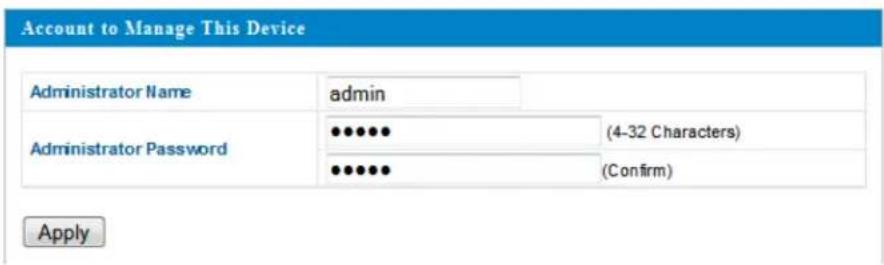
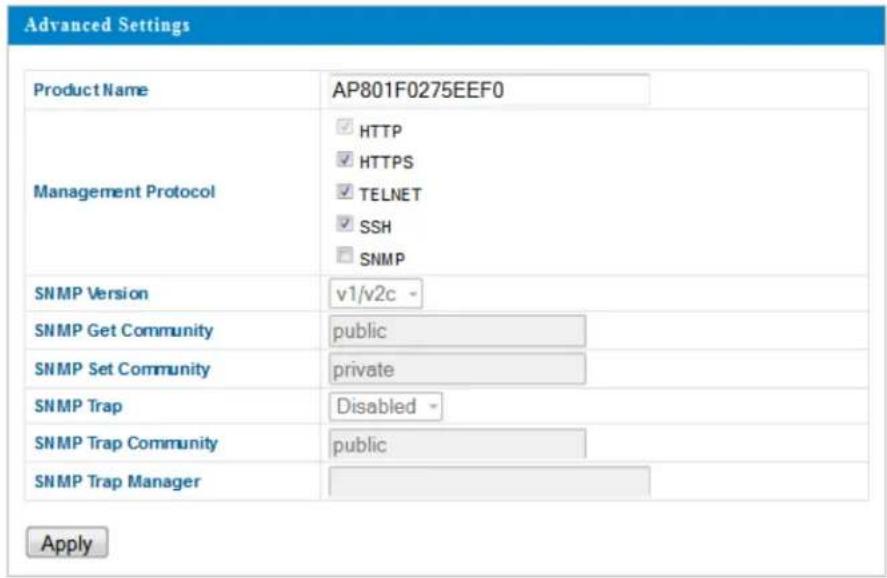
| Account to Manage This Device | |
| Administrator Name | Set the access point's administrator name. This is used to log in to the browser-based configuration interface and must be between 4-16 alphanumeric characters (case sensitive). |
| Administrator Password | Set the access point's administrator password. This is used to log in to the browser-based configuration interface and must be between 4-32 alphanumeric characters (case sensitive). |
| Advanced Settings | |
| Product Name | Edit the product name according to your preference consisting of 1-32 alphanumeric characters. This name is used for reference purposes. |
| Management Protocol | Check/uncheck the boxes to enable/disable specified management interfaces (see below). When SNMP is enabled, complete the SNMP fields below. |
| SNMP Version | Select SNMP version appropriate for your SNMP manager. |
| SNMP Get Community | Enter an SNMP Get Community name for verification with the SNMP manager for SNMP-GET requests. |
| SNMP Set Community | Enter an SNMP Set Community name for verification with the SNMP manager for SNMP-SET requests. |
| SNMP Trap | Enable or disable SNMP Trap to notify SNMP manager of network errors. |
| SNMP Trap Community | Enter an SNMP Trap Community name for verification with the SNMP manager for SNMP-TRAP requests. |
| SNMP Trap Manager | Specify the IP address or server name (2-128 alphanumeric characters) of the SNMP manager. |
HTTP
Internet browser HTTP protocol management interface
HTTPS
Internet browser HTTPS protocol management interface
TELNET
Client terminal with Telnet protocol management interface
SSH
Client terminal with SSH protocol version 1 or 2 management interface
SNMP
Simple Network Management Protocol. SNMPv1, v2 & v3 protocol supported. SNMPv2 can be used with community based-authentication. SNMPv3 uses user-based security model (USM) architecture.
IV-4-2. Date and Time
You can configure the time zone settings of your access point here. The date and time of the device can be configured manually or can be synchronized with a time server.
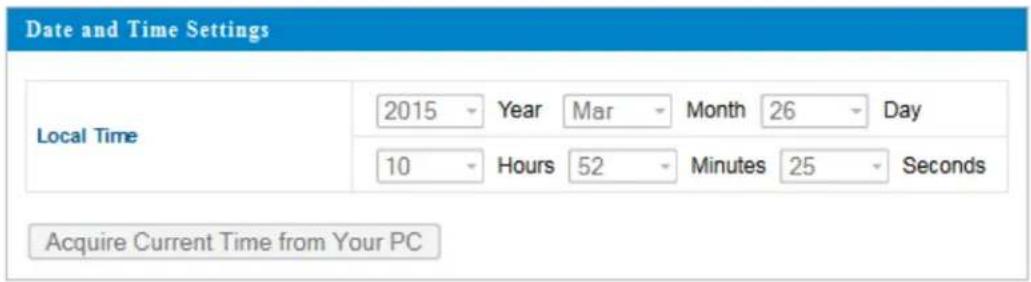
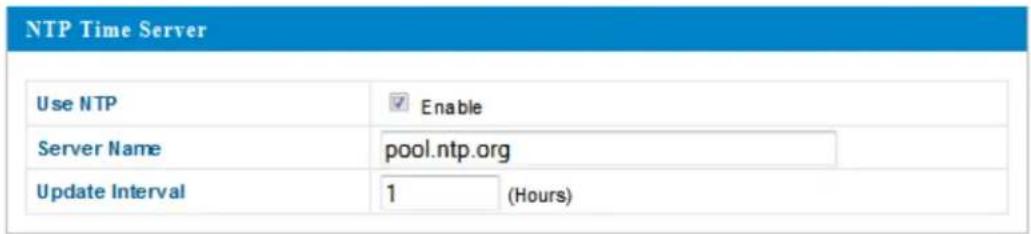

| Date and Time Settings | |
| Local Time | Set the access point’s date and time manually using the drop-down menus. |
| Acquire Current Time from your PC | Click “Acquire Current Time from Your PC” to enter the required values automatically according to your computer’s current time and date. |
| NTP Time Server | |
| Use NTP | The access point also supports NTP (Network Time Protocol) for automatic time and date setup. |
| Server Name | Enter the hostname or IP address of the time server if you wish. |
| Update Interval | Specify a frequency (in hours) for the access point to update/synchronize with the NTP server. |
| Time Zone | |
| Time Zone | Select the time zone of your country/region. If your country/region is not listed, select another country/region whose time zone is the same as yours. |
IV-4-3. Syslog Server
The system log can be sent to a server.

| Transfer Logs | Check/uncheck the box to enable/disable the use of a syslog server, and enter a hostname, domain or IP address for the server consisting of up to 128 alphanumeric characters. |
The remote log function uses the Syslog Protocol, which is a standard for forwarding log messages in an IP network. Syslog is a client/server protocol. The Syslog sender (the Network Camera) sends a small (less than 1KB) textual message to the Syslog server. This user manual shows one example of a Syslog server, the 3CDaemon utility by 3Com Corp.

IV-4-4. I'm here!
The Intellinet AC1750 Access Point features a built-in buzzer which can sound on command using the “I’m Here” page. This is useful for network administrators and engineers working in complex network environments to locate the access point.

Sound Buzzer

The buzzer is loud!
| Duration of Sound | Set the duration for which the buzzer will sound when the “Sound Buzzer” button is clicked. |
| Sound Buzzer | Activate the buzzer sound for the above specified duration of time. |
IV-5. Advanced


Screenshots displayed are examples. The information shown on your screen will vary depending on your configuration.
IV-5-1. LED Settings
The access point's LEDs can be manually enabled or disabled according to your preference.

| Power LED | Select on or off. |
| Diag LED | Select on or off. |
IV-5-2. Update Firmware
The Firmware page allows you to update the system firmware to a more recent version. Updated firmware versions often offer increased performance and security, as well as bug fixes. You can download the latest firmware from the Intellinet website at www.intellinet-network.com.
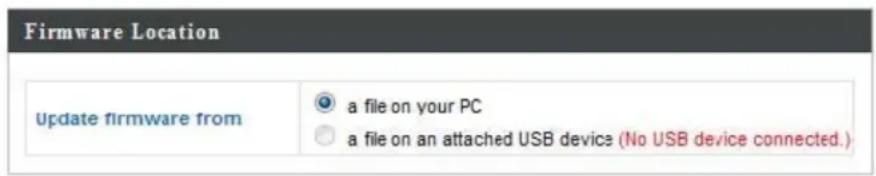
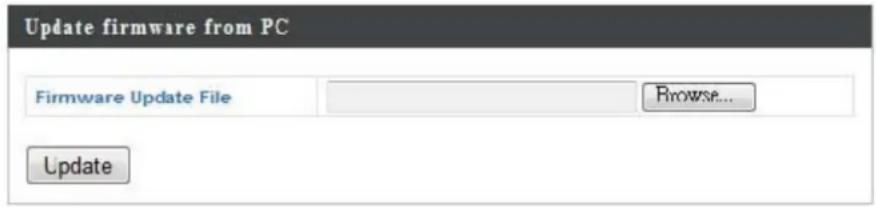

Do not switch off or disconnect the access point during a firmware upgrade, as this could damage the device.
| Update Firmware From | Select to upload firmware from your local computer or from an attached USB device. (You must transfer a firmware file to the USB device first.) |
| Firmware Update File | Click “Browse” to open a new window to locate and select the firmware file in your computer. |
| Update | Click “Update” to upload the specified firmware file to your access point. |
IV-5-3. Save/Restore Settings
The access point's Save/Restore Settings page enables you to save/back up the access point's current settings as a file to your local computer, or a USB device attached to the access point, and restore the access point to previously saved settings.
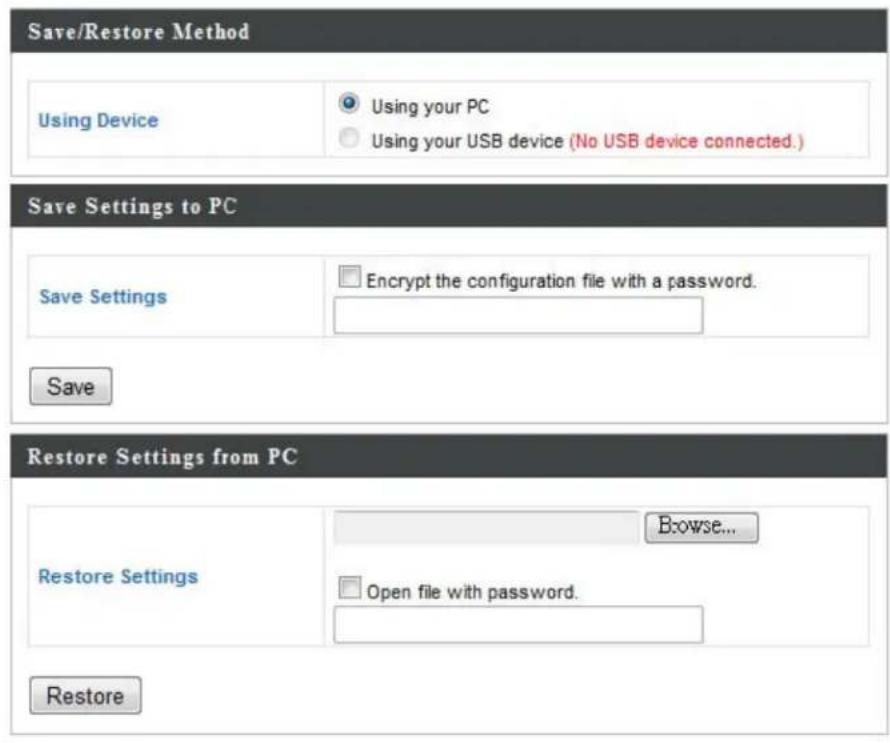
| Save / Restore Settings | |
| Using Device | Select to save the access point's settings to your local computer or to an attached USB device. |
| Save Settings | |
| Save Settings | Click “Save” to save settings. A new window will open to specify a location to save the settings file. You can also check the “Encrypt the configuration file with a password” box and enter a password to protect the file in the field underneath, if you wish. |
| Restore Settings | |
| Restore Settings | Click the browse button to find a previously saved settings file on your computer, then click “Restore” to replace your current settings. If your settings file is encrypted with a password, check the “Open file with password” box and enter the password in the field underneath. |
IV-5-4. Factory Default
If the access point malfunctions or is not responding, then it is recommended that you reboot the device (see IV-5.5) or reset the device back to its factory default settings. You can reset the access point back to its default settings using this feature if the location of the access point is not convenient to access the reset button.
Factory Default
This will restore all settings to factory defaults.
Factory Default
| Factory Default | Click “Factory Default” to restore settings to the factory default. A pop-up window will appear and ask you to confirm. |

After resetting to factory defaults, wait for the access point to reset and restart.
IV-5-5. Reboot
If the access point malfunctions or is not responding, then it is recommended that you reboot the device or reset the access point back to its factory default settings (see IV-5-4). You can reboot the access point remotely using this feature.
Reboot
This will reboot the product. Your settings will not be changed. Click "Reboot" to reboot the product now.
Reboot
| Reboot | Click “Reboot” to reboot the device. A countdown will indicate the progress of the reboot. |
V-1. Configuring your IP address
The access point uses the default IP address 192.168.2.1. In order to access the browser-based configuration interface, you need to modify the IP address of your computer to be in the same IP address subnet; e.g., 192.168.2.x (x = 3 - 254).
The procedure for modifying your IP address varies across different operating systems. Follow the guide appropriate for your operating system.
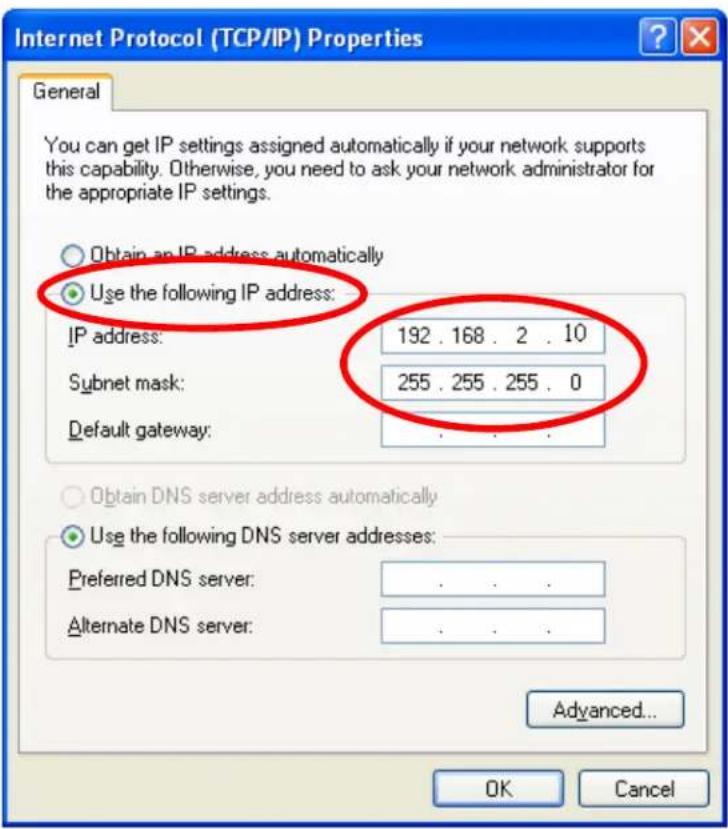
In the following examples, we use the IP address 192.168.2.10 though you can use any IP address in the range 192.168.2.x (x = 3 - 254).
V-1-1. Windows XP
- Click the "Start" button (it should be located in the lower-left corner of your computer), then click "Control Panel." Double-click the "Network and Internet Connections" icon, click "Network Connections," then double-click "Local Area Connection." The Local Area Connection Status window will then appear. Click "Properties."

- Select "Use the following IP address," then input the following values:
IP address: 192.168.2.10
Subnet mask: 255.255.255.0
Click "OK" when finished.
V-1-2. Windows Vista
- Click the "Start" button (it should be located in the lower-left corner of your computer), then click "Control Panel." Click "View Network Status and Tasks," then click "Manage Network Connections." Right-click "Local Area Network," then select "Properties." The Local Area Connection Properties window will then appear. Select "Internet Protocol Version 4 (TCP / IPv4)," and then click "Properties."

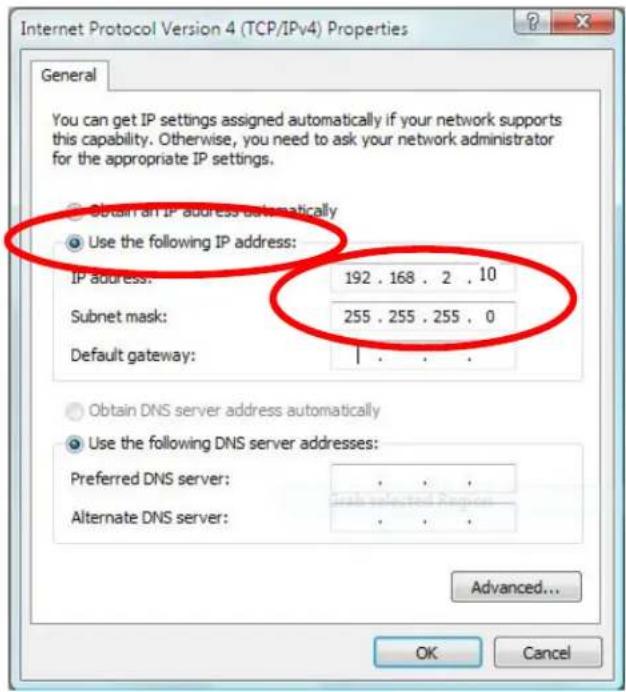
- Select "Use the following IP address," then input the following values:
IP address: 192.168.2.10
Subnet mask: 255.255.255.0
Click "OK" when finished.
V-1-3. Windows 7
- Click the "Start" button (it should be located in the lower-left corner of your computer), then click "Control Panel."
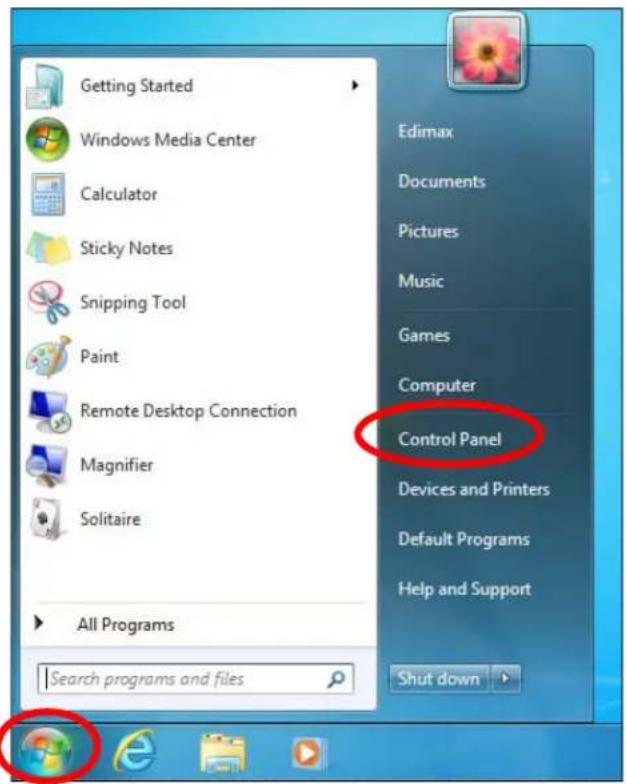
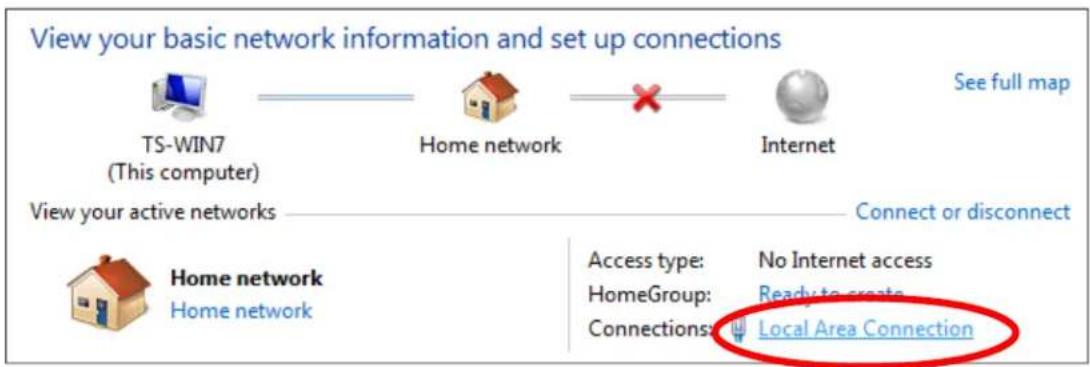
- Under "Network and Internet," click "View network status and tasks."

3. Click "Local Area Connection."
4. Click "Properties."
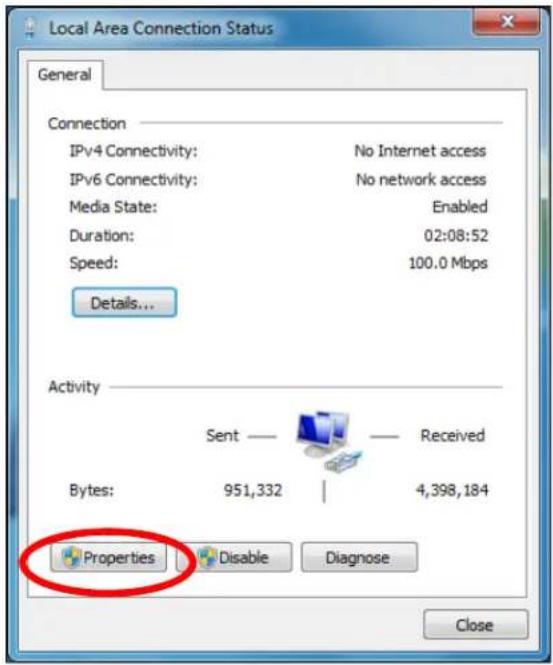
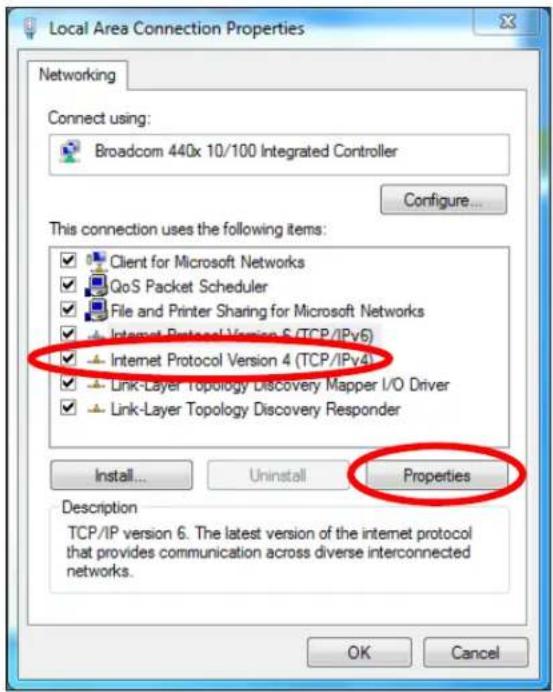
- Select "Internet Protocol Version 4 (TCP/IPv4)," then click "Properties."
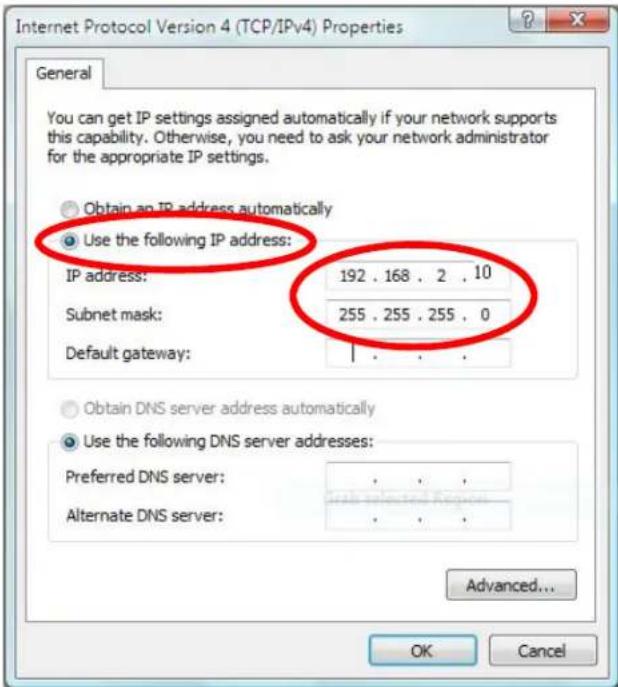
- Select "Use the following IP address," then input the following values:
IP address: 192.168.2.10
Subnet mask: 255.255.255.0
Click "OK" when finished.
V-1-4. Windows 8
- From the Windows 8 Start screen, you need to switch to desktop mode. Move your cursor to the bottom left of the screen and click.

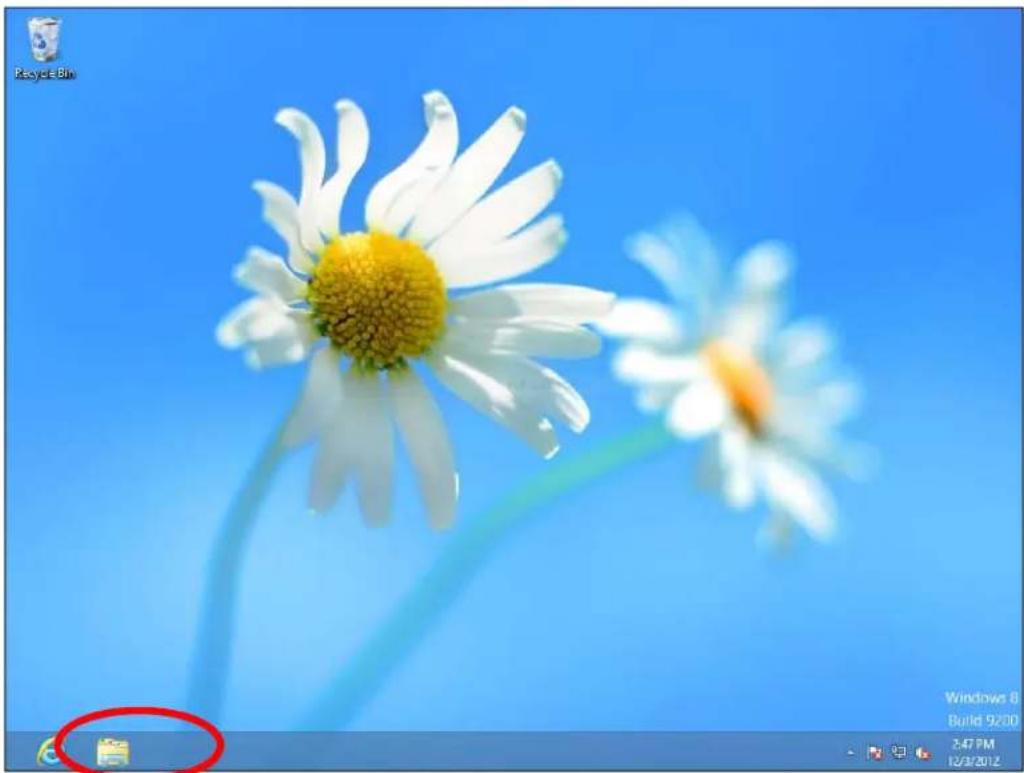
- In desktop mode, click the File Explorer icon in the bottom left of the screen, as shown below.
natural_image
Close-up of white daisies on a blue background with a red circular overlay, no text or symbols visible.3. Right-click "Network," then select "Properties."
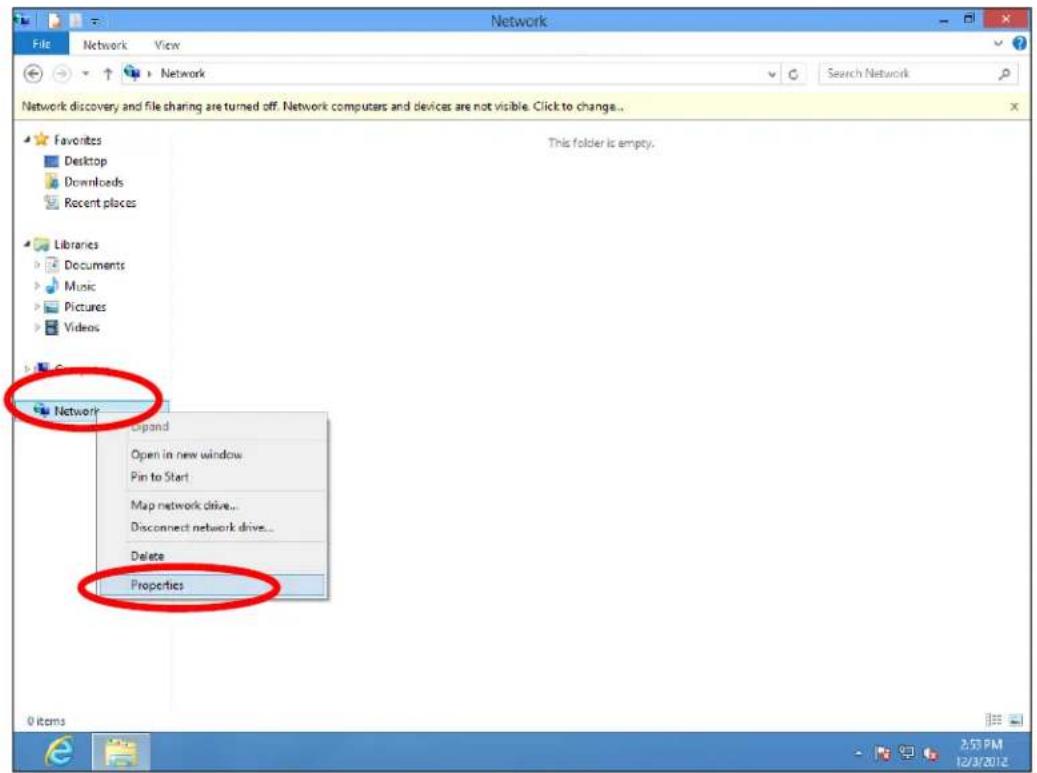
4. In the window that opens, select "Change adapter settings" from the left side.

- Choose your connection and right-click, then select "Properties."
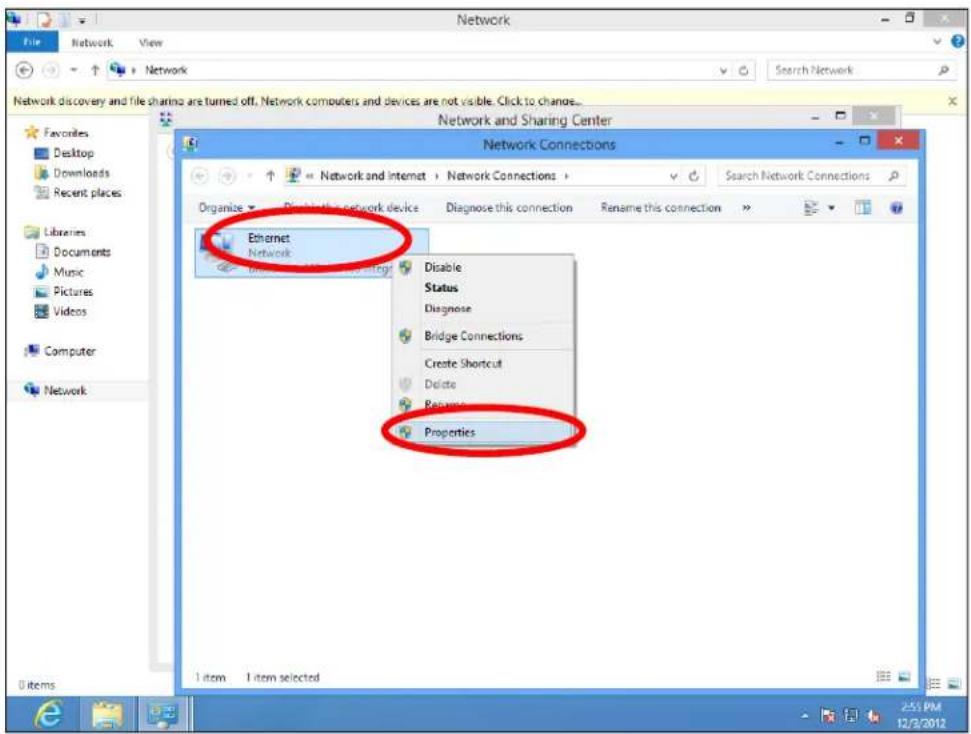
6. Select "Internet Protocol Version 4 (TCP/IPv4)," then click "Properties."
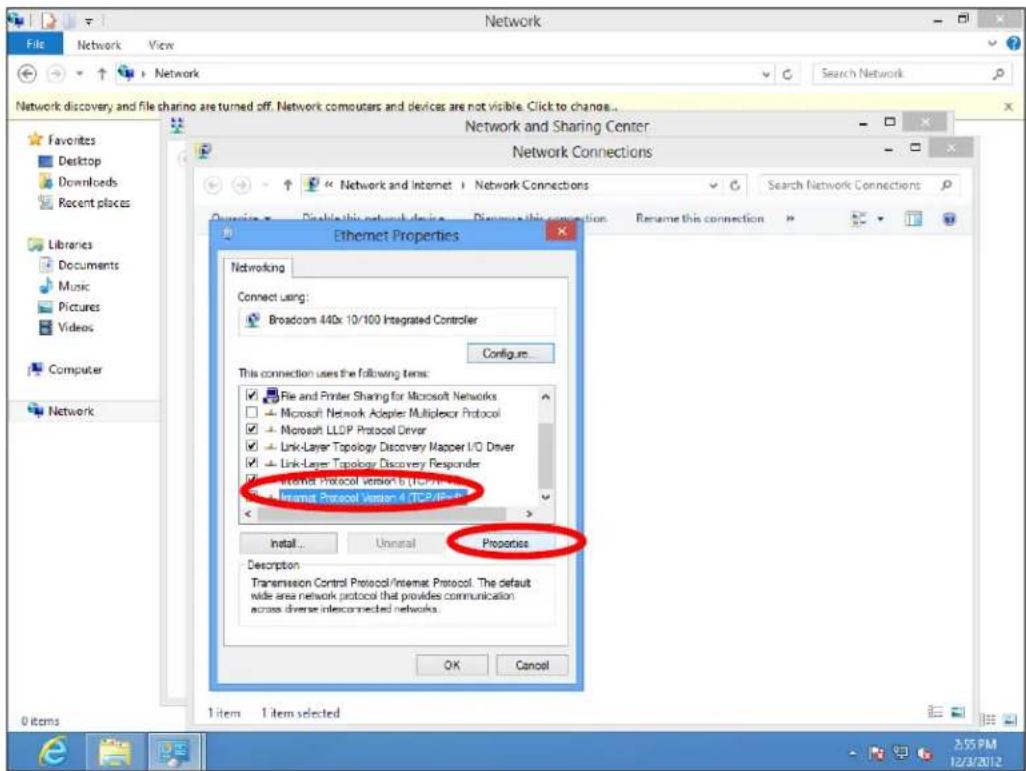
7. Select "Use the following IP address," then input the following values:
IP address: 192.168.2.10
Subnet mask: 255.255.255.0
Click "OK" when finished.
V-1-5. Mac
- Have your Macintosh computer operate as usual, and click "System Preferences."

- In System Preferences, click "Network."

- Click "Ethernet" in the left panel.

- Open the drop-down menu labeled "Configure IPv4" and select "Manually."
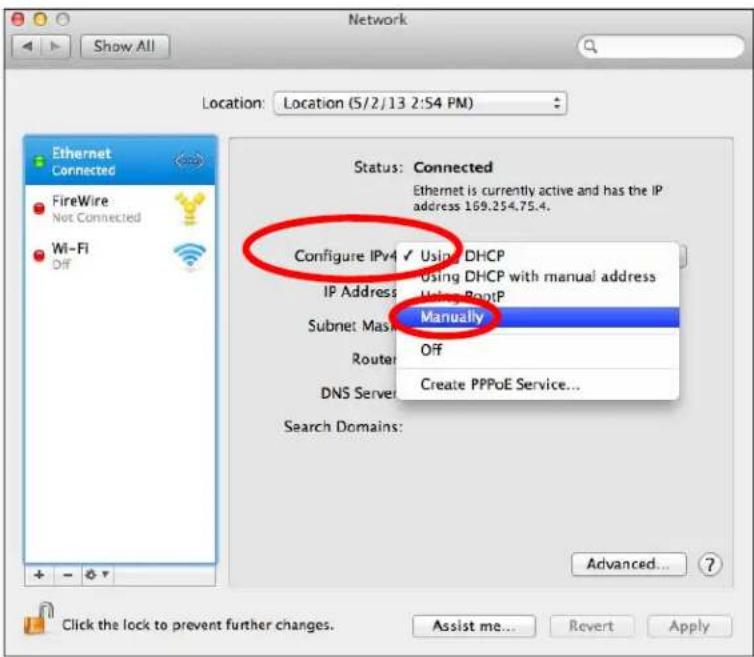
- Enter the IP address 192.168.2.10 and subnet mask 255.255.255.0. Click "Apply" to save the changes.

V-1-6. Glossary
Access Point: An access point is an intelligent network device that forwards packets between different networks based on network layer address information, such as IP addresses.
Default Gateway (Access point): Every non-access point IP device needs to configure a default gateway's IP address. When the device sends out an IP packet, if the destination is not on the same network, the device has to send the packet to its default gateway, which will then send it out toward the destination.
DHCP: Dynamic Host Configuration Protocol. This protocol automatically gives every computer on your home network an IP address.
DNS Server IP Address: DNS stands for Domain Name System, which allows Internet servers to have a domain name (such as www.Broadbandaccess point.com) and one or more IP addresses (such as 192.34.45.8). A DNS server keeps a database of Internet servers and their respective domain names and IP addresses, so that when a domain name is requested (as in typing "Broadbandaccess point.com" into your Internet browser), the user is sent to the proper IP address. The DNS server IP address used by the computers on your home network is the location of the DNS server your ISP has assigned to you.
DSL Modem: DSL stands for Digital Subscriber Line. A DSL modem uses your existing phone lines to transmit data at high speeds.
Ethernet: A standard for computer networks. Ethernet networks are connected by special cables and hubs, and move data around at up to 10/100 million bits per second (Mbps).
IP Address and Network (Subnet) Mask: IP stands for Internet Protocol. An IP address consists of a series of four numbers separated by periods that identifies a single, unique Internet computer host in an IP network. Example: 192.168.2.1. It consists of 2 portions: the IP network address and the host identifier.
The IP address is a 32-bit binary pattern, which can be represented as four cascaded decimal numbers separated by “.”: aaa.aaa.aaa.aaa, where each “aaa” can be anything from 000 to 255, or as four cascaded binary numbers
separated by “.”: bbbbbbbb.bbbbbbbb.bbbbbbbb.bbbbbbbb, where each “b” can either be 0 or 1.
A network mask is also a 32-bit binary pattern, and consists of consecutive leading 1's followed by consecutive trailing 0's, such as 1111111.1111111.1111111.00000000. Therefore sometimes a network mask can also be described simply as "x" number of leading 1's. When both are represented side by side in their binary forms, all bits in the IP address that correspond to 1's in the network mask become part of the IP network address, and the remaining bits correspond to the host ID.
For example, if the IP address for a device is, in its binary form, 11011001.10110000.10010000.00000111, and if its network mask is 11111111.11111111.11110000.00000000, it means the device's network address is 11011001.10110000.10010000.00000000 and its host ID is 00000000.00000000.00000000.00000111. This is a convenient and efficient method for access points to route IP packets to their destination.
ISP Gateway Address: (see ISP for definition). The ISP Gateway Address is an IP address for the Internet access point located at the ISP's office.
ISP: Internet Service Provider. An ISP is a business that provides connectivity to the Internet for individuals and businesses or organizations.
LAN: Local Area Network. A LAN is a group of computers and devices connected together in a relatively small area (such as a house or an office). Your home network is considered a LAN.
MAC Address: MAC stands for Media Access Control. A MAC address is the hardware address of a device connected to a network. The MAC address is a unique identifier for a device with an Ethernet interface. It is composed of two parts: 3 bytes of data corresponding to the Manufacturer ID (unique for each manufacturer) plus 3 bytes often used as the product's serial number.
NAT: Network Address Translation. This process allows all of the computers on your home network to use one IP address. Using the broadband access point's NAT capability, you can access the Internet from any computer on your home network without having to purchase more IP addresses from your ISP.
Port: Network clients (LAN PC) uses port numbers to distinguish one network application/protocol from another. Below is a list of common applications and protocol/port numbers:
| Application | Protocol | Port Number |
| Telnet | TCP | 23 |
| FTP | TCP | 21 |
| SMTP | TCP | 25 |
| POP3 | TCP | 110 |
| H.323 | TCP | 1720 |
| SNMP | UCP | 161 |
| SNMP Trap | UDP | 162 |
| HTTP | TCP | 80 |
| PPTP | TCP | 1723 |
| PC Anywhere | TCP | 5631 |
| PC Anywhere | UDP | 5632 |
Subnet Mask: A subnet mask, which may be a part of the TCP/IP information provided by your ISP, is a set of four numbers (e.g., 255.255.255.0) configured like an IP address. It is used to create IP address numbers used only within a particular network (as opposed to valid IP address numbers recognized by the Internet, which must be assigned by InterNIC).
TCP/IP, UDP: Transmission Control Protocol/Internet Protocol (TCP/IP) and Unreliable Datagram Protocol (UDP). TCP/IP is the standard protocol for data transmission over the Internet. Both TCP and UDP are transport layer protocol. TCP performs proper error detection and error recovery, and thus is reliable. UDP, on the other hand, is not reliable. They both run on top of the IP (Internet Protocol), a network layer protocol.
WAN: Wide Area Network. A network that connects computers located in geographically separate areas (e.g., different buildings, cities, countries). The Internet is a wide area network.
Web-based Management Graphical User Interface (GUI): Many devices support a graphical user interface that is based on the Web browser. This means the user can use the familiar Netscape or Microsoft Internet Explorer to control/configure or monitor the device being managed.
V-2. Hardware Specifications
| MCU/RF | Qualcomm Atheros QCA9558(2.4GHz) + QCA9880(5GHz) |
| PHY/Switch | Qualcomm Atheros AR8033 and AR8035 |
| Memory | DDR2 128MB |
| Flash | 16MB |
| Physical Interface | -LAN 1 : 10/100/1000 Gigabit Ethernet with PoE support 802.3at (PD In)-LAN 2 : 10/100/1000 Gigabit Ethernet with PoE support 802.3af (PSE Out)-USB 2.0 port (Type A connector)-Serial console interface (RJ-45)-Reset Button, WPS Button, Eject Button (USB eject)-DC Power Jack-Power On / Off Switch |
| Power Requirement | Power over Ethernet, IEEE 802.3atDC : 12V / 4A |
| Antenna | 2dBi Dual Band Dipole Detachable Antenna x 3 |
| Others | Internal Buzzer (Find me) |
V-3. Environmental & Physical
| Temperature Range | Using PoE switch or injector:Operation : 0 to 50°C (32°F to 122°F)Storage : -20 to 60°C (-4°F to 140°F)Use power adapter:Operation : 0 to 40°C (32°F to 104°F)Storage : -20 to 60°C (-4°F to 140°F) |
| Humidity | 90% or less – Operating, 90% or less - Storage |
| Certifications | FCC, CE |
| Dimensions | 182mm (L) x 182mm (W) x 30mm (H) |
| Weight 470g | |
COPYRIGHT
Copyright ©2015 IC Intracom. All rights reserved. No part of this publication may be reproduced, transmitted, transcribed, stored in a retrieval system, or translated into any language or computer language, in any form or by any means, electronic, mechanical, magnetic, optical, chemical, manual or otherwise, without the prior written permission of this company
This company makes no representations or warranties, either expressed or implied, with respect to the contents hereof and specifically disclaims any warranties, merchantability or fitness for any particular purpose. Any software described in this manual is sold or licensed "as is". Should the programs prove defective following their purchase, the buyer (and not this company, its distributor, or its dealer) assumes the entire cost of all necessary servicing, repair, and any incidental or consequential damages resulting from any defect in the software. Further, this company reserves the right to revise this publication and to make changes from time to time in the contents thereof without obligation to notify any person of such revision or changes.
Federal Communication Commission Interference Statement
This equipment has been tested and found to comply with the limits for a Class B digital device, pursuant to Part 15 of FCC Rules. These limits are designed to provide reasonable protection against harmful interference in a residential installation. This equipment generates, uses, and can radiate radio frequency energy and, if not installed and used in accordance with the instructions, may cause harmful interference to radio communications. However, there is no guarantee that interference will not occur in a particular installation. If this equipment does cause harmful interference to radio or television reception, which can be determined by turning the equipment off and on, the user is encouraged to try to correct the interference by one or more of the following measures:
- Reorient or relocate the receiving antenna.
- Increase the separation between the equipment and receiver.
- Connect the equipment into an outlet on a circuit different from that to which the receiver is connected.
- Consult the dealer or an experienced radio technician for help.
FCC Caution
This device and its antenna must not be co-located or operating in conjunction with any other antenna or transmitter. This device complies with Part 15 of the FCC Rules. Operation is subject to the following two conditions: (1) this device may not cause harmful interference, and (2) this device must accept any interference received, including interference that may cause undesired operation. Any changes or modifications not expressly approved by the party responsible for compliance could void the authority to operate equipment.
FCC Radiation Exposure Statement:
This equipment complies with FCC radiation exposure limits set forth for an uncontrolled environment. This equipment should be installed and operated with minimum distance 20cm between the radiator & your body.
R&TTE Compliance Statement
This equipment complies with all the requirements of Directive 1999/5/EC of the European Parliament and the Council of March 9, 1999, on radio equipment and telecommunication terminal equipment and the mutual recognition of their conformity (R&TTE); and of its superseding Directive 2014/53/EU.
Safety
This equipment is designed with the utmost care for the safety of those who install and use it. However, special attention must be paid to the dangers of electric shock and static electricity when working with electrical equipment. All guidelines of this and of the computer manufacture must therefore be allowed at all times to ensure the safe use of the equipment.
EU Countries Intended for Use
The ETSI version of this device is intended for home and office use in Austria, Belgium, Bulgaria, Cyprus, Czech, Denmark, Estonia, Finland, France, Germany, Greece, Hungary, Ireland, Italy, Latvia, Lithuania, Luxembourg, Malta, Netherlands, Poland, Portugal, Romania, Slovakia, Slovenia, Spain, Sweden, Turkey, and United Kingdom. The ETSI version of this device is also authorized for use in EFTA member states: Iceland, Liechtenstein, Norway, and Switzerland.
EU Countries Not Intended for Use
None

INTELLINET®
NETWORK SOLUTIONS
intellinetnetworkcom
© IC Intracom. All rights reserved.
Intellinet is a trademark of IC Intracom, registered in the U.S. and other countries.


- HIGH-POWER WIRELESS AC1750 DUAL-BAND GIGABIT POE ACCESS POINT
- CONTENTS
- Product Information .... 1
- Quick Setup 7
- Hardware Installation.... 14
- Browser-Based Configuration Interface 16
- IV-5. Advanced 71
- Appendix....77
- Product Information
- I-1. Package Contents
- I-2. System Requirements
- I-3. Hardware Overview
- I-4. LED Status
- I-5. Reset
- I-6. Magnetic Wall Mount
- I-7. Console
- I-8. Safety Information
- II-1. Initial Setup
- II-2. Basic Settings
- II-3. Wi-Fi Protected Setup (WPS)
- III-1. Connecting the access point to a router or PoE switch
- III-2. Using LAN Port 2
- Be careful not to create a network loop when connecting LAN port 2 to other networking devices.
- Browser-Based Configuration Interface
- IV-1. Information
- IV-1-1. System Information
- IV-1-2. Wireless Clients
- IV-1-3. Wireless Monitor
- IV-1-4. Log
- When the log is full, old entries are overwritten.
- IV-2. Network Settings
- IV-2-1. LAN-Side IP Address
- IV-2-2. LAN Port
- IV-2-3. VLAN
- VLAN IDs in the range 1 - 4094 are supported.
- IV-3. Wireless Settings
- IV-3-1. 2.4GHz 11bgn
- IV-3-1-1. Basic
- IV-3-1-2. Advanced
- IV-3-1-3. Security
- IV-3-1-3-1. No Authentication
- IV-3-1-3-2. WEP
- IV-3-1-3-3. IEEE802.1x/EAP
- MAC Address Filter
- MAC Filter & MAC-RADIUS Authentication
- MAC-RADIUS Authentication
- IV-3-1-4. WDS
- IV-3-2. 5GHz 11ac 11an
- IV-3-2-1. Basic
- IV-3-2-2. Advanced
- IV-3-2-3. Security
- IV-3-2-4. WDS
- IV-3-3. WPS
- IV-3-4. RADIUS
- IV-3-4-1. RADIUS Settings
- IV-3-4-2. Internal Server
- IV-3-4-3. RADIUS Accounts
- IV-3-5. MAC Filter
- IV-3-6. WMM
- IV-4. Management
- IV-4-1. Admin
- HTTP
- HTTPS
- TELNET
- SSH
- SNMP
- IV-4-2. Date and Time
- IV-4-3. Syslog Server
- IV-4-4. I'm here!
- IV-5. Advanced
- IV-5-1. LED Settings
- IV-5-2. Update Firmware
- IV-5-3. Save/Restore Settings
- IV-5-4. Factory Default
- Factory Default
- IV-5-5. Reboot
- Reboot
- V-1. Configuring your IP address
- V-1-1. Windows XP
- V-1-2. Windows Vista
- V-1-3. Windows 7
- Click "Local Area Connection."
- Click "Properties."
- V-1-4. Windows 8
- Right-click "Network," then select "Properties."
- In the window that opens, select "Change adapter settings" from the left side.
- Select "Internet Protocol Version 4 (TCP/IPv4)," then click "Properties."
- Select "Use the following IP address," then input the following values:
- V-1-5. Mac
- V-1-6. Glossary
- V-2. Hardware Specifications
- V-3. Environmental & Physical
- COPYRIGHT
- Federal Communication Commission Interference Statement
- FCC Caution
- FCC Radiation Exposure Statement:
- R&TTE Compliance Statement
- Safety
- EU Countries Intended for Use
- EU Countries Not Intended for Use
- INTELLINET®
- NETWORK SOLUTIONS
Marke : Intellinet
Modell : AC1750 (525787)
Kategorie : Zugangspunkt