
P1365-E Mk II - Sicherheitskamera AXIS - Kostenlose Bedienungsanleitung
Finden Sie kostenlos die Bedienungsanleitung des Geräts P1365-E Mk II AXIS als PDF.


| Marke | Axis |
| Modell | P1365-E Mk II |
| Produkttyp | Netzwerkkamera (Sicherheitskamera) |
| Videoformate | H.264 (Baseline/Main/High), Motion JPEG |
| Maximale Auflösung | 1920 x 1080 (Full HD) bei 30 fps |
| Bildsensor | 1/2.8" progressive Scan CMOS |
| Tag/Nacht-Umschaltung | Automatisch, IR-Sperrfilter |
| Wide Dynamic Range | WDR Forensic Capture |
| Audio | Eingebautes Mikrofon, Audio-Ein-/Ausgang (3,5 mm Klinke) |
| Netzwerk | RJ45 10/100 Base-T, PoE (Power over Ethernet) |
| Stromversorgung | PoE (IEEE 802.3af) oder DC 12 V (SELV/LPS) |
| Leistungsaufnahme | Max. 12,95 W (PoE Class 2) |
| Speicher | microSD/microSDHC/microSDXC-Steckplatz (optional) |
| Objektivanschluss | CS-Mount (austauschbar) |
| PTZ | Digital PTZ (elektronisch), optionaler PTZ-Treiber für mechanische Systeme |
| Anwendungen | AXIS Video Motion Detection, AXIS Camera Application Platform (ACAP) |
| Sicherheit | Passwortschutz, HTTPS, IP-Adressfilter, IEEE 802.1X |
| Gehäuse | Wettergeschützt, Heizung für Kälteeinsatz |
| Abmessungen (Ø x H) | 160 x 89 mm |
| Gewicht | Ca. 600 g (ohne Netzteil) |
| Betriebstemperatur | -40 °C bis 50 °C |
Häufig gestellte Fragen - P1365-E Mk II AXIS
Benutzerfragen zu P1365-E Mk II AXIS
0 Frage zu diesem Gerät. Beantworten Sie die, die Sie kennen, oder stellen Sie Ihre eigene.
Eine neue Frage zu diesem Gerät stellen
Laden Sie die Anleitung für Ihr Sicherheitskamera kostenlos im PDF-Format! Finden Sie Ihr Handbuch P1365-E Mk II - AXIS und nehmen Sie Ihr elektronisches Gerät wieder in die Hand. Auf dieser Seite sind alle Dokumente veröffentlicht, die für die Verwendung Ihres Geräts notwendig sind. P1365-E Mk II von der Marke AXIS.
BEDIENUNGSANLEITUNG P1365-E Mk II AXIS
AXISP1365-EMkIINetworkCamera
AboutthisDocument
ThismanualisintendedforadministratorsandusersofAXISP1365-E MKIIFixedDomeNetworkCamera, andisapplicabletofirmware6.40 andlater.Itincludesinstructionsforusingandmanagingtheproduct onyournetwork.Previousexperienceofnetworkingwillbeofusewhen usingthisproduct.SomeknowledgeofUNIXorLinux-basedsystems mayalsobeusefulwhendevelopingshellscriptsandapplications.Later versionsofthisdocumentwillbepostedatwww.axis.com.Seealsothe product'sonlinehelp,availablethroughthew-axis-basedinterface.
Legalconsiderations
Video and audiosurveillance can be regulated by law that vary from country to country. Check the laws in your local region before using this product for surveillance purposes.
Thisproductincludesone(1)H.264decoderlicenseandone(1)AAC decoderlicense.Topurchasefurtherlicenses,contactyourreseller.
Liability
Everycarehasbeentakeninthepreparationofthisdocument.Please informyourlocalAxisofficefanyinaccuraciesoromissions.Axis CommunicationsABcannotbeheldresponsibleforanytechnicalor typographicalerrorsandreservestherighttomakechangestothe productandmanualswithoutpriornotice.AxisCommunicationsAB makesnowarrantyofanykindwithregardtothematerialcontained withinthisdocument,including,butnotlimitedto,theimplied warrantiesofmerchantabilityandfitnessforaparticularpurpose.Axis CommunicationsABshallnotbeliablenorresponsibleforincidentalor consequentialdamagesinconnectionwiththefurnishing,performance oruseofthismaterial.Thisproductisonlytobeusedforitsintended purpose.
Intellectualpropertyrights
AxisABhasintellectualpropertyrightsrelatingtotechnologyembodied intheproductdescribedinthisdocument.Inparticular,andwithout limitation,theseintellectualpropertyrightsmayincludeoneormore ofthepatentslistedatwww.axis.com/patent.htmandoneormore additionalpatentsorpendingpatentapplicationsintheUSandother countries.
Thisproductcontainslicensedthird-partysoftware.Seethemenuitem "About"intheproduct'suserinterfaceformoreinformation.
ThisproductcontainssourcecodecopyrightAppleComputer, Inc.,underthetermsofApplePublicSourceLicense2.0(see www.opensource.apple.com/apsl).Thesourcecodeisavailablefrom https://developer.apple.com/bonjour/
Equipmentmodifications
This equipment must be installed and used in strict accordance with the instructions given in the user documentation. This equipment contains no user-serviceable components. Unauthorized equipment changes or modifications will invalidate all applicable regulatory certifications and approvals.
Trademarkacknowledgments
AXISCOMMUNICATIONS, AXIS, ETRAX, ARTPECandVAPIXare registeredtrademarksortrademarkapplicationsofAxisABinvarious jurisdictions. All other company names and products are trademarksor registeredtrademarksof their respective companies.
Apple,Boa,Apache,Bonjour,Ethernet,InternetExplorer,Linux, Microsoft,Mozilla,Real,SMPTE,QuickTime,UNIX,Windows,Windows VistaandWWWareregisteredtrademarksoftherespectiveholders. JavaandallJava-basedtrademarksandlogosaretrademarkors registeredtrademarksofOracleand/oritsaffiliates.UPnP ^TM is certificationmarkoftheUPnP ^TM ImplementersCorporation.
SD, SDHC and SDXC are trademarks or registered trademarks of SD-3C, LLC in the United States, other countries or both. Also, miniSD, microSD, miniSDHC, microSDHC, microSDXC are all trademarks or registered trademarks of SD-3C, LLC in the United States, other countries or both.
Regulatoryinformation
Europe
CE ThisproductcomplieswiththeapplicableCEmarkingdirectives andharmonizedstandards:
- Electromagnetic Compatibility (EMC) Directive 2014/30/EU. See Electromagnetic Compatibility (EMC) on page 2.
LowVoltage(LVD)Directive2014/35/EUSeSafetyonpag8
- Restrictions of Hazardous Substances (RoHS) Directive 2011/65/EU. See Disposal and recycling on page 3. Acopy of the original declaration of conformity may be obtained from Axis Communications AB. See Contact information on page 3.
Electromagnetic Compatibility(EMC)
This equipment has been designed and tested to fulfill applicable standards for:
- Radiofrequencyemissionwheninstalledaccordingtothe instructionsandusedinitsintendedenvironment.
- Immunitytoelectricalandelectromagneticphenomenawhen installedaccordingtotheinstructionsandusedinitsintended environment.
USA
Usinganunshieldednetworkcable(UTP)—Thisequipmenthas beentestedusinganunshieldednetworkcable(UTP)andfoundto complywiththelimitsforaClassAdigitaldevice,pursuanttopart 15oftheFCCRules.Theselimitsaredesignedtoprovidereasonable protectionagainstharmfulinterferencewhentheequipmentis operatedinacommercialenvironment.Thisequipmentgenerates, uses,andcanradiateradiofrequencyenergyand,ifnotinstalledand usedinaccordancewiththeinstructionmanual,maycauseharmful interferencetoradiocommunications.Operationofthisequipmentina residentialareaislikelytocauseharmfulinterferenceinwhichcase theuserwillberequiredtocorrecttheinterferenceathisownexpense.
Usingashieldednetworkcable(STP)—Thisequipmenthasalso beentestedusingashieldednetworkcable(STP)andfoundtocomply withthelimitsforaClassBdigitaldevice,pursuanttopart15ofthe FCCRules.Theselimitsaredesignedtoprovidereasonableprotection againstharmfulinterferenceinaresidentialinstallation.This equipmentgenerates,usesandcanradiateradiofrequencyenergyand,ifnotinstalledandusedinaccordancewiththeinstructions,maycause harmfulinterferencetoradiocommunications.However,thereisno guaranteeethatinterferencewillnotoccurinaparticularinstallation.If thisequipmentdoescauseharmfulinterferencetoradioortelevision reception,whichcanbedeterminedbyturningtheequipmentoffand on,theuserisencouragedtotrytocorrecttheinterferencebyoneor moreofthefollowingmeasures:
•Reorientorrelocatethereceivingantenna.
- Increase these separation between the equipment and receiver. - Connect the equipment into an outlet on a circuit different from that which there receiver is connected.
- Consultthedealeroranexperiencedradio/TVtechnicianforhelp. Tobeusedinaresidentialareaorademandingelectricalenvironment, theproductshallbeconnectedusingashieldednetworkcable(STP) thatisproperlygrounded.
Canada
ThisdigitalapparatuscomplieswithCANICES-3(ClassB).Theproduct shallbeconnectedusingashieldednetworkcable(STP)thatis properlygrounded.CetappareilnumériqueestconformeàlanormeCANNMB-3(classB).Leproduitdoîtêtreconnectéal'aided'uncâble réseaublindé(STP)quiestcorrectementmisàlaterre.
Europe
This digitalequipmentfulfillstherequirementsforRFemission according to the ClassBlimitofEN55022. The product shall be connected using ashieldednetworkcable(STP) that is properly grounded.
This product fulfill therequirements for immunity according to EN61000-6-1 residential, commercial and light-industrial environments.
Thisproductfulfillstherequirementsforimmunityaccordingto EN61000-6-2industrialenvironments.
Thisproductfulfillstherequirementsforimmunityaccordingto EN55024officeandcommercialenvironments.
Australia/NewZealand
This digitalequipmentfulfillstherequirementsforRFemission according to the ClassBlimitofAS/NZSCISPR22. The product shall be connected using ashieldednetworkcable(STP) that is properly grounded.
Japan
この装置は、クラスB情報技術装置です。この装置は、家庭環境で使用することを目的としていますが、この装置がラジオやテレビジョン受信機に近接して使用されると、受信障害を引き起こすことがあります。取扱説明書に従って正しい取り扱いをして下さい。本製品は、シールドネットワークケーブル(STP)を使用して接続してください。また適切に接地してください。
Korea
이기기는가정용(B급)전자파적합기기로서주로가정에서사용하는것을목적으로하며,모든지역에서사용할수있습니다.적절히접지된STP(shieldedtwistedpair)케이블을사용하여제품을연결하십시오.
Safety
ThisproductcomplieswithIEC/EN/UL60950-1and IEC/EN/UL60950-22,SafetyofInformationTechnology Equipment.Theproductshallbegroundedeitherthroughashielded networkcable(STP)orotherappropriatemethod.
The powersupply used with this product shall fulfill therequirements for Safety Extra Low Voltage (SELV) and Limited Power Source (LPS) according to IEC/EN/UL60950-1.
Battery
TheAxisproductusesa3.0VCR2032lithiumbatteryasthepower supplyforitsinternalreal-timeclock(RTC).Undernormalconditions thisbatterywilllastforaminimumoffiveyears.
LowbatterypoweraffectstheoperationoftheRTC,causingittoresetateverypower-up.Whenthebatteryneedsreplacing,alogmessagewillappearintheproduct'sserverreport.Formoreinformationabouttheserverreport,seetheproduct'ssetuppagesorcontactAxissupport.
The battery should not be replaced unless required, but if the battery does need replacing, contact Axissupport at www.axis.com/techsupfor assistance.
Lithiumcoincell3.0Vbatteriescontain1,2-dimethoxyethane;ethylene glycoldimethylether(EGDME),CASno.110-71-4.
WARNING
- Riskofexplosionifthebatteryisincorrectlyreplaced.
- Replaceonlywithanidenticalbatteryorabatterywhichis recommendedbyAxis.
- Disposeofusedbatteriesaccordingtolocalregulationsor thebatterymanufacturer'sinstructions.
Disposalandrecycling
Whenthisproducthasreachedtheendofitsusefullife,disposeof itaccordingtolocallawsandregulations.Forinformationabout yournearestdesignatedcollectionpoint,contactyourlocalauthority responsibleforwastedisposal.Inaccordancewithlocallegislation, penaltiesmaybeapplicableforincorrectdisposalofthiswaste.
Europe

Thissymbolmeansthattheproductshallnotbedisposedof togetherwithhouseholdorcommercialwaste.Directive2012/19/EU onwasteelectricalandelectronicequipment(WEEE)isapplicablein theEuropeanUnionmemberstates.Topreventpotentialharmto humanhealthandtheenvironment,theproductmustbesposed ofinanapprovedandenvironmentallysaferecyclingprocess.For informationaboutyournearestdesignatedcollectionpoint,contact yourlocalauthorityresponsibleforwastedisposal.Businessesshould contacttheproductsupplierforinformationabouthowtodispose ofthisproductcorrectly.
ThisproductcomplieswiththerequirementsofDirective2011/65/EUon therestrictionoftheuseofcertainhazardoussubstancesinelectrical andelectronicequipment(RoHS).
China
Thisproductcomplieswiththerequirementsofthelegislative actAdministrationontheControlofPollutionCausedbyElectronic InformationProducts(ACPEIP).
Contactinformation
AxisCommunicationsAB
Emdalavägen14
22369Lund
Sweden
Tel:+46462721800
Fax:+4646136130
www.axis.com
Support
Should you require any technical assistance, please contact your Axis reseller. If your questions cannot be answered immediately, your reseller will forward your queries through the appropriate channel to ensure a rapid response. If you are connected to the Internet, you can:
- downloaduserdocumentationandsoftwareupdates
• findanswerstoresolvedproblemsintheFAQdatabase.Search byproduct.category.orphrase
• reportproblemstoAxissupportstaffbyloggingintoyourprivate supportarea
- chatwithAxissupportstaff
- visitAxisSupportatwww.axis.com/techsup/
Warrantyinformation
ForinformationaboutAxis'productwarrantyandtheretorelated information,gotowww.axis.com/warranty/
Learnmore!
VisitAxislearningcenterwww.axis.com/academy/forusefultrainings, webinars,tutorialsandguides.
Safetyinformation
Hazardlevels
DANGER
Indicatesahazardoussituationwhich,ifnotavoided,willresultindeathorseriousinjury.
⚠ WARNING
Indicatesahazardoussituationwhich,ifnotavoided,couldresultindeathorseriousinjury.
CAUTION
Indicatesahazardoussituationwhich,ifnotavoided,couldresultinminorormoderateinjury.
NOTICE
Indicatesasituationwhich,ifnotavoided,couldresultindamagetoproperty.
Othermessagelevels
Important
Indicatessignificantinformationwhichisessentialfortheproducttofunctioncorrectly.
Note
Indicatesusefulinformationwhichhelpsingettingthemostoutoftheproduct.
Safetyinformation......4
Hazardlevels....4
Othermessagelevels......4
Hardwareoverview....7
Howtoreplacethelens....8
Howtoaccesstheproduct....10
AccessfromaBrowser....10
AccessfromtheInternet....10
SettheRootPassword....1 1
SetPowerLineFrequency....1 1
PTZMode....1 1
ConfigureCaptureMode....1 1
TheLiveViewPage....1 1
MediaStreams....15
HowtoStreamH.264....15
MJPEG....15
AXISMediaControl(AMC)....15
AlternativeMethodsofAccessingtheVideoStream....16
AccessAudioStreams......17
SetUptheProduct....18
BasicSetup....18
Aboutfocus....18
VideoandAudio....21
SetUpVideoStreams....21
Aboutstreamprofiles....24
AboutONVIFmediaprofiles....24
CameraSettings....24
ViewArea 27
Aboutoverlays....27
Aboutprivacymasks....29
Aboutfocus....29
SetUpAudio....31
AudioClips....32
ConfiguretheLiveViewPage....34
PTZ(PanTiltZoom)....36
Aboutpresetpositions....36
Aboutguardtours....37
Advanced....37
InstallPTZDriver....38
ControlQueue....38
Detectors....39
Aboutcameratampering....39
AudioDetection....39
Applications....40
ApplicationLicenses......40
UploadApplication....40
ApplicationConsiderations....40
AXISidedMotionDetection
Considerations....42
StartandStoptheApplication....42
ConfigureApplication....42
UsingtheApplicationinanActionRule....45
Events
SetUpActionRules....47
Add Recipients....49
CreateSchedules....51
SetUpRecurrences....51
Recordings....52
FindRecordings....52
PlayRecording....52
ExportVideoClip....53
TableofContents
ContinuousRecording....53
Languages....54
SystemOptions....55
Security....55
Date&Time....57
Network....58
Storage....63
Ports&Devices....65
Maintenance....66
Support......66
Advanced....67
Resettofactorydefaultsettings....68
Troubleshooting....69
ChecktheFirmware....69
UpgradetheFirmware....69
Symptoms, Possible Causes and Remedial Actions......69
Technicalspecifications....73
LEDIndicators....73
StatusLEDbehaviorforfocusassistant....73
SDcardslot....74
Connectors....74
Buttons....76
PerformanceConsiderations....76
Hardwareoverview
Fospecifications of hardware components, Technical specifications or page 73.
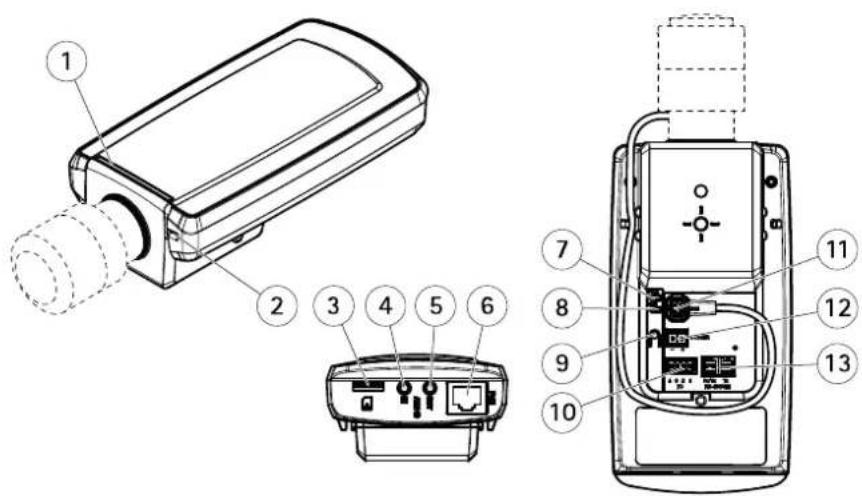
1 StatusLED
2 Built-inmicrophone
3 microSDcardslot
4 Audioin
5 Audioout
6 Networkconnector(PoE)
7 PowerLED
8 NetworkLED
9 Controlbutton
10 I/Oconnector
11 Irisconnector
12 Notused
13 RS485/422connector
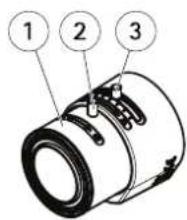
1 Focusring
2 Lockscrewforfocusring
3 Zoompuller
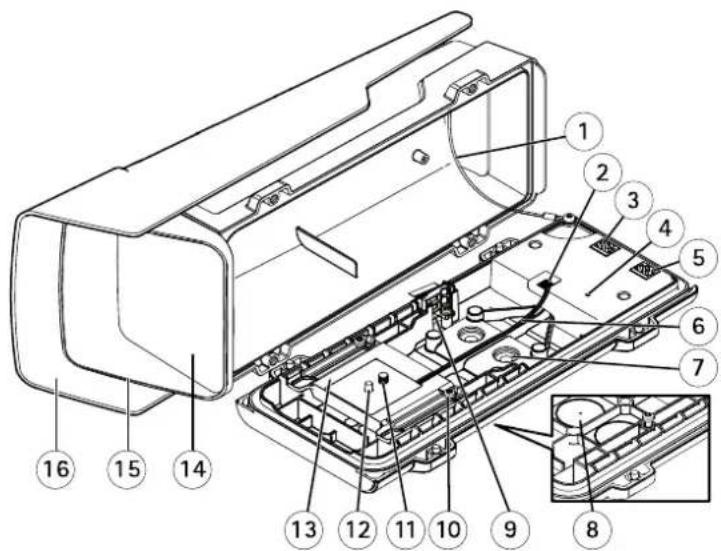
1 Safetywire
2 Heaterconnector
3 Networkconnector(PoEOUT)
4 StatusLEDindicator
5 Networkconnector(PoEIN)
6 Heatercable
7 CablegasketM20(2x)
8 Drill-out(2x)
9 Intrusionalarmswitch
10 HolderscrewT20(2x)
11 CamerascrewT20
12 Pin
13 Holder
14 Window
15 Topcover
16 Weathershield
Howtoreplacethelens
Note
Thereisnoneedtorestarttheproductafterchangingthelens. However, theproductmustberestartedifyouare interchangingbetweendifferenttypesoflenses. Inordertosetthefocusandpositionthelens, theproductmustbe connectedtothenetwork.
ItispossibleMouseoptionallensesfortheAxisproduct.
Toreplacethelens:
- Disconnect their iriscable.
- Unscrewthestandardlens.
- Attachandscrewonthenewlens.
Note
If you select a DCiris configuration file for a P-Irislens, an error message will appear below their configuration type in the Camera Settings page.
ForoptionalDCirislenses,selectGenericDCirisoption.
Tochangetheirisconfiguration:
GdSetupVideandAudioCameraSettingslriconfigurationshowthecurrentconfiguredristype.
2.ClickEdit.
3. Select the installed dirislens from the drop-downlist and click OK.
TochangetheirisconfigurationforP-Irislensesnotlistedinthedrop-downlist:
- Download their is configuration file from www axis.com
QdSetupVide and AudioCamera Settings configuration show the current configured type.
IriconfigurationClickEdit.
4.GototheUploadtab.
5. ClickBrowse and select the configuration file.
ClickUploadTheninstalledrisenshouldhowbincludedrtheriSelectiondrop-downlist.
7. Select the installedirislens from the drop-downlistandclick OK.
Howtoaccesstheproduct
ToinstalltheAxisproduct,seetheInstallationGuidesuppliedwiththeproduct.
Theproductcanbeusedwithmostoperatingsystemsandbrowsers.Werecommendthefollowingbrowsers:
- InternetExplorer ^® withWindows ^®
- Safari ^ withOSX ^
- Chrome TM orFirefox® withotheroperatingsystems.
ToviewstreamingvideoinInternetExplorer, allowinstallationofAXISMediaControl(AMC)whenprompted.
TheAxisproductincludesone(1)H.264decoderlicenseforviewingvideostreamsandone(1)AACaudiolicense.Thelicensesare automaticallyinstalledwithAMC.Theadministratorcandisabletheinstallationofthedecoderstopreventinstallationofunlicensed copies.
Note
- QuickTime ^TM is also supported for viewing H.264 streams and for audio.
AccessfromaBrowser
1.Startawebbrowser.
2.EntertheIPaddressorhostnameoftheAxisproductinthebrowser'sLocation/Addressfield.
ToaccesstheproductfromaMaccomputer(OSX),gotoSafari,clickonBonjourandselecttheproductfromthe drop-downlist.
If you donot know the I paddress, use AXISIP Utility to locate the product on thenetwork. For information about how to discover and assign I paddress, the document Assign I P Address and Access the video Stream or Axis Support web at www.axis.com/techsup
Note
ToshowBonjourasabrowserbookmark, gotoSafari>Preferences.
- Enteryourusernameandpassword.Ifthisisthefirsttimetheproductisaccessed,therootpasswordmustfirstbe configured.Forinstructions,seeSettheRootPasswordonpage11.
- The product'sLiveViewpageopensinyourbrowser.
Note
The controls and layout of theLiveViewpagem may have been customized to meet specific installation requirements and user preferences. Consequently, some of the examples and functions featured her may differ from those displayed in your ownLiveViewpage.
AccessfromtheInternet
Onceconnected, theAxisproductisaccessibleonyourlocalnetwork(LAN).ToaccesstheproductfromtheInternetyoumust configureyournetworkroutertoallowincomingdatatrafficctotheproduct.Todothis, enabletheNAT-traversalfeature, which will attempt automatically, configurethroutetotallowaccessdtheproductThis enabled fromSetupSystemOptions>Network>TCP/IPAdvanced.
FomoreinformationedNA traversa(portmapping)ofPv4orpage60SeaisoAXISnterneDynamicDNServicat www.axiscam.net
ForTechnicalnotesonthisandothertopics,visittheAxisSupportwebatwww.axis.com/techsup
SettheRootPassword
Tacces the Axi product you must the password for the default administrator user of this sloner the Configure Root Passworddialog, which opens when the product is accessed for the first time.
Topreventnetworkeavesdropping,therootpasswordcanbesetviaanencryptedHTTPSconnection,whichrequiresanHTTPS certificate. HTTPS(HypertextTransferProtocoloverSSL)isaprotocolusedtoencrypttrafficbetweenwebbrowsersandservers.The HTTPScertificateensuresencryptedexchangeofinformation.SeeHTTPSonpage55.
The default administrator usenameroortpermanent and cannot be deleted the password for root post the product must be reset which factory default setting See Reset factory default settings page 68.
TosetthepasswordviaastandardHTTPconnection, enteritdirectlyinthedialog.
TosetthepasswordviaanencryptedHTTPSconnection,followthesesteps:
- ClickUseHTTPS.
A temporary certificate(validforoneyear)iscreated,enabling encryptionofalltraffictoandfromtheproduct,andthe passwordcannowbesetsecurely.
2.Enterapasswordandthenre-enterittoconfirmthespelling.
3.ClickOK.Thepasswordhasnowbeenconfigured.
SetPowerLineFrequency
PowelinfrequencysetfirstimtheAxiproductsaccessedandonlychangedronPlainConfig(sepage68) orbyresettingtheproducttofactorydefault.
Select the power line frequency (50Hz or 60Hz) used at the location of the Axis product. Selecting the wrong frequency may cause image flicker if the product is used in fluorescent light environments.
Note
Powerlinefrequencyvariesdependingongeographicregion.TheAmericasusuallyuse60Hz,whereasmostotherpartsof theworlduse50Hz.Localvariationscouldapply.Alwayscheckwiththelocalauthorities.
PTZMode
PTZmodeissetthefirsttimetheAxisproductisaccessedandcanonlybechangedbyresettingtheproducttofactorydefault.
DigitalPTZ should be used when pan/tilmotor not used.
If the cameramounted span/tilmotorselectUploadable PTZ driver, information about how to upload PTZ driversee InstallPTZ Driver on page 38.
ConfigureCaptureMode
CapturemodedefinethemaximumresolutionandmaximumframerateavailableintheAxisproduct.Selectthedesiredcapturemodfromthedrop-downlistandlicOKSealsoCaptureModeorpage24.
TheLiveViewPage
The controls and layout of the liveView pagemay have been customized to meet specific installation requirements and user preferences. Consequently, some of the examples and functions featured her may differ from those displayed in your own live view page. The following provides an overview of each available control.
ControlsontheLiveViewPage

ClickhViewsizbuttonsshowthimagerfulsize(righbutton)ptoscaldowrthemagdo fitthebrowserwindow(leftbutton).

ClickWDRortenableWDRintensbacklightconditionsClickWDRoffalisableWDRnow lightconditionsforoptimalexposure.
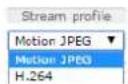
SelectstreamprofileoftheLiveViewpagefromtheStreamProfiledrop-downlistEoinformation abouthowtoconfigurestreamprofiles,see page24.
ClicPulseactivattheproduct'sutputorfodefineperiodoftimeInformationabouthow tenablandconfigureoutputbuttonssepage3Theutputbottomamemaydiffedependingn thenameenteredinthel/OPortsconfiguration.
ClicktheActive/Inactivebuttonsmanuallyactivatendnactivehproduct'outputporFor informationabouthowtoenableandconfigureoutputbuttons,seepage35.

Use the Manual Trigger button trigger action rule from the Live View page. Information about how to configure and enable the button, see Manual Trigger on page 12.
ClickSnapshots=snapshotThevideImageThisbuttonprimarilyntendedfousewhen theAXISMediaControlviewertoolbarsnotavailable.EnablethisbuttonfromLiveViewConfig>ActionButtons.
The Audiclip drop-down is allows you to play audio clip from the Live View page Select the audiclip and click the Play button.
ManualTrigger
The ManualTrigger used trigger action rule from the live View page. The manual trigger carfo example should validate actions during product installation and configuration.
Toconfigurethemanualtrigger:
1.GotoSetup>Events.
2.ClickAddtoaddanewactionrule.
BonthTriggedrop-downlistselectnpubignal.
- From these second drop-downlist, select Manual Trigger.
- Select the desired action and configure the other settings as required.
Formoreinformationaboutactionrules,seeEventsonpage47.
ToshowthemanualtriggerbuttonsintheLiveViewpage:
1.GotoSetup>LiveViewConfig.
2ndeActionButtonsselecShowmanuatriggebutton.
AXISMediaControlviewertoolbar
TheAXISMediaControlviewetoolbarsavailableInterneExploreonlySeeAXISMediaControl(AMC)prpage5omore information.Thetoolbardisplaysthefollowingbuttons:

ThePlaybuttonconnectstotheAxisproductandstartsplayingamediastream.

TheStopbuttonstopsthemediastream.

TheSnapshotbuttontakesasnapshotofthevideoimage.

Click the View Full Screen button and video image with fil the entire screen press ESC (Escape) or the computer keyboard to cancel full screen view.

The Recordbutton used to record the current video stream any you computer. The location where the recordings saved carb specified the AMControlPane Enable this button from LiveViewConfigViewSettings.
AMCAudioControls
AMCaudiobuttonscontrolthespeakersandmicrophoneconnectedtotheclientcomputer.Thebuttonsareonlyvisiblewhen audioisenabled.
Forinformationabouthowtoconfigureaudio,seeSetUpAudioonpage31.

Speakerbutton—Clicktoturnthespeakersonoroff.

MicrophonbuttonClickmutounmutchemicrophondSimplexspeakeronlymodethMicrophonandTalk buttonsmustbothbeactivetosendaudiototheAxisproduct.Clickeitherbuttontostopaudiotransmission.

Use the sliderto control the volume of the speakers and themicrophone.


Half-duplexmode
TheTalk/ListerbuttonusedswitchbetweensendinganddeceivingaudioThebuttoncarbeconfigured fromtheAudiotabintheAMCControlpanel:
- Push-To-Talkmode: Clickandholdthebuttontotalk/send. Releasethebuttontolisten.
- Togglemode: Clickoncetoswitchbetweentalkingandlistening.
Simplex-speakeronlymode
To end audio the Tall and Microphone buttons mus both active. Click the button stop audio transmission.
Note
ThesecontrolsareavailableifdigitalPTZisenabledintheselectedviewareaorifaPTZdriverhasbeenuploaded.FormoreinformationreviewareassedViewArepage2FormoreinformationhowtouploaddriversednstalPTZDriverpage3&switchbetweentheoptionseePTZModerpage1.
With the PTZControlQueue enabled the time each user is controlled by the PTZ settings limited. Click button to request release control of the PTZ control The PTZ control Queue setup and the PTZ Control Queue.

Click the Emulatjoystickmode button and click the image to move the camera view with the direction of the mousepointer.

Click the Centemode button and click the image to the camera view with a position.
Thecentermodebuttoncouldalsobeusedtozoominonaspecificarea.Clickintheimageanddragtodrawa rectanglesurroundingtheareatobemagnified.Tozoomout,rotatethemousewheel.

Click the CtrpanebuttonoperthePTZontropanewhichprovidesadditionaPTZcontrols.User-definedbuttonscanalsoappearintheControlpanel.SeeControlsonpage37.
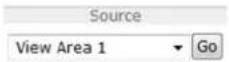
Toviewaspecificviewareaorpresetposition,selectitfromtheSourcelist.
The PTZ control can be disabled under PTZ Advanced Controlssee Controlsorpage37.
MediaStreams
TheAxisproductprovidesseveralaudioandvideostreamformats.Yourrequirementsandthepropertiesofyournetworkwill determinethetypeyouuse.
TheLiveViewpageintheproductprovidesaccessstoH.264andMotionJPEGvideostreams,audiostreamsandtothelistofavailablestreamprofiles.Otherapplicationsandclientscanaccessvideoandaudiostreamsdirectly,withoutgoingviatheLiveViewpage.
HowtoStreamH.264
H.264can, without compromising image quality, reduce the size of a digital video file by more than 80% compared with the Motion JPEG format and as much as 50% more than the MPEG-4 standard. This means that much less network bandwidth and storage space are required for a video file. Or seen another way, much higher video quality can be achieved for a given bitrate.
Deciding which combination of protocols and method stoused depends on your viewing requirements, and on the properties of your network. The available options in AXIS Media Control are:
| UnicastRTP | Thisunicastmethod(RTPoverUDP)isused forliveunicastvideo,especiallywhenitis importanttohaveanup-to-datevideostream, evenifsomeframesaredropped. | Unicastingisusedforvideo-on-demand transmissionsothatthereisnovideotraffic onthenetworkuntilaclientconnectsand requeststhestream.Notethatthereareamaximumof20 simultaneousunicastconnections. |
| RTPoverRTSP | Thisunicastmethod(RTPtunneledoverRTSP) isusefulasitisrelativelysimpletoconfigure firewallstoallowRTSPtraffic. | |
| RTPoverRTSPoverHTTP | Thisunicastmethodcanbeusedtotraverse firewalls.Firewallsarecommonlyconfiguredto allowtheHTTPprotocol,thusallowingRTPto betunneled. | |
| MulticastRTP | Thismethod(RTPoverUDP)shouldbeusedforlivemulticastvideo.Thevideostreamisalways up-to-date,evenifsomeframesaredropped.Multicastingprovidesthemostefficientusageofbandwidthwhentherearelargenumbersof clientsviewingsimultaneously.Amulticastcannothowever,passanetworkrouterunlessthe routerisconfiguredtoallowthis.ItisnotpossibletomulticastovertheInternet,forexample.Notealsothatallmulticastviewerscountasoneunicastviewerinthemaximumtotalof20 simultaneousconnections. | |
AXISMediaControlNegotiateswiththeAxisproducttodeterminethetransportprotocoltouse.Theorderofpriority,listedintheAMCControlPanel,canbechangedandtheoptionsdisabled,tosuitspecificrequirements.
Note
H.264islicensedtechnology.TheAxisproductincludesoneH.264viewingclientlicense.Installingadditionalunlicensed copiesoftheclientisprohibited.Topurchaseadditionallicenses,contactyourAxisreseller.
MJPEG
This formatusesstandardJPEGstillimagesforthevideostream. These images are displayed and updated at a rather sufficient to create stream that shows constantly updated motion.
TheMotionJPEGstreamusesconsiderableamountsofbandwidth,butprovidesexcellentimagequalityandaccesstoeveryimage containedinthestream.TherecommendedmethodofaccessingMotionJPEGlivevideofromtheAxisproductistousetheAXISMediaControlinInternetExplorerinWindows.
AXISMediaControl(AMC)
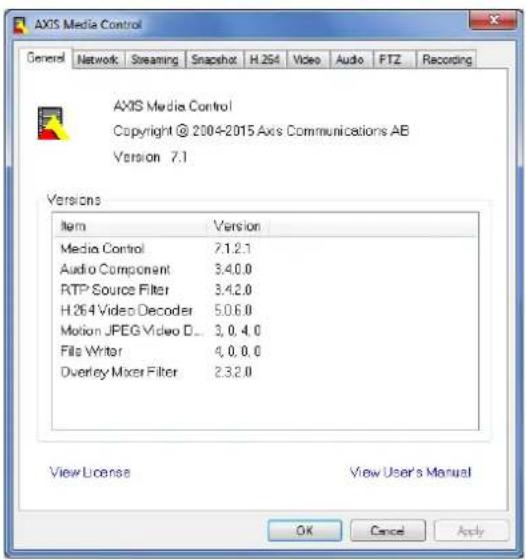
AXISMediaControl(AMC)inInternetExplorerinWindowsistherecommendedmethodofaccessinglivevideofromtheAxisproduct.
TheAMCControlPanelcanbeusedtoconfigurevariousvideoandaudiosettings.PleaseeseetheAXISMediaControlUser's Manualformoreinformation.
TheAMCControlPanelisautomaticallyinstalledonfirstuse,afterwhichitcanbeconfigured.OpentheAMCControlPanelfrom:
- WindowsControlPanel(fromtheStartscreenorStartmenu)
Alternatively, right-click the video image Internet Explore and click Settings.
AlternativeMethodsofAccessingtheVideoStream
YoucanalsoaccessvideoandimagesfromtheAxisproductinthefollowingways:
MotionPEGervepush(ifupported the client Chromo Firefoxexample)Thisptionmaintains proper HTTP connection to the browser and sends data as and when required, for as long as required.
StiJPEGimagesinbrowserEntethpathhttp://
WindowMedPlayerThisrequiresAXISMediaControlandH.264lecodetobinstalledthefollowingpaths canbeused:
-UnicastviaRTP:axrtpu://<ip>/axis-media/media.amp
-UnicastviaRTSP:axrtsp://<ip>/axis-media/media.amp
-UnicastviaRTSP,tunneledviaHTTP:axrtsphttp://<ip>/axis-media/media.amp
-Multicast:axrtpm://<ip>/axis-media/media.amp
- QuickTime TM. The following pathscanbeused:
-rtsp://<ip>/axis-media/media.amp
-rtsp://<ip>/axis-media/media.3gp
Note
=IPaddress
•TheAxisproductsupportsQuickTime6.5.1andlater.- QuickTimemayaddlatencytothevideostream.
- It maybe possible to use other player's view the H.264 stream using the paths above, although Axis does not guarantee this.
AccessAudioStreams
TheLiveViewpageprovidesaccesstoaudiothroughAXISMediaControl;inadditionaudiocanbeaccessedinthefollowingways:
VAPIX®ApplicationProgrammingInterface(API)Fomoreinformationyisitwww.axis.com/developer
-WindowsMediaPlayersupportssimplexaudio.Thefollowingpathscanbeused:
-UnicastviaRTP:axrtpu://<ip>/axis-media/media.amp
-UnicastviaRTSP:axrtsp://<ip>/axis-media/media.amp
-UnicastviaRTSP,tunneledviaHTTP:axrtsphttp://<ip>/axis-media/media.amp
-Multicast:axrtpm://<ip>/axis-media/media.amp
- QuickTime TM supportsG.711andAACaudioencoding.Thefollowingpathscanbeused:
-rtsp://<ip>/axis-media/media.amp
-rtsp://<ip>/axis-media/media.3gp
SetUptheProduct
The Axproduct are configured by users with administrator operator rights to the product's setup pages, including the copyright-hand corner of the Live View page.
- Administratorshaveunrestrictedaccesstoallsettings.
Operator have restricted access settingsed Users or page 55
Seealsotheonlinehelp

BasicSetup
BasicSetupprovidesshortcutstothesettingsthatshouldbemadebeforeusingtheAxisproduct:
1.Users.Seepage55.
2.TCP/IP.Seepage58.
3. Date&Time.Seepage57.
4.VideoStream.Seepage21.
5.Focus.Seepage18.
6.AudioSettings.See page31.
TheBasicSetupmenucanbedisabledfromSystemOptions>Security>Users.
Aboutfocus
You can focus the Axi product under Video Audio Focus The same settings are found under Basi Setup Focus.
Fomosapplications\th\adjustments\orth\Basic\arsufficient\required\additional\adjustments\carbemador\the\Advancedtab.
Basic
Alwaysopentheirisbeforefocusingandenableitwhenfinishedfocusing.Openingtheirisgivesthsmallestdepthoffieldand thusbestconditionsforcorrectfocusing.Thepixelcounterisusedtodeterminethenumberofpixelsinanareaoftheimage,for exampletoensurethattheimagesizefulfillsspecificrequirements.Topositionthepixelcounter,clickonthetextanddrag thewindowtothedesiredposition.
Advanced
Use the tool or this page to find the optimal focus position Focus is measured through the part of the image covered by the Focus window.
Howtoadjustfocusandzoom
If the camera is mounted so that you cannot look at the image and access the lens at the same time, use the Focus Assistant, see how to adjust focus with the Focus Assistant.
Operthproduct'shompageandSetupBasiSetupFocus.
UndethBasicabclicOpeniristfhhbuttonisinactivetherisslreadyopen.
- Iffocushasbeensetbefore, clickResettoresetthebackfocus.
Laoserthezoompulleandthockscrewfothefocusingrthdenbyturninghencounter-clockwiseSeeHardware overviewonpage7.
5.Movethezoompullerandthefocusringtosetzoomandfocusandcheckthequalityoftheimageintheimagewindow.
- Re-tightenthezoompullerandthelockscrewforthefocusing.
OrthFocuspageclickFine-tunfocusautomaticallyandwaituntiautomatidinetuningiscompleted.
8.ClickEnableiris.Ifthebuttonisinactivetheirisisalreadyenabled.
Ifneeded, make further adjustments under the Advanced tab:
- Alwaysopentheirisbeforefocusingandenableitwhenfinishedfocusing.
UsthemousctomovandresizethewindowandherellicFine-tunfocusautomatically.
I needed click the Focus position bar or the arrowath ends of the bar further adjust the focus.
4.ClickEnableiris.Ifthebuttonisinactivetheirisisalreadyenabled.
HowtoadjustfocuswiththeFocusAssistant
Note
- The view in front of the camera should not be changed during focus adjustment. If the camera is moved, or if a finger or other object is placed in front of the lens, restart the procedure.
- Ifmovementsinfrontofthecameracannotbeavoided, theFocusAssistantshouldnotbeused.
- If the control button is not released within twoseconds, AXIS Internet Dynamic DNS Service is enabled instead of the Focus Assistant E from information about AXIS Internet Dynamic DNS Services the Use Manual available at www.axis.com
If the Status LED flash eseitherredoramber before you are able to adjust the lens, exit the Focus Assistant and restart the procedure. See Status LED behavior for focus assistant on page 73.
Operthproduct'shompagandtoSetupBasiSetupFocus.
UndethBasicabclicOpenrisfthbuttonisactivetherisalreadopen.
3.Iffocushasbeensetbefore,clickResettoresetthebackfocus.
4. Mountorplacethecamerasothatitcannotbemoved.
5. Loosenthezoompullerbyturningitanti-clockwise.Movethepullertosetthezoomlevel.Retightenthezoompuller.
6. Set the cameratoitsextremedistant-focus position by loosening the lockscrew for the focus ring and turning the focusing fully clockwise.
7. Pressandquicklyreleasethecontrolbutton. Whenthestatusindicatorflashes, theFocusAssistantisenabled.
8. Gently turn the focus ring anti-clockwise until it stops.
9. Turn the focus rings slowly clockwise until the status indicator flashes green.
10. To exit the Focus Assistant, press the control button. If you cannot access the control button, the Focus Assistant switches off automatically after 15 minutes.
11. Re-tightenthelockscrewforthefocusring.
12. Open theLiveViewpageinthewebbrowserandcheckthequalityoftheimage.
130th FocuspageclickFine-tunfocusautomatically and wait until automatic findtuning completed.
14.ClickEnableiris.Ifthebuttonisinactivetheirisisalreadyenabled.
Ifneeded, make further adjustments under the Advanced tab:
- Alwaysopentheirisbeforefocusingandenableitwhenfinishedfocusing.
UsethemoustonovandresizethewindowandtherclicFine-tunfocusautomatically.
I needed click the Focus position bar or the rowath ends of the bar fur the adjust focus.
4.ClickEnableiris.Ifthebuttonisinactivetheirisisalreadyenabled.
VideoandAudio
Thevideoandaudiosettingscanbeusedtooptimizevideoandaudioquality.Youcanconfigurethefollowing:
•Videostreamsettings.Seepage21.
- Streamprofiles.See page24.
- Camerasettings.See page24.
- Viewareas.Seepage27.
•Overlayimage.Seepage27.
- Privacymask.See page29.
• Focus.Seepage18.
• Audiosettings.Seepage31.
• Audioclips.Seepage32.
SetUpVideoStreams
To set up product's video streams go to Video & Audio Vide Stream.
Thevideostreamsettingsaredividedintothefollowingtabs:
- Image.Seepage21.
•Audio.Seepage31.
•H.264.Seepage22. - Zipstream.Seepage23
- MJPEG.Seepage24.
PixelCounter
Thepixelcountershowsthenumberofpixelsinanareaoftheimage. Thepixelcounterisusefulinsituationswherethereis aspecificsizerequirement,forexampleinfacerecognition.
Thepixelcountercanbeused:
When setting a video stream setup, video streams or page 2. UndePreview, click Open and select the Show pixel counter option to enable the rectangle image. Use them on move and set the rectangle point the number of pixels in the Width and height fields and click Apply.
When setting focussee About focus or page 1 Select Show pixel counter option to enable the rectangle the image Used mouse movement and size the rectangle pent the number pixels in the Width and Height fields and clickApply.
- When accessing theLiveViewpageinInternetExplorerwithAXISMediaControl(AMC)inWindows.Right-clickinthe imageandselectPixelcounter.Usethemousetomoveandresizetherectangle.
Image
The default image settings are configured under VideoAudioVideoStreamSelectdImageTab.
The followingsettingsareavailable:
- Resolution.Selectthedefaultresolution.
CompressionThe compression level affects the image quality bandwidth and file size of saved image width. The compression, the higher the image quality with higher bandwidth requirements and larger filesizes.
- Mirrorimage. If required, the image can be mirrored.
- Rotateimage.lfrequired, theimagecanberotated.
Maximum framed avoid bandwidth problems the framed allowed each viewer can be limited to fixed amount Alternatively the framed car base. Unlimited which means the Axis product always delivers the highest framerate possible under the current conditions.
OverlayettingSeeAboutoverlaytextbrpage27.
ClickSavetoapplythenewsettings.
AboutH.264
H.264,alsoknownasMPEG-4Part10/AVC,isavideocompressionstandardthatprovideshighqualityvideostreamsatlowbitrates. AnH.264videostreamconsistsofdifferenttypesofframessuchasl-framesandP-frames.Anl-frameisacompleteimage,whereas P-framesonlycontainthedifferencesfrompreviousframes.
AboutGOPlength
AGroupofPictures(GOP)containsonel-framefollowedbyanumberofP-frames.TheGOPlengthisthenumberofframes betweenwol-frames.
If you set the GOP length and the framerate equally you will get one GOP per second. If you can get the GOP length to a higher value you will get more smallsized P - frames and less bigsized I - frames while keeping the same framerate. In other words, a high GOP - length values saves bandwidth, but the video quality may decrease. Allow GOP - length value increases the video quality but needs more bandwidth.
AboutH.264profiles
TheAxisproductsupportsthefollowingH.264profile(s):
Baseline:Use the Baseline profile that the client does not support CABAG entropy coding.
MainTheMainprofilesCABAGandprovidesbettercompressionwithmaintainedvidequalityrequireslargeramountofprocessingpowertodecodethantheBaselineprofile.
HighTheHighprofileprovideshighercompressiorthatbothMainandBaselinoprofilesbutequiresmoreprocessing powertodecode.Highprofilesupports8x8blocks,whichreducesthebitratefurthercomparedtotheMainprofile.
Aboutbitratecontrol
Bitratecontrolisusefultomakesurethevideostreamingdoesnottakeuptoomuchbandwidth.
The built-inbitrate control can be combined with Zipstream see About Zipstream or page 23. We recommend using high bitrate limitto enable the full potential of Zipstream.
Aboutvariablebitrate
Variablebitrate(VBR)adjustthebitrateaccordingdthimagecomplexityWhertheactivityinthecencreases)/BAdjuststhebitrateaccordingtothecomplexity,usingupmorebandwidthforincreasedactivityinthescene,andlessforlowersceneactivity.Variablebitrateissuitableifthereisasurplusinbandwidth,wheretheincreasedbitratemaynotbeanissue.
Aboutmaximumbitrate
If you have limited bandwidth, were recommend Maximum bitrate (MBR). MBR allows youto set target bitrate to control the bandwidth consumption. The target value limits the bitrate, but it maintains a flexibility to be able to prioritize a continuous video stream. Consequently, the frameratemight need to go down and the image quality might decrease. Toply compensate forth this, you can select which variables shall be prioritized. Not setting a priority mean that framerate and image quality are equally affected.
HowtosetanH.264profile
The changing settings for H.264 stream that denotes stream profile goto VideoAudioVideoStream H.264.
- To increase or decrease the number of frames per GOP, set the GOP length.
- SelectoneoftheH.264profiles.
- Selectonofthefollowing:
-Variablebitrate
-Maximumbitrate
I;ouselectMaximunbitateselectwhichvariableprioritizerthePrioritydrop-downlist.
6.ClickSave.
Howtoincludecurrentbitrateinatextoverlay
- GotoVideo&Audio>VideoStream>OverlaySettings.
- In the Includetextfieldenter#b.
3.ClickSave.
AboutZipstream
Axis'ZipstreamTechnologyisabitratereductiontechnologyoptimizedforvideosurveillance.Zipstreamreducetheaveragebitrate intheH.264streambyremovingunnecessarydataandmakesitpossibletoallowhigherresolutions,reducestoragecostor tokeeprecordingsforalongertime.
Toreducethebitrate, Zipstreamreducesthenumberofbitsintheareasoftheimagethatarelessinterestingfromavideo surveillanceperspective, forexamplethebackground. Imagedetailsthatareimportantforforensicvideoanalysis, forexamplefaces andlicenseplates, arepreservedwithenoughnumberofbits.
Axis'ZipstreamTechnologyforH.264conformstotheH.264standardandiscompatiblewiththird-partyclientsandVMSsolutions thatdecodeH.264video.
Recommendeduseofbitratereduction
Zipstream offers number bit rate reduction presets from Low Extreme Low bitrate reduction enabled by default lands safetouse in all applications while still reducing the bitrate.
Forcloud-connectedcamerasorcamerasusingedgestoragethatneedtolimitthebitrateforincreasedstoragetimeitis recommendedselecttheExtremebitrateductionThisettingsuitablecombinewithmotiondetectionotriggeringand variablebitrate(VBR)wherethebitrateisallowedtoadapttochangesincomplexityinthescene.
HowtosavebandwidthandstorageusingZipstream
ThebitratecontrollerbuiltintotheproductcanbecombinedwithZipstreamtoensureamaximumbitrate(MBR)limit.We recommendusingVBRorMBRwithahighbitratelimittoenablethefullpotentialofZipstream.Forinstanceinrailwaysurveillance whereattimesthereisalotofmovementinthesceneandwhereitisimportanttocapturedetails,suchasfacialfeatures,theMBR shouldbesetto10Mbit/s(for1080presolutionat30fps).
To further save bandwidth to Setup Video Audio Video Stream and on more of the following:
GodhemagdalandetlovMaximumframevalue.
GothH.264abandethighGOPengthvalue.
GothZipstreamabandelecExtremH.264bitrateduction.
GodheZipstreamtabEnableDynamicGOPandethighMaxdynamiGOPengthvalue.
GothZipstreamabndenableDynamiePS.
Alwaysverifythatthevideostreammeetsthequalityrequirementsforyoursurveillancepurposesafterchangingthevideostream settings.
MJPEG
Sometimes the imagesize is large du et low light or complex scenery. Adjusting them a maximum framesize help to control the bandwidth and storage used by the Motion PEG video stream in these situations. Setting the framesize the Default setting provides consistently good image quality at the expense of increased bandwidth and storage usage in low light. Limiting the frame size optimizes bandwidth and storage usage, but may give poor image quality. Toprevent increased bandwidth and storage usage, the maximum framesizes should be set to an optimal value.
Aboutstreamprofiles
Astreamprofileisasetofpredefinedstreamsettingsincludingresolution,compression,framerateandoverlaysettings.Stream profilescanbeused:
- Whensettinguprecordingusingactionrules.SeeEventsonpage47.
- Whensettingupcontinuousrecording.SeeContinuousRecordingonpage53.
In the ViewpageselectstreamprofilfromtheStreamprofildrop-downlist.
To create new profile to modify existing profile to Setup Video & AudioStream Profiles.
To select default stream profile for the live view page and setup live view config.
AboutONVIFmediaprofiles
AnONVIFmediaprofileconsistsofasetofconfigurationsthatcanbeusedtochangemediastreamsettings.ONVIFmediaprofiles canbeusedbyaclienttoconfiguremediastreamproperties.
TheONVIFmediaprofilepagedistalpreconfigureprofilesthesoprofilesareincludedrtheproducfoquicksetupYoucan add,modifyorremoveONVIFmediaprofilesfromthispage.
CameraSettings
The Video Audio Camera Setting page provides access to advanced image settings for the Axis product.
CaptureMode
CapturemodedefinesthemaximumresolutionandmaximumframerateavailableintheAxisproduct.Acapturemodewithalarge maximumresolutionhasareducedmaximumframerateandviceversa.Capturemodeissetthefirsttimetheproductisaccessed. SelectthedesiredcapturemodeandclickOK.
Important
Changingcapturemodewhentheproducthasbeenconfiguredisnotrecommendedasmostothersettingswillbeeitherremovedorreset.
Tochangecapturemode, followthesesteps:
- GotoSetup>Video&Audio>CameraSettings.
- Selectthenewcapturemode.
3.ClickSave.
ImageAppearance
TochangdImageAppearance dothemenus under Setup Video Audio Camera Settings.
Increasing the Colo level increases the colosaturation. The value 0 gives maximum colosaturation and the value gives minimum colorsaturation.
Thémage Brightness can be adjusted for range 0–100 where higher value produces brighter image.
Increasing Sharpness in increase bandwidth usage, sharper image might increase image noise especially now light conditions. Alowersetting reduces image noise, but the whole image will appear less sharp.
The Contrast changes relative difference between light and dark tar bar adjusted using the slidebar.
LocaContrast applies contrast to specific image using the lidet adjust the contrast where high value produces animagewith high contrast between the dark and light areas and dissuitable for scenes with wider dynamic range.
WhiteBalance
TochangethissettngotoSetup>Video&Audio>CameraSettings
Whitebalanceisusedtomakecolorsintheimageappearthesameregardlessofthecolortemperatureofthelightsource.TheAxis productcanbesettoautomaticallyidentifythelightsourceandcompensateforitscolor.Alternatively,selectthetypeoflight
sourcefromthedrop-downlist.Foradescriptionofeachavailablesetting,seetheonlinehelp
The white balance window enabled the Automation and Automatic outdoor options that appear the White balance drop-down list. Select the options from the drop-downlist to the white balance window properties. Select Automatics the default settings for the Automation and Automatic outdoor options (in the White balance drop-downlist). Select Custom manually set a reference window for white balance in the view area.
WideDynamicRange
Widdynamicang(WDRForensicCapture)providesbalancedimagessceneswherthereisconsiderablecontrasbetween lightanddarkareasintheimage.Thecameraautomaticallyhandlesthetransitionbetweensuchscenesandlow-lightconditions.In rarelightconditionsdisablingWDRmightgiveabetterimage.
Important
UseWDRincombinationwithautomaticexposurecontrol. Otherexposuresettingscouldgiveundesirableresults.
ExposureSettings
Exposure is the amount of light the camera's sensor captures for ascene. To much light results in a washed out image and too little light results in a dark image.
ExposurevalueUsedExposurevalueclidetadjustoveralbrightnessofhimage.
Exposurecontrol-Selectasuitableoptiontocontroleexposure.
FomostcenesthAutomaticoptionwilprovidthebestesultsTheshutterspeedsautomaticallysetproduceoptimum imagequality.Fluorescentlampsorotherlightsourcescansometimescauseflickeringintheimage.Toreduceflickerintheimage, selecttheFlickeroptionthatmatchsthepowerlinefrequency. TheHoldcurrentoptionlocksthecurrentexposuresettings.
MaxexposureShutterspeedalscalledexposuretime'ststandsothdengthofimthecamershutterspenthereby exposingthecamerasensortolight.Ifshutterspeedisfastitcanfreezeactioneffectively.Ifshutterspeedisslow,itcancause movingobjectstoappearblurred.Decreasingtheexposuretimewillreducemotionblur.
Exposure zones This setting determines which part the images used to calculate the exposure of most situations the Auto setting can be used.
YoucanselectapredefinedareabydefiningIncludeandExcludewindowswithintheimage.Excludewindowsexcludeareaasthatare toobrightordark,andIncludewindowsincludeareasinthescenethathavebetterlightingwhichwillcontributetotheexposuredata.
TheremustbeatleastoneIncludewindow.TherecanbeatotaloftenIncludeandExcludewindowstotailortheexposurezone.
NotethatanExcludewindowiseffectiveonlywhenplacedinsideanincludewindow.
Tip: IfanareaisextremelybrightdrawanIncludewindowtocoverthewholeareaanddefineExcludewindowswithinitto blockoutthebrightareas.
Shutter&Gain
Theshutterandgainsettingsaffecttheamountofmotionblurandnoiseintheimage.Toadapttodifferentlighting,available storagespaceandbandwidth,itisoftennecessarytoprioritizeeitherlowmotionblurorlownoise.TheAxisproductallowsdifferent prioritizationinnormallightandinlowlight.
Shutterspeedrelated (the amount of the shuttle opened and measured second(s) slowshutterspeed allows more lighttoreachthesensorandcanhelpproduceabrighterimageinlowlightsituations. On the other hand, aslowshutter speed can cause moving object to appear blurry.
SeWidDynamiRangedWDROffandeShutteto
AstdsetshutterspeedautomaticallylfrequiredusMaxhutterdimtheshutterspeedpreventthrame ratefrombeingreduced.
•Fixedtouseafixedshutterspeed.
Gainmeasureddecibe(dB)theamountaimplificationappliedtheimageHighgaimayprovidebetterimagerlow lightsituationsbutwillincreasetheamountofimagenoise.
SetGainto
AstdsethegainautomaticallylfrequireduseMaxairtdimitheappliedgain.
- Fixedtouseafixedgain.
Example
Ifstoragespaceorbandwidth this limited, try using a lowerergain. This will reduce image noise and produces smaller image files.
Irisconfiguration
Iriconfigurationshow the current configured tristype Do not change the isConfiguration unless then has been changed see Howtoreplacethelensonpage8.
Irisadjustment
Select Enable automatic adjustment automatically compensate for changing light conditions. This option is not available if a fixed diris used.
UsethrisadjustmentlidetsethepreferredF-valueThecalerepresentshemountherisoperlsetotherisis openedasmuchaspossible.Ifsetto100,theirisisclosedasmuchaspossible.TheactualF-valueisshownbelowtheslider.If automaticirisadjustmentisenabled,theiriswillstayatthispositionaslongaslightconditionsarefavorable.Iflightconditions change,theiriswilladjustitselftothebestirissettings.Ifautomaticirisadjustmentisdisabled,theiriswilllockontheset positionregardlessoflightconditions
Day/Night
TheIRcutfilterpreventsinfrared(IR)lightfromreachingtheimagesensor.Inpoorlightingconditions,forexampleatnight,orwhenusingarexternalRampsethldRcutfiltertoOffThisincreasesightsensitivityandallowstheproductd'seeInfraredightTheimageisshowninblackandwhitewhenthelRcutfilterisoff.
IfisingautomaticExposurecontrolsetheRufilterAutoautomaticallyswitchbetweenOrandOffaccordingthe lightingconditions.
The Day/Nightshiftevebahelpsleterminwherthe camerawilshiffrondaymodetonightmodeNormallythe camera automaticallychangesnodefromdaytonightwherverdarklevel00rtheliderByettingDay/Nightshifteveta lowervalue, the camerawillchangetonightmodeearlier.
ViewArea
Note
ThisfeatureisavailableonlyifdigitalPTZwasselectedwhenconfiguringtheproductforthefirsttimeorafterresetting tofactorydefault.
AivewareascroppedfarbthefulviewEachviewareatreatedawideosourcerLiveViewandhastownvideostreamandPTZsettings.
When setting up avieware aitis recommended that the videostream resolution is the same size as smaller than the view area size. Setting the videostream resolution larger than the view area size implies digitally scaled up video aftersensor capture, requiring more bandwidth without adding image information.
TenablegedAudioCamerSettingsandelecEnableViewAreas.
Toaddanewviewarea:
- GotoVideo&Audio>ViewArea.
2.ClickAdd.
The new iew are appears under Selected view area Enter descriptive name in the Nam field.
SelectarAspectation and Videostreamresolution.
5.Anewviewareacoversthewholeimage.Usethemousetomoveandresizetheviewarea. - SelectEnablePTZtoenabledigitalPTZfortheviewarea.
7.ClickSavetosavethesettings.
Tomodifyviewareaselecttheviewarearthde1andmodifythesettingsrequiredClickSave.
Toremoveaviewarea,selecttheviewareaandclickRemove.
Note
ThePTZfunctionalityisusefulduringinstallationoftheAxisproduct.Useaviewareatocropoutaspecificpartofthefullview.
Aboutoverlays
Overlays a superimposed over the videostream. They are used to provide extra information during recordings, such as timestamp, or during product installation and configuration.
Aboutoverlaytext
Anoverlaytextcancludethecurrentdateandtime,oratextstring.Whenusingatextstring,so-calledmodifierscanbeusedto display,forexample,thecurrentbitrateorthecurrentframerate.
You can choose between the following text overlays:
| Size | TextheightBackgroundheight | |
| Small | 10pixels20pixels | |
| Medium16pixels28pixels | ||
| Large21pixels36pixels |
Italspossible displaytextwhenactionrulestriggeredsedHowtincludeoverlayextractionrulepage28.
Howtoincludeoverlaytext
GoVideoAudioVideStreamandelecthldmagtab.
Tincludatandimeselectncludatandncludtime.
TincludetextstringselectIncludetextandentethtextrthfieldModifiersbousedseFileNamingft
Date/TimeFormatsintheonlinehelp

- Selectsize, color, and placement of the text string.
5.ClickSave.
Tomodify the date and time format to System Options DateTime See Date Time on page 57.
Howtoinclude overlaytext in an action rule
Note
Todisplayoverlaytextinmultipleviewareas, overlaytextmustbeenabledineachviewarea.
GoVideoAudioVideStreamandelectdImageab.
UndeOverlassettingsselectIncludtext.
Entethemodifier# DWherthrulestriggered# Displacedbythextspecifiedrthactionrule.
Additional text in this field will be displayed also when the action rule is not active.
@dcEventsActionRulesandcreateyouactionrule.
FromtheActionsistselecOverlayText.
6.EnterthetexttodisplayintheTextField.
SpecifyDurationTheextarbeisplayedwhiletheuleactiveoffixednumberseconds.
Aboutoverlayimages
Anoverlayimageisastaticimagesuperimposedoverthevideostream.Theimage,forexampleacompanylogo,isfirstuploadedto theAxisproductandthenusedtoprovideextrainformationortomaskapartoftheimage.
Imagespecifications:
The uploadedimages should be a Windows 24-bit BMP image with maximum 250 colors.
Theimagewidthandheight,inpixels,mustbeexactlydivisiblebyfour.
The image cannot belarger than the maximum image resolution.
- If you combine atextoverlay with and image overlay, the text overlayalway takes presidence over the overlay image in height. A text overlayalways stretches across the whole video image which means you cannot shrink the overlay stripto make room for image information about different text overlay heights see About overlay text.
TalwaysoverselectedfarbthemonitoredareauseprivacymaskSeeAboutprivacymaskorpage29.
Howtuploadanoverlayimage
- GotoVideo&Audio>OverlayImage.
- ClickBrowseandbrowsetothefile.
3.ClickUpload. - The Transparency Settings page is now displayed:
TomakacoloirthoverlaymagetransparentselectUsetransparencyentetheRGBhexadecimalvalue forthecolor.Example:Tomakewhitetransparent,enterFFFFFF.
Formoreexamplesofhexadecimalvalues,seetheonlinehelp

TscalethimageautomaticallyselectScalewithresolutionThimagewibscaledlowrdoftheresolutionusedbytheAxisproduct.
5.ClickSave.
Howtoincludeanoverlayimage
- GotoVideo&Audio>OverlayImage.
Selectimage from the Usoverlaymagestandclic Save.
GoVideoAudioVideStreamandelectdmagtab.
UndeOverlaSettingsselectIncludoverlaymagathcoordinates.
Econtrothe image'positionentethe(horizontal)and(vertical)coordinatesTheX=0andY=0positions thetopleftcorner.Ifapartofthe imageispositionedoutsidethevideoimage,theoverlayimagewillbemovedso thatthewholeimageisvisible.
6.ClickSave.
Aboutprivacymasks
Aprivacymaskisauser-definedareathatcoverspartsofthemonitoredarea.Privacymasksappearasblocksofsolidcolorandare appliedonthevideostream.PrivacymaskscannotbebypassedusingtheVAPIX®applicationprogramminginterface(API).
The PrivacyMaskList(Video&AudioPrivacyMask) shows all the mask that are currently configured in the Axis product and indicates if they are enabled.
Youcanaddanewmask,re-sizethemaskwiththemouse,chooseacolorforthemask,andgivethemaskaname.
Formoreinformation,seetheonlinehelp

Important
Addingmanyprivacymasksmayaffecttheproduct'sperformance.
Aboutfocus
You can focus the Axi product under Video & Audio Focus The same settings can be found under Basi Setup Focus.
Fomost applications,adjusted,the Basic bar sufficient,required additional adjustments can be made the Advancedtab.
Basic
Alwaysopentheirisbeforefocusingandenableitwhenfinishedfocusing.Openingtheirisgivesthsmallestdepthoffieldand thusbestconditionsforcorrectfocusing.Thepixelcounterisusedtodeterminethenumberofpixelsinanareaoftheimage,for exampletoensurethattheimagesizefulfillsspecificrequirements.Topositionthepixelcounter,clickonthetextanddrag thewindowtothedesiredposition.
Advanced
Use the tool or this page to find the optimal focus position Focus is measured that the image covered by the Focus window.
Howtoadjustfocusandzoom
If the camera is mounted so that you cannot look at the image and access the lens at the same time, use the Focus Assistant, see how to adjust focus with the Focus Assistant.
Operthproduct'sompagandSetupBasiSetupFocus.
UndethBasicABClicOpenirisfthbuttonisactivetherisalreadyopen.
- lffocushasbeensetbefore, clickResettoresetthebackfocus.
Looser the zoom pulse and dock screw for the focusing procedure by turning the encounter-clockwise See Hardware overview on page 7.
5.Movethezoompullerandthefocusringtosetzoomandfocusandcheckthequalityoftheimageintheimagewindow.
- Re-tightenthezoompullerandthelockscrewforthefocusing.
OrthFocuspageclicFine-tunfocusautomaticallyandwaituntibautomatifindtuningscompleted.
8.ClickEnableiris.Ifthebuttonisinactivetheirisisalreadyenabled.
Ifneeded, make further adjustments under the Advanced tab:
- Always open their iris before focusing and enable it when finished focusing.
UsthemousdonovandesizethewindowandherellicFine-tunfocusautomatically.
I needed click the Focus position bar or the arrows at ends of the bar further adjust focus.
4.ClickEnableiris.Ifthebuttonisinactivetheirisisalreadyenabled.
HowtoadjustfocuswiththeFocusAssistant
Note
- The view in front of the camera should not be changed during focus adjustment. If the camera is moved, or if a finger or other object is placed in front of the lens, restart the procedure.
- Ifmovementsinfrontofthecameracannotbeavoided,theFocusAssistantshouldnotbeused.
- If the control button is not released within twoseconds, AXIS Internet Dynamic DNS Service is enabled instead of the Focus Assistant Form or information about AXIS Internet Dynamic DNS Services the Use Manual available at www.axis.com
If the Status LED flash eseitherredoramber before you are able to adjust the lens, exit the Focus Assistant and restart the procedure. See Status LED behavior for focus assistant on page 73.
Operthproduct'sompageandSetupBasiSetupFocus.
UndethBasicABClicOpenirisfthbuttonisnactivetherisalreadyopen.
3.Iffocushasbeensetbefore,clickResettoresetthebackfocus.
- Mountorplacethecamerasothatitcannotbemoved.
- Loosenthezoompullerbyturningitanti-clockwise. Movethepullertosetthezoomlevel. Retightenthezoompuller.
- Set the cameratoitsextremedistant-focus position by loosening the lockscrew for the focus ring and turning the focusing fully clockwise.
- Pressandquicklyreleasethecontrolbutton. Whenthestatusindicatorflashes, theFocusAssistantisenabled.
- Gentlyturnthefocusringanti-clockwiseuntilitstops.
- Turn the focus rings slowly clockwise until the status indicator flashes green.
- To exit the Focus Assistant, press the control button. If you cannot access the control button, the Focus Assistant switches off automatically after 15 minutes.
- Re-tightenthelockscrewforthefocusing.
- Open theLiveViewpageinthewebbrowserandcheckthequalityoftheimage.
130th FocuspageclickFine-tunfocusautomaticallyandwaituntibautomaticfindtuningscompleted.
14.ClickEnableiris.Ifthebuttonisinactivetheirisisalreadyenabled.
Ifneeded, make further adjustments under the Advanced tab:
- Always open their is before focusing and enable it when finished focusing.
UsthemoustmovandesizethewindowandherellicFine-tunfocusautomatically.
I needed click the Focus position bar or the row with ends of the bar further adjust focus.
4.ClickEnableiris.Ifthebuttonisinactivetheirisisalreadyenabled.
SetUpAudio
Tochangtheproduct's audiosettings@videoAudioAudioSettings.
Eachstreamprofileisaseparatevideostream.Toincludetheaudiostreaminalstreamprofiles,gototheaudiotabineachstreamprofilsettingspagandenableaudioFomoreinformationseeAboutstreamprofilespage24.
If you have enabled view areas, remember that each view area is a separate video stream. To include the audio stream all view areas get the audio reach video stream page and enable audio from more information viewed at page 27.
AudioModes
TheAxisproductsupportsthefollowingaudiomodes:
FelduplexSimultaneoustwo-wayaudialowingtheAxisproducttransmitand receiveaudiathsamtime.
Thereisnoechocancellation; iffeedbackloopsappear, trymovingthemicrophoneorthespeaker.
Half-duplex Audiocar transmitted and from the Axiproduct but only nondirection at time transmit audiusing the liveViewpage purchase Talk and list buttons see AMoAudioControls page 13.
SimplexNetworkCamerspeakeonlyAudiotransmittedfromclienttheAxiproductandcarplayedby speakecountectedtheproductdtransmitaudiusingtheLiveViewpagethTalkandMicrophonorbuttons mustbothbeactive,seeAMCAudioControlsonpage13.
SimplexNetworkCameramicrophononlyAudio captured by the product microphone is transmitted from the Axisproducttooneormoreclients.
ToethaudiomodegVideoAudioAudioSettingsandelecthdesiredmodfromtheAudiomodrop-downlist.
Audiolnput
Areternamicrophonetic source connected the Audio-ir connector Configure the audio input settings under Video &Audio>AudioSettings.
Select MicrophonoUserExternal microphoneLindusLineDevice,gaudiomixefomultiplenicrophones oramicrophonewithabuilt-inamplifier,asaudiosource.
Select the 3GB microphon boost option to amplify the sign of the external microphone connected the Ax product. Microphone boost option is useful when a microphone's volume is too low and you want to increase it. This option is not available when the Linesource is selected
The Microphone power option provides DC power for an external microphone.
Touseaprofessionalmicrophonerequiring48Vphantompower,youneedanexternalpowersupplyandabalanced-unbalanced converter(audiotransformer)inbetween.
Use the input a range of volume of audio input through sound to do how choose high value to amplify the sound from sound to high choos lowed Value The level bagives visuale representation of audio signale value relative to the full-scale input level.
•Green—thesignalisatagoodlevel.
- Yellow—thesignalisbecomingdistorted.
- Red—thesignalisdistorted.
UsetheEncodingoptiontoselectdigitalaudioencodingformat.
AACequireslicensfobotrencodinganddecodingAACthedeastomplicatedandmostwidelyusedcodedfachievingthebestpossibleaudioqualityisapriority,AACistherecommendedcodectouse.AnAAClicenseisincludedintheAxisproduct.
G71 IsunlicensedstandardcodethatusefulwhenintegratingaudiontalolSystem
G726aunlicensedspeechcodedthatsmostommonlyusedwithirthecurityindustry.
Note
Ifrecordingaudiotoedgestorage,suchasanSDcardornetworkshare,useAACencoding.
ThSampleate defines the number of time per second sounds sampled by the sample rate will provide better audio quality, but also requires a greater bandwidth.
SetherequireBitatedependingthe selected encoding highebitate wilgivbette audiquality lowebitate mayhavelatencyordelay, but will require less bandwidth.
Formoreinformationaboutthesesettings,pleaseetheonlinehelp

AudioOutput
AnexternalspeakercanbeconnectedtotheAudio-outconnector(anactivespeakerwithbuilt-inamplifierisrequiredforthis).The outputcanbeconnectedtoanotheramplifierwithspeakers.Astereoconnectormustbeusedfortheaudiout.
Configure the audio output settings under Video & Audio Audio Settings.
OutputainControlvolumeoftheinaudiooutputfhsoundsodowchooshighedBvaludfhsoundstohigh,choosealowerdBvalue.
AudioClips
AraudioclipsoundilthatbanplayedwhereventoccundirectlyfromtheLivViewpageTheaudiclipmustfirstbe uploadedtotheAxisproductrecordedbyamicrophoneconnectedtotheproduct.
To adddownloadmodifyremoveaudicipsgetVideoAudioAudicLipsFomoreinformationsethonlinehelp
ToconfiguretheAxisproducttoplayaudioclipswhenaneventoccurs,anactionrulemustbesetup.Formoreinformation, seeEventsonpage47.
Note
AudioLipsannobusedtheproduct's audifunctionality enabledThe audifunctionality enabledtheAudio tabunderVideo&Audio>VideoStream.

ConfiguretheLiveViewPage
YoucancustomizetheLiveViewpageandalterittosuityourrequirements.ItispossibletedefinethefollowingfeaturesoftheLiveViewpage.
- StreamProfile.Seepage24.
- DefaultViewerforBrowser.Seepage34.
-ViewerSettings.Seepage34.
ActionButtonsThesearchbuttonsdescribednControlsorthedLiveViewPage12.
-UserDefinedLinks.Seepage35.
- OutputButtons.Seepage35.
DefaultViewerforBrowsers
FromLiveViewConfigDefaultVieweselectdefaultmethodofviewingideimagesyoubrowserTheproductattempts toshowthevideoimagesinthesetectedvideoformatandviewer.Ifthisisnotpossible,theproductoverridesthesettingsand selectsthebestavailablecombination.
| BrowserViewerDescription | ||
| WindowsInternetExplorer | AMC | RecommendedviewerinInternetExplorer(H.264/MotionJPEG). |
| QuickTime | H.264. | |
| StillimageDisplays | stillimagesonly.ClicktheRefreshbuttoninyourbrosertoviewa newimage. | |
| Otherbrowsers | ServerPush | Recommendedviewerforotherbrowsers(MotionJPEG). |
| QuickTime | H.264. | |
| StillimageDisplays | stillimagesonly.ClicktheRefreshbuttoninyourbrosertoviewa newimage. |
Formoreinformation,pleaseetheonlinehelp.

ViewerSettings
Toconfigureoptionsfortheviewer, gotoLiveViewConfig>ViewerSettings.
SelectShowewetoolbatalisplaytheAXISmediaControl(AMC)theQuickTimeviewetoolbaundethevideoimageinyourbrowser.
H264lecodeinstallationThe administratorandisableinstallationofH1.264lecodeincludedwithAXISMedia Control.Thisisusedtopreventinstallationofunlicensedcopies.Furtherdecoderlicensescanbepurchasedfromyour Axisreseller.
SelectShowcrosshainPTZoystickmode enable crosshawillindicate the center of the image in PTZoystick mode.
SelectUsePTZoystickmodasdefaultenablejoystickmodeThemodearbechangedemporarilyfromthe PTZcontrolpanel.
SelectEnablerecordingbuttonEnablerecordingfromtheLiveViewpageThisbuttonisavailablewhenusingtheAMCviewer.TherecordingsaresavedtothelocationspecifiedintheAMCControlPanel.SeeAXISMediaControl(AMC)onpage15.
UserDefinedLinks
Todisplayuser-definedinkintheLiveViewpageselecthShowcustomlinkoptiongivthdlnanamandherentethURL tolinkto.Whendefiningaweblinkdonotremovethehttp://fromtheURLaddress.Customlinkscanbeusedtorunscriptor activateexternaldevicesconnectedtotheproduct,ortheycanlinktoawebpage.Customlinksdefinedascgilinkswillrunthe scriptinthebackground,inahiddenframe.Definingthelinkasaweblinkwillopenthelinkinanewwindow.
OutputButtons
Externall/OdevicesconnectedtotheAxisproduct'soutputportscanbecontrolleddirectlyfromtheLiveViewpage.
TodisplayoutputbuttonsintheLiveViewpage:
1.GotoSetup>LiveViewConfig.
2. UnderOutputButtons, select the type of controltouse:
Pulsactivates the output for define period of time. The pulse time can be from 10 seconds to 60 seconds.
-Active/Inactive displaywobuttons, oneoreachaction.
ToconfigureactiveandnactivstatesgdsystemOptionsPort6Devicesl/Portandethport'sNormastate.
Formoreinformationaboutl/Oports,seeI/OPortsonpage65.
PTZ(PanTiltZoom)
PTZ(pan,tiltandzoom)isavailableifyouhaveenabledddigitalPTZintheselectedviewareaorifaPTZdriverhasbeenuploaded.For moreinformationreviewareasessedViewAreaonpage2. For moreinformationorhowtouploaddriversedInstalPTZDriveon page38.ToswitchbetweenthetwooptionsseePTZModeonpage1 1
Aboutpresetpositions
Apresetpositionisasavedviewthatcanbeusedtoquicklysteerthecameratoaspecificposition.Apresetpositionconsistsof thefollowingvalues:
- Panandtiltpositions
- Zoomposition
Eachviewareahasitsownpresetpositions.
Howtoaccessthepresetpositions
Presetpositionscanbeaccessedinseveralways:
- Byselecting the preset from the Source drop-down list in the LiveView Page.
- Whensettingupactionrules.Seepage47.
- Whensettingupguardtours.See page37.
Howtoaddapresetposition
- GotoSetup>PTZ>PresetPositions.
- Clickintheimageorusethecontrolstosteerthecameraviewtothedesiredposition.
- WriteanameintheCurrentpositionfield.
4.ClickAddtosavethepresetposition.
Howtoincludethepresetpositionnameinanoverlaytext
1.GotoVideo&Audio.
2. SelectIncludeoverlaytext.
3.Writethemodifier#Pinthefield.
4.ClickSave.
SettheHomePosition
The entire view are treated with the composition which readily accessible by clicking the home button or the live view page and in the Preset Position setup window.
TheproductcanbeconfiguredtoreturntotheHomepositionwhenthePTZfunctionalityhasbeeninactiveforaspecifiedlengthoftimeEntethdengthoftimerthReturntohomeftefieldandlicSavSethdimdzerdpreventeproducfromautomaticallyreturningtotheHomeposition.
Aboutguardtours
Aguardtourdisplaysthevideostreamfromdifferentpresetpositions,one-by-one,inapredeterminedorderoratrandomandforconfigurabletimeperiods.Theenabledguardtourwillkeeprunningaftertheuserhasloggedofforclosedthebrowser.
Note
Forproductsthatsupportlimitedguardtours,thereisafixedminimumviewtimeof10seconds.
Howtocreateaguardtour
- GotoSetup>PTZ>GuardTour.
2.ClickAdd.
3.Typeaname. - Specify the pause length between runs.
- Selectapresetpositionfromthedrop-downlistandclickAdd.
- Foreachpresetposition, entertheViewTimeinsecondsorminutes.
SpecifyViewOrderthepresepositionspselectRandomvieworder.
8.ClickSave.
Howtoeditaguardtour
- GotoSetup>PTZ>GuardTour.
- Select the guard tour in the Guard Tour List.
3.ClickModify.
Howtodeleteaguardtour
- GotoSetup>PTZ>GuardTour.
- Select the guard tour in the Guard Tour List.
3.ClickRemove.
Advanced
Controls
AdvancedPTZsettingscanbeconfiguredunderPTZ>Advanced>Controls.
The PaneShortcuCommandButtonisshowshouser-definedbuttonthataraccessedfromtheLiveViewpage'Ctrl panel. These buttons are used to provide direct access command issued using the APIX® application programming interface. ClickAddtoaddanewshortcutcommandbutton.
The following PTZ controls are enabled by default:
•Pancontrol
- Tiltcontrol
- Zoomcontrol
Tolisable specific controls, deselect options under Enable/Disable controls.
Ifusing multiple view areas, deselecting a control will only disable the control in these selected view area.
Note
DisablingPTZcontrolswillnotaffectpresetpositions. Forexample, ifthetiltcontrolisdisabled, theproductcanstillmoveto presetpositionsthatrequireatiltmovement.
InstallIPTZDriver
ThisAxiproductsupportseveraPTZdevicesPleaseewww.axis.comforcompletdisbSupporteddevicesandobtainthe correctdriver.ToinstallaPTZdeviceyouneedtoinstallthePTZdriver.
TinstalthPTZdrivegtoPTZ-DriveSelectionBrowsefindtheDrive(e.driver.ptz)andUploadthedrivewas successfullyuploadedappearsthSelectrivetausdrop-downlistFronthisdrop-downlistselectthedrivetinstall orremove,andclickSave.
SelectActivatPTZ enable PTZ The address of connected device appears against DeviceDChoos the Devicetype from the drop-downlist. To find which devicetypetouse, consult the documentations supplied by the PTZ driver.
To complete the installation of System Options Ports Devices COMP and verify the settings.
ControlQueue
Note
- The administratorcanenableanddisablePTZcontrolsforselectedusers.
- Toidentifydifferentusersintheviewergroup,cookiesmustbeabledontheclient.
The ControqueupolltimesmeasuredsecondsFromoreinformationsetchonlinhelp

The administrator setup que ufo PTZ controller from PTZ ControlQueu Oncset up the PTZ ControlQueu buttons appear in theLiveViewpageofferingoneviewerexclusivecontrolforalimitedperiodoftime. Other users will be placedinqueue.
AusewhbelongsgroupsedUsersorpage55withhighePTZpriorityandbeforetheusersithetqueuandake controloftheproduct.Theorderofpriorityisasfollows:
Administrator-AdministratotakesovePTZcontrolregardlessofwhofirstqueueTheadministratorwilbe removedfromthequeue60secondsafterthelastPTZcontrolcommand.
Event-TheAxisproductarbeconfigured@topresepositionwhertriggeredbyalarm(seEventsorpage47). Theeventwillimmediatelybeplacedfirstinthequeueexceptwhenanadministratorisincontrol.
- Operator—Sameas administrator but with lower priority
GuardTour-Aguardou(sepage37)aPTZontroforindefiniteperiobfimd,maybeoverridderbyan operator,eventoradministrator.Theguardtourwillresumewhenhigherprioritygroupsleavethequeue.
Viewer-Multipleviewersmustwaifotheiturn,TheiewehasSecondPTZontrobeforecontrolpassed ontothenextviewerinqueue.
Detectors
Aboutcameratampering
CameraTamperingcangenerateanalarmwhenthecameraisrepositioned,orwhenthelensiscovered,spray-paintedorseverely de-focused.Tosendanalarm,forexampleviaemail,anactionrulemustbesetup.
Howtoconfiguretamperingdetection
- GotoDetectors > CameraTampering.
SethMinimundurationthattheimethatmustlapsbeforealarmisgeneratedincreaseimtoprevent falsealarmsforknownconditionsthataffecttheimage.
Select Alarm for dark images of alarm should be generated when light and dimmed turned off if then is sprayed, covered, or rendered severely out of focus.
4.ClickSave.
Howtoconfigureanactionrulefortamperingalarm
- GotoEvents>ActionRules.
2.ClickAddtosetupanewactionrule.
- EnteraNamefortheactionrule.
UndeConditionselecDetectorfromthTriggerist.
-
SelectTamperingfromthelistofdetectors.
-
Optionally, select as schedule and set additional conditions.
SelectactionExampleTosendaremailselectSendNotificationandselectRecipientfromtheDistBefined recipients.
Note
The Which the ulective option under Duration cannot be used with cameramperings since camerampering does not have aduration and once it has been triggered, it will not automatically return to its untriggered state.
Formoreinformationonactionsrules,seeEventsonpage47.
AudioDetection
TheAxisproductcanbeconfiguredtogenerateanalarmwhenaudiorisesaboveorfallsbelowthethresholdvalue.Thethreshold valuecanbesetintherange0–100where0isthemostsensitiveand100theleastsensitive.
- GotoDetectors>AudioDetection.
2.SettheaudioalarmlevelandclickSave.
GdEventsActionRulesandetupractionruleseSetUpActionRulesorpage47.
Detected audio indicated by colore peak in the Activity indicator Areven is triggered when detected audio rises above falls below threshold value, which is represented by the bar.
Applications
AXISCameraApplicationPlatform(ACAP)isanopenplatformthatenablesthirdpartiestodevelopanalyticsandotherapplications forAxiproductsFoinformationaboutavailableapplicationsdownloadstrialsandicensesg@www.axis.com/applications
Note
The application AXIS/ided Motion Detection is included with this product. See AXIS/ided Motion Detection or page 42.
- Several applications can run at the same time but some applications might not be compatible with each other. Certain combination of applications might require to much processing power or memory resources when run in parallel. Verify that the applications work together before deployment.
ApplicationLicenses
Someapplicationsneedalicensetorun.Licensescanbeinstalledintwoways:
•Automaticinstallation—requiresaccesstothelnternet
- Manualinstallation—obtainthelicensekeyfromtheapplicationvendoranduploadthekeytotheAxisproduct
Torequestalicense, theAxisproductserialnumber(S/N) is required. The serial number can be found on the product label and under SystemOptions > Support > SystemOverview.
UploadApplication
Touploadandstartanapplication:
- GotoSetup>Applications.
2ndeUploadApplicationclickBrowseLocatchapplicationfileandclickUploadPackage.
- Install the license (if applicable). For instructions, seethedocumentation provided by the application vendor.
Start the applicationGd page Applications select the application in the disf installed applications and click Start.
- Configure the application. For instructions, seethedocumentation provided by the application vendor.
Note
- Applicationscanbeuploadedbyproductadministrators.
- ApplicationsandlicensescanbeinstalledonmultipleproductsatthesametimeusingAXISCameraManagement,version 3.10andlater.
To generate log file for the application to Application Select the application and click Log.
ApplicationConsiderations
Ifanapplicationisupgraded, applicationsettings, including the license, will be removed. The license must be installed and the application reconfigured.
If the Axis product's firmware is upgraded, uploaded applications and their settings will remain unchanged, although this is not guaranteed by Axis Communications. Not that the application must be supported by thenew firmware. For information about firmware upgrades, see Upgrade the Firmware on page 69.
If the Axis product is restarted, running applications will restart automatically.
If the Axis product is restored, uploaded applications remain unchanged but must be restarted. Tostart the application, goto Setup Application Select the application in the dis installed applications and click Star Information about restoring the Axis product, see Maintenance on page 66.
If theAxisproductisresettofactorydefault, uploadedapplicationsandtheirsettingsareremoved.Forinformationaboutfactory default, see Resettofactorydefaultsettingspage68.
AXISVideoMotionDetection
AXISVideoMotionDetectionisanapplicationthatdetectsmovingobjectsinthecamera'sfieldofview.Whenamovingobject isdetected,AXISVideoMotionDetectionssendsanalarmthatcanbeusedbytheAxisproductorbythird-partysoftwaretoforexample,recordvideoorsendanotification.
AXIS/ided MotionDetection included with the Axis product and available under SetupApplications. Use AXIS/ideo MotionDetection, the application must first best started. To avoid detecting unwanted objects, the applications should be configured. During configuration, visual confirmation can be used to help understand the effect of the different filters. When visual confirmation is enabled, red polygonsshow which objectsthe application detects and green polygonsshow which objectsthe application ignores.
Considerations
BeforeusingAXISVideoMotionDetection3,takethefollowingintoconsideration:
- Smallanddistantobjectsmightnotbedetected.
- Detection accuracy may be affected by weather conditions such as heavy rainorsnow.
- MakesurethatthelightingconditionsarewithintheAxisproduct'sspecification.Addadditionallightingifneeded.
- Makesurethatthecameraisnotsubjecttoexcessivevibrations.Vibrationsmightcausefalsedetections.
StartandStoptheApplication
TstarthapplicationselectrthInstalledApplicationsisbrtheApplicationspagandclickStart.
Tostoptheapplication,selectitinthelistandclickStop.
ConfigureApplication
The application is available from SetupApplicationsMotionDetectionGoSettingsandherclickAXIS AXIS AXIS Video Motion Motion Detection Settings/scopingtheapplication'swebpage.
ToconfigureAXISVideoMotionDetection3,followthesesteps:
Modify the size of position of include area This there are in which moving objects will be detected. See include Area on page 42.
OptionallyaddnomorexcludareasObjectsarexcludareavilbignoredSeeExcludeAreorpage43.
3.ClickSavetoapplythechanges.
Use visual confirmation to verify the settings. See Visual Confirmation page 43.
Ifo many unwanted objects detected enabl and configure onomore of the ignore filter Sedignore Filters onpage44.
After modifying setting click Save apply the changes The video stream will be restarted and may take few seconds before the change is applied.
IncludeArea
Theincludeareaistheareainwhichmovingobjectswillbedetected.Objectsmovingoutsidetheincludeareawillbeignored. Theobjectwillbedetectedalsoifonlyapartoftheobjectisinsidetheincludearea.
Note
Tomodifytheincludearea,InternetExplorerandAXISMediaControl(AMC)mustbeused.
Thedefaultincludeareaisasquarethatcoversthewholeimage.Clickontheicontohighlighthearea.
Usethemousetoreshapeandresizetheareasothatitonlycoversthepartoftheimageinwhichmovingobjectsshouldbedetected. Thedefaultsquarecanbechangedtoapolygonwithupto20points(corners).
- Toaddanewpoint, clickontheincludeareaborder.Dragthepointtothedesiredposition.
- Toremoveapoint,right-clickonthepoint.
- Tomoveapoint, dragthepointtothenewposition.
- Tomovetheentireincludearea, placethemousepointerinsidethearea. Whenthepointerbecomesacross, dragthe areatothenewposition.
- Toselecttheincludearea,clickontheborder.
Toresettheincludeareatoitsdefaultsize,clickReset.
ExcludeArea
Anexcludeareaisanareainwhichmovingobjectswillbeignored.Useexcludeareasifthereareareasinsidetheincludearea thattriggeralotofunwanteddetectedobjects.Upto10excludeareascanbeused.
Note
Toaddandmodifyexcludeareas,InternetExplorerandAXISMediaControl(AMC)mustbeused.
To address excluding a click Add default exclude a rectangle placed in the center of the image. The theme to remove, reshape and resize the areas so that it covers the desired part of the image. The defaults square can be changed to a polygon with up to 20 points (corners).
- Tomovetheexcludearea, placethemousepointerinsidethearea. When the pointer becomes across, drag the area to thenew position.
- Toaddanewpoint, clickontheexcludeareaborder.Dragthepointtothedesiredposition.
- Toremoveapoint, right-clickonthepoint.
- Tomoveapoint, dragthepointtothenewposition.
- Toselectanexcludearea,clickontheborder.
Toremoveanexcludearea,selecttheareaandthenclickRemove.
Tohighlighttheexcludeareas,clickonthe

icon.
VisualConfirmation
Visualconfirmationisusedtovalidatethatthesettingsarecorrect,thatis,thatalobjectsthatshouldbedetectedaredetected.
Note
Tousevisualconfirmation, Internet Explorer and AXIS Media Control (AMC) must be used.
When visual confirmation is enabled, all moving objects found by the application will be circled and followed by polygons. A red polygon indicates that the object is found and detected as a moving object. Agreen polygon indicates that the object is found but is ignored because it is not in the include area or because of one of the ignore filters.
Toenablevisualconfirmation:
- Select the Enable visual confirmation option.
2.ClickSave.
Note
- Visualconfirmationisdisabledafter15minutes.
After modifying setting click Save apply the change The video stream will be restarted and may take few seconds before the change is applied.
- Enablingvisualconfirmationmayintroducevideolatency.
IgnoreFilters
IfAXISVideoMotionDetection3detectstoomanyunwantedobjects,startbymodifyingtheincludeandexcludeareas.Ifstilltoo manyobjectssaredetected,useoneormoreoftheignorefilters.
Supportedignorefilters:
- Swayingobjects—Usedtoignoreobjectsthatonlymoveashortdistance
- Short-livedobjects—Usedtoignoreobjectsthatonlyappearintheimageforashortperiodoftime
- Smallobjects—Usedtoignoresmallobjects
Ignorefiltersareappliedtoallmovingobjectsfoundbytheapplicationandshouldbeconfiguredwithcaretoensurethatno importantobjectsareignored.
Onlyuseignorefiltersifneededanduseasfewfiltersaspossible. Enableandconfigureonefilteratatimeandusevisualconfirmation toverifythesettingsbeforeenablinganotherfilterWhenconfiguringfilterstartwithsmallfiltersizeclicSavendusevisual confirmationtoverifythesettings.lfrequired,increasethefiltersizeinsmallstepsuntilthenumberofunwantedobjectsisreduced.
SwayingObjectIgnoreFilter
Theswayingobjectfilterisusedtoavoiddetectingobjectsthatonlymoveashortdistance,forexamplemovingtrees,flagsandtheir shadows.Usethefilterifsuchobjectscausealotoffalsedetections.Iftheswayingobjectsinthescenearelarge,forexamplelarge pondsorlargetrees,useexcludeareasinsteadofthefilter.Thefilterwillbeappliedtoallmovingobjectsinsceneand,ifsettoavaluetoolarge,importantobjectsmightnotbedetected.
When the waying object filter is enabled and the application finds a moving object, the object will not be reported as detected (red polygon in visual confirmation) until the travelled distance larger than the set filtersize. The alarms sent by the application will be sent when the object is detected. If the alarm is used to start are cording, configure the pre-trigger times that there cording also include the time the object moved in the scene before being detected.
Toenablethefilter:
- Select the Swaying objectsoption.
2.Clickonthe icontoshowthefiltersizeintheimage. - Usethemousetoadjustthefiltersize.Startwithasmallsize.Objectsmovingadistanceshorterthanthedistancefrom thecenterofthecrosstooneofthearrowheadswillbeignored.Thefiltercanbemovedtothelocationofaswaying objecttomakeiteasiertoadjustthesize.Notethatthefilterwillbeappliedtoallobjectsintheimage,notonlytothe onesatthelocationwherethefilterisplaced.
4.ClickSavetoapplythefilter. - Usevisualconfirmation to verify the settings.
- If the result is not satisfactory, increase the filtersize small steps.
Thefiltersizecanalsobesetbyenteringavaluebetween10and50inthefield.Thevaluecorrespondstothedistancefromthe centerofthecrosstooneofthearrowheads.Thevalue100impliesthatanobjectmusttravelfromitsinitialpointtoonethirdofthe imagewidthtorheightbeforebeingdetected.Thevalue50implieshalfthatdistance,thatis,theobjectmusttraveladistanceof onesixthoftheimagewidthtorheightbeforebeingdetected.
Short-LivedObjectIgnoreFilter
Theshort-livedobjectfilterisusedtoavoiddetectingobjectsthatonlyappearforashortperiodoftime,suchaslightbeamsfroma passingcarandquicklymovingshadows.Usethefilterifsuchobjectscausealotoffalsedetections.
Whentheshort-livedobjectfilterisenabledandtheapplicationfindsamovingobject,theobjectwillnotbereportedasdetected(redpolygoninvisualconfirmation)untilthesetimeaspassed.Thealarmsentbytheapplicationwillbesentwhentheobjectis detected.Ifthealarmisusedtostartarecording,configurethepre-triggertimesothattherecordingalsoincludesthetimethe objectmovedinthescenebeforebeingdetected.
Toenablethefilter:
- SelecttheShort-livedobjectsoption.
2.Enterthenumberofsecondsinthefield.Thenumberofsecondsistheminimumtimethatmustpassbeforetheobjectis detected.Startwithasmallnumber.
3.ClickSavetoapplythefilter. - Usevisualconfirmation to verify the settings.
- If the result is not satisfactory, increase the filtersize in small steps.
SmallObjectIgnoreFilter
Thesmallobjectfilterisusedtoavoiddetectingobjectsthataretoosmall.Forexample,ifonlymovingcarsshouldbedetected,the smallobjectfiltercanbeusedtoavoiddetectingpeopleandanimals.
Ifusingthesmallobjectfilter, take into consideration that an object far from the camera appears smaller than an object closet to the camera. If the filter is set to ignore object sthesize of a person, people that are closet to be cameracan still be detected because they are larger than the filters size.
Toenablethefilter:
- SelecttheSmallobjectsoption.
2.Clickonthe

icontoshowthefiltersizeintheimage.
- Usethemousetoadjustthefiltersize.Startwithasmallsize.Movingobjectsthatfitinsidetherectanglewillbeignored. Thefilterdisplayedintheimagecanbemovedtomakeiteasiertocomparethefiltersizewiththesizeofobjects intheimage.Notethatthefilterwillbeappliedtoalobjectsintheimage,alsotoobjectsthatarenotlocatedat thepositionofthedisplayedfilter.
4.ClickSavetoapplythefilter. - Usevisualconfirmation to overify the settings.
- If the result is not satisfactory, increase the filtersize in small steps.
Thefiltersizecanalsobesetbyenteringthewidthandheightinthefields. Thewidthhandheightarethemaximumwidthand maximumheightoftheobjectstoignoreandaremeasuredinpercentoftheimagewidthandheight.Valuesbetween5and100 canbeused.
Using the Application in an Action Rule
The following examples show to configure the Axis product to record video when AXIS Video Motion Detection 3 detectsmotion.
InsertarS deardrtheAxiproductogd SetupSystemOptionsStoragertheAxiproduct'swebpagesand configuretheproducttouseanetworkshare.
OptionallygetSetupVidedAudioStreamProfilesandcreatestreamprofileforecording.
GdoSetupEventsActionRulesandclickAddcreatenewactionrule.
FrontheTriggeredrop-downlistselectApplicationsandtherselectVMD.
Configure the settings required. For example only record video during certain time periods, select Schedule.
UndeActionsselectRecordVidedfromthTypdrop-downlist.
-
Selectthestreamprofileandstoragedevicetouseandconfigurethepre-andpost-triggertimes.
-
MakesurethattheruleisenabledandthenclickOK.
Note
TappearthTriggeristthapplicationomusbstartedandtstatusmustedloRunning.
Events
TheEventpagesallowyoutoconfiguretheAxisproducttoperformactionswhendifferenteventsoccur. Forexample, theproduct canstartarecordingorsendanemailnotificationwhenmotionisdetected.Thesetofconditionsthatdefineshowandwhen theactionistriggerediscalledanactionrule.
SetUpActionRules
Anactionruledefinestheconditionsthatmustbemetfortheproducttoperformanaction,forexemplerecordvideoorsendan emailnotification.Ifmultipleconditionsaredefined,allofthemmustbemettotriggertheaction.
FomoreinformationaboutavailabletriggersandactionssedTriggersorpage4 andActionsorpage49.
The following example describes how to setup an action rule to record video to an network share if there is movement in the camera's field of view.
Setupmotiondetectionandaddanetworkshare:
GdoApplicationsstartandconfigureAXIS/idedMotionDetectionSeeAXIS/idedMotionDetection.
QdsSystemOptionsStorageandsetupnetworkshareSeepage65.
Setuptheactionrule:
GdEventsActionRulesandclicAdd.
- SelectEnableruleandenteradescriptivenamefortherule.
SelectApplicationsfromtheTriggerdrop-downlistandheselect/MD3
OptionallyselectScheduleandAdditionaConditionSebelow.
UndeActionsselectRecordVidedfromthTypedrop-downlist.
SelectStreamprofilandconfiguretheDurationsettingsdescribedbelow.
- SelectNetworkSharefromtheStoragedrop-downlist.
Touse mortharon trigge fo the action rule select Additional conditions and click Add add additional triggers When using additional conditions, all conditions must bemettotrigger the action.
To prevent an action from being triggered repeatedly, Waiteastime can be set Entethdimer hours minutes and seconds, during which the triggers should be ignored before the action rule can be activated again.
The recording Duration of actions can be set into a threshold immediately before and after the event. Select Pre-trigger time and oPost-triggered number of seconds When while the active enabled and action is triggered again during the post-trigger time, thereocording timewill be extended with another post-trigger time period.
Formoreinformation,seetheonlinehelp

Triggers
Available actionultriggersandconditionsinclude:
ApplicationsUsinstalledapplicationsstriggetheRuleSeeApplicationsorpage40.
VMD3Trigger rule when AXIS/ided Motion Detection detects moving object See AXIS/ided Motion Detection.
- Detectors
Events
AudioDetectionTriggertheulewhenaudiosdetectedSeeAudioDetectionpage39.
Day/NightModeTrigger rule whether product switches between day model (IRcutilten) and night mode (IRcutilteroff). This can forexample be used to control an external infrared (IR) light connected to an output port.
LivStreamAccessedTrigger the rule when an stream accessed and during ed storage playback. This can forexample be used to send notifications.
TamperingTrigger the rule whertamperings detected See About camerotampering page 39.
- Hardware
NetworkTriggertheulenetworkconnectionisosbrestoredThisarfoexamplebeusedstart recordingtotheSDcard.
TemperatureTrigger the rule of temperature falls outside inside the operating range of the product This can forexamplebeused to send maintenance notifications.
- InputSignal
DigitalInputPortTriggertheulewhen/PortreceivesignafromconnectedDeviceSed/O Portsonpage65.
ManualTriggerTriggerButtonusingtheManualTriggerbuttonirthLiveViewpageSeeControlson theLiveViewPageonpage12.Thiscanforexamplebeusedtovalidateactionsduringproductinstallation andconfiguration.
VirtualInputscarbused by MSVidedManagemenSystemdriggeactionsVirtualInputscanfor example, beconnectedtobuttonsintheVMSuserinterface.
•PTZ
MovingTrigger rule whether the camera view moves dueto PTZ operation This so example based as an additional condition to prevent an action rule triggered by motion detection to record videowhile the camera view moves dueto a PTZ operation.
PreseReachedTrigger rule where the cameratops at prese position This can be example used with the Send Images action to upload images from the preset position.
•Storage
DisruptionTriggertheuleistoragproblemsdetectedforexamplefthstoragedevicisunavailable, removed,full,lockedorifotherreadorwriteproblemsoccur.Thiscanforexamplebeusedtosendmaintenance notifications.
RecordingTriggertheulwhertheAxiproductrecorddthstoragedeviceTheecordingstatusrigger canbeusedtonotifytheoperator,forexamplebyflashingLEDlights,iftheproducthasstartedorstoppedto recordtothestoragedevice.Notethat,thistriggercanbeusedonlyforedgestoragerecordingstatus.
•System
SystemReadyTrigger rule whenthe product has been started and services running This for example be used to send an notification when the product restarts.
•Time
RecurrenceTrigger the ul periodically See Up Recurrences or page 5 This afo example used to upload an image every 5 minutes.
UsScheduleTrigger the rul according to the selected schedule See Create Schedules or page 5.1.
Actions
Availableactionsinclude:
Day/NightVisionModeSetlaymode(IRufilterpn)nightmode(IRufilteroff).
- OutputPort-ActivateanI/Oporttocontrolanexternaldevice.
OverlayTextDisplayamoverlaytextSeeHowincludeoverlaytextfromactionulonpage28.
PlayAudioClipSeeAudioClipsorpage32.
- PTZControl
-PresetPosition-Gotoapresetposition.
GuardTourStartguardtouSeeAboutguardtoursorpage37.
RecordVideoRecordvideoandaudioselectedstorageTorecordaudiouseAAAudioencodingandmakesurthat audioisenabledintheselectedstreamprofile.
- SendImages–Sendimagestoarecipient.
- SendNotification–Sendanotificationmessagetoarecipient.
Send SNMP Trap Send SNMP Trap message the operator Make sure that SNMP enabled and configured under SystemOptions Network SNMP.
- SendVideoClip-Sendavideocliptoarecipient.
Statul EDFlaslthEDIndicatorThisaforexamplebusedovalidatdriggersuchasmotiondetectionduring productinstallationandconfiguration.
- WDRMode-TheWDRModecanbeturnedonoroffwhentheactionruleistriggered.
AddRecipients
Theproduct cansendmediafilesandmessagesto notifyusersaboutevents.Beforetheproductcansendmediafilesornotification messagesyoumustdefinonoremorerecipients. Foinformationaboutavailableoptionsse RecipientTypesorpage49.
Toaddarecipient:
dEventsRecipientandlicAdd.
2.Enteradescriptivename.
3.SelectarecipientType.
4.Entertheinformationneededfortherecipienttype.
5.ClickTesttotesttheconnectiontotherecipient.
6.ClickOK.
RecipientTypes
The following recipients are available:
Events
| RecipientUsewithaction | Notes | |
| SendImagesSendNotificationSendVideoClip | Anemailrecipientcancontainmultipleemailaddresses. | |
| FTP | SendImagesSendVideoClip | |
| SFTPSendImages | SendVideoClip | EncryptedfiletransferusingSSHFileTransportProtocol(SFTP).SFTPisamoresecuremethodthanFTPbutfiletransfermightbeslower,especiallyforlargefilessuchashighresolutionvideo.SpecifylogininformationfortheSFTPserverandtheserver'spublickeyMD5fingerprint(32hexadecimaldigits).TheSFTPrecipientsupportsSFTPserversusingSSH-2withRSAandDSAhostkeytypes.RSAisthepreferredmethod.TouseDSA,disabletheRSAkeyontheSFTPserver. |
| HTTP | SendImagesSendNotificationSendVideoClip | |
| HTTPSSendImages | SendNotificationSendVideoClip | EncryptedfiletransferusingHyperTextTransferProtocolSecure(HTTPS).SpecifylogininformationfortheHTTPSserverandvalidatetheserver'scertificate.IfthereisaproxybetweentheAxisproductandtheHTTPSserver,alsospecifytheproxysettings. |
| NetworkShareSendImages | SendVideoClip | Anetworksharecanalsobeusedasastoragedeviceforrecordedvideo.GoSystemOptions>Storagetoconfigureanetworksharebeforesettingupacontinuousrecordingoranactionruletorecordvideo.Formoreinformationaboutstoragedevices,seeStorageonpage63. |
| TCPSendNotification |
SetUpEmailRecipients
Email recipients can be configured by selecting one of the listed email providers, or specifying the SMTP server, port and authentication used by, forexample, incorporate email server.
Note
Some email providers have security filter that prevent users from receiving or viewing large attachments, from receiving scheduled emails and similar. Check the email provider's security policy to avoid delivery problems and locked email accounts.
Tosetupanemailrecipientusingoneofthelistedproviders:
dEventsRecipientandlicAdd.
EnterNameandelecEmaifronthTypdist.
Entethemailaddresses send email forth field Usecommaseparatemultipladdresses.
- Select the email provider from the Provider list.
5.Entertheuser|Dandpasswordfortheemailaccount.
Events
6.ClickTesttosendatestemail.
To setup email recipient using for example corporate email server follow the instructions above but elect used as Provider Enteth email address appears to enter the Fromfield Select Advanced settings and specify SMTServer address port and authentication method. Optionally select us encryption to send emails over encrypted connection. The server certificate can be validated using the certificates available in the Axis product. For information on how to upload certificates, see Aboutcertificates on page 56.
CreateSchedules
Schedulescanbeusedasactionruletriggersorasadditionalconditions,forexampletorecordvideoifmotionisdetectedoutside officehours.Useoneofthepredefinedschedulesorcreateanewscheduleasdescribedbelow.
Tocreateanewschedule:
GdEventsSchedulesandliclAdd.
2.Enteradescriptivenameandtheinformationneededforadaily,weekly,monthlyoryearlyschedule.
3.ClickOK.
Taus the schedule in action rule selects the schedule from the Schedule drop-down list the Action Rule Setup page.
SetUpRecurrences
Recurrencesareusedtotriggeractionrulesrepeatedly,forexamplevery5minutesoreveryhour.
Tosetuparecurrence:
GdEventsRecurrencesandlicAdd.
- Enteradescriptivenameandrecurrencepattern.
3.ClickOK.
To set the recurrence in an action rule first select Time from the Trigger drop-downlist the Action Rule Setup page and then select the recurrence from these second drop-downlist.
To modify remove recurrences select the recurrence path Recurrence List and click Modify Remove.
Recordings
TheAxisproductcanbeconfiguredtorecordvideocontinuouslyoraccordingtoanactionrule:
- Tostartacontinuousrecording,seepage53.
- Tosetupactionrules,seepage47.
•Toaccessrecordings,seeFindRecordingsonpage52.
• Toplayrecordings, see PlayRecordingonpage52.
• Toexportarecordingasavideoclip, see ExportVideoCliponpage53. - Toconfigurecameracontrolledstorage,seeStorageonpage63.
FindRecordings
RecordingstorebirthSCardnetworksharcarbaccessedrothRecordingsListpageThepagedistallrecordingon thestoragedeviceandshowseachrecording'sstartdateandtime,durationandtheeventthattriggeredtherecording.
Note
Therecording'sstartdateandtimeissetaccordingtotheAxisproduct'sdateandtimesettings.IftheAxisproductisconfiguredausetimezondifferenfromthdocatimezonemakuredconfigurationhRecordingimfiltersaccordingtchproduct'stizoneDatandtimesettingsareconfiguredundeSystemOptionsDateTimesedDateTimeonpage57.
Tofindarecording, followthesesteps:
- GotoRecordings>List.
Dreducethnumberfecordingsdisplayedselecthe desireoptionsundeFilter:
RecordingtimeListecordingthatstartedbetweenFromanddimes.
EventListecordingthatwerdriggeredbyspecificEventSelectcontinuoudistontinuousrecordings.
Storage-Listrecordingsfromaspecificstoragedevice.
Sort-Specifyhowrecordingsshouldbesortedinthelist.
Results–Specify maximum number of recording stodisplay.
To apply the filters click the Filte button Some filters may take long time complete.
- TherecordingsaredisplayedintheRecordinglist.
T play recording select the recording and click Play Se also Play Recording page 52.
To view detailed information about recording, select the recording and lic Properties.
To export recording, part of recording via eclip select the recording and lic Export Seals Export/ided Clip on page 53.
To remove recording from the storage device, select the recording and click Remove.
PlayRecording
RecordingsontheSDcardornetworksharecanbeplayeddirectlyfromtheAxisproduct'swebpages.
Toplayarecording, followthesesteps:
- GotoRecordings>List.
DreducethenumberofecordingsdisplayedselecthdesiredoptionsundeFilteandclickthFiltebuttorto applythefilters.SeealsoFindRecordingsonpage52.
Select recording and click Play The recording will be played a new browser window.
ExportVideoClip
Recordings on the SD cardornetworkshare can be exported as videoclips. It is possible to export a complete recording or part of are cording.
Note
TheexportedrecordingisaMatroskavideofile(.mkv).ToplaytherecordinginWindowsMediaPlayer,AXISMatroskaFile SplittemusbinstalledAXISMatroskaFileSplittercandownloadedfromwww.axis.com/techsup/software
Toexportavideoclip, followthesesteps:
- GotoRecordings>List.
DreducethnumbeofecordingsdisplayedselectddesiredoptionsundeFilteandclickthFiltebuttorto applythefilters.SeealsoFindRecordingsonpage52.
Select recording and click Export The Export Recording dialog opens.
-
Bydefault, the completerecording is selected. To export a part of the recording, modify the start and stop times.
-
Optionally, enterafilename for therecording.
6.ClickExport.
Note
Recordingscanalsobeexportedfromtheplaybackwindow.
ContinuousRecording
The Axiproductarbeconfigured continuously saved storage device information about storage devices see Storage or page 6.1 prevent the disk from becoming full is recommended configured the disk automatically removed recordings.
Ifanewstreamprofileisselectedwhilearecordingisongoing,therecordingwillbestoppedandsavedintherecordinglistanda newrecordingwiththenewstreamprofilewillstart.Allpreviouscontinuousrecordingswillremainintherecordinglistuntilthey areremovedmanuallyorthroughautomaticremovalofoldrecordings.
Tostartacontinuousrecording,followthesesteps:
- GotoRecordings>Continuous.
2.SelectEnabled.
- SelectthetypeofstoragedevicefromtheStoragelist.
SelectStreamprofile: use for continuous recordings. Include audior the recording using AA Audi encoding and makes sure that audio is enabled in these selected stream profile.
5.ClickSavetosaveandstarttherecording.
Languages
MultiplelanguagescanbeinstalledintheAxisproduct.AllwebpagesincludingtheonlinehelpwillbedisplayedintheselectedlanguageTo switchlanguagesgoSetupLanguagesandfirstuploadthenewLanguagefileBrowseandocatchthe landfillclicktheUploadLanguagebutton.SelectthenewlanguagefromthelistandclickSave.
Note
- Resetting the product to factory default settings will erase any uploaded language files and reset the product language to English.
- ClickingtheRestorebuttonontheMaintenancepagewillnotaffectthelanguage.
- Afirmwareupgradewillnotaffectthelanguageused. However if you have uploaded an ewlanguageto the product and later upgradethe firmware, it may happen that the translation no longer match the product's web pages. In this case, upload an updated language file.
- Alanguagealreadyinstalledintheproductwillbereplacedwhenacurrentoralaterverersionofthelanguagefileisuploaded.
SystemOptions
Security
Users
Use access controlled enabled by default and bar configured under SystemOptions Security Users Administrator can setup other users by giving them usernames and passwords. It is also possible to allow anonymous viewer login, which means that anybody may access the Live View page.
Theuserlistdisplaysauthorizedusersandusergroups(accesslevels):
•ViewershaveaccesstotheLiveViewpage
-Operatorshaveaccesstoallsettingsexcept:
-creatingandmodifyingprivacymasksettings
-uploadingapplicationsandlanguagefiles
-anyofthesettingsincludedintheSystemOptions
Administrator have unrestricted accessal settings The administrator can add modify and remove the users.
Note
Not that whether option Encrypted unencrypted selected the web server will encrypt the password This default option for anewunitor a unit reset to factory default settings.
UndeHTTP/RTSIPasswordSettingsselecttheTypeofpasswordallowYoumayneedallowunencryptedpasswordsifthereareviewingclientsthatdonotsupportencryption,orifyouupgradedthefirmwareandexistingclientssupportencryptionbutneedtologinagainandbeconfiguredtousethisfunctionality.
UndeUseSettingsselecttheEnablanonymousvieweloginoptiortallowanonymoususersaccesstheLiveViewpage.
Select the Enable Anonymou PTZ control to allow an anonymous user access the PTZ controls.
DeselecttheEnableBasiSetupoptionmiddleBasiSetupmenuBasiSetupprovidesquickaccesssettingsthatshouldbe madebeforeusingtheAxisproduct.
ONVIF
ONVIF(OpenNetworkVideoInterfaceForum)isaglobalinterfacestandardthatmakesiteasierforendusers,integrators,consultants,andmanufacturerstotakeadvantageofthepossibilitiesofferedbynetworkvideotechnology.ONVIFenablesinteroperabilitybetweendifferentvendorproducts,increasedflexibility,reducedcostandfuture-proofsystems.
BycreatingauseryouautomaticallyenableONVIFcommunication.UsetheusernameandpasswordwithallONVIFcommunication withtheproduct.Formoreinformationseewww.onvif.org
IPAddressFilter
IAddress filtering enabledorth SystemOptions Security. Address Filtepage. Once enabled the listed address are allowed denied access the AxiproductSelectAllowoDenyronthe distance. Apply enable address filtering.
The administrator can add up to 256IP addressentriestothelist (asingleentry can contain multipleIP addresses).
HTTPS
HTTPS(HyperTextTransferProtocoloverSecureSocketLayer,orHTTPowerSSL)isawebprotocolprovidingencryptedbrowsing. HTTPScanalsobeusedbyusersandclientstoverifythatthecorrectdeviceisbeingaccessed.Thesecuritylevelprovidedby HTTPSisconsideredadequateformostcommercialexchanges.
TheAxisproductcanbeconfiguredtorequireHTTPSwhenusersfromdifferentusergroups(administrator, operator, viewer)login.
TouseHTTPSaHTTPCertificatemusfirstbainstalledGoSystemOptionsSecurityCertificatesinstallandmanage certificates.SeeAboutcertificatesonpage56.
ToenableHTTPSontheAxisproduct:
- GotoSystemOptions>Security>HTTPS
- SelectanHTTPCertificatefromthelistofinstalledcertificates.
- Optionally, click Ciphers and select the encryption algorithm for SSL.
- SettheHTTPSConnectionPolicyforthedifferentusergroups.
5.ClickSavetoenablethesettings.
To access the Axis product via desired protocol, the address field browser, https://fortheHTTPprotocol and http://fortheHTTPprotocol.
The HTTP Sport change orth System Options Network TCP/IP Advance page.
IEEE802.1X
IEEE802.1Xisastandardforport-basedNetworkAdmissionControlprovidingsecureauthenticationofwiredandwirelessnetwork devices.IEEE802.1XisbasedonEAP(ExtensibleAuthenticationProtocol).
ToaccessanetworkprotectedbyIEEE802.1X,devicesmustbeauthenticated.Theauthenticationisperformedbyanauthentication servertypicallyRADIUServerexampleswhicharFreeRADIUSandMicrosoftInternetAuthenticationService.
InAxisimplementation, theAxisproductandtheauthenticationserveridentifythemselveswithdigitalcertificatesusingEAP-TLS (ExtensibleAuthenticationProtocolTransportLayerSecurity)ThecertificatesareprovidedbyCertificationAuthorityCA). Youneed:
- aCAcertificatetoauthenticatetheauthenticationserver.
- aCA-signedclientcertificatetoauthenticatetheAxisproduct.
To create and install certificates and System Options Security Certificates See About certificates or page 56.
ToallowtheproducttoaccessanetworkprotectedbyIEEE802.1X:
- GotoSystemOptions>Security>IEEE802.1X.
SelectCAcertificatandClienCertificatfromtheistoInstalledcertificates.
UndeSettingsselect the EAPOversion and provide the EARidentity associated with the client certificate.
- ChecktheboxtoenableIEEE802.1XandclickSave.
Note
Forauthenticationtoworkproperly, the date and timesettings in the Axis product should be synchronized with an NTP server. See Date & Time on page 57.
Aboutcertificates
Certificatesareusedtoauthenticateddevicesonanetwork.Typicalapplicationsincludeencryptedwebbrowsing(HTTPS),network protectionviaIEEE802.1Xandsecureuploadofimagesandnotificationmessagesforexampleviaemail.Twotypesofcertificates canbeusedwiththeAxisproduct:
Server/Clientcertificates: Authentication the Axiproduct/Server/Clientcertificate can self-signed issued by Certificate Authority(CA). Aself-signed certificate offers limited protection and can be used before a CA-issued certificate has been obtained.
CAcertificates:authenticatpeecertificates;example:certificato:authenticationserver;case:theAxisproducts connectedtoanIEEE802.1Xprotectednetwork.TheAxisproductisshippedwithseveralpreinstalledCAcertificates.
Note
- If the product is reset to factory default, all certificates, except preinstalled CA certificates, will be deleted.
- If the product is reset to factory default, all preinstalled CA certificate that have been deleted will bere installed.
Howtocreateaself-signedcertificate
- GotoSetup>SystemOptions>Security>Certificates.
- ClickCreateself-signedcertificateandprovidetherequestedinformation.
HowtocreateandinstallaCA-signedcertificate
Create self-signed certificatesed how to create self-signed certificate or page 57.
2. GotoSetup>SystemOptions>Security>Certificates.
ClickCreatecertificatesigningequestanprovidetherequestedinformation.
4. CopythePEM-formattedrequestandsendtotheCAofyourchoice.
Whether signed certificate is returned, click install certificate and upload certificate.
HowtoinstalladditionalCAcertificates
- GotoSetup>SystemOptions>Security>Certificates.
- ClickInstallcertificateanduploadthecertificate.
AudioSupport
SelectEnableAudiosupportAllowclientsRetrievaudiostreamfromtheAxisproductInformationhowtoconfigure audiosettings,seeSetUpAudioonpage31.
Note
Deselecting this option will disable audioglobally in the Axis product, for configured events and profiles with audio as well.
Date&Time
The Axi product's lat and dim settings are configured under SystemOptionsDateTime.
CurrenServeTimedisplaythecurrentlatandime(24clock)Theimcarbeisplayednl2clockrthetexverlay(see below).
Tochangth datandimesettingsselecthepreferredTimemodeundeNewServeTime:
SynchronizewithcomputetimeSetslatandtimeaccordingthecomputer'slockWiththisoptiondatandtimearesetonceandwillnotbeupdatedautomatically.
SynchronizewithNTBerverObtainslatandimfromNTBerverWiththisoptiondatandimsettingsare updatedcontinuouslyEoinformationnNTBettingsseeNTPConfigurationorpage60.
If using phosphamethane, NTServer, DNServerbusbeconfigured See DNSConfigurationpage59.
- Setmanually–Allowsyoutomanuallysetdateandtime.
If using NTBerver, select your Timezone from the drop-down list, required check Automatically adjust for daylight saving time changes.
The DateTimeFormUsedImagesShdatandimformatdisplayedstexoverlaythevidestreamUsche
predefined formats:seFileNamingDate/TimeFormat:thonlinfirinformation:howtocreatecustomdatandtimeformatsTincludedatanddimethoverlaytextgDivideAudianselectIncludedatandncluddime.
Network
BasicTCP/IPSettings
TheAxisproductsupportsIPversion4andIPversion6.Bothversionscanbeenabledsimultaneously, andatleastoneversion mustalwaysbeenabled.
IPv4AddressConfiguration
Bydefault, theAxisproductissettouseIPv4(IPversion4) and to obtain theIPaddress automatically via DHCP. TheIPv4settings are configured under SystemOptions > Network > TCP/IP > Basic.
DHCP(DynamicHostConfigurationProtocol) allows network administrator stocentrally manage and automate the assignment of IP addresses. DHCP should only be enabled if using dynamicIP address notification, or if the DHCP can update a DNS server. It is then possible to access the Axis product by name (hostname).
If DHCPisenabledandtheproductcannotbeaccessed,runAXISIPUtilitytosearchthenetworkforconnectedAxisproducts,orresettheproductdthefactorydefaultsetting(sepage68)andhemeformthenstallationagain.
TousestatidAddresscheckUsethfollowingAddressandspecifythdAddresssubnetmaskldefaultouter.
IPv6AddressConfiguration
IfIPv6(IPversion6)isenabled,theAxisproductwillreceiveanIPaddressaccordingtotheconfigurationinthenetworkrouter.
TenablePv6gotoSystemOptionsNetworkTCP/IPBasicOthersettingsforPvShouldbeconfiguredrthenetworkrouter.
ARP/Ping
The product's Address can be assigned using ARP and Ping for instructions see Assign/Address Using ARP/Ping or page 58.
TheARP/Pingserviceisenabledbydefaultbutisautomaticallydisabledtwominutesaftertheproductisstarted,orassoonasanIP addressisassigned.Tore-assignIPaddressusingARP/Ping,theproductmustberestartedtoenableARP/Pingforanadditional twominutes.
Talisable the service goto System Options Network TCP/IP Basic and cleath option Enable ARP/Pingetting of Paddress.
Pinging the product is still possible when the service is disabled.
AssignIPAddressUsingARP/Ping
Theproduct'sIPaddresscanbeassignedusingARP/Ping.Thecommandmustbeissuedwithin2minutesofconnectingpower.
- AcquireafreestaticIPaddressonthesamenetworksegmentasthecomputer.
- Locatetheserialnumber(S/N) on the product label.
3.Openacommandpromptandenterthefollowingcommands:
Linux/Unixsyntax
arp-s<IPaddress><serialnumber>temp
ping-s408<IPaddress>
Linux/Unixexample
arp-s192.168.0.12500:40:8c:18:10:00temp
ping-s408192.168.0.125
Windowssyntax(thismayrequirethatyourunthecommandpromptasanadministrator)
arp-s<IPaddress><serialnumber>
ping-1408-t<IPaddress>
Windowsexample(thismayrequirethatyourunthecommandpromptasanadministrator)
arp-s192.168.0.12500-40-8c-18-10-00
ping-l408-t192.168.0.125
- Check that thenetworkable is connected and then restart the product by disconnecting and reconnecting power.
Glosthe command prompt whether product responds with Reply from 92.168.0.125:..osimilar.
Openbrowseandyphttp://
Fothemethods of assigning the Address, the Document Assignor IP Address and Access the Video Stream or Axis Support web at www.axis.com/techsup
Note
ToperformmandpromptWindowspperthStartmenandtypemdirthRun/Searchfield.
- TousetheARPcommandinWindows8/Windows7/WindowsVista,right-clickthecommandprompticonandselectRunasadministrator.
To open command prompt Mac OS x perth Termin utility from Application Utilities.
AXISVideoHostingSystem(AVHS)
AVHSusedinconjunctionwithanAVHSservice,provideaseasyandsecureInternetaccesstoliveandrecordedvideoaccessiblefromanylocation.FormoreinformationandhelptofindalocalAVHSServiceProvidergotowww.axis.com/hosting
The AVHSettings are configured under SystemOptions Network TCP Basic the possibility to connect AVHS service is enabled by default. Todisable, clear the Enable AVHSbox.
One-clickenabledPressandholdtheproduct'sontrobuttor(seeHardwareoverviewpage)foraboutSecondsconnecttoanAVHServiceovethinternetOnceregisteredAlwayswilbenabledtheAxisproductstaysconnectedtheAVHService.Iftheproductisnotregisteredwithin24hoursfromwhenthebuttonispressed,theproductwilldisconnectfromtheAVHService.
AlwaysTheAxiproductwilconstantlyattemptconnecttheAVHServiceoverthinternetOnceregisteredtheproductwill stayconnectedtotheservice.Thisoptioncanbeusedwhentheproductisalreadyinstalledanditisnotconveniettousethe one-clickinstallation.
AXISInternetDynamicDNSService
AXISnterneDynamidONServicassignshosthamforeasyaccesstthproductEomoreinformationsewww.axiscam.net
To regist the Axis product with AXIS Interne Dynamic DNS Service System Options Network TCP/IPBasid Under Services click the AXIS Interne Dynamic DNS Service Setting button (requires access through Internet) The domain name currently registered at AXIS Internet Dynamic DNS service for the product can at any time be removed.
Note
AXISInternetDynamicDNSServicerequiresIPv4.
AdvancedTCP/IPSettings
DNSConfiguration
DNS(DomainNamService)provides the translation of hostname addresses The DNS settings are configured under System Options > Network > TCP/IP > Advanced.
SelectObtainDNServeaddress via DHCP to the DNS Settings provided by the DHCP server.
TomakemanuasettingsselectUsthefollowingDNServeaddressandspecifythefollowing:
Domainname the domain(s) search the hostname used by the Axi product Multiple domains are separated by semicolons. The hostname always the first parb fully qualified domainame for example, my server is the hostname the fully qualified domainname server. my company con where my company con the domainame.
Primary/SecondaryDNServeEntethedAddressesofthprimaryandsecondaryDNServersThesecondaryDNServes optionalandwillbeusediftheprimaryisunavailable.
NTPConfiguration
NTP(NetworkTimeProtocol)isusedtosynchronizetheclocktimesofdevicesinanetwork.TheNTPsettingsareconfiguredunder SystemOptions>Network>TCP/IP>Advanced.
SelectObtainNTBerveaddressidHCRetustheNTBettingsprovidedbytheDHCRerver.
TomakemanuasettingsselectUsechfollowingNTRerveaddressandentethostnameorAddressoftheNTRerver.
HostNameConfiguration
TheAxisproductcanbeaccessedusingahostnameinsteadofanIPaddress.ThehostnameisusuallythesameastheassignedDNS nameThehostnameisconfiguredundesystemOptionsNetworkTCP/IBAdvanced.
SelectObtainmoshamviaPv4DHCRusmoshamprovidedbytheDHCServerrunningrdPv4.
SelectUsethehostnametosetthehostnamemanually.
SelectEnableDynamidDNSupdatesdynamicallyupdatedocaDNServerswhenevertheAxisproduct'sAddresschanges.
Formoreinformation,seetheonlinehelp
Link-LocalIPv4Address
Link-LocalAddress enabled by default and assign the Axi product additional address which can be used to access the product from other hosts on the same segment on the local network. The product can have a Link-LocalIPandastic or DHCP-suppliedIPaddress at the same time.
This function can be disabled under SystemOptionsNetworkTCP/IPAdvanced.
HTTP
The HTTP port used by the Axiproductar be changed under SystemOptionsNetworkTCP/IP Advanced addition the default setting, which is 80, any port in therange 1024-65535 can be used.
HTTPS
The HTTP sport used by the Axi product are changed under System Options Network TCP/IP Advanced addition to the default setting, which is 443, any portion in the range 1024-65535 can be used.
TenableHTTPSgodSystemOptionsSecurityHTTPSFomoreinformationsedHTTPSorpage55.
NATtraversal(portmapping)forIPv4
Anetworkrouterallowsdevicesonaprivatenetwork(LAN)toshareasingleconnectiontothelnternet.Thisisdonebyforwarding networktrafficfromtheprivatenetworktothe"outside",thatis,theInternet.Securityontheprivatenetwork(LAN)isincreased sincemostroutersarepre-configuredtostopattemptsstoaccesstheprivatenetwork(LAN)fromthepublicnetwork(Internet).
Use NATraversalwhertheAxisproductdocatedbraintrane(LAN)andyouwistomakitavailablefromthe(WAN)ide ofaNATrouter.WithNATtraversalproperlyconfigured,allHTTPtraffictoanexternalHTTPportintheNATrouterisforwardedto theproduct.
NATraversalconfiguredundesystemOptionsNetworkTCP/IPAdvanced.
Note
- ForNATtraversaltowork, this must be supported by the router. Therouter must also support UPnP TM.
- In this context, router refer to any network routing devices such as NATrouter, Networkrouter, Internet Gateway, Broadbandrouter, Broadband sharing device, or as softwares such as firewall.
Enable/Disable Where enabled the Axi product attempts to configure port mapping in NA Toute on you network using UPnP Notethat UPnP ^TM must be enabled in the product (see System Options > Network > UPnP).
TM.
Usmanually selected NATouteSelect this option manually select NAToute and entethdaddress so the route in the field. If norouter is specified, the product automatically searches for NATrouterson your network. If more than one router is found, the default router is selected.
Alternative HTTP port Select this option manually defines external HTTP Port Enter port the range 024-65535 if he portfield isempty or contains the default setting, which is 0, a port number is automatically selected when enabling NAT traversal.
Note
- AnalternativeHTTPportcanbeusedorbeactiveevenifNATtraversalisdisabled. ThisisusefulifyourNATrouterdoesnot supportUPnPandyouneedtomanuallyconfigurereportforwardingintheNATrouter.
- If you attempt to manually enter a port that is already in use, another available port is automatically selected.
WherthportselectedautomaticallyisdisplaydthisfieldTochangthisentenewporhumbeandlicSave.
FTP
TheFTPserverrunningintheAxisproductenablesuploadofnewfirmware,userapplications,etc.TheFTPservercanbedisabled underSystemOptions>Network>TCP/IP>Advanced.
Note
ThisFTPserverhasnothingtodowiththeproduct'sabilitytotransferimagesviaFTPtootherlocationsandservers.
RTSP
TheRTSPserverrunningintheAxisproductallowsaconnectingclienttostartanH.264stream.TheRTSPportnumbercanbe changedindeSystemOptionsNetworkTCP/IPAdvancedThedefaultports54.
Note
H.264videostreamswillnotbeavailableiftheRTSPserverisdisabled.
SOCKS
SOCKSisanetworkingproxyprotocol.TheAxisproductcanbeconfiguredtouseaSOCKSservertoreachnetworksontheother sideofafirewallorproxyserver.ThisfunctionalityisusefuliftheAxisproductislocatedonalocalnetworkbehindafirewall,and notifications,uploads,alarms,etcneedtobesenttoadestinationoutsidethelocalnetwork(forexamplethelnternet).
SOCKSconfigured under SystemOptions Network SOCKS from information set online help

QoS(QualityofService)
QoS(QualityofService)guaranteesacertainlevelofaspecifiedresourcetoselectedtrafficonanetwork.AQoS-awarenetwork prioritizesnetworktrafficandprovidesagreaternetworkreliabilitybycontrollingtheamountofbandwidthanapplicationmayuse.
The QoSettings are configured under SystemOptions Network QoS Using DSCI Differentiated Service Codepoint values the Axisproduct can mark different types of traffic.
Note
LiveaudioDSCPwillbeequaltolivevideoDSCPifH.264overRTSPisused.
SNMP
TheSimpleNetworkManagementProtocol(SNMP) allows remotemanagementofnetworkdevices.AnSNMPcommunityisthe groupofdevicesandmanagementstationrunningSNMP.Communitynamesareusedtoidentifygroups.
AXISVideoMIB(ManagementInformationBase)forvideohardwarecanbeusedtomonitorAxis-specific,hardware-related issuesthatmayneedadministrativeattention. FormoreinformationaboutAXISVideoMIBandtodownloadMIBfiles,goto www.axis.com/techsup
Tenable and configure SNMPrtheAxiproductgddthSystemOptionsNetworkSNMPage.
Dependingonthelevelofsecurityrequired,selecttheversiononSNMPtouse.
Traparused by the Axis product send messages to management system important events and status changes Check Enable traps and enter the address where the trap message should be sent and the trap community that should receive the message.
Note
IfHTTPSisenabled,SNMPv1andSNMPv2cshouldbedisabled.
TrapfoSNMR1/v2areused by the Axiproduct send messages management system important events and status change. Check Enable trap and enter the address where the trap message should be sent and the community that should receive them message.
The followingtrapsareavailable:
•Coldstart
•Warmstart
- Linkup
- Authenticationfailed
Note
AllAXISVideoMIBtrapsareenabledwhenSNMPv1/v2ctrapsareenabled.Itisnotpossibletoturnonoroffspecifictraps.
SNMR3provide:encryptionandsecurepasswordsTousdrapswithSNMR3arSNMR3managementapplicationrequired.
TousSNMR3HTTPSmustenablededsedHTTPSorpage55.ENABLESNMR3checkboxanprovidethenitialuser password.
Note
The initial password can only be set once. If the password is lost, the Axis product must be reset to factory default, see Reset to factory default settings on page 68.
UPnPTM
TheAxisproductincludessupportforUPnP ^TM .UPnP ^TM isenabledbydefaultandtheproductisautomaticallydetectedbyoperating systemsandclientsthatsupportthisprotocol.
UPnP™ canbedisabledunderSystemOptions>Network>UPnP
RTP/H.264
The RT Portugal and multicast settings are configured under SystemOptions Network RTP.
The RTP portrangedefinestherangeofportsfromwhichthevideo/audiportsareautomaticallyselected.Formulticaststreams, only certainIPaddressesandportnumbersshouldbeused.
SelectAlwayMulticastVideoand/oAlwayMulticastAudiostartmulticaststreamingwithoutopeningRTSBession.
Bonjour
TheAxisproductincludessupportforBonjour.Bonjourisenabledbydefaultandtheproductisautomaticallydetectedbyoperating systemsandclientsthatsupportthisprotocol.
BonjourcanbedisabledunderSystemOptions>Network>Bonjour.
Storage
SDCard
NOTICE
Topreventdatacorruption, the SDcardshouldbeunmountedbeforeremoval.
Note
ForSDcardrecommendationssee www.axis.com
TheAxisproductsupportsmicroSD/microSDHC/microSDXCcards.
The following SDcardfilesystemsaresupported:
ext4-recommendedduotresiliencagainstlatdosifthecardsjectediftherebruppowelosstoaccess datastoredonthecardfromtheWindowsoperatingsystem,athird-partyext4driverorapplicationisrequired.
- vFAT—supportedbymostoperatingsystemsforpersonalcomputers.
The SDcardsmanagedorthSystemOptionsStoragePageClickSTCardoperStorageManagement.
If the card's status shows failed, click Checkisk to either problem can be found and thereby repair this option only available for SD cards with next 4. For SD cards with v FAT, use a card reader or computer to troubleshoot the card.
T avoid filling the card if recommended remove recordings continuously. Unde Genera Settings select Remove recordings older than and select then number of days or weeks.
TstopwritingthecardanprotectecordingfrombeingemovedslectLockundeGeneraSettings.
MountandUnmountSDCard
NOTICE
Topreventcorruptionofrecordings, the SDcardshouldalwaysbeunmountedbeforeitisejected.
TheSDcardisautomaticallyymountedwhenthecardisinsertedintotheAxisproductorwhentheproductisstarted.Amanual mountisonlyrequiredifthecardhasbeenunmountedandnotejectedandre-inserted.
TounmounttheSDcard:
OpertheAxisproduct'swebpagesandSetupSystemsOptionsStorage.
2.ClickSDCard.
3.ClickUnmount.
- The card can now be removed.
FormatSDCard
NOTICE
FormattingtheSDcardwillremovealldataandrecordingsstoredonthecard.
TheAxisproductcanbeconfiguredtoautomaticallyformatSDcardsthataireinsertedintotheproduct.IfautoformatisenabledandanSDcardisinserted,theproductwillcheckiftheSDcardhastheext4filesystem.Ifthecardhasadifferentfilesystem,thecardwillautomaticallybeformattedtoext4.
Important
Ifautoformatisenabled,onlyuseneworemptySDcards.Anydatastoredonthecardwillbelostwhenthecardisinserted intotheAxisproduct.
Toenableautomaticformatting, followthesesteps:
OpertheAxisproduct'swebpages and dSetupSystemsOptionsStorage.
2.ClickSDCard.
UndeGeneraSettingsselectAutoformato.
4.ClickOKtosavesettings.
AnSDcardinsertedintotheproductcanbemanuallyformattedtooneofthesupportedfilesystems.Tomanuallyformatthe SDcard,followthesesteps:
- Insert the SD card in the SD card slot.
OpertheAxisproduct'swebpagesandSetupSystemsOptionsStorage.
3.ClickSDCard.
- ClickFormatandselectthedesiredfilesystem.
5.ClickOKtostartformattingthecard.
EncryptSDCardData
Topreventunauthorizedindividualsandsystemsfromaccessingrecordedvideo,theSDcardcontentcanbeencrypted.Encryption canonlybeenabledwhenthecardisunmounted.Afterenablingencryption,theSDcardmustbeformattedsothatnounencrypted dataremainsonthecard.Thecardmustalsobemountedbeforeitcanbeused.
Note
Ifautoformatisenabled, thecardwillbeformattedandmountedautomaticallywhenencryptionisenabled. Theformatand mountstepsbelowshouldthenbeskipped.
ToencrypttheSDcardcontent:
OpertheAxisproduct'swebpages and setupSystemOptionsStorage.
ClickSICardoperStorageManagement.
- If the SD card is mounted, click Unmounttounmountthecard.
4.ClickEncrypt.
-
SelectEnableSDcardencryptionandenterapassphrase.
-
BackinStorageManagement, clickFormattoformattheSDcard.
7.ClickMounttomounttheSDcard.
It possible changing the passphrases without reformatting the Card Oper Storage Management clic Encrypt and the old and new passphrases. The passphrase can only be changed when the card is mounted. Changing the passphrases does not disrupt ongoing recordings.
Tolisable encryption unmount the S card and follow the steps above but least Enable S card encryption option The card must be formatted and mounted when encryption has been disabled.
NetworkShare
NetworkshareallowsyoutoaddnetworkstoragesuchasaNAS(network-attachedstorage).TheNASshallbededicatedfor recordingsanddatafromtheAxisproductsconnectedtothenetwork.ForinformationaboutreferenceNASdevices,goto www.axis.com/products/axis-camera-companion/support-and-documentation
Note
ForNASrecommendationsseewww.axis.com
Toaddanetworkshare:
- GotoSystemOptions>Storage.
2.ClickNetworkShare.
3.EntertheIPaddress,DNSorBonjourametothehostserverintheHostfield.
4.EnterthenameoftheshareintheSharefield.Subfolderscannotbeused.
I ^s required ^e selectTheshare requiresogirandentethusenamananspassword.
6.ClickConnect.
To clear recordings and data from the Axi product's folderth designated share click Cleaunde Storage Tools.
T avoid filling the share if recommended remove recordings continuously Under Recording Settings; select Remove recordings older than and select then number of days or weeks.
Tstopwriting the share and protect recordings from being removed select Lockunde Recording Settings.
Ports&Devices
I/OPorts
TheAxisproductprovidestwoconfigurableinputandoutputportsforconnectionofexternaldevices.Forinformationabout howtoconnectexternaldevices,see Connectorsonpage74.
Toconfigurehd/OportsgodSystemOptionsPortsDevices/OPortsEach Portugalfunctionsinpuboutput:
- InputasOpencircuit-Theinputbecomesactivewhenthecircuitisgroundedby,forexample,aREXdevice.Itremains inactiveaslongasitsnormalstateequalsitscurrentstatus.
- InputasGroundedcircuit-Theinputbecomesactivewhenthecircuitisopenedbyforexampleamonitor.
- OutputasOpencircuit-Theoutputportisinanon-conductivestatewhenitscurrentstatusisopencircuit.Thecurrentstatusofanoutputportcanbechangedby,forexample,anactionrule.
- OutputsGroundedcircuit-Theoutputportisinaconductivestatewhenitscurrentstatusisgroundedcircuit.
COMPort
TheAxisproducthasoneRS-485/RS-422serialport.Theportsupportsthefollowingmodes:
- GenericHTTPallowstheAxisproducttoreceivedataandsendcommandsviaHTTP.
PanTilZoomisusedcontrolPTDeviceThePTDevicerequiresdriverSedInstalPTZDrivefromoreinformation. Driverscanbedownloadedfromwww.axis.com
GenericTCP/IPallowtheAxiproductreceivedatandendommandviTCP/IP.
Select the desired PortType from the drop-down list. From information set the online help

PortStatus
The disbrth System Options Port Devices Por Status page show the status of the product's input and output ports.
Maintenance
The Axisproduc provides several maintenance functions. These are available under System Options Maintenance.
ClickRestart perform correct start the Axiproductsobehaving expected This will have any of the current settings.
Note
ArestartclearsallentriesintheServerReport.
ClickRestordresetmostsettingsofthefactorydefaultvaluesThefollowingsettingsarenotaffected:
•thebootprotocol(DHCPorstatic)
- thestaticIPaddress
- thedefaultrouter
- thesubnetmask
- thesystemtime
• theIEEE802.1Xsettings
•thefocusposition
- uploadedapplicationsarekeptbutmustberestarted
ClickDefaultresetsettingsincludingtheAddress factorydefaultvaluesThisbuttonshouldbasedwithcautionTheAxiproductamalsoresetfactorydefaultusingthecontroltonsedResetfactordefaultsettingspage68.
To identify the product testh Status LED click Flash LED undel identify and specify the duration in seconds minutes hours. This can be useful for identifying the product among other products installed in the same location.
Forinformationaboutfirmwareupgrade,seeUpgradetheFirmwareonpage69.
Support
SupportOverview
The SystemOptionsSupportSupportOverviewpageprovideinformationtroubleshootingandcontactInformation, shouldyourequiretechnicalassistance.
Seealso Troubleshootingonpage69.
SystemOverview
Together overview of the Axi product status and settings and System Options Support System Overview Information that can be found here includes firmware version, IP address, network and security settings, event settings, imagesettings and recent log items. Many of the captions are linked to the proper Setup page.
Logs&Reports
The SystemOptionsSupportLogReportpage generates logs and reports useful for system analysis and troubleshooting. If contacting AxisSupport, please provide a valid Server Report with your query.
SystemLog-Providesinformationaboutsystemevents.
AccesLog lists failed attempts to access the product. The AccesLog and also configured disal connections the product (see below).
ServeReportProvidesinformationaboutthoproductstatus:pop-upwindowTheAccessLogsautomaticallyincludedintheServerReport.
Youcanviewordownloadtheserverreport.Downloadingtheserverreportcreatesa.zipfilethatcontainsacompleteserverreport texfilelUTF-FormatSelectdIncludensnapshowwithdefaultmagsettingsoptiortincludesnapshobfthproductlive View.Theserverreport.zipfileshouldalwaysbeincludedwhencontactingsupport.
ParametelisShowshproduct parameters and their current settings This may prove useful when troubleshooting when contacting AxisSupport.
ConnectionList-Listsallclientsthatarecurrentlyaccessingmediastreams.
CrashReport-Generatesanarchivewithdebugginginformation.Thereporttakesseveralminutestogenerate.
TheodevelsothSystemLogandheAccessLogarsetundeSystemOptionsSupportLogReportsConfiguration TheAccessLogcanbeconfiguredtolistallconnectionstotheproduct(selectCritical,Warnings&Info).
Advanced
Scripting
Scriptingallowsexperienceduserstocustomizeandusetheirownscripts.
NOTICE
ImproperusemaycauseunexpectedbehaviorandlossofcontactwiththeAxisproduct.
Axisstronglyrecommendsthatyoudonotusethisfunctionunlessyouunderstandtheconsequences.AxisSupportdoesnotprovide assistanceforproblemswithcustomizedscripts.
To Perth Script Editord System Options Advanced Scripting script cause problems, set the product of factory default settings, see page 68.
Formoreinformation,seewww.axis.com/developer
FileUpload
Files,forexamplewebpagesandimages,canbeuploadedtotheAxisproductandusedascustomsettings.Touloadafile,go toSystemOptions>Advanced>FileUpload.
Uploadedfile accessed through http://
PlainConfig
PlainConfigisforadvanceduserswithexperienceofAxisproductconfiguration.Mostparameterscanbesetandmodifiedfrom thispage.
ToperPlainConfigdSystemOptionsAdvancedPlainConfigAxiSupportdoesnoprovideassistance.
Resettofactorydefaultsettings
Important
Resettofactorydefaultshouldbeusedwithcaution.Aresettofactorydefaultwillresetallsettings,includingtheIP address,tothefactorydefaultvalues.
Note
The installation and management software tools are available from the support pages on www.axis.com/techsup
Toresettheproducttothefactorydefaultsettings:
- Disconnectpowerfromtheproduct.
PressandholdthecontrobuttonandeconnectpoweredHardwareoverviewpage - Keep the control button pressed for 15–30 seconds until the status LED indicator flashes amber.
- Releasethecontrolbutton. The process is complete when the status LED indicator turns green. The product has been reset to the factory default settings of DHC servers available for the network the default address is 192.168.0.90
- Using the installation and management software tools, assign an Paddress, set the password, and access the videostream.
- Refocustheproduct.
ItalspossiblereseparametersfactorydefaultviathewebinterfaceGdoSetupSystemOptionsMaintenanceandclickDefault.
Troubleshooting
ChecktheFirmware
Firmwareissoftwarethatdeterminesthefunctionalityofnetworkdevices.Oneofyourfirstactionswhentroublershootingaproblem shouldbetocheckthecurrentfirmwareversion.Thelatestversionmaycontainacorrectionthatfixesyourparticularproblem.The currenfirmwareversiontheAxiproductsdisplayedthepagSetupBasiSetupandrSetupAbout.
UpgradetheFirmware
Important
- Yourdealerreservestherighttochargeforanyrepairattributabletofaultyupgradebytheuser.
- Preconfiguredandcustomizedsettingsaresavedwhenthefirmwareisupgraded(providingthefeaturesareavailableinthenewfirmware)althoughthisisnotguaranteedbyAxisCommunicationsAB.
Note
- Aftertheupgradeprocesshascompleted, theproductwillrestartautomatically. Ifrestartingtheproductmanuallyafterthe upgrade, wait10minutesevenifyoususpecttheupgradehasfailed.
- When you upgrade the Axis product with the latest firmware from Axis website, the product receives the latest functionality available. Always read the upgrade instructions and releases notes available with each new release before upgrading the firmware.
Toupgradetheproduct'sfirmware:
- Download the latest firmware file to your computer, available free of charge at www.axis.com/techsup
- GotoSetup>SystemOptions>Maintenanceintheproduct'swebpages.
UndeUpgradServeryclicBrowseandocatchfileyourcomputer.
4.ClickUpgrade. - Wait approximately 10 minutes while the product is being upgraded and restarted. Then access the product.
- GotoSetup>BasicSetuptoverifythefirmwareupgrade.
AXIScameraManagementabusedomultipleupgradesSeewww.axis.comfromoreinformation.
Symptoms, Possible Causes and Remedial Actions
Problemsupgradingthefirmware
| Firmwareupgradefailure | Ifthefirmwareupgradefails,theproductreloadsthepreviousfirmware.Checkthefirmware fileandtryagain. |
| ProblemssettingthelPaddress | |
| WhenusingARP/Ping | Trytheinstallationagain.TheIPaddressmustbesetwithintwominutesafterpowerhasbeen appliedtotheproduct.EnsurethePinglengthissetto408.Forinstructions,seeAssignIPAddressUsingARP/Pingonpage58. |
| Theproductislocatedona differentsubnet | IfthelPaddressintendedfortheproductandthelPaddressofthecomputerusedtoaccessthe productarelocatedondifferentsubnets,youwillnotbeabletosethelPaddress.Contactyour networkadministratortoobtainanIPaddress. |
©
Troubleshooting
| PoorrenderingofH.264 images | Ensurethatyourgraphicscardisusingthelatestdriver.Thelatestdriverscanusuallybe downloadedfromthemanufacturer'swebsite. |
| Colorsaturationisdifferent inH.264andMotionJPEG | Modifythesettingsforyourgraphicsadapter.Refertotheadapter'sdocumentationformore information. |
| Lowerframeratethan expected | SeePerformanceConsiderationsonpage76. |
| Reducethenumberofapplicationsrunningontheclientcomputer. | |
| Limitthenumberofsimultaneousviewers. | |
| Checkwiththenetworkadministratorthatthereisenoughbandwidthavailable. | |
| CheckintheAMCControlPanel(H.264tag)thatvideoprocessingisnotsettoDecodeonly keyframes. | |
| Lowertheimageresolution. | |
| SetCaptureModechaprioritizesframerateChangingthecapturemodeprioritizeframerate mightlowerthemaximumresolutiondependingontheproductusedandcapturemodesavailable. | |
| Themaximumframespersecondisdependentontheutilityfrequency(60/50Hz)oftheAxis product. |
StatusandNetworkindicatorLEDsareflashingredrapidly
| Hardwarefailure | ContactyourAxisreseller. |
| Productdoesnotstartup | |
| ProductdoesnotstartupIftheproductdoesnotstartupkeepthenetworkcableconnectedandre-insertthepowercable tothemidspan. | |
| Videoandimageproblems,general | |
| Imageunsatisfactory | CheckthevideestreamandcamersettingsundesetupVideAudioVideStreamand Setup>Video&Audio>CameraSettings. |
| Noaudio | |
| Incorrectsetup | Checkthesoundcardinthecomputer.Ensurethatmuteisnotselectedandthatthevolume settingsarecorrect.CheckhaEnableaudiosupportselectedundesetupSystemOptionsSecurityAudio Support.CheckhathecorrectAudionpourceselectedundesetupVideAudioAudio Settings. |
| Pooraudioquality | |
| Stuttering | Reducethenumberoflistenersandviewers.Decreaseimageresolutionandcompression. |
| Unsynchronizedaudioand videousingH.264 | Synchronizetheproduct'sdateandtimesettingswithanNTPserver.GotoSetup>System Options>Date&Time. |
| Distortedaudio | CheckthathecorrectAudionpourceselectedundesetupVideAudioAudio Settings. |
| FeedbackloopsFeedbackloopsmightappearinfull-duplexmode.Trymovingthemicrophoneorthespeaker,or usehalf-duplexmodeinstead. | |
Storageanddiskmanagementproblems
| Storagedisruption | Astoragedisruptionalarmissentifastoragedeviceisunavailable,removed,full,lockedorifotherreadwriteproblemsoccurTidentifythesourcofheproblemchecktheSystemLogunderSystemOptions>Support>Logs&Reports.Dependingontheproblem,itmightbenecessarytore-mountthestoragedevice.Forinformationonhowtosetupastoragedisruptionalarm,seeEventsonpage47. |
| Videocannotberecorded | CheckthattheSDcardisnotwriteprotected(thatis,readonly). |
| SDcardcannotbemountedReformattheSDcardandthenclickMount. | |
NOTICE
Formattingthecardwillremoveallcontent,includingallrecordings,fromtheSDcard.
Technicalspecifications
You can find the latest version of the technical specifications at www.axis.com
LEDIndicators
Note
The StatusLEDcarbeconfigured to unlituring normabperationToconfiguregetSetupSystemOptionsPorts &Devices>LED.Seetheonlinehelpformoreinformation.
- TheStatusLEDcanbeconfiguredtoflashwhileaneventisactive.
The Status LED car configured flash for identifying the unit Data Setup System Options Maintenance.
| StatusLED | Indication |
| GreenSteadygreenfornormaloperation. | |
| Amber | Steadyduringstartup.Flasheswhenrestoringsettings. |
Note
The NetworkLED Barbelisable schaff does not flash whether the network traffic configuration Setup System Options >Ports & Devices >LED. Seetheonline help form more information.
| NetworkLEDIndication | |
| Green | Steadyforconnectiontoa100Mbit/snetwork.Flashesfornetworkactivity. |
| Amber | Steadyforconnectiontoa10Mbit/snetwork.Flashesfornetworkactivity. |
| UnlitNonetworkconnection. |
Note
The PowerLED cache configured to unlituring normabperation To configure get Setup System Options Port & Devices > LED.Seetheonline help form more information.
| PowerLEDIndication | |
| Green | Normaloperation. |
| Amber | Flashesgreen/amberduringfirmwareupgrade. |
StatusLEDbehaviorforfocusassistant
ThestatusLEDflasheswhentheFocusAssistantisactive.
| Color | Indication |
| RedTheimageisoutoffocus. Adjustthelens. | |
| AmberTheimageisclosetofocus. Thelensneedsfinetuning. | |
| Green | Theimageisinfocus. |
SDcardslot
NOTICE
- Riskofdamage to SDcard. Donotuses sharptools, metal objects are excessive force when inserting or removing the SDcard. Use your fingersto insert and remove the card.
- Riskofdatalossandcorruptedrecordings.DonotremovetheSDcardwhiletheproductisrunning.Disconnectpoweror unmounttheSDcardfromtheAxisproduct'swebpagesbeforeremoval.
ThisproductsupportsmicroSD/microSDHC/microSDXCcards(notincluded).
ForSDcardrecommendations,see www.axis.com
Connectors
Networkconnector
RJ45EthernetconnectorwithPoweroverEthernet(PoE).
NOTICE
Duetolocalregulationsortheenvironmentalandelectricalconditionsinwhichtheproductistobeused,ashieldednetwork cable(STP)maybeappropriateorrequired.Allcablesconnectingtheproducttotherenetworkandthatareroutedoutdoors orindemandingelectricalenvironmentsshallbeintendedfortheirspecificuse.Makesurethatthenetworkdevices areinstalledinaccordancewiththemanufacturer'sinstructions.Forinformationaboutregulatoryrequirements,see ElectromagneticCompatibility(EMC)onpage2.
Audioconnector
TheAxisproducthasthefollowingaudioconnectors:
- Audioin(pink)-3.5mminputforamonomicrophone,oraline-inmonosignal.
Audioout(green)3.5mm output for audio (linevel) that can be connected to public address (PA system) an activespeaker with built-in amplifier. Astereoconnectormustbe used for audioout.
Foraudioin, the left channel is used from a stereosignal.
3.5mmaudioconnectors (stereo)
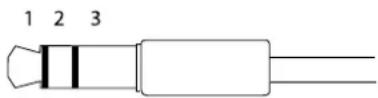
| 1Tip2Ring | 3Sleeve | ||
| AudioInput | Ground | ||
| AudioOutput | Lineout,mono(stereoconnector compatible) | Lineout,mono(stereoconnector compatible) | Ground |
I/Oconnector
Use with external devices in combination with, example, tampering alarms, motion detection, event triggering, and alarm notifications. In addition to the OVD C reference point and power (DC output), the O connector provides the interfaceto:
DigitabutputForconnectingexternaldevicesuchaselaysandLEDsConnecteddevicesbanactivatedbythe VAPIX®ApplicationProgrammingInterface,outputbuttonsontheLiveViewpageorbyanActionRule.Theoutputwill showactiv(showrundeSystemOptionsPortsDevices)thealarmdevicestivated.
DigitalInputForconnectingdevices that tag holds between proper and closed circuit for example PIRsdoor/window contacts, glassbreakdetectors, etc. When a signal is received the state changes and the input becomes active (shown under SystemOptions >Ports & Devices).
4-pinterminalblock
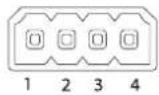
| FunctionPinNotes | Specifications | ||
| 0VDC(-) | 1 | DCground0VDC | |
| DCoutput | 2 | Canbeusedtopowerauxiliaryequipment.Note:Thispincanonlybeusedaspowerout. | 12VDCMaxload=50mA |
| (InputorOutput) | 3-4 | Digitalinput-Connecttopin1toactivate,orleavefloating(unconnected)todeactivate. | Otomax30VDC Configurable |
| Digitaloutput-Connectedtopin1whenactivated,floating(unconnected)whendeactivated.Ifusedwithaninductiveload,e.g.arelay,adiodemustbeconnectedinparallelwiththeload,forprotectionagainstvoltagetransients. | Otomax30VDC,opendrain,100mA |
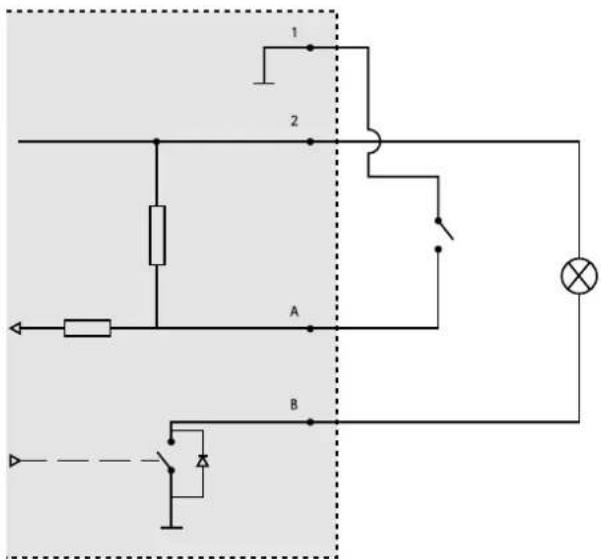
1 OVDC(-)
2 DCoutput12V,max50mA
A I/Oconfiguredasinput
B I/Oconfiguredasoutput
Powerconnector
2-pinterminalblockforDCpowerinput.UseaSafetyExtraLowVoltage(SELV)compliant limitepoweresource(LPS)witheitherratedoutputpowerlimitedo≤100Varatedoutputcurrentlimitedto≤5A.
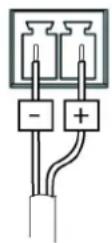
RS485/RS422connector
TwoterminalblocksforRS485/RS422serialinterfaceusedtocontrolauxiliaryequipmentsuchaspan-tiltdevices.
The serial port can be configured to support:
- Two-wireRS485halfduplex
- Four-wireRS485fullduplex
- Two-wireRS422simplex
- Four-wireRS422fullduplexpointtopointcommunication
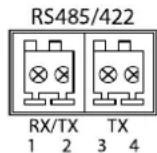
| FunctionPinNotes | ||
| RS485BaltRS485/422RX(B) | 1 | RXpairforallmodes(combinedRX/TXfor2-wireRS485) |
| RS485AaltRS485/422RX(A) | 2 | |
| RS485/RS422TX(B) | 3 | TXpairforRS422and4-wireRS485 |
| RS485/RS422TX(A) | 4 |
Important
Therecommendedmaximumcablelengthis30m(98.4ft).
Buttons
ControlButton
Forlocationofthecontrolbutton,seeHardwareoverviewonpage7.
Thecontrolbuttonisusedfor:
- EnablingtheFocusAssistant.PressandveryquicklyreleasetheControlbutton.
- Resetting the product to factory default settings. See page 68.
ConnectingarAXISidedHostingSystemsServiceSepage59connectpressandholdhouttorfoabou8secondsuntiltheStatusLEDflashesgreen.
ConnectingoAXISnterneDynamidDNServiceSeepage59toconnectpressandholdhbuttonfoaboutSeconds.
PerformanceConsiderations
Whensettingupyour system, it is important to consider how various settings and situations will affect performance. Some factors affect the amount of bandwidth (the bitrate) required, others can affect the framerate, and some affect both. If the load on the CPU reaches its maximum, this will also affect the framerate.
The following factors are among them most important to consider:
- Highimageresolutionand/orlowercompressionlevelsresultinimagescontainingmoredata.Bandwidthaffected.
- AccessbylargenumbersofMotionJPEGand/orunicastH.264clients.Bandwidthaffected.
- Simultaneousviewingofdifferentstreams(resolution, compression)bydifferentclients.Effectonframerateand bandwidth.
- AccessingMotionJPEGandH.264videostreamssimultaneously.Framerateandbandwidthaffected.
- Heavyusageofeventsettingsaffecttheproduct'sCPUload.Framerateaffected.
- UsingHTTPSmayreduceframerate, inparticularifstreamingMotionJPEG.
- Heavynetworkutilizationduetopoorinfrastructure.Bandwidthaffected.
- Viewingonpoorlyperformingclientcomputerslowersperceivedperformance.Framerateaffected.
- RunningmultipleAXISCameraApplicationPlatform(ACAP)applicationssimultaneouslymayaffecttheframerateand thegeneralperformance.
- AboutthisDocument
- Legalconsiderations
- Liability
- Intellectualpropertyrights
- Equipmentmodifications
- Trademarkacknowledgments
- Regulatoryinformation
- Electromagnetic Compatibility(EMC)
- USA
- Canada
- Europe
- Australia/NewZealand
- Japan
- Korea
- Safety
- Battery
- WARNING
- Disposalandrecycling
- China
- Contactinformation
- Support
- Warrantyinformation
- Learnmore!
- Safetyinformation
- Hazardlevels
- DANGER
- ⚠ WARNING
- CAUTION
- NOTICE
- Othermessagelevels
- Important
- Note
- TableofContents
- Hardwareoverview
- Howtoreplacethelens
- Howtoaccesstheproduct
- AccessfromaBrowser
- AccessfromtheInternet
- SettheRootPassword
- SetPowerLineFrequency
- PTZMode
- ConfigureCaptureMode
- TheLiveViewPage
- ControlsontheLiveViewPage
- ManualTrigger
- AXISMediaControlviewertoolbar
- AMCAudioControls
- MediaStreams
- HowtoStreamH.264
- MJPEG
- AXISMediaControl(AMC)
- AlternativeMethodsofAccessingtheVideoStream
- AccessAudioStreams
- SetUptheProduct
- BasicSetup
- Aboutfocus
- Basic
- Advanced
- Howtoadjustfocusandzoom
- HowtoadjustfocuswiththeFocusAssistant
- VideoandAudio
- SetUpVideoStreams
- PixelCounter
- Image
- AboutH.264
- AboutGOPlength
- AboutH.264profiles
- Aboutbitratecontrol
- Aboutvariablebitrate
- Aboutmaximumbitrate
- HowtosetanH.264profile
- Howtoincludecurrentbitrateinatextoverlay
- AboutZipstream
- Recommendeduseofbitratereduction
- HowtosavebandwidthandstorageusingZipstream
- Aboutstreamprofiles
- AboutONVIFmediaprofiles
- CameraSettings
- CaptureMode
- ImageAppearance
- WhiteBalance
- WideDynamicRange
- ExposureSettings
- Shutter&Gain
- Irisconfiguration
- Irisadjustment
- Day/Night
- ViewArea
- Aboutoverlays
- Aboutoverlaytext
- Howtoincludeoverlaytext
- Howtoinclude overlaytext in an action rule
- Aboutoverlayimages
- Howtuploadanoverlayimage
- Howtoincludeanoverlayimage
- Aboutprivacymasks
- SetUpAudio
- AudioModes
- Audiolnput
- AudioOutput
- AudioClips
- ConfiguretheLiveViewPage
- DefaultViewerforBrowsers
- ViewerSettings
- UserDefinedLinks
- OutputButtons
- PTZ(PanTiltZoom)
- Aboutpresetpositions
- Howtoaccessthepresetpositions
- Howtoaddapresetposition
- Howtoincludethepresetpositionnameinanoverlaytext
- SettheHomePosition
- Aboutguardtours
- Howtocreateaguardtour
- Howtoeditaguardtour
- Howtodeleteaguardtour
- Controls
- InstallIPTZDriver
- ControlQueue
- Detectors
- Aboutcameratampering
- Howtoconfiguretamperingdetection
- Howtoconfigureanactionrulefortamperingalarm
- AudioDetection
- Applications
- ApplicationLicenses
- UploadApplication
- ApplicationConsiderations
- AXISVideoMotionDetection
- Considerations
- StartandStoptheApplication
- ConfigureApplication
- IncludeArea
- ExcludeArea
- VisualConfirmation
- IgnoreFilters
- SwayingObjectIgnoreFilter
- Short-LivedObjectIgnoreFilter
- Toenablethefilter:
- SmallObjectIgnoreFilter
- Using the Application in an Action Rule
- Events
- SetUpActionRules
- Triggers
- Actions
- AddRecipients
- dEventsRecipientandlicAdd.
- RecipientTypes
- SetUpEmailRecipients
- CreateSchedules
- SetUpRecurrences
- Recordings
- FindRecordings
- PlayRecording
- ExportVideoClip
- ContinuousRecording
- Languages
- SystemOptions
- Security
- Users
- ONVIF
- IPAddressFilter
- HTTPS
- IEEE802.1X
- Aboutcertificates
- Howtocreateaself-signedcertificate
- HowtocreateandinstallaCA-signedcertificate
- HowtoinstalladditionalCAcertificates
- AudioSupport
- Date&Time
- Network
- BasicTCP/IPSettings
- IPv4AddressConfiguration
- IPv6AddressConfiguration
- ARP/Ping
- AssignIPAddressUsingARP/Ping
- AXISVideoHostingSystem(AVHS)
- AXISInternetDynamicDNSService
- AdvancedTCP/IPSettings
- DNSConfiguration
- NTPConfiguration
- HostNameConfiguration
- Link-LocalIPv4Address
- HTTP
- NATtraversal(portmapping)forIPv4
- FTP
- RTSP
- SOCKS
- QoS(QualityofService)
- SNMP
- UPnPTM
- RTP/H.264
- Bonjour
- Storage
- SDCard
- MountandUnmountSDCard
- FormatSDCard
- EncryptSDCardData
- NetworkShare
- Ports&Devices
- I/OPorts
- COMPort
- PortStatus
- Maintenance
- SupportOverview
- SystemOverview
- Logs&Reports
- Scripting
- FileUpload
- PlainConfig
- Resettofactorydefaultsettings
- Troubleshooting
- ChecktheFirmware
- UpgradetheFirmware
- Symptoms, Possible Causes and Remedial Actions
- Technicalspecifications
- LEDIndicators
- StatusLEDbehaviorforfocusassistant
- SDcardslot
- Connectors
- Networkconnector
- Audioconnector
- I/Oconnector
- Powerconnector
- RS485/RS422connector
- Buttons
- ControlButton
- PerformanceConsiderations
Marke : AXIS
Modell : P1365-E Mk II
Kategorie : Sicherheitskamera